What's inside
- Key Takeaways
- Where to Buy
- Quick Picks
- How the Picks Were Chosen
- Comparison Table
- How to Choose a 5K or 8K Monitor
- Scaling, Cables and Setup: Getting Full Resolution on Day One
- Colour, HDR and Long Sessions at High Density
- First-Week Checks: Confirming the Panel You Paid For
- Common Mistakes
- Frequently Asked Questions
- Final Recommendation
As an Amazon Associate I earn from qualifying purchases. This post may contain affiliate links at no extra cost to you.
[SITE_DOMAIN] is reader-supported. When you buy through links on our site, we may earn an affiliate commission at no extra cost to you. Prices and availability change; check the Amazon listing for the current details.
Shopping for the best 5k and 8k monitors starts with an uncomfortable truth that most roundups bury: the desktop market has essentially settled on 5K as its ultra-high-resolution tier, while genuine 8K panels for a desk remain rare enough that a single broadcast production monitor carries the whole class in this guide. That is not a failure of the category. It is the shape of it. A 27-inch 5K panel packs 5120 by 2880 pixels into a size that fits a normal desk, pairs naturally with modern laptops, and renders text at the kind of density where individual pixels disappear. Stepping beyond that means either stretching the same pixel count across a much wider canvas, doubling a 4K panel side by side, or leaving the desktop world entirely for professional video hardware.
The six displays below were chosen to map that landscape honestly rather than to pretend it is symmetrical. Four are 27-inch-class 5K monitors aimed at detail work: photo editing, interface design, code, documents, and the long hours of looking at small things closely. One is a 40-inch curved 5K2K ultrawide that trades some pixel density for horizontal room. One is a 57-inch dual-4K gaming panel whose 7680-pixel width invites sloppy writers to call it 8K, which it is not, and this guide will not. And one is a 31.5-inch production monitor with a true 8K panel and the broadcast connections to feed it, included so that readers whose work genuinely needs 8K can see what the real thing looks like, costs in desk space, and demands in cabling.
Between the 5K tier and the dual-4K and 8K hardware sits a middle rung worth naming even though no pick below occupies it: the 6K class, represented by panels such as the ASUS ProArt 6K and the LG UltraFine 6K. Those displays push roughly 6144 by 3456 pixels, a density step above 5K at 32 inches, and they suit photographers and video editors who found 27 inches tight but have no use for a production monitor’s SDI inputs. They are mentioned here as orientation, covered in prose only, because the verified listings assembled for this guide centre on the six products reviewed in depth. Readers who land between rungs should treat the 6K class as a legitimate third option rather than a compromise.
Resolution figures throughout this article come only from the listing titles of the products themselves. Where a title stays silent about a specification — a colour gamut percentage, a brightness figure, a port count — the spec boxes say so plainly instead of borrowing numbers from a sibling model or a press release. That discipline matters more at this end of the market than anywhere else, because two monitors can share a headline resolution and differ in almost everything else that determines whether the purchase works out.
Key Takeaways
- Four of the six picks are true 5K panels; the Dell stretches 5K-class width across 40 curved inches, the Samsung Neo G9 57 is a dual-4K panel 7680 pixels wide rather than an 8K monitor, and only the Lilliput carries a genuine 8K panel.
- At 27 inches, 5K resolution suits macOS and Windows scaling beautifully, which is why three picks court Mac users directly and one builds its whole pitch around Mac colour and controls.
- Connection choice decides daily happiness at this tier: USB-C and Thunderbolt 4 appear on the creator-focused picks, while the production monitor speaks 12G-SDI and HDMI 2.0 instead.
- The 6K class exists between these rungs as a prose-only consideration for editors who outgrow 27 inches but do not need broadcast hardware.
Where to Buy
- Samsung ViewFinity S8 5K — Check price on Amazon
- Apple Studio Display — Check price on Amazon
- Dell UltraSharp U4025QW — Check price on Amazon
- BenQ MA270S 5K — Check price on Amazon
- Samsung Odyssey Neo G9 57 Inch — Check price on Amazon
- Lilliput Q31-8K Production Monitor — Check price on Amazon
Quick Picks
| Pick | Best for | Resolution | Display character | Check |
|---|---|---|---|---|
| Samsung ViewFinity S8 5K | 5K detail work with USB-C docking | 5K (5120×2880) | 27-inch, HDR10 | Check price on Amazon |
| Apple Studio Display | Mac desks wanting the standard-glass panel | Not stated in the listing title | Standard glass, tilt-adjustable stand | Check price on Amazon |
| Dell UltraSharp U4025QW | Wide timelines and multi-window work | 5K2K WUHD | 40-inch curved, 21:9 | Check price on Amazon |
| BenQ MA270S 5K | Mac creators wanting on-screen Mac controls | 5K 5120×2880 | 27-inch Nano Gloss, P3 gamut | Check price on Amazon |
| Samsung Odyssey Neo G9 57 Inch | Dual-4K width for simulation and racing rigs | Dual 4K UHD, 7680 wide | 57-inch 1000R curved, Quantum Mini-LED | Check price on Amazon |
| Lilliput Q31-8K Production Monitor | Broadcast and post-production 8K monitoring | 8K | 31.5-inch, 12G-SDI and HDMI 2.0 | Check price on Amazon |
How the Picks Were Chosen
The selection began with a classification exercise rather than a shopping list. Every candidate had to declare its resolution class in its own listing title, because a guide about ultra-high-resolution displays cannot afford ambiguity about the one number that defines it. Models whose titles hid the resolution behind marketing names were set aside. Models whose titles stated 5K, 5K2K, dual 4K or 8K plainly formed the pool, and from that pool the six below were picked to cover the distinct jobs this resolution tier actually performs: focused 27-inch detail work, Mac-centred creative desks, ultrawide productivity, extreme-width gaming and simulation, and professional 8K monitoring.
Within the 27-inch 5K group, differentiation came from the ecosystem each panel serves. The Samsung ViewFinity S8 leans on USB-C and its own display management software. The Apple Studio Display entry here is the standard-glass, tilt-stand configuration, the simplest version of a display deeply tied to Apple hardware. The BenQ MA270S aims at the same Mac audience from outside Apple’s catalogue, with Thunderbolt 4, daisy chaining and Mac-specific colour and control features stated right in its title. Keeping all three was deliberate: readers cross-shopping them need the contrasts drawn sharply, because the panels share a resolution and almost nothing about their daily behaviour.
The two wide panels were chosen to demonstrate the fork that appears once a desk outgrows a single 27-inch screen. Dell’s U4025QW keeps a 21:9 working shape and a curved LED panel at 40 inches, a productivity geometry. Samsung’s Neo G9 57 abandons that restraint for a 57-inch dual-4K canvas with gaming hardware throughout. Both are wide; they share almost no use case, and the reviews treat them accordingly.
Finally, the Lilliput Q31-8K was included under a strict condition: it had to be framed as what it is, a production monitor for video professionals, not dressed up as a desktop upgrade. Its presence disciplines the whole guide. Once a reader sees what a true 8K product looks like — SDI inputs, quad view, 3D-LUT support, a V-mount plate option — the difference between marketing language and panel reality becomes impossible to unsee, and the 5K picks can be judged on their genuine merits. Readers whose curiosity extends sideways into fast panels rather than dense ones can detour to our glossy gaming monitor guide, where refresh rate rather than pixel count leads the argument.

Samsung ViewFinity S8 5K
Best for: a 27-inch 5K desk where one USB-C cable should carry the picture and the laptop connection together.
Not suited for: desks needing Thunderbolt daisy chaining or a second high-speed downstream port — the title names a USB-C port, singular, and nothing beyond it.
- Size and resolution: 27 inches, 5K (5120×2880)
- Series and model: ViewFinity S8 (S80HF) Series, LS27H800EFAXZA
- HDR: HDR10
- Eye comfort: Eye Saver Mode
- Connection named in title: USB-C port
- Software: Samsung Display Manager
- Refresh rate: Not stated in the listing title — verify with the manufacturer documentation
Samsung’s ViewFinity S8 is the straightforward proposition in this group: a 27-inch panel at the full 5120 by 2880 resolution, presented as a high-resolution monitor for work rather than as a lifestyle object. The title’s own emphasis is instructive. HDR10 is there for video content that carries it, Eye Saver Mode addresses the long-session comfort problem that dominates real use of a dense panel, and the USB-C port signals that Samsung expects a laptop on the other end of the cable. Nothing in the positioning chases gamers, and nothing chases broadcast professionals. It is a detail-work screen, specced like one.
The practical consequence of 5120 by 2880 at 27 inches is text rendering that stays crisp at the scaling settings both major operating systems prefer for this class. Interface designers can hold a full canvas and its toolbars without the canvas shrinking to postage size. Photographers get a preview dense enough that sharpening decisions made on screen survive contact with a print. Writers and analysts, the unglamorous majority of 5K buyers, get documents that read like paper. Samsung’s Display Manager software, named in the title, speaks to that audience directly: window management matters more, not less, when a screen holds this many pixels, and a vendor-supplied tool for partitioning the space is a working feature rather than a garnish.
Where the S8 asks for care is in expectations about expansion. A single named USB-C port serves the one-laptop desk elegantly and the multi-device desk poorly. There is no daisy chain in the title, no KVM, no second Thunderbolt port for a drive or a second display. Desks that grow will outgrow it, and the review of the BenQ below shows what the more connected alternative looks like. Judged on its own terms, though — one computer, one cable, maximum clarity — the ViewFinity S8 is the least complicated route into true 5K in this guide.
Consider also who maintains the desk over time. A monitor bought for detail work tends to stay in service through two or three computers, and the S8’s pitch ages gracefully in that light: USB-C is the connection current laptops share, HDR10 covers the video formats a work screen is likeliest to meet, and vendor window-management software removes one third-party utility from the setup. There are no exotic inputs to strand and no gaming features inflating the proposition. Longevity at this tier is mostly about not having bought the wrong specialisation, and the S8 specialises in nothing except resolution and session comfort — which is to say, in the two things its audience uses every hour of every day.
Strengths
- Full 5120×2880 resolution at the desk-friendly 27-inch size
- USB-C port supports the single-cable laptop setup this class is bought for
- Eye Saver Mode and Samsung Display Manager address long sessions and window organisation directly
Trade-offs
- Only one high-speed connection is named, limiting multi-device desks
- No daisy chain or KVM appears in the title for dual-display growth
- Refresh rate goes unstated in the title, so motion performance must be confirmed in documentation
Read the full Samsung listing for the S80HF model code LS27H800EFAXZA before ordering, since ViewFinity names cover several resolutions; Check price on Amazon on the exact 5K configuration.
Apple Studio Display
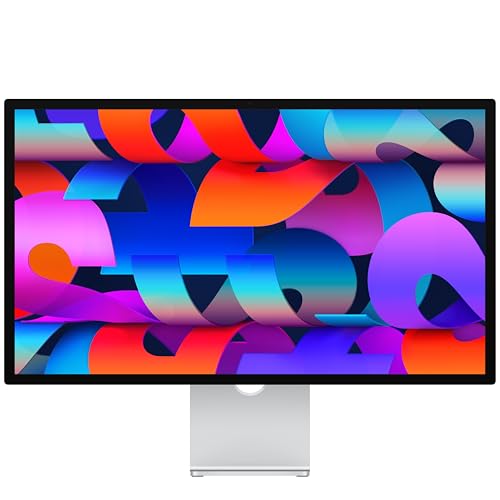
Best for: a Mac-centred desk choosing the standard-glass panel on the tilt-adjustable stand.
Not suited for: height-critical ergonomic setups — this configuration’s stand adjusts tilt, and the title promises no height travel at all.
- Configuration: Standard Glass
- Stand: Tilt-Adjustable Stand
- Resolution: Not stated in the listing title — verify with the manufacturer documentation
- Panel size: Not stated in the listing title — verify with the manufacturer documentation
The Studio Display listing in this guide is the shortest title of the six, and that brevity is itself information. Apple sells this display through configuration choices — glass type and stand type — and the listing names exactly those two decisions: standard glass, tilt-adjustable stand. Everything else about the product lives in Apple’s own documentation rather than in the marketplace title, which is why the spec box above refuses to fill its gaps from general knowledge. Readers comparing on paper should note the asymmetry honestly: rival titles recite their numbers, while this one asks the buyer to already know the product or to go and learn it from the manufacturer.
What can be said from the configuration itself is still meaningful. Standard glass is the conventional choice for controlled lighting, the typical home office or studio where windows sit behind the viewer rather than facing the screen. The tilt-adjustable stand covers the single most-used ergonomic motion, angling the panel to meet the eyes, while leaving height to be solved by desk choice, a riser, or a different configuration selected before purchase. Buying this version is therefore a small act of self-knowledge: it suits a desk whose height is already right and whose lighting is already tame, and it penalises a desk that needs the display to adapt instead.
Within a guide dominated by cross-platform hardware, the Studio Display plays a specific role. It is the reference point Mac users measure third-party 5K panels against, and its presence clarifies the BenQ and Samsung pitches, both of which exist because they offer Mac users something — deeper Mac integration features on paper, or a lower-friction cross-platform connection — in exchange for leaving Apple’s ecosystem. Whether that exchange appeals is a desk-by-desk judgement, and the comparison table below keeps the configuration facts side by side so the judgement rests on stated differences rather than reputation.
One more consideration belongs to rooms rather than specifications. Standard glass, the configuration listed here, assumes the lighting discipline most studios and home offices already practise: no bare window directly behind the seating position, no overhead spot aimed at the screen. Desks that cannot promise that discipline should resolve the glass question before purchase rather than after, because glass type is fixed at configuration time and cannot be retrofitted. The same forethought applies to the stand. Tilt covers the adjustment a correctly raised desk rarely needs beyond; a desk at the wrong height will ask for the travel this stand does not have, every day, for years.
Strengths
- Standard glass suits controlled-lighting rooms without extra coating compromises
- Tilt adjustment covers the core ergonomic motion most desks need daily
- The configuration is unambiguous — glass and stand are named exactly in the title
Trade-offs
- No height adjustment in this configuration
- The title states neither resolution nor size, forcing documentation checks before comparison
- Buyers outside the Apple ecosystem gain little from its ecosystem-first design
Because Apple sells several configurations under one product name, confirm on the listing that the glass and stand match this standard-glass, tilt-stand build when you Check price on Amazon.

Dell UltraSharp U4025QW
Best for: wide working layouts — timelines, spreadsheets and three documents abreast — on a single curved panel.
Not suited for: pixel-density purists — spreading a 5K2K pixel count across 40 inches yields a larger, airier canvas rather than the tightest text.
- Size and shape: 40-inch class, curved screen, 21:9
- Resolution class: 5K2K WUHD
- Panel technology: LED
- Line: Dell UltraSharp
- Colour gamut: Not stated in the listing title — verify with the manufacturer documentation
Dell’s U4025QW answers a different question from the 27-inch picks. Instead of asking how much detail fits in a focused window, it asks how much work fits in one glance. The 40-inch curved panel in 21:9 carries the 5K2K WUHD resolution class, which in practice means a standard 5K’s worth of width with height trimmed to ultrawide proportions. Video editors gain a timeline that breathes. Analysts can park a model, its source data and a chart in a single row. Writers comparing drafts side by side stop alt-tabbing entirely. The curve, gentle at this size, exists to keep the far corners at a consistent viewing distance rather than to wrap the viewer in spectacle.
The UltraSharp line name carries its own expectations, and the title’s restraint is worth noting: Dell states class, size, shape and panel technology, then stops. No gamut percentage, no port list, no hub claims appear in the title, so this review makes none. What the geometry alone guarantees is a particular working style — one very wide canvas instead of two monitors with a bezel seam down the middle. That style has a real cost in density: the same pixel budget spread over 40 inches renders text larger and less dense than the 27-inch picks, which some eyes will read as comfort and others as waste. Neither reaction is wrong; they are different jobs.
Desk logistics deserve a sentence of their own. A 40-inch curved panel dominates a small desk, crowds a shallow one, and wants viewing distance that a narrow workstation may not give. Measure before ordering, and consider that the curve’s benefits assume a single viewer centred on the screen — shared viewing from an angle flattens the advantage. For the centred solo worker with room to spare, the U4025QW is the productivity-shaped member of this group, and the only one whose resolution serves breadth before density.
Workflow examples make the geometry concrete. A financial model can hold its inputs, calculations and output chart in one row without a single window overlap. A video edit can stretch a timeline across the centre while bins and previews occupy the wings, all at a scale where clip labels stay legible. A support or operations desk can keep a queue, a customer record and a knowledge base open simultaneously, which is the unglamorous arrangement that saves the most time across a year. In each case the gain is not beauty; it is the removal of window management from the working day, and it compounds quietly.
Readers planning a mixed desk of displays and fabrication tools might also browse our intermediate 3D printer guide for the other half of a maker’s workstation.
Strengths
- 21:9 curved canvas replaces dual-monitor seams with one continuous workspace
- 5K2K class keeps horizontal detail high across the full width
- UltraSharp positioning targets sustained professional work rather than entertainment
Trade-offs
- Lower pixel density than the 27-inch 5K picks by simple geometry
- Desk footprint and viewing-distance demands are the largest of the flat-desk picks
- Curve benefits assume one centred viewer
Dell’s model code is the safeguard here — order the U4025QW specifically, and Check price on Amazon against that code rather than the UltraSharp name alone.

BenQ MA270S 5K
Best for: Mac-based creative work with brightness and volume controlled from the Mac itself, with a second display chained behind the first on the desk.
Not suited for: Windows-first desks — nearly every headline feature in the title is engineered around Mac behaviour.
- Size and resolution: 27 inches, 5K 5120×2880
- Surface: Nano Gloss
- Ports: Dual Thunderbolt 4, 96W and 15W
- Colour: Mac Color, P3 Color Gamut
- Features: Daisy Chain, KVM, Brightness and Volume Control on Mac
- Stand: Height and Tilt Adjustment
BenQ’s MA270S carries the most informative title in this guide, and the information all points one direction: this is a 5K monitor designed from the Mac outward. Start with the connections. Dual Thunderbolt 4 ports with 96W and 15W power figures describe a main laptop feed with real charging behind it plus a second, lighter feed, and the stated daisy chain support means a second display can hang off this one instead of consuming another port on the computer. Add the KVM, and two computers can share the screen and peripherals. For a MacBook desk that also hosts a desktop machine, or a studio desk shared between shifts, that connection set is the product.
The Mac-specific layer continues in the colour and control claims. Mac Color and a P3 colour gamut frame the panel for the colour space Mac creative work lives in, while brightness and volume control from the Mac itself removes the small daily friction of reaching for monitor buttons to match a laptop’s keys. The Nano Gloss surface is the interesting gamble: gloss-style surfaces deepen perceived contrast and colour saturation in controlled light, at the known cost of reflecting that light back when the room fights back. BenQ is betting that creator desks are controlled environments, and for the audience named, that bet is reasonable.
Ergonomics close the case. Height and tilt adjustment both appear in the title, which the Studio Display configuration above cannot say, and that matters over the years-long life of a monitor bought at this tier. Taken together, the MA270S is the maximalist 27-inch option here: the most stated features, the most cabling flexibility, the most explicit colour story. Its risk is the mirror of its strength — a Windows-led desk pays for a Mac-shaped feature set it will only partly use, and the Samsung S8’s simpler pitch may fit better there.
The daisy chain deserves a worked example, because it changes what a small desk can be. A MacBook connects to the MA270S with one Thunderbolt cable that also delivers 96W of charging. A second display connects to the MA270S rather than to the laptop, so the notebook’s remaining ports stay free for storage or a capture device. Through the KVM, a second computer — a studio Mac mini, a partner’s machine — shares both screens and the attached peripherals. Three cables’ worth of daily plugging collapses into a single connection ritual, and the desk stays visually calm while doing more. That is the concrete substance behind the title’s port list.
Strengths
- Dual Thunderbolt 4 with 96W main power, daisy chain and KVM — the deepest connection set in the group
- Mac Color, P3 gamut and on-Mac brightness and volume control target Mac creators precisely
- Height and tilt adjustment both included
Trade-offs
- Feature value concentrates on Mac desks; other platforms use a subset
- Nano Gloss surface reflects uncontrolled room light more than matte finishes
- Two Thunderbolt feeds still will not serve a desk built around legacy video inputs
Studio desks running a MacBook plus a second machine get the most from this one; verify the dual-Thunderbolt layout matches your cabling plan, then Check price on Amazon.

Samsung Odyssey Neo G9 57 Inch
Best for: simulation, racing and flight rigs that want two 4K screens’ worth of width with no centre bezel.
Not suited for: detail-work desks shopping for an 8K monitor — this is a dual-4K panel, 7680 pixels across, and no arrangement of those pixels makes it an 8K display.
- Size and shape: 57 inches, 1000R curved
- Panel arrangement: Dual 4K UHD
- Refresh and response: 240Hz, 1ms with DisplayPort 2.1
- Backlight and HDR: Quantum Mini-LED, DisplayHDR 1000
- Sync: AMD FreeSync Premium Pro
- Model: G95NC, LS57CG952NNXZA
Precision about this product is the entire point of its inclusion. The Neo G9 57 arranges two 4K UHD panels’ worth of pixels — 7680 across by 2160 down — into one 57-inch curved screen. That horizontal figure tempts the label 8K, and the label would be wrong: an 8K picture carries roughly four times a 4K picture’s pixels, while this panel carries two times, stretched wide rather than stacked. Samsung’s own title says Dual 4K, and Dual 4K is the honest description. What the arrangement delivers is not more detail per inch but more world per glance, which for a racing cockpit or a flight simulator is the more valuable currency.
The gaming hardware behind the glass is stated plainly. A 240Hz refresh rate with a 1ms response figure and DisplayPort 2.1 names the connection needed to feed it, Quantum Mini-LED backlighting with DisplayHDR 1000 covers the contrast and HDR side, and AMD FreeSync Premium Pro handles adaptive sync. The 1000R curve at 57 inches is aggressive geometry, wrapping the periphery of vision in a way that suits a single seated player centred in the arc. Every one of those traits serves immersion first and spreadsheets a distant second.
Desk reality intrudes quickly. Fifty-seven curved inches demand a deep desk, a strong mount or stand footprint, and a graphics card with the output and the muscle to drive 7680 by 2160 at high refresh — a pairing buyers should cost together rather than sequentially. Productivity users seduced by the width should note that text density equals a 4K panel’s, not a 5K’s, so the detail-work crowd belongs with the 27-inch picks above. As a gaming and simulation instrument, though, nothing else in this guide occupies its territory, and judged in that territory it is complete.
The width also rewrites genres that never market themselves as simulation. Strategy and management titles gain a map that shows the whole theatre at once. Racing games place mirrors and apexes in genuine peripheral vision, where they belong. Even ordinary desktop use changes character: two full 4K workspaces sit side by side with no bezel, so a stream, a chat and a game can share one surface during a session. The counterweight is that every one of those pleasures is rendered at a pixel count modern graphics cards feel, and the 240Hz figure in the title is a ceiling that demanding titles will approach only with serious hardware and adjusted settings. Buy the panel and the card as one system, or expect the screen to outrun its engine.
Strengths
- Dual-4K width removes the centre bezel from multi-screen simulation setups
- 240Hz, DisplayPort 2.1 and FreeSync Premium Pro form a coherent high-refresh chain
- Quantum Mini-LED with DisplayHDR 1000 gives the width real HDR backing
Trade-offs
- Not an 8K panel, and not a pixel-density upgrade over ordinary 4K
- Graphics hardware capable of feeding it is a second major purchase
- The 1000R curve and 57-inch span overwhelm ordinary desks
Rig builders should price the graphics card alongside the screen; once the pairing makes sense, Check price on Amazon for the G95NC under its full model code.
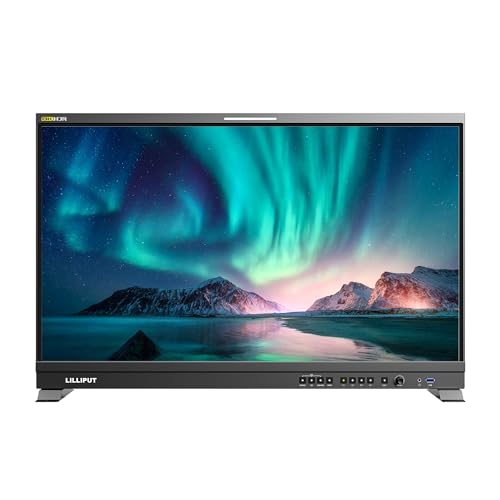
Lilliput Q31-8K Production Monitor
Best for: broadcast and post-production monitoring where a true 8K panel must accept 12G-SDI and sit inside a professional signal chain.
Not suited for: ordinary computer desks — nothing in this product’s input set, feature list or mounting options is designed around a PC or a laptop.
- Size and resolution: 31.5 inches, 8K
- Inputs: 12G-SDI, 12G-SFP, HDMI 2.0
- Monitoring features: Quad View, 3D-LUT, HDR, Gammas
- Configuration listed: Q31-8K-VBP, with V Mount Plate
- Desktop connectivity (USB-C, Thunderbolt, DisplayPort): Not stated in the listing title — verify with the manufacturer documentation
Here is the guide’s one genuine 8K panel, and its title reads like a different industry’s shopping list — because it is. The Q31-8K is a 31.5-inch production monitor built for broadcast and post-production environments, where the screen’s job is to judge a signal, not to display a desktop. Its inputs state the audience without ambiguity: 12G-SDI and 12G-SFP are professional video transports, the kind that run from cameras and switchers through facilities, and HDMI 2.0 is present as the concession to more conventional sources. A desk whose equipment list contains no SDI has wandered into the wrong product category, however impressive the resolution figure looks.
The monitoring features deepen that reading. Quad View exists so several sources can be watched on one screen during a production. 3D-LUT support lets the monitor preview how footage will look under a chosen colour transform, which is a colourist’s and a director’s tool, not a convenience feature. HDR and gamma options serve the same judging function across the formats professional pipelines carry. Even the listed configuration’s V Mount Plate tells a story: this monitor can run in a battery-powered field setup, far from any desk. Each feature is coherent, and their coherence points at working video professionals exclusively.
Why include it in a buying guide most readers will not buy from? Because it anchors the resolution conversation in fact. When a reader has seen what an actual 8K product is — the connections it needs, the workflows it serves, the ecosystem it assumes — the rest of the market’s language becomes legible. Desktop 8K, as a mainstream product class, does not yet exist in the way desktop 5K plainly does. Professionals who truly need 8K monitoring already know the SDI world this monitor lives in; everyone else is better served by the density of a good 5K panel and the honesty of calling the Neo G9 dual 4K. Compact-desk readers working in small rooms may find our little 3D printer roundup a more relevant small-footprint detour.
Its working day clarifies the design further. On a set or in a grading suite, the Q31-8K sits downstream of cameras and playback systems and answers one question continuously: what does the signal actually look like? Quad View lets a director watch several angles without a separate multiviewer. The 3D-LUT support lets the team preview a creative grade on location instead of discovering it in post. Gamma and HDR handling let the same screen judge material destined for different delivery formats. None of these tasks involves a mouse, a desktop or a document, and the monitor’s value collapses without them — which is the clearest possible sign that it is a professional instrument honestly labelled, rather than a consumer product dressed in professional vocabulary.
Strengths
- The only true 8K panel in the guide, at a 31.5-inch production size
- 12G-SDI and 12G-SFP inputs fit professional broadcast signal chains directly
- Quad View and 3D-LUT support serve real monitoring and colour-preview work
Trade-offs
- No desktop-oriented connectivity is stated in the title
- Feature set assumes a professional video pipeline most desks do not have
- V-mount field configuration underlines that mobility, not desk comfort, shapes the design
Production buyers will recognise their signal chain in the input list; confirm the VBP configuration matches your mounting plan, then Check price on Amazon.
Comparison Table
| Pick | Resolution class | Size and shape | Defining trait |
|---|---|---|---|
| Samsung ViewFinity S8 5K | 5K (5120×2880) | 27-inch flat | USB-C and Eye Saver Mode for long work sessions |
| Apple Studio Display | Not stated in the listing title | Not stated in the listing title | Standard glass on a tilt-adjustable stand |
| Dell UltraSharp U4025QW | 5K2K WUHD | 40-inch curved, 21:9 | Productivity width in a single panel |
| BenQ MA270S 5K | 5K 5120×2880 | 27-inch flat, Nano Gloss | Dual Thunderbolt 4, daisy chain, KVM, Mac controls |
| Samsung Odyssey Neo G9 57 Inch | Dual 4K UHD (7680 wide) | 57-inch, 1000R curved | 240Hz Quantum Mini-LED gaming canvas |
| Lilliput Q31-8K Production Monitor | 8K | 31.5-inch production | 12G-SDI, Quad View and 3D-LUT monitoring |
How to Choose a 5K or 8K Monitor
What job is the extra resolution actually doing?
Begin with the work, because resolution serves it or it serves nothing. Dense text, interface design, photo detail and code all spend their hours inside a focused window, and they reward pixels per inch — the 27-inch 5K formula. Timelines, trading layouts, audio sessions and wide spreadsheets reward horizontal extent, and they point at the ultrawide and dual-4K shapes even at lower density. Signal monitoring rewards neither directly; it rewards input compatibility and colour tooling. Naming the job first collapses a confusing market into two or three real candidates, which is why the reviews above keep returning to it.
Does 5K, 5K2K, dual 4K or 8K describe this panel — and which one, exactly?
Learn the vocabulary before spending money on it. 5K means 5120 by 2880, about fourteen and three-quarter million pixels. 5K2K keeps the 5120 width and trims height to 2160 for a 21:9 shape. Dual 4K arranges 7680 by 2160, two 4K pictures side by side. 8K proper means 7680 by 4320, four 4K pictures in a grid, roughly thirty-three million pixels. Sellers occasionally let width figures blur these categories together. The defence is arithmetic: multiply the two numbers in the stated resolution and compare the product against the class you intended to buy. If a listing will not state both numbers, treat that silence as an answer.
Which computer and cable will feed it?
Ultra-high-resolution panels expose weak links in a setup. A laptop driving 5K over USB-C or Thunderbolt behaves differently from a desktop driving dual 4K over DisplayPort 2.1, and both differ from a switcher feeding 12G-SDI. Inventory your machine’s outputs before choosing the panel, confirm the cable in the box or budget for the right one, and check whether the monitor’s stated ports match the chain — the BenQ’s dual Thunderbolt 4 and the Lilliput’s SDI inputs describe desks that share almost no hardware. Graphics hardware matters most at the extremes: the Neo G9’s 240Hz at dual-4K width is a serious rendering load that older cards will not sustain.
How much desk, and what light, does the room really have?
Measure the desk’s depth and the distance from wall to chair, then compare against the panel’s diagonal and curve. A 57-inch 1000R screen on a shallow desk puts the centre too close and the edges closer still. Lighting deserves the same honesty: gloss and standard-glass surfaces reward controlled rooms and punish window-facing setups, while eye-comfort modes like the Samsung S8’s Eye Saver address session length rather than reflections. The room is part of the specification whether the listing mentions it or not.
Should the stand adjust, or should the desk?
Ergonomics at this tier is a configuration decision made once and lived with daily. Height and tilt adjustment, both stated in the BenQ’s title, let the panel meet the worker. A tilt-only stand, as in the Studio Display configuration here, asks the desk and chair to do the meeting instead. Neither approach is wrong, but they must be chosen knowingly: measure your seated eye height against your desk height, decide which side of the pairing will adapt, and buy the configuration that matches the decision. A monitor arm is the escape hatch for either route, though it should be a planned part of the setup rather than a rescue purchase.
Scaling, Cables and Setup: Getting Full Resolution on Day One
The most common disappointment in this class is a beautiful panel running below its native resolution because one link in the chain quietly capped it. Work through the chain in order. The computer’s port must support the panel’s resolution at its refresh rate; adapters inherited from older setups are the usual culprit when it cannot. The cable must be rated for the same job — a bargain cable that handshakes at a lower mode produces a picture that looks merely soft rather than obviously wrong, and owners sometimes live with that softness for months. Set the operating system’s scaling deliberately once the native signal is confirmed: 5K panels exist precisely so that scaled interfaces stay sharp, and leaving a default meant for a smaller screen wastes the purchase.
Multi-monitor arrangements add one more decision. Daisy chaining, where the BenQ supports it, keeps a laptop’s ports free but makes the first monitor a link in the chain — its settings and its power state now matter to the second screen. Separate cables cost ports and buy independence. Neither is superior in the abstract; studios that hot-swap machines through a KVM will choose differently from a single-laptop desk, and the right answer follows the swapping pattern of the room. Production setups invert the problem entirely: the monitor must match the facility’s signal standard, and the Q31-8K’s 12G-SDI exists because a single cable carrying 8K at production frame rates is a solved problem in broadcast and an exotic one everywhere else.
Finally, calibrate expectations about content. An 8K or 5K panel displays what it is fed. Desktop work scales gracefully because the operating system renders text and interface at the panel’s density, but video content at lower resolutions is upscaled, and no upscaling invents detail. Buy the panel for the work you generate — documents, designs, photographs, code, signals — and treat video sharpness as a bonus rather than the reason.
Colour, HDR and Long Sessions at High Density
Resolution dominates the conversation at this tier, yet the hours spent in front of the panel are governed by three quieter properties. Colour behaviour comes first for the creative audience. The BenQ’s title states a P3 gamut and a Mac Color mode; the other titles largely leave gamut unstated, and the correct response to that silence is not suspicion but verification — a photographer whose income depends on colour should confirm gamut and calibration behaviour in manufacturer documentation for whichever panel leads their shortlist, because a wrong assumption here cannot be fixed with settings later.
HDR splits the group by purpose. The Samsung S8 lists HDR10, the Neo G9 lists DisplayHDR 1000 over a Quantum Mini-LED backlight, and the Lilliput lists HDR among its monitoring tools. These are not three versions of one claim. On the work panel, HDR support means HDR content displays as intended when it appears. On the gaming panel, the brighter HDR tier plus local dimming hardware makes HDR a headline experience. On the production monitor, HDR handling is a judging instrument for material headed to HDR delivery. Reading each claim inside its own context prevents the common error of ranking them on a single ladder.
Comfort, finally, is the property that decides whether a dense panel gets used at full density. Eye Saver Mode on the S8 acknowledges that 5K buyers skew toward long document and design sessions. Scaling choices matter as much as any mode: run the panel at a scaling that keeps text at a comfortable physical size, because density spent on tiny text is density wasted, and eye strain accumulates invisibly until it presents as end-of-day fatigue. The panel, the scaling, the lighting and the session length form one system; optimise them together.
First-Week Checks: Confirming the Panel You Paid For
Unbox with a checklist rather than an impression. First, open the operating system’s display settings and read the reported resolution back: it should match the class you bought, at the refresh rate the setup supports. If the figure falls short, change one link at a time — port, then cable, then adapter — until the native mode appears, because the panel is almost never the limiting factor. Second, display a page of small text at your working scaling and read it from your chair, not from six inches away; density that only impresses at inspection distance is not serving the job.
Third, run your own dominant application for a full session before judging comfort. Editors should open their largest project and confirm the canvas and palettes coexist. Analysts should load the widest sheet they own. Simulation players should verify the graphics card sustains playable rates at the panel’s full width, and adjust the pairing’s budget while returns are still painless if it cannot. Fourth, for the wide and curved panels, sit in your actual chair at your actual distance and check the far corners for the distortion or dimming that only appears from the real seat. A week of these checks, done deliberately, converts a specification sheet into a confirmed tool — and it is far cheaper than discovering a mismatch in month three.
Common Mistakes
Calling the Neo G9 an 8K monitor. Its own title says Dual 4K. The panel is 7680 pixels wide and 2160 tall, half the pixel count of true 8K, and anyone purchasing it expecting 8K density in documents will find ordinary 4K density instead — excellent for games, unremarkable for fine text.
Comparing headline resolutions without multiplying them out. 5K, 5K2K and dual 4K all contain the syllable that sells, yet they describe three different pixel budgets and three different working shapes. Thirty seconds of arithmetic prevents the most expensive misunderstanding in this category.
Ignoring the stand configuration until the box is open. The Studio Display listing in this guide is tilt-only. Discovering that a desk needs height adjustment after delivery converts a configuration choice into a furniture purchase, so settle ergonomics while the choice is still free.
Feeding a flagship panel through a legacy cable or adapter. The picture still appears, which is what makes the mistake durable. Verify the full chain runs at native resolution and full refresh before judging the panel’s sharpness.
Buying broadcast hardware for a desktop job. SDI inputs and V-mount plates solve production problems. On a computer desk they solve nothing, and the desktop features the same money buys elsewhere — docking, daisy chaining, ergonomic stands — go unbought.
Frequently Asked Questions
Is the Samsung Neo G9 57 an 8K monitor?
No. Its title describes it as Dual 4K UHD, and the geometry agrees: two 4K panels’ worth of pixels arranged side by side, 7680 by 2160. True 8K doubles the height as well, reaching 7680 by 4320. The G9 is an extreme-width gaming display, and it is excellent at being that; it simply is not the other thing.
What sits between 5K and 8K for desktop work?
The 6K class, represented by panels such as the ASUS ProArt 6K and the LG UltraFine 6K, at roughly 6144 by 3456. It serves editors who want more density than 5K at a larger size, typically 32 inches, without entering production-monitor territory. This guide covers the class in prose as a middle rung; the six reviewed picks concentrate on 5K, dual 4K and the one true 8K production panel.
Why does the Lilliput use SDI instead of USB-C or DisplayPort?
Because its workplace is a broadcast or post-production facility, where cameras, switchers and recorders move video over SDI as the standard transport. The 12G-SDI input carries high-resolution signals over a single professional cable run, and the 12G-SFP option serves fibre-based installs. A desktop monitor’s port selection would be useless in that environment, just as SDI is on a desk.
Does a 5K monitor need a special computer?
It needs a computer whose video output supports 5120 by 2880, which most current laptops and desktops with USB-C, Thunderbolt or modern DisplayPort outputs do. The trap is rarely the computer itself; it is the adapter or cable between the computer and the panel quietly limiting the signal. Confirm native resolution in the display settings after setup.
Which of these suits a Mac laptop desk best?
Two picks court that desk directly. The BenQ MA270S builds its title around Mac colour, Mac brightness and volume control, Thunderbolt 4 and daisy chaining. The Studio Display configuration here is Apple’s own standard-glass, tilt-stand model. The Samsung ViewFinity S8 serves a Mac adequately through USB-C while aiming at the broader laptop market. The deciding factors are the connection depth and stand adjustment each desk needs.
Should a second 5K monitor come before a single wider one?
It depends on where your eyes spend the day. Two 27-inch 5K panels — especially chained through a monitor like the BenQ with daisy chain support — give two dense, independent workspaces and a natural boundary between tasks. One wide panel gives a single continuous canvas that suits timelines and multi-window layouts. Writers and designers usually prefer the pair; editors and analysts usually prefer the canvas. Desk width and the computer’s available ports settle close calls.
How long should a monitor at this tier last?
Resolution ages slowly, which is the economic argument for this entire category: a 5K panel bought today will still out-resolve the content and interfaces of years from now. The parts that date a monitor are its connections and its stand, not its pixel count. That is another reason the reviews above weight ports and ergonomics heavily — USB-C and Thunderbolt 4 will serve several generations of computers, while an exotic or minimal connection set strands a fine panel early.
Does a glossy or Nano Gloss surface change the 5K decision?
Only through your room. The BenQ’s Nano Gloss surface deepens perceived contrast and colour richness where light is controlled, which describes most dedicated studios. A bright room with windows facing the screen argues for a more forgiving finish instead. The panel’s resolution, ports and colour behaviour stay identical either way, so treat surface as a room-matching exercise: photograph your desk at your working hours, look at where the reflections would land, and let that evidence rank the surface question for you.
Final Recommendation
Most readers shopping this category should buy a 27-inch 5K panel and stop there: the BenQ MA270S for Mac desks that will grow a second display or a second computer, the Samsung ViewFinity S8 for the single-cable desk that values simplicity, and the Studio Display configuration for Apple-centred rooms whose height and lighting are already right. Choose the Dell U4025QW when the work is wide rather than dense, the Neo G9 57 when the width serves a cockpit rather than a document — under its correct dual-4K name — and the Lilliput Q31-8K only when a professional signal chain is waiting for it. Buy the resolution your work generates, stated in numbers you have multiplied out yourself, and the panel will still feel like the right decision years from now.