What's inside
- Key Takeaways
- Where to buy
- Quick Picks
- How the picks were chosen
- Side-by-side comparison
- How to choose a laptop for Premiere Pro 4K
- Thermal truth: sustained loads and the shape of the chassis
- Setting up a 4K editing seat that stays fast
- Multi-cam and long-form: where the tiers honestly separate
- The unglamorous half: audio, scopes and delivery
- The desk around the laptop: drives, docks and second screens
- Codecs, decoded: the variable no laptop can fully buy away
- Common mistakes
- Frequently asked questions
- Final recommendation
As an Amazon Associate I earn from qualifying purchases. This post may contain affiliate links at no extra cost to you.
[SITE_DOMAIN] is reader-supported. When you buy through links on our site, we may earn an affiliate commission at no extra cost to you. Prices and availability change; check the Amazon listing for the current details.
A 4K timeline is a negotiation between ambition and patience, and the best laptops for premiere pro 4k are the ones that end the negotiation in the editor’s favour — scrubbing that stays fluid under the playhead, effects that preview without a render queue, exports that finish while the client is still on the call. This guide’s six machines approach that ideal from strikingly different chassis and at strikingly different prices of admission: a flagship ASUS ProArt carrying an RTX 5090, Apple’s MacBook Pro 16 on M5 Pro silicon in Space Black, a Samsung Ultra flagship with an RTX 5070, a convertible Samsung with a 3K AMOLED screen for the review room, a compact ProArt 2-in-1 with 64GB of memory, and — included with its framing stated honestly — an ASUS ROG Strix gaming laptop that editors have adopted in large numbers for its hardware value.
The axes of judgement here are the ones 4K editing actually turns on, in the order a timeline feels them. GPU acceleration first, because Premiere Pro leans on the graphics card for playback effects, colour and export encoding. Memory second, because 4K timelines with nested sequences, dynamic links and companion applications open are hungry in a way 1080p work never was. Storage third, because media at 4K bitrates punishes slow or small drives without mercy. And the display throughout, because an editor judges colour and sharpness on the panel in front of them, at the moment the decision is made. Model specifics come only from listing titles, quoted exactly; the behaviour discussion stays in the general, claim-safe terms that honest buying advice requires.
One framing note belongs up front, in the open, before any specification is quoted: the ROG Strix G16 below is a gaming laptop. It is not dressed up as a creator model anywhere in this guide, because it is not one — it is a gaming chassis whose processor, RTX graphics and cooling editors have learned to value over several hardware generations, included because real edit suites contain them and because its specification answers the 4K question at its tier. Every other pick in the six is a creator or professional machine by design, built and badged for exactly this work.
Key Takeaways
- The ProArt P16 with RTX 5090, 64GB of memory and 4TB of storage is the specification ceiling — a reseller-configured flagship, flagged in its review.
- The MacBook Pro 16 counters on platform: M5 Pro with an 18-core CPU and 20-core GPU, 48GB of unified memory and a PROLED XDR display.
- The Galaxy Book6 Ultra is the slim flagship route to RTX 5070 power, with a Dynamic AMOLED 2X screen and a stated two-year warranty.
- The ROG Strix G16 is a gaming chassis included for its editing hardware — RTX 5060, a 165Hz screen and an HX processor — and is framed as a gaming laptop throughout.
- The Galaxy Book5 Pro 360 (32GB) is the convertible option: a 3K AMOLED touch machine for editors whose work is review- and annotation-led.
- The ProArt PX13 packs 64GB and a Ryzen AI Max+ 395 into a 13.3-inch 2-in-1 — the portable editing seat with the least compromise here.
- Codec choice can matter as much as hardware: the guide’s codec section explains when even a flagship should transcode, and when a mid-tier machine will feel fast.
Where to buy
- ASUS ProArt P16 (RTX 5090) — Check price on Amazon
- Apple MacBook Pro 16 (M5 Pro) — Check price on Amazon
- ASUS ROG Strix G16 — Check price on Amazon
- Samsung Galaxy Book6 Ultra — Check price on Amazon
- Samsung Galaxy Book5 Pro 360 (32GB) — Check price on Amazon
- ASUS ProArt PX13 (Ryzen AI Max+ 395) — Check price on Amazon
Quick Picks
| Pick | Best for | Processor / GPU | Display | Check |
|---|---|---|---|---|
| ASUS ProArt P16 (RTX 5090) | Maximum 4K timeline and export performance | Ryzen AI 9 HX 370, RTX 5090 | 16-inch 4K 120Hz OLED touch | Check price on Amazon |
| Apple MacBook Pro 16 (M5 Pro) | The macOS editing platform at 16 inches | M5 Pro, 18-core CPU, 20-core GPU | 16.3-inch PROLED XDR, touch | Check price on Amazon |
| ASUS ROG Strix G16 | Gaming chassis adopted for editing value | Intel Core i7-14650HX, RTX 5060 | 16-inch FHD+ 165Hz, 3ms | Check price on Amazon |
| Samsung Galaxy Book6 Ultra | Slim flagship with RTX 5070 and AMOLED | Intel Core Ultra 7, RTX 5070 | 16-inch Dynamic AMOLED 2X | Check price on Amazon |
| Samsung Galaxy Book5 Pro 360 (32GB) | Convertible review and annotation workflows | Intel Core Ultra 7 258V | 16-inch 3K AMOLED touch | Check price on Amazon |
| ASUS ProArt PX13 (Ryzen AI Max+ 395) | Portable 4K editing in a 13.3-inch 2-in-1 | Ryzen AI Max+ 395, 126 TOPS | 13.3-inch 3K OLED touch | Check price on Amazon |
How the picks were chosen
The eligibility test was written from the timeline outward. A machine needed, stated in its own title, the three ingredients 4K Premiere work consumes: a processor of genuine multi-core substance, graphics with real acceleration credentials — discrete RTX silicon, Apple’s integrated GPU cores, or a high-integration AMD design — and memory of at least 16GB with storage of at least 1TB, because 4K media outgrows smaller drives in a single project. Screens then had to suit an editor’s judgement: OLED, AMOLED or XDR-class panels, or in the Strix’s case a fast panel whose gaming brief is declared rather than disguised.
Proxy workflows are the silent tax this guide tries to abolish. Editors create low-resolution proxy files when a machine cannot play the original media smoothly, and the workflow works — at the cost of hours of transcoding, doubled storage and a permanent low-resolution veil over judgement calls. Every pick here was chosen to make native 4K editing the default rather than the aspiration, with the honest caveat, repeated in the guide sections, that codec choice matters as much as hardware: the heaviest camera codecs will humble any laptop, and the lightest will flatter modest ones.
Two listings are configured by a reseller — both ProArt P16 variants in this guide’s wider family — and the RTX 5090 machine’s review carries that disclosure, because a configured-to-order flagship’s warranty and support path is part of its specification. Platform breadth was the final sort: Windows creator machines, one gaming chassis, one convertible and Apple’s flagship give the reader the market’s real shape. Editors choosing the camera half of a 4K kit alongside the computer will find our guide to compact cameras with a 1-inch sensor a practical companion read.
One exclusion deserves recording: no machine was admitted on a previous generation’s reputation. A laptop that cut 4K admirably three years ago may still do so, but this guide’s promise is narrower and more useful — six configurations whose present listings state the components the timeline will actually meet, verifiable by the reader in the same titles quoted in the sources file. Editing is a deadline business, and advice about it should be checkable at the speed of a purchase decision.
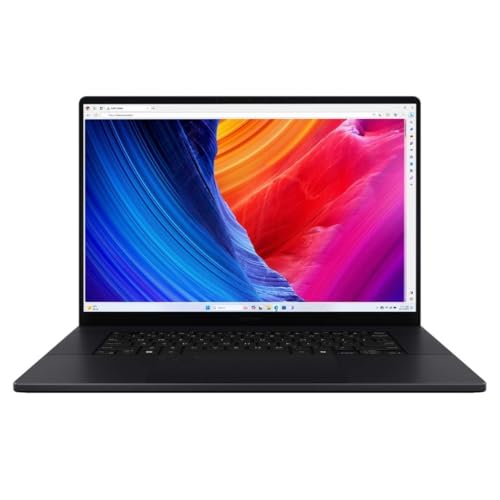
ASUS ProArt P16 (RTX 5090)
Best for: professional editors whose 4K timelines carry effects, colour and multi-cam loads, and whose exports are billable time.
Not suited for: occasional editors — this is a configured flagship whose capability, and whose reseller terms, presume production work.
- Display: 16-inch 4K 120Hz OLED touch
- Processor: AMD Ryzen AI 9 HX 370, 2.0GHz
- Graphics: NVIDIA RTX 5090
- Memory: 64GB LPDDR5X RAM
- Storage: 4TB PCIe SSD
- Operating system: Windows 11 Pro
- Configuration: assembled and sold by HIDevolution (2025 listing)
- Weight: Not stated in the listing title — verify with the manufacturer documentation
- Gamut figure: Not stated in the listing title — verify with the manufacturer documentation
Every line of this specification is the largest or fastest in the guide. The RTX 5090 is the flagship of NVIDIA’s current consumer generation, and in Premiere Pro terms that means the GPU-accelerated path — Lumetri colour, effects, scaling, export encoding — runs on the most powerful laptop graphics silicon sold. Sixty-four gigabytes of LPDDR5X memory holds a 4K timeline, its nested sequences, an After Effects composition and a browser of client feedback without triage. Four terabytes of PCIe storage — double the next machine here — keeps several productions’ media local at full speed. The 16-inch 4K OLED touch panel runs at 120Hz, so the timeline’s motion is as fluid as the machine’s performance, and colour judgement happens on a creator panel.
The disclosure, made plainly as this guide makes it wherever it applies: this listing is configured by HIDevolution, the specialist reseller, rather than sold as an ASUS factory build. The title names the seller openly. A flagship assembled to order can deliver configurations no factory catalogue lists — 4TB in this chassis is exactly such a case — and in exchange the warranty, support and component specifics run through the reseller’s terms, which the buyer should read in the full listing as carefully as the specification itself. Professionals buy this way deliberately; they should simply do so knowingly.
Who consumes this much machine? The editor cutting long-form 4K with effects stacks that preview in real time or not at all. The colourist whose second pass happens on the same box as the edit. The production company whose laptop is the suite, travelling between locations with 4TB of media aboard. For those workloads, the relevant comparison is not a cheaper laptop — it is the render queue’s cost in billed hours, and on that arithmetic flagships justify themselves.
For everyone else, this machine is the ceiling that defines the guide: the point past which more money buys no more timeline. Read the tiers below against it.
A working day on this machine has a particular texture worth describing: the timeline simply stops being a place where compromises are negotiated. Effects are auditioned at full resolution because rendering them first would take longer than playing them. Colour passes happen in the flow of the edit rather than as a separate, dreaded stage. The export at the end is a coffee, not a meeting. Productions feel that texture as schedule — a cut that can be revised an hour before delivery because nothing in the chain is slow — and it is for schedule, ultimately, that flagships like this are bought.
Strengths
- RTX 5090 graphics are the strongest acceleration available in a laptop here.
- 64GB of memory and 4TB of storage remove the two ceilings 4K work hits first.
- 4K 120Hz OLED touch gives the timeline a flagship canvas and fluid motion.
Trade-offs
- Reseller-configured: HIDevolution’s terms govern warranty and support.
- Its capability is surplus for short-form or lightly effected 4K work.
- No gamut figure is stated in the title — verify panel data with the seller for colour-critical sign-off.
Production editors buying the ceiling can check price on Amazon for the HIDevolution-configured P16 and read its terms in the listing.

Apple MacBook Pro 16 (M5 Pro)
Best for: editing on the Apple platform, combining the large XDR canvas and the M5 Pro’s media-focused silicon in one flagship machine.
Not suited for: Windows-shaped post pipelines, or editors whose plug-in and storage ecosystems are built outside Apple’s.
- Display: 16.3-inch PROLED XDR, touch (as titled)
- Processor: Apple M5 Pro, 18-core CPU, 20-core GPU
- Memory: 48GB unified memory
- Storage: 1TB
- Colour: Space Black
- Platform note: built as a platform for AI, per the title
- Operating system version detail: Not stated in the listing title — verify with the manufacturer documentation
- Port selection: Not stated in the listing title — verify with the manufacturer documentation
- Weight: Not stated in the listing title — verify with the manufacturer documentation
Apple’s flagship answers the 4K question with integration rather than specification escalation. The M5 Pro in this configuration carries an 18-core CPU and a 20-core GPU, fed by 48GB of unified memory that CPU, GPU and media engines all draw from — an architecture whose practical virtue for editors is the absence of bottlenecks between the parts of the machine a timeline uses simultaneously. Premiere Pro runs natively on this silicon, and Apple’s platform has a long-standing reputation among editors for exactly the behaviour this guide prizes: timelines that stay fluid, exports that proceed without drama, a machine that feels calm at loads that make lesser laptops audible.
The 16.3-inch PROLED XDR display is the other half of the proposition: the large-format reference screen for judging 4K work, in the size class where a timeline’s tracks, scopes and programme monitor coexist without constant rearrangement. The title describes the panel as touch-equipped; editors should confirm the exact interaction details in the full listing, since the MacBook line’s conventions differ from the Windows convertibles in this guide. Storage at 1TB is the configuration’s one modest figure — professional 4K media libraries will live partly on external drives, as they do for most editors regardless of machine.
Platform is the real decision here, as it was in the stills guide. An editor whose plug-ins, storage, collaboration and delivery habits already live in Apple’s ecosystem gains a flagship that asks no workflow questions at all. An editor embedded in Windows post-production should weigh the ProArt machines, whose discrete RTX graphics and configurable storage answer the same timeline with a different accent. Neither is the consolation prize; they are the two professional dialects of the same language.
At 16 inches with this silicon, the MacBook Pro is the guide’s recommendation for Apple-platform editors without qualification — the flagship, in full.
There is also the matter of how this machine behaves in a room with clients, which professional equipment is entitled to be judged on. It is quiet under loads that make gaming chassis announce themselves, its screen flatters the work without exaggerating it, and its battery manners let a screening happen away from a socket without theatre. Post-production is a service business conducted in rooms where confidence is currency, and the MacBook Pro’s composure is part of its professional specification in a way no benchmark records. Editors who bill for the room as much as for the cut will understand the line item immediately.
Strengths
- M5 Pro with 48GB of unified memory serves CPU, GPU and media work from one fast pool.
- 16.3-inch PROLED XDR is a reference-class canvas for 4K judgement.
- Apple’s editing platform maturity shows in calm behaviour under timeline loads.
Trade-offs
- 1TB of internal storage is modest against 4K media volumes.
- Platform commitment: Windows pipelines and plug-ins do not cross over.
- The title leaves ports and weight unstated — confirm the physical details in the full listing.
Apple-platform editors can check price on Amazon for the MacBook Pro 16 with M5 Pro in Space Black.

ASUS ROG Strix G16
Best for: editors who knowingly buy a gaming laptop for its hardware — HX processor, RTX 5060, serious cooling — and accept the gaming brief that comes with it.
Not suited for: colour-critical finishing on the internal screen, or client-facing settings where a gaming chassis sends the wrong signal.
- Display: 16-inch FHD+ 16:10, 165Hz, 3ms
- Processor: Intel Core i7-14650HX
- Graphics: NVIDIA GeForce RTX 5060
- Memory: 16GB DDR5
- Storage: 1TB Gen 4 SSD
- Wireless: Wi-Fi 7
- Operating system: Windows 11 Home
- Model: G615JMR-AS74, 2025
- Colour gamut figure: Not stated in the listing title — verify with the manufacturer documentation
The framing, once more and without varnish: the ROG Strix G16 is a gaming laptop. Its design language, its 165Hz 3ms screen brief, its ROG badge all belong to the arena. It sits in this guide because a substantial number of working editors run exactly such machines, having discovered that gaming hardware — a desktop-class HX processor, a current RTX graphics card, and cooling built for sustained loads — answers Premiere Pro’s questions at prices creator-branded machines rarely match. Judged as hardware, the case is real: the Core i7-14650HX is a many-core HX part, the RTX 5060 accelerates the GPU path, and the chassis is engineered to hold performance through a long export rather than sprint and throttle.
The editor’s caveats are equally real, and they are the reason the framing matters. The FHD+ panel is specified for speed — 165Hz, 3ms response — not for the colour judgement a 4K finishing pass deserves, and its resolution is below the 4K the timeline displays, so programme-monitor work at 100% is not this screen’s role; pair it with a proper external monitor for finishing, as many Strix-owning editors do. Sixteen gigabytes of memory is the configuration’s second ceiling: adequate for 4K cuts of moderate complexity, tight for multi-cam and effects-heavy sequences, where the 32GB and 64GB machines in this guide pull away. Windows 11 Home completes the gaming brief.
None of that disqualifies it — it locates it. As a first serious editing machine, a second render-capable seat, or the laptop of an editor who also games and refuses to buy two chassis, the Strix is a rational, widely proven choice. As a colour suite or a client-facing flagship, it is the wrong costume for the part, and this guide will not pretend otherwise.
Buy it as what it is, with a good external monitor in the plan, and the Strix G16 is the value engine of this line-up.
The Strix also teaches a useful lesson about where editing performance actually lives. Strip the badges from this guide and sort by the components a timeline touches — processor cores, RTX tier, cooling, memory, drive — and the gaming machine sits mid-pack among creator flagships costing considerably more, which is precisely why editors adopted the category. What the creator premium buys, where it is paid, is the rest of the instrument: the colour-worthy screen, the professional design, the memory ceiling, the support terms. Knowing which half of that bargain your own work needs is the most valuable judgement in this entire guide, and the Strix exists to make the question concrete.
Strengths
- HX processor and RTX 5060 deliver genuine timeline and export hardware.
- Gaming-class cooling sustains performance through long renders.
- 165Hz screen and Wi-Fi 7 keep the platform feeling current.
Trade-offs
- FHD+ panel is speed-specified; colour finishing belongs on an external monitor.
- 16GB of memory is the guide’s floor for 4K work.
- Gaming design and Windows 11 Home mark it as a consumer chassis.
Editors who accept the gaming brief knowingly can check price on Amazon for the ROG Strix G16 in the G615JMR-AS74 configuration.
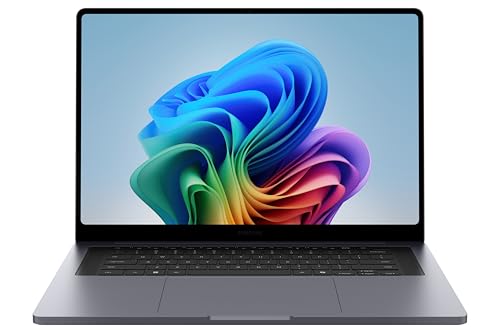
Samsung Galaxy Book6 Ultra
Best for: editing powered by RTX 5070 hardware and a flagship AMOLED screen in a slim chassis travelling easily between suites and studios.
Not suited for: the heaviest multi-cam and effects stacks — 32GB and the slim thermal brief sit a tier below the P16 flagship.
- Display: 16-inch Dynamic AMOLED 2X
- Processor: Intel Core Ultra 7
- Graphics: NVIDIA RTX 5070
- Memory: 32GB
- Storage: 1TB
- Design: slim, advanced cooling
- Warranty: 2-year warranty stated in the title
- Colour: Gray
- Resolution detail: Not stated in the listing title — verify with the manufacturer documentation
- Operating system edition: Not stated in the listing title — verify with the manufacturer documentation
Samsung’s Ultra is the slim flagship’s answer to the ProArt’s desk anchor: an RTX 5070 — the same graphics tier as the stills guide’s ceiling — inside a chassis whose title bothers to say “Slim”, paired with a Dynamic AMOLED 2X display and what Samsung calls advanced cooling, the two features a thin editing machine lives or dies by. Thirty-two gigabytes of memory and a terabyte of storage place it squarely in the professional tier: real 4K timelines, real effects loads, real exports, in a machine that still closes into a bag without negotiation.
The RTX 5070 deserves its sentence of context. In the GPU hierarchy this guide spans — 5090 at the summit, 5060 in the gaming chassis — the 5070 is the tier where 4K timeline work stops feeling like a compromise for the great majority of professional projects: GPU-accelerated effects preview fluidly, colour passes run in real time, exports proceed at production pace. Combined with the Core Ultra 7’s modern platform and the AMOLED screen’s contrast for judging shadow detail in graded footage, the Book6 Ultra is the most balanced slim specification here.
Two title details round out the picture. The stated two-year warranty is unusual candour in a listing title and worth real money to a working editor, for whom a dead machine is a missed deadline. And the silences — resolution detail and operating system edition are not printed — set the standard verification task before ordering. Within those checks, the Ultra is the machine for the editor whose suite is wherever the production is: powerful enough for the timeline, slim enough for the journey, screened well enough for the judgement.
It is also the natural Windows answer to the MacBook Pro in this guide: same slim-flagship idea, RTX graphics and AMOLED in place of unified silicon and XDR, chosen by platform and by the shape of one’s existing suite.
Samsung’s own ecosystem gives the Ultra a second, quieter argument for editors already carrying its phones and tablets: footage and stills move between devices with the maker’s tools, and the AMOLED family resemblance means a grade previewed on the phone and judged on the laptop lives in one visual culture. Ecosystem arguments should never outrank the timeline’s hardware needs, and here they do not have to — the RTX 5070 and 32GB carry the case on their own. The ecosystem is the dividend, not the investment, and it pays out every time media changes hands inside a production day.
Strengths
- RTX 5070 in a slim chassis is the guide’s best power-to-portability balance.
- Dynamic AMOLED 2X screen serves colour and shadow judgement.
- A two-year warranty is stated in the title — rare and valuable candour.
Trade-offs
- 32GB of memory trails the 48GB and 64GB flagships for extreme timelines.
- Resolution and OS edition are unstated in the title and need confirming.
- Slim cooling, however advanced, cedes sustained-load headroom to the big chassis.
Editors who travel between suites can check price on Amazon for the Galaxy Book6 Ultra in Gray.

Samsung Galaxy Book5 Pro 360 (32GB)
Best for: editors and producers whose 4K work is review-led — screening cuts, annotating, approving — with editing as the second duty.
Not suited for: effects-heavy timelines as a primary seat; the efficiency-class Core Ultra 7 258V and integrated graphics brief belong to lighter loads.
- Display: 16-inch 3K AMOLED touchscreen
- Form: 360 convertible
- Processor: Intel Core Ultra 7 258V
- Memory: 32GB
- Storage: 1TB
- Operating system: Windows 11 Pro
- Model: 2025, NP964QHA-KG2US
- Graphics model: Not stated in the listing title — verify with the manufacturer documentation
- Weight: Not stated in the listing title — verify with the manufacturer documentation
Not every seat in a production is the editor’s seat, and the Book5 Pro 360 is this guide’s machine for the others. Its 16-inch 3K AMOLED touchscreen folds through 360 degrees, which transforms the screening of a cut: tent mode on the meeting table, tablet form for a producer marking notes with a pen, the AMOLED panel’s contrast showing the grade as the grade will be seen. This 32GB, 1TB configuration doubles the memory of the standard model, and that figure matters — a review machine that also opens the timeline to fix the small things is worth considerably more than one that can only play the export.
Calibrate expectations by its processor. The Core Ultra 7 258V is Intel’s efficiency-tuned tier, chosen for battery life and cool running in a convertible chassis, and the title names no discrete graphics. In Premiere terms: cuts, trims, titles, light colour and review passes are its home ground, and it will assemble and export 4K work respectably; sustained effects stacks and multi-cam 4K belong to the RTX machines above. That is not a failing — it is the correct allocation for a machine whose primary verbs are watch, note and approve.
Windows 11 Pro suits the production-office environment, and the convertible form earns a second life in the edit suite itself: folded beside a main workstation, it is a screening and notes surface that shares the project’s files rather than a phone’s approximations. Productions are collaborative, and the 360 is the collaboration-shaped machine in a guide of solitary seats.
For the producer-editor hybrid — the person who cuts the rough assembly and then reviews the fine one — it may be the most-used machine in this entire line-up, whatever the flagships’ specifications say. Shooters speccing the capture side of the same productions should read our guide to compact cameras for low light alongside this one.
One more production role suits this machine peculiarly well: the director’s or client’s own seat on a small production, where the person approving the cut is not the person who made it. A folding AMOLED screen, a pen for notes directly on the frame’s presentation, and enough power to open the project and adjust a title or a trim on the spot collapses the review cycle from days of exported links and email threads into a single conversation. Small productions run on such conversations, and the 360 is built for them in a way no fixed laptop in this guide attempts.
Strengths
- 3K AMOLED touch in a folding chassis is the finest screening surface here.
- 32GB of memory and 1TB of storage lift it beyond a mere review device.
- Windows 11 Pro and the 2025 platform keep it production-office ready.
Trade-offs
- Efficiency-class processor and no named discrete GPU cap heavy timeline work.
- A 16-inch convertible is a substantial object to fold and carry daily.
- Graphics details are unstated in the title — verify before relying on acceleration specifics.
Producer-editors can check price on Amazon for this 32GB Book5 Pro 360 configuration.

ASUS ProArt PX13 (Ryzen AI Max+ 395)
Best for: travelling edit work demanding a genuine 4K seat in a 13.3-inch 2-in-1 — location edits, festival turnarounds, same-day cuts on the road.
Not suited for: the largest multi-cam timelines as the only machine; the compact chassis and integrated graphics design serve mobility first.
- Display: 13.3-inch 3K OLED touch
- Form: 2-in-1
- Processor: Ryzen AI Max+ 395, 16-core, 126 TOPS
- Memory: 64GB
- Storage: 2TB
- Card reader: MicroSD reader
- Wireless: WiFi 7, Bluetooth 5.4
- Operating system: Windows 11 Pro
- Platform: Copilot+ Creator Laptop
- Weight: Not stated in the listing title — verify with the manufacturer documentation
The PX13 in this configuration is the portable editor’s argument made in hardware. Its Ryzen AI Max+ 395 is a 16-core processor with a 126-TOPS AI engine and integrated graphics drawing on a remarkable 64GB of memory — flagship memory in a 13.3-inch 2-in-1 — backed by 2TB of storage and a 3K OLED touchscreen. The MicroSD reader in the title is a small line with large meaning for location work: media from the day’s cameras enters the machine without a dongle hunt, and the same-day cut begins while the shoot is still warm.
Judge its editing brief by workload shape. Single-camera 4K, documentary and event timelines, social and broadcast packages with moderate effects: the PX13’s combination of cores, memory and fast storage handles native media with the proxy-free fluidity this guide exists to identify, and its integrated graphics architecture — sharing that large memory pool — suits Premiere’s acceleration model at this scale. The boundaries are the compact chassis’s physics: sustained maximum loads in 13.3 inches will always cede something to the 16-inch flagships, and the screen, however dense and colour-capable, crowds a complex timeline’s tracks in a way the big panels do not.
The professional completeness is notable: Windows 11 Pro, WiFi 7, a backlit keyboard, the Copilot+ creator designation. Nothing about the specification reads as a travel compromise except the size itself — and the size is the point. Festival editors, wedding videographers delivering same-day edits, documentary crews cutting in the field: this is the machine shaped like their working lives, and the only one in the guide that fits the camera bag’s laptop sleeve while carrying 64GB.
Paired with a larger monitor at home, it doubles as a compact main seat for independent editors whose timelines are ambitious but not enormous — the small flagship of this guide, and a genuine one.
Its 126-TOPS AI engine deserves a forward-looking sentence, because Premiere’s feature set is moving toward exactly that silicon: transcription, captioning, scene detection and the assistive features that turn raw footage into searchable material increasingly run as local AI workloads. A machine bought for today’s timeline will be asked to run tomorrow’s assists, and the PX13’s AI figure — the largest TOPS number in this guide — is headroom purchased against that future. Small machines usually age by their weakest specification; this one’s specifications were chosen to age together, which is the most flagship-like thing about it.
Strengths
- 64GB of memory and 2TB of storage in a 13.3-inch 2-in-1 is unmatched here.
- 16-core Ryzen AI Max+ 395 with 126 TOPS powers native 4K location editing.
- MicroSD reader serves camera-media ingest without adapters.
Trade-offs
- 13.3 inches crowds complex timelines — an external monitor helps at the desk.
- Integrated graphics design cedes the heaviest effects work to the RTX flagships.
- Compact chassis limits sustained-load headroom against the 16-inch machines.
Location editors can check price on Amazon for the PX13 in this 64GB, Ryzen AI Max+ 395 configuration.
Side-by-side comparison
| Pick | Processor | Graphics | Memory / Storage | Display |
|---|---|---|---|---|
| ProArt P16 (RTX 5090) | Ryzen AI 9 HX 370 | RTX 5090 | 64GB / 4TB | 16-inch 4K 120Hz OLED touch |
| MacBook Pro 16 (M5 Pro) | M5 Pro, 18-core CPU | 20-core GPU (integrated) | 48GB / 1TB | 16.3-inch PROLED XDR |
| ROG Strix G16 | Intel i7-14650HX | RTX 5060 | 16GB / 1TB | 16-inch FHD+ 165Hz |
| Galaxy Book6 Ultra | Intel Core Ultra 7 | RTX 5070 | 32GB / 1TB | 16-inch Dynamic AMOLED 2X |
| Galaxy Book5 Pro 360 | Intel Core Ultra 7 258V | Not stated in the listing title | 32GB / 1TB | 16-inch 3K AMOLED touch |
| ProArt PX13 | Ryzen AI Max+ 395 | Not stated in the listing title | 64GB / 2TB | 13.3-inch 3K OLED touch |
How to choose a laptop for Premiere Pro 4K
How much GPU does a 4K timeline actually use?
More than a 1080p timeline ever asked for, and in more places: playback of GPU-accelerated effects, Lumetri colour, scaling and frame blending, and the export encode itself all draw on the graphics card, which is why this guide’s tiers are organised by GPU first. The RTX 5090 and 5070 machines keep effects-laden 4K timelines fluid natively; the RTX 5060 Strix handles the mainstream of 4K work; the integrated designs — Apple’s 20-core GPU, the PX13’s memory-rich Radeon — accelerate by architecture and suit timelines whose effects load is moderate. The honest variable is your own timeline’s density: a cuts-and-titles 4K edit is a light load wearing a big resolution, while a colour-graded, effect-stacked one is heavy at any resolution.
Proxies: when are they still the right answer?
When the codec, not the computer, is the problem. The most compressed long-GOP camera formats force any processor to work hard merely decoding frames, and multi-cam multiplies that labour; even flagship owners proxy those projects, or transcode to an edit-friendly intermediate, as a matter of craft rather than defeat. The machines here were chosen so that proxies become a choice made per codec instead of a sentence imposed by hardware — the difference between a workflow decision and a workaround. If your camera’s format is notoriously heavy, budget the transcode time into the production rather than buying silicon to fight a codec.
How much memory and storage should an editor carry?
Memory: 32GB is the comfortable professional tier for 4K Premiere work with companion applications open; 16GB — the Strix’s figure — is the workable floor for moderate timelines; the 48GB and 64GB flagships serve multi-cam, effects density and the After Effects round-trip. Storage: 1TB is the floor in every pick here because 4K media is measured in hundreds of gigabytes per production day, and the 2TB and 4TB machines exist for editors who keep several productions live at once. External drives extend any of them; internal speed is what the timeline feels.
Does the screen matter if the deliverable is watched elsewhere?
Yes, because judgement happens where the editor sits. Colour decisions, sharpness calls and graphics proofing are made on the panel in front of you, and the OLED, AMOLED and XDR screens in this guide exist to make those decisions trustworthy. The exception proves the rule: the Strix’s speed-specified FHD+ panel is the one screen here that should be paired with an external reference monitor for finishing — a pairing its review states openly rather than leaving to be discovered.
Thermal truth: sustained loads and the shape of the chassis
Exports and long renders are sustained loads, and sustained loads are a cooling problem wearing a specification’s clothing. This is the quiet reason the guide’s chassis shapes matter: the big ProArt and the gaming Strix carry cooling designed for minutes-to-hours at full pace; the slim Ultra trades some of that headroom for portability, with Samsung’s advanced-cooling claim noted as its mitigation; the convertibles and the 13.3-inch PX13 are burst-shaped machines whose brilliance is responsiveness rather than indefinite maximum output. None of this appears in a title’s figures, and all of it appears in the second hour of an export queue. Match the chassis to your longest regular load, not your average one, and the machine will feel fast for years rather than for the first render.
Practical corollaries follow. A laptop used on a bed, a sofa or a pile of papers is a flagship with its intakes smothered; a simple stand restores the design’s assumptions. An export queue run on battery is a machine negotiating with its own power limits; plug in for the renders that matter. And a chassis whose vents have never been cleared is a cooling system in retirement — a minute with compressed air, twice a year, is the cheapest performance maintenance in this guide. Thermals are not a mystery; they are housekeeping, and the house is yours.
Setting up a 4K editing seat that stays fast
Four setup decisions protect the performance you paid for. Keep the active project’s media on the internal drive — every machine here has the fast storage, and external drives should hold archives and backups, not the timeline’s working set. Give Premiere a memory allocation that respects the other applications you genuinely run beside it; the 64GB machines forgive sloppy settings, the 16GB Strix does not. Set the programme monitor’s playback resolution deliberately — full for colour judgement, half for effects-dense scrubbing — as a per-task choice rather than a permanent compromise. And keep the GPU drivers current through the maker’s channel, because Premiere’s acceleration paths are maintained against them. An editing seat is a system; the laptop is its largest component, not its only one. The capture side deserves the same deliberation — editors assembling a hybrid stills-and-video kit will find the guide to compact cameras with RAW support useful for the camera that feeds the timeline.
Multi-cam and long-form: where the tiers honestly separate
Short-form 4K flatters almost every machine in this guide; the tiers separate under two specific loads. Multi-cam is the first: several 4K streams decoded simultaneously, switched in real time, with audio waveforms drawn across all of them. That workload multiplies decode, memory and storage pressure together, and it is where the 48GB and 64GB flagships — the MacBook Pro and the two 64GB ASUS machines — stop being luxuries. The 32GB tier manages multi-cam of modest camera counts respectably; the 16GB Strix should be bought for it only with proxies planned as part of the workflow, which its review’s honesty already implies.
Long-form is the second separator: timelines measured in hours, nested sequences, a season’s media mounted at once. Here the virtues are memory, storage capacity and thermal stamina in combination, and the ranking of this guide inverts some first impressions — the big, unglamorous specification lines matter more than any peak figure. Editors whose living is long-form should buy from the top of this guide downward until the budget objects; editors whose living is the three-minute piece can buy from the middle with a clear conscience and spend the difference on the screen their colour judgement deserves.
The unglamorous half: audio, scopes and delivery
Timeline performance monopolises buying guides because it is easy to describe, but delivery is where productions are judged, and delivery has its own hardware sensitivities. Audio work — mixing, loudness passes, the final listen — rewards a quiet machine in a literal sense: a laptop whose fans roar through a mix is taxing the very sense the work depends on, which quietly favours the efficient platforms and the flagships loafing below their ceilings. Scopes and colour judgement reward the screen, returning the argument to this guide’s panels. And export verification — watching the delivered file, whole, at full quality — rewards the fast storage and fluid playback that native-4K machines provide as a matter of course.
None of these considerations requires a different purchase from the ones the timeline already dictated; they refine the same decision. But an editor choosing between two finalists should break the tie here, in the unglamorous half, because that is where the machine will be met on delivery day — the only day the client actually sees.
The desk around the laptop: drives, docks and second screens
An editing laptop’s working life is mostly docked life, and the desk deserves a paragraph of the budget. External storage is the first citizen: a fast SSD for the active production’s overflow and a larger, slower archive drive, so the internal disk — however generous — is spent on the current timeline rather than on history. A dock turns arrival into one cable and, on the machines with modern ports, drives the second screen that complex timelines quietly require; even the PX13, whose portability is its glory, becomes a different animal with a 27-inch monitor above it and its own 3K panel demoted to scopes and tools. Headphones you trust belong in the same budget line, for the delivery reasons the previous section describes.
None of this diminishes the laptop decision; it completes it. The editor who buys a flagship and starves its desk has purchased half a suite, and the editor who buys a mid-tier machine here and equips its desk properly often ends with the faster working life. Allocate accordingly: machine first, desk second, both deliberately.
Codecs, decoded: the variable no laptop can fully buy away
Every editing conversation eventually reaches the codec, because the same 4K resolution can arrive in formats of wildly different temperament. Intraframe codecs record every frame whole: files are large, drives fill quickly, and any competent processor plays them smoothly because each frame is simply there to be shown. Long-GOP codecs record differences between frames to save space: files are small, cameras love them, and the editing machine must reconstruct every frame by calculation — work that multiplies with each stream in a multi-cam group and with every effect applied. The machines in this guide differ in how gracefully they absorb that calculation, but none repeals it.
The buyer’s translation is practical. If your cameras record edit-friendly formats, the middle of this guide will feel fast beyond its price. If they record the heaviest long-GOP formats at high frame rates, either buy toward the flagships — whose processors and GPUs were chosen for exactly this reconstruction labour — or adopt the professional’s standard answer: transcode the rushes to an intermediate on ingest, overnight, and edit the friendly files on almost anything here. Storage is cheaper than silicon, and an intermediate workflow converts a hardware problem into a scheduling habit. The worst purchase is the mid-tier machine bought in ignorance of the codec, blamed for a burden its owner never knew they were imposing.
Common mistakes
Buying resolution in the camera and forgetting it in the laptop. A 4K workflow is a chain: capture, ingest, timeline, export. The Strix’s FHD+ screen is the honest example — a fine editing engine whose panel is not a 4K judgement surface. Audit the whole chain, including the screen you will judge on.
Assuming a gaming laptop is a creator laptop in disguise. The Strix earns its place here as hardware, with its gaming brief stated. If your work needs colour-critical panels, quiet client-facing design or creator support terms, buy the creator machines and do not ask a gaming chassis to impersonate them.
Starving a flagship of storage discipline. Even 4TB fills when every production stays live forever. Archive finished work to external storage with the project files intact, and the flagship’s speed remains the timeline’s daily experience instead of a memory.
Skipping the reseller terms on configured flagships. The P16’s HIDevolution configuration is disclosed in its title and its review because warranty and support follow the seller. On any configured-to-order machine, those terms are part of the product — read them before the render depends on them.
Frequently asked questions
Can these laptops edit 4K without proxies?
That is the brief they were chosen against: GPU acceleration, memory and storage tiers sufficient for native 4K timelines of ordinary professional density. The standing caveat is codec — the heaviest compressed camera formats can justify proxies or intermediates on any hardware, as the buying guide explains.
Why is a gaming laptop in a creator guide?
Because editors use them, in numbers, for their hardware value — and because this guide labels it a gaming laptop in its heading, its review and its verdicts rather than dressing it as a creator model. Its RTX 5060, HX processor and cooling answer the 4K question at its tier; its screen and 16GB mark its limits just as openly.
MacBook Pro or a Windows creator laptop for Premiere?
Both run Premiere natively and well. Choose by the suite around the seat: plug-ins, storage, collaboration and platform habits. The MacBook Pro 16 offers Apple’s unified architecture and XDR screen; the ProArt and Galaxy Book flagships offer discrete RTX graphics and, at the top, larger memory and storage configurations. The timeline will be well served either way; the workflow decides.
How much storage do I need for 4K projects?
Plan per production, not per machine: a single 4K production day can generate hundreds of gigabytes, so 1TB — the floor across this guide — suits editors who archive between projects, while 2TB and 4TB suit those who keep several productions live. Every pick can extend with external drives; internal capacity buys convenience and speed for the active set.
Is the convertible really an editing machine?
The Book5 Pro 360 is a review-and-assembly machine with genuine editing ability — 32GB, 1TB, a 3K AMOLED screen — whose efficiency-class processor suits cuts and light colour rather than effects stacks. Productions buy it for the screening, annotation and approval work that surrounds the edit, and it earns its place on that honest brief.
How future-proof is a 64GB machine for editing?
Memory is the specification that dates slowest and forgives most. Productions grow — resolutions, camera counts, effects density — and the 64GB flagships here were bought against that growth, with the PX13 proving the figure now fits a travel chassis. Editors planning a four-to-five-year service life should weight memory nearly as heavily as the GPU tier; editors on a two-year cycle can safely buy closer to today’s needs.
Should I wait for the next model instead of buying now?
Only if your current machine is not costing you work. Editing hardware improves incrementally while productions are lost discretely — a missed deadline is not recovered by next season’s specification. The configurations in this guide are current-generation at the time of writing, and each will serve a full professional service life; buy against the timeline you have, not the launch calendar.
Final recommendation
The Galaxy Book6 Ultra is this guide’s recommendation for the professional centre: RTX 5070 power, 32GB of memory, a flagship AMOLED screen and a stated two-year warranty in a chassis that still travels — the 4K seat for editors whose suite moves. Above it, the ProArt P16 is the ceiling for production workloads, its reseller terms read and accepted; beside it, the MacBook Pro 16 is the complete answer for Apple-platform editors. The PX13 owns location work, the Book5 Pro 360 owns the review room, and the Strix — bought knowingly as a gaming machine — owns the value tier. Choose the seat that matches your heaviest honest timeline, and 4K stops being a negotiation at all — it becomes simply the resolution your work happens to be made in, which is what it should have been from the start.