What's inside
- Key Takeaways
- Quick Picks
- How We Chose These Picks
- Comparison
- How does each Adobe application stress a laptop differently?
- Should your Adobe laptop be Mac or Windows?
- How should you build storage around an Adobe laptop?
- How do you set up an Adobe workspace that stays fast?
- What monitor and desk setup suits an Adobe laptop?
- How should freelancers budget the whole Adobe system?
- When is it time to replace an Adobe laptop?
- How do Adobe laptops handle mixed photo and video careers?
- What should students of design and film buy first?
- How do you judge colour without fooling yourself?
- Does an Adobe laptop make a good family computer too?
- How do plug-ins and peripherals change the equation?
- What separates a hobbyist Adobe laptop from a professional one?
- A buying checklist for Adobe laptops, in order
- How do you keep an Adobe laptop feeling new?
- Why do exports and previews feel different on each platform?
- What role does the keyboard play in creative work?
- How should teams share Adobe projects between machines?
- One last Adobe consideration: buy for the work you bill
- Common Mistakes
- Final Recommendation
- Frequently Asked Questions
- Related Guides
As an Amazon Associate I earn from qualifying purchases. This post may contain affiliate links at no extra cost to you.
widgetverdict.com is reader-supported. When you buy through links on our site, we may earn an affiliate commission.
The best adobe laptops are not simply fast laptops with a creative sticker, because Adobe’s applications punish different weaknesses in turn. Premiere Pro cares about timeline smoothness and export behaviour, Photoshop cares about memory for enormous layered files, After Effects cares about preview speed and cache room, and Lightroom cares about how a catalogue of thousands of photographs feels at midnight before a deadline. The four linked picks here were chosen as answers to that combined workload, not as generic performance trophies.
Two Apple machines anchor the guide. The MacBook Pro 14 with M4 Pro brings a 12-core CPU and 16-core GPU with 24GB of unified memory, while the MacBook Pro 16 with M4 Pro steps up to a 14-core CPU, a 20-core GPU and 48GB of unified memory. Against them stand two Windows machines with very different gifts: Dell’s XPS 16 with a 4K OLED touchscreen and an RTX 5060, and Lenovo’s ThinkPad P16s Gen 4, a mobile workstation with a 4K OLED touch display and 32GB of memory. Platform loyalty will sway many readers, and this guide respects that by judging each machine inside its own ecosystem honestly.
This is deliberately not a guide about 4K screens for their own sake. Screen quality enters here as an Adobe question — can you judge colour, see interface detail and trust the panel while grading or retouching — while the centre of gravity stays on application behaviour: scrubbing, rendering, exporting, cataloguing and switching between programs without the machine asking you to close something first.
Two prose-only lines, ASUS’s ProArt family and MSI’s Creator family, represent the dedicated creator-laptop category that many Adobe buyers cross-shop. Their configurations vary too much for a single verified listing, so they are mapped at line level with the checks that matter for Adobe work specifically.
Key Takeaways
- The MacBook Pro 16 M4 Pro is the memory heavyweight among linked picks, with 48GB of unified memory beside a 14-core CPU and 20-core GPU.
- The MacBook Pro 14 M4 Pro offers the same software experience in a smaller body, with a 12-core CPU, 16-core GPU and 24GB of unified memory.
- Dell’s XPS 16 is the Windows colour candidate: a 16.3-inch 4K OLED touchscreen at 120Hz, an RTX 5060 and 32GB of memory.
- Lenovo’s ThinkPad P16s Gen 4 is the workstation route, pairing a 16-inch 4K OLED touch display with 32GB of memory and 1TB of storage.
- Every linked pick ships with a 512GB or 1TB internal drive, so serious Adobe libraries will want an external storage plan from the start.
Quick Picks
| Pick | Badge | Why it earns its place |
|---|---|---|
| Apple MacBook Pro 14 (M4 Pro) | The portable Adobe all-rounder | An M4 Pro with a 12-core CPU and 16-core GPU, 24GB of unified memory and a 14.2-inch Liquid Retina XDR display in the travel-friendly MacBook size. |
| Apple MacBook Pro 16 (M4 Pro) | The memory-rich Adobe flagship | A 14-core CPU and 20-core GPU with 48GB of unified memory behind a 16.2-inch Liquid Retina XDR display — the deepest linked configuration for layered and timeline work. |
| Dell XPS 16 (4K OLED, RTX 5060) | The Windows colour and design statement | A 16.3-inch 4K OLED touchscreen at 120Hz, an Ultra 9 285H, an RTX 5060, 32GB of memory, a 1TB drive and three Thunderbolt 4 ports under Windows 11 Pro. |
| Lenovo ThinkPad P16s Gen 4 (4K OLED) | The workstation route into Adobe | A 16-inch 4K OLED touch display, a Ryzen AI 7 processor, 32GB of memory, a 1TB drive, two Thunderbolt 4 ports and ThinkPad workstation heritage under Windows 11 Pro. |
| ASUS ProArt P16 | The dedicated creator line | ASUS builds ProArt machines specifically around creator applications, with panels and controls aimed at video and photo professionals. |
| MSI Creator Z17 | The big-screen creator alternative | MSI’s Creator line transposes its gaming hardware knowledge into large-screen professional machines for video and design work. |
How We Chose These Picks
Selection began with the applications, not the badges. Each candidate had to present a credible combined case across at least three of the four anchor programs — Premiere, Photoshop, After Effects and Lightroom — because Adobe subscribers rarely live inside one application. A machine brilliant at exports but starved of memory for Photoshop, or generous with memory but paired with a screen you cannot grade on, fails the actual job these laptops are bought to do.
Memory and storage were weighted as creative specifications, not clerical ones. Layered Photoshop documents, After Effects caches and Lightroom catalogues all consume both, and the internal drive figures in these listings — 512GB on both MacBooks, 1TB on the XPS and the ThinkPad — were read as starting points for a storage system that will include external drives, not as libraries in themselves.
Claims were confined to what the listings print: core counts, memory, storage, panel resolution and type, graphics and ports named in the titles. Where a famous capability is not stated in a listing, this guide discusses it as a workflow consideration to verify rather than as a specification to bank on, and the prose-only creator lines are held to the same discipline.

Apple MacBook Pro 14 (M4 Pro) — The portable Adobe all-rounder
Fourteen inches is where Adobe work becomes portable without becoming apologetic, and this MacBook Pro is the guide’s reference for that balance. The M4 Pro’s 12-core CPU and 16-core GPU handle the daily Adobe mixture — Lightroom culling in the morning, Photoshop retouching after lunch, a Premiere timeline by evening — inside a machine that fits café tables, train trays and the smaller desks of real apartments. Creators who work in several places each week will use this laptop more than any larger rival, and used hours are the metric that decides value.
The 24GB of unified memory is the configuration’s defining judgement call. Unified memory serves the processor and graphics together, and 24GB covers serious photo work, layered documents of sane size and HD-to-4K editing timelines that are organised rather than sprawling. It is not the ceiling-free option in this guide — that is the 16-inch machine below — and buyers whose Photoshop files routinely involve dozens of high-resolution layers, or whose After Effects compositions nest deeply, should read that section carefully before letting portability decide.
The 14.2-inch Liquid Retina XDR display gives the small MacBook a grading and retouching screen worthy of its silicon, and the 512GB internal drive is the specification that demands a plan: Adobe libraries belong on fast external storage, with the internal drive holding current projects. Embrace that system and the little Pro becomes the machine most Adobe subscribers would choose if they could only own one computer, equally ready for a client edit suite and a kitchen table.
The small Pro’s working day deserves a closer look. A wedding photographer culls a card on the train home, builds a Lightroom selection at a café, retouches the highlights in Photoshop and exports a client gallery before bed — all on one charge-friendly, bag-sized machine whose screen can be trusted for the colour calls along the way. That unbroken chain is the product being sold here, and it is why so many working photographers forgive the 512GB drive and build their archive around external disks without resentment.
Students in design and film programmes should note the same virtues at a different scale. Coursework spans the whole Adobe suite in a single semester, deadlines cluster cruelly and the machine that travels between library, studio and home without drama becomes the machine the degree is actually made on. The 14-inch Pro’s balance of power and portability suits that life precisely, provided its owner learns the storage habits this guide keeps recommending.
- Display: 14.2-inch Liquid Retina XDR
- Processor and graphics: M4 Pro, 12-core CPU, 16-core GPU
- Memory: 24GB unified memory
- Storage: 512GB SSD
- Colour in listing: Space Black
- Listing note: Built for Apple Intelligence
Strengths
- Portable size with genuinely professional Adobe performance
- XDR display suits grading and retouching judgement
- Unified platform keeps the Adobe suite feeling cohesive
Trade-offs
- 24GB memory is the ceiling for very large layered work
- 512GB internal drive requires an external storage system
- Smaller screen asks for an external monitor at a main desk
Best for: photographers, travelling editors, and Adobe generalists who move daily
Not suited for: desk-bound After Effects artists with very deep compositions

Apple MacBook Pro 16 (M4 Pro) — The memory-rich Adobe flagship
Memory is the argument, and 48GB makes it forcefully. Photoshop documents built from many high-resolution layers, Lightroom catalogues worked alongside a browser of client feedback, Premiere timelines sharing the machine with After Effects compositions — unified memory is the pool all of that draws from, and this MacBook Pro doubles the smaller model’s allowance. Creators who have watched a machine hesitate while a huge document saves, or who keep three Adobe applications open as a matter of routine, will feel this specification in the first working day.
The silicon step is real alongside the memory step: a 14-core CPU and a 20-core GPU against the 14-inch model’s 12 and 16. Exports, previews and effects rendering all draw on that difference, and the 16.2-inch XDR display gives timelines and canvases the room they ask for. Editors cutting multi-camera sequences and designers spreading a layout beside its reference material gain the quiet luxury of seeing the work whole, which changes decisions as surely as raw speed does.
The compromises are the familiar flagship ones. This is a larger, heavier machine that belongs to desks and deliberate journeys, and its 512GB internal drive repeats the family pattern of demanding external storage for libraries. Buyers should therefore think of it as a studio centrepiece with travel capability, not as a commuter laptop with a big screen. Judged on that brief, it is the strongest Adobe machine in this guide, and the one professionals billing by the project should examine first.
Studio economics explain the big MacBook’s following. A retoucher billing daily rates, an editor whose exports gate a client’s launch, a motion designer previewing compositions for a producer — for these owners, waiting is the most expensive specification of all, and memory headroom that prevents hesitation pays for itself in recovered hours. Forty-eight gigabytes is not a luxury figure in that arithmetic; it is insurance purchased once against a thousand small delays.
The larger XDR canvas changes collaboration too. A client or director can stand beside the machine and judge a grade, a layout or a cut on a screen big enough to share, without the ritual of moving to a separate monitor. Studios that host reviews on the laptop itself will find the sixteen-inch machine quietly reshaping meetings, in the same way its memory reshapes solo work.
- Display: 16.2-inch Liquid Retina XDR
- Processor and graphics: M4 Pro, 14-core CPU, 20-core GPU
- Memory: 48GB unified memory
- Storage: 512GB SSD
- Colour in listing: Space Black
- Listing note: Built for Apple Intelligence
Strengths
- 48GB unified memory transforms large layered workflows
- Strongest linked Apple silicon for previews and exports
- 16.2-inch XDR canvas suits timelines and layouts alike
Trade-offs
- Size and weight make it a deliberate traveller
- 512GB drive still requires external library storage
- Flagship commitment exceeds a light Adobe user’s needs
Best for: professional editors, retouchers, and motion designers billing real projects
Not suited for: daily commuting or occasional Lightroom-only use

Dell XPS 16 (4K OLED, RTX 5060) — The Windows colour and design statement
Windows-based Adobe buyers who grade and retouch seriously should start here. The XPS 16’s 16.3-inch 4K OLED touchscreen at 120Hz gives Photoshop and Lightroom a dense, contrast-rich surface for judging colour and detail, while Premiere timelines gain both the pixel room and the smoothness that long editing sessions reward. Touch adds a directness some editors love for scrubbing and interface work, and the panel is large enough to serve as a main desk’s only screen without apology.
The specification beneath the glass is balanced for the suite. An Ultra 9 285H and an RTX 5060 give Premiere and After Effects a discrete NVIDIA GPU to draw on, 32GB of memory keeps layered documents and multiple applications comfortable, and the 1TB drive is the most generous internal allowance among the linked picks. Three Thunderbolt 4 ports invite a proper desk: fast external drives for footage, a dock for peripherals and a backup device, all hanging from a machine that also carries Windows 11 Pro for workplace deployment.
XPS ownership asks for the usual premium-laptop attentiveness: this is a design-led machine whose beauty assumes a desk, a sleeve and an owner who treats equipment well. Touchscreen fingerprints during critical colour judgement are a small, real habit to manage with a cloth and a pause before grading. For Windows loyalists, though, the combination of this OLED, this GPU and this memory depth makes the XPS 16 the most complete Adobe answer on its platform in this guide.
Dell’s machine speaks to a particular Windows creator: the one who edits video for clients, retouches campaign photographs and presents the results in rooms where the laptop itself is part of the impression made. The XPS design language, the 4K OLED and Windows 11 Pro together project a studio-grade seriousness that gaming laptops and workstations project differently. For freelancers whose equipment is also their shopfront, that projection is a business feature, not vanity.
Practically, the triple Thunderbolt 4 arrangement invites a two-life setup: undocked, a self-contained edit station for location work; docked, the centre of a desk with large external storage, a card reader permanently attached and backup drives spinning on schedule. Adobe projects move between those lives without re-plumbing, and the 1TB internal drive gives current work a comfortable home in both.
- Display: 16.3-inch 4K OLED touchscreen at 120Hz
- Processor: Intel Ultra 9 285H
- Graphics: NVIDIA GeForce RTX 5060
- Memory: 32GB
- Storage: 1TB SSD
- Extras in listing: 3x Thunderbolt 4, 1080p IR webcam, Wi-Fi 7, Windows 11 Pro
Strengths
- 4K OLED gives Windows Adobe work a reference-class canvas
- RTX 5060 serves Premiere and After Effects acceleration
- 1TB drive and triple Thunderbolt 4 suit a docked studio
Trade-offs
- Design-led build rewards careful handling
- Touch surface needs a wipe before critical colour calls
- Premium positioning matches its flagship specification
Best for: Windows editors, colour-conscious retouchers, and studio generalists
Not suited for: rough travel or buyers indifferent to screen quality
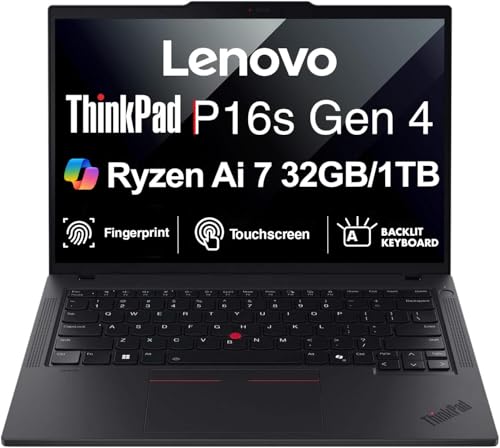
Lenovo ThinkPad P16s Gen 4 (4K OLED) — The workstation route into Adobe
Workstation buyers approach Adobe from a different direction: stability, serviceability and a machine their organisation can deploy, support and keep for years. The ThinkPad P16s Gen 4 answers that brief while still giving creators a 16-inch 4K OLED touch display to judge work on. Its presence in an Adobe guide is a reminder that many professionals do not choose a laptop personally at all — they request one through an employer — and a mobile workstation that handles the suite well is the realistic best outcome of that process.
The configuration is sensibly deep where Adobe cares. Thirty-two gigabytes of memory and a 1TB drive match the XPS’s allowances, the Ryzen AI 7 processor carries Copilot+ PC status, and two Thunderbolt 4 ports cover docking and fast storage. Graphics come from AMD’s Radeon 860M integrated solution, which frames expectations honestly: photo work, design and editing timelines are the home ground, while buyers whose After Effects or 3D-adjacent work leans heavily on a discrete GPU should weigh the XPS’s RTX 5060 carefully.
ThinkPad virtues are cumulative rather than dramatic. A keyboard built for long days, a fingerprint reader, Windows 11 Pro and a design language that survives meeting rooms and site visits all serve the professional whose Adobe work happens inside a broader job. If your creative output must coexist with engineering documents, corporate security policies and a support contract, this workstation is the guide’s grown-up answer.
Organisational life imposes tests that solo buyers never face: security reviews, standard software images, warranty handling across a fleet and a support desk that must recognise the machine. The P16s passes those tests by birth, and its Adobe competence means the creative employee is not the exception begging for special equipment. Marketing teams, in-house video producers and design staff inside large companies should read this pick as the realistic flagship of their world.
Its 4K OLED touch panel also future-proofs the request. A workstation deployed today may serve five years of Adobe updates, and a screen that creators respect now is unlikely to embarrass the organisation later. Combined with 32GB of memory and a 1TB drive, the configuration asks procurement for nothing exotic while giving the creative team everything essential — a combination that gets approved, which is its own kind of performance.
- Display: 16-inch 4K OLED touch panel
- Processor: AMD Ryzen AI 7, Copilot+ PC mobile workstation
- Graphics: AMD Radeon 860M
- Memory: 32GB
- Storage: 1TB SSD
- Extras in listing: 2x Thunderbolt 4, Wi-Fi 7, fingerprint, Windows 11 Pro
Strengths
- Workstation heritage suits organisational deployment
- 4K OLED touch gives creators a judging-quality screen
- 32GB and 1TB match the guide’s deeper configurations
Trade-offs
- Integrated graphics trail the XPS’s discrete RTX 5060
- Utilitarian design will not thrill style-led buyers
- Sixteen-inch workstation size is desk-leaning
Best for: employed professionals, studio staff, and Adobe users inside larger organisations
Not suited for: solo creators prioritising maximum GPU acceleration
ASUS ProArt P16 — The dedicated creator line
ProArt is the line Adobe buyers meet when they ask what a laptop looks like when gaming is removed from the brief entirely. ASUS aims these machines at video editors, photographers and designers, with creator-focused screens, professional styling and, in parts of the family, physical controls designed for timeline and adjustment work. For a Premiere or Lightroom specialist who finds gaming laptops visually and ergonomically wrong, ProArt often feels like the first honest alternative.
That specialisation demands configuration care. ProArt models span sizes, panel technologies and graphics tiers, and the right one for 4K editing differs from the right one for high-volume photo retouching. Verify the exact display figures, graphics card, memory and storage of any listing, and weigh its creator controls as the genuine differentiator they are rather than as decoration. A mid-tier ProArt with the right panel can serve an editor better than a flagship gaming machine with the wrong one.
Compare a verified ProArt listing directly against the XPS 16 in this guide, since both court the Windows creator. Let panel quality, memory depth and the controls you will touch hourly decide between them. ProArt’s existence strengthens every Adobe buyer’s hand, even when the final purchase lands elsewhere, by proving the creator brief deserves machines of its own.
ProArt’s creator controls deserve a buyer’s hands, not just their eyes. Dials and shortcut arrangements designed for timeline scrubbing or brush adjustment either click with your habits within an hour or feel like furniture for someone else’s hands, and no review can decide that for you. If a demonstration unit is reachable, open your own application, perform your own repetitive task and judge the controls by whether your hand starts reaching for them unbidden.
Panel variants within the family matter equally. A ProArt chosen for video grading and one chosen for print-matching photography are different instruments wearing one badge, so the display figures of the exact listing — resolution, technology and colour claims — should lead the decision, with processor and graphics following. Buyers who shop ProArt by panel first usually end up with the machine the line’s designers intended them to find.
- Class: creator-focused laptop line from ASUS
- Positioning: panels and controls designed for media professionals
- Verify before ordering: display figures, GPU, memory and storage
- Configuration note: specifications differ across ProArt listings
Strengths
- Creator-first design without gaming styling
- Controls and panels aimed at timeline and photo work
- Professional appearance suits client-facing studios
Trade-offs
- Model spread makes specification checking essential
- Creator specialisation may cost more than gaming equivalents
- No single verified specification can be quoted for the line
Best for: video and photo specialists who reject gaming-laptop design
Not suited for: a creator who expects one explicit, verified configuration to order
MSI Creator Z17 — The big-screen creator alternative
MSI’s Creator family starts from the opposite bank of the river and arrives at a similar place: a gaming hardware company applying its cooling and graphics expertise to professional media work. Large screens are a recurring theme in the line, which appeals to editors who treat the laptop as a portable edit suite and to designers whose layouts demand room. Buyers cross-shopping the MacBook Pro 16 and XPS 16 will find Creator models speaking the same language of big canvases and serious graphics.
The same verification sermon applies. Creator listings vary by generation and configuration, and Adobe suitability lives in the details: panel resolution and colour claims, memory fitted, graphics tier and storage. Read those figures against the linked picks’ explicit standards — 32GB of memory and a 1TB drive mark the deeper Windows configurations in this guide — and let a Creator win only when its own numbers, not its surname, make the case.
Treat the Creator line as the wildcard on a professional shortlist. It can reward buyers who find a well-specified listing with exactly the big-screen, graphics-led balance they want. It can also waste an afternoon if approached by name alone, which is why this guide keeps it prose-only and insists on the checklist.
The Creator line’s large-screen emphasis suits a specific studio pattern: the laptop as a transportable edit bay that opens in client offices, hotel rooms and temporary production spaces, then closes and leaves with the editor. Seventeen-inch-class canvases make timeline work and client review comfortable without external monitors, which is why the family persists beside slimmer creator machines that win on portability and lose on presence.
MSI’s gaming heritage shows in cooling expectations: these are machines built to sustain work, provided their vents are respected on location. Editors setting up in borrowed spaces should adopt the hard-surface discipline from the Predator guide’s world — a Creator on a hotel bed is a Creator throttled — and the line will repay the care with the sustained exports its hardware promises on paper.
- Class: creator line from MSI with large-screen emphasis
- Positioning: gaming hardware expertise redirected to media work
- Verify before ordering: panel figures, GPU tier, memory and storage
- Configuration note: specifications differ across Creator listings
Strengths
- Large canvases suit portable edit-suite working
- Graphics-led configurations serve Premiere and After Effects
- Professional styling distinct from MSI’s gaming ranges
Trade-offs
- Listings span generations with uneven specifications
- Cooling demands follow its gaming heritage
- Line-level coverage requires individual verification
Best for: editors wanting a large Windows canvas with graphics power
Not suited for: shoppers seeking a single verified listing to buy immediately
Comparison
| Pick | Screen | Processing and graphics | Memory and storage | Adobe strength |
|---|---|---|---|---|
| Apple MacBook Pro 14 (M4 Pro) | 14.2-inch Liquid Retina XDR | M4 Pro, 12-core CPU, 16-core GPU | 24GB unified, 512GB SSD | Portable all-rounder |
| Apple MacBook Pro 16 (M4 Pro) | 16.2-inch Liquid Retina XDR | M4 Pro, 14-core CPU, 20-core GPU | 48GB unified, 512GB SSD | Memory flagship |
| Dell XPS 16 (4K OLED, RTX 5060) | 16.3-inch 4K OLED touch, 120Hz | Ultra 9 285H, RTX 5060 | 32GB RAM, 1TB SSD | Windows colour pick |
| Lenovo ThinkPad P16s Gen 4 (4K OLED) | 16-inch 4K OLED touch | Ryzen AI 7, Radeon 860M | 32GB RAM, 1TB SSD | Workstation route |
| ASUS ProArt P16 | Creator panels by model | Configuration-dependent | Configuration-dependent | Creator line |
| MSI Creator Z17 | Large-screen creator panels | Configuration-dependent | Configuration-dependent | Wildcard line |
How does each Adobe application stress a laptop differently?
Premiere Pro is a timeline discipline. Scrubbing through footage, playing effects-heavy sequences and exporting finished cuts draw on processor, graphics and storage speed together, and the experience collapses if any one of them stumbles. Editors should therefore read configurations as systems: the XPS’s RTX 5060 beside 32GB of memory and a 1TB drive, the big MacBook’s 20-core GPU beside 48GB of unified memory. A single heroic component surrounded by modest partners produces a timeline that feels heroic only in advertisements.
Photoshop is a memory and canvas discipline. Its documents grow by layers, filters and history states, and the punishment arrives when a file outgrows comfortable memory and the machine starts swapping work to storage. That is why this guide repeats memory figures so insistently, and why the 48GB MacBook Pro 16 and the 32GB Windows picks earn their emphasis. Retouchers should also weigh screen quality as a working tool: judging skin tones and shadow detail on a poor panel creates rework that no processor speed can repay.
After Effects is a preview discipline, where compositions must be rendered into memory before they can be judged, and Lightroom is a catalogue discipline, where thousands of images must scroll, develop and export without turning a deadline evening into a waiting exercise. Both reward the same recipe — deep memory, fast storage habits and a screen worth trusting — which is why genuinely good Adobe laptops tend to be good at the whole suite rather than brilliant at one corner of it.
Should your Adobe laptop be Mac or Windows?
Platform choice is a workflow inheritance question before it is a performance question. Existing plug-ins, fonts, file habits, collaborators’ systems and the other software in your working day all lean on the decision, and Adobe’s suite itself runs on both platforms with near-identical interfaces. A photographer embedded in a Windows studio loses little by choosing the XPS or the ThinkPad; a video team exchanging projects with Mac-based collaborators gains real smoothness from the MacBook Pro machines.
Hardware character differs in ways worth naming. The MacBooks offer unified memory and Apple’s XDR displays in tightly integrated packages with fixed configurations chosen at purchase. The Windows picks offer discrete graphics on the XPS, workstation deployment on the ThinkPad and a wider accessory and repair ecosystem. Neither philosophy is a trick; each suits a different kind of owner, and the honest move is to decide which owner you are before comparing core counts.
Budget the ecosystem, not the laptop. External drives formatted for your platform, a backup routine, a colour-managed desk setup and the subscription itself all belong in the same spreadsheet. Buyers who plan the whole system tend to keep their Adobe laptop longer and curse it less, whichever logo it carries.
How should you build storage around an Adobe laptop?
Every linked pick in this guide starts with 512GB or 1TB inside, and every serious Adobe library outgrows both. Treat the internal drive as the stage for current projects: this month’s edit, this week’s retouching, the active Lightroom catalogue. Move completed work to external drives with the same regularity that a film set backs up its cards, keeping the internal drive fast, uncluttered and ready for the next deadline.
Speed matters where the work is live. Footage being scrubbed and catalogues being browsed belong on the fastest storage you own, while archives and delivered projects can live on slower, larger drives. Thunderbolt connections on the XPS and ThinkPad, and the MacBooks’ modern ports, exist precisely for this tiered system. Label drives by role, keep one backup that is not in the same bag as the laptop and test restores occasionally; storage systems are judged on their worst day, not their average one.
Cache discipline completes the picture. After Effects and Premiere both generate cache files that swell silently, and Lightroom previews accumulate across a catalogue’s life. Learn where your applications keep those caches, assign them room deliberately and clear them on a schedule. Many ‘slow Adobe laptop’ complaints are actually full-drive complaints wearing a disguise, curable in an afternoon without new hardware.
How do you set up an Adobe workspace that stays fast?
Application settings are the free performance upgrade. Assign scratch and cache locations deliberately rather than accepting defaults on a nearly full system drive, set memory preferences inside Photoshop and After Effects with an understanding of what else runs beside them and keep the applications updated on a schedule that avoids deadline mornings. An hour of this configuration in the first week outperforms many hardware upgrades bought later in frustration.
Project hygiene compounds the effect. Organised bins in Premiere, disciplined layer naming in Photoshop, pre-compositions used thoughtfully in After Effects and keyworded catalogues in Lightroom all reduce the machine’s workload while making your own work findable. Fast laptops feel faster still in tidy projects; the reverse is also true, and blaming hardware for a chaotic project is the professional version of a bad workman blaming tools.
What monitor and desk setup suits an Adobe laptop?
Many Adobe owners eventually add an external display, and the laptop’s own panel quality decides whether that purchase is an expansion or a rescue. Owners of the machines here can add a monitor for room — a timeline below and a preview above, references beside the canvas — rather than for trust, since their built-in screens already judge colour credibly. Photographers working toward print should still soft-proof carefully and, where budgets allow, verify critical work on a second surface.
The desk around the screen matters in smaller ways: neutral lighting for colour judgement, the laptop raised so its panel sits at a natural height during long retouching and storage drives placed where their cables never cross the keyboard. A colour workflow is a room workflow, and the best Adobe laptop deserves a room that does not argue with it.
How should freelancers budget the whole Adobe system?
The laptop is the largest line in a creative budget, never the only one. The Adobe subscription itself, external drives and their backups, a card reader, a protective case for location work and eventually a monitor all belong in the same plan. Freelancers who price the system honestly can choose configurations calmly — the 48GB MacBook stops looking extravagant when a single recovered deadline pays its premium, while the 14-inch model plus a superb external drive may serve a photographer better than either extreme.
Tax and warranty thinking belong in the same spreadsheet. Machines bought for income often qualify for treatment that hobby purchases do not, and professional support options can be worth their cost when the laptop is the business. Consult the rules where you live, keep the paperwork with the same care as the backups and let the machine be run as the business asset it is.
When is it time to replace an Adobe laptop?
Replacement timing should follow symptoms, not anniversaries. A machine that still opens your files, previews your timelines and exports overnight is earning its keep, however old its badge. The genuine signals are cumulative: memory ceilings hit daily, storage systems overflowing despite discipline, application updates leaving the hardware behind and repair costs approaching replacement logic. Two or more of those together make the case that this guide exists to answer.
When the moment comes, migrate like a professional: export catalogues and presets, archive project files with their media, note plug-ins and fonts and keep the old machine intact until the new one has survived a full production cycle. The picks here will feel fastest in a workflow that arrives organised, and the retiring laptop becomes a backup and rendering spare rather than electronic waste.
How do Adobe laptops handle mixed photo and video careers?
Modern creators rarely stay in one medium: the photographer delivers a highlight film, the videographer supplies stills for the poster and both live in the same suite. Mixed careers reward balanced machines over specialists, which is why the all-round configurations in this guide — deep memory, credible graphics, trustworthy screens — outrank narrower brilliance. The MacBook Pro 16 and XPS 16 are the natural mixed-career flagships on their platforms, with the 14-inch Pro serving the mixed creator whose studio is wherever the assignment is.
File discipline is the mixed career’s secret weapon. One archive structure that holds photographs and footage side by side, one backup routine covering both and one naming habit across applications will save more hours than any processor tier. Buy the balanced machine, then be the organised creator its balance deserves.
What should students of design and film buy first?
Students should buy balance and longevity over a single spectacular figure, because coursework will stress every part of the suite across a degree. The MacBook Pro 14’s combination of power, screen and portability is the template: a machine that survives library days, studio critiques and the train home. Windows-based programmes with specific software requirements point instead toward the XPS class of specification, with memory depth protected above cosmetic options.
Money saved by resisting the flagship should be spent on the unglamorous system around the laptop: an external drive, a backup habit and a case that survives a bicycle basket. Graduates keep those habits for life, and the student whose archive survives the degree owns something no coursework can teach retroactively — their entire early portfolio, intact.
How do you judge colour without fooling yourself?
Colour confidence is a routine, not a panel. Work in consistent lighting, let your eyes adapt before judging, check skin tones and known references rather than abstract saturation and export a test file to its destination — a phone, a client screen, a print — before delivering a large batch. The XDR and OLED panels in this guide give that routine a trustworthy starting point, which is their real contribution to professional work.
Resist editing in extremes: a dim room at midnight flatters contrast, and harsh daylight washes shadow detail away, on any screen ever made. Creators who standardise their judgement conditions find that arguments about which panel is best shrink, because their process catches errors that hardware arguments cannot.
Does an Adobe laptop make a good family computer too?
Between projects, these machines moonlight beautifully: photo organisation for the household, home-video editing, school design projects and the family archive all draw on exactly the strengths Adobe buyers pay for. The ThinkPad’s professional manners suit a shared home office, while the MacBooks’ screens turn family film nights into small events. Buying one excellent machine for work and home is often wiser than buying two mediocre ones.
Set up separate accounts and storage folders from the start, so a child’s project never lands inside a client’s folder structure and the backup system covers family photographs with the same seriousness as paid work. The archive a family builds on a good Adobe laptop becomes, decades later, the most valuable thing the machine ever held.
How do plug-ins and peripherals change the equation?
Professional Adobe work accumulates attachments: plug-in suites, drawing tablets, control surfaces, card readers, colour-calibration tools and audio interfaces for video work. Before choosing a platform, list yours and confirm their support, since a single beloved plug-in can outweigh a processor tier. Port counts and docking behaviour — triple Thunderbolt 4 on the XPS, pairs on the ThinkPad — decide how gracefully that collection connects each morning.
Budget a place for peripherals to live. A desk where the tablet, reader and drives have fixed homes keeps the laptop’s own keyboard and screen clear for the work itself, and the whole system starts faster at nine in the morning than a drawer of tangled cables ever will.
What separates a hobbyist Adobe laptop from a professional one?
The honest separator is not speed but consequence. A hobbyist’s delay costs an evening; a professional’s delay costs a client, a fee or a reputation, so professional configurations buy headroom — the 48GB memory ceiling avoided, the storage system duplicated, the screen trusted — as risk management. Hobbyists should still borrow the professional habits that cost nothing: backups, cache discipline and organised projects scale down as gracefully as they scale up.
That framing also protects hobbyists from overspending. If your Adobe use is joyful and deadline-free, the MacBook Pro 14 or a 32GB Windows pick will feel luxurious for years, and the flagship premium buys more pleasure spent on lenses, trips and the experiences that give a creator something to edit.
A buying checklist for Adobe laptops, in order
Decide the platform by your collaborators and existing tools. Set a memory floor by your largest real files — and be honest about whether they are 24GB files or 48GB files. Choose the screen you can judge colour on in your actual room. Confirm the graphics path your heaviest application prefers. Then plan storage as a system with backup, and only then compare the complete configurations in this guide against one another.
Followed in that order, the decision usually makes itself, because each step eliminates honestly rather than by fashion. The Adobe suite rewards creators who think in systems; it is fitting that buying the laptop for it should work the same way.
How do you keep an Adobe laptop feeling new?
Creative machines slow down by accumulation: caches swell, catalogues gather orphaned previews, desktops fill with exported versions and every application update leaves residue. A quarterly maintenance hour — clearing caches deliberately, archiving finished projects, reviewing storage tiers and removing software trials long forgotten — restores the responsiveness the hardware still owns. Professionals who bill by the hour should treat that maintenance as billable to their future selves.
Physical care partners the digital kind. Keep vents clear during long exports, avoid running renders on soft furnishings and give the screen the gentle cleaning that colour judgement deserves. An Adobe laptop is a measuring instrument as much as a computer, and instruments are kept clean, calibrated and ready.
Why do exports and previews feel different on each platform?
Editors moving between Mac and Windows suites often report that identical projects feel different, and the sensation is real even when headline performance matches: memory architecture, graphics pathways and storage behaviour shape the rhythm of scrubbing, previewing and exporting in ways benchmarks flatten. That is another reason this guide refuses to declare a cross-platform winner by numbers, and instead describes each machine’s character for the work.
The practical advice follows: if your income depends on one platform’s rhythm, test your heaviest real project on a candidate machine before migrating an entire studio habit. A single afternoon with your own timeline teaches more than a month of comparative reading, including this guide’s.
What role does the keyboard play in creative work?
Adobe work is shortcut work. Editors and retouchers live on key combinations, jog shortcuts and modifier keys, and a keyboard that suits the hand accelerates every hour without appearing in any benchmark. The ThinkPad’s keyboard heritage, the MacBooks’ consistency and the XPS’s backlit layout each have devotees; the right test is your own twenty most-used shortcuts performed without looking down.
Tent and presentation postures matter less here than at the pen guide’s table, yet a keyboard that stays comfortable through a six-hour edit is a creative tool in its own right. Judge it during trials with the same seriousness as the screen, because your hands will vote on the purchase daily.
How should teams share Adobe projects between machines?
Studios live or die by handover discipline. Shared projects need packaged media, collected fonts where licences allow, documented plug-ins and a naming system that survives the departure of any single editor. Machines like the ones here make that discipline pleasant, because a well-packaged project opens at full speed on a colleague’s MacBook or XPS alike, while a sloppy one wastes the fastest hardware in the building.
Cloud collaboration tools inside the suite help, yet they reward the same tidiness. Agree the folder structure, the version-naming habit and the archive location before the busy season, and the team’s Adobe laptops become interchangeable instruments rather than personal kingdoms — the true mark of a professional setup.
One last Adobe consideration: buy for the work you bill
Private passion projects forgive any machine; billed work forgives nothing. If clients pay for your Adobe output, let their deadlines set your configuration: the memory that prevents a hesitation during a presentation, the screen that prevents a reprint, the storage system that prevents a lost archive. Those are not luxuries in a professional budget, and this guide’s flagships exist because professionals keep reaching that conclusion.
If no client is waiting, buy the balanced machine, keep the change for the experiences worth photographing and filming, and enjoy an Adobe laptop that feels like a treat every time it opens. Either way, choose deliberately, set the system up properly in week one and let the work itself become the loudest thing about your computer.
That discipline extends to the purchase receipt itself: file it with the warranty details, the storage plan and the configuration figures from the listing, so that a future insurance claim, resale or support call begins from facts. Adobe professionals organise assets for a living, and the laptop that produces those assets deserves the same courtesy from its very first day in the studio, and owners who begin that way rarely regret the careful hour it takes to do it properly once, at the very beginning of ownership, before the first real deadlines arrive.
Common Mistakes
Choosing an Adobe laptop by processor headlines alone ignores the memory and screen figures that decide daily creative happiness. A retoucher on a memory-starved machine and an editor grading on a dull panel both own fast laptops that fail their actual job, which is why this guide reads every configuration whole before ranking anything.
Treating the internal drive as the library is the second classic failure. A 512GB MacBook filled with three years of raw photographs and footage will hesitate, warn and eventually refuse at the worst possible moment. Build the external storage system in the same order as the laptop, not after the first crisis.
Buying a gaming specification for Adobe work without checking the panel wastes the creator premium. Graphics power matters to Premiere and After Effects, yet colour judgement, interface room and memory depth matter daily to the whole suite. The XPS and ThinkPad earn their places here by pairing performance with 4K OLED screens, not by performance alone.
Postponing colour and backup habits until ‘real work’ arrives guarantees that real work inherits chaos. Set up the backup drive, the cache locations and a consistent export folder structure during the first week, when the machine is empty and the habits are cheap to form.
Final Recommendation
Professionals should start with the MacBook Pro 16 and its 48GB of unified memory, the deepest linked configuration for layered documents and multi-application days, unless their studio life is Windows-based — in which case the XPS 16’s 4K OLED, RTX 5060 and 32GB configuration is the platform’s flagship Adobe answer. Photographers and travelling editors who move constantly should take the MacBook Pro 14 and its exemplary balance, while employed creators inside organisations should champion the ThinkPad P16s Gen 4 through their procurement process with a clear conscience.
Let the ProArt and Creator lines compete only with verified listings in hand, judged on panel, memory and graphics figures against the standards set above.
Whichever machine you choose, build its storage system and habits in the first week, and your Adobe laptop will spend its life making work instead of making excuses.
Frequently Asked Questions
Is 24GB of memory enough for Photoshop and Lightroom?
For most photographers and retouchers, yes: the MacBook Pro 14’s 24GB of unified memory handles layered documents and large catalogues comfortably. Professionals whose files routinely involve very many high-resolution layers, or who run several Adobe applications together all day, should step up to the 48GB MacBook Pro 16.
Does Premiere Pro need a discrete graphics card?
Premiere benefits from GPU acceleration for effects and exports, which is why the XPS 16’s RTX 5060 matters to Windows editors. Apple’s integrated graphics in the M4 Pro machines are built for this work as part of the unified design, so the discrete-versus-integrated question matters less than the complete configuration on each platform.
Which pick is best for After Effects?
The MacBook Pro 16, on the strength of its 48GB of unified memory and 20-core GPU, since previews and complex compositions draw heavily on both. Windows-based motion designers should look to the XPS 16’s combination of an RTX 5060 and 32GB of memory.
Are 4K screens necessary for Adobe work?
Not necessary, but valuable: the XPS and ThinkPad’s 4K OLED panels and the MacBooks’ XDR displays all give retouching and grading a trustworthy, detailed canvas. This guide treats the screen as a judging instrument for Adobe tasks rather than as a resolution trophy.
How much storage should an Adobe buyer plan for?
Plan beyond the internal drive from day one. Keep current projects internally, hold libraries and archives on fast external drives and maintain a separate backup. The 1TB Windows picks delay the need; the 512GB MacBooks make the external system part of the purchase itself.
Related Guides
More of our laptop guides: Best Adventure Travel Laptops Best Affordable Coding Laptops Best Affordable Alienware Laptops.
Related guides
- Best 3D Mechanical Engineering Laptops: Certified Workstations for CAD and Simulation
- Best Tattoo Printers: Thermal Stencil Machines for Clean, Lasting Transfers
- Best Battery NiMH Chargers: Six Units That Understand the Chemistry
- Best 15 Laptops Under $1000: Six 15-Inch Machines That Spend the Budget Honestly


