What's inside
- Key Takeaways
- Quick Picks
- How We Chose These Picks
- Comparison
- How much memory does coding actually need at each stage?
- Why do keyboard and screen outrank processor at this budget?
- How should you set up Windows, WSL and Linux for learning?
- Which programming paths stress these machines most?
- How do you make an affordable laptop last a whole degree?
- What should a career changer buy differently from a student?
- How do external monitors and desks upgrade budget coding?
- What does a sensible first-week setup look like?
- How should parents buy a first coding laptop for a teenager?
- How do you choose between two affordable configurations that look identical?
- Does coding need a powerful graphics card?
- How do you keep code safe on a budget machine?
- What role do refurbished and renewed machines play for coders?
- How does coding from cafés and libraries change the choice?
- A short glossary for first-time specification readers
- When should a learner upgrade instead of replacing?
- The affordable coding mindset, in one page
- Common Mistakes
- Final Recommendation
- Frequently Asked Questions
- Related Guides
As an Amazon Associate I earn from qualifying purchases. This post may contain affiliate links at no extra cost to you.
widgetverdict.com is reader-supported. When you buy through links on our site, we may earn an affiliate commission.
Programming is the rare workload where an inexpensive laptop can be genuinely excellent, which makes the best affordable coding laptops a more hopeful list than most budget categories. Code editors are light, compilers are patient and the difference between a frustrating machine and a fluent one comes down to a handful of unglamorous figures: enough memory for a browser full of documentation beside the editor, a keyboard that survives eight-hour days, a screen that keeps text crisp and a drive with room for toolchains. The four linked picks here were chosen by those figures, not by headline excitement.
One honest surprise opens the guide. The ThinkPad T16 Gen 4 configuration in the verified pool pairs a 16-inch FHD+ display with a Ryzen 7 AI Pro 350, 64GB of DDR5 memory and a 2TB drive — a specification that would headline a professional workstation guide, appearing here because its listing makes it the value outlier of the entire set. Around it sit three machines in the classic affordable mould: Lenovo’s IdeaPad Slim 3 with a Ryzen 7 and 16GB of memory, HP’s Pavilion 15 in a renewed listing built around an Intel N100 with 8GB, and Lenovo’s IdeaPad 1 with a Ryzen 5 and 8GB for the tightest budgets.
That spread is the real shape of affordable coding. Students, career changers, hobbyists and junior developers do not share one budget, so this guide maps the territory by capability: what each tier can run comfortably — an editor plus browser, a local development server, containers, an Android emulator, a Linux environment under WSL — and where each tier’s ceiling honestly sits.
Two prose-only alternatives, ASUS’s Vivobook line and Acer’s Aspire line, complete the map. Both families sell in countless configurations at exactly these budgets, so they are covered at line level with a checklist tuned for coding rather than with invented specifications.
Key Takeaways
- The ThinkPad T16 Gen 4 listing is the guide’s value shock: 64GB of DDR5 memory and a 2TB drive beside a Ryzen 7 AI Pro 350 and a 16-inch FHD+ screen.
- The IdeaPad Slim 3 is the classic sweet spot — a Ryzen 7 5825U with eight cores, 16GB of memory, a 512GB drive and a 15.6-inch Full HD touchscreen.
- HP’s Pavilion 15 listing is a renewed unit built on an Intel N100 with 8GB of memory and a 256GB drive; it suits learning and light development, and its renewed status is stated openly.
- The IdeaPad 1 pairs a Ryzen 5 7520U with 8GB of LPDDR5 and a 256GB drive in a lightweight design aimed at students and home use.
- For coding, protect memory first, keyboard second and screen third; processor generations matter less than all three at these budgets.
Quick Picks
| Pick | Badge | Why it earns its place |
|---|---|---|
| Lenovo ThinkPad T16 Gen 4 (64GB / 2TB) | The over-specified value outlier | A Ryzen 7 AI Pro 350 with 64GB of DDR5 memory and a 2TB drive, a 16-inch FHD+ display, Wi-Fi 7, an RJ-45 port, a 5MP webcam and Windows 11 Pro. |
| Lenovo IdeaPad Slim 3 15.6 (Ryzen 7) | The classic coding sweet spot | An eight-core Ryzen 7 5825U, 16GB of memory, a 512GB drive and a 15.6-inch Full HD touchscreen — the balanced configuration most learners and junior developers actually need. |
| HP Pavilion 15 (2026, Renewed) | A renewed entry point, labelled as such | The listing describes a 2026 Pavilion 15 built on a four-core Intel N100 with 8GB of memory and a 256GB drive, an FHD display and a numeric keypad — and it labels the unit renewed, as this guide does. |
| Lenovo IdeaPad 1 15.6 (Ryzen 5) | The lean student and home-office coder | A Ryzen 5 7520U with 8GB of LPDDR5 memory and a 256GB drive behind a 15.6-inch Full HD display, in a lightweight design the listing aims at students and home office use. |
| ASUS Vivobook 15 | The ever-present mainstream alternative | Vivobook models fill the affordable shelves with every processor and memory combination imaginable, making the line a checklist exercise for coding buyers. |
| Acer Aspire 5 | The budget institution | Aspire has been the default affordable Windows laptop family for years, and its better configurations quietly serve many first programming jobs. |
How We Chose These Picks
Selection weighted the resources coding actually consumes across a whole day. An editor alone is light, yet a realistic session adds a browser carrying documentation and issue threads, a terminal running a local server, chat with a team or class and perhaps a container or two. Memory was therefore the first filter, storage for toolchains and projects the second, and the keyboard and screen — the two surfaces a programmer touches and reads for years — were treated as primary specifications rather than comforts.
Listing honesty shaped the order. Every figure quoted for a linked pick comes from its pool listing, including the Pavilion’s renewed status, which appears in its badge and specification list rather than in a footnote. Machines whose configurations could not be pinned to one verified listing were kept prose-only, however famous their family names, because affordable buyers are hurt most by a specification that turns out to belong to a different variant.
The guide also respects how beginners actually buy. Many readers are purchasing for a course, a bootcamp or a first job with a hard ceiling, so each pick is judged against the syllabus it must survive — coursework, personal projects, a portfolio — instead of against an imaginary professional workload it was never priced for.
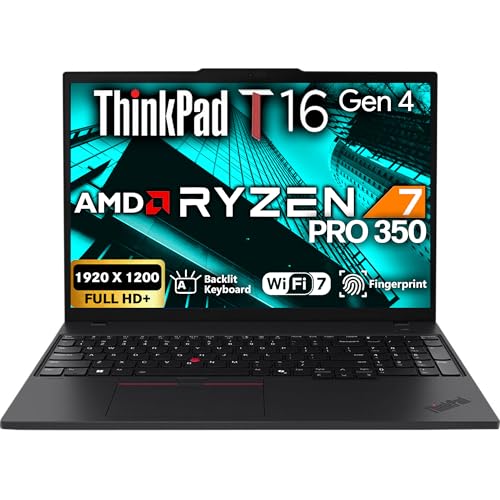
Lenovo ThinkPad T16 Gen 4 (64GB / 2TB) — The over-specified value outlier
Read the memory figure again, because it rewrites what this guide can recommend. Sixty-four gigabytes of DDR5 in an affordable-coding context is not a luxury; it is the removal of the category’s defining anxiety. Containers, a local database, an Android emulator, a browser with forty documentation tabs, an IDE with every plug-in enabled and a video call can coexist without the machine negotiating between them. Developers who have lost work to a frozen emulator or a swapped-to-death browser will understand immediately why this configuration leads the guide despite its business-laptop clothing.
The rest of the specification supports a long professional life. A Ryzen 7 AI Pro 350 provides modern multi-core performance for compiles and test suites, the 2TB drive swallows toolchains, virtual machines and years of projects, and the 16-inch FHD+ display gives code the vertical room that diff views and terminal splits devour. ThinkPad furniture completes the case: a backlit keyboard built for long days, a fingerprint reader, a 5MP webcam for stand-ups and even a wired RJ-45 port for the offices and labs where wireless is a rumour.
Nothing about this pick requires apology, so the honest caveats are about fit rather than quality. It is a 16-inch business machine, larger in the bag than the IdeaPads below, and its specification overshoots what a first-semester student strictly needs. Buyers who code daily, run containers or intend to keep one laptop from first job through promotion should treat it as the guide’s endgame: the affordable purchase that postpones the next purchase for years.
A junior developer’s first year explains the 2TB drive as eloquently as the memory. Every employer, course and side project brings its own toolchain, SDK, container images and test data, and the developer who never has to delete yesterday’s environment to install today’s simply moves faster. Pair that with 64GB of memory and the T16 becomes the rare budget-guide machine that senior engineers would accept without a murmur, which is the strongest longevity signal a purchase can carry.
Its business details compound quietly. The RJ-45 port rescues hotel and office networks, the 5MP webcam flatters its owner in the stand-ups where reputations form and Windows 11 Pro matches the management expectations of employers who may later adopt the machine into their systems. Buyers sometimes apologise for choosing the sensible laptop; this one requires no apology in any company.
- Display: 16-inch FHD+ panel
- Processor: AMD Ryzen 7 AI Pro 350
- Memory: 64GB DDR5 RAM
- Storage: 2TB SSD
- Extras in listing: 5MP webcam, fingerprint, backlit keyboard, Wi-Fi 7, RJ-45, Windows 11 Pro
Strengths
- 64GB memory erases the usual budget-coding ceiling
- 2TB drive holds toolchains, containers and VMs comfortably
- ThinkPad keyboard and ports suit professional daily work
Trade-offs
- Sixteen-inch chassis is the largest bag presence here
- Specification overshoots a light coursework-only need
- Business styling will not excite design-led buyers
Best for: working developers, container and VM users, and students buying once for a whole career start
Not suited for: minimalist travellers or buyers with the very tightest ceiling
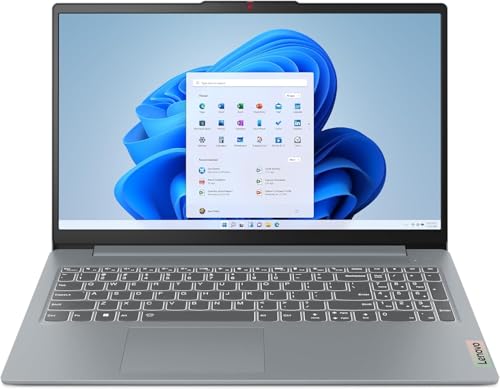
Lenovo IdeaPad Slim 3 15.6 (Ryzen 7) — The classic coding sweet spot
If a careers adviser could specify one affordable coding laptop for the median learner, it would look much like this IdeaPad Slim 3. Sixteen gigabytes of memory is the threshold where a realistic development day — editor, browser, terminal, local server, coursework platform — stops generating friction, and the eight-core Ryzen 7 5825U provides compile and multitasking performance that will not embarrass its owner in a first job. The 512GB drive holds the operating system, several toolchains and a portfolio of projects without the weekly purge that smaller drives impose.
The 15.6-inch Full HD touchscreen covers the coding basics properly: enough width for an editor beside a terminal or a preview, text rendered at a comfortable density for long reading and touch as an occasional convenience rather than a headline. This is a 2025-listed mainstream machine with Wi-Fi 6 and Bluetooth 5.2, which matters for longevity in a way learners underestimate; a laptop bought for a three-year course should not feel stranded by its connectivity in year two.
Limits are honest and manageable. The 720p camera is the plainest figure in the listing, adequate for classes and calls without flattering anyone, and integrated Radeon graphics confine gaming ambitions to lighter titles — irrelevant for coding, worth knowing for weekends. DDR4 memory rather than DDR5 is a generational footnote that daily coding will not notice. Judged as a complete, balanced answer to the guide’s question, the Slim 3 is the pick most readers should start from and depart from only for a reason they can name.
A bootcamp compresses the Slim 3’s virtues into twelve intense weeks: morning lectures on the same machine that runs the afternoon’s exercises, pair programming over a call, a portfolio site built at midnight. Sixteen gigabytes keeps that whole day fluid, and the eight-core processor means the class never waits on one student’s compile while others move on. Instructors notice which machines generate friction; this configuration is engineered to be unnoticed, which is the highest praise educational hardware can earn.
After the course, the same balance serves the job hunt — interview exercises, take-home projects and freelance trials all live comfortably here. Owners routinely report that a well-chosen mid-range machine outlasts their expectations, and the Slim 3’s recipe of memory, storage and screen is precisely the recipe that produces those reports. It is the guide’s default because defaults should be boring in exactly this way.
- Display: 15.6-inch Full HD 1920×1080 touchscreen
- Processor: AMD Ryzen 7 5825U, described as 8-core in the listing
- Graphics: AMD Radeon Graphics
- Memory: 16GB DDR4
- Storage: 512GB SSD
- Extras in listing: Wi-Fi 6, Bluetooth 5.2, 720p HD camera, Windows 11 Home
Strengths
- 16GB memory hits the realistic coding threshold
- Eight-core Ryzen 7 keeps compiles and multitasking fluent
- 512GB drive avoids the budget class’s storage squeeze
Trade-offs
- 720p camera is merely serviceable for calls
- Integrated graphics limit heavier gaming
- DDR4 platform is a generation behind the newest standard
Best for: students, bootcamp learners, and junior developers buying their first serious machine
Not suited for: heavy container fleets or Android-emulator-centred mobile courses
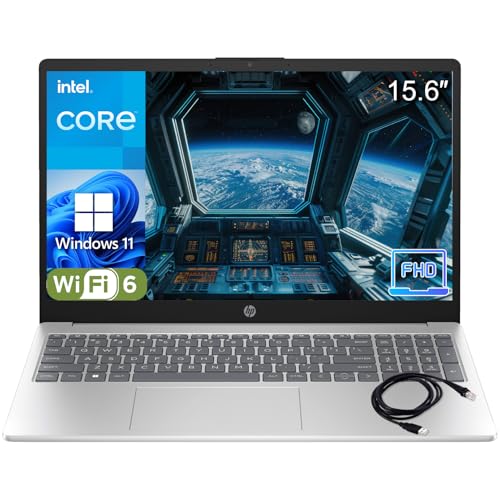
HP Pavilion 15 (2026, Renewed) — A renewed entry point, labelled as such
Transparency opens this entry, because the listing itself ends with the word renewed and this guide will not let that word hide. This Pavilion 15 reaches its affordable position as a renewed unit, which means the inspection discipline from any renewed purchase applies: verify the specification on arrival, test the battery across a real day, examine the screen and keyboard carefully and keep the return terms close until the machine has proven itself. A renewed laptop bought that way can be a shrewd educational tool; bought carelessly, it is a lottery ticket with a keyboard.
Within its tier, the machine’s brief is clear. The four-core Intel N100 with 8GB of memory and a 256GB drive suits the first stages of learning to code: browser-based course platforms, a lightweight editor, introductory Python or web development and the documents of student life. The Pavilion line contributes a full-size 15-inch FHD display and a numeric keypad, and the listing emphasises long battery life and light weight — the two qualities a student carrying a machine between lectures feels most. Microsoft Office 365 appears in the listing, suiting the coursework half of a student’s double life.
The ceiling must be stated as plainly as the condition. Eight gigabytes and an entry processor will strain once a learner reaches local servers, containers or large projects, and 256GB fills quickly under toolchains. Treat this Pavilion as the first rung — a machine for discovering whether coding is your subject and for surviving the introductory courses — with the IdeaPad Slim 3 or the ThinkPad above as the planned next step when the work outgrows it.
A renewed Pavilion in a student’s hands tells a story this guide respects: money was finite, the course mattered more than the badge and the buyer chose screen size and a full keyboard over newness. For introductory Python, web fundamentals and the writing-heavy early stages of any computing course, that trade is rational. The listing’s emphasis on long battery life and light weight serves the lecture-hall reality better than a heavier new machine with a smaller screen would.
The renewal bargain simply asks for adult supervision of itself. Photograph the unit on arrival, run the specification checks in this guide’s inspection advice and keep coursework backed up to the cloud from day one — good practice on any laptop, essential on a renewed one. Students who adopt those habits get the education the machine was bought for, at a price that leaves money for books, fees and food.
- Condition, stated plainly: this listing is a renewed unit
- Display: 15-inch FHD panel
- Processor: Intel N100, described as 4-core in the listing
- Memory: 8GB RAM
- Storage: 256GB SSD
- Extras in listing: numeric keypad, Microsoft Office 365, Windows 11 Home, Platinum White
Strengths
- Renewed route lowers the entry cost of a full-size laptop
- FHD screen and numeric keypad suit coursework and data entry
- Lightweight, long-battery brief fits a student’s carrying day
Trade-offs
- Renewed condition demands inspection and return-term awareness
- 8GB memory and N100 processor set a low development ceiling
- 256GB drive fills quickly once toolchains multiply
Best for: absolute beginners, introductory courses, and buyers testing whether coding is for them
Not suited for: intermediate developers running local servers and containers

Lenovo IdeaPad 1 15.6 (Ryzen 5) — The lean student and home-office coder
The IdeaPad 1 occupies the honest floor of new-machine coding: the least a student can spend while still receiving a full-size Full HD screen, a modern Ryzen 5 processor and a machine designed for carrying. Its listing aims it at students and home office work, and that targeting is accurate — this is a laptop for web development learning, scripting, coursework platforms and the writing that surrounds them, in a lightweight Abyss Blue design that treats a school bag with respect.
Memory technology gives this budget machine one modern grace: the 8GB supplied is LPDDR5, the newer standard, even though the capacity itself is the tier’s known limit. Eight gigabytes runs an editor and a browser together happily, and it teaches a useful discipline — closing what is finished, keeping projects tidy — that wealthier configurations allow their owners to postpone. The 256GB drive imposes the same discipline on storage, rewarding learners who keep coursework in cloud folders and projects in tidy repositories.
Position the IdeaPad 1 correctly and it shines: a first laptop for a teenager starting programming, a home-office machine that also handles a coding course, a spare development seat for a household. Ask it to run an emulator farm or a containerised course backend and it will protest, fairly. Buyers who suspect their ambitions will grow within a year should stretch to the Slim 3’s 16GB configuration and save themselves the early upgrade conversation.
Households discover the IdeaPad 1’s coding talent sideways: bought for homework and home office, it becomes the machine a parent uses for an evening programming course or a teenager uses to escape tutorial videos and start building. Its Full HD screen makes that transition kindly — code is legible, course videos are clear and the numeric keypad serves the household accounts in between lessons. Versatility at this price is a genuine feature, and this machine has it.
Its limits teach as they constrain. A learner who outgrows 8GB has usually also learned enough to specify their next machine precisely, which makes the IdeaPad 1 a successful purchase even when it is eventually replaced. Many first laptops fail by being wrong; this one succeeds by being honestly sized for the beginning it serves.
- Display: 15.6-inch Full HD panel
- Processor: AMD Ryzen 5 7520U
- Memory: 8GB LPDDR5
- Storage: 256GB SSD
- Extras in listing: numeric keypad, lightweight design, long battery life
- Colour in listing: Abyss Blue
Strengths
- Full HD screen at the new-machine floor is generous
- LPDDR5 memory is a modern touch in this tier
- Lightweight design respects daily carrying
Trade-offs
- 8GB capacity limits simultaneous development tools
- 256GB drive demands cloud and tidy-project habits
- Ryzen 5 tier suits learning loads, not heavy builds
Best for: young learners, home-office users, and households adding a coding seat
Not suited for: mobile development with emulators or container-heavy courses
ASUS Vivobook 15 — The ever-present mainstream alternative
Walk into any electronics shop and the Vivobook wall will offer a dozen near-identical laptops separated by small print. For coding buyers that wall is an opportunity, because Vivobook configurations frequently include exactly the recipe this guide recommends — a mid-range processor, 16GB of memory and a 512GB drive — at aggressive prices. The family’s mainstream polish, screens that often punch above their tier and wide availability make it the line most likely to be discounted within reach of a student budget.
The small print is the whole game. Vivobook variants differ in memory capacity, whether that memory can be expanded, screen resolution and processor generation, and the difference between a coding-ready Vivobook and a frustrating one is two lines of specification. Apply the checklist from this guide’s buying sections: 16GB where possible, Full HD or better, a named modern processor and storage of 512GB as the comfort target. A Vivobook that passes is a genuine rival to the IdeaPad Slim 3.
Treat the line as a hunting ground rather than a product. Set the specification floor in writing, wait for a configuration that clears it and ignore the neighbouring model that saves a little money by halving the memory. Coding buyers who shop Vivobook by figures instead of by name routinely end up with the best-value machine in their local market.
Vivobook shopping rewards a particular temperament: the buyer who prints the checklist, visits three listings and lets two attractive wrong configurations go. That temperament is itself a programming virtue — specification reading is debugging applied to shopping — and the Vivobook wall is where many students first practise it. The prize for patience is real, since the family’s better configurations match the Slim 3’s recipe while sometimes undercutting it locally.
One Vivobook-specific caution deserves emphasis: memory expandability differs across the family, and a variant with soldered 8GB is a different purchase from one that can grow. Coding buyers should treat the memory figure and its upgrade path as a single question, answered from the exact model’s documentation rather than from a shop assistant’s optimism.
- Class: mainstream affordable line from ASUS
- Coding checklist: 16GB memory target, Full HD or better, 512GB comfort storage
- Verify before ordering: processor generation and memory expandability
- Configuration note: specifications differ widely across Vivobook listings
Strengths
- Huge configuration range includes true coding recipes
- Frequent discounting suits patient student buyers
- Mainstream polish and availability in most markets
Trade-offs
- Near-identical models invite specification mistakes
- Memory expandability varies by variant
- No single verified specification can be quoted for the line
Best for: patient shoppers who buy by specification rather than by badge
Not suited for: a coder who expects one named configuration to order today
Acer Aspire 5 — The budget institution
Aspire is the budget laptop as institution: a family so long-running and widely stocked that many working programmers wrote their first lines on one. Its virtues are availability, repairability culture and configurations that, chosen well, cover the coding essentials without theatre. Schools, families and small businesses buy Aspires by the trolley, and the second-hand and spare-parts ecosystems around the line are correspondingly deep.
Chosen well is the operative phrase, because Aspire listings span from genuinely capable development machines to homework-only configurations wearing the same name. The coding floor from this guide applies without exception: protect memory, insist on a Full HD screen, confirm the processor is a modern mid-range part and treat very small drives as a warning. An Aspire clearing that floor will run a course, a portfolio and a first job’s onboarding without drama.
Consider Aspire the resilience candidate. If your budget is fixed, your local market is thin or your priority is a machine any local shop can service, a well-specified Aspire may beat a theoretically better laptop that cannot be obtained or repaired where you live. Coding careers are long; the laptop that can be kept alive locally is a legitimate contender.
Aspire’s deepest strength appears in year three, when a hinge loosens, a charger fails or a drive upgrade beckons. Machines from ubiquitous families attract local knowledge: independent repair shops have seen them, parts circulate and tutorials abound. For a student far from a brand service centre, that ecosystem can matter more than a rival’s thinner profile, and it is a rational reason to choose an Aspire whose figures clear the coding floor.
The family also serves institutions that shape coding lives — school labs, community programmes, library lending schemes. A learner whose first hundred hours happen on an Aspire in such a setting will find its home equivalent familiar and confidence-building. Familiarity is an underrated specification in education, and Aspire owns more of it than any rival in this guide’s wider map.
- Class: long-running affordable line from Acer
- Coding checklist: memory floor, Full HD screen, modern mid-range processor
- Verify before ordering: exact memory, drive size and processor generation
- Configuration note: specifications differ across Aspire listings
Strengths
- Deep availability and service familiarity in most regions
- Better configurations cover coding essentials fully
- Family and school ecosystems ease spares and support
Trade-offs
- Range includes homework-tier machines under the same name
- Design excitement is not the line’s priority
- Every listing requires the full checklist treatment
Best for: buyers in thin markets and owners valuing local serviceability
Not suited for: anyone unwilling to compare configurations line by line
Comparison
| Pick | Screen | Processor | Memory and storage | Coding strength |
|---|---|---|---|---|
| Lenovo ThinkPad T16 Gen 4 (64GB / 2TB) | 16-inch FHD+ | Ryzen 7 AI Pro 350 | 64GB DDR5, 2TB SSD | No-ceiling coding |
| Lenovo IdeaPad Slim 3 15.6 (Ryzen 7) | 15.6-inch FHD touch | Ryzen 7 5825U, 8 cores | 16GB DDR4, 512GB SSD | Balanced sweet spot |
| HP Pavilion 15 (2026, Renewed) | 15-inch FHD | Intel N100, 4 cores | 8GB RAM, 256GB SSD | Renewed first rung |
| Lenovo IdeaPad 1 15.6 (Ryzen 5) | 15.6-inch Full HD | Ryzen 5 7520U | 8GB LPDDR5, 256GB SSD | Lean starter |
| ASUS Vivobook 15 | 15-inch class, varies | Configuration-dependent | Configuration-dependent | Checklist hunt |
| Acer Aspire 5 | 15-inch class, varies | Configuration-dependent | Configuration-dependent | Budget institution |
How much memory does coding actually need at each stage?
Beginners are told simultaneously that any laptop can code and that professionals use enormous machines, and both claims hide the real variable: how many things run at once. A first course — an editor, a browser tab or three, a terminal — lives comfortably in 8GB, which is why the Pavilion and IdeaPad 1 in this guide are honest starter machines. The friction arrives with multitasking breadth: documentation habits grow, local servers appear, chat and calls join the session and the same 8GB begins swapping, which the owner experiences as mysterious slowness during exactly the exercises meant to build confidence.
Sixteen gigabytes is the fluency threshold for mainstream development, and the IdeaPad Slim 3’s position in this guide rests on it. Web development with a local stack, data coursework, moderate Java or C# work and ordinary Android development all sit comfortably there. Thirty-two gigabytes and beyond serve container fleets, virtual machines, large monorepos and emulator-heavy mobile work — the territory where the ThinkPad T16’s 64GB stops sounding absurd and starts sounding like foresight.
Buy for the stage eighteen months ahead, not the stage of this week’s tutorial. A learner who will reach local servers and containers within a course should skip the 8GB tier even if today’s exercises fit it, because replacing a laptop mid-course costs more than the memory step would have. Conversely, a hobbyist writing scripts and web pages for pleasure can stay at the sweet spot for years without meeting its ceiling.
Why do keyboard and screen outrank processor at this budget?
A programmer reads and types for a living, and the machine’s contact surfaces tax or reward every hour. Keyboards at this budget vary enormously: the ThinkPad’s backlit board represents the professional standard the others are measured against, while any candidate should be judged on key travel, layout sanity — especially the arrow keys and the function row — and whether the board flexes distractingly under honest typing. A numeric keypad, present on the Pavilion and IdeaPad 1 listings, helps data-heavy coursework and annoys some touch-typists by shifting the main board; neither reaction is wrong, and knowing yours matters.
Screens decide reading comfort in a discipline made of text. Full HD at fifteen inches is the floor this guide accepts, because code at lower resolutions forces constant scrolling and zooming that masquerades as tiredness by evening. The T16’s FHD+ panel adds vertical room that diff views and stacked terminals convert directly into visible code, while the Slim 3’s touchscreen is a minor convenience layered on a sound Full HD base. Brightness and finish for your actual room — bright classroom, dim bedroom — deserve the same attention as resolution.
Processor comparisons, by contrast, mostly decide how long a compile takes, and at learner scale the difference between the modern mid-range chips here is measured in seconds across a day. Protect the surfaces you touch and read; let the processor be adequate rather than heroic, and an affordable coding laptop will feel professional long after its benchmark rank is forgotten.
How should you set up Windows, WSL and Linux for learning?
Modern Windows machines give learners two worlds at once: the familiar desktop for coursework and communication, and a Linux environment through WSL for the tools and servers that professional development assumes. Setting up WSL early — a current distribution, your editor connected to it, projects stored inside the Linux filesystem for speed — teaches the environment most tutorials and employers actually describe. Every linked pick here can begin that journey, with memory deciding how ambitious the Linux side can become: containers and services under WSL are where the 16GB and 64GB configurations pull away from the 8GB tier.
Dual-booting and full Linux installations remain valid paths for the committed, particularly on a second machine or later in a career, yet beginners should resist turning their only laptop into an experiment during term time. A stable host system with WSL, a version-controlled backup of every project and cloud copies of coursework will carry a learner further than any distribution-hopping, however educational the hopping feels.
Whatever the environment, install the unglamorous foundations in week one: version control, a password manager, an editor configured with sensible fonts and a terminal you understand. Coding skill compounds on tooling habits, and an affordable laptop set up like a professional’s will teach professional habits every day it is used.
Which programming paths stress these machines most?
Web development is the kindest path: an editor, a browser and a local server cover most days, and every pick here participates, with the 8GB machines asking only for tidy tab habits. Data and Python coursework add heavier libraries and notebooks that reward memory, pushing serious students toward the Slim 3’s tier and beyond. Mobile development is the demanding guest, since emulators consume memory and processor together; learners committed to Android or cross-platform mobile work should treat 16GB as their floor and the ThinkPad as their comfort.
Game development and 3D-adjacent paths change the subject entirely, adding graphics demands that this guide’s integrated-graphics picks were never priced to meet. Students entering those fields should say so early and shop a different category, rather than asking an affordable coding laptop to be a development workstation and a render farm in one thin chassis.
How do you make an affordable laptop last a whole degree?
Longevity is a configuration decision followed by a care habit. Buy the memory tier above your current need if the degree will grow into it, keep the drive below three-quarters full so the system breathes, and let the battery avoid permanent extremes where your routine allows. Physically, a sleeve and a no-drinks rule beside the keyboard prevent the two accidents that end more student laptops than every component failure combined.
Software care is the second half. Keep the operating system and browser updated, uninstall the trial software that accumulates, and archive each term’s projects before the next begins. A machine maintained that way in year three feels startlingly close to its year-one self, and its owner graduates with an archive instead of a cautionary tale.
What should a career changer buy differently from a student?
Career changers buy under time pressure with professional consequences, so their calculus shifts toward headroom and presentation. The ThinkPad T16’s memory, camera and Windows 11 Pro suit interview loops, take-home assignments and a first employer’s expectations in a way a homework-tier machine cannot, while the Slim 3 remains the value answer for changers whose target work is mainstream web development. Either way, the machine will appear on video calls and in shared-screen interviews, and its competence becomes part of the candidate’s evidence.
Changers should also invest in the environment, not only the hardware: a professional editor setup, version control fluency and a portfolio hosted and backed up properly. Employers hire the workflow as much as the person, and an affordable laptop run like a professional system is the cheapest career signal in this entire guide.
How do external monitors and desks upgrade budget coding?
A second screen is the upgrade budget coders feel most, because code is a two-document activity: source beside documentation, editor beside terminal, diff beside the file it describes. Every pick here can drive an external display for a desk setup, turning a 15-inch laptop into a two-canvas workstation at home while remaining a single bag item outside it. Buyers choosing between a processor step and a modest monitor should usually take the monitor.
Ergonomics ride along with the upgrade. Raising the laptop or its external screen to eye level and adding a keyboard you love will repay more coding hours than any component in this guide, particularly for learners whose posture habits are forming now. Affordable coding is a long-hours discipline, and the desk is part of the machine.
What does a sensible first-week setup look like?
Day one belongs to updates and accounts: operating system current, browser signed in, password manager installed and backups switched on before the first line of code exists. Then the toolchain, installed slowly and deliberately — editor, version control, the language runtimes your course actually uses and WSL if your path is Windows-based — with each tool opened and tested rather than stockpiled.
Finish the week with one complete miniature project, committed to a remote repository and run from a clean terminal session. That small end-to-end success proves the environment, teaches the workflow and gives the new machine its first honest memory. Learners who perform this ritual start their courses weeks ahead of those who spend the first month installing things in a panic between lectures.
How should parents buy a first coding laptop for a teenager?
Buy for the course and the carrying life, not for the games the teenager promises not to play. The IdeaPad 1 and Slim 3 divide that decision by ambition: casual coding clubs and school platforms sit happily on the former, while a serious computing course, a portfolio habit or a multi-year plan justifies the latter’s memory. A Full HD screen is non-negotiable in both cases, because young eyes are still forming reading habits on these panels for years.
Involve the teenager in the checklist. Reading specifications, comparing configurations and understanding why memory outranks a flashier badge is itself the first computing lesson, and a machine chosen with comprehension gets cared for better than one received as a mystery. Set up the backups and the repository together, and the laptop becomes a small education in professional habits before the first class begins.
How do you choose between two affordable configurations that look identical?
Near-identical listings are this market’s favourite trap, and the resolution is always in the unglamorous lines. Compare memory capacity and type, drive size, screen resolution and processor generation in that order, ignoring cosmetic differences and bundled software trials that evaporate in a month. Where two machines truly tie, let the keyboard you can test, the warranty terms and the seller’s returns policy decide, since those are the differences ownership will actually feel.
Photograph or save the full specification of the machine you order. Affordable ranges recycle names across configurations, and the saved listing is your evidence if the delivered laptop’s memory or drive disagrees with the purchase. Careful buyers at this budget protect themselves with paperwork because their margin for a second purchase is the smallest.
Does coding need a powerful graphics card?
For the paths most affordable buyers follow — web, scripting, data coursework, systems learning — integrated graphics are entirely sufficient, and money spent chasing a discrete card would serve better as memory or storage. The exceptions name themselves: game development, GPU computing courses and heavy creative side-work. Learners entering those paths should shop a different guide rather than distorting this one.
This is also why the picks here can be honest bargains. Coding’s core tools are text, terminals and browsers, and a machine balanced for those tools costs a fraction of a gaming rig while feeling, inside the editor, remarkably close to one. Spend the saving on the monitor, the chair and the time to practise.
How do you keep code safe on a budget machine?
Safety at this level is habit, not hardware. Every project lives in version control with a remote copy, coursework sits in a synced folder and the machine’s own backup runs before it is needed rather than after. A stolen or failed affordable laptop should cost its owner an afternoon of reinstalling, never a semester of work, and that outcome is decided entirely by routines established in the first week.
Security hygiene partners the backups: system updates applied, a password manager in use, disk encryption enabled where the edition allows and downloads taken from official sources. Junior developers are attractive targets precisely because their machines hold credentials and coursework accounts; the habits that protect a budget laptop are the same ones employers will later require.
What role do refurbished and renewed machines play for coders?
Beyond the Pavilion in this guide, the renewed and refurbished market is where many programmers quietly buy above their budget — business machines retired from fleets, inspected and resold with specifications that embarrass new consumer laptops. The ThinkPad tradition makes such machines especially popular with developers, who value keyboards, ports and memory over thinness. The discipline is constant: buy from sellers who describe condition honestly, verify everything on arrival and keep return terms within reach until the machine proves itself.
Students should weigh time alongside money. A renewed machine that needs a week of troubleshooting during term has spent its saving in stress, while one inspected calmly during a holiday can serve for years. Timing the purchase to a low-pressure window is part of the bargain’s wisdom.
How does coding from cafés and libraries change the choice?
Public-space coding rewards battery manners, a screen readable under bright lights and a machine whose loss would hurt the wallet less than a flagship’s would. The lighter picks here — the IdeaPad 1’s carrying-friendly design, the Pavilion’s stated long-battery brief — suit that life, provided the owner’s work is backed up before the bag leaves home. A lock cable and an eye on the bag remain part of the setup no specification can replace.
Noise and heat matter socially too. Light coding loads keep these machines composed in quiet rooms, which is one more reason the affordable tier suits learners: their workloads and their venues agree. Save the loud, hot hardware for desks at home, and let the library machine be the calm one.
A short glossary for first-time specification readers
Memory, or RAM, is the desk space where open work lives; more of it means more tools open together without slowdown. Storage is the filing cabinet where projects and toolchains live permanently; a bigger drive postpones the deleting ritual. The processor is the worker moving between desk and cabinet, and cores are its hands — useful, but useless if the desk is too small for the job laid out on it.
Keep that picture in mind in any shop and the affordable shelves lose their power to confuse. Sales talk will push the worker’s speed; your checklist protects the desk and the cabinet first. Every pick in this guide was ordered by that picture, and a buyer who internalises it can evaluate machines this guide never mentions with the same confidence.
When should a learner upgrade instead of replacing?
Some affordable machines invite a second act: a memory or storage upgrade where the design allows it, a fresh battery, a monitor for the desk. Learners should check upgrade access before purchase if they intend this path, since sealed designs close it. Where an upgrade path exists, an 8GB machine bought cheaply can grow into its owner’s ambitions; where it does not, the honest move is buying the right tier initially, as this guide’s ordering recommends.
Replacement becomes right when the ceiling is architectural — memory soldered too low, a processor generations behind the course’s tools — or when repair costs approach the machine’s remaining value. Programmers, of all buyers, can make that judgement from evidence: watch where the machine actually struggles during your heaviest honest workload, and let that observation, not advertising, time the change.
The affordable coding mindset, in one page
Strip the category to its truth and it is encouraging: the tools of programming are light, the knowledge is free and the hardware threshold for genuine fluency sits within reach of the Slim 3’s tier. What separates successful learners from frustrated ones is rarely the laptop; it is the setup, the backups, the tidy projects and the hours. An affordable machine chosen by this guide’s checklist removes hardware as an excuse, which is the greatest service a purchase can do a student.
So choose calmly, set up professionally and then stop shopping. The code you write in the next year will matter more than the badge on the lid, and every machine above — from the inspected renewed Pavilion to the mighty little ThinkPad — is capable of carrying that code honourably.
One final encouragement belongs here: every senior engineer you admire began on hardware worse than the weakest pick in this guide, and the gap closed through practice, not purchasing. Let the laptop be adequate, let the setup be professional and let the hours be yours — that combination has started more coding careers than any flagship ever sold, and it will start many more careers in the years ahead for learners who buy wisely today, set their machines up carefully and then devote their energy to the craft itself rather than the catalogue, the comparison charts or the endless forums arguing about machines instead of using them daily for the work that actually builds a programmer, one honest project at a time, term after term, year after year.
Common Mistakes
Buying by processor name and starving memory is the affordable-coding archetype of regret. A flashier chip beside 8GB of memory loses every real working day to a modest chip beside 16GB, because development is a multitasking workload long before it is a benchmarking one. Read configurations whole, in the order this guide repeats: memory, storage, screen, keyboard, then processor.
Choosing the smallest drive to save a little money backfires within a year of coursework. Toolchains, SDKs, containers and course materials accumulate relentlessly, and a 256GB drive demands constant housekeeping from exactly the beginners least equipped to enjoy it. Where a 512GB configuration exists within reach — the Slim 3 in this guide — it is usually the wisest money in the purchase.
Ignoring a renewed listing’s condition, or buying renewed without an inspection plan, converts a sensible saving into a gamble. The Pavilion entry shows the honest pattern: the status is printed in its badge and specifications, and the buyer’s job is to verify the unit on arrival and know the return terms before the first assignment depends on it.
Postponing backups and version control until projects feel ‘serious’ loses more student work than every hardware failure in this guide combined. Push code to a remote repository from the first week, keep coursework in synced folders and let the laptop be replaceable. Affordable machines earn their keep longest in the hands of owners whose work can survive them.
Final Recommendation
Most readers should land on the IdeaPad Slim 3 and its balanced 16GB recipe, the configuration that carries a learner from first exercises to first job without drama. Developers who already run containers, virtual machines or emulators — and students buying once for an entire career start — should take the ThinkPad T16 Gen 4’s extraordinary 64GB and 2TB configuration while such a listing exists. The tightest budgets divide honestly: the IdeaPad 1 as the new-machine floor, and the renewed Pavilion 15 as the inspected, eyes-open entry point.
Let Vivobook and Aspire listings challenge those choices only when a specific configuration clears the same checklist on memory, screen and storage.
Set up WSL, version control and backups in the first week, and the affordable laptop you chose will quietly behave like a professional one for years.
Frequently Asked Questions
Can an 8GB laptop really be used for programming?
Yes, for learning and light development: an editor, a browser and introductory coursework run comfortably on the Pavilion and IdeaPad 1 configurations here. The ceiling appears with local servers, containers and many simultaneous tools, which is why learners expecting to advance within a year should aim for 16GB from the start.
Why does the ThinkPad T16 appear in an affordable guide?
Because its verified listing pairs a business laptop with 64GB of DDR5 memory and a 2TB drive — a specification whose capability per purchase outclasses the rest of the category. Affordable describes value for the coding job, and by that measure the T16 is the guide’s outlier bargain.
Is the renewed Pavilion 15 a risky purchase?
It carries the ordinary renewed considerations, which this guide states openly: verify the specification and condition on arrival, test the battery over a real day and understand the return terms. Managed that way, it is a legitimate low-cost route into introductory coding.
Should a coding student choose Linux instead of Windows?
Most beginners should start with Windows plus WSL, gaining a professional Linux environment without risking their only machine during term. A dedicated Linux installation can come later, on this machine or its successor, once the fundamentals are secure.
Do I need a touchscreen for coding?
No. Touch is a convenience on the Slim 3’s sound Full HD panel, not a coding feature. Keyboard quality, memory and screen resolution will affect your work every day; touch will affect it occasionally, if at all.
Related Guides
Related guides in this series: Best Affordable Alienware Laptops Best 4K Laptops Best 4K Gaming Laptops.

[…] reading with these related guides: Best Affordable Coding Laptops Best Affordable Alienware Laptops Best 4K […]