Our Top Picks
 NETGEAR Nighthawk DOCSIS 3.1 Modem Router Combo CAX30Pack of 111.93 x 5.39 x 9.92 inchesCheck on Amazon


What's inside
- Why a dedicated Netgear ADSL router still matters on a copper line
- Start with your exact DSL service, not a vague broadband label
- Reading modem specifications without getting misled
- Wireless generations and what they change indoors
- Ports, switches, and the wired devices people forget
- Matching router tiers to household patterns
- Setup order that prevents most first day headaches
- Security settings worth enabling on day one
- Troubleshooting a line that drops, crawls, or stutters
- When an extender, mesh kit, or second access point makes more sense
- Firmware, apps, and living with the router for years
- Understanding real world speed expectations on ADSL
- Buying checklist before you commit to a listing
- Common questions from DSL households
- Quality of service and traffic fairness in plain language
- IPv6, DNS choices, and other settings behind the curtain
- Smart home load and the quiet growth of connected devices
- Placement, cabling, and the physical layer people neglect
- Comparing new, refurbished, and provider supplied options
- Accessibility, household agreement, and everyday usability
- Environmental and running cost considerations
- How to judge reviews and owner feedback sensibly
- A short worked example of a sensible shortlist
- Keeping a simple maintenance rhythm after installation
- Check prices on Amazon
- Final thoughts on choosing with confidence
As an Amazon Associate I earn from qualifying purchases. This post may contain affiliate links at no extra cost to you.
Why a dedicated Netgear ADSL router still matters on a copper line
Plenty of households still depend on copper telephone wiring for broadband, especially in suburbs, villages, older apartment blocks, and streets where fibre cabinets sit far from the front door. On those connections the modem inside your router does unusually heavy lifting, because it negotiates with equipment at the exchange, copes with line noise, and decides how gracefully speeds fall when weather, distance, or ageing joints degrade the signal. Choosing a Netgear unit built for DSL therefore starts with the line itself rather than with headline wireless numbers printed large on retail boxes.
A combined modem router replaces two separate boxes, cutting clutter, power bricks, and one potential point of failure between wall socket and laptop. That simplicity appeals to families who want a single device beside the telephone point, yet it also concentrates responsibility: if the modem section mismatches your service type, excellent Wi-Fi radios cannot rescue a connection that never synchronises properly. This guide works through compatibility first, then wireless coverage, ports, security, setup habits, and long term upkeep, drawing on published specifications, manufacturer documentation, and patterns visible across buyer feedback.
Readers arriving from faster cable or full fibre services sometimes expect ADSL hardware to erase every limitation of copper, which no router can honestly promise. Distance from the exchange caps attainable throughput, and interleaving, attenuation, and crosstalk all shape latency before any packet reaches your home network. What a well chosen model can deliver is stability, cleaner Wi-Fi inside the building, sensible parental controls, and diagnostics that reveal whether a fault lives inside your walls or out on the provider network.
Disclosure: this page may contain links to retailer listings, and purchases made through those links may earn a commission that supports our research work at no extra cost to you. Prices, stock, and bundle details change frequently on product pages, so confirm current terms directly with the retailer before ordering. Our comparisons rely on documented features and aggregated owner reports rather than direct product trials, and inclusion here never depends on payment from any manufacturer.
Start with your exact DSL service, not a vague broadband label
ADSL, ADSL2, and ADSL2+ sound interchangeable in casual conversation, although each generation negotiates differently and reaches different practical ceilings under favourable line conditions. Older lines may only support the earliest standard, while many exchanges upgraded years ago to the later variants that bond more tones and squeeze additional downstream capacity from the same copper pair. Check your current router status page or provider paperwork for the modulation actually in use, because that single detail narrows the suitable shortlist faster than any wireless specification.
Some Netgear models sold for DSL markets also handle VDSL, which serves fibre to the cabinet connections, giving households an upgrade path if their street gains a cabinet later. Others target ADSL only and cost less, a sensible trade when you know the property will remain on copper for years or when the device serves a rental with modest demands. Retail listings occasionally blur these categories, so read the modem section of the specification sheet carefully instead of trusting category labels in search results.
Regional variation adds another layer. Annex A and Annex B refer to how frequencies divide between voice and data in different telephone systems, and a unit built for one annex may fail entirely on the other. Country specific plugs, power supplies, and preloaded provider profiles also differ between markets that otherwise share a model family name. Matching the variant intended for your country prevents the frustrating situation where wireless setup completes perfectly while the DSL light blinks forever.
Internet providers sometimes require particular settings such as PPPoA or PPPoE encapsulation, specific VPI and VCI values, or a VLAN tag on newer services. Most Netgear setup wizards detect common combinations automatically, yet manual entry remains essential for smaller regional carriers. Keep your broadband username and password available before swapping hardware, since credentials stored inside an old router rarely transfer across brands and support desks cannot always reissue them instantly.
Reading modem specifications without getting misled
Downstream and upstream figures quoted for DSL standards describe theoretical synchronisation ceilings under laboratory conditions, not speeds your household will observe at dinner time. A long line might sync at a fraction of the maximum while still performing exactly as physics allows, so judge a replacement router by stability at your attainable rate rather than by promises attached to the standard itself. Look for clear reporting of current sync speed, attenuation, and noise margin inside the administration interface, because those three numbers explain most mysterious slowdowns.
Noise margin deserves special attention on marginal lines. A healthy margin gives the modem room to absorb evening interference from street lighting, neighbouring lines, and household appliances cycling on and off. Some chipsets hold a fragile connection stubbornly, reconnecting rarely but limping along with errors, while others renegotiate quickly and restore a cleaner profile. Owner feedback from rural buyers often highlights reconnection behaviour more than peak throughput, reflecting how disruptive repeated dropouts feel during calls and classes.
Error counters such as CRC and FEC totals help separate a degrading external line from simple wireless congestion indoors. Rising errors alongside falling margin suggest checking filters, extension wiring, and the master socket before blaming any router. A model that exposes these counters in plain language empowers you to have a productive conversation with provider support, armed with timestamps and figures instead of a vague complaint about slowness.
Broadcom, Lantiq, and other modem chipset families have long attracted folklore among DSL enthusiasts, with certain pairings rumoured to suit particular exchange equipment. Treat such claims cautiously, because firmware revisions and line profiles change over time, and anecdotes from one exchange rarely generalise nationwide. Prefer documented compatibility, recent firmware maintenance, and retailer return policies over chipset mythology when two candidates otherwise look evenly matched.
Wireless generations and what they change indoors
Once the modem locks onto your line, Wi-Fi determines how pleasantly that bandwidth spreads through rooms, floors, and garden offices. Netgear ADSL ranges have spanned several wireless generations, from single band designs that only broadcast on crowded 2.4 gigahertz channels to dual band systems adding a faster, shorter range 5 gigahertz network. For a small flat with light browsing, the simpler radio may suffice, whereas busy homes benefit from steering laptops and televisions toward the higher band while leaving printers and smart plugs on the longer range signal.
Marketing labels such as AC followed by a large number combine theoretical speeds from every band and stream, a sum no single phone or laptop ever experiences. Focus instead on how many spatial streams serve each band, whether beamforming concentrates signal toward connected devices, and whether MU-MIMO support lets the router converse with several clients in quick succession. These details matter most when video calls, cloud backups, and streamed sport compete during the same evening hour.
External antennas usually allow small adjustments that genuinely help in houses with awkward layouts, letting you angle elements vertically for same floor coverage or tilt one toward an upstairs study. Internal antenna designs look tidier on a shelf and suit apartments where distances stay short. Neither arrangement defeats thick stone walls or foil backed insulation, so placement near the centre of daily activity, elevated and away from metal cabinets, often improves results more than upgrading one tier within the same product family.
Guest network support separates visitor phones from your file shares and smart home controls, a small feature with outsized security value during gatherings. Band steering presents both frequencies under one network name and nudges clients toward whichever suits them, simplifying life for less technical relatives. If your household relies on older gadgets that panic when bands merge, the option to split names manually remains worth confirming in the manual before purchase.
Readers comparing wider networking gear may also enjoy our coverage of best gaming monitors 240hz, since low latency displays only shine when the home network feeding the PC stays consistent. Likewise, a household streaming on the move might browse best 5g tablets for viewing away from the living room sofa. Neither category replaces a sound DSL foundation, but both illustrate how end devices reveal weaknesses that begin at the router shelf.
Ports, switches, and the wired devices people forget
Wireless dominates advertising, yet the small row of sockets along the back panel decides whether desktop PCs, network storage, and television boxes receive the stable wired links they deserve. Four gigabit Ethernet ports represent the comfortable standard for a main home router, allowing a computer, a streamer, a games console, and a printer to stay cabled without a separate switch. Cheaper units sometimes limit ports to slower fast Ethernet, which bottlenecks local file transfers even when the internet line itself crawls far below that ceiling.
One port may double as a WAN connection for use with a separate modem or a future fibre terminal, extending the useful life of the hardware beyond copper service. That flexibility deserves real weight if your provider has announced cabinet upgrades on nearby streets. Conversely, a dedicated DSL socket with no alternative WAN role locks the device to one access technology, acceptable only when the saving is meaningful and your plans are settled.
USB sockets appear on some models for sharing a printer, attaching storage, or occasionally supporting a mobile broadband dongle as backup. Throughput on router hosted storage rarely rivals a dedicated NAS, but it handles casual document sharing and media libraries without extra hardware humming in a cupboard. Check which file systems and sharing protocols the firmware supports, because a socket that exists physically but lacks the software feature you wanted delivers only disappointment.
WPS buttons simplify pairing for visitors and basic peripherals, though security conscious owners often disable push button pairing after initial setup. Physical Wi-Fi on and off switches, once common, now appear less frequently, replaced by schedules inside the app or web interface. A clearly labelled power button still matters during troubleshooting, sparing you from yanking cables blindly behind furniture whenever support asks for a clean restart.
Matching router tiers to household patterns
Light use homes with a handful of devices
A couple browsing news, banking, messaging, and standard definition video place modest demands on wireless capacity, even if the DSL line itself feels slow by modern standards. For such homes, an entry tier dual band model with gigabit ports, current security patches, and a readable status dashboard covers the essentials without paying for radios nobody will exploit. Prioritise a retailer listing that clearly states regional DSL compatibility over a marginally faster wireless label on an imported variant.
Simplicity also counts as a feature here. A setup wizard that detects provider settings, a single app for password changes, and automatic firmware prompts reduce the maintenance burden on owners who rarely think about networking. If the router will sit in a hallway or bedroom, modest size and dimmable status lights prevent the device from becoming an unwelcome night time distraction.
Busy family houses with competing screens
When two adults work from home while children attend online lessons and a television streams in the background, contention shifts from raw line speed toward fair sharing and wireless reach. Mid tier models with stronger processors, more streams on the 5 gigahertz band, and quality of service controls help prioritise call traffic over background downloads. Parental profiles that pause access by device or schedule bedtime cutoffs add practical value beyond headline throughput.
Coverage across three or four bedrooms may still challenge any single box placed beside a front door master socket. Some Netgear DSL models cooperate with extenders or satellite units, while others stand alone and rely on careful positioning. Map your dead zones honestly before choosing, noting whether the problem room suffers weak signal, interference from neighbours, or simply an overloaded band at peak hours.
Home offices, gamers, and upload sensitive work
ADSL upstream bandwidth is famously tight, so a household sending large design files, backing up photo libraries, or hosting voice calls all day feels every inefficiency. Routers offering granular quality of service, per device traffic graphs, and stable VPN client or server options earn their keep here. Wired connections for the main workstation remain non negotiable advice, removing wireless variability from the most important machine in the house.
Competitive players on copper connections should temper expectations about ping, because interleaving applied to noisy lines adds delay that no gaming badge on a box can remove. What better hardware can provide is consistent local routing, sensible buffer management, and fewer wireless spikes when siblings start streaming. Pairing that foundation with a responsive display makes sessions feel smoother overall, even though the exchange side latency stays firmly outside your control.
Setup order that prevents most first day headaches
Begin by photographing the cabling and settings of your existing setup before unplugging anything, including which socket the filter occupies and any static addresses assigned to printers. Fit a fresh microfilter at every telephone extension in use, or confirm that your master socket contains a built in filtered faceplate, because a single unfiltered extension can sabotage an otherwise flawless installation. Connect the new router directly to the master socket for its first synchronisation, avoiding long extension reels that introduce noise and confusion.
Run the setup wizard with provider credentials nearby, then wait patiently while the DSL light settles, since initial negotiation and profile adjustments can take longer than impatient unplugging allows. Once online, change the administration password immediately, record it somewhere secure offline, and set a wireless name and passphrase that differ from any previous network your neighbours might recognise. Update firmware before migrating every gadget, because early updates occasionally reset settings or add options that reshape later configuration choices.
Reconnect devices in deliberate waves: wired computers first, then phones and tablets, then the long tail of smart bulbs, plugs, cameras, and speakers. This staged approach reveals quickly if a particular gadget refuses the new security mode or clings to a merged band name. Keep the old router powered off but available for a day, so you can consult its settings if a forgotten device or port rule surfaces during the evening.
Finally, run speed checks at the master socket and again in your usual working spot, saving both results with dates and times. The gap between those figures separates line limitations from wireless losses and gives provider support credible evidence if synchronisation speeds disappoint. Repeat the comparison after a week of ordinary use rather than obsessing over a single midnight measurement that flatters the line.
Security settings worth enabling on day one
WPA2 with AES encryption remains the baseline for compatibility, while WPA3 support on newer models strengthens protection for recent phones and laptops that understand it. Mixed modes ease transitions for older gadgets, although every legacy exception slightly dilutes the benefit, so retire or isolate ancient devices that force weak settings onto the whole network. Disable remote administration from the internet unless you genuinely manage the router while travelling, and even then protect access with the strongest authentication the firmware offers.
Automatic firmware updates, when available, close vulnerabilities without relying on owners remembering to check a support page quarterly. If updates require manual installation, place a recurring reminder alongside other household admin and only download firmware from the official support area for your exact hardware version. Hardware version labels on the underside matter, because files built for a different revision can fail or, in the worst case, render a device unusable.
Firewall defaults on consumer routers generally block unsolicited inbound traffic adequately for ordinary homes. Port forwarding should stay empty unless a specific application, camera system, or game server truly requires it, and every rule deserves a note explaining why it exists. Universal plug and play offers convenience for consoles and chat apps but also lets software open paths without asking, a trade many privacy minded owners choose to switch off once their essential services work.
DNS level filtering and parental controls vary widely between firmware generations. Some models include basic keyword and schedule tools free forever, while others tie advanced reporting to subscription services after a trial period. Read the fine print on product pages carefully, because a feature photographed on the box may require ongoing payment that changes the real cost of ownership across three or four years.
Troubleshooting a line that drops, crawls, or stutters
Start diagnosis by separating three complaints that households often merge: the DSL connection itself dropping, wireless coverage failing in certain rooms, and a single application misbehaving. The router status page tells you whether synchronisation survived while a laptop complained, and uptime counters reveal silent overnight reconnections. If sync drops coincide with incoming phone calls, suspect filters, faulty extension wiring, or a line fault that provider engineers can trace from the exchange.
Try the test socket hidden behind many master socket faceplates, connecting only the router through a known good filter for a full day of observation. Improvement in that stripped back arrangement points squarely at internal wiring, an ageing extension, or a forgotten device plugged in somewhere without filtration. No improvement shifts suspicion outward to the drop cable, street cabinet, or exchange port, strengthening your case for an engineer visit.
Wireless specific fixes begin with channel selection. On the 2.4 gigahertz band, only a few channels avoid overlapping neighbours, and automatic selection sometimes lands poorly in dense housing. A quick survey with a phone app shows which channels nearby networks occupy, letting you choose the quietest option manually. On 5 gigahertz, wider channels deliver speed but reduce range and increase collision with neighbouring systems, so narrower settings can paradoxically feel faster in flats surrounded by other routers.
Heat and placement quietly undermine stability in cupboards and behind televisions. Give the router ventilation, keep it off soft furnishings, and avoid stacking it directly on other warm electronics. If reboots cluster on hot afternoons, relocation may solve a problem that firmware updates never could. Readers who enjoy tinkering with desk setups might also browse best gaming headsets with microphone for clearer call audio once the connection itself behaves.
When an extender, mesh kit, or second access point makes more sense
A replacement modem router cannot relocate your master socket, and many homes place that socket in a hallway corner far from bedrooms and studies. If synchronisation figures look healthy while distant rooms still struggle, the honest fix targets wireless distribution rather than the modem. A wired access point positioned centrally outperforms a plug in extender that must receive and rebroadcast through the same weak signal it is trying to rescue.
Mesh systems complicate the picture for DSL households because most mesh kits expect an Ethernet feed from a separate modem. Some Netgear DSL gateways support bridge mode, passing the connection to a mesh router while their own wireless radios switch off, but others lack a clean bridge option and force awkward double NAT arrangements. Confirm bridge or modem only operation in documentation before planning that pairing, especially if you rely on port forwarding, VPN access, or a work laptop with strict network requirements.
Powerline adapters offer a middle path in houses where running Ethernet cable is impractical, using mains wiring to carry data toward a remote access point. Performance swings wildly with circuit layout, consumer units, and noisy appliances, so buy from retailers with painless returns if you experiment with this route. In stone built properties with separate consumer units across floors, results can disappoint enough that a professionally installed cable run becomes the cheaper long term answer.
For renters, reversible solutions matter more than theoretical elegance. A longer, flat Ethernet cable tucked along skirting boards, a shelf repositioned nearer the centre of the flat, or a compact extender for one problem room may deliver ninety percent of the benefit without drilling or rewiring. Weigh those modest interventions before replacing a modem that reports a perfectly stable line.
Firmware, apps, and living with the router for years
The administration experience shapes how confidently owners adjust settings after the novelty of installation fades. Netgear interfaces and companion apps have evolved across generations, with newer software emphasising device lists, traffic snapshots, and guided fixes, while older web dashboards expose raw networking controls that enthusiasts appreciate. Neither style is automatically superior; what matters is whether you can find noise margin readings, firmware status, and attached device controls without hunting through marketing screens.
Product support lifecycles deserve a glance before buying older stock at a discount. A router that stopped receiving security updates may still route packets happily, yet leaving an unpatched gateway at the edge of your home network carries growing risk each year. Check the support page for your candidate, note the date of its latest firmware, and favour models with recent maintenance when prices sit close together.
Backup your configuration after setup reaches a state you like, storing the file alongside provider credentials in a secure folder. Restoring a saved profile after a factory reset turns a stressful outage into a ten minute chore. Label cables at both ends, keep the power supply with the device during any house move, and photograph the underside label so model and hardware version details survive even if the sticker fades.
Households planning broader upgrades often coordinate networking purchases with entertainment gear, which is why our guide to best android projectors with bluetooth pairs naturally with a living room network refresh. Projectors, streamers, and sound systems all lean on the same wireless foundation, and a router chosen with coverage in mind serves every one of those screens more gracefully.
Understanding real world speed expectations on ADSL
Advertised broadband averages describe populations, not your personal line, and two houses on the same street can experience strikingly different results depending on cable routing. Attenuation climbs with distance and quietly eats the higher frequencies that ADSL2+ uses for its extra capacity, which explains why a neighbour nearer a junction box may sync far faster. Accepting that geography sets the ceiling helps you judge hardware fairly: a good router reaches your line potential reliably, rather than inventing speed the copper cannot carry.
Contention at peak hours adds a second squeeze beyond synchronisation. Your modem may hold a steady rate all day while actual downloads sag in the evening as the provider network fills with streaming traffic. Distinguishing sync speed from throughput speed, using both the router dashboard and independent measurement tools, prevents misdirected purchases when the bottleneck sits upstream of your home entirely.
Latency sensitive activities reveal yet another dimension. Video calls tolerate modest bandwidth but punish jitter and packet loss, while large downloads forgive wobble as long as average throughput holds. A router with sensible queue management smooths the interaction between a cloud backup saturating upstream capacity and a call trying to squeeze through the same narrow pipe. That fairness, invisible in specification tables, often defines whether a busy household describes its connection as fine or frustrating.
Weather related faults follow patterns worth logging. Drops during heavy rain suggest water ingress at a joint, while crackling on voice calls hints at corrosion that data services will also feel. Presenting a dated log to your provider transforms a vague intermittent complaint into an actionable fault report, and a router that timestamps reconnections makes building that log almost effortless.
Buying checklist before you commit to a listing
- Confirm the modem supports the precise DSL variant and annex used on your street, in writing on the specification sheet.
- Verify the regional variant, plug type, and language of the setup materials match your country of use.
- Check for gigabit Ethernet if any wired computer, console, or storage device shares files locally.
- Decide whether a WAN port or bridge mode matters for a future fibre or mesh upgrade.
- Look for current firmware activity on the official support page for your exact hardware revision.
- Read the subscription fine print behind parental controls, security shields, and advanced reporting features.
- Measure the shelf or cupboard space available, including ventilation clearance around vents and antennas.
- Keep provider credentials, socket details, and existing network names recorded before installation day arrives.
Returns policies deserve as much scrutiny as feature lists, because DSL compatibility sometimes reveals itself only once a device meets your particular exchange and wiring. Ordering from a retailer that accepts opened networking gear within a reasonable window protects you against annex mismatches and wizard detection failures. Keep packaging, filters, and cables together until the connection survives a full week of ordinary household use.
Beware of marketplace listings using near identical model names for hardware built for other regions or provider contracts. Ex provider units may carry locked firmware, missing features, or outdated wireless standards despite a familiar badge. A slightly higher price for a retail unit with full warranty and unrestricted firmware frequently represents better value across several years of service.
Common questions from DSL households
Will a newer router raise my synchronisation speed?
It can help modestly when the old modem struggles with noise, lacks support for your current DSL profile, or runs ageing firmware, but it cannot overcome distance based attenuation. Judge success by stability and error rates across several days, not by a single encouraging reading taken minutes after installation.
Can I keep my provider router as a modem and add my own wireless?
Yes, many households do exactly that, either through an official bridge setting or by placing a second router carefully to avoid conflicting address ranges. The arrangement adds flexibility for wireless upgrades while preserving a modem section the provider already supports, at the cost of extra power use and one more device to manage.
How long should a home DSL router last?
Hardware often functions for many years, yet security support, wireless standards, and household device counts usually force replacement sooner. Plan around a practical horizon of several years, review firmware status annually, and replace the unit when updates cease or wireless congestion becomes a daily complaint despite sensible placement.
Do I need filters if I no longer use a landline phone?
The DSL signal still shares the line regardless of whether a handset sits in the house, and unfiltered extensions or alarm systems can still inject interference. A filtered master faceplate tidies this permanently, while plug in filters remain the simple answer for ordinary sockets.
Quality of service and traffic fairness in plain language
On a fast connection, fairness tools hide in the background because there is usually enough capacity for everyone at once. On ADSL the upstream path is so narrow that a single photo backup can fill it completely, delaying the acknowledgements that downloads depend on and making an entire household feel sluggish even though the headline download figure looks unchanged. Quality of service settings exist to decide which packets jump that narrow queue and which ones politely wait their turn.
Some Netgear firmware offers simple priority by device, letting you elevate a work laptop or a console above background gadgets with a couple of clicks. Other versions classify traffic by application, recognising calls, games, streaming, and bulk transfers automatically. Automatic classification is convenient when it guesses correctly and maddening when it mistakes a work upload for disposable background traffic, so the ability to override decisions manually separates thoughtful implementations from decorative ones.
Start conservatively if you enable these controls. Prioritise the one or two devices that earn money or attend lessons, leave everything else at default, and observe evenings for a few days before adding more rules. Overly elaborate rule sets create puzzling behaviour where a forgotten priority starves a service nobody remembered adding. Revisit the configuration after any major change, such as a new job, a different call platform, or children moving from lessons to competitive gaming.
Bandwidth limits per device offer a cruder but predictable alternative, capping how much of the line any single gadget can claim. This suits households where one machine runs torrents, game downloads, or cloud sync without supervision. The trade off is wasted capacity when the house is empty, since a capped device cannot borrow idle bandwidth unless the firmware supports dynamic sharing rather than hard ceilings.
IPv6, DNS choices, and other settings behind the curtain
Many providers now run dual stack networks, delivering both older IPv4 addresses and modern IPv6 connectivity through the same DSL session. A router that handles IPv6 cleanly future proofs the home for services that prefer the newer protocol, while a broken implementation can cause mysterious delays as devices try the modern path first and fall back slowly. Check whether your candidate lists IPv6 support for your provider connection type, and disable the feature entirely if your carrier does not offer it yet and the firmware behaves oddly with it enabled.
DNS settings decide which directory service translates website names into addresses, influencing both speed of first connections and optional filtering for malware or adult content. Changing DNS is not a magic accelerator for downloads, despite enthusiastic forum claims, because it only affects the lookup step before data flows. It can, however, provide a household wide safety layer and a workaround when a provider resolver develops faults that make random sites appear broken.
MTU size occasionally matters on DSL connections using particular encapsulation methods, where an incorrect value fragments packets and quietly erodes efficiency. Setup wizards normally choose a sane default for the detected connection type, so resist copying numbers from strangers online unless a provider document specifically instructs a different figure for your service. One careful change at a time, with notes, beats a spree of copied tweaks followed by guesswork about which one broke the connection.
Time settings sound trivial until parental schedules, logs, and security certificates start behaving strangely. Ensure the router synchronises its clock automatically and sits in the correct time zone, so a bedtime rule fires at the intended hour and fault logs line up with the times your household remembers. Accurate timestamps also make provider conversations smoother when you report that dropouts cluster at particular moments of the day.
Smart home load and the quiet growth of connected devices
A household that once connected six gadgets may now carry forty, once bulbs, plugs, doorbells, cameras, speakers, televisions, watches, and appliances all demand addresses. Each addition barely sips bandwidth, yet together they test the router ability to manage many sleepy clients, remember their addresses, and keep discovery traffic from flooding the wireless band. Netgear models with clear device lists and friendly naming make it far easier to spot an unknown gadget or a camera uploading more than expected.
Address reservation helps infrastructure devices stay reachable at predictable locations on the network. Printers, storage boxes, and home automation hubs behave better when their address never drifts, while phones and tablets can happily accept whatever the router hands out. Reserve thoughtfully rather than fixing every gadget in place, because a sprawling reservation table becomes its own maintenance puzzle when hardware gets replaced.
Some owners create a separate network for smart home equipment, isolating inexpensive gadgets with uncertain update habits from laptops holding banking and work data. Guest networks can serve this purpose in a pinch, although some devices need local communication with a phone app that isolation blocks. Test essential controls after any segmentation change, including casting, printing, and voice assistant routines, before declaring the reorganisation finished.
Wireless security mode transitions can strand older smart devices that only understand earlier standards. When a gadget refuses to join a newly configured network, check its supported security modes before resetting your entire setup in frustration. A small number of households keep a dedicated, carefully firewalled network name for legacy equipment, accepting a calculated compromise rather than weakening the main network for everyone.
Placement, cabling, and the physical layer people neglect
The finest configuration cannot compensate for a router buried behind a fish tank, a microwave, and a tangle of damp extension cable. Radio signals dislike water, dense masonry, and large metal surfaces, all common in kitchens and utility corners where telephone sockets often live. Moving the unit even a metre higher and clearer of obstacles sometimes transforms upstairs coverage, which is why a long, good quality DSL cable rated for the purpose can be a smarter purchase than a more expensive router in the wrong spot.
Cable quality on the DSL side matters disproportionately, because that short lead carries the fragile signal before any amplification or error handling can help. Avoid coiled extension reels, damaged flat cables from bargain bins, and adapters stacked upon adapters. A single short lead from socket to router, with filters fitted correctly everywhere else, gives the modem its cleanest possible view of the line.
Power stability also plays a role that rarely appears in reviews. A failing power brick can cause reboots under load that masquerade as line faults, while a small uninterruptible supply keeps the router alive through flickers that would otherwise force a lengthy resynchronisation. If your area suffers frequent brief outages, protecting the gateway pays for itself in avoided disruption to calls and recordings.
Ventilation, dust, and pet hair accumulate quietly in the warm slots of networking gear. A gentle clean during seasonal household chores, plus confirmation that vents remain unobstructed by books or paperwork, helps a device deliver its full service life. Note the normal pattern of status lights while everything works, so an abnormal pattern later actually tells you something useful.
Comparing new, refurbished, and provider supplied options
Households facing a failing router often weigh three routes: a brand new retail Netgear unit, a refurbished example from a reputable outlet, or whatever the provider will ship under the current contract. Each path carries a distinct balance of warranty, firmware freshness, and setup freedom. A new retail device offers the cleanest support story and unrestricted settings, while provider hardware arrives preconfigured for the line and can be replaced by the carrier when faults develop, at the cost of locked features and slower wireless generations in many cases.
Refurbished gear sits between those poles and can represent excellent value when the seller grades condition honestly and includes the correct power supply and DSL cable. Verify the hardware revision, confirm that a factory reset has cleared the previous owner configuration, and change every password before the unit touches your line. Avoid listings that cannot state the regional variant, because a bargain built for another telephone system may never synchronise at your address.
Renting provider equipment spreads cost across the contract and removes upfront expense, which suits households planning to move or expecting a fibre upgrade within a year. Buying outright usually wins across longer horizons and lets you choose features the carrier menu omits, such as stronger parental controls or a preferred app ecosystem. Do the arithmetic across your realistic ownership period rather than reacting only to the sticker in front of you today.
Accessibility, household agreement, and everyday usability
Routers serve everyone in a home, including relatives who never asked to become network administrators. Large, readable setup screens, sensible default names for settings, and an app that explains changes in ordinary language reduce the support burden on the one technically confident person. If grandparents or children will need to reboot the device or read out status lights during a call, choose a model whose lights and buttons are visible from the front rather than hidden underneath.
Agree household rules before enabling features that affect other people. Parental schedules land better when children understand the reasoning and the timetable in advance, and pausing a partner connection during a work call should follow a shared understanding rather than silent experimentation. Networking gear quietly encodes family policy, so treat its settings as a household decision instead of a private playground.
Document the essentials on a card kept near the router: network name, where the password lives, provider support number, and the date of installation. Visitors, babysitters, and house sitters all benefit from that small act of clarity, and future troubleshooting starts from facts instead of archaeology. Store the sensitive items securely rather than on the card itself, pointing trusted people toward the password manager or sealed envelope where credentials live.
Environmental and running cost considerations
A modem router runs around the clock, every day of the year, so even modest differences in power draw accumulate across its lifetime. Models with efficient power supplies and sensible sleep behaviour for idle radios cost less to run and dump less heat into cramped cupboards. Turning off unused features, such as a second guest network nobody joins or storage sharing with no drive attached, trims consumption while simplifying the security picture at the same time.
Longevity is itself an environmental choice. A slightly better built unit that receives updates for years and survives one house move creates less waste than a succession of bargain boxes discarded annually. When replacement finally comes, reset the old device thoroughly, remove it from any linked accounts, and route it toward reuse or responsible recycling rather than a drawer of forgotten electronics that still hold your network name and settings.
Packaging and included accessories vary more than buyers expect. Some boxes include a generous length of DSL lead, spare filters, and a printed quick start sheet, while others assume you already own everything except the router. Inventory the box against the listing description on arrival, before installation day, so a missing filter does not derail an evening set aside for the swap.
How to judge reviews and owner feedback sensibly
Feedback on retailer listings mixes line conditions, wiring faults, wireless expectations, and genuine hardware quality into a single score, which makes raw averages a blunt instrument for DSL gear. Read the detailed comments and separate complaints about synchronisation, which may reflect a distant exchange, from complaints about interfaces, heat, or wireless reach that follow the device anywhere. A reviewer on a short urban line praising speed tells you little about stability on a long rural connection like yours.
Patterns matter more than individual anecdotes. Repeated mentions of a confusing setup wizard, a fragile power supply, or firmware updates arriving promptly form a useful signal across dozens of owners. Single dramatic stories, positive or negative, often trace back to unusual circumstances that the writer never identifies. Weight recent feedback more heavily, because firmware revisions can fix early flaws or, occasionally, introduce new quirks that older praise predates.
Manufacturer documentation remains the authority for compatibility claims, whatever enthusiastic listings imply. Cross check the model page, the manual, and the support downloads against each other, and treat any mismatch as a reason to contact support before ordering. That ten minute diligence prevents the most common DSL buying error: a perfectly good router built for the wrong line standard, annex, or region.
A short worked example of a sensible shortlist
Imagine a four bedroom house on a long line, with two adults working hybrid schedules, one teenager streaming music constantly, and a grandparent video calling every Sunday from a tablet in the kitchen. The master socket sits by the front door, the study occupies the far upstairs corner, and the current router drops its connection most evenings around the time neighbouring homes switch on lights and cookers. For this household, synchronisation stability and noise margin reporting outrank every wireless headline, because the line itself is the fragile element.
Their sensible shortlist therefore starts with models that expose detailed line statistics, carry recent firmware, and offer dual band wireless with enough streams for simultaneous calls. A mid tier unit placed on a small shelf, lifted away from the hallway radiator and connected with a short quality lead, addresses both the modem and coverage halves of the problem. They budget for a wired access point later if the study still struggles, rather than overspending now on a flagship whose radios still must broadcast from that same awkward hallway corner.
Contrast that with a single occupant flat near the exchange, where sync speeds sit close to the practical ceiling and every room lies within easy wireless reach. Here an entry tier model with gigabit ports and current security support delivers the same lived experience for noticeably less money, and the savings can fund a better chair, lamp, or monitor for the desk where the occupant actually spends the day. Matching spend to circumstance, rather than to fear of missing out, is the thread running through every sensible DSL purchase.
Both households share the same closing routine: record the old line statistics, install carefully at the master socket, update firmware, migrate devices in waves, and keep a dated log through the first week. That discipline turns a hopeful swap into a measured experiment with evidence, whichever tier they chose.
Keeping a simple maintenance rhythm after installation
Once the first week passes without drama, settle into a light routine that keeps the network healthy without turning router care into a hobby. Glance at the firmware page every couple of months, skim the attached device list for anything unfamiliar, and confirm that backups of the configuration reflect any changes you made since installation. A five minute review on a quiet weekend morning catches most drift before it hardens into a fault.
Revisit wireless settings when the neighbourhood changes. A new neighbouring network, a house extension, or a rearranged study can all shift the coverage picture that your original placement solved. Small adjustments to channel, band width, or router position restore balance without spending anything, provided you change one variable at a time and note the result in your log.
When children grow, jobs change, or a lodger arrives, revisit the household agreements encoded in schedules and priorities as well. Settings that suited a household of early bedtimes may chafe against teenagers studying late, and a work laptop that once deserved top priority may have been replaced by a different machine entirely. Treating the router as a living part of the home, reviewed occasionally and documented clearly, keeps a good installation good for years.
Keep the delivery note and warranty paperwork filed with your other household documents, because a fault developing in month eighteen is far easier to resolve when proof of purchase, serial numbers, and support reference codes sit together in one folder rather than scattered across inboxes and kitchen drawers throughout the entire house.
Check prices on Amazon
Live listings for the shortlist in this guide are pulled from Amazon below, so prices and availability are always current at the moment you look.
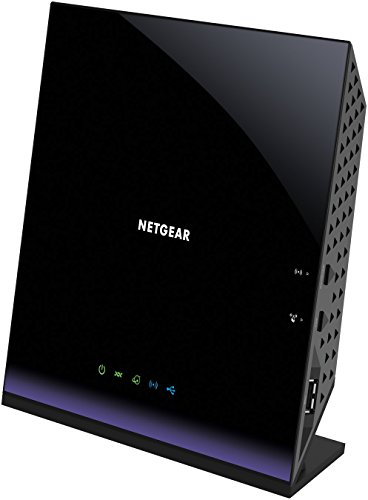
Netgear NETGEAR AC1600 WiFi VDSL/ADSL Modem Router – 802.11ac Dual Band Gigabit (D6400-100NAS)
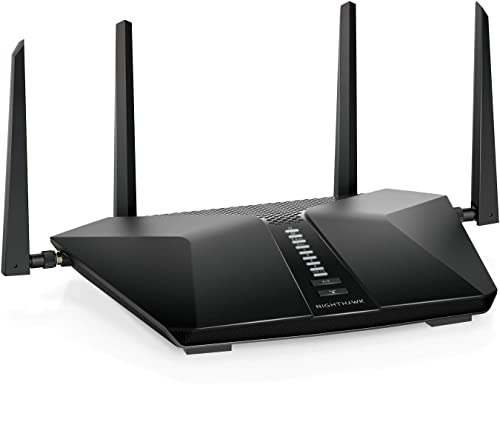
Netgear NETGEAR RAX50-100NAR Nighthawk 6-Stream AX5400 WiFi 6 Router, Black (Renewed)


Final thoughts on choosing with confidence
Shortlisting Netgear ADSL hardware rewards patience: confirm line compatibility, respect the limits of copper, then spend remaining budget on wireless reach, wired ports, and software support that match how your household actually lives online. A modest model placed well and configured carefully will outperform a flagship squeezed into a cupboard beside a noisy extension lead. Keep records of sync figures before and after the swap, give the line a week to settle, and judge the purchase by the dropouts that no longer happen during calls, lessons, and late night streaming.
For the family whose evenings finally run without buffering wheels or shouted requests to restart the box, the right router quietly disappears into the background of domestic life, and that invisibility is the truest sign the copper line found its proper partner.