What's inside
- Key Takeaways
- Quick Picks
- How Did We Choose These Six USB 3.0 Routers?
- What Can a Router’s USB 3.0 Port Actually Do for You?
- Why Does the Wi-Fi Class Tell You Nothing About USB Sharing Speed?
- One Port or Two — How Much Does the Count Really Matter?
- How Does Router Sharing Feel on Phones, Tablets and Televisions?
- Which of These Routers Deserves Your Drive, Printer or Both?
- How Do You Set Up USB Sharing So It Stays Reliable?
- Which Drive Belongs on the Port — and Does the Format Matter?
- How Do the Six Compare on Ports, Radios and Sharing Duties?
- When Should You Skip Router Sharing Entirely?
- How Do You Keep a Shared Drive Healthy Month After Month?
- What Mistakes Do People Make When Buying a Router for Its USB Port?
- Final Recommendation
- Frequently Asked Questions
- Related Guides
As an Amazon Associate I earn from qualifying purchases. This post may contain affiliate links at no extra cost to you.
widgetverdict.com is reader-supported. When you buy through links on our site, we may earn an affiliate commission.
Where to buy: all six routers in this guide carry verified Amazon listings, and each product name below links to its own listing page. Stock on the two older Linksys models moves in waves, so if a listing shows a marketplace seller instead of the brand store, read the seller details before ordering.
People searching for the best usb 3 routers usually want one plain thing: a router with a USB 3.0 socket on the back that can turn an ordinary external drive into shared storage, or put a printer within reach of every computer in the house. That socket is the subject of this guide. Not the Wi-Fi class printed in giant type on the box, not the aggregate speed figure that adds every radio together — the port itself, what hangs off it, and how honestly each maker describes the arrangement.
The distinction matters because USB 3.0 and Wi-Fi speed are separate budgets that marketing loves to blur. A router can broadcast a very fast wireless signal while its USB port crawls, and a modest older router can share files perfectly well for a household that mostly backs up documents and photos overnight. Every pick below was chosen because its listing title states a USB 3.0 port outright. Where a title stays silent about a sharing detail — a transfer rate, a printer protocol, a drive format — we say so in the spec box rather than filling the gap with a guess.
The six picks split into three camps. Two are full-size home routers built around the port, one a flagship with two USB 3.0 sockets and one a wired business gateway that treats the port as an accessory. Two are travel routers small enough for a jacket pocket, where the USB socket earns its keep sharing a drive in a hotel room or tethering storage to a temporary desk. And two are veteran Linksys models whose age is precisely their appeal: mature firmware, an eSATA bonus on one of them, and prices of attention rather than money — you buy them knowing exactly what a decade-old platform can and cannot do.
Key Takeaways
- The USB 3.0 port is the buying axis here: it shares drives and printers, and it has nothing to do with the Wi-Fi speed class on the box.
- Only one pick, the TP-Link Archer BE770, carries two USB 3.0 ports; the other five carry one each, so count your shared devices before choosing.
- Two travel routers make the list because a pocket router with a USB socket is the easiest way to share a drive away from home.
- The Omada ER7412-M2 is a wired VPN gateway with no Wi-Fi radios in its title — its USB port serves a wired network, not a wireless one.
- Listing titles rarely state file-transfer speeds for the USB port, so treat any sharing rate you need as a figure to confirm in the manufacturer documentation.
- An eSATA port appears on exactly one pick, the Linksys WRT1200AC, and it remains the fastest way to attach a single drive to that router.
Quick Picks
| Pick | Badge | Why it earns its place |
|---|---|---|
| TP-Link Archer BE770 | Two-port flagship | The only pick with a pair of USB 3.0 sockets, wrapped in a tri-band Wi-Fi 7 router with VPN server support. |
| Linksys EA6900 | App-managed veteran | AC1900 dual-band wireless with USB 3.0 sharing and an app that lets you manage the network from anywhere. |
| Linksys WRT1200AC | eSATA bonus pick | USB 3.0 plus an eSATA port, a combination almost no modern router still offers for direct-attached storage. |
| Roam 7 BE3600 Travel Router | Hotel-room sharer | A Wi-Fi 7 travel router whose USB 3.0 port and public Wi-Fi sharing modes suit life on the road. |
| GL.iNet GL-MT3600BE Beryl 7 | OpenWrt traveller | USB 3.0, dual 2.5G ports and OpenWrt firmware in a 205-gram travel body with fast WireGuard figures in its title. |
| Omada ER7412-M2 | Wired gateway option | A multi-gigabit VPN router for wired networks that still finds room for a single USB 3.0 port. |
How Did We Choose These Six USB 3.0 Routers?
The first filter was literal: the listing title had to name a USB 3.0 port. That sounds obvious, yet it removes a large share of routers people assume qualify, including several strong wireless performers whose ports are USB 2.0 or absent entirely. A USB 2.0 socket shares a printer happily but turns a backup drive into an overnight chore, so the generation of the port — not merely its presence — decided eligibility.
Second, we wanted the port to sit inside genuinely different kinds of hardware. A household replacing its main router, a consultant who works from hotel rooms, and a small office running a wired VPN gateway all type the same search words while needing different machines. Six near-identical home routers would have answered only the first of those readers. If your needs lean toward connection backup rather than storage, our companion guide to Best Routers for Tethered Phone Failover covers the other direction this hardware conversation often takes.
We also weighed who answers the support questions in three years. The two Linksys veterans benefit from enormous owner communities and long documentation trails; the travel routers benefit from makers who publish unusually detailed specifications; the flagship and the gateway benefit from current product lines with active firmware. A USB port is a ten-year feature on a router that may be replaced in five, so the maker’s habits matter nearly as much as the hardware.
Third, every other specification in this guide comes from the listing title of each pick and nothing else. When a title states a figure — the Beryl 7’s WireGuard number, the BE770’s stream count — we print it. When a title is silent, the spec box records the silence. That discipline produces a few gaps, and we consider the gaps a feature: they show you exactly which questions to ask the manufacturer before money changes hands.
What Can a Router’s USB 3.0 Port Actually Do for You?
The headline job is file sharing. Plug a portable hard drive or a roomy flash drive into the port and the router offers its contents to the network, so the family photo archive, the shared documents folder and the media library stop living on one person’s laptop. For a household that currently passes a drive hand to hand, even a basic implementation feels like a small miracle the first week.
Printer sharing is the quieter second job. A USB printer without its own network card becomes reachable from every machine once the router hosts it, which rescues perfectly good older printers from the one-desk tether. Whether a given pick supports printer sharing is a firmware question, and where the listing title does not say, our spec boxes leave the line open rather than promising it.
The third job is backup duty. Several router platforms let a connected drive serve as a target for scheduled computer backups, so the drive spins up at night and rests during the day. Be honest with yourself about scale, though: a router sharing one USB drive is a convenience layer, not a backup strategy with redundancy. One drive, one copy, one point of failure. Treat it as the easiest copy you own, not the only one.
A fourth job appears on the picks whose titles include a VPN server: reaching the shared drive from outside the house through the router’s own encrypted tunnel. The BE770 lists VPN clients and server, the travel routers list OpenVPN and WireGuard, and in each case the pattern is the same — the drive never faces the internet directly, yet the owner can open the household archive from a hotel room or a client site. For anyone who has ever needed the one file that lives only at home, that arrangement justifies the entire category.
Finally, on the travel routers, the port changes character. Away from home it can hold the drive of presentations, media or installers you would rather not keep on a work laptop, and on some platforms it supports a tethered modem — though tethering support is model-specific and, again, only claimed here where a title supports the claim. Readers planning around larger shared spaces should also see how these port questions play out in Best Wi-Fi Routers and Access Points for Offices and Warehouses, where the hardware conversation widens from single routers to managed access points.
Why Does the Wi-Fi Class Tell You Nothing About USB Sharing Speed?
Because the two numbers come from different silicon doing different work. The Wi-Fi class — BE18000, AC1900 and the rest — describes radio throughput under laboratory conditions across bands. USB sharing speed depends on the router’s processor, its storage firmware and the drive itself. A flagship radio paired with a modest processor can share files more slowly than its box suggests, and none of the six listing titles here publish a USB transfer figure, which is why this guide refuses to rank the picks by a sharing speed nobody stated.
What you can reason about is the chain around the port. The drive’s own interface matters: a USB 3.0 SSD removes the spinning disk as the bottleneck, while an older portable hard drive will cap transfers whatever the router can do. The client connection matters too — a laptop on a congested 2.4 GHz band will never see the port’s best work, so test sharing from a wired machine or a strong 5 GHz link before judging the router.
There is also an interference footnote worth knowing. USB 3.0 signalling is known to radiate noise in the 2.4 GHz band, which is why some routers shield the port or suggest a short extension cable for drives. If your 2.4 GHz devices behave oddly only while a drive is busy, that quirk — not failing hardware — is the likely story, and moving the drive a short distance from the router body is the classic remedy.
One Port or Two — How Much Does the Count Really Matter?
Count the devices you genuinely intend to attach, then be honest about the second year. Most households name exactly one: a drive. The printer, on inspection, already has Wi-Fi; the second drive was an aspiration rather than a plan. For those readers a single USB 3.0 port is not a compromise at all, and the money saved by choosing a one-port pick buys the better drive the sharing deserves.
The two-port case becomes real in three situations. A printer without any network capability of its own must live somewhere, and the router is its natural home. A backup drive plus a media drive want different permissions and different audiences, as the BE770 review describes. Or the household simply hates hubs and dongles enough to pay for tidiness. If none of those describes you, port count should drop down your priority list below firmware quality and placement.
There is also a future-proofing argument that deserves a fair hearing. Devices accumulate: the scanner, the label printer, the drive a relative gives you at Christmas. A spare port is cheap insurance against a reorganised desk. Weighed against that, remember that routers themselves get replaced as Wi-Fi generations turn, and the spare port’s value expires with the box. Buy for the network you have, with one eye — not both — on the network you might build.
How Does Router Sharing Feel on Phones, Tablets and Televisions?
The audience for a shared drive has changed. A decade ago it was two laptops; today the drive serves phones hunting for photos, tablets streaming a film and a television that expects the media library to simply appear. Most router platforms announce the share over the local network in ways televisions and media apps discover automatically, while phones usually reach it through the router maker’s app or a file manager. The practical advice is to test the exact device pairing you care about during the first evening, while returning the router is still painless.
Phones add a second consideration: backup direction. Several households buy a USB-port router imagining the phone’s photos will flow to the drive automatically. That flow depends on apps and platform features the listing titles do not describe, so treat phone backup as a bonus to verify in the manufacturer’s documentation, not as a reason to buy. What the port guarantees is the shared destination; the roads into it vary by ecosystem.
Televisions are the most forgiving clients and the most common disappointment. A TV plays files happily from a share, but it cannot fix a drive formatted in a way the router serves awkwardly, nor transcode a video file beyond its own decoding ability. If the television is the main audience, keep the library in widely supported formats and let the router do the one job it is good at: making the same folder appear in every room.
Which of These Routers Deserves Your Drive, Printer or Both?
The detailed reviews below follow Quick Picks order. Read the spec box of any pick you are seriously considering: it separates what the listing title states from what it leaves for you to verify, and on a port-focused purchase that separation is the whole game.

TP-Link Archer BE770 — Two-port flagship
The Archer BE770 is the only router in this guide that doubles the headline feature. Two USB 3.0 ports mean a backup drive and a printer can live on the router at the same time, or two drives can split duties — one for the household archive, one for the media library — without a hub dangling off the back panel. For the reader whose search began with a port count problem, this is the direct answer.
Around those ports sits a tri-band BE18000 Wi-Fi 7 platform with ten streams and multi-gigabit wired ports, so the wireless side will not embarrass the wired side in a busy house. The title also lists VPN client and server support, Easy Mesh compatibility, HomeShield and a private IoT network, which paints a picture of a router intended to be the permanent centre of a demanding home rather than a stopgap. That ambition cuts both ways: you are paying for a great deal of router, and if your actual pain was only ever a shared printer, the smaller picks below solve it for far less commitment.
On sharing specifics, the title confirms the two ports and nothing about transfer rates or supported drive formats. Plan to confirm those in TP-Link’s documentation if your archive is large, because a household moving terabytes will feel the difference between a fast and a merely adequate storage implementation every single backup night.
There is a subtler advantage to the second port that only appears over time: separation of audiences. The backup drive can sit behind the stricter sharing account while the media drive stays open to the household’s screens, so a child’s tablet browsing films never wanders past the folder holding tax records. Single-port routers can imitate this with folder permissions, but two physical drives make the boundary obvious to everyone, including the person who set it up two years ago and forgot the details.
- USB ports: 2 × USB 3.0
- Wireless: tri-band Wi-Fi 7, BE18000 class, 10 streams
- Wired ports: multi-gigabit (exact count not given in the listing title — consult TP-Link’s documentation)
- VPN: clients and server, per the listing title
- Extras in title: Easy Mesh, HomeShield, Private IoT Network
- USB file-transfer rate: the title gives no figure — check the manufacturer’s documentation
Strengths
- Two USB 3.0 ports let a drive and a printer share the router simultaneously.
- Tri-band Wi-Fi 7 with ten streams gives the shared storage a fast wireless audience.
- VPN server support means the shared drive can be reached through the router’s own tunnel.
Trade-offs
- Flagship platform is far more router than a printer-sharing problem requires.
- No USB transfer figure in the title, so heavy archivists must verify before buying.
- HomeShield features may involve account or subscription layers beyond the hardware.
Best for: a busy multi-device household that wants one drive for backups and a second socket free for a printer, on the main router.
Not suited for: a single-room flat with one laptop, where the second port and tri-band radios would sit unused for years.

Linksys EA6900 — App-managed veteran
The EA6900 comes from the era when AC1900 was the ambitious end of home Wi-Fi, and its listing title still leads with the combination this guide cares about: gigabit wired ports and USB 3.0. One such port is stated, ready for the shared drive or printer that anchors a modest household network. Nothing about the machine pretends to be current-generation, and that honesty is refreshing.
Its distinguishing feature is the Smart Wi-Fi app, which the title says can control your network from anywhere. For the person who becomes unpaid technical support for a parent’s house or a small rental property, remote management is not a garnish — it is the difference between fixing a sharing problem from your sofa and driving across town to power-cycle a box. The drive attached to that USB port can be checked, and the network around it adjusted, without standing in front of it.
Set expectations by the platform’s age. Dual-band AC1900 wireless serves a normal home’s streaming and browsing without drama, but the processor behind the USB port belongs to its generation, so large transfers should be scheduled, not watched. Buy it as a known quantity with mature behaviour, not as a speed purchase.
Think of the EA6900’s port as a household utility rather than a performance feature. It keeps the shared printer awake for the whole home, holds the folder of school documents everyone needs, and survives being ignored for months at a time — the actual job description in most houses. The app completes that picture: when the drive share misbehaves, you can restart the router from wherever you are instead of coaching a relative through a power cycle by phone.
- USB ports: 1 × USB 3.0 (further port detail not given in the listing title — see Linksys documentation)
- Wireless: AC1900 dual-band Wi-Fi
- Wired ports: gigabit Ethernet
- Management: Smart Wi-Fi app, control from anywhere, per the title
- USB file-transfer rate: the title publishes no figure — look for it in Linksys support pages
- Printer sharing: the title is silent — confirm support in Linksys documentation
Strengths
- Remote app management suits anyone who supports a network they do not live with.
- Gigabit ports plus USB 3.0 cover the classic share-a-drive, share-a-printer brief.
- A long-lived platform means its sharing behaviour is thoroughly documented by owners.
Trade-offs
- AC1900-era processor will not thrill anyone moving huge files daily.
- Single USB port forces a choice between drive and printer duty.
- Firmware is mature in the sense of finished — expect stability, not new features.
Best for: a relative’s house or small rental you manage remotely, where the app matters as much as the port.
Not suited for: a home studio pushing daily video backups, which will outgrow its sharing pace within a month.
Linksys WRT1200AC — eSATA bonus pick
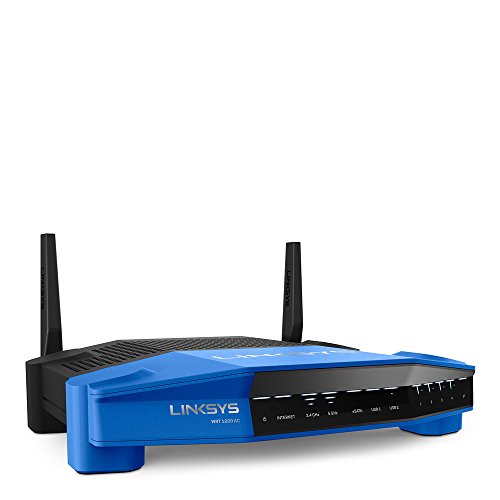
The WRT1200AC earns its place with a port almost no other router in this guide — or on the current market — still carries: eSATA, sitting alongside USB 3.0 and gigabit Ethernet. A drive in an eSATA enclosure connects with a storage-native link rather than a general-purpose one, and for a single permanently attached drive that directness has real charm. Owners of older eSATA enclosures, otherwise orphaned by modern laptops, get a second life for hardware they already trust.
The WRT name carries a tinkering heritage, and the dual-band wireless platform is deliberately a step below the flagship WRT models — this is the compact member of that family. As a main router for a large modern home it would be the wrong ambition. As the centre of a small network built around attached storage — a flat, a home office, a workshop bench — its port selection is arguably the most storage-serious in this entire guide.
One caution belongs in bold mental type: eSATA enclosures and cables are a legacy ecosystem. Drives are plentiful, but if your enclosure dies in five years, its replacement hunt will be archaeological. The USB 3.0 port is the future-proof half of this pick; the eSATA port is a bonus for today, and the pick should be priced in your head accordingly.
Storage people will appreciate one more WRT1200AC trait: it treats attached drives as a first-class citizen rather than a marketing checkbox. Routers of its line exposed drive status and sharing controls prominently in their interface, because the family was designed partly around this duty. If your mental model of the purchase is “a small, honest file server that also routes”, this pick matches that model more closely than anything else here — just keep a laptop nearby that can read the drive directly if the router itself ever fails.
- USB ports: 1 × USB 3.0
- Storage extras: eSATA port, per the listing title
- Wireless: dual-band Wi-Fi (class detail beyond that not given in the title — see Linksys documentation)
- Wired ports: gigabit Ethernet
- USB file-transfer rate: no figure appears in the title — the maker’s manual is the place to check
- Drive format support: unlisted in the title — check the WRT support documentation
Strengths
- eSATA gives a permanently attached drive a storage-native connection.
- USB 3.0 remains available for a second device or a printer.
- Compact WRT-family platform suits small, storage-centred networks.
Trade-offs
- eSATA enclosures are legacy hardware with a shrinking replacement pool.
- Dual-band wireless is modest beside the Wi-Fi 7 picks in this guide.
- Like the EA6900, its processor generation caps sharing pace.
Best for: a home office with an eSATA enclosure already on the shelf and a small network to serve.
Not suited for: a large family home needing strong wireless in every room — the radios, not the ports, become the limit.

Roam 7 BE3600 Travel Router — Hotel-room sharer
Travel routers exist to civilise other people’s networks, and the Roam 7’s title reads like a packing list for exactly that: dual-band Wi-Fi 7 in the BE3600 class, a 2.5G wired port, USB 3.0, multiple operating modes in one device, OpenVPN and WireGuard, and a public Wi-Fi sharing function aimed at hotels, cruise ships, motorhomes and planes. The model code TL-WR3602BE sits at the end of the title for anyone cross-checking documentation.
The USB 3.0 port in this context is not about the family archive. It is the conference-room drive with the deck and the contracts, the media drive that turns a hotel television evening into your own library, the installer drive a field engineer carries between sites. Because the router builds a private network behind the venue’s connection, files on that drive stay on your side of the wall — a meaningfully different posture from plugging storage into a shared machine.
Respect the title’s plain warning: no 6 GHz band is supported. The BE3600 figure is built from the two bands it does have, and in crowded hotel spectrum the 5 GHz band does the heavy lifting anyway. Buy it for the modes and the port, not for a band it never claimed.
Consider how the port earns its place across a single work trip. On the train it holds the media library. In the hotel it serves the shared folder your travelling colleague pulls the day’s documents from, behind the private network the router builds on the venue’s connection. At the client site it carries installers and reference files too large for email. One small drive, three jobs, and at no point did any of those files touch a stranger’s machine — that is the real product being sold here.
- USB ports: 1 × USB 3.0
- Wireless: dual-band Wi-Fi 7, BE3600 class; no 6 GHz, per the title
- Wired ports: 1 × 2.5G port
- VPN: OpenVPN and WireGuard, per the title
- Modes: multiple modes in one device; public Wi-Fi sharing for hotel, cruise, RV and plane use
- USB file-transfer rate: unstated in the title — the brand’s spec sheet holds the answer
Strengths
- Public Wi-Fi sharing mode is designed for captive-portal venues.
- USB 3.0 turns a pocket drive into private storage behind your own network.
- A 2.5G wired port is unusually serious hardware for a travel body.
Trade-offs
- No 6 GHz band, despite the Wi-Fi 7 badge — the title says so itself.
- Travel coverage is one room, not one house; do not retire your home router.
- Sharing features depend on mode, so hotel setups need a minute of configuration.
Best for: consultants and field staff who share a drive inside hotel and conference networks they do not control.
Not suited for: a family house looking for its main router — the radios are built for a room, not a floor plan.
GL.iNet GL-MT3600BE Beryl 7 — OpenWrt traveller
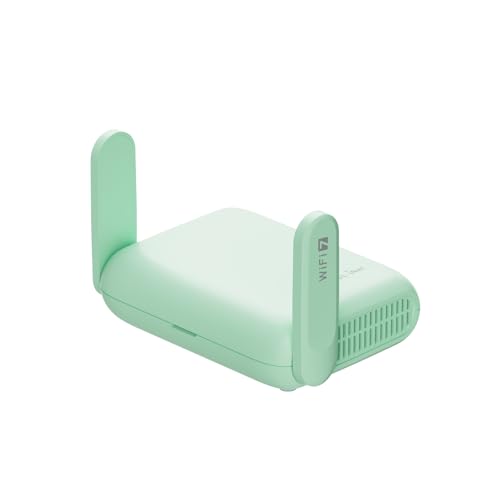
The Beryl 7 is the tinkerer’s travel router, and its title is the most numerically forthcoming in this guide: dual-band Wi-Fi 7 speeds of 688 plus 2882 Mbps, dual 2.5G ports, USB 3.0, a WireGuard figure of 1100 Mbps, OpenWrt 21.02 firmware, WPA3 and AdGuard Home, all in a body weighing 205 grams. When a maker prints its VPN throughput in the title, it is inviting scrutiny — and giving travelling users the one number they usually have to dig through forums to find.
OpenWrt underneath changes what the USB port can become. Beyond simple file sharing, an open firmware platform invites packages and configurations that closed firmware does not offer, which is why this pick suits readers who enjoy shaping their router rather than merely owning one. The honest corollary: that flexibility is a hobby. If configuring a router sounds like a chore rather than a pleasure, the Roam 7’s more appliance-like modes will make you happier.
Dual 2.5G ports deserve a sentence of their own, because on a travel router they allow a wired laptop and a wired venue connection to run fast simultaneously — a small workstation behind hotel Ethernet, with the USB drive serving files to it. Few pocket routers bother. This one did, and road-warriors with a wired workflow will notice.
The Beryl 7 also reframes what the USB port can be for a technically minded owner. On an OpenWrt base, storage can serve more than a simple file share — owners routinely turn the attached drive into the home of logs, configuration backups and small self-hosted utilities that travel with the router. None of that is promised in the listing title, and we flag it as platform potential rather than a stated feature, but it is precisely the kind of headroom that separates this pick from appliance-style rivals.
- USB ports: 1 × USB 3.0
- Wireless: dual-band Wi-Fi 7, 688 plus 2882 Mbps per the title
- Wired ports: 2 × 2.5G ports
- VPN: WireGuard at 1100 Mbps per the title; firmware OpenWrt 21.02
- Extras in title: WPA3, AdGuard Home; weight 205 g
- USB file-transfer rate: the title omits it — consult GL.iNet’s documentation before relying on a figure
Strengths
- OpenWrt firmware makes the USB port and the whole router deeply configurable.
- Published WireGuard figure lets VPN-heavy travellers judge it before buying.
- Two 2.5G ports support a genuinely wired travel workstation.
Trade-offs
- OpenWrt’s flexibility rewards effort; appliance-minded owners may never use it.
- Dual-band only, like the Roam 7 — no 6 GHz radio is claimed.
- Travel-class coverage, so it supplements rather than replaces home hardware.
Best for: technically confident travellers who want OpenWrt, fast WireGuard and a shared drive in one 205-gram box.
Not suited for: owners who want to unbox, join Wi-Fi and never open an admin page again.

Omada ER7412-M2 — Wired gateway option
Every guide needs one pick that reframes the question, and here it is a router with no Wi-Fi at all. The Omada ER7412-M2 is a multi-gigabit VPN router — quad-core processor, two 2.5G ports and one USB 3.0 port, per its title — built to sit at the edge of a wired network and feed switches and access points behind it. If your home or small office already gets its wireless from separate access points, the absence of radios is not a flaw; it is the design.
What does a USB 3.0 port do on such a machine? The title confirms the port’s presence and speed class but does not assign it a role, and roles on gateway hardware vary — storage sharing and modem duties are both seen in this product class, but we will not guess which this unit implements. That single unknown is the deciding question for this pick: confirm the port’s documented function in TP-Link’s Omada documentation, and if it matches your plan, the rest of the specification is admirably clear.
Placement thinking differs for this pick. A home router with a shared drive usually hides in a cupboard; a gateway like the ER7412-M2 typically lives in a rack, a comms cabinet or a tidy shelf beside a switch, where a USB device can be mounted deliberately and labelled. In businesses that already run Omada access points, adding this unit keeps management in one system, and the USB port — whatever role the documentation assigns it — joins a network that was planned rather than accumulated.
As a VPN gateway, it also pairs naturally with the failover and site-to-site thinking elsewhere in this batch — readers building that kind of network often start from a wired core like this and add wireless as a separate layer, an approach explored further in Best Cable Modem Routers That Work with Spectrum from the modem side of the fence.
- USB ports: 1 × USB 3.0 (role of the port not assigned in the listing title — confirm in Omada documentation)
- Wireless: none stated in the title; this is a wired router
- Wired ports: 2 × 2.5G ports; multi-gigabit class per the title
- Processor: quad-core, per the title
- Role: VPN router within the Omada ecosystem
- USB file-transfer rate: absent from the title — see the Omada documentation for any published figure
Strengths
- A wired multi-gigabit core suits networks that separate routing from wireless.
- Quad-core processor headroom fits VPN gateway duty.
- Still includes a USB 3.0 port, which many pure gateways omit.
Trade-offs
- No Wi-Fi radios — useless as a standalone home router.
- The USB port’s exact role must be confirmed before it justifies the purchase.
- Omada ecosystem thinking may pull you toward managed switches and controllers.
Best for: a small office or advanced home whose wireless already comes from access points and needs a wired VPN core.
Not suited for: anyone expecting to unbox one box and have Wi-Fi — this pick deliberately contains none.
How Do You Set Up USB Sharing So It Stays Reliable?
Start with the drive, not the router. Connect the drive you intend to dedicate to the router, format it deliberately for that life, and give it a volume name you will recognise in a file browser at midnight. A drive that shuttles between laptop and router accumulates half-finished copies and confusion; a drive that lives on the router becomes infrastructure, and infrastructure should be boring.
Next, create the sharing account properly. Every platform in this guide that shares storage offers some form of user or password control, and the default temptation is to switch sharing on with no credentials because the living room feels safe. Resist it. Guest networks, children’s friends and the occasional compromised smart gadget all stand on the same side of the router as that drive. One named account with a real password costs ninety seconds and changes the drive from an open shelf into a locked cupboard.
Then decide the shape of access. Read-only sharing suits a media library that should never be edited by its audience; read-write suits a backup target and a working documents folder. Many households end up wanting both, which is an argument for the two-port BE770 or for two clearly named folders with different permissions on a single-port pick. What you should not do is grant the whole household write access to the only copy of the family archive.
While you are in the admin pages, note the firmware version and turn on update notifications if the platform offers them. Sharing features are exactly the kind of subsystem that security updates quietly patch, and a router whose storage sits open to the whole household deserves the same patching discipline as the computers that read from it. Five minutes of administration now prevents the specific misery of discovering an unpatched sharing service during a clear-out two years later.
Finally, test from the worst seat in the house. The corner bedroom on 2.4 GHz, the laptop behind two walls — that is where sharing feels slow, and the fix is usually placement or band choice rather than a different router. Run the test on the day you set up, not the night a deadline depends on it, and write down the admin password somewhere a future you will actually find.
Which Drive Belongs on the Port — and Does the Format Matter?
The drive question splits by duty. For a documents-and-photos share, a modest portable hard drive is fine and its cost per terabyte remains unbeatable. For a media library that several screens pull from at once, or a backup target you want to complete quickly, a USB SSD removes the spinning disk’s seek delays and shrugs off the bumps of life near a busy router shelf. Match the drive to the impatience of its users.
Format matters because the router, not your laptop, becomes the drive’s host. Filesystems differ in file-size limits, in how they handle permissions, and in whether your other machines can read the drive when it is unplugged and connected directly in an emergency. That last test is underrated: a shared drive you cannot read anywhere else is a trap during a router failure. Before loading the archive, unplug the drive, attach it to a computer, and confirm you can open the files. Five minutes of rehearsal beats a weekend of recovery tools.
Power deserves a mention too. Bus-powered portable drives draw from the router’s port, and while USB 3.0 supplies more current than its predecessor, a large desktop enclosure with its own power supply removes the question entirely and lets the drive spin down on its own schedule. If a portable drive clicks, disconnects or vanishes from the share under load, suspect power before you suspect the router.
Capacity planning is the last piece. Router sharing has no meaningful way to warn you gracefully as a drive fills, and backups fail silently in the background when they run out of room. Buy roughly double the storage you think the first year needs; the price difference is small, and a half-empty shared drive ages far more gracefully than a brim-full one.
How Do the Six Compare on Ports, Radios and Sharing Duties?
| Pick | USB 3.0 ports | Wireless | Defining extra |
|---|---|---|---|
| TP-Link Archer BE770 | 2 | Tri-band Wi-Fi 7, BE18000 | VPN server, Private IoT Network |
| Linksys EA6900 | 1 | AC1900 dual-band | Smart Wi-Fi app remote control |
| Linksys WRT1200AC | 1 | Dual-band | eSATA port for attached storage |
| Roam 7 BE3600 | 1 | Dual-band Wi-Fi 7, no 6 GHz | Public Wi-Fi sharing modes |
| GL.iNet Beryl 7 | 1 | Dual-band Wi-Fi 7 | OpenWrt, dual 2.5G ports |
| Omada ER7412-M2 | 1 | None — wired only | Multi-gigabit VPN gateway |
Read the table by columns of consequence. The USB column separates exactly one pick from the field: if two shared devices must hang off the router, the BE770 is the only candidate, and the other five are answers to different questions. The wireless column then sorts by ambition — a full tri-band flagship, two capable veterans, two travel radios and one deliberate blank.
The defining-extra column is where the real purchases happen. Nobody buys the WRT1200AC for its radios in this decade; they buy the eSATA port. Nobody buys the ER7412-M2 despite its missing Wi-Fi; they buy it because of what that absence implies about its intended network. Match the extra to your actual bottleneck and the table stops being a ranking and becomes a set of directions.
When Should You Skip Router Sharing Entirely?
Honesty requires a section arguing against this whole category. If three or more people edit the same large files daily, if the archive holds the only copies of business records, or if you already know the vocabulary of drive redundancy and snapshots, you have outgrown router sharing before buying it. A dedicated NAS will serve you better, and the router’s port becomes a pleasant extra rather than a load-bearing wall.
The same applies when the sharing must survive the router. Businesses that cannot afford an afternoon without the shared folder should not host it on the device whose failure also removes the network itself. Separate the duties: a small NAS keeps serving the office through a router swap, while the router’s USB port handles the printer or a secondary, expendable share.
For everyone else — the household archive, the shared printer, the travel drive, the backup target that is one copy among several — router sharing remains the cheapest useful trick in home networking. The picks above were chosen to cover that honest middle ground, and their spec boxes mark the exact points where a heavier tool would take over.
How Do You Keep a Shared Drive Healthy Month After Month?
Router-attached drives fail quietly. Nobody watches them, the router offers no friendly health dashboard in most platforms, and the first symptom of a dying drive is often a backup that silently stopped completing. Build one small ritual: once a month, open the share, copy one large file off it, and glance at the free space. That two-minute check catches filling drives, failing drives and sharing accounts that stopped working after a firmware update — the three realistic failure modes of this entire category.
Firmware updates deserve their own sentence. Update the router when the maker recommends it, but re-check the share afterwards before assuming the household’s backups are running. Platforms occasionally reset sharing toggles or rename the share during major updates, and the discovery is much cheaper on update day than during the week you actually need the archive.
Heat is the slow enemy nobody budgets for. Routers live in cupboards and drives dislike warm, still air; a shared drive that runs around the clock in a closed cabinet ages faster than the same drive on an open shelf. Give the pair ventilation, keep the drive out of direct sun, and if the enclosure feels hot to the touch every time you pass, move it. Longevity in this category is mostly thermal common sense.
Finally, rehearse the exit. Drives and routers both get replaced eventually, and the household that has already practised reading the drive on a plain computer — as the setup section advised — treats replacement as an errand. The household that skipped the rehearsal treats it as an emergency. The port makes sharing easy; a little maintenance keeps it easy for years.
What Mistakes Do People Make When Buying a Router for Its USB Port?
The first mistake is reading the Wi-Fi class as a storage promise. BE18000 describes radios. It says nothing about how fast the router serves files, and shoppers who learn that after purchase feel cheated by a number that never claimed otherwise. Decide what your sharing actually involves — nightly document backups forgive almost anything; a shared video library does not.
The second mistake is forgetting the drive. A bargain portable hard drive from a drawer can cap the whole arrangement, and its filesystem format decides which machines can write to it through the router. Format the drive deliberately for its router life, label it, and let it live there instead of shuttling it back to a laptop, which defeats the purpose and multiplies the chances of an unplugged-mid-write accident.
The third mistake is exposure. A shared drive reachable from every device is convenient; a shared drive reachable from the internet because a remote-access toggle was switched on carelessly is a liability. Turn on only the access you use, put a real password on the sharing account, and let the VPN server — where a pick offers one — be the road home for your files rather than an open port.
Final Recommendation
Most households typing this search should land on the Archer BE770: it is the only pick that treats USB sharing as a headline feature twice over, and its wireless platform will outlast several generations of attached drives. Travellers should choose between the Roam 7’s venue-friendly modes and the Beryl 7’s OpenWrt depth, while the two Linksys veterans reward buyers who know precisely which legacy strength — remote app management or eSATA — they are purchasing. The ER7412-M2 closes the list as the wired-core answer. A USB port looks like a footnote on a router box; chosen well, it quietly becomes the most-used socket in the house.
One last piece of shopping advice applies to all six: buy the drive at the same time as the router, not from the drawer of forgotten electronics. A fresh drive, formatted deliberately and dedicated to the port from day one, turns setup into a single evening’s work and gives the sharing arrangement a clean start. The drawer drive can live on as the second copy — which, as this guide has argued more than once, every important archive deserves.
Frequently Asked Questions
Can a router’s USB 3.0 port replace a proper NAS?
For light duties — one shared folder, a media library, a backup target — it covers the need honestly. It does not offer the redundancy, user management or application ecosystem of a dedicated NAS, and this guide’s picks should be bought as convenience sharing, not as data protection. Keep another copy of anything irreplaceable.
Will any USB drive work with these routers?
Most bus-powered portable drives and flash drives work, but filesystem format and power draw decide edge cases, and the listing titles do not publish compatibility tables. Check the manufacturer’s documentation for your chosen pick, especially for very large drives or enclosures with their own power supplies.
Why do none of the listings state a USB transfer speed?
Because router makers market radios, and storage throughput depends on the drive, the client connection and the processor together. Rather than invent figures, this guide flags the omission in every spec box and points you to the manufacturer documentation, where the honest numbers live.
Does USB 3.0 on a router interfere with Wi-Fi?
USB 3.0 signalling can add noise in the 2.4 GHz band on some hardware. Symptoms appear as sluggish 2.4 GHz behaviour only while a drive is busy. A short extension cable moving the drive away from the router body is the standard, effective remedy.
Is a USB flash drive enough, or do I need a hard drive?
For a documents folder and a modest photo share, a large flash drive is silent, cool and entirely sufficient. For backups and media libraries, capacity and sustained-write endurance favour a real drive. Match the medium to the duty rather than to the port: the router cannot make a small, slow stick behave like an archive disk.
Can I share a printer and a drive at the same time?
On the Archer BE770, the two USB 3.0 ports make that arrangement direct. On the single-port picks you would choose one device for the router and network the other differently, unless the manufacturer’s documentation blesses a hub — most router platforms discourage hubs, so assume one device per port.
Related Guides
Keep reading with Best Routers for Tethered Phone Failover, Best Wi-Fi Routers and Access Points for Offices and Warehouses and Best Cable Modem Routers That Work with Spectrum.