What's inside
- Key Takeaways
- Quick Picks
- How We Chose These Picks
- How Do the Six Picks Compare Side by Side?
- Why Did the 13-Inch Size Disappear From This End of the Market?
- What Should You Check Before Spending at This Budget?
- How Should the Rest of the Budget Be Spent?
- How Do You Keep a Budget Laptop Useful for Longer?
- What Does Daily Life on Chrome OS Actually Involve?
- Which Buying Mistakes Haunt This Price Bracket?
- Final Recommendation
- Frequently Asked Questions
- Related Guides
As an Amazon Associate I earn from qualifying purchases. This post may contain affiliate links at no extra cost to you.
widgetverdict.com is reader-supported. When you buy through links on our site, we may earn an affiliate commission.
Anyone hunting for the best 13 inch laptops under 400 dollars deserves a straight answer before a single product name appears: a brand-new 13-inch Windows laptop at this budget has effectively vanished from the market. What actually fills this price territory in 2026 is the 14-inch Chromebook — a slightly larger screen in a bag footprint barely different from the old 13-inch class — plus a refurbished route for buyers who truly need a 13-inch Windows machine. This guide is built around that reality rather than pretending otherwise. Four linked picks below are Chromebooks whose listings we could verify; two further entries, covered without links, handle the refurbished Windows path and a smaller travel option.
That honesty matters because the budget itself is not unreasonable. Four hundred dollars buys a perfectly serviceable machine for browser work, documents, school portals, video calls and streaming, provided the operating system matches the hardware. Chrome OS is light enough to feel brisk on modest chips where Windows would grind. The compromises live elsewhere: screens at this level are mostly HD rather than Full HD, storage is small, and nothing here will run desktop Windows software, serious photo editors or PC games. Buy with those boundaries understood and this class delivers years of unglamorous, dependable service.
Every linked name below connects to Amazon, where you can check price on Amazon and confirm the exact configuration before ordering — memory and storage figures differ between near-identical model names, and at this budget a step from 4GB to 8GB of memory changes the machine’s useful life more than any other single figure on the page.
Key Takeaways
- No new 13-inch Windows laptop genuinely lives at this budget; the honest market here is 14-inch Chromebooks and refurbished 13-inch business machines.
- Chrome OS is the reason this budget works at all — it stays responsive on entry chips that would make a cheap Windows installation feel broken.
- Memory divides this class more than processors do: 8GB machines multitask comfortably, while 4GB machines ask you to keep the tab count modest.
- Three of the four linked picks carry HD screens, so buyers who read small text all day should weigh the one WUXGA touchscreen model seriously.
- Check the Chrome OS update expiry date on any Chromebook before buying; support windows, not hardware failure, end these machines’ lives.
Quick Picks
| Pick | Badge | Why it earns a place |
|---|---|---|
| Acer Chromebook Plus 514 | The one with a real screen | A WUXGA touchscreen and a Core i3 put it a class above the rest of this guide on display and speed. |
| HP Chromebook 14 (N100) | The balanced buy | 8GB of memory and 128GB of storage fix the two weaknesses that age budget Chromebooks fastest. |
| Lenovo IdeaPad Slim 3 Chromebook 14 | The light carrier | A slim 14-inch machine built around all-day carrying and simple school or home workloads. |
| HP Chromebook 14 (N4120) | The spare-room staple | An older, simpler specification that still covers browsing, mail and video calls without fuss. |
| Refurbished Lenovo ThinkPad X13 (Gen 1) | The true 13-inch Windows route | A business-grade 13.3-inch Windows machine that reaches this budget only through the refurbished channel. |
| Samsung Galaxy Chromebook Go 14 | The rough-and-ready traveller | A sturdy 14-inch Chromebook aimed at bags, kids and shared household duty. |
How We Chose These Picks
We started by accepting the market as it is. Searching for new 13-inch Windows laptops at this budget returns discontinued models, marketplace listings of uncertain origin and machines whose specifications belong to another decade, so the linked picks are the Chromebooks whose listings could be verified against the manufacturer’s own product information, with screen size, processor, memory and storage all taken from the verified listing title rather than from retailer copy further down the page.
We also read the fine print of this category with a sceptical eye, because budget listings reward it. Model names repeat across years with different processors inside; storage described loosely in a headline sometimes resolves to a smaller or slower drive in the specification table; and a screen described by its size alone may be either of two very different resolutions. Every figure quoted in the pick sections below was therefore taken from the verified listing title of that exact model, and where a figure could not be verified — as with the two unlinked entries — we say so in the text instead of rounding the unknown into a confident-sounding claim.
Within the Chromebook field we weighted four things. Memory came first, because Chrome OS tabs and Android apps divide machines sharply at 4GB versus 8GB. Storage came second, with eMMC and UFS treated honestly as slower than a true SSD. Screen resolution came third — HD panels are the class norm and we say so wherever one appears. Finally we considered the Chrome OS automatic update horizon, since a Chromebook bought near the end of its support window is a poor bargain at any price. The two unlinked entries exist because a guide to this keyword that ignored the refurbished Windows route would be dodging the question half its readers are actually asking.

Acer Chromebook Plus 514 — The one with a real screen
The Chromebook Plus 514 breaks the pattern of this guide in the best possible way: its 14-inch WUXGA IPS touchscreen runs at 1920 x 1080, which reads noticeably sharper than the HD panels fitted to everything else linked here, and it is driven by an Intel Core i3-1315U, a processor with genuine headroom rather than an entry chip chosen to hit a price. The verified listing pairs that chip with 8GB of LPDDR5 memory and a 256GB SSD — real solid-state storage, not the eMMC flash that fills most of this class — and adds Wi-Fi 7 and a Full HD camera. It is, on paper and in character, a mid-range laptop that happens to be reachable at this budget rather than a budget laptop apologising for itself.
The “Plus” in the name is a Google designation, not Acer marketing: Chromebook Plus models meet a hardware floor and receive the platform’s enhanced features, including its AI-assisted writing and background tools. Whether those extras matter to you is secondary; the floor itself is the point, because it guarantees the memory, storage and camera standards that separate a three-year machine from an eighteen-month one. The touchscreen is matte, which suits the rooms this laptop will actually work in — kitchens, classrooms and offices with overhead light — and the panel’s extra pixels make split-screen work between a document and a browser genuinely comfortable rather than a squinting compromise.
Honesty requires two qualifications. The screen is 14 inches, not 13, so buyers measuring a specific sleeve should check dimensions rather than assuming. And a Core i3 Chromebook still runs Chrome OS: it will not open Windows applications, and anyone whose work depends on a particular desktop program should look at the refurbished entry further down this guide instead. Within the Chromebook world, though, this is the pick that asks the fewest sacrifices.
Day to day, what owners notice most is how little this machine asks them to think about it. The Full HD camera keeps video calls presentable without a ring light or a window seat, which matters more than it used to now that school interviews, remote work check-ins and family calls all happen through the same lens. The keyboard deck has room for a comfortable full-width layout because the 14-inch chassis gives Acer space the old 13-inch designs never had, and long writing sessions do not end with cramped hands. Storage headroom changes habits, too: with 256GB on board, keeping a semester of downloads, a photo library sync and a handful of offline films aboard at once stops being a juggling act, and the machine stays responsive because the drive is never gasping for free space.
It also travels better than its specification suggests. The chassis is slim enough for a standard laptop sleeve, charging runs over USB-C so a single compact charger can serve the laptop and a phone on a trip, and the hinge opens flat enough to share a screen across a table without propping the machine on a book. None of these details headline a product page, yet together they explain why this model is the one in the guide we would still recommend if the buyer’s budget quietly grew: nothing about it needs excusing.
- Display: 14-inch WUXGA 1920 x 1080 IPS touchscreen, matte finish
- Processor: Intel Core i3-1315U
- Memory and storage: 8GB LPDDR5, 256GB SSD
- Camera and wireless: Full HD camera, Wi-Fi 7
- Operating system: Chrome OS, Chromebook Plus tier
Strengths
- Sharpest screen in this guide by a wide margin, with touch input on top
- Core i3 performance keeps many tabs and Android apps moving together
- A proper SSD and 8GB of memory give it the longest useful life here
Trade-offs
- It is a 14-inch machine in a guide named for 13-inch laptops
- Chrome OS only — no route to Windows desktop software
- The specification sits at the top of this budget, leaving little room for accessories
Best for: home and school users who read and write on screen all day and want the display to stop being the compromise.
Not suited for: anyone whose essential software exists only as a Windows desktop program.

HP Chromebook 14 (N100) — The balanced buy
HP’s N100 Chromebook is the machine we would hand to a relative who asked for a cheap laptop and no follow-up questions. The verified listing specifies an Intel Processor N100, 8GB of RAM and 128GB of UFS storage behind a 14-inch HD display in a chalkboard gray chassis. Those middle figures are the story: doubling both memory and storage against the 4GB/64GB pattern that dominates this price band removes the two frustrations that make budget Chromebooks feel old before their time — tabs reloading when you return to them, and a downloads folder that fills by spring.
The N100 is a modest processor and no honest guide should dress it up as more. It handles the browser-first workload the machine is built for — mail, documents, classroom platforms, banking, video calls, streaming — without the hesitations of the older Celeron generation, but it is not a chip for heavy Android gaming or dozens of simultaneous tabs plus a video call plus a large spreadsheet all at once. Judged against its actual job description, it is well matched: efficient enough to stretch battery through a school or work day, quick enough that the machine never feels like the obstacle.
The screen is the honest weakness. HD resolution on a 14-inch panel softens small text, and writers who live in documents for eight hours a day will notice it by evening. For the mixed household duty this laptop is aimed at — some mail, some browsing, some video — it is acceptable, and the money saved against the Acer above is real. Buyers should also note the storage type: UFS is quicker than eMMC but a step below a true SSD, a distinction that shows up mainly when moving large files rather than in everyday responsiveness.
Ownership of this HP is deliberately uneventful, and that is a compliment at this budget. Setup is a Google sign-in and ten minutes; updates install in the background and ask for a restart rather than an afternoon; there is no antivirus subscription to renew and no driver hunt after a peripheral is plugged in. For a parent buying for a student, or an adult buying for a parent, that administrative quiet is worth as much as a specification line. The machine also handles the peripheral reality of home life gracefully — printers, USB drives, a cheap external monitor for a desk corner — because Chrome OS support for common hardware has matured into the boring reliability people actually want.
Its ceiling, when it arrives, arrives politely. A dozen tabs, a video call and a large shared spreadsheet together will slow it, but the slowdown is a pause rather than a crash, and closing two tabs restores composure. Buyers stepping down from an expensive laptop will feel the HD screen and the modest chip; buyers stepping up from a five-year-old budget machine will feel only relief. Knowing which of those two readers you are is the whole decision.
- Display: 14-inch HD panel
- Processor: Intel Processor N100
- Memory and storage: 8GB RAM, 128GB UFS
- Graphics: Intel UHD Graphics
- Finish: Chalkboard Gray, Chrome OS
Strengths
- 8GB of memory keeps everyday multitasking smooth for years
- 128GB of storage doubles the breathing room of most rivals here
- Simple, unflashy specification that is easy to buy for someone else
Trade-offs
- HD screen softens fine text during long reading sessions
- N100 performance has a clear ceiling with heavy tab loads
- UFS storage trails a genuine SSD on large file transfers
Best for: households and students after a cheap laptop that still feels adequate in its third year.
Not suited for: readers and writers who stare at small text from morning to night.

Lenovo IdeaPad Slim 3 Chromebook 14 — The light carrier
Lenovo sells the IdeaPad Slim 3 Chromebook explicitly as a lightweight machine, and that positioning defines its role in this guide: it is the pick for people whose laptop travels daily — between classrooms, between home and a relative’s house, between the kitchen table and the sofa — and who value an easy carry and a simple specification over raw capability. The verified listing describes a 14-inch HD display, a MediaTek Kompanio 520 processor, 4GB of memory, 64GB of storage, a 720p camera and Waves MaxxAudio speakers, finished in Abyss Blue.
The Kompanio 520 is an ARM-based chip, and that architecture shapes the machine’s character. ARM Chromebooks sip power and run cool, which suits a laptop that lives in bags and on laps, and Chrome OS itself runs natively and efficiently on the platform. The trade-off appears in the Android app catalogue, where the occasional app written for Intel processors behaves less happily, and in raw speed, where this chip sits a step behind the Intel entries in this guide. For browser work — the workload Chrome OS is designed around — the difference is smaller than the specification sheet suggests.
The 4GB of memory is the figure buyers must accept with open eyes. Keep the open-tab count in single figures and this machine stays pleasant; open twenty tabs alongside a video call and it will start quietly closing background pages. The 64GB of storage fills similarly fast if you download media rather than streaming it. None of that makes it a bad laptop — it makes it a laptop for a defined, lighter pattern of use, bought at a price that reflects exactly that.
The daily texture of using the Slim 3 is defined by what does not happen: the fan noise that never arrives because the design runs cool and quiet, the charger left at home because the battery was never in doubt, the moment of hesitation before opening one more document that heavier machines train into their owners. Classrooms and libraries reward exactly this temperament. The 720p camera is adequate for class calls and family video rather than flattering, and the speakers — tuned with more care than this class usually receives — make streamed lessons and films easier to follow without headphones, a small mercy in shared rooms.
Lenovo’s keyboard reputation also survives the descent to this price. The keys are not backlit and the deck is not metal, yet the typing feel is composed rather than hollow, which matters for the student who will write every essay of a school year on it. Treat the machine as a browser terminal with excellent manners and it will not disappoint; treat it as a bargain games machine or a media vault and the memory and storage figures will correct you within the month.
- Display: 14-inch HD panel
- Processor: MediaTek Kompanio 520
- Memory and storage: 4GB memory, 64GB storage
- Camera and audio: 720p camera, Waves MaxxAudio speakers
- Finish: Abyss Blue, Chrome OS
Strengths
- Built and marketed around low weight, and it carries like it
- Efficient ARM chip runs cool through a full day of classes
- Speaker tuning is a cut above the class’s usual tinny output
Trade-offs
- 4GB of memory caps comfortable multitasking at a handful of tabs
- 64GB of storage demands streaming habits rather than downloads
- Some Android apps are less polished on ARM processors
Best for: students and casual users whose laptop moves rooms or buildings every day and whose work lives in the browser.
Not suited for: habitual twenty-tab workers who keep everything open at once.
HP Chromebook 14 (N4120) — The spare-room staple
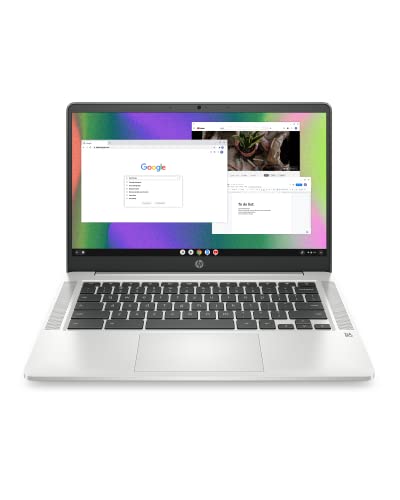
This is the elder of the guide, a 2022 model built around an Intel Celeron N4120 with 4GB of RAM and 64GB of eMMC storage behind a 14-inch HD display, and its age should be weighed rather than hidden. HP has sold versions of this Chromebook 14 for years because the formula works for undemanding duty: it opens the browser, it runs the video call, it plays the stream, and it asks very little money or attention in return. As a household’s second computer — the one in the spare room, the one lent to visiting family, the one a child uses for homework under supervision — that formula still makes sense.
What age changes is the margin. The N4120 was an entry processor when new, and the web has grown heavier since; busy pages with video, advertising and chat widgets running together will make this machine pause where the N100 model above does not. The 4GB of memory tightens the same screw. And the most consequential date attached to any Chromebook is its automatic update expiry: a 2022 model has a shorter remaining support runway than a current one, and buyers should look that date up for this specific model on Google’s published list before ordering, because when updates end the machine should be retired from banking and other sensitive use even if the hardware still runs.
Set against that, the machine’s virtues are genuine. The chassis is thin, the keyboard layout is the familiar full-width Chromebook arrangement, battery endurance was a selling point of the design, and the whole package is cheap enough — within this budget’s terms — that buying it for a narrow job feels proportionate. It is the only pick in this guide we would describe as a deliberate short-to-medium-term purchase, and there is no shame in that category when the job itself is short-term: a school year, a course, a relative’s first computer.
There is a particular household job this older HP still does better than any tablet: the always-ready shared computer. It wakes quickly, presents a full keyboard and a proper browser with real bookmarks and extensions, and lets a guest check mail or a grandparent join a video call without anyone surrendering their phone or teaching a new interface. Kept on a kitchen counter or a spare-room desk, plugged in and updated, it absorbs the small computing tasks of a house for years after faster machines have taken over the serious work. That role values exactly what this model has — simplicity, a decent keyboard, a screen big enough for two people to read a recipe or a boarding pass together.
Buyers should simply go in with the calendar in hand. Note the update expiry before purchase, plan sensitive browsing to move elsewhere once support ends, and the machine’s remaining life is honest value. Problems arise only when a 2022 budget model is asked to be a 2026 main computer; asked to be a household utility, it remains oddly hard to beat for the money involved.
- Display: 14-inch HD panel
- Processor: Intel Celeron N4120
- Memory and storage: 4GB RAM, 64GB eMMC
- Model year: 2022, Mineral Silver finish
- Operating system: Chrome OS
Strengths
- Proven, simple design that non-technical users take to immediately
- Covers the browsing, mail and video-call basics without drama
- Thin chassis is easy to store, lend and carry around a house
Trade-offs
- 2022 hardware has the shortest remaining update runway here
- Celeron performance shows its age on busy modern web pages
- eMMC storage is the slowest type fitted to any pick in this guide
Best for: a second household machine, a homework laptop, or a first computer for a cautious new user.
Not suited for: a buyer expecting one purchase to serve as their only computer for five years.
Refurbished Lenovo ThinkPad X13 (Gen 1) — The true 13-inch Windows route
We include this entry without a link because the refurbished market cannot be represented by one listing: condition, battery health, warranty and exact configuration vary from seller to seller and week to week, and pointing at a single unit would imply a verification we cannot honestly make. What can be said plainly is the shape of the route. The ThinkPad X13’s first generation is a genuine 13.3-inch Windows business laptop — the size this keyword actually names — and business machines leaving corporate fleets are what bring real 13-inch Windows hardware within reach of this budget at all.
What the refurbished route buys, beyond the screen size, is construction. Fleet ThinkPads were built for warranty-backed service lives: keyboards that survive years of typing, hinges that do not loosen in a school bag, and parts that independent repair shops know well. A good unit with a healthy battery will run Windows, Office and desktop software that no Chromebook in this guide can touch. That is the entire argument, and for buyers tied to a Windows-only program — accounting packages, school-mandated software, older peripherals — it is a decisive one.
The risks are equally concrete and belong in the open. Battery wear is the largest: a fleet machine may hold half its original charge, and a replacement battery should be priced into the decision from the start. Cosmetic wear is cosmetic, but screen quality varies, storage may be small, and the warranty is whatever the refurbisher offers rather than Lenovo’s original cover. Buy from refurbishers who state a battery-health floor and a returns window, favour listings that name the exact processor, memory and storage, and treat any listing vague about those details as a listing to skip.
A practical buying routine protects this route’s value. Ask the seller for the battery’s reported health or cycle count and walk away if the question is dodged. Confirm the machine ships with a genuine charger, since a weak third-party brick can masquerade as a battery fault for months. Check that the listing names the storage type as well as its size — a fleet machine with a solid-state drive feels entirely different from one still carrying an old hard disk. On arrival, run the built-in hardware diagnostics, test every port and key, and do it inside the returns window rather than after it. Half an hour of methodical checking converts the refurbished gamble into something close to a routine purchase.
It also helps to budget the whole basket at once: machine, possible battery, a fresh sleeve, perhaps a storage upgrade where the model allows one. Priced as a basket, a refurbished X13 still lands inside this guide’s territory while delivering a keyboard, a screen size and an operating system that no new machine at the budget can combine. Priced as a bare unit with surprises to follow, it can drift past the cost of the Acer above while delivering less certainty — the discipline is in the arithmetic, not the concept.
- Display: 13.3-inch class panel, exact specification varies by unit
- Processor: business-tier Intel or AMD, varies by configuration
- Memory and storage: varies — confirm both figures before buying
- Operating system: Windows, licence terms vary by refurbisher
- Condition: refurbished; battery health and warranty are seller-specific
Strengths
- The only genuine 13-inch Windows option this budget can reach
- Business build quality far beyond new machines at this level
- Runs desktop Windows software that Chromebooks cannot
Trade-offs
- Battery condition is a lottery unless the seller guarantees a floor
- No single specification — every listing must be read individually
- Warranty is shorter and narrower than a new machine’s cover
Best for: the Windows-or-nothing buyer with a true 13-inch requirement and the patience to read refurbished listings carefully.
Not suited for: the sealed-box buyer expecting a full warranty and no homework before purchase.
Samsung Galaxy Chromebook Go 14 — The rough-and-ready traveller
Samsung’s Chromebook Go line occupies the rugged end of the budget field: a 14-inch Chromebook designed to be handed to children, packed for trips and shared around a household without anyone handling it gently. We cover it without a link because its retail presence and configuration mix shift frequently, and the version on sale in any given month may not match the one described here closely enough to attach a verified listing to the name. The concept, though, is stable and worth a place in this guide, because durability is a legitimate budget priority that the specification sheets of the linked picks barely address.
The Go’s appeal is a chassis built for knocks, a battery sized for long days away from sockets, and in some configurations cellular connectivity intended for travel — a feature buyers should confirm on the exact unit in front of them rather than assuming from the model name. Performance sits in the same entry tier as the other 4GB machines in this guide, and the screen follows the class pattern of HD resolution. Nobody buys this machine for speed or sharpness; they buy it so that the inevitable drop, spill or over-stuffed backpack is an anecdote rather than a replacement purchase.
Positioned against the linked picks, the Go is the specialist. The Acer above is better for anyone who reads at the machine; the HP N100 is better balanced for general home duty; the Lenovo is the easier daily carry. The Samsung’s case rests on environment: classrooms, car journeys, site visits, shared family use. If your laptop’s working conditions are kind, its premium buys you little. If they are not, it may outlast machines with better specifications and weaker shells.
Parents evaluating the Go against the linked picks should picture the failure modes they actually fear. A cracked corner from a backpack drop, a keyboard dusted with crumbs and worse, a machine forgotten in a hot car or borrowed by three siblings in one afternoon — the Go is designed with those afternoons in mind, and its value compounds quietly every time an accident turns out to be a non-event. Schools buy machines in this spirit by the cartload for a reason: the cheapest laptop is the one you do not replace in November.
Its limits should still shape the timetable of ownership. Entry memory means the same tab discipline described for the Lenovo, and HD resolution means homework essays are fine while detailed design work is not. As a first laptop that teaches a young user the habits of care — charging routine, sleeve use, cloud saving — it can serve as both tool and training, then hand its duties down to a younger sibling when a sharper machine arrives.
- Display: 14-inch class panel, HD resolution typical of the line
- Design focus: reinforced chassis for travel and shared use
- Memory and storage: entry-tier figures, confirm on the exact unit
- Connectivity: some configurations add cellular — verify before relying on it
- Operating system: Chrome OS
Strengths
- Built for rough handling that would end a thinner machine’s life
- Long-day battery intent suits travel and classroom schedules
- A sensible shared machine for households with younger users
Trade-offs
- Entry performance and screen, like the rest of the budget tier
- Configurations vary enough that listings need careful reading
- Its durability premium is wasted on a desk-bound laptop
Best for: families, schools and travellers whose laptops live a physically hard life.
Not suited for: a careful desk user who would rather spend the same money on screen and speed.
How Do the Six Picks Compare Side by Side?
| Pick | Screen | Memory / Storage | Defining trait |
|---|---|---|---|
| Acer Chromebook Plus 514 | 14-inch WUXGA touch | 8GB / 256GB SSD | Display and speed lead the class |
| HP Chromebook 14 (N100) | 14-inch HD | 8GB / 128GB UFS | Balanced specification, fewest worries |
| Lenovo IdeaPad Slim 3 Chromebook 14 | 14-inch HD | 4GB / 64GB | Lightest daily carry |
| HP Chromebook 14 (N4120) | 14-inch HD | 4GB / 64GB eMMC | Simplest, oldest, shortest runway |
| Refurbished ThinkPad X13 (Gen 1) | 13.3-inch, varies | Varies by unit | Only true 13-inch Windows path |
| Samsung Galaxy Chromebook Go 14 | 14-inch HD class | Entry tier, varies | Rugged build for hard use |
One pattern in the table deserves spelling out for buyers comparing against machines outside this guide: storage type travels with storage size here, so the Acer’s advantage is doubled — more room, delivered faster — while the older HP’s eMMC drive is both the smallest and the slowest. When two budget listings look identical on capacity, the drive technology is the figure worth hunting down in the specification.
Read across the rows and the guide’s argument makes itself: money in this class buys memory and screen quality, in that order, and the Acer is the only pick that delivers both. The two 4GB Chromebooks are not mistakes — they are narrower tools, priced for narrow jobs. The refurbished ThinkPad refuses tidy tabulation because its specification is negotiated unit by unit, which is precisely its nature: highest ceiling, highest homework.
Why Did the 13-Inch Size Disappear From This End of the Market?
The disappearance is worth understanding because it explains the shape of every guide like this one. Small laptops are not cheaper to build than large ones; they are often dearer, since the same components must be packed into less space with tighter thermal limits. A 15.6-inch budget laptop can use a larger, cheaper panel, a roomier chassis and simpler cooling, which is why the bottom of the Windows market congregated at that size. At 13 inches, manufacturers historically sold portability itself as the premium feature, pricing the small machine above its larger sibling rather than below it. When component costs rose, the small-and-cheap corner was the first to empty.
Chromebooks escaped that logic for two reasons. Chrome OS needs less from its hardware, so a modest chip in a small chassis still delivers a fluid machine, and the education market bought compact Chromebooks in enormous volume, giving manufacturers the scale to keep prices down. Even so, the education fleets standardised on 11.6-inch and 14-inch panels, which is why this guide’s honest field is 14-inch: the volume, and therefore the value, migrated there. The 13-inch badge survives in buyers’ search habits long after it vanished from the shelves — a mismatch this guide has tried to close with measurements rather than slogans.
The refurbished channel tells the same story from the other side. Corporate fleets genuinely did buy 13-inch Windows machines in vast numbers, because travelling staff valued the size and employers valued the build. Those fleets refresh on three-to-five-year cycles, releasing exactly the machines this budget cannot buy new. Anyone who understands that pipeline understands the whole category: the size never stopped making sense, it simply stopped being sold new at a price this guide is allowed to discuss.
What Should You Check Before Spending at This Budget?
Start with the operating system question, because it outranks every specification. List the programs and services the laptop must run in its first month. If every item on that list lives in a browser or has a full web version — school portals, Google or Microsoft web apps, banking, streaming — Chrome OS will serve you well and this guide’s linked picks are safe territory. If the list contains even one Windows-only desktop program with no web equivalent, stop and take the refurbished route or save longer; no Chromebook specification fixes an operating system mismatch.
Next, look up the Chrome OS update expiry for any Chromebook you are considering. Google publishes an end date for every model, after which the machine stops receiving security updates. A current model typically offers many years of runway; the 2022 HP in this guide offers fewer. Divide the machine’s cost by its remaining supported years and the budget arithmetic often reverses — the cheapest sticker can be the dearest year.
Finally, match memory to habit rather than hope. A user who keeps six tabs open and writes documents is honestly served by 4GB. A user who insists they will change their twenty-tab habits after buying a cheaper machine is telling a story this guide has heard before; buy the 8GB machine and skip the daily frustration.
How Should the Rest of the Budget Be Spent?
A laptop bought at this level rarely travels alone, and the accessories chosen with it shape the ownership experience out of proportion to their cost. The first purchase should be a padded sleeve sized to the actual machine — remembering that most picks here are 14-inch models wearing a 13-inch keyword — because the journey to school or work is where budget chassis meet their ends. The second is a spare USB-C charger kept in the bag or the classroom, ending the dead-laptop morning that every household knows. Together those two items typically consume less than a tenth of the budget and remove the two most common causes of a cheap laptop being unavailable when needed.
After that, spend according to the machine’s station in life. A desk-bound Chromebook gains more from an inexpensive external mouse and a laptop stand that lifts the screen to eye level than from any software. A student machine gains from a simple USB hub if it must drive a dorm-room monitor and a printer at once. Cloud storage deserves a mention too: the free tiers cover documents comfortably, but a household archiving years of phone photographs against a 64GB drive will outgrow them, and a modest storage subscription can be a smarter spend than jumping a whole laptop tier for space alone. What we would not buy at this level is an extended warranty sold at the till with vague terms; the manufacturers’ own cover plus careful handling is the better arithmetic for machines in this class.
Spending nothing at all beyond the sleeve and charger also has its case, and banking the remainder toward the replacement machine. Budget laptops are replaced on a shorter cycle than premium ones, and a household that treats the saving as the start of the next purchase fund turns a constraint into a rhythm: buy the balanced machine, use it fully, replace it on schedule rather than in crisis. That rhythm, more than any single product choice, is how this end of the market rewards its buyers.
How Do You Keep a Budget Laptop Useful for Longer?
Treat the browser as the machine’s engine room. Extensions accumulate silently and each one taxes memory every hour the browser runs, so audit them twice a year and remove anything you no longer recognise. Keep the downloads folder emptied into cloud storage on a schedule — small drives slow down as they fill, and a Chromebook with a nearly full disk starts swapping and stuttering in ways users blame on age. When a machine does begin to feel tired, Chrome OS offers a factory reset (Powerwash) that returns it to a clean state in minutes; back up local files first, and you will often recover the responsiveness you thought was gone.
Software habits deserve a place in the same routine. Keep the machine signed into one primary account rather than a tangle of guest sessions, so files and settings stay findable. Review which Android apps are actually used each term and uninstall the rest, since idle apps still update, sync and occupy the small drive. If children use the machine, set up the supervised account properly at the start rather than retrofitting rules after habits form; Chrome OS makes this a ten-minute job, and it is far easier to loosen a sensible setup than to tighten a chaotic one.
Physical care matters more at this budget because repair economics are unforgiving: a screen replacement can approach the machine’s remaining value. A padded sleeve, a rule about drinks beside the keyboard, and a battery habit of partial charges rather than permanent full-time connection to the charger will each add more life than any software tweak. And mark the update expiry date in a calendar the day you buy — planning a replacement six months ahead beats an emergency purchase in the week school starts.
What Does Daily Life on Chrome OS Actually Involve?
Newcomers often imagine Chrome OS as a browser with a keyboard attached, and the description undersells what a decade of development produced. The Files app handles local storage, USB drives and cloud folders in one place. Android apps from the Play Store cover streaming services, messaging, note-taking and light games, and many run offline once downloaded. Linux application support exists on most current models for users who want it, turning these modest machines into workable tools for learning programming or running utilities that the web never offered. Printing, once the platform’s embarrassment, now works with most modern network printers without ceremony.
The genuine boundaries deserve the same clarity. Desktop creative software — the full Photoshop, professional video editors, CAD packages — does not run here, and web substitutes suit casual rather than professional work. Gaming means streaming services or Android titles, not a PC game library. Offline capability is real but must be arranged in advance: documents marked for offline use, films downloaded before a flight. Users whose lives are already lived in a browser cross over without noticing a seam; users with one foot in desktop software feel the boundary weekly. That self-knowledge, honestly applied, predicts satisfaction with any pick in this guide better than any benchmark.
One more practical note belongs here because it surprises buyers every year: Chromebooks separate the account from the machine more cleanly than any rival platform. Sign in on a new Chromebook and your bookmarks, documents and settings arrive with you, which makes replacing or sharing a machine unusually painless. A household can keep one Chromebook as a shared device with several accounts, each walled off from the others, and a school can reset a returned unit to a blank slate in minutes. At a budget where machines may be replaced sooner than owners would like, that portability of the digital self is a form of insurance no specification sheet lists.
Which Buying Mistakes Haunt This Price Bracket?
Shopping by screen size in the title rather than the specification is the recurring trap in this category: buyers set on a 13-inch machine either overpay for a badge or buy a 14-inch Chromebook while believing it is smaller, then discover the mismatch in a bag or sleeve. Measure the space the laptop must fit, then buy to the measurement. A related error is assuming every Chromebook is equally current — two machines with near-identical names can be years apart in processor generation and update runway, as the two HP models in this guide demonstrate.
Ignoring memory is the second pattern. At this budget the processor names all sound similarly modest, which tempts buyers to treat the machines as interchangeable and choose by colour or by a small price gap. The 4GB and 8GB versions of this class lead different daily lives, and the difference shows up within a week of ownership. The third mistake is quieter: forgetting the charger ecosystem. A spare USB-C charger for the bag costs little and removes the single most common reason a budget laptop is dead when needed.
Final Recommendation
Most readers should buy the HP Chromebook 14 with the N100: its 8GB of memory and 128GB of storage are the combination that stays comfortable longest, and it asks the least homework of its owner. Readers who spend their days reading and writing on screen should stretch to the Acer Chromebook Plus 514 instead, because its WUXGA touchscreen is the one display here that will not tire eyes by evening. The Lenovo suits committed light carriers, the older HP suits a defined short-term job, and the refurbished ThinkPad is the considered choice — never the casual one — for buyers who truly need Windows at 13 inches. Whatever you choose, look up its update expiry date first and let that number, not the sticker, have the last word — a cheap laptop that stays supported is the only kind that stays cheap.
Frequently Asked Questions
Can a laptop at this budget run Microsoft Office?
On the Chromebooks, Office runs as web applications — Word, Excel and PowerPoint in the browser, or through the Microsoft 365 service — which covers documents, spreadsheets and presentations for most school and home users. The full Windows desktop versions of Office, with their complete feature sets and offline depth, require the refurbished Windows route or a larger budget.
Why are there no new 13-inch Windows laptops in this guide?
Because the market no longer produces them at this level. Windows itself carries licensing and hardware expectations that push new machines upward in price, and manufacturers concentrate their cheapest Windows models at 15.6 inches where components cost less. At 13 inches, new stock starts well above this budget; the size survives here only through refurbished business machines.
How long will a budget Chromebook keep receiving updates?
Google sets an automatic update expiry date for each model, and recent Chromebooks are supported for up to a decade from their platform’s release. The practical figure for a buyer is the remaining runway on the specific model: check the published date before ordering, since a 2022 model and a current model with similar names can differ by years.
Is 4GB of memory enough on a Chromebook?
For a light pattern — a handful of tabs, one document, streaming in the evening — yes, and Chrome OS manages memory more gracefully than Windows at this level. For users who keep many tabs, run video calls alongside documents, or use several Android apps at once, 8GB is the difference between a machine that copes and one that quietly closes pages behind your back.
Can I connect one of these laptops to a monitor or TV?
Yes. Every Chromebook in this guide can drive an external display over USB-C or HDMI depending on the model’s ports, and Chrome OS handles a second screen for presentations, a desk monitor or a television without additional software. Resolution support on the HD models is aimed at ordinary external displays rather than high-end monitors, so confirm the port arrangement on the exact model if a permanent desk setup is part of the plan.
Do budget Chromebooks work without an internet connection?
More than their reputation suggests. Documents can be marked for offline editing, downloaded films and music play anywhere, and many Android apps run fully offline once installed. What does not work offline is the live web itself — mail arriving, pages loading, cloud files syncing — so a buyer whose connectivity is patchy should set up offline access deliberately rather than discovering the boundary on a train.
Are these laptops suitable for a child’s schoolwork?
Yes — schoolwork is the workload this class was practically designed around. Classroom platforms, homework portals, documents and research all run in the browser, Chromebooks support supervised family accounts, and the machines tolerate the daily backpack commute. Confirm your school’s own requirements first, since a small number of programs mandate specific Windows software, and favour an 8GB model if the laptop must last several school years.
What happens when a Chromebook reaches its update expiry date?
The machine keeps working, but it stops receiving security updates and eventually newer web services begin to leave it behind. At that point it should retire from banking, shopping and other sensitive accounts, though it can continue in light duties such as media playback or a household noticeboard role. Planning the replacement before the date arrives — rather than discovering it mid-semester — is the practical takeaway.
Should I choose a refurbished Windows laptop or a new Chromebook?
Choose by software, not sentiment. If everything you need runs in a browser, the new Chromebook brings a fresh battery, a full warranty and a long update runway. If you depend on Windows desktop programs, the refurbished business machine is the honest answer — bought from a seller who guarantees battery health and accepts returns.
Related Guides
If staying connected without Wi-Fi matters more than the budget itself, our guide to best 13 inch laptops with 4G LTE connectivity explains the small field of cellular laptops. Buyers who would rather have touch input should compare the models in best 13 inch touchscreen laptops, and anyone planning to keep a machine for many years will want the upgrade paths mapped in best 13 laptops that you can upgrade easily.



[…] weighing the wider class should continue with the best 13 inch laptops under 400 dollars roundup for the market’s opposite pole, the best 13 inch laptops with 4g lte connectivity […]