What's inside
- Key Takeaways
- Quick Picks
- How did we shop a budget tier where one operating system owns the shelf?
- How do the under-$300 convertibles and their alternatives compare?
- What exactly can Chrome OS do — and what can it never do?
- Why does the Auto Update Expiration date matter more than the processor?
- eMMC or UFS: what does the storage technology change day to day?
- Who should stretch the budget instead of buying in this tier?
- What does the convertible hinge actually earn you at this budget?
- How do you set up a budget Chromebook so it stays fast for years?
- How does a Chromebook convertible handle school and family management?
- What goes wrong most often when people buy a convertible at this price?
- Final Recommendation
- Frequently Asked Questions
- Related Guides
As an Amazon Associate I earn from qualifying purchases. This post may contain affiliate links at no extra cost to you.
widgetverdict.com is reader-supported. When you buy through links on our site, we may earn an affiliate commission.
Start with the fact the rest of this guide is built on: the best 2 1 laptops under 300 dollars are Chromebooks — all of them, without exception worth your money. No new Windows convertible exists at this budget; the Windows machines advertised near it are aged stock, refurbished gambles or tablets wearing laptop costumes. Chrome OS is not a consolation prize here, it is the entire market, and this guide treats it that way: three linked Chromebook convertibles verified against their listings, three prose-only entries for the machines and traps that surround them, and a full accounting of what the operating system gives and takes away.
That honesty is a favour, not a disappointment. A well-chosen Chromebook convertible under this budget is a genuinely capable machine for the work most people do at it — documents, browsing, video calls, streaming, school platforms, light photo work — with a touchscreen that folds into tablet and tent modes. A badly chosen one is a lesson in eMMC storage, dim screens and update deadlines. The difference between the two is a handful of checks this guide will teach you to run in minutes.
The $300 figure in the keyword is the budget frame for the topic, not a price tag we are pinning on individual machines — listings move, and you should weigh the linked picks against the frame with check price on Amazon on the day you buy. What does not move is the structure of the market below that line, and it is the structure this guide maps.
A word about who this tier quietly serves best, because it is not only the cash-strapped. Schools buy here by the thousand, grandparents buy here for the video calls, and second-machine households buy here because a sofa-and-kitchen computer should not cost like a workstation. The guide writes for all three, and its checks — update date, storage type, memory figure — are sized for a five-minute verification, not a research project.
Key Takeaways
- Every credible new 2-in-1 under this budget runs Chrome OS; a Windows convertible advertised here is old stock or refurbished, and should be interrogated as such.
- The Acer Chromebook Spin 314 leads on specification: an Intel Core i3-N305, 8GB of memory, a Gorilla Glass WUXGA touchscreen and an FHD webcam — figures a class above the budget floor.
- Lenovo’s Chromebook 2-in-1 14 is the screen-and-storage alternative: a WUXGA IPS touchscreen and 128GB of faster UFS storage, with 4GB of memory as its governing compromise.
- The ASUS Chromebook Flip CX1 is the balanced veteran: an FHD NanoEdge 360-degree touchscreen, 8GB of memory and 128GB of eMMC storage on a Celeron N4500 platform.
- Two dates and figures decide a Chromebook’s real lifespan: its Auto Update Expiration year, and whether its storage is eMMC or UFS — both checks are spelled out below.
- All three linked picks are 14-inch convertibles with 128GB of storage; the class’s differences live in processor, memory and screen protection, not in size.
- Spend the five verification minutes before the money: the model’s update-expiration year, its storage technology and its memory figure predict its third year better than any benchmark.
Quick Picks
| Pick | Badge | Why it earns its place |
|---|---|---|
| Acer Chromebook Spin 314 | The strongest specification under the frame | An Intel Core i3-N305 with 8GB of LPDDR5 memory, a 14-inch WUXGA IPS touchscreen under Corning Gorilla Glass with a matte finish, an FHD webcam and 128GB of eMMC storage. |
| Lenovo Chromebook 2-in-1 14 | The storage-and-screen alternative | Lenovo’s convertible pairs a 14-inch WUXGA IPS touchscreen with 128GB of UFS storage — faster than the tier’s usual eMMC — on an Intel N150 platform with 4GB of memory. |
| ASUS Chromebook Flip CX1 14 | The balanced veteran | ASUS’s Flip CX1 combines a 14-inch FHD NanoEdge touchscreen on a 360-degree hinge with 8GB of memory and 128GB of eMMC storage, in a Transparent Silver chassis. |
| The refurbished Windows convertible (class) | The temptation, costed honestly — prose-only | Second-hand Windows convertibles from business lines circulate at this budget constantly — real keyboards, real Windows, and a battery and condition lottery attached. |
| The detachable Chromebook tablet (class) | The tablet-first alternative — prose-only | Detachable Chromebooks — tablet plus clip-on keyboard — serve readers and annotators at this budget, trading laptop stability for a genuine slate. |
| The ex-fleet education Chromebook (class) | The second-hand flood — prose-only | Retired school-fleet Chromebooks reach this budget in waves — rugged, cheap and carrying the tier’s sharpest trap: an update deadline that may be months away. |
How did we shop a budget tier where one operating system owns the shelf?
We began by refusing the category’s favourite fiction — that a ‘laptop under $300’ comparison can pretend Windows and Chrome OS compete here. They do not, and a guide that ranked a refurbished Windows machine beside new Chromebooks as equals would mislead every reader. Instead we ranked the Chromebooks against each other on the figures that separate a good budget convertible from a miserable one, and gave the Windows question its own honest prose-only treatment so readers tempted by it can see the trade whole.
Verification followed the usual discipline: every specification printed for a linked pick comes from its listing’s own title. The Spin 314’s Gorilla Glass and FHD webcam, the Lenovo’s UFS storage, the ASUS Flip’s NanoEdge screen and Celeron processor — all quoted from titles, all checkable by the reader in one click. Where a title does not state a figure a buyer needs — the Auto Update Expiration date above all — the guide names the check and where to run it rather than guessing.
Within the tier we weighted longevity over novelty. At this budget the machine’s second and third years are the purchase: memory headroom, storage type, screen protection and update horizon decide whether the convertible is still pleasant when the novelty has worn off. That weighting is why an 8GB machine outranks a 4GB one here even when the 4GB machine’s screen matches it, and why the sections spend so long on dates and storage technologies that showrooms never mention.
We also kept the prose-only entries pointed: one for the refurbished Windows temptation, one for the detachable tablet alternative, and one for the education-fleet machines that flood this price band second-hand. Each exists because readers will meet it while shopping this keyword, and each is costed honestly rather than dismissed.

Acer Chromebook Spin 314 — The strongest specification under the frame
The Spin 314 leads this guide because it refuses to behave like a budget machine in the two places budget machines usually confess: the processor and the memory. Its verified listing specifies an Intel Core i3-N305 — a proper eight-core Intel chip — with 8GB of LPDDR5 memory. Around a class of Celeron and entry ARM machines, that pairing is a different experience: research sessions with dozens of tabs, a video call running beside a document, classroom platforms stacking up through a school day, all without the hesitations that teach people to hate cheap laptops.
The screen carries the same seriousness. The listing describes a 14-inch WUXGA IPS touchscreen protected by Corning Gorilla Glass with a matte finish — three deliberate choices. WUXGA resolution keeps text crisp at 14 inches; Gorilla Glass answers the backpack and schoolbag environment this machine will actually live in; and the matte surface reads under classroom and office lighting where glossy panels mirror the ceiling. Folded flat it is a reading tablet; tented, it is a video-call and video-watching screen with an FHD webcam, also stated in the listing, that presents its owner properly on calls.
Storage is the specification where the Spin rejoins its budget: 128GB of eMMC. eMMC is the slower, simpler storage technology of the budget tier — adequate for Chrome OS’s cloud-first design, where documents live in Drive and the local drive holds the system, downloads and offline files — but it is not the fast NVMe storage of Windows machines, and heavy local file work will feel it. The honest summary is that Acer spent the budget on the chip, memory and screen, and saved it on storage, which is the correct order of priorities for a Chromebook.
Wi-Fi 6E completes a specification that reads like a checklist of the guide’s own criteria. What remains for the buyer is the class check that no listing title can answer: this model’s Auto Update Expiration date, covered in its own section below. Verified with a healthy AUE horizon, the Spin 314 is the under-frame convertible against which the rest of the tier should be measured.
One more virtue deserves naming for the school and family buyers who dominate this tier: the Spin line is a known quantity in education channels, which means cases, chargers and IT familiarity follow it. At this budget, being ordinary in the right ways is a feature.
Buy it as the tier’s ceiling and it will feel like one: the fastest chip here, the joint-most memory, the best-protected screen. The guide’s remaining picks exist for buyers whose priorities reorder those virtues — and the reordering is legitimate, as their sections argue.
A note for the parent or teacher configuring the Spin for a student: Chrome OS’s family and school management tools — supervised accounts, school-issued logins that coexist with personal ones — are part of why this class dominates education, and the Spin’s specification means the managed experience runs at full pace rather than at the platform’s floor. The machine a school would issue, bought privately, keeps its value when it is handed down to a younger sibling, provided the update date was checked at purchase.
- Display: 14-inch WUXGA IPS touchscreen, Corning Gorilla Glass, matte finish, per listing title
- Processor: Intel Core i3-N305
- Memory and storage: 8GB LPDDR5, 128GB eMMC
- Camera and wireless: FHD webcam, Wi-Fi 6E
- Operating system: Chrome OS
- Form: Spin 360-degree convertible hinge
Strengths
- Core i3-N305 and 8GB of memory lift it clear of the budget tier’s sluggishness
- Gorilla Glass over a matte WUXGA screen suits schoolbags and classrooms
- FHD webcam presents properly on calls and remote lessons
Trade-offs
- eMMC storage is the budget tier’s slower technology
- 128GB assumes a cloud-first filing life
- Confirm the Auto Update Expiration date before buying
Best for: students, families and home users who want the strongest Chromebook convertible the budget allows
Not suited for: anyone whose essential software exists only as a Windows or macOS application
Lenovo Chromebook 2-in-1 14 — The storage-and-screen alternative
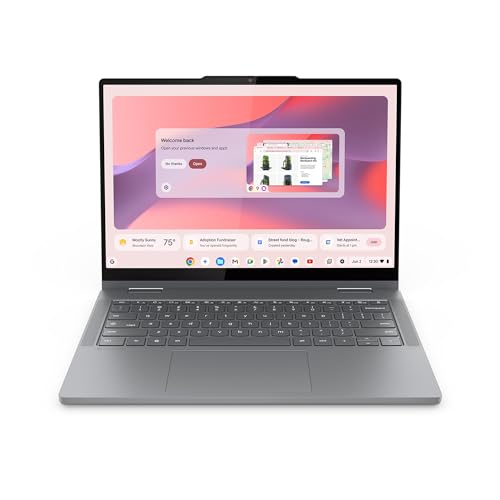
Lenovo’s entry makes the opposite trade to Acer’s, and understanding the trade is the whole pick. Its verified listing specifies an Intel N150 processor, a 14-inch WUXGA IPS touchscreen, 4GB of RAM and 128GB of UFS storage in a Luna Grey chassis, with Google’s Gemini branding in the title. The headline is the storage technology: UFS — the flash standard borrowed from phones — is a generation livelier than the eMMC fitted to most of this tier, and it shows in the small moments that define a Chromebook’s feel: waking, opening applications, installing updates, loading a heavy page.
The screen matches the Spin’s resolution class — WUXGA IPS touch at 14 inches — which means Lenovo is not asking its buyer to accept a dimmer, softer display for the storage gain. Documents stay crisp, the folded tablet mode reads well, and the machine presents as a thoroughly modern Chromebook rather than a cut-down one. Buyers choosing between this and the Acer are choosing between two genuinely different philosophies at the same shelf.
The compromise sits in the memory figure, and it must not be softened: 4GB of RAM is the tier’s floor, and Chrome OS with 4GB is a machine that asks its owner to browse with some discipline. A handful of tabs, a document and a call — comfortable. Thirty tabs, two documents, a call and a classroom platform — the machine will start closing background pages, and the owner will learn the habit of the tidy browser whether they wanted to or not. For a single-purpose school or home machine with a disciplined user, that is a livable trade; for a tab hoarder, it is the wrong pick and the Acer is the right one.
The N150 processor is an efficiency chip of the current entry generation — adequate for the browser workload, a step behind the Spin’s i3 in heavy multitasking, and frugal in the way that serves battery life across a school day. Lenovo’s education heritage shows in the proposition’s balance: nothing here is exotic, everything is serviceable, and the machine is designed to be issued, used and supported in numbers.
Gemini’s presence in the listing title signals the current Chrome OS generation’s AI features, which ride on the operating system rather than the hardware tier. Judge this pick on its physical facts — screen, storage speed, memory discipline — and it earns its place as the tier’s thoughtful alternative.
Choose the Lenovo if your Chromebook life is documents, reading and calls with a tidy tab habit, and you value snappy storage over multitasking sprawl. Choose it also for younger students, whose workloads are platform-shaped and whose machines benefit from a specification that forgives drops of attention more than drops of hardware.
The Lenovo also rewards a second look from older buyers — grandparents and light-use households are this tier’s quiet majority — because its proposition is patience-friendly: a crisp screen for reading, storage that responds promptly, and an operating system that updates itself without dialogues. The 4GB discipline matters less to a user whose browser holds a newspaper, a mailbox and a video call than to a student juggling platforms, and the pick’s value sharpens accordingly.
- Display: 14-inch WUXGA IPS touchscreen, per listing title
- Processor: Intel N150
- Memory and storage: 4GB RAM, 128GB UFS storage
- Graphics: integrated Intel Graphics
- Operating system: Chrome OS, with Google Gemini branding in the listing
- Finish: Luna Grey
Strengths
- UFS storage feels a generation faster than the tier’s eMMC norm
- WUXGA IPS touchscreen matches the guide’s best resolution class
- A balanced, serviceable design from an education-market veteran
Trade-offs
- 4GB of memory enforces a tidy-tab browsing discipline
- N150 processor trails the Spin’s Core i3 under heavy multitasking
- Confirm the Auto Update Expiration date before buying
Best for: disciplined single-purpose users — schoolwork, documents, reading and calls
Not suited for: heavy multitaskers who live in dozens of simultaneous tabs

ASUS Chromebook Flip CX1 14 — The balanced veteran
The Flip CX1 is the tier’s veteran formula, and its verified listing shows a machine specified by people who understood the assignment: a 14-inch FHD NanoEdge touchscreen on a 360-degree hinge, an Intel Celeron N4500 processor, 128GB of eMMC storage and 8GB of RAM, finished in Transparent Silver. Read those figures against the guide’s criteria and the balance declares itself — the memory figure matches the Acer’s, the storage matches the tier, and the compromises are taken in the processor and the panel rather than in the figures that govern daily patience.
The NanoEdge name describes ASUS’s thin-bezel design, and at 14 inches it gives the Flip a modern, compact presence that belies its budget position. FHD resolution is a step below the WUXGA panels of the two picks above — text is a touch less crisp at close reading distances — but it remains a full HD screen, which in a tier still haunted by 1366×768 displays is a specification to be grateful for rather than sniffed at. The 360-degree hinge delivers the full convertible repertoire: laptop, tent, stand and tablet.
The Celeron N4500 is the pick’s honest ceiling. It is an entry processor of its generation, adequate for the browser workload in its lighter forms — documents, research with a reasonable tab count, streaming, calls — and it will show its limits sooner than the i3-N305 under accumulation. The 8GB of memory is what rescues the experience: memory, not processor pace, is what a Chromebook spends most, and ASUS protected the right figure.
For the buyer whose budget is firm and whose workload is the ordinary web, the Flip CX1 is the no-drama choice: a known line, a balanced specification, no single figure that will ambush its owner in month three. Use check price on Amazon to place it against the Spin on the day — when the gap is small, the Acer’s chip and glass argue upward; when the gap is real, the ASUS’s balance argues for itself.
There is also a longevity footnote in the Flip’s favour that has nothing to do with its specification: long-running budget lines accumulate accessories, documentation and repair knowledge. A machine a thousand school IT departments have met is a machine whose problems all have published answers.
Buy the Flip as the tier’s equilibrium — nothing best, nothing worst, everything sufficient — and it will repay the description. Budget computing rewards exactly that temperament.
The Flip’s Transparent Silver finish and NanoEdge frame give it one more budget-tier virtue: it does not look like the cheapest machine in the room. For the adult buyer — the home administrator, the community volunteer, the small trader — whose convertible appears in public, that presentability is worth real money, and ASUS’s design restraint delivers it without charging for it.
- Display: 14-inch FHD NanoEdge touchscreen, 360-degree hinge, per listing title
- Processor: Intel Celeron N4500
- Memory and storage: 8GB RAM, 128GB eMMC storage
- Operating system: Chrome OS
- Finish: Transparent Silver (model CX1400FKA-AS88FT)
- Form: Flip convertible, full tent and tablet modes
Strengths
- 8GB of memory protects the daily experience where it matters
- Full HD touchscreen in a tier still haunted by low-resolution panels
- A balanced, widely understood line with deep support knowledge
Trade-offs
- Celeron N4500 shows its limits under heavy tab accumulation
- FHD is a step below the WUXGA picks for close reading
- Confirm the Auto Update Expiration date before buying
Best for: firm-budget buyers with an ordinary web workload who value balance over peaks
Not suited for: power multitaskers, or readers who want WUXGA crispness
The refurbished Windows convertible (class) — The temptation, costed honestly — prose-only
Every shopper at this budget meets the temptation: a refurbished business convertible — a previous-generation Yoga, EliteBook x360 or Latitude 2-in-1 — offered at Chromebook money with Windows, a metal chassis and a specification that reads like a flagship’s memoir. The machines are real, the class is real, and this guide discusses it prose-only because a refurbished unit is not a product but a lottery ticket whose prize depends on the individual unit’s battery, screen and history.
The honest case for the class is genuine. A well-kept business convertible delivers a keyboard, a build quality and a Windows capability that no new Chromebook at this budget can touch, and for a buyer whose essential software is Windows-only, it may be the only door at this price. Sellers with graded condition standards, stated battery-health thresholds and real return windows exist, and a unit bought through them can be the budget purchase of the year.
The case against is the variance. Batteries in this class have lived full lives — a unit at 60% of its design capacity turns a portable into a socket-seeking appliance — screens carry keyboard marks and pressure spots, and hinges have folded a stranger’s decade. None of this is visible in a listing photograph. The buyer’s protection is procedural: battery health in writing, condition grade in writing, a return window long enough to run the first-week checks this guide describes for the college class, and a price that leaves room for the battery replacement the unit may need within the year.
Enter this class with open eyes and a checklist and it can serve brilliantly; enter it because the badge said Yoga and the price said miracle, and the Chromebook picks above exist to show you what the same money buys with a warranty and a full battery. The guide’s ranking is deliberate: new and verified first, lottery second, however glittering the ticket.
A final procedural point separates good refurbished sellers from the rest: the best of them publish their battery threshold — the minimum percentage of design capacity every unit must hold — and their screen grading in plain language on the listing itself. A seller who makes you ask has answered. Apply that test before the price comparison, and the class sorts itself into professionals and gamblers faster than any review can.
- Class: previous-generation business convertibles (Yoga, EliteBook x360, Latitude 2-in-1 lines)
- Operating system: Windows, versions and licences vary by unit
- Battery: health varies by unit — demand a written figure
- Condition: graded by seller; standards vary widely
- Warranty: seller-backed, duration varies — read the terms
- Status in this guide: prose-only; every unit is its own negotiation
Strengths
- Real Windows and business build quality at Chromebook money
- Keyboards and screens a class above new budget machines
- The only route to Windows-only software at this budget
Trade-offs
- Battery and screen condition are lotteries without written grades
- No manufacturer warranty; seller terms are the whole safety net
- A battery replacement can erase the saving within a year
Best for: experienced buyers who will demand written battery and condition figures
Not suited for: first-time buyers, gift purchases, or anyone who cannot afford the gamble failing
The detachable Chromebook tablet (class) — The tablet-first alternative — prose-only
A second shape competes for this budget: the detachable Chromebook, a tablet with a clip-on or folio keyboard, sold under names like Lenovo’s Duet line. The proposition inverts the convertible’s: the tablet is the real machine — light, instant, made for reading, annotation and media in hand — and the keyboard is an accessory for the occasions typing cannot be avoided. For readers, younger students and sofa-based users, that inversion can fit a life better than any hinge.
The class is discussed prose-only because its configurations and bundles vary — storage figures, included pens and keyboard designs differ by generation and retailer — and because its buyers should choose it as a tablet purchase, with a tablet’s criteria: screen quality in hand, weight, stylus provision and the keyboard’s behaviour on a lap, where detachables are at their weakest.
The honest costs mirror the Surface argument from the hub guide, at budget scale. Lap typing wobbles; the keyboards are narrower than a convertible’s deck; and the processors in this class are chosen for tablet efficiency rather than multitasking sprawl. A detachable asked to be a full-time laptop will disappoint daily, in small ways that compound.
Audition the class if your honest week is slate-shaped — reading, annotating, streaming, light documents — and treat the keyboard as a bonus. Buy a hinge convertible from the linked picks if your week is desk-shaped. The budget forgives either choice made knowingly and taxes either made by accident.
Detachables also hold one advantage nobody prices: the keyboard can be replaced without replacing the computer. A spilled drink or a worn folio on a convertible means a repair; on a detachable it means a new accessory. For households with young children — the natural audience at this budget — that asymmetry is a genuine ownership argument, and it is the strongest single reason the class survives beside better laptops.
- Class: detachable Chromebooks (tablet plus keyboard accessory)
- Operating system: Chrome OS
- Form: slate-first; keyboard provision varies by bundle
- Processors: tablet-efficiency class by model
- Pen: support and inclusion vary — verify per listing
- Status in this guide: prose-only; bundles vary by generation and retailer
Strengths
- A genuine tablet for reading and annotation at this budget
- Light, instant-on and sofa-friendly in ways hinges are not
- Keyboard included in most bundles for occasional typing
Trade-offs
- Lap typing and keyboard size compromise full-time laptop use
- Tablet-class processors cap multitasking
- Bundle contents vary — verify before comparing prices
Best for: readers, annotators and younger students whose week is slate-shaped
Not suited for: full-time typists or desk-based workers
The ex-fleet education Chromebook (class) — The second-hand flood — prose-only
The third presence at this budget is the retired education fleet: ruggedised 11.6-inch Chromebooks — the Dell, Lenovo and HP machines built for classrooms — sold off by schools and refurbishers in waves. They are tough, simple and genuinely cheap, and for a household’s second machine or a child’s first, the class has real merit. It is also the class where this guide’s central warning bites hardest.
The trap is the Auto Update Expiration date. School fleets are bought in a model’s early years and retired late in its life, so an ex-fleet unit can arrive with its update horizon months away — after which the machine stops receiving security updates and slowly loses compatibility with the modern web. A rugged Chromebook with three healthy years of updates is a bargain; the identical machine with eight months left is e-waste with a keyboard. The model number is printed on every unit and the date is published by Google; there is no excuse for buying this class without checking it.
The second cost is specification: fleet machines were bought to a price, so expect 4GB of memory, small eMMC drives and low-resolution 11.6-inch screens that are not convertible at all in most cases — they enter this guide as the surrounding market readers will meet, not as convertibles themselves. Screens and batteries in fleet service have lived hard, and condition grading matters as much here as in the refurbished Windows class.
Buy this class knowingly — date checked, grade read, expectations set to ‘spare machine’ — and it can be the smartest money in the whole budget tier. Buy it as a main machine on price alone, and the guide’s linked picks will be waiting, at not much more, with warranties and years of updates intact.
There is a respectable environmental footnote to the ex-fleet class that its buyers may fairly claim: a retired school Chromebook given a second life in a home is a machine diverted from the waste stream at the moment its embodied cost was already paid. The update date still governs — an expired machine is a liability, not a virtue — but a verified unit with years remaining is both the cheapest and the lightest purchase in this entire guide.
- Class: retired education-fleet Chromebooks, mostly 11.6-inch clamshells
- Operating system: Chrome OS — check the unit’s Auto Update Expiration
- Typical specification: 4GB memory, small eMMC storage, HD screen
- Build: ruggedised for classroom service
- Condition: fleet wear is normal; grading varies by seller
- Status in this guide: prose-only; the update date decides everything
Strengths
- Rugged builds that survived classrooms survive households
- The lowest entry cost in the wider budget market
- Simple, known machines with deep repair knowledge
Trade-offs
- Update expiration may be months away — check before anything else
- Mostly non-convertible, low-resolution 11.6-inch screens
- Fleet batteries and screens have lived full lives
Best for: spare-machine and first-machine buyers who check the update date first
Not suited for: main-machine buyers, or anyone shopping on price alone
How do the under-$300 convertibles and their alternatives compare?
The linked rows quote their listings; the prose-only rows describe each surrounding class’s real position, with the checks that decide them named in the cells.
| Pick | Display | Processor and graphics | Memory and storage | Character |
|---|---|---|---|---|
| Acer Chromebook Spin 314 | 14-inch WUXGA IPS touch, Gorilla Glass matte | Intel Core i3-N305 | 8GB LPDDR5, 128GB eMMC | The tier’s ceiling |
| Lenovo Chromebook 2-in-1 14 | 14-inch WUXGA IPS touch | Intel N150 | 4GB RAM, 128GB UFS | The fast-storage alternative |
| ASUS Chromebook Flip CX1 14 | 14-inch FHD NanoEdge touch | Intel Celeron N4500 | 8GB RAM, 128GB eMMC | The balanced veteran |
| The refurbished Windows convertible (class) | Varies by unit — business panels of their era | Previous-generation Intel by unit | Varies by unit — demand written figures | The Windows lottery |
| The detachable Chromebook tablet (class) | Tablet-sized touch by model | Tablet-efficiency class by model | Varies by bundle — verify per listing | The slate-first option |
| The ex-fleet education Chromebook (class) | Mostly 11.6-inch HD, non-touch | Entry Chromebook chips by model | Typically 4GB, small eMMC | The spare-machine flood |
What exactly can Chrome OS do — and what can it never do?
Chrome OS runs the web and Android applications, and in 2026 that covers a startling amount of ordinary computing: documents and spreadsheets in their web suites, every learning platform, email, video calls, streaming, banking, shopping, light photo editing and the entire browser-based toolkit of school and home administration. For a user whose computing already lives in a browser window, a Chromebook is not a reduced computer — it is the same computer with the unused parts removed, which is why it boots fast, updates silently and resists the malware ecology that preys on traditional systems.
The ‘never’ list is shorter than it was and must still be read aloud. Native Windows and macOS applications do not run: no desktop Microsoft Office with its full macro and add-in depth, no Adobe desktop suite, no CAD packages, no PC games beyond streaming and Android titles, and some exam-proctoring and specialist professional tools refuse the platform outright. Printers, happily, are mostly fine now; exotic peripherals with driver-based features are the remaining friction.
The decision procedure is a list, not a vibe. Write down the five things you will actually do weekly; if all five live in a browser or an Android application, Chrome OS serves you completely at this budget. If one lives outside, no Chromebook at any price fixes it, and the refurbished Windows class above — or a budget increase — is your honest road.
Why does the Auto Update Expiration date matter more than the processor?
Every Chromebook carries a published date until which Google guarantees its updates — security patches, browser versions and OS features. After that date the machine does not stop working, but it stops being defended: the browser ages, websites gradually outgrow it, and a machine used for banking and school accounts becomes a risk wearing a laptop’s clothes. At this budget, where models are often bought late in their production lives, the remaining update span is the single largest determinant of the machine’s real lifespan.
The check takes two minutes and this guide insists on it for all three linked picks: find the exact model name, look up its Auto Update Expiration on Google’s published list or the maker’s support page, and count the years remaining against your intended ownership. A machine bought for a child’s schooling should outlast the schooling stage it was bought for; a machine for a two-year purpose needs two honest years, not five.
Sellers of new machines rarely print the date, and sellers of ex-fleet machines have every incentive not to. That asymmetry is why the check belongs to the buyer. Run it before the purchase and the date is a fact; discover it after, and it is a countdown.
eMMC or UFS: what does the storage technology change day to day?
Both linked storage technologies in this guide — eMMC in the Acer and ASUS, UFS in the Lenovo — are flash storage, but they belong to different generations of responsiveness. eMMC is the budget standard: a single-lane, economical design that serves Chrome OS’s light local demands adequately and shows its pace in application installs, large downloads and update cycles. UFS, the standard modern phones use, moves data with noticeably more urgency in exactly those moments, which is why the Lenovo feels lively despite its modest processor and memory.
Neither technology changes what the storage is for. Chrome OS is designed around the cloud: the local drive holds the system, your downloads, offline files and Android applications, and 128GB — the figure all three linked picks share — is a workable allowance for that role across years of school or home use. The buyers who outgrow it are those who treat the Chromebook as a media archive, a role the platform politely declines.
Judge the pair as a trade rather than a ranking. The Spin pairs slower storage with a faster processor and more memory; the Lenovo pairs faster storage with less memory and a lighter chip. Multitaskers feel memory; impatient openers of applications feel storage. Your own impatience knows which one it is.
Who should stretch the budget instead of buying in this tier?
Three buyers should read this guide as a signpost rather than a destination. The first is the Windows-dependent user whose software list failed the audit in the section above: no Chromebook serves them, and the honest move is the refurbished class with its checklist or a larger budget for a new Windows convertible — our under-$500 guide maps that shelf. The second is the four-year student, whose machine must outlast a degree: update horizons and memory ceilings at this tier can both expire before graduation, and the stretch buys years, not luxury.
The third is the household buying its only computer. A sole machine accumulates every role — work, school, administration, media, the family archive — and roles accumulate storage and software demands that a cloud-first 128GB convertible is not built to absorb. A second machine, a child’s machine, a sofa machine: this tier serves all three brilliantly. The only machine in the house deserves a bigger brief.
Everyone else — the browser-based, the platform-schooled, the second-machine household — should buy in this tier without a backward glance and spend the saving on the things the saving was for. Budget guides exist to give that permission with evidence, and the evidence here is that the three linked Chromebooks are real computers for real work.
What does the convertible hinge actually earn you at this budget?
A fair question, because clamshell Chromebooks at this budget are cheaper still, and the hinge must justify itself. It earns its keep in three rooms. In the kitchen, tent mode stands the recipe or the video call clear of the worktop with the keyboard folded safely away. In the classroom and the living room, tablet mode turns the machine into the reading and annotating surface that a clamshell cannot become. And on the sofa, stand mode presents a film at a proper angle without a lap-desk negotiation.
The hinge also earns a warning: it is the machine’s one moving assembly, and at this budget it deserves gentle hands — opened from the centre, not levered by a corner, and kept out of the sand-and-crumb environment of a schoolbag’s main compartment. All three linked picks come from lines with long convertible histories, and their hinges are engineered for the school market’s folding habits, which are not gentle.
Price the hinge honestly against your week. A buyer whose machine will live open on a desk gains least and might take the clamshell saving; a buyer whose machine will read, present and stream in three rooms gains the convertible’s whole argument. The keyword brought you to the hinge; your rooms should confirm it.
How do you set up a budget Chromebook so it stays fast for years?
Begin with the account discipline Chrome OS rewards: one primary account, guest mode for borrowers, and the learning platform accounts added as the school directs. The machine’s speed across years is largely a function of what accumulates in the browser, so install extensions like furniture — each one earning its place — and treat the downloads folder as a tray to be emptied, not a drawer to be filled, since local storage pressure is the budget tier’s quiet slowdown.
Use the platform’s own strengths. Files belong in Drive with the important folders marked for offline use; Android applications should be the few you genuinely use rather than a phone’s worth of maybes; and the periodic powerwash — Chrome OS’s factory reset, painless because everything lives in the account — restores a tired machine to its first-week manners in minutes. Owners of budget Chromebooks who powerwash yearly rarely meet the sluggishness the tier is famous for.
Finish with the physical habits: a case or sleeve for the bag it actually travels in, the charger kept with the machine rather than borrowed across the house, and the update setting left alone to do its silent work. A budget convertible maintained this way is not a compromise that happens to work; it is a system working as designed.
How does a Chromebook convertible handle school and family management?
Chromebooks earned their education dominance partly through management: a school can enrol, configure and support thousands of them from a console, and a family can supervise a child’s account with tools built into the platform rather than bolted on. For the buyer in this guide’s tier, that heritage arrives as simplicity — the machine a child uses at school and the machine bought at home speak the same language, carry the same account and demand the same zero maintenance.
The practical consequences are worth listing because they never appear on a specification sheet. There is no antivirus subscription to renew, no driver hunt after an update, no gradual accumulation of startup clutter; the machine that was fast in September is fast in June, which at this budget is a form of wealth. Guest mode lets a friend borrow the machine without inheriting your accounts, and multiple family members can each sign in to their own profile on one device — a pattern Windows machines at this price handle with noticeably more friction.
Management cuts the other way for one audience: a school-managed unit is managed, and families buying ex-fleet machines should confirm the unit has been fully released from its institution’s console before purchase, because an enrolled Chromebook remains its school’s property in software terms whatever the receipt says. Ask the question in writing; reputable refurbishers answer it in the listing.
What goes wrong most often when people buy a convertible at this price?
Believing a Windows convertible exists new at this budget is the founding error, and the market cultivates it with aged stock, miniature tablets in laptop clothing and refurbished units photographed like new. If the listing’s Windows machine seems to defy the tier, interrogate its year, its condition grade and its battery before its badge — the three linked Chromebooks in this guide are what the budget honestly buys new, with warranties.
Skipping the update-date check runs second, and it is the mistake with a countdown attached. A Chromebook — above all an ex-fleet one — bought without its Auto Update Expiration verified can lose security support inside the ownership it was bought for. The check is published, free and two minutes long; there is no version of this purchase where skipping it is rational.
Judging the tier by processor names alone misleads in both directions. The Celeron badge on the ASUS conceals an 8GB memory figure that keeps its daily experience respectable, while a faster-sounding chip paired with 4GB would feel worse by half term. At this budget, memory and storage technology govern the lived experience; read those lines first.
Buying a Chromebook for software that does not exist on it completes the set — the desktop application, the proctored exam, the family accounting package with a Windows-only build. The audit takes ten minutes with your actual software list. Every other mistake in this section wastes money; this one wastes the machine.
A fifth mistake is subtler: buying the tier’s largest screen of storage numbers while ignoring the webcam and the Wi-Fi generation, the two specifications the pandemic era promoted to essentials. A convertible that presents its owner through a smeary low-resolution camera on yesterday’s wireless standard will feel cheap on every call for years, whatever its processor badge — which is why this guide prints the Spin’s FHD webcam and Wi-Fi 6E in its first lines rather than its footnotes.
Final Recommendation
The Acer Chromebook Spin 314 is this guide’s first recommendation under the frame: the strongest processor here, 8GB of memory, a Gorilla Glass WUXGA screen and an FHD webcam — a specification that respects its owner. Run the update-date check, confirm the listing with check price on Amazon, and it is the convertible this budget would choose for itself.
The Lenovo Chromebook 2-in-1 is the connoisseur’s alternative — UFS storage and the same WUXGA class of screen, bought knowingly with a tidy-tab discipline for its 4GB of memory — and the ASUS Flip CX1 is the equilibrium choice, balanced in every figure and owned without drama by half the schools in the country, or so its ubiquity suggests.
Keep the prose-only classes in their honest places: the refurbished Windows convertible for the experienced buyer with a checklist, the detachable for the slate-shaped week, the ex-fleet machines for spare duty with their dates verified. Each can be the right purchase; none should be an accidental one.
Under $300, the convertible market is a Chromebook market — and once that is accepted rather than resented, it turns out to be a good one: three real machines, three clear philosophies, and a short list of checks that separate the bargains from the countdowns.
One discipline unites every recommendation in this guide, from the linked Acer to the ex-fleet footnote: verify the date, read the storage line, count the memory. Three checks, five minutes, and the most honest budget tier in laptops stays honest all the way to your door.
And when the machine arrives, give it the same first week this guide would: sign in, update, fold it through every mode, and confirm the webcam and the hinge behave — while the return window makes every discovery free.
Frequently Asked Questions
Are there any new Windows 2-in-1 laptops under $300?
No credible ones. The new Windows convertible market starts well above this budget, and Windows machines advertised near it are refurbished units, aged clearance stock or very small tablets with keyboard accessories. This guide covers the refurbished class prose-only with a verification checklist, and recommends new Chromebooks — the Spin 314, the Lenovo 2-in-1 and the Flip CX1 — as the tier’s honest new purchases.
What is an Auto Update Expiration date and how do I check it?
It is the date until which Google guarantees a Chromebook model its security and system updates. After it, the machine still runs but is no longer defended or kept current, which matters for banking, school accounts and general web compatibility. Find your exact model’s date on Google’s published AUE list or the maker’s support page before buying, and make sure the remaining span covers your intended ownership with room to spare.
Is 4GB of RAM enough for a Chromebook?
For a disciplined, single-purpose workload — school platform, documents, reading, a few tabs and a call — yes, as the Lenovo pick demonstrates, especially with its faster UFS storage helping the system feel responsive. For heavy multitasking it is the tier’s binding constraint, and the 8GB picks — the Acer Spin and the ASUS Flip — are the safer purchases for tab-rich users.
Can these Chromebooks run Microsoft Office and Zoom?
Zoom and the web versions of Word, Excel and PowerPoint run well — for most school and home work they are the working reality. The full desktop Office applications, with deep macro and add-in support, do not exist on Chrome OS. If your work depends on a specific desktop feature, audit it before buying; if your work is documents, comments and calls, these machines cover it completely.
Which of the three linked picks lasts longest?
Lifespan here is set less by hardware than by the update calendar: whichever unit’s Auto Update Expiration falls latest will serve longest, so compare the three models’ dates directly before choosing. On hardware alone, the Spin 314’s 8GB of memory and stronger processor give it the most headroom, while the Lenovo’s UFS storage keeps its daily pace lively — but the date outranks both, and it is printed by Google for anyone who looks.
Can a child break one of these easily?
They are consumer machines, not ruggedised fleet units, but the tier’s design briefs are school-aware: the Spin’s Gorilla Glass screen is the standout protection here, and all three are simple, light designs with few moving parts beyond the hinge. A sleeve, a hard-sided bag compartment and the household rule about drinks near keyboards do more for survival than any specification — and the ex-fleet prose-only class exists for buyers who need genuine ruggedness more than a convertible hinge.
Is a Chromebook convertible safe for banking and school accounts?
Yes — Chrome OS’s design is one of the tier’s genuine security strengths: applications are sandboxed, updates install automatically in the background, and the system verifies its own integrity at boot. The condition is the update calendar: that protection holds while the model is inside its Auto Update Expiration window, which is why this guide treats the date as a purchase specification. Inside the window, a Chromebook is among the safest budget computers you can hand to a student or a grandparent.
Related Guides
The neighbouring guides widen the frame in three directions — the next budget tier up, the high-refresh gaming shelf and the photo-editing convertibles: Best 2-1 laptops under 500 Best 240hz laptops Best 2-1 laptops for high definition photo editor
Related guides
- Best Gaming Keyboard: Six Boards From Rapid-Trigger Esports Picks to Macro Flagships
- Best Time Machine Compatible Hard Drives: Mac-Ready and Reformatted Picks
- Best 3.0 Qualcomm Quick Chargers: QC 3.0 Adapters That Still Earn Their Outlet
- Best 3D Mechanical Engineering Laptops: Certified Workstations for CAD and Simulation