What's inside
- Key Takeaways
- Quick Picks
- How We Chose These Picks
- Comparison
- What Does a 4K Timeline Actually Demand From a Laptop?
- How Should You Handle Colour and HDR on These Panels?
- How Do You Build a Media Storage Workflow Around a Laptop?
- How Do Proxies and Optimised Media Fit a Laptop Workflow?
- What Peripherals Complete a Laptop Editing Station?
- How Should an Editor Test a Laptop Before Committing?
- Which Editing Applications Favour Which Pick?
- How Does an Editing Laptop Age Across a Career?
- What Changes When You Deliver in HDR as Well as SDR?
- How Do You Keep a Laptop Editing Station Cool and Stable?
- Common Mistakes
- Final Recommendation
- Frequently Asked Questions
- Related Guides
As an Amazon Associate I earn from qualifying purchases. This post may contain affiliate links at no extra cost to you.
widgetverdict.com is reader-supported. When you buy through links on our site, we may earn an affiliate commission.
Three machines below are linked to their Amazon listings: check price on Amazon there, and confirm the exact configuration — panel, memory, storage and graphics, in that order — from the listing title before ordering. Three more machines are discussed without links because our pool holds no verified listing for them; they are working editors’ staples that belong in any honest account of this category, and each is labelled with the same resolution candour as the linked three.
Editing 4K footage on a laptop that cannot show you 4K is an act of faith, and the best 4k editing laptops exist to end it. The change is subtler than resolution bragging: an editor working at delivery resolution develops a different relationship with the material, catching the focus pull that lands a frame late, the boom pole’s shadow at the edge of frame, the compression artefacts in a client’s supplied insert — the small defects that separate a professional deliverable from a plausible one, all of which hide politely at lower monitoring resolutions and introduce themselves at the client’s screening instead. When the timeline’s programme monitor is the delivery format at full resolution, you see what your audience will see: the sharpening that went one notch too far, the noise hiding in the shadows of the ceremony footage, the title safe-area that is not as safe as the proxy preview suggested. Editors who make that jump rarely go back, because a surprising amount of the craft turns out to have been guessing.
This guide is built around the editing workflow rather than around spec-sheet theatre. A machine earns its place here by how it handles the four stations of a real edit: ingesting and organising footage, cutting on a timeline that may hold several 4K streams, grading colour on a panel that tells the truth, and exporting without turning the laptop into a space heater that gives up at minute forty. Graphics power, memory, storage speed and panel quality all matter — in that workflow’s order, not the marketing department’s.
A note on vocabulary before the picks, because editing attracts more panel marketing than any other laptop discipline: a screen described as “4K-ready,” “4K-class experience” or “ultra-high definition” without the digits 3840×2160 attached is telling you, in code, that it is something else. This guide prints the digits for every linked pick and flags every exception in the same sentence as the recommendation, and it asks you to demand the same of any listing you read after it — especially the listings for the prose-only machines below, whose model names span more panel variety than any others here.
Three linked picks anchor the list, and their resolutions are stated with care. Dell’s XPS 16 and Lenovo’s ThinkPad P16s Gen 4 carry genuine 4K OLED panels verified in their listing titles. Apple’s MacBook Pro 16 with M4 Pro carries a Liquid Retina XDR display at 3456×2234 — below 4K in pixel count, and never called 4K in this guide — admitted because its HDR workflow is the strongest argument in professional editing that pixel count is not the only panel virtue. Around them, three prose-only picks cover the creator-specialist and workstation routes editors cross-shop.
Key Takeaways
- Two linked picks show true 4K OLED panels — the XPS 16 and the ThinkPad P16s Gen 4 — for pixel-exact review of 4K timelines.
- The MacBook Pro 16 M4 Pro’s XDR panel is 3456×2234, below 4K; its case rests on HDR grading, where its display is the professional reference among laptops.
- For timeline smoothness, graphics and memory decide more than the badge on the processor: the XPS 16’s RTX 5060 is the editing pick of the linked three.
- Integrated graphics in the P16s Gen 4 suit assembly editing and review, not effects-heavy timelines.
- Storage fills faster in 4K editing than in any other laptop work; every pick here should be read alongside an external-media plan.
- Judge any editing laptop by a real project, not a benchmark: ingest, assembly, a standard grade and a ten-minute export reveal more than a month of reviews.
Quick Picks
| Pick | Badge | Why it is here |
|---|---|---|
| Dell XPS 16 Premium 4K | Best all-round 4K editing laptop | True 4K OLED at 120Hz plus RTX 5060 acceleration — the complete Windows editing package in this guide. |
| Lenovo ThinkPad P16s Gen 4 4K OLED | Best for assembly editing and review | Genuine 4K OLED touch and a superb keyboard for long logging, assembly and client-review sessions. |
| Apple MacBook Pro 16 M4 Pro | Best for HDR grading (below 4K) | 3456×2234 Liquid Retina XDR — below 4K — with 48GB of unified memory and the strongest HDR laptop workflow. |
| ASUS ProArt P16 | Creator-specialist alternative (prose-only) | A 4K OLED creator machine with colour tooling and a control dial aimed at editors and graders. |
| MSI Creator Z16 HX Studio | Windows power alternative (prose-only) | A creator line built around high-refresh, colour-focused panels and strong graphics options. |
| HP ZBook Studio 16 | Certified workstation route (prose-only) | A slim workstation with high-resolution OLED options for editors inside managed studio environments. |
How We Chose These Picks
Editing imposed the criteria, and they were applied in workflow order. Panel truthfulness came first: a grading screen must render colour and contrast honestly, and every linked pick’s panel was verified in its listing title — 4K OLED for the Dell and Lenovo, and for the Apple a below-4K XDR panel admitted explicitly on HDR merit, with its pixel count stated wherever it is discussed. Any machine whose panel claim could not be verified was demoted to prose, however famous its editing reputation.
Timeline performance came second, and it is a compound judgement: graphics for playback and effects, memory for large projects and background rendering, storage for media that arrives in hundreds of gigabytes. The picks distribute those strengths differently — the XPS 16 balances them, the MacBook concentrates them in a unified-memory architecture with 48GB on board, the ThinkPad trades GPU power for keyboard, build and value — and the guide’s job is to map those distributions onto kinds of editing rather than crown a single winner for all of them.
One criterion was deliberately left unweighted, and editors should know why: brand loyalty to an editing platform. The applications an editor has mastered represent years of accumulated speed, and no panel or processor in this guide is worth surrendering that fluency for. The picks were therefore assembled to give each major platform a first-class representative — Windows editors are not asked to emigrate for a screen, and Mac editors are not asked to apologise for staying — because the best editing laptop is the one whose operating system your hands already speak.
Sustained behaviour closed the selection. Exports and renders are long, hot work, and a laptop that is brilliant for nine minutes and ordinary for the next fifty is a trailer, not a tool. Preference went to machines whose designs — workstation cooling, flagship thermal engineering, Apple’s efficiency-first silicon — are known quantities under exactly that load.

Dell XPS 16 Premium 4K — Best all-round 4K editing laptop
For a Windows editor, the XPS 16 is the machine where the arguments stop. Its verified specification reads like an editing brief answered point by point: a 16.3-inch OLED touchscreen at full 4K resolution refreshing at 120Hz, an NVIDIA GeForce RTX 5060 for timeline acceleration, an Intel Core Ultra 9 285H, 32GB of memory and a 1TB internal drive. The panel shows the timeline’s output at the delivery resolution; the GPU keeps multi-stream 4K playback and effects responsive; the memory holds a serious project and its supporting applications together.
The 120Hz refresh deserves more credit than editors usually give it. Scrubbing is the editor’s fundamental gesture, performed thousands of times a day, and a panel that refreshes twice as fast makes the playhead’s motion legible at speed — you see the exact frame where the gesture lands or the cut breathes, rather than a blur that resolves after you stop. Combined with OLED’s instant pixel response, the XPS’s screen is not merely accurate; it is quick, and editing is a quickness craft disguised as a patience craft.
Colour work sits on equally firm ground. OLED’s per-pixel blacks give HDR and shadow detail an honest floor, and the panel’s density means retouching-adjacent tasks — titles, graphics, still plates — are judged at the resolution they will be delivered. The RTX 5060 also powers the AI features modern editors lean on daily: transcription, denoise, upscaling of archival inserts, smart reframing for vertical deliverables. None of these is glamorous; all of them bill hours.
The limits are the flagship’s usual ones. One terabyte vanishes quickly against 4K media, so an external SSD workflow is a when, not an if. The slim chassis will run its fans audibly through long exports. And the RTX 5060, while the strongest editing GPU among the linked picks, is a midrange card — editors building effects-dense timelines in high resolutions should budget for a workstation-class machine or a desktop beside it. Within the laptop-only brief, though, this is the complete answer.
- Display: 16.3-inch OLED touchscreen, 4K resolution, 120Hz
- Graphics: NVIDIA GeForce RTX 5060
- Processor: Intel Core Ultra 9 285H
- Memory and storage in this configuration: 32GB, 1TB SSD
- Ports and wireless: 3× Thunderbolt 4, Wi-Fi 7
- Extras: 1080p IR webcam, fingerprint reader, Windows 11 Pro
Strengths
- True 4K OLED at 120Hz makes scrubbing and review a single, exact activity.
- RTX 5060 acceleration covers playback, effects and AI-assisted editorial tools.
- 32GB of memory suits large, multi-application editing sessions.
Trade-offs
- 1TB of internal storage is a starting point, not an archive, for 4K media.
- Long exports will make the slim chassis audible.
- Effects-dense timelines will eventually want more GPU than a midrange card.
Travel behaviour seals the flagship case. Editing on location — the hotel-room assembly after a shoot day, the train-ride review before a client meeting — is where a single complete machine earns its premium, and the XPS carries its whole workflow in one bag: panel, power and ports, with the infrared webcam for the calls that punctuate remote productions. Editors who split work between a studio desktop and a travel laptop know the tax of the split; this machine is priced for the people who have decided to stop paying it.
Best for: Windows editors who cut, grade and deliver 4K work from one flagship machine.
Not suited for: studios whose timelines are built from layered effects and renders all day — that workload wants workstation graphics.
Lenovo ThinkPad P16s Gen 4 4K OLED — Best for assembly editing and review
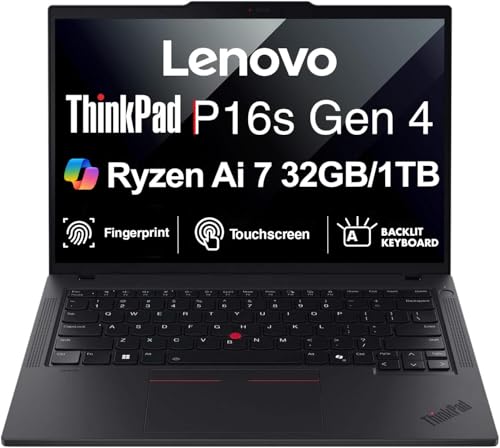
Not every editing hour is spent rendering. The long front of the craft — ingesting cards, logging footage, syncing audio, building assemblies, reviewing cuts with a client or a director — is keyboard work and screen work, and it is where the P16s Gen 4 makes its case. Its verified configuration pairs a 16-inch 4K OLED touch display with a Ryzen AI 7, 32GB of memory, a 1TB drive and integrated Radeon 860M graphics, in a mobile workstation that travels to shoots and sets without drama.
The panel serves the review stages beautifully. A director watching a cut over your shoulder sees the film at delivery resolution with OLED contrast; a client approving colour on this screen is approving something close to the truth. Touch adds a genuinely useful review gesture — tapping through markers, pinching into a frame to check focus — that turns client sessions from presentations into conversations.
Honesty about the ceiling matters more here than anywhere. Integrated graphics will assemble and play back straightforward 4K timelines, especially with proxies in play, and the 32GB of memory keeps big projects open. Stack effects, titles and colour nodes, and the same machine will ask for patience the XPS does not. Lenovo’s own line answers that need at higher tiers; this configuration’s genius is doing the first eighty percent of editing — the part measured in days, not renders — on a superb screen with the best laptop keyboard in the business, at a workstation’s reliability.
For the documentary editor, the wedding filmmaker’s second machine, the producer who cuts their own assemblies, that is not a compromise position. It is the centre of the craft, properly equipped.
- Display: 16-inch 4K OLED touch panel
- Processor: AMD Ryzen AI 7, Copilot+ PC
- Graphics: AMD Radeon 860M integrated
- Memory and storage in this configuration: 32GB, 1TB SSD
- Ports and wireless: 2× Thunderbolt 4, Wi-Fi 7 with Bluetooth
- Extras: backlit keyboard, fingerprint reader, Windows 11 Pro
Strengths
- Genuine 4K OLED for review and approval sessions that show the real film.
- The keyboard and build suit the logging-and-assembly marathon.
- 32GB of memory keeps large projects and reference material open together.
Trade-offs
- Integrated graphics cap effects and render performance firmly.
- Two Thunderbolt ports require thought for multi-drive ingest setups.
- Colour-critical final grading deserves the XPS or the MacBook’s HDR strengths.
There is an economic elegance to this pick that production budgets appreciate. A documentary project spends most of its calendar in exactly the phases this machine serves — ingest, transcription, logging, assembly, review — and the expensive finishing stage can be hired, rented or handled on a shared studio machine for the days it actually occupies. Owning the workstation for the eighty percent and borrowing muscle for the twenty is how independent productions have always survived; the P16s simply makes the eighty percent feel like the flagship experience rather than the waiting room.
Best for: documentary and event editors whose days are ingest, assembly and review on a screen clients can trust.
Not suited for: effects-heavy finishing, where its integrated graphics become the schedule.

Apple MacBook Pro 16 M4 Pro — Best for HDR grading (below 4K)
The labelling first, because this guide’s credibility rides on it: the MacBook Pro 16’s Liquid Retina XDR display measures 3456×2234, which is below the 3840×2160 of a true 4K panel. If your requirement is pixel-for-pixel 4K monitoring, the two picks above are your machines and this one is not, whatever its other virtues. Those virtues, however, are why it is here — because for HDR grading, the discipline where modern delivery is heading, this below-4K panel is the one professional colourists reach for.
XDR is Apple’s extreme-dynamic-range technology, and its point is brightness and contrast headroom for HDR masters: specular highlights that genuinely flare, shadow detail held simultaneously, and a reference behaviour that Apple calibrates against professional standards. An editor grading an HDR deliverable on the XPS’s OLED sees a beautiful image; on the XDR they see the image the HDR specification describes. The verified configuration backs the panel with an M4 Pro carrying a 14-core CPU and 20-core GPU, 48GB of unified memory and a 512GB drive — a specification aimed squarely at media work.
The unified-memory architecture changes editing feel in ways Windows editors notice on contact: the GPU and CPU share that 48GB pool, so large frames and effects draw on the whole of it rather than a partitioned slice, and the platform’s media engines handle the common professional codecs as a native language. Timelines in the major editing applications on this hardware have a fluidity that specifications only partly explain; the software ecosystem for Mac editing is simply the most optimised in the business.
Its constraints are Apple’s customary ones. The 512GB internal drive in this configuration is the smallest in the guide and makes external media storage mandatory from the first project. Ports and expansion follow Apple’s minimal philosophy. And the resolution caveat stands: this is the HDR pick, not the pixel-count pick, and the guide recommends it with that sentence attached permanently.
- Display: 16.2-inch Liquid Retina XDR, 3456×2234 — below 4K, stated plainly
- Processor: Apple M4 Pro, 14-core CPU, 20-core GPU
- Memory and storage in this configuration: 48GB unified memory, 512GB SSD
- Positioning: built for Apple Intelligence; professional media workflows
- Colour: Space Black finish in the verified listing
- Strength of the pick: HDR grading and the Mac editing ecosystem
Strengths
- XDR HDR behaviour is the laptop reference for grading HDR deliverables.
- 48GB of unified memory serves huge frames and effects gracefully.
- The Mac editing ecosystem is the most optimised in professional video.
Trade-offs
- 3456×2234 is below 4K — pixel-exact 4K monitoring is not available here.
- 512GB of internal storage makes external media drives obligatory.
- Apple’s sealed, minimal-port design philosophy governs expansion.
Silence is the MacBook’s unlisted specification, and grading suites value it like one. Colour work happens in quiet rooms where judgement is auditory as well as visual — dialogue edits are checked by ear, room tone is assessed at low volume — and a machine that performs heavy work without fan intrusion protects the editor’s second sense. Apple’s efficiency-first silicon delivers that quiet as a by-product of its architecture, and editors who have worked a session in a silent room understand why owners describe it as the feature they would surrender last.
Best for: colourists and editors delivering HDR work inside the Mac ecosystem.
Not suited for: anyone whose brief literally requires a 3840×2160 monitoring panel.
ASUS ProArt P16 — Creator-specialist alternative (prose-only)
ASUS builds the ProArt P16 for the editor who wants the machine itself to participate in the craft: a 4K OLED touchscreen, factory colour calibration as a headline feature, and a physical dial beside the touchpad that maps to timeline scrubbing, brush sizes and parameter tweaks in creative applications. It is discussed without a link because our pool holds no verified listing for it — but in any conversation about editing laptops it is the Windows creator-specialist the XPS must answer.
The dial sounds like a gimmick until a grading session runs long. Colour correction is a thousand small adjustments, and a hardware control that keeps the eyes on the image while the hand rides a wheel changes the ergonomics of the whole discipline. Combined with ASUS’s colour-management software layer, the ProArt treats calibration and control as part of the product rather than homework for the owner.
Configuration care is the standing instruction for this pick: the line spans multiple panels and graphics tiers under one name, and the 4K OLED configuration is the one this recommendation means. Confirm it, and the memory and storage beside it, on the specific listing before money moves.
- Display: 4K OLED touchscreen in the line’s creator configuration — confirm per listing
- Distinctive feature: physical control dial for editing and grading gestures
- Colour: factory calibration and creator colour tooling
- Graphics: discrete options across the line; verify the exact unit
- Link status: no verified listing in our pool, hence no purchase link
Strengths
- Hardware controls designed around editing gestures, not adapted to them.
- Colour accuracy is the product’s founding argument.
- A genuine 4K OLED in a creator-first chassis.
Trade-offs
- Configuration sprawl demands careful listing verification.
- Studio styling and software layer will not suit corporate-standardised fleets.
- No verified listing here means pricing homework is yours.
The ProArt also speaks to a particular kind of professional pride. Editors develop strong feelings about their instruments — the shuttle control, the pen tablet, the calibrated monitor — and a laptop designed exclusively for the craft, rather than adapted from a gaming or corporate template, flatters that identity honestly. ASUS’s creator software, colour tooling and control surfaces are the substance beneath the sentiment, but the sentiment is real purchasing behaviour, and in a solo studio the machine you enjoy sitting down to is a business asset.
Best for: solo editors and graders who want their laptop’s controls built for the timeline.
Not suited for: an editor who expects a verified configuration to order without research.
MSI Creator Z16 HX Studio — Windows power alternative (prose-only)
MSI’s Creator line takes the company’s gaming hardware knowledge and dresses it for the studio: the Z16 HX Studio pairs high-performance HX-class processing and strong discrete graphics options with a colour-focused, high-resolution touch panel in a chassis that can attend a client meeting. Its panel sits in the high-resolution class below a full 4K claim in most configurations, so it is presented here as a power alternative rather than a pixel-exact one — verify the exact panel on any listing, as always with prose-only picks.
The Creator’s argument is throughput. Editors whose timelines are dense, whose exports are long and whose patience is billable will feel the HX platform’s sustained performance in the parts of the week that render queues dominate. MSI’s gaming heritage shows in cooling that treats sustained load as the design case rather than the exception.
Against the XPS, the trade is polish for power and certainty for homework: Dell’s verified configuration is a known quantity, while the Creator asks you to spec-hunt across its configurations. Editors who enjoy that hunt, or who find the exact unit in a sale, get a great deal of editing machine for the effort.
- Display: high-resolution touch panel, below a full 4K claim in most configurations — confirm per listing
- Processor class: HX-series performance platform
- Graphics: strong discrete options across the line; verify per unit
- Design: studio-appropriate finish over gaming-derived cooling
- Link status: no verified listing in our pool, hence no purchase link
Strengths
- Sustained performance for render-heavy editing weeks.
- Cooling engineered from gaming’s hardest lessons.
- Creator positioning keeps the design client-safe.
Trade-offs
- Panel is not a verified 4K claim; pixel-exact editors should stay with the XPS or ThinkPad.
- Configuration research is part of the purchase.
- Power-first design concedes battery elegance to the flagships.
MSI’s presence in this guide also marks a shift worth noticing: the gaming brands’ creator lines have matured from recoloured gaming laptops into genuinely considered editing tools, with colour-focused panels and studio-appropriate design replacing the light shows. The Creator Z16 is evidence that the boundary between a gaming machine and an editing machine is now mostly a matter of which software is open — and its cooling, born in the harsher discipline, is the better for the ancestry.
Best for: render-heavy Windows editors who value sustained throughput over panel purism.
Not suited for: pixel-exact 4K monitoring, which remains the linked Dell and Lenovo’s territory.
HP ZBook Studio 16 — Certified workstation route (prose-only)
Some editing happens inside organisations — broadcasters, agencies, post houses — where the laptop is a managed asset and the software stack is standardised, and for that world HP’s ZBook Studio is the natural instrument: a slim mobile workstation with high-resolution OLED panel options, professional graphics choices and the support and certification structure IT departments buy on purpose. It is covered without a link because our pool holds no verified listing for the configuration we would specify.
The Studio’s editing case is organisational as much as technical. Certified drivers keep the standardised editing suite stable across a fleet; workstation warranties turn failures into logistics rather than crises; and the OLED configurations give the individual editor a panel that does the work justice. In a freelancer’s hands the same machine is simply a well-supported creator workstation with a corporate spine.
Specify it as carefully as its intended buyers do: the line’s panel and graphics options range widely, and the recommendation here means the high-resolution OLED configuration with graphics matched to your editing suite’s certification list. The listing, as ever, is the contract.
- Display: high-resolution OLED options in the line — confirm the exact configuration
- Graphics: professional RTX options with certification structure
- Support: workstation warranty and fleet management tooling
- Positioning: slim workstation for managed creative environments
- Link status: discussed at line level; no verified pool listing
Strengths
- Certification and support suit studio-standardised editing environments.
- OLED configurations bring grading-class panels to a managed fleet.
- Slim workstation design travels better than traditional mobile workstations.
Trade-offs
- Option breadth makes an underspecified order easy.
- Workstation pricing applies across the line.
- No verified listing in our pool; procurement homework required.
Freelancers who embed with agencies should note the ZBook’s quiet social advantage: arriving with the same class of machine the studio itself deploys makes docking, support and software imaging frictionless, and more than one long engagement has begun with an IT department’s relieved nod. The laptop as a passport is a real phenomenon in contract creative work, and HP’s workstation line is the most widely stamped passport in the industry.
Best for: editors inside studios and agencies whose machines are bought, certified and supported as a fleet.
Not suited for: solo buyers who want the verified, order-tonight certainty of the linked picks.
Comparison
| Pick | Display | Graphics | Memory / Storage | Character |
|---|---|---|---|---|
| Dell XPS 16 Premium 4K | 16.3″ OLED touch, 4K, 120Hz | RTX 5060 | 32GB / 1TB | Complete Windows editor |
| ThinkPad P16s Gen 4 | 16″ 4K OLED touch | Radeon 860M integrated | 32GB / 1TB | Assembly and review specialist |
| MacBook Pro 16 M4 Pro | 16.2″ XDR, 3456×2234 — below 4K | 20-core GPU (unified) | 48GB / 512GB | HDR grading reference |
| ASUS ProArt P16 | 4K OLED touch (confirm per listing) | Discrete options across the line | Confirm per listing | Creator-controls specialist |
| MSI Creator Z16 HX Studio | High-resolution touch, below 4K in most configs | Strong discrete options | Confirm per listing | Sustained-power alternative |
| HP ZBook Studio 16 | High-resolution OLED options (confirm) | Professional RTX options | Confirm per listing | Managed-fleet workstation |
What Does a 4K Timeline Actually Demand From a Laptop?
Four streams of demand arrive simultaneously, and a machine that meets three will still stutter. Playback asks the GPU and the media engines to decode several 4K streams while compositing effects in real time. The interface asks the panel to show the result at full resolution without lag between the editor’s hand and the playhead. Memory holds the project, the cache and the operating system’s ambitions at once. Storage feeds all of it at speeds that punish any drive asked to serve media, cache and exports simultaneously.
Codecs decide how heavy that demand feels. Acquisition formats designed for cameras are built to be small, not to be edited, and they tax decoders accordingly; the professional habit of transcoding to an edit-friendly intermediate or working with proxies exists because even strong laptops negotiate with physics. The picks in this guide span the realistic answers: hardware acceleration and a discrete GPU on the XPS, Apple’s media-engine fluency on the MacBook, and a proxy-friendly assembly workflow on the ThinkPad.
The export is the final examination. A timeline that plays beautifully can still export slowly if the machine’s sustained performance fades with heat, which is why this guide keeps returning to cooling and sustained behaviour. Editing laptops are bought for deadlines, and deadlines are met at minute forty of an export, not in a benchmark’s first minute.
How Should You Handle Colour and HDR on These Panels?
Decide your delivery before you grade a frame. SDR work for the web wants a panel working in the standard colour space with brightness set for your room; HDR delivery wants the XDR-class headroom of the MacBook or an HDR-capable OLED workflow with the operating system’s HDR mode engaged deliberately, not accidentally. Grading SDR material on an HDR-boosted display — or the reverse — produces files that look right exactly once: on your screen, in that mode.
Scopes are the editor’s protection against every panel’s personality. Waveform and vectorscope readings describe the signal itself, indifferent to brightness, room light and optimism, and professional graders lean on them precisely because even the finest panel in this guide is still a display in a room. Use the panel for judgement and the scopes for truth, and the two together make a grading environment a laptop can honestly provide.
Calibration closes the loop. A colorimeter profile built at your working brightness turns a great panel into a known panel, and on machines at this level — where the display is a professional instrument — it is the cheapest accuracy money can buy. Re-profile as the panel ages and whenever your deliverables change their destination.
How Do You Build a Media Storage Workflow Around a Laptop?
Accept the arithmetic on day one: 4K footage consumes storage at rates that make every internal drive in this guide a working surface rather than an archive. The professional pattern is a fast external SSD for active projects, the internal drive for applications, cache and the current edit, and slower bulk storage — a big external drive or network storage — for completed projects and original camera media. Each tier does the job its speed suits, and the laptop stays light enough to remain a laptop.
Cache discipline is the invisible half. Editing applications generate render files, conformed audio and analysis data that can quietly double a project’s footprint; pointing caches at the external working drive and clearing them at project close keeps the internal drive from filling at the worst moment of a deadline. The 512GB MacBook configuration makes this discipline compulsory; the 1TB machines merely make it wise.
Backup is the part nobody enjoys funding until the first lost card. Original camera media should exist in two places before a card is formatted, and the laptop — however fine its panel — is a terrible place for the only copy of anything. Editors are remembered for their films, but they are rehired for their reliability, and reliability is a storage habit.
How Do Proxies and Optimised Media Fit a Laptop Workflow?
Proxy editing is the discipline that lets honest laptops cut footage shot for dishonest ones. The camera’s original files are transcoded — by the editing application, often overnight or during ingest — into lightweight stand-ins that any machine in this guide can juggle by the dozen, while the originals wait on the archive drive for the finishing stage, when the edit is relinked to full quality for grading and export. The timeline an editor touches all week is the proxy timeline; the 4K masters are consulted, not carried.
This reframes the hardware question helpfully. A machine’s proxy-phase performance depends on its processor, memory and interface speed far more than on flagship graphics, which is why the ThinkPad’s configuration is a rational editing purchase rather than a deprived one. The finishing phase — relink, grade, export — is where the XPS’s GPU and the MacBook’s media engines collect their rent, and productions that separate the phases can own the right tool for each instead of one tool straining at both.
Storage planning follows the phases: proxies live on the internal drive for speed, originals on the bulk tier, and the relink is a deliberate, scheduled event rather than a deadline-week improvisation. Editors who build that rhythm find their laptops feel a class faster than their specifications — because, in the phase that fills their days, they are.
What Peripherals Complete a Laptop Editing Station?
Audio monitoring comes first, ahead of every visual accessory, because laptop speakers lie about dialogue levels and room tone in ways no panel can compensate for. A trustworthy pair of headphones or compact studio monitors is not an accessory to the editing station; it is half of it. Editors who grade picture on a 4K OLED while monitoring sound through a laptop’s speakers have built a reference suite with one wall missing.
The shuttle-and-keyboard layer comes second. Editing is a keyboard discipline, and while the ThinkPad’s board is the guide’s best built-in answer, many editors add a dedicated editing keyboard or a jog controller at the desk — the ProArt’s built-in dial is the same instinct, factory-fitted. External storage, already covered as a workflow, is the third tier, and a colour-accurate external monitor the fourth: the natural graduation for the editor whose laptop station becomes a permanent desk.
Power and protection close the list unglamorously: a second charger that lives in the travel bag, and backup that runs without being remembered. The station is complete not when it is impressive but when nothing in the working week requires the editor to think about it.
How Should an Editor Test a Laptop Before Committing?
Bring your own timeline. Benchmarks measure a machine against everyone’s work; a real project — your codecs, your effects, your media drives — measures it against yours. The test that predicts ownership is an ordinary hard day: ingest a card, build an assembly, apply your standard colour treatment, export a ten-minute section, and note where the machine made you wait and whether the waiting grew as it warmed.
Judge the panel in your own room, in the evening, with your own footage — the conditions your grading will actually happen in — and check a familiar scene for the shadow detail and skin tones you know by heart. Displays reveal themselves against memory better than against test patterns.
Finally, test the exit as well as the entrance: the returns process, the warranty registration, the support line’s responsiveness to a small question. An editing laptop is a multi-year professional relationship, and the first week is the only cheap moment to discover you have chosen the wrong partner.
Which Editing Applications Favour Which Pick?
Application ecosystems are the quiet deciding vote in this category. The MacBook’s case strengthens with every Mac-optimised application in an editor’s dock — the platform’s flagship editor is built by the same company as the silicon, and the major cross-platform suites all run their most polished builds there. An editor whose plug-ins, templates and muscle memory live in that ecosystem is not buying a laptop so much as continuing an environment, and the XDR’s HDR strengths arrive as a bonus on a decision already made.
Windows editors divide differently. Suites that lean on NVIDIA acceleration reward the XPS’s RTX 5060 directly; colour applications with professional certification expectations point toward the workstation routes; and the assembly-focused editor in a proxy workflow is genuinely indifferent between platforms, which is exactly the freedom the ThinkPad pick monetises. Read your own dock before you read any benchmark: the applications you open hourly are the specification that matters, and they each have a favourite child in this guide.
Collaboration adds the final filter. Projects passed between editors carry their formats with them, and the machine that matches the team’s standard — same applications, same plug-in versions, same colour pipeline — prevents the small corruptions and missing-effect mysteries that eat deadline weeks. Solo editors choose freely; team editors choose together, and both are right.
How Does an Editing Laptop Age Across a Career?
Editing hardware ages along two curves at once. The performance curve declines relative to the work: codecs grow heavier, deliverables multiply, effects expectations inflate, and a machine that was generous at purchase becomes adequate, then tight, across roughly the span of a codec generation. The panel curve barely moves — a 4K OLED or XDR display bought today will still be a truthful, beautiful grading surface when the processor behind it has become the bottleneck, which is why this guide weights the screen as a long asset and the silicon as a medium-term one.
Careers reorganise machines accordingly. The flagship editor of today becomes the ingest-and-assembly station of its successor’s era — the role the ThinkPad plays fresh from the box — and a laptop bought with a great panel and keyboard graduates into that second career gracefully, while a machine bought for benchmark glory alone retires without a purpose. Buying with the second career in view is the senior editor’s version of value.
Resale follows the same logic. Machines with reference-class panels and professional nameplates — every linked pick here qualifies — find second owners among students and starting editors who know exactly what the screen is worth. Document the configuration, keep the calibration habits, and the machine will repay a surprising share of its cost to the person beginning the journey you are finishing.
What Changes When You Deliver in HDR as Well as SDR?
Dual delivery doubles the grading discipline. The HDR master is graded first, on a panel with the headroom to show it — the MacBook’s XDR is this guide’s instrument — and the SDR version is then derived, trim-passed and checked, because highlights and colour volume that sing in HDR can clip or flatten gracelessly in SDR if nobody supervises the translation. Editors new to HDR delivery consistently underestimate the trim pass; it is not a formality but a second, smaller grade.
Monitoring discipline tightens accordingly. The grading environment — dim room, known panel profile, scopes open — stops being a preference and becomes the only thing standing between the editor and a deliverable that behaves differently on every television it meets. This is where a laptop-based HDR workflow earns its scepticism from broadcast traditionalists, and where the current generation of panels, the XDR foremost, has genuinely closed the argument for all but the most regulated delivery chains.
File discipline follows the pictures: HDR and SDR masters, their project files and their LUTs archived as a set, with the panel and profile used for the grade noted in the project documentation. The editor who returns to a project in two years — for the sequel, the recut, the festival version — will bless the one who wrote it down.
How Do You Keep a Laptop Editing Station Cool and Stable?
Heat is the tax collector of laptop editing, and the payment schedule is negotiable. Elevation is the cheapest concession: a stand that lifts the rear of the machine and unblocks its intakes measurably improves sustained performance during exports, and it improves the editor’s posture in the same gesture — the rare upgrade that pays twice. Room temperature is the second variable; a grading suite kept cool for the panel’s sake serves the processor’s interests too.
Dust is the slow variable. Fans and heatsinks accumulate the room’s lint across a year of heavy service, and a machine whose exports have gradually lengthened is usually asking for a cleaning rather than a replacement. Workstation lines like the ThinkPad and ZBook are designed with that service in mind; sealed flagships ask for professional help, which their support programmes exist to provide.
Software hygiene completes the discipline: background updaters and cloud syncs paused during exports, render caches directed deliberately, and the operating system’s power profile set for the work rather than the brochure. None of this is glamorous. All of it is the difference between a laptop that edits and a laptop that edits reliably in month eighteen.
Common Mistakes
Grading on an uncalibrated panel in a bright room and trusting the result everywhere else is the professional error this category most enables: the better the screen, the more confidence it inspires, and confidence is not calibration. Pair the panel with scopes, a profile and a dim room, or expect the grade to change its mind on every other display it meets.
Buying for the timeline you wish you had is the second. Effects-dense, multi-layer 4K finishing is real work with real hardware demands, and editors who mostly assemble and review — most editors, most days — overspend on graphics while underspending on the panel and keyboard they touch hourly. The ThinkPad’s presence in this guide is the corrective.
Ignoring the export test is the third. Playback demos flatter every machine; a forty-minute export at full quality is the audition that counts, and buyers who can test it — through a retailer, a colleague’s machine, a generous returns window — learn more in that hour than in a month of reviews.
Last, do not let the MacBook’s reputation smuggle its resolution past you, in either direction. It is below 4K, and for HDR grading it is nevertheless the strongest tool here. Both facts survive scrutiny; a purchase made understanding both will not be regretted.
Final Recommendation
Windows editors should buy the XPS 16: true 4K OLED, 120Hz scrubbing, RTX acceleration and a complete flagship around them — the single-machine answer to the whole 4K workflow. Editors whose craft is assembly, logging and review should save the difference and take the ThinkPad P16s Gen 4, whose screen shows clients the truth while its keyboard carries the long days. Colourists delivering HDR inside the Mac ecosystem should take the MacBook Pro 16 with its below-4K caveat understood and accepted, because for that specific deliverable its XDR panel is the reference. The ProArt, Creator and ZBook routes serve the specialists and studios their sections describe — each a right answer, once the workflow asking the question is yours. And a closing thought for the editor still cutting on a lesser screen and wondering whether the panel really matters this much: the first time you watch your own finished film on a display that shows all of it — every pixel you exported, every shadow you argued with — the question answers itself in a way no specification table can. Buy the screen your work deserves, at the moment your deadlines start requiring it, and let the rest of the machine be chosen by the workflow you actually run.
Frequently Asked Questions
Which of these machines is quietest for a small studio?
The MacBook Pro 16, by architecture: its efficiency-first silicon performs editing work at power levels that rarely trouble its fans, and in the quiet rooms where dialogue is edited and grades are judged, that silence is a professional feature rather than a comfort. The ThinkPad is the quietest of the Windows picks in assembly work; the XPS works harder audibly under export loads, as its slim flagship design intends.
Do I need a 4K screen to edit 4K video well?
Need is too strong — generations of excellent 4K work were cut on lesser monitors using scopes, proxies and experience. What a 4K panel removes is inference: focus, noise, sharpening and graphics are judged directly rather than deduced. Editors who deliver 4K daily feel the difference as fewer surprises at export; occasional editors can work happily at lower resolutions with disciplined technique.
Is the MacBook Pro 16 a 4K laptop?
No, and this guide does not call it one. Its Liquid Retina XDR display is 3456×2234, below the 3840×2160 of a true 4K panel. It earns its place on HDR grading merit — its dynamic-range behaviour is the laptop reference for HDR deliverables — and on the strength of the Mac editing ecosystem, with the resolution caveat attached wherever it is recommended.
How much memory does 4K editing really use?
Large projects with multiple applications, background rendering and generous caches will occupy 32GB comfortably and thank you for it; the MacBook’s 48GB unified pool serves its shared CPU/GPU architecture particularly well for effects and frames. Assembly editing on proxy media lives happily in less. Buy for the largest project you realistically open, not the largest you can imagine.
Can integrated graphics handle a 4K timeline?
For assembly work — cuts, trims, audio, straightforward colour — yes, especially with proxies for the heaviest acquisition codecs, which is the workflow the ThinkPad pick is built around. Effects stacks, noise reduction and complex titles are where integrated graphics bill their hours. Know which side of that line your timelines live on before choosing.
Does an editing laptop need a touchscreen?
Not for the timeline itself, which remains a keyboard-and-pointer discipline — but the linked Dell and Lenovo picks include touch because review culture has changed: clients tap through cuts, directors pinch into frames, and editors annotate stills in meetings where a mouse feels like furniture. Treat touch as a collaboration feature rather than an editing one, valuable in proportion to how often other people gather around your screen, and harmless where they do not.
Should I edit from the internal drive or an external SSD?
Both, in their roles: applications and cache on the internal drive, active media on a fast external SSD, archives on bulk storage. The internal drives in these machines are quick but finite, and 4K media is neither. A two-tier habit formed at the first project will save the mid-deadline migration every editor otherwise performs exactly once, memorably.
Is a laptop enough for professional 4K delivery, or do I need a desktop too?
For the majority of professional work — corporate, documentary, wedding, online series, most independent features — a laptop from this guide, run with a disciplined proxy and storage workflow, is the whole studio. Desktops earn their place at the extremes: effects-dense finishing, theatrical pipelines, render queues that run overnight as a business model. The honest dividing line is not quality but throughput, and most editors discover their side of it from their delivery calendar rather than from any review.
How important is the webcam and microphone for an editing laptop?
More than editors expect, because modern post-production is a conversation: directors review cuts over calls, clients approve grades remotely, and the machine that grades is the machine that presents. The XPS’s 1080p infrared camera is the strongest of the linked picks for that life. Serious voice work still belongs to a proper microphone, but the review call — the daily ritual — is well served by flagship hardware and poorly served by an afterthought camera on a grading machine.
Related Guides
Developers and editors share more hardware than either admits — compare the best 4K laptops for programming shortlist, shrink the format with best 4K 14-inch laptops, and bring engineering work into the picture in best 3D mechanical engineering laptops.