What's inside
- Key Takeaways
- Quick Picks
- How We Chose These Picks
- Comparison
- How Should You Set Scaling So 4K Code Stays Sharp and Readable?
- How Much Memory Does a Modern Development Stack Really Need?
- Why Does the Keyboard Matter More Than the Processor for Programming?
- How Do You Arrange Windows and Workspaces on a 4K Canvas?
- What Does a Compile-and-Test Cycle Ask of These Machines?
- How Should a Developer Choose Between Windows, macOS and Linux Here?
- How Long Will a Programming Laptop Stay Productive?
- What Should a Developer Set Up in the First Week?
- How Does a 4K Laptop Change Code Review and Pairing?
- Common Mistakes
- Final Recommendation
- Frequently Asked Questions
- Related Guides
As an Amazon Associate I earn from qualifying purchases. This post may contain affiliate links at no extra cost to you.
widgetverdict.com is reader-supported. When you buy through links on our site, we may earn an affiliate commission.
Buying routes for the three linked machines below run through their Amazon listings: check price on Amazon, and confirm the exact configuration from the listing title. Three more are discussed without links because our pool holds no verified listing for them; they are the machines programmers actually cross-shop, and a guide that omitted them would be describing a smaller world than the one you buy in. Every resolution in this guide is stated in digits at least once for each pick, because in this category the digits are the difference between the machine you researched and the machine that arrives.
Programmers ask something unusual of a screen: not beauty, but density they can think in. The best 4k laptops for programming earn the description because a 3840×2160 panel, scaled correctly, holds an editor, a terminal, a browser with documentation and a debugger in one glance — with every character drawn so sharply that syntax highlighting, subtle indentation and the difference between a colon and a semicolon survive an eight-hour day without taxing the eyes that must catch them. Code is the most text-dense work a laptop does, and text is where resolution pays its most honest dividend.
That dividend comes with engineering questions this guide takes seriously. Scaling decides whether 4K’s workspace is real or theoretical: at the right percentage, interface text stays physical-sized while the pixel grid underneath quadruples in fineness. External monitors multiply or squander the advantage depending on how their densities mix. And the machine around the panel — keyboard, memory for containers and virtual machines, a processor that compiles without ceremony — decides whether the screen’s promise survives contact with a real repository.
One expectation should be set before the picks, because it decides satisfaction more than any specification below: a 4K programming laptop is not faster than the machine it replaces in the ways benchmarks advertise. Builds take what they take. What changes is the space the work happens in and the effort of looking at it — the two resources a developer spends continuously rather than occasionally. Buyers who understand they are purchasing room and rest for their eyes will be delighted; buyers expecting a stopwatch miracle should redirect the budget toward the processor and memory tiers of a lesser-screened machine, and this guide will consider that a successful outcome too.
Three linked picks anchor the list. Dell’s XPS 16 and Lenovo’s ThinkPad P16s Gen 4 in its 64GB configuration carry genuine 4K OLED panels verified in their listing titles, chosen here in the configurations a developer’s workload actually stresses. Apple’s MacBook Pro 14 with M4 Pro carries a 3024×1964 Liquid Retina XDR display — below 4K in pixel count, stated plainly wherever it appears — admitted because its text rendering, silence and Unix-native environment make it the machine a large share of professional programmers already chose, and a programming guide that pretended otherwise would fail its readers.
Key Takeaways
- Two linked picks give you a true 3840×2160 workspace: the XPS 16 and the 64GB ThinkPad P16s Gen 4, both with 4K OLED touch panels.
- The MacBook Pro 14 M4 Pro’s display is 3024×1964 — below 4K — and it is recommended for its text quality, silence and development environment, not its pixel count.
- Memory is the programmer’s real specification: the P16s configuration here carries 64GB for containers, virtual machines and heavy IDEs.
- Scaling is the skill that unlocks 4K for code — set it deliberately, keep the panel at native resolution, and let the operating system do the arithmetic.
- Keyboards decide daily satisfaction in this category more than processors do; both Windows picks were chosen partly on that evidence.
- Code review is the panel’s second job: a full diff with its context and discussion in one field of view measurably improves what reviewers catch.
Quick Picks
| Pick | Badge | Why it is here |
|---|---|---|
| Dell XPS 16 Premium 4K | Best 4K laptop for programming overall | True 4K OLED at 120Hz, 32GB of memory and RTX 5060 power for GPU-adjacent development, in a flagship chassis. |
| Lenovo ThinkPad P16s Gen 4 4K OLED (64GB) | Best for containers, VMs and the keyboard | The same genuine 4K OLED with 64GB of memory, a 2TB drive and the keyboard programmers measure others against. |
| Apple MacBook Pro 14 M4 Pro | Best development environment (below 4K) | 3024×1964 XDR — below 4K — with 24GB of unified memory, near-silent operation and the Unix-native toolchain. |
| Lenovo ThinkPad X1 Carbon | Travel-weight alternative (prose-only) | The executive ThinkPad whose high-resolution options sit below 4K, for developers who live in airports. |
| Framework Laptop 16 | Repairable alternative (prose-only) | A modular machine with a 2.5K-class panel — below 4K — bought for upgradeability rather than resolution. |
| Dell Precision 7680 (4K OLED configuration) | Workstation route (prose-only) | The certified workstation path to a 4K OLED for developers inside managed engineering organisations. |
How We Chose These Picks
Programming reordered the usual criteria, and the reordering is the method. Text density came first: a panel had to render code at a fineness that survives long days, which in this market means true 4K OLED for the Windows picks — verified in their listing titles — and, for the Apple exception, a below-4K panel whose rendering quality and ecosystem justified admission under an explicit label. Any machine whose display claim could not be verified was placed in prose, however strong its developer reputation.
Memory came second, ahead of processors, because modern development is a memory workload wearing a processor’s clothes: an IDE with a large index, a browser holding documentation and issue trackers, a chat client, and a local stack of containers or a virtual machine will consume what they are given and ask for more. That is why the ThinkPad appears in its 64GB configuration here rather than the 32GB version recommended elsewhere in this batch — the programming brief spends its money differently, and the guide follows the brief.
A fourth, quieter criterion ran underneath the others: vendor seriousness about developers as customers. Firmware that respects dual-boot arrangements, driver programmes that do not break environments on a consumer schedule, support staff who have heard of a bootloader — these intangibles decide whether a programming laptop is a platform or an obstacle course, and they are a large part of why this shortlist is populated by workstation and flagship lines rather than by gaming machines with equivalent paper specifications.
Input and endurance closed the selection. A programmer’s keyboard is struck more times in a week than most components are used in a year, and a development machine that cannot hold a charge through a conference day or stay quiet in a shared space fails socially before it fails technically. The three linked picks are, not coincidentally, three of the most civilised machines in their respective ecosystems.

Dell XPS 16 Premium 4K — Best 4K laptop for programming overall
For the developer who wants the full 4K workspace without giving up flagship polish, the XPS 16 is the complete proposition. The verified configuration centres on a 16.3-inch OLED touchscreen at 4K resolution with a 120Hz refresh rate, driven by an Intel Core Ultra 9 285H with 32GB of memory and a 1TB drive, and — unusually for a programming shortlist — an NVIDIA GeForce RTX 5060, whose presence matters to the growing share of development that touches machine learning, graphics, game engines and GPU-accelerated tooling.
The panel’s programming virtues are specific. At sensible scaling, a 16.3-inch 4K screen holds a wide editor layout — file tree, two or three code panes, minimap — beside a terminal and still leaves the browser a real window rather than a rumour. The 120Hz refresh makes scrolling through a ten-thousand-line file feel like handling paper, and OLED’s contrast gives syntax highlighting a depth that keeps colour-coded code legible in dim rooms during the hours when code actually gets written.
Thirty-two gigabytes is the configuration’s honest middle: enough for an IDE, a browser fleet and a moderate container stack simultaneously, which describes most professional development most days. Developers who run several virtual machines or very large monorepo builds should read the ThinkPad section next with attention, because that is the workload the 64GB configuration exists for. The XPS counters with the RTX card, the finer port selection — three Thunderbolt 4 sockets make a two-monitor desk a one-cable habit — and Wi-Fi 7.
As an ownership proposition it is the flagship pattern: a 1080p infrared webcam for the standups and pairing calls that punctuate remote development, Windows 11 Pro for the enterprise tooling many employers require, and a chassis that can be opened in a client’s office without a word of explanation. Programmers who bill their judgement will recognise the value of a machine that looks like it.
- Display: 16.3-inch OLED touchscreen, 4K resolution, 120Hz
- Processor: Intel Core Ultra 9 285H
- Graphics: NVIDIA GeForce RTX 5060
- Memory and storage in this configuration: 32GB, 1TB SSD
- Ports and wireless: 3× Thunderbolt 4, Wi-Fi 7
- Extras: 1080p IR webcam, fingerprint reader, backlit keyboard, Windows 11 Pro
Strengths
- The full 4K workspace at 120Hz, with scrolling that flatters long files.
- RTX 5060 covers ML, graphics and engine work that integrated GPUs cannot.
- Three Thunderbolt 4 ports build the cleanest multi-monitor desk in the guide.
Trade-offs
- 32GB will ceiling-out for VM-heavy and monorepo workflows — see the ThinkPad.
- The discrete GPU and 120Hz panel shorten unplugged endurance.
- Flagship pricing, with the keyboard a matter of taste beside the ThinkPad’s.
Remote-work rituals flatter it further. Pair programming — the daily ceremony of modern development — runs through screen sharing, and a 4K panel shared at reduced resolution still downsamples into a crisper image for the viewer than a lesser panel shares natively; your navigator reads your code the way you do. Add the infrared webcam’s presentable image and the XPS becomes the machine that represents you in the two places remote developers are actually seen: their shared screen and their camera square.
Best for: full-stack and GPU-adjacent developers who want one flagship that codes, compiles and presents.
Not suited for: developers whose daily stack is several virtual machines deep.

Lenovo ThinkPad P16s Gen 4 4K OLED (64GB) — Best for containers, VMs and the keyboard
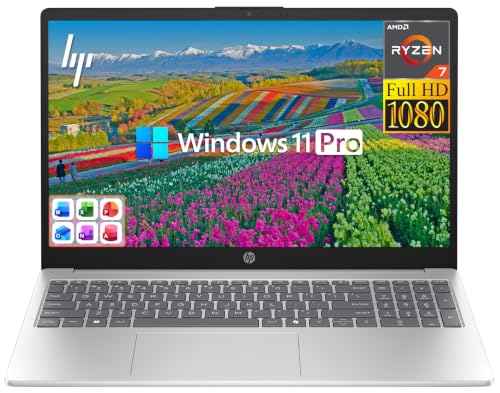
This is the configuration of the P16s Gen 4 that programming was waiting for. The verified listing keeps everything the line is known for — a 16-inch 4K OLED touch display, an AMD Ryzen AI 7, Radeon 860M integrated graphics, two Thunderbolt 4 ports, Wi-Fi 7, Windows 11 Pro — and raises the two numbers a developer’s day is made of: 64GB of memory and a 2TB solid-state drive. Where the 32GB version of this machine is a fine professional laptop, this one is a development environment with a screen attached.
Sixty-four gigabytes changes the texture of work in ways benchmarks flatten. A Kubernetes cluster running locally beside the IDE stops being an act of rationing. A Windows virtual machine for the one legacy tool, a Linux environment for the deployment target, the database with a realistic dataset, the browser with forty documentation tabs — all of it simply stays open, and the developer’s attention stays on the problem instead of on the machine’s mood. The 2TB drive plays the same role for the accumulated weight of repositories, container images, SDKs and virtual disks that a modern stack quietly amasses.
The keyboard completes the argument, and for programmers it may be the argument. Development is the most keyboard-intensive work a laptop performs, and the ThinkPad board — its travel, its layout, its indifference to being typed on for a decade — remains the reference the industry measures against. Paired with a 4K OLED that renders text at print-like fineness, the machine addresses the programmer’s two physical interfaces, eyes and hands, at the highest level available in one product.
Integrated graphics are the standing caveat, carried over from the line: machine-learning training, game development and heavy graphics work belong on the XPS or a workstation. For the far larger population whose GPUs idle while their memory groans, this configuration is the most precisely aimed programming laptop in the guide.
- Display: 16-inch 4K OLED touch panel
- Processor: AMD Ryzen AI 7, Copilot+ PC
- Graphics: AMD Radeon 860M integrated
- Memory and storage in this configuration: 64GB, 2TB SSD
- Ports and wireless: 2× Thunderbolt 4, Wi-Fi 7 with Bluetooth
- Extras: backlit keyboard, fingerprint reader, Windows 11 Pro
Strengths
- 64GB of memory runs local clusters, VMs and heavy IDEs simultaneously.
- 2TB of storage absorbs container images and VM disks without triage.
- The keyboard and the 4K OLED serve the programmer’s eyes and hands equally.
Trade-offs
- Integrated graphics exclude GPU-compute and engine development.
- Lighter workloads will never visit the headroom they paid for.
- Two Thunderbolt ports is the line’s standing constraint for elaborate docks.
Platform and DevOps engineers will recognise their own reflection in this configuration most clearly. Their work is environments all the way down — the cluster that mirrors production, the three versions of the database that must coexist, the CI runner reproducing a failure locally at midnight — and every one of those environments bills in memory and storage, the two currencies this machine holds in depth. The 4K OLED, for that audience, is almost a bonus: the screen on which a dozen terminals finally arrange themselves legibly, with the keyboard underneath that was designed by people who also live in them.
Best for: backend, platform and full-stack developers whose local environment is a small data centre.
Not suited for: ML engineers and game developers, whose workloads begin at a discrete GPU.

Apple MacBook Pro 14 M4 Pro — Best development environment (below 4K)
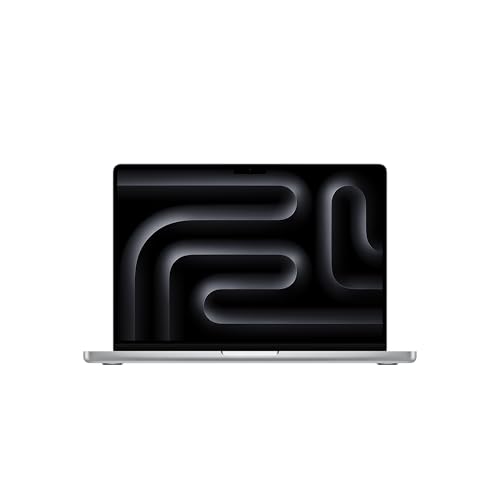
The disclosure belongs at the top of the section, in the same breath as the recommendation: this MacBook Pro 14’s Liquid Retina XDR display is 3024×1964, below the 3840×2160 of a true 4K panel. Developers who need the literal 4K workspace should take the Dell or the Lenovo above. And yet a programming guide that stopped there would be lying by omission, because for a very large share of professional developers, this is the machine — and the reasons are environmental rather than numerical.
Start with the environment itself. macOS gives the developer a Unix-native terminal, the toolchain the industry’s servers assume, and an ecosystem of development software that is frequently Mac-first. The verified configuration — an M4 Pro with a 12-core CPU and 16-core GPU, 24GB of unified memory and a 512GB drive — compiles, indexes and runs local stacks with a speed that specifications understate, because the platform’s efficiency means the performance on the desk at hour six is the performance from the benchmark at minute one, delivered in near-silence.
The display, pixel count notwithstanding, is a superb text instrument. XDR rendering at 3024×1964 on 14.2 inches produces character fineness that most developers cannot distinguish from the 4K picks without a loupe, and its brightness and contrast hold that quality in the bright, shared spaces where development increasingly happens. Fourteen inches is also the travel format: this is the only linked pick that genuinely commutes, and for the developer whose office is a rotation of cafés, client sites and airport lounges, portability is a specification, not a lifestyle preference.
Its limits are the platform’s familiar ones. Twenty-four gigabytes of unified memory is generous for most stacks and a ceiling for the VM-heaviest ones; the 512GB drive demands the external-storage habit; and developers whose targets are Windows-native or whose tooling is NVIDIA-bound are guests in this ecosystem rather than citizens. Know your stack, and the choice makes itself.
- Display: 14.2-inch Liquid Retina XDR, 3024×1964 — below 4K, stated plainly
- Processor: Apple M4 Pro, 12-core CPU, 16-core GPU
- Memory and storage in this configuration: 24GB unified memory, 512GB SSD
- Positioning: built for Apple Intelligence; professional development platform
- Colour: Space Black finish in the verified listing
- Strength of the pick: Unix-native environment, silence, travel format
Strengths
- The development environment most of the industry’s tooling assumes.
- Sustained, near-silent performance across a full working day.
- A 14-inch format that actually travels, with a superb text display.
Trade-offs
- 3024×1964 is below 4K — the literal workspace is smaller than the Dell’s or Lenovo’s.
- 24GB of memory ceilings the heaviest container and VM stacks.
- Windows-native and CUDA-bound development are second-class citizens here.
Battery behaviour deserves its own sentence in a programming guide, because development days are itinerant in a specific way: the sprint between meeting rooms, the afternoon in a café between obligations, the conference corridor. The MacBook’s efficiency turns those fragments into working time in a way the hungrier 4K flagships cannot promise, and a developer whose machine is awake and ready in every fragment accumulates hours across a year that a desk-bound rival simply never sees. Portability compounds; this is the pick that compounds fastest.
Best for: developers in the Unix and web ecosystems who value silence, battery and the Mac toolchain.
Not suited for: anyone whose requirement is a literal 3840×2160 coding canvas.
Lenovo ThinkPad X1 Carbon — Travel-weight alternative (prose-only)
The X1 Carbon is the ThinkPad for the developer whose code travels more than it computes: an executive-class ultraportable whose high-resolution display options sit below 4K, wrapped in the lightest chassis Lenovo’s flagship line produces. It is discussed without a link because our pool holds no verified listing for it, and with its resolution standing stated plainly — this is the portability pick, not a pixel pick.
Its programming case is the keyboard-and-airport argument. The same ThinkPad typing lineage as the P16s, in a machine that disappears into a personal item bag, with battery manners suited to conference days and client sites. Developers whose heavy lifting happens on remote servers and cloud environments — an increasingly normal architecture — will find the local machine’s job is a terminal, an editor and a browser, and the Carbon performs that job at the highest level of comfort per gram in the industry.
Choose it knowingly: local container stacks and VM fleets will feel its memory ceilings, and the screen, while excellent, is not the 4K canvas this guide is named for. For the cloud-native developer in motion, those are the right trades, made with open eyes.
- Display: high-resolution options below 4K — confirm per listing
- Positioning: flagship ultraportable ThinkPad
- Strength of the pick: keyboard quality at travel weight
- Workflow fit: cloud and remote development
- Link status: no verified listing in our pool, hence no purchase link
Strengths
- The lightest route to a first-class programming keyboard.
- Battery and build suited to a life of sites and conferences.
- Ideal when the real compute lives on remote infrastructure.
Trade-offs
- Below 4K resolution — the guide’s central criterion, conceded.
- Memory ceilings arrive quickly for local-stack developers.
- Premium pricing for portability rather than power.
There is also a status economy to acknowledge: the X1 Carbon is the machine issued to people whose employers trust them with the flagship, and consultants who arrive with one are read — fairly or not — as senior before they open it. Developers who sell their judgement by the day learn to value that signal as equipment. Beneath the signal, the substance holds: this remains a ThinkPad, with the keyboard and support that made the name, simply concentrated into the least possible weight.
Best for: cloud-native developers and consultants whose laptop is a superb terminal that travels.
Not suited for: local-environment developers, who should take the 64GB P16s and never look back.
Framework Laptop 16 — Repairable alternative (prose-only)
Framework builds the anti-disposable laptop: a modular 16-inch machine whose ports are swappable cards, whose components are user-replaceable by design, and whose display is a 2.5K-class panel — below 4K, and irrelevant to its buyers’ actual argument, which is why it appears here as a values pick rather than a resolution pick. No verified listing sits in our pool; the model is covered because programmers, more than any other buyers, ask about it.
The developer affinity is easy to understand. A machine whose storage, memory, ports and even mainboard can be upgraded across generations speaks the language of people who maintain systems for a living. The expansion-card port system lets the desk’s dongle drawer be designed away. For Linux users — a constituency Framework courts openly — the hardware’s openness is a feature no sealed flagship can patch in later.
The honest ledger must include the costs: a smaller company’s support horizon, a panel that concedes this guide’s headline criterion, and a build that trades some flagship refinement for its modularity. Buyers for whom repairability is a principle will find those costs trivial; buyers shopping purely for a coding screen should stay with the linked picks.
- Display: 2.5K-class panel — below 4K, stated plainly
- Design: modular, user-replaceable components and swappable port cards
- Platform stance: strong Linux support and openness
- Upgrade path: components replaceable across generations
- Link status: discussed from the model’s public profile; no verified pool listing
Strengths
- Repairability and upgrades as a designed feature, not a warranty fight.
- Port selection becomes the owner’s decision, changeable in seconds.
- A genuine ownership-longevity story in a disposable category.
Trade-offs
- Below 4K — not the canvas this guide is named for.
- Smaller-company support and resale ecosystems.
- Modularity costs some of the sealed flagships’ refinement.
The Framework also reframes the upgrade conversation this guide keeps having. The sealed flagships in this guide ask the buyer to forecast their needs and pay for the forecast today; the Framework lets the forecast be wrong, because memory, storage and ports can follow the need when it arrives. For developers whose stacks mutate yearly — the profession’s defining habit — that forgiveness has a cash value that spec-sheet comparisons never capture, and it is the deepest reason this below-4K machine keeps appearing in programmers’ own shortlists.
Best for: developers who keep machines for a decade and open them without fear.
Not suited for: buyers whose first requirement is the 4K workspace itself.
Dell Precision 7680 (4K OLED configuration) — Workstation route (prose-only)
A second appearance for the Precision line in this batch, in a different role: where the editing guide treats the 7680 as a certified graphics instrument, the programming reader meets it as the managed-fleet route to a 4K OLED coding machine — the laptop an engineering organisation issues when developers need a true 4K panel, certified drivers for the CAD-adjacent tools the codebase touches, and a support contract behind both. It is listed as prose-only here to keep this guide’s links focused on its three programming-first picks; the verified 4K OLED configuration of this same model anchors our editing coverage.
The programming virtues are organisational. Identical machines across a team mean identical build behaviour; workstation driver programmes mean the development environment does not shift underfoot with consumer driver releases; and the HX-class processor’s sustained performance suits the monorepo builds and container fleets that make consumer laptops sound like hairdryers. The RTX 1000 Ada, surplus for most coding, earns its place where the codebase includes simulation, visualisation or CAD tooling.
Solo developers will find the XPS covers their needs with more grace and less weight. The Precision is the answer when the buyer is a department — or when the developer’s work genuinely straddles code and certified engineering applications, a smaller population than marketing suggests and a real one.
- Display: 4K UHD+ OLED in the configuration this recommendation means — verified in our editing guide’s listing
- Graphics: NVIDIA RTX 1000 Ada professional, 6GB
- Processor class: HX-series sustained performance
- Support: workstation warranty and certified driver programmes
- Link status in this guide: prose-only by design; see the editing guide for the linked listing
Strengths
- A true 4K OLED with an enterprise support structure behind it.
- Sustained build performance for large repositories and container fleets.
- Certified graphics for developers whose code touches engineering tools.
Trade-offs
- Weight and cost exceed what solo development requires.
- Professional graphics are surplus for pure software work.
- Utilitarian design beside the XPS flagship’s polish.
Procurement reality completes the Precision’s case: engineering organisations buy in fleets, image in batches and support under contract, and a machine that fits that machinery — same configuration, same drivers, same warranty conversation for three years — saves its administrators more than its sticker suggests. The individual developer inside such a fleet simply experiences the result as a laptop that IT understands, stocked with parts, behind a helpdesk that has seen it before. In a large organisation, that familiarity is a feature no benchmark sells.
Best for: development teams inside engineering organisations standardising on certified hardware.
Not suited for: independent developers, for whom the XPS 16 is the same panel in a friendlier machine.
Comparison
| Pick | Display | Graphics | Memory / Storage | Character |
|---|---|---|---|---|
| Dell XPS 16 Premium 4K | 16.3″ OLED touch, 4K, 120Hz | RTX 5060 | 32GB / 1TB | Flagship all-rounder |
| ThinkPad P16s Gen 4 (64GB) | 16″ 4K OLED touch | Radeon 860M integrated | 64GB / 2TB | Memory-and-keyboard specialist |
| MacBook Pro 14 M4 Pro | 14.2″ XDR, 3024×1964 — below 4K | 16-core GPU (unified) | 24GB / 512GB | Environment and silence |
| ThinkPad X1 Carbon | High-resolution, below 4K (confirm) | Integrated | Confirm per listing | Travel-weight terminal |
| Framework Laptop 16 | 2.5K-class — below 4K | Options across configurations | Owner-upgradeable | Repairable modular |
| Dell Precision 7680 | 4K UHD+ OLED (see editing guide) | RTX 1000 Ada 6GB | 32GB DDR5 / 1TB | Managed-fleet workstation |
How Should You Set Scaling So 4K Code Stays Sharp and Readable?
The governing principle is simple to state and widely violated: never lower the panel’s resolution to make text bigger. Lowering resolution blurs every character the 4K panel was bought to sharpen. Instead, keep the display at its native 3840×2160 and raise the operating system’s scaling — on a 16-inch panel, most developers settle between 150 and 200 percent — so that interface elements and text are drawn at a comfortable physical size using the full pixel grid. The workspace you keep is the equivalent of a smaller-resolution desktop; the sharpness is entirely new.
Editors and IDEs add a second layer: their own font and UI scaling, which should be tuned after the system setting, not instead of it. Set the system scaling for the shell and browser, then set the editor’s font size for your eyes at your desk distance, and resist syncing the two numbers in your head — they measure different things. Terminal fonts deserve the same care, since a terminal at the wrong size is where eye strain in this profession actually begins.
External monitors test the discipline. A 4K laptop driving a 1440p side monitor will run two scaling worlds at once; modern operating systems handle the mixture, but windows will resize as they cross the border, and the cleanest desks either match densities or assign each screen a permanent role — code on the 4K panel, communication and reference on the lesser screen — so the crossing happens rarely and deliberately.
How Much Memory Does a Modern Development Stack Really Need?
Add a real stack up honestly. A flagship IDE with a large project indexed holds several gigabytes and wants more. A browser carrying documentation, the issue tracker, the CI dashboard and the team’s chat holds several more. A local container stack — database, cache, queue, the application itself, an observability toy or two — holds whatever it is allowed to hold, which in an unmeasured afternoon can be the rest of the machine. A virtual machine, when the work requires one, arrives with its own multi-gigabyte reservation and no interest in negotiation.
Against that arithmetic, 32GB is the comfortable professional standard — the XPS’s configuration — and 24GB of unified memory serves the MacBook’s typical web-and-Unix stacks well because the platform’s memory management is frugal. Sixty-four gigabytes, the ThinkPad configuration’s headline, is not about comfort but about simultaneity: everything above, at once, with headroom left for the tool you have not adopted yet. Developers know which side of that line their Tuesdays live on; the guide’s only insistence is that they answer from their task manager’s history rather than from optimism.
Storage follows the same compounding. Repositories multiply, container images accumulate layers, SDKs and toolchains each claim their gigabytes, and virtual disks swell silently. The 2TB configuration postpones the reckoning for years; the 512GB MacBook demands an archiving habit from the first month. Neither is wrong — but only one of them forgives a messy year.
Why Does the Keyboard Matter More Than the Processor for Programming?
Because the processor’s work is bursty and the keyboard’s is constant. Compilation, indexing and test runs occupy minutes of a developer’s day in visible waiting; typing occupies hours, and its quality is paid in fatigue, error rate and the small willingness to write the longer, clearer name instead of the short, cryptic one. Code quality is downstream of typing comfort in ways the industry rarely admits: developers write better code on keyboards that do not punish writing.
This is the ThinkPad’s home ground, and the reason both its configurations recur across this batch’s guides — the board’s travel, spacing and layout have been refined across decades of professional feedback. The XPS’s keyboard is a fine modern flagship board; the MacBook’s is precise and quiet. Reasonable developers prefer each of the three, which is exactly why the guide names the preference rather than settling it: if you can, type a paragraph on the finalists before deciding, because your hands will vote more honestly than your eyes.
Layout details outlast specifications in daily importance — the position of the modifier keys your shortcuts live on, the function-row arrangement your debugger uses, the arrow-key cluster your editor’s navigation assumes. A programming laptop is a musical instrument disguised as a computer, and nobody buys an instrument from a frequency chart.
How Do You Arrange Windows and Workspaces on a 4K Canvas?
The developers who get the most from these panels treat the screen as real estate with zoning laws. The primary editor owns the centre, where the eyes rest; the terminal takes the lower territory, wide and short, because command output is read in bursts; documentation and the running application share the second zone, visible for consultation without competing for the centre. Window managers and tiling tools automate the zoning, and on a 4K canvas the automation pays for its learning curve within a week.
Virtual desktops multiply the canvas by context rather than by pixels: one desktop per project, or per mode — coding, reviewing, communicating — so that switching tasks becomes a gesture instead of an excavation. The 4K panel’s contribution is that each context can hold its full arrangement without minimising anything into invisibility. Developers coming from smaller screens often keep their old single-window habits for months; the ones who reorganise around the space describe the change as the actual upgrade, with the resolution merely its enabler.
Font and theme choices finish the arrangement. A typeface designed for code, at a size set for your real viewing distance, in a theme whose contrast suits your room’s light — these are the settings through which the panel’s quality reaches your eyes, and an hour spent on them in the first week returns itself daily for the machine’s whole life.
What Does a Compile-and-Test Cycle Ask of These Machines?
Development loads are spiky in a way office work never is: idle editing punctuated by a build that wants every core, a test suite that wants every core and the disk, an indexer that wants the memory you were saving. The machines in this guide answer the spikes differently. The XPS’s Ultra 9 and the Precision’s HX-class platform bring high sustained wattage to the burst; the MacBook’s efficiency silicon delivers its burst quietly and at a fraction of the power; the ThinkPad’s Ryzen splits the difference with an efficiency bias that flatters battery life between builds.
What the developer feels is not the peak but the interruption — whether the editor stays responsive while the suite runs, whether the machine can be typed on during an index, whether the fans announce the build to the whole room. Memory headroom is the unsung hero of that experience: a machine that is not swapping during a build remains a machine you can think on, and it is another reason this guide weights the 64GB configuration as heavily as it does.
Thermal honesty applies here as everywhere: a laptop under a desk dock, vents against a wall, will throttle its third build of the morning in ways its first never suggested. Elevation, airflow and a dock that does not cook the chassis are development infrastructure, as surely as the CI server is.
How Should a Developer Choose Between Windows, macOS and Linux Here?
By target, first of all. Developers building for Windows endpoints, enterprise .NET estates or NVIDIA-bound pipelines live most honestly on the Windows picks, with WSL providing the Linux environment modern stacks assume. Developers building for the web, for Unix servers or for Apple’s own platforms live most honestly on the MacBook, whose terminal is the deployment environment’s close relative. Developers building for Linux itself can choose any of the three and run their target natively or virtually — the ThinkPad’s workstation lineage and the Framework’s openness court them most directly.
By team, second. A codebase carries an implicit platform — the scripts that assume a shell, the tooling whose bugs are platform folklore, the onboarding document written for one operating system’s quirks — and the developer who matches the team’s machine saves a hundred small frictions a month. Solo developers and greenfield teams choose freely; everyone else should ask what the repository expects before asking what the heart wants.
By hand, last. Keyboards, trackpads, shortcuts worn into muscle memory — platform fluency is a physical asset accumulated over years, and switching costs are real even when they are worth paying. The picks in this guide were chosen so that each platform has a first-class representative, precisely because the best programming laptop is the one whose environment its owner already speaks fluently, viewed through the finest panel that environment offers.
How Long Will a Programming Laptop Stay Productive?
Development machines age more gracefully than most, because the work’s centre of gravity keeps moving off the device: builds migrate to CI, environments to containers and cloud workspaces, datasets to servers. A laptop bought with a superb panel, a great keyboard and generous memory can ride that migration for years, its local duties gradually lightening even as its screen and keys remain exactly as good as the day they mattered most. This is the deepest argument for buying the display and the memory generously and the processor merely adequately.
The counterweight is local AI tooling, the first development trend in a decade pulling computation back onto the desk. Local models, code assistants and inference workloads reward exactly the assets this guide’s XPS carries — a discrete GPU and memory depth — and developers who expect their assistants to live on-device should weight that future honestly. Nobody knows the balance point of 2028’s workflow; the hedge is a machine strong in both directions, which is a fair description of this guide’s top pick.
Resale and second careers close the loop. ThinkPads and MacBooks — four of this guide’s six picks wear those badges — hold their value and their usefulness into second ownership by students and juniors, because the profession’s entry point is a good screen, a good keyboard and a machine that still compiles. Buy the instrument, and it will teach somebody else after it finishes teaching you.
What Should a Developer Set Up in the First Week?
The environment migration comes first and should be treated as a project, not an afternoon: dotfiles, editor configuration, the toolchain versions your repositories pin, the container stack rebuilt and verified against a known-good build. A new machine that cannot reproduce the old machine’s green test suite is not set up, whatever its desktop looks like, and the 4K panel will wait patiently — it has years to impress you.
Display calibration for code follows: system scaling set deliberately, editor and terminal fonts chosen at your real desk, the external monitor arrangement tested with the actual dock and cables you will use, because bandwidth surprises belong in week one, not in the first client demo. Then the unglamorous armour: encryption enabled, SSH keys generated fresh for the new machine rather than copied carelessly, backups running before the first original work exists to lose.
Keep the old machine alive until the new one has survived a full working week, including one real deadline. Development environments fail socially before they fail technically — the missing utility, the unported script, the licence that will not transfer — and every one of those discoveries is cheaper with the predecessor still on the desk.
How Does a 4K Laptop Change Code Review and Pairing?
Review is where the panel earns a second salary. A pull request read at 4K density shows the diff, the surrounding context and the discussion in a single field of view, and reviewers catch more — the renamed variable three files away, the test that no longer matches its name — because context is the reviewer’s real instrument and the panel is context made physical. Teams that moved their reviewers to high-density displays rarely frame it as a display upgrade; they frame it as a defect-rate improvement, which is what it quietly is.
Pairing inverts the benefit in an interesting way: the navigator, reading over the driver’s shoulder or across a shared screen, depends entirely on the legibility of text they did not size for their own eyes. A 4K panel downsampled through a screen share arrives crisper than a lesser panel shared natively, and in person, two developers at one 16-inch 4K screen can both actually read the code — a sentence that cannot be written about most laptop displays ever made.
None of this requires ceremony. It requires the panel, the scaling set once and correctly, and a team culture that puts the good screen where the reviewing happens. The hardware in this guide supplies the first two; the third is management’s contribution to code quality, available at the price of paying attention.
Common Mistakes
Setting a 4K panel to a lower resolution “for performance” or size is the founding error of this category, and it converts the purchase into an expensive 1440p laptop with worse battery life. Scaling exists precisely so the panel can stay native; the developer who learns the scaling settings in the first hour owns a different machine from the one who never does.
Buying memory for the stack you have today, at the moment you adopt the stack you will have tomorrow, is the second. Development environments grow in one direction, and the 32GB-versus-64GB decision in this guide should be made against the environment you are building toward — containers, local models, larger datasets — not the one that currently fits.
Ignoring the second monitor until the desk is built is the third. Port counts and dock bandwidth decide whether the 4K workspace extends or ends at the lid, and the XPS’s three Thunderbolt 4 ports versus the ThinkPad’s two is a desk-architecture decision disguised as a specification line.
Finally, do not let the MacBook’s below-4K panel be argued away by its admirers or argued into disqualification by its critics. It is a smaller canvas of exceptional quality inside the industry’s favourite development environment. Developers who need the literal 4K grid have two verified picks above; developers who do not will understand exactly why the MacBook is here.
Final Recommendation
Most programmers shopping this category should take the XPS 16: the true 4K workspace at 120Hz, 32GB of memory, discrete graphics for the GPU-adjacent work that keeps arriving in modern stacks, and the ports to build a real desk around. Developers whose local environment is the product — containers, clusters, virtual machines, monorepos — should take the ThinkPad P16s Gen 4 in its 64GB configuration and enjoy the rare purchase whose every headline number addresses their actual bottleneck, typed on the best keyboard in the business. And developers rooted in the Unix and web ecosystems, who travel and who value silence, should take the MacBook Pro 14 with its below-4K caveat understood as the price of the environment they prefer. The X1 Carbon, Framework and Precision serve the travellers, the repair-minded and the fleets respectively — narrower briefs, answered exactly. A closing word on what the 4K premium actually buys a programmer, since this guide has spent pages circling it: not status, and not even, in the end, resolution. It buys the disappearance of the screen as a factor in the work — text that stops being rendered and starts simply being there, windows that stop competing and start coexisting, a canvas that never once during a long day reminds you it has edges. Developers measure their tools by how completely they vanish, and by that measure the machines above are the finest programming instruments their makers currently sell.
Frequently Asked Questions
Is 4K overkill for writing code?
For the code itself, 4K’s gift is not more code — scaling decides how much fits — but finer code: letterforms, punctuation and indentation rendered with a precision that reduces misreading across long days. Whether that is overkill depends on the eyes and the hours. Developers who read code for a living consistently describe the upgrade as ergonomic rather than luxurious, and ergonomics at eight hours a day is never overkill.
Should I choose the 32GB XPS or the 64GB ThinkPad?
Choose by bottleneck. If your stack’s pressure is graphics-adjacent — ML experimentation, engines, visualisation — the XPS’s RTX 5060 is the deciding asset. If the pressure is simultaneity — containers, virtual machines, huge indexes — the ThinkPad’s 64GB and 2TB answer it directly. Developers with both pressures should weight the one that interrupts their day more often; interruptions, not benchmarks, are the true specification.
Is the MacBook Pro 14 a 4K laptop?
No. Its Liquid Retina XDR display is 3024×1964, below 3840×2160, and this guide labels it accordingly in every section. It is included because programming is an environment decision as much as a display decision, and for Unix-native development its combination of text quality, silence, battery and toolchain is the benchmark the 4K picks are measured against by a large share of the profession.
Can I run Linux properly on the Windows picks?
Yes — both the XPS and the ThinkPad lines have long Linux track records, and the ThinkPad’s workstation lineage makes it a common corporate Linux machine; WSL also covers the large middle ground of developers who need a Linux environment inside a Windows host. Check the specific model’s current driver situation for the panel and fingerprint reader before committing, as those are the components whose support varies by generation.
Does a 4K screen drain the battery too fast for a conference day?
It is the honest tax on every Windows pick here, and the reason the MacBook’s efficiency keeps entering this guide’s arguments. Managed with brightness discipline and the maker’s power profiles, the XPS and ThinkPad cover a conference day of talks and notes; a day of continuous compiling belongs near a socket for any machine in this category. Developers whose work is truly itinerant should weight the MacBook and the X1 Carbon accordingly — the panel you can keep lit is the only panel that counts.
How many external monitors should a programming desk run?
Two is the configuration most developers settle into: the laptop’s own 4K panel for the primary editor, one large external display for the second workspace — browser, logs, the running application — with communication exiled to whichever screen is further from the code. The linked picks’ Thunderbolt ports drive that arrangement through a single dock cable, which is the difference between a desk that invites work and one that must be assembled for it.
Is a touchscreen useful for programming?
Rarely for the code itself — development remains a keyboard discipline, and both 4K linked picks include touch because their panels ship that way rather than because programmers demanded it. Where it earns its place is around the code: reviewing diagrams and designs, annotating a screenshot in a bug report, presenting an architecture sketch in a meeting. Treat it as a collaboration bonus that costs nothing in sharpness, and let the keyboard decision carry the weight it deserves.
Should students learning to code buy a 4K laptop?
Students should buy memory and reliability first: the code a student writes will run on anything, but the environment it runs in — IDE, browser, the course’s prescribed stack — rewards the same headroom professionals buy, and a machine that survives the degree intact is worth more than a spectacular panel on a fragile one. The exception is the student whose course is graphics, games or data visualisation, where the panel is course equipment. For them, this guide’s XPS is a legitimate educational purchase; for everyone else, the ThinkPad pattern in a lesser configuration teaches the same lessons for less.
Related Guides
Shrink the canvas with the best 4K 14-inch laptops roundup, put engineering loads on these panels in best 3D mechanical engineering laptops, and explore the adjacent category in best 3D modeling laptops under 700 dollars.