What's inside
- Key Takeaways
- Quick Picks
- How We Chose These Picks
- How Do You Actually Reach 144 FPS at 1440p?
- DLSS or FSR: How Should Upscaling Influence Your Choice?
- What Else in Your PC Decides Whether 144Hz Feels Smooth?
- How Should You Pair These Cards With a Monitor?
- How Much Ray Tracing Can This Tier Honestly Handle?
- What About Heat, Noise, and Case Airflow at This Tier?
- Which CPUs Pair Sensibly With a 1440p 144Hz Card?
- How Should Settings Differ Between Esports and Story Games?
- How Long Will a Card From This Tier Stay Relevant?
- What Should Your First Week With the New Card Look Like?
- Can These Cards Stream and Record While Gaming at 144Hz?
- What Is the Sensible Upgrade Path From Here?
- How Do You Diagnose a 144Hz Setup That Feels Wrong?
- What Should You Check About Power Before Ordering?
- Should You Consider a Previous-Generation Card Instead?
- How Does Input Lag Fit Into the 144Hz Picture?
- ASUS Dual, PNY, PRIME, XFX: What Do Board Partners Actually Change?
- What Does a Balanced 1440p 144Hz System Look Like in Full?
- Does HDR Gaming Change the Recommendation?
- A Short Word on Drivers and Day-One Patches
- Common Mistakes
- Final Recommendation
- Frequently Asked Questions
- Related Guides
As an Amazon Associate I earn from qualifying purchases. This post may contain affiliate links at no extra cost to you.
widgetverdict.com is reader-supported. When you buy through links on our site, we may earn an affiliate commission.
The best 1440p 144hz graphics cards answer the most popular upgrade question in PC gaming right now: which card actually holds a 144Hz monitor at its native 2560×1440 without turning settings menus into apology letters? The six cards below span that answer honestly. Two RTX 5060 Ti 16GB models form the sensible core of the category, AMD’s RX 9060 XT 16GB twins undercut and occasionally outrun them, the RTX 5070 stands a clear tier above for players who want high settings with their high refresh, and the 8GB RTX 5060 closes the list as the esports-leaning budget route with its limits stated plainly.
All six picks link to Amazon listings, and the detail to verify there — beyond checking price on Amazon, which shifts with promotions — is the exact memory configuration and cooler variant, because several of these GPU names cover both 8GB and 16GB versions that behave like different products at 1440p. The listings in this guide point at the configurations named in each review heading. If a variant selector offers you a cheaper 8GB version of a card this guide recommends in 16GB form, understand that you are looking at a different recommendation wearing the same name.
A word on what 144Hz demands, since it shapes every verdict below. A 60Hz monitor asks a card for sixty finished frames each second; a 144Hz panel asks for nearly two and a half times that output at the same resolution. Esports titles clear that bar easily on all six cards. Story-driven releases clear it with upscaling and sensible settings on the stronger picks. Nothing here — and nothing at sane money anywhere — renders the newest blockbusters at native 1440p, maximum settings, and 144 frames per second simultaneously, and any guide implying otherwise is selling you a monitor’s specification instead of a graphics card’s.
Key Takeaways
- 16GB of memory is the dividing line at 1440p in 2026: the 5060 Ti and 9060 XT cards in their 16GB forms hold textures and frame pacing that 8GB cards increasingly cannot.
- The RTX 5070 is the only pick that pairs 144Hz with high settings in demanding titles without leaning hard on upscaling.
- AMD’s RX 9060 XT 16GB models match or beat the 5060 Ti in traditional rasterised games, while NVIDIA’s DLSS keeps the stronger upscaling and ray-tracing story.
- Upscaling is not a compromise at this tier — quality-mode DLSS or FSR at 1440p output is how these cards are designed to be used.
- The 8GB RTX 5060 earns its place only for esports-first players and lighter catalogues; everyone else should stretch to 16GB.
Quick Picks
| Pick | Badge | Why it earns a place |
|---|---|---|
| ASUS Dual GeForce RTX 5060 Ti 16GB | The balanced default | Compact dual-fan card with the full 16GB and DLSS, sized for ordinary cases. |
| PNY GeForce RTX 5060 Ti 16GB OC | Factory-tuned alternative | The same 16GB formula with a factory overclock and PNY’s plainer, often sharper-priced presentation. |
| ASUS PRIME GeForce RTX 5070 12GB | The high-settings tier | A clear performance step up for players who want 144Hz with the settings sliders kept high. |
| ASUS Dual Radeon RX 9060 XT 16GB | AMD value in a compact body | 16GB of RDNA 4 with strong rasterised pace in a dual-fan design that fits small cases. |
| XFX Swift Radeon RX 9060 XT 16GB | Cooling-first AMD choice | XFX’s larger cooler trades shelf space for quieter sustained performance. |
| ASUS TUF GeForce RTX 5060 8GB OC | Esports-leaning budget route | TUF build quality and DLSS for competitive players, with the 8GB ceiling stated honestly. |
How We Chose These Picks
The entry test was a workload, not a price band: hold 144 frames per second at 2560×1440 in competitive titles, and hold a smooth, upscaled 144Hz experience in demanding ones. Cards that could only reach 144Hz at 1080p were excluded, as were 8GB versions of the mid-tier chips wherever a 16GB sibling exists — the exception being the RTX 5060, included deliberately as the budget boundary of the category with its trade-offs written out rather than glossed over.
We weighted memory more heavily than launch-day benchmark charts do, because 1440p textures and frame-generation buffers consume capacity that shows up as stutter months after a review’s bar charts are published. Cooler design and physical size earned real weight too: a 144Hz upgrade often lands in an existing case with known clearances, and a card that does not fit helps nobody. Two of the six picks are deliberately compact dual-fan designs for that reason.
Every pick links to a listing verified in the site’s product feed on 2026-11-25. Where two picks share a GPU — the two 5060 Ti models, the two 9060 XT models — the reviews explain what actually differs between them: cooler, clocks, size, and brand support, rather than pretending the silicon changes.

ASUS Dual GeForce RTX 5060 Ti 16GB — The balanced default
Start the category here. ASUS’s Dual takes the RTX 5060 Ti in its 16GB form — the configuration this guide insists on — and wraps it in a compact dual-fan cooler that fits the cases people actually own, including many small-form-factor builds that shut their doors on triple-fan flagships. Performance at 1440p is the category’s reference point: esports titles saturate a 144Hz monitor, mainstream releases run at high settings with DLSS quality mode, and the heaviest games settle into smooth upscaled play with frame generation available where titles support it.
The 16GB is doing quiet, essential work. At 1440p, modern texture sets and the buffers that frame generation needs can push past 8GB without asking permission, and when memory runs out the symptom is not a graceful slowdown but stutter — precisely the failure a high-refresh monitor makes most visible. This card simply does not have that conversation with you. ASUS’s Dual cooler keeps temperatures and noise in the civilised band, and the card’s modest power draw suits the mid-range power supplies most upgraders already own.
Its ceiling is equally clear. Ray tracing at 1440p remains an upscaled, carefully-settings affair rather than a maxed-out showcase, and the RTX 5070 below exists for players who feel that ceiling weekly. The Dual design also forgoes the lighting and metal flourish of premium lines. As the default answer to the 1440p 144Hz question — right memory, right features, right size — it is the card we would order first and explain least.
- Memory: 16GB GDDR7
- Cooler: dual-fan, compact two-slot-class footprint
- Features: DLSS upscaling and frame generation, NVENC encoding
- Power: single 8-pin class — confirm connector on the listing
- Role: the reference 1440p 144Hz card for mainstream builds
Strengths
- 16GB removes the stutter risk that haunts 8GB cards at 1440p.
- Compact cooler fits cases that reject triple-fan designs.
- DLSS ecosystem covers upscaling, frame generation, and streaming.
Trade-offs
- Ray tracing at 1440p still needs upscaling and restraint.
- Plain presentation next to premium-branded siblings.
- A clear tier below the RTX 5070 for high-settings play.
Best for: a mainstream upgrader moving from 1080p to a 1440p 144Hz monitor with one sensible purchase.
Not suited for: players determined to max ray-traced settings at native 1440p.

PNY GeForce RTX 5060 Ti 16GB OC — Factory-tuned alternative
PNY’s take on the same 16GB RTX 5060 Ti formula differs in the ways board partners are supposed to differ: a factory overclock that lifts sustained clocks a notch, its own cooler tuning, and a presentation that skips gaming-brand theatre in favour of plain, often keener pricing. In games, it trades blows with the ASUS Dual so closely that the honest advice is to let the listings decide — check both, and take the one whose current price and availability suit you, because the silicon underneath is identical and the experience will be too.
Where the PNY earns an independent place is for builders who value that plainness. Its styling sits comfortably in a workstation-flavoured build or a windowless case, and PNY’s long history in professional graphics lends its support operation a steadiness that gaming-only brands sometimes lack. The factory OC is real but modest — a few percent, felt as slightly steadier frame pacing in borderline titles rather than a different performance class — and the cooler keeps the card composed through long sessions.
Caveats mirror its sibling’s. The 5060 Ti tier, whoever brands it, leans on DLSS for the heaviest ray-traced workloads at 1440p, and no factory overclock changes that architecture-level truth. Confirm the listing is the 16GB OC model, because PNY’s range also includes the 8GB variant this guide deliberately passes over. With that confirmed, this is the same strong recommendation wearing a quieter suit.
- Memory: 16GB GDDR7
- Cooler: PNY dual-fan design with factory overclock
- Features: DLSS upscaling and frame generation, NVENC encoding
- Power: confirm connector and recommended supply on the listing
- Role: the same core recommendation with plainer styling and partner pricing
Strengths
- Factory overclock adds a small, real margin over reference clocks.
- Understated design suits professional-looking builds.
- Frequently the sharper-priced route to the same 16GB silicon.
Trade-offs
- Performance difference from the ASUS Dual is within daily noise.
- 8GB sibling exists — variant discipline required at checkout.
- Same ray-tracing ceiling as every 5060 Ti.
Best for: a value-alert buyer who wants the 16GB 5060 Ti formula at the best listing on the day.
Not suited for: shoppers who want a visibly premium, lighting-rich card for a showcase build.

ASUS PRIME GeForce RTX 5070 12GB — The high-settings tier
The RTX 5070 is where this category stops negotiating. Where the 5060 Ti cards pair 144Hz with upscaling as a standing arrangement, the 5070 renders a large share of the current catalogue at native 1440p and high settings while still feeding a 144Hz panel, reserving DLSS for ray-traced showcases and the greediest releases. That headroom changes how a PC feels: settings menus become preferences rather than triage, and new purchases stop beginning with a performance search.
ASUS’s PRIME line dresses that power in a triple-fan cooler with a restrained, professional finish — this is the card for builders who want the performance tier without the gaming-brand costume. Cooling capacity is the practical dividend: sustained clocks hold through marathon sessions, and fan noise stays a class below the dual-fan cards working at their limits. The PRIME’s size is the corresponding cost, so measure your case’s length and slot clearance before ordering.
The honest question mark is memory: 12GB is comfortable today at 1440p, and this guide recommends the card with eyes open, but the 16GB cards flanking it in this list will likely age more gracefully in texture-heavy future titles. Buy the 5070 for the frames it delivers now — they are substantially the best in this guide — and accept that its memory figure is the one specification where it concedes ground to cheaper rivals. For high-settings 144Hz play in 2026, it remains the pick that needs the fewest apologies.
- Memory: 12GB GDDR7
- Cooler: triple-fan PRIME design — check case length
- Features: DLSS upscaling and frame generation, strong ray-tracing tier
- Power: confirm connector type and recommended supply on the listing
- Role: high-settings 1440p 144Hz with native rendering in much of the catalogue
Strengths
- Best frame rates in this guide by a clear margin.
- High settings and 144Hz coexist without constant upscaling.
- Triple-fan cooling keeps noise down under sustained load.
Trade-offs
- 12GB memory trails the 16GB cards for long-term texture headroom.
- Physical size excludes compact cases.
- Costs a full tier more than the 5060 Ti pair.
Best for: a player upgrading monitor and card together who wants settings freedom, not settings homework.
Not suited for: small-case builders or buyers stretching a fixed budget past comfort.
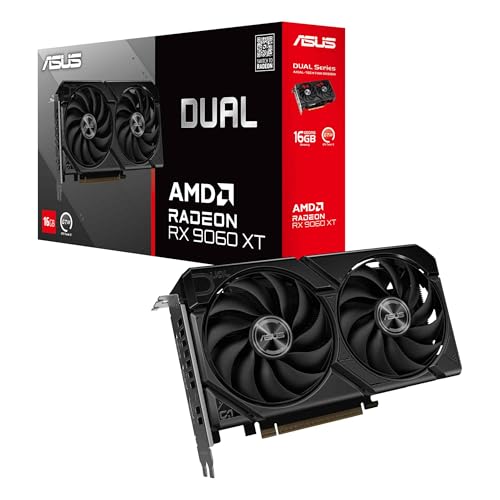
ASUS Dual Radeon RX 9060 XT 16GB — AMD value in a compact body
AMD’s RDNA 4 entry makes its case on rasterised pace per pound spent, and in traditional rendering — still the majority of most libraries — the RX 9060 XT 16GB runs the 5060 Ti remarkably close, sometimes ahead, title depending. ASUS wraps it in the same compact Dual philosophy as its NVIDIA sibling: two fans, sensible dimensions, no wasted shelf space. For a small case chasing 144Hz at 1440p on the AMD side, this is the natural first look.
The 16GB matters here exactly as it does across the aisle, future-proofing textures and smoothing frame pacing in the titles that punish smaller buffers. AMD’s FSR upscaling in its current generation has closed much of the quality gap to DLSS, and where games support it, the upscaled 1440p image is convincing in motion. Ray tracing remains the concession: RDNA 4 improved AMD’s position considerably, yet heavy ray-traced scenes still favour the green team’s cards at this tier, and buyers whose favourite titles are ray-tracing showcases should weigh that honestly.
Everything else about ownership is straightforward: modest power draw, standard connectors, and a cooler that behaves. Confirm the 16GB variant at checkout — an 8GB 9060 XT exists and is a different, weaker proposition at this resolution. Chosen correctly, the Dual 9060 XT is the value heart of the AMD route to 144Hz.
- Memory: 16GB GDDR6
- Cooler: dual-fan, compact footprint
- Features: FSR upscaling, RDNA 4 ray tracing, AV1 media support
- Power: confirm connector on the listing
- Role: compact AMD route to 1440p 144Hz with full memory headroom
Strengths
- Rasterised performance rivals the 5060 Ti at keener pricing.
- 16GB capacity matches the category’s longevity requirement.
- Compact body fits small-form-factor upgrades.
Trade-offs
- Ray tracing still trails NVIDIA’s equivalent tier.
- FSR, while much improved, is not quite DLSS in image quality.
- 8GB variant lurks in the same model name — verify before paying.
Best for: a small-case builder who plays mostly rasterised titles and watches value closely.
Not suited for: ray-tracing enthusiasts whose library is built around path-traced showcases.

XFX Swift Radeon RX 9060 XT 16GB — Cooling-first AMD choice
XFX has built its name on taking AMD silicon and cooling it more seriously than the reference brief requires, and the Swift 9060 XT continues that habit. The larger cooler buys the two things compact cards cannot offer: lower temperatures at the same fan speed, or lower noise at the same temperature — your choice, via fan curve, once the card is installed. In a warm room or a case with modest airflow, that thermal headroom is the difference between a card that holds its clocks in August and one that quietly throttles.
Performance is the 9060 XT’s known quantity: strong 1440p rasterised pace, 16GB of memory, FSR upscaling for the demanding titles, and ray tracing that handles moderate implementations while bowing to NVIDIA in the heaviest scenes. XFX’s card simply delivers that quantity with more composure than the compact Dual, and for a full-size tower build there is no reason to accept the smaller cooler’s compromises.
The Swift’s size is its only real demand — measure length and thickness against your case, particularly in older towers with drive cages crowding the expansion area. Styling is bold and will divide opinion in windowed builds. As with its AMD sibling, confirm the 16GB configuration on the listing. For a tower-based AMD build aimed at 144Hz, this is the version of the 9060 XT we would install and forget.
- Memory: 16GB GDDR6
- Cooler: XFX Swift large dual/triple-fan class design — measure your case
- Features: FSR upscaling, RDNA 4 ray tracing
- Power: confirm connectors and recommended supply on the listing
- Role: tower-based AMD 1440p 144Hz with cooling headroom
Strengths
- Coolest, quietest delivery of the 9060 XT formula.
- Sustained clocks hold in warm rooms and modest cases.
- Same 16GB longevity as its compact sibling.
Trade-offs
- Length excludes compact and some older cases.
- Bold styling will not suit every build.
- Ray tracing remains the tier’s shared concession.
Best for: a tower owner in a warm climate who values quiet sustained performance.
Not suited for: small-form-factor cases with strict length limits.

ASUS TUF GeForce RTX 5060 8GB OC — Esports-leaning budget route
The TUF RTX 5060 closes the list as the deliberate budget boundary, and its review must hold two truths at once. First: for competitive gaming, this card is genuinely excellent — esports titles at 1440p run at frame rates that saturate a 144Hz monitor with room to spare, DLSS covers the broader catalogue at sensible settings, and ASUS’s TUF construction, with its reinforced build and serious cooler, is arguably over-engineered for the silicon in the best way. Second: its 8GB of memory is a real and growing constraint for texture-heavy single-player titles at 1440p, and no cooler quality changes that arithmetic.
So the recommendation is conditional, and the condition is your library. If your hours live in competitive shooters, MOBAs, and sports titles, with story games as occasional visitors played at tuned settings, the TUF 5060 serves you well and saves money toward the monitor itself. If your library is led by open-world and cinematic releases, the 16GB cards above exist precisely for you, and buying this card instead is a false economy that will announce itself as stutter within a year or two.
TUF ownership virtues are real: quiet fans, sturdy shroud, and a brand line built around durability. Buy it with the library test answered honestly, and it is a good card at its job. Buy it hoping the memory debate is exaggerated, and it will educate you.
- Memory: 8GB GDDR7 — the figure that defines this pick’s limits
- Cooler: ASUS TUF reinforced design
- Features: DLSS upscaling and frame generation, NVENC encoding
- Power: confirm connector on the listing
- Role: esports-first 1440p 144Hz on a budget
Strengths
- Esports performance at 1440p saturates a 144Hz panel.
- TUF build quality exceeds the tier’s norm.
- Lowest cost of entry to DLSS at this resolution.
Trade-offs
- 8GB constrains texture-heavy titles now and more each year.
- Single-player showcases need settings discipline.
- The 16GB 5060 Ti is the safer long-term spend for mixed libraries.
Best for: a competitive player whose library is esports-led and whose budget prioritises the monitor.
Not suited for: open-world and cinematic gamers planning to keep the card for years.
How Do You Actually Reach 144 FPS at 1440p?
Work through the levers in order of image quality preserved. First, enable the upscaling your card does best — DLSS on the NVIDIA picks, FSR on the AMD pair — in quality mode, which renders internally at a lower resolution and reconstructs a 1440p image that in motion is remarkably faithful. Second, enable frame generation where the title supports it and your base frame rate is already healthy; generation multiplies an already-smooth feed beautifully and rescues a choppy one poorly. Third, trim the settings that cost the most and show the least at this resolution: volumetric fog, shadow resolution beyond your screen’s ability to display it, and ray-traced reflections in fast games.
Then check the unglamorous bottlenecks. Your CPU must feed the card — an elderly quad-core will cap frame rates no GPU can lift. The monitor must be set to 144Hz in the operating system, a step skipped with embarrassing frequency. And the cable must support the bandwidth: DisplayPort is the safe default at 1440p 144Hz, with HDMI versions varying in what they allow.
DLSS or FSR: How Should Upscaling Influence Your Choice?
Both technologies now do the same job competently, and the gap has narrowed to a preference rather than a verdict. DLSS retains an edge in image stability — fine detail like fences, foliage, and hair shimmers less — and its frame generation is the more widely supported. FSR’s current generation is dramatically better than its ancestors and runs on both brands’ cards, which gives AMD owners flexibility and NVIDIA owners a fallback. If your favourite titles are ray-traced showcases, NVIDIA’s combined package is the stronger tool. If your library is rasterised and your budget is watched, AMD’s pace per pound answers back. At 1440p output specifically, both upscalers operate in their comfort zone, because the target resolution gives the reconstruction plenty of information to work with.
What Else in Your PC Decides Whether 144Hz Feels Smooth?
Frame rate is a chain, and the GPU is only its most expensive link. System memory of 16GB is the working minimum for modern titles alongside a browser and voice chat; 32GB removes a whole category of hitches. Storage matters at this tier too — games streaming assets from a hard drive will stutter on any card in this guide, so an SSD is effectively part of the 144Hz purchase. Finally, enable your monitor’s variable-refresh technology and cap frame rates a few frames below 144 for the steadiest pacing; a locked, even 141 often feels smoother than a wandering 150.
How Should You Pair These Cards With a Monitor?
A 144Hz card deserves a monitor that can show what it makes, and the pairing details matter more than the panel’s headline refresh. Variable refresh — G-Sync on the NVIDIA side, FreeSync on the AMD side, with much cross-compatibility in modern panels — synchronises the display to the card’s output, erasing the tearing and judder that appear whenever frame rates wander below the maximum, which at 1440p they often do. Confirm your monitor’s variable-refresh range covers the frame rates your card will actually produce in demanding games; a range that starts too high leaves the hardest moments unsmoothed.
Panel type shapes the experience alongside the card. Fast IPS panels dominate this resolution and refresh class for good reason: colour that flatters story games, response that respects competitive ones. VA panels offer deeper contrast with more motion smearing in dark scenes; OLED 1440p panels deliver the finest motion and contrast of all at prices that reframe the whole budget. None of the six cards favours one panel technology over another — the choice is about your room, your games, and your eyes — but a card bought for 144Hz should never be throttled by a 60Hz panel bought as an afterthought, which remains this category’s saddest pairing.
Connection discipline completes the setup. Use the DisplayPort cable that came with the monitor where possible, set the refresh rate explicitly in Windows, and enable variable refresh in the driver control panel. Five minutes of configuration is the difference between owning a 144Hz system and owning a 144Hz receipt.
How Much Ray Tracing Can This Tier Honestly Handle?
Ray tracing at 1440p divides this list into three honest bands. The RTX 5070 treats ray-traced lighting as a feature to enjoy: most implementations run well with DLSS, and only the full path-traced showcases demand real compromise. The 5060 Ti pair treats ray tracing as a selective pleasure — reflections and shadows enabled, global illumination weighed title by title — with upscaling as a permanent companion. The 9060 XT pair has closed ground considerably in this generation and handles moderate ray tracing respectably, while the heaviest scenes still expose the gap to NVIDIA’s dedicated hardware maturity.
The buyer’s question is not which band is best but which band your library lives in. A player whose favourite worlds are built on ray-traced lighting should buy the highest band their budget reaches, because no setting tweak manufactures RT cores. A player whose library is rasterised — most libraries, still — pays for ray tracing they will rarely enable when they overshoot, and the money serves them better in memory capacity or a better monitor. Screenshots sell ray tracing; your backlog should decide it.
What About Heat, Noise, and Case Airflow at This Tier?
These are mid-power cards, and their thermal behaviour is correspondingly manageable — but 1440p workloads run GPUs at sustained high utilisation, which is a different thermal life from bursty 1080p play. The triple-fan PRIME 5070 and the XFX Swift cruise through marathon sessions quietly. The compact Dual cards work harder acoustically under the same load, a fair trade for their size, and in a well-ventilated case even they stay civilised. In a sealed, dusty, or carpet-strangled case, every card here will eventually throttle, and the owner will blame silicon for a housekeeping failure.
Give the card its best chance with boring fundamentals: intake fans that actually intake, dust filters cleaned on a calendar rather than a whim, and the GPU’s fans given clearance below them — a card suffocating against a power-supply shroud or a neighbouring expansion card cannot breathe regardless of its cooler quality. Check temperatures during your longest typical session in the first week, while small changes are easy, and set a fan curve you can live with at 11 p.m., not just at noon.
Which CPUs Pair Sensibly With a 1440p 144Hz Card?
High-refresh gaming is where CPU limits stop being theoretical, because the processor must prepare each of those 144 frames. Modern six-core and eight-core processors from the last several generations feed every card in this guide comfortably at 1440p, where the GPU remains the usual bottleneck. The danger zone is the elderly platform: a decade-old quad-core or an early budget chip will cap competitive titles far below 144Hz no matter which pick you install, and the resulting disappointment tends to be misdiagnosed as a GPU problem.
Test before you spend. Run your main titles with a performance overlay and watch GPU utilisation: if it sits well below maximum while frame rates disappoint, the CPU is the ceiling and the upgrade order should reverse. Simulation, strategy, and MMO titles lean on the processor hardest, and their players should weight this section most. For everyone else, a mid-range modern CPU and any card here is a balanced system — which is exactly what 1440p 144Hz is supposed to be.
How Should Settings Differ Between Esports and Story Games?
Competitive titles reward a ruthless settings philosophy: resolution native, upscaling off or in its performance-leaning modes only if needed, textures high for visibility, and every decorative effect — shadows, reflections, post-processing flourishes — reduced until frame rates sit at the monitor’s ceiling with consistency. All six picks execute this brief at 1440p; even the 8GB TUF 5060 is in its element here, because esports engines are built to run on everything.
Story games reward the opposite philosophy: let the card spend its budget on image, accept frame rates in the 70–110 range with variable refresh smoothing them, enable upscaling quality mode, and turn on the lighting features that make the world worth looking at. Frame generation, where supported, was designed for exactly this profile. The mistake is applying one philosophy to the other genre — maxing a shooter’s settings until its frame rate wobbles, or stripping a cinematic RPG until it looks like a prototype. Save per-game profiles; every driver suite here supports them.
How Long Will a Card From This Tier Stay Relevant?
Relevance at 1440p decays along two curves. Raw pace decays predictably: today’s high-settings card becomes a medium-settings card in about three years and an upscaling-dependent one after that, which is a respectable service life. Memory decays in cliffs rather than slopes — a card is fine until a wave of titles crosses its capacity, then it stutters in all of them at once. That asymmetry is why this guide weights the 16GB cards so heavily for buyers keeping hardware four years or more, and why the RTX 5070’s 12GB is flagged as its one concession despite its commanding pace today.
Driver support extends the practical lifespan further. Both NVIDIA and AMD now support several generations simultaneously, and the upscaling features that define this tier keep improving in software after the hardware is fixed. Buy the card whose memory and pace fit your library’s next three years, keep its drivers current, and the 144Hz monitor you pair it with will likely outlast two of them.
What Should Your First Week With the New Card Look Like?
Installation day has a correct order, and following it prevents most of this category’s support threads. Remove the old drivers cleanly if you are switching brands, seat the card, connect the power cable with its latch fully engaged — a half-seated connector is a classic cause of crashes that masquerade as defective silicon — and connect the monitor to the card’s outputs, not the motherboard’s. Install the current driver from the manufacturer’s site, then set three things before launching any game: the monitor’s 144Hz refresh in Windows, variable refresh in the driver panel, and a frame-rate cap a few frames below the panel’s maximum.
Spend the first sessions deliberately. Revisit a game you know intimately and compare how it feels, because your hands will detect the smoothness change before your eyes articulate it. Run one demanding title with an overlay visible and note temperatures and utilisation, so you have a baseline for the machine’s healthy behaviour. Save your per-game settings profiles as you settle them. By the end of the week the card should have disappeared into the experience — which, for a component bought to serve a monitor, is the highest praise available.
Can These Cards Stream and Record While Gaming at 144Hz?
Yes, and this is where the two brands’ media engines earn their keep. NVIDIA’s NVENC encoder on the 5060 Ti, 5070, and TUF 5060 records and streams with a performance cost small enough that competitive players broadcast ranked sessions from a single PC without a second thought. AMD’s media engine answers with strong quality and AV1 support, which the streaming platforms increasingly favour. Either way, encode on the hardware block, game on the shaders, and the two workloads largely ignore each other.
Set the stream up honestly: 1080p output for the broadcast while you play at 1440p, bitrate matched to your upload connection rather than your ambitions, and recordings kept on a separate drive from the game library if you archive footage. Creators cutting 1440p video locally will find the 16GB cards the more comfortable editors, since timeline effects draw on the same memory pool the games do. A dedicated capture PC remains the professional’s answer, but nothing in this tier embarrasses a single-PC stream.
What Is the Sensible Upgrade Path From Here?
Cards in this tier sit at the centre of the market, which makes their owners’ next move unusually flexible. The monitor usually outlasts the card: a good 1440p 144Hz panel will serve the next GPU generation happily, so the upgrade after this one is typically a card alone, bought when a favourite title finally outruns upscaling’s ability to help. Alternatively, the display can jump first — these cards drive 4K televisions enjoyably at reduced settings, as our companion guides explore — with the GPU following a generation later.
Resist the side-grade. Moving within the same performance band for a different brand’s feature set rarely survives a cost-benefit evening; the honest upgrades are a full tier of pace, a memory ceiling lifted, or a monitor that changes what the card is for. Until one of those calls, the wisest spend around a card from this list is the unglamorous supporting cast: the SSD, the second memory stick, the monitor arm that puts the panel at eye height.
How Do You Diagnose a 144Hz Setup That Feels Wrong?
Work the chain from the wall outward. Confirm the monitor reports 144Hz in its own on-screen display — not merely in Windows, which can be optimistic. Confirm the game is running in exclusive fullscreen or the mode its engine prefers, with its own frame-rate limit not set to something inherited and forgotten. Watch an overlay during the problem: GPU pinned at maximum with falling clocks suggests heat; GPU loafing while frames stutter suggests CPU or memory; perfect averages with visible judder suggest the variable-refresh range or the frame cap needs attention.
Most “my new card feels worse than my old one” stories resolve into one of those three, or into the monitor still running at 60Hz behind a confident owner’s back. The hardware in this guide is consistent; the configuration space around it is where smoothness goes to hide. Diagnose before you return anything, and keep notes — the fix you find in week one is the fix you will re-teach yourself after every driver update for years.
What Should You Check About Power Before Ordering?
Every listing in this guide states a recommended power-supply wattage, and the sensible reading of that number is as a whole-system figure with headroom, not a target to shave. The 5060 Ti and 9060 XT cards are modest drinkers that most quality mid-range supplies already in gaming PCs will serve without comment. The RTX 5070 asks more, and its connector arrangements vary by model — some use the newer high-power connector, others conventional 8-pins through an adapter — so confirm what your supply offers and what the specific card expects before the box arrives.
Prebuilt owners need one extra check: proprietary supplies in slim or unusual cases sometimes lack the connectors or the wattage entirely, and no adapter enthusiasm fixes a supply that cannot deliver. If your machine is a mainstream tower with a branded supply of recent vintage, you are almost certainly fine. If it is a compact office conversion, measure twice — the one-bracket category exists for exactly your situation, and pride is not a power connector.
While the case is open, note the airflow path and the card’s future neighbours. A 144Hz card installed above a hot storage drive or below a blocked intake will underperform its reviews through no fault of its own, and installation day is the cheapest day to fix that.
Should You Consider a Previous-Generation Card Instead?
The used and clearance market offers last generation’s 1440p champions at tempting figures, and some of them remain excellent — a well-kept card from the tier above, bought used, can outrun a new card from this list. The cautions are the standing ones: no warranty or a short one, unknown mining or thermal history, and older upscaling generations that lack current frame-generation features. Memory cuts both ways in that market — previous 12GB and 16GB models age well, while fashionable 8GB cards of a few years ago are exactly the trap this guide warns about in modern dress.
Judge a used candidate by the same tests as the new six: memory capacity first, then pace in your library, then the seller’s evidence of condition. A card that passes those tests at a fair price is a legitimate alternative. A card bought because its launch-era flagship name sounds senior, without the memory to match, is how smart shoppers end up upgrading twice.
How Does Input Lag Fit Into the 144Hz Picture?
Refresh rate is half the responsiveness story; the frame’s journey to the screen is the other half. At 144Hz, each frame displays for roughly seven milliseconds, and the queue of settings that add delay — vertical sync without variable refresh, frame generation’s extra buffering, a monitor’s slow processing mode — can quietly return the advantage the panel bought. Competitive players should enable the low-latency modes in their driver and game, prefer variable refresh over fixed sync, and treat frame generation as a single-player pleasure rather than a ranked tool, since generated frames smooth motion without reducing the delay between mouse and consequence.
None of this requires paranoia. The difference between a well-configured and a careless 144Hz setup is a handful of milliseconds that matter at the top of a ranked ladder and go unnoticed in a story game. Configure once, deliberately, using the steps in this guide, and then stop thinking about it — the players who obsess weekly over latency settings are rarely the ones the settings were holding back.
ASUS Dual, PNY, PRIME, XFX: What Do Board Partners Actually Change?
New buyers often ask why the same GPU appears under four brand names at four prices, and the answer is everything except the chip. Partners design the cooler, set the factory clocks within the GPU maker’s envelope, choose the power delivery components, write the fan behaviour, and stand behind the warranty. That is why this guide can recommend the ASUS Dual and PNY versions of the 5060 Ti in adjacent breaths without contradiction: they are the same engine in different chassis, and the better purchase on a given day is the one whose cooler, size, and listing price fit your build.
The differences become real at the extremes. Compact dual-fan cards trade acoustic headroom for fit. Large partner designs like the XFX Swift and ASUS PRIME trade fit for silence and sustained clocks. Factory overclocks contribute a few percent — welcome, never decisive. Warranty handling and support reputation, invisible in benchmarks, decide how a failure in year two feels. Buy the partner whose trade-offs match your case and your temperament, and do not let a benchmark chart’s rounding error choose for you.
What Does a Balanced 1440p 144Hz System Look Like in Full?
Picture the finished machine these cards anchor. A modern six or eight-core processor, memory in a matched pair totalling at least 16GB and ideally 32GB, games on a fast SSD, one of the six cards here chosen by library and case, and a 27-inch 1440p 144Hz panel with variable refresh at the centre of the desk. Nothing in that specification is exotic, and that is the point: 1440p 144Hz has become the configuration where mainstream money buys a genuinely premium experience, provided the parts are balanced and no single component is asked to carry the others.
The imbalance traps are always the same three: a strong card behind an elderly CPU, a fast panel fed through a 60Hz setting, and a library installed on a spinning drive. Audit those before upgrading anything, and a card from this list will feel like the transformation its reviews promise. Skip the audit, and the same card gets blamed for the system’s older sins — the most common injustice in PC gaming.
Does HDR Gaming Change the Recommendation?
HDR adds a small, real tax and a large, conditional reward. The tax is bandwidth and a whisper of processing; any card here pays it without noticing. The reward depends entirely on the panel: a 1440p monitor with genuine HDR capability — high peak brightness and local dimming, or an OLED panel — makes HDR the single most visible image upgrade available at this tier, outshining the difference between the mid-list picks. A monitor whose HDR is a badge on a dim, edge-lit panel will make the same games look washed out, and the card will be blamed for the display’s economy.
If HDR matters to you, allocate budget to the panel first and let the card follow from this list’s middle. Every pick drives HDR output; none can manufacture the brightness your monitor does not have. Enable HDR per game rather than across the whole desktop if your panel’s desktop handling disappoints you, a common and painless compromise that keeps work crisp and games vivid.
A Short Word on Drivers and Day-One Patches
New releases increasingly arrive with a driver update riding alongside them, and the owners who install it before the first session have a measurably better evening than those who debug without it. Both manufacturers publish game-ready drivers on major launch days; make checking part of the ritual of starting a big new title, the way you would update the game itself. Conversely, a stable system mid-season needs no driver enthusiasm — if everything you play runs well, a driver that promises nothing you need can wait a week while other people’s reports accumulate. That balance, prompt for launches and patient otherwise, is how experienced owners treat the software half of their graphics card. Keep the previous driver version’s installer somewhere on the drive as well, because rolling back a troubled update takes two minutes with the file on hand and an archaeology expedition without it. None of the six cards here is known for driver drama; the habit simply insures you against the industry’s occasional bad week, whichever brand’s badge is on your cooler.
Common Mistakes
The costliest mistake in this category is buying the 8GB version of a card reviewed in its 16GB form. The names are nearly identical, the listings sit side by side, and the performance gap at 1440p is the difference between this guide’s recommendation and its warning. Read the memory line at checkout as if it were the price. A second error is pairing a 144Hz card with a monitor still configured at 60Hz — check the display settings after installation, every time.
CPU bottlenecks cause the third wave of disappointment: a new GPU in an old system, frame rates capped by the processor, and the card blamed in reviews it does not deserve. Check your CPU’s headroom in your main titles before upgrading. Finally, do not judge upscaling by pausing and pixel-peeping screenshots; judge it in motion, at your seating distance, in the games you play. That is the test it was built to pass.
Final Recommendation
For most buyers, the answer is the 16GB RTX 5060 Ti — take the ASUS Dual for compact cases or the PNY when its listing is keener — because it pairs the right memory with the strongest upscaling ecosystem at the category’s sensible tier. AMD loyalists and value hunters should take the RX 9060 XT 16GB in the same spirit, Dual for small cases and XFX Swift for towers. Players who want high settings to stop being a negotiation should step up to the RTX 5070 and accept its 12GB as the one forward-looking compromise. The TUF RTX 5060 is the specialist’s budget pick for esports-led libraries only. Whichever you choose, pair it with an SSD, a correctly configured monitor, and upscaling left on — that combination, not any single card, is what 1440p 144Hz actually feels like.
Frequently Asked Questions
Is 16GB of VRAM really necessary at 1440p?
For a card bought to serve several years, yes. Current texture-heavy titles already press against 8GB at 1440p, and frame generation adds its own memory appetite. The 12GB RTX 5070 remains recommendable for its raw pace, but 8GB is where this guide draws the line for mixed libraries.
Can the RTX 5060 Ti run ray tracing at 1440p?
Yes, with DLSS enabled and ray-traced settings chosen selectively rather than maximised. Expect a good experience in titles with sensible ray-tracing implementations, and expect the heaviest showcases to ask for the RTX 5070 instead.
Which is better for 1440p 144Hz, the 5060 Ti or the 9060 XT?
They are close enough that your library decides. Rasterised-heavy libraries and tight budgets favour the 9060 XT; ray tracing, streaming with NVENC, and the widest upscaling support favour the 5060 Ti. Both need their 16GB forms.
Do I need a new power supply for these cards?
Most mid-range supplies already in gaming PCs handle the 5060 Ti and 9060 XT comfortably, and the RTX 5070 asks for a step more. Check the listing’s recommended wattage and connector requirements against your unit before ordering, especially in older prebuilt systems.
Will these cards drive a 1440p ultrawide at 144Hz?
Ultrawide 1440p carries roughly a third more pixels than standard 1440p, so expectations step down accordingly: esports yes across the board, demanding titles with upscaling on the stronger picks, and the RTX 5070 as the comfortable choice. Ultrawide owners should also confirm each favourite title supports the wider aspect ratio gracefully, since a small number of games still letterbox or stretch, and no graphics card can fix a game’s own presentation choices. Community fixes exist for some of those titles, and ultrawide forums maintain reliable lists of which releases behave natively, which need a small patch, and which to avoid — worth ten minutes of reading before the monitor itself is ordered, since the panel will outlive several of the cards recommended in this guide and deserves to be chosen with the same care as everything else in the system it will display for many years to come ahead.
Is 1440p 144Hz worth it over 1080p 240Hz?
For most players, yes: the resolution step is visible in every game, while the refresh step beyond 144Hz narrows to a competitive niche. Elite shooter players may still prefer the faster 1080p panel, and their preference is legitimate. Everyone else gets more from pixels they can see in every title than from frames only one genre rewards.
Can I use one of these cards with a 4K TV occasionally?
Happily. Set games to render at 1440p or use upscaling to a 4K output, sit at television distance, and every pick here delivers an enjoyable big-screen session. The RTX 5070 handles that arrangement most comfortably, and our companion guide to graphics cards for 4K monitors covers the dedicated version of that setup.
Related Guides
Planning the rest of the setup? Read our best gaming keyboard roundup for the input side of a high-refresh desk, the best graphics cards for a 4K monitor when the next display jump comes, and the best AMD graphics cards for 4K guide for the red team’s higher tiers.