What's inside
- Key Takeaways
- Quick Picks
- How We Chose These Picks
- Comparison Table
- Which 2.5-Inch Hard Drive Size and Speed Should You Actually Buy?
- How Do You Install a 2.5-Inch Drive in a Laptop or Console?
- How Much Do Noise, Heat, and Power Draw Really Differ Between These Drives?
- Should You Buy a Bare Drive and Enclosure, or a Ready-Made Portable?
- How Do You Clone Your Old Drive Instead of Starting Over?
- Which of These Drives Fits Your Particular Machine?
- What Should You Know About Warranties and OEM Drives Before Ordering?
- What Mistakes Do Buyers Make With Small Mobile Drives?
- Final Recommendation
- Frequently Asked Questions
- Related Guides
As an Amazon Associate I earn from qualifying purchases. This post may contain affiliate links at no extra cost to you.
widgetverdict.com is reader-supported. When you buy through links on our site, we may earn an affiliate commission.
A spinning drive in the 2.5-inch format survives for one stubborn reason: nothing else puts a terabyte or two of honest storage inside a laptop bay, a games console, or a slim external enclosure for so little money and fuss. If you are hunting the best 2.5 inch hard drives in 2026, you are probably reviving an older notebook, expanding a PlayStation 4, or building a cheap portable archive, and each of those jobs rewards a slightly different drive. This guide sorts six candidates worth your attention, three of which carry verified purchase links and three we discuss in prose because we could not match them to a listing we trust.
Ordering notes for this roundup: the three linked models below lead to their Amazon pages, where current availability and the exact capacity variant can be confirmed before you commit. Small mobile drives are sold in several capacities under nearly identical names, so read the capacity line on the listing rather than trusting the search result title. The three prose-only drives appear later in each review section without links, explained in their own words inside the analysis, because steering you toward a marketplace listing of uncertain origin would help nobody.
One boundary worth stating early: every drive here is a mechanical hard drive with spinning platters, not a solid-state drive wearing a similar shell. If your laptop already feels slow on its current spinner, swapping one hard drive for another will add room rather than speed. Where outright pace matters more than capacity, we say so plainly in the individual reviews, and the final section explains when stepping up to solid-state storage is the smarter spend.
Key Takeaways
- Capacity is the whole point of this format now: the Seagate BarraCuda 2.5-inch in its 2TB form is the roomiest mainstream option that still fits a standard 9.5mm laptop bay.
- Rotational speed splits the field cleanly — the WD Black mobile drive spins at 7,200rpm and feels noticeably less sluggish than its 5,400rpm rivals when launching games or large applications.
- Thickness decides compatibility more often than brand does; drives above 9.5mm belong in enclosures and desktop caddies, not in thin notebooks or consoles.
- A 2.5-inch hard drive makes an excellent second drive for bulk files, media libraries, and backups, while your operating system belongs on faster storage whenever the machine allows two drives.
- Shock tolerance is the quiet weakness of every pick below, so portable use means padded cases and gentle handling rather than tosses into a bag.
Quick Picks
| Pick | Badge | Why it earns a place |
|---|---|---|
| WD Blue 2.5-inch 1TB Mobile Hard Drive | Quiet everyday choice | A calm, cool-running 5,400rpm drive that suits general laptop storage and light desktop duty. |
| WD Black 2.5-inch 1TB Mobile Hard Drive | Quickest spinner here | Its 7,200rpm platters and generous cache make it the least painful mechanical boot drive of the six. |
| Seagate BarraCuda 2.5-inch 2TB Hard Drive | Roomiest standard fit | Two terabytes inside a 7mm shell that slides into slim laptops and a PlayStation 4 without argument. |
| Toshiba L200 2TB Laptop Hard Drive | Console-friendly alternative | A 2TB mobile drive with shock sensing aimed at notebooks and game storage expansion. |
| HGST Travelstar 7K1000 1TB | Old-school workhorse | A 7,200rpm travel drive long favoured for always-on, low-power roles in compact systems. |
| Toshiba MQ04 1TB Mobile Drive | Simple bulk storage | An unpretentious 5,400rpm terabyte for enclosures, spares, and secondary bays. |
How We Chose These Picks
Mobile hard drives look interchangeable on a shelf, yet the details separate them quickly once you live with one. We weighted rotational speed first for anyone planning to boot from the drive, because a 7,200rpm mechanism shortens seek times in a way you feel every time a game level loads. Capacity per millimetre of thickness came next: a 2TB drive that measures 7mm or 9.5mm thick fits machines that a chunkier 15mm unit simply cannot enter. Cache size, interface generation, and published workload ratings filled out the shortlist, and we dropped any model whose current retail presence had thinned to leftover stock of doubtful age.
Console owners shaped several decisions here. A PlayStation 4 accepts a 2.5-inch SATA drive up to 9.5mm thick, and its stock 500GB or 1TB mechanism is exactly the class of hardware this roundup covers, so physical fit and steady sequential throughput mattered more than exotic specifications. Laptop upgraders pushed the opposite way, favouring low noise and modest power draw, since a drive that whines beside a quiet fan quickly becomes the most annoying component in the machine. Enclosure builders sat between those poles, wanting cheap terabytes that tolerate being carried around in a padded sleeve.
We also drew a hard line on honesty about speed. No mechanical 2.5-inch drive, however clever its firmware, approaches even an entry-level solid-state drive for responsiveness, and pretending otherwise would waste your money. These six picks were therefore judged against each other and against the jobs spinning storage still does well: holding large game libraries, archiving photographs, recording surveillance footage in small recorders, and serving as inexpensive backup targets that can sit unplugged in a drawer without the charge-retention worries that affect some flash media over very long periods.

WD Blue 2.5-inch 1TB Mobile Hard Drive — Quiet everyday choice
Western Digital’s Blue line has always been the sensible shoes of the hard drive world, and the 1TB mobile version continues that tradition without drama. It spins at 5,400rpm, sips power, and runs cool enough that a thin laptop chassis never has to work hard to shed its heat. For a machine that spends its days on documents, browsing, photographs, and streamed video, that calm character matters more than benchmark heroics. The drive asks little of the battery, which makes it a kind upgrade for an ageing notebook whose owner values runtime over raw pace.
Inside a desktop or a small home server, the same temperament translates into a dependable bulk-storage role. A terabyte swallows a generous music collection, years of family photographs, or a rotating set of system images, and the Blue does it while staying close to silent across a room. Owners pairing it with a fast boot drive get the classic arrangement that still makes sense in 2026: quick storage for the operating system, roomy spinning storage for everything else. Its SATA interface and standard 9.5mm height mean it drops into caddies, docks, and older enclosures without adaptors or persuasion.
Expectations need managing around application launches and game loading. A 5,400rpm laptop drive hunts for data with a patience that modern software does not reward, and big game installs will make you wait at loading screens noticeably longer than the 7,200rpm WD Black reviewed below. File copies of large video clips run at perfectly respectable sequential speeds, since platters read long streams efficiently; the penalty shows up in scattered small-file work such as opening a photo library with thousands of thumbnails. None of that is a defect — it is the physics of the format — but buyers should choose this drive for space and quiet, not for urgency.
Durability in a bag is the other honest caveat. Like every spinning drive, the Blue dislikes being dropped while running, and its mobile design assumes the protection of a laptop shell or enclosure. Treat it as a resident of one machine rather than a drive you swap daily between docks, and it should repay you with years of unremarkable service, which is precisely the compliment this class of hardware wants.
- Capacity: 1TB
- Form factor: 2.5-inch, 9.5mm height
- Rotational speed: 5,400rpm class
- Interface: SATA 6Gb/s
- Cache: 128MB
- Typical roles: laptop storage, secondary desktop drive, enclosures
Strengths
- Runs cool and quiet, suiting thin laptops that cannot shed much heat.
- Modest power draw protects battery life on older notebooks.
- Standard dimensions fit nearly every bay, caddy, and enclosure made for this format.
Trade-offs
- Sluggish with scattered small files compared with faster-spinning rivals.
- One terabyte fills quickly if you archive modern game installs.
- Mechanical shock sensitivity demands careful portable handling.
Best for: a student refreshing a five-year-old laptop that mainly handles coursework, browsing, and a photo library, who wants quiet running and an easy fit. Not suited for: anyone hoping a drive swap alone will make an old machine feel fast at launching programs.

WD Black 2.5-inch 1TB Mobile Hard Drive — Quickest spinner here
The WD Black mobile drive exists for people who refuse to give up spinning storage but hate waiting for it. Its platters turn at 7,200rpm, a speed the laptop world largely abandoned in favour of quiet 5,400rpm designs, and that extra velocity trims seek times across every task the drive touches. Boot sequences complete sooner, game levels load with less thumb-twiddling, and large applications open with a responsiveness that, while still mechanical, feels a full class above the Blue above. A 64MB cache and firmware tuned for performance work complete a package aimed squarely at enthusiasts.
Gamers with a PlayStation 4 or an older gaming laptop are the natural audience. In a console, the Black shortens loading in sprawling open-world titles where texture streaming keeps the drive busy for entire sessions, and it does so while staying inside the 9.5mm height limit the console demands. In a gaming notebook with a single bay, it remains the most tolerable mechanical-only option we can recommend, especially paired with sensible habits like keeping the drive less than three-quarters full so the fastest outer tracks handle your current games.
That speed carries small costs in heat and acoustics. A 7,200rpm mechanism in a slim shell produces a faint whir under load and warms its corner of the chassis more than a Blue would, which matters in ultra-thin machines with marginal cooling. Battery drain rises slightly too, though the difference shows up in minutes rather than hours across a working day. Buyers sensitive to noise in a quiet bedroom may notice the drive during late-night downloads; buyers wearing headphones while gaming will never think about it again after installation.
Western Digital positions this line as its performance tier, and the ownership experience matches: the drive feels engineered rather than merely adequate. For upgraders torn between a cheap terabyte of flash and this mechanical alternative, the honest dividing line is capacity habits. If your library genuinely needs a full terabyte and the budget is fixed, the Black gives you the least painful version of spinning storage. If you can live with less room, solid-state money buys a transformation this drive cannot match, and we say that as admirers of what it achieves within its physical limits.
- Capacity: 1TB
- Form factor: 2.5-inch, 9.5mm height
- Rotational speed: 7,200rpm
- Interface: SATA 6Gb/s
- Cache: 64MB
- Typical roles: console upgrades, gaming laptops, performance enclosures
Strengths
- Fastest application and game loading of any pick in this roundup.
- Fits the strict bay dimensions of a PlayStation 4.
- Performance-tuned firmware keeps large file transfers brisk.
Trade-offs
- Audible whir under sustained load in quiet rooms.
- Generates more warmth than 5,400rpm alternatives.
- Still far slower than any modern solid-state drive at random access.
Best for: a PlayStation 4 owner tired of deleting games, who wants shorter loading waits without leaving mechanical storage behind. Not suited for: ultra-thin laptop owners who prize silence and cool running above loading speed.
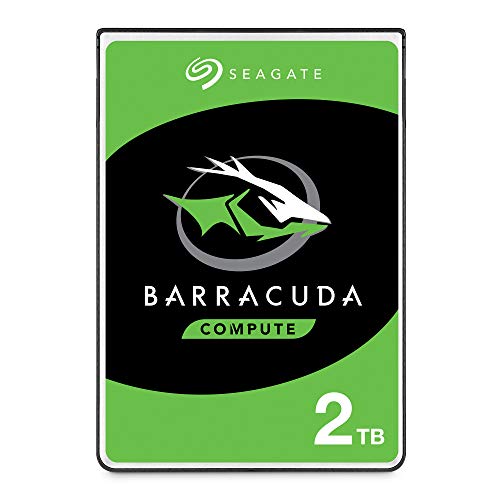
Seagate BarraCuda 2.5-inch 2TB Hard Drive — Roomiest standard fit
Two terabytes inside a shell only 7mm thick remains a small marvel of mechanical engineering, and it is why this BarraCuda anchors so many upgrade plans. That slim profile slips into notebooks that reject 9.5mm drives, into every PlayStation 4, and into the cheaper single-bay enclosures that assume a thin mechanism. Seagate achieves the capacity with shingled magnetic recording, a technique that overlaps data tracks to pack more information onto each platter. For steady writes of large files the approach works transparently; for constant small rewrites it can pause while the drive reorganises its shingles, a behaviour worth understanding before purchase.
Game libraries are the showcase application. A modern console collection of fifteen large titles fits here with room for recorded clips and screenshots, ending the miserable ritual of deleting one game to install another. On a laptop, the same capacity swallows a video editor’s project archive or a photographer’s working catalogue in a way a 1TB drive simply cannot. Sequential throughput is healthy, so copying a season of footage onto the drive proceeds at a pace that respects your evening.
The shingled design asks for the right workload in return. Databases, virtual machines, and torrent clients that hammer the drive with small random writes will expose its reorganising pauses, sometimes dramatically. Used as a library that mostly reads and occasionally ingests big files, it never draws attention to itself; used as a scratch disk, it will frustrate. Noise and power draw sit in the comfortable middle of this group, and the 128MB cache smooths everyday responsiveness more than the 5,400rpm label suggests.
Value hunters should also note what two terabytes of spinning storage does to the rest of a system budget. Choosing this drive over a smaller solid-state unit can free money for memory or a better enclosure while still solving the capacity problem that prompted the upgrade. Just enter the arrangement clear-eyed: you are buying room, calm behaviour, and console compatibility, not speed, and within those terms the BarraCuda 2TB is the most persuasive package in this entire roundup.
- Capacity: 2TB
- Form factor: 2.5-inch, 7mm height
- Rotational speed: 5,400rpm class
- Interface: SATA 6Gb/s
- Cache: 128MB
- Recording technology: shingled magnetic recording
Strengths
- Largest capacity here that still fits slim bays and consoles.
- Thin 7mm shell maximises enclosure and laptop compatibility.
- Strong sequential transfers for media ingestion and game installs.
Trade-offs
- Shingled recording slows sustained small random writes.
- Random-access responsiveness trails the 7,200rpm WD Black.
- Two terabytes of games still load at mechanical pace.
Best for: a console gamer whose library keeps outgrowing 1TB, or a video hobbyist archiving projects on a laptop with a slim bay. Not suited for: use as a scratch disk for editing, virtual machines, or heavy torrent workloads.
Toshiba L200 2TB Laptop Hard Drive — Console-friendly alternative
Toshiba’s L200 occupies the same 2TB territory as the BarraCuda above, and for many shoppers the choice between them comes down to whichever brand they have trusted longer. We could not tie this model to a listing we were willing to send you to, since marketplace results mixed new retail stock with refurbished units under confusingly similar titles, so it appears here in prose while you source it from a retailer you already trust. That caution aside, the hardware itself deserves its place in this conversation: a slim mobile mechanism with dynamic cache management and a built-in shock sensor that parks the heads when the drive senses a fall beginning.
The shock sensor is more than a brochure line for the L200’s intended life. Toshiba aimed this family at laptops and game consoles, two homes where machines get carried, bumped, and occasionally knocked off sofa arms. Sensing technology cannot repeal physics, and a hard drop onto concrete will still end most drives, but earlier head parking genuinely improves the odds in the common fumbles. Inside a console the sensor matters less, yet the drive’s low-profile build and modest acoustics suit a living room where a noisy fan or drive quickly becomes part of the soundtrack.
Performance sits in familiar 5,400rpm territory, with cache behaviour that adapts to workload patterns in a way that flatters mixed everyday use. Game loading lands close to the BarraCuda’s pace, office work feels identical, and the drive’s vibration damping keeps it from buzzing against thin console or laptop panels. Owners of older Toshiba notebooks sometimes prefer keeping the brands matched for no reason stronger than tidiness, and there is nothing wrong with that instinct when the specifications line up this closely.
Consider the L200 the BarraCuda’s understudy: nearly the same role, a slightly different supporting cast of features, and a purchasing route that currently demands more care from you. If you find a clearly new, retail-packaged unit from a reputable seller, it serves the same capacity-hungry console and laptop upgrades with equal competence. If the only copies available look like pulls from scrapped machines, take the BarraCuda’s verified route instead and keep your warranty expectations intact.
- Capacity: 2TB
- Form factor: 2.5-inch slim mobile
- Rotational speed: 5,400rpm class
- Interface: SATA
- Notable feature: internal shock sensor with ramp loading
- Typical roles: laptops, game consoles, portable storage
Strengths
- Shock sensing gives carried laptops a little extra protection.
- Two terabytes in a console-friendly slim shell.
- Well-damped acoustics for living-room machines.
Trade-offs
- Current listings mix new and refurbished stock confusingly.
- Everyday pace matches, but never beats, the BarraCuda 2TB.
- Shock protection helps with fumbles, not serious drops.
Best for: a laptop owner who carries the machine daily and values the L200’s fall sensing alongside its 2TB of room. Not suited for: shoppers who want a one-click verified purchase without checking whether the unit is new or refurbished.
HGST Travelstar 7K1000 1TB — Old-school workhorse
The Travelstar name carries history: this line defined the premium laptop drive for years, built around 7,200rpm platters at a time when most mobile mechanisms dawdled at 5,400rpm. The 7K1000 pairs that speed with a design rated for always-on, low-duty-cycle service, which made it a favourite inside compact servers, set-top boxes, and industrial systems that needed a terabyte awake around the clock. We discuss it without a purchase link because remaining stock now circulates mostly through specialist and surplus channels, where condition varies enough that a blanket recommendation would be irresponsible.
What still recommends the Travelstar is its balance of traits that modern drives rarely combine. It sips power for a 7,200rpm unit, shrugs off the vibration of multi-drive enclosures better than consumer models, and delivers seek performance that keeps interactive work feeling alert. Technicians maintaining older RAID enclosures built around this family often buy spares precisely because nothing current matches its combination of height, power envelope, and rotational speed. In a single laptop it remains a pleasure, with the same caveat about noise that applies to the WD Black.
Age is the unavoidable counterweight. A drive model launched years ago may arrive with shelf time behind it, and mechanical devices age in storage as lubricants settle and bearings wait. Buying through surplus channels means checking manufacture dates, demanding reasonable return terms, and running a full surface scan before trusting the unit with anything you value. Those steps suit the professional maintainers who form this drive’s remaining audience far better than they suit a casual upgrader.
Our verdict is therefore split by audience. If you maintain equipment designed around the Travelstar and know how to vet surplus stock, the 7K1000 remains the correct spare and a genuinely fine drive. If you are a home user shopping for a first upgrade, the linked WD Black gives you the same 7,200rpm character with a cleaner purchase and a clearer warranty path, and it should get your money instead.
- Capacity: 1TB
- Form factor: 2.5-inch, 9.5mm height
- Rotational speed: 7,200rpm
- Interface: SATA 6Gb/s
- Design focus: always-on, low-power duty
- Typical roles: compact servers, spares for legacy enclosures, laptops
Strengths
- 7,200rpm pace with unusually modest power consumption.
- Rated for continuous operation in compact systems.
- Excellent vibration behaviour in multi-drive enclosures.
Trade-offs
- Sold mainly through surplus channels of variable condition.
- Requires date-checking and surface testing before trust.
- Warranty support is murkier than current retail models.
Best for: a technician keeping a legacy compact server or enclosure fleet alive with matched spares. Not suited for: a first-time upgrader who wants a sealed retail box and a straightforward warranty.
Toshiba MQ04 1TB Mobile Drive — Simple bulk storage
Some drives ask only to be inexpensive, compatible, and forgotten, and the Toshiba MQ04 series answers that brief directly. This 1TB member of the family appears in countless laptops as original equipment, which tells you both its strength and its ceiling: manufacturers choose it because it behaves predictably at scale, not because it thrills anyone. Our pool search never produced a retail listing we could verify as this exact model rather than a bare OEM unit, so it closes the roundup in prose; if you buy one, you will likely meet it as a drive-only package from a components retailer.
Predictability has real uses. An MQ04 in a USB enclosure becomes the household’s spare terabyte, absorbing downloaded installers, phone backups, and the overflow from a crowded main drive. Inside an older laptop revived for a child or a spare room, it restores a working machine for the cost of a family takeaway, and its 5,400rpm manners keep heat and noise where a casual user will never notice them. Technicians also keep drives like this on the bench for imaging and testing, jobs where a failure would be an inconvenience rather than a disaster.
Nothing about the MQ04 argues for choosing it over the linked WD Blue at similar money, and we will not invent a distinction. The Blue brings a cleaner retail identity and the cache advantage noted in its review. The Toshiba’s case rests on availability and price in the component channel, plus the sheer number of these drives already running quietly in the world. As a known quantity bought cheaply and used gently, it earns its place as the roundup’s closing pick rather than its headline.
One practical tip applies to this drive more than most: because so many units in circulation are OEM pulls, confirm the health report before committing data. Any competent seller should accept a return on a drive showing reallocated sectors out of the box, and a two-minute check with a SMART utility separates a sound bargain from somebody else’s worn-out laptop part. Do that, and the MQ04 delivers exactly the unglamorous terabyte it promises.
- Capacity: 1TB
- Form factor: 2.5-inch mobile
- Rotational speed: 5,400rpm class
- Interface: SATA
- Sales channel: commonly OEM and component retail
- Typical roles: enclosures, bench drives, budget laptop revival
Strengths
- Proven design fitted as original equipment in huge numbers.
- Cool, quiet running for casual secondary storage.
- Usually among the cheapest terabytes in the component channel.
Trade-offs
- Many circulating units are OEM pulls rather than retail stock.
- No performance feature separates it from the WD Blue.
- Health checks are essential before trusting it with data.
Best for: a hobbyist building a cheap enclosure drive or reviving a spare laptop on the smallest sensible budget. Not suited for: buyers who want retail packaging, a clear warranty, and no need to vet the unit on arrival.
Comparison Table
| Drive | Capacity | Speed | Height | Best role |
|---|---|---|---|---|
| WD Blue 2.5-inch | 1TB | 5,400rpm class | 9.5mm | Quiet laptop and secondary storage |
| WD Black 2.5-inch | 1TB | 7,200rpm | 9.5mm | Consoles and performance-minded laptops |
| Seagate BarraCuda 2.5-inch | 2TB | 5,400rpm class | 7mm | Maximum library room in slim bays |
| Toshiba L200 | 2TB | 5,400rpm class | Slim mobile | Carried laptops and consoles |
| HGST Travelstar 7K1000 | 1TB | 7,200rpm | 9.5mm | Always-on compact systems and spares |
| Toshiba MQ04 | 1TB | 5,400rpm class | Mobile standard | Enclosures and budget revival jobs |
Which 2.5-Inch Hard Drive Size and Speed Should You Actually Buy?
Capacity planning for spinning storage starts with a confession about how libraries grow. A terabyte sounds cavernous until a game collection, a phone that shoots high-resolution video, and two years of photographs move in together. Count your current data, add the downloads you realistically expect this year, then double the result if the drive will also hold backups, because a backup target that fills up quietly stops protecting you. That arithmetic is why the 2TB BarraCuda and L200 dominate upgrade discussions even though their 1TB siblings cost less: headroom is the feature you appreciate every single month.
Rotational speed deserves equal honesty. A 7,200rpm drive loads games and applications roughly a fifth to a third sooner than a 5,400rpm model in many real patterns, which is meaningful when a level load drops from ninety seconds to sixty. It does not change the character of the machine. Menus still pause, texture pop-in still happens, and a solid-state drive remains several times faster at the scattered reads modern software performs constantly. Choose 7,200rpm when the machine has one bay, no solid-state option fits the budget, and loading waits genuinely irritate you; choose 5,400rpm when the drive is a library, an archive, or a resident of a quiet laptop.
Physical dimensions quietly veto more purchases than any specification sheet admits. Measure the bay or read the service manual before ordering: slim ultrabooks often accept only 7mm drives, mainstream laptops and the PlayStation 4 take up to 9.5mm, and 15mm drives — common at higher capacities — belong in desktop caddies and some enclosures only. Connector position matters in a handful of older machines with rigid mounting frames, and a few ultra-compact systems use drives with soldered or proprietary interfaces where no standard swap exists at all. Five minutes with the manual beats a week of returns.
Recording technology is the final filter, and it is the one most listings hide. Shingled drives like the 2TB BarraCuda excel at filling up with big files and reading them back, then stumble when a workload rewrites scattered data relentlessly. Conventional recording, used by the 1TB models here, handles mixed abuse more gracefully at lower capacities. Match the technology to the job: libraries and archives forgive shingling completely, while scratch disks, database stores, and busy download clients do not. When a listing refuses to say which technology a drive uses, assume the cheaper option and plan accordingly.
How Do You Install a 2.5-Inch Drive in a Laptop or Console?
Preparation decides whether an upgrade feels like a triumph or a weekend of troubleshooting. Back up everything you cannot replace, because the old drive leaves the machine and Murphy’s law governs loose hardware. Gather a small Phillips screwdriver, a spudger or old credit card for prying panels, and a USB enclosure or cable if you intend to clone the old drive rather than reinstall from scratch. Download the laptop’s service manual or the console’s official upgrade instructions and read them fully before the first screw turns; the step everyone skips in the guide is always the one holding a hidden ribbon cable.
On a laptop, the mechanical sequence is gentle work. Shut down completely, unplug the charger, and remove the battery if it detaches. Ground yourself on a metal object to shed static. The drive usually sits under a marked panel or the full base cover, secured by a caddy with four small screws that love rolling off tables — work over a tray or a sheet of paper. Slide the old drive off its connector rather than lifting it, transfer the caddy, seat the new drive with the same sliding motion, and reassemble before the screws wander. A fresh operating system install or a clone then brings the machine back to life.
Console upgrades follow their own ritual. The PlayStation 4 hides its drive behind a removable panel, in a metal tray held by a single screw, and the swap itself takes minutes once you have the system software file ready on a USB stick in the correct folder structure. That preparation step — downloading the full installation file, not the smaller update file — is where most console upgrades stall, so arrange it before opening anything. After the swap, the console formats the drive and walks you through setup, and your old drive, placed in an enclosure, becomes perfectly good portable storage.
Whatever the host machine, finish with verification. Check that the full capacity appears, run the manufacturer’s diagnostic or a SMART utility, and copy a large file while listening for clicking or repeated spin-up sounds that signal trouble. Keep the old drive untouched for a week as your rollback plan. Only when the new drive has survived real use should you wipe and repurpose the original — a small patience that has saved many upgraders from their own optimism.
How Much Do Noise, Heat, and Power Draw Really Differ Between These Drives?
Specification sheets bury acoustics near the bottom, yet in a laptop the drive sits centimetres from your hands and often closer to your ears than the fan. A 5,400rpm mechanism idles at a level most people cannot hear over room tone, and its seek chatter is a soft ticking that disappears beneath keyboard noise. Spin that same platter stack at 7,200rpm and the idle becomes a faint, constant presence — not loud, but locatable in a silent study. Whether that presence bothers you depends on temperament and environment more than on any decibel figure we could print, which is why this roundup keeps returning to the room the machine will live in.
Heat follows the same gradient. The faster drive warms its mounting area a few degrees more, and in a well-ventilated gaming notebook that difference dissolves into the general exhaust. In a fanless-feeling ultrabook chassis or a sealed console cavity, a few degrees at the drive can nudge neighbouring components and, in the console’s case, give the cooling fan one more reason to spin up during quiet cutscenes. None of the six picks runs dangerously warm in a healthy machine; the point is that thin, quiet systems reward the cooler-running choice, and the WD Blue and the Toshiba models collect that reward.
Power draw completes the triangle and matters most to owners of older laptops whose batteries have already lost capacity to age. A 5,400rpm drive sipping steadily can stretch a tired battery meaningfully further across a train journey than a 7,200rpm drive spinning up for every seek. The gap shrinks on modern machines with aggressive sleep states, because a parked drive draws almost nothing regardless of its top speed. Judge your own machine honestly: if the battery gauge already causes anxiety, let the calm drives win; if the laptop lives plugged in on a desk, power is the least interesting number on this page.
Vibration deserves a sentence of its own because it couples the drive to everything around it. A mechanism screwed into a metal caddy inside a rigid chassis behaves; the same mechanism loose in a cheap enclosure can buzz against a desk and make a perfectly healthy drive sound broken. Tighten mounting screws properly, use the rubber grommets many caddies provide, and a 7,200rpm drive’s manners improve out of proportion to the effort involved.
Should You Buy a Bare Drive and Enclosure, or a Ready-Made Portable?
Half the people reading a roundup of bare 2.5-inch drives are actually shopping for portable storage, and the build-your-own route deserves a fair hearing. Pairing a drive from this list with a USB enclosure takes ten minutes, costs less than most branded portables of equal capacity, and leaves you with a mechanism you can later move into a laptop or console. It also lets you choose the interface: a USB-C enclosure with a modern bridge chip moves large files noticeably faster than the bargain USB 3.0 boxes that still crowd marketplaces, even though the drive inside remains the bottleneck for small files.
The counterargument is integration. A ready-made portable arrives with matched firmware, a cable that fits the recess around its port, and a single warranty covering the whole object. Some enclosures sleep too aggressively and drop connections during long transfers; others never sleep and keep the drive warm in a bag. If you build your own, buy the enclosure from a maker that publishes its bridge chip and firmware behaviour, test the combination with a genuinely large copy before trusting it, and keep the receipt for both halves.
Consoles complicate the choice in a useful way. A bare drive installed internally loads games faster than the same drive in a USB box on a PlayStation 4, because the internal SATA connection avoids the console’s external storage overhead and keeps everything in one library. Owners planning to migrate to newer hardware later may still prefer the external route for its portability. Either way, the drives in this roundup are the same mechanisms found inside most branded portables, so choosing the bare route rarely means choosing lesser hardware — it means choosing assembly and responsibility yourself.
How Do You Clone Your Old Drive Instead of Starting Over?
Reinstalling an operating system is clean but slow, and it forfeits the small customisations that accumulate over years: the mapped network drives, the game saves in odd folders, the printer that finally worked. Cloning copies the entire old drive — system, programs, files, and quirks — onto the new one, and for a same-format swap it is the path most upgraders should take. You need the new drive connected by USB enclosure or dock while the old one stays installed, plus cloning software; the drive makers offer capable tools for their own hardware, and several free utilities handle the job regardless of brand.
The sequence matters more than the software. Connect the new drive and confirm the computer sees its full capacity before launching anything. Start the clone, choose the whole-disk option rather than a single partition, and let the tool handle resizing when the new drive is larger — expanding into the extra space is exactly what you bought the 2TB models for. Then leave the machine alone. A clone of a nearly full terabyte over USB can take hours, and interrupting it helps nothing; run it overnight, on mains power, with sleep disabled so the laptop does not suspend mid-copy and leave you decoding an error at breakfast.
Testing separates a finished clone from a hopeful one. Shut down, swap the drives physically, and boot from the new mechanism before wiping or repurposing anything. Open your largest applications, check that the extra capacity appears where you expect it, and run the machine through a normal day. Only after that probation should the old drive be formatted into its next job — which, in a pleasing symmetry, is often backup duty inside the very enclosure you used for cloning. If the first boot fails, do not panic and do not format: reseat the drive, check the boot order, and re-clone with verification enabled, because most cloning failures are connection or power interruptions rather than defective hardware.
Console owners, sadly, get no equivalent shortcut. The PlayStation 4 encrypts its internal drive to the individual console, so its contents cannot be cloned by a PC utility; the built-in backup-and-restore tool, an external drive for the backup, and patience are the supported route. Budget an evening for it, and treat the process as the cost of the console’s tidy security model rather than a flaw in any drive in this roundup.
Which of These Drives Fits Your Particular Machine?
Abstract comparisons resolve faster when you picture the actual computer on your desk. Take the family laptop that serves homework, video calls, and a shared photo library: its owners notice capacity warnings and fan noise, never seek times, so the WD Blue’s calm terabyte or the BarraCuda’s roomy two terabytes fit its life precisely, and the cheaper of the pair on the day you shop is a defensible answer. Add a teenager’s game collection to that same machine and the arithmetic flips toward the BarraCuda, because nothing about family computing generates files faster than modern games with their season updates.
The work-from-home notebook presents a different profile. Its drive holds client documents, a mail archive, and presentation decks — data that is small in gigabytes and enormous in consequence. Here the wisest purchase is arguably whichever linked drive you choose, paired immediately with a backup routine, because a 1TB Blue with a nightly copy protects a livelihood better than a 2TB drive holding the only version of everything. Speed barely matters for documents; recoverability matters entirely, and the upgrade budget is better split between a sensible drive and the enclosure that turns the old one into a backup target.
Media enthusiasts building a small home server from a retired mini PC should linger on the Travelstar discussion despite its purchasing caveats. A compact always-on box rewards the drive designed for continuous duty, and a matched pair of vetted 7K1000 units in mirrored storage gives a home archive a sturdier foundation than a single larger consumer drive. If sourcing vetted units sounds like a hobby you do not want, mirror two WD Blacks instead and accept the slightly higher power draw as the subscription fee for peace of mind.
Finally, the student laptop that travels between lectures, library, and part-time job deserves the L200 conversation. Its fall sensing will not save a machine dropped down concrete stairs, but student hardware dies by a thousand small knocks, and a drive that parks its heads at the first hint of a tumble survives measurably more of them. Combine that with 2TB of room for recorded lectures and project files, and the Toshiba becomes the thoughtful pick for a machine whose owner cannot afford downtime during term — provided, as its review insists, that you verify the unit you buy is genuinely new.
What Should You Know About Warranties and OEM Drives Before Ordering?
The cheapest listing for a mobile drive is frequently a bare unit in an antistatic bag, and understanding what that means saves disappointment later. Original-equipment drives were manufactured for laptop makers, and their warranty runs through the system builder rather than the drive brand; a bare OEM unit bought alone may carry only the seller’s return window. Retail-boxed drives cost a little more and bring the manufacturer’s own coverage, a printed guide, and sometimes mounting screws. Neither is inherently a bad purchase, but they are different products wearing the same model number, and the listing photographs usually reveal which one is on offer.
Checking a drive’s warranty status takes two minutes with its serial number on the manufacturer’s support site, and doing it on the day of arrival — while returns are still painless — is the single smartest habit in this entire guide. Pair that check with a SMART health readout and a full read test, and a questionable unit exposes itself while your options are still open. Drives that pass all three checks on day one rarely surprise anyone later; infant mortality and shipping damage, the two realistic early risks, both announce themselves under exactly this kind of scrutiny.
Registration is the step everyone postpones and some brands quietly reward with smoother claims. Photograph the label, keep the invoice somewhere searchable, and note the install date. If the drive ever does fail under warranty, what you receive is a replacement drive, never your data, which is the industry’s eternal footnote and one more argument for the backup discipline repeated throughout this roundup. Treat warranty as protection for your purchase price, not for your files, and you will plan storage the way professionals do.
What Mistakes Do Buyers Make With Small Mobile Drives?
Ordering by capacity alone is the classic error, and it produces the 15mm drive that physically cannot enter the laptop it was bought for. Height is a specification, not a suggestion, and it hides in datasheets rather than product titles. The second mistake is expecting a mechanical swap to cure a slow computer: when the real bottleneck is random-access speed, a bigger spinner merely gives you more room to wait in. Diagnose honestly before spending, because sometimes the correct upgrade is a modest solid-state drive plus an enclosure for the old disk.
Treating a shingled drive like a general-purpose workhorse ranks close behind. Buyers install the 2TB BarraCuda, point a torrent client and a game recorder at it simultaneously, then blame the brand when throughput collapses during reorganising pauses. The drive was doing exactly what its design dictates. A related error is filling any hard drive to the last gigabyte; performance falls off a cliff on the inner tracks, and fragmentation multiplies. Leaving a tenth of the capacity empty keeps every drive in this roundup feeling its best.
Neglecting backups because the new drive feels fresh completes the trio of regrets. New drives fail rarely, old drives fail eventually, and carried drives live dangerously in between, so the upgrade moment — when you briefly own two drives — is the perfect time to establish a copy of everything important. An upgrade that ends with your only copy of family photographs on a single spinning disk has improved capacity while worsening risk, which is the opposite of the point.
Final Recommendation
Most readers should start with the Seagate BarraCuda 2TB, because capacity is the reason this format still exists and no other standard-fit drive offers more of it. Laptop owners who prize quiet running and cool operation over room should take the WD Blue 1TB and pair it with fast storage elsewhere in the system when possible. Console players and single-bay gamers who feel every loading screen should choose the WD Black for its 7,200rpm urgency, accepting its faint whir as the price of mechanical speed. The Toshiba L200 matches the BarraCuda’s role for buyers who find a clearly new unit, the Travelstar remains a specialist spare, and the MQ04 serves budget enclosure builds bought with eyes open.
Whichever name ends up in your machine, buy the height that fits, match the recording style to the workload, and keep a backup that does not live on the same platters. A small spinning drive chosen with that much care will quietly hold a surprising share of your digital life — and the game you finally stop deleting may be the one you finish.
Frequently Asked Questions
Can a 2.5-inch hard drive replace a laptop SSD?
Physically, usually yes, provided the heights match and the laptop uses a standard SATA bay. Experientially, it is a downgrade you will feel in every boot and launch, traded for far more capacity per unit of money. Many owners run both: solid-state for the system, spinner for the library.
Will any of these drives fit a PlayStation 4?
The 7mm BarraCuda, the 9.5mm WD models, and the Toshiba L200 all respect the console’s height limit and SATA interface. Remember that the console formats any drive you install, so back up saves and captures first, and prepare the full system software file on USB before starting.
Why does the 2TB BarraCuda sometimes pause during long copies?
Its shingled recording overlaps tracks to reach 2TB in a slim shell, and when a write forces the drive to rewrite a band of overlapped tracks, throughput dips until the reorganisation finishes. The behaviour is normal for the technology and mostly invisible in read-heavy library use.
How long should a mobile hard drive last?
Years of service are typical for a drive that lives in one machine, runs cool, and avoids shocks, but lifespan varies enough that no calendar promise is honest. Watch SMART health indicators, listen for new noises, and treat any drive holding irreplaceable files as one half of a backup pair rather than a vault.
Is a 7,200rpm laptop drive much louder?
Noticeably, in a silent room, under sustained load — a soft whir and slightly more vibration than a 5,400rpm model. In a living room with a console or during gaming with sound on, most owners stop perceiving it quickly. Ultra-thin laptops amplify the difference more than chunkier machines do.
Can I use one of these drives in a desktop PC?
Certainly, with a simple mounting bracket or a case bay designed for the smaller format. Desktops gain a quiet, low-power bulk drive, and the 7,200rpm models make respectable game-library storage. Just confirm your case or bracket supplies the correct screw positions before ordering. Many builders actually prefer these small drives in desktops for a second reason: a pair of them in mirrored configuration makes an inexpensive, quiet home for documents and photographs that stays entirely separate from the main system drive, and their low power draw means even an elderly power supply handles the addition without complaint.
Do I need to format a new 2.5-inch drive before using it?
A drive destined for a laptop or desktop usually arrives unformatted or with a basic layout your operating system will offer to initialise on first connection; accept, choose the modern partition style your system suggests, and the full capacity appears within a minute. A console formats its own drive automatically during setup, wiping anything present, which is why no pre-formatting is needed — or possible to preserve — for that route. Enclosure users on a computer should pick the file system that matches their machines: the cross-platform option if the drive will visit both Windows and Mac computers, or each system’s native format if it will live with one family only.
Related Guides
Keep exploring storage upgrades with our companion coverage: best 1tb hard drives for a capacity-focused comparison, best 7200rpm hard drives when rotational speed tops your list, and best 2 tb external hard disk drives if a ready-made portable drive suits you better than a bare mechanism.
Related guides
- Best Gaming Keyboard: Six Boards From Rapid-Trigger Esports Picks to Macro Flagships
- Best Time Machine Compatible Hard Drives: Mac-Ready and Reformatted Picks
- Best 3.0 Qualcomm Quick Chargers: QC 3.0 Adapters That Still Earn Their Outlet
- Best 3D Mechanical Engineering Laptops: Certified Workstations for CAD and Simulation



[…] the storage picture with our guides to the best 1tb ssd hard drives for fast tiers and the best 1 tb hard drives for everyday machines, plus our compact-build companion on the best 100 used graphics cards for a home server […]