Our Top Picks


What's inside
- Memory: how much work stays alive
- The chip: bursts, sustained work, and heat
- Split screen, floating windows, and getting two things done
- Desktop modes: the phone as the only computer
- Battery and charging across a long working day
- Software support, security, and the long view
- Matching the phone to the worker
- Work profiles, permissions, and keeping boundaries intact
- Files, offline work, and moving documents around
- When applications keep closing: a diagnostic sequence
- A buying checklist in priority order
- The first week: configuring for real work
- The bottom line for heavy multitaskers
- Connectivity under load: radios are multitasking too
- Security habits for a phone that holds everything
- Check prices on Amazon
- Narrowing two finalists without a spreadsheet
As an Amazon Associate I earn from qualifying purchases. This post may contain affiliate links at no extra cost to you.
Heavy multitasking on a phone looks effortless from the outside and is anything but underneath. A typical demanding morning might hold a video call in a floating window, a spreadsheet open beneath it, a chat thread copying figures from an email, a browser with research tabs, and a navigation application waiting for the trip to a client. Each switch is a small negotiation between memory, processor, heat, and battery, and the phones that feel calm under that load are the ones whose hardware and software were designed for keeping work alive rather than merely opening it quickly.
Funding and method are worth stating plainly at the start. This page may include links to retailers, and purchases completed through those links may produce a commission that helps fund the research behind the guide while readers pay no extra amount. Every comparison that follows is drawn from published specification documents together with aggregated buyer feedback, and none of it rests on direct hands-on use of the handsets discussed.
The central misunderstanding in this category is the belief that multitasking speed is a single number. Opening an application fast is a storage and processor story measured in fractions of a second. Returning to an application three hours later and finding your half-written message, your scrolled position, and your unsent form intact is a memory-management story measured in how the operating system treats background work when resources run short. A phone can excel at the first and fail at the second, which is why buyers who only watch launch-speed demonstrations sometimes end up with a device that frustrates them daily.
This guide therefore separates the workload into its real components. Memory decides how much work stays resident. The chip decides how quickly each task computes and how much heat that computation creates. The interface decides whether two tasks can share a screen productively or merely take turns. Battery and charging decide whether the whole arrangement survives a long day away from a desk. Judged on those four axes, the differences between phones become explainable, and the right choice for a field technician, a student, or a consultant stops being a guess.
Memory: how much work stays alive
Random-access memory is the workbench of the phone. The operating system, the foreground application, and every background application you expect to return to all occupy space there, because reloading from storage is slower and loses transient state such as scroll position, camera mode, or the contents of a form. When the workbench fills, the system begins evicting the least recently used applications, silently and without asking. Eviction is not a fault; it is the design. The buyer’s question is simply how large a workbench their habits require before eviction starts touching applications they still consider active.
Capacity tiers map to habits more clearly than to status. A light user who rotates among messaging, mail, a browser, and a camera will rarely feel pressure at the lower tiers sold today. A user who keeps a call, documents, chat, maps, and a dozen browser tabs in rotation lives in a different regime, where the middle tiers earn their keep every hour. The highest tiers serve people who treat the phone as a primary computer, run desktop modes, edit video, or play demanding games between work tasks, and they also buy headroom against the steady growth of application memory footprints over the phone’s lifetime.
Virtual memory extensions complicate the shelf label and deserve a sceptical paragraph. Many phones offer to extend memory by reserving part of the storage as a swap area, marketed under names suggesting extra RAM. Swapping to storage does let the system hold more dormant application state, and for rarely touched applications that is genuinely useful. It does not match real memory for responsiveness, because storage reads and writes are far slower, and heavy swapping adds wear and latency exactly when the phone is busiest. Treat the feature as a parking area for sleeping tasks, not as a larger workbench, and never let a headline figure that merges the two substitute for the physical memory specification.
How aggressively a maker tunes eviction matters as much as capacity. Some software builds protect a small set of favoured applications and evict everything else early to preserve battery and foreground smoothness; others hold applications as long as space allows. Settings usually exist to lock individual applications in memory or exempt them from battery optimisation, and heavy multitaskers should learn where those settings live on day one. Locking two or three genuinely critical tools — the authenticator, the work chat, the navigation application — prevents the classic failure where the one application you needed was the one the system quietly closed.
Storage speed quietly shapes switching
When an application is evicted, it must reload, and reload speed belongs to storage. Modern universal flash storage generations differ substantially in sequential and random read performance, and random reads are what application launches consist of: thousands of small files, libraries, and assets. A phone with fast storage and a mid-range chip can feel quicker at task recovery than a phone with a flagship chip and slow storage, because the bottleneck sits in different places. Specification sheets list the storage standard; aggregated buyer feedback tends to confirm which devices stay responsive after a year of accumulated applications and photographs, when storage is fuller and slower than on review day.
Free space is the part of storage performance the owner controls. Flash storage slows as it approaches capacity, because the controller needs empty blocks to write efficiently. A multitasker who records video, caches offline maps, and keeps large chat databases should leave a comfortable margin rather than filling the phone to its final gigabyte. Cloud offloading of photographs and periodic clearing of downloaded files are dull habits with a real payoff: the phone that swaps and reloads constantly is the phone that feels old before its time.
The chip: bursts, sustained work, and heat
Processor performance in phones comes in two flavours that marketing tends to merge. Burst performance governs how fast a single task responds: opening a document, applying a filter, loading a complex web page. It depends on the fastest cores and their peak clock speeds, and nearly every modern chip above the budget tier bursts impressively. Sustained performance governs what happens in minute twenty of a video call with screen sharing, or during a long export, when heat has soaked into the chassis and the system must throttle to protect the battery and the user’s hand. Heavy multitaskers live disproportionately in the sustained regime.
Architecture explains the difference. Contemporary phone processors combine high-performance cores, efficiency cores, and often mid-tier cores, with a scheduler assigning each thread to the cheapest core that can handle it. Background synchronisation, music, and messaging belong on efficiency cores; the foreground game or call belongs on the fast cluster. A well-tuned scheduler is invisible, delivering speed without heat. A poor one parks foreground work on efficiency cores after a thermal event and leaves the phone feeling permanently muted until it cools, a pattern buyer feedback describes as the device never recovering its first-week snap.
Graphics processing enters multitasking through the interface itself. Every floating window, split-screen divider drag, and desktop-mode display is composited by the graphics unit, and external monitors multiply that work. Phones intended for desktop use need graphics headroom beyond what a single small screen demands, plus the video output hardware to drive a monitor at a sensible resolution and refresh rate. Buyers planning to work on a hotel television or a desk monitor should verify wired video output support explicitly, because many phones carry a USB-C port that carries data and charging but no display signal at all.
Thermal design is the chassis-level half of the chip story. Vapour chambers, graphite sheets, and metal mid-frames all move heat from the processor toward the shell, spreading it so throttling starts later. Thin phones have less room for these structures, and cases trap what the shell radiates, which is why the same phone can sustain a workload bare on a desk and throttle inside a thick wallet case in a warm car. None of this appears in a headline specification, yet for a user whose workday includes long calls and navigation in summer, thermal behaviour is not a detail; it is the product.
Split screen, floating windows, and getting two things done
Split-screen mode is the workhorse feature, present across Android in some form for years, and its value depends on screen geometry more than on software novelty. Two applications stacked vertically on a tall phone each receive a short, wide pane, which suits a video above and notes below. Side-by-side division on a large or foldable display gives each application a shape closer to its natural layout. Before valuing any split-screen claim, picture your actual pairings: chat beside a document, browser beside mail, call controls beside a calendar. If both halves remain legible without constant zooming, the feature will be used weekly; if not, it will be used twice and forgotten.
Floating windows serve a different rhythm of work. A calculator over a bank statement, a chat bubble over a map, a video call shrunk to a corner while you find the document being discussed — these are interruptions measured in seconds, and a window that opens, answers, and dismisses without disturbing the main task is worth more than a perfectly proportioned split. Implementations differ in how many floating windows can coexist, whether they survive switching the main application, and whether they can be minimised to an edge icon. People whose jobs run on interruptions, from dispatchers to community managers, should weight this feature as heavily as memory size.
App pairs and saved combinations turn a repeated arrangement into a single tap. Launching the same two applications in the same split, every morning, in one gesture, removes the small friction that otherwise erodes a good habit. Edge panels, taskbar shortcuts on large screens, and recent-apps pinning all attack the same friction from different angles. The wider survey of the current Android field in best 10 android phones shows how unevenly these conveniences are distributed: the underlying operating system may support a feature while a particular maker’s interface buries, limits, or omits it.
Foldable phones deserve a measured assessment rather than enthusiasm or dismissal. Opened flat, they offer the only phone screens where two full applications and a floating third can coexist without compromise, and drag-and-drop between applications becomes natural. Closed, they behave like ordinary phones, so the multitasking premium is paid only for the hours the device is open. Their costs are literal and practical: higher prices across the category, greater weight, a crease some users stop noticing and others never do, and durability questions that aggregated owner feedback discusses candidly. For a user whose work genuinely happens in two applications at once, the format solves a real problem; for a user who merely likes the idea, it solves an imaginary one at real expense.
Clipboard, sharing, and the small transfers
Multitasking friction hides in the transfers between applications. A clipboard that remembers several copied items, so the figures copied from a spreadsheet survive copying an address in between, saves measurable minutes across a day. Cross-application drag-and-drop, where supported, removes the copy-paste round trip entirely for images and selected text. The system share sheet’s speed and ordering matter too: a share sheet that stalls for two seconds, twenty times a day, is a tax nobody itemised when buying the phone. These details rarely headline a launch event, yet they decide whether a multi-application workflow feels fluid or fragmented, and they are worth probing in owner discussions before purchase.
Notifications are the fourth window on every phone, whether invited or not. A heavy multitasker benefits from notification history, grouped conversations, and the ability to reply inline without leaving the current application. Equally important is disciplined muting: focus modes that admit work applications during work hours and personal ones afterwards protect the very attention the hardware was bought to serve. Setting these modes up takes twenty minutes on the first evening and repays it indefinitely. A phone configured this way interrupts its owner on the owner’s terms, which is the difference between a tool and a slot machine.
Desktop modes: the phone as the only computer
Desktop modes, of which Samsung’s DeX is the best-known example, present a windowed, taskbar-based interface on an external monitor, driven by the phone’s own applications. For the travelling consultant or the student with one device, the appeal is concrete: arrive, connect a cable or dock, and work on a large screen with a keyboard and mouse, with every file and login already present. The phone charges from the dock while it works, the monitor shows resizable windows rather than a mirrored phone screen, and disconnecting restores the ordinary pocket device with nothing to synchronise.
Honest limits apply. Android applications vary in how gracefully they resize; some stretch elegantly, others letterbox or restart when their window changes shape. Browser behaviour in desktop mode has improved, with desktop-class tabs and keyboard shortcuts on the better implementations, but a workflow built on specific web tools should be verified tool by tool. Peripheral support is generally strong for standard keyboards, mice, and storage, while specialist hardware with its own drivers belongs on a real computer. The sensible framing is that desktop mode replaces a laptop for document, mail, browser, and communication work, and complements one for everything heavier.
Heat and power return here in a new costume. Driving an external display while charging quickly is a sustained, warm workload, and phones that throttle will dim their ambitions mid-afternoon. A dock with its own fan, sold for exactly this scenario, is not an indulgence for daily desktop users. Cable quality also matters more than expected: the lead must carry the display signal, sufficient power, and USB data for peripherals simultaneously, and the bargain cable that fails at one of the three produces faults that masquerade as software bugs. Buy the dock and cable as a considered pair, and keep a spare cable in the travel bag.
The monitor at the other end completes the setup, and its requirements are modest but specific. A clear image at typical desk distance, a stand that lifts the screen to eye level, and an input that matches the dock cover most needs; refresh behaviour matters for those who also play, a niche where the displays in best gaming monitors 240hz sit at the specialised extreme. A traveller relying on hotel televisions should carry a compact wireless keyboard with a trackpad, accept the television’s variable input lag philosophically, and keep the phone’s own screen as the fallback for anything latency-sensitive.
When a tablet is the honest answer
Some workloads outgrow every phone screen, and recognising that boundary is part of choosing well. Long-form writing, detailed spreadsheet modelling, and side-by-side comparison of two documents are simply better on a larger canvas, and the devices in best 5g tablets offer that canvas with its own cellular connection for travel. A common and sensible pattern is a capable phone for communication and capture paired with a tablet for the desk-and-train hours, sharing accounts and cloud files. The phone in that pattern still needs solid memory and switching manners, but it no longer needs to impersonate a workstation, and the budget can be divided accordingly.
Battery and charging across a long working day
Multitasking drains batteries in a particular pattern: not one heavy application, but many medium ones, plus a screen that rarely sleeps because its owner is always mid-thought. Capacity figures set the outer bound, yet efficiency decides how much of that bound a workday actually reaches. The display is usually the largest single consumer, and refresh-rate behaviour is therefore a battery feature as much as a smoothness feature. Screens that vary their refresh rate with content — dropping low for reading and documents, rising for scrolling and games — deliver the fluid interface without paying the maximum power price for every static page.
Background discipline is the second efficiency lever, and it cuts both ways for this audience. Aggressive power management extends standby by restricting background applications, which is precisely what a multitasker does not want done to the work chat or the delivery-tracking tool. The resolution is selective exemption, configured once: work-critical applications are allowed to run, everything else submits to the system’s economy. Phones differ in how discoverable and how durable those exemptions are; an exemption that an update quietly resets will eventually strand a message, and owner feedback surfaces this behaviour faster than any manual.
Charging speed should be judged by the ten-minute top-up, not the full-charge stopwatch. The realistic multitasking scenario is a short break — coffee, a platform change, a gap between meetings — during which the phone must recover enough charge for the next several hours. Fast wired charging excels here, provided the maker’s own charger or a correctly matched standard is used, since proprietary systems fall back to slow rates on generic bricks. Wireless charging suits desks and nightstands where the phone sits idle anyway. Heat during fast charging is normal within limits, though charging while running a video call and navigation simultaneously stacks three heat sources and will trigger protective slowing on any honest design.
Battery longevity over years completes the picture. Lithium cells age with cycles and with time spent at full charge in warm conditions, and several makers now offer charge limits or adaptive charging that finishes the final portion near the owner’s wake time. A multitasker who keeps a phone for three or four years, and whose workload depends on it daily, should enable those protections and accept a slightly smaller daily tank in exchange for a healthier one in year three. Replaceable batteries have largely vanished from this category, so stewardship is the only strategy available.
Two lines, two jobs: dual-SIM working
For many heavy users the heaviest multitasking is social rather than computational: one number for work, one for everything else, in a single device. Dual-SIM phones, surveyed in best 2 sim smartphones, let each line carry its own ringtone, data preference, and messaging identity, so a work call can be recognised before the screen is read and personal data use stays off the work line. Modern implementations using an embedded SIM alongside a physical one make adding a travel line painless. The multitasking relevance is direct: separating two lives in hardware is calmer than separating them by willpower inside one inbox, and focus modes can then silence the work line at weekends with a single rule.
Software support, security, and the long view
A multitasking phone is a repository of logged-in life: banking, work documents, health records, home cameras. The length and reliability of security updates therefore belong in the buying decision beside memory size. Makers now publish update commitments that vary from a couple of years to the better part of a decade on flagship lines, and the difference decides whether a phone bought for a three-year work cycle remains safe for all of it. Check the commitment for the specific model rather than the brand’s best case, because policies often differ between a maker’s premium and mid-range lines.
Operating-system updates also change multitasking behaviour itself. New versions have added taskbar interfaces for large screens, refined split-screen gestures, altered background limits, and revised notification rules. A phone whose maker ships updates promptly gains features mid-life; one abandoned on its launch software keeps its launch limitations forever. There is a counterweight: an update occasionally resets the careful exemptions and defaults a user configured, so the disciplined owner re-checks the critical settings after each major update, a five-minute ritual that prevents the slow drift back to default behaviour.
Biometric unlock speed sounds like a luxury until it is multiplied by the hundred-plus unlocks in a multitasker’s day. A fingerprint reader or face system that succeeds on the first attempt, with wet hands, in bright sun, at an angle, removes a friction so frequent it becomes invisible in aggregate and maddening in particular. Under-display readers vary in placement generosity; side-mounted readers on the power button suit many hands; face systems vary in security and in whether they demand the eyes be open. None of this is computational multitasking, yet all of it gates access to the workflow, and it deserves a line in any honest checklist.
Matching the phone to the worker
The field worker — technician, surveyor, delivery coordinator — needs the multitasking basics wrapped in durability: a screen readable in daylight, a battery that treats navigation and camera use as routine, memory enough to hold the job application, maps, chat, and camera without evictions, and a body that tolerates rain and glove-box heat. Desktop modes and foldable screens matter little here; a rugged build and dependable exemptions for the job application matter enormously. Glove-compatible touch settings and a loudspeaker that survives a windy site are worth more than a marginal processor advantage.
The travelling professional needs the opposite emphasis. Desktop mode support with verified video output, strong sustained performance for calls, fast ten-minute charging, dual-SIM arrangements for a home line and a local line, and a camera that handles documents cleanly will define satisfaction. Weight matters on this profile more than on any other, because the phone is carried through airports rather than resting on a desk, and the largest screens extract their price in the pocket and the hand during a long call.
The student multitasks on a budget and across a long horizon: lectures recorded, papers read and annotated, group chats running, a part-time job’s scheduling application in the background. For this profile the priorities are memory at the generous end of the mid-range, an update commitment that outlasts the degree, battery for a campus day, and a price structure that leaves room for a case, storage headroom, and perhaps a tablet later. Split-screen for a paper beside notes is the one advanced feature with daily academic value, and it should be confirmed rather than assumed at the lower price tiers.
The creator who edits video and manages an audience from one device stresses every axis at once: sustained chip performance and thermal design during exports, large fast storage, generous memory for an editor beside a browser beside chat, and charging that refills between shoots. This is the profile for whom the top hardware tiers are not indulgence but equipment, and also the profile most likely to outgrow the phone entirely and pair it with a larger screen for detailed editing, returning the phone to capture and communication duties where it excels.
Work profiles, permissions, and keeping boundaries intact
Android work profiles create a managed container for employer applications, separating work mail, files, and contacts from personal ones while letting both live on the same handset. For the multitasker this is multitasking at the level of identity: the same calendar application can show two lives distinctly, work applications can be paused with one switch at the end of the day, and an employer can wipe the work container without touching family photographs. Whether a given phone and employer system support profiles smoothly depends on the management software involved, so employees in managed environments should confirm compatibility with their IT department before choosing hardware on other merits.
Permissions deserve a deliberate pass during setup, because multitasking multiplies the number of applications holding access at once. Location, microphone, and camera permissions granted permanently to a dozen applications create a background ecosystem the owner never audited. Modern systems offer one-time permissions, approximate location, and photo-library subsets, and the multitasker who uses them keeps the convenience while shrinking the exposure. A quarterly review of which applications used sensitive permissions recently takes minutes and routinely surprises: the game that kept location access, the scanner application that retained microphone rights long after its one job ended.
Backup is the unglamorous foundation under all of this. A phone carrying a person’s work, messages, authentication codes, and photographs is a single point of failure with a glass front. Automatic cloud backup of application data, a separate export of authenticator accounts where the service allows it, and photographs synchronised to a second location convert a lost phone from a catastrophe into an expensive inconvenience. Before any heavy multitasking setup is trusted with real work, the owner should be able to answer one question precisely: if this device vanished tonight, what exactly would be gone tomorrow morning, and is that answer acceptable?
Files, offline work, and moving documents around
Serious multitasking eventually becomes file management, an area where phones have historically been weakest and have quietly improved. A capable file manager with access to cloud drives, local folders, and compressed archives lets a user receive a zipped set of drawings, extract one sheet, annotate it, and forward it without involving a computer. Buyers whose work arrives as attachments should check how the mail application handles large files, whether the office applications open the formats their industry actually sends, and how the phone behaves when a document must be renamed, duplicated, or moved between cloud accounts. These operations are the connective tissue of mobile work, and friction here is friction everywhere.
Offline behaviour separates travel-ready setups from desk-bound ones. Documents, maps, music, and reference material cached in advance keep working in aircraft, rural coverage gaps, and concrete basements where signal dies. The multitasking angle is memory and storage again: cached material competes for the same storage that swap areas and application data want, and an over-full phone sheds caches first. Deliberate offline planning — downloading the project folder before departure rather than trusting the signal at the destination — is a habit, not a feature, yet phones support it unevenly, with some applications offering selective download and others only all-or-nothing synchronisation.
Printing and scanning from the phone complete the document loop. Most modern office printers accept jobs from phones on the same network, and the camera-based scanner applications bundled by several makers produce clean, cropped, searchable documents from paper in seconds. For the field worker, the scan-to-shared-folder path may be the single most valuable workflow on the device, turning site paperwork into office-visible records before the drive back. Checking that a prospective phone’s scanner handles multi-page documents, glare on glossy paper, and export to the employer’s chosen storage is worth more than another benchmark chart.
Voice input and dictation as a parallel channel
Dictation is multitasking across senses: the eyes stay on the document or the road while the voice composes the message. Current on-device speech recognition handles punctuation commands, corrects names from contacts, and works without a connection on the better implementations, which matters in the same basements and aircraft where offline files matter. Accuracy varies with accent, vocabulary, and background noise, and specialist vocabularies — medical, legal, engineering — expose the gaps quickly. Even imperfect dictation changes behaviour, because editing a rough dictated draft while walking is faster for many people than typing the same text at a desk later, and the phone that makes dictation effortless gets used as a capture device all day rather than a typing device twice.
Voice assistants extend the same principle to actions: setting a timer during a call, adding a calendar entry while a document is open, reading a message aloud in the car. Their value to a multitasker is measured in interruptions avoided — tasks completed without leaving the current application or losing the current thought. Privacy settings govern how much of this happens on the device versus on a server, and the same permission review described earlier should include the assistant’s access. Convenience and exposure scale together here, and the right balance is personal rather than technical.
When applications keep closing: a diagnostic sequence
The complaint that defines this category — my applications keep restarting — has a short list of usual causes, and working through them in order beats random setting changes. First, confirm the phone is not simply full: storage above roughly ninety percent of capacity degrades everything, including the swap behaviour memory pressure relies on. Second, check whether a battery-optimisation or device-care feature is set to an aggressive mode that closes background applications on a schedule, and exempt the affected applications explicitly. Third, look for a per-application problem: one badly behaved update can crash in the background and masquerade as system eviction, which the application’s own update history or a reinstall will reveal.
Fourth, consider heat. A phone that spends its day on a car dashboard or a sunny site cabin will protect itself by shedding background work, and the shedding looks identical to memory eviction from the user’s seat. Fifth, consider age: an older phone whose storage has slowed and whose applications have grown heavier each year may genuinely lack the headroom it once had, and no setting restores hardware margin. At that point the honest options are a factory reset and disciplined reinstallation, which recovers more performance than folklore suggests, or a replacement chosen with the memory and storage lessons of this guide applied.
What not to do is install a booster or cleaner application promising to accelerate the phone by closing processes manually. The operating system already manages memory continuously, and third-party closers fight it, producing a cycle of eviction and reloading that consumes battery and delivers the opposite of their promise. The tools that help are the built-in ones: the memory view in settings that shows average use per application, the battery view that names the heavy consumers, and the storage view that finds the forgotten video folder. Diagnosis with real numbers, here as everywhere in this guide, replaces superstition with a short, answerable question.
A buying checklist in priority order
First, decide the memory tier from your rotation, not from a headline. List the applications that must coexist on your busiest day, count them honestly, and choose the tier that holds that set with room to spare, remembering that applications grow heavier each year. Second, verify storage: its speed standard, its capacity against your photograph and video habits, and whether expansion exists at all, since most current models omit it. Third, confirm the specific interface features your workflow needs — split screen behaviour, floating windows, app pairs, desktop mode with wired video output — on the specific model, because category averages conceal individual omissions.
Fourth, read the update commitment for the exact model and write the end-of-support year somewhere you will see it when deciding how long to keep the device. Fifth, assess sustained performance and thermal reputation through aggregated owner feedback from people with similar workloads, weighting long-term reports over launch-week enthusiasm. Sixth, match battery and charging to your day’s shape: the size of the tank matters less than the fit between your breaks and the phone’s ten-minute recovery. Seventh, handle the device if at all possible, because unlock ergonomics, weight, and one-handed reach are experienced hourly and specified nowhere.
Accessories belong in the budget from the start rather than as an afterthought. A case that protects without cooking the processor, a charger matched to the phone’s fast standard for the desk and a second for the travel bag, and a cable that genuinely carries video if desktop mode is planned — these complete the purchase. Skimping on the charger while paying for fast-charging hardware is the most common false economy in this category. The second most common is buying maximum storage to avoid ever managing files, then discovering that an unmanaged library of forty thousand photographs slows the gallery application regardless of capacity.
The first week: configuring for real work
Day one belongs to foundations: accounts, backup verification, security settings, and the update check that brings the phone to its current software before habits form around old behaviour. Resist migrating every application from the old phone automatically. A clean installation of the applications you actually use, with the rest left behind, is the cheapest performance upgrade available and the best audit of what your workflow truly contains. The application you hesitate to reinstall was probably not part of your multitasking life at all.
Day two is for the exemptions and locks: choose the applications that must never be evicted or battery-restricted, configure them, and verify by loading the phone with your full rotation and returning to each protected application after an hour. Set the focus modes and notification rules while the week’s real schedule is in front of you, not from memory. Configure the clipboard history, the share-sheet ordering, and the default applications for links, files, and payments, because defaults chosen under pressure later are defaults chosen badly.
By the end of the first week, run a deliberate rehearsal of your busiest realistic day rather than waiting for it to happen in earnest. Open the full rotation, take the call, split the screen, dictate the note, top up the charge during a short break, and notice where the friction lives while the stakes are low. Adjust one thing at a time in response. A phone configured this way stops being a new purchase within a fortnight and becomes the familiar instrument its owner reaches for without thinking, which is the actual definition of a good tool.
Accessibility features that double as productivity tools
Several accessibility provisions repay attention from every user. Display scaling and font adjustments decide how much of two split applications remains readable, and per-application display settings on some phones let a dense spreadsheet stay small while messages grow. One-handed modes that slide the interface downward make large phones manageable in transit, preserving the big screen’s multitasking advantages without demanding two hands on a moving train. Voice control, switch access, and screen readers are essential provisions for the users they serve and, in their shortcut and automation ideas, a reminder that the fastest interface is the one matched to the person holding it.
Automation deserves the final word in this section. Every phone platform now offers some form of routines: silence the work line at home, open the navigation application when the car Bluetooth connects, start the focus mode at the calendar’s first meeting. Each routine removes a small recurring decision, and a multitasker’s day is made of small recurring decisions. Setting up five routines in the first week, then adding one whenever a repeated annoyance appears, gradually converts the phone from a device that presents work into a device that has quietly prepared it.
The bottom line for heavy multitaskers
The phones that serve this audience best are rarely the ones with a single spectacular specification. They are the balanced ones: memory sized to the owner’s real rotation, storage fast enough that evictions barely hurt, a chip and chassis that sustain their pace past the first ten minutes, an interface that lets two tasks share attention gracefully, and a battery system fitted to the shape of the day. Any one weakness in that chain becomes the daily story the owner tells about the phone, usually in the form of the one thing it keeps doing wrong.
Buyers should therefore shop for the chain, not the link. Verify the features on the exact model, read owner feedback from similar workloads, keep the update horizon in view, and configure the device deliberately in its first week. Do that, and the phone stops being a place where applications take turns and becomes what heavy multitaskers actually need: a small, patient desk that remembers where everything was left, waiting in a pocket for the moment its owner sits down, opens it, and finds the whole working day exactly where it was set down.
Connectivity under load: radios are multitasking too
Every background task in this guide quietly assumes a network, and the radio layer has its own multitasking limits. A phone on a weak cellular signal raises its transmit power, burns battery, and generates heat while doing ordinary synchronisation, so the same workload that idles comfortably on strong Wi-Fi can drain a handset in a weak-signal building. Dual-SIM operation adds a second radio relationship to maintain; on many designs the secondary line shares radio resources and steps aside during a call on the primary line, which is worth understanding before a missed verification code causes confusion. None of this is visible in a specification headline, yet field workers in fringe coverage feel it daily.
Wi-Fi behaviour matters in the same invisible way. A phone that roams between office access points clumsily will stall a call at every corridor, while one with modern roaming support moves without a murmur. Hotspot duty is the heaviest radio task of all: the phone becomes a router for a laptop, sustaining two radios and a processor workload for hours, and it should be treated as a planned activity with a charger nearby rather than an incidental favour. Buyers who hotspot weekly should read owner feedback about hotspot heat specifically, because that workload, more than any game, separates thermal designs that cope from those that surrender.
Bluetooth quietly carries the accessories that make phone multitasking humane: the headset on the call, the watch triaging notifications, the keyboard in desktop mode, the earbuds switching between phone and laptop. Support for current Bluetooth versions brings better multipoint behaviour and lower-energy audio, so the headset can stay connected to two devices and the watch stops competing with the call for radio attention. When accessories drop or stutter, owners blame the accessory; often the phone’s radio is arbitrating among five connections and a congested 2.4 GHz environment, and moving the phone a metre from a crowded router shelf resolves what a replacement headset would not.
Security habits for a phone that holds everything
Concentration creates risk in proportion to convenience. A multitasker’s phone unlocks the bank, the employer, the home, and the family archive, so its lock settings deserve the same deliberation as its memory tier. A strong passcode beneath the biometrics, a short auto-lock interval balanced against the annoyance of constant re-authentication during reference work, and remote locate-and-wipe enrolment completed before the phone is needed rather than after it is lost — these are the baseline. Application-level locks for the most sensitive tools add a second door without slowing the rest of the house.
Public charging and borrowed cables form a small but real threat class for travellers, best handled by carrying a personal charger and cable, the same kit the fast-charging section already demands. Public Wi-Fi deserves a similar routine: prefer the phone’s own cellular connection for sensitive work, or a reputable VPN where policy requires one, and forget networks after use so the phone does not rejoin a same-named stranger later. These habits cost nothing after the first week, and they protect precisely the accounts that make the phone valuable as a multitasking hub.
Finally, keep the human backup in view. A trusted person should know how to reach the account-recovery information if the owner is incapacitated, and the owner’s own recovery codes should live somewhere that is not only on the phone they protect. Multitasking guides rarely mention this, because it is not a feature, yet the most productive device in a person’s life is also the one whose sudden absence would be most chaotic. Ten minutes of recovery planning is the cheapest insurance in this entire article, and it is bought once.
Check prices on Amazon
Live listings for the shortlist in this guide are pulled from Amazon below, so prices and availability are always current at the moment you look.

Sofia + Sam Multi Tasking Laptop Bed Tray | Lap Desk Supports Laptops Up to 18 Inches (Natural)
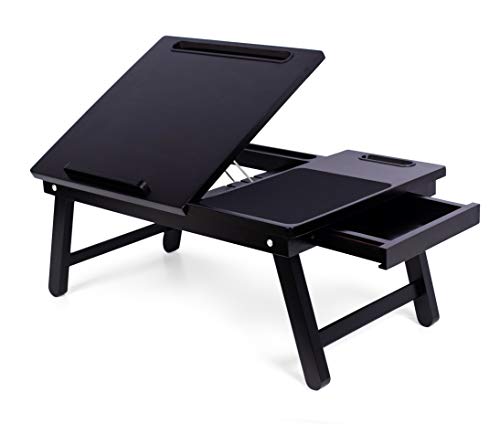
Sofia + Sam Multi Tasking Laptop Bed Tray | Lap Desk Supports Laptops Up to 18 Inches (Walnut)




Narrowing two finalists without a spreadsheet
Most buyers end with two phones that both look adequate, and the decision improves when it is made from the workload outward rather than from the specification sheet inward. Write down the five applications that must coexist, the two interface features you will use daily, the length of your longest regular day away from a charger, and the year you expect to replace the device. Score each finalist against those four lines only. A phone that wins on a benchmark you did not list is winning a contest you are not holding, and the discipline of the short list protects the budget from other people’s priorities.
Then interrogate the weaknesses, because strengths at this level are broadly comparable while weaknesses are personal. One finalist may restrict background work more aggressively, which matters if your job application must stay alive and matters not at all if your rotation is mostly foreground. The other may lack wired video output, decisive for the desk traveller and irrelevant to the field worker. Owner feedback is most valuable here, read specifically for your deal-breaker rather than for general sentiment: search the complaints for your application names, your carrier, your climate, your accessories. Ten minutes of targeted reading outperforms an hour of star-gazing, and it frequently produces a clear winner where the specification table produced a tie.
Price enters last and should be compared as a total over the ownership period: handset, case, matched chargers, perhaps a dock, and the storage tier your habits require, divided by the years the update commitment supports. A cheaper phone replaced a year earlier for want of memory or security updates can cost more per year than the balanced model bought once. Conversely, paying for the highest tier to insure against a workload you do not have is its own waste. The arithmetic is simple; the honesty about the workload is the hard part, and this guide has been an extended argument for supplying that honesty before the shopping begins.
Whichever finalist earns the purchase, keep the first week’s configuration ritual and the quarterly permission review, and let the device prove itself against your written list rather than against launch-day excitement. A well-matched phone will not announce itself with drama. It will simply stop being a subject of thought, absorbing the calls, documents, messages, maps, and half-finished ideas of a crowded schedule into one calm surface — and the clearest sign the choice was right is that, months later, its owner has almost nothing to say about it at all.
One more habit separates satisfied owners from perpetual upgraders: a monthly five-minute review of the memory and battery screens in settings. Note which application grew hungriest, which exemption was reset by an update, and whether free storage is drifting toward the zone where swapping slows. Catching those three trends early turns most performance complaints into small corrections made on a quiet evening, instead of a crisis discovered on the morning of the presentation, the flight, or the inspection that the whole crowded schedule depends on.
A note on carrying the second screen in your head
There is a cognitive layer beneath every technical one in this guide, and it deserves the closing lines. A phone that preserves state faithfully — the draft intact, the tab where you left it, the call still floating in its corner — is effectively lending its owner a second short-term memory, and the relief people report from a well-chosen device is often relief from re-loading their own thoughts, not merely their applications. That is why the failures sting out of proportion to their size: an evicted application costs seconds, but a lost line of reasoning costs the thread of a task. Choose the phone that protects the thread, configure it so the protection survives updates and busy weeks, and the hardware will repay you in the one currency multitaskers actually spend, which is attention saved for the work itself rather than for the tool carrying it.