What's inside
- Where to Buy
- Key Takeaways
- Quick Picks
- How We Chose These Picks
- Comparison
- How to Choose a Budget Windows Laptop
- What Does a Budget Laptop Owe a Student, Specifically?
- Should You Switch the Acer Out of S Mode?
- How Long Should a Budget Windows Laptop Be Expected to Serve?
- Is Windows on ARM Ready for a Budget Buyer?
- How Much Storage Does a Budget Windows Laptop Really Need?
- Does the Brand on the Lid Matter at This Price?
- Common Mistakes When Buying Budget Windows
- Final Recommendation
- Frequently Asked Questions
- Related Guides
As an Amazon Associate I earn from qualifying purchases. This post may contain affiliate links at no extra cost to you.
[SITE_DOMAIN] is reader-supported. When you buy through links on our site, we may earn an affiliate commission.
Where to Buy
Six listings, three philosophies. The specification-led route starts at the Dell 15.6, the only title here that publishes its battery capacity, and the Acer Aspire Go 15, whose S Mode wording deserves a slow read. Screen-size shoppers should open the HP OmniBook 3 17.3, the largest display in the guide by a wide margin. The two experiments live at HP as well: the HP Everyday Slim, which substitutes cloud storage for local capacity, and the HP OmniBook 3 14 Snapdragon, an ARM machine whose compatibility story is its review’s headline. The set closes with a generic 14-inch Windows laptop whose short title must be read with the most care of all.
Budget Windows is a negotiation, and this guide will conduct it in the open. The best budget Windows laptops are clamshells — no hinges that fold, no touchscreens promised in most of these titles — built around Intel’s entry processors, a uniform 8GB of memory, and storage that divides sharply between a roomy 512GB and a cloud-dependent 128GB. What the buyer is really purchasing at this level is the Windows ecosystem itself: the specific programs, the familiar file system, the peripherals and the habits of a lifetime, on hardware that will run the everyday layer of that ecosystem well and its demanding layer slowly. Every review below states which side of that line its machine’s specification lands on.
Three cautions frame the whole set, and each gets its own review rather than a footnote. One machine ships in Windows 11 Home in S Mode, which restricts it to Store applications until the owner switches out — a fact printed in its title and worth understanding before the first software install fails. One machine is built on a Snapdragon processor, which means it runs Windows on ARM: superb at the native and everyday layer, dependent on emulation for traditional x86 programs, and genuinely incompatible with a minority of them, including some drivers and specialist tools. And one listing is a generic, unbranded build whose title omits the processor’s generation entirely — the kind of silence this guide has learned to price.
Against those cautions, the class’s virtues are real. These are full Windows machines from a standing start: a student can run the actual desktop applications a course names, a small business can run its actual accounting program, a family can plug in its actual printer. The screens run from a portable 14 inches to a desktop-replacing 17.3, two listings give a proper half-terabyte of local storage, and one publishes a 300-nit anti-glare panel and a battery figure with a confidence its rivals should imitate. Read the reviews with your own essential program named, and the right pick will identify itself.
Key Takeaways
- All six picks carry 8GB of memory — the budget Windows floor — so the real contests are storage, screen and processor architecture.
- Storage splits the field: 512GB SSDs in the Dell and the big HP, 256GB in the Snapdragon HP and the generic 14-inch, 128GB in the Acer and the Everyday Slim.
- The Acer Aspire Go 15 ships in Windows 11 Home in S Mode — Store applications only until the owner switches out of S Mode.
- The HP OmniBook 3 14 runs on Snapdragon ARM silicon: native and emulated x86 apps mostly run, but some drivers, specialist tools and games will not — verify your essential program.
- The Dell is the only title publishing a battery figure (41WHr) and a brightness figure (300 nits) — the listing honesty the rest should copy.
- The generic 14-inch pick’s title omits its i3 processor’s generation; that silence is priced into its review.
Quick Picks
| Pick | Badge | Why it earns a place |
|---|---|---|
| Acer Aspire Go 15 | The S Mode Acer | A 15.6-inch FHD IPS screen, Core 3 N355 and DDR5 memory — with the S Mode restriction stated in the title. |
| Dell 15.6 Core 3 | The complete budget build | Core 3 100U, 512GB SSD, a 300-nit anti-glare panel and a published 41WHr battery. |
| HP OmniBook 3 17.3 | The big-screen HP | A 17.3-inch FHD display and a Core 5 120U over 512GB of storage for desk-bound buyers. |
| HP Everyday Slim N150 | The cloud-bundled slim | An N150 machine pairing 128GB local storage with 1TB of cloud storage and Microsoft 365 in the title. |
| HP OmniBook 3 14 Snapdragon | The ARM experiment | A 2K display on Snapdragon X silicon — efficient and modern, with x86 compatibility to verify. |
| Generic 14in Windows Laptop i3 | The unbranded option | A 14-inch 1920×1200 IPS screen, an i3 of unstated generation, 8GB of memory and a 256GB SSD. |
How We Chose These Picks
The budget Windows brief was built from the buyer’s actual risks rather than from a price figure. A pick had to run full Windows 11 — the ecosystem is the point of the class — and had to state its processor, memory and storage in its title, because at this level the difference between a serviceable machine and a frustrating one is written in exactly those three lines. Listings that hid the storage type, dressed cloud capacity as local, or left the processor as a bare brand letter were either excluded or, in one instructive case, included with the silence graded openly in the review.
Architecture honesty governed the Snapdragon’s inclusion. ARM Windows machines belong in a budget guide — they are efficient, modern and increasingly common — but only with their compatibility position stated in the review’s first paragraphs rather than discovered by the buyer at the first failed install. The same principle admitted the S Mode Acer: S Mode is a legitimate, even sensible default for some owners, provided the listing’s own wording is explained rather than skimmed.
Screens and storage were weighted above processor tier, because the entry Intel chips in this guide are closer to each other in daily behaviour than the storage figures are. The difference between 128GB and 512GB is a lifestyle; the difference between a Core 3 and a Core 5 at this level is a few seconds at a time. The reviews are ordered to make those weights visible.
Acer Aspire Go 15 — Capable hardware wearing an S Mode seatbelt
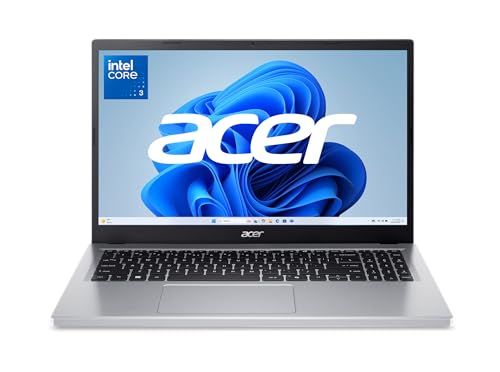
Acer’s Aspire Go 15 is a sensibly specified budget laptop — a 15.6-inch FHD IPS display, an Intel Core 3 N355 processor, 8GB of DDR5 memory and Wi-Fi 6 — carrying one clause in its title that will decide its owners’ first month: Windows 11 Home in S Mode. S Mode restricts the machine to applications from the Microsoft Store, which makes it faster, safer and simpler for exactly the users who never install anything else — and a wall for the first user who downloads a program from a maker’s website and watches the install refuse. Switching out of S Mode is a free, one-way trip through the Store, after which the machine is an ordinary Windows laptop; but the switch should be a decision, made on day one with eyes open, not a discovery made in a panic mid-deadline.
Owners who stay in S Mode are not fools. For a parent’s machine, a child’s school laptop or a grandparent’s browser-and-calls device, the restriction is a genuine feature: nothing outside the curated store can install itself, and the whole category of download-based trouble disappears. The Aspire Go’s hardware serves that life well — the IPS panel is the right technology at this size, the DDR5 memory is current, and the N355 is an honest entry processor for browsing, documents and streaming.
The specification’s tight corner is storage: 128GB of UFS. In S Mode’s curated world that stretches further than it sounds, since Store applications are modest; switched out and loaded with desktop programs and a photo library, it will fill and ask for an external drive or a cloud habit. Buyers should choose their mode with the storage in mind. Those who recognise their own usage in either picture can check the Aspire Go 15 listing on Amazon for the configuration as sold.
The AI Ready billing in Acer’s title is marketing altitude rather than specification — no NPU figure is published in the title, and the review declines to convert the phrase into a capability. Judge this machine by its screen, its memory and its mode, which are stated, rather than by its readiness, which is asserted.
- Display: 15.6-inch FHD (1920 x 1080) IPS
- Processor: Intel Core 3 Processor N355
- Memory: 8GB DDR5
- Storage: 128GB UFS
- Wireless: Wi-Fi 6
- Operating system: Windows 11 Home in S Mode — Store applications only until switched out
- Model: AG15-32P-352Z
Strengths
- An IPS panel and DDR5 memory are the right basics at this level.
- S Mode, kept, is real protection for non-technical owners.
- Wi-Fi 6 keeps the wireless current.
Trade-offs
- S Mode blocks ordinary desktop installs until switched out of, permanently.
- 128GB of UFS storage fills quickly outside a curated-app life.
- The N355 is an entry processor with entry headroom.
Best for: a family or first-time owner who wants a 15.6-inch Windows machine kept simple and safe inside S Mode, or who will switch out deliberately on day one. Not suited for: a first-hour install of a specific desktop program by an owner who has not planned the S Mode switch, because the restriction is real until it is removed.
One more household truth supports the Acer: most non-technical owners never install anything beyond what a machine arrives with and what its store offers, and for them the S Mode debate is entirely theoretical — the laptop simply works, quickly and safely, for years. The Aspire Go’s misfortune in some reviews is being judged by installers. Judge it by its actual owner. If that owner is you and your software life is a browser with a login, this Acer’s combination of a good screen, current memory and a guarded operating system is not a compromise at all; it is the correct specification wearing an apologetic expression it does not need.

Dell 15.6 Core 3 — The budget build that publishes its numbers
Dell’s budget 15.6 is the most completely argued listing in this guide, and the argument is made of figures its rivals omit. Yes, the core is standard — an Intel Core 3 100U, 8GB of memory, DDR5, Intel UHD Graphics — but around it the title specifies a 512GB SSD, a 300-nit anti-glare WVA panel, Wi-Fi 6 and Bluetooth, and a 3-cell 41WHr battery, in Carbon Black. Brightness and battery capacity are the two numbers budget buyers most need and least often get; Dell prints both, which lets a reader plan a working day and a bright room instead of hoping. In a guide built on reading titles as contracts, this is the contract written by someone expecting to be held to it.
The machine those numbers describe is the class’s natural default: a desk-and-bag 15.6 for documents, browsing, calls and the desktop programs of ordinary work and study, with storage that will not demand housekeeping in the first year and a screen that stays legible under office lighting. The Core 3 100U sits a step above the N-series chips in sustained behaviour, which shows in the moments budget machines usually fumble — a call running beside a dozen tabs beside a document, all at once, without the wheel of waiting.
Its limits are the tier’s limits, cleanly worn. Eight gigabytes of memory is the ceiling for heavy multitasking, the graphics are integrated and aimed at displays rather than games, and no touchscreen or fold is promised — this is a laptop in the classic shape, bought for what it runs rather than how it bends. Buyers content with that shape, which should be most budget buyers, can open the Dell 15.6 listing on Amazon to confirm the build behind those published figures.
The DC15250 model designation at the end of the title is worth the same respect as the battery figure: it makes the machine findable in Dell’s documentation, which makes every future question — drivers, manuals, parts — answerable. Budget ownership lasts years, and the ability to look your own machine up is a feature that only reveals its value the first time something needs fixing.
- Display: 15.6-inch FHD, 300 nits anti-glare WVA
- Processor: Intel Core 3 100U
- Memory: 8GB RAM, DDR5
- Storage: 512GB SSD
- Battery: 3-cell 41WHr — stated in the listing title
- Graphics: Intel UHD Graphics
- Wireless: Wi-Fi 6, Bluetooth
- Colour: Carbon Black
Strengths
- 512GB of storage removes the budget class’s commonest anxiety.
- Published 300-nit brightness and 41WHr battery figures allow real planning.
- The Core 3 100U handles the ordinary multitasking pile-up smoothly.
Trade-offs
- 8GB of memory remains the multitasking ceiling.
- Integrated graphics exclude demanding games and creative acceleration.
- A classic clamshell — no touch, no fold, no tablet postures.
Best for: a student or home-office buyer who wants the most completely specified budget Windows laptop — real storage, a bright anti-glare screen, published battery. Not suited for: work that needs touch or tablet postures, because this is a conventional clamshell and its title promises nothing else.
There is a steadiness to this Dell’s proposition that the more theatrical listings around it lack. Nothing in its title reaches for a superlative; it enumerates a screen with a brightness, a battery with a capacity, a drive with room, a chip with a name. Owners feel that steadiness as the absence of surprises — the machine on the desk in month six is the machine the title described in minute one. In a class where several rivals ask the buyer to decode marketing into specification, the Dell’s plain enumeration is not merely a reviewing convenience; it is a preview of the ownership experience.
HP OmniBook 3 17.3 — Seventeen inches of desk, no apologies
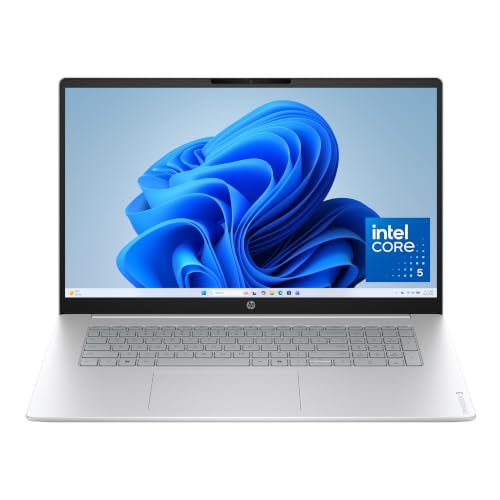
Size is this HP’s thesis. A 17.3-inch FHD display is a desktop that happens to close: spreadsheets show their columns without squinting, documents sit at reading size beside their references, films fill the view, and ageing eyes — a constituency budget guides too often ignore — get text at a scale that needs no settings archaeology. Behind the glass sit an Intel Core 5 120U, a step above the Core 3 picks, 8GB of memory and a 512GB SSD, in Glacier Silver under Windows 11 Home. For the buyer whose laptop lives on one desk and whose work is reading, writing and reckoning, this is the most comfortable specification in the guide.
That buyer is specific and numerous: the home accountant, the writer, the small-business owner whose office is a spare room, the parent administering a household from the kitchen table. Their machine rarely travels further than another room, so the 17.3-inch body’s weight and bulk — unpublished in the title, considerable by the format’s nature — cost them nothing, while the screen pays them every hour. The Core 5’s extra pace over the entry chips suits the long, many-windowed sessions such desks accumulate.
The cautions are portability and the shared 8GB ceiling. This is not a commuter’s machine, and its title’s silence on weight should be read as an instruction to check HP’s documentation if the machine must travel weekly. Memory, as throughout the guide, caps the heaviest multitasking. Neither point argues with the brief the machine sets itself. Desk-bound readers can check the OmniBook 3 17.3 listing on Amazon to confirm the configuration in Glacier Silver.
A large screen also changes the video-call geometry in a way worth noticing: at 17.3 inches, a gallery of faces is legible at conversational distance, and the machine becomes the household’s or the small office’s natural meeting screen. Budget buyers often discover this virtue after purchase; this review simply moves the discovery earlier, where it can inform the choice.
- Display: 17.3-inch FHD
- Processor: Intel Core 5 120U
- Memory: 8 GB RAM
- Storage: 512 GB SSD
- Graphics: Intel Graphics
- Operating system: Windows 11 Home
- Colour: Glacier Silver
- Weight: Not stated in the listing title — verify with the manufacturer documentation
Strengths
- A 17.3-inch screen is the most comfortable reading surface in the guide.
- The Core 5 120U steps above the entry chips around it.
- 512GB of storage matches the class’s best.
Trade-offs
- A desk machine by format — travel is its weakness.
- 8GB of memory caps heavy multitasking as elsewhere here.
- Weight is unpublished, so committed travellers must verify.
Best for: a desk-bound home or small-office user who wants the largest screen and a Core 5 in the budget class. Not suited for: a weekly traveller, because a 17.3-inch body with an unpublished weight is a machine designed to stay where it is put.
The big HP also makes the guide’s best case for the shared family desk. A screen that size turns homework supervision, household budgeting and the weekly video call with relatives into activities a second person can join without fetching a chair and squinting over a shoulder. Budget machines are often bought as personal devices and conscripted as family ones; the OmniBook 3 17.3 is the only pick here designed, whether HP intended it or not, for the conscription. If the machine’s home is a shared surface, its size stops being a specification and becomes the feature the household will mention when it recommends the purchase.

HP Everyday Slim N150 — The cloud does the storing
HP’s Everyday Slim proposes a different budget bargain, and its title states the terms plainly enough to grade: an Intel N150 processor, 128GB of local SSD storage, and then the substitutes — 1TB of cloud storage, Microsoft 365 included, Copilot AI billing, long battery life and a thin, portable pitch, under a 2027 Edition banner. Read that banner as the listing’s own marketing language rather than a specification; the substance is the swap. This machine assumes its owner’s files live in Microsoft’s cloud, its documents live in the included 365, and its local drive is a working surface rather than an archive.
For the right owner the swap is genuinely attractive. A writer, a student or a light home user whose work is documents and browsing gains a slim machine, a real office suite in the bundle, and storage that follows them to any other device they sign into. The N150 is an efficiency processor adequate to that life, and the slim positioning suits a bag carried daily between home, library and office.
The dependencies deserve the same plainness as the pitch. Cloud storage is a subscription relationship, not a possession: its continuation, its terms and its cost after any included period belong to the listing’s fine print and Microsoft’s, and the 1TB figure should be valued with its duration attached, which the title does not state. Microsoft 365 included carries the same question — included for how long is a specification, and it is not in the title. Offline, the machine is its 128GB and its N150, which is a thin life for an archive-heavy owner. Buyers who live connected and light can open the Everyday Slim listing on Amazon and read those terms before valuing the bundle.
Screen size goes unpublished in this title — an unusual omission that joins the documentation list for a machine whose other claims are so expansive. A buyer choosing a laptop without knowing its display size from the title should slow down and assemble the full picture from HP’s pages before the order, which is this guide’s standing advice applied at its most necessary.
- Processor: Intel N150 CPU
- Storage: 128GB SSD, with 1TB cloud storage named in the title
- Software: Microsoft 365 included — duration not stated in the listing title
- Operating system: Windows 11
- Display size: Not stated in the listing title — verify with the manufacturer documentation
- Battery figure: Not stated in the listing title — verify with the manufacturer documentation
Strengths
- Microsoft 365 in the bundle covers the document life outright.
- Cloud storage makes files follow the owner across devices.
- A slim, portable build with an efficiency chip suits daily carrying.
Trade-offs
- 128GB of local storage is a working surface, not an archive.
- The cloud and 365 terms — especially duration — are unstated in the title.
- Screen size and battery figures are absent from the listing.
Best for: a connected, document-centred user who values the included Microsoft 365 and cloud storage over local capacity. Not suited for: an archive-heavy or often-offline owner, because the machine’s local life is 128GB and an N150 once the cloud is out of reach.
The Everyday Slim’s ideal owner deserves a clearer portrait, because the machine is easy to underrate from the specification sheet alone. Picture the consultant or writer whose entire practice is documents, whose files must be reachable from a client’s machine as readily as from their own, and whose bag is carried through three buildings a day. For that owner the cloud is not a substitute for storage — it is the point of the system, the local drive is a cache, and the included office suite is the toolbox. The N150’s modesty never enters the story because the work never asks the question. Buy the machine for that life and it is well judged; buy it for any other and the review’s caveats queue up.
HP OmniBook 3 14 Snapdragon — The ARM machine, with its one big asterisk
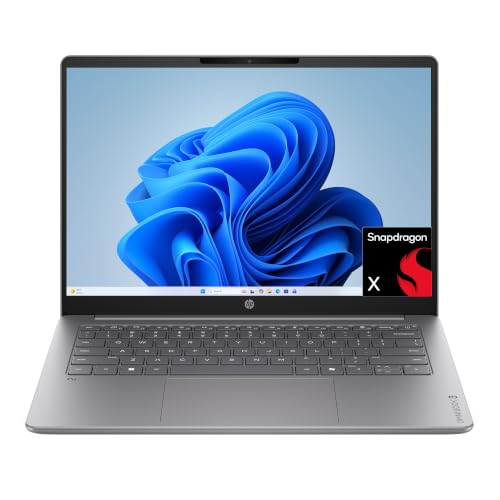
This is the most modern laptop in the guide and the one that must be bought with the most knowledge. HP’s OmniBook 3 14 pairs a 2K display — the sharpest screen here — with a Snapdragon X X1-26-100 processor, a Qualcomm Adreno GPU, 8GB of memory and a 256GB SSD, in Nouvelle Silver, as a Windows 11 Home AI PC. Snapdragon silicon brings the virtues of its phone heritage: efficiency, cool and quiet running, instant wake, and a 14-inch portability the Intel picks cannot match for travel. For the browser, the office suite, the native applications and the everyday layer of Windows, it is a genuinely delightful specification.
Now the asterisk, stated as plainly as this guide can state it. That processor is ARM architecture, and traditional Windows programs are written for x86. Windows bridges the gap with emulation, and the bridge is good — most mainstream x86 applications run, many of them well. But some things do not cross: certain hardware drivers, specialist and older professional tools, some VPN and security software, anti-cheat-protected games, and applications with deep system hooks can refuse or misbehave, and no setting fixes an unsupported driver. The rule for this machine is therefore absolute: name your one essential program, and verify its ARM status from its maker’s own documentation before ordering. If it is a browser, an office suite or a mainstream native or emulated application, proceed happily. If it is a niche professional tool, this otherwise lovely machine is the wrong purchase, and the Dell or the big HP above will serve you without the question ever arising.
Storage at 256GB sits between the guide’s poles — workable for a document life, tight for a media archive — and 8GB of memory is the shared ceiling. Neither tempers the machine’s real appeal for the mobile, mainstream user, which is considerable: the sharpest screen, the most portable body, the most efficient silicon. Verified buyers can check the OmniBook 3 14 Snapdragon listing on Amazon once their essential program has cleared the ARM check.
There is a forward-looking argument for this pick that deserves its due. Windows on ARM is where the platform’s efficiency frontier currently lives, and application support widens month by month as makers publish native builds. A buyer whose whole software life is already mainstream is not taking a risk so much as arriving early — but arriving early is a decision to make deliberately, with the essential-program check done, rather than by accident at the first install.
- Display: 14-inch 2K
- Processor: Snapdragon X X1-26-100 (ARM architecture)
- Graphics: Qualcomm Adreno GPU
- Memory: 8 GB RAM
- Storage: 256 GB SSD
- Operating system: Windows 11 Home
- Compatibility note: x86 programs run through emulation where supported; some drivers and specialist tools are not supported — verify essential software
- Colour: Nouvelle Silver
Strengths
- A 2K display is the sharpest screen in the budget guide.
- Snapdragon efficiency suits a carried, always-ready life.
- Fourteen inches is the travel size the rest of the set lacks.
Trade-offs
- ARM architecture leaves some x86 programs, drivers and games unsupported.
- 256GB of storage sits between the class’s poles.
- Essential-software verification is a mandatory pre-purchase step.
Best for: a mobile, mainstream user — browser, office, native and common emulated applications — who wants the sharpest, most efficient budget machine. Not suited for: an essential program built as a niche x86 tool, a protected game or hardware needing an x86 driver, because those may not run on ARM at all.
Efficiency has a sensory signature the Snapdragon brings to this class: the machine wakes before the lid finishes opening, runs its fan rarely enough that its silence becomes noticeable, and treats a day of meetings as a light snack rather than a siege. Owners coming from budget Intel machines experience this as a category jump, and they are not wrong — the architecture genuinely is a generation’s idea ahead in daily feel. That feel is the temptation this review has been carefully fencing with its one condition, and the fence stands: verify the essential program, and then enjoy the most contemporary budget laptop in this guide without a backward glance.
Generic 14in Windows Laptop i3 — Read the shortest title the slowest
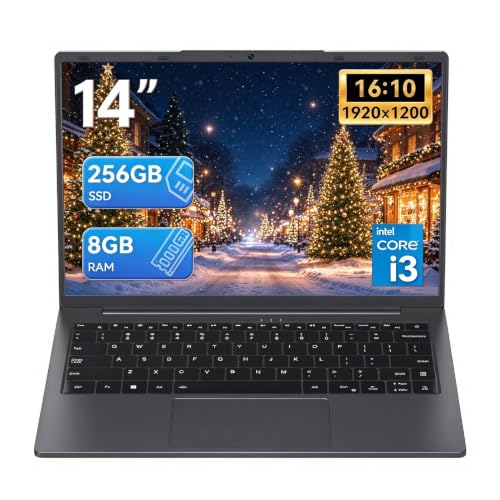
The final pick is unbranded, and its title is the shortest in the guide — which is itself the review’s first finding. What it states is respectable: a 14-inch IPS display at 1920×1200, an Intel Core i3 with 8GB of memory and a 256GB SSD, a webcam, Bluetooth 5.0 and Wi-Fi, aimed at home and work use. The 1920×1200 resolution deserves genuine praise: those extra vertical pixels over a standard FHD panel return real lines to documents and web pages, and at fourteen inches the result is a sharp, portable machine on paper — the only pick besides the Snapdragon that escapes the 15.6-inch mould.
What the title omits is the i3’s generation, and at this end of the market that omission governs the machine’s speed more than any other single fact. Core i3 processors span many generations of Intel design; a recent one is a perfectly capable budget chip, an old one is a museum piece with a familiar name, and the listing does not say which is inside. The same silence covers the maker’s identity, the battery, the Windows edition’s exact terms and the support channel. None of this proves the machine is poor — generic builds can be honest value — but it transfers the entire burden of verification to the buyer, who should extract the processor’s full model number from the listing’s details or the seller before ordering, and walk away if it cannot be produced.
Who should consider it at all? The confident bargain hunter who will do that verification, values the 1920×1200 portable format, and accepts that support means the seller’s warranty rather than a brand’s network. Who should not: anyone buying a first laptop, a gift, or a machine for someone else — contexts where an unanswered specification question becomes someone else’s problem. Bargain hunters who accept those terms can open the generic 14-inch listing on Amazon and begin the interrogation its title invites.
There is a broader lesson in this listing, and it is the right note for the set’s final review. At the budget floor, the title is the product: what it states can be planned around, what it omits must be priced as risk. The Dell at the top of this guide and the generic machine at the bottom run the same operating system for overlapping duties; the distance between them is measured less in silicon than in how much of the truth each seller was willing to print.
- Display: 14-inch IPS, 1920×1200
- Processor: Intel Core i3 — generation not stated in the listing title
- Memory: 8GB RAM
- Storage: 256GB SSD
- Camera: Webcam stated in the title
- Wireless: BT5.0 and Wi-Fi as described in the title
- Battery figure: Not stated in the listing title — verify with the manufacturer documentation
Strengths
- A 1920×1200 IPS panel gives documents extra vertical room.
- Fourteen inches is the portable size most of the set lacks.
- 256GB of storage doubles the 128GB picks.
Trade-offs
- The i3’s generation — the key speed fact — is unstated.
- Unbranded support rests entirely with the seller.
- Battery and build details are absent from the title.
Best for: a confident bargain hunter who will extract the full processor model before ordering and wants a portable 1920×1200 Windows machine. Not suited for: a first-time buyer or a gift purchase, because the listing leaves its most important specification — the chip’s generation — unanswered.
The generic machine’s defenders make one fair point, and it should be heard before the verdicts harden. Branding is not free: a portion of every famous badge’s price is the badge, and an unbranded build with the same stated screen, memory and storage can represent the same hardware value with the marketing removed. The catch is verification — the badge’s price also buys the published specification, the documentation and the accountable seller, and the generic buyer must rebuild all three from the listing’s details before the saving is real rather than hoped. Bargain hunters who do that work sometimes win genuinely. Everyone else is not saving money; they are declining information.
Comparison
| Pick | Screen | Processor | Memory / Storage | Defining condition |
|---|---|---|---|---|
| Acer Aspire Go 15 | 15.6-inch FHD IPS | Core 3 N355 | 8GB / 128GB UFS | Windows in S Mode |
| Dell 15.6 | 15.6-inch FHD 300 nits | Core 3 100U | 8GB / 512GB SSD | Battery figure published |
| HP OmniBook 3 17.3 | 17.3-inch FHD | Core 5 120U | 8GB / 512GB SSD | The desk-sized screen |
| HP Everyday Slim | Not stated in the listing title | Intel N150 | 8GB class / 128GB SSD | Cloud storage and 365 bundle |
| HP OmniBook 3 14 Snapdragon | 14-inch 2K | Snapdragon X (ARM) | 8GB / 256GB SSD | x86 compatibility to verify |
| Generic 14in | 14-inch 1920×1200 IPS | Core i3, generation unstated | 8GB / 256GB SSD | Unbranded, seller-supported |
How to Choose a Budget Windows Laptop
Start, as this site’s laptop guides always start, with the one essential program. Write its name down. If it is a browser or a mainstream office application, every pick here is eligible and the choice becomes about screen and storage. If it is a traditional desktop program, the Snapdragon requires an ARM compatibility check and the Acer requires an S Mode decision — two different gates, both passable, neither skippable. If it is a demanding program — heavy creative work, serious gaming, large-scale data — the honest answer is that this entire class is the wrong shelf, and the money is better saved toward a stronger tier than spent learning the lesson.
Storage is the second decision and the one owners feel longest. The 512GB machines — Dell and the big HP — support a local-files life without thought. The 256GB pair support it with light housekeeping. The 128GB pair presume the cloud carries the archive, which is a fine presumption for a connected document worker and a poor one for a media collector or an offline household. Memory, unusually, decides nothing here: 8GB everywhere is the class’s honest ceiling, adequate for the everyday layer and a shared limit no pick escapes.
Close with the physical choice. The 17.3-inch HP is a desk, the 15.6 pair are desk-and-bag machines, the 14-inch pair are travellers — one verified and branded, one a bargain to interrogate. Then read your finalist’s title one final time for its silences: battery, weight, screen size, processor generation, subscription durations. At this level more purchases are ruined by an unread line than by a slow chip.
What Does a Budget Laptop Owe a Student, Specifically?
Three things, in order: it must run the course’s named software, it must survive the bag, and it must not become a second coursework problem of its own. The first requirement is the one-program check this guide repeats — a course that names a desktop application eliminates the unexamined Snapdragon and complicates the S Mode Acer, while a browser-based course blesses everything here. The second favours the 14-inch machines for a carried life and the branded builds for their support. The third favours the Dell’s completeness and the big HP’s simplicity: machines whose titles promised exactly what arrived generate no support tickets in a student’s first term, which is the highest praise a budget laptop can earn.
Should You Switch the Acer Out of S Mode?
It depends entirely on where your software comes from, and the answer is knowable in one minute. List the programs you will install in the first month. If every one of them lives in the Microsoft Store — the browser alternatives, the streaming and office applications, the utilities — stay in S Mode and keep its speed and safety; the restriction will never touch you. If even one program must come from a maker’s website, switch out on the first day, deliberately, understanding that the move is one-way: there is no returning to S Mode afterwards. The mistake is neither staying nor switching; it is discovering the wall mid-task, with a deadline holding the ladder.
How Long Should a Budget Windows Laptop Be Expected to Serve?
Set the expectation by component rather than by hope. The processors in this guide will run the everyday layer of Windows for years; the shared 8GB of memory is the component the future will press first, as applications and the operating system itself grow heavier in the background. Storage fills on the owner’s schedule, not the industry’s. A realistic plan is three to four years of uncomplaining service from the 512GB branded machines, a shorter comfortable span from the 128GB pair unless their cloud habits are genuine, and an open question — in both directions — for the Snapdragon, whose architecture is young enough that its support story is still being written by other people’s software decisions.
Is Windows on ARM Ready for a Budget Buyer?
For the mainstream, yes — with the verification rule doing the guarding. The Snapdragon HP in this guide runs the browser, the office world and the common run of applications in a cooler, quieter, more portable package than any Intel pick here, and native ARM builds of major programs multiply every month. The frontier cases remain real: a specialist tool with no ARM build and a broken emulation path, a printer or peripheral whose driver never crossed, a game whose protection system refuses. A budget buyer whose software is ordinary will experience ARM as simply a better laptop; a budget buyer with one exotic essential program will experience it as a locked door. The one-program check is what separates those two experiences, and it costs five minutes.
How Much Storage Does a Budget Windows Laptop Really Need?
Count the archive, not the applications. Windows and a working set of programs settle into a predictable footprint; the variable is the owner’s accumulated life — photographs, videos, downloads, game installs, the folder of everything. A document-and-cloud household lives comfortably in 128GB and barely notices. A family media archive outgrows 256GB within a couple of years and treats 512GB as breathing room. The cloud-bundled HP complicates the arithmetic honestly: its terabyte is real but rented, excellent while the terms hold and absent when they lapse. Buy the local figure for the life you own outright, and treat cloud capacity as a convenience layered on top, never as the foundation.
Does the Brand on the Lid Matter at This Price?
Less than the specification, more than the cynics claim. What a brand buys at the budget floor is not prestige but infrastructure: a documentation library where the machine can be looked up by model, drivers that arrive through the maker’s own channels, a warranty administered by an organisation with a published address. The Dell and the two branded HPs carry that infrastructure; the generic pick replaces it with a seller. For a confident owner the replacement is a fair trade for a lower price. For everyone else, the infrastructure is the difference between a problem and an errand, and it is worth paying for exactly once — at purchase, in the brand premium, rather than later, in hours.
Common Mistakes When Buying Budget Windows
The class’s defining mistake is buying the ecosystem and forgetting the architecture. A Windows badge covers x86 machines, an S Mode machine and an ARM machine in this one guide, and the three behave differently at the first software install. Know which of the three you are ordering — the titles state it, in the Acer’s mode, in the Snapdragon’s name — and run the one-program check that matches. The second mistake is reading storage marketing as storage: a terabyte of cloud and 128GB of local drive are different possessions, and only one of them works on a plane.
Shoppers also chase the largest screen into a travelling life, or the smallest into a desk life, because size reads as a simple good rather than a fit. They skim past the generic listing’s missing processor generation because the brand letter is familiar. They value subscription bundles without asking their duration. And they treat 8GB of memory as a specification to apologise for rather than what it is — the class’s shared ceiling, adequate for the work these machines are honestly for. Every one of these errors is prevented by the same act: reading the whole title, slowly, as the contract it is.
Setup day at this level has one non-obvious commandment: finish the updates before forming the opinion. A budget Windows machine’s first hours are consumed by the operating system bringing itself current, and its pace during that baptism is the worst it will ever show. Charge it, connect it, let it finish, restart it, and only then judge. Owners who skip this ritual return machines for the crime of updating; owners who observe it meet the laptop the title actually described. The same patience, applied to the S Mode decision and the ARM check, is the whole skill this class rewards.
Final Recommendation
For most budget buyers, the Dell 15.6 is the answer this guide was assembled to find: the fullest storage, a bright anti-glare screen, published battery figures and a processor that handles the everyday pile-up — a machine whose title makes promises its specification keeps. Desk-bound readers who prize size take the HP OmniBook 3 17.3 and its Core 5; families who value safety over freedom keep the Acer in S Mode with a clear conscience; connected document workers take the Everyday Slim and its bundled 365, terms read first. The Snapdragon HP is the guide’s most interesting machine and its most conditional — buy it after the one-program check and it may be the best laptop here; buy it before, and it is a gamble. The generic 14-inch is for interrogators only. Budget Windows rewards the reader, every time.
Buying for someone else deserves the guide’s closing caution, because budget laptops are so often gifts. The giver’s job is to run the checks the recipient cannot: name the recipient’s essential program, test it against the Acer’s mode and the Snapdragon’s architecture, confirm the storage against the recipient’s archive habits, and prefer the listing whose title leaves the fewest questions — which in this guide means the Dell for a general recipient, every time the recipient’s needs are unknown. A budget laptop chosen on the recipient’s actual software is a thoughtful gift; one chosen on its headline alone is a errand returned to sender.
One final distinction is worth retiring with. Buyers sometimes apologise for choosing a budget laptop, as if the tier were a confession. The machines in this guide run the world’s dominant operating system, carry its full application library in most cases, and serve the everyday layer of modern work and study without drama. The apology belongs to the purchase made without reading — the S Mode discovered late, the ARM door found locked, the storage that filled by spring. Read the title, run the one check your software demands, and a budget Windows laptop is not a compromise at all; it is simply the correct amount of computer.
Frequently Asked Questions
Can I install any Windows program on these laptops?
On the standard x86 machines — the Dell, the big HP and, once its chip is verified, the generic pick — yes, ordinary desktop programs install as expected. Two picks carry conditions: the Acer in S Mode accepts only Microsoft Store applications until switched out, and the Snapdragon HP runs x86 programs through emulation where supported, with some drivers and specialist tools unsupported.
Is 8GB of memory enough for Windows 11?
For the everyday layer — browsing, documents, email, calls, streaming and light multitasking — yes, and every pick in this guide provides it. Heavy multitasking across many demanding applications will press against the ceiling; buyers whose work lives there should look above the budget class, where 16GB becomes standard.
What happens when the Everyday Slim’s cloud storage term ends?
The title does not state the term, which is why this guide flags it: cloud capacity and Microsoft 365 are subscription relationships whose continuation and cost after any included period are set by the listing’s fine print and the provider’s terms. Read them before valuing the bundle, and keep anything irreplaceable in a place you control outright.
Will my printer and peripherals work with the Snapdragon model?
Mainstream modern peripherals generally will; older or specialist hardware depends on drivers, and drivers are precisely where ARM compatibility can fail. Check your essential printer or device against its maker’s ARM support information before ordering the Snapdragon — five minutes that decides whether the machine is a delight or a dead end.
How do I find out which i3 is in the generic laptop?
Ask for the full processor model number — from the listing’s detailed specifications or from the seller directly — and look that exact model up before ordering. The generation and model determine the machine’s speed more than any other fact, and a seller who cannot or will not name it has answered the question in a different way.
Which of these is best for a small business on a tight budget?
The Dell 15.6, for the reasons its review leads with: complete local storage, a screen staff can look at all day, published battery figures and a model number that makes Dell’s documentation and support findable. The big HP serves a single-desk business that prizes screen size; the Snapdragon should enter a business only after its accounting and peripheral software have passed the ARM check in writing.
Can a budget Windows laptop handle photo editing?
Light editing — cropping, exposure, the family archive’s upkeep — sits within every pick here, the Snapdragon included. Sustained work on very large files, heavy filters and professional colour workflows press the shared 8GB ceiling and the integrated graphics hard enough that a stronger tier earns its price; the honest budget answer is to edit lightly or save toward more memory.
Is the 17.3-inch HP too much laptop for a small flat?
On a desk, no — its footprint is a keyboard’s depth, and the screen folds away when closed like any laptop. In a bag or on a lap, yes, immediately. The machine’s size is a location decision rather than a quality one: give it a permanent surface and it is the most comfortable budget screen in this guide; ask it to commute and it will argue with you daily.
Should I buy a budget laptop now or save for a stronger tier?
If your essential software is named and ordinary, buy now — the everyday layer will not feel faster for the waiting, and a year of use outweighs a year of saving toward headroom you may never touch. If your work is already pressing against 8GB of memory or your archive already exceeds half a terabyte, the stronger tier is not a luxury but the actual requirement, and saving is the honest answer.
Related Guides
Buyers torn between a cheap clamshell and a cheap folding machine should compare this set against the best inexpensive convertible laptops, where the fold survives on Chromebook hardware. Portability-led readers will find the carried end of the Windows world in the best 13-inch convertible laptops and their folding business machines.