What's inside
- Where to Buy
- Key Takeaways
- Quick Picks
- How We Chose These Picks
- Comparison
- How to Choose an Inexpensive Convertible Without Regretting It
- Should You Buy the Extended Warranty or the Better Machine Instead?
- What Does the Fold Actually Add at This Price?
- Is a Cheap Chromebook Convertible Enough for School?
- What Can the m3 Windows Machines Actually Run Well?
- Which Cheap Convertible Suits a Shared Family Machine?
- How Long Will an Inexpensive Convertible Stay Useful?
- Common Mistakes When Shopping at This Price
- Final Recommendation
- Frequently Asked Questions
- Related Guides
As an Amazon Associate I earn from qualifying purchases. This post may contain affiliate links at no extra cost to you.
[SITE_DOMAIN] is reader-supported. When you buy through links on our site, we may earn an affiliate commission.
Where to Buy
At this end of the market the listing page matters more than the brand page, because configurations shift and small print decides what arrives. The two Chromebooks with the fullest titles are the Acer Chromebook Spin 314 and the ASUS Chromebook Flip CX1, and both reward a careful read. School and household buyers should also open the Lenovo Chromebook 2-in-1 for its WUXGA screen and the HP Chromebook x360 14 for its simpler, cheaper proposition. Windows holdouts have exactly two stops: the Cleriver 15.6 2-in-1 and the BWPED 15.6 2-in-1, near-identical on paper, where the listing details are the only real way to separate them.
Begin with the truth about this price class, stated plainly because every review below depends on it. The best inexpensive convertible laptops are, with two exceptions, Chromebooks — machines that run Google’s browser-based operating system and nothing else. The two exceptions are Windows laptops from small brands built around an ageing Core m3 processor that was never a performance chip even in its own era. That is the whole landscape. There is no inexpensive convertible with a modern Windows processor, generous storage and a famous badge hiding somewhere in the catalogue; the fold, the touchscreen and the low price together consume the entire budget, and something — usually the processor, the storage, or the operating system’s reach — pays for all three.
None of that makes the class a bad purchase. It makes it a purchase that must be matched to its actual abilities with unusual honesty. A Chromebook convertible is a superb appliance for the browser-centred life most households and schools actually live: web documents, streaming, video calls, light Android applications, and a screen that folds into a kitchen stand or a reading tablet. A cheap Windows convertible adds the full Windows application world on hardware that will run it slowly and should be asked to run little of it at once. Buyers who understand which of those two bargains they are signing tend to be happy for years. Buyers who shop by the word convertible alone tend to meet the limits within a month.
The six picks below divide four-to-two along that operating-system line. Among the Chromebooks, the Acer Spin 314 and ASUS Flip CX1 carry 8GB of memory — the figure this guide treats as the comfort line — while the Lenovo and HP carry 4GB and ask for tab discipline in exchange for their screens and prices. The two Windows machines are near-twins on the same m3 chip with 16GB of memory and 512GB SSDs, a specification that looks generous until the processor’s age is weighed, which their reviews do without flinching. Read the limitations as carefully as the strengths; at this price, the limitations are the product description.
Key Takeaways
- This class is Chromebooks plus two small-brand Windows machines on an ageing Core m3-8100Y — that is the honest landscape, stated upfront.
- Memory splits the Chromebooks: 8GB in the Acer Spin 314 and ASUS Flip CX1, 4GB in the Lenovo 2-in-1 and HP x360 14.
- Storage is 64GB or 128GB of eMMC or UFS in every Chromebook here — a cloud-first life is assumed.
- The Cleriver and BWPED pair 16GB of memory and 512GB SSDs with the m3 chip, so their bottleneck is processing speed, not space.
- Screens are the class’s bright spot: WUXGA IPS on the Acer and Lenovo, FHD touch panels on the rest.
- No title here promises a pen in the box, and none publishes battery or weight figures.
Quick Picks
| Pick | Badge | Why it earns a place |
|---|---|---|
| Acer Chromebook Spin 314 | The complete cheap Chromebook | Core i3-N305, matte Gorilla Glass WUXGA screen, 8GB LPDDR5 and Wi-Fi 6E. |
| Lenovo Chromebook 2-in-1 14 | The sharp screen, lean memory | A 14-inch WUXGA IPS touch panel and Gemini, over an N150 with 4GB of memory. |
| HP Chromebook x360 14 | The simplest proposition | FHD IPS touch, Intel N100, 4GB of memory and 64GB of storage in Sky Blue. |
| ASUS Chromebook Flip CX1 | The 8GB ASUS route | A 14-inch FHD NanoEdge 360-degree touchscreen, Celeron N4500 and 8GB of memory. |
| Cleriver 15.6 2-in-1 | Windows, with eyes open | Core m3 8100Y with 16GB of memory, a 512GB SSD and Windows 11 Pro. |
| BWPED 15.6 2-in-1 | The twin alternative | The same m3 recipe — 16GB, 512GB SSD, FHD IPS — with WiFi 5 and Bluetooth 5.1. |
How We Chose These Picks
Cheap convertibles invite a particular kind of dishonesty from guides: padding the list with machines whose titles hide their compromises. We worked the other way. Every pick below had to state its processor, memory and storage in its title, so the compromises are visible before a single review is read. Machines whose listings obscured the chip or dressed eMMC storage in ambiguous language were passed over, however attractive their photographs. What survived is a shortlist a reader can audit from the titles alone — which, at this price, is a more valuable service than enthusiasm.
Within that rule we balanced the two operating systems as the market actually supplies them, four Chromebooks to two Windows machines, and within Chrome OS we spread the memory figures so readers can see exactly what the 4GB and 8GB tiers feel like. The two m3 Windows machines were both included deliberately: they are the realistic Windows option at this level, they are near-identical, and pretending one is uniquely recommendable would be a fiction. Their reviews say what differs — an office suite mention, a Wi-Fi generation, a clock-speed claim — and what does not.
Screens earned more weight in the judging than processors, because at this level the screen is what owners interact with for the machine’s whole life while the processor’s limits are mostly felt in waiting. A folding touchscreen that is dim, coarse or glossy to the point of mirroring ruins the convertible idea at any speed; the WUXGA and FHD IPS panels below keep the idea intact.

Acer Chromebook Spin 314 — The cheap Chromebook with nothing to apologise for
Judged inside this class rather than against the whole laptop market, the Spin 314 is the pick that keeps not needing excuses. Its Intel Core i3-N305 is a genuine step above the entry chips around it. Its 14-inch WUXGA IPS touchscreen wears Corning Gorilla Glass with a matte finish, so it survives bags and stays readable under classroom and kitchen lighting. Its memory is 8GB of LPDDR5 — the comfort figure for Chrome OS — and its wireless is Wi-Fi 6E, with an FHD webcam for calls and remote lessons. In the companion 13-inch guide this machine was praised as a family Chromebook; here, wearing its price-class hat, the point is sharper: it is the inexpensive convertible whose specification does not require the buyer to pre-forgive anything except the operating system itself.
That operating system remains the decision. Chrome OS runs the browser, web applications and a wide range of Android apps, updates itself quietly, and shrugs off most of the maintenance and malware burden of Windows. For a student whose school lives in Google’s ecosystem, or a household whose computing is browsing, documents, streaming and calls, the fence never appears. The fence appears the day a specific Windows program is required — a legacy work application, a particular exam tool, a desktop game — and no Chromebook crosses it, this one included.
The remaining limits are storage and silence. The 128GB of eMMC is workable for a cloud-centred life and tight for an offline media library, and eMMC is slower than the SSDs in the Windows picks below. Acer’s title also omits battery and weight figures, as every title in this guide does. None of that displaces it from the top of this particular list. Households comparing the class can open the Spin 314 listing on Amazon and measure the rest of the field against it.
Durability deserves the last word here, because inexpensive machines are bought for hard lives — school bags, kitchen counters, sofa arms. A hardened matte screen is not a cosmetic extra in that context; it is the component most likely to decide whether the machine still looks and works right in its third year. The Spin’s glass is the strongest longevity argument in this entire guide, stronger than any processor figure.
- Display: 14-inch WUXGA IPS touch, Corning Gorilla Glass, matte
- Processor: Intel Core i3-N305
- Memory: 8GB LPDDR5
- Storage: 128GB eMMC
- Wireless: Wi-Fi 6E
- Webcam: FHD webcam
- Operating system: Chrome OS
- Pen included: Not stated in the listing title — verify with the manufacturer documentation
Strengths
- The i3-N305 and 8GB of memory clear the class comfort line comfortably.
- Matte Gorilla Glass over a WUXGA panel suits bright rooms and rough handling.
- Wi-Fi 6E and an FHD webcam are above the class norm.
Trade-offs
- 128GB of eMMC storage assumes a cloud-first life.
- Chrome OS excludes Windows applications outright.
- Battery and weight figures are absent from the title.
Best for: a student or household wanting the most complete inexpensive convertible — WUXGA matte glass, 8GB of memory, modern Wi-Fi — inside Chrome OS. Not suited for: coursework or jobs naming a Windows-only application, because no configuration of this machine can run one at all.
There is a classroom detail in the Spin’s specification that parents should notice: the FHD webcam. Remote lessons, recorded presentations and video calls with teachers all pass through that camera, and the cheap end of this market is full of lesser webcams that make a child look like a watercolour. Acer printed the better figure in the title. Combined with Wi-Fi 6E — which keeps its connection in the dense wireless weather of a school building — the Spin reads as a machine specified by someone who pictured its actual working day rather than its product photograph.
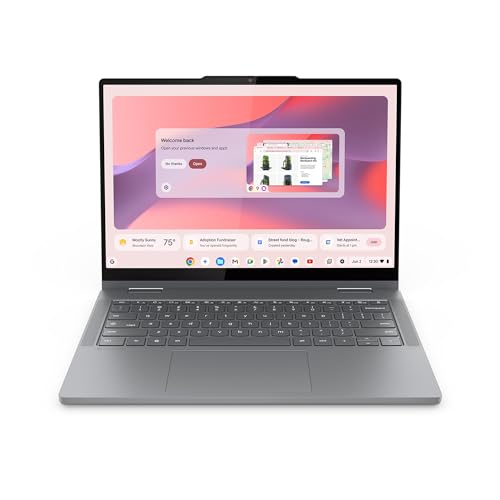
Lenovo Chromebook 2-in-1 14 — A beautiful screen on a strict memory budget
Lenovo’s entry makes one lavish decision and one austere one, and the review’s job is to keep both in view. The lavish decision is the screen: a 14-inch WUXGA IPS touchscreen, as sharp as the Acer’s, in a lightweight Luna Grey body, with Google Gemini woven into the software story. For reading, streaming and document work — the things this machine will actually do — that panel is a daily pleasure out of proportion to the price class. Folded into tent mode it is a fine little cinema; flattened, a generous reading surface.
The austere decision is 4GB of memory behind an Intel N150, with 128GB of UFS storage. Four gigabytes is the figure around which this entire guide’s caution revolves. In Chrome OS it remains workable — the system is light — provided the owner’s habits are orderly: a modest number of tabs, streaming rather than a dozen pinned web applications, calls taken with other heavy pages closed. Owners who browse like researchers, with forty tabs held open as a filing system, will feel the ceiling within the first week, and no setting raises it.
So the Lenovo is a machine for a known, tidy user: the student with a managed tab habit, the household’s second computer, the travelling reader who wants the sharpest cheap screen that folds. It is not a machine for the digital packrat. That is a narrower recommendation than the Acer earns, and deliberately so. Readers who recognise their own tidy habits can check the Lenovo Chromebook listing on Amazon for the configuration currently on sale.
Gemini’s presence in the title is worth one sentence of calibration. Google’s AI assistance can summarise and draft inside the ecosystem, and for students it is a genuine convenience — but it is a software feature that evolves with the platform, not hardware you are buying, and it should weigh accordingly against memory and screen figures that will not change for the machine’s whole life.
- Display: 14-inch WUXGA IPS touchscreen
- Processor: Intel N150 CPU
- Memory: 4GB RAM
- Storage: 128GB UFS storage
- Graphics: Integrated Intel Graphics
- Software note: Google Gemini named in the title
- Colour: Luna Grey
Strengths
- A WUXGA IPS panel at this level flatters reading and streaming daily.
- UFS storage is a step above the slowest eMMC in responsiveness.
- Lightweight positioning suits a carried, household-shared life.
Trade-offs
- 4GB of memory enforces strict tab discipline.
- The N150 leaves no headroom beyond light duties.
- Its recommendation narrows to tidy, browser-centred users.
Best for: a tidy-tabbed student or household reader who wants a 14-inch WUXGA folding screen and lives inside the browser. Not suited for: a researcher-style browser who keeps dozens of heavy tabs resident, because the stated memory is 4GB.
Reading is where the Lenovo quietly wins its share of recommendations. A WUXGA panel shows more of a page at a legible size than the FHD screens around it, and in tablet or tent posture — the postures of the armchair and the kitchen table — that extra text per screen is the difference between reading and scrolling. Students working through long set texts, and households whose machine doubles as the recipe and news screen, will use that advantage every day, long after the memory discipline has become habit. Buy the Lenovo for its page, and organise your tabs around its ceiling.

HP Chromebook x360 14 — The floor of the class, honestly built
HP’s x360 14 is the simplest proposition in the guide and should be judged as such. The title offers a 14-inch FHD IPS touch display in a 2-in-1 body, an Intel Processor N100, 4GB of memory and 64GB of eMMC storage, in Sky Blue. There is no WUXGA flourish and no memory generosity — this is the floor specification of the modern Chromebook convertible, from a major manufacturer, with the support and update structure that stands behind a big brand’s education and household lines. For the buyer whose brief is a folding touchscreen for a child’s schoolwork or a parent’s browsing, that plainness is the appeal.
The limits, again, must be said straight. Sixty-four gigabytes is the smallest storage figure in this guide: the operating system, its updates and a modest set of Android applications fit, and after that the machine is a cloud terminal by necessity. Four gigabytes of memory imposes the same tab discipline as the Lenovo. The N100 is an efficiency processor for light work. None of this is hidden by HP’s title, which is to its credit — the machine is exactly what it says, and what it says is: browser, documents, calls, streaming, folded however you like.
Within that brief, the x360 hinge and the FHD IPS panel keep the experience respectable; text is adequately sharp at fourteen inches, viewing angles suit the folded postures, and the Sky Blue finish gives a school machine a little personality. Buyers should simply refuse to ask it for more than its title promises. Families pricing the floor of the class can view the HP x360 14 listing on Amazon to confirm the build on offer.
One audience deserves direct address: grandparents and first-time computer owners. For them the Chromebook proposition — nothing to maintain, nothing to break in software, a screen that folds toward them for video calls with family — is arguably stronger than for anyone else in this guide, and the HP’s simplicity is a feature aimed at exactly that life. The person gifting it should set up the account and the call shortcuts; the machine does the rest.
- Display: 14-inch FHD IPS touch, 2-in-1
- Processor: Intel Processor N100
- Memory: 4GB RAM
- Storage: 64GB eMMC
- Operating system: Chrome OS
- Colour: Sky Blue
- Battery figure: Not stated in the listing title — verify with the manufacturer documentation
Strengths
- A major-brand Chromebook convertible at the floor specification, plainly titled.
- FHD IPS touch keeps folded viewing angles and text respectable.
- Chrome OS simplicity suits children and first-time owners.
Trade-offs
- 64GB of eMMC is the smallest storage in this guide.
- 4GB of memory and an N100 cap it at light duties.
- No WUXGA sharpness — the Acer and Lenovo screens outclass it.
Best for: a child, a first-time owner or a household wanting a simple folding Chromebook for browser, calls and schoolwork. Not suited for: local media storage or heavy multitasking, because 64GB of storage and 4GB of memory are hard ceilings.
Support structure is the HP’s unlisted specification. A global brand’s Chromebook carries its update policy, its parts pipeline and its warranty network behind it, and at the floor of the market — where a failure is a larger share of the purchase — that backing has real value against an unknown badge. The x360’s title does not mention it because titles never do, but buyers choosing between this machine and a cheaper no-name convertible should price the difference in who answers when something goes wrong. With HP, someone does, through channels that are published and staffed.

ASUS Chromebook Flip CX1 — 8GB and a NanoEdge screen
ASUS splits the difference between the Acer’s completeness and the HP’s austerity, and lands on a sensible middle. The Flip CX1’s title gives a 14-inch FHD NanoEdge touchscreen with an explicit 360-degree hinge, an Intel Celeron N4500 processor, 128GB of eMMC storage and — the figure that elevates it — 8GB of memory, in Transparent Silver. The NanoEdge name describes slim bezels, so the 14-inch panel lives in a tidier body than older designs, and the explicit statement of the full 360-degree fold is a small honesty some listings leave implied.
The processor is where the compromise sits. The Celeron N4500 is an older, modest part — adequate for Chrome OS’s demands, slower than the Acer’s i3-N305 in the moments where a page is heavy or an application is ambitious. ASUS has spent the budget on memory and screen instead of silicon, which is a defensible allocation for a browser machine: tabs stay open, the panel stays pleasant, and the waiting happens in smaller doses than a 4GB machine with a faster chip would impose. Buyers choosing between this and the Acer are really choosing between the ASUS’s value position and the Acer’s stronger processor, sharper WUXGA resolution and hardened matte glass.
For the household that wants the fold, the memory comfort line and a trusted badge without reaching for the class’s top, the CX1 is a coherent answer. Its title is silent on webcam resolution and wireless generation, so those join the documentation checklist for call-heavy buyers. Shoppers in that middle lane can look over the Flip CX1 listing on Amazon for the current configuration.
The 360-degree wording matters for one more reason: at this price, some folding laptops stop at a lay-flat angle or a partial fold dressed in convertible language. ASUS states the full rotation in the title, so tent and tablet postures — the postures that justify the entire category — are promised in writing. In a class where several titles leave the hinge’s range vague, a stated 360 degrees is worth recording as a strength.
- Display: 14-inch FHD NanoEdge touchscreen, 360-degree
- Processor: Intel Celeron N4500
- Memory: 8GB RAM
- Storage: 128GB eMMC
- Operating system: ChromeOS
- Colour: Transparent Silver
- Webcam: Not stated in the listing title — verify with the manufacturer documentation
Strengths
- 8GB of memory clears the Chrome OS comfort line.
- The 360-degree fold is stated explicitly in the title.
- NanoEdge bezels keep a 14-inch screen in a tidy body.
Trade-offs
- The Celeron N4500 is the oldest processor among the Chromebooks here.
- FHD resolution trails the WUXGA panels of the Acer and Lenovo.
- Webcam and wireless details are absent from the title.
Best for: a household wanting 8GB of memory and a stated full 360-degree fold from a major brand at the class’s middle. Not suited for: a desk where the sharpest screen in the class is the priority, because this FHD panel sits below the WUXGA picks.
Set the CX1 beside the Lenovo and the class’s central trade comes into focus: memory against resolution. The ASUS gives the browser room to breathe and settles for FHD; the Lenovo gives the page extra sharpness and asks the browser to behave. Neither allocation is wrong, but they suit different tempers — the multitasker who flips between a document, a call and a dozen sources should take the memory, while the reader who lives inside one long document at a time should take the resolution. Naming your own temper honestly is worth more than any benchmark at this price.

Cleriver 15.6 2-in-1 — Windows at this price, with the caveat in the chip
Now the Windows exception, and the review will not dress it up. The Cleriver is a 15.6-inch FHD touchscreen convertible running Windows 11 Pro with an office suite mentioned in the title, built on an Intel Core m3 8100Y — a low-power chip from an earlier era, credited here with speeds up to 3.40 GHz — with 16GB of memory, a 512GB SSD, dual-band wireless described as 2.4G and 5G, and USB 3.0. The memory and storage figures are the largest in this guide by a wide margin. The processor is the oldest in this guide by a wide margin. Both facts are the product.
What that combination feels like: Windows itself, documents, email and a browser with a sensible number of tabs run acceptably, and the big SSD means nothing ever waits for storage space. What it does not feel like is a modern laptop — heavy web applications, large spreadsheets, photo work and any game beyond the lightest will move at the m3’s pace, which is a walking pace. The 15.6-inch screen, the largest here, makes the machine a desk-and-sofa device rather than a carried one, and the folding touchscreen serves media and presentation postures more than tablet reading at that size.
Who should buy it? The Windows-dependent buyer with a genuinely light workload and a hard budget: the home office running one accounting program, the student whose school insists on Windows for a single application, the household that needs a big folding screen for calls and documents. Who should not: anyone whose Windows need is a demanding application, because this chip will make that application miserable. Small-brand support is the other honest caveat — documentation and service rest with the seller rather than a global network. Buyers in the first group can check the Cleriver listing on Amazon, reading its terms with the care small-brand purchases deserve.
The office suite mention deserves a measured sentence. Cleriver’s title says an office suite is included with the Windows 11 Pro installation; what suite, under what licence term, is not specified, and buyers for whom that software is the point should confirm its identity and duration in the listing before valuing it. Treat it as a possible bonus, not a priced feature.
- Display: 15.6-inch FHD touchscreen, 360 flip
- Processor: Intel Core m3 8100Y, up to 3.40 GHz as stated
- Memory: 16GB RAM
- Storage: 512GB SSD
- Operating system: Windows 11 Pro, office suite mentioned in the title
- Wireless: 2.4G and 5G dual-band as described in the title
- Ports: USB 3.0 named in the title
Strengths
- 16GB of memory and a 512GB SSD dwarf the Chromebooks’ figures.
- Full Windows 11 Pro runs the applications Chrome OS cannot.
- The 15.6-inch screen is the largest canvas in the guide.
Trade-offs
- The m3-8100Y is an ageing, low-power chip that caps everything.
- Small-brand documentation and support rest with the seller.
- At 15.6 inches the fold serves a desk, not a hand.
Best for: a Windows-dependent buyer with a light workload who needs 512GB of storage and a big folding screen on a hard budget. Not suited for: a demanding essential Windows application, because the m3-8100Y will run it at a walking pace.
The big screen deserves one fair paragraph of its own. Fifteen-point-six inches of folding touchscreen is a genuinely useful shared surface: a film for two on a train table in tent mode, a recipe at reading distance, a grandparent’s video call large enough to feel like a visit, a document presented across a kitchen table. The Cleriver’s buyers are often households rather than individuals, and for a household the screen is the machine — the chip’s pace matters in the moments of waiting, but the screen is present in every moment of use. Judge the trade with your own household’s patience in mind.

BWPED 15.6 2-in-1 — The same recipe, a second label
The BWPED is the Cleriver’s near-twin, and honesty requires saying so in the first paragraph rather than manufacturing differences. Its title offers the same Core m3-8100Y, the same 16GB of memory, the same 512GB SSD, a 15.6-inch FHD IPS touchscreen with a 360-degree flip, and Windows 11 Pro, positioned for work, study and travel. The stated differences are in the connectivity lines — WiFi 5 and Bluetooth 5.1 are named here, where the Cleriver names dual-band bands and USB 3.0 — and in the IPS panel technology the BWPED specifies where the Cleriver leaves the panel type unstated. That is the sum of it: two small brands selling the same recipe, separated by listing details rather than by engineering.
Everything said about the m3’s pace applies unchanged. This is a Windows machine for light duties — documents, browsing, calls, streaming, the occasional essential Windows program run patiently — with storage and memory figures that embarrass the Chromebooks and a processor that explains the price. The FHD IPS panel is a genuine point in its favour for the folded postures, since IPS holds colour and brightness at the angles tent and presentation modes create. WiFi 5, while a generation behind the Acer’s 6E, remains entirely serviceable on home networks.
Choosing between the twins comes down to the listings themselves: which seller’s terms, warranty wording and current configuration read better on the day you buy, and whether the Cleriver’s office-suite mention or the BWPED’s specified IPS panel matters more to you. That is a legitimate way to decide, and this guide will not pretend a deeper distinction exists. Buyers cross-shopping the pair can open the BWPED listing on Amazon and compare its fine print directly against its twin’s.
The travel claim in BWPED’s title deserves gentle correction. A 15.6-inch convertible can travel — in a car, between home and a holiday desk — but it is not the machine anyone chooses for a life of trains and shoulder bags, and no weight figure is published to argue otherwise. Read it as a home-and-study machine that can be moved, which is the honest version of the same sentence.
- Display: 15.6-inch FHD IPS touchscreen, 360-degree flip
- Processor: Intel Core m3-8100Y
- Memory: 16GB RAM
- Storage: 512GB SSD
- Operating system: Windows 11 Pro
- Wireless: WiFi 5, Bluetooth 5.1
- Weight: Not stated in the listing title — verify with the manufacturer documentation
Strengths
- An IPS panel is specified, suiting the folded viewing angles.
- 16GB of memory and a 512GB SSD lead the guide’s capacity figures.
- Bluetooth 5.1 is named, where its twin leaves it unstated.
Trade-offs
- The same ageing m3-8100Y caps performance identically.
- WiFi 5 trails the Wi-Fi 6E Chromebook at the top of this guide.
- Its travel billing exceeds what a 15.6-inch body delivers.
Best for: a light-duty Windows user who prefers a specified IPS panel and named Bluetooth, choosing between the m3 twins on listing terms. Not suited for: a daily traveller, because a 15.6-inch convertible with no published weight is a desk machine that can be moved, not a travel machine.
One more consideration separates the twins in practice, though it lives outside their titles: the seller behind each listing is the support department, the warranty and the returns desk, all in one. Read both sellers’ terms before choosing, weigh how completely each listing answers configuration questions, and let that diligence — not a coin flip — pick your twin. At this price, with these brands, the quality of the seller is a product feature, and it is the one feature the two machines do not share.
Comparison
| Pick | System | Screen | Processor | Memory / Storage |
|---|---|---|---|---|
| Acer Spin 314 | Chrome OS | 14-inch WUXGA IPS Gorilla Glass matte | Core i3-N305 | 8GB / 128GB eMMC |
| Lenovo Chromebook 14 | Chrome OS | 14-inch WUXGA IPS touch | Intel N150 | 4GB / 128GB UFS |
| HP x360 14 | Chrome OS | 14-inch FHD IPS touch | Intel N100 | 4GB / 64GB eMMC |
| ASUS Flip CX1 | Chrome OS | 14-inch FHD NanoEdge touch | Celeron N4500 | 8GB / 128GB eMMC |
| Cleriver 15.6 | Windows 11 Pro | 15.6-inch FHD touch | Core m3 8100Y | 16GB / 512GB SSD |
| BWPED 15.6 | Windows 11 Pro | 15.6-inch FHD IPS touch | Core m3-8100Y | 16GB / 512GB SSD |
How to Choose an Inexpensive Convertible Without Regretting It
Decide the operating system by naming your single most essential application, not by preference in the abstract. If that application is a browser tab — a school platform, a web office suite, a streaming service — Chrome OS serves it with less cost, less maintenance and better security habits than Windows at this price. If that application is a named Windows program, the Chromebooks are not cheaper laptops; they are non-laptops for your purpose, and the m3 twins are your only route in this guide. Every other consideration is secondary to that one fork.
Inside Chrome OS, spend on memory before anything else. The difference between the 4GB and 8GB machines here is the difference between a browser that holds your working set and one that reloads it; over a three-year ownership that difference is felt daily, while the processor gap between the N-series chips is felt in seconds. Storage, by contrast, barely matters inside a cloud-first life — the 64GB HP is viable precisely because Chrome OS assumes the cloud — unless the machine will work offline with local media, in which case even 128GB deserves suspicion.
Inside the Windows pair, set the expectation before the order: light duties, patiently performed, on a big screen with ample storage. Then read the seller’s warranty and returns wording as if it were a specification, because with small brands it is one. Finally, whatever you choose, check the platform’s update horizon — Chrome OS devices carry a defined window of system updates by model, and a cheap machine near the end of its window is less cheap than it looks.
Should You Buy the Extended Warranty or the Better Machine Instead?
At this level the arithmetic usually favours the better machine. The step from a 4GB Chromebook to an 8GB one buys performance you will feel every day for the machine’s whole life, while a warranty buys protection against events that may never happen to hardware with few moving parts beyond the hinge. The exception is the school-bag machine bought for a young child, where accidental damage is not a possibility but a schedule — there, damage cover on a mid-tier pick can be the wisest money in the whole purchase. Decide by the life the machine will actually lead, not by the anxiety of the checkout page.
What Does the Fold Actually Add at This Price?
Sceptics ask why a cheap machine should fold at all, when the money could buy a stronger fixed laptop. The answer is in the rooms these machines live in. The fold turns a school laptop into the kitchen’s recipe screen, the sofa’s reading tablet, the grandparent’s call screen propped at a friendly angle, the child’s shared video viewer in tent mode. None of those postures requires power; all of them require the hinge. At this price the convertible format is not a luxury layered over a laptop — it is a set of household jobs that a fixed screen simply cannot do, which is why the class persists despite its processors.
Is a Cheap Chromebook Convertible Enough for School?
For the schooling most children actually receive — a browser-based learning platform, web documents, video calls with teachers, research in tabs — yes, entirely, and the folding touchscreen is a real asset for reading and group work. The conditions are worth stating. The school must live in the browser or in Android applications, which most now do; a course requiring a specific Windows program breaks the answer. And the memory tier matters for older students juggling many sources: the 8GB Acer or ASUS will age more gracefully through secondary school than the 4GB pair. Matched to a browser-based school, a Chromebook convertible is not a compromise purchase; it is the purpose-built one.
What Can the m3 Windows Machines Actually Run Well?
Documents, email, web browsing at a civilised tab count, video calls, streaming, and light administrative programs — the paperwork layer of computing — all run acceptably, helped by the 16GB of memory and the fast, roomy SSD. The chip’s limits show in heavy web applications, big spreadsheets recalculating, photo editing beyond the casual, video work of any ambition, and games beyond the lightest. Think of the twins as typewriters with excellent filing cabinets and a cinema screen attached: the filing and the viewing are genuinely good, and the engine is old. A buyer whose day is paperwork and viewing is well served; a buyer whose day includes anything heavier is not, at any storage figure.
Which Cheap Convertible Suits a Shared Family Machine?
Shared machines have their own logic: several accounts, unpredictable tasks, constant repositioning between rooms and people. Chrome OS handles the account side gracefully, with fast switching and separate spaces for each family member, which is why the Chromebooks dominate this role. Among them the Acer’s memory serves a family best — one person’s forgotten tabs are the tax every other user pays, and 8GB absorbs more forgetting. The Windows twins serve a different shared brief, the household that needs one specific Windows program for everyone; there the big screen and storage carry the day and the chip’s pace is shared equally, like everything else in a family.
How Long Will an Inexpensive Convertible Stay Useful?
Usefulness here is set less by the hinge — these folding mechanisms are simple and durable — than by software horizons and memory. Chrome OS publishes an update end date per model, after which the machine stops receiving system and browser updates; check that date for your exact model before buying, since it converts directly into years of safe service. Memory fixes the other boundary: the 8GB Chromebooks and the 16GB Windows twins have headroom to absorb years of web growth, while the 4GB machines will feel the web’s appetite sooner. A realistic plan is three to five years of light service from the stronger picks — a fair return, provided the purchase was made with the class’s limits already understood.
Accessories deserve one practical paragraph, because the cheap convertible’s ecosystem is where small sums protect large ones. A sleeve or a rigid case matters more for a folding touchscreen than for a clamshell, since the screen is the machine’s face in every posture; a spare charger kept where the machine sleeps prevents the battery anxiety that makes households abandon light devices; and a pen, if handwriting is planned, should be ordered with the machine after verifying compatibility, not discovered as an omission at the first homework session. None of these purchases is exciting, and together they decide whether an inexpensive convertible feels like a bargain or a false economy by Christmas.
Common Mistakes When Shopping at This Price
Shoppers at this level most often err by reading the two biggest numbers on the listing and stopping. The Windows twins advertise 16GB and 512GB — figures that outgun machines costing far more — and the number that governs daily speed, the m3 processor, sits quietly in the middle of the title. Read titles whole, in order, and ask which component the price actually bought. The mirror error hits the Chromebooks: dismissing them for their small storage figures without understanding that Chrome OS is designed around the cloud, so the figure matters less than the memory figure beside it.
A second recurring mistake is buying a Chromebook for a Windows obligation discovered later — a school’s exam software, an employer’s legacy program — so verify the one essential application before the order, not after the term starts. Buyers also overestimate the 15.6-inch twins as travel machines, underestimate how quickly 64GB fills with offline media, and assume a pen is included with folding touchscreens whose titles never mention one; none of the six titles here names a pen. Finally, small-brand purchases are often made without reading the seller’s warranty terms, which are the only support contract those machines have.
Offline behaviour is the last test to apply before ordering. Every Chromebook here assumes connectivity for its best life; a household with unreliable internet, or a student who works on trains and in halls without coverage, should test their essential tasks against that assumption — documents can be made available offline in Google’s ecosystem, but the habit must be built deliberately. The Windows twins, with their half-terabyte drives, carry the offline life more naturally. It is a fitting final illustration of the class’s fork: the Chromebooks are appliances for a connected home, the twins are computers for an unconnected one, and the right choice follows the house, not the headline.
Set-up day repays an hour of care with these machines, whichever badge they carry. Create the accounts for everyone who will use the device, turn on the automatic updates and leave them on, pin the handful of applications that constitute the machine’s real job, and — on the Chromebooks — make the essential documents available offline before the first journey rather than during it. On the Windows twins, remove nothing in a hurry, let the first round of system updates complete on a charger, and only then judge the pace. A cheap convertible configured calmly at the start behaves like a considered purchase; the same machine rushed into service feels like its price.
Final Recommendation
For most households and students, the Acer Chromebook Spin 314 is the inexpensive convertible to buy: it is the one pick whose processor, memory, screen and wireless all clear the class’s comfort lines at once, and its matte Gorilla Glass will outlast the school bag it lives in. The ASUS Flip CX1 is the sensible step down for the same Chrome OS life with 8GB of memory preserved; the Lenovo and HP serve tidier, lighter briefs with sharper and simpler screens respectively. Reserve the Windows twins for a named Windows obligation on a light workload, choosing between them on listing terms and the Cleriver’s suite mention against the BWPED’s IPS panel. Buy inside the class’s truth — Chromebooks and an old m3 — and it will serve you honestly; buy against it, and no hinge will save the purchase.
A note on buying for children, since so many of these machines are bought exactly that way. The relevant virtues are not speed but survivability and simplicity: a screen that resists scratches and glare, an operating system that cannot be broken by curiosity, an account structure that a parent can supervise, and an update window long enough to cover the school years intended. On those criteria the Acer Spin 314 leads this guide and the HP x360 follows it, while the Windows twins — capable as they are — ask more of their young owners in maintenance and patience. Match the machine to the child’s stage, and plan the handover of responsibility as deliberately as the purchase.
Resale and hand-me-down value close the guidance, because inexpensive convertibles often serve two owners. The branded Chromebooks hand down gracefully — a powerwash restores them to a clean state in minutes, and the receiving child or parent inherits a machine that still updates itself. The Windows twins hand down with their storage wiped and their pace unchanged, which the second owner should be told about honestly. A machine bought with its limits understood tends to be handed down with its virtues explained; a machine bought in disappointment tends to be handed down with an apology. The first kind is the one this guide is trying to sell you.
Frequently Asked Questions
Can these Chromebooks run Microsoft Office?
They run the web versions of Word, Excel and PowerPoint and the Android Office applications, which cover ordinary documents, spreadsheets and presentations well. They cannot run the full desktop Windows versions. If a specific desktop-only Office feature is essential to your work, that requirement points to the Windows picks in this guide.
Is 4GB of memory enough in a Chromebook?
Enough for a tidy user: a handful of tabs, documents, streaming and calls taken one heavy task at a time. It is not enough for dozens of resident tabs or several demanding web applications at once. Buyers who know their habits are heavy should choose the 8GB Acer or ASUS and feel the difference daily.
Why do the cheap Windows laptops use such an old processor?
Because the fold, the touchscreen, 16GB of memory and a 512GB SSD consume the budget, and the Core m3-8100Y is what remains affordable. The pairing is a deliberate trade: capacity and screen size in exchange for processing pace. It suits paperwork workloads and frustrates everything heavier.
Do any of these convertibles come with a pen?
No title in this guide names an included pen. Several of these folding touchscreens may accept a pen, but support and inclusion are separate facts, so verify both for your chosen model in the manufacturer’s documentation and budget for a pen if handwriting is part of the plan.
How do I check a Chromebook’s update end date?
Google publishes an auto-update expiration date for every Chromebook model, and the date is also shown in the device’s settings once you own it. Look the model up before ordering: a machine with years of updates remaining is a different purchase from the same machine near its end date.
Are the two Windows laptops in this guide the same machine?
Not the same product, but the same recipe: both pair a Core m3-8100Y with 16GB of memory and a 512GB SSD in a 15.6-inch folding body. They differ in stated details — the Cleriver mentions an office suite and USB 3.0, the BWPED specifies an IPS panel, WiFi 5 and Bluetooth 5.1 — and in the sellers behind them, which is where the real choice lies.
Can a cheap convertible handle video calls for remote school or work?
Yes, with the memory caveat kept in view. A call plus its accompanying document is well within every pick here; a call plus twenty tabs is where the 4GB machines strain. The Acer’s FHD webcam gives it the clearest picture of the group, while the ASUS title leaves its webcam unspecified, so call-heavy buyers should check that detail in its documentation.
Which of these is best for watching films and shows?
The folding postures make all six pleasant film screens, but the details divide them: the Lenovo’s WUXGA IPS panel shows the sharpest picture, the Windows twins offer the largest at 15.6 inches, and the Acer’s matte finish fights the reflections of a bright living room. A household buying mainly for the sofa should weigh screen size and finish above every processor figure in this guide.
Can I add storage to the Chromebooks later?
Not internally in any way worth planning around — these are sealed, cloud-first designs. External drives and cloud storage are the expansion routes, which is why the reviews treat the stated capacity as a lifestyle decision: an archive kept in the cloud suits these machines, while a large local media library points to the 512GB Windows twins.
Is it worth paying more for the Acer over the HP?
For most buyers, yes: the step buys double the memory, double the storage, a sharper WUXGA panel behind hardened matte glass, a stronger processor and faster Wi-Fi — improvements distributed across every day of ownership rather than concentrated in one feature. The HP remains the right answer only where the budget is truly fixed or the user’s needs are known to be minimal.
Related Guides
Buyers whose budget stretches past this class should see what the next tier buys in the best Windows budget laptops, where clamshells trade the fold for stronger basics, and in the best midrange convertible laptops, where the folding format gains modern processors.
Related guides
- Best 17 Laptops: The Complete Tier-by-Tier Guide to Big-Screen Machines
- Best 4K Monitors for MacBook Pro: USB-C Panels With Real Power Delivery
- Best Routers for Remote Work: VPN Gateways, Travel Routers and Home Wi-Fi That Holds a Call
- Best Sim Racing Monitors: Ultrawide Cockpits From 34-Inch OLED Speed to the 49-Inch Wrap


