What's inside
- Where to Buy These Drives
- Key Takeaways
- Quick Picks
- How Did We Choose These Picks?
- Which Drives Earn a Place in the Camera Bag?
- Why Do Photographers Still Buy Spinning Drives at All?
- How Should a Photographer Actually Structure Backups?
- How Do You Ingest a Shoot Without Inviting Disaster?
- What Should Happen to Drives as the Archive Grows?
- How Does the Arithmetic of a Shooting Year Point to a Size?
- What Does Travelling Well With Hard Drives Actually Involve?
- How Should You Format and Organise a Photo Drive?
- What Are the Early Signs That a Photo Drive Is Failing?
- How Long Should You Keep Client Work, and Where?
- What Should You Do the Day a New Drive Arrives?
- How Do the Six Picks Compare Side by Side?
- What Mistakes Do Buyers Keep Making?
- Final Recommendation
- Frequently Asked Questions
- Related Guides
As an Amazon Associate I earn from qualifying purchases. This post may contain affiliate links at no extra cost to you.
widgetverdict.com is reader-supported. When you buy through links on our site, we may earn an affiliate commission.
Where to Buy These Drives
Amazon carries every drive reviewed here, and the product links in the Quick Picks table and under each detailed heading take you to the exact listing, capacity, and colour discussed. Photographers should double-check the capacity in the listing title before ordering, because the My Passport family packs several sizes into identical-looking shells and search results happily mix them together on a busy results page.
A photographer’s drive lives two lives. In the field it is the safety net under a day of unrepeatable work, swallowing memory cards in a hotel room, a car, or a tent. At home it becomes part of the archive, where years of raw files quietly accumulate. This guide to the best external hard drives for photographers covers both lives, with portable drives for the camera bag and one large desktop unit for the studio shelf.
Speed matters to photographers, but honesty matters more: every pick here is a spinning hard drive, chosen for capacity per cost and proven reliability rather than the sprint pace of a solid-state drive. For ingesting cards after a shoot and holding deep archives, that trade remains the right one for most working photographers, especially as raw files from modern high-resolution cameras swell into tens of gigabytes per card.
The six picks are deliberately varied. Three sizes of the mainstream WD My Passport cover most bags, the My Passport Ultra adds USB-C and a metal finish, the LaCie Rugged Mini brings a shock-resistant shell with a bundled case, and the 14TB WD Elements Desktop anchors the home end of the workflow, where a photographer’s real archive should live.
Key Takeaways
- Field drives and archive drives do different jobs; most photographers need one of each rather than one drive doing both badly.
- Spinning drives still win on capacity for the money, which is what raw-file archives consume fastest.
- Backup software with password protection, as the My Passport line offers, helps when drives travel with client work.
- A rugged shell is worth having in a camera bag, but it never replaces a second copy stored somewhere else.
- Keep at least three copies of irreplaceable shoots, on two different kinds of storage, with one copy off site.
- The 14TB desktop drive in this guide is an archive anchor, not a travel companion; treat it accordingly.
Quick Picks
| Pick | Badge | Why it earns a place |
|---|---|---|
| WD 2TB My Passport, Portable External Hard Drive, Black | Best starter field drive | A sensible first backup drive for photographers whose archive still fits in modest space and whose bag is already heavy. |
| WD 4TB My Passport, Portable External Hard Drive, Black | Best all-round portable for photographers | The middle My Passport is the sweet spot: enough room for a serious working archive that still travels in the bag. |
| WD 6TB My Passport, Portable External Hard Drive, Black | Best high-capacity portable | Six terabytes in a portable shell serves photographers whose archive travels with them and cannot be left at home. |
| WD 5TB My Passport Ultra, Portable External Hard Drive, Blue | Best for USB-C laptop users | The Ultra pairs 5TB with USB-C connectivity and a metal finish, suiting photographers on modern laptops. |
| LaCie Rugged Mini USB 3.0 2TB External Hard Drive with Case Logic Case | Best for rough camera bags | The Rugged Mini’s shock-resistant design, bundled here with a Case Logic case, is built for bags that get knocked about. |
| Western Digital 14TB Elements Desktop External Hard Drive | Best home archive anchor | Fourteen terabytes of plug-and-play desktop storage gives a photographic archive room for a decade of growth. |
How Did We Choose These Picks?
We judged these drives against a photographer’s actual week rather than a benchmark chart. That means card ingestion after a long shoot, cataloguing in the evening, delivering client galleries, and the slow, endless growth of a raw archive. A drive that excels here needs dependable sustained writing, painless connections to both older and newer laptops, and enough capacity that the photographer stops deleting borderline frames just to make room.
The My Passport family anchors the list because it is the portable line photographers actually buy in volume: several capacities, bundled backup software with password protection and ransomware defence as the listings describe, and USB connectivity that works with the mixed fleet of laptops found in studios. We included three capacities because the right size is a genuine decision, not an upsell, and each size suits a different shooting volume.
The LaCie Rugged Mini earns its place on reputation earned in the field. Its shock-resistant design and the bundled Case Logic case in this listing speak to the way camera bags are actually treated: set down hard, rained on, and hauled through airports. The WD Elements Desktop, meanwhile, represents the unglamorous truth that archives belong on a big, stationary, always-plugged-in drive at home.
We left solid-state drives out of the picks on purpose. They are wonderful for active editing and fast ingestion, and many photographers should own one, but this guide answers the capacity question, and on capacity per cost the spinning drives below remain unchallenged. Mixing the two categories in one ranking would have produced a list that served neither job well.
Which Drives Earn a Place in the Camera Bag?

WD 2TB My Passport, Portable External Hard Drive, Black — Best starter field drive
The 2TB My Passport is where many photographers’ backup habits properly begin. It is small enough to disappear into a camera bag’s accessory pocket, draws its power from the USB connection so no separate supply joins the tangle in your luggage, and holds a working photographer’s active projects with room to breathe. For a hobbyist shooting weekends or a professional whose archive lives elsewhere, 2TB of travel backup is a rational, unglamorous purchase.
WD bundles backup software with this line, described in the listing as including defence against ransomware, alongside password protection for the drive’s contents. Used properly, the software turns the evening card dump from a manual chore into a routine: plug in, let the day’s cards copy across with a backup of the catalogue, and sleep. The password protection matters more than photographers admit, because a lost drive containing a wedding or a commercial shoot is a client-relations emergency, not just a hardware loss.
Two terabytes fills faster than newcomers expect. A single busy wedding on modern high-resolution bodies can consume a meaningful slice of it, and a photographer shooting several events a month will outgrow this size within a season or two. That is not a flaw in the drive; it is the arithmetic of raw files, and it is why this size is positioned here as the starter and the second-copy drive rather than the whole archive.
There is a respectable second life for this drive after you outgrow it as the main field disk. It becomes the off-site copy you leave with a trusted person, the drive that holds finished client galleries for a year, or the spare that travels in a different bag from the main backup, which is exactly where backup theory says a copy should be.
Buy it if your archive is young, your shoots are occasional, or you need a compact extra copy to complete a sensible backup arrangement. Step up to the 4TB or 6TB versions below when the maths of your shooting volume says this one will be full before the year is out.
- Capacity: 2TB
- Colour: Black
- Connection: USB 3.1 / USB 3.0
- Software: backup with ransomware defence, per listing
- Security: password protection
- Format: portable, bus-powered
Strengths
- Compact and bus-powered for genuine camera-bag duty
- Bundled backup software and password protection
- Ideal size for a second or off-site copy
Trade-offs
- 2TB disappears quickly under heavy raw shooting
- Same shell as larger models, so label your drives
- No rugged protection beyond ordinary care
Best for: a photographer building a first proper backup habit, or adding a compact off-site copy to an existing setup.
Not suited for: a full-time wedding or sports shooter whose monthly raw intake would fill it before the season ends.
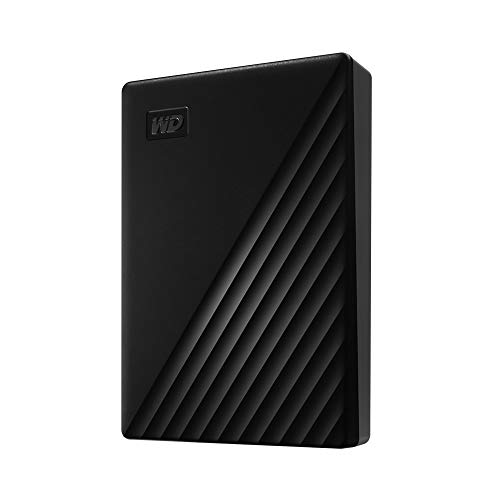
WD 4TB My Passport, Portable External Hard Drive, Black — Best all-round portable for photographers
If one drive in this guide deserves the default recommendation for photographers, it is the 4TB My Passport. Four terabytes holds a substantial working archive: a year or more of regular shooting for many professionals, complete with raw files, edited exports, and the catalogue backups that let you rebuild after a laptop failure. It does this in the same pocketable, bus-powered format as its smaller sibling, which keeps the field routine identical.
The value of that size shows up in behaviour, not specifications. Photographers with cramped drives delete aggressively, postpone backups when a copy will not fit, and fragment their archive across whatever media is handy. A 4TB field drive removes those temptations for a long stretch of a career. You copy everything, keep the borderline frames, and let editing decisions happen at the desk rather than at the point of a full disk in a hotel room.
Like the rest of the line it carries WD’s backup software with password protection, and the listing describes ransomware defence as part of that package. Set the password, because client work travels on this drive, and test your backup routine once at home before trusting it on a trip: a backup you have never restored from is a hope, not a system.
The honest limits are the family’s limits. It is a spinning drive, so ingestion of a huge card takes the time it takes, and the standard shell expects the ordinary care you would give any drive in a padded bag. Photographers whose bags live rougher lives should look at the LaCie below, and those whose archive has already passed several terabytes should look at the 6TB model or the desktop anchor.
Choose this one when you want a single portable drive that will serve as field backup and working archive for the next few years, and pair it with the desktop drive at the end of this guide when the archive outgrows the bag, as archives reliably do.
- Capacity: 4TB
- Colour: Black
- Connection: USB 3.1 / USB 3.0
- Software: backup with ransomware defence, per listing
- Security: password protection
- Format: portable, bus-powered
Strengths
- Capacity suits a serious working archive that still travels
- Same simple bus-powered routine as the smaller model
- Backup software and password protection included
Trade-offs
- Ingest speed is ordinary spinning-drive pace
- Standard shell is not a rugged design
- Heavy shooters will eventually need the 6TB or desktop
Best for: a working photographer who wants one portable drive to handle field backup and the active archive together.
Not suited for: a photographer whose archive already runs to many terabytes and who needs the desktop anchor first.
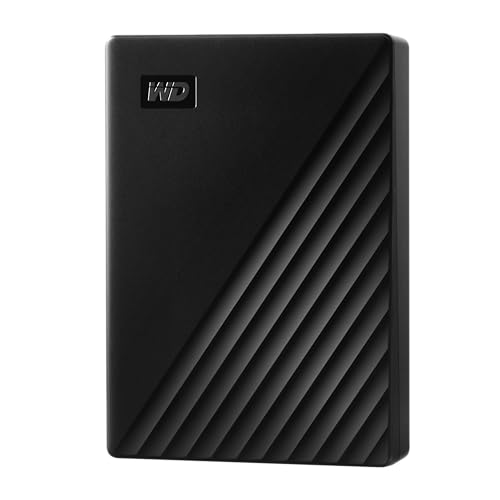
WD 6TB My Passport, Portable External Hard Drive, Black — Best high-capacity portable
The 6TB My Passport exists for photographers whose work cannot be split neatly into field and home. Documentary shooters on long assignments, landscape photographers on extended trips, and anyone whose entire archive must be reachable from a laptop in another country will understand this drive immediately: it is the largest portable in the My Passport family here, carrying a multi-year archive in a shell that still fits the bag.
That convenience concentrates risk, and this review will not pretend otherwise. A single drive holding everything is a single point of failure, theft, and loss, so the 6TB model demands the most disciplined habits in this guide: password protection switched on, a second copy of current work on another device, and finished projects mirrored to the desktop archive or cloud when you return. Used that way, its size is freedom; used carelessly, it is a larger basket for all your eggs.
In daily handling it behaves like its siblings, which is the point. The same backup software, the same bus-powered simplicity, the same USB connection to whatever laptop the trip provides. Photographers upgrading from the 4TB will feel only relief: the red-lining capacity warnings stop, the archive consolidates onto one volume, and the catalogue stops spanning drives.
Consider also what 6TB does to your deletion discipline, in a good way. Video has crept into most photographic practices, and even modest amounts of footage devour space that stills photographers budget by habit. This drive absorbs that creep without forcing a workflow redesign, which is why hybrid shooters in particular should start their shortlist here.
Buy it when the archive genuinely travels, when assignments run long, or when your stills-plus-video intake has embarrassed the 4TB class. Keep the desktop drive in your plans anyway; the day this one fills, and it will, the archive needs somewhere bigger to grow into.
- Capacity: 6TB
- Colour: Black
- Connection: USB 3.1 / USB 3.0
- Software: backup with ransomware defence, per listing
- Security: password protection
- Format: portable, bus-powered
Strengths
- Largest portable capacity in this guide
- Consolidates a travelling archive onto one volume
- Same software and password protection as the family
Trade-offs
- Concentrates a lot of irreplaceable work in one shell
- Still spinning-drive ingest speeds on long trips
- Costs more than the 4TB without adding protection
Best for: a travelling or hybrid photographer whose whole archive must stay reachable from the laptop, wherever the work is.
Not suited for: a studio-based photographer whose archive never leaves home and belongs on the big desktop drive instead.
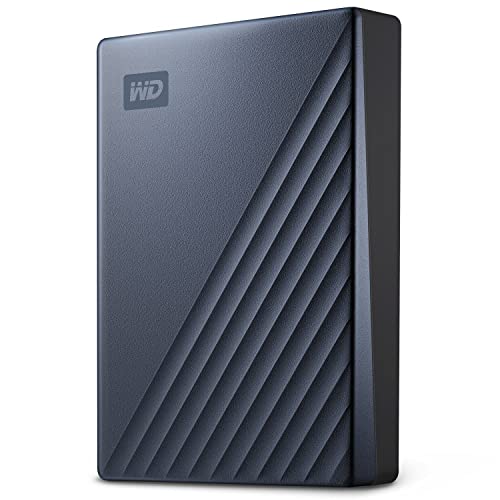
WD 5TB My Passport Ultra, Portable External Hard Drive, Blue — Best for USB-C laptop users
The My Passport Ultra is the family member aimed at photographers whose laptop has already moved to USB-C and whose patience for adapters has run out. The listing describes USB-C and USB connectivity, and in practice that means one cable between a modern laptop and 5TB of archive, with none of the dongle archaeology that field backups at midnight tend to involve. The blue metal finish also helps it stand apart from a desk of identical black drives, a small mercy anyone with several My Passports will appreciate.
Five terabytes is an interesting size: more than the mainstream 4TB, shy of the 6TB flagship, and in practice enough for a substantial working archive with headroom. Photographers who found the 4TB tight but baulk at the largest model’s price will find the Ultra’s maths friendly, particularly given the connectivity upgrade that comes with it.
The working routine matches the rest of the line: bundled backup software with password protection, bus power, and a shell that travels in a padded pocket without drama. Nothing about the Ultra changes backup theory, and this guide will keep repeating that theory because it matters more than any product here: this drive should be one copy among several, not the only place a shoot exists.
Where the standard models are anonymous tools, the Ultra is the one photographers tend to keep on the desk as the primary working archive, plugged into the main machine, with a plainer My Passport handling travel or off-site duty. That division of labour suits its design, and its finish survives desk life looking tidier than the standard shell.
Pick the Ultra if your laptop speaks USB-C natively, if you juggle several similar drives and value the visual distinction, or if 5TB is simply the size your archive’s growth curve asks for. The plainer models remain better value for pure capacity, and everyone should know that before paying for polish.
- Capacity: 5TB
- Colour: Blue
- Connection: USB-C and USB, per listing
- Software: backup with ransomware defence, per listing
- Security: password protection
- Format: portable, bus-powered
Strengths
- Native USB-C suits modern laptops without adapters
- 5TB gives useful headroom over the 4TB model
- Distinct blue metal finish stands out among other drives
Trade-offs
- Premium over standard models buys finish and connection, not speed
- Still a standard shell rather than a rugged one
- Adapter-free life only helps if your other kit agrees
Best for: a photographer on a USB-C laptop who wants the main working archive on one tidy, capacious drive.
Not suited for: a value-first buyer with USB-A machines, for whom the standard 4TB or 6TB models give more space per cost.
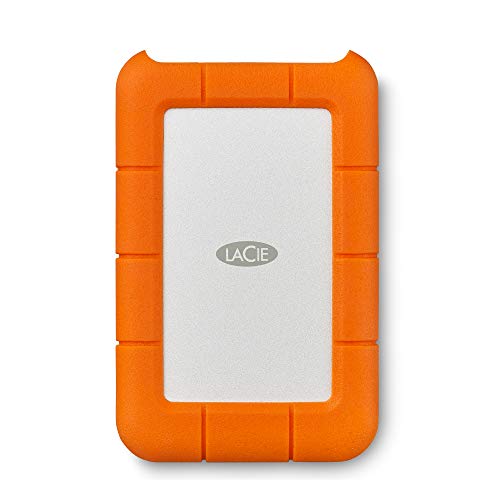
LaCie Rugged Mini USB 3.0 2TB External Hard Drive with Case Logic Case — Best for rough camera bags
The orange LaCie Rugged Mini is the drive photographers recognise across a crowded press room, and this listing bundles it with a Case Logic portable hard drive case, which tells you exactly the life it is designed for. Camera bags get dropped, kicked under aircraft seats, rained on at sidelines, and stacked under lighting cases. The Rugged line’s shock-resistant shell is built for that world in a way the standard portable drives in this guide are not.
Capacity is the compromise: 2TB is the smallest here alongside the starter My Passport, and high-volume shooters will fill it quickly. The photographers who love this drive accept that trade knowingly. It is the field copy, the drive that takes the knocks during the assignment, while the archive at home holds the deep history. Judged as armour for the current job rather than as a library, 2TB is a defensible size.
Working with it is straightforward USB 3.0, bus-powered, with no software story to learn, which many field photographers count as a virtue. It connects, it copies, it goes back in the bag inside its case. On a multi-day shoot, that simplicity, plus a shell you do not have to baby, reduces the mental overhead of the backup routine to nearly nothing, and routines with low overhead are the ones that actually happen every night.
Be clear-eyed about what rugged means. Shock resistance improves the odds when a drive falls from a table or rides in a battered bag; it does not make any spinning drive indestructible, and it never substitutes for a second copy. The photographers who trust Rugged drives most are, paradoxically, the ones who still back up the backup, because they work in the places where things break.
Choose the Rugged Mini when your shooting happens outdoors, on location, at events, or anywhere your bag leads a hard life, and when the current assignment matters more than carrying your whole history. Pair it with any larger drive from this guide at home and you have the classic professional arrangement.
- Capacity: 2TB
- Connection: USB 3.0
- Design: Rugged Mini shock-resistant shell
- Bundle: Case Logic portable hard drive case included
- Format: portable, bus-powered
Strengths
- Shock-resistant Rugged design for hard-working bags
- Bundled Case Logic case completes the travel kit
- Simple USB 3.0 routine with nothing to configure
Trade-offs
- 2TB is small for a main archive
- Rugged shell adds bulk beside standard portables
- Protection reduces risk but never replaces a second copy
Best for: a location, event, or outdoor photographer whose backup drive must survive the bag it travels in.
Not suited for: a studio photographer whose drives live on a desk and who should spend the same money on capacity instead.

Western Digital 14TB Elements Desktop External Hard Drive — Best home archive anchor
Every workflow in this guide eventually points at this drive. The 14TB Elements Desktop is the archive anchor: a large, mains-powered, plug-and-play unit that sits beside the home or studio computer and absorbs everything the portable drives bring back. Fourteen terabytes is the scale at which a photographer’s archive stops being a recurring anxiety and becomes infrastructure, holding years of raw files, finished work, and catalogue history in one place.
Its desktop nature is the deal, and buyers should embrace it knowingly. This drive does not travel, does not run from a laptop’s USB power, and does not belong in a camera bag. It belongs on a shelf or desk, plugged in, quietly being the copy that stays home while the portables roam. In backup terms it is the anchor copy, and the portables are its couriers.
Elements drives are deliberately simple: no software suite to speak of, just capacious storage that works when connected. Photographers running their own backup software or operating-system tools often prefer exactly that. Format it for your system, point your backup routine at it, schedule the routine so it happens without your involvement, and let the archive grow in an organised fashion rather than in piles of full portables.
Fourteen terabytes also changes how you treat the portables. Field drives can be wiped and reused once their contents are safely on the archive and verified, which ends the familiar hoarding of half-full drives nobody dares format. The archive becomes the library; the portables become working tools again. That psychological shift is worth as much as the capacity itself.
One caution completes the picture: a single archive drive, however large, is still a single copy. Pair it with an off-site portable or cloud storage for the work you truly cannot lose. Buy the Elements as the foundation of that system, and the rest of this guide becomes the set of couriers that feed it.
- Capacity: 14TB
- Connection: USB 3.0
- Format: desktop, mains-powered
- Use: plug-and-play storage, per listing
- Line: WD Elements Desktop
Strengths
- 14TB ends archive capacity anxiety for years
- Simple plug-and-play desktop design
- Frees portable drives to be reused as field tools
Trade-offs
- Mains-powered desktop unit that never travels
- No bundled backup software story
- Still only one copy unless paired with off-site storage
Best for: a photographer whose archive has outgrown portable drives and needs a permanent home base for the library.
Not suited for: a photographer who works entirely on the road and needs capacity that fits in the bag, not on a shelf.
Why Do Photographers Still Buy Spinning Drives at All?
Solid-state drives win every speed contest, so the question deserves a direct answer: archives are not a speed contest. A photographer’s storage problem is measured in terabytes accumulated over years, and on cost per terabyte the spinning drives in this guide beat solid-state storage by a wide margin. That margin is what lets an ordinary working photographer own several copies of the archive, and several copies protect work better than one very fast copy ever will.
There is also a workload fit. Ingesting cards and writing backups are sustained, sequential tasks where a healthy hard drive performs respectably, while the truly speed-hungry job, editing current work, usually happens from the computer’s internal storage or a smaller fast drive. Assigning each technology the job it suits keeps the whole system affordable: fast storage for the present tense, capacious spinning storage for the past.
Longevity expectations differ too. An archive drive spends most of its life either idle or doing gentle sequential work, which is a kind duty cycle for a hard drive. Kept cool, verified occasionally, and replaced on a sensible cycle of years rather than on failure, the drives in this guide give photographers exactly what an archive needs: unremarkable, dependable capacity in depth.
How Should a Photographer Actually Structure Backups?
The photographers whose work survives accidents follow some version of the three-copy rule: three copies of anything irreplaceable, on at least two different kinds of storage, with one copy kept somewhere other than home or studio. In the vocabulary of this guide, that might mean the laptop’s internal drive, a My Passport in the bag, and the Elements Desktop at home, with a second portable left at a relative’s house or a cloud service holding the finished portfolio.
The rule matters most at the moment of ingestion. Memory cards should not be formatted until the shoot exists in at least two places, and professionals treat the card itself as the second copy until the evening backup is verified. That single habit, refusing to wipe cards on a single copy, has saved more photographic careers than any drive feature ever marketed.
Verification is the step amateurs skip. Open a handful of files from the backup, confirm the catalogue points at the copies correctly, and occasionally restore a whole folder to prove the system works. A backup routine that has never been tested is a story you tell yourself, and the time to discover its gaps is a quiet Tuesday, not the morning a client asks for last year’s files.
How Do You Ingest a Shoot Without Inviting Disaster?
Build a routine boring enough to survive exhaustion, because the dangerous ingestion is the one done at midnight after a fourteen-hour wedding. Same order every time: cards out, copy to the laptop or field drive, verify the count and open a sample, back up to the second drive, and only then consider the cards safe to reuse, ideally the next day rather than the same night.
Folder discipline pays for itself within a month. Date-first folder names with a short shoot description make archives searchable years later without any software, and keeping the catalogue backup beside the images means a rebuilt system finds everything where it expects. Photographers argue about software endlessly; nobody who kept clean dated folders has ever regretted it.
Power and cables are the unglamorous failure points. Ingest on mains power where you can, use the cable that came with the drive rather than a mystery spare, and never move a portable drive while it is writing. Spinning drives forgive a great deal, but being slid across a hotel desk mid-copy is not on the list, and most corrupted transfers trace back to a moment of impatience rather than a defective product.
What Should Happen to Drives as the Archive Grows?
Archives grow in one direction, so plan the succession rather than improvising it. A common, healthy pattern is the one this guide’s picks naturally form: the largest portable becomes the travel archive, the previous portable retires to off-site duty, and the desktop anchor absorbs everything permanently. Each drive’s job gets safer as it ages, which matches the trust you should place in it.
Label drives physically with their role and purchase date. A strip of tape and a marker prevent the classic archive accident, formatting the wrong identical black drive, and the date tells you when a drive should be demoted or replaced. Photographers who shoot for a living replace archive drives on a cycle of a few years, copying forward to fresh media before the old drive shows any sign of trouble.
Retired drives are not bin drives. Wipe them properly if they held client work, keep one as a cold spare, and remember that a five-year-old portable with a verified copy of an old season is a perfectly good third copy. The archive mindset is cumulative: capacity, copies, and calm all increase together when the succession is planned.
How Does the Arithmetic of a Shooting Year Point to a Size?
Photographers choose drive sizes by feel and then live with the consequences for years, so it is worth doing the rough sum once. Estimate your annual intake honestly: count a typical month of raw files, add the video you actually shoot rather than the video you plan to shoot, and multiply by twelve. Then double it if a camera upgrade is anywhere in your near future, because higher-resolution bodies have never once produced smaller files. The result is the capacity your archive consumes annually, and it usually surprises people by being larger than their intuition suggested.
Against that number, the sizes in this guide sort themselves. A photographer adding a few hundred gigabytes a year can treat the 2TB My Passport as a multi-year field drive and the 4TB as a luxury. A busy professional adding a terabyte or more annually should read the 4TB as the minimum sensible portable, the 6TB as the comfortable one, and the desktop Elements as inevitable rather than optional. The drive that looks oversized in January looks prescient by December, because archives only ever move in one direction.
Keep working space in the calculation too. A drive that is ninety percent full is a drive you cannot defragment your habits around: copies get postponed, second copies get squeezed, and the temptation to delete borderline work returns. Aim to retire a portable from front-line duty when it passes roughly three-quarters full, demoting it to the off-site or finished-projects role described earlier in this guide. That habit turns capacity planning from a crisis into a rotation.
Finally, count the catalogue and the exports. Finished galleries, portfolio masters, and delivered client files are smaller than raw archives but far from negligible over a career, and they are often the files clients actually ask for years later. A sizing decision that includes them, plus a year of growth, plus working headroom, is the difference between buying a drive and buying a system.
What Does Travelling Well With Hard Drives Actually Involve?
Airport security, hotel rooms, and weather conspire against portable drives in small, predictable ways, and experienced travelling photographers counter each one with an equally small habit. Drives travel in hand luggage, never in checked bags, because the hold subjects them to impacts, temperatures, and the possibility of the bag simply going elsewhere. Two copies travel in two different bags for the same reason, so a single lost backpack cannot take the assignment with it.
In the room, the routine from earlier in this guide applies with extra force: copy, verify, back up, and keep the cards. Add one travel-specific step and photograph your drive labels or record serial numbers in your phone, so a lost drive can be identified and reported precisely. Hotel safes are mediocre security, but a drive in a locked case inside your luggage is at least a deliberate target rather than a casual one, and password protection, switched on before departure, covers the scenario where those layers fail.
Weather deserves a mention because field photographers work in it. A drive that has been in a cold car or a damp bag should be allowed to reach room conditions before it is spun up, and the Rugged Mini in this guide earns its keep precisely in the seasons when bags get wet and kit gets knocked. None of the drives here should be treated as waterproof, whatever their shells suggest, so a sealed plastic bag inside the camera bag remains the simplest protection a travelling photographer can carry, offered as plain practice rather than poetry.
On the journey home, resist the urge to tidy up. The trip’s files should arrive, be copied to the archive anchor, and be verified there before any portable is wiped for the next assignment. Photographers lose work at the seams between trips far more often than during them, in the well-meant hour of clearing space. Let the archive confirm receipt first; the formatting can wait a day.
How Should You Format and Organise a Photo Drive?
Formatting is the least exciting decision in this guide and one of the most consequential. A drive that must move between Windows and Mac machines needs a file system both can write to, while a drive that lives with one operating system is usually happiest in that system’s native format, which handles large archives and permissions more gracefully. Decide based on the machines the drive will genuinely meet, including the borrowed laptop on a trip, rather than the machine on your desk today, and reformat before the drive enters service, never after it fills.
Organisation inside the drive deserves the same one-time care. A single dated folder per shoot, named year first so the archive sorts itself, with the catalogue backup stored alongside, will still make sense in a decade and to any other photographer who has to find something in your absence. Resist elaborate category trees that depend on your memory of where things live; dates are the one filing system nobody forgets how to read.
Keep one folder at the root called something unmistakable for the current project, so the work in progress is never buried inside the archive proper. When the project finishes, it moves into its dated home and the working folder empties for the next one. This small theatre of tidiness prevents the most common archive accident of all: delivering, deleting, or overwriting a file because two versions lived in confusingly similar places.
What Are the Early Signs That a Photo Drive Is Failing?
Hard drives rarely die theatrically; they fade. Copies that once took an evening begin taking noticeably longer. A drive occasionally fails to appear when connected, then behaves after a reconnect. Faint clicking or repeated spin-up sounds appear during large transfers. Files that opened last month report errors. Each of these is a drive asking, politely and then less politely, to be retired from front-line duty while its contents can still be copied calmly.
The correct response is boring and urgent in equal measure: stop adding new work to the drive, copy everything off it to a healthy destination, verify the copies open, and only then decide whether the drive merits testing or simply replacement. Photographers who reverse that order, testing and prodding a fading drive while it still holds the only copy of a season, occasionally watch the drive finish dying mid-diagnosis.
Build the replacement into the budget rather than treating it as a surprise. A portable that has served several years of travel has earned its retirement even if it still passes every check, and demoting it to a third-copy role, as this guide suggested earlier, extracts remaining value without betting a career on it. Archives are marathons, and the drives that carry them should be rotated like the working tools they are.
Above all, let the signs change your behaviour the first time, not the third. The photographers who lose archives almost always report, afterwards, that the drive had been acting strangely for weeks. Strange is information. Act on it while acting is still cheap, and the story ends with a new drive and a verified copy instead of a data-recovery quote and a difficult phone call to a client.
How Long Should You Keep Client Work, and Where?
Every photographer’s archive quietly becomes a promise to past clients. The couple who lost their wedding files to a house fire, the business whose rebrand needs the original product shots, the family returning after a bereavement for prints of someone who has died: all of them assume you kept the files. Deciding how long to keep client work, and storing it so the promise can be honoured, is a professional policy question that the drives in this guide make practical to answer generously.
A workable policy for many photographers is to keep everything for a defined period measured in years, keep portfolio and landmark work indefinitely, and tell clients the arrangement plainly in the contract so expectations match reality. The 14TB desktop anchor makes the generous version of that policy affordable, which is precisely its role: the archive as a professional asset rather than a growing pile of full portables nobody dares to wipe.
Retrieval matters as much as retention. A kept file you cannot find is a broken promise with extra steps, so the dated-folder discipline described earlier earns its keep here, and a simple spreadsheet or catalogue collection listing major clients and their shoot dates turns a half-hour search into a two-minute one. Test yourself once: pick a client from three years ago and time how long the original raw files take to reach. That number is your archive’s real report card.
When the defined period expires for ordinary work, delete deliberately rather than by neglect, and record what was removed. Clients who return after the window are owed honesty, not an archaeological dig through failing drives. The photographers with the calmest archives treat retention as a promise with dates attached, kept on capacious, organised storage, and reviewed once a year like any other part of the business.
What Should You Do the Day a New Drive Arrives?
Resist the urge to fill a new drive immediately. Connect it, confirm the computer reports the capacity you ordered, and check the label and listing details match, because the My Passport family resemblance has sent more than one photographer home with the wrong size. Format it for your machines if the factory format does not suit, give it a clear name that includes its role and year, and stick a physical label on the shell saying the same thing.
Then run one honest test before trusting it with a shoot: copy a full card’s worth of real files to it, open a sample from the copy, and time the transfer so future slowness has a baseline to be judged against. Put the receipt somewhere findable, note the purchase date on the label, and introduce the drive into the rotation at the safest position first, as the second copy rather than the only copy, until it has a few uneventful weeks behind it. New drives earn trust the same way assistants do, by doing ordinary work reliably while somebody is still paying attention.
One more small discipline ties the whole system together: keep a single written note, on paper or in a document stored with the catalogue, listing every drive you own, what it holds, where it lives, and when it entered service. Photographers accumulate drives the way they accumulate lenses, and memory is a poor inventory system for objects that all look alike. When a client calls, when a drive fails, or when you simply wonder whether a season is safely stored twice, that note answers in seconds. It takes ten minutes to start and a minute a month to maintain, and it is the difference between an archive and a drawer of mysteries.
Treat that inventory as part of the archive itself and review it whenever a drive changes role, fills up, or leaves the building for off-site duty, because a note that drifts from reality is worse than none.
How Do the Six Picks Compare Side by Side?
| Pick | Capacity | Interface | Standout trait |
|---|---|---|---|
| WD 2TB My Passport, Portable External Hard Drive, Black | 2TB | USB 3.1 / USB 3.0 | Starter and off-site copy |
| WD 4TB My Passport, Portable External Hard Drive, Black | 4TB | USB 3.1 / USB 3.0 | All-round working archive |
| WD 6TB My Passport, Portable External Hard Drive, Black | 6TB | USB 3.1 / USB 3.0 | Largest travelling archive |
| WD 5TB My Passport Ultra, Portable External Hard Drive, Blue | 5TB | USB-C and USB | Modern-laptop friendly Ultra |
| LaCie Rugged Mini USB 3.0 2TB External Hard Drive with Case Logic Case | 2TB | USB 3.0 | Rugged shell plus bundled case |
| Western Digital 14TB Elements Desktop External Hard Drive | 14TB | USB 3.0 | Desktop archive anchor |
What Mistakes Do Buyers Keep Making?
Formatting memory cards the moment a single copy finishes is the mistake that ends photographic businesses. Cards are cheap compared with a reshoot that can never happen, so treat them as a copy until the files exist twice and have been opened. Every drive in this guide can be part of a safe routine; none of them can rescue a card that was wiped over a corrupt only copy.
Buying capacity for the archive you have, rather than the one you are creating, guarantees a repeat purchase within the year. Raw files grow with every camera upgrade, and video sneaks into photographic practices whether invited or not. Photographers consistently underestimate their annual intake by half; buy the size that feels slightly excessive and it will feel correct by next season.
Keeping every copy in one building is a quieter mistake. Fire, flood, and theft do not respect backup routines, which is why the off-site copy exists in every sensible system. A portable from this guide left with family or in a workplace locker completes the arrangement for the cost of one drive, and it is the copy that matters on the worst day.
Finally, photographers neglect the catalogue. Images without the catalogue that organises their edits are a diminished asset, so back the catalogue up with the same devotion as the raw files, keep it on the same schedule, and test that a restored catalogue actually opens the restored images before you call the system finished.
Final Recommendation
Most photographers should start with the 4TB My Passport as the field and working drive, add the 14TB Elements Desktop as the home anchor when the archive demands it, and let the other picks answer their specific circumstances: the Ultra for USB-C laptops, the Rugged Mini for hard-living bags, the 6TB for archives that travel whole, and the 2TB as the extra copy that completes the set.
Your photographs are the one part of your kit that appreciates with time rather than depreciating, so give them storage that treats them that way, copy tonight’s cards twice before you sleep, and let the archive grow boring, organised, and safe.
Frequently Asked Questions
Should photographers just buy an SSD instead?
For active editing and the fastest card ingestion, an SSD is excellent, and many photographers should own a small one. For the archive itself, spinning drives deliver several times the capacity for the same outlay, which is what lets you own multiple copies. The strongest systems use each technology where it belongs rather than choosing a tribe.
How many drives does a photographer really need?
At minimum, think in copies rather than drives: the working copy, a backup copy, and an off-site copy of anything irreplaceable. In practice that often means a portable for the field, a desktop anchor at home, and a second portable or cloud service off site. The six picks here are designed to combine into exactly that shape.
Is password protection worth switching on?
Yes, particularly for client work. The My Passport line offers password protection as the listings describe, and a lost or stolen drive without it hands strangers your client images. Set a password you store safely, because the protection that locks thieves out will lock you out too if the password is lost.
How long will a portable hard drive last in a camera bag?
Nobody can promise a figure for an individual drive, which is why copies matter more than predictions. Treat portable drives as consumables on a multi-year cycle, keep them in padded pockets or a case like the one bundled with the LaCie here, never move them while they are writing, and replace them on schedule rather than on failure.
Can I edit directly from these drives?
You can, and for overflow projects many photographers do, but sustained editing is kinder on faster storage. A sensible arrangement keeps the current project on the computer or a fast drive, with these capacious drives holding the archive and the backups, each doing the job it was bought for.
What should I do when a portable drive fills up?
First confirm its contents are safely on the archive anchor and verified, then either retire it to off-site copy duty or format it for reuse as a field drive. Never format the only copy of anything, and label its new role immediately so future you knows what it holds.
Related Guides
Keep researching with Best Desktop SATA Hard Drives for Everyday PCs and Upgrades Best Drop-Proof Hard Drives for Rough Travel and Field Work Best External Hard Drives Under 50 Dollars for Simple Extra Storage.
Related guide: Best External Hard Drives Durability
Related guide: Best External 6 Tb Hard Drives
Related guides
- Best 17 Laptops: The Complete Tier-by-Tier Guide to Big-Screen Machines
- Best 4K Monitors for MacBook Pro: USB-C Panels With Real Power Delivery
- Best Routers for Remote Work: VPN Gateways, Travel Routers and Home Wi-Fi That Holds a Call
- Best Sim Racing Monitors: Ultrawide Cockpits From 34-Inch OLED Speed to the 49-Inch Wrap


