What's inside
- Key Takeaways
- Quick Picks
- How Did We Choose Laptops That Can Play and Broadcast at the Same Time?
- Why Does Hardware Encoding Change Everything for Laptop Streamers?
- What Else Besides the Laptop Decides a Twitch Streams Quality?
- Which Laptops Juggle a Game and a Broadcast Without Dropping Either?
- How Should You Set Up a Laptop Streaming Station for Your First Month Live?
- How Do You Grow From a Laptop Stream to a Proper Setup Without Replacing the Laptop?
- What Settings Separate a Clean Laptop Stream From a Struggling One?
- How Should Streamers Think About Heat, Noise and Session Length?
- What Does a Realistic First Year of Laptop Streaming Look Like?
- How Do You Keep a Streaming Laptop Healthy Across Years of Live Hours?
- The Streamers Desk Audit: Five Objects, Zero Excuses
- How Do the Six Picks Compare Side by Side?
- What Mistakes Do New Laptop Streamers Make Before They Blame the Hardware?
- Final Recommendation
- Frequently Asked Questions
- Related Guides
As an Amazon Associate I earn from qualifying purchases. This post may contain affiliate links at no extra cost to you.
widgetverdict.com is reader-supported. When you buy through links on our site, we may earn an affiliate commission.
Streaming from a laptop is a juggling act performed on one stage: the machine must render your game, encode your broadcast, run your streaming software, chat tools, alerts and browser sources, and upload the result — all at once, all live, with an audience watching every dropped frame. This guide to the best gaming laptops for live streaming on Twitch ranks six machines by how well they carry that combined load, not by gaming benchmarks alone, because a laptop that tops a frame-rate chart can still be the wrong streamer if its processor starves the encoder or its memory chokes the moment a browser source opens.
Where to buy: each pick links to a listing verified for the processor, graphics, memory and storage described in its analysis, and those three figures are exactly the ones a streamer should double-check at checkout. Memory matters more here than in pure gaming — 16GB is the working floor and the 32GB configurations in this list are worth real money to anyone running overlays, music and chat bots alongside a modern game. Storage matters too, because recordings of your own broadcasts accumulate faster than any other file type a laptop meets.
The encouraging news is that modern RTX graphics cards carry dedicated hardware encoding that does the broadcast’s heavy lifting without stealing the game’s performance, and every pick here has one. The differences that separate them are processor strength for the games that prefer CPU encoding or heavy simulation, memory headroom for the streaming software stack, cooling for three-hour sessions, and the ports and keyboard that shape a streamer’s desk. Each analysis judges its machine as a broadcast studio that also plays games, which is the correct order for this keyword.
Key Takeaways
- Every pick carries an RTX GPU with hardware encoding, so the game and the broadcast stop fighting over the same silicon.
- The Lenovo Legion 5a and Acer Nitro V 16S configurations with 32GB of memory give streaming software the most headroom.
- The ASUS ROG Strix G16 with the Ryzen 9 9955HX is the processor powerhouse for CPU-heavy games and multitasking.
- The Lenovo LOQ stands out for streamers who value an Ethernet port — a wired connection is a broadcast upgrade no software can match.
- The ASUS Strix G16 Intel configuration balances HX processing with a 165Hz screen for competitive streamers.
- The Acer Nitro V with RTX 5050 is the budget doorway, best for lighter games and first channels.
Quick Picks
| Pick | Badge | Why it earns its place |
|---|---|---|
| Lenovo Legion 5a (2026) | Best all-round streaming studio | RTX 5060 encoding, 32GB of memory and an OLED screen for the streamer who also edits. |
| ASUS ROG Strix G16 (Ryzen 9 9955HX) | Processor powerhouse | A Ryzen 9 9955HX with RTX 5060 graphics and Windows 11 Pro for the heaviest combined loads. |
| Acer Nitro V 16S AI | 32GB value streaming pick | A Ryzen 7 260, RTX 5060 and 32GB configuration at a value-line price for growing channels. |
| Lenovo LOQ (Ryzen 7 170, RTX 4050) | Wired-connection streamer | An Ethernet port, 32GB of memory and an RTX 4050 encoder — stability first for live work. |
| ASUS ROG Strix G16 (2025, Intel) | Competitive streamers HX pick | A Core i7-14650HX and RTX 5060 behind a 165Hz 16:10 screen for ranked grinders who broadcast. |
| Acer Nitro V (Core i5, RTX 5050) | Budget first-channel pick | An RTX 5050 encoder and 165Hz screen at the entry level, bundled with a mouse pad for new setups. |
How Did We Choose Laptops That Can Play and Broadcast at the Same Time?
Encoding headroom framed the whole shortlist. Modern Nvidia RTX laptop GPUs include dedicated NVENC hardware encoders that produce a high-quality Twitch broadcast with a small, predictable performance cost to the game, so every pick is an RTX machine and the analyses assume NVENC as the default streaming method. Where a pick adds a genuinely powerful processor — the Ryzen 9 and Core i7 HX configurations — we note the extra freedom it buys for CPU-heavy titles, software encoding experiments and the general multitasking sprawl of a live channel.
Memory was weighted more heavily than in a pure gaming guide, because a streamer’s laptop is never running one program. Streaming software, the game, voice chat, a browser full of dashboards, alert extensions and music together can crowd 16GB and will certainly crowd anything less; the two 32GB configurations here are therefore highlighted as the headroom picks, and no 8GB configuration was allowed into this shortlist at all. Storage followed the same logic, favouring 1TB drives for broadcast recordings.
Sustained behaviour completed the picture. A stream is a marathon workload, so cooling quality, fan noise near a microphone, and connection options — above all a wired Ethernet port for broadcast stability — all counted in the rankings. A laptop that is fast for twenty minutes and throttled for the next two hours is a bad streaming machine whatever its benchmarks say, and the analyses treat session-length performance as the real specification.
Why Does Hardware Encoding Change Everything for Laptop Streamers?
Before dedicated GPU encoders matured, streaming meant splitting your processor between the game and the broadcast, and laptop processors — thermally constrained by design — made that split painful. NVENC changed the bargain: a separate block of silicon on the RTX card compresses your video feed while the game’s rendering continues almost untouched. The practical result is that a mid-range modern RTX laptop can broadcast a cleaner stream than a high-end older machine encoding on its CPU, which is why this guide insists on current RTX hardware and treats encoder generation as a headline specification rather than a footnote.
Setting it up well still matters. Choose the NVENC encoder in your streaming software, use the quality-oriented preset your thermals can sustain, and set your output resolution and bitrate to what your upload connection genuinely supports rather than what you wish it supported — Twitch viewers forgive a stable 720p or 864p broadcast far more readily than a stuttering 1080p one. Run a private test stream and watch the recording back before your first public session; encoder problems are invisible to the streamer and glaring to the audience, so the recording is the only honest mirror.
Keep the division of labour clean as your channel grows. Let the GPU encode, let the processor run the game and your software stack, and resist piling background tasks — video rendering, large downloads, cloud backups — into live hours. The streamers whose laptop setups feel effortless are not the ones with the most expensive machines; they are the ones whose machines have exactly one job at a time, scheduled by someone who respects the juggling act described in this guide’s opening lines.
What Else Besides the Laptop Decides a Twitch Streams Quality?
Your upload connection is the silent co-host. A wired Ethernet connection to the router removes the Wi-Fi interference, neighbouring-network congestion and signal dips that cause dropped frames no laptop can prevent — which is why the LOQ’s Ethernet port earns explicit praise in its analysis, and why every streamer in this guide should budget for a cable or a dock if their chosen machine lacks the port. Test your sustained upload speed at the hour you plan to stream, not at a quiet morning moment, because evening congestion is the environment your broadcast will actually live in.
Audio is the second silent partner, and viewers are famously less forgiving of bad sound than of modest video. Every laptop here has a built-in microphone adequate for a first stream and inadequate for a growing channel, so plan on a USB headset or microphone as your first upgrade — before a camera, before lighting, before anything decorative. Position whatever microphone you use close, keep the laptop’s fans out of its direct line where you can, and remember that the cooling discussion in each analysis is partly an audio discussion: a quieter machine under load is a cleaner broadcast.
Finally, the unglamorous trio: a second screen or a phone for chat so the game never loses focus, a recording of every broadcast saved locally as insurance against platform hiccups, and a pre-stream checklist — encoder selected, bitrate set, audio levels tested, notifications muted. Laptops make streaming portable and compact, but professionalism on Twitch is a set of habits, and the machine is only the largest of them.
Which Laptops Juggle a Game and a Broadcast Without Dropping Either?
Ranked by combined streaming load — encoder, processor headroom, memory, sustained cooling and connections — the six below run from a 32GB OLED all-rounder to a budget first-channel machine. Each analysis names the kind of channel the laptop suits, because a variety streamer, an esports grinder and a simulation enthusiast load their machines in genuinely different ways.
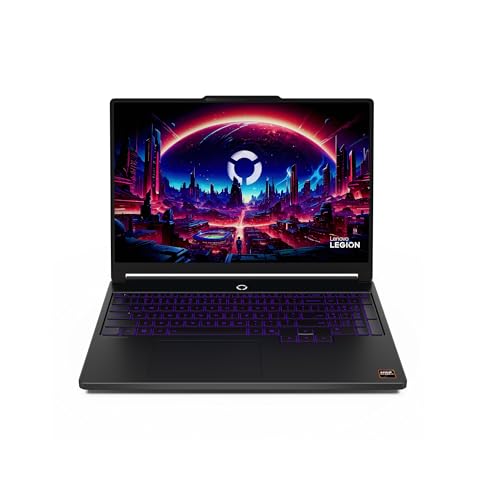
Lenovo Legion 5a (2026) — Best all-round streaming studio
For a streamer building one machine to do everything — play, broadcast, edit the highlights, design the overlays — the Legion 5a is this guide’s most complete answer. The RTX 5060’s hardware encoder carries the broadcast, the 32GB of memory absorbs the streaming software, game, dashboards and editing timeline without the swapping stutters that ruin both streams and tempers, and the OLED WQXGA screen makes colour decisions for thumbnails and overlays on a display that shows you the truth. Lenovo’s cooling in this line sustains that workload across a full evening session rather than a benchmark’s sprint, which is the difference between a spec sheet and a streaming rig.
The Ryzen 7 250 is the one component to understand clearly: it is an efficient, capable processor rather than an HX flagship, so a streamer whose game is a CPU-devouring simulation and whose overlays are elaborate should glance at the Strix below. For the far more common channel — shooters, action games, variety content — the Legion’s balance is exactly right, and its understated looks and strong keyboard serve the daytime work that funds most channels. Bought once and used for everything, it is the pick we would hand a serious new streamer with a real budget.
A Legion streaming detail worth stealing regardless of budget: its screen makes it the only pick here we would happily colour-grade thumbnails on without an external monitor, which quietly removes a whole accessory from a growing channel’s shopping list. Streamers often discover that the laptop is also their editing suite, their graphic design bench and their business office, and the Legion is specced for that discovery in a way the pure gaming picks are not. If your channel plan includes making things as well as playing things, weight this machine accordingly.
- Display: 15.3-inch OLED WQXGA, 165Hz as listed
- Processor: Ryzen 7 250 as listed
- Graphics: RTX 5060 as listed
- Memory: 32GB as listed
- Storage: 1TB as listed
Strengths
- 32GB of memory swallows the full streaming stack
- OLED screen doubles as an editing and overlay display
- Sustained cooling suits long live sessions
Trade-offs
- Ryzen 7 250 is efficient rather than flagship-fast
- Premium price across the configuration
- OLED care habits apply for static overlay work
Best for: variety streamers who edit and design on the same machine they broadcast from
Not suited for: CPU-encoding experimenters and simulation specialists, who need HX processor muscle

ASUS ROG Strix G16 (Ryzen 9 9955HX) — Processor powerhouse
This Strix G16 is the muscle pick, built around AMD’s Ryzen 9 9955HX — a many-core HX processor that treats the streaming juggling act as a light warm-up. Games that lean on the CPU, simulation and strategy titles whose worlds must be computed while the broadcast encodes, and channels running virtual cameras, voice processing and a thicket of browser sources all draw on exactly the headroom this chip provides. The RTX 5060 handles NVENC encoding and the gaming load in parallel, the 16-inch 165Hz screen keeps competitive play honest, and Windows 11 Pro quietly suits streamers who want its extra control over updates and remote access — no mid-stream restart surprises is a feature, whatever the spec sheet calls it.
Two honest notes accompany the power. Sixteen gigabytes of memory is the configuration’s tightest figure for a streaming stack, adequate for most channels but the first upgrade a growing variety streamer should plan. And an HX machine under full combined load is a machine whose fans will be heard working unless your microphone setup rejects room noise well — position the mic close and let a noise gate earn its keep. Neither note dents the central fact: if your games and your broadcast both push hard, this is the laptop in the guide with the most left in reserve.
The Ryzen Strix has a scheduling superpower for streamers with day jobs: that many-core processor chews through a VOD export or a highlight render in the background of an ordinary working day without making the machine feel borrowed. Channels live or die on the content produced between streams, and a laptop that edits while you answer email is effectively a second pair of hands. Just keep the exports away from live hours — the one scheduling rule this guide will repeat until it sticks — because even this much headroom deserves a single job when the audience is watching.
- Display: 16-inch 1920×1200, 165Hz as listed
- Processor: AMD Ryzen 9 9955HX as listed
- Graphics: NVIDIA RTX 5060 as listed
- Memory: 16GB DDR5 RAM as listed
- Storage: 1TB SSD as listed
- System: Windows 11 Pro and RGB keyboard as listed
Strengths
- Ryzen 9 HX processor leads the guide for combined loads
- RTX 5060 NVENC encoding plus strong gaming
- Windows 11 Pro update control suits live work
Trade-offs
- 16GB memory is the first planned upgrade
- Fans are audible under full streaming load
- RGB styling is unapologetically gaming
Best for: simulation, strategy and variety streamers whose broadcasts load the CPU as hard as the GPU
Not suited for: quiet-room streamers with sensitive microphones and no noise treatment

Acer Nitro V 16S AI — 32GB value streaming pick
Streamers shopping by headroom per pound should study this Nitro V 16S closely, because its verified configuration pairs an RTX 5060 with a Ryzen 7 260 and a full 32GB of memory inside Acer’s value line — the memory figure that premium rivals charge handsomely for, delivered here without the premium. For the actual daily load of streaming — game, encoder, software, chat, alerts, music, dashboards — that memory is worth more than a GPU tier, and it is why this machine ranks above glossier names for a growing channel. The 180Hz IPS screen serves fast games and bright rooms equally well, and the RTX 5060’s encoder is the same generation as the flagships’.
The value-line compromises live in the finish rather than the function: build feel, speakers and webcam are workmanlike, so budget for the USB microphone this guide recommends every streamer buy anyway, and do not expect the Nitro’s own camera to flatter you. Acer’s tuning also favours performance, so use the quieter profile’s fan curve thoughtfully near a microphone. As a deliberate allocation — money on memory and encoder, savings on shell and speakers — the Nitro V 16S is the smartest streaming budget in this guide.
The Nitro 16S’s IPS panel earns a streaming-specific compliment: it behaves predictably under the mixed lighting of real rooms, so what you see while arranging overlays is what viewers get, without the viewing-angle shifts that can make budget screens lie about contrast. Its size helps too — a 16-inch canvas keeps the game, the preview and the chat monitor stack readable on one screen during setup, even if a second display joins later. For a one-screen channel, which is most channels at the start, that workspace is a production feature disguised as a specification.
- Display: 16-inch WUXGA IPS, 180Hz as listed
- Processor: AMD Ryzen 7 260 as listed
- Graphics: RTX 5060 laptop GPU as listed
- Memory: 32GB class as listed
- Note: 572 AI TOPS platform as listed
Strengths
- 32GB memory at a value-line price point
- Current RTX 5060 encoder and gaming power
- 180Hz IPS screen suits fast games and bright rooms
Trade-offs
- Webcam and speakers demand external upgrades
- Build finish trails the premium picks
- Fan tuning needs attention near a microphone
Best for: growing channels that would rather spend on memory and a good microphone than on a metal shell
Not suited for: streamers wanting an all-in-one polished package with no accessory purchases

Lenovo LOQ (Ryzen 7 170, RTX 4050) — Wired-connection streamer
The LOQ earns its streaming place on a feature most spec sheets bury: a proper Ethernet port, listed right there in its verified title alongside an SD card reader. For a broadcaster, that port is not a legacy nicety — it is the difference between a stream at the mercy of evening Wi-Fi and a stream on a wire, and dropped-frame statistics improve more from that cable than from any settings menu. Around it, Lenovo builds a streamer’s checklist: an RTX 4050 with full NVENC encoding, a Ryzen 7 processor, 32GB of DDR5 memory and 1TB of storage for broadcast recordings, in the LOQ line’s sensible, work-first shell.
Judge the RTX 4050 honestly: it encodes a broadcast beautifully and games at 1080p with DLSS, but it is a tier below the 5060 machines here, so the newest AAA titles will ask for settings discipline while you stream them. The SD reader is a small gift to streamers who also shoot camera content for their channels. If your channel’s games are esports, indie and back-catalogue — which describes most successful small channels — the LOQ’s stability-first formula may serve your audience better than a faster GPU on a flaky wireless connection ever could.
The LOQ’s numeric keypad, ignored by most gaming buyers, is a small streaming gift: streaming software lets you bind scene switches, mute toggles and marker drops to those keys, turning the pad into a free control deck at your right hand. Streamers pay real money for external keypads that do exactly this. Combined with the Ethernet port and the SD reader, a pattern emerges — this is the laptop in the guide whose designer thought hardest about the unglamorous physical workflow of producing things, and broadcasters feel that thoughtfulness every single session.
- Display: 15.6-inch FHD, 144Hz as listed
- Processor: AMD Ryzen 7 170 as listed
- Graphics: RTX 4050 as listed
- Memory: 32GB DDR5 as listed
- Storage: 1TB SSD as listed
- Connectivity: Ethernet and SD card reader as listed
- Extras: Numeric keypad and backlit keyboard as listed
Strengths
- Ethernet port delivers broadcast stability
- 32GB of memory and 1TB storage suit recordings
- SD reader helps camera-based content workflows
Trade-offs
- RTX 4050 trails the 5060 picks for new AAA titles
- Design is functional rather than eye-catching
- 144Hz screen is a step below rivals refresh rates
Best for: esports and indie streamers who can run a cable and value a stable broadcast over raw GPU tier
Not suited for: AAA-focused streamers who need maximum settings while live

ASUS ROG Strix G16 (2025, Intel) — Competitive streamers HX pick
Where its Ryzen sibling above is the simulation streamer’s muscle, this Intel Strix G16 is the competitive streamer’s instrument. The Core i7-14650HX delivers the high, stable frame rates ranked play demands while the RTX 5060’s encoder runs the broadcast beside it, and the 16-inch 16:10 screen at 165Hz with a fast quoted response is the display a serious shooter or MOBA channel would choose from this entire guide. The extra vertical space of 16:10 even helps off-stream, giving dashboards, timelines and chat windows a little more room when the same machine edits the VODs.
Streaming-specific notes mirror its sibling’s with an Intel accent. Sixteen gigabytes of memory covers a focused competitive setup — game, encoder, chat, alerts — comfortably, and becomes the planned upgrade only if your channel sprawls into heavy variety production. ROG’s cooling keeps the HX chip honest across a long ranked session, with the familiar advice about fan noise and microphone placement applying in full. For a streamer whose content is their gameplay at a high level, this Strix pairs the right processor with the right screen and lets the encoder make the broadcast look easy.
The Intel Strix’s screen ratio pays a streamer’s dividend during production hours: the taller 16:10 canvas stacks a timeline, a preview and a chat window with less scrolling when the same machine edits the broadcast it recorded. It also means your streamed game, captured at a standard ratio, leaves you clean space to think about overlays rather than cramming them. None of this appears in gaming benchmarks, and all of it appears in the lived week of a streamer who is also their own editor, producer and technician.
- Display: 16-inch FHD+ 16:10, 165Hz, 3ms as listed
- Processor: Intel Core i7-14650HX as listed
- Graphics: RTX 5060 as listed
- Memory: 16GB DDR5 as listed
- Storage: 1TB Gen 4 SSD class as listed
Strengths
- HX Intel power sustains high competitive frame rates
- 16:10 165Hz screen is ideal for ranked titles
- RTX 5060 encoder runs the stream in parallel
Trade-offs
- 16GB memory suits focused setups, not sprawling ones
- Large chassis anchors it to a streaming desk
- Gaming design language is bold for shared spaces
Best for: competitive players streaming ranked shooters and MOBAs as their main content
Not suited for: travelling streamers who need to broadcast from changing locations

Acer Nitro V (Core i5, RTX 5050) — Budget first-channel pick
Every streaming guide needs an honest first rung, and this Nitro V is it: a Core i5-13420H, an RTX 5050 with the current generation’s NVENC encoder, 16GB of memory and a 165Hz screen, at the level a first channel can actually afford — with a bundled mouse pad that tells you exactly which buyer Acer had in mind. The crucial streaming fact is that the encoder does not care about your viewer count: this machine’s broadcast quality, set up well, can look genuinely professional while streaming lighter games, esports titles and the back catalogue, which is where new channels realistically build an audience anyway.
The boundaries are equally clear. The RTX 5050 is the entry tier of its generation, so streaming the newest blockbuster at high settings is beyond the brief — lower the in-game settings, let DLSS help, or stream the games the machine loves and save the blockbusters for offline play. Storage at 512GB fills quickly once broadcast recordings accumulate, so archive VODs to external storage as a habit from week one. Within those borders, this is a complete, modern streaming starter that no component embarrasses — and first channels are built on consistency, not on flagship hardware.
The little Nitro’s bundled mouse pad sounds like a joke in a streaming guide until you picture the actual first channel it serves: a desk that was a homework desk last month, a laptop, a borrowed headset, and a streamer learning everything at once. In that picture, the complete, affordable, everything-works nature of this package is the feature. Its encoder is current, its screen is fast, its memory is sufficient — the channel’s growth will be limited by the streamer’s consistency and games, not by this machine, for longer than most first channels survive to discover. That is high praise, honestly meant.
- Display: 15.6-inch FHD IPS, 165Hz as listed
- Processor: Intel Core i5-13420H as listed
- Graphics: RTX 5050 with 8GB GDDR7 VRAM as listed
- Memory: 16GB RAM as listed
- Storage: 512GB class as listed
- Bundle: Mouse pad included as listed
Strengths
- Current-generation NVENC encoder at an entry price
- 16GB memory covers a focused streaming stack
- 165Hz screen flatters esports and fast titles
Trade-offs
- Entry GPU tier limits settings in newest releases
- 512GB storage needs a VOD archiving habit
- Value-line webcam means an external camera later
Best for: new streamers building a first channel around esports, indie and back-catalogue games
Not suited for: channels whose identity is day-one blockbuster releases at high settings
How Should You Set Up a Laptop Streaming Station for Your First Month Live?
Week one is for the boring foundations that decide whether week four happens: wire the connection if your machine allows it, run private test streams at your planned hours, and record everything to learn what your audience would have seen. Set the encoder to NVENC, choose an output resolution your upload sustains without dropped frames, and check the recording’s audio balance with fresh ears the next day — game, voice and music should sit in that order of prominence, and your own voice should never be fighting the game for the listener’s attention.
Arrange the physical desk for the microphone first and the laptop second. The microphone close to you and off the laptop’s fan axis, the laptop raised so its screen sits at a natural height for the glances chat requires, and a second device — phone, tablet, spare monitor — carrying chat so the game never loses full-screen focus. Every pick in this guide can drive that arrangement; the streamers who struggle are usually fighting a desk layout, not a specification sheet.
Protect the habit with a pre-stream ritual short enough to survive tired evenings: cable in, encoder checked, audio tested aloud, notifications silenced, recording started. Five items, two minutes. Channels grow on consistency, and consistency is mostly the absence of technical self-sabotage — which is why this guide ranked laptops by sustained, combined-load behaviour rather than by any single dazzling number.
How Do You Grow From a Laptop Stream to a Proper Setup Without Replacing the Laptop?
The upgrade path that respects your money adds around the laptop rather than replacing it. First the microphone, because audio is the channel’s front door. Then the connection, wired permanently. Then a second screen — even an inexpensive portable monitor — because chat and dashboards leaving the game screen changes streaming from juggling to conducting. A camera comes fourth, lighting fifth, and decoration a distant last, because viewers bond with voices and gameplay long before they grade a backdrop. Every laptop in this guide can anchor that entire path, which is precisely why they were chosen.
The laptop’s own role evolves along the way: from everything-machine to the system’s heart, driving external displays, a dock, storage for recordings. This is where ports and memory, the unglamorous specifications this guide weighted so heavily, repay their attention — a machine with headroom absorbs peripherals gracefully, while a lean one becomes the bottleneck its owner resents. When you eventually add a desktop or a second PC years from now, the laptop retires into travel streaming and editing duty rather than into a cupboard, which is the kindest depreciation curve in the whole setup.
Resist the parallel temptation to upgrade the laptop itself mid-journey — a GPU tier here, a newer model there — because a channel’s bottleneck is almost never its encoder. It is the schedule, the game choice, the audio, the consistency. Spend on those, in the order above, and let the machine you bought with this guide’s discipline serve the full first era of the channel. Hardware patience is a creative virtue on Twitch, where the audience cannot see your specifications and would not care if they could.
What Settings Separate a Clean Laptop Stream From a Struggling One?
Begin with the encoder’s own preset ladder. NVENC offers quality steps that trade a little GPU effort for compression finesse, and the right rung is the highest one your game leaves room for — found by testing with your most demanding title, not your lightest. A preset that holds in a menu screen and collapses in a firefight is a broken promise to every viewer who arrives mid-action. Test at the worst moment your game can produce, set the preset there, and the stream will hold everywhere else without you thinking about it again.
Resolution scaling deserves the same realism. Streaming software can render the game at full resolution and output a smaller, sharper stream, which usually looks better than native output at the same bitrate — a free quality trick that laptop streamers, whose bitrate is often connection-limited, should treat as the default rather than the exception. Pair it with a frame rate your encoder and connection sustain without drops, and the result reads as professional to viewers who will never know why. They just know it looks clean, and clean is what they stay for.
Audio settings close the trio, and they are the least automated. Set the microphone’s gain so your loudest laugh stays below distortion, add the noise gate that keeps fan and keyboard out of the quiet moments, and record a test where you deliberately play badly and shout — if that recording sounds controlled, your levels are right. Laptop fans are the streamer’s permanent background musician; gain staging and mic placement are how you keep them in the backing band rather than the headline act.
How Should Streamers Think About Heat, Noise and Session Length?
A three-hour stream is a thermal endurance event disguised as entertainment. The machine must hold its clocks in hour three as it did in minute three, with fans that neither drone through the microphone nor cycle distractingly as loads shift. This is why this guide ranked sustained behaviour over benchmark peaks: a laptop that is five percent faster for ten minutes and fifteen percent slower for the remaining hours is the worse streaming machine, and only session-length thinking reveals it. When you test a new machine, test it at stream length, with your real game and your real overlay stack running.
Fan curves are a streamer’s instrument. Most of these machines let you shape how aggressively cooling responds, and a curve that rises early and holds steady is kinder to a broadcast than one that waits, panics and screams in cycles. Set it before the stream, not during, and prefer a constant moderate whoosh — which a microphone and a gate handle easily — over silence punctuated by take-offs. Your viewers’ ears adapt to a steady sound in seconds and notice every change, which is the entire science of streaming acoustics in one sentence.
Give the machine its stage properly: hard surface, vents clear, rear raised if a stand helps its intakes, charger connected and cable routed so a celebratory gesture cannot unplug the broadcast. These are the least technical sentences in this guide and the ones most likely to save a stream, because the failures that end broadcasts are physical far more often than they are electronic. The laptop is a studio now. Treat its corner of the desk with a studio’s respect.
What Does a Realistic First Year of Laptop Streaming Look Like?
The first month is plumbing: connection wired, encoder tested, audio tamed, a schedule chosen that your life can actually keep. Growth in this month is measured in problems that stop recurring, not in viewers. The laptops in this guide were chosen to make this month boring, because boring plumbing is what lets a new streamer spend their energy on the games and the conversation, which are the parts an audience can fall in love with. If your machine disappears from your attention while you stream, it is doing its job perfectly.
Months two to six are the consistency test, where the channel becomes a habit for the streamer before it becomes one for anyone else. This is where memory headroom and storage stop being specifications and become sanity — recordings archived, overlays multiplying, a second screen arriving, the laptop absorbing each addition without complaint. It is also where most channels quietly end, not from hardware failure but from schedule failure, which is why this guide keeps steering money toward the microphone and the calendar rather than toward a faster GPU nobody’s audience requested.
By the end of the first year, the survivors share a profile: a wired connection, a clean audio chain, a back catalogue of recordings, and a laptop that has never once been the reason a stream did not happen. Look at the six picks above through that lens and the ranking explains itself — headroom, stability and sustained manners, bought once, in the right order. That is the whole strategy. The rest is showing up, and no laptop can do that part for you.
How Do You Keep a Streaming Laptop Healthy Across Years of Live Hours?
Streaming hours are hard hours: sustained combined loads, fans running at working speed for entire evenings, batteries held at full charge on desks for months. The maintenance rhythm that answers it is simple and mostly free. Keep the vents and fans clean on a quarterly cycle, because a cooling system slowly filling with dust converts this guide’s carefully ranked sustained performance into a memory. Keep the machine on a hard, raised surface for every broadcast, no exceptions made for casual streams, because habits with exceptions are just intentions. And use a charge limit during desk-bound months if your model offers one, since a pack held at full charge under daily heat ages faster than any other component in the setup.
Software hygiene matters as much as dust. Streaming tools, plugins and browser sources accumulate across a channel’s life, and a laptop that began lean can arrive at year two carrying a background procession it never needed — updaters, overlays from abandoned experiments, three chat bots where one survived. Audit the startup list each season, remove what the channel no longer uses, and the machine’s headroom quietly returns. The streamers who complain that their laptop has slowed down are usually describing this sediment, and the cure is an afternoon of deletion rather than a new purchase.
Plan the one upgrade this guide kept naming. For the 16GB machines here, a memory addition in year two — when the channel’s production has genuinely outgrown the original figure — is the cheapest possible renewal, timed to need rather than to novelty. Storage follows the same logic: broadcast archives belong on external drives, with the internal SSD kept lean for the live stack. A laptop maintained this way, upgraded once on evidence, will out-stream two generations of impulse replacements, and its owner will have spent the difference on the microphone, the games and the audience instead.
Keep a failure plan, because live work eventually meets a failed component and the channel that survives it is the one that rehearsed. Know which local shop can replace a fan quickly, keep the streaming profile and scenes backed up outside the machine, and hold a phone-based backup broadcast plan for the night the laptop is in pieces — a modest mobile stream that keeps the schedule’s promise to your audience. Professionalism on Twitch is not the absence of failures; it is the audience barely noticing the ones that happen, and that invisibility is prepared in advance, on a quiet afternoon, by streamers who think like producers.
Finally, let the machine retire with the same honesty it was bought with. When a desktop eventually takes the main broadcast, the laptop becomes the travel rig, the editing bench, the second-PC encoder — roles its headroom serves for years. The picks in this guide were chosen with that long arc in view: encoders that stay current, memory that can grow, ports that keep mattering. A streaming laptop is not a disposable appliance with a graphics card; it is the first studio a channel ever owns, and it deserves to be bought, kept and retired like one.
The Streamers Desk Audit: Five Objects, Zero Excuses
Audit your desk the night before a stream as a producer would, and the laptop in this guide will rarely be the problem again. Object one: the cable, plugged in and tested, because a wireless broadcast is a promise your router never signed. Object two: the microphone, close enough that your normal speaking voice, not your performance voice, fills the meter. Object three: the charger, connected, with its cable routed where no victory gesture can reach it. Object four: a drink with a lid, placed on the far side of the desk from every vent and port, because the most common catastrophic hardware failure in streaming history is a beverage with ambitions. Object five: the phone, face down, carrying chat duty if you have no second screen, silenced for everything except the one call that would genuinely matter. Five objects, two minutes, and the stream that follows starts from competence instead of from hope.
None of those objects is the laptop, and that is the audit’s point. By the time a channel is live, the machine bought from this guide — encoder humming, memory holding the stack, fans on their steady curve — is the most reliable employee in the room. The failures live at the edges: connections, cables, drinks, distractions. Producers in every medium learn to patrol the edges because the centre, properly chosen, holds. Choose your centre from the six above, patrol your edges nightly, and your audience will only ever see the part you meant them to: you, playing well, in a stream that simply works.
How Do the Six Picks Compare Side by Side?
| Pick | Screen | Graphics | Strongest suit |
|---|---|---|---|
| Lenovo Legion 5a | 15.3″ OLED WQXGA 165Hz | RTX 5060 | All-round studio with 32GB |
| ASUS ROG Strix G16 (Ryzen 9) | 16″ 165Hz | RTX 5060 | CPU muscle for heavy loads |
| Acer Nitro V 16S AI | 16″ WUXGA 180Hz | RTX 5060 | 32GB value streaming |
| Lenovo LOQ | 15.6″ FHD 144Hz | RTX 4050 | Ethernet stability, 32GB |
| ASUS ROG Strix G16 (Intel) | 16″ FHD+ 165Hz | RTX 5060 | Competitive HX streaming |
| Acer Nitro V (RTX 5050) | 15.6″ FHD 165Hz | RTX 5050 | First-channel budget |
Notice what does not separate these rows: the encoder. Every RTX card here carries capable NVENC hardware, so broadcast quality at a given bitrate is broadly comparable across the table, and the real differences are the support act — memory headroom in the 32GB Legion, Nitro 16S and LOQ; processor muscle in the two Strix machines; connection stability in the LOQ; and price in the little Nitro. Choose by which support act your channel actually needs.
A competitive streamer and a simulation streamer reading the same table should land on different rows, and both would be right: the Intel Strix for frame-rate-critical ranked play, the Ryzen Strix for CPU-heavy worlds, the Legion for the channel that edits as much as it broadcasts. The budget Nitro is not a failed version of those picks; it is the correct version for a channel whose games are light and whose consistency will matter more than its settings menu.
What Mistakes Do New Laptop Streamers Make Before They Blame the Hardware?
Streaming over busy evening Wi-Fi and blaming the laptop is the most common misdiagnosis in the category. Dropped frames from a congested wireless connection look identical to encoder failure from the viewer’s side, and streamers replace hardware that was never at fault. Wire the connection — the LOQ makes it easy, docks make it possible for the rest — and test at streaming hours before spending anything on a new machine.
Setting an output the connection cannot sustain is the second. A 1080p broadcast at an ambitious bitrate on a modest upload produces a worse viewing experience than a stable, well-encoded lower resolution, every time. Viewers adapt to resolution in seconds and leave stutter in the same span. Run the test streams, read the dropped-frame counter, and let evidence rather than aspiration set your output.
Neglecting audio while upgrading video is the third, and the most expensive in audience terms. A USB microphone transforms a laptop stream more than any camera or lighting purchase, because viewers forgive modest pictures and abandon muddy voices. Every analysis in this guide assumes that microphone is coming; if your budget forces an order, the microphone is first, the cable is second, and everything decorative can wait for your first payout.
Finally, streaming with the laptop suffocating on a bed or a pile of hoodies — it happens on camera more often than anyone admits — throttles the exact sustained performance this guide ranked by. Hard surface, vents clear, performance profile on, charger in. The machine you bought is the machine in the analyses above only when it can breathe.
Final Recommendation
Pick by the shape of your channel. The Legion 5a is the complete studio for the streamer who plays, broadcasts and edits on one machine, and its 32GB of memory and OLED screen will still be serving that workflow years from now. The two Strix G16 models split the power vote: Ryzen 9 for CPU-heavy worlds and sprawling productions, Intel HX for competitive frame rates with a broadcast riding alongside. The Nitro V 16S delivers the same memory headroom as the Legion at a value price for streamers happy to spend the saving on a microphone.
The LOQ and the little Nitro V close the list with the two virtues new channels need most: stability and affordability. A wired, steady LOQ broadcast will grow an audience faster than a stuttering flagship stream, and the Nitro’s modern encoder lets a first channel look professional from its first week. None of the six will drop your frames if you set them up with the discipline this guide describes — wired where possible, NVENC selected, output matched to upload, microphone close.
So start where your games live, wire the connection before you buy anything decorative, and let the Legion 5a be the benchmark: if your channel plays, edits and broadcasts in equal measure, it is the laptop your future self will thank you for choosing tonight.
Frequently Asked Questions
Can a laptop really handle gaming and streaming at the same time?
Yes, and modern hardware encoding is why. The RTX GPUs in every pick here contain a dedicated NVENC encoder that compresses your broadcast with little cost to the game, while the processor and memory run the streaming software and your tools. The machines differ in headroom — memory, processor strength, cooling — which is what this guide ranks, but the basic feat is standard for current RTX laptops.
How much memory does a streaming laptop need?
Sixteen gigabytes is the working floor for a focused setup of game, streaming software, chat and alerts, and every pick here meets it. Thirty-two gigabytes — in the Legion 5a, Nitro V 16S and LOQ configurations listed — gives a growing channel room for heavier overlays, more browser sources and editing the same machine, and is the figure we would choose for a multi-year streaming purchase.
Should I stream over Wi-Fi or Ethernet?
Ethernet, whenever you possibly can. A wired connection removes the interference and congestion that cause dropped frames during busy evening hours, and no laptop upgrade compensates for a struggling wireless link. The LOQ includes an Ethernet port; for machines without one, a USB-C dock or adapter with Ethernet is one of the cheapest broadcast upgrades available.
What bitrate and resolution should a new streamer use?
Match them to your sustained upload speed at the hours you stream, verified by private test streams rather than guesswork. A stable, well-encoded stream at a modest resolution retains viewers far better than an ambitious 1080p output that drops frames. Increase settings only when your test recordings stay clean for a full session at your real streaming times.
Do I need a separate capture card with a gaming laptop?
No. A capture card is for bringing an external source — a console or a second PC — into your stream. When the game runs on the same laptop that broadcasts it, your streaming software captures it directly and the RTX encoder handles compression. Spend the capture-card money on a USB microphone instead; it will improve your broadcast far more.
Which pick is best for streaming competitive games?
The Intel ASUS ROG Strix G16, whose Core i7-14650HX sustains the high frame rates ranked play demands while its RTX 5060 encodes the broadcast, on a 165Hz 16:10 screen suited to fast titles. The LOQ is the value alternative for esports streamers, trading GPU tier for an Ethernet port and 32GB of memory that keep the broadcast itself rock-steady.
Related Guides
The broadcast desk connects to three more guides in this set: Best Gaming Laptops With RTX 3060 covers the older cards many streamers still run, Best White Gaming Laptops covers the clean-desk end of the range, and Best Gaming Laptops With Battery Life covers the machines that leave the desk entirely.