What's inside
- Key Takeaways
- Quick Picks
- How We Chose These Picks
- Comparison
- What Does the R Number in a Curved Monitor Actually Mean?
- Is a Curved Monitor Good for Office Work and Spreadsheets?
- How Do You Set Up a Curved Monitor at the Right Distance and Height?
- Should You Choose One Curved Ultrawide or Two Flat Monitors?
- What Should You Check in the First Week With a New Curved Monitor?
- Common Mistakes When Buying a Curved Monitor
- Final Recommendation
- Frequently Asked Questions
- Related Guides
As an Amazon Associate I earn from qualifying purchases. This post may contain affiliate links at no extra cost to you.
widgetverdict.com is reader-supported. When you buy through links on our site, we may earn an affiliate commission.
Shopping for the best curved computer monitors starts with a number that looks like alphabet soup: 1500R, 1800R, 1000R. That figure is the radius of the circle the screen would complete if its arc kept going, measured in millimetres, and it decides how strongly the panel wraps around your eyes. A 1500R screen curves harder than an 1800R one. Everything else in this guide — size, resolution, refresh rate, the ports on the back — hangs off that single choice, because a curve that suits a 34-inch ultrawide can feel like a funhouse mirror on a small 24-inch panel, and a gentle bend on a big screen can disappear entirely.
Six monitors made the cut below, and they cover the full spread of what curved glass actually does well. Two are 34-inch ultrawides built for wide timelines and sprawling spreadsheets. Two are 27-inch screens, one tuned for gaming speed and one a straightforward Full HD all-rounder. The last two drop to 32 and 24 inches, where the curve becomes a comfort feature rather than an immersion feature. Every pick links to its Amazon listing, so you can confirm the exact model code and check price on Amazon before ordering — model codes matter here, because Samsung and Sceptre both sell near-identical curved panels that differ only in a suffix.
One honesty note before the reviews. A curve does not improve a panel’s colour, contrast or sharpness; it changes geometry. Straight lines near the edges bend slightly, spreadsheets with long horizontal rules can look subtly bowed, and anyone sitting off to the side sees a worse picture than the person in the centre seat. Those trade-offs are weighed openly in each review, because the right curved monitor is a genuinely better desk tool and the wrong one is an expensive annoyance you notice every single day.
Key Takeaways
- Curve radius is the headline spec: 1500R panels (both Sceptres, the 32-inch LG) bend noticeably, while the 1800R Samsung and LG ultrawide use a gentler arc that suits mixed work.
- Only two picks exceed Full HD — the LG 34U60ZB-B and the Sceptre 34-inch ultrawide, both at 3440×1440 — so text-heavy buyers should start with that pair.
- The fastest screens here are the two Sceptre gaming models, reaching 180Hz; the office-leaning Samsung and LG models sit at 100Hz and 120Hz.
- Built-in speakers appear on all three Sceptre picks and nowhere else in the group, which matters for clean desks and shared workspaces.
- VESA wall mounting is confirmed in a listing title only for the 24-inch Sceptre; the other five titles stay silent on mounts, so arm buyers should verify before ordering.
Quick Picks
| Pick | Badge | Why it earns a place |
|---|---|---|
| Samsung 27″ Essential S3 (S36GD) | Gentle-curve all-rounder | An 1800R bend, 100Hz refresh and eye-comfort features on a mainstream 27-inch Full HD panel. |
| LG 34U60ZB-B UltraWide | Ultrawide for documents | WQHD resolution across 34 inches with 99% sRGB coverage and flicker-safe backlighting. |
| Sceptre 34-inch Curved Ultrawide | Ultrawide for gaming speed | A tighter 1500R curve, refresh up to 180Hz and twin DisplayPorts for a gaming PC. |
| Sceptre Curved 27-inch Prime Gaming | Fastest 27-inch curve | 180Hz over both DisplayPort and HDMI, a 1500R arc and speakers built in. |
| LG 32MR50C-B | Big screen, soft price tier | Thirty-two curved inches at Full HD with FreeSync and reader-focused picture modes. |
| Sceptre Curved 24-inch Gaming | Small-desk curve | The group’s compact option, with VESA mounting, two HDMI inputs and 98% sRGB. |
How We Chose These Picks
Each monitor below was checked against its own listing title, and every specification quoted in the reviews comes from that title. Where a title leaves something out — panel type on several of these screens, VESA patterns on most of them — the review records the gap rather than borrowing a figure from a sibling model. Curved monitors attract inflated marketing, so the discipline of title-only claims keeps the comparisons honest.
Radius came first. A guide to curved screens that ignored the difference between 1500R and 1800R would fail its readers, so the six picks deliberately span both radii plus the sizes where each makes sense. The 1800R models pair with 27-inch and 34-inch panels aimed at mixed work; the 1500R models lean into gaming and immersion, where a stronger wrap pays off.
Resolution formed the second filter, and it exposed the category’s real divide. Four of the six picks are Full HD, which is comfortable at 24 and 27 inches, stretched at 32, and the reason the two WQHD ultrawides sit at the top of the guide for anyone whose day is text. Refresh rate, eye-comfort features and input selection were weighed after that, in that order, because a curved monitor is bought first for how it feels to sit in front of for eight hours.
A final selection principle deserves stating: no pick earned its place on a single headline figure. The fastest panel here also had to justify its inputs and curve; the largest had to justify its pixel density at real seating distances; the oldest design had to justify itself on completeness rather than novelty. Category roundups fail readers when they rank by one column of a spreadsheet, and curved monitors — where geometry, size and resolution interact — punish that habit more than most categories do.

Samsung 27″ Essential S3 (S36GD) — Gentle-curve all-rounder
Samsung’s Essential S3 takes the mildest possible approach to curved glass: an 1800R arc on a 27-inch Full HD panel, a combination that reads less like a gaming cockpit and more like a screen that simply meets your eyes at a consistent distance. Sit centred and the corners stop feeling farther away than the middle, which is the entire ergonomic argument for a curve at this size. The effect is subtle enough that colleagues glancing at your screen will not remark on it, and subtle is exactly what an office or family desk usually wants.
The 100Hz refresh rate is the quiet headline. Most mainstream 27-inch panels still ship at 60Hz or 75Hz, and the step to 100Hz smooths scrolling documents, window dragging and casual gaming in a way you feel within the first hour. Samsung lists a Game Mode for this model, which positions it as a work screen that can handle evening play rather than the reverse — a fair description, since the listing claims no adaptive-sync technology and no response-time figure at all.
Eye comfort gets explicit billing through Samsung’s Advanced Eye Comfort feature set, and the input panel covers the two connections a mixed household actually uses: HDMI for modern machines and a D-sub (VGA) port for the older desktop or laptop that refuses to retire. That legacy port is rarer than it should be in 2026, and for a home office built around one ageing tower PC it can be the deciding detail.
Limits deserve equal time. Full HD across 27 inches gives a pixel density that shows its grain on small text if you sit close, and the listing title names no VESA mount, no speakers and no height adjustment, so anyone counting on an arm or a cable-free layout will want to double-check those specifics on the product page prior to checkout. None of that undermines the core proposition: a recognised brand, a gentle curve, a refresh rate above the office norm, and ports for both new and old computers.
Consider how this screen behaves across an ordinary week. Monday’s spreadsheet work sits comfortably: at 27 inches the curve is mild enough that long rows do not appear to sag, and the eye-comfort feature set is doing its quiet work in the background. A video call on the same screen benefits from the centred geometry, since your eyes rest naturally on the middle of the panel where the camera expects them. Evening gaming is competent rather than thrilling — 100Hz keeps motion clean in strategy titles, racers and older action games, and the absence of a stated adaptive-sync technology only shows itself as occasional tearing in fast first-person play. Buyers whose evenings are dominated by competitive shooters should keep reading down this list; buyers whose evenings are films, browsing and a game or two will find the balance here honestly struck.
The three-year ownership picture also favours restraint. A mainstream Samsung panel with standard ports asks nothing unusual of a desk: no special cables, no hub, no firmware ecosystem. The D-sub connector, oddly, is a longevity feature — it guarantees the monitor can be handed down to an older machine, a workshop PC or a child’s first desktop without an adapter hunt. Screens bought for a decade of service are rarely the fastest in any guide; they are the ones with the fewest reasons to be replaced.
One more practical note belongs to this Samsung: because the curve is gentle and the size mainstream, it is the pick in this guide most likely to satisfy a buyer who has never sat in front of curved glass before. First-time curved owners routinely overbuy radius, seduced by showroom immersion that becomes a daily irritation at a work desk. Starting at 1800R keeps the experiment honest — if the geometry delights you, a tighter bend awaits at the next upgrade; if it merely disappears into the work, you have bought exactly the right screen.
- Size and resolution: 27 inches, Full HD (1920×1080)
- Curve radius: 1800R
- Refresh rate: 100Hz
- Inputs: HDMI, D-sub (VGA)
- Eye features: Advanced Eye Comfort, Game Mode
- Model code: LS27D36DGANXZA
Strengths
- The 1800R curve is gentle enough for shared desks and document work.
- 100Hz refresh lifts everyday smoothness above the 60Hz office standard.
- The D-sub port keeps older PCs in service without adapters.
Trade-offs
- Full HD at 27 inches looks coarse on fine text at close range.
- No adaptive sync is claimed in the listing title.
- Mounting and stand adjustments are not stated in the listing title.
Best for: a home-office desk that mixes documents, browsing and light gaming behind one screen. Not suited for: competitive players chasing high refresh rates, or editors who need finer pixel density.

LG 34U60ZB-B UltraWide — Ultrawide for documents
Thirty-four inches of 21:9 screen changes how a working day is organised. The LG 34U60ZB-B stretches 3440×1440 pixels across that width, which is enough room for a document, a reference browser and a chat window side by side without any of them shrinking into uselessness. The 1800R curve suits the format: at this width a flat panel pushes its far corners noticeably farther from your eyes, and the gentle arc pulls them back into a comfortable line.
Colour coverage is stated plainly in the title — sRGB 99% (Typ.) — which puts this screen in the honest-work tier: accurate enough for presentations, web graphics and photo sorting, without pretending to be a wide-gamut editing tool. HDR10 support is listed as well, relevant mainly for streamed video after hours. The 120Hz refresh rate is the surprise in an office-leaning ultrawide; it will not trouble the gaming picks below on speed, but it makes window management feel fluid and keeps casual racing or action games perfectly enjoyable.
LG rounds the panel out with the features long-hour users actually cite: Reader Mode for document sessions, Flicker Safe backlighting, and LG Switch, the software that divides the screen into tidy layouts and swaps inputs between machines. Connections are HDMI and DisplayPort, the standard pair for a desktop plus laptop arrangement. Read the fine print and the omissions are equally clear: no USB-C input is claimed, so a laptop drives this screen through HDMI or DisplayPort and charges from its own adapter, and no speakers are mentioned in the title.
Desk planning matters with any 34-inch screen. The panel alone spans roughly eighty centimetres, the curve adds depth front to back, and a shallow desk will push it closer than the viewing distance its size wants. Measure before ordering; ultrawides are the most returned size class in the category for exactly that reason, and it has nothing to do with picture quality.
The working method this panel rewards is worth describing, because it differs from dual-monitor habits. Instead of two separated screens with a bezel down the middle of your posture, one continuous canvas lets a main document sit directly in front of your chair while reference material flanks it. LG Switch exists to formalise that arrangement, dividing the panel into preset zones so windows snap into a layout rather than drifting. Writers, researchers and anyone reconciling two versions of the same document feel the benefit immediately; the centre of the screen, the most comfortable place to read, stops being contested territory between two monitors.
There is also a posture dividend that spec sheets never mention. On dual 27-inch setups, most people angle their body toward one screen and twist toward the other, and the twist becomes the day’s default position. A single centred ultrawide keeps shoulders square. The curve assists here in a way a flat 34-inch panel cannot, drawing the far edges toward your peripheral vision so a glance replaces a lean. None of this makes the LG a medical device — it makes it a desk layout that asks less of the person sitting at it, hour after hour.
Ownership details round out the case. A single panel means one power supply, one cable run and one colour calibration to maintain, and the picture stays consistent across the whole width in a way two separately ageing monitors never quite manage. When the screen eventually hands its desk to a successor, a 34-inch WQHD panel also retires gracefully — as a media screen, a workshop display or a family computer’s generous second act — because its resolution remains respectable long after its refresh rate stops being the point.
- Size and resolution: 34 inches, WQHD 3440×1440, 21:9
- Curve radius: 1800R
- Refresh rate: 120Hz, HDR10
- Colour: sRGB 99% (Typ.)
- Inputs: HDMI, DisplayPort
- Features: LG Switch, Reader Mode, Flicker Safe
Strengths
- Real working width: three usable windows across one panel.
- 120Hz refresh is unusually generous for a productivity ultrawide.
- Flicker Safe backlighting and Reader Mode suit long document days.
Trade-offs
- No USB-C input is claimed, so laptops keep their own chargers.
- The footprint demands a deep, wide desk.
- HDR10 here is a video convenience, not a grading tool.
Best for: analysts, writers and multitaskers who live in side-by-side windows all day. Not suited for: small desks, or laptop owners determined to run everything through one USB-C cable.

Sceptre 34-inch Curved Ultrawide (C345B-QUT168) — Ultrawide for gaming speed
Sceptre’s 34-inch ultrawide starts from the same 3440×1440 canvas as the LG above and then turns every dial toward play. The curve tightens to 1500R, pulling the edges of the 21:9 frame deeper into peripheral vision, and the refresh rate climbs to a listed up-to figure of 180Hz via DisplayPort, with 165Hz also named in the title. That wording deserves a plain reading: the panel’s ceiling depends on the connection and settings, and buyers should expect to configure it rather than find it waiting at maximum out of the box.
Two DisplayPort inputs plus a 1ms response claim mark this as a screen built for a gaming PC first and everything else second. The 99% sRGB coverage keeps colours respectable for the streaming, editing and office work that fills the hours between game sessions, and built-in speakers handle voice chat, videos and casual listening without extra boxes on the desk — a practical inclusion that the more expensive LG omits entirely.
Ultrawide gaming carries caveats that no listing title will volunteer. Some older titles and competitive games render 21:9 awkwardly or cap the field of view, a few streaming services letterbox their films, and driving 3440×1440 at high frame rates asks serious work from a graphics card. None of these are faults of this panel; they are the terms of the format, and they are worth accepting knowingly rather than discovering during a first weekend.
Against the LG, the choice is clean. The LG counters with a calmer curve, a higher standard refresh figure for work, screen-splitting software and flicker-safe billing. The Sceptre answers with speed, a second DisplayPort and speakers. A desk that earns its keep in spreadsheets should lean LG; a desk that earns its keep in game libraries should lean here.
Driving this panel well deserves a paragraph of its own. A 3440×1440 screen carries about 2.4 times the pixels of a 1080p display, and asking it for triple-digit frame rates is a job for a genuinely capable graphics card — the class of hardware bought for 1440p high-refresh play, not the card that merely survives it. Owners of mid-range cards should expect to trade some settings for speed, and that trade is usually worth it: an ultrawide running at a smooth, slightly reduced setting looks far better than a smaller screen maxed out. The twin DisplayPorts help here, since a work laptop can occupy one input while the gaming rig keeps the other, and the panel becomes the shared centre of both machines.
Sound is the sleeper feature. Built-in speakers on gaming monitors are often an afterthought, but on an ultrawide desk — where the panel has already consumed the space external speakers would occupy — they solve a real layout problem. Dialogue, streams and desktop audio are all handled without surrendering desk depth, and a headset remains one plug away for serious sessions. Combined with the strong curve, the package is coherent: everything about this Sceptre is arranged around one person, centred, immersed, with the room’s clutter designed out.
- Size and resolution: 34 inches, WQHD 3440×1440
- Curve radius: 1500R
- Refresh rate: up to 180Hz / 165Hz (per listing title)
- Response: 1ms (per listing title)
- Colour: 99% sRGB
- Inputs and audio: DisplayPort ×2, built-in speakers
Strengths
- The strongest wrap and the highest refresh ceiling in this guide.
- Twin DisplayPorts suit a gaming PC plus a second machine.
- Built-in speakers keep a gaming desk free of extra hardware.
Trade-offs
- The headline refresh figure is an up-to number, not a default.
- Ultrawide quirks in older games and video are part of the deal.
- Feeding 3440×1440 at high rates demands a capable graphics card.
Best for: PC players who want one ultrawide to carry both workdays and long game sessions. Not suited for: console-first setups, or buyers who prize colour-managed accuracy over speed.

Sceptre Curved 27-inch Prime Gaming (C275B-FW180T) — Fastest 27-inch curve
Strip the ultrawides out of this guide and the Sceptre Prime is the speed pick of what remains: a 27-inch curved panel rated at 180Hz on both its DisplayPort and HDMI connections — two of each, according to the title. That symmetry is rarer than it sounds. Many gaming monitors reserve their full refresh rate for DisplayPort and quietly cap HDMI lower, which penalises console owners and laptop users; a title that prints 180Hz beside both inputs is making a promise worth holding it to.
The 1500R curve at 27 inches is a stronger statement than the Samsung’s 1800R. At this size the tighter arc is a matter of taste rather than ergonomics: players who sit close and centred tend to enjoy the wrap, while anyone who shares the screen or works on spreadsheets full of horizontal lines may find the bend more noticeable than helpful. The 1ms response claim and built-in speakers complete a specification that is unambiguously aimed at play.
What the title withholds is just as instructive. Resolution is not printed in the listing title for this model, and neither is any adaptive-sync technology, colour coverage or panel type. Disciplined buying follows from that: treat this as a high-refresh curved screen whose detailed panel specifications should be confirmed on the listing page, and do not let the confident gaming language substitute for the missing numbers. Sceptre sells several 27-inch curved variants, so the series code C275B-FW180T is the string to match at checkout.
Positioned against the Samsung Essential S3, the exchange is clear. The Samsung offers a gentler curve, a legacy VGA port and an eye-comfort feature set aimed at long workdays. The Sceptre offers nearly double the refresh rate, twice the inputs and speakers. Desks divide honestly along that line, and neither screen pretends to be the other.
The four-input arrangement invites a particular kind of setup: a desktop on one DisplayPort, a console on one HDMI, a work laptop or a streaming stick on the remainder, all switched from the panel’s own menu. For a bedroom or a small flat where one screen serves every device in the room, that input count is the feature — it removes the cable-swapping ritual entirely. The built-in speakers reinforce the same idea, carrying console audio and streamed films without a soundbar competing for the same narrow desk.
Buying discipline matters more with this model than with any other pick here, precisely because the title is thin. Before ordering, open the listing and confirm three things in writing: the native resolution, whether any adaptive-sync technology is supported, and what stand adjustments the current revision ships with. If those answers satisfy you, the headline combination — 1500R curve, 180Hz on every input family, speakers — is genuinely scarce at this tier. If the listing leaves them vague, the Samsung above is the safer spend. A fast panel bought on verified facts beats a faster-sounding one bought on hope.
- Size: 27 inches, curved
- Curve radius: 1500R
- Refresh rate: 180Hz via DisplayPort ×2 and HDMI ×2
- Response: 1ms (per listing title)
- Audio: built-in speakers
- Resolution: Not stated in listing title
Strengths
- Full 180Hz on HDMI as well as DisplayPort, per the title.
- Four video inputs cover a PC, a console and a laptop together.
- Speakers are built in, keeping the battlestation compact.
Trade-offs
- Resolution and sync technology are not stated in the listing title.
- The 1500R bend is strong for a 27-inch screen used for documents.
- No eye-comfort or ergonomic features are claimed in the title.
Best for: players wiring several machines into one fast curved screen. Not suited for: buyers who need every panel specification confirmed before purchase, or shared-screen households.
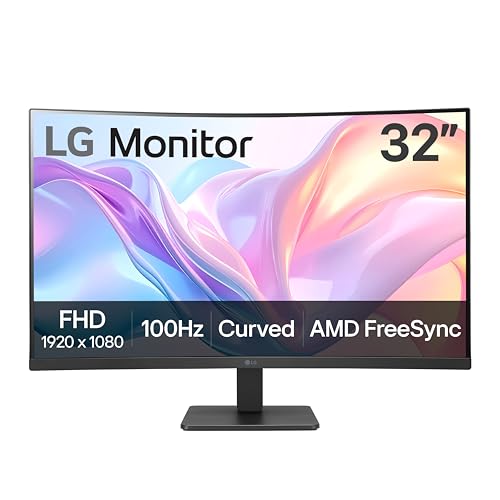
LG 32MR50C-B — Big screen, soft price tier
Thirty-two inches is where Full HD stops being a resolution and becomes a viewing style. The LG 32MR50C-B spreads 1920×1080 across a big, gently priced canvas with a 1500R curve, and the honest way to judge it is by distance: lean back in a chair two feet or more from the glass and the picture feels generous and cinematic; lean in over a keyboard and individual pixels announce themselves. This is a screen for watching, browsing, light work and relaxed gaming, not for peering at dense code.
Within that brief, the feature list is well judged. The 100Hz refresh rate with AMD FreeSync keeps motion smooth and prevents tearing in games whose frame rates wander, and the 5ms response figure printed in the title is a refreshingly unexaggerated number for the class. LG’s reader toolkit — Reader Mode, Flicker Safe backlighting, Dynamic Action Sync and Black Stabilizer — covers both halves of a mixed day: documents in the morning, darker game scenes at night, where Black Stabilizer lifts shadow detail so opponents stop hiding in unlit corners.
Connections and furniture are modest. HDMI is the named input, the stand tilts, and the title promises nothing more — no height adjustment, no second input family, no speakers. A fixed-height big screen usually ends up on a stack of books or an arm, so factor that small extra into the purchase if your desk chair and eye line demand it. The panel’s job is to be large, curved and easy on the eyes at a tier where those three things rarely arrive together.
Shoppers cross-shopping the 27-inch Samsung should think in terms of distance rather than size envy. The Samsung packs the same pixel count into a smaller area and stays sharper at a normal desk. The LG trades that sharpness for presence. Both choices are defensible; only one matches a given chair.
There is a second household role where this panel quietly excels: the shared leisure screen. A 32-inch curved display at the end of a small room reads films and streamed sport with a sense of occasion that a 24-inch monitor cannot imitate, and its 100Hz refresh with FreeSync keeps console and PC games smooth without any of the configuration fuss of the high-refresh picks. Reader Mode earns its place here too — the same screen that shows a film at night can present long articles and documents the next morning without the glare-heavy default picture modes that big budget panels often ship with.
Ergonomics need one honest paragraph. A screen this size on a tilt-only stand will sit at whatever height the desk gives it, and for tall users that usually means looking down more than is comfortable across a long day. The fix is cheap — a stand, a riser, a pile of sturdy books in the interim — but it should be planned as part of the purchase rather than discovered as a neck ache in week two. Budget the riser when you budget the panel and the LG’s value story stays intact.
- Size and resolution: 32 inches, Full HD 1920×1080
- Curve radius: 1500R
- Refresh rate: 100Hz, AMD FreeSync
- Response: 5ms
- Features: Reader Mode, Flicker Safe, Dynamic Action Sync, Black Stabilizer
- Stand and inputs: tilt stand, HDMI
Strengths
- The largest screen in this guide at an entry tier.
- FreeSync support keeps casual gaming free of tearing.
- LG’s reader and flicker-safe features suit long, relaxed sessions.
Trade-offs
- Full HD stretched over 32 inches is visibly soft up close.
- Tilt is the only stand adjustment named in the title.
- A single named input limits multi-machine setups.
Best for: viewers and casual players who sit back from a big, easy screen. Not suited for: close-range text work, coding, or detailed spreadsheet review.

Sceptre Curved 24-inch Gaming (C248W-1920RN) — Small-desk curve
Curved glass on a 24-inch panel sounds like a gimmick until the desk enters the conversation. On a narrow desk, in a dorm room or a bedroom corner, the Sceptre C248W-1920RN’s 1500R bend simply rounds a small screen toward a close viewer, and its 1080p resolution sits at the size where Full HD still looks properly sharp. This is the pick for compact battlestations and second screens, and it has been selling in that role for years — the series is a 2019-era design that remains in the catalogue because the formula works at its tier.
The connections outclass several larger picks. Two HDMI ports and a VGA input cover a console, a PC and an older machine without cable swapping, built-in speakers handle everyday audio, and the title confirms VESA wall mounting — the only pick in this guide whose listing states it outright. On a small desk, the ability to lift the panel onto a wall mount or arm is not a luxury; it returns the entire footprint of the stand to the keyboard.
Colour coverage is printed as 98% sRGB, respectable for the class and enough for everyday photo handling and content creation at a hobby level. What the title does not print is a refresh rate, so this review makes no speed claim for the panel; buyers for whom refresh rate is the deciding figure should confirm it on the listing page, where the current revision’s full specification lives. Longevity cuts both ways — a design this established has a long trail of owner experience behind it, and equally, it predates the USB-C era entirely.
Judged as a package — small curved screen, three inputs, speakers, wall mounting, honest colour figure — it is the most complete small option here, and the natural second monitor beside any of the larger picks above.
The second-monitor role deserves expansion, because it may be this panel’s best modern use. Beside a larger main display, a small curved screen handles the permanent side content — chat, music, a monitoring dashboard, a reference document — and its VESA mount lets it float on an arm exactly where a tilted second screen belongs. The VGA input, a liability in a flagship, becomes an asset in this role: legacy machines, test benches and older consoles all still speak VGA, and a utility screen that accepts everything is the one that never needs an adapter drawer.
Expectations should be set by its era. This is a design from before USB-C docking, before high-refresh became the default expectation in gaming lines, and its title makes no claim otherwise. What it offers instead is a complete, known quantity: the specification is stable, the failure modes are documented across years of ownership, and the feature checklist covers the practical bases — inputs, speakers, mounting, colour — that small desks actually need. In a category that reinvents itself every season, a settled design at a settled tier has its own kind of value.
- Size and resolution: 24 inches, 1080p
- Curve radius: 1500R
- Colour: 98% sRGB
- Inputs: HDMI ×2, VGA
- Mounting and audio: VESA wall mount, built-in speakers
- Refresh rate: Not stated in listing title
Strengths
- VESA mounting is confirmed in the title — unique in this group.
- Three video inputs serve compact multi-device desks well.
- Full HD stays sharp at 24 inches, unlike the larger FHD picks.
Trade-offs
- Refresh rate: the listing title leaves it unstated.
- The design predates USB-C connections entirely.
- Twenty-four inches feels small as a sole screen for split-window work.
Best for: dorm desks, bedroom setups and second-screen duties where space rules. Not suited for: buyers who want a single large screen for everything, or a confirmed high refresh rate.
Comparison
| Pick | Size / Resolution | Curve | Refresh | Notable from title |
|---|---|---|---|---|
| Samsung Essential S3 (S36GD) | 27″ / Full HD | 1800R | 100Hz | HDMI + D-sub, Advanced Eye Comfort |
| LG 34U60ZB-B | 34″ / 3440×1440 | 1800R | 120Hz | sRGB 99%, HDR10, LG Switch |
| Sceptre 34″ Ultrawide | 34″ / 3440×1440 | 1500R | up to 180Hz | DisplayPort ×2, speakers, 1ms |
| Sceptre 27″ Prime | 27″ / Not stated in listing title | 1500R | 180Hz | HDMI ×2 + DP ×2, speakers |
| LG 32MR50C-B | 32″ / 1920×1080 | 1500R | 100Hz | FreeSync, Black Stabilizer, tilt stand |
| Sceptre 24″ C248W-1920RN | 24″ / 1080p | 1500R | Not stated in listing title | VESA mount, HDMI ×2 + VGA, speakers |
Read across the rows and the guide’s logic shows itself: resolution climbs only on the two ultrawides, refresh climbs on the two gaming Sceptres, and the gentlest curves sit on the screens meant for shared, everyday work. Pick the row whose strongest column matches your longest hours, not your most exciting hour.
The gaps in the table are information too. Two titles decline to state a figure a buyer might assume — a resolution on the 27-inch Sceptre Prime, a refresh rate on the 24-inch Sceptre — and both gaps are printed here rather than smoothed over, because filling a blank cell with a guessed figure would train readers to accept invented certainty — the opposite of what a buying guide owes them. When a cell says a figure is not stated in the listing title, the listing page is the next stop, and the model code in each review is the string to verify there.
What Does the R Number in a Curved Monitor Actually Mean?
The R figure is a radius. A 1500R panel is cut from a circle with a radius of 1,500 millimetres, so the smaller the number, the tighter the bend. Human vision has its own comfortable arc, and the practical consequence is viewing distance: a 1500R screen feels natural when you sit roughly a metre and a half or closer along its curve’s geometry, while an 1800R panel is forgiving at ordinary desk distances. Neither is better in the abstract. A tight curve viewed from too far looks bowed; a gentle curve viewed up close looks flat in the middle and angled at the edges.
Size interacts with radius in a way marketing rarely explains. The same 1500R bend that feels immersive on a 34-inch ultrawide can feel theatrical on a 24-inch screen, because the small panel’s edges sit well inside your central vision where geometric distortion is easiest to spot. That is why this guide pairs its gentlest radii with its most work-focused screens and reserves the strongest wraps for gaming panels, where the content itself is rendered in perspective and the bend reads as depth rather than distortion.
Is a Curved Monitor Good for Office Work and Spreadsheets?
For one person, sitting centred, mostly yes. A curve keeps the screen’s edges at a similar distance to its centre, which reduces the small refocusing effort your eyes make sweeping across a wide flat panel, and on ultrawides it saves genuine neck movement. Wide spreadsheets, timelines and multi-window layouts all benefit, which is why the LG ultrawide in this guide is pitched at document work first.
The qualifications are real, though. Rows and columns are straight lines, and a curve bends their appearance slightly — most users stop noticing within days, but some never do, and anyone doing layout, CAD-adjacent drawing or ruler-true design work should stay flat. Shared viewing is the second qualification: a curved screen has one good seat. If a colleague regularly reads your monitor from beside you, or the screen doubles for presentations, a flat panel serves the room better than a curved one serves the chair.
There is a middle path many offices quietly adopt: curved for the personal desk, flat for the shared one. The person who spends eight hours in the chair gets the ergonomic benefit of the arc, while meeting rooms and hot-desks — where screens are viewed from every angle and distance — keep flat panels that look correct to everyone in the room. If you are equipping a whole team rather than one desk, that split policy is easier to defend than standardising on either geometry, and it explains why this guide’s gentlest curves are its most office-shaped picks: they are the ones a facilities manager could deploy widely without a revolt from the spreadsheet auditors.
How Do You Set Up a Curved Monitor at the Right Distance and Height?
Start with the centre of the screen at or fractionally below eye level, and the panel tilted so its surface faces your eyes squarely — with a curved panel, tilt matters more than on flat glass because the arc assumes a centred viewer. Distance follows size: an arm’s length suits the 24- and 27-inch picks, while the 34-inch ultrawides want a deeper desk so the full width stays inside a comfortable glance rather than a head turn.
Lighting deserves the same deliberateness. A curved surface collects reflections across a wider range of angles than flat glass, so a window or a bright lamp that a flat panel tolerated can smear across an arc. Position the screen so strong light sources sit behind the panel rather than behind you, and prefer a desk lamp aimed at the desk surface over one aimed at the room. Matte screen coatings forgive much of this, but geometry forgives nothing: the ten minutes spent moving a lamp on the first evening are repaid every evening after.
Then check the unglamorous things. Run the cable with enough slack that the stand’s tilt does not tug it. Set the refresh rate in your operating system’s display settings, because several panels in this guide ship talking to the computer at a default rate below their ceiling. Turn on the eye-comfort or reader mode for document sessions and off for games, since those modes deliberately shift colour. Finally, sit in the actual chair at the actual hour: evening glare from a window behind you curves across an arc in ways a flat screen never produces, and moving a lamp is cheaper than returning a monitor.
Should You Choose One Curved Ultrawide or Two Flat Monitors?
The ultrawides in this guide compete less with other curved screens than with the classic pairing of two flat 27-inch monitors, and the honest answer depends on what fills the screens. Two flat panels give more total pixels for the money, let one screen fail without darkening the whole desk, and suit workflows with a natural split — code on one, output on the other; call on one, notes on the other. They also impose a bezel exactly where a centred ultrawide is seamless, and they ask for two stands, two power bricks and twice the cable management.
One curved ultrawide wins when the work is a single wide artefact: a timeline, a DAW session, a spreadsheet that sprawls, a game world. It also wins on posture, because the main content can sit dead centre with support material flanking it, instead of the user camping twisted toward one of two screens. The LG and Sceptre 34-inch picks embody the two poles of that choice — the LG laid out for window management, the Sceptre for immersion — and either replaces a dual setup more gracefully than a single flat 27-inch screen ever could. Readers who ultimately prefer the two-screen route will find the pair-buying logic examined in the dual 1440p guide linked below.
What Should You Check in the First Week With a New Curved Monitor?
Curved panels reward a deliberate first week. Begin with geometry: display a spreadsheet, a document with long horizontal lines and a photo with a horizon, and look honestly at how the bend treats each. Most viewers adapt to the slight bowing of straight lines within days, but the first evening tells you whether you are one of them, and it is better learned while returning the screen is still simple. Check viewing angles next by sliding your chair a foot to each side; a curved panel’s picture degrades off-centre faster than a flat one’s, and a desk shared with a partner or a child needs that known, not discovered.
Then work through the machine itself. Set the refresh rate in your operating system and confirm the panel reports the same figure in its on-screen menu, because the two disagree surprisingly often on gaming models. Test every input you plan to use, including the humble ones — the Samsung’s D-sub, the small Sceptre’s VGA — with the actual cables from your drawer, since legacy ports are where tired cables retire. Run a dark scene and a bright one to judge backlight evenness across the arc, and save the panel’s picture settings once you are satisfied, because a reset during a firmware hiccup or a curious child’s menu exploration will otherwise send you back to the beginning. A monitor kept for five years deserves one careful hour at the start of them.
Common Mistakes When Buying a Curved Monitor
Choosing radius by excitement rather than by desk. The tightest curve in the shop is the easiest to regret. Match the bend to your size and seating distance first; immersion follows automatically when the geometry fits.
Ignoring resolution as size climbs. Full HD is comfortable at 24 inches, acceptable at 27, and visibly soft at 32. Buyers seduced by a large curved panel at a low tier discover the trade only after the box is open, when text looks grainy at their normal chair distance.
Assuming every port runs at full speed. Refresh ceilings differ by input on many gaming monitors. If your machine connects by HDMI, verify the rate over HDMI specifically — the Sceptre Prime in this guide states 180Hz on both, which is precisely the confirmation to look for.
Forgetting the second viewer. A curved monitor is a one-seat device. Households where the screen doubles for films watched together, or desks where colleagues gather round, routinely end up happier with flat glass.
Skipping the mount check. Most listing titles in this category never mention VESA patterns. If an arm or wall mount is part of the plan, confirm compatibility on the listing before the order, not after the panel is on the desk.
Final Recommendation
Buy the curve that matches your chair. For a single screen that must work all day and play a little, the Samsung Essential S3’s gentle 1800R bend and 100Hz refresh make it the safest recommendation in this guide. For wide-window productivity, the LG 34U60ZB-B is the considered choice, and for speed the Sceptre pair — 34-inch for ultrawide immersion, 27-inch Prime for a compact fast setup — earn their gaming billing honestly. The LG 32MR50C-B serves viewers who sit back, and the little 24-inch Sceptre remains the small-desk specialist.
Strip this guide down to its working rule and it reads like this: get the bend and the pixel count right first, and treat refresh as the finishing touch — curve a coarse image tightly at 1500R and the disappointment will outlast whatever thrill the big hertz number gave you on day one.
A word on sequencing the purchase, because curved monitors punish impulse more than flat ones do. Measure the desk, decide the seating distance, and only then fall in love with a panel. Readers who reverse that order end up with a beautiful ultrawide crowding a shallow desk or a small curved screen lost on a wide one. Every pick above is the right answer to some specific desk; the recommendations work when the desk is described honestly first — its depth, its other occupants, the machines that must plug in, and the hours it actually serves.
Frequently Asked Questions
Does a curved monitor reduce eye strain?
A curve can reduce one specific strain: the refocusing effort of scanning a wide screen whose edges sit farther away than its centre. It does nothing for brightness, glare or blue-light exposure, which is why the eye-comfort features listed on the Samsung and LG picks — flicker-safe backlighting and reader modes — matter independently of the bend. Breaks, distance and lighting still do most of the work.
Does the curve make text look sharper?
No — sharpness comes from pixel density, and the curve changes only geometry. What the arc can do is keep the edges of a wide screen at a similar focus distance to the centre, so text at the corners feels as legible as text in the middle. On the Full HD picks in this guide, that is a comfort effect, not a resolution effect, and readers who want visibly finer text should step up to the 3440×1440 ultrawides rather than expect the bend to sharpen anything.
Can you wall-mount a curved monitor?
Yes, with a mount rated for the panel’s weight and VESA pattern, though a curved screen sits prouder of the wall than a flat one. In this guide only the 24-inch Sceptre’s title confirms VESA mounting, so treat mounting as a verify-before-ordering item for the other five and match the arm’s weight rating to the larger ultrawides carefully.
Is 1500R or 1800R better for gaming?
For single-player games at a close desk, 1500R wraps the scene further into peripheral vision and most players prefer it. For mixed use — games at night, documents by day, another person sometimes watching — 1800R is the calmer geometry. The refresh rate and sync support of the panel will affect your games more than the difference between these two radii.
Why do some curved monitors look distorted in spreadsheets?
Because the content is a grid of true straight lines and the glass is not straight. Horizontal rules bow slightly toward the edges, an effect strongest on tight curves and large sizes. Most users habituate within a week; if your work is the grid itself — accounting review, layout, drafting — a flat panel avoids the question entirely.
How long does it take to get used to a curved screen?
Most people stop noticing the bend for everyday work within two or three days, and gamers usually adapt within the first session. The exception is precision line work: if your living is made in spreadsheets you audit or layouts you measure, give yourself the full first week of real work before deciding, and keep the packaging until the verdict is in.
Do curved monitors work with consoles?
They display console output happily over HDMI, with two cautions. Consoles output a 16:9 picture, so a 21:9 ultrawide shows black bars at the sides, and the console’s refresh ceiling may sit below the panel’s. The 27-inch Sceptre Prime, which states 180Hz over HDMI as well as DisplayPort, is the most console-friendly curved pick in this guide on paper.
Related Guides
Curved glass is one branch of the monitor decision. If your laptop is a MacBook and a single USB-C cable matters more than a bend in the glass, our roundup of the best 4K monitors for MacBook Pro with real power delivery covers the one-cable desk in depth. Offices buying screens by the dozen will find the fleet questions — VESA patterns, warranty terms, eye care — handled in our guide to business computer monitors for office fleets. And readers tempted by two screens instead of one wide one should see how six QHD panels perform as matched pairs in our guide to dual 1440p monitor setups bought as pairs.

[…] at the desk at home, the light laptop deserves a larger and more restful view, and the survey of curved computer monitors from 24-inch to 34-inch sizes covers the wrap-around options for home desks and office desks alike. MacBook households comparing […]