What's inside
- Key Takeaways
- Quick Picks
- How We Chose These Picks
- How Do the Six Children’s Picks Divide by Age and Purpose?
- How Should Parents Set Up Supervision Before the Laptop Is Handed Over?
- Chromebook or Learning Tablet: Where Is the Real Boundary?
- What Does MIL-STD 810G on a Child’s Laptop Actually Promise?
- How Long Will a School Chromebook Stay Supported and Safe?
- What Should a Family Do on the Day the Laptop Arrives?
- When Should a Child Step Up From 11.6 Inches to the 14-Inch Machine?
- How Should Siblings Share One School Laptop Without Daily War?
- What Accessories Does a Child’s Laptop Actually Need?
- Common Mistakes When Buying a Laptop for a Child
- Why Do Schools Choose Chromebooks So Overwhelmingly?
- What Should a Parent Know About the School Account Itself?
- How Do You Teach a Child to Carry a Laptop Safely?
- Why Is 4GB of Memory Enough Here When It Is a Ceiling Elsewhere?
- What Is the Right Way to Retire a Child’s First Laptop?
- How Should Parents Handle the ‘Everyone Else Has One’ Argument?
- What Does a Spill-Resistant Keyboard Not Protect Against?
- Why Is the Overnight Charging Spot a Safety Feature?
- How Can a Parent Tell Whether a School Laptop Is ‘Enough’?
- What Should Be in the Laptop Bag Besides the Laptop?
- Final Recommendation
- Frequently Asked Questions
- Related Guides
As an Amazon Associate I earn from qualifying purchases. This post may contain affiliate links at no extra cost to you.
widgetverdict.com is reader-supported. When you buy through links on our site, we may earn an affiliate commission.
Choosing the best affordable laptops for children starts with a different question from every other guide in this series: not ‘how powerful is it?’ but ‘what happens when it is dropped, soaked, forgotten, fought over and filled with crumbs?’ The six picks below are ordered by that reality. Four are education Chromebooks built for school life — rugged, spill-resistant, deliberately simple — one is a larger Chromebook for the older child stepping up, and one, the LEXiBOOK LAPTAB, is not a laptop at all in the school sense: it is a learning tablet with a keyboard, included so families can see the boundary clearly and choose which side of it their child needs.
Safety frames everything that follows, and it has three layers. The physical layer is the hardware in these pages: reinforced education designs, spill resistance stated in titles, screens and hinges built for bags and desks shared by thirty children. The account layer is supervision: a child’s laptop should sign in with a school-managed account where the school provides one, or a family-managed account a parent controls, so that apps, websites and screen time are governed by an adult’s settings rather than a child’s curiosity. The habit layer is the family’s: where the laptop is used, where it charges, and what it is for — rules that matter more than any specification below.
Notice what these machines are not. With 4GB of memory and 32GB to 128GB of storage, the Chromebooks here are deliberately modest, because a child’s school workload — documents, classroom platforms, research, video lessons — is modest, and because a first laptop’s job includes being replaceable without tears if the worst happens. Chrome OS reinforces the brief: it updates itself, resists the tinkering that breaks family computers, and restores cleanly. Power is the last thing a first laptop needs; resilience, supervision and simplicity are the first three.
One pick needs its label read twice. The LEXiBOOK LAPTAB 10 runs Android with parental controls and educational content, and it serves younger children as a learning toy with a laptop’s shape. It does not run a school Chromebook’s classroom platform, accept a school account, or do the work a teacher assigns on a Chromebook. Families shopping for homework should treat the four Chromebooks as the real shortlist; families shopping for a first, supervised learning device for a younger child may find the LEXiBOOK is exactly the honest product they wanted. This guide keeps the two purposes separate throughout.
Key Takeaways
- Four picks are rugged education Chromebooks — ASUS C203XA, HP Fortis x360, and Lenovo’s 100e in Generations 5 and 4 — built for drops, spills and school bags.
- The ASUS C203XA states the fullest durability brief in its title: rugged, spill-resistant, 180-degree hinge and MIL-STD 810G testing.
- The HP Fortis x360 is the only convertible here and the memory leader: 8GB of memory and 128GB of storage across eMMC plus an included SD card.
- The LEXiBOOK LAPTAB is a learning toy with a keyboard, not a school laptop — Android educational content for younger children, unable to replace a Chromebook for classwork.
- The Lenovo Chromebook 14 Touch is the step-up for older children: a 14-inch FHD touchscreen and Wi-Fi 6 in a slim design, without the rugged brief.
- Supervision is a specification: buy the machine that fits your school’s account system or your family’s management tools, and set them up before the laptop is handed over.
Quick Picks
| Pick | Badge | Why it is here |
|---|---|---|
| ASUS Chromebook C203XA (Rugged, Spill-Resistant) | Durability-First School Pick | The education benchmark: rugged and spill-resistant by title, MIL-STD 810G tested, with a 180-degree hinge for shared classroom work. |
| HP Chromebook x360 Fortis (8GB, 128GB, Touch) | Rugged Convertible With Room | The Fortis folds into a tablet, doubles memory to 8GB and reaches 128GB of storage — while keeping the rugged, spill-resistant brief. |
| Lenovo 100e Chromebook Gen 5 (Kompanio 540) | Current School Standard | Lenovo’s current education workhorse: Kompanio 540 power, 64GB of flash storage and the standard 11.6-inch HD classroom format. |
| Lenovo 100e Chromebook Gen 4 (Octa-Core, 32GB) | Earlier Generation, Same Brief | The previous 100e generation: octa-core MediaTek silicon, 4GB and 32GB in Graphite Gray — the school brief at an earlier tier. |
| LEXiBOOK LAPTAB 10 (Android Learning Tablet) | Learning Toy — Not a School Laptop | A 10-inch Android learning device with parental controls and educational content — a first learning toy, not a Chromebook replacement. |
| Lenovo Chromebook 14 Touch (FHD, Wi-Fi 6) | Step-Up for Older Children | The growing-up Chromebook: a 14-inch FHD touchscreen, octa-core Kompanio 520, 64GB and Wi-Fi 6 in a slim Abyss Blue design. |
How We Chose These Picks
Selection began with the school gate, not the spec sheet. Each Chromebook pick had to be an education-line machine — the models schools themselves deploy — because that product category exists precisely for this buyer: reinforced construction, spill-resistant keyboards, parts and designs meant to survive institutional childhood. Consumer laptops in cheerful colours were excluded; a child’s first laptop should be the one the IT department at their school already knows how to manage, image and repair.
Within the education four, the spread mirrors real family decisions. The ASUS states the strongest durability language; the HP adds a folding touchscreen and doubles the memory; the two Lenovo 100e generations let a family weigh the newer model against the earlier one honestly, since schools run both and children use both daily. The larger Lenovo 14 was included for the transition years, when homework grows documents and research beyond an 11.6-inch screen’s comfort. The LEXiBOOK was included as the honest alternative for pre-homework childhood, labelled as what it is.
Every pick was also read for what it refuses to be. None of these machines plays demanding games, edits serious video or runs the full Windows catalogue, and that restraint is protective: a school laptop that cannot become a gaming rig stays a school laptop. Families who need one device for both should read this guide’s final sections on stepping up, rather than asking a 4GB Chromebook to be two machines and watching it fail at both.
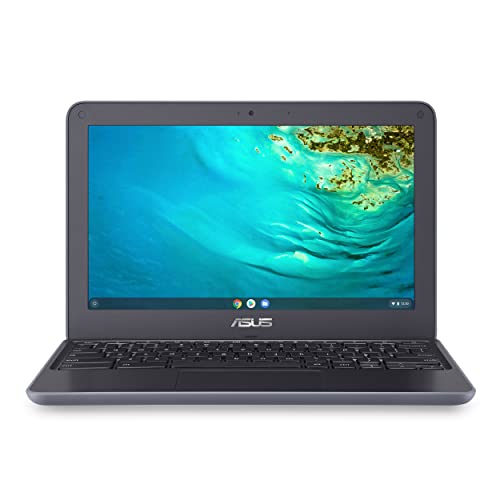
ASUS Chromebook C203XA (Rugged, Spill-Resistant) — Durability-First School Pick
The C203XA is the machine this category was invented for. ASUS’s title stacks its school credentials without embarrassment: rugged and spill-resistant construction, a hinge that opens a full 180 degrees so the screen can lie flat for sharing across a desk, and durability tested to the MIL-STD 810G standard — the military test family that education makers use to signal a design built for drops and knocks. The 11.6-inch HD screen is the classroom standard size, small enough for a child’s bag and desk, and the whole machine wears Dark Grey education colours that forgive a year of scuffs.
Inside, the specification is deliberately plain: a MediaTek quad-core processor, 4GB of memory and 32GB of eMMC storage running Chrome OS. For the work school actually assigns — classroom platforms, documents, slides, research, video lessons — that is sufficient, and its plainness is protective in two ways. There is little to break in software, because Chrome OS manages and restores itself; and there is little to lose in hardware, because a machine at this tier can be repaired or replaced without a family financial event. A first laptop should be allowed to be a learning tool in every sense, including learning what laptops can survive.
Parents should set it up as the school intends: signed in with the child’s school account if the school issues one, so the school’s filters and classroom tools apply, or with a family-managed account if it is a home machine. Either way, the adult configures first and the child receives a machine whose boundaries are already set. For the primary and early secondary years, this ASUS is the guide’s default answer — the Chromebook against which the others must argue their extras, because its brief is childhood itself, engineered.
- Display: 11.6-inch HD, 180-degree hinge
- Processor: MediaTek quad-core
- Memory: 4GB RAM
- Storage: 32GB eMMC
- Operating system: Chrome OS
- Durability in title: rugged, spill-resistant, MIL-STD 810G; education model C203XA-YS02-GR
Strengths
- Fullest stated durability brief in the guide
- Spill resistance answers the water-bottle reality
- Flat-opening hinge suits classroom sharing
Trade-offs
- 32GB storage is the smallest here
- 4GB memory suits school platforms, not heavy multitasking
- HD resolution is classroom standard, not generous
Best for: primary and early secondary children whose laptop must survive school bags and shared desks
Not suited for: older students whose coursework needs a larger screen and more storage
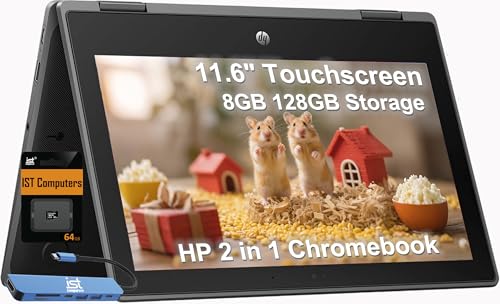
HP Chromebook x360 Fortis (8GB, 128GB, Touch) — Rugged Convertible With Room
HP’s Fortis line is its education-rugged family, and this x360 model adds the one posture the other school picks lack: it folds. The 11.6-inch touchscreen rotates through laptop, tent and tablet modes, which suits how younger children actually work — tapping through reading apps as a tablet, propping a video lesson in tent mode, typing the assignment as a laptop. The title keeps the essential school words, rugged and spill-resistant, and adds a long battery life claim, the quality that decides whether a school laptop survives a full day of lessons without a charger hunt.
Its numbers lead the education group. Memory is 8GB, double the other school picks, which keeps classroom platforms, a video lesson and a document open together without the reloading that frustrates a child mid-task. Storage is stated as 128GB in total, composed honestly in the title: 64GB of internal eMMC plus a 64GB SD card. Parents should understand that split — the card is removable storage, excellent for photos, downloads and media, while the internal drive holds the system and apps — and should teach the child that the card is part of the machine, not a toy to pocket.
An Intel processor drives it, though the title does not name the model, and this guide claims nothing more specific. Choose the Fortis when your child’s schoolwork mixes typing with touch — drawing apps, interactive lessons, reading — or when the laptop doubles as the family’s tablet for a younger child’s supervised media. It is the most versatile school machine here, and its versatility stays inside the safety brief: same Chrome OS management, same rugged shell, more ways to learn. The premium over the ASUS buys posture and headroom, both of which a touch-led child will use daily.
- Display: 11.6-inch touchscreen, 2-in-1 convertible
- Processor: Intel CPU (model not stated in listing title)
- Memory: 8GB RAM
- Storage: 128GB total — 64GB eMMC plus 64GB SD card, per title
- Operating system: Chrome OS
- Durability in title: rugged and spill-resistant; long battery life claimed
Strengths
- Only folding touchscreen among the school picks
- 8GB of memory doubles the education standard
- 128GB total storage leads the rugged group
Trade-offs
- Half the storage is a removable SD card
- Processor model is not stated in the title
- Convertible hinge is one more moving part to treat kindly
Best for: children whose learning mixes typing, touch apps and tablet-style reading
Not suited for: families taking the simplest, cheapest school machine with nothing extra to manage
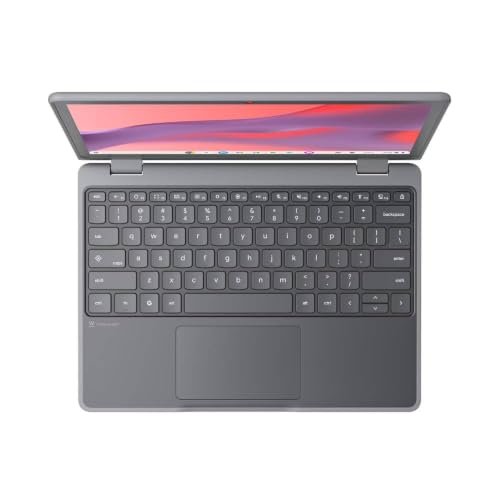
Lenovo 100e Chromebook Gen 5 (Kompanio 540) — Current School Standard
The 100e is the Chromebook line schools buy by the thousand, and this is its fifth generation — model 83T60006US in Luna Gray. Its title is the plainest here, and the plainness is informative: an 11.6-inch HD screen at 1366×768, a MediaTek Kompanio 540 processor, 4GB of memory and 64GB of flash storage, running ChromeOS. No durability adjectives are printed in this particular title, so this guide claims none beyond the 100e line’s education purpose; parents comparing it against the ASUS should note that the ASUS states its rugged and spill-resistant credentials explicitly, while this listing leaves its construction undescribed.
The storage figure is its quiet advantage over the ASUS and its own predecessor: 64GB, double their 32GB, which in a child’s school life means room for offline documents, downloaded lessons for a journey, and a photo collection that does not trigger weekly deletions. The Kompanio 540 is the current MediaTek school platform, built for exactly this workload — classroom platforms, video, documents — with the efficiency a school day demands. Everything about the machine is calibrated to be issued, used, returned and reissued without drama.
That institutional character is the recommendation. If your child’s school deploys Lenovo 100e machines, buying the same model for home removes every friction of difference: same keyboard, same charger habits, same behaviour in the classroom platforms. Even where the school uses another brand, the Gen 5 is the safe current-standard choice — the newest generation of the line in this guide, with the roomier drive. It asks nothing of a family except the account setup every pick here deserves, and it will not surprise anyone, which for a child’s school laptop is praise of the highest order.
- Display: 11.6-inch HD, 1366 x 768
- Processor: MediaTek Kompanio 540
- Memory: 4GB RAM
- Storage: 64GB flash memory
- Operating system: ChromeOS
- Model: 100e Gen 5, 83T60006US, Luna Gray, US keyboard
Strengths
- 64GB storage doubles the 32GB school picks
- Current fifth generation of the education line
- Matches the machines many schools deploy
Trade-offs
- Durability features are not stated in this listing title
- 4GB memory is the school standard, not headroom
- HD screen resolution is basic by design
Best for: families taking the current school-standard Chromebook, especially where the school uses the same line
Not suited for: durability features stated explicitly in the listing as a requirement

Lenovo 100e Chromebook Gen 4 (Octa-Core, 32GB) — Earlier Generation, Same Brief
Generation 4 of the 100e — model 82W0001EUS in Graphite Gray — is the same school idea one cycle earlier, and this guide includes it because families will meet it constantly: schools run fleets of them, and its price tier reflects its vintage. The processor is an octa-core MediaTek design combining Cortex A76 and A55 cores, the memory is the standard 4GB, and storage is 32GB of flash memory behind the same 11.6-inch HD format. For the classroom workload, the lived difference from Gen 5 is smaller than the generation gap suggests — documents open, lessons stream, platforms run.
The differences that do matter are the drive and the clock. Thirty-two gigabytes asks for tidier habits than its successor’s 64GB: downloads pruned, offline media rotated, the cloud used as the school intends. And an earlier generation reaches the end of its Chrome OS update window sooner — every Chromebook has a published auto-update expiry, and parents should check the date for this exact model on Google’s policy page before buying, because updates are a safety feature, not a luxury, on a child’s machine. A Gen 4 with years of updates remaining is a bargain; one near expiry is a short-term loan.
Choose it knowingly and it serves well: a younger child’s first machine, a household’s homework spare, a school-matching laptop where the school itself runs Gen 4 fleets. Its octa-core processor handles the school day without complaint, and its tier frees budget for the case, the headphones and the spare charger that a child’s laptop life genuinely needs. The mistake would be buying it accidentally, believing it current — which is why this guide labels generations in headlines rather than footnotes.
- Display: 11.6-inch HD
- Processor: MediaTek octa-core (Cortex A76 + Cortex A55)
- Memory: 4GB RAM
- Storage: 32GB flash memory
- Operating system: Chrome OS (check this model’s auto-update expiry date before buying)
- Model: 100e Gen 4, 82W0001EUS, Graphite Gray
Strengths
- Octa-core processor covers the school workload
- Same education brief at an earlier-generation tier
- Ideal as a first machine or homework spare
Trade-offs
- 32GB storage asks for tidy habits
- Earlier generation means an earlier update-expiry horizon
- Durability features are not stated in this listing title
Best for: younger children, spare homework machines and schools’ Gen 4 fleets matched at home
Not suited for: long update windows and roomier drives as first priorities

LEXiBOOK LAPTAB 10 (Android Learning Tablet) — Learning Toy — Not a School Laptop
This pick carries the guide’s most important label, so it comes first: the LEXiBOOK LAPTAB 10 is a learning toy in a laptop’s shape, not a laptop for school. Its title describes a 10-inch touchscreen device running Android 14, with parental controls and educational content built in, in an ultra-thin body. For a younger child — the pre-homework years — that is a coherent and honest product: a supervised first screen with learning games and content, shaped like the laptops the child sees adults use, at a tier where sticky fingers are a design assumption rather than a disaster.
What it cannot do defines the boundary. It does not run Chrome OS, does not sign in with a school account, and does not open the classroom platforms a teacher assigns homework through. It will not grow into a school laptop, because its category is different, not lesser-powered: an Android tablet with a keyboard, curated for children. A family that buys it expecting homework capability has been failed by whoever sold it as a laptop — this guide’s job is to make sure the expectation is set correctly here, where the word ‘laptop’ in its own title might mislead.
Bought for its actual purpose, it has real virtues. The parental controls are the product, not a setting: content is educational by design, and the parent’s role is built into the device rather than bolted on. The 10-inch size suits small hands and laps, and the Android platform will be familiar to any parent who has handed over a phone. Place it in the family as the younger sibling’s device — the machine a five-to-eight-year-old learns touch, letters and numbers on — while the Chromebooks in this guide serve the school-age child. Two categories, two childhoods, no confusion.
- Display: 10-inch touchscreen
- Platform: Android 14
- Content: educational content built in, per title
- Controls: parental controls, per title
- Category: learning tablet with keyboard — not a Chrome OS school laptop
- Model: LAPTAB 10, LT11EN, ultra-thin design
Strengths
- Parental controls and educational content are the core design
- Right-sized first device for younger children
- Familiar Android platform for parents to manage
Trade-offs
- Cannot run school Chromebook platforms or accounts
- Not a real laptop for homework or classwork
- Will be outgrown when school work begins
Best for: younger children in the pre-homework years, under supervision
Not suited for: any child whose school assigns work on a Chromebook platform

Lenovo Chromebook 14 Touch (FHD, Wi-Fi 6) — Step-Up for Older Children
Childhood ends in stages, and this Lenovo is the stage where the school laptop grows up. The screen steps to 14 inches at Full HD with touch — room for two documents side by side, sources beside an essay, the research posture of secondary school — in a slim, light design that drops the rugged education brief for a more grown-up machine. The processor is an 8-core MediaTek Kompanio 520, storage is 64GB of eMMC, memory stays at the Chromebook-standard 4GB, and Wi-Fi 6 brings the wireless current. Abyss Blue replaces school grey; the message to its owner is that this is a real laptop now.
That message carries a responsibility the earlier picks do not. Without the stated rugged and spill-resistant brief of the education models, this machine asks its owner to handle it like the older student they are becoming — a case in the bag, a bottle kept away from the keyboard, care as a habit rather than a specification. Parents should make that trade explicitly with the child: the bigger, sharper screen is earned by careful handling, and the family’s supervision arrangement graduates with the machine, from locked-down management toward agreed rules and spot checks appropriate to an older child.
Choose it for the child whose homework has outgrown 11.6 inches — essays with research, presentations, light creative projects for school — and who has demonstrated the care the slimmer design requires. It remains a Chromebook, with Chrome OS’s self-updating safety and the school account system intact, so the step-up is in screen and stature, not in risk. When the next step comes — a Windows laptop for specialised subjects or a family machine for older teens — it will come from this one’s success, and the child who was trusted with the 14-inch screen will usually have earned it.
- Display: 14-inch FHD touchscreen
- Processor: MediaTek Kompanio 520, 8-core
- Memory: 4GB RAM
- Storage: 64GB eMMC
- Operating system: Chrome OS
- Extras in title: Wi-Fi 6, slim and light design, Abyss Blue
Strengths
- 14-inch FHD touch screen suits secondary-school work
- 64GB storage matches the roomier school picks
- Wi-Fi 6 keeps the platform current
Trade-offs
- No rugged or spill-resistant brief in the title
- 4GB memory remains the Chromebook standard
- Slim design needs careful handling from its owner
Best for: older children and young teens with bigger-screen homework and careful handling habits
Not suited for: young children still in the drops-and-spills years
How Do the Six Children’s Picks Divide by Age and Purpose?
Read the table by childhood stage rather than by specification. The first four rows are the school years in ascending order of extras — durability stated, then touch and memory, then storage and currency, then the earlier generation at its honest tier. Row five leaves the school system entirely: the LEXiBOOK’s blanks in the memory and storage columns are the table’s most truthful cells, because a learning toy’s numbers do not belong in a laptop comparison. Row six is the graduation step, where the screen grows and the rugged brief is handed back in exchange for trust.
| Pick | Display | Processor | Memory | Storage |
|---|---|---|---|---|
| ASUS Chromebook C203XA (Rugged, Spill-Resistant) | 11.6-inch HD | MediaTek quad-core | 4GB | 32GB eMMC |
| HP Chromebook x360 Fortis (8GB, 128GB, Touch) | 11.6-inch touch 2-in-1 | Intel CPU | 8GB | 64GB eMMC + 64GB SD |
| Lenovo 100e Chromebook Gen 5 (Kompanio 540) | 11.6-inch HD | MediaTek Kompanio 540 | 4GB | 64GB flash |
| Lenovo 100e Chromebook Gen 4 (Octa-Core, 32GB) | 11.6-inch HD | MediaTek octa-core | 4GB | 32GB flash |
| LEXiBOOK LAPTAB 10 (Android Learning Tablet) | 10-inch touch | Android 14 | Not stated in listing title | Not stated in listing title |
| Lenovo Chromebook 14 Touch (FHD, Wi-Fi 6) | 14-inch FHD touch | MediaTek Kompanio 520 8-core | 4GB | 64GB eMMC |
How Should Parents Set Up Supervision Before the Laptop Is Handed Over?
Set up the account layer first, while the laptop is still a parcel rather than a possession. If the school issues accounts, sign in with the school account and confirm the classroom platform opens; the school’s filtering and management then apply at home as well. If the laptop is a family purchase, create the child’s account under your family’s management tools — Google’s family supervision for Chromebooks lets a parent approve apps, set website filters and schedule screen time — and use your own account, never the child’s, as the administrator. The child should receive a machine whose boundaries already exist, so the rules feel like the laptop’s nature rather than a punishment imposed later.
Then agree the physical rules while everyone is calm: where the laptop is used (shared spaces for younger children), where it charges overnight (outside the bedroom is the common family rule, and it doubles as fire-safe charging practice), and what happens after a spill or drop (tell an adult immediately — hidden damage and hidden incidents both grow worse in secret). Write the rules down for younger children and stick them inside the laptop bag. Supervision succeeds as an environment, not as surveillance: the goal is a child who is safe while they gradually earn the trust that relaxes it.
Chromebook or Learning Tablet: Where Is the Real Boundary?
The boundary is the school account. A Chromebook signs into the platforms teachers actually use — classroom suites, school email, assigned applications — under an account the school or family manages, and it runs the web as its native habitat. The LEXiBOOK runs Android educational content chosen by its maker, inside a walled garden a parent supervises, and it cannot join the school system at all. Neither is a failed version of the other; they serve different years of childhood. The failure mode is only confusion — buying the garden when the school gate was needed, or handing a pre-schooler a school machine whose open web they are not ready to roam.
Age is a guide, not a rule, but a useful one: children with assigned homework need the Chromebook; children whose ‘work’ is letters, numbers, stories and supervised play are the LAPTAB’s audience. Families with children in both stages often run one of each, and the hand-me-down path runs in one direction only — the Chromebook descends to a younger sibling when school begins for them, while the learning tablet descends to cousins and toy shelves. Buy for the stage your child is actually in this September, not the one a product’s title flatters them into.
What Does MIL-STD 810G on a Child’s Laptop Actually Promise?
It promises that the design was subjected to a family of laboratory stresses — drops from defined heights, vibration, temperature extremes, humidity — and survived to the standard’s criteria. It does not promise that your child’s specific drop, from a specific bunk bed onto a specific floor, is covered, and it is not a warranty. Read it as evidence about the manufacturer’s intent and testing budget: a maker who certifies a school laptop to a durability standard has engineered the corners, the keyboard deck and the ports for a hard life, which is exactly the life a child’s laptop leads.
Pair the rating with habits that cost nothing: a padded sleeve for the school bag’s journey, a rule that the laptop travels closed and zipped, and a desk position away from the table’s edge and the drink. Spill resistance, where a title states it, typically means the keyboard deck tolerates a splash and channels liquid away from the electronics long enough to shut down and dry — it is a rescue window, not an invitation, and the correct response to a spill is still power off, upside down, adult informed. Ratings plus habits is the whole durability strategy; either alone is half of it.
How Long Will a School Chromebook Stay Supported and Safe?
Every Chromebook carries an auto-update expiry date — the point until which Google guarantees Chrome OS updates for that model — and on a child’s machine that date is a safety specification, because updates carry the security fixes and the browser protections the supervision system relies on. Newer generations, like the 100e Gen 5 here, carry later dates than earlier ones. Before buying any model in this guide, look up its exact date on Google’s published policy list; it takes two minutes and converts a vague worry into a number of school years you can plan around.
Plan the machine’s life backwards from that date. A Chromebook bought for a seven-year-old should ideally stay updated into their secondary years; one bought for a twelve-year-old needs a shorter runway. When expiry approaches, the machine does not stop working, but it should stop being the child’s window to the web — retire it to offline duties or replace it, and treat the date the way you treat a car seat’s expiry: a boring number that exists because the risk it manages is real, if invisible.
What Should a Family Do on the Day the Laptop Arrives?
Resist the ceremonial unboxing handover. The first session belongs to the parent: charge the machine, connect it to the home network, run its updates until none remain, create or sign in the child’s account under the family’s management settings, and install only what school requires. Set the screen-time schedule and content filters you intend, test them by trying to open something they should block, and confirm the school’s platform signs in. Photograph the serial label and keep the receipt with the family’s documents — school laptops live outdoors, and paperwork is the first thing a warranty claim will request.
Then hand it over with the rules and one shared task: open the classroom platform together, submit nothing, and let the child show you one thing they know how to do on it. That small ritual establishes the laptop’s social contract — it is a school tool the family shares visibility into, not a private world — far better than a lecture. Finish by fitting the sleeve, labelling the charger with the child’s name (school chargers are identical and migratory), and agreeing where the machine will sleep each night.
When Should a Child Step Up From 11.6 Inches to the 14-Inch Machine?
When the work, not the birthday, asks for it. The signs are concrete: essays written with sources open beside them, presentations built rather than presented, homework sessions long enough that the small screen’s squint becomes the complaint, and — the real gate — a handling record that shows the current machine returned each day undamaged by carelessness. The Lenovo 14 in this guide keeps everything safe about the Chromebook system while enlarging the canvas, which makes it the designed next step rather than a leap to a fragile consumer laptop.
There is no harm in waiting a year too long and real harm in stepping up a year too early: a slim, non-rugged machine in the hands of a child still in the drops era is a repair bill rehearsing. Equally, a teenager crammed onto an 11.6-inch HD screen for research-heavy coursework is being taxed daily for a parent’s caution. Watch the homework and the handling, and let those two witnesses — not marketing, not classmates — call the timing.
How Should Siblings Share One School Laptop Without Daily War?
Chromebooks are unusually good at sharing, because each child’s school account keeps their work, bookmarks and classroom world separate behind their own sign-in. Set up every sibling’s account on day one, teach the sign-out habit as non-negotiable, and give the machine a household timetable for the contested hours — homework before recreational use, older children’s deadlines outranking younger children’s videos. A shared external rule, written and posted, prevents the laptop from becoming the family’s daily negotiation.
Storage on the smaller drives needs one shared discipline: downloads and photos are pruned together monthly, and anything precious is backed up to the family account rather than hoarded locally. When sharing genuinely stops working — two children, simultaneous homework, different schools’ platforms — that is the honest signal to add the second machine, often the earlier-generation pick in this guide as the younger child’s own. Sharing teaches account hygiene better than any lesson; it just should not be asked to teach it forever.
What Accessories Does a Child’s Laptop Actually Need?
Three earn their money immediately: a padded sleeve or case that fits the exact machine, because the school journey is where laptops die; a spare charger, labelled, because the original will be forgotten at school on the one night homework is due; and headphones the child finds comfortable, because classrooms and video lessons assume them and households with siblings require them. A mouse helps younger children whose trackpad control is still developing, and it costs little. Everything else — decorative skins, novelty peripherals — can wait for birthdays.
Resist one purchase in particular: the expensive extended warranty sold with fear. For machines at this guide’s tiers, the arithmetic rarely favours it over the family’s own repair-or-replace fund, especially given education models are built to be serviced. Spend the difference on the sleeve and the spare charger, which prevent the common losses, rather than on insuring the rare catastrophe. Protection that prevents beats protection that compensates, at every age in this guide.
Common Mistakes When Buying a Laptop for a Child
**Buying a learning tablet to do a Chromebook’s job.** The LEXiBOOK is a good product with a laptop-shaped silhouette, and its title’s ‘laptop’ word misleads hurried buyers. If a teacher assigns work through a school platform, only the Chromebooks here can open it. Match the device to the school’s system first and the child’s wishes second.
**Handing over the laptop before the accounts are set.** A machine configured by its child owner on day one is a machine whose filters, limits and admin rights are wrong for years. The parent’s setup session is not a delay of the gift; it is the part of the gift that keeps the child safe.
**Paying for power a school workload cannot use.** Memory and storage beyond the school pattern buy nothing a child can feel, while the same money spent on the rugged model, the sleeve and the spare charger buys survival. In this category, durability is the performance specification.
**Ignoring the update-expiry date.** Two Chromebooks can look identical on a shelf while their guaranteed update windows differ by years. On a child’s machine, updates are safety infrastructure. Check the exact model’s date before buying, particularly on earlier generations like the 100e Gen 4.
**Assuming spill-resistant means waterproof.** The education picks resist a splash long enough to be rescued; they do not swim, and a soaked machine left running ‘to see if it works’ converts a rescue into a replacement. Power off, turn it over, tell an adult — teach the drill before it is needed.
**Letting the laptop sleep in the bedroom by default.** Overnight charging in a shared family spot solves three problems at once: screen time ends when the machine sleeps, charging is supervised, and the morning routine starts with a charged laptop in a known place. It is the single highest-value rule most families can adopt.
Why Do Schools Choose Chromebooks So Overwhelmingly?
Because the platform solves the institution’s problems, not just the child’s. Chrome OS updates itself, wipes and re-enrols cleanly between students, runs on inexpensive hardware, and lets an IT team manage a thousand machines’ accounts, apps and filters from one console. A family buying the same platform inherits all of that engineering intent: the machine at home behaves like the machine at school, the account system is identical, and the support knowledge transfers. Buying with the institution’s grain, rather than against it, is the quiet master-key of this whole category.
What Should a Parent Know About the School Account Itself?
That it belongs to the school’s system, with the school’s rules: the school can see and manage activity on its accounts, sets which applications are available, and retires the account when the child leaves. Families should treat the school account as school property used at home — homework and class platforms there, family life on a family account where the machine allows both. Understanding that boundary prevents two classic confusions: expecting privacy inside a managed account, and expecting school IT to help with a personal one. Both accounts have their place; the skill is knowing which is which.
How Do You Teach a Child to Carry a Laptop Safely?
As a physical routine, rehearsed once and then expected: two hands, lid closed, sleeve zipped, bag on both shoulders. The journey between home and classroom is where education laptops meet their fate — dropped on steps, swung in bags, crushed under sports kit — and no durability standard repeals a bad carry. Schools teach the same routine for their own fleets, which makes it one of the few rules a child hears identically from every adult in the system. Consistency is what turns a rule into a reflex, and reflexes are what actually protect hardware.
Why Is 4GB of Memory Enough Here When It Is a Ceiling Elsewhere?
Because the workload is genuinely different. Chrome OS is a lighter system than Windows, classroom platforms are web applications designed for school hardware, and a child’s assigned work — documents, slides, research, video lessons — was specified by teachers who know the fleet’s limits. The 4GB ceiling that frustrates an adult’s forty-tab habit rarely binds a child’s managed school day, especially with the Fortis’s 8GB available for touch-heavy learners. Specifications must be read against their workload; childhood’s workload is the one case in this series where modest numbers are the correct engineering.
What Is the Right Way to Retire a Child’s First Laptop?
Graduate it deliberately. Back up the child’s work to the family archive — early school projects become precious embarrassingly fast — then sign out every account and powerwash the machine to factory state before it passes to a sibling, a relative or a recycling programme. If its update window has closed, say so honestly to whoever receives it and steer it toward offline duties. A first laptop carries a surprising amount of family history; retiring it well is partly data hygiene and partly respect for the object that taught your child the digital world.
How Should Parents Handle the ‘Everyone Else Has One’ Argument?
By separating the two purchases the argument conflates. If the school requires or supplies a device, that is infrastructure, and this guide’s Chromebooks answer it. If the request is for a more powerful machine classmates own, that is a family decision about entertainment and status, to be made on its own merits and budget — not smuggled into the school purchase, where it inflates cost and fragility while adding nothing to homework. Children respect the distinction more readily when it is explained as categories rather than refusal: school tool here, games machine there, each judged by its own rules.
What Does a Spill-Resistant Keyboard Not Protect Against?
Immersion, sugary drinks left to dry into the mechanism, and the second spill that arrives while the first is still being ignored. Resistance buys minutes for the rescue drill, nothing more. Families should also know that the rest of the machine — ports, vents, speakers — makes no such promise, so the water bottle’s place is on the floor or a separate surface, never beside the keyboard it might fall on. The specification is a safety net with visible holes; the habit of distance is the solid floor beneath it.
Why Is the Overnight Charging Spot a Safety Feature?
Because it gathers several small protections into one habit: the battery charges where an adult would notice heat or damage, the cable is not a bedroom trip hazard, the machine is findable and charged at the morning’s start, and the child’s day ends when the laptop’s does. Lithium batteries in modern devices are well-managed, yet the family’s charging station — a counter, a hallway shelf — remains the cheapest risk reduction in the whole setup. Rules that protect sleep, safety and school readiness simultaneously are the ones worth enforcing without exception.
How Can a Parent Tell Whether a School Laptop Is ‘Enough’?
Watch a homework session rather than a benchmark. If the classroom platform opens promptly, the video lesson plays without stutter, the document keeps up with the child’s typing, and the battery ends the day with something left, the machine is enough — full stop. Dissatisfaction in this category almost always traces to the account setup, the network or a dying battery, not to the processor. Diagnose in that order before shopping for a replacement; the fix is frequently free, and the child learns that problems are investigated before they are purchased away.
What Should Be in the Laptop Bag Besides the Laptop?
The labelled charger, the headphones, and one analogue survival kit: a pencil case and paper notebook for the days the battery, the network or the platform fails — because school continues regardless, and a child equipped for the failure is calmer than one who is not. A microfibre cloth teaches screen care cheaply. Nothing valuable beyond the kit belongs in the bag; every extra object is weight on a small back and one more thing to lose. Audit the bag together monthly, and let the child own the checklist — the bag is their first briefcase, and treating it that way is part of the education the laptop was bought to serve.
Final Recommendation
For the school-age child, the choice among the Chromebooks is a matter of emphasis. The ASUS C203XA is the durability default, its rugged, spill-resistant, military-tested brief stated in full. The HP Fortis adds the folding touchscreen and the memory headroom for a touch-led learner. Lenovo’s 100e Gen 5 is the current school standard with the roomier drive — the natural buy where the school itself runs Lenovo — and Gen 4 serves honestly as a first machine or spare, provided its update window is checked. The Lenovo 14 Touch waits at the top of the range for the older child whose work and care have both grown up.
The LEXiBOOK stands apart on purpose: a supervised learning toy for the years before homework, valuable exactly insofar as nobody mistakes it for a school laptop. Whichever machine you choose, the purchase is only half the safety system — set the accounts up before handover, agree where it sleeps and charges, and check its update date once a year. A child’s first laptop should be boring in all the ways that matter and delightful in the one way that counts: it is there, working, every school morning, asking nothing of anyone.
Frequently Asked Questions
Can these Chromebooks run the apps my child’s school uses?
If the school is a Chromebook school — the common case for the education models here — yes: classroom platforms, school email and assigned web applications run through the child’s school account, which is exactly what these machines are built for. If the school instead requires specific Windows software, none of these picks will serve, and that requirement should be discovered from the school’s own device guidance before any purchase. Always buy to the school’s stated system; it outranks every other consideration in this guide.
Is the LEXiBOOK suitable for homework?
No, and the distinction matters enough to repeat: the LAPTAB is an Android learning device with educational content and parental controls, designed for younger children’s supervised learning play. It cannot sign into a school Chromebook account or open classroom platforms, so homework assigned through a school system is beyond it. For a pre-school or early-years child it is a legitimate, well-aimed product. For homework, choose one of the Chromebooks — that is the entire reason both categories appear in this guide, clearly labelled.
How much storage does a child need on a school Chromebook?
School work itself is light — documents, slides and platform data live mostly in the cloud — so 32GB serves a disciplined user, while 64GB forgives the downloads, offline lessons and photo collections of real childhood. The HP Fortis reaches 128GB by including an SD card, which suits media storage. What fills a child’s drive is rarely schoolwork; it is saved videos and games, which is why the family’s monthly tidy-up habit matters more than the number chosen. Buy 64GB if the budget allows one upgrade; it is the forgiving size.
What age suits each type of machine in this guide?
As a pattern rather than a rule: the LEXiBOOK serves the pre-homework years, roughly the youngest school starters; the rugged 11.6-inch Chromebooks serve primary and early secondary children, whose handling is still developing; the 14-inch Lenovo suits the older child whose coursework and care have both matured. Individual children vary more than product lines do, so weigh your own child’s handling record and their school’s requirements above any age printed in a buying guide — including this one.
Can my child play games on these Chromebooks?
Browser-based and classroom-appropriate games, yes; the demanding game libraries of Windows PCs, no — and many families will count that as a feature. Chromebooks can also run a range of Android applications where the school’s or family’s settings allow, which parents control through the account management set up before handover. A school laptop that stays a school laptop protects homework time better than any lecture; families wanting a gaming machine should buy one separately and keep the briefs distinct.
What should I do if the laptop gets wet?
Teach the drill in advance: stop, power off immediately, unplug the charger, turn the machine upside down so liquid drains away from the electronics, and tell an adult. Do not charge it or turn it on ‘to test’ — that is the moment a rescue becomes a replacement. Spill-resistant education models are designed to survive the splash long enough for exactly this response. After drying thoroughly — a full day is not excessive — an adult can attempt power-on, and the school’s IT support should hear about any incident involving a school-managed machine.
How do I check a Chromebook’s update expiry date?
Google publishes an auto-update policy list by model; search it for the exact model name — for example, the 100e generation you are considering — and note the month and year shown. You can also find the date on a delivered machine in its settings under the Chrome OS information pages. Compare the date against the years of school you need the machine to cover. This two-minute check is the highest-value research in the entire purchase, because an expired Chromebook slowly becomes an unsafe one.
Related Guides
A child’s first laptop is one kind of careful purchase; the neighbouring guides apply the same verify-before-you-buy discipline to the printers a household or classroom depends on.
our roundup of the best automatic duplex printers the best duplex laser printers for home offices the best color laser printers with duplex for small teams

[…] the best affordable laptops for children, chosen safety-first our roundup of the best automatic duplex printers the best duplex laser printers for two-sided office output […]