What's inside
- Key Takeaways
- Quick Picks
- How We Chose These Picks
- Comparing the Six Machines at a Glance
- How Does Automatic Duplex Actually Work Inside the Machine?
- Which Paper Habits Keep Two-Sided Printing Trouble-Free?
- Laser or Inkjet: Which Technology Handles Two-Sided Work Better?
- How Do You Make Two-Sided Printing the Default on Every Device?
- What Does Duplex Printing Actually Save Over a Year?
- Common Mistakes When Shopping for a Duplex Printer
- How Should Students and Homework-Heavy Homes Use Duplex?
- Where Should a Two-Sided Printer Live in the House?
- What Maintenance Keeps a Duplex Path Reliable for Years?
- Final Recommendation
- Frequently Asked Questions
- Related Guides
As an Amazon Associate I earn from qualifying purchases. This post may contain affiliate links at no extra cost to you.
widgetverdict.com is reader-supported. When you buy through links on our site, we may earn an affiliate commission.
Automatic duplex printing sounds like a small checkbox until the first time a forty-page report comes out single-sided and somebody has to stand at the tray flipping sheets by hand. The best automatic duplex printers remove that chore entirely: the machine prints one side, pulls the page back inside, and lays ink or toner on the reverse without you touching anything. This guide gathers six machines that do that trick across three very different technologies — monochrome laser, color laser, and color inkjet — because the right choice depends far less on the duplex unit itself than on what you print, how often you print it, and whether scanning and copying belong in the same box.
Three of the six picks are lasers. A compact Brother monochrome laser handles the everyday black-and-white workload, an HP color laser covers documents that need color without photo ambitions, and a Canon multifunction laser adds copying, scanning, and faxing at a stated 42 pages per minute. The other three are inkjets: an Epson home all-in-one that prints borderless photos, an HP OfficeJet Pro built for a busy home office with a document feeder, and a Brother Work Smart model aimed at households that print, scan, and copy in roughly equal measure. Every one of them turns the page over by itself; none of them asks you to reload a stack and hope the orientation survives.
One distinction runs through everything below and is worth fixing in your mind before the picks begin. Print-only machines do exactly one job and usually do it with the fewest moving parts and the simplest upkeep. All-in-one machines fold a scanner and copier into the same cabinet, which saves desk space and a second purchase, yet also means one failure can sideline several functions at once. Neither shape is automatically better. A print-only laser on a hallway shelf can serve a whole family for years, while a freelancer who scans signed contracts weekly will feel the missing scanner within a month. Read each pick against your own pile of paper, not against an abstract ranking.
Running costs get honest treatment here rather than headline treatment. No static prices appear anywhere in this guide, and no star ratings or review counts either, because both drift too quickly to print responsibly. Instead, each pick is positioned by its technology: laser toner tends to suit steady document volume, inkjet cartridges suit lower volume with color and photos in the mix, and subscription trials mentioned in listing titles are described as trials, never as permanent savings. Where a specification is not stated in a listing title, the spec box says so plainly instead of guessing.
Geography matters in a way spec sheets never mention. A printer serving one desk can be a specialist; a printer serving a whole house becomes a utility, and utilities are judged on reliability rather than brilliance. Several picks below were chosen with the utility role in mind — machines whose titles emphasize wireless freedom, mobile access, and feeders that forgive a mixed stack of originals. Keep your own geography in view as you read: the distance between the printer and the people who use it decides more daily satisfaction than any single feature named in a title.
Key Takeaways
- All six machines turn pages over automatically; the split that matters is laser versus inkjet and print-only versus all-in-one.
- The Canon imageCLASS MF465dw II is the only pick here stating a speed in its title — 42 PPM — alongside print, copy, scan, and fax in one cabinet.
- Two picks print only: the Brother HL-L2460DW in monochrome and the HP Color LaserJet Pro 3201dw in color.
- Photo printing belongs to the inkjets; the Epson XP-5250 names borderless photos in its title, while neither laser promises photo output.
- Document feeders appear on the HP OfficeJet Pro 8135 and the Brother Work Smart 1360, which changes how multi-page scanning feels day to day for households buried in forms, packets, and school paperwork every single term.
Quick Picks
| Pick | Badge | Why it is here |
|---|---|---|
| Brother HL-L2460DW | Everyday Mono Laser | A compact wireless monochrome laser that prints both sides and asks for almost no attention. |
| HP Color LaserJet Pro 3201dw | Color Without Extras | Color laser output with duplex in a single-function cabinet for document-focused desks. |
| Canon imageCLASS MF465dw II | Full Office Engine | Print, copy, scan, and fax at a stated 42 PPM with expandable paper capacity. |
| Epson Expression Home XP-5250 | Home Photo All-in-One | Automatic two-sided printing plus borderless photos from a 150-sheet tray. |
| HP OfficeJet Pro 8135 | Home-Office Inkjet | An ADF-equipped color inkjet with fax and duplex aimed at working households. |
| Brother Work Smart 1360 | Family All-Rounder | Print, scan, and copy with duplex and a document feeder in a home-sized frame. |
How We Chose These Picks
Every candidate had to clear one non-negotiable bar first: its listing title had to state automatic duplex or two-sided printing outright, or name duplex as a built-in function of the machine. Models that achieve two-sided output only through driver prompts and manual reloading were excluded, because that workflow collapses the moment a long document meets a distracted operator. Beyond that gate, we balanced the field deliberately. A guide containing six monochrome lasers would answer a question nobody asked, so the final six span monochrome laser, color laser, and color inkjet, and split evenly between print-only and all-in-one designs.
Specification claims were restricted to what each listing title actually states. Speeds, tray sizes, and function lists appear in the spec boxes only when the title supplies them; anything else is marked as not stated in the listing title. That discipline produces some uneven spec boxes, and we accept the unevenness gladly. A missing number in a box is honest; an invented number would follow a buyer home. Connectivity claims follow the same rule — wireless, mobile printing, and voice-assistant compatibility are credited only where a title names them.
Finally, we weighted the unglamorous virtues: how a machine behaves on page thirty of a two-sided run, whether its paper path suits envelopes and heavier stock at least in principle, and how its consumable model fits the printing pattern it will actually meet. A printer is a ten-year appliance disguised as a peripheral, and the choosing reflects that horizon throughout.

Brother HL-L2460DW — Everyday Mono Laser
Start with the simplest machine in the group, because for a large share of households it is also the sufficient one. The HL-L2460DW is a compact monochrome laser that prints only — no scanner perched on top, no copier glass, no fax circuitry — and its listing title pairs that single job with duplex, wireless connectivity, and mobile printing. Black-and-white output is the whole brief. School worksheets, boarding passes, recipes, permission slips, tax forms, and the endless paperwork of ordinary life emerge crisp and dry, with the page already turned and finished on both sides.
Laser technology suits this workload in ways that compound quietly. Toner does not dry out during a quiet month, so a printer that sits idle through summer still produces a clean first page in September. Text edges stay sharp at small sizes, which matters for contracts and forms where an 8-point footnote carries real information. Duplex on a laser also avoids the slight cockling that heavy ink coverage can leave on thin paper, so two-sided documents lie flat in a folder instead of waving at the edges.
It is worth pausing on how small this cabinet is. Print-only lasers can live on a bookshelf, a hallway console, or the end of a kitchen counter, places an all-in-one with a lid that must swing open cannot comfortably occupy. Wireless networking completes that freedom: the machine does not need to sit beside any particular computer, and mobile printing means a document spotted on a phone at breakfast can be waiting, two-sided, before the coffee cools. The title also notes compatibility with Alexa and a Refresh subscription trial; treat the trial as an introduction to toner replenishment rather than a reason to buy, and check price on Amazon for the machine itself when you are ready to compare.
Where does this Brother fall short? Color is entirely absent, so a child who needs a poster printed in red and blue will be walking to a library or a neighbor. There is no scanner, which in 2026 means the phone camera becomes the household scanner — workable for receipts, miserable for a twenty-page lease. And anyone whose printing includes photographs should look at the inkjets further down this page, because monochrome laser output and family photos simply never meet.
Ownership of this Brother settles into a routine quickly. The first month teaches the household where the duplex setting lives in each app, and after that the machine fades into the background, which is precisely the ambition of a print-only design. Toner changes arrive rarely enough to feel like events rather than chores, and the absence of a scanner lid means nothing rattles, sags, or collects dust on top. For renters and students the small cabinet also travels well between addresses, a virtue that larger multifunction machines surrender without a fight.
- Print technology: Monochrome laser
- Functions: Print only
- Duplex: Automatic, stated in listing title
- Connectivity: Wireless, mobile printing, works with Alexa
- Print speed: Not stated in listing title
- Paper capacity: Not stated in listing title
Strengths
- Toner tolerates idle weeks without the dried-out failures that plague infrequently used inkjets.
- Small print-only cabinet fits shelves and counters where an all-in-one cannot go.
- Two-sided black-and-white documents come out flat, sharp, and ready to file.
Trade-offs
- No color output of any kind, for any document, ever.
- No scanner or copier, so digitizing paper falls to a phone camera.
- Photographs are outside its abilities entirely.
Best for: households whose printing is overwhelmingly black-and-white paperwork.
Not suited for: families needing color pages or a built-in scanner.

HP Color LaserJet Pro 3201dw — Color Without Extras
Color laser occupies a particular middle ground: documents gain charts, letterheads, highlighted passages, and presentation handouts with a professional finish, yet the machine keeps the discipline and dry output of toner rather than ink. The 3201dw is, by its title, a printer only and a single-function device — HP repeats that point in the listing, and we take the hint. This is a box for people who already know their scanning happens elsewhere, or nowhere, and who want color pages to emerge two-sided without supervision.
The home-office framing in its title is accurate in one specific sense. Color laser output reads as businesslike in a way inkjet color sometimes does not: solid fills stay even, text over tinted backgrounds remains legible, and pages can be handled immediately because toner is fused rather than absorbed. A proposal printed at 8 a.m. can be stapled at 8:01 without a drying pause. Duplex strengthens that impression further, since a two-sided color report looks deliberate — the format of organizations that planned their documents rather than improvising them.
Mobile compatibility is named in the title, which matters more for color than for mono. Color jobs often originate as attachments, shared slides, or a spreadsheet someone opens on a tablet in a meeting; sending them straight to the printer without a desktop intermediary keeps the workflow as short as the documents deserve. Wireless placement follows the same logic as the Brother above — the printer can live where the paper storage is, not where the computer happens to be.
Restraint is the price of admission. Four toner cartridges replace the single cartridge of a monochrome machine, so the consumable shelf grows and the per-page economics of color deserve respect: full-bleed color coverage on page after page is the most expensive habit a laser can feed. Photographs, despite the color capability, are not this machine’s gift — laser color is tuned for documents and graphics, and glossy photo paper is generally outside its intended diet. Households wanting one machine that prints snapshots should keep reading toward the inkjets.
Think about who shares this HP before judging its single-function purity. In a two-desk household where one partner already owns a capable scanner, a second scanning bed is furniture without purpose, and the money it would have consumed stays available for toner. Color laser output also ages gracefully in files: toner does not fade the way dye inks can over years in a bright folder, so the two-sided color reports this machine produces remain presentable when an auditor or a client asks for them long after the meeting ends.
- Print technology: Color laser
- Functions: Print only, single function
- Duplex: Automatic, stated in listing title
- Connectivity: Wireless, mobile compatibility
- Print speed: Not stated in listing title
- Scanner or copier: None — print only
Strengths
- Businesslike color documents with toner that can be handled the moment they land.
- Single-function design keeps the mechanism focused on printing alone.
- Two-sided color reports look planned and professional with no manual flipping.
Trade-offs
- Four cartridges to stock instead of one.
- No scanning or copying capability anywhere in the cabinet.
- Color laser output serves documents and graphics, not glossy photographs.
Best for: home offices printing color documents, proposals, and teaching materials.
Not suited for: photo printing or offices that scan paperwork regularly.
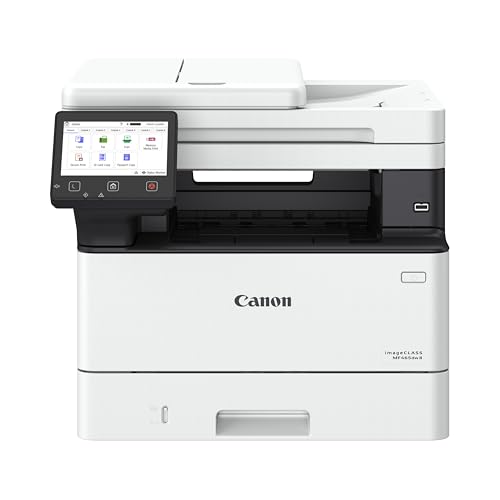
Canon imageCLASS MF465dw II — Full Office Engine
The Canon is the heavyweight of this collection in capability, and its title reads like a small office’s entire wish list: print, copy, scan, and fax from a monochrome wireless laser, duplex throughout, expandable paper capacity, and a stated speed of 42 PPM. That speed figure is the only one in this guide’s first three picks that a title actually supplies, and it changes the character of two-sided printing. At this pace, a sixty-page two-sided packet is a short errand rather than an event, and the duplex unit cycles pages back through the engine with an efficiency that slower machines cannot imitate.
Multifunction design earns its desk space when the functions genuinely get used, and the combination here is coherent. Scanning feeds copying; copying feeds the quick handout before a meeting; fax, unfashionable as it sounds, remains the accepted channel for a surprising number of medical offices, law firms, and government counters. Housing all four in one cabinet means one network connection, one driver story, one supply shelf. Expandable paper capacity, named in the title, addresses the other half of office friction — the tray that empties mid-job and leaves page nineteen waiting for someone to notice.
Monochrome output is the deliberate limitation. Everything this machine produces is black and white, which for invoices, contracts, shipping documents, and internal reports is not a limitation at all but a cost discipline: nobody accidentally prints a forty-page color draft on the expensive pathway. Small teams that live in documents will recognize the pattern — the mono MFP carries the volume, and color, when truly needed, is a separate and rarer errand.
Consider the footprint honestly before falling for the feature list. A multifunction laser with this capacity is a piece of office furniture, not a shelf accessory, and it wants a stable surface and room for its lid and trays to move. Its talents are also wasted on light duty; a household printing five pages a week would be buying a delivery truck for grocery runs. Check price on Amazon if the capability matches your workload, because within this guide it stands alone as the full office engine.
Deployment advice for the Canon is simple: give it a wired-feeling home even though it connects wirelessly. Place it where the whole team can reach the trays, load the expanded paper supply it supports, and let its fax and scan functions become the office’s shared utility rather than one person’s desk accessory. Teams that centralize a machine like this discover that its speed figure understates the real gain, because the queue of small interruptions it absorbs — the copied form, the scanned signature page, the two-sided packet — is where office afternoons actually leak away.
- Print technology: Monochrome laser
- Functions: Print, copy, scan, fax
- Duplex: Automatic, stated in listing title
- Print speed: 42 PPM, stated in listing title
- Paper capacity: Expandable, stated in listing title
- Connectivity: Wireless
Strengths
- The fastest stated speed in this guide, with duplex keeping pace on long runs.
- Four office functions share one cabinet, one connection, and one supply shelf.
- Expandable paper capacity reduces mid-job tray interruptions.
Trade-offs
- Strictly black-and-white output across every function.
- A substantial cabinet that needs real desk or stand space.
- Capability far beyond what a light-printing household will ever touch.
Best for: small offices and heavy home workstations living in documents.
Not suited for: color printing or very occasional use.

Epson Expression Home XP-5250 — Home Photo All-in-One
Crossing from laser to inkjet changes what a printer is for. The XP-5250 is a wireless all-in-one with scan and copy, automatic 2-sided printing, borderless photos, a 150-sheet paper tray, and a 2.4-inch color display, per its title. That combination sketches a household rather than an office: homework beside holiday snapshots, a copied recipe beside a two-sided school report, a scanner lid lifting for a child’s drawing. Duplex here serves thrift and tidiness — half the paper for long documents — while the photo capability serves the moments a family actually treasures.
Borderless printing deserves unpacking because it is the feature lasers in this guide simply do not offer. A borderless photograph emerges edge to edge, like a lab print, with no white frame to trim away. Paired with proper photo paper, an inkjet’s droplets render skin tones and gradients in a way toner cannot match. The same machine then returns to plain-paper duty for letters and forms, which is the essential inkjet bargain: one modest cabinet covering both the filing cabinet and the photo album.
The 150-sheet tray, stated in the title, is a meaningful size for a home machine. It swallows a standard ream portion rather than a token handful, so reloading stops being a weekly ritual, and the tray can plausibly hold plain paper while photo sheets are fed for special jobs. The color display, also stated, softens the copier experience — copying at the machine, without waking a computer, is how these all-in-ones earn their keep with less technical family members.
Inkjet ownership carries its familiar disciplines. Cartridges prefer regular exercise; a printer used monthly can need cleaning cycles that spend ink to restore nozzles. Page costs on heavy text volume run higher than laser toner over time, so a household printing a novel manuscript monthly should weigh the lasers above. But for the mixed, photo-inclusive, moderate-volume pattern most homes actually follow, the XP-5250’s title describes almost exactly the right shape.
Families considering the Epson should picture the scanner lid as its second job. Children’s artwork, school certificates, and the occasional identity document all pass across that glass, and having scan and copy in the same cabinet as the photo printer means one machine mediates between the paper past and the digital present. Set the household default to two-sided for plain documents and single-sided for photo paper, and the XP-5250 quietly enforces the right choice on tired evenings when nobody wants to think about settings at all.
- Print technology: Color inkjet
- Functions: Print, scan, copy
- Duplex: Automatic 2-sided printing, stated in listing title
- Paper capacity: 150-sheet tray, stated in listing title
- Display: 2.4-inch color display, stated in listing title
- Photo printing: Borderless photos, stated in listing title
Strengths
- Borderless photographs alongside everyday two-sided documents.
- A 150-sheet tray that ends constant reloading for home volumes.
- On-machine color display makes copying approachable for the whole household.
Trade-offs
- Inkjet nozzles reward regular use and punish long neglect.
- Heavy text volume costs more per page than laser toner over time.
- No fax function and no document feeder named in the title.
Best for: families mixing photos, homework, and household paperwork.
Not suited for: high-volume text printing or unattended office duty.

HP OfficeJet Pro 8135 — Home-Office Inkjet
The OfficeJet Pro line has always argued that inkjet can hold an office job, and the 8135 states its case in the title: print, scan, copy, and fax, an ADF, duplex printing, a best-for-home-office positioning, a three-month trial of Instant Ink, and AI-capable software features. The ADF — automatic document feeder — is the item to underline. Scanning a single page on a flatbed is pleasant; scanning a twelve-page signed agreement one sheet at a time is a punishment. A feeder restores sanity to that task, and in a home office the agreements, forms, and school packets arrive in stacks, not singles.
Duplex printing pairs with the feeder to define this machine’s working rhythm. Invoices go out two-sided, drafts circulate two-sided, and the paper drawer empties at half the rate of a single-sided household. Inkjet color keeps charts and branded documents lively, and because this is an OfficeJet rather than a photo printer, its talents point at documents with color in them rather than at glossy enlargements — a distinction worth respecting when setting expectations for snapshot quality.
The Instant Ink trial named in the title introduces the subscription model of ink supply: cartridges arrive by post, triggered by usage rather than by a panicked evening discovery of an empty tank. Three months is a trial, not a verdict; households print at wildly different rates, and the honest way to judge any subscription is against your own monthly page count once the trial ends. The fax function, meanwhile, quietly completes the home-office brief for the same medical and legal counters mentioned with the Canon — some doors still only open to a fax tone.
Size and appetite are the considerations. An ADF-topped all-in-one occupies a proper desk footprint, and inkjet page costs, while competitive in this office class, still reward owners who print regularly rather than rarely. If your home office sends faxes, scans stacks, and prints color documents weekly, the 8135’s title reads like a job description written for your desk. Check price on Amazon alongside the Canon if you are deciding between inkjet breadth and laser speed.
The OfficeJet Pro rewards a small amount of initial organization. Program the fax header, save the scan destinations the household actually uses, and place a modest stack of paper beside the ADF so multi-page jobs never stall for supplies. From that point the machine behaves like a staff member for paperwork: stacks enter the feeder, two-sided color documents leave the output tray, and the subscription trial gives the household real usage data before any decision about continuing ink delivery has to be made.
- Print technology: Color inkjet
- Functions: Print, scan, copy, fax
- Duplex: Duplex printing, stated in listing title
- Document feeder: ADF, stated in listing title
- Ink program: 3-month Instant Ink trial included, per title
- Print speed: Not stated in listing title
Strengths
- Document feeder turns multi-page scanning into a load-and-walk-away task.
- Full function set including fax covers stubborn real-world paperwork.
- Color inkjet output keeps business documents and charts lively.
Trade-offs
- A desk-scale footprint rather than a shelf-scale one.
- Subscription ink suits steady printing patterns better than sporadic ones.
- Document-focused color, not a dedicated photo specialist.
Best for: home offices scanning stacks and printing color documents weekly.
Not suited for: shelf-sized spaces or rare, photo-led printing.

Brother Work Smart 1360 — Family All-Rounder
Brother’s Work Smart 1360 closes the set with the household version of breadth: a wireless color inkjet all-in-one offering print, scan, and copy, with duplex printing, an auto document feeder, mobile printing, a 1.8-inch display, and Alexa compatibility, all according to its title. Notice what that list implies about its intended home. The feeder says multi-page documents exist here. Mobile printing says the family’s documents begin on phones. The modest display says copying should be possible without a manual or a teenager’s assistance.
The feeder is genuinely the surprise at this end of the market. Document feeders usually signal office machines, yet family life generates its own stacks — multi-page school forms at term start, insurance paperwork after a fender-bender, the camp registration packet that runs to nine pages. Feeding those through an ADF while the kettle boils is a different experience from lifting a flatbed lid nine times, and it is the feature owners mention most after a month of use.
Color inkjet output covers the family’s chromatic needs: the book report with a color cover, the birthday invitation, the chart for a science project. Photographs will print, though the title makes no borderless-photo claim, so expectations should sit at cheerful snapshot rather than lab print — the Epson above is the photo-led choice in this six. Duplex, meanwhile, quietly halves the paper consumed by the long documents schools and clubs insist on sending home.
Balance is both the appeal and the ceiling here. A machine doing everything for a household does nothing at office scale: no fax is named, no speed is stated in the title, and the small display suits simple copying rather than complex workflows. Within its brief, though, the Work Smart 1360 is coherently designed — every feature in its title answers a recognizably domestic need, and none of them is decorative.
Brother’s Work Smart naming is worth taking literally for this model. The feature list reads like a census of household tasks rather than a spec-sheet contest, and the machine’s success should be judged the same way: count the form packets fed, the phone documents printed, and the copies made without a computer across one ordinary month. Households whose month looks like that census will find the 1360 sized to their life. Households whose month is mostly silent, with one enormous print job at the end, should look again at the lasers above it.
- Print technology: Color inkjet
- Functions: Print, scan, copy
- Duplex: Duplex printing, stated in listing title
- Document feeder: Auto document feeder, stated in listing title
- Display: 1.8-inch display, stated in listing title
- Connectivity: Wireless, mobile printing, works with Alexa
Strengths
- A document feeder at household scale transforms form-heavy weeks.
- Phone-first printing matches how family documents actually originate.
- Simple on-machine display keeps copying open to every age in the house.
Trade-offs
- No fax function named in the title.
- No borderless-photo claim, so photo ambitions should stay modest.
- Small display limits complex on-device workflows.
Best for: busy families with stacks of forms and phone-born documents.
Not suited for: fax users or dedicated photo printing.
Comparing the Six Machines at a Glance
| Pick | Technology | Functions | Detail from its title |
|---|---|---|---|
| Brother HL-L2460DW | Monochrome laser | Print only | Wireless with mobile printing and Alexa compatibility |
| HP Color LaserJet Pro 3201dw | Color laser | Print only | Single function, positioned for home office color documents |
| Canon imageCLASS MF465dw II | Monochrome laser | Print, copy, scan, fax | 42 PPM with expandable paper capacity |
| Epson Expression Home XP-5250 | Color inkjet | Print, scan, copy | Borderless photos and a 150-sheet tray |
| HP OfficeJet Pro 8135 | Color inkjet | Print, scan, copy, fax | ADF plus a 3-month Instant Ink trial |
| Brother Work Smart 1360 | Color inkjet | Print, scan, copy | Auto document feeder and a 1.8-inch display |
Read the table by columns of consequence. The technology column predicts your supply shelf — toner cartridges that forgive neglect, or ink that rewards routine. The functions column predicts your desk: print-only machines can hide on shelves, while feeders and lids demand clearance and a stable surface. The final column holds the one detail each maker chose to headline, and those headlines are surprisingly honest summaries of where each machine’s engineering budget went.
How Does Automatic Duplex Actually Work Inside the Machine?
Understanding the mechanism helps you buy wisely and troubleshoot calmly. After the first side is imaged, the page does not exit. Rollers reverse its journey, guiding it through a curved duplex path that flips it over and presents the blank side to the print engine. Laser machines fuse toner in a heated stage, so the returning page is already dry and dimensionally stable; inkjets must manage a page carrying fresh ink, which is one reason heavy two-sided ink coverage can show slight waviness on thin stock. The entire ballet adds a few seconds per sheet, invisible on a two-page letter, noticeable across a hundred-page manual.
Two practical consequences follow. First, duplex units have minimum and maximum paper weights they handle gracefully — very thick card may refuse the curved path even when the same machine prints it happily single-sided, which is why most printers route card stock through a straight manual feed. Second, duplex alignment is a real setting. If the reverse side sits slightly rotated compared with the front, driver utilities and test pages exist to correct it, and a five-minute calibration when the machine is new saves years of faintly crooked two-sided documents.
Paper choice matters more in duplex than anywhere else. Flimsy sheets can show text through from the reverse side, a ghosting called show-through, and the cure is simply a slightly heavier everyday paper for two-sided work. Keep the good stock for documents that leave the house and the lightest stock for single-sided drafts, and the duplex unit will repay you in drawers that close properly over thinner files.
Which Paper Habits Keep Two-Sided Printing Trouble-Free?
Fan a fresh ream before loading it. Sheets compressed in packaging cling together, and a duplex path gives a doubled sheet two chances to jam instead of one. Store paper flat, in its wrapper, away from steamy rooms; paper absorbs humidity eagerly, and damp sheets curl through a laser’s fuser and wrinkle through an inkjet’s rollers. When a jam does occur inside the duplex path, open the access the manual indicates rather than hauling on the visible edge — the flip path holds the middle of the sheet, and tearing there leaves fragments that haunt later jobs.
Match the driver’s paper-type setting to what is actually loaded. That setting governs fuser temperature on lasers and ink laydown on inkjets, and a mismatch explains most complaints about smudging or faint output. For envelopes, labels, and card, use the manual feed where one exists and print single-sided, then run the duplex work on plain stock. Finally, make two-sided the driver default for the household profile. Habits encoded in defaults survive busy evenings; intentions do not.
Laser or Inkjet: Which Technology Handles Two-Sided Work Better?
The honest answer is that each technology wins a different half of the argument. Laser duplexing is a mechanical pleasure: the page returns through the flip path already fused, flat, and indifferent to how much toner covers the reverse. Dense text, heavy headers, and full-page tables all behave identically, and a two-sided laser document can be printed, stacked, and filed within the same minute. For offices, that indifference is the whole point — nobody thinks about which documents are safe to duplex, because all of them are.
Inkjet duplexing asks slightly more of its owner and gives more back. Because ink arrives wet, the printer manages drying time and ink density on two-sided jobs, and very heavy coverage on lightweight paper can ripple. In exchange, the same machine prints color photographs, handles a wider family of media, and usually costs less to place on the desk in the first instance. The XP-5250’s borderless photos and the OfficeJet Pro’s office color are capabilities no laser in this guide attempts. Choosing between the technologies is therefore really choosing which documents dominate your month: text-led volume argues laser, variety-led home printing argues inkjet.
Idle behavior breaks ties for many households. Toner is a dry powder and waits patiently through holidays, renovations, and school summers. Ink is a liquid with nozzles finer than hair, and it prefers weekly exercise. A family that prints in bursts separated by silence will find a laser forgiving; a family printing something most days will never meet the inkjet’s weakness at all. Neither trait appears on a box, yet both decide satisfaction in year two more than any speed figure.
How Do You Make Two-Sided Printing the Default on Every Device?
Set it once per device and the savings become automatic. On a Windows computer, open the printer’s properties through Settings, find the printing preferences dialog, and select the two-sided or duplex option — usually paired with a choice between flipping on the long edge and flipping on the short edge. Long-edge flipping suits portrait documents, the overwhelming majority; short-edge suits landscape sheets and booklets that turn upward. Save the profile under a plain name like Home Duplex so other family members recognize it.
On a Mac, the setting lives in the print dialog’s layout section, where two-sided printing can be enabled and then stored as a preset. Presets are the entire trick: a named preset survives across applications, while a checkbox ticked inside one program’s dialog evaporates when the program closes. Phones follow the same philosophy through their share-sheet print flows — the duplex toggle appears in the preview, and choosing it repeatedly trains the habit even where no persistent default exists.
Finish with a test ritual. Print a four-page document with numbered pages and a clear headline, then confirm the order reads correctly and the reverse sides are not upside down. Upside-down backs almost always mean the flip edge is set wrong for the document’s orientation, a thirty-second correction in the same dialog. Do this once, on setup day, rather than during the first urgent job.
What Does Duplex Printing Actually Save Over a Year?
Paper arithmetic is the easy half. A household printing a hundred pages a month — modest for a family with school-age children — uses twelve hundred sheets a year single-sided. Duplexing the suitable majority cuts several hundred sheets from that flow, which means fewer reams purchased, fewer drawers jammed with paper, and thinner files when documents are stored. Offices scale the same math until it becomes a budget line: the Canon’s expandable capacity exists because high-volume teams measure paper by the case.
The subtler savings are organizational. Two-sided documents are physically thinner, so folders close, binders hold more, and a term’s worth of school paperwork fits one shelf box instead of two. Scanning benefits too: a two-sided original packet is half as many sheets for a feeder to process when digitizing, provided the scanner side of the workflow matches — one more reason the feeder-equipped picks in this guide pair so naturally with duplex printing. Postage even enters the picture for anyone mailing multi-page documents, where halving the sheet count can drop a letter into a cheaper weight band.
None of this requires perfection. Duplexing eighty percent of suitable pages captures nearly all the benefit, and the remaining single-sided jobs — certificates, photo sheets, the odd form demanding a blank reverse — can stay single-sided without guilt. The feature pays for its keep through accumulation, not through any single dramatic print job.
Common Mistakes When Shopping for a Duplex Printer
Confusing duplex printing with duplex scanning tops the list. A machine can print two-sided yet scan only one side of an original, which matters when you copy double-sided documents; the titles in this guide describe printing functions, so verify scanning behavior separately if two-sided originals fill your in-tray. Another frequent error is buying an all-in-one for a scanner that gets used twice a year, then resenting its size daily — print-only machines exist precisely for households whose scanning already happens by phone.
Ignoring the consumable model is the expensive mistake. A low machine price paired with small, costly cartridges can overtake a sturdier purchase within a year of steady printing, while toner economics reward the laser buyer who prints in bursts separated by idle weeks. Read each pick’s positioning in this guide with your own monthly page count beside it. A related trap: assuming color capability means photo capability. Two color lasers sit in this guide and neither promises photographs; the Epson’s borderless claim is the photo credential that counts.
Placement mistakes finish the set. A wireless printer still needs reachable paper loading, clearance for lids and feeders, and a surface that does not wobble when the duplex unit reverses a page mid-job. Measure the shelf before the machine arrives, not after.
How Should Students and Homework-Heavy Homes Use Duplex?
School printing has a rhythm of its own: quiet weeks, then a sudden landslide of worksheets, reading packets, and project drafts the night before a deadline. Duplex suits that rhythm because the landslide arrives thinner. A thirty-page reading packet becomes fifteen sheets a child can staple without the industrial fasteners, and drafts printed two-sided signal their draft status instantly — teachers and parents alike learn to treat the two-sided stack as working paper and the single-sided sheet as the fair copy.
Teach the flip-edge choice early, because homework is where upside-down reverses breed resentment. Portrait worksheets flip on the long edge; a landscape chart flips on the short edge. One demonstration at the family computer prevents the classic Sunday-night reprint. For younger children, a parent-set duplex preset removes the decision entirely, and the savings in paper and in patience compound across a school year.
Color needs in schoolwork are real but episodic — a cover page here, a diagram there — which is precisely the pattern that makes households overbuy color capacity. The mixed field in this guide exists for that reason: a mono laser can carry ninety percent of school paper while an inkjet sibling, or a library visit, covers the colorful remainder.
Where Should a Two-Sided Printer Live in the House?
Placement sounds trivial until a printer lands somewhere its lid cannot open or its trays cannot extend. All-in-one models need vertical clearance for the scanner lid and, on feeder-equipped machines, headroom for the ADF stack; print-only lasers need only enough space for the output tray and a hand removing pages. Measure both the footprint and the working envelope — the space the machine occupies while operating, not merely while sitting still — and the printer will never need to be dragged forward for every long job.
Air and dust shape the second half of the decision. Lasers vent warm air and a trace of toner dust during heavy runs, so a bedroom corner is a poorer home than a hallway nook or a study shelf. Inkjets prefer distance from radiators and sunny windows, which dry cartridges and warp paper. Kitchens tempt with their counters and punish with steam and flour dust; a closed cabinet in a living area serves every technology better.
Network reach finishes the checklist. Wireless printers still obey physics: a machine two floors from the router, behind masonry and a refrigerator, will drop jobs that a machine in the same room never loses. Place the printer within comfortable range of the household’s network, test a large two-sided job from the farthest computer in the house, and only then declare the installation finished. The five minutes spent testing placement saves the recurring mystery of the document that printed for everyone except one laptop.
Sound deserves a mention for apartment dwellers. A duplex mechanism adds a soft mechanical rhythm — the pause and pull of the page returning — that is unobtrusive in a study and surprisingly present in a studio flat at midnight. Households printing after hours in shared spaces may prefer the printer in a closable room, a small courtesy that costs nothing once considered before the purchase rather than after.
What Maintenance Keeps a Duplex Path Reliable for Years?
The duplex path is a road inside the machine, and roads need sweeping. Dust and paper fibers accumulate along the flip route, especially in homes with pets or in offices near construction and workshops. A monthly pass with a dry, lint-free cloth along the accessible guides, following the manual’s map, prevents the slow buildup that eventually presents as mysterious mid-job jams. Compressed air, used gently and never at point-blank range, clears what cloth cannot reach.
Rollers age by glazing: their rubber surface polishes smooth and begins to slip exactly where the duplex turn demands grip. If two-sided jobs start misfeeding while single-sided work remains perfect, suspect the duplex rollers before anything else — that asymmetry is the diagnostic signature. Many models allow roller cleaning through a maintenance routine, and replacement rollers are among the cheapest parts in the entire machine.
Firmware and drivers deserve a final word. Duplex behavior is software-mediated, and manufacturers quietly refine flip timing and alignment handling in updates. Checking for a driver refresh when a new computer joins the household keeps the two-sided experience as smooth as the day the printer arrived, and it costs nothing but ten minutes of attention.
Final Recommendation
Let your dominant document decide. If black-and-white paperwork is ninety percent of your printing, the Brother HL-L2460DW’s simplicity is a feature, and the Canon MF465dw II scales that same logic up to a genuine office with scanning, faxing, and 42 PPM pace. Color documents without scanning point to the HP 3201dw; color documents with stacks to scan point to the OfficeJet Pro 8135. Photographs in the mix elevate the Epson XP-5250, while the Work Smart 1360 serves the household whose defining trait is variety itself — forms, copies, invitations, and reports in unpredictable rotation.
Whichever direction you lean, keep the discipline this guide used: believe the listing title, distrust any specification a seller cannot point to in writing, and treat trials as trials. A duplex printer chosen that way becomes invisible infrastructure — paper simply arrives finished on both sides, and the family stops thinking about printing at all, which is the highest compliment this category can earn.
One last practical suggestion before you order anything in this guide: count last month’s printing honestly, in pages and in kinds. Tally the black-and-white forms, the color pages, the photographs, and the scans, using bank-style honesty rather than aspiration. That small census maps almost perfectly onto the six shapes gathered here, and it protects against the two classic errors — buying an office engine for a homework household, or a homework machine for an office that has quietly formed around your spare room. The right duplex printer is the one whose title reads like your census; find that match and the two-sided habit will take care of itself.
Frequently Asked Questions
Does automatic duplex slow a printer down noticeably?
Each sheet makes an extra journey through the flip path, so two-sided jobs take somewhat longer than the same pages printed single-sided. On letters and short reports the difference is seconds. On very long documents it adds up, which is why the Canon’s stated 42 PPM matters for offices: a faster engine absorbs the duplex overhead and still finishes quickly.
Can these machines print two-sided on card stock or envelopes?
Generally, no — the curved duplex path suits plain paper within a normal weight range. Card, labels, and envelopes are normally fed manually and printed one side at a time. If two-sided card work is central to your plans, verify the specific model’s rated duplex paper weights with the manufacturer before ordering.
Is laser or inkjet cheaper to run with duplex printing?
Duplex itself halves paper use for both technologies equally. The running-cost difference sits in consumables: toner typically rewards steady or bursty document volume and tolerates idle periods, while ink suits moderate volume with color and photos, and dislikes long neglect. Match the technology to your rhythm rather than chasing a universal winner.
What does an ADF add if a printer already scans?
A flatbed scans one sheet per lid-lift. An automatic document feeder accepts a stack and scans it unattended, which transforms contracts, form packets, and multi-page records from chores into background tasks. Two picks here — the OfficeJet Pro 8135 and the Work Smart 1360 — name an ADF or auto document feeder in their titles.
Do I need fax in a printer anymore?
Most households do not, until a clinic, insurer, school, or agency asks for one. If your life includes those institutions, the Canon MF465dw II and the OfficeJet Pro 8135 both list fax in their titles. If it does not, a print-only or three-function machine saves space and money.
Will duplex printing work from a phone?
Where a title names mobile printing — the Brother HL-L2460DW, the Work Smart 1360, and the HP 3201dw among these picks — two-sided output is a setting inside the mobile print flow rather than a desktop-only feature. Confirm the toggle appears in your app’s print preview the first time you use it, and the habit forms from there.
Related Guides
Readers narrowing from this mixed field toward a single technology will find the natural next steps in our companion roundups: start with best duplex laser printers if toner economics and document pace appeal most, continue to best color laser printers with duplex when two-sided color documents are the actual workload, and finish with best monochrome laser printers with duplex for the black-and-white cost analysis in full.
[…] best affordable laptops for children, chosen safety-first our roundup of the best automatic duplex printers the best duplex laser printers for two-sided office […]