What's inside
- Key Takeaways
- Quick Picks
- How We Chose These Picks
- Side-by-Side Comparison
- What Hardware Do You Need to Actually Use 4K at 120Hz and Beyond?
- Is 27 Inches the Right Size for 4K?
- How Should You Connect a Console and a PC to the Same Panel?
- Does Refresh Above 120Hz Matter Outside Gaming?
- How Do You Set Up HDR and Refresh Correctly on Day One?
- Should You Run Two of These as a Pair?
- What Does “G-Sync Compatible” Versus “FreeSync Premium” Mean for Your Card?
- How Long Will a 4K High-Refresh Panel Stay Current?
- What Should Competitive Players Check That Casual Players Can Skip?
- How Does Scaling Work on a 27-Inch 4K Screen for Work?
- Is a Single 4K High-Refresh Monitor Better Than a 1440p Pair for the Same Money?
- What Should You Do in the First Week to Know You Chose Well?
- How Do You Choose Between the Two ASUS Picks and the Two Sony Picks?
- Common Mistakes
- Final Recommendation
- Frequently Asked Questions
- Related Guides
As an Amazon Associate I earn from qualifying purchases. This post may contain affiliate links at no extra cost to you.
widgetverdict.com is reader-supported. When you buy through links on our site, we may earn an affiliate commission.
One hundred and twenty hertz is a floor in this guide, not a description of its contents. Shoppers after the best 4k 120hz monitors usually arrive with a console or a graphics card that outputs 4K at 120 frames per second and a television-era assumption that the monitor world works the same way. It no longer does. Of the six picks below, four exceed the keyword’s number outright — 144Hz, 160Hz twice, and a 240Hz OLED — because the industry blew past 120Hz at 4K while the search term stood still. One pick sits exactly on 120Hz as the class’s honest budget entry, and one, the Dell, treats 120Hz as a professional feature on a colour-tidy office panel. Read the keyword as the entry ticket. The interesting question is what each panel does above it.
Why does 4K at high refresh matter enough to organise a guide around? Because the combination ends an old compromise. For a decade, players chose between resolution (4K at 60Hz, sharp and stately) and motion (1440p or 1080p at high refresh, smooth and soft). A 4K panel at 120Hz or beyond refuses the choice: text and landscapes keep their detail, and motion keeps its fluidity, in the same frame. The price of refusing is paid elsewhere — in the graphics card required, in the cable standard required, and in the listing figure — and the reviews below keep those costs in view.
All six picks are 27-inch models, a coincidence of the current market rather than an editorial rule: 27 inches is where 4K pixel density, desk size and high-refresh panel production currently intersect. Buyers wanting the same combination at 32 inches will find the field thinner and the prices steeper, and should read this guide’s buying sections for the principles, then shop the larger size with them in hand.
Follow any linked pick through to its listing to confirm the exact variant and read the current price in person; at these specifications, a single suffix in a model code can separate the 120Hz panel from its 240Hz sibling, and the listing title is where that suffix lives.
Key Takeaways
- 120Hz is this list’s floor: four of the six picks exceed it, up to a 240Hz OLED.
- Every pick is a 27-inch 4K panel — the size where density, desk fit and high-refresh supply currently meet.
- The Dell S2725QS is the work-first entry: exactly 120Hz, 99% sRGB, full ergonomic stand and USB-C.
- Sony’s two INZONE models bookend the gaming middle: 144Hz with full-array dimming, then 160Hz with DisplayHDR 600 and DisplayPort 2.1.
- The CRUA is the one title-exact 120Hz budget pick; its brand support is thinner than the majors’, stated once here and once in its review.
- Feeding 4K at these rates requires HDMI 2.1 or DisplayPort-class connections and a graphics card budgeted for 8.3 million pixels.
Quick Picks
| Pick | Badge | Why it is here |
|---|---|---|
| Dell S2725QS 27″ 4K 120Hz Monitor | Work-First 120Hz | Exactly 120Hz at 4K with 99% sRGB, a full-movement stand and USB-C — the professional’s version of this class. |
| ASUS TUF VG27UQ1A 4K 160Hz Monitor | TUF All-Rounder | 160Hz, ELMB Sync and 95% DCI-P3 from ASUS’s durability-first gaming line, console-ready per its title. |
| Sony INZONE M9 27-inch 4K Gaming Monitor | Dimming Pioneer | The original INZONE flagship: 144Hz, full-array local dimming and HDMI 2.1, built for PlayStation-era desks. |
| ASUS ROG PG27UCDM 4K 240Hz OLED Monitor | OLED Ceiling | QD-OLED at 240Hz with DisplayPort 2.1 and OLED care features — the class’s maximum specification. |
| Sony INZONE M9 II 27-inch 4K Gaming Monitor | Refined Successor | 160Hz, DisplayHDR 600, DisplayPort 2.1 and a three-year warranty in its title. |
| CRUA 27″ 4K 120Hz Monitor | Budget Exact-120 | The list’s one exact-120Hz value pick, with HDMI 2.1 and speakers in a white IPS design. |
How We Chose These Picks
The gate was literal: a pick had to state 4K resolution and a refresh rate of at least 120Hz in its verified listing title, with no borrowing from press coverage. That rule produced a list tilted toward gaming hardware, because that is where 4K high-refresh panels are manufactured, so the selection then balanced deliberately — one office-first Dell to represent the professional use of the class, one budget CRUA to represent its price floor, and the gaming middle filled by the two Sonys and the ASUS TUF, with the ROG OLED as the ceiling. Six panels, six distinct answers to what the extra refresh beyond 60Hz is for.
Sync ecosystems were checked per pick rather than assumed. Some titles name G-Sync, some FreeSync Premium, some both or neither, and the reviews report exactly what each title claims, because a buyer pairing a panel with a specific graphics card or console deserves the claim as printed rather than as generalised. The same care went to ports: HDMI 2.1 and DisplayPort 2.1 are named where titles name them, and where a title is silent, the spec list records the silence.
Finally, the two Sony generations were both kept, deliberately. The M9 II supersedes the M9 on paper, yet the original remains listed and often priced as the outgoing model — a classic case where the older flagship is the smarter buy for a specific reader. Guides that delete superseded models hide that arithmetic; this one shows both and explains the choice between them.

Dell S2725QS 27″ 4K 120Hz Monitor — Work-First 120Hz
Dell’s S2725QS is what happens when an office-monitor division gets hold of a gaming-class specification and files off the drama. The title declares a 4K UHD IPS panel at exactly 120Hz with a 5ms response, FreeSync Premium, 350 cd/m² brightness, a 1,500:1 contrast ratio, 99% sRGB, anti-glare coating, HDMI, DisplayPort and USB-C, and a stand that adjusts for height, swivels and pivots. Nothing on that list glows, pulses or promises victory. All of it serves a desk where the screen works for a living and plays in the evening without changing its clothes.
The 120Hz needs a defence, because in this company it looks modest. For documents, scrolling at 120Hz halves the judder of a 60Hz panel and makes a long day of reading measurably calmer; for video it matches content frame rates gracefully; for casual and mid-paced gaming it is a genuine high-refresh experience, simply not an esports one. The 99% sRGB figure keeps colour honest for the web-and-office world, and IPS viewing angles suit a screen that colleagues occasionally gather around. FreeSync Premium, notably, appears on an office panel — sync has become a general smoothness feature rather than a gaming badge, and Dell’s inclusion of it here is the class maturing in public.
USB-C is the line to verify against your laptop: the title confirms the port’s presence, and the full listing is where its power delivery figure lives. If that figure covers your machine, the S2725QS becomes a one-cable desk with a 4K 120Hz canvas — the professional configuration this whole category quietly aspires to. As the guide’s designated work-first pick, it is also the control against which the gaming panels’ premiums should be measured: everything they charge beyond it buys motion, dimming or OLED, and you should be able to name which of those you are paying for.
- Size and resolution: 27-inch, 4K UHD
- Panel: IPS, anti-glare
- Refresh and response: 120Hz, 5ms
- Brightness and contrast: 350 cd/m², 1,500:1 per listing title
- Colour: 99% sRGB
- Sync: FreeSync Premium
- Inputs: HDMI, DisplayPort, USB-C
- Stand: Height adjustable, swivel, pivot
Strengths
- A complete professional specification with nothing omitted that a work desk needs.
- 120Hz smoothness for documents and video, not only for games.
- Full stand movement — height, swivel and pivot — as standard.
Trade-offs
- Exactly 120Hz leaves the esports tier to the gaming picks.
- No HDR tier is claimed in the title; entertainment HDR is not its brief.
- USB-C power delivery wattage needs the full listing to confirm.
Best for: the professional who wants 4K clarity and 120Hz calm in one office-grade panel. Not suited for: competitive players, for whom the jump to 160Hz and beyond is the entire point of the category.
Dell’s listing for the S2725QS is refreshingly plain — use it to confirm the USB-C power figure for your laptop, and let the monitor’s price there be judged against the dock and the second screen it may quietly replace.
The pivot in its stand earns a practical word, because it is the feature office buyers use and gaming buyers ignore. Rotated to portrait, a 27-inch 4K panel becomes a document tower — a full contract, a long code file, a tall spreadsheet — and at 4K the text in that orientation stays crisp enough to work in for hours. Paired with a second landscape screen or used alone in a small office, that flexibility quietly doubles the desk’s repertoire. It also signals Dell’s intent: this is a tool specified by people who think about how screens are actually used across a working week, including the unglamorous rotations, and priced for buyers who notice.

ASUS TUF VG27UQ1A 4K 160Hz Monitor — TUF All-Rounder
The TUF line is ASUS’s answer to a fair question: what if a gaming monitor were built like equipment instead of jewellery? The VG27UQ1A brings that ethos to this class with a 27-inch 4K panel at 160Hz, a 1ms response claim, ELMB Sync, 95% DCI-P3 colour, FreeSync Premium, G-SYNC compatibility named in its title, and an explicit nod to PS5 and Xbox in the listing. It is the all-rounder’s pick: fast enough for serious play, colourful enough for media, and certified friendly with both PC sync ecosystems and both major consoles.
ELMB Sync is the feature to understand. ASUS’s backlight-strobing motion-clarity technology historically forced a choice between blur reduction and variable refresh; the Sync variant runs both together, so motion stays crisp while the frame rate breathes. For players whose games fluctuate — which is to say, all players at 4K — that combination addresses the actual experience rather than the benchmark. The 95% DCI-P3 figure gives HDR and cinematic content a wider palette than an sRGB panel can show, even though the title claims no HDR tier, and this review claims none for it.
Positioning matters: the TUF sits below the ROG OLED in ASUS’s own hierarchy and below the Sonys in price theatre, and its value is the absence of a weak line. No dimming is claimed, so HDR will be a compatibility experience rather than a contrast one — the honest boundary of the model. Buyers who want one 4K screen to serve a PC, a console and a film habit, at a refresh rate with real headroom over the keyword’s floor, will find this the least complicated recommendation in the guide.
- Size and resolution: 27-inch, 4K
- Refresh and response: 160Hz, 1ms
- Motion: ELMB Sync
- Colour: 95% DCI-P3 per listing title
- Sync: FreeSync Premium, G-SYNC compatible per listing title
- Console note: Listed for PS5 and Xbox use
- HDR tier: Not stated in the listing title — verify with the manufacturer documentation
Strengths
- 160Hz with ELMB Sync attacks motion blur and tearing simultaneously.
- Both sync ecosystems named, plus explicit console positioning.
- 95% DCI-P3 broadens colour for films and HDR-capable content.
Trade-offs
- No local dimming is claimed — HDR contrast will be modest.
- No HDR tier appears in the title, so do not buy it as an HDR showcase.
- TUF styling is functional rather than premium; the ROG below is the showpiece.
Best for: the PC-and-console player who wants one fast, colourful 4K screen without a flagship detour. Not suited for: an HDR-first buyer, whose money belongs with a dimming panel.
ASUS’s listing for the VG27UQ1A is the place to check which inputs carry its full 160Hz at 4K for your machines — and the figure there, set against the Sonys’ listings, settles the all-rounder’s value case in one glance.
There is a durability subtext to the TUF badge that buyers should weigh alongside its features. ASUS positions TUF components for longevity — the line’s graphics cards and motherboards trade on it — and while a monitor has fewer failure modes than either, the philosophy shows in the model’s priorities: motion technology and sync breadth over decorative extras, a specification that spends nothing on theatre. For a buyer burned before by a gaming product that aged like milk, that restraint is itself a feature. The VG27UQ1A will not be the most beautiful object on your desk. It aims instead to be the one still performing identically in year five, and for a large class of players that is the correct ambition.

Sony INZONE M9 27-inch 4K Gaming Monitor — Dimming Pioneer
Sony’s INZONE line arrived with a thesis: the company that makes the PlayStation should make the monitor the PlayStation deserves. The original M9 expresses that thesis completely — a 27-inch 4K panel at 144Hz with full-array local dimming, HDR support in the title, HDMI 2.1 and NVIDIA G-SYNC named. Full-array dimming is the headline act: unlike the edge-lit panels that merely accept HDR, the M9 dims its backlight in zones, so a night scene in a game holds real darkness beside its highlights. Among LCD picks in this guide, that architecture is the M9’s distinction.
The PlayStation connection is more than branding. Sony designed the INZONE range to pair with its console’s 4K 120Hz output modes, and the HDMI 2.1 provision is what carries those modes at full quality. PC players are equally served — 144Hz at 4K over the appropriate input, with G-SYNC named for NVIDIA cards. The panel’s generation shows in one place: its successor below raises refresh to 160Hz, adds a DisplayHDR 600 certification and DisplayPort 2.1, and states a three-year warranty. The M9’s counter-argument is written on its listing’s price line, where outgoing flagships traditionally undercut their replacements by a margin that buys a game library.
Choosing the original M9 is therefore an exercise in valuing the right things. Its dimming — the feature that most changes HDR pictures — matches the class standard; what it surrenders is 16Hz of refresh, a certification tier and a newer port. Players who game at 120Hz console modes or whose PCs target 144Hz will never meet those surrenders in practice. Players who count frames competitively should pay for the successor. Both decisions are rational, and the pair of reviews together exist to make the boundary explicit.
- Size and resolution: 27-inch, 4K
- Backlight: Full-array local dimming
- Refresh: 144Hz
- HDR: HDR claimed in title; tier not stated — verify with the manufacturer documentation
- Sync: NVIDIA G-SYNC named in listing title
- Inputs: HDMI 2.1 named in listing title
Strengths
- Full-array local dimming gives LCD HDR genuine contrast.
- Designed alongside the PlayStation’s 4K 120Hz modes, with HDMI 2.1 to carry them.
- Outgoing-flagship positioning can make its listing figure the smartest in this guide.
Trade-offs
- Its successor offers 160Hz, DisplayHDR 600 and DisplayPort 2.1.
- HDR tier is not stated in the title.
- An earlier design generation, with the firmware maturity that implies — and the refinement it lacks.
Best for: the console-and-PC player who values dimming over spec-sheet novelty and shops the outgoing flagship deliberately. Not suited for: a buyer who wants the newest port standards and the longest stated warranty — that is the M9 II’s pitch.
On Sony’s listing for the original M9, the comparison to make is against its own successor’s page: the gap between the two figures is the exact price of 16Hz, a certification and a newer port, and you can decide in one sitting whether those are worth it to you.
One more angle separates the original M9 from the badge-only crowd it launched against: Sony built it to be calibrated by its own ecosystem. The INZONE software story and the console’s system-level HDR calibration were designed to meet in the middle, so a PlayStation owner who runs the console’s HDR setup gets a picture the panel was tuned to receive. PC owners get the same panel discipline through the standard tools. That cross-device coherence is easy to underrate in a spec table and hard to overrate across a year of evenings, when the alternative is a monitor whose HDR behaviour changes personality with every input. The M9’s coherence is ageing well even as its refresh figure is overtaken — which is exactly what a flagship’s second life should look like.

Sony INZONE M9 II 27-inch 4K Gaming Monitor — Refined Successor
The M9 II is Sony’s second draft of its flagship thesis, and the revisions are precisely the ones a critical reader of the original would request. Refresh rises to 160Hz. The HDR claim gains a tier: DisplayHDR 600, a certification with a published meaning. DisplayPort 2.1 (UHBR10) joins VRR-capable HDMI 2.1, future-proofing the PC connection. Built-in speakers appear. And the title closes with a three-year limited warranty — a line item this guide always reads aloud, because a panel of this sophistication is a multi-year commitment and the maker’s confidence is product information.
Full-array LED backlighting carries over, which matters more than any single revision: the dimming that made the original’s HDR honest remains the foundation, now with a certified tier describing its highlights. The 1ms GtG response keeps fast play clean, and G-SYNC is named for NVIDIA pairing. At 160Hz the panel also clears the console conversation entirely — a PlayStation’s 120Hz modes sit comfortably inside its range — while giving PC players headroom the original lacked.
Who should pay the successor’s premium? The buyer keeping a monitor through two console or GPU generations, for whom DisplayPort 2.1 and the warranty are not abstractions but the difference between a screen that ages with the desk and one that becomes its bottleneck. The M9 II is the guide’s most complete LCD gaming package: dimming, certification, speed, ports and warranty in one title, each line verifiable, none inflated. That completeness is its argument, and it is a strong one.
- Size and resolution: 27-inch, 4K UHD 3840×2160
- Backlight: Full-array LED
- Refresh and response: 160Hz, 1ms GtG
- HDR: DisplayHDR 600
- Sync: NVIDIA G-SYNC named in listing title
- Inputs: DisplayPort 2.1 (UHBR10), HDMI 2.1 with VRR
- Extras: Built-in speakers; 3-year limited warranty per listing title
Strengths
- The most complete LCD specification in this guide, line by line.
- DisplayHDR 600 certifies what the original left untiered.
- DisplayPort 2.1 and a three-year warranty suit a long ownership horizon.
Trade-offs
- The successor’s premium over the original M9 buys refinements, not a new class of picture.
- OLED above it offers per-pixel dimming no LCD array matches.
- 160Hz at 4K still demands a serious graphics card for PC play.
Best for: the buyer who wants the finished version of Sony’s flagship and plans to keep it for years. Not suited for: a bargain hunter, since the original M9 exists precisely to undercut this panel.
Sony’s M9 II listing rewards reading its warranty paragraph as carefully as its specification — then the price can be weighed as a per-year figure across the ownership the panel is designed for, which is the honest arithmetic for a flagship.
Built-in speakers, a line item easily skipped, change how a desk like this gets used across a day. Calls, clips and casual video stop requiring the gaming headset, and the space where desktop speakers would sit returns to the desk. On a 27-inch panel the audio will not trouble a dedicated soundbar, and Sony claims nothing grander in its title; the feature’s value is convenience at the hours when fidelity is not the point. It is one of several signs that the M9 II was specified by people imagining a whole day at the desk rather than a single benchmark — work calls at ten, a film at lunch, ranked matches at nine — and a flagship that understands the whole day is rarer than its specification suggests.
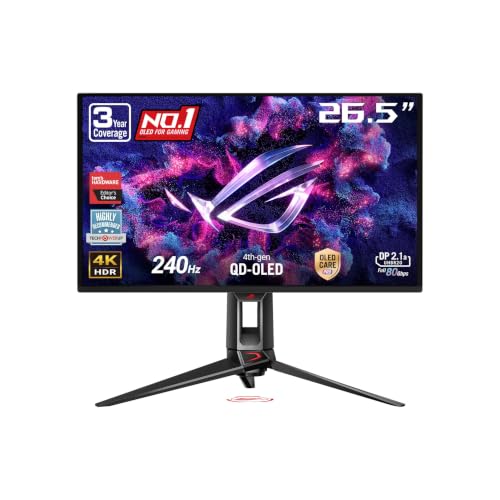
ASUS ROG PG27UCDM 4K 240Hz OLED Monitor — OLED Ceiling
Every class has a ceiling, and this is it: a 27-inch QD-OLED panel running 4K at 240Hz. The title adds the apparatus of a flagship that expects scrutiny — OLED Care Pro, a Neo Proximity Sensor, a custom heatsink, DisplayPort 2.1, G-SYNC compatibility, true 10-bit colour, and console readiness for PS5 and Xbox. Start with the picture. OLED’s per-pixel light means the dimming discussion that governs the LCD picks simply ends: every pixel is its own zone, blacks are absolute, and HDR highlights sit in true darkness at any scale, from a candle to a headlight.
Then the motion. 240Hz at 4K was a laboratory boast not long ago; paired with OLED’s near-instant pixel response, it produces the cleanest moving image in this guide by a margin that specifications only approximate. The hardware to feed it is the standing caveat — a flagship graphics card, DisplayPort 2.1 to carry the top mode — and this review repeats the guide’s rule: buy the ceiling panel for the rig you own or the rig you have genuinely budgeted, not for the rig in a daydream. The heatsink and OLED Care Pro features address the technology’s known management needs, and the proximity sensor — which dims or blanks the screen as you step away — is a thoughtful answer to static-content exposure, the one discipline OLED ownership asks.
Text deserves the same honest sentence it received in the 49-inch guide: QD-OLED subpixel structure can fringe fine text for some viewers, and a desk that is ninety percent documents should audition the panel or choose the Dell. For the player-editor hybrid and the pure gamer, though, the PG27UCDM is the answer to the question this whole category asks — how much of the old compromise is left? At 240Hz, 4K and per-pixel light: none worth mentioning.
- Size and resolution: 27-inch, 4K
- Panel: QD-OLED, true 10-bit
- Refresh: 240Hz
- Care features: OLED Care Pro, Neo Proximity Sensor, custom heatsink
- Sync: G-SYNC Compatible
- Inputs: DisplayPort 2.1 named in listing title
- Console note: Listed for PS5 and Xbox use
Strengths
- Per-pixel OLED light ends the dimming compromise entirely.
- 240Hz at 4K is the highest specification in this guide.
- Care features and a proximity sensor manage OLED’s ownership disciplines for you.
Trade-offs
- Feeding 4K 240Hz requires flagship graphics hardware and the right cable standard.
- Static all-day document desktops remain OLED’s least favourite workload.
- The ceiling specification carries the ceiling figure — read it on the listing with your GPU budget beside it.
Best for: the high-end player who wants the category’s maximum and owns the hardware to use it. Not suited for: a documents-all-day desk, where the Dell delivers the same resolution without OLED’s care routine.
The ROG listing is where to confirm your graphics card’s DisplayPort generation against the panel’s top mode; once that pairing checks out, the price there is simply the cost of the ceiling, and it can be compared against years of use rather than against lesser panels.
The proximity sensor earns a moment of genuine appreciation, because it reframes OLED care from a chore into a behaviour the monitor performs itself. Walk away for coffee and the panel rests; return and it wakes. Across a year, those small rests are the difference between a screen that ages evenly and one that engraves the furniture of your desktop into itself. Combined with the custom heatsink — which lets the panel sustain its brightness with less stress — the PG27UCDM reads as ASUS’s argument that OLED’s caveats have become engineering problems with shipped solutions, rather than reasons to deny yourself the picture. Sceptics can audit the claim over the model’s ownership threads; believers can simply enjoy the only screen in this guide whose blacks are not a matter of degree.

CRUA 27″ 4K 120Hz Monitor — Budget Exact-120
CRUA’s entry is the only pick in this guide that matches the keyword digit for digit: a 27-inch 4K IPS panel at exactly 120Hz, in white, with built-in speakers, 120% sRGB colour volume, FreeSync, HDMI 2.1 and DisplayPort 1.4, a 178-degree viewing angle, tilt adjustment and a 75×75mm wall mount. As a specification for a mixed desk — work by day, console and PC play by night, at the refresh a console’s best modes actually use — it is coherent and complete. The 120Hz that looks like a floor among flagships is, for a console-first buyer, precisely the ceiling their machine outputs, and paying beyond it buys frames no source will send.
The trade-off is stated once, plainly, as this guide promised: CRUA’s brand support is thinner than the majors’. Warranty handling, firmware attention and service reach cannot match Dell, ASUS or Sony, and a buyer for whom those structures matter should pay a major’s premium knowingly. For the buyer who prices risk differently — who keeps packaging, buys from a returnable listing and values the specification-per-figure ratio above all — the CRUA is the rational end of this guide’s price spread.
Two details reward attention. The 120% sRGB figure is a volume measure, so colours will be vivid out of the box and colour-managed workflows should tame them; and the stand is tilt-only per the title, with the wall-mount pattern provided for those who need height — a desk with an arm, or a wall plan, completes the ergonomics. Neither point diminishes the proposition. Together they describe a monitor that spends its budget on the panel and the ports, and asks the buyer to supply the rest.
- Size and resolution: 27-inch, 4K
- Panel: IPS, white design
- Refresh: 120Hz
- Colour: 120% sRGB volume per listing title
- Sync: FreeSync
- Inputs: HDMI 2.1, DisplayPort 1.4
- Extras: Built-in speakers; tilt adjustable; 75×75mm wall mount
Strengths
- Exactly matches console 4K 120Hz output — no wasted specification.
- HDMI 2.1 and DisplayPort cover console and PC in one panel.
- Speakers and a wall-mount pattern broaden a small desk’s options.
Trade-offs
- Brand support is thinner than the majors’ — the guide’s standing caveat for this pick.
- Tilt-only stand; height needs the wall mount or an arm.
- Colour volume exceeds sRGB, so critical colour work needs a managed setup.
Best for: the console-first or mixed-desk buyer who wants true 4K 120Hz at the class’s friendliest end. Not suited for: a buyer who leans on manufacturer support networks and next-day service — the majors above exist for that temperament.
CRUA’s listing is the one to read for its returns and warranty wording before its specification, since support is this pick’s known variable; with that read done, its price can be compared against the Dell’s with both eyes open.
White, as a design decision, is worth a sentence of respect. Most gaming-adjacent monitors ship in black by reflex, and a white panel with built-in speakers can disappear into a bright room, a studio desk or a shared household space in a way black hardware never does. For the buyer furnishing a room rather than a battlestation, the CRUA’s colour is not a novelty but the feature that lets a 4K 120Hz screen live in a living space without announcing itself. Specifications decide whether a monitor performs; finishes decide whether it belongs — and this pick is the only one in the guide competing on the second question at all.
Side-by-Side Comparison
| Pick | Refresh | Panel | Dimming / HDR | Defining extra |
|---|---|---|---|---|
| Dell S2725QS | 120Hz | IPS | No tier stated in title | USB-C, full stand, 99% sRGB |
| ASUS TUF VG27UQ1A | 160Hz | 4K gaming | No tier stated in title | ELMB Sync, 95% DCI-P3 |
| Sony INZONE M9 | 144Hz | Full-array LCD | Local dimming; tier not stated | HDMI 2.1, PlayStation-era design |
| Sony INZONE M9 II | 160Hz | Full-array LED | DisplayHDR 600 | DisplayPort 2.1, 3-year warranty |
| ASUS ROG PG27UCDM | 240Hz | QD-OLED | Per-pixel light | OLED Care Pro, proximity sensor |
| CRUA 27″ 4K | 120Hz | IPS | No tier stated in title | Speakers, white design, wall mount |
What Hardware Do You Need to Actually Use 4K at 120Hz and Beyond?
Three links in a chain, and the chain breaks at its weakest. The source: a console’s 120Hz modes or a PC graphics card with the output standard to carry the signal — HDMI 2.1 or DisplayPort in its modern generations. The cable: certified for that standard and short enough to behave; bargain cables are the most common reason a new monitor “refuses” its top mode. The workload: 4K is 8.3 million pixels, and a game rendered natively at that count at 144 frames per second is an enormous ask — most players sensibly lean on upscaling technologies in demanding titles and reserve native rendering for lighter ones. Audit all three links before the panel arrives, and the first evening is a demonstration rather than a troubleshooting session.
Is 27 Inches the Right Size for 4K?
At 27 inches, 4K yields roughly 163 pixels per inch — dense enough that interface scaling becomes a preference rather than a necessity, and text takes on the printed quality that makes writers and programmers loyal to this size. The same resolution at 32 inches trades some density for a larger canvas at native scaling, which suits viewers who sit further back or prefer unscaled interfaces. Neither is correct in the abstract. The 27-inch picks in this guide assume a standard desk distance and a viewer happy to scale; if your eyes or your furniture argue otherwise, apply the guide’s refresh and dimming logic at 32 inches and expect a thinner field and steeper figures.
How Should You Connect a Console and a PC to the Same Panel?
Give the console HDMI 2.1 and the PC DisplayPort where the panel offers both, because that pairing lets each machine use its best mode without a switch. Set each input’s picture mode separately — consoles and PCs hand a monitor different HDR instructions, as this site’s HDR guide explains — and enable each source’s variable refresh in its own settings menu, since sync is negotiated per connection, not per screen. Label the inputs in the monitor’s menu if it allows; the thirty seconds spent naming “Console” and “PC” ends the nightly ritual of cycling through identical black screens. Several picks here were chosen with exactly this two-machine desk in mind.
Does Refresh Above 120Hz Matter Outside Gaming?
Quietly, yes. Scrolling documents, dragging windows and watching high-frame-rate video all smooth out as refresh climbs, and the difference between 120Hz and 160Hz is perceptible in the same way the difference between 60Hz and 120Hz is — smaller, but real to eyes that spend all day on the screen. What does not improve is static work: a spreadsheet at rest is identical at any refresh rate. Buyers whose desks are mostly static should weight the Dell’s colour and ergonomics over the gaming panels’ speed; buyers whose work involves motion — video editing timelines, 3D navigation, data visualisation — get genuine daily value from the faster panels beyond their gaming hours.
How Do You Set Up HDR and Refresh Correctly on Day One?
Work in a fixed order and the setup takes fifteen minutes. First, connect with the certified cable and confirm the monitor reports the resolution and refresh you bought — this single check catches cable problems while they are still funny. Second, enable variable refresh in the source’s settings, not only in the monitor’s menu; sync is a handshake and both hands must be raised. Third, if the content is HDR, run the source’s own HDR calibration — the console’s system tool or the PC’s per-game setup — rather than trusting defaults. Fourth, set brightness for your room with an SDR document on screen, since an overbright panel is the most common cause of the vague disappointment new owners report. Finally, save the configuration as the monitor’s preset for that input, so the next source you connect starts from a clean slate instead of inheriting your console’s cinema settings for a spreadsheet.
Should You Run Two of These as a Pair?
Two 27-inch 4K panels make a formidable desk — 7680 pixels across — and the pairing logic differs from the ultrawide logic elsewhere among these guides. A matched pair gives you a true centre seam problem for single windows but unmatched flexibility: one screen can hold a console or a call while the other works, and each can be angled independently. High-refresh pairs also double the graphics workload in games that span both, which most do not gracefully. The pragmatic pattern is asymmetric: one fast panel from this guide as the primary, and a cheaper 4K 60Hz screen as the satellite for documents and communication. You spend the refresh money where motion lives and save it where it does not — an arrangement this guide’s Dell makes particularly easy to justify as the primary, given its colour discipline.
What Does “G-Sync Compatible” Versus “FreeSync Premium” Mean for Your Card?
Both phrases describe variable-refresh handshakes that keep the panel’s refresh locked to the source’s frame rate, eliminating tearing without the lag of traditional sync. FreeSync Premium is AMD’s certification tier, with requirements around refresh range and low-framerate compensation. G-Sync Compatible is NVIDIA’s validation that a non-module panel works properly with its cards. A title naming both — as the ASUS TUF’s does — is promising you a good experience on either ecosystem. A title naming one is not excluding the other in practice, since the underlying adaptive-sync standard often carries across, but this guide reports only the printed claim, and buyers should treat unprinted compatibility as a question for the full listing rather than as a promise.
How Long Will a 4K High-Refresh Panel Stay Current?
Longer than the machine driving it, in most households. Resolution standards move slowly — 4K has been the aspirational tier for a decade and is only now becoming ordinary — and refresh at 120Hz or beyond already exceeds what consoles output and what most PCs sustain, which gives these panels headroom against the next hardware generation rather than a deficit. The ageing pressure arrives at the ports: a panel with HDMI 2.1 and DisplayPort 2.1, like the Sony M9 II and the ROG here, holds more future than one with earlier standards, because connections are where compatibility expires. Buyers choosing between generations should therefore weight the port list almost as heavily as the panel — a slightly older screen with current ports will out-serve a newer panel stranded on yesterday’s inputs.
What Should Competitive Players Check That Casual Players Can Skip?
Three things. Input lag behaviour at the exact refresh and resolution they compete at, since processing modes differ per combination and a panel’s best figure may live at a setting they will not use. The sync range’s lower bound, because competitive frame rates fluctuate and a handshake that drops out at low rates reintroduces tearing at the worst moments. And the overdrive or motion settings’ behaviour with variable refresh engaged — the ASUS TUF’s ELMB Sync exists precisely because strobing and sync historically conflicted. Casual players can ignore all three and lose nothing; the picture will be excellent regardless. Competitive players should treat those checks as the real review, with everything else in this guide as the supporting evidence.
How Does Scaling Work on a 27-Inch 4K Screen for Work?
Both major operating systems scale a 27-inch 4K display gracefully, and the choice is a matter of eyesight and habit. At 150 percent scaling — the common default — the interface occupies the size it would on a 1440p screen while text and images render with 4K sharpness underneath, which most owners experience as simply “the crisp setting.” At 100 percent, everything shrinks and the full canvas opens for timelines, spreadsheets and multi-window layouts, at the cost of small text that some eyes love and others bill as overtime. The panel does not care which you choose; the density that defines this class means both modes look intentional rather than compromised, which is not true of 4K at larger sizes or 1440p at this one. Set it once, live a week, and adjust only if your eyes file a complaint.
Is a Single 4K High-Refresh Monitor Better Than a 1440p Pair for the Same Money?
For a gamer, usually yes; for a pure multitasker, it depends on the seam. One 4K panel concentrates the budget on a single excellent screen — the thing your eyes actually face — and high-refresh 4K is where panel engineering currently spends its best effort. A 1440p pair buys more total pixels and a physical division of labour, at the cost of a bezel through the middle of your attention and two mid-tier panels instead of one flagship. The hybrid answer most desks converge on is the asymmetric pair described earlier: one screen from this guide, one ordinary screen beside it. If forced to a single choice, let your dominant activity decide — motion and cinema to the single 4K, static document juggling to the pair — and remember that a monitor can be joined by a second screen next year, while a compromised primary stays compromised every day until it is replaced.
What Should You Do in the First Week to Know You Chose Well?
Run the panel through your four real scenarios rather than through test patterns: your most-played game at your real settings, your longest work document, one HDR film you know well, and one ordinary evening of browsing and video. Watch for the specific disappointments this class can hide — a top mode that will not engage, text fringing on the OLED for your eyes, a stand that leaves the screen a centimetre too low — while the return window is open and the box is still in the corner. Check the panel in a dark room for backlight uniformity on the LCD models. Then stop testing. A monitor that passes your four scenarios has passed the only examination that predicts your next five years with it, and further scrutiny manufactures doubts that daily use would never have raised.
How Do You Choose Between the Two ASUS Picks and the Two Sony Picks?
By the kind of excellence you trust. ASUS offers the category’s engineering extremes: the TUF’s motion technology and all-round competence at the sensible tier, the ROG’s OLED ceiling at the summit. Sony offers the category’s ecosystem coherence: two generations of a flagship designed around console-and-PC desks, with dimming as the family inheritance and the second generation refining ports, certification and warranty. Neither house makes a wrong panel in this guide; they make different arguments. Buyers who think in specifications gravitate to ASUS’s ladder. Buyers who think in evenings — console at seven, film at nine, the same screen behaving identically for both — gravitate to Sony’s. Recognise your own reasoning style and the shortlist halves itself.
Common Mistakes
The category’s signature error is buying refresh the source cannot send: a 240Hz panel behind a console capped at 120Hz modes, or behind a graphics card that renders the buyer’s actual games at 70 frames per second. Second comes the cable ambush — a top mode that will not engage because an old HDMI lead is silently negotiating a lesser standard. Third, buyers compare the two Sony generations by headline alone and miss that the original’s dimming, the feature that matters most, carries across both. Fourth, OLED buyers place the panel on a static desktop for twelve-hour days and skip the care features built for exactly that pattern. Fifth, shoppers read “4K 120Hz” as a single specification and overlook that the six panels here deliver six different combinations of dimming, colour and ports under that banner. The antidote is the chain audit in the first guide section above: source, cable, workload, then panel.
Final Recommendation
A closing thought on the keyword itself, because it teaches something about shopping this category. “4K 120Hz” was a flagship phrase when console makers adopted it, and the market’s centre has since moved through it and beyond — which is why a guide honouring the phrase literally would mislead you with yesterday’s ceiling. The six panels above honour it as a threshold instead. When you shop beyond this list, apply the same reading to every headline figure you meet: ask whether the number is the product’s floor, its ceiling, or its only trick, and you will sort modern monitor marketing faster than any single review can sort it for you.
Match the panel to the source you actually own. Console-first buyers should take the CRUA for exact-fit value or the Sony M9 for dimming, and stop there — both serve a 120Hz machine completely. PC players should climb by graphics card: the TUF at the sensible tier, the M9 II for the complete LCD package, the ROG OLED when the rig and the appetite both reach the ceiling. Professionals should take the Dell and enjoy 120Hz as a quality-of-life feature rather than a sport. The floor of this list is 120Hz; the right pick is the one whose headroom above that floor you will genuinely use.
Frequently Asked Questions
Can a PlayStation or Xbox use these monitors at 120Hz?
Yes, in the games that offer 120Hz modes, provided the connection is HDMI 2.1 where the panel provides it. Several titles in this guide name console use explicitly. Remember the console’s ceiling is 120Hz — panels above that serve the PC side of the desk. Also remember that not every game offers a 120Hz mode; many target 60 frames per second with higher graphical settings instead, and the monitor cannot invent frames the game does not send. Check your favourite titles’ mode lists if console performance is the purchase’s main purpose, because the panel’s promise only begins where the game’s output does.
Is 144Hz or 160Hz noticeably better than 120Hz?
Noticeable, yes; transformative, no. The leap from 60Hz to 120Hz is the large one — the step where motion changes character. Beyond it, gains shrink per step and matter most to competitive players and to motion-sensitive viewers who feel judder others never register. There is also a consistency argument: a 160Hz panel running a game at 130 frames sits comfortably inside its sync range, while a 120Hz panel at its ceiling has nowhere to put a good day. Buy the headroom if your source produces it or plausibly soon will; do not buy it as a badge, and do not let a higher number talk you out of the dimming or colour you would actually see.
Do I need a new cable for 4K 120Hz?
Very likely. The top modes need HDMI 2.1 or a modern DisplayPort cable, certified and reasonably short. If a new monitor will not engage its advertised mode, the cable is the first suspect — ahead of the panel and ahead of the PC. Buy the cable with the monitor rather than after the first frustrating evening, choose a length with a little slack rather than a lot, and keep the old cable out of the chain entirely: an extender or adapter inherited from an earlier setup can silently demote the whole connection to the standard of its weakest decade.
Which pick is best for a Mac laptop desk?
The Dell, for its USB-C provision and office colour discipline — confirm the port’s power delivery wattage on the full listing against your Mac’s draw before ordering. The gaming panels will display a Mac happily over the right cable but were not designed around the one-cable desk.
Does the OLED pick need special care?
It automates most of it: OLED Care Pro, a custom heatsink and a proximity sensor that rests the screen when you step away from the desk are all in its title. The remaining discipline is yours — varied content and a sensible sleep timer — and it is light compared with the picture it buys you.
Why are there two Sony INZONE generations in one guide?
Because both remain listed, and the older model’s outgoing positioning makes it the value play while the successor is the completeness play. Deleting the original would hide a real saving from exactly the readers who would benefit from it most. Monitor generations do not expire the way phone generations do — a superseded flagship keeps its panel, its dimming and its colour, surrendering only the newest ports and figures — so a guide that tracks both generations is giving you the market as it is, not as launch calendars wish it to be.
Related Guides
For the workplace version of width, our guide to the best ultrawide monitors for office work ranks hub-equipped panels built for documents rather than frame rates. Readers whose eyes tire across long sessions should visit the comfort-first selection of the best eye care low blue light monitors, where the specification that matters is the viewer’s evening, not the panel’s refresh. And when the desk gives way to the living room, our roundup of the best projectors for movie watching carries the same listing-verified discipline to screens measured in feet rather than in inches, for the room beyond the desk.