What's inside
- Key Takeaways
- Quick Picks
- How We Chose These Picks
- Side-by-Side Comparison
- Why Does “5K2K” Mean Two Different Resolutions?
- Is One 49-Inch Panel Better Than Two 27-Inch Monitors?
- How Deep Does a Desk Need to Be for a 49-Inch Monitor?
- What Should You Check During Your First Week With a 49-Inch Panel?
- Which Panel Technology Fits Your Room’s Light?
- What Does a 49-Inch Monitor Demand From Your Graphics Card?
- How Do You Arrange Windows Across 5120 Pixels Without Losing Your Mind?
- How Should You Handle, Mount and Clean a Panel This Large?
- Common Mistakes
- Final Recommendation
- Frequently Asked Questions
- Related Guides
As an Amazon Associate I earn from qualifying purchases. This post may contain affiliate links at no extra cost to you.
widgetverdict.com is reader-supported. When you buy through links on our site, we may earn an affiliate commission.
Measure your desk before you fall in love with any screen in this guide. A 49-inch ultrawide is roughly four feet of glass from corner to corner, and the best 49 inch computer monitors ask for a commitment of furniture before they ask for a commitment of money: a deep desktop, a chair position centred on the curve, and enough clearance that the panel’s ends do not hang over the edges like a bridge looking for its far bank. Shoppers who skip that tape-measure moment end up returning the largest boxes in the monitor business, and freight on a 49-inch panel is nobody’s idea of a learning experience.
Once the furniture question is settled, the category turns out to be unusually honest. Every one of the six picks below is a 32:9 Dual QHD panel running 5120×1440, so nobody here wins on pixel count. What separates them is everything around that shared canvas: QD-OLED against IPS against VA-family curved glass, refresh rates that run from a sedate 60Hz to a full-throttle 240Hz, HDR certifications that climb from HDR400 to DisplayHDR 1000, and stands and hubs aimed either at a gaming cockpit or at an analyst’s eight-hour shift. The resolution is the admission ticket. The panel technology and the refresh rate are the actual product.
One naming trap needs defusing before any pick is discussed, because it catches real buyers every month. The INNOCN below markets itself as a “5K2K” monitor, and shoppers reasonably read that as 5120×2160, the taller 5K2K format found on some 40-inch productivity panels. Read INNOCN’s own listing title to the end and it corrects the impression itself: “5K2K 120Hz 32:9 QHD 5120 x 1440P.” On this particular model, 5K2K is a marketing label stretched over a 5120×1440 Dual QHD panel — the same height as every other screen here. A full section later in this guide walks through the naming problem, because a buyer who wanted 2160 vertical pixels for text density and receives 1440 has bought the wrong monitor no matter how good it is.
Links to each listing sit in the Quick Picks table and again at the head of every detailed review. Follow them to read the full listing and settle the current price for yourself; the figure that matters is the one on the listing on the day you order, and each pick below gets its own wording for that errand rather than a rubber stamp.
Key Takeaways
- All six picks share the same 5120×1440 Dual QHD canvas in a 32:9 curve; panel type and refresh rate, not resolution, are the decisions in this class.
- INNOCN’s “5K2K” label describes 5120×1440 on its own listing title — buyers wanting true 5120×2160 should look at a different format entirely.
- The LG UltraGear’s 240Hz and DisplayHDR 1000 headline the gaming end; the Dell UltraSharp’s 60Hz IPS panel and USB-C hub headline the office end.
- Samsung fields three of the six picks, and they are not interchangeable: a 144Hz DisplayHDR 600 gaming model, a QD-OLED, and a business panel built for spreadsheets rather than frame rates.
- Desk depth and viewing distance decide comfort at this size more than any specification does; the curve assumes one centred viewer.
Quick Picks
| Pick | Badge | Why it is here |
|---|---|---|
| Samsung 49″ Odyssey G9 (G91F) | Balanced Gamer | 144Hz and DisplayHDR 600 on Samsung’s mainstream 49-inch gaming panel, with an ergonomic stand. |
| INNOCN 49″ 5K2K Curved Monitor | Value Curve | 120Hz, an R1800 curve and USB Type C at the friendlier end of the format — with a resolution label you must read carefully. |
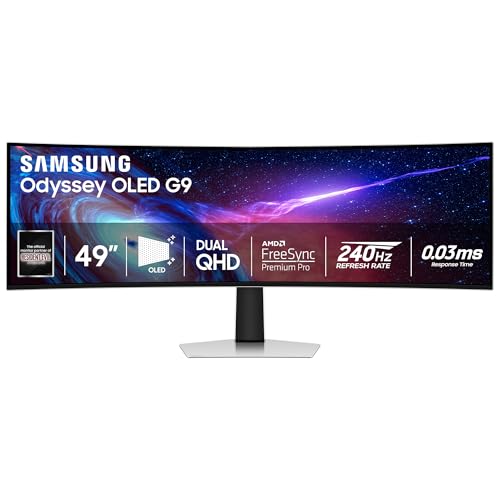
| Samsung 49″ Odyssey OLED G9 (G91SD) | OLED Picture | QD-OLED contrast and a 0.03ms response claim, backed by a three-year warranty named in the title. |
| Samsung 49″ Business Curved Ultrawide | Office Samsung | A business-tuned Dual QHD panel with USB-C, built-in speakers and an eye care feature set for long workdays. |
| LG 49″ UltraGear DQHD Curved Monitor | Speed Flagship | 240Hz, 1ms and DisplayHDR 1000 — the highest refresh and the highest HDR tier in this guide. |
| Dell UltraSharp U4924DW 49″ | Productivity Hub | An IPS panel with a USB-C hub, 350-nit brightness and Dell’s UltraSharp office pedigree. |
How We Chose These Picks
Six screens, one shared resolution, and a market full of near-identical model names — the selection method had to start from listing titles rather than press releases. Every specification quoted in this guide comes from the Amazon listing title verified for that exact model: refresh rate, HDR tier, curve radius, colour figures, port lists. Where a title stays silent about a feature, the review says so and the spec list carries a note to verify with the manufacturer’s documentation instead of a borrowed figure from a sibling model. That discipline matters doubly at 49 inches, because manufacturers sell several panels under one family name and the differences hide in suffixes.
Coverage came next. A useful 49-inch guide has to span the three jobs this format actually does: fast gaming, mixed work-and-play, and pure productivity. So the six divide into a 240Hz flagship, two 144Hz gaming panels (one of them OLED), a 120Hz value curve, and two office-first machines. A guide that listed six gaming panels would flatter the format’s marketing and fail the analyst who wants two spreadsheets and a chat window side by side, which is, by unit volume, what most 49-inch screens spend their lives displaying.
Price discipline ran through the selection in a specific way: no pick earns its place by being the cheapest route to 5120×1440, because at this size the costs around the panel — the deeper desk, the stronger arm, the graphics card that feeds it — dwarf small differences between listings. A pick earns its place by being the right panel for a recognisable desk, and the reviews describe that desk in each case so you can see whether it is yours. Readers comparing figures should therefore price the whole arrangement, panel plus furniture plus any dock or arm the choice requires, rather than ranking six listings by a single number.
Finally, each pick had to justify its desk footprint against the obvious rival: two 27-inch monitors on a dual arm. A 49-inch panel wins that argument with a seamless centre — no bezel split down the middle of your spreadsheet, no colour mismatch between two separately aged panels, one curve wrapping the whole field. It loses the argument on flexibility and failure risk, and the reviews below keep both sides of that ledger visible rather than pretending the single-panel choice is free.

Samsung 49″ Odyssey G9 (G91F) — Balanced Gamer
Samsung’s G91F occupies the sensible centre of the Odyssey line: 144Hz rather than 240Hz, DisplayHDR 600 rather than a four-figure tier, and a price position (check the listing for the current figure) that undercuts the OLED sibling below. For a player whose games live in the wide single-player genres — racing, flight, strategy, sprawling RPGs — 144Hz at 5120×1440 is already more frames than most graphics cards can produce at this resolution, which makes the G91F’s spec sheet honest in a way flagship sheets rarely are. It asks for the GPU you plausibly own, not the one the marketing department imagines.
DisplayHDR 600 is the meaningful line in its title. HDR tiers are promises about peak brightness and local control, and 600 is the level where HDR highlights in games start to read as light rather than as a filter. AMD FreeSync Premium Pro is named, which pairs the panel with Radeon cards and with HDR tone mapping handled in the sync pipeline; NVIDIA owners get basic compatibility through the adaptive-sync standard rather than a certification, a distinction worth knowing before you assume symmetry between the two ecosystems.
The ergonomic stand deserves its mention because at 49 inches a fixed stand is a genuine defect, and Samsung fitted a proper one here. Height travel lets the panel’s centre sit at eye level, which at this width is not a comfort nicety but the difference between turning your head and rolling your eyes across the canvas. Plan the viewing position around a metre from the glass: closer and the edges leave your useful field, further and text at native scaling shrinks below comfortable reading for many eyes.
- Size and resolution: 49-inch, Dual QHD 5120×1440, 32:9
- Refresh rate: 144Hz
- HDR: DisplayHDR 600
- Sync: AMD FreeSync Premium Pro
- Stand: Ergonomic stand, per listing title
- Model: LS49FG910ENXZA, 2025
Strengths
- 144Hz matches what real graphics cards can feed at 5120×1440 in modern games.
- DisplayHDR 600 gives HDR content genuine highlight headroom.
- Ergonomic stand fitted as standard on a panel this wide.
Trade-offs
- FreeSync Premium Pro branding favours Radeon owners; there is no G-Sync certification in the title.
- 144Hz leaves the esports ceiling to the LG below.
- A VA-class curved panel asks for a centred seat; off-axis viewing softens the picture.
Best for: the single-player gamer who wants the full 32:9 wrap with refresh and HDR matched to a real-world GPU. Not suited for: a desk shared by two viewers side by side, where the curve’s geometry works against the second seat.
Before ordering, open the G91F’s listing and look at the delivered price alongside the stand’s footprint dimensions — the panel is the purchase, but the stand’s depth decides whether your keyboard still fits.
Ownership of a panel this wide also involves the unglamorous question of what happens when something goes wrong, and Samsung’s service footprint is part of what the G91F’s price buys. A 49-inch screen cannot be dropped at a parcel shop casually; it travels in a box the size of a bicycle’s, and a manufacturer with regional service centres shortens every warranty conversation. Keep the original packaging until the panel has survived its first month — advice that sounds like clutter-hoarding until the day a dead pixel cluster appears and the box becomes the difference between a courier collection and a very awkward car journey. The G91F also rewards a firmware check on day one: gaming lines receive panel updates through the manufacturer’s site, and a 2025 model may already have a newer revision waiting than the one it shipped with.

INNOCN 49″ 5K2K Curved Monitor — Value Curve
INNOCN’s 49C1R is the pick that makes the format reachable, and its listing title is a small masterclass in why this guide insists on reading titles to the last character. The headline says 5K2K; the same title then specifies “5120 x 1440P,” an R1800 curve, 120Hz, 99% sRGB, HDR400, USB Type C, DisplayPort, HDMI, built-in speakers and a height/tilt adjustable stand. Taken whole, that is a coherent, well-equipped 120Hz productivity-and-play panel. Taken by its headline alone, it promises a taller resolution it does not have. Judge the monitor by the whole title and it earns its place; judge it by two characters of marketing and you will be disappointed by a screen that never claimed, in full, to be what you imagined.
The R1800 curve is gentler than Samsung’s tighter radii, and for mixed use that gentleness is a feature. Spreadsheets and timelines keep their straight lines closer to true, text at the edges sits at a more natural angle, and the wrap still pulls a racing game’s horizon around you. At 120Hz the panel doubles a standard office refresh, which flatters scrolling, window dragging and casual gaming alike without demanding a flagship GPU. The 99% sRGB figure speaks to colour for web and office work — the gamut most documents and browsers actually live in.
HDR400 is the honest weak line: treat it as an input-compatibility badge rather than an HDR experience, because 400-class brightness without strong local dimming cannot render HDR contrast. USB Type C is the quiet strength — a laptop docks over one cable for video (confirm the cable and your laptop’s alt-mode support), and built-in speakers cover calls and casual video without desk clutter. Support depth is the standing caveat with smaller brands: warranty handling runs through the seller rather than a global service network, so keep the order records.
- Size and resolution: 49-inch, 5120×1440 (listed as “5K2K”), 32:9
- Refresh rate: 120Hz
- Curve: R1800
- Colour: 99% sRGB per listing title
- HDR: HDR400
- Inputs: USB Type C, DisplayPort, HDMI
- Extras: Built-in speakers; height/tilt adjustable stand
Strengths
- Gentle R1800 curve suits mixed work and play better than a tight gaming radius.
- USB Type C, speakers and an adjustable stand cover the office basics in one box.
- 120Hz doubles office-standard refresh for smoother everyday motion.
Trade-offs
- The “5K2K” headline invites a 5120×2160 misunderstanding the fine print has to undo.
- HDR400 is a compatibility badge, not a contrast feature.
- Smaller-brand support is thinner than Samsung, LG or Dell service networks.
Best for: the mixed-use buyer who wants the 49-inch canvas for work first and games second, at the format’s friendlier end. Not suited for: a buyer who needs 2160 vertical pixels — this panel has 1440, whatever its headline implies.
On the INNOCN listing, scroll to the full specification block and confirm the resolution line reads 5120×1440 before the box ships; that ten-second check is the whole ballgame with this model, and the listing’s price can be compared against the Samsung business panel once you know you are pricing the same canvas.
Desk layout around the INNOCN needs thinking through in its own right, because its gentler curve changes the geometry of a mixed setup in ways the tighter gaming panels never have to consider. An R1800 panel tolerates a second, smaller screen beside it — a laptop on a stand, say — with less visual dissonance than a tightly wrapped gaming panel creates, since its own edges do not reach so aggressively toward the viewer. Speakers built into the monitor free the desk’s corners for that laptop or for documents, and the height adjustment range, while not a substitute for a proper arm, covers the difference between a standard desk and a standing-desk’s upper positions for most users. Buyers planning a two-source desk — work laptop by day over USB-C, gaming PC by night over DisplayPort — will find the input list in the title covers exactly that pattern, with the cable swap reduced to an input-menu press.

Samsung 49″ Odyssey OLED G9 (G91SD) — OLED Picture
QD-OLED changes what a 49-inch panel is for. On the LCD picks in this guide, a night scene in a game is a backlight negotiating with a shutter; on the G91SD, each pixel makes its own light, so the starfield is actually black between the stars and a headlight flare does not drag a grey halo across half the dashboard. The title’s 0.03ms response figure is the OLED class signature — pixel transitions effectively stop being a design constraint — and at 144Hz the panel pairs that response with a refresh rate a strong GPU can genuinely feed at this resolution.
Both sync ecosystems are named here: G-Sync Compatible and AMD FreeSync Premium Pro, which makes the G91SD the least partisan gaming pick in the six. The ergonomic stand returns, and the title carries a three-year warranty line, a detail that matters more for OLED than for any LCD in this guide because the technology’s known long-term risk — permanent image retention from static elements — is precisely what warranty terms speak to. A taskbar parked at the bottom of the screen for twelve hours a day, five days a week, is the use pattern OLED engineers worry about, and a buyer whose 49 inches will show a spreadsheet grid all week should weigh that pattern honestly against the picture quality on offer.
Productivity on OLED also carries a text consideration: QD-OLED’s subpixel arrangement can fringe coloured edges on fine text for some viewers at close distance. Many owners never notice it; some notice it in the first hour and never stop. If your split is eighty percent documents, the Dell and Samsung business panels below exist for you. If your split is eighty percent games and media, nothing else in this guide produces this picture, and the warranty line in the title is the reassurance to read in full on the listing.
- Size and resolution: 49-inch, Dual QHD, 32:9
- Panel: QD-OLED
- Refresh and response: 144Hz, 0.03ms
- Sync: G-Sync Compatible, AMD FreeSync Premium Pro
- Stand: Ergonomic stand, per listing title
- Warranty: 3 Year Warranty stated in listing title
Strengths
- Per-pixel QD-OLED light delivers true blacks no LCD here can match.
- 0.03ms-class response removes motion blur as a variable in fast games.
- Both G-Sync Compatible and FreeSync Premium Pro are named in the title.
Trade-offs
- Static all-day office content is OLED’s known retention risk pattern.
- Fine text can show subpixel fringing for some viewers at close range.
- Premium panel technology sits at the top of this guide’s price spread — verify the figure on the listing.
Best for: the games-and-media-first buyer who wants the best picture the format can produce. Not suited for: a fixed spreadsheet-and-taskbar desktop displayed unchanged for entire work weeks.
The listing for the G91SD is where to read the warranty wording in full — what it covers for the panel is the paragraph that decides whether OLED’s trade-offs are acceptable in your home, and the current asking figure sits right beside it.
Care habits decide whether the OLED premium stays a premium. Let the panel run its built-in refresh cycles when it asks, keep a screensaver or a short sleep timer on the machine, auto-hide the taskbar, and rotate your desktop wallpaper occasionally — small rituals that spread wear across the panel instead of engraving one bright line of icons into it. None of this is burdensome, and owners who adopt the habits treat them the way mechanical-watch owners treat winding: part of owning the finer instrument. The buyers who should walk away are not careless people but fixed people — traders with the same terminal layout burning for a decade, control-room operators, anyone whose screen content is furniture rather than footage. For everyone else, the G91SD’s picture is the strongest argument in this entire guide, and its three-year warranty is the safety net that makes the argument reasonable.

Samsung 49″ Business Curved Ultrawide — Office Samsung
Samsung builds this one for the other Samsung customer: not the player, but the person whose screen holds a general ledger, two browser windows and a video call from nine to five. The title reads like a procurement spec — Dual QHD, USB-C, DisplayPort, HDMI, 120Hz, VESA DisplayHDR 400, built-in speakers, height adjustable stand, Eye Care — and every item on it is a workplace feature rather than a gaming one. Frame it correctly: this is an office panel that happens to share a silhouette with the Odyssey line, and it should be cross-shopped against the Dell UltraSharp below, not against the 240Hz LG.
USB-C is the working heart of the proposition. A laptop arrives at the desk, one cable connects it to 49 inches of workspace, and the built-in speakers handle the call audio without a separate headset stand cluttering the panel’s footprint. The height adjustable stand keeps the screen’s centre at eye level through a long day, and the Eye Care naming signals the manufacturer’s low-blue-light and flicker management features — comfort features for long sessions, stated here as the title states them and nothing more.
The 120Hz in the title rewards a calm reading. On an office panel, a doubled refresh rate buys smoother scrolling through long documents and less fatigue-inducing judder when windows move; it does not turn this into a gaming recommendation, because the panel’s tuning, features and price logic all point at work. DisplayHDR 400 is likewise a compatibility line: office HDR video will play, highlights will not perform. Buyers who understand those two lines as workplace polish rather than play credentials will find this the most coherent Samsung in the guide for a home office that also hosts the occasional film.
- Size and resolution: 49-inch, Dual QHD, 32:9 curved
- Refresh rate: 120Hz
- HDR: VESA DisplayHDR 400
- Inputs: USB-C, DisplayPort, HDMI
- Extras: Built-in speakers; height adjustable stand; Eye Care features
- Model: LS49C954UANXZA, 2024
Strengths
- USB-C docking plus built-in speakers make a one-cable laptop desk.
- Height adjustment and eye care features target eight-hour comfort directly.
- 120Hz smooths document work without gaming-panel pricing logic.
Trade-offs
- Not a gaming panel despite the family resemblance — sync certifications are absent from the title.
- DisplayHDR 400 is playback compatibility, not HDR performance.
- One centred viewer still applies; the curve does not suit a shared desk screen.
Best for: the home-office professional who wants Samsung’s 49-inch canvas tuned for documents, calls and spreadsheets. Not suited for: competitive or high-refresh gaming, which is the Odyssey line’s job, not this panel’s.
For this model, the listing check that matters is the USB-C specification in the full description — confirm it carries video from your laptop — and then glance at the price with office budgets in mind rather than gaming ones.
There is a facilities angle to this panel that home workers miss and office buyers should not: it is the rare 49-inch screen that an IT department can deploy without a supporting cast. No dock to purchase and inventory, because USB-C is in the title. No desktop speakers to requisition, because they are built in. No monitor arm required on day one, because the stand adjusts for height. The per-seat accessory list collapses to the panel itself, which simplifies both the purchase order and the inevitable day when the seat is reconfigured for a new hire. Home workers replicating an office setup get the same benefit in miniature — one box, one cable, a working desk — and the Eye Care feature set, whatever its exact implementation, signals that the panel’s brightness behaviour was designed with long sessions as the primary case rather than as an afterthought.

LG 49″ UltraGear DQHD Curved Monitor — Speed Flagship
LG’s 49-inch UltraGear holds two crowns in this guide simultaneously: 240Hz, the fastest refresh here, and VESA DisplayHDR 1000, the highest HDR tier here. Either figure alone would headline a gaming monitor; together they describe the panel for the player who refuses the usual compromise between motion and light. The title adds the supporting cast — 1ms response, HDMI 2.1 and DisplayPort inputs, a 4-pole headphone output with DTS HP:X spatial audio, AMD FreeSync Premium Pro, and a tilt/swivel/height stand — and the picture that emerges is of a flagship that did not stop at its two headline numbers.
Feeding 240 frames per second at 5120×1440 is the real price of admission, and it is paid in graphics hardware, not in the monitor’s box. Competitive titles with scalable engines can approach it on top-tier cards; heavy cinematic games will sit far below it, where the panel still performs beautifully but the flagship premium buys headroom rather than frames. The DisplayHDR 1000 side of the sheet asks less of your PC and gives more in return across all content: HDR highlights in films and games get genuine peak brightness to work with, the kind that makes a sunlit window in a game scene feel lit rather than merely white.
The stand’s full tilt, swivel and height travel matters at this size because a 240Hz player sits closer and more deliberately than an office user; small angle changes move the curve’s sweet spot. DTS HP:X through the 4-pole headphone output is a thoughtful inclusion for late-night sessions — spatial audio for headphones without a separate DAC purchase. This is the guide’s no-apologies gaming flagship, and its review should end where it began: if your rig and your games can use 240Hz, nothing else here substitutes; if they cannot, the G91F delivers the same canvas at a friendlier total cost of ownership.
- Size and resolution: 49-inch, DQHD 5120×1440 curved
- Refresh and response: 240Hz, 1ms
- HDR: VESA DisplayHDR 1000
- Sync: AMD FreeSync Premium Pro
- Inputs: HDMI 2.1, DisplayPort
- Audio: 4-pole headphone out with DTS HP:X
- Stand: Tilt, swivel and height adjustment
Strengths
- 240Hz is the highest refresh rate in this guide by a wide margin.
- DisplayHDR 1000 is the strongest HDR certification listed here.
- HDMI 2.1 plus DisplayPort covers high-end PCs and current consoles’ better modes.
Trade-offs
- Using 240Hz at this resolution demands a top-tier graphics card.
- No USB-C video input in the title — laptop docking is not its brief.
- Flagship specification carries flagship cost; the listing figure decides its value case.
Best for: the high-end PC player who wants maximum refresh and maximum HDR from one 49-inch panel. Not suited for: a modest GPU, which would leave the 240Hz headline permanently out of reach.
LG’s listing is worth a slow read for its input section — HDMI 2.1 bandwidth is what unlocks the panel’s best console modes — and the price there should be weighed against the frames your current graphics card can honestly produce.
One practical test separates flagship buyers from flagship dreamers, and it takes five minutes before purchase: open the game you play most, set it to a window of 5120×1440 on any screen (a borrowed one, a shop display, even a scaled simulation), and watch your frame counter. If your card holds a number near 240 in that title, the LG’s ceiling is a real feature in your life. If it holds 90, the ceiling is a story you tell about a future upgrade — which may still be worth buying, since monitors outlive graphics cards and the panel you buy today will meet two or three GPUs across its service. Just make the decision with open eyes: paying for headroom is rational, paying for headroom while believing it is today’s performance is how disappointment is manufactured. The DisplayHDR 1000 certification, notably, performs at full strength from the first evening regardless of which card feeds it.

Dell UltraSharp U4924DW 49″ — Productivity Hub
Dell’s UltraSharp badge carries a specific promise in offices: colour behaviour you can trust, a hub that replaces a docking station, and support that answers the phone. The U4924DW’s title supports the first two claims directly — an IPS panel at 5120×1440 with 350-nit brightness, 5ms response, a USB-C hub, WLED backlight and speakers, mount compatible for arm users. The 60Hz refresh rate is the number gaming readers will trip over, and it should be read as a declaration of intent rather than a deficiency: this panel spends its budget on the hub, the IPS viewing behaviour and the UltraSharp calibration pedigree instead of on frames an analyst will never request.
IPS earns its keep in office geometry. A 49-inch screen is wide enough that its edges sit at an angle to your eyes even from the centre seat, and IPS holds colour and contrast at those angles better than the curved VA-class panels in this guide — the spreadsheet’s conditional formatting looks the same in column A and column AZ. The USB-C hub consolidates the desk: peripherals hang off the monitor, the laptop connects with one cable, and the whole arrangement survives a laptop swap with a single plug moved. Buyers should confirm the hub’s power delivery figure on the full listing, because the title confirms the hub’s existence, not its wattage.
Five milliseconds and 60Hz also draw the honest boundary. Nobody should buy this monitor to game competitively, and Dell does not ask them to. What it offers instead is the most office-complete specification here — hub, speakers, mount compatibility, IPS angles, a brightness figure stated outright in the title (350 nits, a number several gaming titles omit) — wrapped in the support structure of the UltraSharp line. For a professional whose 49 inches will earn money in documents, that is the correct flagship.
- Size and resolution: 49-inch, DQHD 5120×1440, 32:9
- Panel: IPS, WLED backlight
- Refresh and response: 60Hz, 5ms
- Brightness: 350 nits stated in listing title
- Hub: USB-C hub; speakers included
- Mounting: Mount compatible, per listing title
Strengths
- IPS viewing behaviour keeps edge-of-screen colour consistent for document work.
- USB-C hub turns the monitor into the desk’s docking station.
- UltraSharp line brings office-grade support and calibration pedigree.
Trade-offs
- 60Hz rules out any high-refresh gaming ambition.
- HDR tier is not stated in the listing title — verify with the manufacturer documentation if HDR matters to you.
- Hub power delivery wattage is not stated in the title; confirm on the full listing before relying on single-cable charging.
Best for: the professional whose 49 inches are a working tool — finance, code, operations — docked to a laptop all day. Not suited for: gaming beyond the casual, where its 60Hz ceiling is a hard limit rather than a preference.
Dell’s listing repays attention in its hub section: the port list there decides whether your dock goes in a drawer, and the monitor’s price should be judged net of that dock it replaces.
The UltraSharp’s calm specification also makes it the easiest panel here to hand to a second user. An LCD IPS screen with a hub does not care whether its next owner is a video editor, an accountant or a student; it has no burn-in history to disclose, no gaming tuning to undo, and its brightness and colour behaviour age slowly and evenly. Resale and hand-me-down value are rarely discussed in monitor reviews, yet at this size and price they are genuine economics — a professional panel that serves one desk for four years and a second desk for four more has a cost per year that reframes its sticker entirely. Dell’s mount compatibility extends that second life further, since the next desk may need an arm the first one did not. None of this makes the U4924DW exciting, and that is rather the point of the UltraSharp line: it is the pick for buyers who measure a monitor in years of unremarkable, dependable service.
Side-by-Side Comparison
| Pick | Refresh | HDR | Panel / Curve | Defining extra |
|---|---|---|---|---|
| Samsung Odyssey G9 (G91F) | 144Hz | DisplayHDR 600 | Curved gaming | FreeSync Premium Pro, ergonomic stand |
| INNOCN 49C1R | 120Hz | HDR400 | R1800 curved | USB Type C, speakers, 99% sRGB |
| Samsung Odyssey OLED G9 (G91SD) | 144Hz | Not stated in the listing title | QD-OLED curved | 0.03ms, G-Sync Compatible, 3-year warranty |
| Samsung 49″ Business | 120Hz | DisplayHDR 400 | Curved office | USB-C, speakers, Eye Care |
| LG UltraGear 49″ | 240Hz | DisplayHDR 1000 | Curved gaming | HDMI 2.1, DTS HP:X headphone out |
| Dell UltraSharp U4924DW | 60Hz | Not stated in the listing title | IPS curved | USB-C hub, 350 nits |
Why Does “5K2K” Mean Two Different Resolutions?
Because the industry never agreed on the label, and the ambiguity is commercially convenient. Strictly, 5K2K describes 5120×2160 — five thousand pixels wide, two thousand tall — a format sold on 40-inch productivity panels where the extra vertical space transforms document work. Loosely, some brands apply the same label to any panel 5120 pixels wide, including 5120×1440 Dual QHD screens like the INNOCN in this guide, whose own title contains both the label and the correction. The vertical figure is the one your eyes live with: 2160 rows show roughly fifty percent more spreadsheet, timeline or code than 1440 rows at the same scaling. A buyer shopping for the tall format should search by the explicit resolution string “5120 x 2160” and ignore the nickname entirely, while a buyer shopping this guide’s format should search “5120 x 1440” and treat every nickname — 5K2K, DQHD, Dual QHD — as decoration until the numbers confirm it.
Is One 49-Inch Panel Better Than Two 27-Inch Monitors?
For a single user with a single machine, usually yes, and the reason is the centre. Two 27-inch QHD panels place a bezel exactly where your primary window wants to live, and every cross-screen drag pays a small tax in attention. A 49-inch panel is literally those two screens fused: same total pixels, no seam, one colour profile, one curve. Window managers on both major operating systems now snap and zone wide screens gracefully, so the old argument that two panels organise work better has weakened. The counter-arguments are real, though. Two panels fail one at a time; a 49-inch panel fails all at once. Two panels let one screen take a console or a second machine while the other works; most single panels here can split inputs, but the titles do not promise it, so verify picture-by-picture support on the listing if that workflow matters. And two mid-range panels together often cost less than one flagship — the budget maths belongs in your comparison, not just the geometry.
How Deep Does a Desk Need to Be for a 49-Inch Monitor?
Deeper than most desks are. The panel itself spans about 1.2 metres, and the curve means its ends reach toward you, so the comfortable viewing distance of roughly 80 to 100 centimetres must fit between your eyes and the glass after the stand’s own depth takes its share. A 60-centimetre-deep desk — the common flat-pack size — puts the screen too close for the edges to sit inside comfortable eye rotation, and you will spend the day turning your head like a spectator at a tennis match. Eighty centimetres of depth is the sensible floor, ninety is comfortable, and a monitor arm that clamps at the desk’s rear edge can reclaim several centimetres by moving the stand’s foot off the surface entirely. Check the mount compatibility in each pick’s title if an arm is part of your plan, and measure the wall behind the desk too: at this width, a panel centred on the desk may still crowd a wall-mounted shelf or a window frame.
What Should You Check During Your First Week With a 49-Inch Panel?
Run the panel through your actual work before the return window closes. Display a full-screen white document and look for tint variation toward the edges; display a black screen in a dark room and look for backlight bleed on the LCD models; scroll a long document quickly and judge whether the motion matches the refresh rate you paid for. Connect every device you own — the laptop over USB-C where offered, the console over HDMI, the PC over DisplayPort — because input quirks are model-specific and discoverable only by plugging in. Set your window layout, save it in your window manager, and live in it for two full workdays. A 49-inch monitor reorganises habits, and the honest verdict on whether the reorganisation suits you only arrives after real work has flowed across the whole canvas.
Which Panel Technology Fits Your Room’s Light?
Room lighting quietly arbitrates between these six panels. A bright office with windows behind the desk punishes low-brightness screens and rewards the Dell’s stated 350 nits and the anti-glare behaviour office panels are tuned for; the same room washes out an OLED’s perfect blacks into very good blacks, narrowing its advantage to the evening hours. A controlled, dim gaming room reverses the verdict — the QD-OLED’s contrast becomes overwhelming, and glossy curved gaming panels that would mirror a window at noon turn into windows into the game at night. Before choosing a technology, look at your room at the hour you actually use the screen: count the light sources the panel will face, note whether any sit directly behind your chair where a curved glossy surface will catch them, and be honest about whether blinds or a rearranged desk are realistic. The right panel in the wrong light loses to the adequate panel in the right light every day of the week.
What Does a 49-Inch Monitor Demand From Your Graphics Card?
Pixels are workload, and 5120×1440 is roughly 7.4 million of them — about ninety percent of a 4K screen’s count, spread wider. Any card that runs 4K respectably will run this format respectably, and any card that struggles at 4K will struggle here in the same titles at the same settings. Office work asks almost nothing: integrated graphics in a modern laptop drive the resolution for documents without complaint, though older integrated chips may cap refresh at 60Hz even on the faster panels. Gaming asks everything. Budget your settings the way 4K players do — leaning on upscaling features in demanding titles — and match the panel’s refresh to the frame rates your card demonstrably produces, using the picks’ ladder deliberately: 60Hz Dell for work alone, 120Hz INNOCN or Samsung Business for mixed desks, 144Hz for serious play, 240Hz only behind a flagship card. The monitor is a ten-year purchase and the card is a three-year one, so a step of headroom is defensible; three steps is a donation.
How Do You Arrange Windows Across 5120 Pixels Without Losing Your Mind?
The first week on a 32:9 screen tempts everyone into the same error: maximising everything. A browser stretched across 5120 pixels produces lines of text too long to read, and a document centred in a sea of white wastes the canvas that justified the purchase. The layout that experienced owners settle into treats the panel as three zones — a primary window in the centre taking roughly half the width, and a secondary window on each flank. Email or chat lives on one side, reference material or a media player on the other, and the work itself never leaves the centre where the curve’s geometry and your eyes are happiest. Both major operating systems ship snapping tools that remember these zones, and third-party window managers go further with saved layouts per task: one arrangement for writing, one for analysis, one for calls. Spend the twenty minutes teaching the software your zones once, and the panel stops feeling like a very wide single screen and starts feeling like the three-screen desk it replaces — which, in pixels, is precisely what it is.
How Should You Handle, Mount and Clean a Panel This Large?
Two people, always. A 49-inch curved panel is awkward rather than heavy, and the curve concentrates stress in ways a flat screen forgives: never lift it by one corner, never lay it face-down on a desk edge, and keep the protective film on until it sits in its final position. If you are mounting it, confirm the VESA pattern and the arm’s weight rating from the full listing before ordering the arm — arms rated for 32-inch screens are not automatically rated for a panel this wide, because the leverage of a 1.2-metre screen on a tilted joint is its own engineering problem. Cleaning follows the same gentleness: a dry microfibre cloth for dust, a barely damp one for fingerprints, no household glass sprays, and no pressing on the panel to reach a stubborn mark. Curved screens also collect dust along the lower bezel where the curve meets the desk; a soft brush during your weekly desk reset keeps that line from becoming a permanent grey border under your work.
Common Mistakes
Buying by nickname tops the list: the 5K2K trap described above has filled return warehouses, and the fix costs nothing but reading the resolution figures in the title. Second comes underestimating the desk — a 49-inch panel on a shallow desk is an ergonomic injury with a delivery date, and no stand adjustment compensates for missing depth. Third, gamers regularly pair a 240Hz flagship with a mid-range graphics card and then blame the monitor for frame rates it never received; the panel displays what it is fed. Fourth, office buyers overlook the hub question and purchase a gaming panel for a laptop desk, then spend the savings on a dock they could have had built in. Fifth, OLED buyers who run static desktops all day ignore the retention guidance in the manual until the taskbar ghosts — the technology rewards varied content and punishes fixed furniture. Each of these mistakes is a mismatch between the buyer’s actual life and the panel’s actual design, which is why the reviews above keep returning to your split of work and play rather than to any single specification.
Final Recommendation
One last filter before the recommendations themselves: sit in your actual chair, at your actual desk, and hold your arms out to the width of this screen. If the gesture feels theatrical, your room is telling you something the specifications cannot. The buyers who love this format are the ones whose desks already feel cramped by two ordinary monitors; the buyers who return it are the ones who ordered the fantasy of width without the furniture to hold it. Both groups read the same spec sheets. Only one of them measured first.
Start from your dominant hours. If the screen will mostly game, the LG UltraGear’s 240Hz and DisplayHDR 1000 form the ceiling, the Samsung G91F is the balanced buy beneath it, and the OLED G9 trades a little refresh for the finest picture — choose among those three by your graphics card and your feelings about OLED care. If the screen will mostly work, the Dell UltraSharp’s hub and IPS behaviour make it the professional default, the Samsung Business is its one-cable alternative, and the INNOCN is the value route into the format for mixed desks. Whichever you choose, measure the desk first and read the resolution figures twice; at 49 inches, those two habits are worth more than any single specification in this guide.
Frequently Asked Questions
Can a laptop drive a 5120×1440 monitor?
Most modern laptops can over USB-C or DisplayPort, but integrated graphics on older machines may cap the refresh rate below the panel’s maximum even when the resolution itself works. Check your laptop’s display output specification against the resolution, and remember the USB-C picks above still need your machine to send video over that port.
Is 49 inches too wide for gaming?
For cinematic and simulation genres the width is the point — the curve fills peripheral vision the way a cinema screen does. For competitive shooters, many players run a centred window at a narrower aspect on the same panel, keeping the 49 inches for everything else. The format flexes both ways; your genre decides which way you use it.
Do these monitors replace a dual-monitor setup for work?
In pixel terms, exactly: 5120×1440 is two 2560×1440 screens side by side with no bezel. In workflow terms, window-zoning software replaces the physical separation, and most users adapt within days. What you give up is the ability to angle one screen toward a colleague or run two machines on separate glass without input-splitting features.
Which of these is easiest on a smaller desk?
None is small, but the practical differences are stand depth and mount compatibility. The Dell states mount compatibility in its title, making an arm straightforward; the others should be checked on their listings for VESA support before you plan an arm-based setup to save depth.
How long do panels of this size typically stay in service?
Longer than almost any other component on the desk. A monitor has no battery to swell, no storage to fill and no operating system to fall out of support; its backlight fades over years rather than months, and its inputs age only when a new connection standard displaces the old ones — which is why the picks carrying both HDMI and DisplayPort, or USB-C alongside them, hold a practical edge. Owners routinely keep screens of this class through two or three computers. That longevity is the strongest argument for buying the panel your future self wants rather than the one your current card can fully exploit, and equally the strongest argument for the unglamorous virtues — stand quality, hub ports, warranty handling — that decide whether year six with the screen feels like year one.
Can I wall-mount or arm-mount a 49-inch ultrawide in a rented home?
An arm clamped to the desk’s rear edge avoids wall fixings entirely and suits renters; wall mounting a panel this wide wants studs or proper masonry anchors, not drywall plugs. Either way, confirm the mount pattern and the panel’s weight on the full listing, choose an arm rated comfortably above that weight, and keep the factory stand in its box — a future move or a second desk will want it.
Does HDR tier change normal office work?
No. HDR certifications describe peak brightness and contrast behaviour with HDR content — games and films. Documents, spreadsheets and browsing run in SDR, where brightness, panel type and ergonomics decide comfort. Buy HDR tier for your evenings, not for your spreadsheets.
Related Guides
Shoppers who find 49 inches one step too far should look at the slightly smaller class in our guide to the best 38 inch monitors, where the same ultrawide idea arrives in a desk-friendlier footprint. If HDR performance is the deciding factor in your purchase, our dedicated roundup of the best hdr monitors ranks panels by their local dimming and certification rather than by size. And players whose priority is motion at high resolution rather than width should read the best 4k 120hz monitors guide, where 120Hz is the entry ticket rather than the ceiling for every single panel compared there.
Related guides
- Best 17 Laptops: The Complete Tier-by-Tier Guide to Big-Screen Machines
- Best 4K Monitors for MacBook Pro: USB-C Panels With Real Power Delivery
- Best Canvas Photo Printers: Wide-Format Machines for Canvas Work, From 13 Inches to a 24-Inch Plotter
- Best Acer Laptops for School: Six Picks for Pupils, Backpacks and Homework