What's inside
- Key Takeaways
- Quick Picks
- How We Chose These Picks
- Comparison
- How Does Chromebook Printing Actually Work?
- How Do You Set Up a Printer on a Chromebook, Step by Step in Spirit?
- What Changes When the Chromebook Is School-Issued?
- How Do Printing Costs Play Out in a Chromebook Household?
- What Should You Do When the Printer Vanishes Mid-Term?
- How Well Do Chromebooks Handle Colour and Photo Printing?
- What Does a Good First Week With the New Printer Look Like?
- What Are the Common Mistakes When Buying a Printer for a Chromebook?
- Final Recommendation
- Frequently Asked Questions
- Related Guides
As an Amazon Associate I earn from qualifying purchases. This post may contain affiliate links at no extra cost to you.
widgetverdict.com is reader-supported. When you buy through links on our site, we may earn an affiliate commission.
“It worked with the old laptop.” That sentence, spoken in kitchens and classrooms everywhere, is the epitaph of a hundred printer purchases — because Chromebooks do not print the way Windows and Mac computers print, and a printer that charmed every other machine in the house can stand mute before a Chromebook. The best chromebook compatible printers are the ones that speak the language ChromeOS actually uses: driverless printing over the network, where the Chromebook discovers the printer and talks to it through a standard protocol instead of a manufacturer driver that ChromeOS cannot install.
That protocol has a name worth learning: IPP, in its modern driverless form — the technology behind standards such as AirPrint and Mopria, and the reason a modern wireless printer usually just appears in a Chromebook’s print dialogue. The word “usually” carries the whole guide. A printer either supports driverless printing properly or it does not, and the difference is invisible in most marketing. Read the six picks below with that lens: every one is a current wireless model from HP or Canon whose titles state wireless and mobile printing, and — here is this guide’s standing honesty — none of the six titles says the word “Chromebook” outright. So each spec box records that plainly, and the buying guidance explains how to confirm driverless support for the exact unit before your return window becomes a memory.
The six split into two families with different temperaments. Three HP DeskJets offer compact colour all-in-one printing aimed at easy home use. Three Canon PIXMAs answer with their own all-in-one designs, one carrying a small OLED display, one a long-running budget lineage, one a cost-efficient home positioning. All six print, scan and copy; all six are wireless; and all six will also serve the phones and conventional computers in the house, which matters, because the Chromebook is rarely the only device asking.
Key Takeaways
- ChromeOS prints through driverless IPP — a printer supports that standard or it does not, and no driver download can fix one that lacks it.
- The retired cloud printing route still haunts old leaflets and older advice; the living system is local, driverless and entirely inside your own home network.
- None of the six listing titles states the word “Chromebook”, so each spec box says so and the guide explains the pre-purchase check instead.
- Cartridge discipline — draft mode for drafts, a spare set in the drawer, colour kept for work that earns it — decides what a school year of printing actually costs.
- All six picks are wireless colour all-in-ones with print, scan and copy — scanning runs through the Chromebook’s own scan tools or the maker’s web interface.
- Same network, strong signal, one saved printer: most Chromebook printing failures are network geography in disguise, and all three are fixable in minutes once recognised.
- The Canon PIXMA MG3620 is a long-running budget model, not a shiny new release — its age brings a huge base of user experience and older-generation manners.
- The PIXMA TS6520 is the only pick with a stated display: a 1.42-inch OLED panel for walk-up control.
- When a printer vanishes mid-term, the phone test — print from a phone as a witness — separates a network fault from a pairing fault faster than any menu.
- Two near-identical HP DeskJets (2923 and 2955) plus the 2855e make the HP side a question of current listing, not of capability.
- A school-issued Chromebook may be managed in ways that limit home printing — test the pairing with the actual school device, after a restart, before trusting it with a deadline.
- The first week is the real compatibility test: print, scan, print from a phone, and keep the box until all three have passed on your own network.
Quick Picks
| Pick | Badge | Why it is here |
|---|---|---|
| HP DeskJet 2923 Color Inkjet Printer | Easy Home Pick | A wireless colour all-in-one positioned for easy home printing and mobile compatibility. |
| Canon PIXMA TS6520 | Display Pick | A wireless colour inkjet with a 1.42-inch OLED display and an intuitive control panel, in white. |
| Canon PIXMA TS4320 | Cost-Efficient Pick | A compact wireless all-in-one described as a cost-efficient multi-function photo printer for home use. |
| HP DeskJet 2855e Color Inkjet Printer | Home All-in-One Pick | HP’s wireless all-in-one with mobile compatibility for documents and colour home printing. |
| Canon PIXMA MG3620 | Proven Budget Pick | A long-running wireless all-in-one with mobile and tablet printing, in black. |
| HP DeskJet 2955 | Current DeskJet Pick | The newest-named DeskJet here: wireless colour all-in-one printing for home use. |
How We Chose These Picks
Wireless came first, and not as a convenience: for a Chromebook household, the network is the printer cable. ChromeOS discovers printers on the local network and prints through the driverless standard, so a USB-only machine would strand the very computer this guide serves. Every pick therefore states wireless in its title. Mobile compatibility came second, because the same driverless ecosystem connects the household’s phones and tablets, and a printer that serves the Chromebook while ignoring the phone merely moves the family’s frustration to a smaller screen.
All-in-one functions were weighed with a Chromebook-specific caveat that the reviews repeat honestly: printing is the native act, while scanning from a Chromebook depends on the printer supporting network scanning that ChromeOS or the maker’s tools can reach. All six picks scan as machines; how gracefully each one scans to a Chromebook is a check to run in the first week, while returns are painless, and the guide flags it rather than papering over it.
Finally, the selection stayed inside current, mainstream home models from the two makers whose driverless support is the industry default, plus one deliberate elder — the MG3620 — whose long production run makes it the budget reference point. No pick was chosen for a Chromebook claim printed on a box; the titles do not make that claim, and the guide’s method is to explain the standard and let you verify the unit.

HP DeskJet 2923 Color Inkjet Printer — Easy Home Pick
HP builds the DeskJet line for the household that wants printing to be a non-event, and the 2923’s title says so in so many words: colour inkjet, wireless, all-in-one, easy home printing, colour documents, mobile compatibility, print, scan and copy, ideal home use. For a Chromebook household, that positioning translates well. The Chromebook will find the printer on the network through the driverless standard, the phone will find it through the same mobile compatibility the title advertises, and the machine’s whole personality — compact, simple, unambitious in the best sense — suits the homework-and-household rhythm a Chromebook usually anchors.
Set the expectations the title sets. This is a light home machine: school projects in colour, forms and letters in black, the occasional photograph, scanning a document for an application. It is not built for a home business’s weekly volume, and a household printing hundreds of pages a month should be reading tank-printer guides instead — a boundary this guide states here so that the 2923 can be praised honestly inside its true brief. Within that brief, its virtues are the ones that matter at 7 a.m. before school: it wakes, it connects, it prints the worksheet.
The Chromebook-specific check from the introduction applies: the title states wireless and mobile compatibility, not the word Chromebook, so confirm the unit’s driverless printing support in HP’s documentation for this model and run the first-week test — print from the Chromebook, then scan to it — while the purchase is fresh. DeskJets are among the most common printers paired with Chromebooks in homes and schools, and the 2923 is a current expression of that pairing; verify your unit, then expect the pairing to be boring, which is the highest praise home printing earns.
- Functions: Print, scan and copy, per the listing title
- Print type: Colour inkjet
- Connectivity: Wireless, mobile compatibility stated
- Positioning: Easy home printing, ideal home use
- Chromebook support: Not stated in the listing title — verify with the manufacturer documentation
- Duty level: Light home use, per the title’s positioning
Strengths
- Compact all-in-one shaped for Chromebook-era home printing.
- Mobile compatibility covers the phones beside the Chromebook.
- Colour covers school projects and household documents alike.
Trade-offs
- Light-duty design; heavy monthly volume belongs elsewhere.
- Chromebook support must be verified per unit, as the title is silent.
- Cartridge costs follow a busy household’s colour printing.
Best for: families whose Chromebook is the main computer and whose printing is homework-scale. Not suited for: a high-volume home office — the duty brief in its own title is home use, and volume breaks it.
Families shortlisting the 2923 can open its HP listing and confirm the home bundle currently attached to it.
A Chromebook household runs best when the printer is set up as a network citizen from day one: on the main home Wi-Fi rather than a guest network, with a fixed place in the house where its signal is strong, because most “the Chromebook can’t find the printer” stories are really “the printer is on a different network” stories. Print a test page from every device in the first week — Chromebook, phone, the old laptop — and the machine’s role in the house is established before the first real deadline tests it.

Canon PIXMA TS6520 — Display Pick
The TS6520 is the only pick in this guide whose title mentions a display, and the detail is worth more than it sounds: a 1.42-inch OLED panel on a compact wireless colour inkjet with print, scan and copy, an intuitive control panel, a compact-for-home design and a white finish. Why does a small screen matter in a Chromebook house? Because the Chromebook workflow is screenless at the printer — jobs arrive from the network — and the moments that do happen at the machine, copying a document, checking an ink warning, clearing a paper jam, are exactly the moments a legible little display turns from fumbling into reading.
Canon’s PIXMA line has always aimed at the design-conscious home, and the white, compact body here continues that: a printer that can live on a shelf in a small flat or a student’s room without looking like office equipment that escaped. The printing brief is the family standard — documents, colour schoolwork, photographs at home quality — and the wireless connection puts it on the Chromebook’s network like every pick here. Its title, like all six, does not utter the word Chromebook; the driverless check in HP’s rival documentation has its Canon equivalent, and the first-week print-and-scan test applies unchanged.
Judge the TS6520 as the pick for households that interact with their printer physically — copying at the machine, minding its messages, valuing a control panel that explains itself. A household that prints exclusively from devices and never touches the machine gains less from the OLED; a household with a grandparent, a young student or a shared family desk gains a small daily clarity that specifications rarely capture.
- Functions: Print, scan and copy, per the listing title
- Display: 1.42-inch OLED, stated in the title
- Print type: Wireless colour inkjet
- Design: Compact for home, white finish
- Chromebook support: Not stated in the listing title — verify with the manufacturer documentation
- Control panel: Described as intuitive in the title
Strengths
- The only stated display here — walk-up tasks explain themselves.
- Compact white design suits living spaces and small rooms.
- Full all-in-one set for family documents and photos.
Trade-offs
- The display’s value fades for device-only printing households.
- Home-duty inkjet economics under heavy volume.
- Chromebook verification remains a documentation task.
Best for: shared family desks where people copy and troubleshoot at the machine itself. Not suited for: a print-from-the-sofa household that never touches the printer — the OLED would be jewellery there.
Households drawn to the display can look through the TS6520’s Canon listing for the panel and design details in full.
The display also changes troubleshooting’s emotional weather. A Chromebook that cannot find a printer gives its user a grey dialogue and a shrug; a printer that can say, on its own screen, that it is offline, out of paper or low on a colour gives the household a sentence to act on. Families are not IT departments, and the machine that explains itself in plain language at the moment of failure saves the phone call to the one relative who “knows computers” — a benefit no benchmark measures and every family recognises.

Canon PIXMA TS4320 — Cost-Efficient Pick
Canon’s title for the TS4320 leads with a promise this guide treats carefully: a wireless colour inkjet printer with print, copy and scan, described as a cost-efficient multi-function photo printer for home use, with a compact design and easy setup. Cost-efficient is a manufacturer’s framing rather than a measured figure — no running-cost number appears in the title, and none is invented here — but the positioning tells you the machine’s intended life: the budget-conscious family printer, bought to cover the Chromebook’s homework, the household’s forms and the occasional photograph without ceremony.
Easy setup deserves its sentence, because in Chromebook households the setup is the product. A printer that joins the network smoothly, announces itself to the Chromebook’s print dialogue, and asks little of its owner will be loved; one that requires an evening of forums will be resented at any specification. Canon designs this PIXMA tier for exactly that first evening, and the compact body suits the small desks Chromebooks themselves favour. As with every pick, the title is silent on Chromebooks by name, so the verification step stands: confirm driverless support for the model, then test print and scan from the Chromebook in week one.
The TS4320 and the TS6520 above it invite a direct internal comparison: the 6520 adds the OLED display and the white design statement, while the 4320 keeps the brief lean. Families deciding between them are really deciding how much walk-up interaction their printer will see. Everything else — the all-in-one functions, the wireless Chromebook path, the home photo ability — is shared ground, and there is no wrong answer, only a clearer and a leaner version of the same household tool.
- Functions: Print, copy and scan, per the listing title
- Print type: Wireless colour inkjet
- Positioning: Cost-efficient multi-function photo printer, home use
- Design: Compact, easy setup stated
- Chromebook support: Not stated in the listing title — verify with the manufacturer documentation
- Display: Not stated in the listing title — verify with the manufacturer documentation
Strengths
- Lean, budget-minded all-in-one for the Chromebook household.
- Easy setup emphasis matches how these homes actually buy.
- Photo printing included for family use beyond documents.
Trade-offs
- No stated display, so walk-up work is plainer than the TS6520’s.
- Cost-efficiency is a positioning claim, not a figure this guide can print.
- Home-duty volume limits apply as with all six picks.
Best for: budget-conscious families wanting one compact printer for the Chromebook and the house. Not suited for: heavy walk-up copying households — the TS6520’s display serves that life better.
Value-minded buyers can check the TS4320 listing to see the current package Canon attaches to it.
A cost-efficient printer earns its name across years, not at the till, and the habits are mundane: print in batches rather than single pages scattered through the day, keep the machine powered on its maker-recommended rhythm so cleaning cycles stay modest, and replace cartridges as a planned household supply rather than an emergency purchase at the worst shop at the worst hour. The TS4320’s compact brief rewards exactly that temperament — a family that treats printing as a small utility, set up once and used without theatre.
HP DeskJet 2855e — Home All-in-One Pick
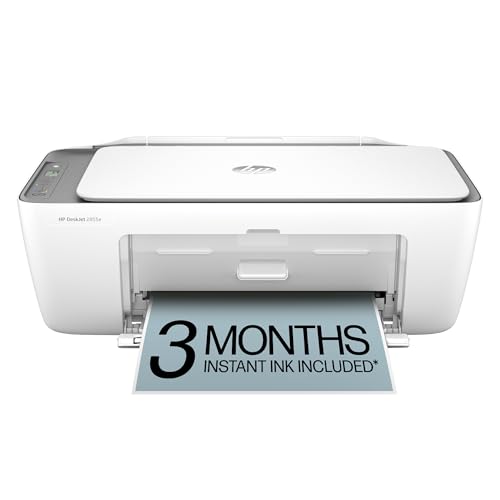
The 2855e is the middle DeskJet of this guide, and its title mirrors its smaller sibling’s language almost word for word: colour inkjet, wireless, all-in-one, easy home printing, colour documents, mobile compatibility, print, scan and copy, ideal home use. That family resemblance is itself information. HP’s DeskJet range is a line of near-identical home machines differentiated by generation and bundle rather than by philosophy, and the 2855e sits comfortably in the Chromebook household for the same reasons as the 2923: network discovery through the driverless standard, mobile compatibility for the phones, colour all-in-one coverage for the family’s documents.
Why list two near-twins in one guide? Because this is how the category is actually bought. A family choosing between the 2923, the 2855e and the 2955 below is choosing between current listings of the same idea, and the honest guidance is to compare the three as offers — what each listing includes on the day, which generation each represents — rather than to invent capability differences the titles do not state. All three carry the same stated function set and the same home positioning. The “e” suffix on this model belongs to HP’s naming for its connected-home line; treat it as a name, not a feature list.
The Chromebook checks repeat, deliberately: title silent on Chromebooks, driverless support to confirm in documentation, print-and-scan test in the first week. DeskJets as a family are the default printers of the Chromebook era’s classrooms and kitchens, and the 2855e is a safe expression of that default for a household that wants the all-in-one set without a display, a feeder or any other elaboration.
- Functions: Print, scan and copy, per the listing title
- Print type: Colour inkjet
- Connectivity: Wireless, mobile compatibility stated
- Positioning: Easy home printing, ideal home use
- Chromebook support: Not stated in the listing title — verify with the manufacturer documentation
- Relation to siblings: Same stated function set as the DeskJet 2923 and 2955
Strengths
- The DeskJet formula in a current all-in-one listing.
- Mobile compatibility spans the household’s devices.
- Colour documents and projects covered without complexity.
Trade-offs
- Capability overlaps its DeskJet siblings almost completely.
- Light home duty, not office volume.
- Chromebook support is a verify-first item, as with all six.
Best for: households wanting the standard DeskJet answer in a current listing. Not suited for: buyers seeking a distinguishing feature — this model’s charm is that it has none beyond the formula itself.
Comparison shoppers can pull up the 2855e listing alongside its siblings’ and judge the three offers side by side.
There is a sensible way to choose among near-identical machines: decide by the life around the printer rather than inside it. Which listing’s included supplies match your first term of school printing? Which seller and return terms give you the calmest first month, during which the Chromebook pairing will be proven? Those are real differences, honestly weighed, and they beat the imaginary differences of a spec sheet that was never going to separate three DeskJets. Buy the offer, test the pairing in week one, and get on with the school year.
Canon PIXMA MG3620 — Proven Budget Pick
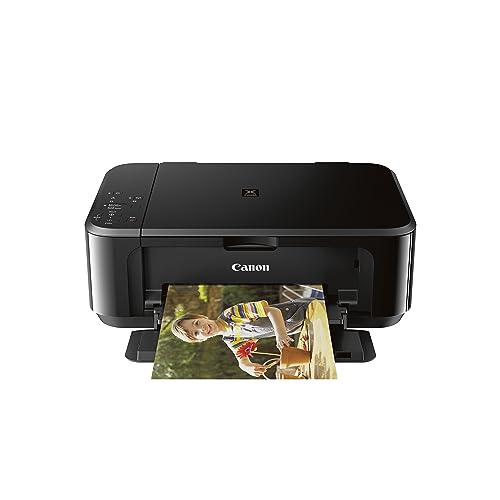
Frame this one honestly from the first line, as the brief for this guide insists: the MG3620 is a long-running budget model, not a new release. Canon’s title is correspondingly plain — a wireless all-in-one colour inkjet printer with mobile and tablet printing, in black. That plainness conceals the model’s real distinction: it has been sold, in essentially this form, for years, which means its behaviour with every device in creation has been tested by an army of owners, its quirks are documented in a thousand forum answers, and its place in the Chromebook ecosystem is a matter of long practice rather than of launch promises.
Longevity cuts in two directions, and both belong in the review. In its favour: maturity, ubiquity, and the deep bench of community knowledge that answers any setup question at midnight. A Chromebook household on a strict budget gets a known quantity whose driverless printing behaviour is established fact in countless homes and classrooms. Against it: a design of its generation — older wireless manners, an interface from before displays were expected at this level, and setup software that reflects its era. None of that prevents it printing a worksheet tonight; all of it shapes the experience of owning it.
The Chromebook caveat reaches its sharpest form here. Because the model predates the current driverless era’s polish, the verification step is not a formality: confirm this model’s network printing support for ChromeOS in Canon’s documentation, and if the specific unit’s behaviour disappoints, the first-week test exists precisely so the discovery costs nothing. Bought with that diligence, the MG3620 remains what it has been for years — the budget answer that simply works in an enormous number of real homes, which is a credential no launch-day specification can imitate.
- Functions: Wireless all-in-one — print, scan and copy class, per the listing title’s all-in-one designation
- Print type: Colour inkjet
- Connectivity: Wireless, mobile and tablet printing stated
- Colour: Black unit, per the title
- Chromebook support: Not stated in the listing title — verify with the manufacturer documentation
- Design generation: A long-running budget model, not a new release
Strengths
- Years of owner experience behind every setup question.
- The budget reference point of the Chromebook printer world.
- Mobile and tablet printing stated in the title.
Trade-offs
- Older-generation interface and wireless manners.
- Chromebook verification matters most on this pick.
- No modern display or setup polish.
Best for: strict budgets and households content with a proven, plain machine. Not suited for: buyers wanting current-generation setup ease — the newer PIXMAs above were designed for that expectation.
Budget hunters can review the MG3620’s listing to confirm the current offer on this long-lived model.
Owning an elder model happily is a matter of playing to its strengths. Put it on the network once, leave its settings alone, and let it be the house’s constant: Chromebooks, phones and the occasional guest laptop all printing to the machine that never changes. The MG3620’s generation also forgives irregular use patterns that fussier modern machines sulk at, which suits the household whose printing arrives in bursts — term-time floods, holiday droughts. A printer that has survived a decade of other people’s households has earned a certain trust, and trust, in a budget purchase, is the feature that matters most.

HP DeskJet 2955 — Current DeskJet Pick
The 2955 closes the HP side of the guide as the third expression of the DeskJet idea: colour inkjet, wireless, all-in-one, easy home printing, colour documents, mobile compatibility, print, scan and copy, ideal home use. If that litany sounds familiar by now, it should — it is the same stated formula as the 2923 and the 2855e, and this review will not manufacture differences the titles do not contain. The 2955’s candidacy rests on being a current DeskJet listing carrying the complete home set, suitable for exactly the household this whole guide addresses.
For the Chromebook specifically, the reasoning is the family’s reasoning: HP’s DeskJets are built around the driverless, app-friendly ecosystem that ChromeOS printing belongs to, the wireless connection puts the machine in the Chromebook’s print dialogue, and the mobile compatibility stated in the title covers the rest of the household’s devices. The standing verification applies — no Chromebook word in the title, driverless support to confirm, a first-week print and scan test to run — and a household that performs those steps can expect the same uneventful service the DeskJet line exists to provide.
Choose the 2955, then, the way you would choose among the three DeskJets throughout this guide: by the current listing’s contents and terms, by which generation you prefer to own, and by the simple confidence that the formula itself is proven. A family that buys any of the three and tests it properly has bought well; the differences that will actually shape their year are the network it joins, the paper it is fed and the rhythm of the household’s printing — none of which a model number decides.
- Functions: Print, scan and copy, per the listing title
- Print type: Colour inkjet
- Connectivity: Wireless, mobile compatibility stated
- Positioning: Easy home printing, ideal home use
- Chromebook support: Not stated in the listing title — verify with the manufacturer documentation
- Relation to siblings: Same stated function set as the DeskJet 2923 and 2855e
Strengths
- A current listing of the proven DeskJet home formula.
- Full colour all-in-one coverage for family printing.
- Mobile compatibility for the devices around the Chromebook.
Trade-offs
- Stated capabilities mirror its DeskJet siblings.
- Home-duty volume ceiling, like all six picks.
- Verification step required, as throughout this guide.
Best for: households wanting the current DeskJet offer without further deliberation. Not suited for: feature hunters — the deliberate sameness of this range is the point, and distinction lives in the Canon picks.
Readers ready to settle the DeskJet question can examine the 2955 listing and compare its present terms with its two siblings.
A last word in the 2955’s favour concerns replacement psychology. Families keep Chromebooks for years and printers for longer, and a machine from a vast, current-selling family is a machine whose cartridges, answers and successors will be findable for the whole of its life. The exotic printer is a gamble on an ecosystem; the DeskJet is a decision to live inside the most populated one. For a household whose technical ambition is that printing should simply work, that population is the specification that counts.
Comparison
| Pick | Maker | Functions | Distinguishing note |
|---|---|---|---|
| HP DeskJet 2923 | HP | Print, scan, copy | Easy home positioning |
| Canon PIXMA TS6520 | Canon | Print, scan, copy | 1.42-inch OLED display stated |
| Canon PIXMA TS4320 | Canon | Print, copy, scan | Cost-efficient home positioning |
| HP DeskJet 2855e | HP | Print, scan, copy | DeskJet formula, connected-home naming |
| Canon PIXMA MG3620 | Canon | All-in-one | Long-running budget model |
| HP DeskJet 2955 | HP | Print, scan, copy | Current DeskJet listing |
No row claims Chromebook support, because no listing title states it; the comparison therefore rests on functions and positioning, with driverless verification as the shared pre-purchase step for all six.
Notice what the table cannot show you, because it is the same for every row: the experience of the print dialogue itself. From a Chromebook, all six machines present the same standard conversation — size, colour, copies, quality — and that uniformity is the driverless standard working as designed. The differences a family will actually feel live off the table: how the machine announces a jam, how its cartridges are priced at the shop they use, how its body fits the shelf it must live on. Read the table for the shortlist, then let those household facts, honestly observed during the first-week test, cast the deciding vote.
How Does Chromebook Printing Actually Work?
Start from the difference that causes all the trouble. A Windows or Mac computer prints through a driver — software from the printer’s maker, installed on the computer, translating documents into the printer’s private language. ChromeOS does not install such drivers. Instead, Chromebooks print through a standard network protocol, IPP, in its driverless form: the printer announces itself on the network, describes its own capabilities in a standard format, and the Chromebook sends the job in a standard format the printer already understands. When both sides speak the standard, setup is nearly nothing — the printer appears, you select it, you print.
This is why the compatibility question is binary in a way other printer questions are not. A printer with proper driverless IPP support works with a Chromebook elegantly; a printer without it cannot be rescued by any download, because there is nowhere on a Chromebook to put a traditional driver. Modern wireless printers from the major makers are built for this world — the same standard underlies the mobile printing these titles advertise — which is why current DeskJets and PIXMAs are the natural hunting ground. It is also why this guide insists on verification per model rather than faith per brand: standards support is a per-unit fact, and the check takes minutes in the maker’s documentation.
Scanning follows a related but separate path. ChromeOS includes its own scanning tools that work with many network printers, and makers offer web-based or app-based routes as well; the practical consequence is that a printer can print beautifully from a Chromebook while its scanning needs a different route than expected. Test both in the first week, learn the route that works for your unit, and write it on a card kept with the printer — the household’s future self will be grateful.
There is a historical footnote that explains many a family’s confusion, and it is worth a paragraph. Chromebooks once printed through a cloud service that has since been retired, and older advice — including some printed on older boxes in shops — still describes that vanished route. The current system is the local driverless one described above, simpler and entirely inside your own network. When guidance from different eras contradicts itself, trust the present tense: a printer discoverable on your network by your Chromebook today is a printer that works, whatever a five-year-old leaflet says, and a printer that only ever spoke the retired language is a printer whose Chromebook days are over.
How Do You Set Up a Printer on a Chromebook, Step by Step in Spirit?
Put the printer on the same Wi-Fi network as the Chromebook, using the printer’s own setup flow, and give it a location with a strong signal — a printer at the edge of coverage is a printer that vanishes intermittently, which produces the most maddening support stories in this category. Once it is on the network, open the Chromebook’s settings, find the printing section, and look for the machine among the discovered printers; on a healthy network with a driverless printer, discovery is the whole ceremony. Print a test page, then print something real — a document with an image, a form with small print — because real documents expose scaling and margin surprises that test pages forgive.
Then scan something, deliberately, before you need to. Open the Chromebook’s scanning tool, find the printer, and run a document through; if the tool cannot see the scanner, try the maker’s web interface by entering the printer’s network address in the browser, a route that works on a Chromebook precisely because it needs no installed software. Whichever route succeeds becomes the household method. Finish by printing from a second device — a phone — to confirm the printer is a citizen of the whole network, and the setup is complete in the only sense that matters: proven, on your machines, with your documents.
What Changes When the Chromebook Is School-Issued?
A school-issued Chromebook lives under management, and management changes the printing conversation in ways families discover the hard way. The school’s policies may restrict which printers the device can add, route its printing through the school’s own systems, or reset its settings on a schedule the family does not control. None of that makes home printing impossible — it makes the home printer’s job narrower: it must be discoverable in the ordinary way, because the managed device may not permit exotic workarounds, apps or manual configurations that a personal Chromebook would accept.
The practical response is to test with the actual school device, not with a parent’s laptop standing in for it. Add the printer from the school Chromebook itself, print a real homework document, and confirm the pairing survives a restart and a week of school use, since a policy push can quietly remove what a family added. If the school device refuses the home printer entirely, that is information about the school’s management rather than about the printer — and the household’s own devices, printing happily, will prove the distinction. Many families end up keeping one personal Chromebook or tablet as the home printing station for exactly this reason.
Teachers reading this guide from the other side of the desk face the mirror image of the problem: a classroom printer must accept jobs from thirty managed Chromebooks without becoming a lesson in itself. That is a heavier brief than any of these six home machines carries, and it is why the classroom guide in this series exists separately. The home picks here assume a handful of devices and a patient owner; scale changes everything, and pretending otherwise would be the kind of dishonesty this guide is built to avoid.
How Do Printing Costs Play Out in a Chromebook Household?
Chromebooks are inexpensive computers, and they tend to anchor households that watch running costs — which makes the cartridge conversation unavoidable. All six picks are cartridge inkjets of the home class, and their economics share a shape: modest machines, cartridges that a busy school year will cycle through, and a cost per page that rewards households printing documents and punishes households printing full-colour everything. The family’s habits decide the bill more than the model does; the three DeskJets and three PIXMAs differ in many ways, but none of them is a tank printer, and none should be bought as one.
The habits that matter are teachable and dull. Print drafts in draft mode and save full quality for the final copy; teach children that the printer is not a photocopier for the internet, since a term of printing every interesting page in colour will outspend the Chromebook itself; keep a spare cartridge set in the house from the start, because the empty-cartridge moment always arrives the night before a deadline, and a planned spare costs the same as a panicked one while feeling entirely different.
Households whose honest count runs to many hundreds of pages a month should take the hint their own arithmetic is giving: the Chromebook pairs with any network printer, including the tank machines in neighbouring guides, and nothing about ChromeOS limits you to this guide’s six. These picks serve the homework-and-household scale deliberately. Volume is a different guide’s question, and forcing a light machine up that hill helps neither the machine nor the family.
What Should You Do When the Printer Vanishes Mid-Term?
It will happen once, and the recovery is a ritual worth learning before the deadline morning. Start at the printer: is it awake, on the network, and showing a healthy status on its panel or display — the TS6520’s little screen earns its keep in this exact minute. Then check the network truth: did the router restart, did the printer rejoin a guest network, did someone change the Wi-Fi password and update every device except the printer? A remarkable share of vanished printers are simply standing on a network nobody else is using any more.
If the printer is present and healthy but the Chromebook still cannot see it, remove the printer from the Chromebook’s settings and let it be discovered again, which clears stale pairings the way restarting clears stale everything. Print from a phone as a witness: if the phone prints, the printer and network are innocent and the Chromebook’s pairing was the fault; if nothing prints, the fault is the printer’s connection and no Chromebook setting will fix it. That two-minute witness test separates the two families of problem more reliably than any amount of menu-diving.
Finally, write down what worked. A household that keeps a small card — network name the printer uses, the recovery that succeeded, the scanning route that works — converts the second occurrence from a crisis into a two-minute errand. Printers in Chromebook homes are appliances, and appliances reward households that keep their little manuals. The card, taped inside a kitchen cupboard, is the least technological and most effective accessory in this entire guide.
How Well Do Chromebooks Handle Colour and Photo Printing?
Well enough for the family album’s practical cousins, with one honest caveat about control. A Chromebook sends the job through the standard protocol with the settings the print dialogue offers — paper size, colour or monochrome, quality in broad strokes — and modern PIXMAs and DeskJets interpret those instructions competently, producing the school-project colour and snapshot photographs these machines are built for. Families printing photographs for frames will get pleasing results from the Canon picks especially, since photo printing is the PIXMA line’s home territory, provided photo paper is loaded and selected honestly in the dialogue.
The caveat is finesse. The deep colour management a photographer performs on a conventional computer — custom profiles, soft proofing, driver-level ink control — belongs to the driver world that ChromeOS deliberately left behind. A Chromebook household that prints photographs as family artefacts will never miss it; a household running a photography business from a Chromebook would be fighting its own operating system, and should keep a conventional computer for that work. Knowing which household you are is the entire decision, and for the overwhelming majority it resolves in the Chromebook’s favour within one printed school project.
One practical tip bridges the two worlds: when a photograph matters, print it once at the dialogue’s best quality on the intended paper and judge the physical print, not the screen. Chromebook displays vary, home lighting varies, and the print is the artefact. The machines in this guide are consistent enough that one judged proof calibrates the family’s expectations for the year — another small ritual, like the settings card, that separates households whose printing just works from households whose printing is a recurring negotiation.
What Does a Good First Week With the New Printer Look Like?
Day one is placement and pairing: the printer on the main network, in its permanent home with a strong signal, discovered by the Chromebook, proven with a real document rather than a test page alone. Day two is the supporting cast — the phones, the other laptop, the tablet — each printing once, so the machine’s citizenship in the household is established while the manual is still open on the table. Somewhere in those two days, scan one document by every route available until one works smoothly, and write the winning route down.
The rest of the week is for the ordinary made deliberate. Print the week’s real homework, the form, the recipe, the photograph for the fridge — the actual workload, watched with a beginner’s attention. Note where the paper loads, which tray setting the Chromebook dialogue remembers, how the machine behaves when it wakes for a job. These observations feel trivial; they are the difference between a printer the household understands and a printer the household merely owns, and understanding is what survives the first paper jam in month three.
End the week by deciding, consciously, to keep it — or not. The return window is a feature of the purchase, and the first week is its intended use: a verified pairing, a tested scanner, a family that has printed its real life through the machine. A printer that passes that week will almost certainly serve for years. One that fails it has given you the information cheaply, and exchanging it is not a defeat but the verification system working exactly as this guide designed it.
What Are the Common Mistakes When Buying a Printer for a Chromebook?
Assuming compatibility from a familiar logo leads the list. Brands sell hundreds of models across decades; the logo guarantees nothing about a specific unit’s driverless support, and the verification step exists because of it. A close second is buying a USB-focused machine for a computer whose printing life is network-shaped, then discovering the cable answers a question the Chromebook was not asking. Third comes ignoring the network itself: the printer placed on a guest network, or in a signal dead zone, will be blamed for absences the router authored.
Fourth, testing only printing and discovering the scanning route during a deadline — an application form due in an hour is the wrong classroom. Fifth, buying for a household’s imagined volume rather than its real one, in either direction: the light DeskJet drowning in a home business’s month, or an elaborate machine idling through a homework-only year. And finally, discarding the box and receipt before the first-week tests are done. Verification is cheap precisely because returns are possible; keep that option alive until the printer has proven itself on your Chromebook, with your documents, in your house.
Final Recommendation
Decide by household shape. A family that copies and troubleshoots at the machine should look first at the TS6520 and its little OLED voice; a budget household should weigh the TS4320’s lean brief against the MG3620’s proven years, verifying the elder with particular care; and a household that simply wants the default answer should choose among the three DeskJets by their current listings, since their stated capabilities are one formula in three offers. In every case, run the verification, join the printer to the main network, and test print and scan in the first week. Do that, and the morning the worksheet prints first time — Chromebook open, printer awake, no adult heroics required — will feel less like luck than like the ordinary machinery of a house that chose well.
Frequently Asked Questions
Why won’t my Chromebook see my printer?
The usual causes are mundane: the printer is on a different network or a guest network, its signal is weak where it sits, or it lacks proper driverless IPP support. Check the network first, then the signal, then the model’s documented ChromeOS support. A printer that prints happily from a phone on the same network but never appears for the Chromebook is telling you the problem lives in the driverless conversation specifically.
Do I need an app to print from a Chromebook?
For printing itself, generally no — ChromeOS handles driverless printers natively through its settings, which is the point of the standard. Maker apps serve phones and tablets, and maker web interfaces can help with scanning and settings through the Chromebook’s browser. If a printer’s setup seems to demand installed software, that is a signal to check its driverless credentials carefully.
Can a Chromebook print over USB instead?
ChromeOS can print to some printers over a USB connection, and it can be a useful fallback while a network issue is diagnosed. As a permanent arrangement it gives up the point of a Chromebook household — every device printing from anywhere — and ties one computer to one desk. Treat USB as the spare tyre: valuable in an emergency, not the plan.
Will these printers also work with Windows, Mac and phones?
Yes — that is the quiet benefit of the driverless era. The same network standards that serve ChromeOS underpin AirPrint and Android printing, and all six titles here state mobile compatibility or mobile and tablet printing. A printer chosen for the Chromebook does not exile the rest of the house; it usually becomes the first printer the whole house can actually find.
How do I scan to a Chromebook?
Start with the scanning tool built into ChromeOS, which works with many network all-in-ones; if your unit is not visible there, open the printer’s web interface in the browser and look for its scan options, or use the maker’s supported route for your model. Test the route in your first week with an unimportant document, and keep a note of the method that worked beside the printer.
Does the printer need to be on the same Wi-Fi as the Chromebook?
For the standard discovery-and-print flow, yes — the Chromebook finds printers on its own local network, and a printer sitting on a guest network or a different band’s separate SSID can be invisible even in the same room. Some households split their networks deliberately for security; if yours does, put the printer on the network the Chromebook uses, or accept a USB fallback for that machine. Most “incompatible printer” stories that reach this guide’s ears turn out to be two-network stories wearing a disguise.
Can several Chromebooks share one of these printers?
Sharing is the natural state of a network printer: every Chromebook on the network can discover and print to the same machine, with no host computer acting as a gatekeeper. That is precisely why these compact all-in-ones anchor classrooms and family homes so well. The practical limits are the machine’s own — one job at a time, home-duty volume — rather than any restriction on the number of Chromebooks allowed to know its name.
Is the older MG3620 a risky buy for a Chromebook?
It is the pick that most rewards the verification habit. Its long production run means its real-world behaviour is extensively documented, and in countless homes it prints from Chromebooks without drama — but because it predates the current driverless polish, confirm the model’s support in Canon’s documentation and prove print and scan on your own Chromebook while returns remain simple. Diligence converts its age from a risk into a discount.
Related Guides
The series continues with shared printing at school scale in the best printers for classrooms, a change of category to the desk’s display in the best 49 inch computer monitors, and the wider ultrawide question in the best 38 inch monitors.
Related guides
- Best Backup Hard Drives for Home, Family Archives and Whole-House Copies
- Best 17 Laptops: The Complete Tier-by-Tier Guide to Big-Screen Machines
- Best 4K Monitors for MacBook Pro: USB-C Panels With Real Power Delivery
- Best Canvas Photo Printers: Wide-Format Machines for Canvas Work, From 13 Inches to a 24-Inch Plotter