What's inside
- Key Takeaways
- Quick Picks
- How We Chose These Picks
- Where Does Each 4TB Drive Earn Its Keep?
- CMR or SMR: Which Recording Technology Does Your Workload Need?
- How Do You Install and Initialise a 4TB Drive So the Full Capacity Appears?
- How Should a 4TB Drive Be Organised Once It Is Running?
- When Is 4TB the Wrong Size Entirely?
- How Do 4TB Drives Behave Inside a Home Media Server?
- What Do Drive Classes and Warranty Terms Actually Tell You?
- How Should You Migrate From a Smaller Drive Onto a New 4TB Drive?
- Which Errors Do 4TB Buyers Keep Repeating?
- Final Recommendation
- Frequently Asked Questions
- Related Guides
As an Amazon Associate I earn from qualifying purchases. This post may contain affiliate links at no extra cost to you.
widgetverdict.com is reader-supported. When you buy through links on our site, we may earn an affiliate commission.
Ask a storage engineer to name the capacity where hard drives still beat solid-state value most convincingly and the answer is usually the class covered here: the best 4 tb hdd hard drives occupy the shelf where cost per terabyte is low, production is current, and every enclosure, dock and NAS bay on the market accepts the format without argument. Four terabytes holds a serious game library, a decade of household photographs or a small business’s records with room to spare, yet the drive itself remains an inexpensive, standardised part. This guide compares six of them — four with verified listings, two described without links — across the roles that actually divide the class: performance desktops, quiet everyday storage, NAS service and archive duty.
The dividing lines matter more than the shared capacity. One pick spins at 7,200 RPM with a performance brief and a price to match; two are NAS drives whose firmware assumes they will never sleep; one is a shingled-recording desktop drive whose low cost comes with a workload warning. Treating “4TB HDD” as a single interchangeable product is how buyers end up with a desktop drive dying in a NAS or a NAS drive droning beside a bed. Each pick below is therefore judged inside its intended role first, and only then against the others.
Availability in this class is healthy, unlike the 3TB shelf examined in a companion guide. These are current or recent-production drives with real warranties, sold by every major retailer, and the four linked picks carry listings verified against the site pool. The two prose-only picks — WD’s Red Plus 4TB and Toshiba’s X300 4TB — are included because any honest survey of this class meets them immediately; they simply could not be matched to pool listings, so they are described, compared and judged without a purchase link.
Key Takeaways
- WD Black 4TB is the performance outlier: 7,200 RPM, a 256MB cache and gaming/creator positioning make it the fastest-feeling mechanical drive here.
- Recording technology splits the class. The Black, Blue and both NAS drives use conventional recording; the BarraCuda 4TB uses shingled recording and belongs in desktop archive roles only.
- IronWolf 4TB and the prose-only Red Plus 4TB are the NAS answers, with enclosure firmware, vibration handling and always-on ratings desktop drives lack.
- WD Blue 4TB is the quiet generalist: unglamorous, cool-running and entirely sufficient as a second drive in a home PC.
- Whichever you choose, initialise it as GPT — an MBR setup hides everything beyond roughly 2.2TB and causes needless returns.
Quick Picks
| Drive | Badge | Why it earns its place |
|---|---|---|
| WD Black 4TB | Performance pick | The only 7,200 RPM, big-cache drive in the group; built for game libraries and creator desktops that still want mechanical capacity. |
| Seagate BarraCuda 4TB | Mainstream default | The volume-selling desktop 4TB: quiet, cheap to find and perfectly suited to bulk storage that is written once and read often. |
| WD Blue 4TB | Quiet generalist | Conventional recording and gentle manners make it the safest inexpensive second drive for a family PC. |
| Seagate IronWolf 4TB | NAS first choice | Enclosure firmware, health reporting and an always-on design for home and small-office network storage. |
| WD Red Plus 4TB | NAS alternative, unlinked | WD’s conventional-recording NAS line; a direct IronWolf rival described here without a verified listing. |
| Toshiba X300 4TB | Performance alternative, unlinked | A 7,200 RPM desktop drive with a creator/gaming brief, included for completeness without a link. |
How We Chose These Picks
Shortlisting began with role coverage rather than brand coverage. A useful 4TB guide must answer four distinct buyers — the performance desktop builder, the value shopper, the quiet-PC household and the NAS owner — so the picks were chosen to give each buyer a first choice and, where the market offers one, a genuine alternative. Drives that merely duplicated another pick’s role with a different badge were left out in favour of the two prose-only models that complete the class’s map.
Recording technology was verified model by model, because at 4TB the market quietly contains both kinds. Conventional-recording drives behave consistently under every workload a home can generate; shingled drives are excellent within their design envelope and miserable outside it. Listings almost never state which technology a drive uses, so this guide states it in every pick’s analysis and specification list, and the comparison section returns to it as the single most consequential line in any 4TB specification.
Links follow the pool rule used across the site: a pick earns an Amazon link only when its exact model matched a verified listing. Four picks qualified. The Red Plus and the X300 are real, current, widely sold drives, but no pool listing could be matched to them with confidence, so they are covered as prose-only references — judged on the same criteria, given the same specification treatment, and left for the reader to source through their preferred retailer.

WD Black 4TB — Performance pick
WD builds the Black line for buyers who refuse to accept that mechanical storage means slow storage, and the 4TB model — WD4006FZBX — is its fullest expression at this capacity. A 7,200 RPM spindle, a 256MB cache and firmware tuned for responsiveness give it the snappiest random-access behaviour of any drive in this guide. Game directories load with less of the texture-streaming stutter that plagues slower drives, large project folders open without the pause, and sustained transfers hold their pace deep into a copy rather than sagging as the cache exhausts.
The honest context is that an SSD still outruns it by an order of magnitude for the operating system and applications; the Black’s role is different. It is the capacious second drive for a gaming or creator desktop — the library drive that holds every installed title, every video project and every raw photo archive, while a smaller SSD handles the system. In that role its speed advantage over 5,400 RPM drives is felt daily, in shorter game load screens and quicker media scrubbing, rather than in benchmarks.
Costs of the performance brief are noise and price. A 7,200 RPM drive announces its seeks in a quiet room, vibrates more through a light case, and carries the steepest price for each terabyte here. Buyers building a silent living-room PC should look at the Blue instead; buyers whose desk already hums with fans and who measure a drive by how little it makes them wait will find the premium rational. WD’s longer warranty term on the Black line also signals the intended audience: people who keep a performance PC for years and expect its parts to last as long.
One workload note completes the picture: the Black uses conventional recording, so unlike the BarraCuda below it tolerates the messy write patterns of game updates, capture recording and project autosaves without the shingled slowdown. That tolerance, as much as the spindle speed, is what a creator is paying for — a mechanical drive that can be treated carelessly, workload-wise, and simply keep up.
Creators working with video will find the Black’s other talent in timeline scrubbing. A project drive that can jump around large footage files without the playhead stuttering changes the feel of an edit session, and among mechanical drives this is as good as that experience gets at this capacity. Pair it with a fast SSD scratch disk for active projects and let the Black hold the library and the finished exports, and a single-desk studio runs without ever renting its storage from a subscription.
- Model: WD4006FZBX, Black performance family
- Usable space: 4TB in the standard 3.5-inch desktop footprint
- Connection: SATA 6 Gb/s internal
- Spindle: 7,200 RPM, the fast class in this roundup
- Buffer: 256MB cache — a quarter gigabyte of it
- Recording method: conventional (CMR), consistent under mixed writes
Strengths
- Quickest random-access manners of any mechanical pick here.
- Conventional recording shrugs off updates, captures and autosaves.
- Long warranty term matches its performance positioning.
Trade-offs
- Highest cost per terabyte in the guide.
- Seek noise and vibration rule it out for silent builds.
- Still far slower than any SSD for system duty.
Best for: gaming and creator desktops needing a fast, capacious library drive.
Not suited for: silent living-room PCs or NAS enclosures, where its tuning is wasted.

Seagate BarraCuda 4TB — Mainstream default
More 4TB drives wear the BarraCuda name than any other in this guide, and the reason is positioning discipline: Seagate aims this model squarely at the ordinary desktop upgrade, prices it keenly, and ships it in the configurations prebuilt PCs use by default. What the ordinary upgrade gets is a mild-mannered drive — 5,400 RPM, very quiet, cool enough for cramped cases — that disappears into a system and simply holds things. For the largest group of 4TB buyers, whose requirement is a roomy second drive for documents, photographs and media, that disappearance is the entire specification that matters.
The qualification, stated in every responsible discussion of this drive, is its shingled recording. Tracks overlap like roof shingles to reach the capacity at the cost point, and the drive maintains a conventional-recording cache area to absorb everyday bursts. Light, bursty desktop use never notices the arrangement. Long, sustained write sessions — a multi-hundred-gigabyte copy arriving in one unbroken stream, a backup program hammering random blocks for hours — can outrun the cache and slow to a crawl while the drive rewrites its bands. Knowing this in advance converts a potential grievance into a scheduling detail: run the giant copies overnight and the BarraCuda never feels slow at all.
Desktop roles it serves genuinely well include the family archive drive, the media library feeding a TV, the downloads-and-documents volume, and the games overflow for titles played occasionally. Its quietness deserves emphasis because it is easy to underrate on a specification sheet: in a bedroom or a shared study, the difference between this drive’s near-silence and a 7,200 RPM model’s seek chatter is the difference between forgotten hardware and a daily irritation.
Where it must not go is a NAS or any RAID arrangement, and this guide repeats that warning because the drive’s low price tempts exactly that misuse every sales season. A RAID rebuild writes every sector under time pressure — the precise workload shingled recording handles worst — and an array that takes days to rebuild is an array at risk for days. The IronWolf further down exists for that job, at a modest premium that buys the correct tool.
A word about expectations at the till: because this is the volume model, it is also the drive most often bundled, discounted and included in prebuilt systems, which means a large share of readers already own one without knowing its name. If your current PC has an anonymous 4TB drive, it is very likely this one’s twin — and its quiet competence in that anonymous service is the strongest evidence for the recommendation above. Check its health, learn its recording technology before reassigning it, and it may not need replacing at all.
- Model family: BarraCuda desktop range, 3.5-inch bay
- Capacity on offer: 4TB of general-purpose room
- Host interface: SATA at 6 Gb/s
- Spindle behaviour: 5,400 RPM tuned for low noise
- Cache provision: 256MB — generous for the class
- Recording method: shingled (SMR) with a conventional cache zone
Strengths
- Near-silent running suits bedrooms and shared rooms.
- Sold everywhere, so replacement and warranty routes are simple.
- Fine manners in write-once, read-often desktop service.
Trade-offs
- Sustained write streams can slow sharply once the cache zone fills.
- Excluded from NAS and RAID duty by its recording method.
- 5,400 RPM pace feels leisurely beside the WD Black.
Best for: family archive drives, media libraries and quiet desktop expansion.
Not suited for: NAS enclosures, RAID arrays or non-stop write workloads.

WD Blue 4TB — Quiet generalist
WD’s Blue line has been the default answer to “I just need a normal hard drive” for so long that its 4TB member, the WD40EZRZ, risks being overlooked for the sin of being unsurprising. Examine what the unsurprising package contains: conventional recording that behaves identically under every workload, a 5,400 RPM spindle chosen for cool and quiet running, a modest 64MB cache, and WD’s mainstream warranty and support. As a second drive in a home or office PC — the role most 4TB drives actually live — there is very little here to criticise and a great deal to simply rely on.
The comparison that flatters the Blue most is with its BarraCuda rival above. Both are quiet 5,400 RPM desktop drives, but the Blue’s conventional recording means its behaviour never changes character mid-task: a long backup runs at the same pace in hour three as in minute three, and a drive nearly full of small files responds the same as an empty one. Buyers who run scheduled backups to an internal drive, or who keep a working documents volume rather than a pure archive, will feel that consistency as a genuine advantage rather than a specification footnote.
What the Blue does not attempt is equally clear. It is not a performance drive — the Black exists for that — and it is not a NAS drive, lacking the vibration handling, error-recovery tuning and always-on rating enclosures demand. Its cache is a third the size of the Black’s and the BarraCuda’s, which shows in heavily random workloads. None of this matters in its intended habitat: a tower under a desk, holding the household’s files, spinning down when idle, asking nothing.
Longevity expectations should be set by role rather than hope. A Blue in desktop service, powering on and off daily and idling much of its life, commonly serves for many years; the same drive transplanted into an always-on enclosure is being asked to live a different life from the one its bearings and firmware were budgeted for. Buy the drive for the life it will actually lead and the Blue rewards the match with the least eventful ownership in this guide.
Small offices are the Blue’s second natural habitat. A shared documents drive in an office tower, a local backup target for a handful of workstations, a records archive that must simply be there every morning — these are jobs measured in reliability per unit of attention, and the Blue’s entire design history is pointed at them. It will never be the fastest drive in any building it enters, and for the work it is bought to do, it will never need to be.
- Model: WD40EZRZ from the long-running Blue family
- Space available: 4TB for documents, media and backups
- Format and interface: 3.5-inch, SATA 6 Gb/s
- Spindle: 5,400 RPM class, chosen for quiet running
- Buffer: 64MB cache fitted
- Recording method: conventional (CMR) throughout the platters
Strengths
- Conventional recording keeps behaviour consistent at any fill level.
- Cool, quiet operation for always-nearby desktop towers.
- The safest inexpensive choice for internal backup targets.
Trade-offs
- Small cache shows under heavily random workloads.
- No NAS rating, vibration package or always-on design.
- Performance buyers will find it deliberately unhurried.
Best for: a dependable second drive in home and office PCs.
Not suited for: NAS bays, performance builds or write-punishing service.
Seagate IronWolf 4TB — NAS first choice
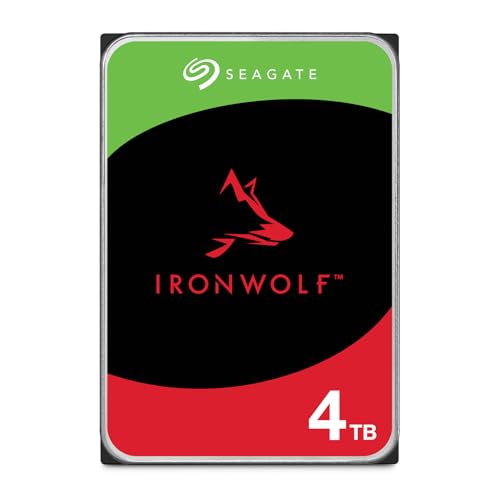
Judged as a desktop drive, the IronWolf 4TB looks unremarkable; judged in its native habitat — a NAS enclosure that never powers down — it is the most thoughtfully engineered pick in this guide. Rotational vibration sensors let neighbouring drives coexist in a crowded chassis without shaking each other’s heads off their tracks. Firmware built under Seagate’s AgileArray programme manages power, caching and error recovery for array life rather than desktop silence. And the drive reports its health through Seagate’s management system, which major NAS platforms surface as plain-language warnings long before failure becomes data loss.
The home-server audience has grown beyond the stereotypical enthusiast, and this drive is built for its real shape: a two-bay or four-bay box in a cupboard holding family photographs, a media server library, computer backups from every machine in the house and perhaps a small business’s shared folders. In that service the IronWolf’s 5,400 RPM spindle is a deliberate virtue — less heat in a sealed enclosure, less noise through a hallway door, less power drawn across years of continuous running — while its conventional recording keeps RAID rebuilds and parity calculations behaving predictably.
Data-recovery support is the differentiator buyers notice only when they need it: this model line is sold with Seagate’s Rescue services association, which gives a failed drive a professional recovery route rather than a shrug. No recovery service replaces a backup, and this guide will keep saying so, but as a tiebreaker between NAS drives it is a meaningful one — the difference between a dead drive being the end of a collection and being an anxious fortnight with a happy ending.
Choose the IronWolf when the destination is any enclosure with more than one bay, any server that sleeps never, or any role where the drive’s neighbours and uptime matter as much as its capacity. In a single desktop bay it works perfectly well but spends its budget on talents that will never be used; the Blue above is the same money pointed at the right problem for that simpler life.
Buyers graduating from a single external drive to a first NAS often ask whether NAS drives are worth it over desktop drives in the same box, and the IronWolf is the concrete form of the answer. The premium buys the vibration package that keeps four drives from shortening each other’s lives, firmware that cooperates with the enclosure instead of fighting its controller, and health reporting the NAS can act on. In a one-bay enclosure the case is weaker; from two bays upward, it settles the question.
- Intended home: NAS enclosures from one bay to small-rack systems
- Capacity: 4TB per bay, matched sets recommended for arrays
- Link: SATA 6 Gb/s with NAS-tuned command behaviour
- Spindle: 5,400 RPM for thermal calm in sealed boxes
- Buffer and recording: 64MB cache; conventional recording end to end
- Extras: vibration sensors, health-management reporting, Rescue services association
Strengths
- Engineered for multi-bay vibration and continuous operation.
- Health reporting integrates with mainstream NAS software.
- Conventional recording keeps rebuilds and parity work predictable.
Trade-offs
- Desktop buyers pay for enclosure talents they will never use.
- Seek acoustics are tuned for cupboards, not for desksides.
- Matched sets for arrays multiply the purchase quickly.
Best for: home and small-office NAS, media servers and always-on storage.
Not suited for: a single desktop bay hunting the cheapest silent drive.
WD Red Plus 4TB — NAS alternative, unlinked
WD’s answer to the IronWolf is the Red Plus line, and its 4TB member is the drive a large share of NAS owners will cross-shop against the Seagate above. The specification philosophy matches closely: conventional recording across the range — a point WD emphasises after the industry controversy over undisclosed shingled NAS drives — 5,400 RPM-class running for cool enclosure life, firmware under the NASware name tuned for always-on multi-bay service, and vibration handling sized for small and medium enclosures. On paper the two NAS picks in this guide are near-twins, and in service both are proven.
Why, then, does one carry a link and the other not? Because link policy on this site follows verification, not merit: the IronWolf matched a pool listing exactly, and the Red Plus 4TB could not be matched with the same confidence, so it is covered here as a prose-only reference. Readers who prefer WD’s ecosystem, whose NAS vendor’s compatibility list favours the Red Plus, or who find it better priced at their retailer lose nothing by choosing it — the guidance in this guide about NAS roles, rebuild behaviour and backup discipline applies to it unchanged.
The practical differences worth weighing are ecosystem ones. WD’s support tooling and warranty process differ from Seagate’s; the Red Plus lacks the IronWolf’s integrated health-management reporting tie-in on some NAS platforms, though the NAS’s own SMART monitoring still watches it. Acoustic character varies slightly between the brands in the same enclosure. These are preference-level differences between two correct answers, which is a pleasant position for a buyer to be in.
There is a historical reason the Red Plus name carries weight with NAS owners: the line was clarified and re-emphasised after buyers discovered shingled drives inside products they had bought for arrays, and WD’s response was to make this range’s conventional recording an explicit, advertised commitment. Buyers who lived through that episode tend to shop by recording technology first and brand second — a habit this guide endorses for every pick, linked or not.
- Role: NAS storage for home and small-business enclosures
- Capacity: 4TB, array-matched sets recommended
- Interface: SATA 6 Gb/s
- Spindle: 5,400 RPM class for cool continuous running
- Recording: conventional (CMR), a headline policy of the line
- Firmware: NASware, tuned for 24/7 multi-bay duty
Strengths
- Conventional recording guaranteed by the line’s positioning.
- Proven always-on firmware with broad NAS compatibility lists.
- A genuine like-for-like rival to the IronWolf above.
Trade-offs
- Covered without a link, so sourcing is the reader’s errand.
- Health-reporting integration varies by NAS platform.
- Same array-set cost multiplication as any NAS drive.
Best for: NAS buyers who prefer WD’s ecosystem or find it better priced.
Not suited for: desktop-only buyers, who pay for enclosure features pointlessly.
Toshiba X300 4TB — Performance alternative, unlinked
Toshiba is the third name in hard drives that many buyers forget exists, and its X300 performance desktop line is the reason enthusiasts keep it on the list. The 4TB X300 spins at 7,200 RPM with a large cache by class standards and a brief aimed at workstations, gaming rigs and creator machines — the same brief as the WD Black that opens this guide. It earns its prose-only place as the Black’s genuine rival: a buyer comparing performance 4TB drives who never meets the X300 has not actually compared the class.
In character the X300 leans a touch more old-school than the Black: brisk sustained transfers, an audible working voice, and a design that assumes a tower case with real airflow. Toshiba’s cache algorithm tuning is aimed at the mixed read patterns of game installs and media projects, and in that service owners report a drive that feels eager rather than merely adequate. As with the Black, the SSD still owns the system role; the X300 competes for the library role, where its pace shortens the waits mechanical storage imposes.
The X300 4TB could not be matched to the pool either, so it appears without a link, and the practical advice mirrors the Red Plus above: it is a legitimate, current product that readers may source wherever they prefer. Buyers choosing between it and the Black should weigh local pricing, warranty handling in their region and acoustic tolerance, because on capability the two are close enough that the decision is about ownership experience rather than specification victory.
Toshiba’s long enterprise heritage leaks into the X300 in a way its rivals cannot copy: the company builds drives for servers and storage systems at a scale that keeps its desktop line honest about bearings, motors and tolerances. None of that appears on the box, and all of it is why the X300 keeps appearing in enthusiast builds a decade after most third brands faded from the desktop conversation entirely.
- Role: performance desktop and workstation storage
- Capacity: 4TB in the standard internal format
- Interface: SATA 6 Gb/s
- Spindle: 7,200 RPM, performance class
- Cache: large buffer provision for the class
- Recording: conventional, suited to mixed creator workloads
Strengths
- A true performance rival to the WD Black at this capacity.
- Eager sustained-transfer manners for media project work.
- Keeps a third manufacturer honest in a two-brand market.
Trade-offs
- Working noise matches its performance brief.
- Covered without a link in this guide.
- Regional warranty experience varies more than WD’s.
Best for: workstation and gaming towers wanting a Black alternative.
Not suited for: quiet-room systems or NAS enclosures.
Where Does Each 4TB Drive Earn Its Keep?
| Drive | Spindle / recording | Character | Buy it for |
|---|---|---|---|
| WD Black 4TB | 7,200 RPM / conventional | Fast, audible, premium | Game libraries and creator desktops |
| BarraCuda 4TB | 5,400 RPM / shingled | Quiet, inexpensive, bursty | Archives and media storage |
| WD Blue 4TB | 5,400 RPM / conventional | Consistent, cool, plain | Everyday second drives |
| IronWolf 4TB | 5,400 RPM / conventional | Enclosure-tuned, monitored | NAS and home servers |
| WD Red Plus 4TB | 5,400 RPM class / conventional | NAS-proven, unlinked here | NAS, WD-preference buyers |
| Toshiba X300 4TB | 7,200 RPM / conventional | Eager, old-school, unlinked | Performance tower builds |
The table compresses the guide to one pattern: spindle speed decides pace and noise, recording method decides workload tolerance, and firmware decides habitat. Two drives share the performance brief, two share the NAS brief, and the two quiet generalists divide on recording method alone. A buyer who can state their habitat and their write pattern in one sentence can read their answer straight off these rows — which is exactly how a mature, standardised capacity class ought to behave.
CMR or SMR: Which Recording Technology Does Your Workload Need?
Conventional magnetic recording writes each track independently, so any block can be rewritten at any time at full speed. Shingled recording overlaps tracks to gain capacity, which means rewriting one track can require rewriting its neighbours — work the drive hides behind a cache until the writes arrive too fast or too randomly to hide. That single engineering difference explains most of the behavioural spread in this guide, and it is why the technology appears in every pick’s specification list despite never appearing on retail boxes.
Match the technology to the write pattern, not to the workload’s name. Backups sound write-heavy, yet a nightly incremental backup writes modest, mostly sequential data that even a shingled drive absorbs comfortably; the same drive then collapses under a RAID rebuild, which is also “just writing”. Game libraries sound read-only, yet modern update systems rewrite scattered blocks across tens of gigabytes — a pattern conventional recording handles without theatre. Ask what the writes look like, not what the folder is called.
One more pattern catches buyers out: the full-drive backup image. Writing a complete system image in a single sitting is the largest sequential write most homes ever perform, and it lands precisely on the shingled drive’s weak scenario when the image target is internal. The fix costs nothing — schedule image backups for overnight, when the drive can reorganise at leisure, or keep the image target on a conventional-recording drive. Workload scheduling is the quiet skill that makes recording technology stop mattering in daily life.
For undecided buyers the safe default is conventional recording, which is why four of the six picks here use it and why both NAS picks insist on it. Shingled recording earns its place when the role is understood and bounded: archives, media libraries, cold storage — data written deliberately and read often. Buy the BarraCuda with that role in writing on the label you stick to the drive, and it will serve exactly that role for years; buy it vaguely, and someday a workload will find the boundary for you.
How Do You Install and Initialise a 4TB Drive So the Full Capacity Appears?
Physically, a 4TB internal drive is a ten-minute job: power the machine down, mount the drive in a 3.5-inch bay with airflow on at least one face, connect a SATA data cable to a motherboard port and a SATA power lead from the supply, and close the case. In a NAS, slide the tray in until the latch clicks and let the enclosure discover the drive before opening its management page. Handle every drive by its edges, because the era of capacities this large is also the era of helium and multi-platter designs that dislike being knocked on a desk edge.
The step that generates the support questions is initialisation. A brand-new 4TB drive must be initialised as GPT; choose MBR and the system will show roughly 2.2TB and no more, because that scheme’s addressing ends there. In Windows, Disk Management offers the choice the first time it sees the drive — pick GPT, create a simple volume across the full span, format as NTFS for a Windows machine or let the NAS format its own filesystem. If a drive already shows the truncated size, the data-free fix is to delete the volume and re-initialise correctly; the drive was never faulty.
Thermal common sense belongs in the physical step too. A 3.5-inch drive sandwiched against another drive in a tight cage, with no moving air, will live its whole life warmer than its specification assumes — and heat is the one environmental factor every drive study agrees shortens service. If the case offers a bay in the front intake path, use it; if the NAS sits in a closed cupboard, leave the door’s airflow problem solved rather than hoping the drives tolerate it.
Finish by giving the drive its working identity: a volume label that states its role and year, a backup or array membership configured the same day, and a health baseline saved from its first SMART report. A drive introduced to a system this deliberately tends to stay understood for its whole service life, and when its health counters move years later you will know exactly what changed and when.
How Should a 4TB Drive Be Organised Once It Is Running?
Organisation is the unglamorous discipline that decides whether 4TB feels like abundance or like a larger mess. A single volume with a deliberate folder structure beats a thicket of partitions for almost every home role: partitions strand free space in the wrong compartment, while folders flex as libraries grow. Reserve partitioning for genuinely separate purposes — a dual-boot arrangement, an array volume boundary — and let one honest hierarchy do the rest: Media, Documents, Games, Backups, Archive, each with the year-based subfolders that make future migrations a copying exercise rather than an archaeology dig.
Keep the drive’s fill level in the comfortable zone. Mechanical drives slow as they approach capacity, because the filesystem scatters new files across whatever space remains and the heads travel further for everything; shingled drives feel this earliest and worst. Treat roughly four-fifths full as the planning ceiling for a 4TB drive, and let the approach of that line trigger the next capacity decision calmly, months before the red bar in the file manager turns the decision into an emergency.
Naming deserves thirty seconds of the same discipline. A volume called “New Volume (2)” will still be called that in five years, attached to a machine whose owner has forgotten which of the household’s drives it is. Name the volume for its role and its machine — Library-PC2, Backup-Tower, NAS-Media — and every dialog box, backup log and error message from that day forward becomes self-explanatory. It is the cheapest clarity in all of storage management.
Finally, schedule the drive’s paperwork: a health check a few times a year, a backup verification on the same rhythm, and a note of what the drive holds written somewhere other than the drive. Storage fails administratively before it fails mechanically in most homes — the forgotten drive, the unlabelled enclosure, the backup nobody tested — and a 4TB drive organised with this light discipline will out-serve a larger drive run on hope.
When Is 4TB the Wrong Size Entirely?
Sometimes the correct answer to a 4TB search is a different product, and a useful guide should say when. If the workload is an operating system, applications or anything latency-sensitive, the answer is an SSD at a smaller capacity; no mechanical drive in this guide, Black included, changes that. If the data must travel — to sites, to clients, between homes — the answer is an external drive, and the companion guides to 5TB and 6TB portables cover that shelf directly. Capacity is only one axis of the decision, and it is not always the deciding one.
Four terabytes is also the wrong size when the growth curve says so. A media collector adding a terabyte a year will outgrow this class before the drive wears out, and buying into the 6TB or 8TB shelf once costs less than migrating twice. Conversely, a household whose entire digital estate is 600GB of photographs and documents gains nothing from capacity beyond this guide’s — the 4TB drive simply gives that estate a decade of headroom at the class’s best value point.
There is a budget version of the same warning. A 4TB drive bought for a machine that will be replaced within the year is capacity purchased for the next owner; conversely, a drive bought generously for a machine with five years of life left is among the best-value components in the whole system. Match the drive’s horizon to the machine’s horizon and the arithmetic of this class nearly always lands in your favour.
The mature way to read this whole category is as a plateau of good sense: standardised, inexpensive, understood by everything. Buy onto the plateau at the point your workload dictates, with the recording technology and firmware matched to the habitat, and the drive will repay you with the most boring and valuable service in computing — years of not being thought about at all.
How Do 4TB Drives Behave Inside a Home Media Server?
A media server is the gentlest always-on job in computing, and it flatters almost every drive in this guide. The workload is a handful of large sequential reads — a film streamed to the television, music to a kitchen speaker — with long idle stretches between, and even the shingled BarraCuda handles it without ever troubling its cache. Where the server lives decides more than what spins inside it: a box in a living-room cabinet argues for the quietest drive you can fit, while a box in a garage rack can wear the IronWolf’s enclosure manners without anyone hearing a seek.
Growth is the server’s real planning problem. Libraries expand in one direction only, and a 4TB volume that feels cavernous in January can feel like a countdown by the following winter. Buyers building a server around this capacity should choose the enclosure for its empty bays rather than its filled ones, because the cheapest capacity upgrade in storage is the drive you slide into a bay that already exists. Matched NAS drives, added in pairs for mirrored volumes, keep that growth orderly.
Transcoding changes the arithmetic only slightly. When a server converts video on the fly for a phone or a hotel television, the processor does the suffering and the drive merely reads; a 4TB drive of any class here feeds that process without becoming the bottleneck. The exception is a server that also records — security footage, broadcast capture — where continuous writing joins the reading, and there the conventional-recording picks, IronWolf first among them, justify themselves all over again.
Backup of the server itself is the consideration owners postpone longest, usually until a drive in the server asks the question for them. A 4TB server volume needs a 4TB answer somewhere else — an external drive rotated offsite, a second volume in the same box that mirrors the first, or cloud storage for the irreplaceable subset. Decide which of those your server gets on the day it is built, because retrofitting a backup plan onto a full, working library is the same job with anxiety added.
Power behaviour is the last server consideration, and it favours the 5,400 RPM class across a year of electricity. A server that never sleeps multiplies every watt by every hour, so the efficient spindles in this guide are not merely quieter but cheaper to keep. Set the drives to spin down after a sensible idle period if your access pattern allows it, and the server becomes the household appliance it should be: present when called, silent when not, and forgotten in between.
What Do Drive Classes and Warranty Terms Actually Tell You?
The class names in this guide — desktop, performance, NAS — are engineering budgets written in marketing language, and learning to read them saves more money than any sale. A desktop class budget assumes the drive sleeps most of its life, powers on and off daily, and works alone in its bay. A NAS class budget assumes the opposite on every axis: continuous running, neighbours vibrating on both sides, and a controller that expects enterprise manners from its members. A performance budget buys speed and cache at the cost of noise. None of these is a quality ranking; a desktop drive is not a failed NAS drive, it is a correctly priced answer to a different set of assumptions.
Warranty length is the visible residue of those budgets. Longer terms cluster on the performance and NAS lines because their buyers keep systems longer and their engineering assumes it; shorter terms on mainstream desktop lines reflect both the price and the expected service pattern. Read the term as a statement about intended life rather than a promise about your individual unit — drives fail inside warranties and outlive them in roughly equal disregard for the paperwork — and let it inform, never replace, your backup arrangements.
Workload ratings, where manufacturers publish them, deserve the same translation. They describe the annual data volume the class is designed to absorb, and they separate the classes more honestly than spindle speeds do: a NAS drive is rated for several times the annual throughput of a desktop drive. A home user rarely approaches either figure, yet the rating reveals which buyers the engineers pictured — and your purchase is safest when the pictured buyer resembles you.
The practical synthesis is simple. State your drive’s habitat, duty cycle and neighbours in one sentence; buy the class whose assumptions match that sentence; and treat any bargain that requires ignoring the sentence as the expensive purchase it usually turns out to be.
How Should You Migrate From a Smaller Drive Onto a New 4TB Drive?
Migration day goes well when it is treated as a project with a sequence rather than a single copy command. Begin by fitting the new drive alongside the old — internally where a spare bay exists, or in a dock — and initialise it as GPT before any data moves, so the destination is correct from the first file. Then copy in descending order of irreplaceability: documents and photographs first, projects second, media and game libraries last. If anything interrupts the process, the data that matters most is already safe on the new hardware.
Use a copying tool that verifies, or verify afterwards by comparing file counts and spot-checking checksums on the irreplaceable folders. A copy that reports success is a claim; a verified copy is a fact, and the difference matters precisely on the one day in five years when migration happens. Keep the old drive untouched and unformatted for at least a few weeks after the migration — it is, during that window, a free backup of everything it held, stored in the safest possible state: powered off.
Applications and games deserve their own handling. Programs installed on the old drive should be reinstalled or moved with their platform’s library tools rather than dragged across, because registrations and services rarely survive a bare copy. Game platforms all offer a library-move function now; use it, and let it re-validate the files it transfers. Documents and media, by contrast, copy cleanly as plain files and need no ceremony beyond the verification above.
Close the project deliberately: relabel the old drive with its retirement date and its new role — archive, spare, or wiped for disposal — and record the new drive’s model and health baseline in the same note. Migrations done this way take an afternoon and end with a storage system you understand completely, which is the real upgrade being purchased underneath the capacity.
Which Errors Do 4TB Buyers Keep Repeating?
Shingling a NAS. The BarraCuda’s price tempts buyers into enclosures every season. Its recording method makes rebuilds crawl; the IronWolf and Red Plus exist precisely for that habitat and cost little more.
Blaming the drive for an MBR ceiling. A new 4TB drive showing roughly 2.2TB has been initialised with the old partition scheme. Re-initialise as GPT before arranging a return for a drive that is working perfectly.
Expecting SSD behaviour from a Black badge. The WD Black is the fastest mechanical drive here and still a mechanical drive. Systems and applications belong on solid-state storage; the Black is a library drive, and a superb one.
Mixing drive types inside one array. An array inherits the behaviour of its least suitable member. Build NAS volumes from matched NAS drives — same line, same capacity, bought together where possible.
Letting a 4TB drive become the only copy of 4TB of life. Capacity growth has outpaced backup habits across the whole industry. Whatever pick you choose, its contents need a second home, ideally in a different building.
Final Recommendation
Match the habitat first. For a NAS or home server, the IronWolf 4TB is this guide’s first choice, with the Red Plus as its legitimate unlinked rival. For a performance desktop, the WD Black justifies its premium in daily responsiveness, with the X300 as the alternative for Toshiba loyalists. For an ordinary quiet PC, choose between the Blue’s consistency and the BarraCuda’s price with your write pattern as the referee: mixed and backup-heavy use points to the Blue, archive and media duty points to the BarraCuda.
Four terabytes, correctly matched, is the capacity that disappears into your computing life — and a storage drive you never have to think about is the highest praise this category offers.
If a single sentence must carry the whole guide, let it be this one: state the habitat, respect the recording technology, initialise as GPT, and keep a second copy somewhere else. A buyer who does those four things can choose almost any pick in this guide and be right. A buyer who skips them can choose the most expensive drive on the page and still be wrong — which is why this guide spent more of its length on habitats and habits than on the small specification differences between six good drives. The drives will do their part; the habits decide the rest.
Frequently Asked Questions
Is 4TB enough for a gaming library in 2026?
For most players, comfortably: modern titles are large, but a 4TB library drive holds dozens of installed games alongside capture footage, especially with finished titles archived rather than deleted. Players who keep every release installed simultaneously are the exception, and they should look at the 6TB and 8TB guides instead.
Why does the BarraCuda slow down during very long copies?
Its shingled recording uses a fast cache area to absorb writes; an unbroken, hours-long write stream can fill that area, after which the drive must reorganise overlapped tracks as it goes and throughput falls. The behaviour is a known characteristic of the technology, not a fault, and it recovers once the drive idles.
Can I use the WD Black in a NAS because it is fast?
You can, but the purchase logic inverts: you would pay for desktop responsiveness while receiving no NAS firmware, no vibration package tuned for enclosures and error-recovery behaviour that can fight a RAID controller. The IronWolf costs less and is engineered for exactly that habitat.
What is the difference between WD Blue and WD Red Plus?
Habitat. The Blue is a desktop drive designed for power-cycled, single-bay life; the Red Plus is a NAS drive designed for continuous multi-bay service, with the firmware, vibration handling and workload rating to match. Both are 4TB and conventional-recording, and using either in the other’s home wastes money or invites trouble.
Do I need to format a new 4TB drive before using it?
Yes — internal drives ship unformatted. Initialise as GPT, create a volume and format it (NTFS for Windows desktops, or the NAS’s own filesystem inside an enclosure). The process takes minutes and the GPT choice is the one detail that must be right, since the alternative hides nearly half the drive.
How long should a 4TB hard drive last?
In its intended role, several years of service is a reasonable expectation, with desktop drives typically outlasting their warranty comfortably and NAS drives earning their keep across continuous duty. Lifespan varies by unit and environment, which is why this guide treats backups and health monitoring as part of the purchase rather than an afterthought.
Related Guides
Readers weighing internal against external, or this capacity against its neighbours, will find the next steps here:
- the best 5TB external hard drives for portable backup
- our guide to the best 6TB hard drives in both formats
- the best 8TB hard drives for serious collections