What's inside
- Key Takeaways
- Quick Picks
- How We Chose These Picks
- How Does a Fading Capacity Class Compare With Its 4TB Successors?
- Why Did 3TB Drives Disappear, and When Does Staying at 3TB Still Make Sense?
- How Do You Vet a Legacy or Renewed Drive Before Trusting It?
- What Should You Do With a 3TB Drive You Already Own?
- How Does a 3TB Drive Fit Into a Sensible Home Backup Plan?
- Which Enclosures, Docks and Cables Behave Properly With 3TB Drives?
- How Can You Tell a Healthy Old Drive From One About to Fail?
- Which Mistakes Do Buyers Make in the 3TB Market?
- Final Recommendation
- Frequently Asked Questions
- Related Guides
As an Amazon Associate I earn from qualifying purchases. This post may contain affiliate links at no extra cost to you.
widgetverdict.com is reader-supported. When you buy through links on our site, we may earn an affiliate commission.
Anyone shopping for the best 3tb hard disk drives in 2026 deserves the truth in the first paragraph: the mainstream 3TB drive is nearly extinct. Manufacturers quietly retired almost every consumer 3TB model years ago, because 4TB platters became just as cheap to produce and buyers preferred the rounder, roomier number. What remains on sale at exactly 3TB is a mixture of one legacy desktop drive, one NAS model from a discontinued line, and enterprise stock — some of it renewed — that data centres have rotated out. This guide reviews what is genuinely still buyable, labels the renewed stock as renewed, and includes two 4TB drives as clearly marked step-ups for readers who conclude, as many will, that the honest answer to a 3TB search is a 4TB drive.
That framing matters because a 3TB search usually hides a specific job. Perhaps a NAS bay or an older enclosure is being matched to an existing array built around 3TB members. Perhaps a backup rotation was sized around 3TB a decade ago and the replacement needs to slot into the same cases and docks. Or perhaps the capacity simply sounds like the sweet spot for a media library that has outgrown 2TB. Each of those jobs is legitimate, and each is answered below — but they are answered with eyes open about warranty age, recording technology and the difference between a new drive and a renewed one.
Three of the six picks are true 3TB drives with verified listings, two are the 4TB step-ups, and one is a prose-only model we describe for completeness because no listing could be verified for it. One of the 3TB picks is renewed enterprise stock, and it is flagged in its badge, its specification list and its analysis, because a renewed drive is a perfectly rational purchase at the right expectation level and a nasty surprise at the wrong one. Nothing in this guide pretends otherwise.
Key Takeaways
- Consumer 3TB drives have effectively been discontinued; the surviving listings are one legacy desktop model, one older NAS model and renewed enterprise stock.
- The Ultrastar pick in this guide is renewed/refurbished enterprise stock, disclosed in its heading, badge and specification list — buy it for capacity per cost, not for a new-drive warranty.
- Two picks are deliberate 4TB step-ups, labelled as such everywhere they appear, because for most buyers they are the rational purchase in this capacity neighbourhood.
- Recording technology matters at this age of stock: check whether a drive uses conventional or shingled recording before putting it in a RAID array or a write-heavy role.
- Any drive bought from legacy or renewed stock should be surface-tested and SMART-checked on arrival, and should never hold the only copy of anything.
Quick Picks
| Drive | Badge | Why it earns its place |
|---|---|---|
| Seagate BarraCuda 3TB (ST3000DM001) | Last mainstream 3TB desktop drive | The one true consumer 3TB model still listed; a legacy part with a history you should know before buying. |
| WD Red Pro 3TB | NAS-grade survivor | A 7,200 RPM conventional-recording NAS drive from a proven line, suited to arrays that must stay at 3TB. |
| Hitachi Ultrastar 7K3000 3TB | Renewed enterprise stock | Data-centre hardware sold renewed; enormous duty-cycle pedigree, modest remaining warranty, full disclosure required. |
| Seagate IronWolf 4TB | Step up: NAS choice | One extra terabyte, current production, conventional recording and NAS firmware — the sensible array answer. |
| Seagate BarraCuda 4TB | Step up: desktop value | Current-production desktop capacity with a large cache; shingled recording suits archives, not arrays. |
| WD Blue 3TB | Prose-only reference | The discontinued everyday 3TB drive many readers are replacing; described here because no listing could be verified. |
How We Chose These Picks
Research for this guide began with an audit of what a 3TB search actually returns today, and the audit shaped everything that followed. Genuine new consumer 3TB drives have essentially vanished from current catalogues, so the shortlist had to be built from three honest categories: legacy models still listed new, enterprise models circulating as renewed stock, and the nearest current-production alternatives. Any listing that disguised a renewed drive as new, or a smaller drive in a 3TB title, was rejected outright.
Recording technology was the second filter. Conventional magnetic recording behaves predictably under sustained writes and inside RAID arrays; shingled recording trades write consistency for capacity and cost. In a capacity class this old, listings rarely volunteer which technology a drive uses, so each pick below states it where it is known and tells you how to treat the drive if sustained-write behaviour matters to your workload.
Condition transparency was treated as a selection criterion in its own right, not a footnote. In a market where the same shelf holds new old-stock, manufacturer-recertified units and seller-renewed enterprise drives, the difference between a good buy and a bad one is often nothing more than whether the buyer understood which of those they were getting. Picks whose listings stated their condition clearly were favoured, and the renewed pick in this guide is presented with its condition in its badge and specification list so the disclosure survives even a skimmed reading.
Finally, every pick had to answer a real 3TB job: matching an existing array member, filling a backup rotation sized for 3TB, or giving a media library a modest, cheap expansion. The two 4TB step-ups earned their places because they answer those same jobs better than any remaining true-3TB stock for most readers, and they are labelled as step-ups in every table and heading so nobody buys one by mistake. The prose-only WD Blue is included because thousands of readers own one and are searching for its replacement; pretending it does not exist would make the guide less useful, not more pure.
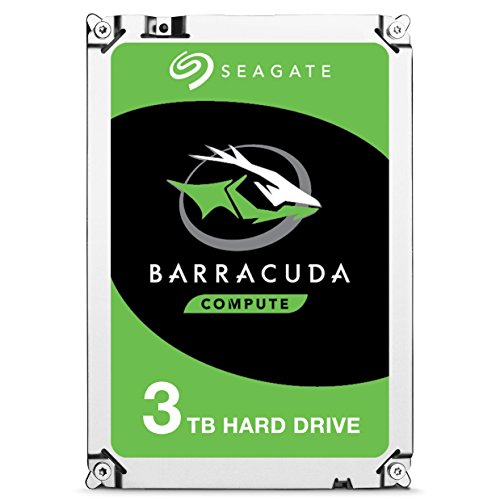
Seagate BarraCuda 3TB (ST3000DM001) — Last mainstream 3TB desktop drive
The ST3000DM001 is a genuinely historic object: a 7,200 RPM desktop drive from the era when 3TB was the capacity headline, still surfacing in listings long after its generation retired. As a piece of hardware it is unremarkable in the best sense — a 3.5-inch SATA drive with a 64MB cache that installs in any desktop bay, spins up quickly and holds a media library or a backup set without fuss. If you are replacing a dead drive in an older machine and want the same capacity the system was built around, this is the closest thing to a like-for-like swap that still exists.
Honesty requires the next paragraph, because this model family carries the most debated reliability record of any drive in this guide. Large published drive-failure statistics from a major backup provider made the ST3000DM001 generation famous a decade ago for elevated failure rates in their specific data-centre environment — an environment of dense enclosures and constant vibration that no desktop replicates. Many individual drives served quietly for years in home machines. Both things are true, and the balanced reading is simple: this is old-design stock, so buy it for undemanding roles, test it on arrival, and keep a backup, as you should with any drive.
Treated that way, the BarraCuda 3TB has a legitimate niche. It suits a secondary storage volume, a media drive in a home theatre PC, a backup target inside a rotation that keeps another copy elsewhere, or a period-correct repair of an older system. It does not suit an always-on NAS, a RAID array under rebuild stress, or sole custody of family photos. Buyers who need those roles served should read the Red Pro below or skip straight to the 4TB step-ups.
One practical note on age: stock of this model has been sitting in the channel a long time, so check the manufacture date printed on the label when yours arrives and run the maker’s diagnostic across the full surface before copying data to it. A drive that passes a complete surface scan and reports clean health attributes has earned its place; one that hesitates, clicks or reports pending sectors should go straight back while the return window is open.
There is one more audience for whom this drive is the correct answer rather than a compromise: the keeper of an older operating system or media device whose documentation blesses specific drive families. Some legacy DVRs, older NAS units and embedded systems behave predictably with drives from their own era and strangely with modern ones. If your device’s compatibility list names this generation, buying the preserved listing is not nostalgia; it is the lowest-risk repair available, and it is exactly the kind of job the surviving stock exists to do.
- Capacity and size: 3TB in a standard 3.5-inch desktop bay format
- Interface: SATA 6 Gb/s, compatible with older SATA revisions
- Spindle speed: 7,200 RPM, the brisk class for desktop storage
- Cache: 64MB buffer fitted
- Model: ST3000DM001, a legacy design from the 3TB era
- Recording: conventional recording, pre-shingled desktop design
Strengths
- The only true consumer 3TB desktop drive still readily listed.
- 7,200 RPM pace suits general desktop storage and media duty.
- Conventional recording behaves predictably under sustained writes.
Trade-offs
- Legacy design with a publicly debated reliability history in data-centre statistics.
- Channel stock is old; manufacture dates vary between units.
- Not intended for NAS enclosures or always-on array service.
Best for: like-for-like replacement in older desktops and undemanding secondary storage roles.
Not suited for: NAS arrays, sole-copy archives or always-on service of any kind.

WD Red Pro 3TB — NAS-grade survivor
The Red Pro 3TB comes from the opposite end of the 3TB world: it was engineered for network storage, rated for round-the-clock operation in multi-bay enclosures, and built with the rotational vibration compensation that desktop drives omit. The WD3001FFSX spins at 7,200 RPM with a 64MB cache and conventional recording, a specification that reads like a checklist for array duty — error recovery behaviour tuned so a struggling drive does not get dropped by a RAID controller, firmware designed for enclosures rather than silence, and a workload rating far beyond desktop assumptions.
Its natural buyer in 2026 is specific: someone whose existing NAS array was built with 3TB members and who needs a replacement that matches capacity exactly, because an array rebuilds to the size of its smallest member. Dropping a 4TB drive into a 3TB array wastes the extra terabyte; dropping this Red Pro in wastes nothing. It also suits a small office file server built in the 3TB era that simply needs to keep running while a larger migration is planned at leisure rather than in a panic.
Outside that niche, the honest advice is to step up. The Red Pro line has moved on to larger capacities, this 3TB member belongs to an earlier generation, and its price per terabyte rarely competes with current 4TB NAS drives like the IronWolf below. Buy it because your array demands exactly 3TB, or because a proven NAS-grade drive at this capacity solves a specific compatibility problem — not as a general-purpose recommendation for a fresh build.
Installation notes for array use: replace one member at a time, let the rebuild complete fully before touching anything else, and confirm the enclosure’s firmware recognises the drive before the old member is wiped or discarded. Keep the failed drive’s replacement documented — model, serial and date — because when the next member of an ageing array fails, and eventually one will, that record turns a stressful evening into a routine one.
Noise is the trade desktop converts sometimes miss: a Red Pro is engineered for a cupboard or a rack, not for silence beside a bed. Its seeks are audible, its idle hum is a class above a desktop drive’s, and that is the correct engineering choice for its role — performance and endurance first, acoustics later. Buy it for an enclosure in a hallway cupboard, a garage server or an office, and its manners are impeccable. Buy it for a silent bedroom PC and you have misread the badge, however good the drive is.
- Capacity and format: 3TB, 3.5-inch, built for NAS enclosures
- Interface: SATA 6 Gb/s connection
- Rotation: 7,200 RPM spindle for array responsiveness
- Cache: 64MB fitted buffer
- Model code: WD3001FFSX, Red Pro family
- Duty design: rated for 24/7 operation in multi-bay systems
Strengths
- NAS-tuned firmware and vibration handling for multi-bay enclosures.
- Conventional recording, safe for RAID rebuilds and sustained writes.
- Exact-capacity match for existing 3TB arrays and legacy NAS builds.
Trade-offs
- Earlier-generation model; the line has moved to larger capacities.
- Value per terabyte is poor beside current 4TB NAS drives.
- Over-specified and over-priced for a simple desktop role.
Best for: replacing a failed member in an existing 3TB NAS array.
Not suited for: fresh NAS builds, where current 4TB models serve better.

Hitachi Ultrastar 7K3000 3TB — Renewed enterprise stock, disclosed plainly
Read this heading carefully, because it contains the most important fact about this pick: the Ultrastar 7K3000 listing in the pool is renewed/refurbished enterprise stock. These are data-centre drives — built by Hitachi’s enterprise division to a standard no consumer drive matches, run in professional environments for a service period, then withdrawn, tested, wiped and resold as renewed. The listing carries a seller-backed warranty measured in a few years rather than a fresh manufacturer’s term. None of that makes it a bad buy. All of it must be understood before it becomes your buy.
The hardware itself explains why renewed enterprise drives have a loyal following. The Ultrastar 7K3000 spins at 7,200 RPM with a 64MB cache, uses conventional recording, and was designed for a duty cycle and error-rate specification that assume constant work in dense racks. Enterprise drives are built with heavier components, tighter tolerances and rotational vibration handling as standard. A renewed example has already survived years of exactly the workload that kills weak drives early — the survivors of that process are, unit for unit, thoroughly proven hardware, albeit hardware with years already on its bearings and heads.
The rational use case is capacity-hungry, redundancy-protected storage: a home lab pool with mirrored or parity protection, a backup target inside a wider rotation, a media server whose contents exist elsewhere too. In those roles the Ultrastar’s enterprise manners shine and its renewed status is an acceptable, disclosed trade for the capacity obtained. The irrational use case is a single drive holding the only copy of anything precious — a rule that applies to every pick in this guide but applies with double force to a drive whose first career is already behind it.
On arrival, treat the drive as a candidate, not a colleague. Read its health data before writing anything: power-on hours will be substantial — that is expected and honest — but reallocated or pending sector counts should be zero or near it, and a full surface read should complete without slow patches. Then write and verify a large test copy before the drive joins any pool. Sellers of renewed enterprise stock expect this scrutiny; a unit that fails it should be exchanged under the listing’s warranty without argument.
Home-lab builders will recognise the deeper appeal: renewed enterprise drives let you build a properly redundant pool — mirrored pairs, parity arrays, hot spares on the shelf — at a total outlay that new enterprise hardware would multiply several times over. Redundancy is the correct answer to uncertain individual lifespan, and this class of stock is what makes redundancy affordable at home scale. The discipline it demands in return is monitoring: set your pool software to report health changes loudly, and keep one shelf spare so a failing member is an errand, not an emergency.
- Condition: renewed/refurbished enterprise stock — not a new drive
- Capacity and format: 3TB, 3.5-inch data-centre form factor
- Interface: SATA 6.0 Gb/s enterprise connection
- Rotation and cache: 7,200 RPM with a 64MB buffer
- Model: Ultrastar 7K3000 HUA723030ALA640
- Warranty: seller-backed renewed term per the listing, shorter than new enterprise cover
Strengths
- Enterprise build quality and duty-cycle design beyond consumer drives.
- Conventional recording with proper vibration handling for dense bays.
- Capacity obtained honestly, with condition disclosed up front.
Trade-offs
- Renewed condition: substantial prior service hours are normal.
- Warranty is seller-backed and shorter than a new drive’s term.
- Requires arrival testing discipline that new drives forgive skipping.
Best for: mirrored or parity-protected pools and backup rotations wanting enterprise hardware.
Not suited for: sole-copy storage, silent-room desktops or buyers unwilling to test on arrival.
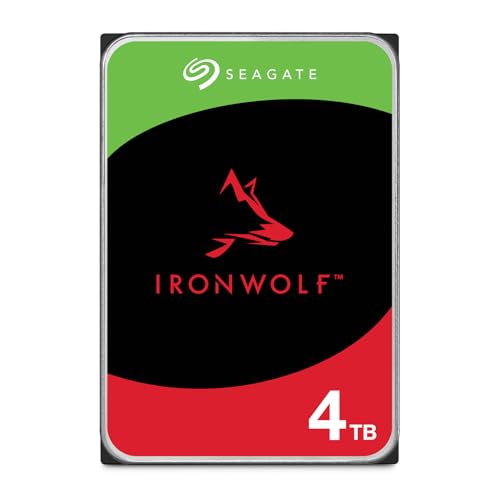
Seagate IronWolf 4TB — Step up: the sensible NAS answer
This is a 4TB drive in a 3TB guide, and it says so everywhere it appears. The IronWolf 4TB earns its step-up place because it is what the 3TB NAS buyer usually needs once the facts are laid out: current production, conventional recording, firmware tuned for enclosures, and health monitoring that talks to major NAS operating systems. Where the Red Pro above is a preserved specimen of the 3TB era, the IronWolf is a living product with a full new-drive warranty and a support page that still gets updates.
Inside a NAS, the IronWolf’s manners are its specification. It spins at 5,400 RPM, which trades a little responsiveness for cooler, quieter running across years of always-on service, and its AgileArray firmware balances power, vibration and error behaviour for multi-bay life. Seagate’s health management integration means the NAS can report drive-specific warnings rather than generic ones, which is the kind of early notice that turns a failing drive from a crisis into a scheduled replacement.
For a fresh two-bay or four-bay home NAS, this is simply the correct capacity class to start from now: pair two for a mirrored volume and the usable space lands close to what a 3TB array promised, with headroom to grow into. Buyers replacing a single failed 3TB member should note the one caveat — a 4TB member in a 3TB array contributes only 3TB until every member is replaced — which is why this pick is framed as the step-up for new builds and planned migrations rather than for emergency single-drive swaps.
Desktop users occasionally consider the IronWolf as a quiet bulk drive, and it works, though its firmware priorities are enclosure-first. In a NAS, in a small server, or in a backup appliance that runs overnight, it is in its element. It is the pick we would buy with our own money for always-on home storage in this capacity neighbourhood, and the one against which the surviving true-3TB stock has to justify itself.
Growth planning is the final IronWolf argument. A NAS bought around 3TB members in 2016 is usually replaced, not repaired, by the time its drives age out — and the replacement volume built on 4TB members today can later accept larger members one at a time, expanding as each is swapped. Starting the new array at 4TB rather than hunting preserved 3TB stock keeps every future option open, which is worth more over a NAS’s decade of service than the small saving the older capacity might offer this month.
- Capacity: 4TB — a deliberate step up from the 3TB brief
- Format: 3.5-inch, engineered for NAS enclosures
- Interface: SATA 6 Gb/s
- Rotation: 5,400 RPM for cool, quiet always-on running
- Cache and recording: 64MB buffer, conventional recording throughout
- Firmware: AgileArray NAS optimisation with health-management support
Strengths
- Current production with a full new-drive warranty.
- CMR recording and NAS firmware, safe for arrays and rebuilds.
- Health reporting integrates with major NAS operating systems.
Trade-offs
- It is 4TB, not 3TB — wasted capacity inside an unreplaced 3TB array.
- 5,400 RPM pace is tuned for endurance over responsiveness.
- Costs more than the legacy 3TB stock it replaces.
Best for: new home NAS builds and planned migrations away from 3TB arrays.
Not suited for: emergency like-for-like swaps in an otherwise 3TB array.

Seagate BarraCuda 4TB — Step up: roomy desktop value
The second step-up serves the desktop buyer rather than the NAS owner. Seagate’s current BarraCuda 4TB is the drive the retired 3TB desktop models evolved into: a 3.5-inch SATA drive spinning at 5,400 RPM with a very large 256MB cache, sold in enormous numbers as the default bulk-storage option in prebuilt PCs and upgrade kits. For a home machine that needs a capacious second drive for games, media and documents, it is the path of least resistance — available everywhere, understood by every enclosure and dock, and covered by a new-drive warranty.
Its recording technology must be stated plainly, because it decides where the drive belongs. This capacity of BarraCuda uses shingled magnetic recording, which overlaps tracks to gain capacity and cost advantages. Sequential work — writing a backup image, copying a media library, storing game installs — proceeds perfectly well. Sustained random writes, RAID rebuilds and torrent-style workloads can slow dramatically as the drive reorganises its shingled bands, so it should never be placed in a NAS array or a write-punishing role. Seagate’s own positioning agrees: this is a desktop drive, full stop.
Within that role it is genuinely good. The big cache smooths bursty everyday behaviour, the 5,400 RPM spindle keeps a living-room PC civilised, and the capacity absorbs the sprawling game libraries and phone-photo archives that made a 3TB search feel necessary in the first place. Readers whose 3TB requirement was really “more room, cheaply, in my desktop” will find this pick answers the underlying need better than any surviving true-3TB stock.
Fitting is the standard ten-minute job: mount in a 3.5-inch bay, connect SATA data and power, initialise as GPT so the full capacity is visible, and format. That GPT detail matters for this whole guide — older MBR-partitioned setups cannot address more than about 2.2TB, which is the single most common reason a 3TB or 4TB drive appears to have shrunk, and the fix is a re-initialisation, not a return.
Game libraries deserve a specific mention, because they are the workload that fills modern desktops fastest and the one this drive flatters most. Game installs are large, mostly sequential reads — exactly the pattern a big-cache desktop drive handles happily — and a dedicated 4TB library drive keeps the system SSD lean for the operating system and the titles in active rotation. Move a finished game to the BarraCuda rather than deleting it, and the next download you avoid will justify the drive all over again.
- Capacity: 4TB — a deliberate step up from the 3TB brief
- Format: 3.5-inch desktop drive, standard mounting
- Interface: SATA 6 Gb/s
- Rotation: 5,400 RPM, quiet-running desktop class
- Cache: 256MB buffer, the largest in this guide
- Recording: shingled (SMR) — archive and desktop roles only
Strengths
- Current production, new-drive warranty, available everywhere.
- Large cache keeps everyday desktop behaviour feeling smooth.
- Quiet 5,400 RPM running suits living-room and bedroom PCs.
Trade-offs
- Shingled recording slows under sustained random writes.
- Unsuitable for NAS enclosures and RAID arrays.
- It answers the 3TB brief by exceeding it, which not every setup wants.
Best for: desktop bulk storage, game libraries and media archives on a budget.
Not suited for: NAS service, RAID rebuilds or write-heavy workloads.
WD Blue 3TB — Prose-only reference
Thousands of readers arrive at this guide owning a WD Blue 3TB, model family WD30EZRZ, and wondering what replaced it. The honest answer is: nothing did, directly. WD’s Blue line was the default everyday desktop drive of its era — 5,400 RPM, quiet, inexpensive, unglamorous — and when the industry consolidated its desktop ranges around other capacities, the 3TB Blue was discontinued without a successor at the same size. We describe it here because it is the drive being replaced in a large share of 3TB searches, and because no listing for it could be verified to the standard this guide requires, it carries no link.
If your Blue 3TB is still healthy, there is no urgency in this guide for you at all: keep it backed up, watch its health attributes a few times a year, and replace it when it begins reporting reallocated sectors or when your capacity planning moves on. When replacement day comes, the realistic successors are the BarraCuda 4TB above for desktop duty or a current NAS drive for enclosure duty — the like-for-like 3TB Blue simply no longer exists to be bought.
Owners should also know the Blue 3TB’s one quirk that generates confusion: systems and docks from its era sometimes report its capacity oddly when paired with older USB bridges that cannot address beyond 2.2TB. The drive is fine; the bridge is the limit. Test a suspect Blue in a modern dock or a direct SATA connection before concluding that the drive itself has failed.
There is a small archival comfort in the Blue’s story worth stating: because so many of these drives were sold, every operating system, dock and recovery tool of the last decade understands them completely. No exotic drivers, no firmware surprises, no enclosure arguments. If yours still reports clean health, it remains a known quantity in a market segment that increasingly is not — and known quantities have real value in storage, where surprises are the enemy.
- Capacity and format: 3TB, 3.5-inch desktop drive
- Interface: SATA 6 Gb/s
- Rotation: 5,400 RPM class, tuned for quiet everyday use
- Model family: WD30EZRZ, discontinued
- Role in its era: default mainstream desktop storage
- Standing: the reference model for owners planning its replacement
Strengths
- Quiet, cool manners made it a household default for years.
- Huge installed base means troubleshooting knowledge is everywhere.
- Still serviceable today if its health attributes remain clean.
Trade-offs
- Discontinued; remaining stock is old and often unverifiable.
- No successor exists at exactly 3TB in the current Blue range.
- Ageing units deserve health monitoring, not blind trust.
Best for: existing owners planning an orderly replacement path.
Not suited for: new purchases, since verified new stock is not available.
How Does a Fading Capacity Class Compare With Its 4TB Successors?
| Drive | Capacity / condition | Recording | Where it belongs |
|---|---|---|---|
| BarraCuda 3TB | 3TB, legacy new stock | Conventional | Older desktops, secondary storage |
| WD Red Pro 3TB | 3TB, earlier NAS generation | Conventional | Existing 3TB arrays |
| Ultrastar 7K3000 3TB | 3TB, renewed enterprise | Conventional | Protected pools, backup rotations |
| IronWolf 4TB | 4TB, current production | Conventional | New NAS builds |
| BarraCuda 4TB | 4TB, current production | Shingled | Desktop bulk storage |
| WD Blue 3TB | 3TB, discontinued | Conventional | Reference for owners |
Laid side by side, the pattern is unmistakable: everything at exactly 3TB is old, renewed or discontinued, and everything current is 4TB. That is not a sales pitch but a description of the market, and it explains this guide’s shape. Buyers with a hard technical reason to stay at 3TB — an array to match, a rotation to preserve — are served by the first three picks. Everyone else is better served by admitting the search has moved on and choosing between the NAS-flavoured IronWolf and the desktop-flavoured BarraCuda at 4TB.
Why Did 3TB Drives Disappear, and When Does Staying at 3TB Still Make Sense?
Drive makers consolidate capacities the way airlines consolidate flight times: every distinct model costs money to engineer, certify, stock and support, so ranges thin out around the capacities that sell in volume. When platter technology made 4TB as cheap to build as 3TB, the 3TB tier lost its reason to exist in new catalogues. The capacity did not fail; it was absorbed. Understanding that helps buyers stop hunting for a product the industry has calmly discontinued and start choosing among the products that actually replaced it.
Staying at 3TB still makes sense in three concrete situations. The first is array matching, covered in the Red Pro section: RAID and many NAS volume types rebuild to the smallest member, so an exact replacement preserves the volume without waste. The second is a backup rotation built around 3TB media, where consistency of cases, docks and labels has operational value. The third is a period-correct or compatibility-bound repair of an older system whose firmware or enclosure behaves predictably with the capacity it shipped alongside.
A fourth, quieter situation deserves honesty rather than a rule: sometimes the 3TB drive is simply already on the desk, bought years ago for a project that changed shape, and the question is not whether to buy but whether to use it. The answer is yes — in the supervised, redundant roles this guide describes — because an owned drive with clean health attributes is worth more in service than in a drawer, provided its duties are chosen with its age in mind.
Outside those situations, insisting on 3TB buys older stock, weaker warranties and worse value per terabyte in exchange for a number on a box. The capacity you need is a floor, not a prescription: a 4TB drive holds everything a 3TB drive holds, and the only systems that punish the extra space are the array-matching cases already described. Let the job decide, not the habit of a search typed years ago.
How Do You Vet a Legacy or Renewed Drive Before Trusting It?
Start before the drive touches your data. Fit it in a dock or a spare bay, read its SMART health attributes with the maker’s tool or a reputable free utility, and write down what you find: power-on hours, start counts, reallocated and pending sector counts, and temperature history where available. For a renewed enterprise drive, substantial hours are expected and honest; reallocated sectors in any quantity, or sectors pending reallocation, are grounds for an exchange rather than a debate.
Next, run a full surface read, then write a large test copy — ideally filling a good share of the drive — and verify it by copying it back or comparing checksums. Slow patches during the surface scan, retries you can hear, or verification mismatches all end the audition. This process takes hours, and that is precisely the point: a drive that cannot pass a supervised first day has told you everything you needed to know while returns were still simple.
Keep the evidence from that audition. Save the health report and the date of the surface test alongside the purchase record, because a baseline transforms every later check from an opinion into a comparison: a reallocated count that was zero in your first screenshot and five in the next is a story with a beginning, and stories like that are what warranty conversations and replacement decisions should be built on.
Only then promote the drive into its real role, and even then keep the standing rule of this guide: no single drive, new or renewed, holds the only copy of anything that matters. A legacy or renewed pick inside a mirrored pool or a two-copy backup rotation is a rational economy. The same drive alone with a family’s photographs is a gamble wearing a bargain’s clothes.
What Should You Do With a 3TB Drive You Already Own?
If it is healthy, demote it gracefully rather than discarding it. A drive that has served as primary storage can finish its career as a backup target, a media drive or an offline copy kept in a drawer and refreshed monthly — roles where its age matters less because another copy always exists. Check its health attributes before the demotion and twice a year afterwards, and retire it without sentiment when reallocated sectors appear or the surface scan slows noticeably.
If it is failing, copy in priority order — irreplaceable documents and photographs first, replaceable media last — and do not run heroic recovery software on a drive that is clicking or disconnecting; every extra hour of spinning can close the window in which a professional recovery service could still help. If the data justifies professional recovery, stop, unplug, and make that call with the drive untouched.
There is also resale and donation to consider, and the same wiping rule governs both: a drive leaving your house should leave it empty, verified empty by a read-back sample after the wipe, not merely formatted. A quick format is a filing-cabinet relabel, not a shredding; treat your old drive’s contents with the respect you would want from whoever sold you a renewed one.
And when a 3TB drive truly reaches the end, dispose of it properly: wipe it with a full overwrite if it still spins, or physically destroy the platters if it does not, because a decade of household data deserves better than a trip to a general recycling bin with its contents intact.
How Does a 3TB Drive Fit Into a Sensible Home Backup Plan?
A backup plan is a set of copies with different failure stories, and a 3TB drive — especially an older or renewed one — earns its place in that plan by being one copy among several, never the plan itself. The classic arrangement keeps three copies of important data: the working copy on your computer, a local backup on a separate drive, and one copy somewhere else, whether that is cloud storage or a drive stored at another address. A legacy 3TB drive is well suited to the local backup role precisely because that role is supervised: backup software reports failures, the drive is exercised regularly, and its loss would be recoverable rather than ruinous.
Sizing is where 3TB still works harder than its age suggests. A household’s truly irreplaceable data — documents, photographs, scans, creative work — rarely exceeds a terabyte even after a decade of accumulation. A 3TB backup target therefore holds the working set plus versioned history: the deleted folder recovered, the document as it was last month, the photo library before an enthusiastic tidy-up. Versioning is the feature that turns a backup from a mirror of your mistakes into an undo button for them, and it is only possible when the target is comfortably larger than the source, which a 3TB drive remains for most homes.
Rotation extends the idea. Two 3TB drives alternating weekly — one connected, one stored away from the computer — protect against the failures a single permanently attached backup cannot: ransomware that encrypts everything it can reach, a power surge, a spilled drink across the desk. The stored drive is safe because it is absent. Renewed enterprise stock like the Ultrastar pick is arguably made for this role: built for constant work, cheap enough to buy in pairs, and never the only copy of anything by design.
Label discipline sounds trivial until the first stressful evening arrives. Write the drive’s role, capacity and purchase date on its label or its enclosure the day it enters service, and keep a one-line record — model, serial, role, health-check dates — in the same document as your other household records. When a drive in a rotation begins to fail, that record tells you instantly what it held, what replaces it and whether its pair is the same age. Storage systems fail administratively far more often than they fail mechanically, and a label is the cheapest administration there is.
Whatever drives you choose, test the restore, not just the backup. Once a quarter, actually retrieve a handful of files from the backup and open them. A backup that has never been restored is a hypothesis, and the quarter-hour spent testing it is the best-value safeguard in this whole roundup. Drives fail, software misconfigures, and the only backup that counts is the one you have watched work.
Which Enclosures, Docks and Cables Behave Properly With 3TB Drives?
Older USB hardware is the hidden trap of the 3TB world. Bridge chips from the capacity’s early years were built when 2TB was the ceiling of imagination, and many cannot address beyond about 2.2TB no matter what drive sits behind them. The symptom is maddening: a healthy 3TB drive that formats to a smaller size, or that works in a desktop but shrinks in a dock. Before condemning any drive in this guide, test it on a direct SATA connection or in a current dock whose specification explicitly supports large drives.
Power is the second trap for the renewed enterprise pick in particular. A 3.5-inch drive needs both 12V and 5V power, which no bare USB port supplies; it requires a dock or enclosure with its own power adapter. Enterprise drives can also draw a firmer spin-up current than consumer models, and marginal adapters that cope with a desktop drive may stumble with an Ultrastar. Use the adapter supplied with a reputable dock, and let the drive finish spinning up before concluding anything from its behaviour.
Cables and connections deserve their brief moment: a USB cable that has lived behind a desk for eight years is a consumable, not an heirloom, and intermittent connections corrupt more backups than failing drives do. When a drive behaves strangely — disconnecting mid-copy, appearing and vanishing — replace the cable and change the port before replacing the drive. Diagnostics in this capacity class should always start with the cheapest component in the chain.
Firmware updates are the last enclosure consideration, and they argue for the direct-connection test once more: a drive behind a cheap bridge may hide its identity and health data from the very tools meant to read them, while the same drive on SATA reports everything. When you vet a pick from this guide, vet it on a connection that lets it speak plainly; only afterwards dress it in whatever enclosure its working life requires.
For a drive destined to live externally full-time, choose an enclosure with ventilation or a metal shell that sheds heat, because always-on drives in sealed plastic boxes age faster than their owners expect. A dock, by contrast, suits the rotation role: drives swap in seconds, labels stay visible, and nothing needs tools. Match the furniture to the job and the ageing hardware in this guide will behave far better than its years suggest.
How Can You Tell a Healthy Old Drive From One About to Fail?
Drives rarely die without leaving messages first, and learning to read them is the core skill this capacity class demands. The health system built into every modern drive reports attributes that matter more than any benchmark: reallocated sector count, current pending sector count and offline uncorrectable count are the three that deserve your attention. On a healthy drive of any age, all three sit at zero or hold steady at a tiny figure that never changes. A figure that grows between checks is the drive telling you, in writing, that its surface is deteriorating — believe it the first time.
Sound is the second channel. A healthy drive hums evenly and clicks softly as heads move; the vocabulary of failure is different — a repeated clicking as the drive retries, a scraping or grinding note, a spin-up that falters and restarts, or new vibration through the desk. Any of those sounds ends the diagnostic process: copy the irreplaceable data off first, in priority order, and investigate afterwards if the drive survives being copied. Data first, curiosity later, every time.
Behaviour is the third channel, and the subtlest. Files that take oddly long to open, copies that stall at the same percentage, a system that pauses for seconds at random while the drive light stays lit — these are a drive struggling to read marginal sectors and retrying silently. Run a full surface read when you notice them; a scan that crawls through one region while flying through the rest has found the neighbourhood where failure is gathering, long before the drive admits it in its health counters.
Temperature completes the picture, because heat is the slow accelerant of every mechanical failure. A drive idling hot in a sealed enclosure is ageing faster than its twin in moving air, and in this guide’s ageing stock that difference is measured in years of remaining life. Keep internal drives in the case’s airflow path, give external enclosures ventilation, and check temperatures during your twice-yearly health review. Old drives reward exactly this kind of modest, regular attention with surprising longevity.
Which Mistakes Do Buyers Make in the 3TB Market?
Buying renewed stock believing it is new. The Ultrastar in this guide is disclosed as renewed in its badge, specifications and analysis. Elsewhere, read listings to the last line: “renewed”, “refurbished” and “recertified” all mean a prior service life, whatever the headline implies.
Putting a shingled drive in a NAS. The BarraCuda 4TB step-up is a fine desktop drive and a poor array member; its rebuild behaviour under shingled recording can stretch a NAS rebuild from hours into days. Match the recording technology to the role.
Panicking at a “2.2TB” drive. A 3TB or 4TB drive initialised as MBR, or connected through an ancient USB bridge, reports roughly 2.2TB. The drive is not fake and not broken; re-initialise it as GPT on a modern connection before reaching for the returns label.
Rebuilding an array with a smaller or SMR member. An array rebuilds to its smallest member and stresses every drive in it. A mismatched replacement can shrink the volume or fail mid-rebuild; exact-capacity, conventional-recording members are the safe swap.
Trusting any single ageing drive. Every pick in this guide is either old, renewed or both, except the step-ups. Two copies on two devices is the minimum respectful treatment for data you would miss.
Final Recommendation
If your situation is an existing 3TB array, buy the Red Pro 3TB and rebuild in peace. If it is a protected pool or backup rotation and you accept disclosed renewed stock, the Ultrastar offers enterprise hardware with its history stated plainly. If it is an older desktop needing a like-for-like heart transplant, the BarraCuda 3TB remains the only true 3TB desktop answer, bought with arrival testing as part of the deal. And if none of those constraints actually binds you, take the step this guide keeps pointing at: the IronWolf 4TB for a NAS, the BarraCuda 4TB for a desktop, and current production under warranty.
The 3TB drive had a good decade; honour it by replacing yours deliberately, not desperately.
Whichever route you take, buy the testing habit along with the drive: a health read on arrival, a surface scan before data, a calendar note to check again in six months. In this corner of the market, the buyer’s diligence is worth more than any specification on any box.
Frequently Asked Questions
Is it still safe to buy a 3TB hard drive in 2026?
It is safe when the purchase is informed: legacy stock tested on arrival, renewed stock bought as renewed with redundancy around it, and array-matching swaps chosen for exact capacity. It is unsafe as a blind bargain — the age of the remaining stock makes the testing steps in this guide part of the purchase, not an optional extra.
Why does my 3TB drive only show about 2.2TB?
Almost always because it was initialised with the older MBR partition scheme, which cannot address beyond roughly 2.2TB, or because an old USB dock or bridge chip has the same ceiling. Back up anything on it, re-initialise it as GPT on a direct SATA or modern dock connection, and the full capacity appears.
What does “renewed” actually mean for the Ultrastar pick?
It means the drive previously served in a professional environment, was withdrawn, tested, data-wiped and resold with a seller-backed warranty. Expect substantial power-on hours, expect enterprise build quality, and expect to test it thoroughly on arrival. It is not a new drive and this guide never presents it as one.
Can I mix a 4TB drive into my 3TB NAS array?
Yes, and it will work — but the array will only use 3TB of it until every member has been replaced with 4TB drives, at which point most NAS platforms let you expand the volume. As an emergency replacement it is sensible; as a permanent plan it wastes a quarter of the drive you paid for.
Is a 7,200 RPM 3TB drive better than a 5,400 RPM 4TB drive?
For responsiveness in a desktop, the faster spindle helps with scattered small files. That advantage is real but narrow, and it shrinks further when the desktop’s operating system and applications live on an SSD, leaving the hard drive to store large files where spindle speed matters least of all. For capacity, noise, heat and current-production warranty, the 4TB drive wins. In NAS service the difference narrows further, because network speed and array behaviour dominate. Choose by role, not by the single specification.
How long will a renewed enterprise drive last?
Nobody can promise a figure for an individual unit, which is exactly why this guide insists on redundancy around renewed stock. Enterprise drives were built for long service, and a unit that passes a full surface test with clean health attributes has demonstrated its current condition; beyond that demonstration, the honest answer is to keep backups and let the drive earn trust over time.
Related Guides
Capacity decisions chain together, and the neighbouring sizes answer the questions this one raises:
- the best 4 TB HDD hard drives compared in full
- our roundup of the best 5TB external hard drives
- the best 6TB hard drives for desktop and portable use
Related guides
- Best 3.0 Qualcomm Quick Chargers: QC 3.0 Adapters That Still Earn Their Outlet
- Best 3D Mechanical Engineering Laptops: Certified Workstations for CAD and Simulation
- Best Tattoo Printers: Thermal Stencil Machines for Clean, Lasting Transfers
- Best 14-Inch High-End Laptops: Flagships From Apple, Lenovo, ASUS and LG