What's inside
- Key Takeaways
- Quick Picks
- How We Chose These Picks
- Comparison Table
- Which Ink System Should You Actually Choose?
- What Does Living With a Tank Printer Actually Change?
- How Do You Set Up an All-in-One Without the Usual Frustration?
- What Should You Check Before Scanning Important Documents?
- How Should You Handle Paper Jams and Tired Print Quality?
- How Do Running Costs Behave Across a Real Year?
- Common Mistakes When Buying an All-in-One
- Final Recommendation
- Frequently Asked Questions
- Related Guides
As an Amazon Associate I earn from qualifying purchases. This post may contain affiliate links at no extra cost to you.
widgetverdict.com is reader-supported. When you buy through links on our site, we may earn an affiliate commission.
Finding the best aio printers sounds simple until you stand in front of the shelf, literal or virtual, and realise that nearly every machine now claims to print, scan, copy and fax while occupying roughly the same footprint. The differences that decide whether you love or resent the box on your desk are quieter: whether the document feeder chews through a stack of contracts without skewing page nine, whether the ink system charges you a small fortune every school term, and whether the scanner lid opens flat enough for a bound report. This guide works through those differences using six machines whose listings state their functions plainly.
Three ink systems compete here, and the choice between them shapes your running costs for years. Cartridge inkjets from HP, Canon and Brother suit light, irregular printing because the machines cost less to buy and tolerate idle weeks. Tank machines from Canon’s MegaTank line and Epson’s EcoTank line flip that bargain: you pay more attention to the purchase and far less per page, provided you print often enough to keep the printheads exercised. Neither system is universally better, and pretending a single answer fits a student flat and a conveyancing office would help nobody.
Every pick below prints, scans and copies, because a machine missing one of those three jobs is not an all-in-one in any honest sense. Fax appears on several listings and is noted where the title states it; if your work never sends faxes, treat that line as neutral rather than as a reason to pay more. Wireless printing appears across the set, though the exact mobile routes differ, and those details sit in each review rather than in a shared claim.
Desk space deserves a mention before any of the reviews, because all-in-ones are three-dimensional commitments. Each machine here needs room for its scanner lid to open fully, clearance for paper to exit without curling against a wall, and — on feeder models — vertical space for the feeder tray and the documents standing in it. Measure the shelf or desk nook with those movements in mind rather than against the body’s footprint alone. A printer that fits only with its lid half-open will be scanned on reluctantly, and reluctantly used features might as well not exist.
Noise and speed shape daily satisfaction in ways specification sheets flatten. All six machines are inkjets, so none sounds like a laser’s fan-and-fuser cycle; the soundtrack is carriage movement and paper handling, noticeable in a quiet room at night and irrelevant in a working office. Print speeds across this class cluster closely enough that a page or two per minute should never decide a purchase. What decides it is the first-page wait after idle — the twenty seconds staring at a waking printer before a single urgent page — and that behaviour improves with machines kept powered and connected rather than cold-started for every job.
Key Takeaways
- Tank printers reward steady weekly printing with very low ink cost per page; cartridge printers suit sporadic use and smaller upfront budgets.
- The HP OfficeJet Pro 9135 is the office-leaning pick here, with duplex print and scan plus an automatic document feeder stated in its listing.
- Canon’s MegaTank G3270 drops the fax and the feeder to keep a compact refillable-tank machine for home desks.
- Epson’s EcoTank ET-3850 adds Ethernet and an ADF to the tank formula, which matters in shared home offices with wired networking.
- Brother’s MFC-J895DW is the older, simpler cartridge option, with NFC tap-to-connect mobile printing named in its title.
- Decide by monthly page volume first and feature lists second; the wrong ink system costs more than any missing extra.
Quick Picks
| Pick | Badge | Why it earns a place |
|---|---|---|
| HP OfficeJet Pro 9125e All-in-One Printer | Balanced home-office starter | Print, scan, copy and fax with wireless and mobile compatibility for mixed household and work documents. |
| HP OfficeJet Pro 9135 All-in-One Printer | Serious small-office workhorse | Duplex printing and scanning plus an ADF, aimed squarely at offices that process paper daily. |
| Canon PIXMA TR8620a All-in-One Printer | Photo and document all-rounder | A document feeder, fax and photo printing in one home-office machine with broad device compatibility. |
| Canon MegaTank G3270 All-in-One Printer | Compact refillable tank | Print, copy and scan from a refillable tank system in a desktop-friendly body for homes and small offices. |
| Epson EcoTank ET-3850 All-in-One Printer | Tank printer with Ethernet | Cartridge-free printing with ADF, Ethernet and mobile printing for a shared home office. |
| Brother MFC-J895DW All-in-One Printer | Straightforward cartridge veteran | Duplex printing and NFC one-touch mobile connection in a multi-function colour inkjet. |
How We Chose These Picks
Admission to this shortlist started with the listing titles themselves. A machine had to state print, scan and copy at minimum, because those three functions define the category; fax counted as a bonus rather than a requirement. We then spread the six across the three ink economies a buyer actually chooses between — HP and Brother cartridges, Canon MegaTank bottles, Epson EcoTank bottles — so the guide compares ownership models instead of six near-identical cartridge boxes.
Within that spread we looked for honest differentiation. Two HP OfficeJet Pro models might look like duplication, yet their titles describe different workloads: one a general home-and-office machine, the other an office-first unit with duplex scanning. The Canon pair splits the same way, a full-featured cartridge PIXMA against a stripped-back tank machine. Keeping both pairs lets the reviews explain where the extra hardware earns its desk space and where it plainly does not.
One listing note deserves stating early. The OfficeJet Pro 9125e also circulates on Amazon as a renewed listing under a different identifier; the link in this guide points to the standard listing named in our verified pool, and the review below describes that standard machine. If you comparison-shop and land on a renewed offer, judge it as a separate purchase with its own condition terms rather than as the same product at a friendlier number.
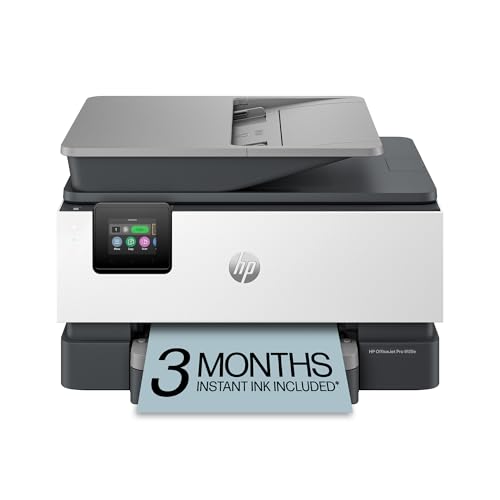
HP OfficeJet Pro 9125e All-in-One Printer — Balanced home-office starter
HP positions the 9125e as the household-and-office crossover, and its title backs that reading: colour inkjet printing, wireless connection, mobile compatibility, and the full print, scan, copy and fax set. For a home where one machine handles school worksheets in the morning, invoices at midday and a signed form scanned back to a solicitor by evening, that breadth is the entire appeal. Nothing in the listing chases photo specialists or heavy document teams; the pitch is competent coverage of ordinary paper life.
Daily use is where this class of HP earns its keep. Wireless printing from laptops and phones removes the cable ritual that older all-in-ones demanded, and mobile compatibility means a document photographed or received on a phone can reach paper without a detour through a desktop. Colour output suits documents first — charts, letterheads, homework diagrams — so set expectations there rather than expecting gallery prints. The fax line, still stated in the title, keeps the machine eligible for the dwindling but real set of institutions that insist on it.
Cartridge economics govern ownership. Households printing a few dozen pages a month will find the cartridge model painless; households printing hundreds should read the two tank reviews below before committing, because per-page ink cost compounds quietly. HP’s subscription ink ecosystem surrounds this product family, and enrolling or declining is a decision to make deliberately at setup, not by clicking through. Treat the first month as a measurement period: count your real pages, then choose the ink route that matches the count.
- Functions: Print, scan, copy and fax, per the listing title
- Print type: Colour inkjet
- Connectivity: Wireless, with mobile compatibility stated
- Positioning: Home and office use, per the listing title
- Ink system: Cartridge-based (the title names no tank system)
Strengths
- Complete four-function coverage in one wireless machine.
- Colour document printing suits mixed home and office output.
- Mobile compatibility shortens the phone-to-paper path.
Trade-offs
- Cartridge running costs climb for high-volume households.
- No document feeder is named in the title, so long scans may be page-by-page work.
- Photo printing is not the stated focus of this model.
Best for: households and small home offices wanting one wireless machine that covers documents, scans, copies and the occasional fax. Not suited for: a print room pushing thousands of pages monthly, where a tank machine’s ink costs change the maths entirely.
When you are ready to compare listings, check price on Amazon for the standard 9125e listing and confirm the seller and condition line before ordering, since a renewed variant circulates separately.
Ownership of the 9125e rewards a small weekly ritual. Run one colour page every week or two even when nothing needs printing, because inkjet nozzles that sit dry for a month are the ones that streak in the middle of a deadline job. Keep the machine on a surge-protected outlet rather than a switched power strip that family members kill at night; interrupted cleaning cycles waste more ink than the standby draw ever will. When a cartridge reports low, finish the current document set before swapping, since early replacement throws away the reserve every cartridge keeps for exactly that warning.
Paper choice quietly decides whether this HP looks competent or disappointing. Its brief is office documents, so a decent 90gsm office stock flatters text and charts, while bargain thin paper cockles under heavy colour coverage and makes two-sided pages feel cheap. Photographs printed as an afterthought will look like afterthoughts; send real photo work to a machine bought for it, or accept the 9125e’s photo output as reference quality. Stored flat and dry, paper also feeds straighter, which matters when the scanner expects aligned originals for clean copies.

HP OfficeJet Pro 9135 All-in-One Printer — Serious small-office workhorse
The 9135 steps up from its sibling with hardware that changes how a small office handles paper. Its title states an automatic document feeder and duplex print and scan, and that pairing matters more than any speed figure: a twenty-page two-sided contract can be loaded once and copied or scanned both sides without an attendant flipping pages. Offices billing by the hour feel that difference weekly. The listing also describes the machine as best for office use and AI-capable, with a three-month trial of Instant Ink included.
Duplex scanning deserves its own paragraph because buyers routinely misread it. Plenty of printers print two-sided yet scan one side at a time, forcing software to reassemble the order. A machine stating duplex print and scan in its title addresses both directions of the paper path. Pair that with the feeder and the 9135 becomes a digitising station for filing cabinets: load the stack, name the destination folder, and reclaim the desk space the archive occupied.
The Instant Ink trial frames the ownership question honestly. Subscription ink suits offices with predictable volume and no appetite for emergency cartridge runs; it suits irregular printers poorly. The AI-capable label in the title is HP’s positioning rather than a measurable print feature, so weigh the feeder, the duplex path and the office brief instead. This is the most work-focused machine in the guide, and homes with light needs will pay for capacity they never touch.
- Functions: Print, scan, copy, fax, per the listing title
- Document handling: ADF and duplex print/scan stated
- Print type: Colour inkjet, wireless all-in-one
- Ink note: Three-month trial of Instant Ink included, per the title
- Positioning: Best for office, per the listing title
Strengths
- Duplex scanning plus a feeder turns archives into files quickly.
- Full four-function set covers office communication needs.
- Wireless connection serves a small team without cabling.
Trade-offs
- Office hardware is wasted on very light home use.
- Subscription ink needs a deliberate decision after the trial.
- Colour inkjet running costs still trail tank systems at volume.
Best for: small offices and busy home workspaces that scan multi-page, two-sided documents every week. Not suited for: a spare-room desk printing boarding passes and the odd return label, where its feeder and duplex scanner would sit idle.
If the duplex scanning path matches your workload, check price on Amazon and read the Instant Ink trial terms on the listing so the subscription decision is yours rather than the setup wizard’s.
A worked week shows where the 9135 separates itself. Monday’s post brings a two-sided supplier agreement: the feeder takes the stack, duplex scanning produces a correctly ordered file, and the original goes to the cabinet in under five minutes. Wednesday needs thirty duplex copies of a price list for a site visit; the machine prints both sides without anyone collating at the desk. Friday’s invoice run is ordinary colour inkjet work, handled unremarkably, which is the point — the extraordinary hardware stays invisible until the paper gets complicated.
Teams should assign the 9135 a network identity early. Give it a fixed address on the office network, name it clearly in the print dialogues so staff stop sending jobs to the wrong device, and decide who owns the Instant Ink account before the trial clock starts. Small offices lose surprising time to ambiguous printer administration; this machine’s feeder and duplex path repay a tidy setup with years of unattended scanning. Keep a spare set of cartridges or an active subscription in place, because an office workhorse that stops for ink stops the office with it.

Canon PIXMA TR8620a All-in-One Printer — Photo and document all-rounder
Canon’s TR8620a is the generalist of the six, and its title reads like a checklist for a family home office: copier, scanner, fax, an auto document feeder, and explicit coverage of both photo and document printing. Compatibility notes name AirPrint, Android and Alexa, which sketches the intended household — mixed devices, mixed tasks, one machine absorbing all of it. Where the HP pair lean toward office documents, this Canon keeps a foot in the photograph album.
That photo capability changes the paper conversation. A machine expected to print photographs needs paper handling and colour behaviour suited to glossy media, and owners should feed it proper photo paper rather than judging it on copier stock. The document feeder, meanwhile, keeps it honest as an office tool: school permission slips, multi-page forms and expense receipts move through without lifting the lid for every sheet. Few households need both talents weekly, yet many need each a few times a month, which is exactly the generalist’s bargain.
Cartridge costs apply here as with any cartridge PIXMA, so volume discipline matters. Print photographs because you want photographs, batch document jobs, and keep an eye on which cartridges your household actually empties — colour sets often die by one channel. Voice-assistant compatibility named in the title is a convenience for starting jobs from another room, not a quality feature. Buy this Canon for breadth across a family’s mixed demands, not for any single extreme.
- Functions: Print, copier, scanner and fax, per the listing title
- Document handling: Auto document feeder stated
- Output focus: Photo and document printing both named
- Compatibility: AirPrint, Android and Alexa support stated
- Colour: Black body, per the listing title
Strengths
- Genuine breadth: photos, documents, feeder scans and fax.
- Broad device compatibility suits mixed-device households.
- Feeder keeps multi-page copying painless.
Trade-offs
- Cartridge costs punish heavy document volume.
- Generalist tuning means specialists beat it at each extreme.
- Fax hardware adds nothing for households that never fax.
Best for: families whose single machine must print photographs one day and feeder-scan a school form pack the next. Not suited for: a documents-only office printing hundreds of pages weekly, where photo ability is dead weight and tank ink would cost less.
Households matching that mixed pattern can check price on Amazon for the TR8620a and confirm the feeder is included in the listing they open, since Canon sells similar-looking PIXMA models without one.
The TR8620a rewards households that organise printing around paper types. Keep everyday stock in the main feed for documents, and treat photo paper as a deliberate load: the difference between a snapshot printed on office paper and the same file on proper glossy stock is larger than the difference between this Canon and a dedicated photo printer at family-album sizes. Children printing school projects, a parent printing photographs for grandparents, and another scanning a form through the feeder can share one machine across a weekend without any of them feeling the compromise sharply.
Voice control through Alexa, named in the title, finds its real use in kitchens and workshops — starting a copy or checking status with occupied hands. It will not improve a single print, and households without voice assistants lose nothing by ignoring it. What deserves attention instead is Canon’s ink layout: know which cartridges your household empties first, because replacing a full set when one colour has died is the classic way generalist printers acquire a reputation for greed. Bought with that discipline, the TR8620a is the most forgiving single purchase in this guide for a family that cannot predict next month’s printing.

Canon MegaTank G3270 All-in-One Printer — Compact refillable tank
The G3270 strips the all-in-one back to three functions and spends the savings on ink. Its title states print, copy and scan from a refillable tank system in a compact desktop design, wireless and colour, for home and office use. No fax, no feeder — and for the many desks that have never sent a fax and scan one page at a time, those omissions are honest ones. What remains is the MegaTank proposition: bottles instead of cartridges, and a per-page ink cost that stops dominating the printing conversation.
Tank ownership has a rhythm worth understanding before purchase. Refilling from bottles is a deliberate, occasional task rather than a mid-job emergency, and the printers reward regular use because ink systems prefer movement to months of idleness. A household printing weekly — homework, recipes, club newsletters, work documents — sits in the tank sweet spot. A household printing twice a year owns the wrong technology here and should look at the cartridge models above instead.
The flatbed-only scanning path is the real compromise. Single pages, book excerpts and ID documents scan perfectly well under a lid; a forty-page report becomes a repetitive chore. Judge that against your own scanning habits rather than against a feature chart. Compact dimensions, meanwhile, suit the small desks where home all-in-ones actually live — under a shelf, beside a monitor, in a student’s room. The G3270 is the guide’s clearest example of paying for the running-cost model and declining hardware you will not use.
- Functions: Print, copy and scan, per the listing title
- Ink system: Refillable MegaTank tank system stated
- Print type: Wireless colour printer
- Form: Compact desktop design, per the title
- Positioning: Home and office use
Strengths
- Bottle-refill ink keeps page costs low for regular printers.
- Compact body fits genuinely small desks.
- Three core functions cover most home needs without clutter.
Trade-offs
- No document feeder, so long scans are manual work.
- No fax for the few workflows that still require it.
- Tank systems dislike long idle periods between jobs.
Best for: homes and small offices printing every week that scan a page or two at a time and want ink costs to fade into the background. Not suited for: anyone regularly scanning long documents, who will feel the missing feeder within the first month.
If weekly printing and flatbed scanning describe your desk, check price on Amazon for the G3270 and look at the bottle set the listing includes so your first refill is planned rather than improvised.
Refilling a MegaTank for the first time recalibrates how owners think about ink. Bottles replace the cartridge ritual of shaking a plastic shell and hoping for another ten pages; you pour, you watch the reservoir level, and you know exactly where you stand for the next few months. Keep the correct bottle for each colour physically labelled if the printer serves children, because a tank filled with the wrong colour is a service problem rather than a settings problem. The compact body helps here too — the machine sits where you can see the tank windows without moving furniture.
Scanning habits decide whether the missing feeder ever matters. Households digitising photographs, children’s artwork and single-page letters will never miss it; the flatbed arguably handles fragile originals more kindly than any feeder. The owner who should walk away is the one with a filing cabinet to digitise or a weekly stack of multi-page post. For everyone else, the G3270’s bargain holds: three functions done adequately, ink bought by the bottle, and a desk footprint that leaves room for the laptop the printer serves.

Epson EcoTank ET-3850 All-in-One Printer — Tank printer with Ethernet
Epson’s ET-3850 takes the tank formula and adds the two features shared home offices ask for: an automatic document feeder and Ethernet. Its title describes a cartridge-free supertank inkjet with scanner, copier, ADF and Ethernet, plus mobile printing, and notes a bonus black ink bottle and USB cable in the box. That wired network port sounds old-fashioned until two or three people share the machine; a cabled printer sits stably on a network in a way that drifting Wi-Fi connections sometimes do not.
The combination reframes who the tank buyer is. The G3270 serves one desk; the ET-3850 serves a household office — two adults working from home, teenagers printing coursework, a feeder swallowing a term’s worth of forms. Cartridge-free printing keeps the marginal cost of each additional user low, which is precisely when tank economics shine. The feeder also rescues the scanning story that limits the Canon tank: multi-page jobs load once rather than page by page.
Epson’s setup ritual deserves respect. Filling tanks for the first time, charging the ink system and registering the machine take longer than unboxing a cartridge printer, and rushing the priming steps invites a support call. Budget an unhurried half hour, keep the bonus black bottle somewhere findable, and note that mobile printing covers the phone jobs while Ethernet anchors the desktops. For a shared, steadily printing household, this is the most complete tank package in the guide.
- Functions: Print, scan and copy with ADF, per the listing title
- Ink system: Cartridge-free EcoTank supertank
- Connectivity: Ethernet and mobile printing stated; USB cable included
- Extras in title: Bonus black ink bottle included
- Positioning: Home office, per the listing title
Strengths
- Feeder plus Ethernet suits shared, networked home offices.
- Tank ink keeps multi-user page costs low.
- Bonus black bottle softens the first refill cycle.
Trade-offs
- No fax is stated in the title for this model.
- First setup and ink charging take real time.
- Higher commitment than a casual cartridge machine.
Best for: multi-person home offices printing and feeder-scanning every week on a network that includes a wired connection point. Not suited for: a single occasional printer user, who would leave both the feeder and the tank capacity largely untouched.
Shared households can check price on Amazon for the ET-3850 and confirm the bonus bottle and cable appear in the listing contents before the box arrives.
The ET-3850’s Ethernet port changes the politics of a shared printer. Wi-Fi printers in busy homes drift: a router update, a changed password, a mesh node rearrangement, and someone’s laptop loses the machine on the morning of a deadline. A cabled connection sidesteps most of that churn, and the printer becomes infrastructure rather than a peripheral. Pair the fixed connection with a fixed network address and the household’s printing arguments mostly end. The feeder then handles the shared scanning load — school forms, tenancy documents, a grandparent’s paperwork — with the same load-once convenience.
Ink discipline in a multi-user house needs one rule: whoever sees a tank running low says so that day, not after the next big job fails midway. The bonus black bottle in the box covers the most common first refill, since text dominates home-office volume. Colour tanks deplete unevenly depending on whose projects dominate — one term of poster-heavy coursework can drain a colour nobody else touches. A glance at the tank windows during the weekly tidy is the whole maintenance programme, which is exactly the low-drama ownership the EcoTank concept promises when the printer is used as intended.

Brother MFC-J895DW All-in-One Printer — Straightforward cartridge veteran
Brother’s MFC-J895DW is the elder statesman here, a multi-function colour inkjet whose title highlights duplex printing, NFC one-touch connection for mobile printing, and Amazon Dash Replenishment enablement. Its appeal is procedural calm: a machine from a line offices have run for years, doing the standard jobs in the standard ways. Buyers who find newer line-ups overcomplicated — trials, apps, AI labels — may read this listing as a relief.
The NFC detail is more practical than it sounds. Tapping a phone to the printer to establish the connection removes the password-and-menu fumbling that makes mobile printing feel harder than it should, particularly for guests or family members who print rarely. Duplex printing, stated plainly in the title, halves paper use on long documents and gives reports a finished feel. Scanning and copying complete the multi-function brief even though the title spends its words on connection and printing.
Dash Replenishment, the automatic cartridge reordering service named in the title, reflects this model’s era: convenient for some, an account relationship others prefer to skip. Either way it is optional plumbing around a conventional cartridge machine, with the conventional cartridge caveat — page costs sit above the tank models at sustained volume. The MFC-J895DW suits steady, moderate printing by people who value a familiar interface and phone-tap simplicity over the newest feature list.
- Functions: Multi-function colour inkjet all-in-one, per the listing title
- Printing: Duplex printing stated
- Mobile: NFC one-touch connection for mobile printing
- Ink service: Amazon Dash Replenishment enabled, per the title
- Brand line: Brother MFC series
Strengths
- NFC tap-to-connect makes phone printing genuinely simple.
- Duplex printing trims paper use on long jobs.
- Mature, familiar all-in-one design and workflow.
Trade-offs
- Cartridge costs exceed tank rivals at high volume.
- An older platform than the other five picks.
- Auto-replenishment is an opt-in ecosystem, not a saving by itself.
Best for: households and small offices wanting duplex printing and effortless phone connection in a proven cartridge machine. Not suited for: high-volume printing on a tight per-page budget, where either tank pick undercuts its running costs month after month.
If that familiar workflow appeals, check price on Amazon for the MFC-J895DW and note which cartridges the listing bundles so the first replacement cycle holds no surprises.
Longevity expectations should be set by the MFC line’s history rather than by novelty. Machines in this family earn their reputation in accountants’ back offices and school admin desks, places where a printer is furniture rather than a gadget. That also means the interface will feel plain beside newer rivals, and owners who enjoy app-driven everything may find it austere. The austerity cuts both ways: fewer accounts, fewer trials, fewer features phoning home. For a buyer whose ideal printer interaction is tapping a phone, loading paper and collecting pages, that plainness is the product.
One practical check before ordering an older platform: confirm the cartridge family it uses is stocked by your usual suppliers, and price a full replacement set so the running-cost picture is complete before the machine arrives. Brother cartridges for long-running MFC models are generally easy to find precisely because the installed base is large, yet verifying takes two minutes and prevents the one surprise this otherwise predictable machine could spring. With that confirmed, the MFC-J895DW is the lowest-drama purchase in the guide.
Comparison Table
| Pick | Ink system | Feeder | Standout trait |
|---|---|---|---|
| HP OfficeJet Pro 9125e | Cartridge inkjet | Not stated in the listing title | Four functions with fax for home and office |
| HP OfficeJet Pro 9135 | Cartridge inkjet | ADF with duplex scan | Office-first duplex print and scan path |
| Canon PIXMA TR8620a | Cartridge inkjet | Auto document feeder | Photo plus document breadth, Alexa support |
| Canon MegaTank G3270 | Refillable tank | Not stated in the listing title | Compact tank machine, three functions |
| Epson EcoTank ET-3850 | Cartridge-free tank | ADF stated | Ethernet plus feeder for shared offices |
| Brother MFC-J895DW | Cartridge inkjet | Not stated in the listing title | NFC one-touch mobile connection |
Which Ink System Should You Actually Choose?
Count pages before comparing features. A rough month of your real printing — not your busiest week, not a guess — separates the field cleanly. Under roughly a hundred pages monthly with long quiet gaps, cartridge machines behave well and their purchase prices stay friendly. Several hundred pages monthly, week in and week out, tilts the ledger hard toward tanks: the bottle refills cost so much less per page that the machine’s higher commitment repays itself while the cartridge owner is still buying multi-packs.
Idleness is the second variable, and it cuts against tanks. Inkjet printheads of every brand prefer periodic exercise; a tank printer left untouched through a long holiday season can need cleaning cycles that waste the ink you bought it to save. Households with seasonal printing — teachers in summer, accountants after April — should weigh that honestly. Cartridge machines tolerate neglect somewhat more gracefully, though no inkjet loves abandonment.
The third variable is who prints. A single user can adapt habits to any machine; a household cannot. Shared machines accumulate volume invisibly, which is why the ET-3850’s feeder-and-Ethernet package exists. When three people print, tank economics and network stability stop being upgrades and become the sensible default.
What Does Living With a Tank Printer Actually Change?
Owners switching from cartridges describe the same small liberations. The print dialogue stops being a budgeting decision: printing a forty-page draft, a child’s full-colour project or a second copy ‘just in case’ carries no visible cost, so people print the version they need rather than rationing pages. That freedom is the tank system’s real product. It also removes the emergency cartridge run, the mid-evening discovery that a colour died during the last job and the replacement is a day away by delivery.
The trade is a new kind of attention. Tanks ask you to watch levels through the windows, to keep the correct bottles in the house, and to print something regularly so the system stays wet and happy. Spills during refilling are rare with modern bottle designs that only release ink when seated, yet the refill moment still deserves a clear desk and two unhurried minutes. Households that treat the printer as shared infrastructure — checked weekly, refilled deliberately — get the economics the category promises. Households that ignore the machine for a season get a cleaning bill in wasted ink instead, whichever brand they chose.
There is also an environmental ledger buyers increasingly weigh. Bottles replace a stream of plastic cartridges, and high-yield refills mean fewer deliveries and less packaging across the machine’s life. Cartridge makers run recycling programmes that soften their side of that comparison, and subscription services consolidate shipments, so the honest statement is directional rather than absolute: at equal page counts, the tank household throws away less plastic. For some buyers that settles a tie between otherwise equal machines.
How Do You Set Up an All-in-One Without the Usual Frustration?
Place the machine before plugging anything in. All-in-ones need clearance above the scanner lid, room behind for paper paths on some models, and a surface that does not wobble when the carriage moves. Tank models add a firmer rule: keep them level and avoid moving them after filling, because the ink lives in open reservoirs rather than sealed cartridges. Photograph the unboxing order as you go; repacking a printer for a return without that reference is a small puzzle nobody enjoys.
Connect one computer first, completely, before adding phones and second laptops. Install the manufacturer’s full software on that first machine so scanning has a proper home, test a scan and a copy from the glass, and only then join the printer to the household’s other devices. Most setup misery traces to five devices half-configured at once, none of them able to scan. For Ethernet models, cable the printer to the router or switch during this first pass and confirm the wired address appears before relying on it.
Finish by printing a test page you will actually keep: a document with a photograph, a chart and small text. File it with the purchase date written on the back. Months later, when output looks tired, that page tells you whether the machine changed or your memory did — and it anchors any conversation with support in evidence rather than impressions.
Delivery day has one more trap worth naming: the transit locks and tapes inside a new inkjet. Makers secure the carriage and scanner with bright strips and sometimes a plastic lock, and the setup sheet shows each one’s location. Powering the machine before removing them produces alarming noises and, occasionally, a support call that ends with embarrassment rather than damage. Tank models add the ink-fill sequence before the first page, which the printer supervises step by step on its screen. Follow the order the machine presents, resist the urge to explore menus mid-sequence, and the rest of the ownership story in this guide starts from a clean, correctly primed printer.
What Should You Check Before Scanning Important Documents?
Clean the glass, even when it looks clean. Scanner glass collects a film of dust and fingerprints that only becomes visible as streaks across a scanned contract, and a microfibre cloth takes twenty seconds. Check the resolution setting against the document’s purpose: archival records and anything bound for OCR deserve higher settings, while a quick copy for reference does not need a file the size of a photograph. Feeder users should fan the stack, remove staples, and straighten dog-eared corners, because feeders forgive none of those.
Legal and financial scans deserve a verification habit: open the resulting file, zoom to the signature and the smallest print, and confirm legibility before the original goes back into a drawer or a shredder queue. Two-sided originals need the duplex setting confirmed on models that offer it — the 9135’s duplex scan exists precisely so page two is not silently missing. Name files at scan time with dates and subjects; a folder of scan001 through scan214 is a debt your future self will pay with interest.
How Should You Handle Paper Jams and Tired Print Quality?
Every all-in-one in this guide will jam eventually, usually on the thickest, most urgent job of the month. The correct response is patience and the manual’s paper path: open the panels in the order the maker specifies, pull paper slowly along the direction of travel rather than tearing it against the rollers, and check the rear path where torn corners hide. A fragment left inside guarantees a repeat jam at the same spot, which owners then misdiagnose as a failing machine. Never reach for tools inside the paper path; fingers and the access panels are designed for the job.
Faded or streaked output follows a diagnostic order that saves ink. First print the machine’s own nozzle check or alignment page, because its pattern names the problem precisely — a blocked colour, a misaligned head, a low cartridge. Run one cleaning cycle if the pattern shows gaps, then reprint the check before running another; repeated blind cleaning is how owners pour a cartridge into the waste pads in an afternoon. If quality fades only on one paper type, suspect the paper setting before the hardware, since a glossy sheet printed as plain paper under-lays ink by design.
Scanning quality has its own quiet failure: the thin white calibration strip beside the glass. Dust or a stray correction-fluid mark on that strip produces a permanent line down every scan, in the same position, which owners often blame on the document. Wipe the strip gently when a line appears before booking any repair. These three habits — slow jam clearing, pattern-led cleaning, strip wiping — resolve the overwhelming majority of all-in-one complaints without a service visit, regardless of which of the six machines you own.
How Do Running Costs Behave Across a Real Year?
Imagine three households with the same six machines on their shortlists. The first prints twenty pages a month: school notes, a form, a recipe enlarged for tired eyes. For them, ink cost across a year is a rounding error on any of the six, and the decision should be made on size, scanning habits and simple preference. This household overthinks running costs precisely because the numbers are too small to matter, and underthinks the flatbed-versus-feeder question that will shape every scan they make.
The second household prints three hundred pages a month across two working adults. Here the ink systems diverge into real money over a year, and the tank machines pull steadily ahead with every ream. This household should also weigh the feeder heavily, because three hundred printed pages usually arrive alongside a comparable flow of paper coming back — signed, scanned, filed. The ET-3850 and the 9135 exist for this household; choosing between them is choosing between tank economics with wired networking and cartridge convenience with duplex scanning.
The third household prints in bursts: nothing for six weeks, then two hundred pages in a weekend of coursework, event programmes or a community newsletter. Bursts punish idle-sensitive ink systems and reward machines that wake up ready. This household should print a maintenance page during the quiet weeks whichever machine it buys, and should be honest about whether the burst volume is growing — a burst that becomes a routine turns a cartridge choice into an expensive habit, while a burst that stays occasional never repays a tank’s commitment. Matching the machine to the calendar, again, is the whole game.
Common Mistakes When Buying an All-in-One
Buying by feature count is the most common error in this category. A fax modem, a feeder, a fax-grade handset port — each adds cost and complexity whether or not your household touches it, and the G3270’s appeal comes precisely from declining two of them. List the jobs your current machine did last year and buy for that list. The reverse error exists too: skipping the feeder to save a little, then hand-feeding a forty-page scan in the first month. Both errors come from shopping the chart instead of the memory.
Ignoring idle patterns ruins more inkjets than heavy use does. Owners buy tank machines for cheap pages, leave them silent for two months, and meet clogged nozzles; or buy cartridge machines for occasional use and discover the cartridges aged out between jobs. Match the machine to your calendar as carefully as to your volume. A related mistake is judging ink cost by the price of one cartridge or bottle rather than by how many pages your household truly prints between refills.
Placement mistakes finish the trio. Printers wedged into enclosed cabinets overheat and jam; printers perched on unstable shelves vibrate their way toward misalignment; printers placed across the room from the router drop wireless jobs that owners then blame on the brand. Give the machine air, stability and a sane network path, and half the category’s bad reviews never happen.
Security is the last quiet consideration, and shared offices should not skip it. A networked all-in-one is a small computer holding copies of everything it scanned; give it the same treatment as any other network device. Change the administrator password from its default during setup, keep the firmware updated when the maker offers updates, and think before enabling any feature that exposes the printer beyond your own network. Home users face lower stakes, yet the two-minute password change costs nothing and closes the one door a curious neighbour or a compromised gadget might try. When the machine eventually leaves service years from now, clear its stored settings and any internal memory of scanned documents before it goes to recycling or a new owner — the same hygiene you would apply to a phone or a laptop, applied to the box that quietly copied your paperwork all along.
Accessibility rounds out the practical picture. Owners with limited hand strength should try the motions a printer demands: lifting a scanner lid, seating a cartridge, pouring a refill bottle, clearing a feeder. The six machines here differ in those small physical negotiations more than their titles suggest. Button size, screen contrast and the weight of the lid are not specifications anyone advertises, yet they decide whether a printer is pleasant at year three for the person who actually uses it. Where possible, handle a display unit or read the manual’s maintenance pages before committing; five minutes of that homework outweighs another hour of feature comparison.
Final Recommendation
Start from workload and the answer usually names itself. The small office processing two-sided paper weekly should take the OfficeJet Pro 9135 and its duplex scanning path. The shared home office printing steadily should take the EcoTank ET-3850, with the MegaTank G3270 as the compact single-desk alternative. Mixed family demands — photographs, forms, the odd fax — point to the PIXMA TR8620a, while the 9125e covers general home-and-office duties and the Brother serves anyone who prizes phone-tap simplicity in a proven design. An all-in-one is a five-year appliance; buy the ink system and paper path your calendar actually needs, and the machine will feel well chosen long after the feature charts are forgotten.
One more ownership decision hides in the first week: where scanned files go. Decide a folder structure and a naming habit while the machine is new — year, month, subject — and set the scanner’s default destination to that place on day one. All-in-ones make scanning so easy that volume arrives before organisation does, and retro-sorting two thousand unnamed PDFs is nobody’s idea of a weekend. The feeder models in this guide accelerate both the scanning and the mess, which is another reason their owners should set the filing rule before the first archive box is opened.
Finally, register the warranty and keep the purchase record with that first test page. All-in-ones fail early or run for years; the ones that fail early do so inside the window where a receipt and a registration turn a disaster into a replacement. It is unglamorous advice that has nothing to do with print quality, and it is worth more than any single feature compared above.
Keep the box and its foam inserts for the first month if storage allows. Printers that fail do so early, and a return in original packaging is painless compared with improvising a box for a machine full of ink. After that month, the packaging can go; the test page and receipt stay filed with the manual, where the next owner will thank you for them.
Frequently Asked Questions
Do I need fax in an all-in-one printer in 2026?
Most households do not, and the tank picks here omit it deliberately. Some medical offices, legal practices and government agencies still request faxes, so if your work touches those institutions, choose a model whose title states fax — the 9125e, 9135 or TR8620a — and confirm your phone-line or internet-fax arrangement separately.
Are tank printers really cheaper to run than cartridge models?
Per page, yes, substantially, because bottled ink costs far less per millilitre than cartridge ink. The saving only materialises if you print regularly enough to use the ink before time and idleness waste it. Occasional printers may never print enough pages for the tank advantage to repay the commitment.
What does an automatic document feeder actually save?
Your attendance. Without a feeder, scanning or copying thirty pages means placing each sheet, pressing a button and waiting, thirty times. A feeder loads the stack once. If your scanning is single pages and ID cards, a feeder saves nothing; if you digitise files or contracts, it saves an afternoon a month.
Can these printers print from a phone without a computer?
The titles state mobile compatibility or mobile printing for the HP models, the ET-3850 and the Brother, and AirPrint plus Android support for the Canon TR8620a. In practice you install the maker’s app or use the phone’s built-in print service once, after which printing a document or photo takes a few taps.
How long should an all-in-one printer last?
A well-kept machine in home or small-office service commonly runs for years of regular use. Longevity depends more on duty — monthly volume versus the machine’s design brief — and on ink-system care than on brand. Keeping the printer exercised, clean and within its intended workload is the owner’s half of the bargain.
Related Guides
Printers connect to several neighbouring buying decisions. If fine detail for tabletop gaming figures is your next project, read our guide to resin printers tuned for miniatures and D&D. Crafters converting a tank machine should study printers that convert to sublimation before buying ink. Businesses printing their own cheques need the dedicated hardware in bank check printers with MICR support.

[…] digital cameras for the largest format in this catalogue, then put the photographs to work with the best all-in-one printers, and finish at the workbench — among the gloves, the resin and the patient hobbyist’s […]
[…] the circuit from capture to output: put the big files on paper with the best all-in-one printers, make something tangible at the bench with the best resin printers for miniatures and D&D, and […]