What's inside
- Key Takeaways
- Quick Picks
- How We Chose These Picks
- Comparison Table
- How Do Running Costs Really Compare in This Band?
- Which Should You Choose: Inkjet Colour or Mono Laser?
- How Do You Keep a Budget-Band Printer Alive for Years?
- What Should You Print in the First Week to Test a New Printer?
- How Does the Second Year Change Each Technology’s Story?
- What About Printing From Phones, Tablets and Chromebooks?
- How Should You Think About Paper in This Band?
- When Does It Make Sense to Own Two Printers Instead of One?
- Common Mistakes When Buying in This Band
- Final Recommendation
- Frequently Asked Questions
- Related Guides
As an Amazon Associate I earn from qualifying purchases. This post may contain affiliate links at no extra cost to you.
widgetverdict.com is reader-supported. When you buy through links on our site, we may earn an affiliate commission.
Shopping for the best printers under 300 dollars means shopping inside a band, not for a bargain-bin special — and this guide treats the band as the keyword’s frame rather than a price tag on any machine. No individual prices appear below, deliberately: prices inside this band move with seasons and sellers, and a guide that hard-codes them misleads within a quarter. What does not move is the judgement framework. Within this ceiling, a buyer chooses between colour inkjets that do a little of everything and monochrome lasers that do one thing relentlessly well, and the right answer depends on running costs and duty cycle far more than on the sticker that brought the machine into the band.
Six machines make the shortlist, three of each temperament. Canon’s PIXMA TS7720 and TR4720 and HP’s Envy 6555e and OfficeJet Pro 8125e cover the inkjet side — home colour, photos, scanning, copying, in one case a feeder and fax. Brother’s HL-L2460DW and DCP-L2640DW cover the laser side: black-and-white printing at laser pace, the second adding scan and copy. Every title below was checked against the band’s premise, and one listing note applies to the Brother laser: a renewed version of the HL-L2460DW circulates separately, while the link here points to the standard listing in our verified pool.
Judge this class by the second year, not the first month. The machine’s purchase is a single event inside the band; its ink or toner, its paper appetite and its tolerance for your printing rhythm are the subscription you actually live with. The reviews and the running-cost sections that follow are organised around that second year, because it is where printers in this band either repay their buyers or quietly tax them.
Key Takeaways
- The band is a frame, not a price list: judge these machines on running costs and duty cycle, since in-band prices move constantly.
- Brother’s two monochrome lasers are the low-maintenance picks for text-heavy homes and offices that rarely need colour.
- Canon’s TS7720 is the compact home photo-and-document all-in-one; the TR4720 adds a feeder and fax for home-office duty.
- HP’s OfficeJet Pro 8125e is the most office-capable inkjet here, with ADF and duplex printing stated in its title.
- Inkjet running costs hinge on how much colour you print; laser costs hinge on toner yield against your monthly pages.
- Print volume and idle gaps should choose the technology before features choose the model.
Quick Picks
| Pick | Badge | Why it earns a place |
|---|---|---|
| Canon PIXMA TS7720 All-in-One Printer | Compact home all-rounder | Auto duplex, a 2.7-inch touchscreen and stated 15/10 ppm in a compact home photo printer. |
| HP Envy 6555e All-in-One Printer | Easy home colour | Print, scan and copy with wireless and the HP Smart App for straightforward household printing. |
| Brother HL-L2460DW Monochrome Laser Printer | Text-only laser sprinter | A compact wireless mono laser with duplex and mobile printing for document-heavy homes. |
| Brother DCP-L2640DW Monochrome Laser Printer | Laser with scan and copy | Adds multi-function scanning and copying to the compact mono laser formula. |
| Canon PIXMA TR4720 All-in-One Printer | Feeder and fax for home office | An auto document feeder, mobile printing and built-in fax in a home all-in-one. |
| HP OfficeJet Pro 8125e All-in-One Printer | Office-leaning inkjet | ADF, duplex printing and a three-month Instant Ink trial for home-office workloads. |
How We Chose These Picks
The band itself was the first filter: candidates had to be machines sold into this price territory as their natural home, not premium models on a temporary dip or clearance antiques. Within the band we insisted on current, mainstream models from the four makers who support this class properly, because a printer in this territory lives or dies by cartridge and toner availability at ordinary shops. Obscure brands with cheaper stickers and orphaned consumables were excluded on that support logic alone.
Balance came next. A guide to this band that listed six inkjets would dodge the class’s central question, so the six split deliberately: four inkjet all-in-ones spanning compact home, easy home colour, feeder-equipped home office and office-leaning duty, against two Brother monochrome lasers — one print-only, one multi-function — that represent the laser argument at its strongest. Every common household brief maps onto at least one pick, and the comparisons between them are the guide’s real content.
Specification claims were taken from the listing titles only: speeds where stated (the TS7720’s 15/10 ppm), duplex and feeder features where named, trials and subscriptions where the title mentions them. Where a title is silent — and several are, on speeds or feeders — the reviews say nothing rather than borrowing figures from a sibling model, and the comparison table marks the silence honestly.

Canon PIXMA TS7720 All-in-One Printer — Compact home all-rounder
Canon’s TS7720 states a tidy home brief: wireless all-in-one colour inkjet, print, copy and scan, auto duplex, 15/10 ppm, a 2.7-inch touchscreen, and a compact design aimed at home photo printing with easy setup. That combination — duplex plus touchscreen plus compact — is the modern family printer distilled. The touchscreen matters more than veterans expect: copying and scanning from the machine’s own panel, without waking a computer, is how these devices actually get used by everyone in the house who is not the person who installed them.
Auto duplex quietly halves the paper pile for school and work documents, and gives double-sided homework and handouts a finished feel that single-sided stacks lack. The stated speeds — 15 pages per minute in mono, 10 in colour as the title’s 15/10 figure reads — place it comfortably in home territory: not a machine for hundred-page runs, entirely adequate for the ten-page jobs that constitute household printing. Photo printing is named in its positioning, so family photographs on proper photo paper sit within its competence rather than as an afterthought.
Running costs follow the cartridge pattern this guide keeps returning to: pleasant at household volume, worth watching if a home business moves in. Canon’s cartridge ecosystem for the PIXMA line is stocked everywhere, which in this band counts as a feature in itself. The TS7720 is the pick for a household that wants one compact machine, simply controlled, covering documents and photographs without office hardware it will never use.
- Functions: Print, copy and scan, per the listing title
- Printing: Auto duplex stated; 15/10 ppm stated
- Control: 2.7-inch touchscreen stated
- Form: Compact home photo printer design
- Setup: Easy setup positioning, per the title
Strengths
- Touchscreen panel makes copying computer-free.
- Duplex printing trims household paper use.
- Compact body suits shared family spaces.
Trade-offs
- No feeder is stated, so multi-page scans are manual.
- Cartridge costs grow with heavy colour volume.
- Home-scale speeds cap long document runs.
Best for: families wanting one compact, simply controlled machine for documents, copies and photographs. Not suited for: a home office scanning contracts weekly, where the absent feeder becomes a daily tax.
Families matching that brief can check price on Amazon for the TS7720 — checking the live figure rather than trusting any printed one is the right habit in this band.
A term-time diary flatters this Canon. September’s school forms scan from the panel in twos and threes; October’s project photographs print on glossy stock at sizes the family actually frames; November’s essay drafts come out duplexed without a settings expedition. None of these jobs is large, and that is the TS7720’s thesis: household printing is a stream of small jobs whose friction, not whose speed, decides whether the printer feels good. The touchscreen keeps friction low for the least technical person in the house, which is the correct person to design for.
Paper handling has one habit worth forming: keep the rear or main feed stocked with plain paper and treat photo paper as a deliberate swap, announced to the household. Most ‘the printer printed my spreadsheet on the expensive paper’ stories are really ‘nobody labelled the tray’ stories. The TS7720 will serve a family for years on that single piece of social engineering plus the usual cartridge discipline.
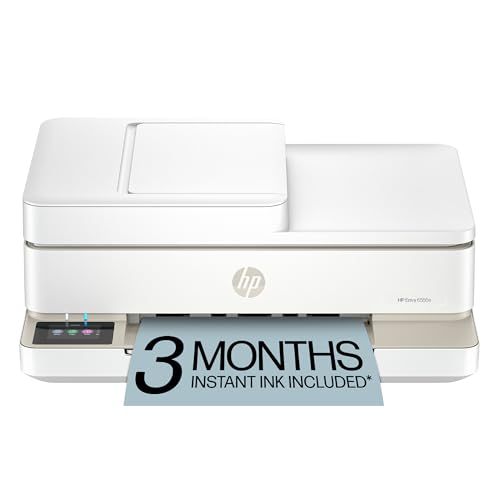
HP Envy 6555e All-in-One Printer — Easy home colour
The Envy 6555e’s title sells ease: a colour inkjet all-in-one, wireless, for easy home printing, with print, scan and copy, mobile compatibility and the HP Smart App, positioned for perfect home use. HP’s Envy line has always been the design-conscious end of home printing — machines meant to sit in living spaces without apologising — and this model’s pitch is that the app, not the printer’s panel, is the control centre. For households that live on their phones, that is a genuinely comfortable arrangement.
The app-centred workflow deserves an honest paragraph. Setup, scanning to the phone, printing from cloud accounts and ink status all flow through HP Smart, which unifies the experience and also concentrates it: an owner who dislikes app-mediated appliances will feel the dependency, while an owner who prints from a phone twice as often as from a desk will wonder why every printer is not built this way. Colour documents are the stated strength — the title names colour documents and mobile compatibility together — so set photo expectations at ‘good family prints’ rather than studio work.
The ‘e’ in the model name signals HP’s connected-services generation, and buyers should make the subscription decision — HP’s ink programme hovers around this family — with the same deliberation as in the all-in-one guide’s HP reviews: measure a month of real printing, then decide. At ordinary household volume, the Envy’s appeal is its frictionlessness. It is the pick for the home that prints colour regularly, scans occasionally, and values a machine that disappears into the room’s furniture and the phone’s app drawer alike.
- Functions: Print, scan and copy, per the listing title
- Print type: Colour inkjet, wireless all-in-one
- Control: HP Smart App and mobile compatibility stated
- Positioning: Easy home printing, per the title
- Documents: Colour document focus stated
Strengths
- App-centred control suits phone-first households.
- Colour document printing covers home and school work.
- Design-conscious build sits comfortably in living spaces.
Trade-offs
- App dependency will not suit every owner.
- No feeder or duplex is stated in the title.
- Subscription ink needs a deliberate opt-in decision.
Best for: households that print colour from phones and want the simplest possible home all-in-one. Not suited for: owners who want full control from the machine’s own panel and no app in the loop.
Phone-first households can check price on Amazon for the Envy 6555e and read how the listing describes its app and ink-programme terms before deciding.
The Envy’s ownership story is written in its first setup hour. Owners who complete the app setup fully — every household phone added, the ink programme decided, the scan shortcuts placed — report a machine that simply works from pockets and sofas thereafter. Owners who half-finish setup meet the printer as a series of small negotiations. That asymmetry is the app-centred design’s true trade: front-loaded configuration in exchange for years of low friction. Decide whether your household will pay the first hour gladly; the answer predicts satisfaction better than any specification in the title.
Colour expectations deserve calibration against the title’s own words: colour documents. Charts, schoolwork, newsletters, party invitations — the Envy’s home ground. Photographs print pleasantly for albums and gifts, while the household member with exhibition ambitions should be pointed at a photo-specialist machine and a different budget conversation. Within its stated brief, the Envy is coherent, and coherence in this band is rarer than features.

Brother HL-L2460DW Monochrome Laser Printer — Text-only laser sprinter
The HL-L2460DW is the argument for monochrome laser in a single box: a wireless compact mono laser with duplex, mobile printing and black-and-white output, including a Refresh subscription trial per its title, and Alexa compatibility. It prints text — only text, only in black — and in exchange it prints text the way lasers do: fast first pages, crisp characters at any size, toner that does not dry out in a quiet month, and a per-page cost structure that makes a forty-page document a shrug rather than a budget line.
Duplex on a mono laser is the paper-saving feature that pays weekly: reports, manuscripts, study packs and contracts emerge two-sided by default once the driver is set, and the paper drawer empties at half the rate. Mobile printing covers the phone-generated documents modern households produce — the PDF attachment, the boarding pass, the form that arrived by email — without a computer intermediary. The Refresh trial named in the title is Brother’s toner subscription; as with every subscription in this guide, it suits predictable volume and should be adopted by measurement, not by setup-screen momentum.
The discipline this pick demands is honesty about colour. A household that prints colour monthly will resent a mono machine monthly; a household that prints colour twice a year can outsource those two jobs to a print shop and live laser-happily the other 363 days. Photographs, obviously, are outside the brief entirely. One listing caution from this guide’s introduction bears repeating here: a renewed listing of this model circulates on Amazon under its own identifier — the link in this guide is the standard listing, and buyers comparing offers should check which condition they are looking at.
- Function: Monochrome laser printing only, per the listing title
- Printing: Duplex and mobile printing stated
- Output: Black and white only
- Extras: Refresh subscription trial included, Alexa compatibility, per the title
- Form: Wireless compact design
Strengths
- Laser text quality and pace for documents.
- Toner ignores idle weeks that punish inkjets.
- Duplex by default halves paper consumption.
Trade-offs
- No colour, no scanning, no copying at all.
- Photographs are outside its capability entirely.
- Subscription trial needs a considered decision.
Best for: text-heavy homes, students and home offices whose printing is documents, documents, documents. Not suited for: any household that prints colour or photographs regularly enough to miss them monthly.
Document households can check price on Amazon for the HL-L2460DW standard listing and confirm they are not looking at the separate renewed offer before ordering.
Students are this Brother’s natural constituency, and their use pattern explains why. Term-time printing arrives in avalanches — the night-before essay, the reading pack, the dissertation draft — separated by idle weeks that would leave an inkjet cleaning itself in protest. The laser waits through the vacation and prints the avalanche’s first page in seconds. Duplex turns a 90-page reading pack into a sheaf that fits a bag. The Refresh trial, for a student with predictable term volume, can be modelled precisely against the academic calendar, quiet months and all.
One practical note on placement: lasers vent warm air and a faint process smell during long runs, normal for the technology and worth a metre of breathing room in a small bedroom-study. Keep the vents unblocked, keep the paper dry, and the HL-L2460DW will outlast the degree — possibly several degrees — with a handful of toner cartridges as its entire maintenance history.

Brother DCP-L2640DW Monochrome Laser Printer — Laser with scan and copy
The DCP-L2640DW takes its sibling’s laser engine and adds the office functions the print-only model omits: its title states a wireless compact monochrome multi-function printer with copy, scan, duplex and mobile printing. That addition changes the machine’s household role completely. Scanning and copying are the functions that keep a printer relevant on the days nothing needs printing — the signed form returned, the ID copied, the archive page digitised — and a mono laser that also scans is the closest this band comes to a complete document appliance for text-based work.
The copying is monochrome, the scanning feeds a computer or network destination in colour even though printing stays black — a distinction worth understanding, since owners routinely conflate scan capability with print colour. Your scanned photographs are colour files; they simply cannot come back out of this machine in colour. For document households that distinction costs nothing, because their scanning is paperwork and their printing is text, and both halves of that life are served crisply and cheaply.
Against the HL-L2460DW, the choice is purely whether scan and copy earn their premium in your house. Against the inkjets, the DCP makes the laser case with the all-in-one box ticked: no ink to dry, toner economics, duplex pace, and functions complete for a paper-based office. Home offices run by writers, administrators, bookkeepers and students — the text professions — should read this pick as the guide’s centre of gravity.
- Functions: Print, copy and scan, per the listing title
- Print type: Monochrome laser, black and white output
- Printing: Duplex and mobile printing stated
- Form: Wireless compact multi-function design
- Class: Multi-function mono laser
Strengths
- Laser running costs with all-in-one functions.
- Scanning covers the paperwork side of home office life.
- Toner tolerates irregular printing rhythms.
Trade-offs
- Printing is monochrome without exception.
- No feeder is stated in the title for batch scanning.
- Photo work belongs to another machine entirely.
Best for: text-based home offices wanting laser economics plus scanning and copying in one compact machine. Not suited for: households whose scanning is mostly photographs for printing in colour, a workflow this machine can only half serve.
Text offices can check price on Amazon for the DCP-L2640DW and weigh its premium over the print-only Brother against their real weekly scanning.
The DCP’s scanner earns a paragraph of its own, because in document households the scanner quietly becomes the most-used function. A flatbed handles the bound and the fragile — passport, certificate, the page from a notebook — that feeders refuse, and scanning to a searchable archive is how a household’s paper mountain actually shrinks. Owners should set the scan destination and file-naming habit in the first week, as this guide has advised for every all-in-one: the DCP makes scanning cheap and fast, which means the archive grows quickly, which means the naming discipline matters more, not less.
Copying on a mono laser has its own pleasure: a crisp black copy in seconds, no colour cartridges dying for a greyscale job. Landlords, teachers and administrators — the copying professions of domestic life — will use this machine’s copy function weekly and its print function as the support act. That inversion surprises buyers who shop by the word ‘printer’; the DCP’s owners learn it within a month.

Canon PIXMA TR4720 All-in-One Printer — Feeder and fax for home office
The TR4720 is the home-office traditionalist of the inkjet four: its title states an all-in-one wireless printer for home use with an auto document feeder, mobile printing and built-in fax. In a band where feeders are scarce, that ADF is the headline — multi-page scans and copies without the page-by-page ritual — and the fax, rarely decisive, completes a feature set aimed at the house that still deals with institutions on paper’s terms: schools, clinics, councils, insurers.
Canon’s PIXMA TR line balances document duty with respectable colour, so the household’s occasional photograph or school project prints competently while the machine’s centre of gravity stays on paperwork. Mobile printing covers the phone-originated half of modern home administration. What the title does not claim is speed or duplex, and buyers should take the hint: this is a convenience-featured machine for moderate volumes, not a throughput engine, and its running costs follow the cartridge pattern of its class.
Position it against the TS7720 to see Canon’s own fork in this band: the TS is the compact, touchscreen, photo-friendly family machine; the TR is the feeder-and-fax home-office machine. Households choose by which errands dominate — photograph-and-copy simplicity or paperwork batch handling. For the house whose scanner sees ten-page documents more often than single pages, the TR4720’s feeder is worth more than any other single feature in this price territory.
- Functions: Print, scan, copy and fax, per the listing title
- Document handling: Auto document feeder stated
- Connectivity: Wireless with mobile printing stated
- Colour: Black body, per the title
- Positioning: Home use and home office
Strengths
- Feeder scanning at this band is a genuine rarity.
- Fax completes the institutional-paperwork brief.
- Balanced colour for occasional photo and project work.
Trade-offs
- No duplex printing is stated in the title.
- Cartridge costs at sustained volume trail the lasers.
- Throughput is home-scale, not office-scale.
Best for: home offices whose scanning arrives in multi-page documents and whose world still includes fax. Not suited for: high-volume document printing, where the Brother lasers’ toner economics pull steadily away.
Paperwork households can check price on Amazon for the TR4720 and confirm the feeder in the listing, since it is this pick’s reason to exist.
The TR4720’s feeder changes a specific domestic scene: the annual paperwork avalanche. Insurance renewals, school enrolments, tax documents, the solicitor’s pack — the multi-page scanning jobs that arrive in clusters and ruin an evening at a flatbed. Through the feeder they become a load-and-label exercise, and the evening survives. Households whose paper life is otherwise single-page will use the feeder rarely; households with an annual avalanche will forgive this machine everything else for that fortnight alone.
Fax, its other distinction, deserves the same seasonal honesty. Most households fax never; some fax twice a year, both times to institutions that offer no alternative, both times urgently. A built-in fax converts those two episodes from a trip to a copy shop into a two-minute job. Price that convenience as insurance rather than as a feature and the TR4720’s positioning clarifies: it is the paperwork-resilience pick of the inkjet four.
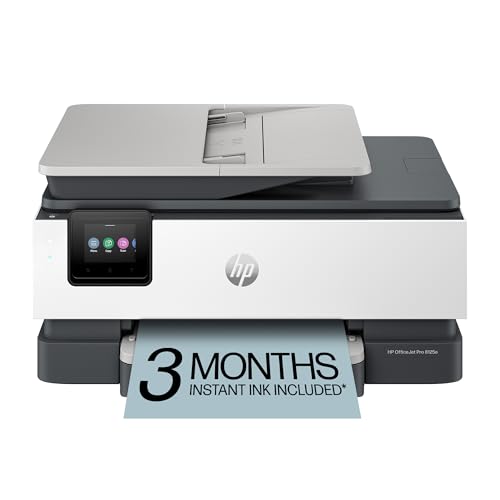
HP OfficeJet Pro 8125e All-in-One Printer — Office-leaning inkjet
The 8125e closes the six as the inkjet that leans furthest toward work: its title states a wireless all-in-one colour inkjet with print, scan and copy, an ADF, duplex printing, a best-for-home-office positioning, a three-month Instant Ink trial, and AI-enabled features under its model code. Feeder plus duplex is the combination the earlier inkjets each hold only half of, and together they make this the colour machine a small home office can run paperwork through without apology.
The Instant Ink trial frames the running-cost conversation for this pick more than for any other in the band. HP’s subscription prices ink by pages printed rather than by cartridges consumed, which converts the inkjet cost curve into a predictable monthly figure — attractive to a home office that bills its own time and hates surprises, less attractive to irregular printers whose quiet months subsidise nothing. The trial’s three months are long enough to measure your real volume; use them as a measurement instrument and decide with data when they end.
Against the Brother DCP, the 8125e is the colour answer to the same home-office question: it scans, copies, duplexes and feeds like the laser, then adds colour documents and competent photo-capable output the laser cannot touch, at inkjet running costs and with inkjet idle sensitivity. Offices that print colour weekly should take the HP seriously; offices that print colour quarterly should take the Brother and bank the difference in toner savings. That sentence, honestly, is the whole guide in miniature.
- Functions: Print, scan and copy, per the listing title
- Document handling: ADF and duplex printing stated
- Ink note: Three-month Instant Ink trial included, per the title
- Positioning: Best for home office, per the title
- Features: AI-enabled, per the listing title
Strengths
- Feeder plus duplex covers home-office paperwork fully.
- Colour output the mono lasers cannot offer.
- Trial period lets owners measure subscription value.
Trade-offs
- Inkjet idle sensitivity applies between busy spells.
- Subscription economics punish irregular volume.
- No fax is stated in the title.
Best for: home offices that print colour weekly and process multi-page scans and two-sided documents. Not suited for: text-only offices, where the DCP-L2640DW does the same paperwork on toner for less per page.
Home offices can check price on Amazon for the 8125e and read the Instant Ink trial terms on the listing so the subscription decision is planned, not defaulted.
The 8125e’s duplex deserves emphasis because home offices underuse it: set two-sided as the default for internal documents and the paper budget halves while the filing cabinet fills at half speed. Client-facing work can stay single-sided by exception rather than by habit. Combined with the feeder, the machine supports the full paper loop — receive, scan, file, print, send — that defines a working home office, in colour, from one footprint in this band. That completeness, more than any single specification, is why it closes the six.
Its buyer’s discipline is the inkjet rhythm: keep it printing weekly, keep the subscription decision measured, and keep one eye on the month the trial ends. Home offices that run that rhythm describe OfficeJet-class machines as uneventful infrastructure. Home offices that print in panics separated by silence should reread the Brother reviews — the guide’s honesty about idle sensitivity is not a sales technique, it is the physics of ink.
Comparison Table
| Pick | Type | Feeder (per title) | Standout trait |
|---|---|---|---|
| Canon PIXMA TS7720 | Colour inkjet all-in-one | Not stated in the listing title | Touchscreen, auto duplex, 15/10 ppm |
| HP Envy 6555e | Colour inkjet all-in-one | Not stated in the listing title | App-centred easy home printing |
| Brother HL-L2460DW | Mono laser, print only | Not stated in the listing title | Duplex laser pace, toner economy |
| Brother DCP-L2640DW | Mono laser multi-function | Not stated in the listing title | Scan and copy on a laser base |
| Canon PIXMA TR4720 | Colour inkjet all-in-one | Auto document feeder | Feeder plus built-in fax |
| HP OfficeJet Pro 8125e | Colour inkjet all-in-one | ADF stated | Duplex plus feeder, office-leaning |
How Do Running Costs Really Compare in This Band?
Build the comparison from your own pages. Take a month of typical printing — count it, honestly, including the children’s projects and the returns labels — and split it into black pages and colour pages. The lasers price the black pages at toner economics: a cartridge rated for a high page count, replaced a few times a year at household volume, indifferent to whether the pages came daily or in one weekend burst. The inkjets price black pages higher and colour pages higher still, with the multiplier set by how much of your colour is full-page coverage — a photograph costs multiples of a chart, in ink terms, on any cartridge machine.
Idle time is the hidden column. Inkjet cartridges and printheads age whether or not they print; a machine used twice a month spends part of every session cleaning itself, and that cleaning ink is a real cost invisible in per-page ratings. Lasers simply wait. Households with bursty, seasonal printing therefore find the lasers cheaper than the arithmetic suggests, while steady weekly printers get the inkjet numbers the brochures promise. Subscriptions — Instant Ink on the HP side, Refresh on the Brother — flatten these curves into monthly predictability at their own price, worth modelling against your counted month rather than your hoped one.
Duty cycle is the last column, and it is about survival rather than cost per page. Every printer is designed around a monthly volume it can sustain; a home machine asked to live an office’s life wears its rollers and heads early, while an office-capable machine in a quiet home is merely underemployed. The 8125e and the two Brothers carry the most work-leaning briefs in this six; the Envy and TS7720 are honestly home machines. Match the brief to your counted month and the printer will still be pleasing you when the band’s prices have changed beyond recognition.
Which Should You Choose: Inkjet Colour or Mono Laser?
Answer three questions in order. Do you print colour at least monthly — real colour, documents or photographs you would miss in grey? If not, the lasers win by default and the only remaining choice is print-only versus multi-function. Do you scan multi-page documents regularly? If yes, the feeder models — TR4720, 8125e — or the DCP’s flatbed discipline enter the decision. Do you print in bursts separated by idle weeks? If yes, lean laser regardless of the first answers, or accept the inkjet maintenance rhythm knowingly.
Households split down the middle — colour monthly, documents weekly, rhythm bursty — are the genuinely hard cases, and for them the DCP-L2640DW plus an outsourced colour job, or the 8125e plus a weekly maintenance print, are the two defensible answers. What is not defensible is buying by the feature list’s length. In this band every added function is paid for in some other currency — running cost, idle tolerance, size — and the reviews above tried to name the currency each time.
How Do You Keep a Budget-Band Printer Alive for Years?
Feed it decent paper and keep it out of extremes. Thin, dusty paper sheds fibres into every mechanism and shows up months later as feed problems; a mid-grade office stock costs little more and behaves measurably better. Heat and cold both age printers — a machine beside a radiator or in a freezing spare room lives harder than its twin in a temperate corner — and direct sunlight yellows plastic and cooks cartridges in their slots.
Use the machine’s own maintenance before reaching for remedies. Nozzle checks and one cleaning cycle for inkjets; a drum-and-toner inspection page for lasers when output greys. Update the driver when you change computers rather than forcing a decade-old package onto a new system, and keep the printer’s firmware current where the maker offers updates through its app or utility. Finally, print the test page habit from the all-in-one guide applies here too: one kept reference page, dated, tells you whether a tired-looking print is the machine declining or the cartridge ending — the two most confused diagnoses in home printing.
What Should You Print in the First Week to Test a New Printer?
Four documents expose a new machine completely. First, a dense text page with small fonts — a contract or an article — which judges text crispness and, on lasers, greying or streaks. Second, a colour chart or a page of charts and diagrams, which shows whether colour registration and banding behave. Third, one photograph on the paper you will actually use for photographs, judged in daylight, not under the desk lamp’s flattery. Fourth, a twenty-page duplex document, which tests the paper path, the duplex alignment and your patience with the driver in a single job.
Scan the first document back on all-in-one models and compare the file against the original at full zoom; a scanner’s soft focus hides at thumbnail size and announces itself in the archive a year later. Keep all four prints, dated, as the machine’s birth certificate — the reference set every later ‘is it getting worse?’ question gets answered against. Owners who run this hour of testing in week one return fewer printers and keep the keepers longer, because the machine’s character is known before it is needed.
How Does the Second Year Change Each Technology’s Story?
Year two is when the band’s printers stop being purchases and become habits, and the habits diverge by technology. The inkjet household has learned its cartridge rhythm: which colour empties first, where the spares live, how the machine behaves after the summer gap. Its costs are known quantities, budgeted like any household consumable, and its printer’s personality — the weekly page that keeps it sweet, the paper it likes — is domestic knowledge. When year two goes well for an inkjet, it goes almost invisibly.
The laser household’s year two is quieter still. A toner cartridge installed in year one may still be printing; the machine’s interventions in family life approach zero. The risk flips from maintenance to complacency: the laser is so undemanding that its one eventual need — a cartridge, a drum at high mileage — arrives unplanned. Keep the spare toner on the shelf from year one and even that surprise is covered.
Both stories share a year-two discovery: the printer’s network identity matters. The machine that kept its name, its fixed place on the network and its drivers through a router change or a new laptop is the machine the household trusts. Spend ten minutes in year one giving the printer a stable network setup, whichever technology you chose, and year two’s story loses its most common subplot — the printer that ‘stopped working’ when nothing about the printer changed at all.
What About Printing From Phones, Tablets and Chromebooks?
Modern households print from everything, and this band’s machines all claim mobile routes — the titles state mobile printing or app support for the HP and Brother models and wireless connectivity across the six. The practical differences live in the second step: printing a photo from a phone’s gallery, a PDF from an email, a page from a school platform on a Chromebook. Each ecosystem handles those through its app or the operating system’s built-in print service, and the household’s mix of devices should be tested in the first week, while the returns window is open and patience is funded.
Chromebooks deserve a specific check because school households depend on them: confirm the model appears in the Chromebook’s printer list on your home network during setup week. Guests are the other test — the visiting grandparent printing a boarding pass will use whatever path your household has made obvious, which is usually the app on the owner’s phone acting as intermediary. None of this is difficult; all of it is easier in week one than in the airport-morning moment it is usually attempted.
How Should You Think About Paper in This Band?
Paper is the consumable nobody budgets and every printer notices. The band’s machines all improve visibly on mid-grade stock: inkjets bleed less and dry faster, lasers fuse toner onto smoother surfaces with crisper edges, and duplex pages stop feeling like napkins. A household printing a few hundred pages a month spends a trivial sum upgrading its everyday paper one grade — and receives the improvement on every single page, which makes paper the highest-return upgrade available at this end of the market.
Speciality papers need matching expectations. Photo paper transforms the inkjets’ photograph output and does nothing for the lasers, which cannot use most coated photo stocks at all — a mono laser owner’s photograph route is a print shop or a friend’s inkjet, full stop. Labels and card stock pass through most of these machines in small batches if the manual’s media guidance is followed; forcing heavy stock through a path that bends it sharply is how budget printers acquire their jam reputations. Read the media page of the manual once, in the first week, and the printer’s paper story stays boring for years.
Storage completes the paper picture. A ream opened in a humid room curls within weeks, and curled paper misfeeds in every technology. Keep the working ream in its wrapper, in the printer’s room, and the reserve reams sealed. It is the cheapest reliability advice in this entire guide, and the most commonly skipped.
When Does It Make Sense to Own Two Printers Instead of One?
More often than the industry admits. The classic pairing hides inside this guide’s own six: a mono laser as the household’s document engine — cheap, patient, always ready — plus an inkjet that exists for colour and photographs and is exercised weekly by that colour work. Households that print heavily in both modes often spend less across five years on the pair than on one inkjet asked to do everything, because each machine lives inside its brief and neither consumable is wasted on the wrong job. The pair also insures: when one machine is mid-cartridge or mid-jam on a deadline morning, the other still prints something.
The pairing fails when desk space or household discipline cannot support it — two machines half-configured are worse than one machine loved properly. It also fails when the second machine is bought speculatively, ‘for the colour we might print’, and sits idle while its ink ages. Buy the second printer when the first one’s mismatch is a monthly experience, not a hypothetical, and the band’s prices make that second purchase a modest correction rather than a catastrophe. Several readers of this guide will end at the DCP-L2640DW plus a TS7720, or an HL-L2460DW beside an Envy, and will recognise their own two-desk reality in that sentence.
If two machines arrive, give each a name the household uses — ‘the laser’ and ‘the colour’ beat model numbers at the print dialogue — and set the laser as the default everywhere, so colour is always a deliberate choice with its cost attached. Defaults are policy in a household; set them consciously.
Common Mistakes When Buying in This Band
Chasing the lowest sticker in the band is the founding error, because the band’s economics live in consumables: a machine can win the purchase and lose every month thereafter. The second error is buying colour ‘just in case’ and paying inkjet running costs for a capability used at Christmas, when a mono laser plus a print-shop visit would have served the year better. Its mirror — buying mono to save money while the household prints colour weekly — produces a resentment that ends in a second printer, which costs more than choosing colour first would have.
Ignoring the idle pattern repeats the all-in-one guide’s warning in a cheaper key: inkjets bought for twice-yearly printing greet their owners with cleaning cycles and clogged colours, and the band’s inkjets are not exempt from physics for being affordable. The third error is forgetting the second computer, the phone, the partner’s laptop — connectivity set up for one device becomes the household bottleneck, so configure every regular device in the first week while patience is high.
Finally, buyers in this band skip the verification errands because the sums feel small: they do not check whether the listing is the standard or renewed version of a model, do not read the subscription trial’s terms, do not confirm the feeder exists on the variant in the basket. Small sums deserve the same two minutes as large ones; the errors cost the same afternoons regardless of the band.
Environmental housekeeping closes the practical sections, because this band’s machines are replaced often enough nationally for the aggregate to matter. Cartridges and toner units go back through the makers’ recycling programmes or retail drop-offs rather than the household bin; the packaging from the new machine is recyclable almost everywhere; and a working old printer passed to a student, a club or a charity is worth more in every currency than the same printer landfilled. When this band’s printer finally retires, clear its stored network settings and any scan destinations from its memory as you would a phone — it held your documents’ addresses for years, and the habit costs two minutes.
One last buying behaviour protects every reader of this guide regardless of pick: buy from a seller whose returns window you understand, and run the four-document test from this guide inside that window. The band’s prices invite casual purchasing; the afternoons a mismatched printer consumes are not casual at all. A tested machine, kept deliberately, is the entire secret of this price territory — there is no other.
Gifting follows from the same logic, since printers in this band are common gifts for students and new households. A gifted printer lands best with its first consumable cycle considered: the spare cartridge or the subscription decision made explicit, the setup hour offered rather than assumed, and the model chosen for the recipient’s rhythm rather than the giver’s. A mono laser gifted to a student is a four-year kindness; a colour inkjet gifted to a household that prints twice a year is a slow-motion chore in a bow. The reviews above were written for buyers, and every sentence in them applies unchanged when the buyer and the user are different people — which, at this time of year, they very often are.
Access needs deserve the same honesty in this band as in any other. An owner with limited grip strength should prefer the machine whose cartridges seat with a push rather than a twist, whose lid lifts lightly, and whose controls — the TS7720’s touchscreen, the Envy’s phone app — match the hands and eyes that will use them. Specifications never list these qualities, yet they decide whether a printer is operated confidently for years or worked around. Where a shop visit is possible, five minutes of handling the display unit answers questions no review can; where it is not, the manual’s maintenance pages, read before purchase, describe every physical interaction ownership will require.
Noise is the final unlisted specification. Inkjets murmur; lasers whoosh and click through their fuser cycle and then fall silent. In a bedroom-study or a small flat, the laser’s brief commotion at 7 a.m. matters to someone asleep in the next room, and the inkjet’s longer, quieter pass matters to someone on a call in the same one. Neither is a defect. Both are the kind of fact that decides whether a well-chosen printer is also a well-liked one, and they cost nothing to consider before the box is opened.
Warm-up time belongs in the same domestic ledger. A laser’s first page after sleep arrives after the fuser heats; an inkjet’s arrives after its carriage wakes and checks itself. Both are measured in seconds that feel longer at deadline moments, and both shrink when the machine is left powered in its sleep state rather than switched off at the wall — a habit worth adopting for whichever pick lands on your desk, since the standby draw of a modern printer is a trivial price for a machine that answers the first call of the day immediately, every day, without a warm-up negotiation or a cleaning overture before the page you actually need appears in the tray, ready to take with you out of the door on the busiest morning of the week, without fail, fuss, delay, drama, complaint, comment, ceremony or exception.
Final Recommendation
Let the counted month decide. Text-heavy, bursty or simply patient households should take a Brother — the DCP-L2640DW if scanning matters, the HL-L2460DW if it genuinely does not. Colour-printing families should take the TS7720 for compact touchscreen simplicity or the Envy 6555e for app-centred ease. Home offices with real paperwork should take the TR4720 for its feeder and fax or the 8125e for feeder-plus-duplex with colour. Every pick here is a good machine inside its brief; the band’s only bad purchases are the mismatches, and a month of honest page-counting prevents all of them.
Frequently Asked Questions
Is a laser printer really cheaper to run than an inkjet in this band?
For black-and-white pages, yes, in almost every realistic household pattern — toner yields more pages per cartridge and does not age out during idle weeks. Colour inkjet pages cost more, and full-page photographs cost the most of anything in this guide. The exception is the very light printer, whose annual page count is so low that either technology’s running cost rounds to pocket change.
Can a monochrome laser print a colour document?
It prints it in greyscale — the content survives, the colour does not. For drafts, forms and text documents that is often perfectly serviceable; for anything where colour carries meaning — charts, teaching materials, photographs — it is not. Households should make the mono decision knowing exactly which of their regular documents fall in the second group.
What does duplex printing save in practice?
Roughly half the paper on long documents, once it is set as the default. The saving is paper and storage bulk rather than ink or toner, and it compounds quietly: a student printing course packs or an office printing drafts feels it within a term. Duplex also produces documents that simply handle better — reports read like reports.
Are subscription ink and toner plans worth it here?
They are worth it for predictable, steady volume and poor value for irregular printing, because the monthly fee runs in quiet months too. Both HP’s Instant Ink and Brother’s Refresh appear in this guide’s titles as trials or inclusions; treat the trial as a measuring period, count your pages, and let the count decide before the paid period begins.
How long should a printer in this band last?
Years, if its monthly volume stays within its design brief and it is kept fed, clean and reasonably exercised. The band’s machines are built to consumer and small-office duty cycles; respecting those cycles — rather than the purchase price — is what separates the five-year printer from the eighteen-month disappointment.
Related Guides
Budget framing connects this guide to its neighbours. Crafters pairing a printer with a cutting machine should continue to printers for Cricut Maker 3, where colour and paper handling take over the judging. Readers speccing the wider desk can browse OLED gaming monitors for the display end of the setup. And anyone standardising a workstation across two machines will find the cabling and hub questions answered in computer 5K monitors.

[…] office-equipment pass. Businesses watching the total spend can frame the rest of the desk with printers under 300 dollars for everyday documents. Craft-oriented businesses pairing print with cutting should look at […]