What's inside
- Key Takeaways
- Quick Picks
- How We Chose These Picks
- Comparison
- How Does Driverless Printing Actually Work on Ubuntu?
- What About Scanning From Ubuntu?
- Why Does Duplex Matter So Much on a Document Printer?
- How Should a Linux Household Choose Between Laser and Tank?
- What Exactly Should You Check in the Documentation?
- How Did Linux Printing Get This Much Easier?
- Common Mistakes
- How Should a Household Share One Printer Across Many Ubuntu Machines?
- Final Recommendation
- Frequently Asked Questions
- Related Guides
As an Amazon Associate I earn from qualifying purchases. This post may contain affiliate links at no extra cost to you.
widgetverdict.com is reader-supported. When you buy through links on our site, we may earn an affiliate commission.
Printing from Ubuntu used to be a rite of passage, and not the good kind: a downloaded driver package of uncertain vintage, a forum thread from 2014, a test page that emerged — if it emerged — as a personal triumph over the machine. The best printers for Linux Ubuntu today are chosen by a completely different logic, and this guide states it in the first paragraph because everything else follows from it: modern printing on Linux runs on driverless standards. Ubuntu’s print system, CUPS, speaks IPP — the Internet Printing Protocol — and a printer that implements driverless IPP printing (the family of standards that also sits behind mobile printing ecosystems) can be discovered, configured and used by Ubuntu without any manufacturer driver at all. The printer describes itself to the computer; the computer believes it; pages come out.
Now the honesty this guide is built on, stated just as early: not one of the six listing titles below mentions Linux. Not one mentions Ubuntu, IPP or driverless printing either. Those silences are printed, per machine, in the spec boxes, and no pick in this guide is claimed to “have Linux drivers” — that claim is not this guide’s to make from a title. What the titles do state is the raw material a Linux buyer actually shops for: wireless and Ethernet networking, mobile printing, duplex, scanning, fax, engine type. Networked printers with mobile printing are the population from which driverless success stories overwhelmingly come, because a printer built to be printed to from phones — devices that cannot install drivers either — is a printer already living in the driverless world. Verify the protocol details in the manufacturer documentation for the exact model; then buy the networking and the engine, and let IPP do the rest.
The six machines divide by workload rather than by brand loyalty. Four are monochrome lasers — three Brother, one HP — built for text at volume. One HP laser adds Ethernet as its headline. One Epson stands apart as the colour option, a cartridge-free tank all-in-one with Ethernet of its own. A Linux household or small office printing documents will live in the laser section. A Linux user who needs colour, scanning and fax in one networked box will end at the Epson. Both destinations are respectable; the road to each is the same driverless road.
Key Takeaways
- No listing title here mentions Linux, Ubuntu or IPP — compatibility rests on driverless network printing standards, and each spec box records the title’s silence on operating systems explicitly.
- Ubuntu’s CUPS print system discovers and uses driverless IPP printers over the network with no manufacturer driver; wireless and Ethernet, both stated across these picks, are the connections that make that possible.
- Mobile printing, stated for five of the six picks, is a useful signpost: phones cannot install drivers, so mobile-ready printers are built around the same driverless philosophy.
- Four picks are monochrome lasers for text-heavy Linux workloads; the Epson EcoTank ET-4800 is the sole colour machine and the sole tank printer.
- Duplex printing is stated for all three Brother models — the feature that defines running costs on document machines.
- Scanning is the half of Linux printing that needs separate attention: network scanning uses its own protocols, so multifunction buyers should verify scan support in the documentation just as carefully as print support.
Quick Picks
| Pick | Badge | Why it earns its place |
|---|---|---|
| Brother DCP-L2640DW | Compact mono multifunction | Wireless monochrome print, copy and scan with duplex and mobile printing — the small-footprint document centre for a Linux desk. |
| Brother HL-L2460DW | Print-only mono laser | A wireless compact monochrome laser with duplex and mobile printing, for the user who prints and does nothing else. |
| HP LaserJet M110w | Smallest mono route | HP’s compact monochrome laser with wireless and mobile printing, pitched on fast black-and-white output. |
| Brother MFC-L2820DW | Full mono office set | Print, copy, scan and fax in a wireless monochrome all-in-one with duplex — the complete document feature list. |
| HP LaserJet Pro 4001n | Ethernet workgroup pick | A monochrome LaserJet Pro with Ethernet connectivity and mobile printing, for wired networks and shared duty. |
| Epson EcoTank ET-4800 | Colour tank all-in-one | Cartridge-free colour print, scan, copy and fax with ADF and Ethernet — the colour destination in a laser-leaning field. |
How We Chose These Picks
The selection began from the Ubuntu user’s actual constraints, not from a general printer ranking. Constraint one: the machine must be networkable, because driverless printing is a network conversation — CUPS discovers printers over the local network and negotiates their capabilities through IPP. Every pick here states wireless, Ethernet, or both. Constraint two: the machine should show evidence of living in the driverless era, and the most visible evidence in a listing title is mobile printing, stated for five of the six. A printer designed to accept jobs from phones and tablets is a printer whose manufacturer has already done the driverless work; the Linux desktop benefits from the phone’s requirements. Constraint three: the workloads of Linux households and small offices — documents, forms, code listings, invoices, the occasional scanned contract — favour laser engines and duplex, so the field leans monochrome laser, with one colour tank machine held for the users whose work genuinely needs colour.
What was deliberately not used as a criterion: any claim about Linux support itself. The titles do not make such claims, community folklore is not evidence, and a guide that repeated “works with Linux” from hearsay would be doing its readers the precise disservice this site exists to avoid. Instead, each review below separates three things carefully — what the title states, what the driverless model implies as a general matter, and what the buyer must verify in documentation. That separation is the guide’s method, and it is why the operating-system line of every spec box carries the same honest sentence.
One further criterion ran quietly underneath the others: every pick had to make sense as a purchase even if the reader’s next computer runs something else entirely. Driverless standards are not a Linux feature; they are the industry’s common ground, and a printer bought on that ground serves a household’s whole device population and survives its changes. A guide for Ubuntu readers that locked them into a Linux-only oddity would be a disservice dressed as loyalty. These six machines are, deliberately, ordinary excellent network printers — ordinary in the way that electricity is ordinary, and for the same reason.
A note on the brands’ shapes in this field. Brother’s three models form a ladder — print-only, multifunction, full office multifunction — all wireless, all duplex, all monochrome laser. HP’s two models split by connection philosophy: the little wireless M110w and the Ethernet-first LaserJet Pro 4001n. Epson’s single entry is the field’s colour and tank outlier. A Linux buyer is therefore really choosing among three philosophies — Brother’s ladder, HP’s pair, Epson’s tank — and the reviews argue each on its stated facts.

Brother DCP-L2640DW — Compact mono multifunction
The DCP-L2640DW’s title describes a complete small-office document centre in one breath: wireless, compact, monochrome, multi-function, with copy, scan, duplex and mobile printing. For an Ubuntu user, that combination maps onto the classic home-office workload — print the document, scan the signed page, copy the form — in a footprint described as compact, which in printer language means it can live on a desk or a shelf rather than demanding its own furniture. The wireless connection is the load-bearing fact for Linux purposes: it puts the machine on the network, where CUPS discovery and driverless IPP printing operate. Mobile printing, stated alongside, reinforces the driverless reading — this machine is built to be printed to by devices that carry no drivers.
Monochrome laser is the right engine for the workload this machine targets. Text emerges crisp and permanent, toner does not dry out during a quiet month the way ink can sulk, and duplex — stated in the title — halves the paper in every long document automatically. The scan and copy functions deserve the Linux buyer’s separate attention, flagged in this guide’s key takeaways: printing and scanning are different protocols, and while the print path rides on IPP’s driverless standard, the scan path has its own arrangements that vary by manufacturer and model. The title states that the machine scans; how an Ubuntu workstation should talk to that scanner is a documentation question, and it is asked, pointedly, in the spec box below.
As the multifunction middle of Brother’s ladder here — above the print-only HL-L2460DW, below the fax-carrying MFC-L2820DW — the DCP-L2640DW is the natural default for a Linux desk that does documents in all three directions. Its buyer gives up colour entirely and fax specifically, and gains compactness. For the documents-only workflow that describes most Ubuntu home offices, that trade is not a compromise; it is the shape of the job.
- Type: Wireless compact monochrome laser multi-function printer
- Functions stated: Print, copy, scan
- Duplex stated: Yes
- Mobile printing stated: Yes
- Operating system support: Not stated in the listing title — verify with the manufacturer documentation
- Driverless (IPP) printing: Not stated in the listing title — verify with the manufacturer documentation
Strengths
- Print, copy and scan in one compact wireless body covers the whole document triangle for a small office.
- Stated duplex printing cuts paper use on every long job without user effort.
- Mobile printing in the title signals a machine designed for the driverless era Linux printing now inhabits.
Trade-offs
- Monochrome only — colour work must go elsewhere, permanently.
- Network scanning from Ubuntu uses separate protocols from printing; verify the scan path in documentation before relying on it.
- No fax, which the occasional form still requests; the MFC model below carries it.
Best for: an Ubuntu home office wanting one compact networked machine for printing, scanning and copying text documents. Not suited for: any workflow with colour in it, or a buyer who needs fax without adding another device.
Read this Brother’s full listing on Amazon: check price on Amazon.

Brother HL-L2460DW — Print-only mono laser
There is a purity to the print-only printer, and the HL-L2460DW’s title keeps it: a wireless compact monochrome laser printer with duplex and mobile printing, black-and-white output. Nothing else is promised because nothing else is offered — no scanner to sit unused, no fax to gather dust, one job done with a laser’s reliability. For the Ubuntu user whose printing is a known quantity — documents out, nothing back in — a print-only machine is not a lesser multifunction; it is the correct tool with the unused parts left in the factory where they belong.
The title carries two riders worth reading carefully. The first is a Refresh subscription trial inclusion — Brother’s toner subscription programme is mentioned in the listing itself, which tells the buyer that a subscription route exists for toner supply; whether it suits a given household is a budgeting question, and Linux users, who tend to read the terms, will read those. The second is “Works with Alexa,” a voice-assistant compatibility that will matter to some smart-home households and pass others by entirely. Neither rider changes the machine’s Linux story, which stands on the same ground as its siblings: wireless networking plus stated mobile printing, the driverless-era combination, with operating-system support unstated in the title and reserved for the documentation.
Compact is doing real work in this title too. A print-only laser is the machine most likely to be tucked onto a bookshelf, a side table, the end of a desk — and the more completely it disappears into the room, the better it serves. Duplex keeps its paper appetite modest, the laser engine keeps its output archival, and the Ubuntu workstation on the network sees a printer that simply appears in the print dialogue, which is the entire user experience driverless printing promises. For text, in volume, without ceremony: this is the field’s most focused instrument.
- Type: Wireless compact monochrome laser printer, print-only
- Output stated: Black and white
- Duplex stated: Yes
- Mobile printing stated: Yes
- Included note stated: Refresh subscription trial; works with Alexa
- Operating system support: Not stated in the listing title — verify with the manufacturer documentation
Strengths
- A single-purpose laser does the document job with no unused hardware to buy, house or maintain.
- Duplex and wireless are both stated — the two features document printing actually consumes.
- Compact positioning suits the shelf-and-side-table placements print-only machines end up in.
Trade-offs
- No scanning or copying at all; the first form that needs digitising sends you elsewhere.
- Monochrome output closes the colour question permanently.
- The subscription-trial mention means buyers should read the toner-supply terms as part of the purchase.
Best for: the Ubuntu user whose workload is purely printed text and who values a compact, focused machine. Not suited for: anyone who scans even occasionally — the DCP model above exists precisely for that desk.
Compare the HL-L2460DW’s current listing on Amazon: check price on Amazon.
HP LaserJet M110w — Smallest mono route
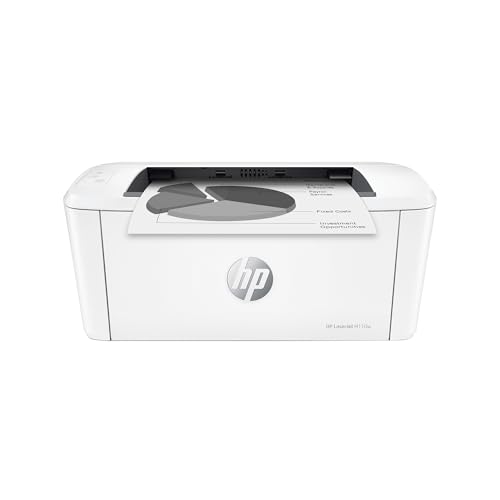
HP’s M110w states its case with unusual economy: monochrome, laser printer, fast black-and-white printing, mobile printing, wireless printing, fast printing. Speed is mentioned twice in one title, which tells you the pitch — this is the small LaserJet for people whose printing is urgent and textual: the boarding pass, the contract page, the form that must exist on paper in the next two minutes. In a Linux context, its stated wireless and mobile printing place it in the same driverless conversation as every networked pick here, with the same caveat carried in its spec box: the title says nothing about operating systems, and the documentation is where protocol specifics live.
What the title does not state is equally informative. No duplex is claimed, so two-sided printing is not part of this machine’s stated offer — the long-document household will feel that in paper. No scan or copy is claimed, because there is none: this is a printer in the strict sense. And no Ethernet is claimed; wireless carries the whole networking story. Read together, the M110w is the minimalist’s LaserJet — the smallest commitment in space, features and fuss that still delivers laser text — and minimalism is a legitimate philosophy for a second printer, a student’s room, a spare desk, or a household whose printing is genuinely occasional.
The Ubuntu angle for such a machine is worth one specific remark. Occasional printing is where driverless printing shines brightest, because there is no driver installation to have bit-rotted since the printer was last used six weeks ago: the machine sits on the network, CUPS sees it, the job prints. A rarely used printer that requires no maintenance of its software relationship with the computer is, for many Linux households, worth more than a faster machine with a more demanding one.
- Type: Monochrome laser printer, print-only
- Speed claim stated: Fast black-and-white printing
- Connectivity stated: Wireless printing
- Mobile printing stated: Yes
- Duplex: Not stated in the listing title — verify with the manufacturer documentation
- Operating system support: Not stated in the listing title — verify with the manufacturer documentation
Strengths
- Laser text at a stated fast pace, in the smallest commitment of machine in this guide.
- Wireless plus mobile printing keeps it inside the driverless printing model Ubuntu uses.
- A print-only design suits occasional, urgent document jobs without extra hardware.
Trade-offs
- No duplex is stated, so long documents print single-sided.
- No scan or copy functions exist to grow into.
- Wireless is the only stated network route — no Ethernet fallback for difficult Wi-Fi environments.
Best for: light, urgent, text-only printing from an Ubuntu household that wants laser output with minimal machinery. Not suited for: the long-document workflow, which needs the stated duplex of the Brother models.
View the M110w’s listing on Amazon in full: check price on Amazon.

Brother MFC-L2820DW — Full mono office set
The MFC-L2820DW completes Brother’s ladder: a wireless compact monochrome all-in-one laser printer with copy, scan and fax, and duplex, in black and white. Every document function the small office has ever asked of a machine is in that sentence. Print the invoice, scan the signed contract, copy the licence, fax the one organisation on Earth that still insists on fax — the MFC’s buyer is purchasing the end of a category of errands. For an Ubuntu-based office, that completeness has a particular value: one networked device to verify, one device to place, one device whose documentation answers all the protocol questions at once.
The title repeats its siblings’ riders — a Refresh subscription trial inclusion and Alexa compatibility — and adds the fax, which deserves its honest framing. Fax in 2026 is a legacy function with a stubborn afterlife in law, medicine, property and government, and offices in those orbits know exactly who they are. If your work never touches those orbits, the fax is inert ballast and the DCP-L2640DW above is the leaner buy. If it does, the MFC is the only Brother here that closes the question, and a single weekly fax justifies it entirely.
The Linux considerations mirror the DCP’s, amplified. Printing rides the driverless network model; scanning and faxing from the computer involve their own software paths, and the multifunction buyer should verify all of them in the documentation with the same care — a machine whose printing is effortless and whose scanning is an orphan helps an office only halfway. The spec box below keeps the guide’s discipline: operating-system support is not stated in the title, for this or any pick, and the verification step is part of the purchase, not an afterthought.
- Type: Wireless compact monochrome all-in-one laser printer
- Functions stated: Copy, scan and fax, plus print
- Duplex stated: Yes
- Output stated: Black and white
- Included note stated: Refresh subscription trial; works with Alexa
- Operating system support: Not stated in the listing title — verify with the manufacturer documentation
Strengths
- The complete document function set — print, copy, scan, fax — in one compact wireless machine.
- Duplex is stated, keeping long office documents paper-efficient by default.
- One networked device to place and verify simplifies the whole office’s Linux setup.
Trade-offs
- Fax hardware is wasted money for offices outside the legal, medical and government orbits.
- Scanning and fax software paths on Linux need the same documentation verification as printing.
- Monochrome only, like its siblings — colour remains another machine’s job.
Best for: a small Ubuntu office that wants every document function in a single networked laser. Not suited for: the fax-free household, which should take the leaner DCP and spend the difference on toner.
Check the MFC-L2820DW’s current Amazon listing: check price on Amazon.

HP LaserJet Pro 4001n — Ethernet workgroup pick
The 4001n’s title makes a network argument before it makes a printing one: monochrome, laser printer, fast black-and-white printing, mobile printing, Ethernet connectivity, fast printing. Ethernet is the headline a Linux administrator reads first. A wired printer sits at a fixed address on a stable connection, immune to the Wi-Fi weather that makes wireless printers vanish from discovery at inopportune moments, and in a shared office — several Ubuntu workstations, one printer — that stability is not a luxury. It is the difference between a print infrastructure and a print suggestion. The “Pro” in the name and the LaserJet line position this as the workgroup machine of the six: the one bought for a corridor, a department, a small team’s shared output.
Mobile printing is stated alongside the Ethernet, which is a combination worth pausing on: the machine serves the phone-carrying visitor and the wired workstation from the same driverless-minded design. For Linux purposes the wired path is the star — CUPS discovery over a wired network is as close to deterministic as printing gets — while the mobile capability covers the office’s other devices. What the title does not state should be noted with the usual care: no scan or copy (this is a printer), no duplex claim, and no wireless claim. A buyer whose office Wi-Fi is the network should register that the stated connection is Ethernet; the cable is the point.
Speed is claimed twice, as with the little M110w, but here it reads as throughput intent for shared duty: a workgroup printer’s queue is a social object, and a machine that clears it quickly keeps the peace. For the Ubuntu office outgrowing a desktop printer — more seats, more documents, more impatience — the 4001n is the step up that stays inside the same driverless model: wire it, let the network find it, and print.
- Type: Monochrome laser printer, print-only
- Connectivity stated: Ethernet, with mobile printing
- Speed claim stated: Fast black-and-white printing
- Line stated: LaserJet Pro
- Duplex: Not stated in the listing title — verify with the manufacturer documentation
- Operating system support: Not stated in the listing title — verify with the manufacturer documentation
Strengths
- Ethernet gives a shared Ubuntu office a fixed, stable, discoverable printer.
- LaserJet Pro positioning and stated fast output suit multi-seat document duty.
- Mobile printing covers the phones and tablets that share the office network.
Trade-offs
- Print-only: no scanning or copying for the office that needs them.
- No wireless is stated — placement is governed by the cable, deliberately.
- Duplex is unstated in the title, a real question for high-volume document offices.
Best for: small offices running Ubuntu workstations on a wired network that need one dependable shared laser. Not suited for: a home desk expecting Wi-Fi placement freedom and a scanner in the same box.
Inspect the LaserJet Pro 4001n listing on Amazon: check price on Amazon.

Epson EcoTank ET-4800 — Colour tank all-in-one
Every field needs its dissenter, and the ET-4800 is this one’s: a wireless colour all-in-one supertank printer — cartridge-free print, scan, copy and fax, up to 10 ppm, with an auto document feeder and Ethernet, aimed at home and small offices. In a guide of monochrome lasers, the Epson is the answer to the reader who has been nodding along and thinking: but my invoices carry a colour logo, my teaching materials are colour, my world is colour. The tank system makes that colour affordable to use — refillable reservoirs instead of cartridges, the running-cost model that rewards steady use — and the feature list around it is the fullest in this guide: the only ADF, the only fax outside the MFC, and Ethernet beside the wireless.
For the Linux user, the ET-4800’s networking is its compatibility argument, stated with the guide’s usual discipline: wireless and Ethernet are in the title, operating systems are not, and driverless verification belongs to the documentation. Colour adds a wrinkle worth naming — driverless printing handles colour negotiation as part of the same IPP conversation, but a colour-critical user should confirm the model’s driverless colour behaviour in documentation and early test prints, because colour is where “it printed” and “it printed right” part company. The stated speed, up to 10 ppm, marks this as a steady machine rather than a fast one; the lasers above will outpace it on text all day, which is precisely why the field is shaped as it is.
The feeder deserves its sentence: an ADF turns the scan side of a multifunction from a page-at-a-time ritual into a stack job, and for the small office digitising paperwork from Ubuntu workstations, that is the difference between a scanning habit and a scanning backlog. Combined with fax and Ethernet, the ET-4800 is the small office’s colour generalist — the machine for the Linux user whose documents refuse to be monochrome and whose desk has room for exactly one printer.
- Type: Wireless colour all-in-one supertank inkjet
- Functions stated: Print, scan, copy, fax
- Ink stated: Cartridge-free refillable tanks
- Feeder stated: Auto document feeder
- Connectivity stated: Wireless and Ethernet
- Operating system support: Not stated in the listing title — verify with the manufacturer documentation
Strengths
- The only colour machine here, with a tank system that makes colour economically usable.
- ADF, fax and Ethernet together form the fullest stated feature set in the guide.
- Dual networking — wireless and wired — gives placement and stability options no other pick matches.
Trade-offs
- Stated speed up to 10 ppm is steady, not fast; text volume belongs to the lasers.
- Colour accuracy over driverless printing deserves early test prints and documentation checks.
- An inkjet asks for regular use; a printer left idle for months is a laser’s use case, not a tank’s.
Best for: Linux households and small offices whose documents genuinely need colour, scanning stacks and fax in one networked machine. Not suited for: high-volume monochrome text production, where every laser in this guide is the sharper tool.
Review the ET-4800’s current listing on Amazon: check price on Amazon.
Comparison
| Printer | Engine | Functions | Networking stated | Duplex | Defining trait |
|---|---|---|---|---|---|
| Brother DCP-L2640DW | Mono laser | Print, copy, scan | Wireless | Stated | Compact document centre |
| Brother HL-L2460DW | Mono laser | Wireless | Stated | Focused print-only machine | |
| HP LaserJet M110w | Mono laser | Wireless | Not stated in title | Smallest, speed-pitched | |
| Brother MFC-L2820DW | Mono laser | Print, copy, scan, fax | Wireless | Stated | Complete mono office set |
| HP LaserJet Pro 4001n | Mono laser | Ethernet | Not stated in title | Wired workgroup stability | |
| Epson EcoTank ET-4800 | Colour inkjet tank | Print, scan, copy, fax | Wireless + Ethernet | Not stated in title | Colour, feeder, tank economy |
Every row shares the guide’s central condition: networking present, operating-system claims absent. Choose within the table by workload — text volume points to the lasers, colour points to the Epson, shared wired duty points to the 4001n — and then run the same verification on whichever row wins: open the manufacturer documentation, confirm driverless IPP printing and, for multifunction models, the network scanning arrangements, and only then buy.
How Does Driverless Printing Actually Work on Ubuntu?
The mechanics are friendlier than the acronyms. When a driverless printer joins a network, it advertises itself — Ubuntu’s printing system hears the advertisement, asks the printer what it can do, and receives a self-description: paper sizes, duplex ability, colour, resolution, the works. CUPS builds a print queue from that description on the spot. When you print, the job travels to the printer in a standard format the printer has declared it understands. At no point does a manufacturer driver enter the story, which is why the system’s reliability feels different from the old ritual: there is nothing installed to break, nothing versioned to expire, nothing downloaded to mistrust.
This is also why the purchasing advice in this guide sounds sideways. The old question — “does the manufacturer provide a Linux driver?” — has been replaced by a better one: “does this printer fully implement the driverless standards?” That question is answered by documentation and specification sheets, where terms like IPP Everywhere, AirPrint and Mopria live. Those names are cousins, not competitors: they are overlapping certifications and standards built on the same IPP foundation, which is why a printer certified for phone printing so often behaves beautifully with Ubuntu. The listing titles in this guide do not use those terms, which is exactly why the spec boxes send you to the documentation — the titles prove networking and intent; the documents prove protocols.
One boundary of the model deserves naming, because buyers trip over it: driverless printing is a network story. A printer connected by USB alone lives outside the discovery conversation, and the picks in this guide were chosen as network machines precisely so that no reader ends up owning a good printer connected the one way that forfeits the standard’s benefits. If a machine offers both — as several here may — the network connection is still the one to set up for an Ubuntu household, even when the printer sits beside the main computer and a cable would reach. The metre of convenience a USB cable appears to offer is repaid, with interest, the first time a second machine in the house needs to print and cannot. Network first is not purism; it is the architecture the entire modern arrangement assumes, from the phone in a visitor’s pocket to the laptop in the spare room.
Practical consequences follow for setup day. Put the printer on the same network as the Ubuntu machines. Give a shared printer a stable network identity — a reserved address — so discovery never becomes hide-and-seek. Add the printer through Ubuntu’s settings and print a test page before the old printer is retired. And keep the printer’s own firmware current through its built-in update path, because in the driverless world the printer’s half of the conversation lives in its firmware.
What About Scanning From Ubuntu?
Scanning needs separate treatment because it is the half of multifunction ownership where Linux users most often meet friction, and pretending otherwise would undo this guide’s honesty policy. Printing standardised around IPP early and well. Scanning standardised later and more patchily: network scanners speak through protocols and arrangements — including driverless scanning standards that have matured in recent years — whose support varies by manufacturer, model and Ubuntu release. A multifunction machine can therefore be a flawless driverless printer and a more complicated scanner, on the same network, on the same day.
The practical approach is unglamorous and effective. Before buying a multifunction for Ubuntu scanning duty — the DCP-L2640DW, the MFC-L2820DW or the ET-4800 are the three here — read the model’s documentation for its network scanning provisions and check that your Ubuntu version’s scanning stack speaks them. If the office’s scanning is occasional, remember the humble workarounds that always function: scan to a USB stick or a network folder from the machine’s own panel, then work with the files on Ubuntu, which asks nothing of any protocol. Many small offices run exactly that workflow for years without noticing it is one.
There is a comfort hidden in that workaround worth noticing: a multifunction machine whose panel can scan to a folder has, in effect, two independent scanning paths, and an office that sets up the folder path on day one owns a fallback that no software change on the Ubuntu side can take away. Belt and braces is not an admission of defeat in office equipment; it is how offices survive their own upgrades.
None of this indicts the multifunction picks; it locates the verification effort where it belongs. Print paths in this guide rest on a mature standard. Scan paths rest on a younger one. Buy the multifunction whose documentation answers both questions to your satisfaction, and the machine will serve both halves of the document triangle without drama.
Why Does Duplex Matter So Much on a Document Printer?
Because documents are long and paper is half their cost. A forty-page report, a contract with appendices, a term’s worth of lecture notes — printed single-sided, each consumes twice the sheets, twice the weight, twice the filing space. Duplex printing, stated for all three Brother models in this guide, removes that doubling automatically: the printer flips each sheet itself, the user does nothing, and the saving repeats on every job for the machine’s whole life. In the driverless model there is a second, quieter benefit — duplex is one of the capabilities the printer declares about itself during setup, so Ubuntu’s print dialogue simply offers it as an option, no driver settings archaeology required.
The absence of a duplex claim in a title deserves the same respect as its presence. The two HP models and the Epson do not state duplex, and this guide does not grant it to them. For a light printer of short documents, the omission barely registers — a two-page letter has no second side worth saving. For a machine bought to produce long documents daily, it should register heavily, and the buyer should either verify the truth in the documentation or choose one of the Brothers, whose titles settle the question outright. Features stated in titles are the ground this guide stands on; duplex shows why that ground matters in money, weekly, for years.
How Should a Linux Household Choose Between Laser and Tank?
Strip the question to behaviour. A laser is patient: toner waits indefinitely, the machine wakes after a month and prints a perfect page, and text — the overwhelming majority of Linux household printing — is its native art. A tank inkjet is economical in motion: colour flows cheaply, photographs and teaching materials and colour documents cost little per page, but the machine prefers regular exercise and sulks, mildly, through long idleness. The Ubuntu household printing documents in bursts separated by quiet weeks is describing a laser’s life. The household printing colour weekly is describing the ET-4800’s.
In a Linux home, the phrase “the printer” carries a slightly different meaning. Because driverless printing is a network service, one well-chosen machine genuinely serves every Ubuntu laptop, desktop and phone in the house — the era of the printer belonging to one computer is over. That raises the stakes of the single choice and argues for the multifunction when in doubt: the household that buys print-only saves money until the first scanned form is needed, and forms arrive for every household eventually. The ladder in this guide — print-only lasers at one end, the full-featured Epson at the other — is really a ladder of how many document jobs one networked box should absorb.
What Exactly Should You Check in the Documentation?
Since this guide sends you to the documentation six times, it owes you a precise account of what to look for when you get there. You are hunting for the model’s protocol story, and it hides in predictable places: the specifications page under “network protocols” or “printing protocols,” the network guide, and the page where the manufacturer lists its mobile printing certifications. The phrases that settle the question are the names of the driverless family — IPP, and the certification programmes built on it that manufacturers print as badges. A model whose documentation speaks that language fluently is a model Ubuntu will almost certainly print to without a driver. A model whose documentation speaks only of its own downloadable software merits a harder look and a support question before purchase.
Check the multifunction provisions with the same care if you are buying one of the three all-in-ones here. The documentation will describe how network scanning is offered — through which standard or application — and a few minutes matching that description against your Ubuntu release’s scanning support is the whole job. Check, too, the firmware update path: whether the printer updates itself over the network or through its panel, because driverless printing makes the printer’s firmware a living half of the system, and a model that updates gracefully is a model whose protocol support can only improve.
Finally, check the unglamorous physical facts the titles compress: paper capacity, the sizes the trays accept, and the duty the machine is built for, against your household’s honest volumes. None of the titles in this guide states those numbers, and this guide has not guessed them. The documentation holds them, and ten minutes there converts a hopeful purchase into a known one. That conversion — hope into knowledge — is the entire discipline this article has been arguing for, applied one last time to the paper tray.
How Did Linux Printing Get This Much Easier?
A short history explains the present tense. For decades, printing was a translation problem: every printer spoke a private dialect, and every operating system needed a driver — a translator — per model. Linux, with the smallest desktop share, got the fewest and stalest translators, and its users became connoisseurs of workarounds. The change came from an unlikely direction: the phone. When smartphones needed to print, they could not carry a library of drivers either, and the industry’s answer was to make the printer do the translating — to standardise on IPP and require the printer to describe itself and accept standard job formats. Linux, which had run its printing on the IPP-based CUPS all along, discovered that the phone’s revolution had quietly solved the desktop’s problem too.
The practical moral for today’s buyer is that a printer’s age and design philosophy matter more than its operating-system checklist. A recent networked model built for the mobile era — which describes every pick in this guide — was designed from birth for a world without drivers. An older model, or a bargain model built around a USB cable and a Windows installer disc, belongs to the previous world and will behave like it. Buy from the new world, verify its protocol story, and the rite of passage becomes a settings page and a test page.
Common Mistakes
Hunting for a “Linux driver” as the first move. On a modern Ubuntu, the driver hunt is usually the old ritual refusing to die. Start with the driverless question — does the model implement the standards, per its documentation — and let the answer, not a downloads page, govern the purchase. Machines bought for their driver packages age badly; machines bought for their standards age with the standard.
Treating a listing title’s silence as a promise in either direction. The titles here do not claim Linux support, and this guide has not claimed it for them. Silence is not a no — driverless printers routinely work beautifully with Ubuntu — but it is not a yes either. The documentation check is short, free and decisive. Skipping it to save ten minutes risks the entire purchase.
Verifying printing and forgetting scanning. The multifunction trap, covered above: an office that tests only the print path on setup day discovers the scan path’s character during its first urgent digitising job. Test both, on the actual Ubuntu machines, in the first week, while returning the machine is still a live option.
Putting a shared printer on flaky Wi-Fi and blaming Linux. Discovery problems that look like operating-system failures are usually network weather — a printer at the edge of coverage, dropping off the network between jobs. The Ethernet picks in this guide exist for exactly this situation, and even a wireless printer often behaves entirely differently when moved within honest range of the router.
Buying colour for a monochrome life, or the reverse. The reader who prints text and buys the colour tank pays in speed forever; the reader who prints teaching materials and buys a mono laser pays in workarounds forever. The workload audit — one honest week of noticing what the household actually prints — is worth more than any feature comparison, this one included.
How Should a Household Share One Printer Across Many Ubuntu Machines?
Treat the printer as network infrastructure, because in the driverless era that is literally what it is. One machine, placed centrally, connected by the most stable route available — Ethernet where the wiring allows, strong Wi-Fi where it does not — serves every laptop and desktop in the house through discovery alone. There is no print server to maintain and no host computer that must be awake for others to print, a liberation older households will appreciate: the printer’s availability no longer depends on Dad’s desktop being switched on.
A few habits keep the shared arrangement graceful. Reserve the printer a fixed network address at the router, so its identity survives reboots and its discovery is instant. Name it something the household understands when the print dialogue lists it. Keep its paper and toner stocked as a household chore rather than a personal one — shared machines fail socially before they fail mechanically, usually at an empty tray everyone assumed someone else had filled. And when a second machine eventually joins — a colour tank beside a mono laser is the classic pairing, and this guide contains both — the same discovery model absorbs it without ceremony: two printers in the dialogue, each chosen by the job, documents to the laser and colour to the tank.
That pairing, in fact, is where many Linux households end up, and the six picks here were chosen partly so that the destination is visible from the start. The Brother ladder covers text at every level of function; the Epson covers colour; the HP pair covers the wired office and the urgent corner. A household can begin anywhere on that map and grow along it without ever leaving the driverless model that makes Ubuntu printing, at last, a non-event.
Final Recommendation
For the typical Ubuntu home office, the Brother DCP-L2640DW is the balanced answer: wireless, duplex, print-copy-scan, a laser’s patience, in a compact body. Step down to the HL-L2460DW if printing is truly all you do, up to the MFC-L2820DW if fax still walks your corridors, and across to the HP LaserJet Pro 4001n if the office is wired and shared. Take the little M110w for light, urgent text. Take the Epson EcoTank ET-4800, without hesitation, if colour is real work in your house. And whichever name you choose, perform the guide’s one ritual before money moves: open the documentation, confirm the driverless printing story in the manufacturer’s own words, and confirm the scan path if you are buying one. Ubuntu printing in the driverless era is genuinely pleasant — the ritual is how you make sure your printer is part of that era.
Frequently Asked Questions
Do I need to install drivers to print from Ubuntu?
For a printer that implements driverless IPP printing, no — Ubuntu’s CUPS system discovers the printer on the network, reads its self-described capabilities and prints, which is the model this whole guide is built around. That is why networking and mobile printing feature so heavily in the picks, and why each model’s documentation should be checked for its driverless provisions before purchase.
Why doesn’t this guide just say which printers support Linux?
Because the listing titles — the verified facts available for these six machines — do not say it, and this site does not print claims it cannot source. What can be said truthfully is stronger than a rumour anyway: driverless standards have made network printing on Ubuntu a property of the printer’s protocol support, and the documentation for each model settles that question definitively.
Is wireless or Ethernet better for an Ubuntu printer?
Both ride the same driverless model. Wireless wins on placement freedom — the printer lives where the room wants it. Ethernet wins on stability and fixed identity — the printer is always at the same address, always discoverable, which is why the shared-office pick, the LaserJet Pro 4001n, leads with it. Difficult Wi-Fi environments should choose Ethernet and never think about printing again.
Does the brand matter for Linux printing?
Less than it used to, and less than the workload does. In the driver era, brand decided everything, because the driver was the product. In the driverless era, the protocol support is the product, and it is verified per model in documentation rather than assumed per brand. The three brands here each field credible networked machines; the honest differences among the six picks are functions, engines and connections — duplex here, Ethernet there, colour in exactly one place — and those, not the badge, should drive the choice.
Will these printers also work with phones and other systems?
Mobile printing is stated in five of the six titles, and the driverless standards underneath modern printing are shared across platforms — the same IPP foundation serves phones, tablets and other desktop systems. A networked printer bought well for Ubuntu is, in practice, a printer for the whole household’s devices, which is one of the quiet triumphs of the standards era.
My old printer needed a downloaded driver. What changed?
The industry moved the intelligence into the printer. Phones could not install drivers, so printers learned to describe themselves and accept standardised jobs over IPP — and Ubuntu, whose CUPS system was already built on IPP, inherited the benefit wholesale. A current networked printer, verified for driverless support in its documentation, sets up from Ubuntu’s settings with no downloads at all. The old ritual survives only for old hardware and USB-era designs, which is why this guide’s field is entirely networked, mobile-era machines.
What should I do on setup day?
Connect the printer to the network first, by cable for the Ethernet models or Wi-Fi for the rest. Reserve it a stable address if it is shared. Add it from Ubuntu’s printer settings, print a test page from every machine that will use it, and — for multifunction models — run one test scan through the path you intend to use. Ten unhurried minutes on setup day is the entire maintenance burden of the driverless model when it works as designed.
Related Guides
Linux users building out a small office will find the large-format companion in our guide to printers for an architecture office, where plotters handle drawings at architectural scale. Photographers in the studio should read our roundup of fine art giclée printers for the pigment end of the printing world. And households standardising on Apple devices alongside their Ubuntu machines can compare notes with our guide to printers for Mac, iPhone and iPad, where the same driverless philosophy wears Apple’s colours.
Related guides
- Best 3D Mechanical Engineering Laptops: Certified Workstations for CAD and Simulation
- Best Tattoo Printers: Thermal Stencil Machines for Clean, Lasting Transfers
- Best 15 Laptops Under $1000: Six 15-Inch Machines That Spend the Budget Honestly
- Best Battery NiMH Chargers: Six Units That Understand the Chemistry