What's inside
- Key Takeaways
- Quick Picks
- How Did We Choose These Affordable Wi-Fi Printers?
- What Is the Difference Between Wi-Fi Direct and Printing Over Your Home Network?
- The Six Best Affordable Wi-Fi Printers, Reviewed in Detail
- How Do the Six Picks Compare on Wireless and Function?
- How Do You Set Up a Wi-Fi Printer Without the Usual Frustration?
- What Should You Do When a Wireless Printer Drops Off the Network?
- How Does Guest Printing Work Without Sharing Your Password?
- How Do Wi-Fi Printers Behave in a Mesh-Network Home?
- What About Chromebooks and School-Issued Devices?
- Which Wireless Setup Suits a Dorm Room or a First Flat?
- How Do You Keep a Shared Printer Orderly in a Busy House?
- What Should You Check Before You Buy for a Weak-Signal Home?
- How Does Printing From Another Location Work?
- What Does a Good Wireless Printing Routine Look Like Day to Day?
- How Should You Choose Between the Inkjets and the Lasers Here?
- How Long Should a Wi-Fi Printer Last, and What Ages First?
- What About Printing Photos and Labels Over Wi-Fi?
- What Mistakes Do Buyers Make With Wi-Fi Printers?
- Final Recommendation
- Frequently Asked Questions
- Related Guides
As an Amazon Associate I earn from qualifying purchases. This post may contain affiliate links at no extra cost to you.
widgetverdict.com is reader-supported. When you buy through links on our site, we may earn an affiliate commission.
Where to buy: Use the Amazon listings linked from the Quick Picks table and from each detailed review to buy any of these six. All are current models whose wireless features are fully supported by their makers’ current apps.
The best affordable wifi printers all promise the same miracle — print from any phone, tablet or laptop in the house, no cable, no ceremony — and they deliver it in two importantly different ways that most listings blur together. A printer joined to your home network becomes a shared household appliance: every device on that network can find it, all day, whether or not anyone is standing near it. A printer using Wi-Fi Direct instead broadcasts its own little network, and your phone joins the printer itself for the length of a job. The first model suits a home; the second suits a dorm room, a site cabin or a house where the router is someone else’s. This guide separates the two honestly for every pick, because choosing the wrong wireless model is the commonest reason affordable printers get returned.
The six machines below span the real budget field: two Canon inkjet all-in-ones, an Epson tank printer for cheap colour at volume, an HP office inkjet with dual-band Wi-Fi, and two Brother monochrome lasers for people whose printing is documents and whose patience for ink is short. Every one connects wirelessly; they differ in how, in what the connection lets the household do, and in the running costs that follow the purchase. Read the wireless sections as carefully as the printer sections — in this category, the network is half the product.
Key Takeaways
- Network Wi-Fi makes a printer a shared household appliance; Wi-Fi Direct makes it a personal one your phone visits.
- All six picks support proper home-network Wi-Fi, and most also offer a direct mode for guests or router-free rooms.
- Dual-band Wi-Fi on the HP helps in crowded apartment networks; the Brothers and Epson add Ethernet as a permanent cure.
- Placement within honest range of the router matters more than any wireless specification.
- Monochrome laser picks remove ink anxiety for document households; inkjets keep colour and photos in play.
- Setup through the maker’s app takes minutes — the failures are nearly all password and placement problems, and both are fixable before the printer leaves the shop in your head.
Quick Picks
| Printer | Badge | Why it made the list |
|---|---|---|
| Canon PIXMA TS7720 | Best family Wi-Fi all-in-one | Easy network setup, AirPrint and Mopria, in a compact colour all-in-one. |
| Epson EcoTank ET-4800 | Best Wi-Fi tank printer | Network Wi-Fi plus Ethernet backup and tank ink for a whole household. |
| Brother DCP-L2640DW | Best Wi-Fi mono all-in-one | Laser documents, scanning and copying, with dual-band wireless. |
| Brother HL-L2460DW | Best budget Wi-Fi laser | Print-only monochrome laser with wireless and duplex at the lowest commitment. |
| HP OfficeJet Pro 9125e | Best for busy shared homes | Dual-band Wi-Fi, Ethernet and office speed for several simultaneous users. |
| Canon PIXMA TR8620a | Best Wi-Fi home-office Canon | Document feeder, Ethernet fallback and full wireless printing in one desk machine. |
How Did We Choose These Affordable Wi-Fi Printers?
Wireless performance was the entry ticket, judged the way households experience it rather than the way specification sheets describe it. We favoured printers whose setup runs cleanly from a phone app, whose connections survive a router reboot without manual rejoining, and whose makers state plainly which wireless modes are on board. A printer that drops off the network weekly is not a wireless printer in any sense that matters, whatever its box claims, so reliability of the connection counted ahead of exotic features.
We also insisted on a genuine choice of printing economics. Wireless convenience is now universal, so the interesting differences are the familiar ones: cartridge inkjets for colour and photographs at low volume, a tank inkjet for colour at household volume, and monochrome lasers for document households that want to stop thinking about ink entirely. Each pick owns one of those positions, and the two Brothers exist because the cheapest reliable wireless printing in the world is a mono laser printing text.
Finally, we checked the escape hatches. Homes have dead spots, routers get replaced, and guests arrive with laptops. Printers that add Ethernet, USB or a direct wireless mode give their owners a way through every one of those situations, and five of the six picks offer at least one such fallback. The guide notes them per model, because the day the Wi-Fi misbehaves is the day those ports stop looking like old-fashioned extras.
What Is the Difference Between Wi-Fi Direct and Printing Over Your Home Network?
When a printer joins your home network, it receives an address from your router like any other device, and it stays reachable: a laptop upstairs, a phone in the kitchen and a tablet in the garden can all send it jobs, and those jobs queue politely while the printer sits in a cupboard or a study. This is the arrangement family life assumes. The printer is simply there, the way the fridge is there, and printing becomes a tap rather than a task. All six picks in this guide work this way, and for a settled household it is the mode to set up first and use forever.
Wi-Fi Direct removes the router from the story. The printer advertises its own network name, your phone or laptop connects to that network, and the job passes directly between the two devices. The strengths are real: it works in a dorm room where the campus network forbids shared printers, in a rental where the router password is unknown, in a workshop or site office with no network at all, and for a guest whose phone you do not want on your home network. Its costs are equally real: while your phone is joined to the printer’s network it usually loses its normal internet connection, only one device prints at a time, and every new user must perform the joining ritual for themselves.
Most of these printers offer both modes, and the wise setup uses each for its purpose: network mode as the household default, direct mode as the traveller’s and the guest’s fallback. Confusion between the two explains a large share of one-star reviews for perfectly good printers — a machine set up in direct mode appears to “keep disconnecting” a household that expected network behaviour. Decide which household you are before setup, and the printer will match your expectation instead of fighting it.
The Six Best Affordable Wi-Fi Printers, Reviewed in Detail

Canon PIXMA TS7720 — Best family Wi-Fi all-in-one
The TS7720 is the wireless printer we recommend to families who want the network question to disappear. Canon’s setup flow walks the printer onto the home Wi-Fi from its touchscreen or the phone app, after which every Apple device in the house finds it through AirPrint and every Android through Mopria or Canon’s app, with no per-device ceremony. In a living-room corner it prints homework, photographs and the week’s forms from whichever handset is nearest, and its compact body makes that corner easy to find.
As a printer it is the friendly all-rounder of our inkjet guide: colour printing with borderless photographs up to letter size, scanning and copying, automatic two-sided printing, and a rear tray that keeps photo paper ready beside the plain-paper cassette. Its wireless is single-band, which is fine on a typical home network and only becomes a conversation in unusually crowded apartment airspace. Cartridge running costs suit family volumes rather than office ones. For the household whose requirement is “everyone can print, nobody administers anything”, this is the benchmark the others are measured against.
- Type: Colour inkjet all-in-one
- Wireless: Home-network Wi-Fi with AirPrint and Mopria
- Functions: Print, scan and copy
- Duplex: Automatic two-sided printing
- Paper: Cassette plus rear feed for photo paper
Strengths
- Setup and everyday printing are the simplest here for families.
- Every phone platform prints without extra software on Apple devices.
- Compact enough for a living-room shelf near the router’s strong zone.
Trade-offs
- Single-band Wi-Fi only; no Ethernet fallback.
- No document feeder for multi-page scanning.
- Cartridge costs suit family, not office, volumes.
A word on range in practice: in a typical flat or a modest house, the TS7720 holds its connection through the ordinary walls and floors of family life, and its jobs arrive from the garden on a good day. Place it in the same half of the home as the router and wireless simply stops being a topic, which is the outcome this pick exists to deliver.
Best for: Families wanting one wireless printer everyone can use without help. Not suited for: Homes needing a wired fallback or heavy scanning.

Epson EcoTank ET-4800 — Best Wi-Fi tank printer
The ET-4800 brings tank economics to the shared-network printer. Once it is on the home Wi-Fi — with Ethernet waiting as a wired alternative for a printer placed beyond comfortable wireless range — the whole household prints colour without the background arithmetic of cartridges. The ink in the box is measured in thousands of pages, the refill bottles are cheap, and the printer includes a document feeder and fax for the paperwork side of family life.
Its wireless behaviour is workmanlike: Epson’s app handles setup and remote printing, and the printer can also accept jobs by email-style remote services for the relative who needs to send a document to your hallway from another city. The compromises are pace and finish. It is the slowest printer in this guide, its two-sided printing is manual, and its small button-driven display feels plain beside the touchscreens. None of that matters at midnight when three children need worksheets and the ink gauge reads, in effect, “plenty”. For a high-volume household, that gauge is the feature.
- Type: Colour supertank all-in-one
- Wireless: Home-network Wi-Fi; Ethernet also fitted
- Functions: Print, scan, copy and fax
- Document feeder: 30 sheets
- Duplex: Manual two-sided printing
Strengths
- Tank ink makes shared family printing effectively unmetered.
- Ethernet port solves placement beyond good Wi-Fi range.
- Document feeder included at the tank range’s entry point.
Trade-offs
- Slowest engine in this guide.
- Manual duplex and a basic display.
- Photo quality is family-grade rather than enthusiast-grade.
The ET-4800 also illustrates a quieter wireless virtue: indifference. Because its ink lasts so long and its connection, once established, asks for nothing, months pass in which the household’s only interaction with it is paper. Printers that need no administration are the ones still in service in year four, and the Epson’s combination of tank and network makes it the lowest-maintenance colour machine in this guide.
Best for: Busy households printing colour weekly from many devices. Not suited for: Deadline-driven home offices or photo specialists.

Brother DCP-L2640DW — Best Wi-Fi mono all-in-one
The DCP-L2640DW is the document household’s wireless answer. It is a monochrome laser all-in-one — print, scan and copy, no colour anywhere in its life — and its wireless is dual-band, which gives it an easier time on modern routers and crowded networks than single-band rivals. Toner cartridges last for thousands of pages, the machine wakes and prints a first page while an inkjet is still preparing, and two-sided printing is automatic. For contracts, school documents, forms and the general paper traffic of an organised home, it is close to invisible infrastructure.
Brother’s mobile app handles scanning to a phone and printing from cloud storage with a minimum of fuss, and the printer also offers a direct wireless mode for guests and a USB connection for the one computer that lives beside it. The limits are the deliberate ones: no colour means no photographs, no school-project posters in colour, no exceptions — a household that needs those keeps an inkjet in its life too, or chooses a different pick from this page. Judged on its own brief, documents over Wi-Fi at the lowest cost per page here, it is the most rational purchase in the guide.
- Type: Monochrome laser all-in-one
- Wireless: Dual-band Wi-Fi, direct mode and USB
- Functions: Print, scan and copy
- Duplex: Automatic two-sided printing
- Consumable: High-yield toner options available
Strengths
- Dual-band wireless plus direct mode covers home and guest use.
- Laser speed and toner yields minimise cost and waiting.
- Scanning and copying included, unlike the print-only Brother below.
Trade-offs
- Monochrome only — no colour documents or photographs.
- Plain, businesslike design and display.
- Not the tool for creative or photo work of any kind.
Its scanning deserves a sentence in a wireless guide, because scan-to-phone is where the DCP quietly replaces a whole category of errands. A signed page lands in the Brother app, becomes a tidy PDF, and leaves by email or message within a minute of the pen leaving the paper — a workflow that used to require a computer, a cable and a free afternoon’s patience.
Best for: Document-heavy homes and home offices printing text daily. Not suited for: Any household that prints photographs or colour schoolwork.

Brother HL-L2460DW — Best budget Wi-Fi laser
Strip the all-in-one down to printing alone and you get the HL-L2460DW: the cheapest way in this guide to put fast, wireless, two-sided monochrome printing on a home network. It shares the DCP’s laser virtues — quick first pages, generous toner yields, automatic duplex, a compact body that fits a shelf — and adds nothing you did not ask for. There is no scanner because its buyer already decided documents flow one way in their house: out of the computer, onto paper, into the envelope or the folder.
Brother positions it with its Refresh toner subscription in some bundles; as with every subscription in this guide, read the terms and choose deliberately, because the printer is equally happy with ordinary cartridges bought when needed. Wireless setup runs through Brother’s app or the printer’s own panel, and a direct mode covers the guest-with-a-laptop case. For a student flat, a spare-room office or a household adding a document printer beside an existing colour machine, it is the value pick of this entire roundup.
- Type: Monochrome laser printer (print only)
- Wireless: Wi-Fi with direct mode; USB also fitted
- Duplex: Automatic two-sided printing
- Paper: Generous tray for its class plus manual feed slot
- Consumable: Standard and high-yield toner cartridges
Strengths
- Lowest-cost route to fast wireless laser printing.
- Automatic duplex at a print-only price.
- Compact, quiet and undemanding to place.
Trade-offs
- No scanning or copying at all.
- Monochrome only, permanently.
- Subscription bundles need a careful read before acceptance.
Students should note its party trick for deadline season: because a laser holds no liquid ink, the HL-L2460DW can sit untouched through a whole vacation and print perfectly on the first morning back, at full speed, while an inkjet in the same flat is running cleaning cycles. For bursty academic printing, that readiness is worth more than any colour feature.
Best for: Text-only households and second-printer duties. Not suited for: Anyone who scans forms or prints in colour.
HP OfficeJet Pro 9125e — Best for busy shared homes
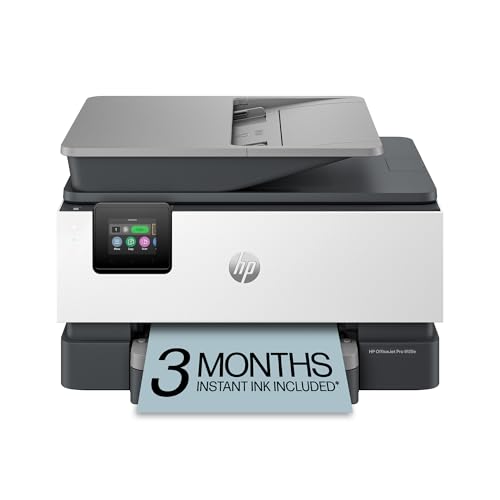
When several people print at once, wireless stops being a convenience feature and becomes traffic management, and the 9125e is built for traffic. Its Wi-Fi is dual-band, so it can sit on the faster, less crowded band of a modern router while older devices crowd the other; it adds Ethernet for a fixed installation; and its print engine clears pages at office speed, so a queue of jobs from three laptops drains instead of accumulating. The 250-sheet tray and document feeder complete the shared-office brief.
HP’s app is the most ambitious here, with scan-to-cloud and shortcut workflows that a small business will genuinely use, and the printer’s pigment inks produce documents that survive highlighter pens and damp noticeboards. The “e” programme’s ink subscription offer arrives with the machine; treat it as an option to evaluate on your page counts, not a default to accept during setup. Choose the 9125e when the household’s printing resembles a small office’s — several people, daily volume, no tolerance for waiting — and its wireless polish will justify itself every week.
- Type: Colour inkjet all-in-one
- Wireless: Dual-band Wi-Fi; Ethernet and USB also fitted
- Functions: Print, scan, copy and fax
- Paper: 250-sheet tray plus document feeder
- Duplex: Automatic two-sided printing
Strengths
- Dual-band wireless and Ethernet suit busy, multi-user homes.
- Fastest printing in this guide.
- App workflows handle scan-to-cloud without a computer.
Trade-offs
- Largest and most office-like of the inkjets here.
- Subscription offers during setup need deliberate decisions.
- Photo printing is capable rather than its purpose.
Its wireless manners extend to how it handles failure: jobs queue visibly in the app, a paper-out pause holds the line rather than scattering it, and the printer rejoins the network after a router restart without being reintroduced. In a house where printing is infrastructure, those behaviours are the difference between a tool and a colleague.
Best for: Shared home offices with several daily users. Not suited for: Solo users or the smallest desks and budgets.

Canon PIXMA TR8620a — Best Wi-Fi home-office Canon
The TR8620a is the TS7720’s formula completed for a working desk: the same approachable wireless printing, plus a 20-sheet document feeder, Ethernet for a permanent wired berth, and a five-ink system whose pigment black keeps documents crisp. On the home network it behaves like its sibling — AirPrint and app printing from every device — while the wired option quietly removes wireless from the equation entirely for the desk it lives on, which is sometimes the most reliable wireless strategy of all.
It prints borderless photographs up to letter size from its rear feed, scans stacks through the feeder, and keeps a fax modem for the offices that still ask. Its running costs are cartridge-shaped, so a heavy-printing household should compare the EcoTank’s arithmetic before committing. But for the single-desk home office that prints, scans and occasionally photographs, the TR8620a is the most complete wireless citizen in Canon’s affordable line, and its dual personality — network printer by Wi-Fi or by wire — makes it the easiest pick here to place anywhere in the house.
- Type: Colour inkjet all-in-one with fax
- Wireless: Wi-Fi with AirPrint; Ethernet and USB also fitted
- Functions: Print, scan, copy and fax
- Document feeder: 20 sheets
- Duplex: Automatic two-sided printing
Strengths
- Wi-Fi or Ethernet — placement freedom the others cannot all match.
- Feeder, fax and photo printing in one desk machine.
- Pigment black keeps shared documents sharp.
Trade-offs
- Cartridge costs at sustained office volumes.
- Feeder is light-duty; fragile originals belong on the flatbed.
- Bigger footprint than the family PIXMA.
There is also a longevity argument for its dual connectivity. Wireless standards will change twice in this printer’s working life; routers will come and go. The Ethernet port is indifferent to all of it, and a machine that can always fall back to a cable is a machine whose useful life is set by its mechanics rather than by the fashion in radio standards.
Best for: Home offices wanting one wireless machine for documents, scans and photos. Not suited for: Very high-volume printing or minimal desks.
How Do the Six Picks Compare on Wireless and Function?
| Printer | Type | Wi-Fi | Wired option | Scans |
|---|---|---|---|---|
| Canon PIXMA TS7720 | Colour inkjet | Yes | USB | Yes |
| Epson EcoTank ET-4800 | Colour tank inkjet | Yes | Ethernet, USB | Yes |
| Brother DCP-L2640DW | Mono laser | Dual-band | USB | Yes |
| Brother HL-L2460DW | Mono laser | Yes | USB | No |
| HP OfficeJet Pro 9125e | Colour inkjet | Dual-band | Ethernet, USB | Yes |
| Canon PIXMA TR8620a | Colour inkjet | Yes | Ethernet, USB | Yes |
The wired-option column is the one buyers overlook and owners appreciate, usually on the specific afternoon when the router is replaced, the password changes, or the far bedroom’s signal finally gives up — the three ordinary disasters of home networking, each of which a cable quietly renders irrelevant. A printer that can fall back to Ethernet or USB never becomes unusable because a router changed, a password rotated or a room’s signal faded — and in a house where printing matters, that insurance is worth more than a small speed advantage.
How Do You Set Up a Wi-Fi Printer Without the Usual Frustration?
Ninety percent of setup pain is preparation-shaped. Before you begin, know your exact network name and password — typed, not remembered approximately — and stand the printer where it will live, within honest range of the router, because setting it up beside the router and then moving it to a dead spot manufactures the classic “worked yesterday” fault. Install the maker’s app on the phone you use most, and let the app drive: modern setup flows find the printer, hand it the network credentials and confirm the join in a few minutes.
After setup, print once from every device the household actually uses — both phone platforms, the family laptop, the work machine if policy allows — because each platform discovers network printers slightly differently and it is better to learn that on a calm afternoon than during a deadline. Print the printer’s network information page and file it; it records the machine’s network name and address, the two facts every future troubleshooting session starts from. When the router is eventually replaced, keep the same network name and password on the new one and every printer in the house will rejoin without being touched — the single most valuable trick in home networking.
What Should You Do When a Wireless Printer Drops Off the Network?
Work from the wall outward. Confirm the printer is awake and shows itself connected on its own display; a sleeping printer with a weak signal is the commonest phantom fault. Restart the printer, then the router if the printer still sulks — dull advice that resolves the majority of cases because it forces a fresh negotiation between the two. Check distance and obstacles with fresh eyes: the metal filing cabinet installed last month between router and printer is a more likely culprit than any software.
If drops persist, change the printer’s circumstances rather than its settings. Move it a metre in any direction, since wireless dead spots can be that small; switch it to the other frequency band if it is dual-band; or accept the room’s verdict and use the Ethernet or USB fallback your pick provides. Reserve factory resets and driver reinstalls for last, because they destroy the configuration that was working and replace a signal problem with a setup project. In our experience of this category, persistent wireless trouble is placement trouble wearing a disguise, and the cure is almost always physical.
How Does Guest Printing Work Without Sharing Your Password?
Every household with a network printer meets the guest problem: a visiting grandparent with boarding passes, a teenager’s friend with homework, a lodger with a form. Handing over the home Wi-Fi password to solve it trades a printing favour for permanent network access, which is a poor bargain. This is where the direct modes on the Brother models and the guest-friendly features across the range earn their keep — the guest’s phone joins the printer, prints, and leaves, without ever touching your network.
AirPrint and Mopria offer a middle path for guests already on your network for other reasons: no app install, no driver, the printer simply appears in their print menu. If your router offers a guest network, note that a printer on the main network is usually invisible to devices on the guest one — a security feature that feels like a fault at the worst moment. Decide your household’s guest policy before the first visitor asks, set up the direct mode once, and the favour becomes a thirty-second kindness instead of an IT consultation.
How Do Wi-Fi Printers Behave in a Mesh-Network Home?
Mesh systems have quietly solved the problem that used to define this category. Where a single router left the far bedrooms in weak-signal territory, a mesh node in the hallway gives the printer a strong local signal almost anywhere in the house, and the printer neither knows nor cares which node it is talking to. If your household runs a mesh network, placement freedom is effectively yours: put the printer where the paper workflow wants it — near the desk, the homework table, the envelopes — rather than where the signal dictates.
Two mesh quirks are worth knowing. Some mesh systems merge their frequency bands under one network name and steer devices between them; printers occasionally cling to a distant node after being moved, and a simple power-cycle persuades them to attach to the nearer one. And in very large homes, a printer placed beside a node can use that node’s Ethernet socket on models that offer one, gaining wired stability at a wireless location. Neither quirk is a reason against mesh; both are five-minute knowledge that saves a support call.
What About Chromebooks and School-Issued Devices?
School laptops changed home printing more than any printer feature of the last decade. Chromebooks print to network printers that speak the standard protocols these six all support, and in practice the Canon, Epson, HP and Brother models appear in a Chromebook’s print menu once they share its network, with no driver hunt. The friction, when it comes, is administrative rather than technical: a school-managed device may restrict which printers it will use, and a household can do everything right and still be overruled by a policy set in a district office.
The practical household pattern is to keep one adult phone or laptop as the known-good printing path for schoolwork emergencies, and to let children print from their own devices in calm times so the workflow is rehearsed before it is urgent. A printer with a document feeder — the ET-4800, the TR8620a, the HP, the DCP Brother — also becomes the scanner for the worksheets that must be photographed or scanned back to a teacher, which is now half of what school printing means.
Which Wireless Setup Suits a Dorm Room or a First Flat?
Shared and institutional networks invert the usual advice. A dorm network typically isolates devices from each other for security, so a printer joined to it cannot be reached by your own laptop — the network is doing its job. This is Wi-Fi Direct’s home ground: the printer lives on its own tiny network, your phone and laptop visit it per job, and no administrator’s permission is required. Both Brother lasers and the Canons handle this pattern gracefully, and the print-only HL-L2460DW is the classic student purchase for exactly this reason.
In a first flat with your own router, return to the network model and set the printer up properly from day one; the direct mode then retires to guest duty. The flat’s real constraint is usually space and noise rather than signal, which argues for the compact TS7720 or the shelf-sized Brother over the office-shaped HP. Either way, the student who learns the direct-versus-network distinction in their first term is equipped for every printer they will meet in shared houses and offices afterward.
How Do You Keep a Shared Printer Orderly in a Busy House?
A network printer is a shared resource, and shared resources need light governance. Agree on paper: the tray holds plain paper, photo paper lives in the rear feed or a labelled drawer, and whoever loads specialty stock removes it after their job, because the next person’s essay printed on glossy paper at photo ink settings is a household story nobody enjoys twice. Agree on ink and toner the same way — one spare set in the house, bought by whoever notices the low warning, from a note kept on the fridge with the exact cartridge code written on it.
Use the printers’ own tools. Job queues can be viewed and cleared from the apps, quiet hours can be set on most models so a flatmate’s midnight printing does not echo through a thin wall, and the HP’s shortcuts can standardise the scans everyone repeats. None of this needs a family meeting; it needs five minutes of defaults set once by the person who unboxed the machine, which is the real job description of whoever buys the printer.
What Should You Check Before You Buy for a Weak-Signal Home?
Stand where the printer will live and look at your phone’s Wi-Fi indicator; then run a speed test there, not because printing needs speed but because the result reveals the truth about that corner. If the signal is marginal, your options in order of preference are: move the printer, add a mesh node or extender, choose a pick with Ethernet and run or already have a cable path, or accept direct mode as the daily pattern with its one-device-at-a-time rhythm. All four are legitimate; the mistake is buying first and investigating afterward.
Construction matters more than distance. Brick, foil-backed insulation, metal shelving and large appliances all eat signal, and a printer can be five metres from a router and effectively deaf if a chimney breast stands between them. The models with the strongest practical reputations in awkward houses are the ones with wired fallbacks — the Epson, the HP and the TR8620a on Ethernet, the Brothers on USB for a fixed desk — which is why this guide treats the humble cable as a wireless feature. In a weak-signal home, the best Wi-Fi printer is the one that does not depend on Wi-Fi alone.
How Does Printing From Another Location Work?
Every maker here offers some route to sending a job to your printer while you are away from home, routed through the maker’s cloud service to the printer waiting on your network. The uses are narrower than the marketing suggests but genuinely sweet when they land: the grandparent who prints a colouring page into the grandchildren’s hallway from another city, the partner who sends the shopping list to the kitchen printer from the train, the small-business owner who prints the morning’s orders at the workshop before arriving. Setup is a one-time act of registering the printer with the service and choosing who is allowed to send to it.
Keep the permissions tight. A printer reachable from the internet should accept jobs only from named accounts, because an open endpoint invites prank printing at best and paper-and-ink vandalism at worst. Treat the feature like a doorbell rather than a door: delightful when the right people ring it, firmly closed to everyone else. For most households it will be used a dozen times a year and talked about fondly each time, which is a perfectly good return on ten minutes of setup.
Note the dependency honestly: remote printing needs the internet working at both ends and the printer awake or wakeable at home. A printer in deep sleep behind a router that has dropped its connection cannot receive anything, so households that adopt the feature tend to leave the printer in its low-power standby rather than switching it off at the wall — a habit modern printers are designed for and one that also keeps their network presence stable for everyone at home.
What Does a Good Wireless Printing Routine Look Like Day to Day?
In a settled household, printing dissolves into the background, and the routine is mostly invisible: the phone’s share sheet offers the printer, the job appears, the paper is collected on the way past. The habits that keep it invisible are small. Leave the printer in standby so it is always present on the network. Keep paper loaded and one spare ink or toner set in the house. Print the occasional colour page on inkjets so nozzles stay exercised. Let the printer’s firmware update when it offers, since wireless fixes arrive that way.
The visible moments are the rituals: the Sunday-evening homework run, the holiday boarding-pass check, the form signed and scanned back within the hour. A well-chosen wireless printer makes each of those a two-minute errand, and the measure of this category’s success is how little any of it is discussed. Families argue about printers that make themselves a topic; the six machines here were chosen to stay out of the conversation.
When something does go wrong, the household that printed the network information page at setup and kept the maker’s app installed solves it in minutes. Everyone else starts from a search engine. That asymmetry — ten calm minutes at setup against an hour of archaeology later — is the truest sentence in this guide, and it applies to whichever pick you take home.
How Should You Choose Between the Inkjets and the Lasers Here?
Strip the wireless features away — they are comparable across the six — and the old question remains: what do your pages look like? Colour, photographs and the children’s projects point to the inkjets, with the tank Epson owning volume and the Canons owning ease. Documents, forms and text at any volume point to the Brother lasers, whose toner economics and indifference to idle months make them the lowest-effort printers in this guide. The HP sits between the camps as the fast colour machine for a working household that prints documents in colour daily.
Many homes, honestly assessed, need one of each kind across a decade, and a wireless network makes that partnership painless: two printers can share the network, the house sends photographs to one and paperwork to the other, and neither machine’s compromises are ever exposed. If the budget allows only one today, buy for the printing you do weekly rather than the printing you imagine, and let the second machine arrive when the first one’s limits have been demonstrated by real life rather than predicted by a review.
How Long Should a Wi-Fi Printer Last, and What Ages First?
The mechanics of these machines are good for years of household service; what ages is everything around them. Apps are redesigned, cloud services are renamed, routers adopt new standards, and a printer’s wireless personality can feel dated while its engine is still young. The defences are the fallbacks this guide keeps pointing at: a printer with Ethernet or USB can outlive several generations of wireless fashion, and standard protocols like AirPrint and Mopria change slowly and are supported by every maker here.
Inkjets add their own ageing path — print heads that tire after years of service or months of neglect — while the Brother lasers, with no liquid ink and few consumable contacts, are the closest thing in this guide to buy-and-forget hardware. Toner, paper and an occasional drum are their whole maintenance story across a long life. Households that hate replacing appliances should weigh that difference as heavily as any feature comparison.
Practically, expect the printer you buy from this page to serve through several phones and at least one router. Budget its replacement by its printing health rather than its birthday, keep its firmware current while the maker offers updates, and it will repay the modest purchase price many times over in errands that never had to leave the house.
What About Printing Photos and Labels Over Wi-Fi?
Wireless printing treats a photograph exactly like a document — the file travels, the printer prints — but photo printing exposes placement in a way text does not, because a photo job is a large file and a slow, quality-first print. A marginal connection that delivers a text page without complaint can stall midway through a series of full-page photographs, leaving the printer waiting and the owner blaming the ink. The remedy is the recurring one: honest signal at the printer’s shelf, or the wired fallback for the photo session.
Labels and small jobs reveal the opposite virtue. A return label sent from a phone at the front door, printed by a machine in the back room, and collected on the way to the parcel is the category’s everyday magic, and it works on every pick here. Households that sell online and print labels daily should note that none of these six is a dedicated label printer — they handle label sheets perfectly well at household volumes, while a seller shipping dozens of parcels a day belongs in our label-printer coverage instead.
What Mistakes Do Buyers Make With Wi-Fi Printers?
The first mistake is setting the printer up in direct mode and expecting household behaviour, then reviewing it as unreliable when phones must choose between the printer and the internet. The second is placement by furniture rather than by signal — the far bedroom, the metal-sided cupboard — followed by blaming the wireless chip for a physics problem. Third is changing the router and re-typing the network name slightly differently, orphaning every printer and smart device in the house at once.
Fourth, buyers ignore the wired fallback when choosing, then discover its value during the first router failure. Fifth, households share one printer across a genuinely busy home office and a family without considering queue reality; the HP in this guide exists for that household. And sixth, people accept every prompt during setup — subscriptions, accounts, cloud services — and end up with a printer entangled in programmes they never chose. Setup is a series of small decisions; making them deliberately takes three extra minutes and saves three months of low-grade annoyance.
Final Recommendation
For the typical family, the Canon PIXMA TS7720 is the affordable Wi-Fi printer to beat: it joins the network painlessly, prints from every device in the house, and covers colour, photographs and documents in one compact box. Households printing at volume should take the EcoTank ET-4800’s tank economics on the same network, document households should take the Brother DCP-L2640DW and stop thinking about printing altogether, and a busy shared home office should step up to the HP 9125e’s dual-band traffic handling. Set the printer up on the network — not in direct mode — place it within honest range of the router, and wireless printing becomes what it was always supposed to be: unremarkable.
One last word for the household still hesitating between two of these: choose by the failure you would rather live with. The inkjets ask for regular use and occasional cartridges; the lasers ask you to surrender colour. The network, whichever you choose, will simply be there in the morning — and a printer that is simply there, every morning, is the whole point of this category.
Frequently Asked Questions
Can I print if my internet goes down?
Yes, in most home setups. Printing over your local network travels through the router, not the internet, so a broadband outage does not stop phones and laptops on that network from printing. Wi-Fi Direct works with no network at all. Cloud-based printing features are the exception, since those genuinely route through the maker’s servers. This distinction surprises people during their first outage, when the printer — so often blamed for connectivity drama — turns out to be the one device in the house still fully employed, printing the very documents the family needs while the connection is repaired. Keep the router powered during an outage, even on a small battery backup if you own one, and the local network, printer included, carries on as if nothing had happened.
Do I need a computer to set up a Wi-Fi printer?
No. Every pick here sets up from its maker’s phone app, and the touchscreen Canons can join the network from their own panels. A computer becomes useful later for advanced settings and scanning workflows, but the printer can live its whole life administered from a phone if the household prefers.
What is the difference between 2.4GHz and 5GHz for a printer?
The 2.4GHz band travels further through walls; the 5GHz band is faster and less crowded but shorter-ranged. Printing needs reliability, not speed — a document is a small file — so range usually wins, which is why many printers are 2.4GHz-only by design. Dual-band models such as the Brother DCP and the HP simply give you the choice when the printer sits near the router in a crowded network environment.
Can two households share one of these printers?
Only if they share a network. A printer serves the network it joins, so flats sharing a router can share a printer, while neighbours on separate networks cannot — short of remote-printing features like Epson’s, which let an authorised outsider send jobs to your printer through the maker’s service. For most people that feature is a curiosity; for a family printing forms for a relative across town, it is quietly wonderful.
Is printing over Wi-Fi secure?
Within a password-protected home network, printing is as secure as the network itself: jobs travel encrypted between your devices and the printer under modern standards. The habits that matter are the network’s own — a strong router password and current firmware. Direct mode creates a small network of its own with its own password, which the printer displays during setup; change it from the default if your model allows. One further habit is worth adopting in a shared house: clear a sensitive job from the tray promptly and cancel stray jobs from the queue in the app, because a network printer’s output tray is a semi-public place. The technology is sound; the privacy of printing is mostly a matter of who walks past the machine, and a moment’s tidiness protects the payslips, letters and documents that pass through any busy household’s printer in a year.
Does a Wi-Fi printer need its own app on every phone?
Not for basic printing. Apple devices print through AirPrint and most Android phones through the built-in or Mopria print services, both of which find these printers on the network with no maker software installed. The maker’s app earns its place for setup, scanning, ink and toner levels, and maintenance — so install it on one household phone as the printer’s control panel, and let everyone else print happily without it.
Can I print from a Chromebook or a school laptop?
Generally yes, provided the device is allowed to use local printers. Chromebooks discover network printers that speak standard protocols, which covers all six picks, and no driver installation is involved. School-managed devices occasionally restrict printer access by policy; in that case any household phone can act as the printing path for the same document in under a minute.
My printer worked until I changed my router. What now?
The fastest cure is to give the new router the old network’s exact name and password, at which point the printer — and everything else in the house — rejoins automatically. If you would rather adopt new details, run the printer’s wireless setup again from its panel or app with the new credentials; the printer itself has not forgotten how to print, only where it lives.
Related Guides
Related reading: the best affordable inkjet printers compares these machines on ink economics, the best all-in-one laser printers covers the colour laser alternative, and the best affordable photo printers looks at the same desks from the photograph’s point of view.

[…] going: the best affordable mobile printers covers pocket-size printing, the best affordable inkjet printers compares the all-rounders these […]
[…] on glossy output, the best affordable Wi-Fi printers compares wireless setups room by room, and the best all-in-one laser printers covers the toner alternative for text-heavy […]