What's inside
- Key Takeaways
- Quick Picks
- How Did We Choose These Affordable Photo Printers?
- What Photo Sizes Can Each Type of Printer Actually Make?
- The Six Best Affordable Photo Printers, Reviewed in Detail
- How Do the Six Picks Compare on Photo Size and Method?
- Which Paper Should You Pair With an Affordable Photo Printer?
- How Do You Print Your First Photograph Well?
- How Should You Archive the Photographs You Print?
- How Much Does a Home Photo Print Really Cost?
- Should You Print From a Phone or a Computer?
- How Do You Digitise Old Prints With These Machines?
- What Photo Projects Suit Each Printer Best?
- How Do You Keep a Photo Printer Printing Well?
- How Do Colour Settings Change What Comes Out of the Printer?
- What Should You Check in the First Week of Ownership?
- How Does Home Printing Compare With the Lab, Honestly?
- Which Printer Suits Which Photographer in the Family?
- How Should You Display the Photographs You Print?
- What Does a Year of Home Photo Printing Look Like?
- What Mistakes Do Buyers Make With Affordable Photo Printers?
- Final Recommendation
- Frequently Asked Questions
- Related Guides
As an Amazon Associate I earn from qualifying purchases. This post may contain affiliate links at no extra cost to you.
widgetverdict.com is reader-supported. When you buy through links on our site, we may earn an affiliate commission.
Where to buy: All six printers below are sold through the Amazon listings linked in the Quick Picks table and in each detailed review. Photo paper and ink for every model here are standard, widely stocked lines, so restocking never depends on a single specialist shop.
The best affordable photo printers answer a question the photo lab used to own: how do you get a real photograph, at a size worth looking at, without paying exhibition-printer money? The answer turns out to be a spectrum rather than a single machine. At one end sit the compact dye-sublimation printers that make perfect postcard prints and nothing larger. In the middle sit family all-in-ones whose photo output is far better than their document-printer reputation suggests. At the far end sits one wide-format machine that prints photographs big enough to frame and hang, at a price that still belongs in an affordable guide.
Because size is the decision most buyers get wrong, this guide states the maximum photo size of every pick in plain terms, in its review and in the comparison table. A printer that tops out at 4 x 6 inches is a wonderful thing for albums and postcards and a frustrating thing for anyone dreaming of an 8 x 10 on the wall. We also separate the two ink philosophies honestly: dye inks that glow on glossy paper and suit everyday photographs, and the running-cost revolution of tank printers whose photo quality has quietly become good enough for family archives. Six machines, six different answers to the same happy problem — too many photographs, not enough prints.
Key Takeaways
- Maximum print size is the first filter: this list spans 2 x 3 inches up to 13 x 19 inches.
- Dye-sublimation gives the most lab-like 4 x 6 prints; inkjets give size flexibility.
- Borderless printing matters — check it is offered at the size you actually want.
- Paper choice changes results as much as the printer does; budget for proper photo paper.
- Tank printers make large volumes of family photos cheap to produce at home.
- For framed enlargements, the XP-15000’s 13 x 19 output stands alone in this price class.
Quick Picks
| Printer | Badge | Why it made the list |
|---|---|---|
| Canon SELPHY CP1500 | Best 4 x 6 prints | Dye-sublimation postcards with a protective coat — maximum photo size 4 x 6 inches. |
| Canon PIXMA TS7720 | Best family photo all-in-one | Borderless photographs up to 8.5 x 11 inches from a compact family machine. |
| Epson EcoTank ET-4850 | Best for high photo volume | Tank ink economics with borderless photos up to 8.5 x 11 inches. |
| Epson Expression Photo HD XP-15000 | Best for enlargements | Six-colour photo printing up to 13 x 19 inches for framed work. |
| Canon PIXMA TR8620a | Best photo printer with a feeder | Borderless photos up to 8.5 x 11 inches plus scanning for the family archive. |
| Canon Ivy 2 Mini Photo Printer | Best pocket budget pick | 2 x 3 inch sticky prints for journals — the smallest, cheapest photos here. |
How Did We Choose These Affordable Photo Printers?
We judged photo printing as photo printing, not as a side feature of a document machine. That meant looking at how each printer renders the things photographs actually contain: skin tones that must not turn waxy or magenta, skies that must not band into stripes, shadow detail that must survive the transition from a bright screen to reflective paper, and black-and-white images that must stay neutral rather than drifting green or purple under room light. Any machine that failed those subjects, however fast its document engine, did not qualify for this list.
Size range came next, and it structured the whole shortlist. We required the guide to cover the sizes real households ask for: pocket prints for journals, postcards for albums and mail, letter-size borderless prints for school and family display, and at least one machine that reaches genuine enlargement sizes for framing. Each pick owns one of those territories outright rather than competing weakly across all of them.
Finally we weighed the ownership arithmetic specific to photographs. Photo printing drinks ink far faster than text — a full-page glossy print can use as much ink as dozens of documents — so the cost of a set of cartridges or a tank refill, and the availability of paper in the sizes each machine supports, counted heavily. A photo printer whose ink you hesitate to spend is a photo printer you will stop using, and the drawer of unused printers is full of machines that failed exactly that test.
What Photo Sizes Can Each Type of Printer Actually Make?
Start with the physical truth: a printer cannot print larger than its paper path, and most cannot print to the very edge of the paper unless borderless mode is offered at that size. The pocket Ivy 2 prints one size only, 2 x 3 inches, and its photographs are stickers by design. The SELPHY CP1500 prints up to 4 x 6 inches — the classic postcard — and smaller card sizes with alternative cassettes; nothing in its design will ever produce a 5 x 7, which is why its review states the limit early.
The three all-in-ones — the PIXMA TS7720, the PIXMA TR8620a and the EcoTank ET-4850 — share the home-printer standard: borderless photographs up to 8.5 x 11 inches, which covers 4 x 6, 5 x 7 and 8 x 10 prints with room to spare. That range satisfies the overwhelming majority of family photography: albums, school displays, framed 8 x 10 portraits. The XP-15000 breaks the ceiling at 13 x 19 inches, the size of a proper poster or a framed exhibition print, and it holds borderless printing at those large sizes too.
Why does this matter enough to lead the guide? Because buyers routinely discover the limit after purchase, standing in a shop with a pack of 5 x 7 paper their 4 x 6 printer cannot use, or dreaming of a framed enlargement their family all-in-one tops out below. Choose the size first, from the photograph you most want to make, and the shortlist narrows itself. Every other quality in this guide — colour, cost, speed — is a refinement of that first decision.
The Six Best Affordable Photo Printers, Reviewed in Detail

Canon SELPHY CP1500 — Best 4 x 6 prints
Maximum photo size: 4 x 6 inches. Within that boundary, the SELPHY produces the most convincing photographs in this guide. Dye-sublimation lays colour down in continuous tones rather than dot patterns, then seals the print under a clear coat, so a SELPHY postcard feels like a lab print because it essentially is one: smooth skin, gradients without banding, and a surface that shrugs off the fingerprints of being passed around a table. This bundle includes the RP-108 set, covering 108 postcard prints, so the first summer of photographs is already paid for.
The SELPHY’s other virtues are social ones. It prints from phones over Wi-Fi, from memory cards, and from USB drives, so at a family gathering it becomes a small photo station that anyone can feed. An optional battery frees it from the wall socket. Its limits are absolute and worth repeating: 4 x 6 inches is the ceiling, smaller sizes need alternative paper cassettes, and it prints photographs and little else — no documents, no worksheets. Buy it as a dedicated photograph machine and it is close to perfect at its size; ask it to be a home printer and you have bought the wrong box.
- Technology: Dye-sublimation with protective overcoat
- Maximum photo size: 4 x 6 inches (postcard)
- Connectivity: Wi-Fi, AirPrint, SD card and USB
- Consumables: Combined ink-and-paper sets (RP-108 included in this bundle)
- Power: Mains; optional battery pack available
Strengths
- Most lab-like print quality in this guide at its size.
- Prints emerge dry, coated and ready to hand around.
- Card and USB printing free it from phone dependence.
Trade-offs
- Nothing larger than 4 x 6 inches, ever.
- Photographs only — no document printing.
- True portability needs the optional battery.
One more practical note: because the ink and paper are a matched set, colour consistency from the first print of a pack to the last is the best in this guide. There is no gradual fade as a cartridge tires, no mid-album shift in skin tones. For a wedding or a holiday book, where forty prints should look like one set, that consistency is worth as much as the headline quality.
Best for: Albums, postcards and family gatherings where 4 x 6 is the destination size. Not suited for: Framed enlargements or any document duty.

Canon PIXMA TS7720 — Best family photo all-in-one
Maximum photo size: 8.5 x 11 inches, borderless. The TS7720 is the family printer whose photo output embarrasses machines sold as photo specialists a few years ago. Its rear tray takes glossy paper up to letter size while the front cassette keeps plain paper loaded, so printing a photograph never starts with emptying the document tray. On Canon’s glossy stock, colours are vivid without turning garish, faces hold their warmth, and the borderless mode produces the edge-to-edge prints that make a photograph look finished rather than photocopied.
Around the photo engine sits a complete family appliance: scanning for school forms, copying, automatic two-sided document printing and a touchscreen that keeps the whole thing approachable. The honest caveats are ink-related. Photo printing consumes colour cartridges at a rate document printing never approaches, so a family printing an album a month should watch running costs or look at the EcoTank below. And while 8.5 x 11 is a generous ceiling, the TS7720 will not make the poster-size print a teenager eventually requests. Within the family brief — photographs up to letter size, documents when needed, one compact box — it is the most balanced machine here.
- Technology: Colour inkjet, FINE cartridges
- Maximum photo size: 8.5 x 11 inches, borderless
- Paper handling: Rear feed for photo paper plus front cassette
- Functions: Print, scan and copy with auto duplex
- Display: 2.7-inch colour touchscreen
Strengths
- Borderless letter-size photos with lively, warm colour.
- Rear tray means photo paper never disturbs document paper.
- Compact, friendly all-in-one for the whole household.
Trade-offs
- Cartridge costs mount for heavy photo printing.
- No document feeder for archive scanning.
- Ceiling of 8.5 x 11 inches rules out poster prints.
In daily service the TS7720 also benefits from being the printer children can operate. The touchscreen’s copy and photo functions are plain enough that a ten-year-old can reproduce a drawing or print a photograph for a school project without an adult configuring anything, and in a family machine that accessibility quietly determines how much of the household’s printing actually happens.
Best for: Families printing photographs up to 8 x 10 alongside everyday documents. Not suited for: High-volume albums or prints larger than letter size.

Epson EcoTank ET-4850 — Best for high photo volume
Maximum photo size: 8.5 x 11 inches borderless, on paper up to legal length. The ET-4850 changes the psychology of home photo printing. When ink arrives in bottles and the reservoirs hold enough for thousands of pages, the hesitation that kills photo projects — the mental image of a cartridge emptying mid-album — disappears. Parents print the whole school year, not the three safest frames. Grandparents receive duplicates. Test prints stop being extravagances, which quietly improves the final prints, because you can afford to iterate.
Quality is the pleasant surprise. A four-colour tank system cannot match a six-colour photo printer for subtle gradation, and side by side with the XP-15000 the difference shows in skies and in the deepest shadows. But judged as family photography — bright, warm, viewed at arm’s length and loved for its subject — the ET-4850’s glossy output is thoroughly convincing, and its document side is the strongest in this guide: fast, duplex, with a 250-sheet tray and a document feeder. If your household’s photo printing is really family-life printing at volume, this is the machine that makes it carefree.
- Technology: Refillable tank inkjet, four colours
- Maximum photo size: 8.5 x 11 inches, borderless
- Paper handling: 250-sheet tray, document feeder
- Functions: Print, scan, copy and fax with auto duplex
- Ink: Bottle refills; large volume included in the box
Strengths
- Running costs so low that photo volume stops being a decision.
- Full office feature set alongside the photo printing.
- Borderless output at every common family photo size.
Trade-offs
- Four-colour gradations trail dedicated photo printers.
- Highest purchase price among the all-in-ones here.
- Glossy photo speed is leisurely at best quality.
There is a subtler advantage to the tank design for photographs: test prints become free in every sense that matters. Owners crop, reprint and experiment at sizes up to letter without the small financial flinch that cartridge printing teaches, and the photographs that reach the album are better chosen for it. Skill in printing, like skill in photography, is mostly a function of how many attempts you can afford.
Best for: Families printing photographs weekly and documents daily. Not suited for: Perfectionist photographers or the tightest purchase budgets.
Epson Expression Photo HD XP-15000 — Best for enlargements
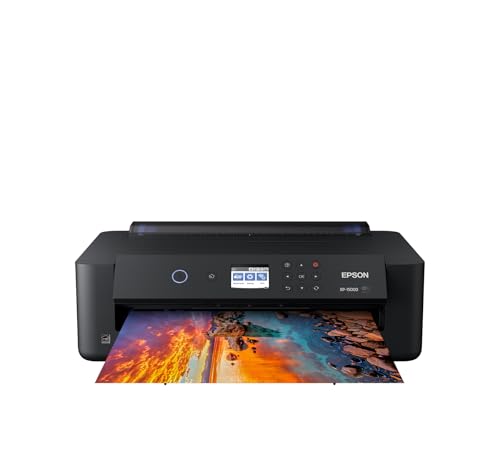
Maximum photo size: 13 x 19 inches, borderless. The XP-15000 is the enthusiast’s machine in an affordable guide, and its party piece is scale: a 13 x 19 print is a framed picture, not a snapshot, and this printer produces it with a six-colour ink system that includes red and grey cartridges alongside the usual set. The grey ink is the connoisseur’s detail — it smooths black-and-white gradations and keeps monochrome prints neutral — while the red widens the colour range for sunsets, autumn foliage and stage photography.
It remains a home machine in its manners: a rear feed for thick fine-art and matte papers, borderless printing across its sizes, and document printing adequate for occasional use. The costs of the talent are real. Six cartridges mean six things to run out of, wide-format photo paper is a specialist purchase, and a 13 x 19 print at best quality takes its time and a meaningful sip of ink. Nobody should buy it accidentally. But for the photographer in the family who has outgrown 8 x 10 and prices framing shops wistfully, it is the one machine here that turns a wall into a gallery without leaving the affordable class.
- Technology: Six-colour inkjet (including red and grey)
- Maximum photo size: 13 x 19 inches, borderless
- Paper handling: Rear specialty feed plus main tray
- Functions: Photo-focused printing with scan and copy
- Connectivity: Wi-Fi, Ethernet and USB
Strengths
- Genuine enlargement sizes for framing.
- Six inks deliver the finest gradation and monochrome here.
- Handles thick matte and fine-art papers via the rear feed.
Trade-offs
- Six cartridges to maintain and replace.
- Large prints are slow and ink-hungry.
- Wide body demands a dedicated surface.
Owners stepping up from a family all-in-one should expect a learning curve measured in a few wasted sheets: large paper magnifies every composition flaw, and the first 13 x 19 print of a favourite photograph often reveals softness the phone screen hid. That honesty is the machine’s gift. It prints what the file actually contains, and photographers rise to it within a pack of paper.
Best for: Photographers printing for frames, walls and gifts at large sizes. Not suited for: Casual snapshot printing or document-heavy households.

Canon PIXMA TR8620a — Best photo printer with a feeder
Maximum photo size: 8.5 x 11 inches, borderless. The TR8620a earns its place through the other half of the family photo project: getting old prints and documents into the computer. Its 20-sheet automatic document feeder and flatbed make it the archiving workhorse of this list, while its five-ink system — pigment black for documents, dye colours for photographs — prints new photographs with the same warm competence as its TS-series sibling. A household digitising a shoebox of prints on Saturday and printing fresh photographs on Sunday is exactly its design brief.
The supporting features suit a home office that doubles as the family archive: Ethernet for a permanent desk connection, fax for the offices that still demand it, and two paper sources so photo paper lives in the rear feed permanently. Against it, the running costs follow the cartridge pattern, and its photo quality, while pleasing, sits a step behind the XP-15000’s six-ink subtlety and level with the TS7720 rather than above it. Buy the TR8620a when scanning is half the job; buy its sibling when it is not.
- Technology: Five-ink inkjet with pigment black
- Maximum photo size: 8.5 x 11 inches, borderless
- Paper handling: Rear photo feed plus cassette; 20-sheet document feeder
- Functions: Print, scan, copy and fax with auto duplex
- Connectivity: Wi-Fi, Ethernet and USB
Strengths
- Document feeder makes archive scanning practical.
- Five inks split document sharpness and photo warmth well.
- Ethernet suits a permanent archive-desk setup.
Trade-offs
- Cartridge running costs at photo volumes.
- Photo output matches, not beats, the cheaper TS7720.
- Larger footprint than the family PIXMA.
The archiving workflow deserves one detail: scan photographs at a size that allows reprinting at the original dimensions, then print the test copy on the same machine and compare it against the original in daylight. The TR8620a’s scans need little correction for family material, and a same-afternoon reprint closes the loop between the family’s past and its present in a way a folder of files never quite does.
Best for: Households digitising old prints while printing new ones. Not suited for: Buyers who never scan more than a page at a time.

Canon Ivy 2 Mini Photo Printer — Best pocket budget pick
Maximum photo size: 2 x 3 inches. The Ivy 2 is in this guide to keep the word “affordable” honest at the bottom of the market. It prints photographs from a phone onto sticky-backed Zink paper with no ink to buy, ever, and it costs less to run than any other pick here per week of casual use. The prints are small, bright and immediate — journal entries, locker decorations, the photograph stuck to a birthday card in the moment rather than posted a week later.
Nobody should mistake it for a small version of the other five. Its colour is cheerful rather than accurate, its detail is what 2 x 3 inches can hold, and it prints nothing else. But a great many photographs people love are exactly this size in spirit: the snapshot as token rather than artwork. For a teenager, a journal keeper or anyone testing whether physical photographs fit their life at all, the Ivy 2 is the lowest-risk first step in this entire guide, and many of its owners later graduate to a SELPHY or a PIXMA with their tastes already formed.
- Technology: Zink thermal, no ink required
- Maximum photo size: 2 x 3 inches, sticky-backed
- Connectivity: Bluetooth to Canon Mini Print app
- Paper load: 10 sheets
- Extras: Tile and collage printing across sheets
Strengths
- Cheapest route into physical photographs.
- No ink system at all — paper is the only purchase.
- Prints double as stickers for journals and cards.
Trade-offs
- One small size, with casual colour accuracy.
- Not suitable for albums of record or framing.
- Battery sized for short, casual sessions.
It is also the only pick that can be operated entirely at arm’s length from adult supervision budgets: paper packs are small, cheap commitments, so a teenager’s printing habit funds itself from pocket-money scale purchases. Many a family photo habit has started exactly here, with a pocket printer and a bedroom wall slowly filling with the year.
Best for: Journals, teenagers and testing the photo-printing habit cheaply. Not suited for: Family archives or any print destined for a frame.
How Do the Six Picks Compare on Photo Size and Method?
| Printer | Method | Maximum photo size | Borderless | Also prints documents |
|---|---|---|---|---|
| Canon SELPHY CP1500 | Dye-sublimation | 4 x 6 in | Yes, by design | No |
| Canon PIXMA TS7720 | Inkjet cartridges | 8.5 x 11 in | Yes | Yes |
| Epson EcoTank ET-4850 | Tank inkjet | 8.5 x 11 in | Yes | Yes |
| Epson XP-15000 | Six-colour inkjet | 13 x 19 in | Yes | Yes |
| Canon PIXMA TR8620a | Five-ink inkjet | 8.5 x 11 in | Yes | Yes |
| Canon Ivy 2 | Zink | 2 x 3 in | Yes, by design | No |
Read the maximum-size column first and the shortlist usually halves itself, which is exactly how a decision this size-dependent ought to behave. Then read the method column: dye-sublimation for lab feel at postcard size, tank inkjet for volume, six-colour inkjet for artistry, Zink for immediacy. The rest of the guide is about choosing well within the rows that survive.
Which Paper Should You Pair With an Affordable Photo Printer?
Paper is half the photograph. The same file printed on office paper and on proper glossy photo paper looks like the work of two different printers, because inkjet ink sits inside plain paper’s fibres and on top of photo paper’s coated surface. For the Canon and Epson inkjets, buy the manufacturer’s glossy or semi-gloss paper in the sizes you actually print — 4 x 6 for albums, 5 x 7 and 8.5 x 11 for display — and select that exact paper type in the driver, since the printer changes its ink laydown for each surface.
Matte paper deserves a hearing too. It flatters black-and-white work, hides fingerprints on prints that will be handled, and suits the XP-15000’s fine-art ambitions when you move to the heavier matte and rag stocks its rear feed accepts. The SELPHY and Ivy 2 remove the choice entirely — their papers are fixed by their formats — which is part of their simplicity. Whatever you buy, store it flat in its packaging, keep it out of humid rooms, and handle sheets by their edges; a fingerprint laid down before printing becomes part of the photograph.
How Do You Print Your First Photograph Well?
Begin with a photograph you know: a daylight portrait of someone familiar, taken in good light. Screens flatter dark, noisy images, and a first print from a dim party shot teaches the wrong lesson about any printer. In the driver or app, choose the paper you have actually loaded, the size you have actually loaded, borderless if you want edge-to-edge, and the highest quality setting for this one print. Then wait — a best-quality letter-size photograph can take several minutes, and judging a half-finished print sliding out of the machine has discouraged many new owners unnecessarily.
When it emerges, look at it in ordinary room light, not under the printer’s lamp and not against the phone screen beside it. Check the skin first, then the sky or the lightest area, then the shadows. If the print looks slightly dark, that is the universal screen-to-paper difference, and a small brightness lift in your editing app becomes your standing habit from now on. Print the same file at 4 x 6 and at your machine’s maximum size; the comparison teaches you more about your printer’s character in ten minutes than a month of specification reading.
How Should You Archive the Photographs You Print?
A printed photograph’s enemies are light, humidity and sticky plastic. Albums with acid-free sleeves, kept in a living-space cupboard rather than an attic or a garage, give inkjet and dye-sub prints their longest lives. The SELPHY’s sealed prints are the hardiest travellers and tolerate fridge doors and noticeboards gracefully; inkjet glossy prints prefer the album or the frame, ideally behind glass that filters ultraviolet. Zink prints belong in journals and albums, out of sustained sunlight.
Label as you file. A pencil note on the back of a print — who, where, roughly when — takes five seconds on printing day and saves an hour of guessing in twenty years, when the faces are familiar but the occasion has dissolved. Albums assembled from labelled prints become the family’s reference work, the book opened at gatherings to settle affectionate arguments about which year the extension was built or who was holding the baby. Unlabelled prints, however beautiful, slowly become illustrations without a story, and the story was the reason for printing them.
Keep the digital originals regardless. A print is the copy you enjoy; the file is the copy you reprint from when a grandchild wants the same photograph in forty years. The households that treat printing as the final step of a simple routine — select, print, album, back up — are the ones whose photographs survive in both forms. The printer’s job in that routine is to be ready and affordable enough that the routine never feels like an event.
How Much Does a Home Photo Print Really Cost?
The honest unit is the finished 4 x 6 print, paper and ink together. On the SELPHY, the arithmetic is transparent because ink and paper arrive in one box: divide the set’s price by its sheet count and you have the cost of every postcard, with no waste beyond your own misprints. The Ivy 2 works the same way with its paper packs. Inkjet arithmetic is slipperier, because a cartridge’s yield is quoted in documents while photographs consume ink by area; a full-bleed letter-size glossy print uses many times the ink of a text page.
Worked roughly, a household printing a hundred 4 x 6 photographs a month on a cartridge PIXMA will feel the ink bill and should watch for high-yield cartridges and paper bought in hundred-sheet boxes. The same household on the ET-4850 will struggle to see the ink level move, which is the tank proposition in one sentence. The XP-15000’s large prints cost the most per sheet in paper and ink alike, and their owners treat each one as a deliberate piece of work rather than a snapshot — a healthy discipline the machine’s pace encourages anyway. None of these costs should surprise you after this paragraph; surprise is what turns owners against machines that were only doing arithmetic.
Should You Print From a Phone or a Computer?
For everyday photographs, the phone is the better tool than purists admit. The all-in-ones and the SELPHY accept AirPrint and their makers’ apps directly, the photograph you took is already on the device in your hand, and the apps’ simple brightness and crop controls cover what most prints need. A family photograph printed within a minute of being taken has a life that a file queued for weekend editing often never achieves.
The computer earns its place for the considered work: the XP-15000’s enlargements, where you want a proper editing application, a large calibrated screen and the driver’s full paper-handling controls; batch printing from a camera’s memory card after a holiday; and any print where colour accuracy will be judged critically. A sensible household uses both doors into the same printer — phone for the week’s life, computer for the month’s best frames — and every pick in this guide supports that division of labour without complaint.
How Do You Digitise Old Prints With These Machines?
Three of these picks scan, and the TR8620a was chosen partly for this job. Work through a shoebox methodically: clean the scanner glass, place each print face down with a corner squared to the guide mark, and scan at a resolution that captures the original with room to reprint at the same size — for a 4 x 6 original, settings in the mid hundreds of dots per inch give you that freedom without absurd file sizes. Name files as you go, by year and subject, because a folder of anonymous scans is only a digital shoebox.
Photographs too fragile or too large for the flatbed — the curled panorama, the framed portrait behind glass — can be copied with a phone camera in soft window light, as our mobile-printing guide describes, and then printed on the SELPHY or a PIXMA like any other file. The point of the exercise is distribution: once a family photograph exists as a file, every sibling can own a print, and the original stops being an heirloom anyone is afraid to handle.
What Photo Projects Suit Each Printer Best?
The SELPHY was born for the holiday postcard project: a week away, a stack of the trip’s best frames, postcards written and posted from the destination itself. It also owns the family-gathering print station and the school-project photograph that must survive a backpack. The PIXMA pair suit the album project — a baby book or a school year assembled at home, where 5 x 7 and 8 x 10 pages mix with postcard sizes — and the TR8620a adds the archive project, digitising the past while printing the present.
The ET-4850 is the volume project machine: the football team’s season, the dance school’s recital photographs for forty families, the church directory. When the print count runs to hundreds and the budget is a real constraint, tank economics stop being a preference and become the enabling condition. The XP-15000 owns the wall project — the framed triptych, the grandparent portrait at a size that does it justice, the photographer’s first home exhibition. And the Ivy 2 owns the journal, the locker door and the birthday card, the small change of photographic life that turns out to be spent most often.
How Do You Keep a Photo Printer Printing Well?
Photo printers fail by neglect more than by wear, and the neglect has a specific shape: they sit idle between bursts of enthusiasm, and inkjet nozzles dry during the silence. The cure is a small colour print every couple of weeks — one photograph, any photograph — which exercises every nozzle at trivial cost. The SELPHY and Ivy 2 are immune to this failure entirely, having no ink to dry, which is a real argument for them in households whose printing comes in holiday-shaped bursts.
Keep paper and ink in the room the printer lives in, not in a damp store cupboard, and keep the printer covered from dust when it sits on an open shelf, since dust on the paper path becomes specks on a sky. Run the manufacturer’s nozzle check before an important batch rather than discovering a blocked colour on the third enlargement, and clean the rollers if prints start emerging with faint tracks. None of this takes more than minutes a month, and it is the entire difference between a printer that is ready for the birthday and one that spends it being troubleshooted.
How Do Colour Settings Change What Comes Out of the Printer?
Every photo printer driver hides a small colour laboratory, and the defaults are chosen to please rather than to be accurate. Vivid or enhanced modes push saturation toward the phone-screen look; standard modes print closer to the file. Neither is wrong, but consistency matters more than either: pick the mode that matches your taste on a test portrait and leave it there, because a printer whose settings wander produces albums whose pages disagree with each other.
Paper selection is the setting with the largest real effect, larger than any colour slider. Telling the driver you loaded glossy paper when the tray holds matte changes ink volume and drying pauses, and the mismatch shows as bronzing, pooling or dullness depending on direction. The reverse discipline — always declaring the true paper — is the single most reliable quality habit in home photo printing, and it costs nothing but three seconds of attention.
Black-and-white photographs deserve their own test. Colour inkjets compose grey from colour inks and can drift toward green or magenta under different lights; the XP-15000’s dedicated grey ink exists precisely to prevent that drift, which is why monochrome workers gravitate to it. On the other machines, the driver’s grayscale or monochrome mode usually prints the most neutral result, at some cost in tonal smoothness. Print one test of a photograph you care about both ways and keep the winner’s settings noted with the paper pack.
What Should You Check in the First Week of Ownership?
Print a deliberate test set while the return window is open: one portrait for skin, one landscape for skies and gradients, one dark image for shadow detail, and one print at the machine’s maximum size. That set of four exposes banding, colour casts, borderless cropping surprises and paper-feed skew — every fault a photo printer can plausibly have — in under an hour. A machine that passes the set will print happily for years; a machine that fails it goes back while the conversation is still easy.
Check the borderless crop in particular. Borderless printing enlarges the image slightly so it bleeds off every edge, which means faces placed near a frame’s edge can lose a forehead or a chin. Compose photographs you intend to print borderless with a small safety margin, and verify with one print before producing a batch of twenty for an event. Also confirm the printer handles your preferred paper weight through the feed you intend to use; thick papers belong in rear feeds, and discovering that on a jammed Sunday helps nobody.
Finally, register the warranty, save a photograph of the serial plate, and put one spare set of consumables in the drawer. Photo printing is a weekend activity, and every failure it has — empty colour, no paper in the right size — announces itself on a Saturday morning. The spare set converts each of those moments from a cancelled project into a two-minute pause.
How Does Home Printing Compare With the Lab, Honestly?
A good lab still wins on three things: very large sizes beyond this guide’s ceiling, exotic finishes and papers, and zero effort. If you print twenty photographs a year, the lab is probably your printer, and this guide is a pleasant read rather than a shopping list. Home printing wins on immediacy, privacy, iteration and marginal cost at volume — the photograph printed at the party, the test print re-done three times until the crop is right, the family archive that never leaves the house.
Quality, at the sizes these machines cover, is no longer the lab’s automatic victory. A SELPHY postcard beside a lab postcard is a coin toss for most viewers; a careful XP-15000 enlargement exceeds the standard lab’s default output because you control the file preparation. What the lab retains is consistency at scale: two hundred identical prints are its home ground, while a home printer asks you to supervise the run. Choose by project shape, not by loyalty to either method, and keep both doors open — many households print the everyday at home and send the once-a-year giant canvas to the lab.
Which Printer Suits Which Photographer in the Family?
The phone photographer, which is now most of the family, needs the fewest decisions: the SELPHY for postcard discipline or a PIXMA for size freedom, both fed directly from the camera roll. The grandparent photographer needs large, forgiving output and a machine that sits visibly ready; the TS7720’s touchscreen and letter-size borderless prints fit that brief precisely. The teenager needs cheap immediacy and forgiveness for volume, which is the Ivy 2 today and very possibly an EcoTank when the habit matures.
The serious amateur is the household member the XP-15000 was designed for, and the tell is that they already own files worth enlarging and opinions about matte versus gloss. The family archivist — every family has one, usually self-appointed — needs the TR8620a’s feeder and the patience the job actually requires. Matching the machine to the photographer, rather than to an abstract specification sheet, is how a photo printer becomes a fixture of family life instead of a cupboard resident.
How Should You Display the Photographs You Print?
A print’s destination should shape its production. Photographs bound for an album want consistency above all: one paper, one size family, one colour setting, so the pages sit together calmly. Photographs bound for frames want the opposite treatment — each one considered individually, printed at the largest size the frame and the file allow, on the paper whose finish suits the room’s light. Gloss shines in dim rooms and glares in bright ones; matte and semi-gloss forgive sunny walls, which is why most framed home photographs end up on those finishes regardless of how dramatic the glossy test print looked.
Leave a decision about borders before you print rather than after. Borderless prints feel modern and fill small frames edge to edge, but a slim white border protects the image area from the frame’s lip, gives the eye a resting margin, and makes a set of prints from different machines look related on the same wall. The printers here all offer both, and the choice costs nothing but forethought. For a gallery wall, print the whole set in one session on one machine; colour drifts subtly between sessions and printers, and a wall exposes disagreements that an album hides.
Finally, print spares of the photographs you frame. A duplicate in an album is insurance against the accident, the house move and the grandchild who wants the same picture, and the marginal cost of a spare at printing time is the smallest it will ever be. The households whose walls and albums agree with each other are the ones that treated printing as publishing — a small edition, made once, kept in two places.
What Does a Year of Home Photo Printing Look Like?
January prints the holiday photographs while the memories still have captions attached, and this is when the SELPHY and the PIXMAs do their heaviest work of the year. Spring brings the garden, school events and the first enlargements, as someone discovers that a photograph of new leaves deserves a frame; the XP-15000 wakes from its winter rest. Summer is volume season — holidays, visitors, weddings — and the EcoTank’s reservoirs justify themselves weekly while the Ivy 2 documents the trip in a journal as it unfolds.
Autumn turns the household into archivists. The TR8620a’s feeder works through the shoebox on rainy weekends, prints replace the faded originals in their frames, and the year’s best photographs get selected for the calendar or the card that goes out in December. That December project is the year’s printing peak in most homes, and it is the moment when every earlier decision — the spare ink bought in time, the paper stored flat, the nozzle exercised monthly — pays out in a project finished calmly instead of a crisis managed loudly.
Across that year the cost pattern is the one the buying sections predicted: ink and paper flow steadily, no single purchase hurts, and the total sits comfortably below what the same photographs would have cost as lab orders with delivery. The less countable return is that the photographs exist at all. The camera roll of a household without a printer grows by thousands of images a year and yields almost no objects; the household with one of these six machines ends the year with an album, a fuller wall and a box of prints other people have been given.
What Mistakes Do Buyers Make With Affordable Photo Printers?
The defining mistake is buying by document specifications — pages per minute, tray size — for a machine whose real job is photographs, then discovering its maximum print size or its colour limits after the fact. The second is printing photographs on plain paper to save money and concluding the printer is poor; the paper was the problem, every time. Third comes ignoring the rear feed: forcing glossy or thick stock through a cassette path designed for plain paper produces the jams and skewed prints that fill review sections with complaints about machines working exactly as designed.
Fourth, owners judge prints against their phone screens, which are brighter and more saturated than any reflective medium can be, and chase the difference with settings until the prints are worse. Judge against the room, the album and the frame instead. Fifth, people buy the wide-format dream before the habit exists; the XP-15000 rewards photographers who already print weekly, while the household still deciding whether it prints at all should start with the TS7720 or even the Ivy 2 and let the habit prove itself.
Final Recommendation
Decide by the largest photograph you honestly want to make. If postcards and albums are the whole ambition, the SELPHY CP1500 makes the finest affordable photographs in this guide. If family life is the subject and volume is real, the EcoTank ET-4850 prints 8.5 x 11 borderless photographs without ink anxiety, while the PIXMA TS7720 does the same job for lighter use at a gentler entry price. And if there is a photographer in the house quietly outgrowing 8 x 10, the XP-15000’s 13 x 19 prints are the affordable route to the wall. Whichever machine you choose, buy its proper paper in the same order and print something the day it arrives; a photo printer’s value compounds from the first week, and the households that start immediately are the ones still printing happily when the year turns. A photograph on paper outlasts every feed it was ever posted to — choose the machine that gets yours printed.
Frequently Asked Questions
What is the largest photograph I can print at home affordably?
With the Epson XP-15000 in this guide, 13 x 19 inches, borderless — a genuine framed-enlargement size. The family all-in-ones top out at 8.5 x 11 inches, the SELPHY at 4 x 6 inches and the Ivy 2 at 2 x 3 inches. Larger than 13 x 19 belongs to professional wide-format machines outside this guide’s class.
Are tank printers good enough for photographs?
For family photography, yes. The ET-4850’s glossy output is warm and detailed at album and letter sizes, and its running costs transform how freely a household prints. Side by side with a six-colour photo printer, subtle gradations in skies and shadows are less refined, which matters to enthusiasts and very little to grandparents.
Dye or pigment ink — which is better for photos?
The printers here mostly use dye inks for colour work, which give glossy photographs their vibrancy. Pigment inks, found in the TR8620a’s black cartridge, excel at document text. Dedicated pigment photo printers exist at higher prices; in the affordable class, dye systems deliver the most pleasing photographs for the money.
Why do my prints look darker than my screen?
Because a screen emits light and paper reflects it. The universal fix is a small brightness increase before printing, applied in the app or driver, and judging test prints in the room where they will be displayed. Every owner of every printer in this guide develops the same habit within their first pack of paper.
Can these printers print on both glossy and matte paper?
The four inkjets can, using the rear feed for heavier matte stocks and selecting the matching paper type in the driver. The SELPHY and Ivy 2 use their own fixed media. The XP-15000 goes furthest, accepting thick fine-art papers that the family machines cannot bend through their paths.
How long does a home photo print last?
Kept in an album or behind glass away from strong light, prints from the dye-sub SELPHY and the inkjets here hold up for many years of family enjoyment. Handling matters as much as storage: hold glossy prints by their edges, let fresh inkjet prints rest for a few minutes before stacking them, and keep food, drink and sunscreened fingers away from the printing table, because most early damage to home prints happens in their first hour of life rather than their tenth year. Prints displayed in direct sunlight fade fastest, and Zink prints are the most light-sensitive of the group, which is why we recommend them for journals and albums.
Related Guides
Keep going: the best affordable mobile printers covers pocket-size printing, the best affordable inkjet printers compares the all-rounders these photo picks are based on, and the best 4×6 photo printers zooms in on postcard specialists.