What's inside
- Key Takeaways
- Quick Picks
- How We Chose These Picks
- Why Is 144Hz the Rate Everyone Recommends?
- Which 144Hz Monitor Fits Your Kind of Play?
- How Do the Best 24 Inch 144Hz Monitors Compare?
- How Do the Neighbouring Rates Frame the 144Hz Choice?
- How Does 144Hz Change Different Kinds of Games?
- Is a 144Hz Monitor a Sensible Gift or First Upgrade?
- What Should You Pair With a 144Hz Monitor?
- How Do You Get Your PC Actually Running at 144Hz?
- How Long Will a 144Hz Monitor Stay the Right Purchase?
- What Mistakes Do 144Hz Buyers Make?
- What Does a Week With a 144Hz Screen Teach You?
- Final Recommendation
- Frequently Asked Questions
- Related Guides
As an Amazon Associate I earn from qualifying purchases. This post may contain affiliate links at no extra cost to you.
widgetverdict.com is reader-supported. When you buy through links on our site, we may earn an affiliate commission.
Where to buy: every pick in this guide to the best 24 inch 144hz monitors links to a verified Amazon listing. Two of the six run faster than 144Hz natively; their sections label them as step-up options rather than pretending they are something they are not.
Some specifications become standards because marketing wills it; 144Hz became one because players felt it. The step from 60Hz to 144Hz is the single most perceptible upgrade in PC gaming — motion doubles in smoothness, the cursor stops skipping across the desktop, and games that felt sluggish at identical settings suddenly feel responsive. The best 24 inch 144hz monitors collect that upgrade in the size class competitive players prefer, at prices that have fallen from enthusiast territory to ordinary. This guide is for the reader making that step now: a first high-refresh screen, a replacement for an ageing 60Hz panel, or the second monitor in a growing battlestation.
The six picks divide by panel character. Three are flat IPS screens that treat 144Hz as home — one native with an overclock on top, one the balanced all-rounder, one the value door with an honest asterisk. One is the TN esports veteran whose features were built for tournament play. Two are curved VA screens that run above 144Hz and are included, clearly labelled, for readers who discover while shopping that the step-up costs little and the curve appeals. Every pick is 1080p, because at 24 inches and 144Hz that is the resolution the hardware ecosystem is built around.
Key Takeaways
- 144Hz is the value summit of gaming monitors: the jump from 60Hz transforms play, and the picks here deliver it without the price or GPU demands of the 240Hz class that sits above it.
- At 24 inches, 1080p is the right resolution for this refresh rate — mid-range graphics cards can actually hold 144 frames in the games people play most, season after season.
- Panel type is the real choice: IPS for colour and angles, TN for tournament features, VA for curve and contrast. The refresh number is shared across the guide; the character is not shared at all.
- Read overclocks honestly and literally. A native 144Hz panel and a 120Hz panel overclocked to 144Hz are cousins, and this guide labels which is which, every time.
- Adaptive sync matters as much as the headline rate, because real games fluctuate; every pick here syncs with at least one GPU ecosystem, and the dual-certified picks sync with both.
- Stand quality separates the picks more than specifications do at this level — two of the six adjust for height, and the rest want a riser or an arm budgeted into the purchase rather than discovered after it.
Quick Picks
| Pick | Badge | Why it earns its place |
|---|---|---|
| ASUS TUF Gaming VG249QE5A | Best overall | Native 144Hz IPS with an overclock to 146Hz, ELMB Sync, speakers and a three-year warranty. |
| LG UltraGear 24G414B | Best stand and sync | 144Hz IPS with G-Sync and FreeSync, HDR10 and the height adjustment this class usually skips. |
| BenQ ZOWIE XL2411P | Best for esports features | The tournament veteran: 144Hz with Black eQualizer and Color Vibrance for competitive visibility. |
| LG UltraGear 24G411A | Best value | 120Hz native with a 144Hz overclock, both sync certifications and IPS manners at the friendly end. |
| AOC C24G42E | Best curved step-up | 180Hz on a curved VA panel with HDR and console-ready inputs, labelled honestly as above-class. |
| SANSUI ES-G24C1L | Budget curved step-up | 160Hz curved VA with strong contrast and an HDMI cable in the box, for curve-curious buyers. |
How We Chose These Picks
The brief was precise: 24-inch class, 144Hz as the reference rate, 1080p. It is worth saying why the guide did not simply chase the largest numbers in the size class: because the keyword’s reader is buying a rate their system must feed nightly, and a shortlist of 240Hz screens would have answered a different, more expensive question. Discipline about the brief is what keeps a guide useful to the person who typed the search. Candidates had to be genuine gaming monitors rather than office panels with a gaming sticker — adaptive sync, a game-oriented response profile, and inputs that accept the panel’s full rate from a PC. We then split the field by the question buyers actually ask, which is not “which is fastest” but “which character suits my games”: colour-first IPS, feature-first TN, or immersion-first curved VA. The shortlist keeps the strongest answer to each version of that question.
Refresh-rate honesty was enforced throughout. Native 144Hz panels are described as such; the one pick whose 144Hz arrives by overclock says so in its heading facts and its analysis, because a buyer comparing it against a native panel deserves the distinction in plain sight. The two step-up picks are labelled with their true rates — 160Hz and 180Hz — and framed as what they are: evidence that the market’s centre of gravity is drifting upward, offered to readers who would rather buy the headroom now.
We also checked the unglamorous inputs question per pick: that the panel’s full rate is reachable over the connections a PC actually uses, and that a console’s 120Hz signal is welcome where the maker claims it. A surprising number of nominally qualified monitors complicate one of those two paths, and they were cut without ceremony — a 144Hz monitor that makes its headline rate hard to reach has failed at its only job.
The final pass weighed the ownership layer. Warranty length, stand adjustment, speakers, VESA mounting and menu quality all appear in the pick sections because at this price level they are the differences that survive the first month. A 144Hz panel is a mature technology; nobody here is buying an experiment. They are buying the version of a known quantity that fits their desk, and the guide’s job is to make the fitting easy to see.
Why Is 144Hz the Rate Everyone Recommends?
Because it sits at the crossing of three curves — and because the games themselves ratified it. Tournament organisers standardised on it, streamers broadcast from it, and game developers tune their competitive titles expecting it, so the rate carries an ecosystem advantage no specification sheet lists: your settings guides, your friends’ advice and your favourite player’s configuration all assume the panel you are about to buy. The first is perception: the improvement from 60 to 144 frames per second is dramatic and obvious to any player within a minute, while the further step to 240Hz, though real, is a refinement that mainly competitive specialists can convert into results. The second curve is hardware cost on the PC side: at 1080p, a mid-range graphics card holds 144 frames in the popular competitive and action titles, so the monitor’s ceiling and the machine’s ability actually meet. The third is price: 144Hz panels are manufactured at such scale that the premium over 60Hz has shrunk to a modest step rather than a leap.
There is also a systems argument. A 144Hz screen improves everything the computer does, not only games — window dragging, scrolling, cursor movement, video shot at high frame rates. Owners consistently report that the desktop itself feels upgraded, which is why so few people who make the step ever return to 60Hz willingly. The rate has become the default recommendation because it is the largest improvement available per unit of money and per watt of graphics card, and this class of 24-inch panels is where that arithmetic is kindest.
There is a historical footnote that explains the class’s maturity. The first 144Hz monitors were temperamental TN panels bought by specialists who tolerated their colour for their speed. A decade of manufacturing scale turned the rate into a commodity feature on good IPS and VA panels, which is why this guide can argue about stands and speakers at all: the headline technology stopped being the risk. When a category reaches that stage, the buyer’s job changes from finding the real thing to choosing the right flavour of it — and flavour, in the pick sections, is spelled out pick by pick.
None of that makes higher rates pointless — the step-up picks in this guide exist because the market keeps nudging — but it frames them correctly. A 180Hz panel is a 144Hz-class purchase with headroom, not a different species. Buy the character and the panel first; let the exact ceiling be the tiebreak.
Which 144Hz Monitor Fits Your Kind of Play?

ASUS TUF Gaming VG249QE5A — Best overall
The VG249QE5A is what a mature category looks like when a manufacturer stops experimenting and simply assembles the right parts. A 23.8-inch IPS panel runs 1080p at a native 144Hz with an overclock to 146Hz, and ASUS’s ELMB Sync lets its motion-blur reduction operate together with variable refresh — a combination that used to require choosing between clarity and smoothness. The 1ms response claim, the built-in speakers, and the three-year warranty on the listing round out a package with no obvious hole in it. For the reader who wants the recommendation rather than the research, this is the recommendation.
The details reward a closer look. Variable overdrive, called out on the listing, is the feature that keeps motion clean as frame rates wander below the ceiling — the exact condition of real gameplay. DisplayWidget Center moves the settings into desktop software, sparing owners the rear-button fumble that budget stands impose. And the TUF line’s durability pitch is not empty branding; these are the screens schools and LAN centres buy in quantity, which says something about how they survive desks less gentle than yours.
Its compromises are the class’s usual ones: the stand is a tilt design rather than a lifting one, and the speakers are for convenience rather than cinema. Neither survives as a complaint against the whole. As the centre of this guide — native rate, IPS colour, sync, speakers, warranty — the ASUS is the pick the others are measured against.
It also ages gracefully into the second-screen role that so many primary monitors eventually take. When a faster or larger panel arrives in two years, the VG249QE5A’s combination of IPS colour, speakers and sync makes it a wing screen that still earns its desk space — displaying the game guide, the stream preview or the second document without becoming the setup’s embarrassment. Buying the balanced pick is, in that sense, buying two monitors across time.
- Panel: 23.8-inch IPS, 1920 × 1080
- Refresh rate: 144Hz native, overclock to 146Hz
- Sync: adaptive sync with ELMB Sync blur reduction
- Inputs: HDMI, DisplayPort
- Extras: built-in speakers, variable overdrive, 3-year warranty
Strengths
- Native 144Hz with blur reduction that works alongside variable refresh.
- Speakers and a long warranty make it the most complete out-of-box package here.
- Variable overdrive keeps the dips clean, not just the ceiling.
Trade-offs
- Tilt-only stand; taller users will want a riser.
- Design is utilitarian — it looks like equipment, not furniture.
- The 146Hz overclock is a garnish, not a reason to buy.
Best for: the buyer who wants the class’s balanced answer in one box. Not suited for: desks that need height adjustment built in or a design statement.

LG UltraGear 24G414B — Best stand and sync
LG’s 24G414B argues that at this level, the panel is solved and the furniture decides. The screen itself is a 24-inch IPS at 144Hz with the rare distinction of carrying both G-Sync and FreeSync branding, so its adaptive sync is certified for whichever graphics card the household runs now or next. HDR10 support adds a little lift to bright scenes. Then the differences start: a stand with genuine height adjustment, a built-in speaker, and LG’s reader mode for the hours the screen spends as a document display. It is the pick for a desk that works all day and plays all evening.
The height adjustment deserves emphasis because it is the feature whose absence owners feel daily and whose presence they forget — which is the definition of good ergonomics. Paired with a second screen, it also lets the two panels align properly, a small thing that makes dual-monitor setups look intentional rather than accumulated. The sync dual-certification plays the same long game: this is the monitor least likely to be wrong for a future PC, whatever badge its graphics card wears.
Against the ASUS above, the trade is features for furniture: no blur-reduction-with-sync trick, a ceiling at exactly 144Hz. Against everything else here, it is the most adult object in the room — the one that treats the person at the desk as someone with a spine and a workday, not only a rank.
One more constituency should claim it: the parent or partner buying for a household PC. Dual certification means the screen survives whoever’s graphics card ends up in the family machine, the reader mode softens evening homework, and the stand adjusts to whoever sits down — three different heights of human in some houses. Versatility is a spec too, and this pick is the guide’s most versatile object.
- Panel: 24-inch IPS, 1920 × 1080
- Refresh rate: 144Hz
- Sync: G-Sync and AMD FreeSync
- Inputs: HDMI, DisplayPort
- Extras: HDR10, built-in speaker, height-adjustable stand
Strengths
- Dual sync certification makes it GPU-proof for the household’s next build.
- Height adjustment at this size and price is the guide’s ergonomic high point.
- Reader and picture modes give it a genuine second life as a work screen.
Trade-offs
- No motion-blur reduction mode to rival the ASUS’s ELMB Sync.
- HDR10 at this brightness is present rather than dramatic.
- The speaker is serviceable, not a soundbar replacement.
Best for: mixed work-and-play desks and dual-screen builders who value alignment. Not suited for: players who specifically want blur-reduction technology.

BenQ ZOWIE XL2411P — Best for esports features
The XL2411P is the elder of this guide, and its survival is the story. ZOWIE built this 24-inch TN panel for tournament play, and its features remain a competitive player’s checklist: 144Hz at 1080p with a 1ms response profile, Black eQualizer to lift shadow detail so opponents stop hiding in it, and Color Vibrance to make targets separate from backgrounds. These are not picture-quality features — a film looks merely fine here — they are visibility weapons, tuned for the specific problem of seeing the other player first. LAN halls standardised on this family for years because it answers that problem directly.
Choosing it today is a deliberate trade that the right buyer makes happily. You give up IPS colour and viewing angles; in exchange you get the panel technology with the longest competitive pedigree in the class, a stand and bezel designed for tournament desks, and a feature set that assumes the screen’s job is winning rounds. For the player whose library is two tactical shooters and nothing else, the trade is not a compromise at all — it is specialisation.
Everyone else should read its presence here as a calibration point. If the words Black eQualizer mean nothing to you, the IPS picks will serve your broader library better. If they mean everything, you have found the guide’s most honest pick: a tool that never pretended to be a television.
A practical note for the buyer who chooses it: set it up as a specialist from day one. Give it the centred seat, the good chair and the games it was built for, and let another screen — a television, a tablet, the household’s other monitor — carry films and browsing. Instruments reward being treated as instruments, and the XL2411P’s long production life means parts, profiles and community settings for specific games are easy to find when you want them.
- Panel: 24-inch TN, 1920 × 1080
- Refresh rate: 144Hz
- Sync: fixed-refresh esports design
- Inputs: HDMI, DisplayPort, legacy connections
- Extras: Black eQualizer, Color Vibrance
Strengths
- Visibility features built for competitive play, not adapted to it.
- A tournament pedigree longer than any other pick’s.
- Response behaviour that made TN the esports standard.
Trade-offs
- TN colour and viewing angles trail every IPS pick here.
- No adaptive sync certification story for casual fluctuating games.
- Films and photo work are not its department.
Best for: dedicated tactical-shooter players who value visibility features over colour. Not suited for: mixed libraries, film lovers or shared screens viewed off-angle.

LG UltraGear 24G411A — Best value
The 24G411A requires one honest sentence before its virtues: its panel is native 120Hz, and its 144Hz is an overclock. LG states both figures on the listing, and this guide repeats them in that order because the distinction is the buyer’s right. With that said, the overclocked mode is how owners run these panels, the certification pair — NVIDIA G-Sync Compatible and AMD FreeSync — is fully official, and the resulting package is the least expensive route here to a certified-sync IPS screen that reaches the 144Hz class. Value with an asterisk, disclosed, beats a cleaner claim at a higher price for many desks.
The rest of the specification is the LG formula in miniature: IPS colour and angles, HDR10 as a garnish, tidy picture modes including a reader setting, and a tilt stand. What the saving costs you against the 414B above is the height adjustment, the speaker and the native rate. In a second-screen role, or on a desk with a riser already in place, those costs shrink to nearly nothing, which is why this pick keeps appearing in sensible battlestation builds.
Frame it as the guide’s door rather than its destination. A first high-refresh monitor teaches its owner what they actually value — ceiling, colour, ergonomics — and the 411A teaches it cheaply while remaining good enough to keep as the second screen when the lesson is learned.
There is a classroom and dorm-room dimension to it as well. It is light enough to move between home and term-time desks, undemanding enough to run from a gaming laptop’s output, and cheap enough to insure against the accidents of shared houses. Specifications rarely capture suitability for a life stage, but this pick has one: it is the high-refresh screen for people whose housing is temporary and whose standards are not.
- Panel: 24-inch IPS, 1920 × 1080
- Refresh rate: 120Hz native, overclock to 144Hz
- Sync: NVIDIA G-Sync Compatible, AMD FreeSync
- Inputs: HDMI, DisplayPort
- Extras: HDR10, LG Switch software, tilt stand
Strengths
- Certified sync from both ecosystems at the guide’s friendliest point.
- IPS panel keeps it respectable for work and video.
- An ideal first high-refresh screen or second panel.
Trade-offs
- 144Hz is an overclock, not the native rate — know it before you buy.
- Tilt-only stand and no speaker.
- Ceiling leaves nothing in reserve for a future faster PC.
Best for: first-time high-refresh buyers and second-screen roles. Not suited for: buyers who want a guaranteed native 144Hz and ergonomic stand in one box.
AOC C24G42E — Best curved step-up
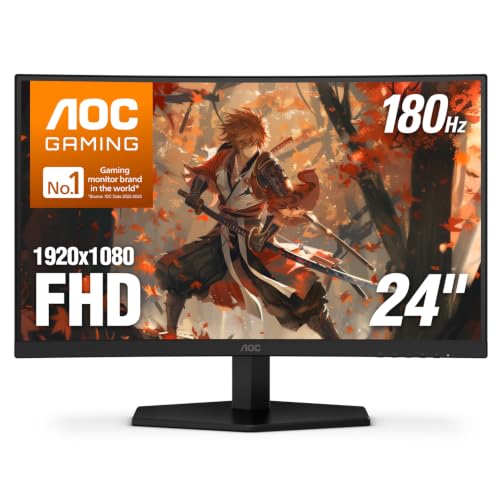
This pick breaks the guide’s title on purpose and says so: the C24G42E is a 180Hz monitor, included because a reader shopping the 144Hz class will meet it, and because its curve makes it a different answer rather than merely a faster one. The 24-inch VA panel bends at a gentle radius that suits a single viewer at a desk, and VA technology brings the contrast IPS cannot — blacks that read as black in a dark room, which horror games and films reward immediately. Adaptive sync, HDR support, DisplayPort 1.4 and an HDMI 2.0 input that AOC itself labels console-ready complete a specification aimed at the player who splits time between PC and console on one curved screen.
The VA trade is response behaviour in dark transitions, where this panel technology is at its slowest; AOC’s tuning and the 0.5ms figure on the listing address the bright-transition story, and fast-paced competitive players should still audition the flat IPS picks first. For the broader library — racers, flight, story games, films — the curve and contrast make a case the flats cannot, and the three-year warranty on the listing is the quiet reassurance behind the experiment.
Consider it the guide’s fork in the road. If your games are cinematic and your room is dim, the step up to this screen buys atmosphere the 144Hz flats do not sell. If your games are ranked ladders, stay flat and stay IPS or TN.
The console-ready label deserves its thirty seconds. A console on this panel gets 1080p at up to 120Hz through the HDMI input, the curve wraps a racing cockpit view convincingly at desk distance, and the VA contrast flatters the cinematic exclusives that consoles trade in. As a single screen for a bedroom where a PC and a console share custody, it is arguably the most fun object in this guide — the flats are better instruments, but this is the one that feels like an event.
- Panel: 24-inch curved VA, 1920 × 1080
- Refresh rate: 180Hz
- Sync: Adaptive-Sync
- Inputs: DisplayPort 1.4, HDMI 2.0
- Extras: HDR, VESA mount, 3-year warranty
Strengths
- Curve plus VA contrast gives dark games and films a depth the flats cannot match.
- 180Hz headroom above the class the guide is named for.
- Console-ready inputs make it a genuine two-device screen.
Trade-offs
- VA dark-transition response is the technology’s known weakness.
- The curve suits one centred viewer, not a shared couch angle.
- It answers a slightly different question than the 144Hz brief.
Best for: cinematic and racing players in dim rooms who want a curve. Not suited for: top-level competitive play or shared viewing from wide angles.

SANSUI ES-G24C1L — Budget curved step-up
The second curve in the guide is the budget expression of the same idea: a 24-inch VA panel with a pronounced 1500R bend, running 160Hz with FreeSync, HDR support and a 3000:1 contrast figure that is VA’s signature advantage stated numerically. SANSUI includes an HDMI cable in the box — a small thing that budget buyers, who are exactly the people without a drawer of spare cables, will appreciate more than any reviewer does. VESA support means the basic stand is a starting point rather than a life sentence.
Set expectations the way the price sets them. The brand’s support network is thinner than ASUS’s or LG’s, the fit and finish are honest rather than luxurious, and the panel’s virtues are the format’s virtues — contrast, curve, a rate above the class — rather than refinements of tuning. For a first curved screen, a bedroom setup, or a console-and-PC corner where the budget is genuinely fixed, those virtues are the ones that matter, and this pick delivers them without pretending to be a flagship in disguise.
Between the two curves, the AOC is the better instrument and this is the easier purchase. The guide keeps both because readers’ budgets, unlike their taste in panels, are not negotiable.
It is also the pick most likely to be a household’s second gaming screen — the one in the spare room, the one a younger player inherits, the one paired with a console that has been retired from the main television. In those roles its demands are low and its pleasures are immediate: plug in, curve, contrast, play. Not every monitor in a house needs a pedigree; some need to be good company, and this one is.
- Panel: 24-inch curved VA (1500R), 1920 × 1080
- Refresh rate: 160Hz
- Sync: FreeSync
- Inputs: HDMI 2.0, DisplayPort 1.4
- Extras: HDR, VESA support, HDMI cable included
Strengths
- The curve-and-contrast experience at the guide’s most accessible point.
- 160Hz exceeds the class rate while staying easy for PCs to feed.
- Cable in the box and VESA mounting respect a tight total budget.
Trade-offs
- Brand support and finish trail the bigger names.
- VA response caveats apply, as with the AOC.
- FreeSync only; NVIDIA owners rely on generic adaptive sync behaviour.
Best for: budget desks curious about curved VA and contrast. Not suited for: buyers who prize brand support networks or certified NVIDIA sync.
How Do the Best 24 Inch 144Hz Monitors Compare?
| Pick | Panel | Refresh | Sync | Stand note |
|---|---|---|---|---|
| ASUS TUF VG249QE5A | 23.8″ IPS | 144Hz / 146Hz OC | Adaptive sync + ELMB Sync | Tilt |
| LG UltraGear 24G414B | 24″ IPS | 144Hz | G-Sync + FreeSync | Height adjustable |
| BenQ ZOWIE XL2411P | 24″ TN | 144Hz | Fixed-refresh esports | Tournament stand |
| LG UltraGear 24G411A | 24″ IPS | 120Hz / 144Hz OC | G-Sync Compatible + FreeSync | Tilt |
| AOC C24G42E | 24″ curved VA | 180Hz | Adaptive-Sync | VESA mount |
| SANSUI ES-G24C1L | 24″ curved VA | 160Hz | FreeSync | VESA support |
How Do the Neighbouring Rates Frame the 144Hz Choice?
Below the class sits 75–100Hz, the office-panel territory where a modest rate improvement is bundled with work features. Those screens are fine purchases for work-first desks, but a player who buys one as a gaming step usually re-buys within a year, because the gap to 144Hz remains the dramatic one. Above the class, 165Hz has become a common marketing step — real, but close enough to 144Hz that it should never decide a purchase by itself — and 240Hz is the genuine next tier, with its own guide-worthy ecosystem of faster panels and hungrier hardware.
The framing matters because shoppers meet these numbers as a ladder and assume each rung is equal. They are not: the rungs are 60 to 144, then a long landing, then 240. This guide’s two step-up picks at 160Hz and 180Hz stand on the landing, and they are recommended for their panels and prices rather than their numbers. A reader who internalises the ladder’s true shape will read every future monitor listing more sceptically, which is a durable benefit of an otherwise simple purchase.
One more neighbour deserves a mention: resolution. The same money that buys a premium 144Hz 1080p screen approaches a basic 1440p 144Hz one at a larger size. If your desk and card can host 27 inches at 1440p, that is a legitimate alternative universe — sharper, larger, harder to feed. This guide’s reader has chosen the 24-inch 1080p shape for its speed-per-cost and its fit; the picks honour that choice rather than relitigating it.
How Does 144Hz Change Different Kinds of Games?
Competitive shooters are the headline case, and the benefit is mechanical rather than mystical: targets move across the screen in smaller steps, so tracking is smoother and the information your aim works from is fresher. Players describe it as the game feeling fairer at speed. Racing and flight games gain almost as much, because the whole world is in constant motion and the doubled frame rate turns scenery judder into flow; the curved picks exist largely for this library. Sports titles, with their fast pans following play, sit in the same happy category.
Strategy and slower games gain differently — not in reaction time but in legibility and in the small pleasure of an interface that keeps up with the hand. Scrolling a map, dragging a selection box, reading a moving interface: all of it sharpens. Even the desktop participates, which is why owners cite window dragging as often as kill streaks. The honest exception is the locked-30 cinematic title, which gains nothing from any panel in this guide; readers whose libraries are built from those should weight colour and contrast — the curves and the IPS picks — over every refresh consideration.
There is a fatigue footnote worth including. Smoother motion is easier motion for many players to watch for long sessions, and the flicker-free backlights across these picks support that. A 144Hz screen will not fix a bad chair or a dark room’s glare, but as one component of a comfortable long-session setup it pulls its weight beyond the scoreboard.
Is a 144Hz Monitor a Sensible Gift or First Upgrade?
It is close to the perfect first upgrade, for a structural reason: it improves the machine the recipient already owns, without requiring them to change anything else. A new graphics card demands a power supply check and a case opening; a 144Hz monitor demands a cable and five minutes of settings, and it flatters every game in the existing library at once. For a younger player’s setup, a student’s dorm desk, or a household PC that has quietly become a gaming PC, it is the purchase with the highest delight-to-disruption ratio in the whole catalogue.
The gifting version of the advice is to choose the balanced picks — the ASUS for its completeness, the LG 414B for its stand and certification breadth — because a gift should not require the recipient to share the giver’s specialisation. The ZOWIE is the exception that proves the rule: it is the perfect gift for exactly one kind of player, and that player will have told you so, in those words, more than once.
What Should You Pair With a 144Hz Monitor?
The panel is one leg of a three-legged stool. The second leg is the graphics card, already discussed: plan for the frame rates your library needs, remembering that settings are a dial — most players find that dropping two cosmetic settings buys the frames that make the panel sing. The third leg is the CPU, the component players forget: at 1080p and high frame rates, the processor often becomes the limit before the graphics card does, and a 144Hz monitor on an elderly CPU will show you exactly where that ceiling lives. None of this requires a flagship build; it requires balance, which mid-range components of the same generation provide.
Budget the pairing honestly across a year rather than a day. The monitor this month, the arm next month, the card when its generation turns — a staged path reaches the same desk as the single heroic purchase, and each stage is enjoyable on its own because 144Hz flatters even the hardware you already own.
Around the stool, smaller companions matter. A mouse with a high polling rate keeps the input chain as fluent as the display chain. A monitor arm or a riser corrects the tilt-only stands in this guide for less than a game’s price. And a second screen — even the ageing 60Hz panel being replaced — becomes a natural companion for chat, guides and streams, which is why so many 144Hz purchases are really the founding of a two-monitor desk.
How Do You Get Your PC Actually Running at 144Hz?
More 144Hz monitors live at 60Hz than their owners will ever know, because Windows does not always promote a new display to its full rate — and because nothing looks broken at 60Hz, the error can persist for the life of the setup, quietly taxing every session. It is the single highest-value paragraph in this guide, which is why it is written as instructions rather than advice. After connecting with DisplayPort — the cable that guarantees the full rate with sync on these panels — open the advanced display settings and set the refresh rate to 144Hz explicitly, then confirm in the monitor’s own information menu that the incoming signal matches. In the graphics driver, enable the panel’s adaptive sync, and in games, disable the in-game frame limits that some titles default to from an older setup. Five minutes of verification converts the specification on the box into the experience in the chair.
Do the cable audit while you are behind the desk. A 144Hz signal at 1080p is not exotic, but the drawer cable from a decade-old monitor can still be the weak link that caps the negotiation at a lower rate or drops the sync. The monitor’s box includes a suitable cable in most of these picks — SANSUI states it outright — and using the supplied cable for the first setup removes one suspect from any later troubleshooting.
Two refinements follow once the basics hold. Set the overdrive to the middle option first; the highest settings on many panels trade ghosting for inverse ghosting, and the middle is where the engineers expected you to live. And if your frame rates fluctuate widely, cap them a few frames below 144 in the driver or the game — a steady 141 inside the sync window feels smoother than an oscillation between 144 and 90 that keeps crossing the ceiling.
How Long Will a 144Hz Monitor Stay the Right Purchase?
Longer than the graphics card beneath it, by a comfortable margin. The 144Hz 1080p format is the competitive scene’s settled standard and the streaming era’s capture-friendly resolution, and neither constituency is restless. A panel bought today will be the correct tool for at least two PC upgrade cycles, and when the main desk eventually moves up in size or resolution, a 24-inch 144Hz screen retires into the second-monitor role so naturally that many buyers plan the succession in advance. That longevity argues for the picks with the better warranties, stands and certification breadth — the traits that decide year four, not week one.
It also argues for calm about the step-up question. The 160Hz and 180Hz picks are not rendering the native-144Hz screens obsolete; they are the same purchase with the ceiling nudged. The reader who buys the ASUS or the LG today and watches a 200Hz successor launch next season has not been left behind in any way their games will report. Refresh-rate progress at this level is now measured in refinements, and refinements are safe to skip.
The realistic replacement triggers are elsewhere: a move to a bigger desk and a 1440p card, a panel fault outside warranty, or a household reshuffle that needs the screen elsewhere. Plan for those, and the 144Hz purchase is one of the calmest in the whole setup — a known quantity, bought once, used daily, and understood completely within the first week.
What Mistakes Do 144Hz Buyers Make?
Another is buying the monitor as the last step of a build whose budget it then consumes — leaving nothing for the arm, the cable or the game that would show it off. Total cost of ownership at this level is small but not zero, and the picks were partly ranked on how little they demand beyond themselves: speakers included, cable included, warranty long. Read each pick’s extras list as a budget document, not a garnish.
The first is the silent one above: never switching the desktop to 144Hz and concluding the upgrade is subtle. The second is buying by refresh rate alone and landing on a panel whose character fights the library — a TN for a film lover, a curved VA for a ranked grinder. The third is ignoring the graphics card’s side of the bargain; a 144Hz panel fed by a card that produces 70 frames is a 70-frame experience with better manners, and the honest sequence is to plan the two purchases together.
A further mistake is acoustic: several of these picks include speakers that are honest conveniences, and buyers who treat them as the audio plan for films end up blaming the panel for a thin soundtrack it never promised. Decide the sound when you decide the screen — headset, soundbar or speakers — and the monitor’s own audio can return to its proper job of system sounds and casual video.
Buyers also mishandle the overclock question in both directions — dismissing the LG 411A’s disclosed overclock as a trick, when it is a labelled feature, or buying an overclocked panel elsewhere without noticing the native rate beneath it. And the final mistake is ergonomic amnesia: choosing a tilt-only stand for a desk where the screen sits low, then spending a year with a book under it. The LG 414B’s stand exists in this guide as the reminder that posture is a specification too.
What Does a Week With a 144Hz Screen Teach You?
Day one teaches the headline: motion is different, and the desktop feels like it has been oiled. Keep a small ritual for that first evening — revisit the game whose menu you know best, drag the windows you drag every day, and let the comparison form against memory rather than against a benchmark. Subjective, yes; but the purchase was always about feel, and feel is measured by the person sitting in the chair. By day three, owners typically stop noticing the rate itself and start noticing its absence anywhere else — the office monitor, the television’s menus, a friend’s setup all acquire a faint judder that was invisible before. That recalibration is the upgrade’s real permanence: it changes the observer, not only the observed, and it is why the second-monitor question arrives so quickly in 144Hz households.
The week also teaches the setup’s weak points, which is its practical value. You will learn whether your card holds the rate in your heaviest game or only in the light ones, whether the stand’s height suits your chair, and whether the overdrive’s middle setting is truly your panel’s best behaviour. Each of those has a remedy — a settings dial, a riser, a menu visit — and the first week, while the purchase is fresh and returnable, is when to apply them. A 144Hz screen configured by evidence rather than defaults is the finished product this guide is selling.
By the end of the week the specification will have stopped being a number and become the room’s normal. That is the fate of every successful upgrade in this category, and it is why the guide insists on character over ceiling: you will forget the exact rate by spring, but you will live with the panel’s colour, curve and stand every day until the next upgrade.
Final Recommendation
The ASUS TUF VG249QE5A is the centre of this class and the default answer: native 144Hz, IPS colour, blur reduction that coexists with sync, speakers, and a warranty that outlasts the honeymoon. The LG 24G414B is the better buy when the desk works as hard as it plays, on the strength of its stand and dual certification. The ZOWIE remains the specialist’s instrument, the LG 24G411A the honest value door, and the two curves the fork toward atmosphere — AOC for the better instrument, SANSUI for the easier purchase. Whichever you choose, do the five-minute setup ritual on day one: the difference between a 144Hz monitor and a monitor running at 144Hz is the whole point of the purchase. Then give the class its due — this is the rare technology purchase whose benefit renews itself every time the mouse moves, and any of these six will keep renewing it for years.
Frequently Asked Questions
How do I know my monitor is really running at 144Hz?
Ask the monitor itself: its on-screen information page reports the incoming signal’s refresh rate, and that number — not the box, not the settings page you visited once, not the product title you remember — is the truth of your setup. Cross-check it against the operating system’s advanced display settings and the frame rate a game reports. When all three agree, the setup is done; when they disagree, the lowest number is the one your eyes are getting, and the setup section above walks the chain that produces it.
Will a 144Hz monitor make my older PC feel faster?
On the desktop and in lighter games, yes — the interface itself refreshes faster, and the improvement is independent of the game’s demands. Many owners of ageing machines describe the monitor as the upgrade that postponed a rebuild, which is a legitimate strategy: displays outlive platforms, and this one will still be the right screen when the new machine eventually arrives beneath it. In heavy modern titles an older PC will still produce the frame rate it produces, and the panel will present those frames more smoothly with sync, but it cannot invent the rest. Think of the monitor as removing a ceiling rather than raising the floor: everything your machine already does well will look better doing it.
Can my graphics card actually run 144Hz at 1080p?
Most mid-range cards of recent generations can, in the titles where high refresh matters most — competitive and action games with scalable settings. The practical method is to look up your single most-played game rather than your whole library: if that title’s 1080p benchmarks sit near or above 144 on your card, the panel will be fed where it matters, and the rest of the library will simply enjoy whatever rate it gets inside the sync window. Demanding cinematic titles at maximum settings will run lower, and there the adaptive sync on these panels keeps the presentation smooth. Check your own favourite game’s benchmarks at 1080p against the 144 target; that number, not the card’s marketing tier, is your answer.
Is the jump from 60Hz to 144Hz really noticeable for casual players?
Yes — it is the rare upgrade that does not require expertise to perceive, and the demonstration takes ten seconds: drag a window in a circle on both screens and watch the text stay readable on one and smear on the other. Players who bought the panel for one game routinely report the desktop difference as the thing they would least give back. Menus, desktop movement and ordinary games all change character, and players who considered themselves casual routinely report that going back to 60Hz feels broken. The subtler steps above 144Hz are the ones that reward specialists; this step rewards everyone.
Does a console benefit from a 144Hz monitor?
Consoles cap their output at 120Hz, and these panels accept that signal happily, so a console on a 144Hz monitor gets its full high-frame-rate modes with headroom. For a bedroom or spare-room screen that hosts a console daily and a PC occasionally, that makes the class a genuinely dual-purpose purchase rather than a PC accessory the console merely tolerates. The AOC curved pick is explicitly console-ready on its listing. What the console cannot use is the last 24Hz — a small idle margin that costs the console player nothing.
TN, IPS or VA — which panel should a first-time buyer choose?
IPS, unless your games argue otherwise — and let them argue specifically. “I play tactical shooters competitively” is an argument for the ZOWIE. “I play horror and racing games in a dark room” is an argument for the curves. “I play a bit of everything” is not an argument at all, and it is the profile IPS was made for. It is the technology without a weakness a general library will find: colour, angles, response and price are all respectable at once. Choose TN when competitive visibility features are your whole brief, and VA when contrast and the curve are the experience you are buying. The pick sections map each technology to its reader.
What does an overclocked refresh rate actually mean?
The panel’s guaranteed native rate is lower — 120Hz on the LG 411A — and the manufacturer offers a higher mode, 144Hz, that the panel runs when selected. Overclocks in this class are manufacturer-sanctioned menu options, not warranty-voiding experiments, and the distinction between a sanctioned overclock and a native panel is about guarantee and headroom rather than safety. In practice owners enable it once and leave it. The honest way to compare is to note both numbers, which this guide does, and to weigh the overclocked pick on its price and certification rather than treating its ceiling as identical to a native panel’s.
Do I need DisplayPort, or is HDMI enough for 144Hz?
At 1080p, a modern HDMI connection can carry 144Hz on these panels, and console owners will use exactly that path. The one caution is generational: very old HDMI cables and ports from the standard’s early years cannot, so a setup that refuses to exceed 60Hz over HDMI is usually indicting the cable, not the monitor. DisplayPort remains the PC reference because it guarantees the full rate together with the panel’s adaptive sync implementation on both GPU brands. When both are available, give the PC DisplayPort and keep HDMI for the devices that have no choice.
Should I buy one 144Hz monitor now or save for a bigger upgrade?
Buy the monitor now, in almost every realistic case you are likely to be in. It improves the system you own today, it remains useful as a second screen after any future flagship arrives, and its price has already fallen to the flat part of the curve where waiting saves little. The exception is the buyer whose desk, card and budget are all changing within the same season — that reader is not upgrading a setup but replacing one, and should plan the replacement whole rather than anchoring it to a screen bought for the old room.
Related Guides
Comparing within the size class? Keep the character question in front of the numbers at every step of the comparison. Read the best 24 gaming monitors with gsync for the NVIDIA-certified shortlist in full, the best 24 inch gaming monitors for the full category at every refresh rate on offer, and the best 24 inch monitors triple display if one screen is about to become three matched screens.
Related guides
- Best Time Machine Compatible Hard Drives: Mac-Ready and Reformatted Picks
- Best 3.0 Qualcomm Quick Chargers: QC 3.0 Adapters That Still Earn Their Outlet
- Best 3D Mechanical Engineering Laptops: Certified Workstations for CAD and Simulation
- Best Tattoo Printers: Thermal Stencil Machines for Clean, Lasting Transfers