What's inside
- Key Takeaways
- Quick Picks
- How We Chose These Picks
- What Is the Difference Between G-Sync and G-Sync Compatible?
- Which G-Sync Monitor Fits an NVIDIA Desk at 24 Inches?
- Does Panel Type Change the G-Sync Experience?
- How Low Should a G-Sync Range Go?
- What About Input Lag Alongside G-Sync?
- How Do the Best 24 Gaming Monitors With G-Sync Compare?
- Which Refresh Ceiling Matches Your Graphics Card?
- How Do You Set Up G-Sync Correctly?
- How Does G-Sync Feel Different From a Fixed 144Hz Screen?
- What Mistakes Do G-Sync Buyers Make?
- What Should You Do on the First Evening With a G-Sync Monitor?
- Should a Laptop Owner Care About G-Sync at 24 Inches?
- Final Recommendation
- Frequently Asked Questions
- Related Guides
As an Amazon Associate I earn from qualifying purchases. This post may contain affiliate links at no extra cost to you.
widgetverdict.com is reader-supported. When you buy through links on our site, we may earn an affiliate commission.
Where to buy: four of the six picks in this guide to the best 24 gaming monitors with gsync link to verified Amazon listings. Two are discussed in prose only, because we could not confirm a listing we were willing to send you to — their sections say exactly what they are and why they still belong in a G-Sync conversation.
Screen tearing is the flaw you cannot unsee. Once you have watched a fast pan split across a horizontal seam, every unsynchronised panel looks slightly broken, and that is the itch the best 24 gaming monitors with gsync exist to scratch. At 24 inches the category has a particular character: this is the size competitive players choose, the size that fits smaller desks and dual-screen battlestations, and the size where an NVIDIA graphics card can drive very high frame rates at 1080p without breaking a sweat. G-Sync’s job in that world is to keep the panel honest while the frame rate does what real games do — surge in quiet corridors, sag in explosions.
This guide is strict about the label. Two different technologies share the G-Sync name: monitors with NVIDIA’s hardware module inside, and the much larger family of G-Sync Compatible displays, which are adaptive-sync panels NVIDIA has validated to work tear-free with GeForce cards over DisplayPort. Both are legitimate; they are not identical, and each pick section states plainly which kind you are looking at. Two picks are prose-only native-module territory and high-end curiosities worth knowing about. The four linked picks are the ones most readers should actually buy, spanning 144Hz to 200Hz at 1080p, plus a 1440p option for players who want sharper text and a longer-lived panel.
Key Takeaways
- G-Sync with a hardware module and G-Sync Compatible certification are cousins, not twins. The module adds a wider variable refresh window and variable overdrive; Compatible panels cover the range where games actually live, at far friendlier prices.
- On a PC, G-Sync runs over DisplayPort in the configurations this guide can guarantee. Budget for that cable and that port assignment from the start, because HDMI behaviour varies by model and generation.
- At 24 inches and 1080p, mid-range NVIDIA cards produce very high frame rates, which is exactly the environment where variable refresh earns its keep in both directions — fast and slow.
- Judge a G-Sync screen by its behaviour at 50 frames per second, not at its ceiling. The dips are where tearing and stutter hide, and they are where the certified panels in this guide earned their places over faster, looser rivals.
- One pick here is 1440p. It breaks the 1080p pattern deliberately, for players whose desk work shares the screen and whose card can feed it.
- Two picks are prose-only. They are the module-equipped reference points of the class, included so you know what the ceiling looks like before you decide you do not need it — and so a store’s upsell can be measured against facts rather than adjectives.
Quick Picks
| Pick | Badge | Why it earns its place |
|---|---|---|
| LG UltraGear 24G414B | Best overall | 144Hz IPS with G-Sync behaviour, FreeSync alongside, HDR10 and a proper height-adjustable stand. |
| AOC 24G42HE | Fastest linked pick | 200Hz IPS, NVIDIA G-SYNC Compatible on the listing, and a response figure built for shooters. |
| LG UltraGear 24G411A | Best value | G-Sync Compatible with a 144Hz overclock above its native rate, HDR10 and tidy manners. |
| KTC H24T7 | Best 1440p option | QHD at 180Hz with G-Sync and FreeSync both named, HDR400 and a height-adjustable stand. |
| ASUS ROG Swift Pro PG248QP | Native-module flagship (prose-only) | The esports reference: a true G-Sync module and a refresh rate beyond any linked pick. |
| HP OMEN 24 | Mainstream alternative (prose-only) | A G-Sync Compatible all-rounder from HP’s gaming line for brand-loyal buyers. |
How We Chose These Picks
The first requirement was the sync itself, verified as carefully as listings allow. A pick had to present G-Sync — module or Compatible certification — in its own product information, not merely adaptive sync with hopeful wording. That distinction matters because the NVIDIA ecosystem is where this guide’s readers live: a panel can be an excellent FreeSync display and still be the wrong recommendation here if its behaviour with a GeForce card is unvalidated. Where a listing’s wording left the certification ambiguous, we left the product out rather than guessing on your behalf.
The second filter was the 24-inch brief itself. Panels had to sit in the 23.8-to-24.5-inch class that players mean by “24 inch”, with the single 1440p exception admitted openly because its size is right even though its resolution breaks ranks. Refresh rate had to clear the competitive bar — nothing under a native 120Hz with a path higher — and response behaviour had to suit fast games, since a G-Sync badge on a smeary panel solves tearing while ignoring the blur standing next to it.
We also interrogated the panels’ behaviour as displays, not just as sync endpoints. Overdrive tuning decides whether a fast panel ghosts or coronas; factory colour decides whether the same screen can be trusted for the photo sorting and video watching that fill its non-gaming hours; and brightness uniformity decides whether a dark game scene looks moody or merely blotchy. A G-Sync badge does not excuse a mediocre picture, and two otherwise-qualified candidates were cut at this stage for exactly that reason.
Ownership details formed the third pass. Height adjustment matters more at 24 inches than anywhere, because these screens are often the second panel in a two-monitor setup and must align with a neighbour. Speakers, or their absence, matter to the laptop-dock crowd. And the two prose-only places were spent deliberately: one on the native-module flagship that defines the category’s ceiling, one on a mainstream alternative that many readers will encounter in stores and should be able to place against the linked picks with confidence.
What Is the Difference Between G-Sync and G-Sync Compatible?
Original G-Sync is hardware: a proprietary NVIDIA module inside the monitor replaces the standard scaler and takes direct control of the panel’s refresh timing. That architecture buys three things — a variable refresh range that runs from very low frame rates to the panel’s maximum, variable overdrive that adjusts pixel response as the rate changes, and a certification process conducted on the finished monitor rather than the panel alone. It also buys a price premium and, usually, a fan or a heatsink arrangement to cool the module, which is why native-module monitors have become rare, expensive specialists.
G-Sync Compatible is a validation programme rather than a component. The monitor uses standard adaptive sync — the same technology AMD calls FreeSync — and NVIDIA tests it with GeForce cards; panels that pass are enabled in the driver and marketed with the Compatible label. The practical differences are a variable refresh floor that typically sits higher than a module’s, and overdrive that stays at one setting instead of adapting. For the overwhelming majority of play, which happens between 60 and the panel’s ceiling, a good Compatible panel and a module panel are indistinguishable. The gap appears in the extremes: very low frame rates in heavy scenes, and the last increments of motion polish that competitive specialists chase.
A note on naming, because the shelf edge will not help you: manufacturers print the certification they hold, and the word “Compatible” is not a demotion to be embarrassed about — it is the accurate description of the programme, used by the best-selling panels in the class. What should raise an eyebrow is a listing that says “G-Sync” with no programme named and no certification findable on NVIDIA’s database. Thirty seconds in that database settles any pick’s status, and it is the cheapest due diligence in this entire guide.
There is a third category to be wary of: monitors with no certification at all that merely note adaptive sync support. Many work acceptably with NVIDIA cards when the setting is enabled manually in the driver, but “acceptably” can include flicker at low frame rates or a narrow sync window, and the buyer becomes the certification lab. Every linked pick in this guide carries the certification on its listing, so the experiment has already been run by the manufacturer and NVIDIA rather than by you.
Which G-Sync Monitor Fits an NVIDIA Desk at 24 Inches?

LG UltraGear 24G414B — Best overall
The 24G414B is the pick that makes G-Sync feel like a default rather than a decision. Its 24-inch IPS panel runs 1080p at 144Hz, the listing pairs G-Sync with FreeSync so the screen is agnostic about which GPU feeds it, and HDR10 support gives bright scenes a modest lift. What elevates it above the spec-sheet crowd is the completeness around the panel: a height-adjustable stand that most 24-inch gaming screens skip, a built-in speaker for the desk that has no room for a soundbar, and LG’s reader and picture modes that let the same panel behave during the working day. For the typical NVIDIA household — one gaming PC, fast games, some work — this is the screen against which the others must argue.
The G-Sync experience here is the Compatible programme working as intended: enable it once in the NVIDIA control panel, and the panel follows the card’s output through the dips and surges of real play. IPS viewing angles keep the picture honest if the screen is shared or slightly off-axis, and the 144Hz ceiling sits exactly at the rate a mid-range card can sustain in most competitive titles, so the sync window and the hardware are well matched. Buyers who later swap to an AMD card lose nothing, which is a quiet form of future-proofing the module-equipped flagship below cannot offer.
One more everyday virtue deserves recording: the 24G414B behaves itself as a second screen. In dual-monitor setups its bezels and colour profile sit comfortably beside a larger primary display, the height adjustment lets the two panels’ top edges align, and the sync certification means it can take over gaming duty without a settings expedition. Buyers building toward a two-screen desk over time will find it plays either role — main panel now, wing panel later — without becoming the weak half of the arrangement.
- Panel: 24-inch IPS, 1920 × 1080
- Refresh rate: 144Hz
- Sync: G-Sync, AMD FreeSync
- Inputs: HDMI, DisplayPort
- Extras: HDR10, built-in speaker, height-adjustable stand
Strengths
- Both sync ecosystems supported, so a future GPU swap costs nothing in features.
- Height adjustment at this size and class is rarer than it should be, and it is here.
- Balanced tuning suits the mixed work-and-play desk better than a pure esports panel.
Trade-offs
- 144Hz is the sensible rate, not the spectacular one; the AOC below runs faster.
- Compatible certification, not a hardware module — the extremes of the range belong to the flagship class.
- HDR10 at this brightness is a garnish rather than a transformation.
Best for: the mainstream NVIDIA desk that games fast and works on the same screen. Not suited for: players chasing 240Hz-class motion or a native G-Sync module.
AOC 24G42HE — Fastest linked pick
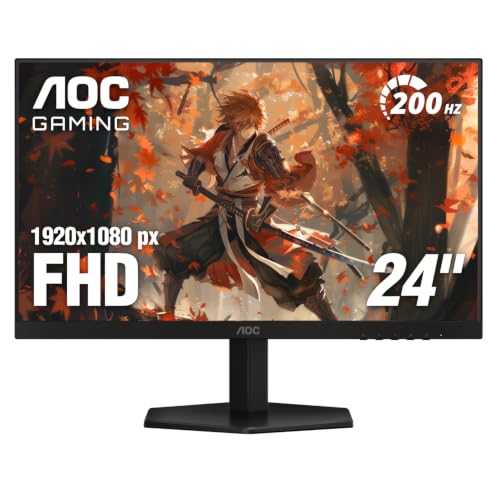
AOC’s 24G42HE takes the same formula and turns the speed dial: 200Hz on a 24-inch IPS panel, with NVIDIA G-SYNC Compatible stated outright on the listing and a 0.3ms response figure that tells you exactly which games it was built for. At 1080p, 200 frames per second is a target a strong mid-range NVIDIA card can genuinely hold in competitive titles, and G-Sync’s role at that altitude is subtle but real — it absorbs the micro-fluctuations between the card’s output and the panel’s ceiling so the image stays composed when a fight gets busy. HDR10 support and a VESA mount round out a spec that reads like it was assembled by someone who plays the games it targets.
The ownership picture is equally direct. The design is gamer-flavoured without fancy hub features, the stand is the simpler kind, and the three-year warranty on the listing is the sort of detail that matters in year three rather than week one. An earphone output acknowledges the headset reality of competitive play. If your card can feed 200Hz and your games reward it, this is the linked pick that spends its budget where your eyes will notice, and leaves the ergonomic upgrades to an arm you may already own.
There is a training benefit to a screen like this that competitive players understand instinctively. When the display stops being the variable — no tearing, no stutter, motion that stays readable at speed — every missed shot is honestly yours, and practice becomes measurement rather than argument with the hardware. The 24G42HE’s combination of a fast IPS panel and certified sync delivers that neutrality at a price the merely-fast screens around it usually reserve for TN panels with worse colour. It is the pick for the player whose rank has plateaued against their equipment rather than their aim.
- Panel: 24-inch IPS, 1920 × 1080
- Refresh rate: 200Hz
- Sync: NVIDIA G-SYNC Compatible
- Inputs: HDMI, DisplayPort
- Extras: HDR10, VESA mount, earphone output
Strengths
- 200Hz with certified G-Sync behaviour is the fastest complete package you can buy from this list today.
- IPS panel keeps colour and angles competitive-grade, unlike older fast TN screens.
- VESA mounting lets a proper arm replace the basic stand.
Trade-offs
- Feeding 200Hz takes a capable card and CPU; weaker systems will live far below the ceiling.
- Stand adjustment is basic out of the box.
- No USB hub or speakers to speak of — it is a player’s panel, not a desk hub.
Best for: competitive players on strong NVIDIA hardware who want certified sync at 200Hz. Not suited for: modest PCs that would strand the refresh rate, or desks needing speakers and docking.

LG UltraGear 24G411A — Best value
The 24G411A is the honest budget shape of this category: a 24-inch IPS panel whose native rate is 120Hz with an overclock to 144Hz, carrying NVIDIA G-Sync Compatible and AMD FreeSync certifications, HDR10, and LG’s usual tidy picture modes. The overclock deserves a plain explanation — the panel is guaranteed at its native rate and offers 144Hz as a selectable mode that owners report using full-time; treat it as a bonus gear rather than the foundation, and the value proposition is sound. For a first G-Sync screen or a second panel in a racing or flight rig, the arithmetic is hard to argue with.
Against its bigger sibling above, the sacrifices are specific: the stand tilts rather than lifting, the speaker disappears, and the ceiling is lower. What survives is the part this guide cares about — certified sync behaviour with NVIDIA cards, IPS manners, and a panel that does not embarrass itself in work or films. Buyers deciding between the two LGs are really deciding whether height adjustment and 144Hz native are worth the step up; for a fixed desk with a single screen, the 414B’s stand usually answers that question by itself.
It is also the natural gift and graduation screen of this guide: the panel you buy a teenager, a younger sibling, or yourself as a first step into high-refresh gaming, knowing the certification means it will behave properly with whatever card the household runs. Its picture modes are gentle enough for homework and films, its footprint suits the desks of smaller rooms, and when the main rig eventually upgrades, the 411A retires gracefully into second-screen service where its sync still earns its keep in racing rigs and stream-preview duty.
- Panel: 24-inch IPS, 1920 × 1080
- Refresh rate: 120Hz native, overclock to 144Hz
- Sync: NVIDIA G-Sync Compatible, AMD FreeSync
- Inputs: HDMI, DisplayPort
- Extras: HDR10, LG Switch software, tilt stand
Strengths
- Certified G-Sync Compatible behaviour at the friendliest point in this guide.
- Both sync ecosystems again, so the screen survives a GPU brand change.
- IPS panel and HDR10 keep it respectable for films and work.
Trade-offs
- The 144Hz figure is an overclock above a 120Hz native panel.
- Tilt-only stand; plan on a riser or an arm if your eye line is high.
- No built-in speaker for the console or laptop that visits.
Best for: first G-Sync buyers and second-screen roles where certified sync matters more than ceiling. Not suited for: players who will definitely use 200Hz, or desks that need height adjustment built in.

KTC H24T7 — Best 1440p option
Every other pick in this guide accepts 1080p as the 24-inch resolution. The KTC H24T7 is the dissent: a 24-inch Fast IPS panel at 2560 × 1440, running 180Hz with an overclock to 185Hz, and naming both G-Sync and FreeSync in its specification. The pixel density transforms the working day — text at 1440p on 24 inches is visibly crisper — and in games it buys image stability and detail that 1080p cannot, at a frame-rate cost a modern NVIDIA card handles well in most titles. HDR400 support and a height-adjustable stand complete a package that reads like a larger monitor’s spec folded into the competitive size class.
The compromises are the honest costs of the resolution. Your card works harder for every frame, so older or entry GPUs will spend more time at the bottom of the sync range — where, to KTC’s credit, the certified G-Sync behaviour keeps things composed. Console owners should note that a console will drive it happily at 1440p but the size class is really a PC proposition. If your desk time splits between documents and ranked queues, this is the pick that refuses to make you choose which one gets the good panel.
Consider the upgrade path it creates. A 1440p panel bought today remains the right panel when the next graphics card arrives, whereas a 1080p screen often becomes the bottleneck that forces a second purchase. The H24T7’s 180Hz ceiling is high enough that the card after next still has somewhere to go, and its size keeps it welcome on desks that cannot host a 27-inch primary. For buyers who purchase monitors on a five-year rhythm, that longevity is a stronger argument than any single benchmark in its section.
- Panel: 24-inch Fast IPS, 2560 × 1440
- Refresh rate: 180Hz, overclock to 185Hz
- Sync: G-Sync, FreeSync
- Inputs: HDMI, DisplayPort
- Extras: HDR400, height-adjustable stand
Strengths
- 1440p sharpness in the 24-inch competitive footprint — a rare combination.
- Both sync certifications named on the listing.
- Height adjustment included, matching the dual work-play role.
Trade-offs
- Demands more GPU than the 1080p picks for the same frame rates.
- A smaller brand’s support network is a consideration against LG or AOC.
- Consoles gain less here than a PC does.
Best for: PC players who split the screen between crisp work text and fast games. Not suited for: entry-level GPUs or console-led setups.
ASUS ROG Swift Pro PG248QP — Native-module flagship (prose-only)
This section carries no purchase link, deliberately: we could not confirm a listing for this model that we were willing to stand behind, and a G-Sync guide is exactly the wrong place to improvise one. The PG248QP still earns its paragraph because it defines what the word G-Sync originally meant. It is a 24.1-inch esports monitor built around NVIDIA’s hardware G-Sync module, with a refresh rate in the 540Hz class and the Reflex ecosystem support that professional FPS players treat as standard equipment. Its variable refresh window runs the full span a module allows, and its overdrive adapts with the frame rate — the two advantages the explainer above attributes to hardware.
Why describe a screen we are not linking? Because readers will meet it in every serious discussion of this category, usually priced like the specialist instrument it is, and they deserve a calibrated sense of what the premium buys: the last increments of motion clarity and sync range, valuable in professional play and invisible in most home setups. If your card and your ambitions genuinely live at that altitude, buy it from a listing you have verified yourself. Everyone else can file it as the ceiling and return to the linked picks without a sense of loss.
Its supporting cast tells the same story: a stand built for the exacting ergonomics of tournament desks, a design that assumes a coach, a second screen and a broadcast camera nearby. None of that is a criticism — it is a description of a tool built for a workplace most readers will never occupy. Knowing the tool exists, and what it optimises for, makes the home picks’ compromises legible as choices rather than shortcomings.
- Panel: 24.1-inch esports TN-class, 1920 × 1080
- Refresh rate: 540Hz class
- Sync: native G-Sync hardware module
- Inputs: DisplayPort, HDMI
- Extras: NVIDIA Reflex ecosystem support, esports stand and features
Strengths
- The full hardware-module G-Sync experience, including the widest sync range in the category.
- Refresh rate beyond any other 24-inch screen in this guide.
- Built for professional FPS play without compromise.
Trade-offs
- Priced as a professional instrument, because it is one.
- TN-class panel trades colour and viewing angles for speed.
- Its advantages are invisible outside high-level competitive play.
Best for: professional and aspiring professional FPS players on top-end NVIDIA hardware. Not suited for: anyone whose games, card or budget live below the esports ceiling.
HP OMEN 24 — Mainstream alternative (prose-only)
The second prose-only place goes to a screen readers will find on ordinary store shelves: HP’s OMEN 24, a 23.8-inch 1080p gaming monitor from the OMEN line with a high-refresh panel in the 165Hz class and G-Sync Compatible certification. We discuss it without a link because we could not confirm a listing to our standard at the time of writing, not because the product is obscure — it is one of the most widely distributed screens in this category, and that distribution is its argument. A buyer who values walking into a store, or who already trusts HP’s support, has a legitimate candidate here.
Placed against the linked picks, the OMEN’s shape is clear: its refresh ceiling sits between the two LGs and the AOC, its feature set is mainstream rather than specialised, and its certification means the NVIDIA experience is the validated one. What it does not offer is a distinguishing trick — no 1440p panel, no 200Hz rate, no module. It is the category’s sensible default from a big brand, included so that readers comparing it elsewhere can locate it honestly on this guide’s map: a fine screen that the linked picks beat on specific axes rather than on quality.
There is a household angle in its favour, too. A mainstream screen from a mainstream brand is the one a family buys once and moves between rooms and children without ceremony; its settings are forgiving, its warranty path is familiar, and its resale is painless. The linked picks beat it on the specific axes this guide measures, but a reader who finds it locally at a fair price is not making a mistake — they are making a different, defensible trade.
- Panel: 23.8-inch IPS-class, 1920 × 1080
- Refresh rate: 165Hz class
- Sync: G-Sync Compatible
- Inputs: HDMI, DisplayPort
- Extras: OMEN gaming software ecosystem
Strengths
- Widely available through mainstream retail, with big-brand support behind it.
- Certified G-Sync Compatible behaviour at a competitive refresh rate.
- A safe, balanced specification with no eccentric compromises.
Trade-offs
- No signature feature separates it from the linked picks.
- Ceiling below the AOC for players who can use 200Hz.
- We could not verify a listing to link at the time of writing.
Best for: brand-loyal HP buyers and in-store shoppers who want certified sync without research. Not suited for: readers who want the fastest or sharpest panel in the class.
Does Panel Type Change the G-Sync Experience?
Sync governs when frames appear; the panel governs how each frame looks while it changes into the next, and the two together decide motion quality. TN panels, the traditional esports choice and the technology inside the flagship class, switch fastest and historically paid for it with narrow viewing angles and modest colour. Modern Fast IPS — the technology in every linked pick here — has closed most of the speed gap while keeping the colour and angles that make a screen pleasant for everything else. VA, largely absent from this size and sync class, would trade response in dark transitions for contrast, a bargain competitive players decline.
The practical consequence for a G-Sync buyer is liberating: at 24 inches you no longer choose between sync quality and picture quality. A decade ago the certified fast screen was a TN compromise you apologised for during films; the linked picks are IPS panels you would happily keep for work and video, with sync as a feature rather than a trade. Only at the professional extreme does the old bargain return, which is precisely where the prose-only flagship lives — and why its section reads as a description of a workplace tool rather than a recommendation to a home.
How Low Should a G-Sync Range Go?
Every variable-refresh panel has a floor: the frame rate below which sync disengages and the display returns to fixed-refresh behaviour or to a fallback such as low framerate compensation, where frames are repeated to keep the panel inside its window. The floor matters because games visit it constantly — loading hitches, dense cities, weather effects, the first seconds of a multiplayer match. A hardware module’s floor is effectively the bottom of the range, which is the flagship’s real party trick. Compatible panels typically engage from somewhere in the 40–48 frames region upward, with compensation smoothing much of what happens beneath.
For the reader, the practical translation is this: if your games and your card conspire to live between 60 frames and the ceiling — the normal condition of a well-matched system — the floor never enters your life, and the Compatible picks are indistinguishable from the module. If your taste runs to maximum-settings cinematic games on a mid-range card, where 35–50 frames is home, the floor becomes a genuine feature and the calculation changes. Honest self-knowledge about your settings habits is worth more here than any certification logo.
The picks were screened with that in mind. Each linked panel’s sync window covers the range its refresh ceiling implies, so the 144Hz screens are composed through the rates a 144Hz system actually produces, and the 200Hz AOC was checked for behaviour in the middle distances rather than only at its headline. A monitor is a system component; the guide’s job is matching windows to workloads, not collecting logos.
What About Input Lag Alongside G-Sync?
G-Sync’s original sales pitch included a lag argument that still holds: by letting the panel refresh when the frame is ready instead of forcing the frame to wait for a fixed grid, variable refresh removes most of the delay that traditional VSync imposes, without VSync’s tearing. In practice, a properly configured G-Sync setup — driver VSync on, in-game VSync off, frame rate capped a breath below the ceiling — delivers latency within a whisker of raw unsynchronised play while keeping the image whole. The configuration in the setup section exists because each of those three choices protects that result.
NVIDIA’s Reflex ecosystem, supported by the flagship class and many modern games, attacks the rest of the chain — the render queue inside the PC — and pairs naturally with a G-Sync display. It is worth enabling where a game offers it, but it is a complement rather than a substitute: Reflex shortens the queue, G-Sync governs the display, and the player feels the sum. None of the linked picks blocks that pairing, which is another quiet advantage of buying inside the certified ecosystem rather than adjacent to it.
How Do the Best 24 Gaming Monitors With G-Sync Compare?
| Pick | Panel | Resolution | Refresh | G-Sync type |
|---|---|---|---|---|
| LG UltraGear 24G414B | 24″ IPS | 1080p | 144Hz | G-Sync (Compatible programme) |
| AOC 24G42HE | 24″ IPS | 1080p | 200Hz | G-SYNC Compatible |
| LG UltraGear 24G411A | 24″ IPS | 1080p | 120Hz / 144Hz OC | G-Sync Compatible |
| KTC H24T7 | 24″ Fast IPS | 1440p | 180Hz / 185Hz OC | G-Sync |
| ASUS ROG Swift Pro PG248QP | 24.1″ esports | 1080p | 540Hz class | Native module |
| HP OMEN 24 | 23.8″ IPS-class | 1080p | 165Hz class | G-Sync Compatible |
Which Refresh Ceiling Matches Your Graphics Card?
Pairing is the unglamorous skill this category rewards. A 144Hz panel is the natural partner of the mainstream NVIDIA cards that power most desks: in competitive titles they hold rates near that ceiling with settings to spare, and in heavier games they live comfortably inside the sync window. A 200Hz panel asks for the next tier up — the card and, just as often, the CPU must both be able to feed it — and rewards that hardware with motion clarity the 144Hz screens cannot show. Buying the ceiling your system cannot reach is not future-proofing by itself; it is only future-proofing if a GPU upgrade is genuinely scheduled, because panels age and prices fall while the unused headroom sits there.
The 1440p pick reframes the equation. Its 180Hz ceiling is lower than the AOC’s, but every frame costs roughly 78% more pixels to render, so the honest comparison is not 180 versus 200 — it is the frame rate your card sustains at each resolution in your games. Players should test their favourite title at 1440p, even rendered on a 1080p screen via supersampling, before choosing the KTC; the number that comes back is the truest buying advice in this guide.
And the prose-only flagship marks the boundary of the whole exercise: a 540Hz-class panel is a professional tool whose supporting hardware costs several times the monitor. Its presence here is a calibration point. Everything a home player needs from G-Sync exists in the four linked picks, at prices that leave budget for the games themselves.
How Do You Set Up G-Sync Correctly?
Begin with the connection: a DisplayPort cable from the graphics card to the monitor, because that is the path G-Sync is validated on for these panels. In the NVIDIA control panel, open the Set up G-Sync page and enable G-Sync for windowed and full screen mode — the full-screen-only default leaves borderless games unsynchronised, and most modern games default to borderless. Tick the box for the specific display if the panel is not already marked as validated, then confirm in the display settings that the desktop refresh rate is set to the panel’s maximum; Windows cheerfully runs fast monitors at 60Hz until told otherwise.
Two supporting settings decide whether the result feels right. In the Manage 3D settings page, set vertical sync to on in the driver while turning it off inside games — the driver-level setting works with G-Sync to cap frames just below the panel’s ceiling, which keeps the sync engaged at the top of the range instead of tearing at it. Players who prefer a frame-rate limiter can achieve the same with a cap a few frames under the maximum. Then verify in a real game: a demanding scene should pan smoothly with no tearing line and no rhythmic stutter, and the monitor’s own frame-rate display, where fitted, should track the game’s output rather than sitting fixed at the ceiling.
While you are verifying, spend thirty seconds on the overdrive setting, because it interacts with everything above. Most of these panels ship at a middle overdrive that suits the top of the range; at lower frame rates a gentler setting can look cleaner, and the variable-overdrive advantage of module panels is precisely that they make this adjustment continuously. On a Compatible panel, pick the setting that behaves in the games you play at the rates you actually see, rather than the setting that wins a test pattern at maximum refresh.
Consoles and second machines need one clarification: G-Sync is an NVIDIA PC feature, and a console plugged into the same screen will use the panel’s ordinary adaptive sync or fixed refresh as its own ecosystem dictates. That is not a flaw in these picks — several also carry FreeSync for exactly that reason — but the reader whose desk is console-first should weight the picks’ other qualities and read this guide as a PC-first shortlist.
How Does G-Sync Feel Different From a Fixed 144Hz Screen?
The comparison is worth describing, because the specification — “variable refresh” — sounds like bookkeeping and feels like something else entirely. On a fixed-refresh panel, a game running at 90 frames per second on a 144Hz screen must either tear, stutter as frames repeat unevenly, or wait. On a G-Sync panel the screen simply refreshes 90 times per second, in step with the card, and the motion reads as continuous. The sensation players report is not speed but smoothness of a particular kind: camera pans stop juddering at the edges, and the micro-hitches that punctuate busy scenes soften into the background.
The difference is largest exactly where fixed panels are weakest — the fluctuating middle. A locked 144 frames looks identical on both technologies, which is why locked-frame-rate demos flatter fixed screens. Real games fluctuate, and the wider the fluctuation, the wider G-Sync’s margin. This is also why the guide keeps returning to the dips: a technology whose value concentrates in imperfect moments should be judged there, and the picks were chosen for their manners when the frame rate falls off the cliff edge, not for their posture at the summit.
One honest boundary: G-Sync does not add frames, cure a CPU bottleneck, or rescue settings a card cannot run. A game at 35 frames is a 35-frame game on any panel in this guide. What sync changes is the presentation of the frames that exist — whole, ordered and tear-free — which is why pairing the panel to the card, as the previous section insists, remains the buyer’s first job.
What Mistakes Do G-Sync Buyers Make?
The expensive mistake is paying the module premium for home play. Native-module monitors are magnificent instruments whose advantages live at frame rates and skill levels most desks never reach; the Compatible picks here deliver the tear-free experience that is 95% of what buyers actually want. The opposite mistake also exists: buying an uncertified adaptive-sync panel because the listing’s language sounded close enough, then becoming the unpaid tester of its low-frame-rate flicker. Certification is the line, and this guide holds it.
There is also a sizing mistake specific to this category: assuming 24 inches is automatically the competitive choice for your desk. It is the right size at typical desk distances and the wrong one if you sit far back or share the screen with a viewer. The players who swear by the class sit close, play fast titles, and value the whole scene fitting inside a glance. If your room says otherwise, the honest move is a size up — G-Sync itself is size-blind, and the certification logic in this guide transfers intact to the larger classes.
Setup mistakes are cheaper but more common. Leaving the desktop at 60Hz, enabling G-Sync only for full screen while playing borderless, stacking in-game VSync on top of driver settings, or feeding the monitor through HDMI and wondering why the control panel’s options look thin — each quietly cancels the feature the monitor was bought for. The final mistake is judging sync at the ceiling: run a game locked to maximum frame rate and any panel looks smooth. The honest test is a heavy scene at half the ceiling, which is where these six were chosen to behave.
What Should You Do on the First Evening With a G-Sync Monitor?
Resist the urge to judge it in the first game you load. Begin instead with the verification ritual: desktop at full refresh, G-Sync enabled for windowed and full screen, driver VSync on and in-game VSync off, then a familiar title whose demanding scenes you know by heart. Familiarity is the instrument here — you are comparing the new presentation against a memory of tearing and stutter in specific places, and those places are where the panel will either prove itself or expose a setting you missed.
Then deliberately visit the dips. Load the heavy map, the crowded city, the weather effect that used to cost you smoothness, and watch the presentation hold together at frame rates that used to judder. Try the monitor’s frame-rate readout if it has one and watch it track the game. Finish by saving a per-game routine: which titles get the frame cap, which get Reflex, which overdrive setting flatters which engine. An evening spent this way converts a purchase into a configured system, and it is the difference between owning G-Sync and merely owning a monitor that supports it.
Should a Laptop Owner Care About G-Sync at 24 Inches?
Increasingly, yes. A gaming laptop driving an external monitor through USB-C or HDMI is now a common shape of desk, and a 24-inch G-Sync panel is the natural external upgrade: the laptop’s card does the same work it does on the internal screen, and the external panel adds size, refresh and sync in one step. Two cautions apply. The laptop’s output path decides whether G-Sync is available at all — the port must connect to the discrete GPU rather than only the integrated graphics, a detail buried in laptop spec sheets — and the connection generation governs the refresh ceiling. Check both before assuming the pairing works, because a mismatch presents exactly like a monitor fault.
For docked-laptop households the picks reorder themselves slightly. The LG 24G414B’s speaker and stand make it the best single-screen dock companion, the KTC’s 1440p panel gives a laptop the external workspace its internal screen cannot, and the AOC serves the laptop that is really a desktop replacement with a strong card inside. The category’s centre of gravity has moved from the tower PC to whatever machine the household actually games on, and these panels serve both shapes.
Final Recommendation
Start with the LG UltraGear 24G414B unless you have a specific reason not to: certified sync for NVIDIA cards, FreeSync insurance for a future swap, a stand that adjusts properly, and a 144Hz rate matched to real hardware. Step up to the AOC 24G42HE when your card can hold 200 frames and your games reward it; step sideways to the KTC H24T7 when your working day shares the panel and deserves 1440p text. The LG 24G411A is the value door into the category, and the two prose-only screens mark its ceiling and its mainstream — useful knowledge, honestly labelled. Tearing is a small flaw that ruins big moments; any of the linked four removes it properly. Choose by the machine you own and the hours you keep — ceiling for the competitor, sharpness for the worker, balance for everyone else — and the certification ensures the part you cannot see in a showroom, the panel’s behaviour in the dips, has already been vouched for.
Frequently Asked Questions
Does G-Sync work over HDMI on these monitors?
It depends on the model and the graphics card generation, which is why this guide treats DisplayPort as the reference connection for a PC. Where HDMI G-Sync is supported, it is a convenience for laptop owners and single-cable desks; where it is not, nothing is lost by using DisplayPort, which remains the fullest expression of every panel in this guide. When in doubt, plug in DisplayPort and let the question retire itself. Some newer panels and cards support G-Sync over HDMI, but the validated, guaranteed path for the Compatible programme is DisplayPort. Console players should note that consoles use their own variable refresh implementations and do not use G-Sync at all.
Is G-Sync Compatible noticeably worse than a G-Sync module?
In the frame-rate range where most games live, no — the tear-free result is the same, and that is the feature buyers are paying for. The honest way to decide is to ask where your own frame rate spends its time: a graph of a typical session, if your software offers one, will show a band rather than a point, and if that band sits comfortably inside a Compatible panel’s window, the module’s extra range is a feature you would own but never meet. The module’s advantages appear at the extremes: a lower sync floor for very heavy scenes, and variable overdrive that polishes motion across the whole range. Competitive specialists can justify the flagship class; home players almost never need to.
Can I use a G-Sync monitor with an AMD graphics card?
Usually, yes, through the panel’s FreeSync or adaptive sync support — and three of the four linked picks here carry FreeSync explicitly alongside their G-Sync certification. The reverse is not true: a FreeSync-only panel offers an AMD card its full feature set but gives an NVIDIA card only whatever the Compatible programme or manual enabling provides. Dual certification is therefore the hedge that survives a change of GPU allegiance, and this guide weights it accordingly. What you cannot do is use the NVIDIA-specific features, such as the module behaviours on the flagship. Dual-certified panels are the safest purchase for households whose next GPU is undecided.
Why does my game still tear with G-Sync enabled?
Check the chain in order: the frame rate may be exceeding the panel’s ceiling, where sync disengages unless the driver VSync setting or a frame cap holds it a few frames below maximum. A quick diagnostic is to watch the monitor’s refresh-rate readout during the tearing moment — if the number is pinned at the maximum while the game reports more frames than that, the ceiling is your culprit and the cap is your cure. Or the game may be running in a mode your G-Sync setting does not cover — enable the windowed and full screen option. Or the desktop itself may be set below the panel’s rate. Each cause has a one-minute fix in the setup section above.
Is 1440p at 24 inches worth it for gaming?
For gaming alone, it is a luxury that costs frame rate; for a desk that also works, it is close to a necessity once you have seen text at that density. The deciding test is your own library: if your most-played games are competitive titles where frames are the currency, the 1080p picks pay you better. If your most-opened applications are documents and your games are the evening’s second act, the sharper panel serves more of your hours. The KTC pick exists for the second reader. Pure gaming desks with mid-range cards will get more joy from the 1080p picks’ higher, steadier frame rates than from the sharper panel’s demands.
Will a G-Sync monitor improve my aim?
Not directly — no panel teaches tracking or timing, and any product that promises to should be read as marketing. The defensible claim is narrower and still valuable: consistent presentation makes performance measurable, and measurable performance is what practice improves. What it removes is noise: the tearing, stutter and inconsistent presentation that make motion harder to read and outcomes harder to attribute. Players consistently describe the upgrade as the game feeling fairer rather than themselves feeling faster, and over a season that fairness compounds into better practice. Buy it as instrumentation, not as talent.
How long will a 24-inch G-Sync monitor stay relevant?
Longer than the graphics card driving it, in most households — often twice as long. That asymmetry should shape the purchase: spend on the panel traits that persist, be sceptical of launch-week premiums for features the next card generation will commoditise, and keep the box and receipt, because a certified panel resells to the next player with its credentials intact. The sync standards are settled, the size class is the competitive standard, and 1080p at high refresh remains the esports reference point. A certified panel bought today will serve two or three GPU generations, which is why this guide weights stand quality, panel manners and certification over launch-season novelty — the traits you will still be living with when the current card is a spare.
Do I need a specific cable for G-Sync?
A sound DisplayPort cable of the generation the monitor’s manual recommends — in practice, any certified cable from a reputable maker at a sensible length. Keep the run short, route it away from tight bends behind an arm, and if a mysterious sync problem ever appears, swap the cable before you change a single setting: it is the cheapest component in the chain and the most common secret culprit. Exotic cables add cost without adding sync quality; the failure mode to avoid is the unbranded cable from a drawer, whose intermittent signal drops look exactly like sync problems and waste an evening of diagnosis.
Related Guides
Exploring the rest of the 24-inch class? Work through the size first, then the sync, then the ceiling. See the best 24 inch 144hz monitors next for the refresh-rate-focused shortlist itself, the best 24 inch gaming monitors for the general category without the sync filter, or the best 1080p gsync monitors for the wider resolution-matched family.