What's inside
- Key Takeaways
- Quick Picks
- How did we choose these ultrawide monitors for content creators?
- Comparison: the six ultrawides side by side
- Which resolution actually suits your software?
- How do you set up an ultrawide creator desk properly?
- How should you judge colour claims in a monitor listing?
- Common Mistakes
- Final Recommendation
- Frequently Asked Questions
- Related Guides
As an Amazon Associate I earn from qualifying purchases. This post may contain affiliate links at no extra cost to you.
widgetverdict.com is reader-supported. When you buy through links on our site, we may earn an affiliate commission.
A video editor scrubbing a timeline at midnight and a retoucher nudging a mask at noon want the same thing from a screen, even if they describe it differently: room. Room for the timeline and the preview to coexist, room for tool panels that stop eating the canvas, room for a reference image beside the file being graded. That appetite for horizontal space is exactly why the best ultrawide monitors for content creators have become the default desk upgrade for people who make things for a living. A single wide panel replaces the seam, the bezel gap and the mismatched colour of a dual-monitor setup with one continuous workspace, and the six monitors reviewed here approach that workspace from six different directions.
The spread matters more than any single specification. Two of these picks are 34-inch 1440p-class panels built around colour accuracy and docking. Two are 40-inch 5K2K screens with roughly a third more pixels again, aimed at editors and designers whose software rewards sheer resolution. One is a 34-inch curved VA panel with a webcam and a noise-cancelling microphone, shaped for creators who also present, teach or stream. The last is a 49-inch super-ultrawide that stretches a full dual-monitor width into one cabinet and leans toward gaming in its tuning, yet still earns a place here for the creators whose work is mostly timeline, storyboard and spreadsheet rather than colour-critical print proofing.
Read the six reviews with your own software in mind. A Premiere or DaVinci timeline drinks horizontal pixels and cares little about perfect colour gamut beyond a trustworthy sRGB or P3 picture. A Photoshop or Lightroom workflow reverses those priorities: panel uniformity, verified colour error figures and gamut coverage decide whether the file you approve is the file your client sees. A Capture One tethered studio adds a third demand, which is a dock that survives a full day of drives, card readers and a laptop that must stay charged. Each pick below is judged against the job it was plainly built to do, and each review names the buyer who should walk past it.
One discipline runs through everything that follows. The only specifications treated as fact are the ones printed in each monitor’s own Amazon listing title. Where a title stays silent about something a creator would reasonably ask — a refresh rate, a gamut figure, a port — the silence is reported as silence, in the spec list and in the comparison table, rather than filled in from memory of a spec sheet. Check the price on Amazon from the listing itself, and read that title once more before ordering; it is the document this guide was written from, and it is the document your purchase will be judged against if anything arrives different from what you expected.
Key Takeaways
- Two distinct sizes dominate this guide: 34-inch 3440×1440-class panels for editors who want width without a second mortgage on desk space, and 40-inch 5120×2160 5K2K panels for creators who open several full-size windows at once.
- The ASUS ProArt PA34VCNV is the colour-first pick: Calman Verified with Delta E<2, 100% sRGB, a USB-C dock with 96W power delivery and an RJ45 Ethernet port for wired networking at the desk.
- LG’s 40U990A-W is the newest-generation option, pairing its 5K2K Nano IPS panel with Thunderbolt 5, DisplayHDR 600 and a 120Hz refresh rate stated in its title.
- The Philips 34E1C5600HE is the only pick with a built-in webcam and noise-cancelling microphone, which makes it the natural choice for creators who teach, present or take client calls from the same desk.
- Dell’s U3425WE listing title is unusually terse, so several of its specification lines below are honestly marked as not stated — verify them in Dell’s own documentation before treating it as a docking purchase.
- The INNOCN 49C1R is a gaming-leaning 49-inch 32:9 panel; it suits timeline and layout work at huge width, but its 99% sRGB figure and HDR400 are not a colour-proofing specification.
Quick Picks
| Pick | Badge | Why it is here |
|---|---|---|
| ASUS ProArt PA34VCNV 34″ Ultrawide | Best colour-verified dock | Calman Verified, Delta E<2, 100% sRGB, USB-C docking with 96W power delivery and RJ45 Ethernet in one 34-inch IPS panel. |
| LG 40WP95C-W 40″ 5K2K UltraWide | Best established 5K2K | 5120×2160 Nano IPS, DCI-P3 98% (Typ.), HDR10 and Thunderbolt 4 with 96W power delivery on a tilt, height and swivel stand. |
| LG 40U990A-W 40″ 5K2K UltraFine evo | Best new-generation 5K2K | Thunderbolt 5, DisplayHDR 600, 120Hz and HDMI 2.1 plus DP 2.1 connectivity on a curved Nano IPS panel with built-in speakers. |
| Philips 34E1C5600HE 34″ Curved USB-C | Best for presenting creators | UWQHD VA panel at 100Hz with a built-in webcam, speakers and a noise-cancelling microphone, plus USB-C at 65W and a four-year advance replacement warranty. |
| Dell UltraSharp U3425WE 34″ | Best quiet professional option | A 34-inch UltraSharp with a 1440p-class picture from Dell’s professional line; its listing title is brief, so confirm the docking details before buying. |
| INNOCN 49″ 5K2K Curved Monitor | Best maximum width | A 49-inch 32:9 panel at 5120×1440 and 120Hz with 99% sRGB, HDR400 and USB Type-C — dual-monitor width without a centre bezel. |
How did we choose these ultrawide monitors for content creators?
The starting filter was width with intent. Plenty of ultrawide monitors are gaming panels wearing a creator costume, and plenty of creator panels are ordinary office screens stretched sideways. The six survivors each declare a professional purpose in their own listing title: a ProArt or UltraSharp badge, a stated colour figure such as 100% sRGB or DCI-P3 98%, a calibration claim like Calman Verified with a Delta E figure, or a docking feature — USB-C with a stated power delivery wattage, Thunderbolt, an RJ45 Ethernet port — that turns the monitor into the centre of a laptop desk. A title that offered width and nothing else did not survive.
Resolution was the second filter, applied as a ladder rather than a single bar. At 34 inches, 3440×1440 is the working standard for editing timelines and documents side by side. At 40 inches, 5120×2160 — the 5K2K format — keeps text and interface elements at a similar sharpness across the larger area, which is why both 40-inch picks carry it. The 49-inch INNOCN spreads 5120×1440 across a 32:9 frame, a different trade: more width, less vertical room, lower pixel density than the 40-inch pair. Each review states plainly which side of that trade its panel sits on.
Colour claims were recorded exactly as printed and never upgraded. When a title says 100% sRGB, the review says 100% sRGB and does not whisper a P3 figure alongside it. When a title prints a Delta E value, that value is quoted; when it does not, no accuracy figure is invented. HDR labels were treated the same way: HDR10, DisplayHDR 600 and HDR400 are three different claims from three different listings, and they are kept separate throughout, because treating them as interchangeable is how buyers end up grading HDR content on a panel that was only ever specified for SDR work.
Finally, each monitor had to make sense as the only screen on a creator’s desk. That meant a stand with at least height adjustment on most picks, a USB-C or Thunderbolt connection capable of charging the laptop it displays for, and a size that fits a real desk rather than a showroom bench. The Philips earns its place on a different reading of the same test: for a creator whose day includes client calls and recorded lessons, a webcam and microphone built into the monitor remove two peripherals from the desk entirely, and that is a workflow feature, not a gimmick.

ASUS ProArt PA34VCNV 34″ Ultrawide — Best colour-verified dock
ASUS builds the ProArt line for people whose output gets judged by other professionals, and the PA34VCNV’s title reads like a checklist written by that audience. It is a 34-inch 1440p ultrawide on an IPS panel with a 3800R curve — a gentle bend, closer to flat than to the aggressive wraps of gaming panels, chosen so that straight lines near the edges stay believable when you are aligning design elements or checking a horizon in a photograph. The colour credentials lead the title: Calman Verified, Delta E<2, 100% sRGB. Calman verification means the panel’s accuracy was measured against a known standard rather than asserted, and a Delta E under 2 puts average colour error below the threshold most viewers can detect in side-by-side comparison.
The docking half of this monitor deserves equal attention, because it changes what sits on the desk. USB-C docking with 96W of power delivery runs a demanding laptop from the monitor’s own supply while the same cable carries the picture back. An RJ45 Ethernet port is built in, which sounds mundane until a studio’s Wi-Fi stumbles mid-upload and the wired connection simply continues. HDMI and DisplayPort inputs cover a second machine — a desktop tower beside the laptop, a client’s machine during a review session — without a separate dock purchase. For a Mac-based creator, which the title explicitly names as the target, this is the monitor-as-hub pattern executed completely.
Working on the PA34VCNV means trusting what you see for SDR deliverables: web graphics, social video, presentations, sRGB exports for print houses that convert at their end. The 1440p vertical resolution keeps two documents or a timeline-plus-preview arrangement comfortable at 34 inches. What the title does not claim is equally instructive — no wide-gamut P3 percentage is printed, no HDR tier is named, no refresh rate is stated. Treat it as a precision SDR instrument with a superb dock, and it will not disappoint. Ask it to be an HDR grading monitor and you are asking outside its stated design.
Day to day, the ownership experience is defined by small mercies. The dock remembers the laptop; the Ethernet connection removes the daily Wi-Fi lottery from large file transfers; the panel’s matte professional finish suits rooms with windows, which describes most home studios honestly. Retouchers will appreciate that a verified Delta E figure changes how a monitor is argued about: instead of trusting a showroom impression, you own a measured claim, and if a unit ever drifts outside it, the claim is the basis of the conversation with support. Editors will appreciate the width-to-height balance — tall enough that a timeline does not squeeze the preview into a postage stamp, wide enough that the preview and the project panel stop competing. None of this is glamorous, and that is rather the point. The PA34VCNV is equipment in the old sense: bought once, specified honestly, and then ignored for years while the work goes through it. Creators replacing a dual-screen setup will also notice what disappears — the second power brick, the colour mismatch between two ageing panels, the bezel bar through the middle of a wide spreadsheet. A single panel with a single calibration story is easier to trust, and trust, for a screen you judge colour on, is the entire product.
- Panel: 34-inch IPS, 3800R curve
- Resolution class: 1440p ultrawide
- Colour: Calman Verified, Delta E<2, 100% sRGB
- Docking: USB-C with 96W power delivery, RJ45 Ethernet
- Inputs named in title: HDMI, DisplayPort, USB-C
- Refresh rate: Not stated in the listing title — verify with the manufacturer documentation
Strengths
- Verified colour accuracy with a printed Delta E<2 figure, not a vague “professional colour” claim.
- The 96W USB-C dock plus RJ45 Ethernet removes a separate docking station from most laptop desks.
- A shallow 3800R curve suits design and photo work where edge geometry matters.
Trade-offs
- No gamut figure beyond 100% sRGB appears in the title, so wide-gamut P3 pipelines should look at the 40-inch picks.
- No HDR tier is claimed in the title; HDR grading is outside its stated brief.
- The title states no refresh rate, so motion work should be verified against ASUS documentation before purchase.
Best for: Mac-based designers, retouchers and editors whose deliverables live in sRGB and who want one cable between laptop and desk. Not suited for: HDR colourists who need a stated HDR tier and a wide-gamut P3 figure printed in the specification.

LG 40WP95C-W 40″ 5K2K UltraWide — Best established 5K2K
Forty inches at 5120×2160 is a specific proposition: the width of a serious ultrawide with the vertical resolution to keep four application windows honest at once. LG’s 40WP95C-W was among the first monitors to make that proposition to creators, and its title still reads as a confident summary of the format. The panel is Nano IPS, curved, with a DCI-P3 figure of 98% (Typ.) and HDR10 support. That gamut number is the headline for video work, because P3 is the colour space of digital cinema delivery and of the HDR workflows built around it; a monitor that covers 98% of it lets an editor judge saturated colour with far fewer surprises downstream.
Connection runs through Thunderbolt 4 with 96W of power delivery, so a single cable docks a laptop, charges it at a rate that suits large machines, and anchors the desk. The stand adjusts for tilt, height and swivel, and the design is described as three-side virtually borderless, which matters when the screen sits beside a second display or when a client watches over your shoulder — the picture, not the furniture, holds the attention. In a grading-adjacent workflow — online editing, colour correction for web delivery, motion graphics — this combination of resolution, gamut and docking is the complete sentence.
Set expectations by the title’s own wording. HDR10 support is named; no DisplayHDR tier is claimed, so judge HDR work as monitoring rather than mastering. No refresh rate is printed in the title at all, and this guide will not supply one: what can be said honestly is that nothing in the listing positions this monitor for fast-motion work, and its strengths — resolution, gamut, Thunderbolt docking — are the strengths of a creator’s desk, not a player’s. Buyers whose evenings include competitive gaming should read the INNOCN and 40-inch gaming reviews elsewhere on this site rather than stretch this panel into a role its title never claims.
Consider how the 40WP95C-W changes a working week in concrete terms. A documentary editor can hold the timeline at the bottom, a full-width preview above it, and still keep a notes document open at readable size — three artefacts that used to require either two monitors or constant window shuffling. A designer preparing a keynote can keep the deck, the asset library and the client’s brand sheet visible simultaneously, which quietly removes the alt-tab errors that creep into late-night revisions. The Nano IPS panel technology is LG’s own refinement of IPS, and the virtually borderless framing keeps attention on content when the screen is this large; at 40 inches, a heavy bezel would make the cabinet feel like furniture from a different decade. Thunderbolt 4 also future-proofs the desk wiring in a modest but real way: docks, drives and a second chained display all speak through the same ecosystem the laptop already uses. The monitor asks for commitment in return — desk depth, a centred chair, a room where a 40-inch curve does not overwhelm — and buyers in small spaces should measure twice. For those with the room, it remains the reference shape for creator ultrawides: resolution high enough to forget about, gamut wide enough for P3 delivery, and a connection standard that treats the laptop as the computer and the monitor as the workplace.
- Panel: 40-inch Nano IPS, curved
- Resolution: 5120×2160 (5K2K WUHD)
- Colour: DCI-P3 98% (Typ.), HDR10
- Docking: Thunderbolt 4 with 96W power delivery
- Stand: tilt, height and swivel adjustment; three-side virtually borderless design
- Refresh rate: Not stated in the listing title — verify with the manufacturer documentation
Strengths
- 5K2K resolution keeps multiple full-size windows sharp across a 40-inch canvas.
- DCI-P3 98% (Typ.) coverage serves P3 video pipelines directly.
- Thunderbolt 4 docking at 96W suits large laptops on a single cable.
Trade-offs
- HDR10 is named without a DisplayHDR tier, so HDR mastering expectations should stay modest.
- The title prints no refresh rate; fast-motion gaming is not its stated purpose.
- Forty inches of curved glass demands a deep desk and a viewing distance that smaller rooms may not allow.
Best for: video editors and motion designers working in P3 who want 5K2K width with Thunderbolt docking. Not suited for: a desk shallower than the curve needs, or a buyer whose priority is high-refresh gaming performance.

LG 40U990A-W 40″ 5K2K UltraFine evo — Best new-generation 5K2K
Placed beside the 40WP95C-W, the 40U990A-W shows what a generational step looks like when it is written in connections and contrast rather than in inches. The canvas is the same creator format — 40 inches, 5120×2160, Nano IPS, curved — but the title adds Thunderbolt 5 in place of Thunderbolt 4, DisplayHDR 600 in place of a plain HDR10 mention, a stated 120Hz refresh rate, and HDMI 2.1 alongside DP 2.1 and USB-C. Each of those upgrades answers a specific modern complaint: Thunderbolt 5 for faster downstream storage and future docks, DisplayHDR 600 for a certified brightness tier when previewing HDR deliverables, 120Hz for timeline scrubbing and interface motion that stays fluid all day.
Built-in speakers are listed, which on a creator’s desk translates to reference audio for rough cuts without waking the studio monitors — checking dialogue intelligibility, catching a music cue, reviewing a client’s screen recording. The stand covers tilt, height and swivel, and the finish is white, a small thing that matters in bright studios and in the background of recorded video. Where its older sibling is the established choice, this model is the forward-looking one: a buyer equipping a desk for the next several years of laptops will find the port selection already waiting for machines that have not shipped yet.
The honest cautions are about fit rather than quality. A 40-inch curved panel still needs desk depth and a seated position centred on the curve; off-axis viewers in a collaborative studio will see the edges at an angle. The title does not print a colour gamut percentage, so a colourist choosing strictly on a published P3 figure should weigh the 40WP95C-W’s printed 98% (Typ.) against this model’s newer connections and certified HDR tier, and decide which evidence matters more for their pipeline. Neither answer is wrong; they are different kinds of assurance, and the reviews here keep them separate so the choice stays yours.
There is also a workflow argument for the 120Hz figure that has nothing to do with games. Interface motion is constant in creative software: scrubbing a playhead across a dense timeline, zooming into a photo, panning a canvas, scrolling a long mix session. At higher refresh rates those motions track the hand more faithfully, and over an eight-hour day the difference registers as reduced friction rather than spectacle. Pair that with DisplayHDR 600 — a tier that requires real brightness and local contrast behaviour, not merely the ability to accept an HDR signal — and the 40U990A-W becomes the pick for creators whose deliverables increasingly include HDR versions for streaming platforms. The built-in speakers, modest as monitor speakers always are, serve the reference-check role honestly: if dialogue survives them intelligibly, it will survive a phone. Thunderbolt 5 warrants a final word, because its value is mostly ahead of the purchase: bandwidth headroom for the next laptop, the next dock, the next storage array. Buyers who replace monitors every three years may never cash that headroom in. Buyers who keep a screen for six or seven years — the normal rhythm for a panel this size — very likely will, and they will be glad the port was already there.
- Panel: 40-inch Nano IPS, curved
- Resolution: 5120×2160 (5K2K WUHD)
- HDR: DisplayHDR 600
- Refresh rate: 120Hz
- Connections named in title: Thunderbolt 5, HDMI 2.1, DP 2.1, USB-C
- Extras: built-in speakers; tilt, height and swivel stand; white finish
Strengths
- Thunderbolt 5 and DP 2.1 give the most future-facing connection set in this guide.
- DisplayHDR 600 is a certified tier, a firmer HDR claim than a bare format mention.
- A stated 120Hz refresh keeps long editing sessions visibly smooth.
Trade-offs
- No colour gamut percentage is printed in the title, unlike its LG sibling.
- The white finish and large curve will not suit every studio’s look or layout.
- Newest-generation connectivity only pays off fully with recent or upcoming laptops.
Best for: creators equipping a long-term desk who value certified HDR preview, 120Hz smoothness and Thunderbolt 5 headroom. Not suited for: buyers who choose strictly on a printed gamut percentage, or desks too shallow for a centred seat in front of a 40-inch curve.
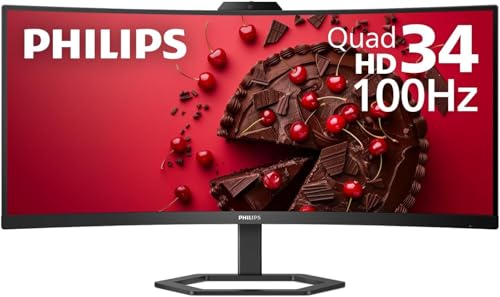
Philips 34E1C5600HE 34″ Curved USB-C — Best for presenting creators
Some creators spend half their working week on camera: tutors recording lessons, designers walking clients through drafts, streamers whose commentary is the product. Philips shaped the 34E1C5600HE for that desk. Its title leads with a 34-inch curved UWQHD panel — 3440×1440 in a 21:9 frame, on VA technology, running at 100Hz — and then spends its remaining words on the features that define it: a built-in webcam, speakers, and a noise-cancelling microphone, all carried over a USB-C connection with 65W of power delivery. No separate camera perched on the bezel, no headset microphone in frame, no extra cables crossing the desk.
VA panel technology is the deliberate trade inside this design. VA typically delivers deeper contrast than IPS at this class, which flatters video playback and evening work, while its viewing angles and colour behaviour are a step behind the ProArt IPS panels in this guide for strict proofing. Philips is not pretending otherwise; the title prints no calibration claim and no gamut percentage. What it prints instead is a four-year advance replacement warranty, an unusually concrete promise: if the monitor fails, a replacement ships ahead of the return, which for a teacher whose income runs through this screen is worth more than a colour figure.
Height adjustment is included, and it matters doubly here because the webcam’s eye line depends on it — a camera at the wrong height makes every call look like a surveillance still. Set the panel so the lens sits at eye level, and the integrated kit does the rest. Choose this monitor when presenting is a core part of the work and colour proofing is handled elsewhere or not at all. Choose one of the ProArt or LG picks when the file’s colour is the product and calls are an occasional interruption; the Philips will join those calls happily enough, but its design centre is the other way around.
The teaching scenario repays a concrete walk-through, because it is where this monitor separates itself. A tutor sits down, opens the lesson deck on the left half of the 21:9 screen and the demonstration software on the right, and starts the call. The webcam is already aligned because it lives in the bezel at eye height; the noise-cancelling microphone trims the room’s echo and the household sounds behind the door; the students see a presenter framed by a tidy desk with no camera stalk, no headset band, no cable nest. Between lessons, the same screen is a perfectly ordinary ultrawide for preparing materials, and the 100Hz refresh keeps scrolling and video playback feeling current rather than dated. The 65W USB-C delivery will run most teaching laptops indefinitely, since few lessons push a machine the way a render does. Philips’s four-year advance replacement cover also reads differently in this context: a self-employed tutor cannot pause income for a warranty round-trip, and a replacement that ships first is the difference between an inconvenience and a lost week. None of the other five picks can replicate this combination, because none of them put a camera and microphone in the cabinet at all — a gap no specification table captures until the first client call begins.
- Panel: 34-inch VA, curved
- Resolution: 3440×1440 (UWQHD, 21:9)
- Refresh rate: 100Hz
- Built-in: webcam, speakers, noise-cancelling microphone
- Connection: USB-C with 65W power delivery
- Warranty named in title: four-year advance replacement; height adjustment included
Strengths
- Webcam and noise-cancelling microphone are built in, clearing two peripherals from the desk.
- A four-year advance replacement warranty is printed in the title — rare, concrete cover.
- 100Hz on a 3440×1440 VA panel keeps everyday motion smoother than a basic office screen.
Trade-offs
- No colour gamut or calibration figure appears in the title; colour-proofing is not its brief.
- USB-C power delivery is 65W, which suits most laptops but not the hungriest under sustained load.
- VA viewing angles ask the user to sit centred, which suits solo work better than group review.
Best for: tutors, presenters and client-facing creators who want camera, microphone and screen in one cabinet. Not suited for: colour-proofing workflows that require a printed calibration or gamut claim from the listing.

Dell UltraSharp U3425WE 34″ — Best quiet professional option
Dell’s listing title for the U3425WE is the shortest in this guide by a wide margin: it names the UltraSharp line, the 34-inch size and a 1440p-class picture, and then it stops. That brevity creates an unusual reviewing situation, and this guide handles it the same way it handles every silence — by reporting it. UltraSharp is Dell’s professional monitor family, the line businesses buy for design, finance and engineering desks, and a 34-inch ultrawide at 1440p is a proven shape for document-heavy creative work: timelines, page layouts, code beside preview, briefs beside drafts. Those are statements about the family and the format. Anything more specific about this unit — its ports, its power delivery, its colour figures — is simply not in the title provided, and inventing it would betray the reader this guide exists for.
So the practical advice for this pick is procedural. Open the listing, check the price on Amazon, and then read Dell’s own documentation for the U3425WE before ordering, confirming the connection set and any docking behaviour your desk depends on. Dell publishes full specifications for the UltraSharp range, and a five-minute read there converts this from the least-documented pick in the guide into a fully known quantity. Buyers who prefer their evidence inside the listing itself have two fully specified alternatives at the same size in this guide — the ASUS PA34VCNV with its printed dock and colour claims, and the Philips with its printed camera kit and warranty.
Why include a pick that demands homework? Because the UltraSharp name carries a support and consistency record that corporate and studio buyers weight heavily, and because the 34-inch 1440p ultrawide format is, for many creators, the correct size — wide enough to transform a workflow, modest enough to fit ordinary desks and ordinary budgets of space. The U3425WE is the pick for a buyer who already trusts the line, will verify the details at the source, and values a professional support channel over a long feature list in a marketplace title. Everyone else should treat its silence as a reason to choose one of the fully documented picks instead.
There is a broader lesson in this pick that applies to monitor shopping generally. Marketplace titles are marketing documents, and their length varies with the seller’s habits rather than the product’s quality; a short title can hide a fully featured professional monitor, just as a long one can pad a mediocre panel with adjectives. The correct response is neither suspicion nor faith but verification at the manufacturer’s source, which for a company like Dell means a proper specification sheet with port diagrams and power figures. Do that homework and the U3425WE becomes a rational purchase: a known format from a known professional line, bought by facilities departments in quantity precisely because the ownership experience is predictable. Skip the homework and the same purchase is a lottery ticket. This guide’s role is to make sure you know which of those two purchases you are making. It is also worth saying that buyers standardising a whole studio on one model — several desks, identical setups, spares on a shelf — often value that predictability above any single feature, because a fleet of identical monitors ends arguments about whose screen is right. For a studio manager reading this guide with five desks to equip, that argument-ending quality may be the most creator-relevant feature of all, even if it never appears in a title.
- Panel: 34-inch, UltraSharp professional line
- Resolution class: 1440p as stated in the listing title
- Colour figures: Not stated in the listing title — verify with the manufacturer documentation
- Docking and power delivery: Not stated in the listing title — verify with the manufacturer documentation
- Ports: Not stated in the listing title — verify with the manufacturer documentation
- Refresh rate: Not stated in the listing title — verify with the manufacturer documentation
Strengths
- UltraSharp professional line, bought at scale by studios and businesses for support consistency.
- The 34-inch 1440p ultrawide format fits ordinary desks while transforming side-by-side work.
- A restrained, business-appropriate design that suits client-facing studios.
Trade-offs
- The listing title documents almost nothing, so pre-purchase verification at Dell is mandatory homework.
- No colour, docking or refresh claim can be credited to it from the title alone.
- Buyers who want evidence inside the listing will be better served by the ASUS or Philips at this size.
Best for: buyers loyal to Dell’s UltraSharp support who will confirm specifications in Dell’s documentation before ordering. Not suited for: anyone who wants the listing itself to prove docking wattage, gamut coverage or refresh behaviour.

INNOCN 49″ 5K2K Curved Monitor (49C1R) — Best maximum width
Forty-nine inches at 32:9 is not a wider monitor so much as a different furniture decision: two 27-inch 1440p screens fused into one panel, with the centre bezel — the bar that used to split your timeline, your spreadsheet, your storyboard — simply gone. INNOCN’s 49C1R runs 5120×1440 at 120Hz on an R1800 curve, with 99% sRGB and HDR400 printed in its title, plus USB Type-C alongside DisplayPort and HDMI, built-in speakers, and height and tilt adjustment. The title calls it a gaming monitor, and this guide keeps that label attached, because honesty about tuning matters: its specification is written for width and motion first.
For creators, the use case is real but specific. A video editor gains a timeline that stretches across the whole desk with the preview parked at one end and bins at the other. A producer reviewing a storyboard, a trader-style researcher tracking sources, a musician with a DAW arrangement view — all of them spend their day in horizontal information, and 32:9 serves horizontal information like nothing else here. The 99% sRGB figure covers web and video deliverables at a trustworthy level for non-proofing work, and 120Hz keeps the huge canvas feeling responsive when windows and playheads sweep across it.
The limits are the mirror of the strengths. Pixel density at 5120×1440 across 49 inches is lower than the 40-inch 5K2K pair, so fine text and detailed retouching look less crisp per inch. HDR400 is the entry tier of HDR claims — a checkbox, not a grading tool. Colour-critical print and P3 video work belong on the ProArt or LG picks. And the desk itself must be audited first: this panel is roughly as wide as the two monitors it replaces, needs a centred seat, and will dominate a small room. Measured honestly, it is a superb width instrument for timeline-driven creators and a poor substitute for a colour instrument.
Ownership details reward a moment’s thought before the box arrives. A 49-inch panel ships in packaging closer to a television’s than a monitor’s, needs two hands and a clear path to the desk, and asks the stand question immediately: the included feet and height adjustment cover most desks, but a monitor arm rated for this weight class transforms cable management and frees the surface beneath. Cable runs also change character — DisplayPort or USB-C leads must reach a machine that may now sit further from the panel’s centre than before. Inside the software, window managers earn their keep: dividing 5120 pixels into deliberate zones, rather than letting applications sprawl, is what turns raw width into a system. Creators who make that small investment in setup report the same discovery, that the centre of the screen — where a bezel used to live — becomes the natural home for the primary artefact, with reference material flowing to the sides. That is a genuinely different working geometry from dual monitors, and it is the reason this gaming-labelled panel keeps appearing in editing suites. Buy it for geometry, not for colour, and it will justify its footprint every working day.
- Panel: 49-inch curved, R1800, 32:9
- Resolution: 5120×1440
- Refresh rate: 120Hz
- Colour: 99% sRGB, HDR400
- Connections named in title: USB Type-C, DisplayPort, HDMI
- Extras: built-in speakers; height and tilt adjustment
Strengths
- Dual-monitor width with no centre bezel interrupting timelines or arrangement views.
- 120Hz keeps a very large canvas feeling responsive in daily editing.
- USB Type-C input lets a laptop drive the full width over one cable.
Trade-offs
- Pixel density is lower than the 40-inch 5K2K picks; fine detail work is less crisp.
- HDR400 is an entry-level claim, unsuitable for HDR grading decisions.
- The cabinet is as wide as two monitors and demands a deep, centred desk setup.
Best for: timeline-driven editors, producers and DAW users whose work is fundamentally horizontal. Not suited for: colour-proofing, P3 grading, or any desk that cannot give it a centred seat and serious depth.
Comparison: the six ultrawides side by side
| Monitor | Size and resolution | Colour claim in title | Docking | Defining extra |
|---|---|---|---|---|
| ASUS ProArt PA34VCNV | 34-inch, 1440p ultrawide, IPS, 3800R | Calman Verified, Delta E<2, 100% sRGB | USB-C, 96W, RJ45 Ethernet | Verified SDR accuracy |
| LG 40WP95C-W | 40-inch, 5120×2160, Nano IPS | DCI-P3 98% (Typ.), HDR10 | Thunderbolt 4, 96W | Established 5K2K format |
| LG 40U990A-W | 40-inch, 5120×2160, Nano IPS, 120Hz | DisplayHDR 600 (no gamut % in title) | Thunderbolt 5 | HDMI 2.1 and DP 2.1 |
| Philips 34E1C5600HE | 34-inch, 3440×1440, VA, 100Hz | None printed in title | USB-C, 65W | Webcam and noise-cancelling mic |
| Dell U3425WE | 34-inch, 1440p class | Not stated in the listing title | Not stated in the listing title | UltraSharp professional line |
| INNOCN 49C1R | 49-inch, 5120×1440, 32:9, 120Hz | 99% sRGB, HDR400 | USB Type-C | Widest canvas in the guide |
Which resolution actually suits your software?
Resolution questions in creator software are really window questions. A video timeline wants horizontal pixels above all: tracks, keyframes and a playhead you can read at a glance. Both 34-inch 1440p panels and the 49-inch INNOCN serve that appetite, at different scales of desk. A photo editor wants pixel density and vertical room, because portraits, contact sheets and adjustment panels stack vertically; the 40-inch 5K2K pair, with 2160 vertical pixels, keeps more of a portrait frame visible without scrolling. A designer laying out spreads wants both, and usually ends up at 5K2K as the compromise that stops feeling like one.
Run the arithmetic on your own applications before ordering. Open your busiest project, count the panels you keep permanently visible, and measure how much width they consume at a readable size. If the answer fits inside 3440 pixels, the 34-inch picks will feel generous and the money saved can fund storage or a pen display. If your panels already overflow a 3440-wide screen in your imagination, 5120 pixels of width is not indulgence — it is the difference between a workspace and a juggling act. The 49-inch option answers a narrower question: not how many pixels, but whether a centre seam currently cuts through the one artefact — timeline, arrangement, board — that your whole day revolves around.
How do you set up an ultrawide creator desk properly?
Begin with the seat, not the screen. Sit in your working chair, rest your forearms on the desk, and mark where your eyes naturally rest; the centre of the panel belongs at that height, slightly below eye level at the top edge, at a distance where the curve’s edges sit inside your peripheral vision without head-turning for menus. On the 40- and 49-inch picks this usually means pushing the monitor further back than instinct suggests. Use the stand’s height adjustment first and a monitor arm only if the stand cannot reach the mark, because a floating panel that wobbles when the desk is bumped will annoy you through every precise mouse movement.
Connect with one cable where the pick allows it — USB-C or Thunderbolt from laptop to monitor — and let the monitor’s hub carry keyboard, mouse receiver and storage. Then calibrate your expectations and, where the software allows, the panel itself: set the operating system’s scaling so interface text matches the size you read comfortably, arrange your applications into saved window layouts so the width is used deliberately rather than filled by drift, and place your most colour-critical window at the panel’s centre, where uniformity and viewing angle are at their best. Recheck the setup after a week of real work; the layout that survives contact with deadlines is the right one, and it rarely matches the layout chosen on day one.
How should you judge colour claims in a monitor listing?
Learn to read colour claims as a small hierarchy of evidence. At the top sits a measured figure tied to a standard: a Delta E value with a verification programme behind it, as the ASUS prints with its Calman Verified, Delta E<2 line. A measured claim can be checked, argued with and warrantied, which is why professionals pay for it. Below that sits a coverage percentage — 100% sRGB, DCI-P3 98% (Typ.) — which tells you the size of the colour space the panel can reach, though not how accurately it lands inside it. The “(Typ.)” qualifier on the LG figure is honest small print: typical units reach it, individual units vary around it. Below coverage sits a bare format label such as HDR10 or HDR400, which describes signals accepted or a modest brightness tier rather than accuracy at all.
The practical rule follows directly. If your income depends on a client seeing the same colour you saw, buy from the top of the hierarchy and treat everything lower as supporting evidence. If your work is reviewed on unknown screens by unknown viewers — most web and social video — coverage percentages matter more than laboratory accuracy, because the audience’s display is the weakest link anyway. And whatever a listing claims, keep the claim’s exact wording in your notes when the monitor arrives; if the panel disappoints, the printed title is the standard the purchase is judged by, which is one more reason this guide quotes titles rather than paraphrasing them into stronger claims than they make.
Common Mistakes
Buying width when the bottleneck was height. Portrait photographers and document designers routinely discover that a 21:9 screen shows them more of the wrong dimension; the fix is to audit your software’s panels before purchase, as described above, not after delivery. Choosing a gaming-tuned panel for proofing work is the second recurring error — the INNOCN in this guide is labelled gaming by its own title, and its HDR400 and sRGB-only figures are exactly the specification that should steer colourists toward the ProArt or the LG pair instead.
A third mistake is assuming every USB-C port docks equally. The picks here state 96W, 65W and unspecified power delivery respectively, and a large laptop under rendering load can drain through a 65W supply while plugged in. Match the wattage to your machine’s appetite. Fourth: ignoring the stand. A panel that cannot reach eye level will be propped on books within a month, and the webcam pick in this guide genuinely depends on height adjustment for its camera framing. Finally, buyers forget the room: a 49-inch curve in a small, bright space invites reflections and neck strain. Measure the desk, note the window positions, and only then fall in love with a width.
Final Recommendation
Match the monitor to the artefact you produce. If your deliverables are judged on colour in sRGB and your desk runs from a laptop, the ASUS ProArt PA34VCNV is the most complete single purchase here — verified accuracy, a 96W dock and wired Ethernet in one cabinet. If your work lives in P3 video or sprawls across four windows, step up to 40 inches: the LG 40WP95C-W for its printed gamut figure and established record, or the 40U990A-W for Thunderbolt 5, DisplayHDR 600 and 120Hz headroom. Presenters and tutors should take the Philips and its built-in camera kit without a second thought. Dell loyalists who verify specifications at the source can buy the U3425WE with confidence in the line behind it. And if your day is one long horizontal artefact, the INNOCN’s seamless 49 inches will feel less like a monitor and more like a workbench — which, for the right creator, is the highest praise a screen can earn.
Frequently Asked Questions
Is 3440×1440 enough for professional video editing?
For the edit itself, yes: timelines, bins and a preview fit comfortably, and the preview can run at a useful size. The limits appear in colour finishing and in multi-application work, where the 5K2K picks’ extra width and height reduce window shuffling. Many working editors produce broadcast and web deliverables on 3440×1440 panels daily; the resolution constrains comfort more than capability.
What does 5K2K mean, and who needs it?
5K2K is shorthand for 5120×2160 — five thousand pixels wide, two thousand tall, in a 21:9 frame. It suits creators who keep several full-size windows open at once, and Mac users who want a wide screen whose density plays well with their laptop’s scaling. If your work is one application full-screen, 5K2K buys you little over 3440×1440; if your work is four applications in negotiation, it buys you your evenings back.
Can one cable really run my whole desk?
On the docking picks here, yes, within the stated wattage. The ASUS delivers 96W over USB-C and adds RJ45 Ethernet; both LG models carry Thunderbolt with 96W on the 40WP95C-W. Keyboard, mouse and moderate storage ride the same connection. High-draw peripherals and very fast external drives may still deserve their own ports on the computer, but the everyday desk genuinely collapses to a single plug.
Should a photographer choose the 49-inch INNOCN for its width?
Not for colour work. Its title states 99% sRGB and HDR400, with no calibration claim — adequate for reviewing, culling and arranging, short of proofing. A photographer’s primary screen should come from the verified end of this guide: the PA34VCNV for sRGB deliverables, or a 40-inch LG for P3. The INNOCN shines as a second kind of tool, the timeline and layout bench.
Why does the Dell pick list so many specifications as not stated?
Because its Amazon listing title, as provided for this guide, names the model, size and resolution class and little else. Rather than import figures from memory, the review marks each missing item plainly and directs you to Dell’s documentation. That is the same standard applied to every pick: the title is the evidence, and silence is reported as silence.
How much desk depth do these monitors honestly need?
More than the product photos suggest. A 34-inch ultrawide is comfortable with roughly 70 to 80 centimetres between your eyes and the panel, which most ordinary desks provide once the stand’s footprint is accounted for. The 40-inch pair wants a little more, and the 49-inch INNOCN wants the most disciplined setup of all: sit too close and the far edges fall outside comfortable vision, turning width from an asset into neck exercise. Measure from your chair’s natural sitting position to the wall or desk edge behind the monitor before ordering, and remember that a monitor arm can reclaim several centimetres by moving the panel back over the desk’s rear edge. Depth, not width, is the dimension that most often sends a large ultrawide back to the retailer.
Does a curved panel distort design work?
Gentle curves like the ASUS’s 3800R are designed to keep geometry believable, and most designers adapt within a day. Steeper curves demand a centred seat and can make edge alignment feel less certain, which is why the reviews note each panel’s curve where the title states it. If your work is dominated by long straight rules and architectural lines, test a curved panel with your own files before committing, or favour the shallowest curve available.
Related Guides
Creators building a multi-screen desk often pair an ultrawide with chained secondary displays, and our guide to the best daisy chain monitors explains which panels link from a single port. If your studio light fights your screen all afternoon, our matte monitors roundup covers panels built to kill reflections. And for anyone who rotates a second screen into portrait for scripts, code or chat, the pivoting monitors guide sorts stands that turn properly from those that only promise to.