What's inside
- Key Takeaways
- Quick Picks
- How Did We Choose These 24 and 25 Inch Screens?
- Why Does 1080p Belong at This Size?
- How Much Refresh Rate Does Your Desk Actually Need?
- IPS or VA at This Size: Which Panel Serves You?
- What About Consoles on a 24-Inch 1080p Screen?
- How Long Will a Screen in This Class Stay Relevant?
- The Picks in Detail
- What About Eye Strain at This Size and Resolution?
- What About Dual Screens and Monitor Arms at This Size?
- How Do the Six Compare Side by Side?
- What About Power, Cables and the Two-Machine Desk?
- How Do You Set Up a 24-Inch Screen for Work and Play?
- What Should You Check in the Box and the First Week?
- What Mistakes Do Buyers of This Size Keep Making?
- How Does This Class Handle Colour and Creative Work?
- Final Recommendation
- Frequently Asked Questions
- Related Guides
As an Amazon Associate I earn from qualifying purchases. This post may contain affiliate links at no extra cost to you.
widgetverdict.com is reader-supported. When you buy through links on our site, we may earn an affiliate commission.
Where to buy: all six screens below are current verified Amazon listings; sizes in this class are quoted loosely, so each pick’s section states its true viewable size where the marketing rounds it.
The best 24 25 inch 1080p monitors occupy the desk world’s centre of gravity, and the size band in the keyword is doing quiet, important work. At 24 to 25 inches, a 1920×1080 picture stays fine-grained enough for full-time reading and writing — text edges hold together, spreadsheets do not swim — while the screen remains small enough to fit shallow desks, dual-monitor arms and student budgets. Step down to 22 inches and the same resolution feels cramped for split windows; step up to 27 and the same pixels stretch visibly thinner. This is the size where 1080p is not a compromise but a match.
Within that match, the six picks divide by temperament rather than quality. Two are esports-leaning speed instruments at 240Hz and 200Hz. Two are 144Hz all-rounders, one from ASUS’s gaming line and one from BenQ wearing office clothes over a gaming panel. One is LG’s 120Hz middle path for mixed desks, and one is Dell’s calm 75Hz household screen for buyers who do not game at all and should not pay for refresh they will never see. Every pick is an IPS panel except the Dell, whose VA panel trades viewing angles for contrast — a trade this guide explains rather than hides.
Key Takeaways
- At 24–25 inches, 1080p gives roughly the pixel density full-time text work needs; this is the resolution’s natural home.
- Refresh rate is the real price ladder here: 75Hz for calm desks, 120–144Hz for mixed use, 200Hz and up for competitive play.
- Marketing sizes round up — several “24-inch” and “25-inch” screens here are 23.8 or 24.5 inches viewable, which changes nothing in practice.
- IPS is the safe default for colour and viewing angles; the one VA pick earns its place on contrast for film and evening use.
- Adaptive sync matters more than the last few hertz — every pick here syncs, so frame-rate dips stay smooth.
- Stand quality separates the list quietly: height adjustment is worth real money on a screen you face all day.
Quick Picks
| Pick | Badge | Why it earns its place |
|---|---|---|
| ASUS TUF VG249QE5A | The gaming all-rounder | 144Hz IPS pace, honest motion tools and TUF build for desks that work and play in equal measure. |
| BenQ GW2490C | The office hybrid | A 144Hz panel and USB-C docking hidden inside a calm home-office design with serious eye care. |
| ASUS TUF VG259QM5A | The esports instrument | 240Hz at 24.5 inches for competitive players who want speed without leaving the size class. |
| Acer Nitro KG251Q X3 | The speed value play | 200Hz and a half-millisecond response claim from Acer’s value line, for fast games on a budget. |
| LG UltraGear 24G411A-B | The middle path | 120Hz native with headroom beyond it, G-Sync and FreeSync together, and LG’s tidy design. |
| Dell SE2422HX | The calm household screen | 75Hz VA contrast and ComfortView tuning for family desks, study and film rather than frame rates. |
How Did We Choose These 24 and 25 Inch Screens?
Size honesty came first. The keyword’s band covers the industry’s 23.8, 24, 24.5 and 25-inch labels, so every pick’s true viewable diagonal is stated in its section — a buyer comparing a “24” that is really 23.8 against a “25” that is really 24.5 deserves to know the actual gap is under an inch. The second filter was panel quality at the size: IPS or a justified VA, with viewing angles and colour behaviour fit for a screen that will show documents as often as games. The third was that each pick had to win a recognisable desk rather than average across all of them.
We also weighted the unglamorous ownership layer: stand adjustment, port selection, warranty culture and how long the model line has existed. A 24-inch 1080p monitor is often bought in pairs, for children, for parents, for a first flat — contexts where a dead pixel policy and a stand that does not wobble matter more than a spec-sheet duel. The result is a list with deliberate disagreement built in: two speed instruments, two hybrids, one middle path and one calm screen, so the reader’s job is matching temperament, not decoding a ranking.
Why Does 1080p Belong at This Size?
Pixel density is the whole argument, and it is arithmetic rather than opinion. Spread 1920×1080 across 23.8 inches and each pixel shrinks to a size the eye at desk distance reads as smooth text and clean edges; spread the same grid across 27 inches and the individual pixels step forward, fonts go slightly coarse, and photo work starts to show its scaffolding. This is why the industry’s centre of gravity settled here for two decades of office and home computing, and why 1080p at 24 inches still outsells every cleverer combination: for the mixed reality of documents, browsing, video and most games, it is simply the resolution the size was designed around.
The same arithmetic explains what this class is not for. Pixel-peeping photo editors and programmers who live in dense code all day may genuinely feel the ceiling and should look at 1440p in this size or 4K above it. Everyone else is buying maturity: every laptop drives it, every console feeds it natively, every modest graphics card pushes it at high refresh, and every streaming service masters for it. A standard this universal has a practical beauty — nothing in your digital life will ever argue with this screen’s resolution.
How Much Refresh Rate Does Your Desk Actually Need?
Work in bands, because the returns diminish in steps rather than smoothly. The step from 60 to 75Hz is subtle but real — a slightly calmer scroll, a slightly smoother cursor — and it is the right ceiling for desks that never game. The step to 120 or 144Hz is the dramatic one: motion takes on a fluidity that even non-gamers notice in the first hour, windows stop smearing across the screen, and games gain the responsiveness that makes this class worth buying deliberately. Beyond that, 200 and 240Hz serve competitive players specifically, where the advantage is measured in milliseconds of information and shows up in fast, practised hands rather than in casual sessions.
Adaptive sync quietly matters more than the top number. A 144Hz screen with FreeSync or G-Sync compatibility, fed by a game wandering between 70 and 130 frames, looks smoother than a faster screen tearing at a fixed rate. Every pick in this guide syncs, so the practical question is only how high your ceiling needs to be — and the honest answer for most mixed desks is the 120-to-144Hz band where the BenQ, the ASUS TUF and the LG sit. Buy above it for competition, below it for calm, and do not let a headline number talk you out of the band your life actually occupies.
IPS or VA at This Size: Which Panel Serves You?
IPS owns this class for good reasons: colours stay true when you lean back or a second person watches from the side, text stays crisp at the edges of the screen, and modern fast-IPS panels have closed most of the response gap that once made gamers choose otherwise. Five of the six picks are IPS, and for a shared, varied, all-day desk that is the correct default — the panel disappears and the work remains.
The Dell’s VA panel is the considered exception. VA trades some viewing-angle generosity for contrast several times deeper, and on a single-user desk that mostly shows documents by day and films by night, the trade pays nightly: blacks are black, letterbox bars vanish into the bezel, and evening viewing gains a richness IPS at this price does not match. The rule is seating: one viewer, centred, mostly media after dark — VA earns its place. Several viewers, colour work, constant leaning — take any of the IPS five and never think about panels again.
What About Consoles on a 24-Inch 1080p Screen?
This size and resolution are the consoles’ natural habitat. Current and previous console generations target 1080p as a baseline, several support 120Hz output in performance modes, and a 24-inch screen’s density keeps the picture crisp at the close distances console desks often involve. The LG’s native 120Hz speaks the consoles’ language exactly; the 144Hz picks accept their signals happily; even the Dell’s 75Hz shows console video at its full frame rate. Buyers splitting a desk between PC and console should simply confirm two inputs on their shortlist pick — every model here passes — and let the PC’s higher ceiling be a bonus rather than the brief.
One console caveat belongs in the open: features like variable refresh on consoles travel over specific HDMI standards, and a monitor’s support varies by model and port. If console VRR is central to your play, verify it on the exact pick before ordering. For everyone else, the class’s message is simple — no scaler compromises, no wasted resolution, no black bars. The screen and the consoles were designed in the same era for the same picture.
How Long Will a Screen in This Class Stay Relevant?
Longer than almost any other component you own. The 1080p standard is not being displaced at this size by anything with momentum — 1440p at 24 inches exists as a niche, and the industry’s energy at this diagonal goes into refresh rates and panels rather than resolution revolutions. A good pick here should serve five to eight years: as a main screen, then a second screen, then a household hand-me-down, each role less demanding than the last. That cascade is the economic soul of the class, and it rewards buying the complete, well-stood, properly warranted model over the stripped special offer every single time.
It also reframes the budget conversation. Divided across that lifespan, the difference between the cheapest and the dearest pick here is small money per year of daily use — while the difference in daily experience, stand quality and panel behaviour is felt every one of those days. This is the rare category where buying the better tool is also the thrifty act, provided the better tool is matched to your actual desk rather than to a specification contest.
The Picks in Detail

ASUS TUF VG249QE5A — The gaming all-rounder
The VG249QE5A is the pick for the desk that refuses to specialise: a 23.8-inch IPS panel at 1080p running 144Hz, overclockable a touch beyond, with the motion toolkit of ASUS’s TUF gaming line wrapped in a chassis plain enough for an office. Its Fast IPS panel keeps colours honest for documents and video while delivering the response behaviour games need, and the combination of adaptive sync with ASUS’s low-motion-blur options means both smoothness and clarity are available rather than one being traded for the other.
What lifts it above the generic 144Hz crowd is completeness at the price. The stand adjusts like a proper monitor’s — height included, which at this end of the market is never guaranteed — the ports cover a PC and a console without cable swapping, and the TUF build quality suggests a screen that will survive being repositioned, re-armed and handed down. ASUS’s gaming menu extras are present but not compulsory; the screen is equally content being set once and ignored, which is how most all-rounders actually live.
In the hand, its character is eager without being extreme. It will not match the 240Hz ASUS below for competitive clarity, and it will not match the BenQ’s docking manners for laptop life, but it asks the fewest compromises of any pick here across the whole week of a mixed desk — documents at nine, a film at seven, games at nine again. For a single-screen household buying one monitor to do everything at this size, this is the safest pair of hands in the guide.
Buy it as the default if your shortlist is forming around the phrase ‘a bit of everything’. The all-rounder’s curse is being second-best at each speciality; the VG249QE5A escapes it by being close enough to each specialist that the convenience of one screen outweighs the gap, which is exactly the calculation a mixed desk should make.
A final consideration is resale and hand-me-down gravity, where popular TUF models quietly excel. A recognised gaming monitor in the universal size and resolution is the easiest screen in computing to pass to a younger sibling, sell locally or redeploy as a second display, and that liquidity is worth money over a long ownership. Screens bought from the heart of a class hold their usefulness; screens bought from its eccentric edges become e-waste with a power cable. The VG249QE5A sits dead centre of its class, and centre is where usefulness lives longest.
- Panel: 23.8-inch Fast IPS, 1920×1080
- Refresh: 144Hz, overclockable to 146Hz, adaptive sync
- Motion: ASUS low-motion-blur tools alongside sync
- Stand: height-adjustable ergonomic stand
- Class role: the mixed-desk default
Strengths
- Genuinely complete — panel, stand, ports and motion tools all present
- Fast IPS keeps work colour honest while gaming properly
- TUF build and support suit a long, handed-down life
Trade-offs
- Specialists beat it at each extreme of speed and docking
- Design is gamer-plain rather than handsome
- No USB-C, so laptop desks need a dock or a cable plan
Best for: mixed desks that work, watch and game in roughly equal thirds and want one screen with no weak day.
Not suited for: competitive specialists, USB-C laptop minimalists, or buyers who need a larger canvas for split-screen work.
BenQ GW2490C — The office hybrid
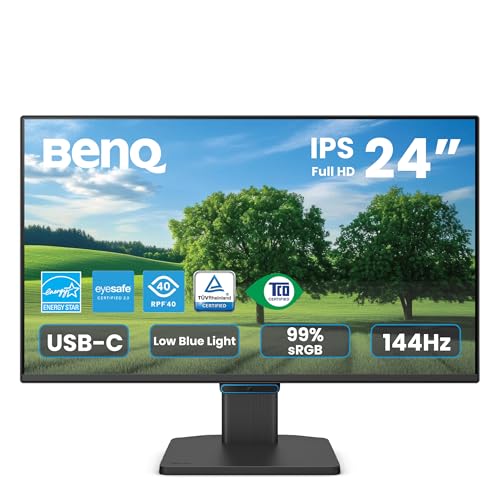
The GW2490C is the most quietly radical screen in this guide: a home-office monitor, styled like one, with a 144Hz IPS panel and USB-C single-cable docking concealed inside. BenQ’s GW line is built around eye care and calm design — slim bezels, a tidy stand, no gaming costume — and this model simply declines to accept that an office screen should be a slow one. Plug a laptop into its USB-C port and the cable carries picture and power while the monitor’s own ports gather your peripherals; sit down to a document and the panel is a colour-honest 23.8-inch IPS; stay late for a game and the same panel runs at speeds office monitors are not supposed to reach.
BenQ’s eye-care suite is the other half of the proposition, and it is more than a blue-light checkbox: brightness that adapts to the room, flicker-free backlighting, and colour modes tuned for reading and coding fill the menu. For the growing class of desk that is a workplace first and an entertainment screen second, those features are not garnish — they are the difference between eyes that finish the day fresh and eyes that do not, multiplied across years of working weeks.
The hybrid’s compromises are honest ones. Its gaming toolkit is thinner than the ASUS TUF’s — the speed is real, the specialist motion furniture is not — and its stand and styling prioritise a calm desk over an esports rig’s adjustability theatre. Buyers whose evenings are competitive should take the hint and shop the faster picks. Buyers whose days are billable and whose evenings are merely fun have found the screen this guide would put on a professional’s desk without a second thought.
It is also the pick most likely to be bought twice — once for the study, once for the partner’s desk — because its virtues compound in a household: one cable, calm eyes, and a panel that never embarrasses itself after hours.
There is one more audience the GW2490C serves unusually well: the household negotiating over what a desk should look like. Gaming monitors announce themselves — sculpted stands, coloured accents, aggressive angles — and not every shared room wants the announcement. The BenQ looks like furniture, behaves like a professional tool, and then runs games at 144Hz when the room is its owner’s again. If your purchase must survive a design committee as well as a benchmark, this is the candidate that gets unanimous votes and still wins its evenings.
- Panel: 23.8-inch IPS, 1920×1080
- Refresh: 144Hz — exceptional for the office class
- Docking: USB-C with power delivery and peripheral hub behaviour
- Eye care: adaptive brightness, flicker-free backlight, reading modes
- Class role: the professional hybrid
Strengths
- USB-C single-cable docking cleans up a laptop desk completely
- 144Hz makes it the fastest true office monitor here
- Eye-care suite is comprehensive and genuinely engineered
Trade-offs
- Gaming motion tools are thinner than the TUF models
- Styling is calm to the point of anonymity
- USB-C power suits laptops, not power-hungry workstations
Best for: home professionals and students whose desk is a workplace by day and an entertainment screen by night.
Not suited for: competitive gamers, or desktop-only setups that gain nothing from USB-C docking.

ASUS TUF VG259QM5A — The esports instrument
At 24.5 inches and 240Hz, the VG259QM5A is the size class pushed to its competitive limit — the largest screen in this guide’s band wearing the fastest panel, built for players whose games are decided in milliseconds. The size is itself an esports choice: 24.5 inches keeps the whole frame inside a player’s focused vision without head movement, and 1080p at that size lets even mid-range graphics cards sustain the frame rates a 240Hz panel exists to display. G-Sync compatibility and FreeSync Premium together mean whichever GPU camp you inhabit, the sync works.
ASUS equips it as an instrument rather than a television: low-motion-blur sync for clarity in fast pans, shadow enhancement for dark corners, and the response tuning to make 240Hz mean something rather than merely print on a box. This is the pick whose specification a tournament player would recognise, scaled to a home desk and a sane budget. The stand and build follow the TUF brief — sturdy, adjustable, unglamorous — and the whole product assumes an owner who measures their equipment by what it does in the tenth round, not by how it photographs.
The honesty paragraph: 240Hz is a specialist’s tool. Its advantage lives in fast competitive titles played seriously; in strategy games, single-player adventures and office work it is indistinguishable from the 144Hz picks, and it usually costs more than them. Buyers should also know the panel’s talents are motion talents — colour and viewing experience are good IPS standard, not the point of the exercise.
Buy it if your rank is a real number in your life and your titles reward the milliseconds. For that player, this is not the expensive pick in the guide; it is the cheap way to stop wondering whether the screen is the thing holding them back.
Consider the ecosystem around the instrument, too. A 240Hz screen rewards a mouse and a mousepad that keep up, a GPU set to its low-latency modes, and games configured to favour frame rate over decoration — the monitor is the visible third of a competitive setup, not the whole of it. ASUS’s menus anticipate that system view with the overlays and timers tournament players actually use. None of this obliges a buyer to build the full shrine; it means the screen will not be the component that embarrasses the rest when they do.
- Panel: 24.5-inch IPS, 1920×1080
- Refresh: 240Hz with G-Sync compatibility and FreeSync Premium
- Motion: low-motion-blur sync and esports tuning
- Size role: the largest, fastest screen in the class band
- Class role: the competitive specialist
Strengths
- 240Hz at the ideal competitive size, feedable by mid-range GPUs
- Dual sync compatibility covers both GPU camps
- Built and tuned as an instrument, not a decoration
Trade-offs
- Speed premium buys nothing for slow games or office work
- Colour and features are standard IPS, not the point
- No USB-C docking for laptop-led desks
Best for: competitive players in fast titles who want the class’s speed ceiling without a bigger, costlier screen.
Not suited for: casual gamers, office-first desks, or anyone whose GPU cannot sustain high frame rates at 1080p.

Acer Nitro KG251Q X3 — The speed value play
Acer’s Nitro line exists to move gaming specifications down the price ladder, and the KG251Q X3 is that mission at this size: a 24.5-inch 1080p panel at 200Hz with a half-millisecond response claim and FreeSync Premium, priced as the value route into genuinely fast gaming. The headline numbers are real where it counts — 200Hz is a speed a mid-range card can feed at 1080p in competitive titles, and the difference from 144Hz, while smaller than the leap to it, is one practised players feel in tracking and flick shots.
The value engineering shows in the expected places once you stop looking at the panel. The stand is simpler than the ASUS models’, the menu system is functional rather than delightful, and the overall finish is honest plastic rather than premium anything. Acer’s calculation — and it is a defensible one — is that the player shopping this tier would rather have the hertz than the furniture, and would rather keep the difference for the graphics card that makes the hertz meaningful.
Position it correctly in the guide’s landscape: it sits between the 144Hz all-rounders and the 240Hz instrument, closer in spirit to the latter, and it suits the competitive player whose budget is real. It is not the screen for colour-critical work or for a desk that wants docking and calm; it is the screen for frame rates per unit of money, a ratio it arguably wins outright in this list.
One ownership note in its favour: Acer sells a great many Nitro monitors, so the model is a known quantity with a wide owner base — the budget tier’s version of a safe pair of hands, with speed included.
The Nitro also makes an instructive second screen in a way its maker never advertises. Players who later graduate to a larger main display often keep a fast 24.5-inch as the competitive screen beside it — the size and speed remain the esports standard even when the desk gains a bigger canvas for everything else. Buying the value speed pick today is therefore not a dead end; it is buying tomorrow’s specialist side screen at today’s price, with years of main-screen service in between. Few budget purchases age that gracefully.
- Panel: 24.5-inch, 1920×1080
- Refresh: 200Hz with AMD FreeSync Premium
- Response: 0.5ms claim in its fastest mode
- Build: value-line stand and finish, gaming-first ports
- Class role: speed per money
Strengths
- 200Hz is feedable by real mid-range hardware at 1080p
- The value route into fast gaming without leaving the size class
- Huge owner base makes it a documented, known quantity
Trade-offs
- Stand and finish are plainly built to the price
- No USB-C or docking manners for mixed desks
- Colour work is not its brief
Best for: budget-conscious competitive players who would rather fund hertz than furniture.
Not suited for: professionals needing docking and eye care, or buyers who value finish and ergonomics over frame rates.

LG UltraGear 24G411A-B — The middle path
The 24G411A-B is LG’s argument that the middle of this class deserves engineering too: a 24-inch IPS panel with a native 120Hz refresh that overclocks beyond it, both G-Sync compatibility and FreeSync on the sheet, and the tidy, near-borderless design language UltraGear wears better than most gaming brands. The 120Hz native rate is a considered choice — it is the speed a console generation and a mid-range PC both speak fluently — and the headroom above it serves PC players whose cards can push further in lighter titles.
LG’s panel discipline shows in the picture: colours are composed rather than shouted, the factory tuning is usable for work without a detour through the menu, and the whole screen has the calm competence of a manufacturer that makes panels for half the industry. For the mixed desk that games seriously but not competitively — the evening player, the console-and-PC household, the student whose screen is also the television — this balance is not a compromise position. It is the correct specification, arrived at by a company that sells every other position too.
Its concessions are the middle path’s own: the esports player takes the 240Hz ASUS, the docking professional takes the BenQ, and the LG is left being merely excellent at the centre. The stand is a step behind the TUF’s full ergonomics, and buyers wanting USB-C should look to the BenQ without regret. Judged as what it is — the mainstream gaming monitor of this size, done properly — it may be the easiest recommendation in the guide to live with.
There is a reason the middle of a market is crowded: most lives are lived there. The 24G411A-B is this guide’s acknowledgment that a screen chosen for the centre, by a maker this competent, is not the boring pick. It is the statistical one, and statistics are on its side.
LG’s aftercare completes the middle-path case. Firmware, drivers and documentation for UltraGear models are easy to find years later, the on-screen control software keeps the screen adjustable from the desktop, and the design has no fragile gimmicks to fail. A mainstream product from a panel maker is the closest thing computing has to a bond investment — unexciting on paper, quietly compounding in reliability — and for the household screen that must simply work every day for everyone, that is precisely the correct risk profile.
- Panel: 24-inch IPS, 1920×1080
- Refresh: 120Hz native, overclockable higher, G-Sync compatible and FreeSync
- Design: near-borderless UltraGear styling
- Tuning: composed factory colour suited to work and play
- Class role: the mainstream centre
Strengths
- 120Hz native matches consoles and mid-range PCs perfectly
- Dual sync compatibility removes the GPU-camp question
- LG panel quality and tidy design age gracefully
Trade-offs
- Specialists outrun it at speed and docking alike
- Stand ergonomics trail the TUF models
- No USB-C for single-cable laptop desks
Best for: mainstream gamers and mixed households wanting a properly made centre-of-the-class screen.
Not suited for: competitive specialists, docking-led professionals, or contrast-first film watchers.

Dell SE2422HX — The calm household screen
Every guide needs the pick that tells a whole class of buyers to spend less, and in this one it is Dell’s SE2422HX. A 24-inch VA panel at 1080p and 75Hz, with ComfortView low-blue-light tuning and FreeSync for smoothness, it is aimed squarely at the family desk, the study, the spare room and the home office that never opens a game — and it is better at that job than any faster screen here, because its budget went to contrast, eye comfort and Dell’s ownership experience instead of refresh the household will never use.
The VA panel is the heart of it. Its deep contrast makes films and evening viewing genuinely rich, text sits on a clean, glare-managed surface, and the 75Hz rate — modest on this page, a real step above the old 60Hz standard — keeps scrolling and video smooth in a way its owners notice without knowing why. Dell’s ComfortView reduces the blue light that makes late homework sessions feel harsh, and the tilt stand and VESA compatibility cover the ergonomic basics a household actually adjusts.
Be clear about what it refuses: at 75Hz with VA response characteristics, it is not a gaming screen beyond the casual and the slow, and its viewing angles ask viewers to sit roughly in front of it. Those are not flaws in context — they are the receipt for the contrast and the price. Households that need a second screen for a child’s desk or a parent’s study will find the gaming picks above are money spent on specifications that will never once be exercised.
Dell’s support and the model’s long production run complete the case. This is the screen you buy for someone else — a parent, a student, a home office — confident it will simply work for years, which is a different and honourable definition of best.
One more household truth in the Dell’s favour: it is the pick least likely to be fiddled with. Gaming monitors invite menu expeditions — modes, overdrive levels, crosshairs — and shared screens suffer for every member’s experiments. The SE2422HX offers a calm picture that invites nothing, so the screen a parent sets up in January is the screen the family is still using, unchanged, in December. In a household appliance, that stability is not a missing feature. It is the feature the whole purchase was for.
- Panel: 24-inch VA, 1920×1080, high native contrast
- Refresh: 75Hz with AMD FreeSync
- Eye comfort: ComfortView low-blue-light tuning, anti-glare surface
- Mounting: tilt stand plus VESA compatibility
- Class role: the non-gaming household pick
Strengths
- VA contrast makes films and evening use the richest here
- Eye comfort and Dell ownership suit family and study desks
- Spending stops where the household’s needs stop
Trade-offs
- 75Hz and VA response rule out serious gaming
- Viewing angles ask for a roughly centred seat
- No height adjustment on the included stand
Best for: family desks, students, home offices and film watchers who do not game and should not pay for gaming speed.
Not suited for: gamers of any competitive stripe, or colour-critical workers needing IPS angle stability.
What About Eye Strain at This Size and Resolution?
Eye strain at a desk is rarely the panel’s fault and usually the setup’s, but this class offers the right raw materials. The density at 24 inches keeps text edges smooth at 100 percent scaling, sparing the squint that coarser screens impose; flicker-free backlights, now standard across these picks, remove a fatigue source older screens hid; and low-blue-light modes — Dell’s ComfortView, BenQ’s suite — genuinely help evening sessions feel easier. The rest is behaviour: brightness matched to the room rather than maximised, a screen distance of an arm’s length, and the unfashionable discipline of looking at something far away every so often.
Buyers choosing specifically for tired eyes should weight the BenQ and the Dell, whose makers engineer for the problem, and should treat size itself as an eye feature — the slightly larger text a 24.5-inch renders over a 23.8 at the same resolution is a small, real kindness repeated ten thousand times a day. Resolution debates miss that human arithmetic; this guide does not.
What About Dual Screens and Monitor Arms at This Size?
This is the size dual setups are made of, and the guide would be incomplete without blessing the arrangement properly. Two of any IPS pick here, on a dual arm or their own stands, give a working span that transforms document work, study and streaming-alongside-anything — at a combined cost many buyers were ready to spend on one larger screen. Buy matched models if the pair is planned now; panels from the same line match in colour and bezel, and your eyes will thank you every time a window crosses the seam. If the second screen comes later, today’s pick becomes the reference its twin is chosen to match, which is one more reason the model lines in this guide are established ones.
Arms deserve their sentence: a single VESA arm under one of these screens returns more desk and better posture than any other accessory at this size, and every pick here except where noted in its section mounts standardly. The stand a monitor ships with is the manufacturer’s compromise with a price point; the arm is yours. Budget it in year one and the screen’s second life as a side display is already solved, because arms make repositioning a minute’s work instead of a furniture project.
How Do the Six Compare Side by Side?
| Monitor | True size | Panel | Refresh | Defining strength |
|---|---|---|---|---|
| ASUS VG249QE5A | 23.8-inch | Fast IPS | 144Hz (OC 146Hz) | Complete all-round package |
| BenQ GW2490C | 23.8-inch | IPS | 144Hz | USB-C docking plus eye care |
| ASUS VG259QM5A | 24.5-inch | IPS | 240Hz | Competitive speed ceiling |
| Acer Nitro KG251Q X3 | 24.5-inch | Gaming panel | 200Hz | Speed per unit of money |
| LG 24G411A-B | 24-inch | IPS | 120Hz (OC higher) | The composed mainstream centre |
| Dell SE2422HX | 24-inch | VA | 75Hz | Contrast and calm for households |
Read the refresh column as a diary of your evenings: it should match the fastest thing you actually do, not the fastest thing you can imagine doing. Read the size column as a reminder that this whole class lives within an inch of itself — the differences that matter are temperament and features, not dimensions.
What About Power, Cables and the Two-Machine Desk?
A screen in this class sips power by historical standards, but the two-machine desk — PC plus laptop, or PC plus console — turns its rear panel into infrastructure. Count inputs against machines before buying: every pick here carries at least the pair a two-device desk needs, and the BenQ’s USB-C collapses the laptop’s connection into one cable that also charges it. Cable length is the unglamorous detail that decides whether the setup looks deliberate: the leads in the box suit a machine under the same desk, and anything further wants a planned purchase rather than a stretched compromise draped across the room.
Switching behaviour matters daily, too. Auto-input switching, present in some form across these models, means the screen follows whichever machine wakes — a small mercy that compounds. Desks that switch constantly should test it in week one; desks that switch rarely can ignore the whole topic, which is itself a useful sorting: features are only features to the lives that touch them.
How Do You Set Up a 24-Inch Screen for Work and Play?
Position first: the top of the screen near eye level, the panel an arm’s length away, tilted slightly up. At this size a monitor arm is a luxury rather than a necessity, but height adjustment — built into the stand or borrowed from a riser — is not, because a screen faced eight hours a day at the wrong height sends the bill to your neck. Set brightness to match the room rather than the showroom; a screen competing with daylight should sit far below its maximum in the evening, and both your eyes and the panel’s backlight will last longer for it.
Then give work and play their own picture modes if your monitor offers them — a reading or low-blue-light mode for documents, the full-range mode for games and film — and switch deliberately rather than living in one compromise setting. Finally, enable the refresh rate you paid for: operating systems occasionally default a fast screen to 60Hz, and a surprising number of 144Hz owners have spent a year at 60 without knowing. Check the display settings once, on day one, and the screen you bought is the screen you actually have.
What Should You Check in the Box and the First Week?
Unbox like an inspector, because returns are easy now and annoying later. Check the panel against a white screen and a black screen for dead pixels and uniformity issues, run the refresh-rate check in your display settings, and confirm every port you plan to use actually works — including the second input you will not need until the console arrives at Christmas. Verify the stand’s full range of adjustment while the packaging is still in the room. A screen that passes week one on all of those is overwhelmingly likely to serve for years; a screen that fails one deserves the exchange, not your patience.
What Mistakes Do Buyers of This Size Keep Making?
The first is buying the size from a headline and never learning the true viewable diagonal — harmless here, where the whole class sits within an inch, but a habit that costs real money in larger classes. The second is paying for refresh the household never uses, or refusing to pay for it and discovering games a year later; both errors come from shopping the specification sheet instead of the diary. The third is leaving the screen at its default 60Hz setting or its showroom brightness and judging the purchase by that sabotaged version of itself.
And there is a mistake of timing worth naming: buying this class of screen during a GPU upgrade panic, when the new card’s ambitions make 1080p feel like settling. It is not settling if the desk, the games and the eyes are matched to it — it is the rest of the system that should justify itself to the screen’s honest specification, not the other way round. Owners who buy the match stay happy for years; owners who buy the apology start shopping again by spring.
The fourth mistake is treating the stand as packaging. A wobbling, tilt-only stand under an all-day screen is a daily tax, and the picks with proper height adjustment repay their difference every working week. And the fifth is assuming 1080p means settling: at this size it means matching, and the buyers who understand that spend the saved money on the second screen, the arm or the chair — the parts of a desk that actually were compromising them.
How Does This Class Handle Colour and Creative Work?
Honestly, within limits the buyer should know. The IPS picks here cover the standard sRGB space that web, office and casual creative work lives in, with factory tuning good enough for photo hobbyists, video editors cutting for online platforms and designers working for screens. What the class does not offer is the wide-gamut, hardware-calibrated world of professional colour — that lives at higher prices and usually higher resolutions, and a buyer whose income depends on colour accuracy should shop there deliberately. For everyone else, the relevant question is whether the panel is honest, and five IPS panels plus one contrast-rich VA all pass that test at their price.
One practical tip serves the hobbyist majority: whichever pick you buy, spend ten minutes with a free calibration walkthrough and a known photograph before judging its colour. Factory modes differ — some default to a vivid presentation — and most of these screens have an sRGB or standard mode that settles them immediately. The screen you calibrated for ten minutes is the screen its maker intended; the one judged out of the box in showroom mode is a stranger.
Final Recommendation
If the choice still wavers between two picks, let the stand and the ports decide — the daily physical relationship with a monitor is its ergonomics and its connections, and those are the differences your body will register long after panel specifications have faded into the background of a working week.
Choose by temperament and the guide resolves itself. The mixed desk that does everything takes the ASUS VG249QE5A; the professional desk takes the BenQ GW2490C and its one-cable calm; the competitive player takes the 240Hz VG259QM5A, or the Acer Nitro if the budget votes; the mainstream household gamer takes LG’s composed centre; and the household that does not game takes the Dell and spends the difference on something it will actually use. One sentence of buying logistics deserves its place here: because this class is bought in pairs and for other people more often than any other, keep the box and the receipt until the second week has passed — panels are individual, exchanges are painless early, and even the household screen that arrives looking perfect deserves the same probation as any other. If one name must be put forward for the widest number of readers, it is the ASUS all-rounder — the screen with no weak day of the week. But the honest headline of this class is that there is no wrong door here, only mismatched ones, and the matching is now yours to do with clear eyes, a tape measure, an honest diary of your evenings, and the confidence that every door in this guide opens onto a good screen.
Frequently Asked Questions
Is 1080p sharp enough at 25 inches?
Yes, for the mixed work this class serves. At 24.5 inches the pixel density sits just under the 24-inch figure and remains comfortably in the range where text is clean at normal desk distances. The viewers who feel the ceiling are those doing pixel-level photo or design work, and they should shop 1440p at this size instead — everyone else is at the resolution’s natural home and will not see pixels unless they lean in looking for them.
Can a 24-inch monitor work as a second screen later?
Beautifully — it is the most reusable size in computing. Today’s main screen becomes tomorrow’s side screen when a larger or sharper display arrives, and the modest footprint fits arms and desks that a retired 27-inch would crowd. This afterlife is a real argument for buying a good stand and a known brand now: the screen you demote in three years should still be a screen worth sitting beside.
Do I need DisplayPort for 144Hz and above?
At 1080p, modern HDMI connections on these models generally support their full refresh rates, but DisplayPort remains the connection that never asks the question — it carries every rate in this guide with room to spare and is the right default for a PC. Consoles have their own ceilings regardless of cable. When in doubt, use the cable that came in the box and verify the running refresh rate in your display settings.
Is 240Hz worth it for a casual player?
Honestly, no — and the guide’s structure says so. The jump from 60 to 144Hz transforms casual play; the jump from 144 to 240Hz serves trained, competitive hands in fast titles. A casual player’s money does more work in the BenQ’s docking, the LG’s polish or a second screen than in hertz they cannot feel. Buy the speed your games and your hands can use.
What does overclocking a monitor’s refresh mean?
Several picks quote a native rate and a higher overclocked one — the LG’s 120Hz running higher, the ASUS’s 144 reaching 146. It means the panel can be driven past its standard rate through the menu, gaining a little smoothness. Treat the native figure as the specification and the overclock as a bonus; the difference of a few hertz is not a reason to choose between models.
How do I know if my screen is really running at its full refresh rate?
Check in the operating system’s display settings, where the running rate is listed beside the resolution — and check again after driver updates, which occasionally reset it. A simple browser-based motion test makes the difference visible: a moving object that stays readable at the claimed rate and smears at 60Hz confirms the setting took. This thirty-second audit is the highest-value action in this entire guide, because it converts the specification you paid for into the experience you actually receive, and a surprising share of fast screens spend their first year failing it silently.
Should students buy a gaming pick or the Dell?
Follow the evenings, not the lectures. A student whose downtime is films, browsing and the occasional casual game is honestly served by the Dell and its eye comfort across long study days — and the money saved buys the laptop stand and the lamp. A student who games daily with friends is buying a social instrument as much as a screen, and the 144Hz picks earn their difference every session. The wrong answer is the prestige answer; the right one is a description of your actual week.
One 25-inch screen or two smaller ones?
For gaming and film, one screen in this class — the picture stays whole and the bezel stays out of the story. For document-heavy work, two screens still win on raw window space, and this size pairs happily as matched twins on a dual arm. Many desks answer with sequencing: one good 24-inch now, its twin when the budget returns, which is another reason to buy a model line that will still exist next year.
Related Guides
Still weighing the neighbouring sizes and shapes before committing the desk to a final layout? Widening the search? Compare this class with our guides to the best 24 inch computer monitors, the best 21 9 gaming monitors and the best 24 inch 4K monitors for desktops computers with webcam before the desk is final.


[…] the map has shown you which neighbourhood your desk belongs to? Follow the map into our guides to the best 24 25 inch 1080p monitors, the best 24 inch 4K monitors for desktops computers with webcam and the best 21 9 gaming monitors […]