What's inside
- Key Takeaways
- Quick Picks
- How Did We Sort Appliances From Empty Boxes Without Blurring Them?
- What Does a Personal Cloud Actually Do All Day?
- Which Family Fits Your Household: Appliance or Empty NAS?
- How Do You Set Up a Personal Cloud So the Whole Household Actually Uses It?
- What About Redundancy Inside the Home Cloud Itself?
- How Does Remote Access Work, and What Should You Open to the World?
- How Does a Personal Cloud Age Over Five Years?
- What Does the Subscription Comparison Honestly Look Like?
- How Do Included-Storage Appliances and Empty NAS Boxes Compare, Side by Side?
- What Mistakes Do Personal-Cloud Buyers Keep Making?
- Final Recommendation
- Frequently Asked Questions
- Related Guides
As an Amazon Associate I earn from qualifying purchases. This post may contain affiliate links at no extra cost to you.
widgetverdict.com is reader-supported. When you buy through links on our site, we may earn an affiliate commission.
Where to buy: Amazon’s listings for this category mix two species that look alike in photographs — appliances with storage built in, and empty NAS boxes waiting for drives you buy separately — and this guide keeps a bright line between them from the first table onward, because blurring it is how buyers end up owning an empty box and a surprised expression.
A personal cloud is a promise you make to yourself: your photographs, files and backups living in your house, on your hardware, reachable from your phone anywhere — without a subscription quietly renting your own memories back to you at a rate that climbs with every year you keep them. The best hard drives for personal cloud are the boxes that keep that promise with the least fuss, and they divide cleanly into two families. In the first, storage is included: the Synology BeeStation arrives with 4TB inside, the Buffalo LinkStation with 2TB, the WD My Cloud with 2TB, and the AMBER X with a 512GB SSD. In the second family, the box is a beginning rather than a product: UGREEN’s DH2300 and DH4300 Plus are NAS units sold diskless, and their capacity is whatever drives you choose, buy and install — a fact this guide states in every table, spec box and recommendation where those two names appear.
That division is not a detail; it changes the price, the setup, the ceiling, the upgrade path and the kind of owner each product suits. An included-storage appliance can be running the same evening it arrives and asks almost nothing of you afterwards. A diskless NAS asks for decisions — which drives, how many, arranged how — and repays them with room to grow, redundancy options and a ceiling set by the drive market rather than by a product manager. Neither family is the honest winner. They are answers to different temperaments, and this guide treats them as such, in separate voices, with the diskless nature of the UGREEN pair stated every time it matters.
One more framing before the picks, offered because it decides more purchases than any specification: a personal cloud is not the big cloud companies’ enemy so much as their complement. Many households run both — the home cloud for the bulk and the privacy, a commercial tier for the off-site copy — and are happier than the households that demanded either one do everything. The six picks below are judged as the home half of that arrangement: how completely they replace the subscription for everyday photo backup, file access and sharing, and how honestly their listings describe what arrives in the box and what does not.
Key Takeaways
- Four picks include their storage: BeeStation 4TB, LinkStation 2TB, My Cloud 2TB and AMBER X with a built-in 512GB SSD.
- Two picks — UGREEN DH2300 and DH4300 Plus — are diskless NAS units; every terabyte they ever hold is bought separately, and this guide never quotes them a capacity of their own.
- The BeeStation and both UGREEN units emphasise phone photo and video backup; the BeeStation’s listing states no subscription is required.
- The AMBER X trades capacity for versatility, naming Plex and Home Assistant among its compatibilities in its listing.
- The LinkStation and My Cloud are the established, simpler school of home NAS: drives included, home cloud duties, fewer decisions.
- Choose the family first — appliance or build-your-own NAS — and the pick within it second; cross-family comparisons mislead.
- Adoption is the real specification: a cloud every phone in the house backs up to automatically beats a cleverer one that only its owner uses.
- Whichever family you choose, the off-site copy remains a separate duty — a box in one house is still one box in one house.
Quick Picks
| Pick | Badge | Why it earns its seat |
|---|---|---|
| Synology BeeStation 4TB Personal Cloud | The Subscription-Free Appliance | 4TB included, automatic photo and video backup, and no subscription required, per its listing. |
| UGREEN NAS DH2300 2-Bay (Diskless) | The Beginner’s Empty NAS | A 2-bay NAS aimed at beginners, with phone backup and an AI album — drives bought separately. |
| UGREEN NAS DH4300 Plus 4-Bay (Diskless) | The Growing Household’s NAS | Four bays, 8GB of memory and a 4K HDMI output in its listing — an empty foundation for a media household. |
| BUFFALO LinkStation 210 2TB NAS | The Established Single-Bay | 2TB of drives included in a 1-bay NAS from a long-running home storage line. |
| WD My Cloud 2TB Personal NAS | The Familiar Name | WD’s personal cloud appliance at 2TB, from the line that introduced many households to the idea. |
| AMBER X Personal Cloud Storage (512GB SSD) | The Small, Clever One | A built-in 512GB SSD plus USB storage expansion, with Plex and Home Assistant named in its listing. |
How Did We Sort Appliances From Empty Boxes Without Blurring Them?
By making the sort itself the guide’s spine. Every pick is introduced by what arrives in the box: storage included, with its size, or an empty enclosure of bays, with its drive bill still to come. The comparison table later in this guide carries a column for exactly that fact, because a reader comparing a 4TB appliance against a diskless 4-bay NAS on any other axis first — features, apps, memory — is comparing a finished product against a foundation and will misjudge both.
Within the appliance family, we weighed the completeness of the promise: automatic phone backup, the absence of subscriptions, capacity sized for a family’s photo history, and the simplicity that makes a personal cloud survive contact with a non-technical household. Within the NAS family, we weighed the quality of the foundation: bay count, memory, the media and backup features named in the listings, and how explicitly each product addresses beginners versus growing households.
Specifications throughout come only from the listing titles. Where a title leaves a household-critical question open — drive models inside an appliance, for instance — the text says the title leaves it open rather than filling the gap with the product’s reputation.
We also declined to rank the families against each other on a single ladder, because the ladder itself would be the lie: an appliance judged on expandability fails a test it never sat, and an empty NAS judged on out-of-box readiness fails one it explicitly declined. Each pick below is therefore argued within its family’s values first, and only then placed in the household landscape — which is how the households reading this guide will actually live with the choice.
What Does a Personal Cloud Actually Do All Day?
Its headline job is the camera roll. Phones fill; the personal cloud receives — automatically, in the background, over your home network and from wherever you are — so the photographs exist in your house rather than only in a handset and a corporation’s data centre. Around that job orbit the others: a shared family space for documents and media, a place computers back up to at night, a library a television can browse, a link you can send a grandparent that opens a folder of grandchildren rather than an account-creation page.
The subscription question runs through all of it. The BeeStation’s listing states outright that no subscription is required, and that sentence is the category’s founding argument: the economics of a home cloud are a single purchase amortised over years, against a monthly fee that never ends and rises with your archive’s size. The counter-argument is labour — the home cloud is yours to set up, update and troubleshoot — and the picks below divide largely by how much of that labour they absorb on your behalf.
Privacy is the third leg. Files on a box in your house are subject to your house’s rules; files in a commercial cloud are subject to terms of service. Households differ in how much that matters, and this guide takes no side — but a buyer choosing a personal cloud has usually already decided it matters some, and deserves products judged on how completely they honour the decision.
There is a quieter fourth job worth naming: inheritance. A household archive on a box in the house is an object a family can find, understand and keep; an archive scattered across a deceased relative’s subscriptions is a negotiation with several companies’ support desks. Nobody buys a personal cloud for that reason, and many families are eventually grateful for it for exactly that reason. Storage decisions compound across years, and the home cloud’s physicality — one box, one place, one set of credentials written down with the household papers — is a feature the brochures undersell.
Which Family Fits Your Household: Appliance or Empty NAS?
Choose the appliance if the cloud’s success in your home depends on other people never thinking about it. Included storage, automatic backup, a setup measured in minutes: the BeeStation is the fullest expression, the LinkStation and My Cloud the established simpler forms, the AMBER X the small clever variant for lighter libraries and smarter homes. The appliance’s ceiling is its included capacity, and its lifespan is the lifespan of a sealed product — you do not upgrade it, you eventually replace it, and for many households that is not a flaw but the entire appeal.
Choose the empty NAS if you are the household’s infrastructure person and proud of it. The UGREEN pair repay decisions with headroom: start with one or two drives, add bays as the library grows, arrange redundancy when the data earns it. The DH2300 addresses beginners explicitly in its listing; the DH4300 Plus addresses a media household, with more bays, more memory and a 4K HDMI output for the television. Both demand the drive purchase be budgeted as part of the product, because it is.
The failure mode to avoid is crossing the streams: buying the appliance and resenting its ceiling, or buying the empty NAS and resenting its homework. Temperament first, product second.
Households with both temperaments under one roof — a common arrangement — can sequence rather than choose: an appliance now, absorbing the whole family’s phones with zero friction, and an empty NAS later if a genuine media or redundancy project emerges, with the appliance demoted to the off-site-in-the-house copy. The reverse sequence fails socially: the NAS bought first, admired by one person and ignored by everyone else, teaches the household that home clouds are homework. Order matters because adoption matters, and adoption is this category’s true specification.

Synology BeeStation 4TB Personal Cloud — The Subscription-Free Appliance
The BeeStation is the personal-cloud idea distilled to its friendliest form. Its listing describes a 4TB personal cloud storage device — storage included, in the box — with automatic photo and video backup and no subscription required. Those three facts are the whole pitch, and they are well aimed: the household that wants its photographs safe at home, without a monthly fee and without becoming a system administrator, is the largest audience this category has.
Four terabytes is a considered size. A family’s photo and video history, growing at phone-camera rates, fits for years, and the automatic backup means the fitting happens without anyone’s discipline — phones contribute their camera rolls in the background, which is the only backup arrangement that survives real households. Synology’s name carries weight in storage software, and a single-purpose appliance from that house promises a steadier software life than a generic box making similar claims.
The appliance’s terms should be accepted knowingly: the capacity is the capacity, the drive inside is not yours to choose or expand, and when 4TB eventually fills or the hardware ages out, the migration is to a successor product. For the buyer this product addresses, those terms are the price of never thinking about storage — and most of them will pay it gladly, every year the subscription would have billed them.
It also makes the cleanest gift in this guide, for what that is worth: the adult child who installs a BeeStation in a parent’s house has given that household a backup system that requires no behaviour change whatsoever, which is the only kind of backup system that survives in most houses. Products that need their owners to become enthusiasts fail as gifts; this one asks nothing.
- Storage: 4TB included, built into the device
- Model: BST151-4T
- Headline feature named in title: automatic photo and video backup
- Subscription: none required, stated in the listing title
- Form factor: single personal cloud appliance
- Drive expansion: the listing presents a sealed appliance; internal drive choices are not offered in the title
Strengths
- The complete promise in one box: storage, automatic backup, no subscription.
- 4TB suits a family’s photo history with years of headroom.
- A single-purpose appliance from an established storage-software maker.
Trade-offs
- Capacity is fixed at purchase; growth means a successor, not an upgrade.
- A sealed appliance offers no redundancy arrangement of its own.
- Its talents centre on photo and file backup rather than broader NAS duties.
Best for: a household that wants subscription-free photo and file backup running the day the box arrives. Not suited for: a growing media server project that will want bays, redundancy and drive choices — that household belongs with the UGREEN pair below.

UGREEN NAS DH2300 2-Bay (Diskless) — The Beginner’s Empty NAS
The DH2300 must be met on its own terms, and its listing states them in its final word: diskless. This is a 2-bay NAS enclosure with no drives inside. What the box contains is the computer around the storage — 4GB of RAM on board, per the title — plus a software story aimed squarely at beginners and personal users: phone backup, an AI album, private cloud and remote access, file sharing, multi-device backup and home entertainment. Every terabyte it ever holds arrives in a separate purchase, chosen and installed by you.
That structure is this pick’s honesty and its appeal. Two bays are the classic beginner’s NAS shape: one drive to start, a second later — for more room, or to mirror the first so a single drive failure is an inconvenience rather than a loss. The beginner framing matters because a first NAS teaches its owner what they actually needed; starting with a 2-bay and a single good drive is a cheaper education than starting with a datacentre. The AI album and phone backup features name the job most beginners are actually hiring a NAS to do.
Budget the whole system before admiring the box: unit plus at least one NAS-class drive, with the second bay’s drive as a planned sequel. Buyers who do that arithmetic get the most approachable on-ramp in this guide. Buyers who skip it get a handsome empty enclosure and a lesson — the same lesson this guide repeats wherever diskless appears, because it is the most expensive misunderstanding in the category.
There is a learning dividend to starting here, too. The beginner who begins with one drive in a DH2300 discovers their household’s real growth rate, their real appetite for media serving, their real feelings about administering a small server — and discovers all of it before the expensive commitments. The second bay, and the possible graduation to the four-bay model, are decisions made with evidence. Few technology purchases offer so honest an education.
- Storage: none included — 2 bays, diskless; drives bought separately
- Memory stated in title: 4GB RAM on board
- Audience named in title: beginners and personal users
- Features named in title: phone backup, AI album, private cloud and remote access, file sharing, multi-device backup, home entertainment
- Capacity: entirely determined by the drives you install
- Form factor: 2-bay desktop NAS
Strengths
- The gentlest NAS on-ramp here, with beginner-focused features named in its listing.
- Two bays allow a later mirror or expansion without replacing the unit.
- Phone backup and AI album target the jobs first-time owners actually have.
Trade-offs
- It stores nothing until drives are bought and installed.
- Two bays cap the growth story sooner than the 4-bay model below.
- NAS ownership — updates, accounts, drive health — is part of the purchase.
Best for: a first-time NAS owner who wants a private cloud they can grow into, starting with one or two drives of their own choosing. Not suited for: anyone who needs storage working tonight with zero decisions — that is the BeeStation’s entire design.

UGREEN NAS DH4300 Plus 4-Bay (Diskless) — The Growing Household’s NAS
The DH4300 Plus is the DH2300’s bigger sibling and, like it, arrives empty: a 4-bay NAS sold diskless, its capacity entirely a function of the drives you install. Its listing aims higher up the household ladder — a home media server for streaming, backing up and sharing files, with photo and video backup, an AI photo album, a file hub, private cloud features, secure home surveillance among its named roles, 8GB of LPDDR4X memory and a 4K HDMI output.
Four bays change the planning. A household can begin with two drives mirrored, add a third for growth, and still hold a bay in reserve — a multi-year storage strategy in one chassis, rather than a product replaced at each capacity crisis. The 4K HDMI output names the media-server ambition plainly: this NAS expects to sit near a television and feed it, not merely to lurk on the network. The surveillance mention widens the brief further, toward a box that anchors a home’s cameras as well as its photographs.
All of it is potential until drives arrive, and the total investment — unit plus up to four NAS-class drives — is the largest in this guide by a wide margin. That is not a criticism; it is the family’s defining trade. The DH4300 Plus buyer is building the household’s storage infrastructure for years and should spec it like infrastructure: drives chosen deliberately, redundancy arranged from the start, and the whole system’s cost compared honestly against years of the subscriptions it replaces.
Its surveillance role deserves a household conversation before it deserves a purchase. A NAS that anchors home cameras concentrates sensitive footage in one box, which raises the value of the password and update disciplines described later in this guide from good practice to genuine duty. Households that want the feature should want the discipline with it; households that do not can value this pick purely as a media and backup server and leave the cameras to their own system.
- Storage: none included — 4 bays, diskless; drives bought separately
- Memory stated in title: 8GB LPDDR4X
- Output named in title: 4K HDMI
- Roles named in title: home media server — stream, back up and share files; photo and video backup; AI photo album; file hub; private cloud; secure home surveillance
- Capacity: entirely determined by the drives you install, across four bays
- Form factor: 4-bay desktop NAS
Strengths
- Four bays support a multi-year growth and redundancy plan in one unit.
- The strongest media-server brief here, with 4K HDMI named in the listing.
- Double the DH2300’s memory, suiting a busier household server.
Trade-offs
- Diskless: the drives are a major separate purchase, up to four of them.
- Its ambitions exceed a simple photo-backup brief; simpler households pay for headroom they may never use.
- Setup and administration are a NAS owner’s, not an appliance owner’s.
Best for: a media-heavy household building its long-term home server, comfortable choosing and installing drives. Not suited for: a beginner who wants the cloud to simply happen — start with the DH2300 or an appliance instead.
BUFFALO LinkStation 210 2TB NAS — The Established Single-Bay
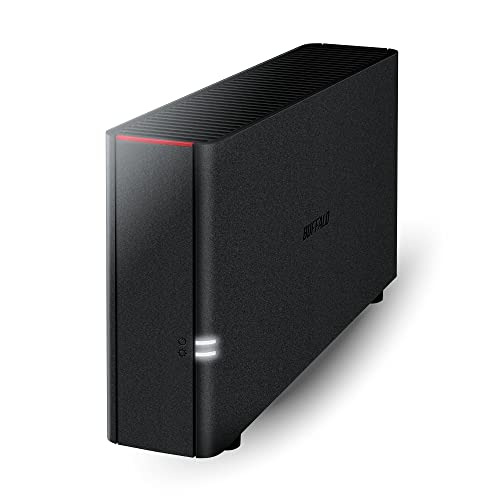
The LinkStation represents the category’s older school, and its listing is admirably plain about it: a 1-bay NAS with hard drives included, 2TB of network storage that works as a home cloud or network storage device for the home. Storage included — the appliance family’s defining convenience — from a line that has sold home NAS units for longer than most of its rivals have existed.
A single bay means a single drive, and the honest consequence deserves its sentence: there is no second drive inside to mirror the first, so this unit’s protection story is its simplicity, not redundancy. Its natural jobs are the household’s shared space — the family files, the media a television browses, the backup target for computers — at a scale of 2TB that suits documents, photographs and a moderate media collection rather than a video empire.
Choose it when the brief is modest and the premium is on an established, uncomplicated product with its storage already aboard. Its era shows in the plainness of its listing beside the AI albums and HDMI outputs of the newer picks, but plainness has a constituency: households that want the network drive to be a network drive, and are untroubled by the absence of an app ecosystem’s ambitions.
It is also the natural replacement purchase: the household whose ancient network drive has finally retired will find in the LinkStation the same job description, the same included storage, and nothing to relearn. Continuity is an underrated feature in infrastructure, and this pick’s entire existence argues for it.
- Storage: 2TB included — hard drives included, per the listing title
- Bays: 1
- Series: LinkStation 210
- Roles named in title: home cloud or network storage device for home use
- Redundancy: a single bay offers no internal mirroring — protection must come from backups elsewhere
- Form factor: desktop NAS appliance
Strengths
- Storage included and working out of the box, from an established NAS line.
- A simple, single-purpose brief that non-technical households can live with.
- 2TB covers documents, photos and a moderate media library.
Trade-offs
- One bay means no internal redundancy for the data it holds.
- Its feature story is plainer than the newer picks’ app-driven promises.
- Capacity is fixed; growth means an external addition or a successor.
Best for: a household wanting a straightforward shared network drive with storage included. Not suited for: data that cannot tolerate a single drive’s failure without a mirror — look to a multi-bay arrangement instead.

WD My Cloud 2TB Personal NAS — The Familiar Name
For many households, “personal cloud” as a phrase arrived wearing this product’s name. The My Cloud listing offers 2TB of personal network attached storage in WD’s long-running appliance format — storage included, home cloud duties, the white enclosure its title notes. It is the category’s populariser, and its pick here honours the role: a simple, single box that made the subscription-free idea legible to people who would never have bought a “NAS”.
Its proposition today is the same as the LinkStation’s, with a different badge: 2TB aboard, shared access at home and away, backup duties for the household’s devices, and no bays to plan or drives to choose. Two terabytes draws the same boundary as the Buffalo’s — documents, photographs and moderate media live comfortably; a serious video library will lean against the walls. Between the two established appliances, the honest differentiators are ecosystem familiarity and whichever interface a household already knows.
Age deserves a plain mention, handled the way this guide handles it everywhere: this is a mature product line whose listing reflects an established design rather than the newest feature race. Buyers should confirm the current app and support situation on the product page as part of ordinary diligence, and value the pick for what it verifiably is — a simple, included-storage home cloud from the maker that taught the market the phrase.
Households already inside WD’s orbit — external drives, backup habits, family members who recognise the name — will find that familiarity greases every part of adoption, and adoption, as this guide keeps insisting, is where personal clouds live or die. A technically superior box that the household ignores loses to a familiar one that every phone in the house actually backs up to.
- Storage: 2TB included
- Model: WDBCTL0020HWT-NESN
- Colour named in title: white
- Role named in title: personal network attached storage
- Bays: a single integrated appliance — no drive bays are offered in the listing
- Feature specifics beyond capacity and role: the listing title keeps them brief, so confirm current app support on the product page
Strengths
- The personal-cloud concept in its most familiar, appliance-simple form.
- Storage included; no drive decisions stand between purchase and use.
- 2TB suits the documents-and-photographs household well.
Trade-offs
- Fixed capacity with no bay-based growth path.
- A mature line whose current software situation deserves a product-page check.
- Single-unit storage means backups elsewhere remain the owner’s job.
Best for: a household that wants the classic personal-cloud appliance from the name it already knows. Not suited for: a library measured in many terabytes or an owner who wants drive-level control.

AMBER X Personal Cloud Storage (512GB SSD) — The Small, Clever One
The AMBER X is the lateral thinker of this roundup. Its listing describes a smart personal cloud storage device with a built-in 512GB high-speed SSD, USB storage expansion, and compatibility spanning Plex and Home Assistant alongside iOS, Android, Windows and Mac. Storage is included — that SSD is in the box — but at 512GB it is plainly not competing with the terabyte appliances; it is competing on cleverness per gigabyte.
Read its design as a hub rather than a vault. The internal SSD holds the active layer — the recent photographs, the shared folders, the media in rotation — while the USB storage connection lets larger, cheaper drives join as the library grows. The Plex name signals media serving ambitions; the Home Assistant name signals a smart-home citizen, a box that expects to live at the centre of a connected house and be useful to it in several directions at once. For a smaller household or a smart-home enthusiast, that versatility can outweigh raw capacity entirely.
Its limits are the honest reverse of its charms. Five hundred and twelve gigabytes fills quickly if treated as a primary archive, and a household whose photo history already measures in terabytes should see this as a complement to bulk storage, not a substitute. Buy it as the clever front door to a home cloud — with a USB drive planned as the library behind the door — and it is the most characterful pick in this guide.
Smart-home households will read its listing with particular interest: a box that serves media through Plex and cooperates with Home Assistant can consolidate two or three single-purpose devices into one, and consolidation has its own reliability — fewer boxes, fewer accounts, fewer silent failures. The AMBER X is the pick for the household that thinks in systems, at a scale its SSD can honestly serve.
- Storage: built-in 512GB high-speed SSD included
- Expansion named in title: USB storage
- Compatibility named in title: Plex, Home Assistant, iOS, Android, Windows and Mac
- Role named in title: smart personal cloud storage for data and media files
- Capacity class: the smallest in this guide — a hub-sized store, expandable over USB
- Form factor: compact personal cloud device
Strengths
- SSD storage included, with the responsiveness solid-state brings to a small cloud.
- Plex and Home Assistant compatibility give it a smart-home brief no rival here claims.
- USB expansion lets the library outgrow the internal drive gracefully.
Trade-offs
- 512GB is a working set, not an archive; large libraries must live on attached USB storage.
- Its versatility asks a little more understanding than a pure appliance.
- As sole storage for a big photo history, it is simply the wrong size.
Best for: a smart-home household wanting a compact cloud hub for media and files, with USB drives behind it. Not suited for: a multi-terabyte family archive seeking one sealed box to hold everything.
How Do You Set Up a Personal Cloud So the Whole Household Actually Uses It?
The technology is the easy half; adoption is the product. A personal cloud succeeds when every phone in the house contributes to it without being asked twice, which means the setup session is a household event, not a solo project: install the app on each phone at the same table, turn on automatic photo backup for each person, create each member’s space, and run one test share — a folder of photographs sent to a grandparent — while everyone watches it work. A cloud configured for an audience of one stays an audience of one, and the other phones keep filling.
Agree the filing rules while enthusiasm is high. Whose folders live where, what the shared family space is for, which material is private by default: these are social decisions wearing technical clothes, and they are far easier to settle on day one than after a year of cheerful chaos. The products here all support some version of per-person space and shared space; the household’s job is merely to decide what goes in which, once, in writing if necessary.
Then protect the routine from its enemies. The cloud should sit somewhere with power and network that nobody unplugs to charge a phone; its updates should be allowed to happen; and its administrator — every household cloud has one, whether or not the title was assigned — should glance at its health and free space monthly, the same small ritual the reliability guides preach for any storage that matters. A personal cloud is a household appliance, and like the others, it rewards being looked at occasionally and forgives almost everything except neglect.
Location deserves its sentence in the ceremony. Put the box where the network is strong and the temptation to unplug it is weak — near the router, on a shelf with air around it, out of the toddler and vacuum-cable blast radius. A personal cloud that gets unplugged for a hoover and forgotten for a fortnight has failed at nothing technical; it has failed at furniture, which is why furniture decisions belong in a buying guide for a product meant to run for years.
What About Redundancy Inside the Home Cloud Itself?
Redundancy is where the two families part company most sharply. The multi-bay UGREEN units can mirror drives — one drive’s contents duplicated on another, so a single failure is a maintenance event — provided the owner arranges it and pays for it in capacity: two 8TB drives mirrored give 8TB of protected space, not 16TB. The sealed appliances and the single-bay LinkStation cannot mirror internally at all; their contents exist exactly once inside the box, whatever the box’s other virtues.
That fact does not disqualify the appliances — it assigns them their homework. An appliance household’s redundancy lives outside the box: the off-site copy discussed in the mistakes section, whether a small commercial cloud tier, a drive at a relative’s house, or a periodic copy onto external storage kept elsewhere. The NAS household can buy its redundancy internally with a second drive, and still owes the off-site copy for fire and theft, because mirroring protects against drive failure and nothing else.
Decide which risks you are actually insuring against, and let the decision choose the family. Drive failure is the most common disaster and the easiest to cover; household disaster is rarer and dearer. The worst arrangement is the assumed one — the owner who believes their single appliance is somehow duplicated because it feels like a cloud. It is a box, and boxes are mortal.
How Does Remote Access Work, and What Should You Open to the World?
Every pick here promises some form of access away from home — it is half the point of a personal cloud — and the mechanisms generally route through the maker’s app and services, sparing owners the networking surgery of earlier eras. That convenience deserves one clear-eyed paragraph. The door you open for your phone is a door; its lock is your account password and the maker’s diligence. Use a password the household uses nowhere else, turn on any additional sign-in protection the app offers, and apply updates, because updates are where the lock gets repaired.
Share deliberately, too. These products can generate links to folders and albums, which is a joy for grandparents and a responsibility for the sender: know what a link exposes, prefer the narrowest share that does the job, and retire links to sensitive material when their moment passes. The personal cloud’s privacy advantage over the big platforms is real but not automatic — it is the sum of these small disciplines, performed by the household that owns the box.
Finally, keep the home front boring. The cloud’s local life — automatic backup, television browsing, computer backups at night — should not depend on the remote door being open at all. If a product’s away-access ever falters, the household archive at home remains intact and reachable, which is precisely the resilience that made you buy a box instead of a subscription.
How Does a Personal Cloud Age Over Five Years?
Year one is honeymoon: the phones back up, the family shares, the subscription cancellation feels like found money. The ageing questions arrive later, and each family answers them differently. The appliance ages as a sealed story — its software updates while its maker supports it, its capacity fills at the household’s rate, and its end, when it comes, is a migration to a successor. Plan for that migration the way the archival guides teach: the new box proves itself holding a verified copy before the old one is retired, and the old one lingers as a spare copy for a season rather than being wiped in triumph.
The empty NAS ages as a platform. Drives can be replaced individually as they tire or as larger ones become sensible; the chassis and its accounts persist across those changes, and the household’s habits never have to be rebuilt. Its ageing risk is different — the maker’s software attention eventually wanders to newer models — but the data’s home survives drive generations, which is the deeper continuity. Neither ageing story is better; they suit the same temperaments that chose the families in the first place.
Whichever you own, the five-year habits are identical and short: glance at health and free space monthly, keep the off-site copy honest, apply updates, and rehearse one restore a year — a folder recovered, a photo found on a new phone — so the household’s confidence rests on evidence. A personal cloud is a promise renewed by small attentions, and five years of them costs less time than one month of the subscription it replaced cost money.
What Does the Subscription Comparison Honestly Look Like?
The personal cloud’s founding pitch is arithmetic, so let the arithmetic be honest. A commercial cloud charges monthly, forever, at a rate that grows with your archive; a home cloud charges once, plus electricity, plus the drives in the empty models, plus your occasional attention. For most households the home box crosses into profit within its first couple of years and then runs nearly free — which is why the category exists. But the subscription buys things the box does not: someone else’s redundancy, someone else’s security team, someone else’s problem when a data centre floods. The fair comparison is not box versus bill; it is box plus your labour and your off-site copy versus the bill.
Framed that way, the picks sort themselves by how much labour they absorb. The BeeStation absorbs nearly all of it, which is why its premium over raw hardware is money well spent for its audience. The UGREEN pair absorb less and hand the owner a platform whose value grows with their skill. The established appliances sit between, charging little labour and offering little ceiling. None of the six eliminates the off-site copy’s small recurring cost for households that want one — and this guide regards that not as the category’s failure but as its honesty: the home cloud replaces the subscription’s bulk, not the laws of backup.
Run your own household’s numbers before letting any of this persuade you, because the crossover point is personal: it depends on how many terabytes your family truly holds, how many phones contribute, and how your current subscriptions are tiered. Households with modest archives may find the appliance pays for itself against subscriptions within a year or two; households whose archive is mostly one person’s documents may find the honest answer is that the box is bought for privacy and permanence rather than savings. Both are legitimate purchases — the category’s mistake is only ever the unexamined one.
How Do Included-Storage Appliances and Empty NAS Boxes Compare, Side by Side?
| Pick | Storage in the box | Bays / expansion | Family |
|---|---|---|---|
| Synology BeeStation | 4TB included | Sealed appliance | Included storage |
| UGREEN DH2300 | None — diskless | 2 bays for drives you buy | Empty NAS |
| UGREEN DH4300 Plus | None — diskless | 4 bays for drives you buy | Empty NAS |
| BUFFALO LinkStation 210 | 2TB included | 1 bay, drive included | Included storage |
| WD My Cloud | 2TB included | Sealed appliance | Included storage |
| AMBER X | 512GB SSD included | USB storage expansion | Included storage |
The first column is the one to shop by. Four rows arrive ready to store; two rows arrive ready to be given storage, and their true capacities — and true total prices — are decided at the drive shelf, not on this page. A comparison that ranked all six on features alone would crown whichever empty box lists the most, while quietly billing its buyer for the drives that make the features real.
Within the included-storage family, the spread is capacity and character: the BeeStation’s 4TB and subscription-free automation, the established 2TB pair’s simplicity, the AMBER X’s small SSD cleverness. Within the empty family, the spread is ambition: two bays and a beginner’s welcome against four bays, more memory and a media server’s brief. Both families contain a right answer; they just contain them for different households.
A note on the two 2TB appliances, since readers will ask why both are here: they are near-identical propositions from rival established makers, and in categories like this one, the honest service is to say so. Households will choose between them on ecosystem familiarity, on which maker’s other products already live in the house, and on the current state of each one’s app — a product-page check this guide recommends rather than performs for you, because app situations change faster than guides do.
What Mistakes Do Personal-Cloud Buyers Keep Making?
Buying a diskless NAS and budgeting for the box alone. The UGREEN units store nothing on arrival. The working system is the unit plus NAS-class drives, and comparing the box’s price against an appliance’s price is comparing a foundation against a house.
Treating the home cloud as the only copy. A personal cloud is one box in one house, subject to theft, fire and its own hardware’s mortality. The photographs it liberated from a subscription still deserve an off-site copy somewhere — the commercial cloud’s remaining honest job.
Under-sizing included storage. An appliance’s capacity is final. Count the household’s current photo and file history, add honest growth, and let the 2TB and 4TB picks sort themselves by arithmetic rather than optimism.
Skipping the account and password discipline. A personal cloud reachable from anywhere is reachable by anyone who guesses its credentials. Strong passwords and updates applied promptly are not paranoia; they are the rent on the “personal” in personal cloud.
Expecting an appliance to become a NAS later. Sealed products do not grow bays. If the household’s trajectory points at media serving, redundancy and drive swaps, buy the empty NAS now and spare yourself the migration.
Final Recommendation
Households divide, and so does the verdict. For the family that wants its photographs home and its subscriptions cancelled with the least possible ceremony, the Synology BeeStation 4TB is this guide’s centre of gravity: storage aboard, backup automatic, no subscription required. The LinkStation 210 and WD My Cloud serve the same instinct at 2TB with established simplicity, and the AMBER X serves the smart-home household whose library is modest and whose ambitions are wide. For the household ready to build, the UGREEN DH2300 is the welcoming on-ramp and the DH4300 Plus the long-term foundation — both bought with drives budgeted, bays planned, and no illusion about what the box contains. The best hard drives for personal cloud are the ones whose box contents you understood before checkout; after this guide, that understanding is yours.
Whichever family you join, perform the small founding ceremonies: set it up with the whole household at the table, turn on every phone’s automatic backup that same evening, write the admin credentials down with the household’s important papers, and schedule the first monthly glance at its health before the box goes quiet in its corner. A personal cloud is not really a product; it is a household habit with a power cable, and the households that thrive with one are the ones that treated its first week as the founding of something, not the installation of something.
Frequently Asked Questions
Do I still need a cloud subscription if I buy a personal cloud?
For the everyday jobs — photo backup, file access, sharing — no; replacing that subscription is the category’s purpose, and the BeeStation’s listing states the point outright. What a subscription can still usefully provide is the off-site copy: the version of your archive that survives your house. Many households keep a small commercial tier for the irreplaceable subset alone and let the home cloud carry everything else, which keeps the monthly bill small and the sleep sound.
Which drives should I put in the UGREEN NAS units?
Drives built for NAS duty — the class designed for continuous operation in multi-bay enclosures, with CMR recording where sustained writing and rebuilds matter. The reliability guide linked below exists for exactly that shopping trip. Size them by the same arithmetic as any storage purchase: current library, honest growth, and a redundancy arrangement decided before the drives go in, because changing your mind about mirroring after the data lands is a migration, not a setting.
Is 2TB enough for a family’s personal cloud?
For documents and photographs at phone-camera rates, 2TB carries most families for years; add enthusiastic video — long clips, high resolutions, several shooters — and the same 2TB becomes a nearer horizon. The honest method is the count: measure the household’s current archive, estimate its yearly growth from the last two years, and divide. The answer sorts the 2TB appliances, the 4TB BeeStation and the build-your-own UGREEN route more reliably than any general rule.
Can a personal cloud replace my streaming and media subscriptions too?
It can serve the media you own — the DH4300 Plus names a media-server brief with 4K HDMI output, and the AMBER X names Plex — but it does not conjure catalogues. A personal cloud is a home for your files, not a licence to anyone else’s. Households conflate the two and end up disappointed in a product that only ever promised the first; keep the categories separate and each product can be judged fairly.
What happens to my personal cloud if the maker stops supporting it?
The files remain yours on your hardware — the category’s core advantage — while apps, remote access and updates may age at the maker’s pace. This is why the guide notes mature lines plainly and suggests confirming current app support on product pages. It is also why the data itself should live in ordinary, exportable arrangements wherever the product allows: a personal cloud you can leave is a personal cloud you truly own.
Can several family members each have private space on one personal cloud?
That is the standard arrangement these products are built for: individual accounts or spaces for private material, plus shared areas the household curates together. The listings here name multi-device backup, file sharing and per-person phone backup among their features, which is that arrangement described from the marketing side. Set the boundaries during the first setup session, while everyone is at the table — retrofitting privacy expectations onto a year of cheerful communal filing is the one migration nobody enjoys.
Is a personal cloud safe from ransomware and household accidents?
Safer than a folder on one computer, not immune by magic. A cloud that computers write to continuously can receive whatever those computers catch, which is why the off-site or versioned copy matters and why the administrator’s monthly glance should include the backup history. The box’s separateness is its strength: it is not the family laptop, it does not browse the web, and with disciplined accounts it presents a small target. Treat it as a well-kept room rather than a fortress and your expectations will match its engineering.
Related Guides
A personal cloud leans on two neighbouring crafts — the archival discipline that keeps its contents safe for decades, and the bulk capacity planning that keeps it roomy — covered here: Best Archival Hard Drives, Best Bulk Storage Hard Drives, and Best Hard Drives for Reliability.
Related guide: Best Encrypted External Hard Drives With Cloud Backup