What's inside
- Key Takeaways
- Quick Picks
- How Did We Choose Drives for a Shrinking Corner of the Market?
- When Should You Choose an SSD Instead of One of These?
- What Should You Check Before Ordering a Replacement Drive?
- How Does the Swap Itself Go, Start to Finish?
- How Much Extra Life Does a Fresh Drive Actually Buy an Old Laptop?
- What About Noise, Heat and Battery Life With a Spinning Drive?
- What Should Happen to the Old Drive Afterwards?
- How Do You Tell Whether the Drive Is Really the Problem?
- What Else Belongs in the Shopping Basket for a Swap?
- How Do the Six Picks Line Up Against Each Other?
- What Mistakes Turn a Simple Swap Into a Bad Week?
- Final Recommendation
- Frequently Asked Questions
- Related Guides
As an Amazon Associate I earn from qualifying purchases. This post may contain affiliate links at no extra cost to you.
widgetverdict.com is reader-supported. When you buy through links on our site, we may earn an affiliate commission.
Where to buy: each bare drive below links to its Amazon listing; before ordering, open your laptop’s service panel or look up its drive bay, because every pick here is a 2.5-inch SATA drive and that fit is the whole game.
A word before the details about who this guide serves: the owner of a machine that still earns its place. Not the collector, not the benchmark chaser — the household with a laptop that does its job except for the drive inside it, and the console owner whose games have outgrown or outlived the factory storage. If that is you, the six listings below were sorted with your exact evening project in mind.
There is a moment in an old laptop’s life when the hard drive becomes the story: the boot that takes minutes, the fan that never rests, the click of a machine working harder than its processor ever asked it to, and the small dread of wondering which morning it will not start at all. The best laptop hard drives answer that moment in the oldest way possible — a fresh 2.5-inch SATA spinning drive, swapped into the same bay, holding more than the original ever did and asking nothing new of the machine around it. This guide covers the six listings worth considering for that job, plus the closely related one of upgrading or repairing a PlayStation 4’s internal drive, which takes exactly the same hardware and the same careful approach to the data already stored on it.
Honesty requires a paragraph before the picks. For many laptops, the best replacement drive in absolute terms is now a solid-state drive, and this guide will say plainly, in its own section below, when an SSD is the smarter purchase. Spinning drives keep real advantages — capacity per unit of money, gentle behaviour with very large game and media libraries, and suitability for the PS4 — but they do not win on speed, and pretending otherwise would insult the reader. What follows is a guide for the situations where a hard drive is the right answer, written without pretending it is always the answer.
A second honesty note concerns the listings themselves, and it shapes how every spec box in this guide is written. This corner of the market mixes major brands with unbranded drives sold under descriptive names rather than famous ones. We name each pick exactly as its listing names it, quote only the specifications its title states, and flag — in the spec boxes — every figure a title leaves out. Where a listing is silent about rotational speed or cache, the box says so instead of borrowing numbers from a similar-looking model.
Key Takeaways
- Every pick is a 2.5-inch SATA internal drive — the size and interface that older laptops and the PlayStation 4 were built around.
- Capacities span 320GB to 5TB; the Seagate BarraCuda 5TB is the capacity outlier for media-heavy laptops.
- Several listings come from smaller or unbranded sellers, so the guide quotes only what each title states and marks unstated figures plainly.
- The WD 1TB pick’s listing names the PS4 upgrade and repair use explicitly; the others serve laptops first.
- An SSD beats every pick here on speed — the section on choosing between them explains when that settles the question and when it does not.
- Confirm your bay before buying: most of these laptops take a standard-height 2.5-inch drive, but very thin machines and very thick drives deserve a check.
- Diagnose before you buy: disk-check errors and clicking point at the drive, while heat, memory and software decay produce similar slowness with different cures.
- Budget for the supporting cast — a USB-to-SATA adapter, the right screwdrivers and installation media prepared in advance.
Quick Picks
| Pick | Badge | Why it earns its seat |
|---|---|---|
| Seagate BarraCuda 5TB 2.5 Inch Hard Drive | The Capacity Play | Five terabytes in a laptop bay, for media libraries that travel with the machine. |
| Seagate Mobile HDD 1TB 2.5 Inch (ST1000LM035) | The Straight Replacement | A 1TB bare drive with a 128MB cache stated in its listing, for a like-for-like revival. |
| Toshiba 1TB 2.5 Inch Notebook Hard Drive (MQ01ABD100) | The Named-Brand 1TB | Toshiba’s notebook drive with its 5400RPM speed and 8MB cache printed in the title. |
| WD 1TB 2.5 Inch Hard Drive for PS4 | The Console Specialist | A 1TB drive whose listing names PS4 upgrade and repair as its purpose. |
| HGST Travelstar 320GB 2.5 Inch Hard Drive | The Small Revival | 320GB from the Travelstar line, for bringing a lightly used older machine back to service. |
| 2.5 Inch SATA Laptop Hard Drive 500GB (7200 RPM) | The Faster-Spindle Budget Pick | 500GB with a 7200 RPM speed stated in the title and a one-year warranty named in it. |
How Did We Choose Drives for a Shrinking Corner of the Market?
We started with fit, because in this category fit is destiny: 2.5-inch, SATA, internal. Every pick meets it. Then we sorted by the jobs people actually bring to these listings — replacing a dying laptop drive, expanding a laptop that stores media, reviving a machine for a child or a spare room, and feeding a PS4 that has run out of room or health. Each pick maps to at least one of those jobs better than its siblings do.
We also weighted legibility. In a market segment where listings can be vague, a title that states its capacity, interface, speed class and cache plainly is worth something, and the analysis below rewards the listings that tell you what you are buying. Conversely, where a title omits a figure, we neither assumed it nor penalised the drive beyond noting the omission — a buyer comparing spec boxes will see exactly which listings volunteer their details.
Finally, we kept the guide honest about its own category. These are mechanical drives in a decade that has largely moved on, and their case is specific: price per terabyte, the PS4’s design, very large portable libraries, and machines whose owners value capacity and simplicity over responsiveness. The picks were chosen to serve that case well, not to win an argument with solid-state storage.
When Should You Choose an SSD Instead of One of These?
More often than this guide’s title might suggest, and saying so costs nothing. If the laptop is a daily machine — the one you work on, study on, open twenty times a day — an SSD transforms it in a way no spinning drive can: boots in seconds, applications that open when clicked, a machine that feels years younger. If your budget stretches to an SSD of the capacity you truly need, and the laptop has years of life left in its screen, keyboard and battery, the SSD is the better purchase and the picks below are not.
The hard drive’s case begins where those conditions fail. When the needed capacity is two terabytes or more, spinning drives remain dramatically cheaper per terabyte, and a media laptop or a PS4 feels capacity far more than it feels load times. When the machine is a secondary one — a spare, a child’s first laptop, a kitchen computer — the SSD premium buys responsiveness nobody will much notice. When the drive’s job is bulk storage hanging off a working machine, or a console whose games were designed around a hard drive’s behaviour, the picks below are not a compromise. They are the appropriate tool, bought with open eyes.
The worst purchase is the muddled one: a small, slow hard drive bought for a beloved daily laptop out of habit, saving a little money to preserve all of the slowness. Match the drive to the machine’s actual remaining life and job, and either technology can be the right answer.
There is also a hybrid worth knowing about, for machines and budgets that allow it: a modest SSD as the system drive where the laptop supports it, with one of the capacious spinning picks here holding the library. That arrangement spends the speed money only where speed is felt and the capacity money only where capacity is needed. It is not every laptop’s option — many older machines have exactly one bay — but where the hardware permits, it is often the most honest answer of all, and it is why the 5TB BarraCuda remains relevant even in households that have otherwise gone solid-state.
What Should You Check Before Ordering a Replacement Drive?
Three checks, in order. First, the bay: confirm the laptop takes a 2.5-inch SATA drive at all — most machines from the hard-drive era do — and note any height limitation if the machine is unusually thin or the drive unusually thick; listings do not always volunteer thickness, so the product page and your machine’s service manual are the authorities. Second, the data plan: decide before the old drive comes out how its contents move — a USB-to-SATA adapter for cloning, a fresh operating system install with files copied from backup, or a recovery image — because a new drive on the desk and data stranded in the old one is a self-inflicted emergency.
Third, the rest of the machine. A laptop being opened for a drive swap is a laptop that can also receive a memory upgrade and a battery inspection, and its fans can be cleaned while the panel is off. None of that is this guide’s subject, but the drive swap is the natural moment, and a revived machine deserves the whole revival. Back up before any of it. The old drive, however tired, currently holds the only copy of something.
While the manuals are open, note the machine’s memory ceiling and battery model too. Owners routinely discover, mid-revival, that the laptop could take more memory all along or that its battery is still sold — discoveries that turn a drive swap into a genuine second life for the price of a little more patience. The drive brought you to the service manual; let the service manual finish the job.

Seagate BarraCuda 5TB 2.5 Inch Hard Drive — The Capacity Play
Five terabytes inside a laptop sounds like a misprint until you remember what some laptops carry: the photographer’s whole catalogue on the road, the musician’s sample libraries, the field researcher’s footage, the family’s media server in a portable disguise. The BarraCuda’s listing states its terms plainly — 5TB, 2.5-inch, SATA 6Gb/s, 5400 RPM, 128MB cache, model ST5000LM000, aimed at computer desktop PC and laptop use. That is the largest capacity in this guide by a factor of two and a half, and it exists for buyers whose problem is room, not speed.
The 5400 RPM figure deserves honest framing. It is the slower spindle class, chosen in drives like this for capacity, quietness and power draw, and it means this drive will never feel brisk. What it delivers instead is a single internal volume that swallows libraries external drives usually handle, without dongles, cables or a second device to lose. In a laptop that lives on a desk as a media hub, or travels as a self-contained archive, that trade is coherent.
One caution belongs to this pick specifically: very capacious 2.5-inch drives deserve a thickness check against slim bays before ordering, because capacity at this level is achieved with more platters than a standard drive carries. The listing title does not state the drive’s height, so verify it against your machine’s bay specification on the product page. A drive that fits is the best in this guide at its job; a drive that does not fit is a paperweight with excellent specifications.
There is a second, quieter use for a drive like this even in the SSD era: the laptop that already boots from a small SSD in some machines’ second bay, or the desktop-adjacent laptop whose internal bulk holds the working library while the system lives elsewhere. The listing names desktop PC use alongside laptops, and a 5TB internal volume earns that mention — few single drives of any kind hold this much in this little space.
- Capacity: 5TB
- Form factor: 2.5 inch internal hard drive
- Interface: SATA 6Gb/s
- Rotational speed stated in title: 5400 RPM
- Cache stated in title: 128MB
- Model: ST5000LM000
- Drive height: the listing title does not state it — confirm the bay fit for your machine before ordering
Strengths
- By far the largest internal capacity available to an older laptop or console.
- Its listing states speed and cache plainly, with no guessing required.
- One internal volume replaces the external-drive juggling act for media travellers.
Trade-offs
- 5400 RPM means capacity, not responsiveness, is the entire proposition.
- Thickness must be verified for slim bays, since the title omits it.
- Five terabytes of laptop data demands a backup habit to match.
Best for: a laptop that serves as a self-contained media or field-work library. Not suited for: an ultra-thin laptop whose bay height has not been checked against this drive first.

Seagate Mobile HDD 1TB 2.5 Inch (ST1000LM035) — The Straight Replacement
This is the pick for the most common job in the guide: a laptop whose original 1TB-class drive is dying, and whose owner wants the same machine back, with the same room, without drama. Seagate’s Mobile HDD listing describes a 1TB bare internal drive, 2.5-inch, SATA 6Gb/s, with a 128MB cache stated in the title. Bare drive means exactly that — no cables, no cloning kit, no enclosure — which suits a swap where the bay, screws and data plan already exist.
The cache figure is worth a sentence because it is the largest stated among the 1TB picks here, and because the listing volunteers it. Cache smooths the small, bursty reads and writes that make up ordinary laptop use, and while no cache turns a spinning drive into an SSD, a generously cached drive feels less reluctant in daily service. Combined with the Seagate name and a model number — ST1000LM035 — that can be cross-checked against compatibility lists, this is the roundup’s most legible like-for-like replacement.
Its listing title does not state a rotational speed, so none is claimed here; buyers for whom the spindle class is decisive should confirm it on the product page. For the standard revival job — clone or reinstall, swap, carry on — what the title does state covers the essentials, and the drive’s proposition is competence without surprises.
It is also the pick least likely to start an argument in a household. Nobody has to be persuaded that the family laptop deserves its like-for-like heart transplant, and nobody’s expectations are inflated by the purchase. Machines revived this way tend to be used exactly as much as they were before the old drive failed — which, for the laptop that runs the household’s documents and photographs, is the whole point.
- Capacity: 1TB
- Form factor: 2.5-inch internal bare drive
- Interface: SATA 6Gb/s
- Cache stated in title: 128MB
- Model: ST1000LM035
- Rotational speed: the listing title does not state it, so confirm on the product page if that figure decides your purchase
Strengths
- A clean like-for-like replacement from a major maker, with a checkable model number.
- The largest stated cache among this guide’s 1TB listings.
- Bare-drive simplicity suits a planned swap with an existing data plan.
Trade-offs
- No cloning hardware or software is bundled — bare means bare.
- The listing title leaves rotational speed unstated.
- 1TB is a replacement size, not an expansion, for media-heavy machines.
Best for: reviving a mainstream laptop whose original drive is failing at the same capacity. Not suited for: a first-time swapper who needs cables and cloning help in the box — arrange those separately.

Toshiba 1TB 2.5 Inch Notebook Hard Drive (MQ01ABD100) — The Named-Brand 1TB
Toshiba’s notebook drive is the most completely described 1TB listing in this guide: its title states the capacity, the 5400RPM speed, the SATA interface at 6.0 Gb/s, the 8MB cache and the MQ01ABD100 model number, all in one breath. For buyers who have been burned by vague listings, that completeness is the product. You know what this drive is before it arrives, and what it is is a conventional, honest notebook drive of the class millions of laptops shipped with.
The 8MB cache is modest beside the Seagate Mobile’s stated 128MB, and the analysis should not pretend otherwise. In exchange, the Toshiba offers the clarity of a full specification and the backing of a maker whose notebook drives were original equipment in a generation of laptops — which matters when the machine being revived is itself a Toshiba-era notebook whose bay and firmware are happiest with a drive of its own period.
Choose between this and the Seagate Mobile on your priorities: the Seagate volunteers a bigger cache and leaves its speed unstated; the Toshiba states everything and caches less. Both are legitimate 1TB revivals. The Toshiba is the pick for buyers who want the whole specification on the listing and a model number with a long service history behind it.
Repair shops reach for drives like this for a reason worth borrowing: when a machine must simply be returned to working order, a fully specified, period-correct drive removes variables. The customer gets their laptop back behaving as it always did, and nobody has to debug an exotic substitute. Home revivers with the same goal — restoration, not reinvention — are this drive’s natural audience.
- Capacity: 1TB
- Form factor: 2.5-inch notebook hard drive
- Interface: SATA 3 / SATA 6.0 Gb/s, per the listing title
- Rotational speed stated in title: 5400RPM
- Cache stated in title: 8MB
- Model: MQ01ABD100
Strengths
- The most fully specified listing among the 1TB picks — nothing important is left unstated.
- A notebook drive from a maker whose drives shipped as original equipment for years.
- 5400RPM class suits quiet, undemanding laptop duty.
Trade-offs
- The 8MB cache is the smallest stated in this guide.
- No speed advantage over any rival here; this is a correctness purchase, not a performance one.
- Like all picks here, it loses the responsiveness argument to any SSD.
Best for: a careful like-for-like revival where a complete, checkable specification matters. Not suited for: a buyer chasing the liveliest possible spinning drive — the cache and spindle figures here are modest by design.
WD 1TB 2.5 Inch Hard Drive for PS4 — The Console Specialist
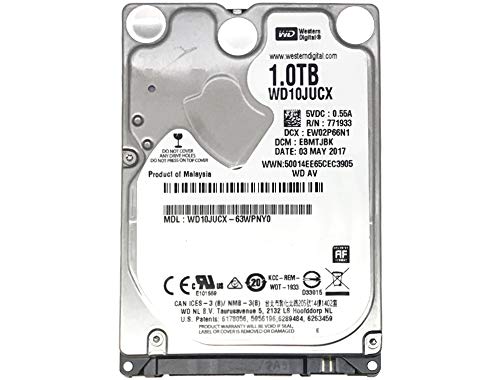
One pick in this guide has a job title in its name. This WD drive’s listing describes a 1TB, 5400RPM, 16MB cache, SATA 6.0Gb/s 2.5-inch drive for PS4 game console HDD upgrade and repair — and that specificity is valuable, because the PS4 is a known quantity: it accepts a standard 2.5-inch SATA drive within a height limit, and its owners need room for a modern game library or a replacement for a drive that has started to fail.
For the upgrade job, 1TB doubles the base console’s original room and holds a working library without the constant deletion ritual. For the repair job, a fresh drive of the console’s expected class restores a machine whose symptoms — corrupted downloads, stuttering loads, installation failures — often trace back to the original drive’s old age. The listing’s stated figures (5400RPM, 16MB cache) match the class the console was designed around, which is precisely what a repair wants: not an experiment, a restoration.
Laptop owners can use it too — it is, mechanically, the same kind of drive as the other 1TB picks — but its natural buyer is the console owner, and its listing is written for them. Check the drive’s height against the console’s requirement on the product page before ordering, as with any console swap, and back up saves to USB or the cloud before the old drive comes out.
A word about expectations for the upgrade path specifically: games will install more and load as they always did. The win is the end of the storage shuffle — no more deleting one game to make room for another’s update — and for many console households that quiet convenience, rather than any speed figure, is what the purchase is actually for. Judged on that, a terabyte is the size where the shuffle genuinely stops for a moderate library.
- Capacity: 1TB
- Intended use named in title: PS4 game console HDD upgrade and repair
- Rotational speed stated in title: 5400RPM
- Cache stated in title: 16MB
- Interface: SATA 6.0Gb/s
- Form factor: 2.5-inch hard drive
Strengths
- The only listing here that names its console job outright, removing guesswork for PS4 owners.
- Specification matches the class the console was designed around.
- Doubles a base console’s storage for a working game library.
Trade-offs
- 1TB still fills quickly with today’s largest game installs.
- Its console-first listing gives laptop buyers less model detail to cross-check.
- Load times remain hard-drive load times; this restores a console, it does not transform one.
Best for: a PS4 needing more room or a fresh drive to replace a failing original. Not suited for: a laptop owner who wants a fully specified model number for compatibility lists — the laptop-first picks state more.

HGST Travelstar 320GB 2.5 Inch Hard Drive — The Small Revival
Not every revival needs a terabyte. The Travelstar’s listing offers 320GB in a 2.5-inch internal drive, model 0A78743, from HGST’s Travelstar line — a name with a long history in laptop drives. Its buyer has a specific, modest job: an older laptop returning to light service, a machine for a child’s schoolwork, a spare computer for the workshop, a netbook-era device whose owner needs it working rather than spacious.
Small capacity, honestly framed, is this pick’s virtue and its limit. Three hundred and twenty gigabytes holds an operating system, office applications, documents and a sensible photo collection with room to spare; it does not hold a modern game library or a video archive, and buying it for those jobs would be a false economy that ends in a second purchase. Its listing title is terse — capacity, size, model — and states neither rotational speed nor cache, so both are recorded here as unstated, to be checked on the product page if they matter to your machine.
Within its honest niche, the Travelstar name carries weight: this was a line built for the laptop era’s mainstream, and a new-old-stock style listing like this one serves the machines of that era better than a random modern substitute might. Buy it for the small job, and it is the right size of right.
There is an environmental footnote in this pick’s favour, too. A working laptop kept in service is a laptop not manufactured, shipped and landfilled; a modest drive that extends a machine’s useful life by years is one of the greener purchases in computing, whatever its capacity. The smallest pick in this guide may do the most, per gigabyte, for the idea that old machines deserve finishing lives rather than abrupt ends.
- Capacity: 320GB
- Form factor: 2.5-inch internal hard drive
- Model: 0A78743
- Line: HGST Travelstar
- Rotational speed: the listing title does not give a figure for this model
- Cache: likewise not stated in the listing title — the product page is the place to confirm both before ordering
Strengths
- A right-sized revival for lightly used older machines.
- The Travelstar line’s long laptop heritage suits period machines.
- A checkable model number despite the listing’s brevity.
Trade-offs
- 320GB is genuinely small by modern standards; media and games need look elsewhere.
- Speed and cache are unstated in the listing title.
- Its era-specific appeal means newer machines gain nothing from choosing it.
Best for: bringing an older, lightly used laptop back into service for documents and browsing. Not suited for: any machine expected to hold games, video or a growing photo library.

2.5 Inch SATA Laptop Hard Drive 500GB (7200 RPM) — The Faster-Spindle Budget Pick
The final pick is sold under a description rather than a brand: a 2.5-inch SATA laptop internal hard drive, 500GB, with a 7200 RPM spindle speed, a 16MB cache, compatibility with laptops and Mac named in the title, and a one-year warranty stated in it. We name it here exactly as its listing does, because in this corner of the market, calling a drive by its listing’s own words is the only honest naming available.
Its distinction among these picks is the 7200 RPM figure — the faster spindle class, stated outright. A 7200 RPM laptop drive spins its platters a third faster than the 5400 RPM class, and in a spinning drive that translates to somewhat brisker access and transfer behaviour. It will not trouble an SSD, but between two hard drives at similar money, the faster spindle is the one that feels less patient-testing in an older machine whose owner has declined the SSD route.
The trade is the unnamed maker. Support, warranty handling and quality control rest on the seller and the stated one-year warranty rather than on a global brand’s infrastructure. For a budget revival of a secondary machine, many buyers accept that trade knowingly; for a beloved primary laptop, the named-brand picks above are the steadier seats. Judge this one by the job’s stakes, and it earns its place as the speed-leaning budget option.
Practical handling matters more with an unbranded purchase: keep the order records, test the drive promptly on arrival — format it, fill a portion, run the operating system’s error check — and raise any problem while returns are still simple. That ten-minute diligence converts most of the risk of an unnamed listing into a routine check, and it is good practice with every pick in this guide, branded or not.
- Capacity: 500GB
- Form factor: 2.5-inch SATA laptop internal hard drive
- Rotational speed stated in title: 7200 RPM
- Cache stated in title: 16MB
- Compatibility named in title: laptop and Mac
- Warranty stated in title: 1 year
- Brand: the listing is sold under a descriptive name rather than a major brand — support runs through the seller
Strengths
- The only 7200 RPM spindle stated among these picks, for the brisker end of spinning drives.
- A warranty term is stated in the listing itself.
- 500GB suits a document-and-browsing revival without surplus capacity.
Trade-offs
- An unbranded listing means seller-dependent support and quality assurance.
- 500GB is quickly outgrown by media or game collections.
- Even at 7200 RPM, responsiveness remains in a different league from solid-state.
Best for: a budget revival of a secondary laptop where the faster spindle is welcome. Not suited for: a primary machine whose owner would be stranded by seller-level support if anything went wrong.
How Does the Swap Itself Go, Start to Finish?
The physical swap is the easy half, and it is worth describing so the data half gets its due respect. Back everything up first — to an external drive, a cloud account, or both — and verify the backup opens. Decide between cloning the old drive (which preserves the machine exactly as it was, tired settings and all) and a fresh installation (slower to rebuild, cleaner to live with). For a machine whose software has decayed alongside its drive, fresh is usually worth it; for a machine full of licences and configurations nobody remembers, cloning is mercy.
With the data plan settled: power down, remove the battery if it is removable, ground yourself against static, open the service panel, and note how the old drive sits in its caddy — the caddy and its screws transfer to the new drive, and photographs of each step are free insurance. Swap, close, boot from your installation media or cloned image, and let the machine find its new drive. Then restore, reinstall and update, in that order, and keep the old drive untouched in a drawer for a month. It is your undo button, and drawers are cheap.
For the PS4 the rhythm is similar with console specifics: back up saves, download the full system software file to a USB stick in advance — the console requires the complete reinstall file, not the smaller update — swap the drive in its tray, and rebuild. The console’s own documentation walks the steps; the part owners forget is preparing the USB file before the old drive comes out, when the working console could still have fetched it comfortably.
How Much Extra Life Does a Fresh Drive Actually Buy an Old Laptop?
Set expectations by the machine, not the drive. A laptop whose only real ailment is a tired drive — healthy screen, working keyboard, a battery that still holds a useful charge — can gain years of honest service from a swap, because the drive was the component wearing out fastest and complaining loudest. A laptop with three ailments gains less: the new drive will be the healthiest part of a machine still limited by its battery, its memory ceiling and its ageing processor, and the money might have served better toward a replacement machine with the drive budget folded in.
The honest test is to name what you will still use the machine for in two years. Light duties — documents, browsing, email, a child’s schoolwork, a media terminal — age gracefully, and a fresh hard drive serves them well at hard-drive pace. Duties that are growing — modern games, heavy multitab work, large photo catalogues edited daily — will strain the whole machine, drive included, and no storage purchase fixes that arithmetic. The picks in this guide are at their best in the first story, and this guide would rather sell you that story accurately than the second one hopefully.
Consoles follow the same logic with a happier ending: a PS4’s job never changes, so a fresh drive restores it to its designed performance completely, with no other component quietly becoming the bottleneck. It is the purest revival in this guide.
There is a financial shape to this decision as well, and it favours honesty over hope. A drive swap is among the cheapest interventions in computing; a replacement laptop is among the most expensive. The swap earns its money when it defers the replacement by years of satisfactory service, and wastes it when it defers the replacement by two frustrating months. Your answers about the machine’s other components — battery, screen, keyboard, memory ceiling — are what separate those outcomes, which is why this guide keeps returning to them instead of simply selling you a drive.
What About Noise, Heat and Battery Life With a Spinning Drive?
A mechanical drive makes its presence known in ways an SSD does not, and a laptop amplifies all of them because the drive sits inches from your hands. There is a faint hum and the occasional seek chatter; there is a small, steady warmth; and there is a power draw that, while modest, is not zero — a spinning drive sips electricity continuously and gulps it when it spins up, which is one reason the 5400 RPM class, with its gentler appetite, became the laptop default.
None of this is a defect; it is the physics of the format, and for desk-bound or mostly-plugged-in machines it barely registers. It registers most in two situations: the very quiet room, where a drive’s seek noise becomes the loudest thing in it, and the long battery day, where every component’s appetite matters. If your revival target lives in either situation and the budget allows, that is one more honest vote for the SSD alternative discussed earlier. If the machine lives on a desk in a busy household, the spinning picks here will disappear into the background exactly as their predecessors did.
One practical note: a replacement drive that is dramatically louder than the old one, or that clicks rhythmically, is not “character” — it is a symptom, and it should be raised with the seller while the warranty conversation is still easy. New drives should be at most as audible as the class norm.
What Should Happen to the Old Drive Afterwards?
Keep it, at first. For the first month it is your insurance policy: the untouched source from which anything forgotten can still be retrieved. Store it in an anti-static bag, labelled with the machine it came from and the date it was retired, somewhere it will not be dropped or baked. After the new setup has proven itself, the old drive graduates to one of three fates, chosen by its health.
A healthy old drive can serve as a backup target in an inexpensive USB enclosure — not a glamorous retirement, but a useful one, and the enclosure costs little. A drive that was replaced for slowness but shows no errors can hold a second copy of documents or media. A drive that was replaced for clicking, corruption or health warnings should be wiped thoroughly if it still spins, and then recycled rather than repurposed; data-bearing drives should never be thrown into general waste with your files intact and readable. The swap that began as a revival ends, properly, with the old drive’s story closed deliberately rather than abandoned in a drawer of mysteries.
How Do You Tell Whether the Drive Is Really the Problem?
Before spending anything, gather the evidence, because a slow laptop has several possible authors and only one of them is the drive. The drive’s signature symptoms are specific: long pauses where the disk activity light burns solid while nothing happens, files that corrupt or vanish, error messages naming read failures, clicking or grinding from the drive bay, and a machine whose health-check utilities report the drive’s own warnings. The operating system’s built-in disk check and the drive’s self-reported health status will usually confirm or clear the suspicion in minutes.
Other slowness has other authors. A laptop that is slow only on the web may be memory-starved or browser-burdened; one that overheats and throttles may need its fans cleaned and its thermal paste renewed; one that boots fast but crawls under updates may simply be old in every component at once. Replacing the drive in those machines produces a laptop with a healthy drive and the same complaints, which is the most disappointing outcome in this entire category — and the most avoidable, with ten minutes of diagnosis first.
Run the checks, read what they say, and let the evidence choose the pick. If the drive is condemned by its own health report, every listing in this guide becomes relevant; if it is cleared, close this guide with our blessing and spend the money where the problem actually lives.
What Else Belongs in the Shopping Basket for a Swap?
The drive is the headline purchase, but a smooth swap wants a short supporting list, and discovering its absence mid-project is the classic way an evening’s job becomes a week’s. A USB-to-SATA adapter or an inexpensive 2.5-inch USB enclosure tops the list: it is how the new drive receives a clone before installation, or how the old drive stays readable afterwards, and it costs little beside the drive itself. A small precision screwdriver set follows, because laptop panels use screws that kitchen drawers do not contain, and forcing them is how threads strip.
Add a plan for the operating system media — the installer downloaded and written to a USB stick before the swap, not after — and, for console owners, the full system software file described earlier. Thermal supplies are optional but timely: if the machine is old enough to need a drive, its fan exhausts are old enough to need a blast of air and its battery old enough to deserve an honest look. None of this is expensive, and all of it converts the swap from a hardware gamble into a maintenance appointment.
Finally, allow the project its proper time. A first swap, done carefully with cloning and verification, is an evening — not the twenty minutes of the physical exchange alone. Rushing is how screws vanish, cables pinch and backups get skipped. The machine you are reviving has waited years for this evening; it can wait for you to do it properly.
How Do the Six Picks Line Up Against Each Other?
| Pick | Capacity | Speed stated in title | Cache stated in title | Natural job |
|---|---|---|---|---|
| Seagate BarraCuda | 5TB | 5400 RPM | 128MB | Media-heavy laptop library |
| Seagate Mobile HDD | 1TB | Not stated in title | 128MB | Like-for-like laptop replacement |
| Toshiba MQ01ABD100 | 1TB | 5400RPM | 8MB | Fully specified notebook revival |
| WD for PS4 | 1TB | 5400RPM | 16MB | PS4 upgrade and repair |
| HGST Travelstar | 320GB | Not stated in title | Not stated in title | Light revival of an older machine |
| Unbranded 500GB | 500GB | 7200 RPM | 16MB | Budget swap wanting the faster spindle |
The table’s gaps are information, not carelessness: two listings do not state their rotational speed, one does not state its cache, and this guide prints those silences rather than filling them with figures borrowed from lookalike models. When a missing figure decides your purchase, the product page and the maker’s documentation for the stated model number are the authorities to consult.
Read by job, the field sorts itself. Capacity seekers have one candidate. Console owners have one candidate. The three-way contest among 1TB laptop drives turns on specification style — the Seagate Mobile’s cache, the Toshiba’s completeness, the WD’s console-first framing — and the two smaller drives serve the budget revivals at either end of the speed question.
Notice, too, what the table says about the category’s centre of gravity: four of the six listings cluster at a terabyte or below. The replacement market is a market of restorations, not upgrades, and its prices and specifications reflect that. Buyers who arrive wanting a transformation should leave with an SSD; buyers who arrive wanting their machine back will find this table is drawn exactly to their scale.
What Mistakes Turn a Simple Swap Into a Bad Week?
Ordering before checking the bay. A 2.5-inch SATA drive fits most hard-drive-era laptops, but thickness limits and a few proprietary designs exist. Five minutes with the service manual prevents the week’s most avoidable disappointment.
Removing the old drive before the data plan exists. The new drive cannot conjure your files. Clone first, or confirm the backup, and keep the old drive intact until the new setup has survived a week of real use.
Buying a hard drive for a machine that deserved an SSD. Habit is not a reason. If the laptop is a daily driver with years left in it, re-read the SSD section above before ordering any pick in this guide.
Assuming an unbranded listing carries a brand’s support. The 500GB pick is honest about what it is; meet it halfway by matching it to a machine whose stakes suit seller-level support.
Forgetting the console’s reinstall file. PS4 owners: the full system software on USB, prepared in advance, is the difference between an evening’s project and a console waiting on a download it cannot perform.
Final Recommendation
Match the drive to the job and this small, honest category serves well. The Seagate BarraCuda 5TB is the pick when a laptop must carry a library; the Seagate Mobile 1TB and Toshiba 1TB are the mainstream revivals, chosen between on cache versus completeness of specification; the WD 1TB is the PS4’s own answer; and the Travelstar 320GB and the unbranded 7200 RPM 500GB cover the light and budget revivals respectively. And keep the guide’s standing advice in view: if the machine in front of you is a cherished daily laptop, price an SSD before you order anything here — the best laptop hard drives are excellent at their jobs, and knowing when their job is not yours is part of choosing well.
Whichever pick lands in the bay, finish the job properly: verify the backup before the swap, keep the old drive as a month-long safety net, and write the new drive’s model and install date on a label inside the battery compartment or in your household records. A revival done that way closes the story of the old drive and opens the new one’s cleanly — and the machine, which asked only to keep working, gets to do exactly that.
Frequently Asked Questions
Will any of these drives fit my laptop?
If your laptop was built in the hard-drive era with a standard 2.5-inch SATA bay, very likely yes — that is the fit every pick here shares. The checks that matter are bay height for unusually slim machines or unusually thick drives, and confirmation that the machine is not one of the designs with storage soldered or hidden behind a proprietary connector. Your model’s service manual settles both in minutes, and it outranks any listing’s compatibility line.
Is a 5400 RPM or 7200 RPM drive better for a laptop?
The 7200 RPM class accesses and transfers data somewhat faster, at the cost of more noise, heat and power draw; the 5400 RPM class is the quieter, gentler default that most laptops shipped with. Among these picks only the unbranded 500GB states a 7200 RPM speed, while the stated 5400 RPM drives suit machines where calm matters more than the modest pace difference. Neither class approaches an SSD, so choose between them on the machine’s character rather than on dreams of transformation.
Can I use a laptop drive in my PS4, or the PS4 pick in a laptop?
Mechanically they are the same species — 2.5-inch SATA — and cross-use is common, with bay height the check that matters in both directions. The WD pick earns its console badge because its listing names the PS4 job and matches the class the console expects. Laptop-first picks work in a console when their height fits; the console pick works in a laptop as a standard 1TB drive. In both directions, back up before the swap and prepare the system’s reinstall path in advance.
How do I move my data to the new drive?
Two honest routes. Cloning copies the old drive wholesale to the new one using a USB-to-SATA adapter and cloning software, preserving everything including the clutter; a fresh installation puts a clean operating system on the new drive and copies your files across from backup, which takes longer and leaves the machine healthier. Dying drives argue for fresh installs — cloning a failing drive can copy its errors and stall on its bad sectors — while healthy but small drives clone happily.
Why are some of these listings unbranded?
Because the 2.5-inch hard drive market has contracted to replacement demand, and part of that demand is served by smaller sellers listing drives under descriptive names. That is not automatically a warning sign, but it changes what you are relying on: the listing’s stated figures and warranty, and the seller’s handling of both. This guide names such picks exactly as listed, quotes only their stated specifications, and steers high-stakes machines toward the named-brand alternatives.
My laptop’s drive is clicking. Should I keep using it while the replacement ships?
As little as possible, and only to copy data off it. A clicking drive is announcing mechanical distress, and every hour of use risks the moment it stops answering entirely. Back up the irreplaceable files first — documents and photographs before applications, which can be reinstalled — then power the machine down and wait for the new drive. If the data matters and the drive stops responding before the backup finishes, that is the point where professional recovery becomes the remaining option, and it is priced accordingly; the picks in this guide are for the happier timeline where the backup happened first.
Can I put one of these drives in a desktop instead?
Yes, with a mounting adapter or a case with 2.5-inch bays, and people do — the BarraCuda’s listing names desktop PC use itself. A laptop drive in a desktop makes sense as bulk secondary storage or in a small, quiet build. It makes less sense as a desktop’s main drive, where 3.5-inch drives and SSDs both outclass it for the role. Treat cross-use as a convenience for hardware you already own, not a reason to buy a laptop drive for a desktop on purpose.
How long does a swap take, realistically?
The screwdriver work is the shortest part — often under fifteen minutes once the panel is open. The honest total includes the backup beforehand, the clone or installation, the updates afterwards, and the verification that everything important survived: an evening for a first-timer working carefully, less for a practised hand with a cloned image ready. Consoles add the system-software rebuild. Anyone promising you the whole job in the time the screws take is omitting the parts that protect your data, and those parts are the job.
Related Guides
A revived laptop often prompts the next storage questions — how files travel without cables, and how a home cloud changes the picture — covered in these companions: Best Wireless Hard Drives for Extra Storage, Best Hard Drives for Personal Cloud, and Best Archival Hard Drives.