What's inside
- Where to Buy
- Key Takeaways
- Quick Picks
- How We Chose These Picks
- Comparison
- How to Choose an Ergonomic Monitor
- Which Single Adjustment Matters Most?
- Is an Ergonomic Stand Enough, or Do You Need an Arm?
- Can an Ergonomic Monitor Help an Existing Neck Problem?
- Common Mistakes When Buying an Ergonomic Monitor
- Final Recommendation
- Frequently Asked Questions
- Related Guides
As an Amazon Associate I earn from qualifying purchases. This post may contain affiliate links at no extra cost to you.
[SITE_DOMAIN] is reader-supported. When you buy through links on our site, we may earn an affiliate commission.
Where to Buy
All six ergonomic contenders below carry Amazon listings, and the linked names open them individually. The Samsung ViewFinity S8 leads with 4K and an ergonomic stand claim, so its page is the natural first stop. Next, open the Samsung ViewFinity S6 listing if a height-adjustable QHD panel with a built-in LAN port fits your desk plan. The HP E27 G5 keeps things mainstream at 27 inches, and its product page holds the stand details its brief title leaves out. Readers loyal to Dell should look in on the Dell UltraSharp U2722D and its ComfortView Plus positioning. The BenQ RD280UA brings its own flexible arm, which its listing page presents in full. Finish with the ASUS ProArt PA278QV, whose page prices a height-adjustable, colour-verified professional panel.
Ergonomics is where monitor buying stops being about the picture and starts being about the body that must live in front of it. The best ergonomic monitors are not necessarily the sharpest or the fastest panels in their class; they are the ones whose stands, arms and proportions let a real person — tall, short, sharing a desk, working ten hours — place the image exactly where their neck, shoulders and eyes need it to be, and keep it there without tools, stacks of books or quiet daily discomfort. This guide therefore judges a different specification sheet from most: height travel where a title prints it, arm flexibility where a title bundles it, and honest silence where a title prints neither.
That evidence-first approach produces an unusually varied shortlist. Two Samsung ViewFinity models carry the office-ergonomic flag, one at 4K with an ergonomic stand claim and one at QHD with height adjustment printed outright, plus desk-connectivity features most monitors never offer. ASUS contributes a professional panel whose title manages to claim both height adjustment and an ergonomic stand alongside verified colour. BenQ’s entry solves positioning by bundling a flexible arm with a tall 4K canvas. Dell’s UltraSharp brings an eye-comfort system and professional pedigree but a title silent on stands, and HP’s E27 G5 is the mainstream business panel whose details live in documentation. Six products, four different theories of how a screen should meet a body.
One warning belongs at the front. Ergonomic is among the most abused words in monitor marketing, printed on boxes whose stands barely tilt. This guide credits the word only as far as each title supports it: a named adjustment outranks a design claim, a bundled arm outranks both, and where nothing is printed the review says so and treats the manufacturer’s documentation as part of the purchase. A reader with an existing neck or back complaint should be especially strict here — and should also hear, plainly, that a monitor is one part of a workstation that includes the chair, the desk and the habits of the person using all three.
Key Takeaways
- Two titles print height adjustment outright: the Samsung ViewFinity S6 and the ASUS ProArt PA278QV, the latter adding an explicit ergonomic stand claim.
- The BenQ RD280UA bypasses the stand question with a bundled Ergo Flexible Arm and a tall 28.2-inch 4K canvas.
- Samsung’s ViewFinity S8 claims an ergonomic stand at 4K with 90W USB-C, while its exact movements are not itemised in the title.
- The Dell U2722D title names ComfortView Plus for the eyes but nothing about its stand, so posture hardware must be verified in documentation.
- The HP E27 G5 is the mainstream 27-inch business option whose ergonomic details likewise live outside its brief title.
- Resolution spans Full HD to 4K across the group, letting buyers match text sharpness to the ergonomic hardware they prefer.
Quick Picks
| Pick | Badge | Why it earns a place |
|---|---|---|
| Samsung ViewFinity S8 | 4K with an ergonomic claim | 27-inch 4K UHD with USB-C at 90W, HDR10+ and an ergonomic stand stated in the title. |
| Samsung ViewFinity S6 | Height adjustment, printed | 27-inch QHD at 100Hz with a height adjustable stand, built-in LAN, daisy chain and USB-C. |
| HP E27 G5 | The mainstream desk standard | 27-inch class Full HD LCD from HP’s business family for everyday office seating. |
| Dell UltraSharp U2722D | Eye comfort, professional grade | 27-inch QHD with ComfortView Plus and InfinityEdge bezels from Dell’s UltraSharp line. |
| BenQ RD280UA | The arm does the ergonomics | 28.2-inch 4K 3:2 panel on an Ergo Flexible Arm with 90W USB-C and night-reading features. |
| ASUS ProArt PA278QV | Calibrated and height-adjustable | 27-inch QHD professional panel, Calman Verified, height adjustable with an ergonomic stand. |
How We Chose These Picks
Positioning hardware was scored before picture quality, reversing the usual order, because this guide’s promise is bodily rather than visual. A bundled flexible arm scored highest as printed evidence, since it replaces the stand question with a range of movement. Named height adjustment came next — the single movement that decides most desk comfort — followed by explicit ergonomic stand claims, which signal design intent without itemising travel. Titles silent on positioning were admitted only when the product’s other credentials were strong and relevant, and their reviews carry the silence openly as a verification task for the buyer.
Eye-side ergonomics formed the second layer, because a well-placed screen with harsh light still fails its owner by evening. Comfort systems printed in titles — Dell’s ComfortView Plus, BenQ’s Eye-Care Tech and Night Hours Protection — were credited as given. Resolution counted as an ergonomic variable too, on the principle that sharper text permits a healthier viewing distance: the group’s 4K and QHD panels let readers sit back, while the Full HD entry compensates with size and simplicity. Colour verification mattered for the professional pick, since a trusted picture reduces the leaning-in and squinting that poor colour provokes.
Desk integration formed the third layer. A monitor that docks a laptop through one USB-C cable, or even supplies the network through a built-in LAN port as the Samsung S6 claims, removes the cable sprawl that pushes screens into whatever corner the wiring allows. Daisy-chain support, printed for the same model, lets a second screen join without a second dock. Ergonomics is partly geometry and partly housekeeping: a desk that can be arranged properly is a desk that will be.
Finally, the shortlist was checked for honesty of spread. It contains no panel whose ergonomic claim rests purely on the category label of this guide; each pick’s case is built from its own title, and the two sparsest titles — HP’s and, on stands, Dell’s — are presented as ecosystem purchases whose documentation completes the picture. Readers should finish this guide able to say, for any pick, exactly which ergonomic promise is printed and which remains to be confirmed.

Samsung ViewFinity S8 — 4K with an ergonomic claim
Samsung’s ViewFinity line is the maker’s high-resolution office family, and the S8 leads this guide on resolution: a 27-inch 4K UHD panel at 3840×2160 with USB-C carrying 90W, an ergonomic stand claim, HDR10+ and an easy-connection pitch. The ergonomic analysis starts with the pixel count, which is a posture feature in disguise. At 4K on 27 inches, text renders finely enough that a reader can push the screen to a full arm’s length and beyond, enlarging the working distance that shoulders and eyes both prefer. Cramped, close viewing is usually a resolution problem wearing an ergonomic costume, and the S8 removes it at the source.
The stand claim itself needs the careful reading this guide promised. Ergonomic Stand is printed — design intent from the manufacturer — but the title does not itemise which movements that stand performs. A buyer whose comfort depends on a specific travel, particularly height, should confirm the stand’s repertoire in Samsung’s documentation before ordering, and the verdict below is written on that basis. What can be said is that Samsung positions this family for professional desks, pairs the claim with a premium panel, and prices the combination for buyers building a long-term workstation rather than a temporary one.
USB-C at 90W, as printed, does ergonomic work of a housekeeping kind. One cable docks and charges a laptop, so the screen can live at the measured centre of the desk instead of wherever a charger, a dock and a display cable happen to reach. Desks drift into bad geometry through wiring more often than through furniture, and a panel that simplifies its own connections defends its owner’s posture passively, every day, without a single adjustment being touched. HDR10+ covers the video side of a modern desk’s life, from training material to the evening’s streaming on the same glass.
Who is it for? The professional equipping a primary 4K workstation — analyst, developer, designer-lite — who wants resolution headroom, single-cable docking and a manufacturer’s ergonomic intent in one purchase, and who will spend ten minutes with the documentation to confirm stand movements. Who should pause? The buyer for whom printed height adjustment is non-negotiable; that reader’s Samsung is the S6 below, which trades resolution for exactly that printed promise.
- Size and resolution: 27-inch 4K UHD, 3840×2160
- Stand: Ergonomic Stand — stated in the title; movements not itemised
- USB-C: 90W — stated in the title
- HDR: HDR10+
- Positioning: High-Resolution Monitor, Easy Connection
- Height adjustment: Not stated in the listing title — verify with the manufacturer documentation
Strengths
- 4K text permits a longer, healthier viewing distance.
- 90W USB-C keeps the desk geometry free of cable sprawl.
- An ergonomic stand is claimed by the manufacturer in the title.
Trade-offs
- Stand movements are not itemised, so height travel is unconfirmed.
- It sits at the premium end of this guide’s range.
- 4K scaling needs a moment of setup on some laptops.
Best for: a professional building a 4K primary workstation who wants 90W USB-C docking and an ergonomic stand claim from a high-resolution line. Not suited for: a buyer who needs height adjustment printed in the listing, because this title claims an ergonomic stand without naming its movements.
Setup counsel for a 4K ergonomic desk centres on distance. Resist the showroom instinct to pull a sharp new panel close; place it at arm’s length or a touch beyond, raise the scaling until body text reads effortlessly, and let the resolution do what it was bought for. Check in after a week: if you have crept forward again, the scaling — not your discipline — wants adjusting. The S8’s fine canvas rewards the reader who trusts it from the proper distance.
There is a future-proofing comfort here as well. A 4K panel with modern docking will suit the next laptop as readily as the current one, so the ergonomic investment — the measured desk, the tuned settings, the habits — survives a computer replacement untouched. Workstations fail their owners most often at moments of change; equipment chosen to outlast change protects the body along with the budget.
Samsung ViewFinity S6 — Height adjustment, printed
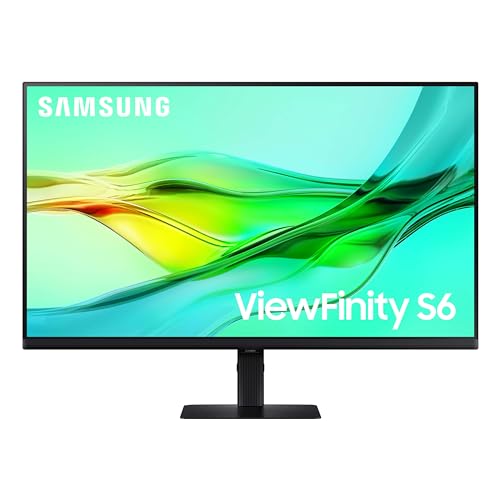
The S6’s title contains the two words this guide values most — height adjustable — attached to its stand in plain print, and then keeps going: a 27-inch ViewFinity QHD high-resolution panel at 100Hz with HDR10, USB-C, a built-in LAN port, daisy chain support and easy setup, from Samsung’s 2024 line. Start with the stand. Height travel is the adjustment that decides whether a screen meets its owner’s eyes or its owner bends to meet the screen, and here it is promised in the listing itself, no documentation excursion required. For a shared desk or a growing teenager’s workstation, that single printed promise may be worth more than every other figure on the page.
The connectivity suite reads like an IT department’s wish list, and it has ergonomic consequences. A built-in LAN port means the monitor can supply the network to a docked laptop, deleting one more box and cable from the desk’s centre. Daisy chain support lets a second display hang from the first, so a dual-screen layout — the arrangement that most often wrecks posture when improvised — can be built cleanly, at matched heights, from one computer connection. USB-C ties the laptop in. The cumulative effect is a desk whose geometry is chosen by the owner rather than negotiated with the wiring.
Picture credentials sit at the sensible centre: QHD resolution renders office text crisply at 27 inches, 100Hz keeps scrolling smooth through long documents, and HDR10 covers video without theatre. This is the specification of a screen meant to be worked at for years, not admired for a weekend, and its ergonomic story is correspondingly complete — stand movement printed, wiring simplified, resolution honest. If the S8 above is the resolution flagship of the ViewFinity pair, the S6 is the workstation pragmatist, and many desks will be better served by the pragmatist.
Concessions are easy to state. Buyers who need 4K density for fine design or dense code should take the S8 or the BenQ. The title does not itemise tilt, swivel or pivot beside the height claim, so a portrait plan needs the same documentation check applied throughout this guide. And a LAN port earns nothing in a home whose network is entirely wireless and whose laptop never docks. None of that dims the central fact: this is one of only two titles in the guide that guarantee the ergonomic movement that matters most, in writing, before money changes hands.
- Size and resolution: 27-inch QHD
- Refresh rate: 100Hz
- Stand: Height Adjustable Stand — stated in the title
- Connectivity: USB-C, Built-In LAN Port, Daisy Chain Support
- HDR: HDR10
- Setup: Easy Setup — stated in the title
- Year: 2024 model, stated in the title
Strengths
- Height adjustment is printed, settling the key ergonomic question.
- Built-in LAN and daisy chain simplify dual-screen desk wiring.
- QHD at 100Hz covers office text and scrolling completely.
Trade-offs
- QHD density trails the 4K picks for the finest work.
- Other stand movements are not itemised beside height.
- The LAN feature is wasted on fully wireless, undocked setups.
Best for: a shared or docked office desk that needs printed height adjustment, QHD text and monitor-supplied networking in one 27-inch panel. Not suited for: a designer who needs 3840×2160 density, because this ViewFinity renders at QHD resolution.
Exploit the daisy chain deliberately if a second screen joins later. Two panels at matched heights, fed through one tidy chain, give the neck a level horizon to sweep instead of a staircase to climb, and the S6 was clearly specified to anchor exactly that arrangement. Set both screens’ brightness as a pair, centre the primary before your chair, and the dual-screen desk becomes the ergonomic upgrade it is supposed to be rather than the compromise it often is.
Employers equipping home workers should linger on this model. Height adjustment in writing, network through the monitor, one-cable docking — it answers the three support tickets remote fleets generate most, before they are raised. A fleet buyer reading this guide for a standard issue will find the S6 the easiest recommendation to defend in a procurement meeting, because every virtue that matters is printed where an auditor can find it.

HP E27 G5 — The mainstream desk standard
HP’s E27 G5 arrives with the briefest title in the guide — a 27-inch class Full HD LCD monitor, 16:9, black and silver — and its ergonomic review must therefore be built differently from the others. No stand movements are printed, no comfort system is named, and this review will not pretend otherwise. What the title does establish is a mainstream business panel at the size this guide recommends for a primary desk, from a family of monitors that organisations deploy in large numbers for ordinary seated work. Its ergonomic case is the case of the category itself: a proper external screen, at a proper size, replacing laptop hunching.
That replacement effect deserves respect rather than condescension. The single largest ergonomic upgrade available to most workers is not a exotic stand; it is moving the day’s reading from a 13-inch laptop screen at lap height to a 27-inch panel at desk height and arm’s length. Neck flexion eases, text grows, distance lengthens. An E-series HP delivers that upgrade in its most standardised form — the same class of screen a worker’s employer likely issues, with the support and familiarity that follow. For households furnishing a study or a first home office, standard is a feature.
The homework is equally standard, and it matters more here than anywhere else in the guide. Before ordering, confirm the stand’s movements and any mounting option in HP’s documentation, because the title gives the buyer nothing to plan a desk around. If the stand proves basic, budget a riser or an arm in the same order rather than discovering the gap with your neck. Resolution is the other known quantity: Full HD at 27 inches renders everyday documents at generous, approachable type, while dense spreadsheets and small-print work will look softer than on the QHD and 4K picks — enlarge the type and the size of the canvas absorbs the trade gracefully.
Who takes it? The buyer furnishing several seats, matching an HP fleet, or prioritising a dependable mainstream panel over printed ergonomic theatre — provided the documentation check confirms a workable stand or a mount. Who should look elsewhere? The buyer with an existing posture complaint who needs the adjustment guarantee in the listing itself; the Samsung S6 and ASUS below exist for that reader, and this guide will not blur the difference to make the HP seem something it never claimed to be.
- Size and resolution: 27-inch Class Full HD LCD
- Aspect ratio: 16:9
- Finish: Black, Silver
- Line: HP E-series business monitor
- Stand, mounting and comfort features: Not stated in the listing title — verify with the manufacturer documentation
Strengths
- 27-inch canvas delivers the core upgrade over laptop working.
- Business-family standardisation suits multi-seat furnishing.
- Full HD simplicity pairs with any computer immediately.
Trade-offs
- No ergonomic hardware is described in the title at all.
- Full HD softens dense documents beside QHD and 4K rivals.
- A riser or arm may need adding to the same order.
Best for: an HP-standardised office or household study that needs a dependable 27-inch screen and will verify its stand before ordering. Not suited for: a buyer with a posture complaint who needs height adjustment guaranteed in the listing, because this title prints no stand information.
Deployment, once verified, follows the mainstream script this guide keeps returning to: screen top near eye level, panel at arm’s length, feet flat, documents enlarged until reading happens from a settled posture rather than a lean. The E27 G5 will not perform any of that for you, and neither, in truth, will the fanciest stand in this guide — they merely make it easier. A mainstream panel plus a measured setup beats a premium panel plonked down carelessly, every working week of the year.
There is a budgeting philosophy in this pick worth stating plainly. Money not spent on panel prestige can be spent on the chair, the desk lamp and the arm that complete an ergonomic workstation, and the body cannot tell which component the comfort came from. A household that buys the E27 G5 and a genuinely good chair has made a more ergonomic decision than one that buys a flagship panel and sits on a kitchen stool. This guide ranks monitors; the reader should rank the whole desk.

Dell UltraSharp U2722D — Eye comfort, professional grade
Dell’s U2722D splits the ergonomic question into its two halves and answers one of them by name. The title states a 27-inch QHD monitor at 2560×1440 with ComfortView Plus and InfinityEdge design, from the UltraSharp professional line. ComfortView Plus is Dell’s printed eye-comfort system — the light side of ergonomics, addressed in the listing itself. The posture side, the stand, is not described at all, and a buyer whose neck is the priority must confirm the hardware in Dell’s documentation before this panel can be recommended to them without reservation. Both halves of that sentence matter equally, and this review keeps them separate rather than letting the brand’s reputation merge them.
On the answered half, the case is strong. QHD at 27 inches is the resolution this guide reaches for when a reader’s day is dense text: fine letterforms at a full arm’s length, documents that stay crisp when enlarged, spreadsheets whose figures remain distinct without leaning. ComfortView Plus addresses the character of the light producing that text, and the InfinityEdge bezels keep the visual field clean — a subtle ergonomic point, since a reading surface free of visual clutter at its edges is easier for the eyes to settle on, and a dual-screen pair built from these panels places only a hairline seam between documents.
UltraSharp positioning adds the professional context. This is Dell’s line for workplaces that buy monitors as long-term infrastructure, and a home buyer inside a Dell ecosystem gains the usual continuity: familiar menus, matching docks, a support relationship that already exists. Ergonomics benefits from that continuity in an unglamorous way — a screen whose behaviour is known gets set up correctly once and then left correctly, while unfamiliar equipment drifts. None of that substitutes for the missing stand information; it accompanies the documentation check that supplies it.
So the recommendation is conditional, and stated as such. Verify the stand, and if its movements suit your desk — or if a mount completes the picture — the U2722D becomes one of the most coherent ergonomic purchases in this guide: professional QHD sharpness, a named comfort system, clean bezels. Skip the verification, and you are buying an excellent panel whose posture story is unknown, which is precisely the gamble this category’s buyers most need to stop taking.
- Size and resolution: 27-inch QHD, 2560×1440
- Comfort: ComfortView Plus — stated in the title
- Design: InfinityEdge
- Line: Dell UltraSharp
- Stand adjustment: Not stated in the listing title — verify with the manufacturer documentation
Strengths
- ComfortView Plus names the eye-comfort system in the title.
- QHD sharpness supports a healthy, arm’s-length reading distance.
- InfinityEdge bezels suit clean dual-screen document work.
Trade-offs
- No stand movement is printed, so posture hardware is unverified.
- Refresh and input details are likewise absent from the title.
- Its professional positioning sits above mainstream panels.
Best for: a Dell-ecosystem professional reading dense QHD text who will confirm the stand in documentation before ordering. Not suited for: a buyer who needs height travel guaranteed by the listing, because this title describes no stand at all.
If the verification comes back well, set the Dell up as the anchor of a two-screen reading desk and let the bezels justify themselves: a contract on one panel, its schedules on the other, the seam between them thin enough that the eye crosses it without ceremony. Posture in such a setup is decided by the pair’s shared height, so adjust them as one horizon, not as two separate screens that happen to coexist. The discipline is the same lesson this whole guide teaches, at fleet scale or at one desk: geometry first, then electronics.
There is also a longevity comfort in the UltraSharp badge that ergonomic buyers should weigh. A workstation’s geometry is learned by the body over months; equipment that stays in service for years protects that learning, while a bargain panel replaced twice forces the desk — and the neck — to start over each time. Dell’s professional line exists to be kept, and keeping is an ergonomic virtue no stand specification can capture.

BenQ RD280UA — The arm does the ergonomics
Stands set the terms for the rest of this guide; the RD280UA sidesteps them by arriving on an arm. Its title bundles an Ergo Flexible Arm with a 28.2-inch 4K 3840×2560 programming panel, a fine-coated finish, advanced coding modes, a Coding HotKey, Night Hours Protection, Eye-Care Tech and 90W USB-C. An arm changes the ergonomic ceiling entirely: the panel can float at exact eye height, pull closer for a dense proof, push back for an overview, swing aside for a paper document, or rotate toward portrait for a long read — movements no stand in this guide can match, because they are the movements arms exist to make.
The canvas being floated is itself an ergonomic instrument. A 3:2 panel is taller than widescreen, so documents and code show more lines per screen, which means fewer scrolls, fewer window switches and a head that stays stiller through the day. Stillness is an underrated comfort metric: much of desk fatigue is accumulation of small motions and refocusing efforts, and a canvas that holds more of the work attacks that accumulation directly. The fine-coated finish diffuses reflections across the large surface, keeping the floated page readable from the angles an arm makes possible.
Night Hours Protection and the Eye-Care Tech wording address the arm’s natural habitat — the flexible desk that works at all hours. A screen repositioned for evening reading, in a dim room, needs its light behaviour managed as carefully as its height, and BenQ prints both concerns on this model in a way that suggests the design team pictured the same long-day user the arm serves. The Coding HotKey puts display adjustments on a physical control, so tuning the panel for a new posture or a darker hour is a tap rather than a menu expedition — and features that are easy to use are the ones that actually get used, which is the first law of ergonomic design.
Costs and fit are the honest counterweight. This is a specialist’s panel at a specialist’s position in the range, shaped for developers and heavy readers; a buyer whose work is ordinary office documents may find the Samsung S6 delivers the needed ergonomics — printed height adjustment on a QHD screen — with less machinery. The arm also asks for a desk that can carry it and a buyer willing to spend one careful session setting its tension and range. For the reader whose posture problems are real and whose documents are tall, though, this is the most complete ergonomic answer in the guide: the panel goes where the body asks, in three dimensions, all day.
- Size and resolution: 28.2-inch 4K, 3840×2560
- Positioning: Ergo Flexible Arm — stated in the title
- Comfort: Eye-Care Tech, Night Hours Protection — stated in the title
- Panel finish: Fine-Coated Panel
- Modes: Advanced Coding Modes, Coding HotKey
- USB-C: 90W
- Backlight: stated in the title
Strengths
- A bundled flexible arm outranges every stand in this guide.
- The tall 3:2 canvas reduces scrolling and head movement.
- Night Hours Protection suits the flexible, after-dark desk.
Trade-offs
- Specialist pricing for a developer-shaped panel.
- The arm needs a suitable desk and one careful setup session.
- Ordinary office buyers may not use its positioning range.
Best for: a developer or heavy reader with real posture needs who wants a tall 4K panel floating on a bundled flexible arm. Not suited for: a simple office desk that needs only fixed height adjustment, because the arm’s range and price exceed that brief.
Treat the arm’s setup as a fitting, not an assembly. Set its tension so the panel holds a position against a fingertip’s pressure yet moves under a hand’s, route cables with slack for the full swing, and then spend a week deliberately repositioning for each kind of work — code upright, proof pulled close, evening read pushed back and lowered. Owners who build that choreography discover the product’s actual promise: not a screen at the right height, but a screen at every right height the day contains.
Shared and evolving desks gain the most. An arm-mounted panel survives a chair change, a desk change and a user change without its ergonomics resetting to zero, because the adjustment range absorbs the differences. In a household where the desk will serve different bodies across years, that resilience may outvalue any single specification in this guide — including, on some desks, the resolution of the panel itself.

ASUS ProArt PA278QV — Calibrated and height-adjustable
The PA278QV’s title is the most complete ergonomic sentence among the stand-based picks: a 27-inch 1440p QHD professional monitor, Calman Verified, IPS, height adjustable, 100% sRGB, Eye Care, anti-glare, an ergonomic stand and Rec.709 coverage. Two separate ergonomic promises are printed — a named movement and a design claim — which already separates it from most of the category. Then the professional layer arrives: Calman verification and full sRGB mean the picture itself is certified, so the reader can trust colours without leaning in to second-guess them, and Eye Care wording with an anti-glare surface covers the light side of a long day.
Height adjustment on a professional panel serves a particular worker: the one whose desk is also a studio. Designers, photographers and video editors alternate between close inspection and settled review, and a stand that travels lets the panel meet both postures — raised and distant for assessing a whole layout, adjusted again for the detailed pass. The anti-glare finish supports the same work in real rooms, where a window’s reflection across a proof is not merely uncomfortable but misleading. Rec.709 coverage speaks to video professionals whose delivery standard it is, completing a title aimed squarely at people who read images for a living.
The QHD resolution at 27 inches hits the professional centre: fine enough for design detail and dense interfaces, light enough that ordinary workstations drive it without strain. 100% sRGB is the web and print baseline stated in full, so a proof read here can be trusted for the destinations most work actually ships to. Nothing in the title chases gaming figures or entertainment HDR tiers, and that restraint is itself ergonomic — a panel specified for the work its owner does all day, rather than for the hour of play that follows it.
What is missing, by this guide’s strict accounting? The title itemises height but not tilt, swivel or pivot, so portrait plans and shared-desk swivelling need the familiar documentation check. USB-C is not named among its connections in the title provided, so laptop docks should be planned from the documentation as well. Those are narrow gaps in an otherwise exemplary listing. For the creative professional who wants the ergonomic promise printed and the colour promise certified, the PA278QV is the most defensible single purchase in this guide.
- Size and resolution: 27-inch 1440p QHD
- Panel: IPS, Anti-Glare
- Stand: Height Adjustable, Ergonomic Stand — stated in the title
- Colour: Calman Verified, 100% sRGB, Rec.709
- Comfort: Eye Care — stated in the title
- Positioning: Professional Monitor
- Other stand movements: Not stated in the listing title — verify with the manufacturer documentation
Strengths
- Height adjustment and an ergonomic stand are both printed.
- Calman Verified colour removes squint-and-guess from proofing.
- Anti-glare and Eye Care wording cover bright-room reading.
Trade-offs
- Tilt, swivel and pivot are not itemised in the title.
- USB-C is not named, so docking needs a documentation check.
- Its professional colour focus exceeds plain office needs.
Best for: a designer or editor who wants printed height adjustment on a Calman Verified 27-inch QHD panel with full sRGB coverage. Not suited for: a portrait-document reader who needs pivot confirmed in the listing, because only height adjustment is named here.
Creative buyers should use the height travel as part of the craft, not as a set-and-forget. Assess compositions from a step back with the panel raised to the eyes, then settle into the detailed pass at your working posture; the alternation rests the focusing muscles and the neck in the same gesture. A stand that moves in seconds makes that rhythm realistic, and rhythm — not any single perfect position — is what a varied creative day actually needs from its furniture.
The ProArt also makes a quietly strong second impression as a household’s serious screen. A partner’s photography, a teenager’s design coursework, a freelancer’s weekend commissions all draw on the same certified colour and the same adjustable stand, and a panel bought for one professional often becomes the desk every visually serious task migrates to. Ergonomic equipment that the whole household trusts gets maintained, adjusted and kept — the social half of longevity.
Comparison
| Pick | Resolution | Positioning evidence in title | Eye-side note | Notable from title |
|---|---|---|---|---|
| Samsung ViewFinity S8 | 27″ 4K UHD 3840×2160 | Ergonomic Stand claimed | HDR10+ | USB-C 90W |
| Samsung ViewFinity S6 | 27″ QHD | Height Adjustable Stand printed | 100Hz, HDR10 | Built-in LAN, daisy chain |
| HP E27 G5 | 27″ Full HD | Not stated in the listing title | None printed | Business family, 16:9 |
| Dell U2722D | 27″ QHD 2560×1440 | Not stated in the listing title | ComfortView Plus | InfinityEdge, UltraSharp |
| BenQ RD280UA | 28.2″ 4K 3840×2560 | Ergo Flexible Arm printed | Eye-Care Tech, Night Hours Protection | 3:2 canvas, 90W USB-C |
| ASUS PA278QV | 27″ QHD 1440p | Height Adjustable, Ergonomic Stand | Eye Care, Anti-Glare | Calman Verified, 100% sRGB |
The positioning column is this guide in miniature, and it should be read before any other. One bundled arm, two printed height adjustments, one design claim, and two silences that documentation must fill. Buyers who rank that column by their own body’s needs will shortlist correctly in under a minute; buyers who start from resolution and hope the stand follows are gambling in the order this guide was written to reverse.
The eye-side column tells the second story. Comfort systems appear on the Dell and BenQ by name, Eye Care wording on the ASUS, and nothing at all on the HP — a spread that lets a light-sensitive reader and a posture-sensitive reader build genuinely different shortlists from the same six products. Ergonomics is personal because bodies are, and a table that lets two readers disagree productively has done its job.
How to Choose an Ergonomic Monitor
Measure your body and your desk before reading another specification. Seated in your actual chair, note where your eyes level; measure the desk’s height and depth; decide the distance at which you read comfortably. Those three numbers — eye height, desk geometry, reading distance — determine which stand travels, arm lengths and screen sizes can possibly succeed in your room. A monitor chosen against measurements arrives as a solution; a monitor chosen against a showroom’s impression arrives as a negotiation.
Rank the adjustments by your own history. Height travel matters to nearly everyone and is the first promise to demand in print. Tilt matters where light or a reclined posture enters the day. Swivel matters on shared desks and in rooms where the screen doubles as a presentation surface. Pivot matters only where portrait work is real, and an arm matters where the desk, the user or the task changes often enough that fixed geometry keeps failing. The titles in this guide let you buy exactly the rung of that ladder you need — no higher, and, crucially, no lower.
Do not let the panel’s picture smuggle the decision back. Resolution should be chosen for viewing distance — sharper panels earn their keep by letting you sit further away — and comfort systems for your light sensitivity, but neither compensates for a screen that cannot reach your eye line. If a beloved panel’s stand falls short, the honest remedy is an arm in the same order, budgeted as part of the monitor’s price. The most expensive ergonomic mistake is the premium screen left at the wrong height because its accessory felt like an optional extra.
Finally, complete the workstation honestly. A monitor is one vertex of a triangle whose other points are the chair and the desk surface, and it cannot hold the shape alone. Set the screen top near eye level, the panel at arm’s length, feet flat and documents at a size that lets you sit back — then audit the arrangement after a fortnight of real work, when the body has filed its honest report. Ergonomics is a practice with equipment, not a product with a label, and the buyers who treat it that way are the ones still comfortable in year three.
Which Single Adjustment Matters Most?
Height, and it is not close. Eye level decides the neck’s working angle for every hour the desk is used, and no other adjustment touches so much of the day. That is why this guide gives its strongest classifications to the titles that print height adjustment or bundle an arm, and why a tilt-only stand on an otherwise superb panel should be read as an arm purchase waiting to happen. If a budget forces one ergonomic feature and no other, spend it there, and let resolution and colour divide what remains.
Is an Ergonomic Stand Enough, or Do You Need an Arm?
For a single user at a stable desk, a good stand with real height travel is usually enough — it reaches eye level, holds it without drift, and asks nothing of the desk’s structure. An arm earns its premium when the situation moves: multiple users of different heights, a desk too shallow or too deep for the stand’s footprint, portrait work, or a panel that must swing between tasks and people. The RD280UA bundles that answer; the stand-based picks answer the steadier question. Match the hardware to the amount of change in your working life, and neither choice will feel like a compromise.
Can an Ergonomic Monitor Help an Existing Neck Problem?
It can remove the workstation’s contribution to one, which is a meaningful but bounded promise. A screen at the correct height and distance stops asking the neck to compensate for furniture, and many desk workers feel that change within days. What a monitor cannot do is diagnose or treat a condition, and persistent pain, numbness or headaches belong in front of a clinician, ideally with a photograph of your workstation in hand. Buy the ergonomic panel as prevention and as relief of strain you can explain — and let professionals handle the rest, with your well-arranged desk as evidence you have done your part.
Common Mistakes When Buying an Ergonomic Monitor
Trusting the word ergonomic on the box is the category’s founding error. The term describes an intention, not a measurement, and titles in this very guide range from a bundled arm to total silence beneath respectable brand names. The defence is literacy: read for named movements — height, tilt, swivel, pivot, arm — and treat every unnamed movement as absent until documentation proves otherwise. Two minutes of that literacy outperforms any amount of post-purchase regret.
Setting the screen once and never again runs second. Bodies change chairs, desks move rooms, a second user arrives, a laptop replaces a desktop — and the monitor stays at the geometry of its first afternoon, slowly becoming the wrong height for the life now lived in front of it. Ergonomic hardware only works when it is re-used as life shifts, so build the fortnightly audit from the buying guide into the same habit as cleaning the screen. Adjustment is not a setup step; it is the product, renewed.
Starving the rest of the workstation completes the pattern. A height-adjustable panel above a dining chair, lit by a bare bulb, at a desk built for writing letters, will not produce an ergonomic day no matter what its title promised. Buyers should hold a portion of the budget for the chair and the lamp with the same seriousness as the screen — the body experiences the workstation whole, and it files its complaints against whichever part the budget forgot.
Final Recommendation
For most desks, begin with the Samsung ViewFinity S6: height adjustment printed in the title, QHD clarity, and desk-simplifying connections that keep the geometry you set. Creative professionals should take the ASUS ProArt PA278QV, which pairs the same printed height promise with certified colour. The BenQ RD280UA is the answer when an arm’s freedom is the requirement, the Samsung ViewFinity S8 when 4K distance and one-cable docking lead, and the Dell U2722D when its verified stand completes a package whose eye-comfort system is already named. The HP E27 G5 serves the standardised office that verifies before it buys. Whichever you choose, measure first, demand the movement in writing, and re-adjust as your life changes — comfort kept is the only kind there is.
Frequently Asked Questions
What stand features should a buyer insist on?
Height adjustment first, in print, because eye level governs the neck’s day. Tilt is the near-universal companion and worth confirming. Swivel earns its place on shared desks, pivot only where portrait work is genuine, and a VESA pattern or bundled arm where the desk’s geometry defeats stands. The titles in this guide show every grade of that evidence, from the RD280UA’s arm to the HP’s silence, so match the grade to the certainty your body requires.
How high should an ergonomic monitor sit?
The top of the screen near eye level, with the panel roughly an arm’s length away, adjusted so ordinary text reads without leaning forward or tipping the head back. Taller users and sit-stand desks need more stand travel or an arm to reach that geometry, which is why travel — not the word ergonomic — is the specification to verify. Re-check after any chair or desk change; the right height is a relationship, not a number fixed at purchase.
Does resolution really affect ergonomics?
Yes, through distance. A sharper panel renders text finely enough to stay legible further away, and distance is posture: the reader who can sit back at arm’s length holds a kinder neck and shoulder position than the reader pulled close to a coarse screen. That is why this guide counts the 4K and QHD picks’ density as an ergonomic trait, and why a Full HD panel should be paired with larger type settings to protect the same distance.
Are eye-comfort systems part of ergonomics?
They are the light half of it. Posture hardware decides where the image sits; comfort systems decide what the image does to the eyes across hours — and a desk needs both halves solved. Dell prints ComfortView Plus, BenQ prints Eye-Care Tech with Night Hours Protection, and ASUS prints Eye Care with an anti-glare surface. Credit each as titled, weigh them beside the stand evidence, and be wary of any product that offers one half while hiding the other.
Should a shared family desk choose a stand or an arm?
The more the users differ in height, the stronger the arm’s case, because its range absorbs differences a stand’s travel may not — and because repositioning must be effortless or it will not happen between users. A stand with generous printed height adjustment, like the Samsung S6 or the ASUS, serves two similar adults well. Measure the household’s actual eye levels before deciding; the tape measure settles arguments that opinions cannot.
How often should a workstation’s ergonomics be re-checked?
Briefly, every few weeks, and thoroughly whenever anything changes — chair, desk, computer, user, or the body’s own reports. Setups drift as surely as posture does, and the audit is cheap: sit, check eye level and distance, adjust, and note anything that has started to ache. The owners who keep ergonomic equipment comfortable for years are not the ones who bought best; they are the ones who kept adjusting.
Related Guides
Readers whose discomfort centres on the eyes should pair this ergonomic shortlist with the best monitors for reducing eye strain, where light behaviour and comfort systems lead the judging. Those furnishing a fully interactive desk will benefit from the best touchscreen monitors for workstation setups that mix touch, typing and presenting. And players arranging a tall second screen should finish with the best vertical monitors for gaming, covering pivot stands and portrait layouts for play before the workstation budget is committed.


