What's inside
- Where to Buy
- Key Takeaways
- Quick Picks
- How We Chose These Picks
- Comparison
- How to Build a Desk That Keeps Eyes Comfortable for Years
- Should a First Monitor Be Bought for Comfort or for Specifications?
- How Early Should Parents and Students Take Screen Comfort Seriously?
- What Should an Employer Standardise for a Remote Team?
- Can a Preventive Setup Survive a House Move or a New Job?
- Common Mistakes in Setting Up a Preventive Desk
- Final Recommendation
- Frequently Asked Questions
- Related Guides
As an Amazon Associate I earn from qualifying purchases. This post may contain affiliate links at no extra cost to you.
[SITE_DOMAIN] is reader-supported. When you buy through links on our site, we may earn an affiliate commission.
Where to Buy
All six prevention-minded panels below are listed on Amazon, and each linked name leads to that model’s own page. Start the comparison with the BenQ GW2790QP if a 2K screen at 144Hz sounds like the foundation you want, and note what its listing charges before judging the rest. The ASUS VZ27EHF keeps its profile ultra-slim, so open its page if desk depth is tight in your room. For a smaller-budget prevention step, look at the ViewSonic VA2756A-MHD and its three input types. A 24-inch route appears with the ViewSonic VS2447M, handy for dorms and spare rooms. The BenQ GW2790TC adds USB-C and a height-adjustable stand, which its product page details fully. Finish with the Dell UltraSharp U2724D, the premium foundation whose listing sets the top of this range.
Prevention is a different shopping trip from relief. The readers hunting for the best monitors to prevent eye strain are usually not hurting yet — they are setting up a first proper home office, sending a student off with a desk that must last four years, replacing a laptop-only habit before it becomes a complaint, or equipping a small team and wanting nobody’s eyes to pay for the furniture budget. That forward-looking brief changes what a good answer looks like. Instead of asking which panel soothes symptoms today, this guide asks which panel, installed correctly from day one, makes symptoms least likely to develop across years of ordinary use.
That framing elevates boring virtues. A stand that adjusts before a neck ever aches. Brightness behaviour that adapts before anyone learns to squint at a glowing screen in a dark room. A flicker-free claim printed in a title before a sensitive viewer discovers the hard way that backlight pulsing bothers them. Prevention also widens the lens beyond the panel: this guide spends real time on desk geometry, lighting plans, screen-time routines for students and shared households, and the check-up habits that catch a drifting setup early. Buy the right monitor, by all means — then install it like you mean to keep the promise it makes.
The six picks divide by strategy. Two BenQ models anchor the Eye-Care approach, one with QHD resolution and 144Hz motion, the other with USB-C convenience plus height and tilt adjustment and printed flicker-free language. ASUS contributes an ultra-slim Eye Care panel with flicker-free wording of its own. ViewSonic appears twice: a 27-inch all-rounder with speakers and three inputs, and a 24-inch dual-monitor-friendly screen for compact desks. Dell’s UltraSharp U2724D closes the list as the buy-once foundation. Sizes run 24 to 27 inches, resolutions from Full HD to QHD, and every title says something a prevention shopper can act on.
As throughout this site, specifications come only from the listing titles, and prevention claims are credited only where a maker printed them. Flicker-free wording appears for the ASUS and for one BenQ; low-blue-light wording likewise. Where a title names a broader Eye Care label without itemising parts, the review says so and treats the label as a starting point for your own verification, not as a bundle of assumed technologies.
Key Takeaways
- Prevention rewards setup as much as hardware: four of these six titles say something about stands, mounting or profile that shapes a healthy desk from day one.
- The BenQ GW2790QP is the resolution-and-speed anchor, pairing a 27-inch 2K IPS panel at 144Hz with Eye-Care branding and TUV certification.
- Printed Flicker-Free and Low Blue Light claims appear on the BenQ GW2790TC, which also adds height and tilt adjustment plus USB-C.
- The ASUS VZ27EHF combines Eye Care wording, Low Blue Light, Flicker Free and an ultra-slim profile for shallow desks.
- ViewSonic’s pair covers two budgets of prevention: a 27-inch 120Hz model with speakers, and a 24-inch model pitched for dual-monitor layouts.
- The Dell U2724D title is the sparsest here, so its prevention case rests on the UltraSharp name and 27-inch QHD-class positioning stated in the listing.
Quick Picks
| Pick | Badge | Why it earns a place |
|---|---|---|
| BenQ GW2790QP | The build-it-right foundation | 27-inch 2K IPS at 144Hz, Eye-Care, TUV-certified, 99% sRGB and FreeSync in one title. |
| ASUS VZ27EHF | Slim prevention for shallow desks | Full HD IPS at 100Hz with Low Blue Light and Flicker Free printed, in an ultra-slim frame. |
| ViewSonic VA2756A-MHD | Three inputs, speakers included | 27-inch Full HD IPS at 120Hz, Eye Care wording, HDMI, DisplayPort and VGA, plus speakers. |
| ViewSonic VS2447M | The compact dual-screen starter | 24-inch 1080p at 100Hz with Eye Care, anti-glare, FreeSync, speakers and VESA mounting. |
| BenQ GW2790TC | Ergonomics printed in full | Height and tilt adjustment, USB-C, Flicker-Free and Low Blue Light claims, TUV certification. |
| Dell UltraSharp U2724D | The buy-once 27-inch Dell | UltraSharp branding at 27 inches for readers building a long-term desk around a trusted line. |
How We Chose These Picks
A prevention shortlist cannot be built from comfort claims alone, because the reader’s goal is a desk that stays healthy for years, not a panel that feels soothing for a week. Candidates were therefore scored on four layers. The first layer is printed comfort technology — eye-care systems, flicker and blue-light language — since a panel that manages its light output sensibly removes risks before they are felt. The second layer is physical adjustability or mounting, because posture problems are the slow injury of desk life and the easiest to design out at purchase time.
The third layer is fit for the room and the machines. A prevention buyer is often furnishing a specific situation: a student’s shallow desk, a spare-room office shared with guests, a two-screen study, a laptop docked through a single cable. Titles that named USB-C, VESA mounting, dual-monitor intent, multiple inputs or an ultra-slim profile scored for the situations they unlock. A monitor that physically cannot be placed well in the room it was bought for will not prevent anything, however kind its light.
Fourth came longevity signals: certifications printed in titles, warranty length where stated, and product lines with professional track records. Prevention is a long game, so a screen likely to serve five or six years without replacement protects both eyes and budget better than a bargain replaced twice. Resolution and refresh were weighed as future-proofing rather than thrills — QHD headroom for tomorrow’s denser documents, 100Hz-plus motion for the scrolling habits of modern research work.
What was excluded matters too. Panels whose titles offered nothing about comfort, adjustability or room fit were passed over even when their raw specifications looked strong, because a prevention guide that recommends on panel quality alone has missed its own brief. The survivors each answer at least two of the four layers in print, and the reviews identify which layers each pick leaves for the buyer to solve with setup, accessories or routine.

BenQ GW2790QP — The build-it-right foundation
Anyone furnishing a desk from an empty room should look at the GW2790QP first, because its title assembles the prevention fundamentals in one product: a 27-inch 2K IPS panel, a 144Hz refresh rate, Eye-Care branding, TUV certification, QHD resolution with 99% sRGB coverage, two HDMI 2.0 ports and FreeSync. Resolution and refresh together are the future-proofing argument. QHD text stays crisp as documents grow denser and operating systems push finer interface elements, while 144Hz keeps scrolling smooth enough that a researcher flicking through sources all day never fights a juddering page.
The certification deserves emphasis for this audience. A student or a new remote worker cannot easily judge flicker behaviour or blue-light output in a shop, and a TUV mark printed in the title tells them an external process examined the comfort claims. BenQ’s Eye-Care label sits alongside it as the maker’s own system name. Neither the certification nor the label itemises every mechanism in the title itself, so a buyer with a known sensitivity should still read the manufacturer’s documentation for the specifics — but as a foundation purchase, certified-plus-branded is the strongest paper evidence in this guide.
FreeSync and the 99% sRGB figure widen the panel’s useful life in two directions. Colour coverage at that level keeps coursework, photography hobbies and design electives honest without a second screen, while adaptive sync smooths the gaming that will inevitably happen on a young person’s desk. Two HDMI 2.0 inputs let a laptop and a console share the panel without cable rituals. Prevention, in a household sense, includes preventing the desk from being rebuilt every year as needs change; this BenQ is specified like it expects to stay.
Gaps are modest but real. The title names no stand adjustment and no speakers, so the prevention plan should include a measuring tape at setup — confirm the panel lands near eye level on your desk, and add a stand or arm if it does not — plus a headset or speaker plan for calls. Buyers who want those answers inside the box should read the GW2790TC review below, which trades this model’s resolution and speed for exactly that ergonomic completeness.
- Size and resolution: 27-inch 2K, QHD
- Panel: IPS
- Refresh rate: 144Hz
- Comfort: Eye-Care, TUV-certified — stated in the title
- Colour: 99% sRGB
- Inputs: HDMI 2.0 x2
- Sync: FreeSync, MediaSync
- Stand adjustment: Not stated in the listing title — verify with the manufacturer documentation
Strengths
- QHD resolution plus 144Hz gives a new desk years of headroom.
- TUV certification is printed, backing the Eye-Care claim externally.
- Two HDMI 2.0 ports cover laptop and console without swapping.
Trade-offs
- No stand movement is described, so setup height needs checking.
- Speakers are not mentioned in the title.
- Its specification sits at the upper end of this guide’s range.
Best for: a first proper home office or student desk built once, around a certified 27-inch QHD panel at 144Hz. Not suited for: a buyer who needs height adjustment confirmed in the title, because no stand travel is printed for this model.
Installation day is where this foundation earns its name. Set the scaling so body text reads comfortably at arm’s length, walk the room at your usual working hours to see where light falls on the screen, and angle the panel away from any window reflection before the first study session rather than after the first headache. Write down the settings that feel right. Prevention sounds abstract until it becomes a checklist taped inside a drawer, and this monitor rewards owners who treat setup as part of the purchase.
Think ahead one more year, too. A QHD panel with this colour coverage will still suit the owner when coursework turns into employment, when a hobby becomes freelance design work, or when a second machine joins the desk. Buying prevention is partly buying time — time before the next upgrade, time before bad habits form around a screen that is too small, too dim or too crude. The GW2790QP buys more of that time than any other pick here.

ASUS VZ27EHF Eye Care Monitor — Slim prevention for shallow desks
Some desks cannot prevent anything because the furniture defeats the equipment: a shallow writing desk, a wall-mounted shelf, a dormitory surface shared with books and a kettle. The VZ27EHF answers that physical problem first. Its title stresses an ultra-slim profile and a frameless design on a 27-inch viewable IPS panel, then prints the comfort pair prevention shoppers ask for — Low Blue Light and Flicker Free — alongside 100Hz refresh, 1ms response language, Adaptive-Sync and HDMI. A three-year warranty closes the listing.
Flicker Free in print matters disproportionately for a first monitor, because a buyer who has only ever used a laptop screen may not know whether backlight pulsing bothers them until months of exposure have taught the lesson unpleasantly. Choosing a panel that states flicker-free behaviour removes that variable from the experiment of building a healthy desk. The same logic applies to the low-blue-light system for evening study: dorm rooms and studio flats put the screen close to the bed, and a warmer night image is easier to build habits around than a harsh one.
The 100Hz refresh and Adaptive-Sync give the panel a relaxed competence across tasks. Essay research scrolls smoothly, lectures play cleanly, casual games stay tear-free, and the frameless edges mean a second matching screen can join later with a barely visible seam — a realistic upgrade path for a student whose second year demands more canvas. IPS keeps the picture steady for the friend reading over a shoulder during group work, a small social virtue that cramped rooms appreciate daily.
Resolution is Full HD, the honest limit of this design. At 27 inches that means text is large and approachable rather than dense, which suits general coursework, administration and media, and suits readers who prefer bigger type. It suits the code-dense or spreadsheet-dense worker less, and those readers should weigh the QHD BenQ above or the Dell below. No stand travel or speakers are named either, so the slim profile is the ergonomic story here: place it at the right height with the desk arrangement itself, and let its thinness reclaim the surface in front of it for books and notes.
- Size and resolution: 27-inch viewable, Full HD 1920 x 1080
- Panel: IPS, frameless, ultra-slim profile
- Refresh rate: 100Hz, 1ms
- Comfort: Low Blue Light, Flicker Free — stated in the title
- Sync: Adaptive-Sync
- Inputs: HDMI named in the title
- Warranty: 3 Year Warranty, stated in the title
Strengths
- Ultra-slim, frameless body fits shallow desks other 27-inch panels overwhelm.
- Flicker Free is printed, removing a hidden risk for first-time buyers.
- A three-year warranty matches the length of a degree or a first job.
Trade-offs
- Full HD resolution favours large type over dense documents.
- No stand adjustment is described in the title.
- HDMI is the only input named.
Best for: a student or studio-flat desk with limited depth that needs printed Flicker Free and Low Blue Light claims in a slim 27-inch frame. Not suited for: a data analyst who needs QHD density across 27 inches, because this panel renders at 1920 x 1080.
Room strategy completes this pick’s prevention story. In a small room the screen is often also the television, the lecture hall and the games display, so its light dominates the space after dark. Build the evening habit early: lower brightness when the room dims, sit back for films rather than hunching at study distance, and let the low-blue-light setting mark the boundary between work hours and winding down. A monitor cannot enforce routines, but a comfortable one makes routines easier to keep, and routines are where prevention actually lives.
Parents equipping a teenager’s desk should note the combination of size and restraint. A 27-inch canvas discourages the phone-hunch and the laptop-squint, while the printed comfort claims and the warranty cover the years when homework loads climb steeply. It is a purchase that says the desk was thought about before problems started — which is the entire philosophy of this guide in one product.
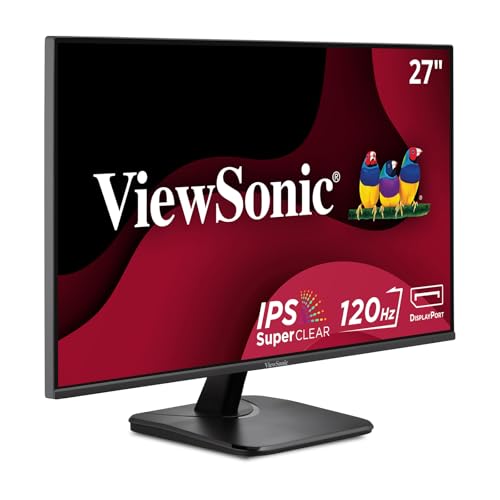
ViewSonic VA2756A-MHD — Three inputs, speakers included
Prevention fails quietly when a good monitor is awkward to use, because people drift back to the laptop screen on the sofa. The VA2756A-MHD is the convenience candidate: a 27-inch Full HD IPS panel at 120Hz with Eye Care wording, thin bezels, anti-glare surfacing, 1ms response language, 250 nits of stated brightness, built-in speakers, and three inputs — HDMI, DisplayPort and VGA. That input trio is a small manifesto. Whatever machine arrives at this desk, from a new laptop to an inherited desktop with only VGA, the ViewSonic can host it the same day without adapters or excuses.
The stated brightness figure deserves a word, because prevention shoppers rarely see one printed. A 250-nit ceiling, as titled, describes a panel aimed at ordinary indoor rooms rather than sun-flooded showrooms, and moderate maximum brightness used sensibly — matched to the room, not maxed by default — is exactly the behaviour this guide encourages. The anti-glare surface supports the same goal in real homes where the desk faces a window because the room offers no alternative wall.
Speakers change the daily ergonomics more than specifications suggest. A desk with working sound inside the panel gets used for calls, language lessons, training videos and news without a headset, and every hour without a tight headset band is an hour without that particular pressure headache. For a family desk or a small office equipping several seats, speakers also delete a peripheral from the budget and the cable tangle alike. ViewSonic pitches this model at home office, laptop, PC and Mac use in its own title, and the feature list backs that breadth honestly.
Where does it concede ground? Resolution stays at Full HD, the Eye Care label is not itemised into named sub-technologies in the title, and no stand movement is described. Readers with a known flicker sensitivity should prefer a title that prints Flicker Free outright. Everyone else gets a well-rounded, easygoing panel whose prevention value lies in being used constantly and correctly: bright enough, glare-controlled, quick at 120Hz, and connected to everything the household owns.
- Size and resolution: 27-inch Full HD
- Panel: IPS, thin bezels
- Refresh rate: 120Hz, 1ms
- Brightness: 250 Nits, stated in the title
- Comfort: Eye Care, Anti Glare — stated in the title
- Inputs: HDMI, DisplayPort, VGA
- Audio: Speakers, stated in the title
Strengths
- Three input types host new and legacy machines without adapters.
- Built-in speakers keep calls and lessons headset-free.
- 120Hz motion and anti-glare surfacing cover daily comfort basics.
Trade-offs
- Eye Care is a label here, not an itemised set of named features.
- Full HD resolution limits document density at 27 inches.
- Stand adjustment is not described in the title.
Best for: a household or small-office desk hosting several different computers that needs speakers, anti-glare surfacing and 120Hz in one panel. Not suited for: a flicker-sensitive buyer who needs the words Flicker Free printed, because this title uses the broader Eye Care label instead.
For a small employer, this is the pragmatic fleet choice in the guide. Identical panels across desks make support simple, the input range absorbs whatever computers the business already owns, and the speakers remove a line item from every workstation order. Prevention at organisational scale is mostly logistics: equipment that arrives complete, connects to everything and asks nothing extra of the person sitting down. The VA2756A-MHD is built to that brief, and its Eye Care wording covers the light side of the duty of care.
Home users should exploit the input generosity deliberately. Leave the work laptop on DisplayPort, a personal machine on HDMI and perhaps a media box on the third port, then switch sources instead of swapping cables. Desks that are easy to use correctly get used correctly; desks that demand a cable ritual before every session quietly train their owners back onto small screens and bad posture. Convenience, repeated daily, is a health feature.

ViewSonic VS2447M — The compact dual-screen starter
Not every prevention plan starts at 27 inches. The VS2447M is a 24-inch frameless panel at 1080p and 100Hz, with a VA panel, Eye Care wording, anti-glare surfacing, AMD FreeSync, speakers, HDMI and VGA inputs and VESA mounting — and ViewSonic’s title names dual-monitor use directly. That phrase is the key to its role. Two modest screens, placed at a consistent height and distance, prevent the single-screen contortions of the laptop-plus-notebook desk: the twisted neck toward a reference document, the hunched comparison between a document and a phone. A matched pair at 24 inches is the classic ergonomic study and accounts setup, and this model is priced and specified to be bought in twos.
The VA panel choice shapes its character. VA technology is known in this class for strong contrast, which gives text a firm, inky presence that many readers find restful in ordinary room light. FreeSync smooths motion when the second screen carries video or a casual game, 100Hz keeps scrolling composed on both halves of the desk, and the frameless design keeps the centre seam between a pair as unobtrusive as the format allows. Speakers are present, so a pair delivers call audio without extra hardware at either seat.
VESA mounting is the prevention sleeper feature. A panel that mounts can ride a dual arm, floating both screens at exactly eye level with the desk surface left clear for paper. Posture problems often begin with a screen placed wherever the stand happened to fit; a mounted pair begins from measurement instead. For a growing student or a home accountant whose workload will expand, starting with one VS2447M and adding its twin later preserves consistency — same size, same rendering, same height — which the neck appreciates more than any specification.
Compromises are proportionate to its class. A single 24-inch Full HD screen feels modest beside the 27-inch picks if used alone, the title names no DisplayPort, and Eye Care again appears as a label rather than an itemised list. Judge it by its intended geometry: as half of a well-mounted pair, or as the compact single screen for a genuinely small desk where a 27-inch panel would sit too close. In both roles its prevention logic — consistent distance, consistent height, calm light — is sound.
- Size and resolution: 24-inch, 1080p
- Panel: VA, frameless
- Refresh rate: 100Hz
- Comfort: Eye Care, Anti-Glare — stated in the title
- Sync: AMD FreeSync
- Inputs: HDMI, VGA
- Audio: Speakers, stated in the title
- Mounting: VESA Mount, dual-monitor use named in the title
Strengths
- Sized and priced for a matched dual-monitor layout.
- VESA mounting lets an arm set both screens at true eye level.
- Speakers and FreeSync cover calls and casual play without extras.
Trade-offs
- A single 24-inch screen is modest canvas beside the 27-inch picks.
- No DisplayPort input is named in the title.
- Eye Care mechanisms are not itemised in the title.
Best for: a study or accounts desk planning two matched 24-inch screens on a VESA arm at a measured height. Not suited for: a single-screen buyer who wants a large 27-inch canvas, because this panel’s strength is as one half of a pair.
Setting up a pair teaches the core prevention lesson better than any single purchase: consistency. Both panels at the same height, the same distance, the same brightness, angled slightly inward like an open book. The primary screen sits directly ahead, the secondary at a shallow angle, so the head turns gently instead of the torso twisting. Owners who build that geometry once rarely dismantle it, and the VS2447M’s frameless, mountable design exists precisely to make the geometry easy to achieve.
Budget planners should also see the staging advantage. Prevention does not have to arrive in one expensive parcel. One VS2447M now, correctly mounted, already improves on a laptop-only desk; its twin can follow a term later when funds allow, and the matched specification means the second purchase needs no fresh research. Staged buying with a consistent model is how many real households actually build healthy desks.
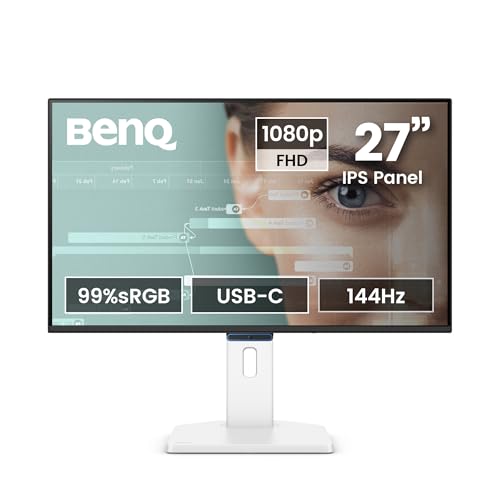
BenQ GW2790TC — Ergonomics printed in full
If prevention has a flagship in this guide, its title is this one. The GW2790TC prints height and tilt adjustment in plain words, adds USB-C, and then itemises its comfort claims: Visual Optimizer, Flicker-Free, Low Blue Light, an ultra-slim bezel, TUV certification and Eye-CareU branding, on a 27-inch IPS panel at 1080p and 144Hz. Read that list as a prevention checklist with nothing left implicit. The stand handles posture. The flicker and blue-light wording handles light behaviour. The certification handles trust. USB-C handles the cable discipline that keeps a laptop desk tidy enough to sit at properly.
Height adjustment is the rarest printed feature in either of this site’s eye-strain guides, and it deserves its spotlight. Most desks are built for an average person who does not exist; a stand with real travel lets the actual person — tall, short, or sharing the desk with someone else — place the top of the screen at eye level in seconds. That single capability prevents the slow neck and shoulder story that eventually sends people shopping for relief products. Paired with tilt, it covers the two movements a fixed desk most often gets wrong, without requiring an arm purchase on day one.
USB-C with a modern laptop turns setup into a one-cable routine: arrive, plug, and the large screen is live at the right height with the laptop closed or parked to the side. The 144Hz refresh is the surprise garnish — prevention panels rarely move this quickly — and it keeps research scrolling and after-hours play equally smooth. Visual Optimizer, BenQ’s printed name for its image-tuning approach, rounds out a title that reads as though the maker anticipated every question in this guide and answered it in advance.
Resolution is the deliberate sacrifice: 1080p at 27 inches, chosen presumably to hold the model’s place in the range while the ergonomic and comfort features take the budget. Dense-document professionals should weigh the QHD GW2790QP or the Dell. For everyone else — the laptop-docking remote worker, the shared family desk, the buyer who has already felt the first warning twinge in the neck — this is the most complete prevention specification in the group, because it treats the body and the eyes as one system.
- Size and resolution: 27-inch IPS, 1080P FHD
- Refresh rate: 144Hz
- Stand: Height and Tilt Adjustable — stated in the title
- Comfort: Flicker-Free, Low Blue Light, TUV-Certified, Eye-CareU — stated in the title
- Features: Visual Optimizer, Ultra Slim Bezel
- Connection: USB-C, stated in the title
- Use: Home Office, stated in the title
Strengths
- Height and tilt adjustment are printed, solving posture inside the box.
- Flicker-Free and Low Blue Light are itemised rather than implied.
- USB-C docking keeps a laptop desk to one tidy cable.
Trade-offs
- Full HD resolution is the concession that funds the ergonomics.
- Speakers are not mentioned in the title.
- 144Hz speed exceeds what pure office buyers may ever use.
Best for: a laptop-based home worker who wants height adjustment, USB-C and itemised flicker and blue-light claims in a single 27-inch panel. Not suited for: a spreadsheet professional who needs QHD pixel density, because this model renders at 1080p across its 27 inches.
Shared desks benefit most visibly. Two adults of different heights can each set the GW2790TC correctly in seconds, which means both actually will — and a prevention feature only works when it is used. Families should make the adjustment part of sitting down, like moving a car seat, until it becomes unthinking. The monitor’s contribution is making that ritual effortless; the household’s contribution is performing it, and together they are the strongest anti-strain programme in this guide.
There is a lesson in this model’s existence for the whole category. Buyers are often told to choose between a kind panel and a kind stand, as though comfort were a single dial. BenQ’s title refuses that split, and the result is the pick this guide would hand to a reader who said: I am setting up properly, once, and I do not want to think about this again for five years. That reader exists in large numbers, and this screen was clearly designed for them.

Dell UltraSharp U2724D — The buy-once 27-inch Dell
The U2724D carries the shortest title in this guide: Dell UltraSharp 27 Monitor, a model number and a size repeated in centimetres. No comfort technologies are itemised, no refresh figure is printed, no stand or input details appear. This review therefore makes a narrower, more careful case than the others. The UltraSharp name denotes Dell’s professional monitor line, the 27-inch format matches the size this guide recommends for a primary desk, and readers who have standardised on Dell at work often choose the same family at home so that menus, stands and habits carry over. Consistency across locations is itself a prevention behaviour: a screen that behaves identically in the office and the study never asks your eyes to relearn a setup.
That honesty cuts both ways. A prevention shopper whose priority is printed flicker-free or low-blue-light evidence will not find it in this title, and should choose the BenQ GW2790TC or the ASUS VZ27EHF, whose listings state those claims outright. A shopper who needs a stated refresh rate, a named input set or confirmed stand travel likewise cannot take them from this listing title and must consult the manufacturer’s documentation before ordering. What can be taken is the line’s professional positioning and the 27-inch canvas, offered here for the buyer who values a long-term platform and a familiar ecosystem over itemised claims.
Why include it at all? Because prevention planning often happens inside an existing ecosystem. A household or business already running Dell docks, Dell laptops and Dell support arrangements gains real simplicity from a Dell panel, and a monitor that integrates without friction gets installed promptly and adjusted properly — outcomes that matter more to long-term comfort than a marginal specification difference. The U2724D is the continuity pick, and it is presented as exactly that, with its evidential limits stated rather than smoothed over.
Readers choosing it should complete the prevention checklist manually at setup: confirm stand behaviour from the documentation, set height and distance by measurement, and pair the panel with the lighting and break habits described later in this guide. In return they get a 27-inch UltraSharp intended, by its maker’s positioning, to anchor a desk for years. For some buyers that anchor quality — one decision, made once, inside a trusted line — is the whole point of shopping preventively.
- Size: 27-inch class, 68.47cm stated in the title
- Line: Dell UltraSharp
- Model: U2724D
- Resolution: Not stated in the listing title — verify with the manufacturer documentation
- Comfort features: Not stated in the listing title — verify with the manufacturer documentation
- Stand adjustment: Not stated in the listing title — verify with the manufacturer documentation
Strengths
- UltraSharp professional line suits a buy-once, long-term desk plan.
- 27-inch format matches the recommended primary-screen size in this guide.
- Dell ecosystem consistency helps offices standardising home setups.
Trade-offs
- No comfort technology is itemised in the title.
- Resolution, refresh and stand details are all absent from the title.
- Prevention evidence must be gathered from manufacturer documentation.
Best for: a Dell-standardised home or office desk that wants a 27-inch UltraSharp as its long-term anchor. Not suited for: a buyer who needs flicker-free or low-blue-light claims printed in the listing, because this title states no comfort features at all.
Treat this purchase as a platform decision and the rest follows. Confirm the details that matter to your room through Dell’s documentation, install the panel at measured height on arrival, and record your settings alongside the GW2790QP owner’s checklist habit this guide keeps recommending. A platform bought calmly and installed carefully will out-prevent a feature-rich panel bought hastily and plonked on a wobbly stand, and the U2724D’s buyers tend to be the calm, deliberate kind.
Prevention-minded households often overlook how easily such a panel resells or redeploys. A mainstream professional panel moves easily between roles — primary screen today, second screen in three years, a child’s study desk later — staying useful at every stage. Longevity of that sort is the deepest form of the buy-once philosophy, and it is the context in which this Dell’s sparse title makes its quiet sense.
Comparison
| Pick | Size / Resolution | Refresh | Printed prevention evidence | Notable from title |
|---|---|---|---|---|
| BenQ GW2790QP | 27″ 2K QHD | 144Hz | Eye-Care, TUV-certified | 99% sRGB, HDMI 2.0 x2, FreeSync |
| ASUS VZ27EHF | 27″ Full HD 1920 x 1080 | 100Hz | Low Blue Light, Flicker Free | Ultra-slim, frameless, 3 year warranty |
| ViewSonic VA2756A-MHD | 27″ Full HD | 120Hz | Eye Care, Anti Glare | Speakers, HDMI, DisplayPort, VGA, 250 nits |
| ViewSonic VS2447M | 24″ 1080p | 100Hz | Eye Care, Anti-Glare | VESA mount, speakers, dual-monitor intent |
| BenQ GW2790TC | 27″ 1080p FHD | 144Hz | Flicker-Free, Low Blue Light, TUV-Certified | Height and tilt adjustable, USB-C |
| Dell U2724D | 27″ class | Not stated in the listing title | Not stated in the listing title | UltraSharp professional line |
The table exposes the two philosophies of prevention in this guide. On one side stand the itemisers — BenQ’s TC model and the ASUS — whose titles enumerate the exact behaviours a cautious buyer wants confirmed. On the other side stand the platform plays — the QHD BenQ with its certification and headroom, the Dell with its professional line — which prevent by being right-sized, long-lived and unlikely to need replacement. The ViewSonic pair sit between, preventing through convenience and geometry rather than through either claims or prestige.
Use your own situation to break the tie. A shallow desk points at the ASUS. A dual-screen plan points at the smaller ViewSonic. A laptop dock points at the TC. A mixed-machine household points at the three-input ViewSonic. A five-year foundation points at the QP or the Dell. Prevention is personal because desks are personal; the correct row is the one whose printed evidence matches the risk your room actually carries.
How to Build a Desk That Keeps Eyes Comfortable for Years
Start before the monitor arrives, with the room. Decide which wall the desk faces by light, not by leftover space: a screen perpendicular to a window usually beats one facing it or backing onto it. Plan a lamp that lights the room generally rather than a beam aimed at the desk, and keep a route to daylight for the long looks away from the screen that rest the focusing muscle. These decisions cost nothing at furnishing time and are expensive to retrofit around heavy furniture later.
Measure the geometry when the panel lands. Seated, your eyes should level with the upper portion of the screen at roughly an arm’s length, with feet flat and shoulders unraised. Use the stand’s travel where a title promises it, a mount where VESA is the stated route, or a stable riser as the honest interim. Set text scaling so ordinary documents read without leaning, and brightness so the screen resembles a well-lit page rather than a lamp. Photograph the finished setup; when something drifts months later, the photograph is your reset point.
Build the routine layer next, because prevention compounds through habits. Anchor breaks to existing events — calls ending, chapters finishing, water refills — rather than to willpower. Keep a glass of water at the desk, since the trip to refill it is a built-in distance gaze. Students should place the screen so that looking up from it lands on a window or a far wall, making the healthy glance the easy glance. Households sharing a desk should agree that each user re-sets the height on sitting down, the way drivers adjust a mirror.
Finally, schedule the audit. Once a term or a quarter, sit at the desk as a stranger would: is the screen still at height, has a new lamp created a reflection, has the chair sunk, has brightness crept upward? Setups decay gradually and eyes adapt gradually, which is why discomfort so often seems to arrive suddenly after months of slow drift. A ten-minute audit interrupts that story, and it is the cheapest item in this entire guide.
Should a First Monitor Be Bought for Comfort or for Specifications?
Comfort, when the two genuinely compete — with one refinement. A first desk is where habits form, and a panel that is easy on the eyes, placed at the right height, will teach its owner to expect comfort and to notice when a future setup falls short. Raw specifications impress for a month; comfort is felt for years. The refinement is headroom: where budgets allow, choose the comfort pick that also carries tomorrow’s resolution or refresh, as the GW2790QP does, so the healthy choice does not become the limiting one when work grows more demanding.
How Early Should Parents and Students Take Screen Comfort Seriously?
Earlier than feels necessary, which is the nature of prevention. Study loads jump abruptly — a new school, exam years, a first degree — and eyes that coped with two hours of homework may not cope as gracefully with eight hours of lectures, notes and revision on the same small laptop screen. Installing a proper panel during a quiet period, when there is time to set it up carefully and build routines around it, is far easier than shopping in a panic during exam season with symptoms already present. The VS2447M pair and the ASUS exist in this guide precisely for those staged, budget-aware preparations.
What Should an Employer Standardise for a Remote Team?
Consistency, completeness and evidence. Identical panels simplify support and let one setup guide serve everyone; completeness — speakers, inputs that match the issued laptops, mounting options — prevents the peripheral improvisation that leaves screens perched on boxes; and printed comfort evidence, of the kind the BenQ and ASUS titles carry, gives the organisation a defensible answer to its duty-of-care questions. The VA2756A-MHD’s three-input, speaker-equipped profile is the fleet-shaped pick here, while the GW2790TC suits employers issuing USB-C laptops who want height adjustment guaranteed in writing.
Can a Preventive Setup Survive a House Move or a New Job?
Yes, if the habits travel with the hardware. The panel is only half of what you built; the other half is the knowledge of your own numbers — screen height relative to your chair, the distance your eyes prefer, the brightness your typical room needs, the scaling that lets you sit back. Write those numbers down when the first setup feels right, and a house move becomes a reconstruction exercise measured in minutes rather than a fresh month of drift. A new job changes the workload more than the geometry, and geometry is what prevention mostly is.
Moves also expose which purchases were wise. A VESA-mountable panel adapts to whatever desk the new room offers, a multi-input panel accepts whatever computer the new employer issues, and a USB-C panel docks with the next laptop as readily as with the last. The picks in this guide were chosen partly for that portability of purpose. Furniture changes, employers change, degrees end; a well-chosen screen simply takes up its position in the next room and continues preventing, which is the quiet ambition behind every recommendation above.
Common Mistakes in Setting Up a Preventive Desk
Unboxing onto an unmeasured desk undoes more good purchases than any specification error. The panel lands wherever the stand fits, the chair stays at its old height, and within a month the owner has adapted their body to the furniture instead of the reverse. Prevention buyers should treat the tape measure as part of the product: height, distance and angle set on day one, checked on day thirty, and corrected without sentimentality when the numbers say so.
Leaving factory settings untouched runs a close second. Screens ship tuned for bright shops, and owners who never open the menu spend years at a brightness their room never needed, quietly training the squint they bought the panel to avoid. Ten minutes with the settings on the first evening — brightness matched to the room, comfort features enabled, scaling set for arm’s-length reading — is the highest-value ten minutes in the whole purchase.
Buying for the current workload alone completes the pattern. A panel chosen for today’s light coursework becomes the bottleneck when the degree turns technical, the job turns analytical or the hobby turns into income. The picks above were chosen partly for headroom — resolution, refresh, inputs, mounting — because a preventive purchase that must be repeated in eighteen months has prevented very little. Think one stage ahead of your life, and buy the desk that stage needs.
Final Recommendation
Build around the BenQ GW2790TC if your desk centres on a laptop and your body is part of the brief: its printed height adjustment, USB-C connection and itemised flicker and blue-light claims form the most complete preventive package here. Choose the GW2790QP when resolution and refresh headroom matter more than stand travel, the ASUS VZ27EHF for a shallow student desk, the ViewSonic VA2756A-MHD for a mixed-machine household or small fleet, and the VS2447M when a matched pair on an arm is the plan. The Dell U2724D serves the buyer standardising on a trusted professional line and willing to verify details in documentation. Prevention rewards the deliberate: measure the desk, set the panel once and properly, and let uneventful years be the proof it worked.
Frequently Asked Questions
If my eyes feel fine, why buy a prevention-focused monitor?
Because the conditions that produce strain — long hours, poor screen height, harsh brightness, small text — accumulate quietly, and the cheapest moment to remove them is before they have taught you bad posture or a squint. A prevention purchase is really a furniture decision made early: the right size, the right height and calmer light, installed while setting up is easy rather than during a busy term or a painful month.
Which printed claim should a cautious buyer value most?
The claim that matches the risk you cannot otherwise control. Flicker-free wording, printed by the ASUS and the BenQ GW2790TC, removes an invisible variable. Certification, printed by both BenQ models, gives outside backing to a comfort system. Height adjustment, printed only by the GW2790TC here, answers the posture risk that no light technology touches. Rank the claims by your room and your body, not by how impressive they sound.
Is one 27-inch screen or two 24-inch screens better for a study desk?
Two screens suit work that lives in comparison — sources beside essays, ledgers beside statements — because both documents sit at full size and the head turns gently between them; the VS2447M is built for that layout. One 27-inch screen suits focused, single-document work and media, and is simpler to place well. Either prevents more strain than a laptop alone, provided height and distance are set deliberately.
How long should a preventive monitor last?
Plan on five or six years. The connection standards and resolutions in this guide age slowly, and a panel bought with headroom — QHD, 100Hz or above, mounting options — should serve through a degree, a first job or a business’s growth without becoming the weak point of the desk. Longevity is part of the health case: every replacement avoided is a setup that never had to be relearned.
What is the single most important setup step on day one?
Height. Place the top of the screen near eye level at about an arm’s length before you judge anything else about the panel. Light settings can be tuned over a week and habits built over a month, but a screen at the wrong height quietly taxes the neck from the first hour, and no comfort technology in any title compensates for it. Measure, adjust, and only then fine-tune the picture.
Do children and teenagers need the same considerations as adults?
The same principles at a smaller scale: a screen large enough to discourage hunching over a phone or laptop, set at their eye level rather than an adult’s, in a room lit for the room rather than for the screen. Growing users also change height quickly, which argues for adjustable stands or mounts that can be re-set each term. The staged ViewSonic pair and the height-adjustable BenQ suit family desks for exactly that reason.
Related Guides
Readers whose symptoms have already arrived should compare this preventive shortlist with the best monitors for reducing eye strain, where relief-focused panels answer existing discomfort. Those who suspect posture is their main risk will find the deeper ergonomic treatment in the best ergonomic monitors, covering stands, arms and desk geometry in full. And anyone furnishing a workstation where touch input joins the plan should finish with the best touchscreen monitors for workstation desks that mix typing, tapping and presenting before placing an order.
Related guides
- Best 3.0 Qualcomm Quick Chargers: QC 3.0 Adapters That Still Earn Their Outlet
- Best Time Machine Compatible Hard Drives: Mac-Ready and Reformatted Picks
- Best 3D Mechanical Engineering Laptops: Certified Workstations for CAD and Simulation
- Best Tattoo Printers: Thermal Stencil Machines for Clean, Lasting Transfers


