What's inside
- For Chromebook Owners: What to Look For on Each Listing
- Key Takeaways
- Quick Picks
- How We Chose These Picks
- Comparison
- Setting Up a Printer the Chromebook Way: What to Expect
- Laser or Inkjet: Which Family Survives a School Year Better?
- What Should You Check in the First Week With a New Printer?
- How Do You Keep a Household Printer Ready for the Morning Rush?
- What Happens When Two Chromebooks Share One Printer?
- How Should a Household Budget a Printer’s Real Cost?
- Common Mistakes
- Final Recommendation
- Frequently Asked Questions
- Related Guides
As an Amazon Associate I earn from qualifying purchases. This post may contain affiliate links at no extra cost to you.
[SITE_DOMAIN] is reader-supported. When you buy through links on our site, we may earn an affiliate commission.
For Chromebook Owners: What to Look For on Each Listing
Every linked name below leads to that printer’s Amazon page, where the maker’s description and owner questions are collected. Take a short checklist with you. First, the title should describe a wireless printer, because a Chromebook household prints over the network, not through a tangle of cables. Second, look for mobile printing language, which signals that the maker built the machine for printing from phones, tablets and lightweight computers rather than from one desk-bound PC. Third, decide before you arrive whether you need colour and scanning, or whether fast black-and-white pages are the whole job — that single decision divides this guide’s six machines into two families, and choosing your family first makes every listing easier to judge.
The best printers for Chromebook are chosen around a simple truth about how ChromeOS lives: a Chromebook is a browser with a keyboard, happiest when everything it touches is reached through the network and nothing depends on installing traditional desktop software. A printer suits that life when it joins the home Wi-Fi, announces itself to the network, and accepts jobs sent from the browser and from the phones and tablets that share the house. All six machines below are wireless, and most say so in the first three words of their titles; several go further and name mobile printing outright, which is the closest a title comes to describing the Chromebook way of working.
Honesty requires a precise note here, because it shapes how this guide should be read. None of the six listing titles below mentions ChromeOS or Chromebook compatibility by name. This guide therefore does not certify any pick as Chromebook-verified; it ranks machines by the mechanisms Chromebook printing actually uses — wireless networking and mobile printing support, both stated in the titles — and it advises confirming the specific model against Google’s and the manufacturer’s current compatibility guidance before purchase, because that guidance, not a roundup, is where certification lives. Buyers who follow that order will not be disappointed by a surprise at setup time.
Within that honest frame, the six divide by workload. Three are monochrome laser machines — two Brother models and one compact HP — built for fast, sharp, black-and-white pages: homework, forms, documents, the paper traffic of school and home office. Three are colour inkjet all-in-ones — two Canon PIXMA models and one HP DeskJet — built for the colour worksheets, photographs and projects that school and family life also produce, with scanning and copying aboard. The reviews take each in turn, and the sections after them cover setup thinking, school-year reliability and the questions Chromebook households actually ask.
Key Takeaways
- All six picks are wireless, and most titles name mobile printing — the two mechanisms Chromebook printing is built on.
- No title here names ChromeOS directly, so confirm your final model against current manufacturer and Google compatibility guidance.
- Brother’s HL-L2460DW and DCP-L2640DW bring monochrome laser printing with duplex and mobile printing stated in their titles.
- HP’s LaserJet M110w is the compact monochrome option, with fast black-and-white and mobile printing in its title.
- Canon’s PIXMA MG3620 and TR4720 and HP’s DeskJet 2855e cover colour, scanning and copying for family and school work.
- Choose your family first — laser black-and-white or inkjet colour — because it decides running costs for years.
Quick Picks
| Pick | Badge | Why it earns its place |
|---|---|---|
| Brother HL-L2460DW | The document workhorse | A compact monochrome laser with duplex and mobile printing for homework and home-office pages. |
| Brother DCP-L2640DW | The laser that also scans | A monochrome multi-function laser with copy, scan, duplex and mobile printing in one title. |
| HP LaserJet M110w | The small-space laser | A monochrome laser promising fast black-and-white, mobile and wireless printing in a compact brief. |
| Canon PIXMA MG3620 | The family colour starter | A wireless colour inkjet all-in-one with mobile and tablet printing for school and home. |
| Canon PIXMA TR4720 | The colour all-in-one with fax | A wireless all-in-one with a document feeder, mobile printing and built-in fax for busier homes. |
| HP DeskJet 2855e | The easy home colour choice | A wireless colour all-in-one positioned for easy home printing, with mobile compatibility. |
How We Chose These Picks
Wireless was the entry ticket, and it was not negotiable: a Chromebook household prints from laptops that live on sofas, kitchen tables and bedroom desks, and a printer that cannot join the network and take jobs from anywhere in the home fails the household’s basic shape. Every title here leads with wireless or names it plainly, which made the first cut easy and the second cut — the interesting one — about workload.
Workload split the field into the two families the introduction described, and three places were given to each on purpose. School and home-office life runs on black-and-white volume — worksheets, essays, forms, permission slips, return labels — and laser machines serve that volume with speed, sharp text and toner that does not dry out between terms. The same life also produces colour without warning: a science poster, a photograph for a project, a birthday banner. A guide that admitted only one family would fail half the school year, so both stand here, labelled clearly, with running-cost characters described honestly in each review.
The final filter was the honesty discipline this guide opened with. Mobile printing is quoted where titles state it — five of the six name it or its close equivalents — and never upgraded into a ChromeOS certification the titles do not contain. Where a title is silent on a detail a Chromebook buyer needs, such as a scanning function or a duplex feature, the spec boxes record the silence in the locked wording rather than papering over it. The result is a shortlist a buyer can act on with one verification step left, clearly marked, instead of a false promise discovered at setup.

Brother HL-L2460DW — The document workhorse
Start with the machine whose title reads like a Chromebook household’s shopping list dictated aloud: a Brother HL-L2460DW wireless compact monochrome laser printer with duplex, mobile printing and black-and-white output, which includes a Refresh subscription trial and works with Alexa. Wireless, compact, laser, two-sided, mobile — five of the household’s requirements in one sentence, aimed at the document traffic that dominates school and home-office printing. It prints only, and only in black and white, and for the right household those two limitations are actually its focus.
Laser printing suits the rhythm of Chromebook life in ways worth spelling out. The machine wakes and prints a crisp page quickly when a worksheet is needed before the school run; it then sits idle for a fortnight of holiday without its toner caring in the slightest, because toner is a dry powder with no nozzles to clog and no cartridges to dry out. Inkjet owners returning from a long break sometimes spend their first session coaxing print heads back to life; laser owners spend theirs printing. For households whose printing is bursty — intense in term time, silent for weeks — that temperament is a genuine feature, and Brother’s title promises it in the plainest terms.
Duplex, stated directly in the title, halves the paper cost of the document habit and suits the double-sided worksheets and drafts that schools send home in volume. Mobile printing, also stated, is the Chromebook-relevant phrase: it describes a machine built to accept jobs from the lightweight devices of a modern house, of which the Chromebook is the archetype. The Refresh trial and Alexa support are secondary comforts — a toner subscription nudge and voice convenience — pleasant, neither essential, and both easy to evaluate on the listing page.
Buy it for the exact ASIN given here and no other: this model also circulates in a renewed form under a different listing, and the link in this guide points to the ASIN stated in the spec box, which is the one this review describes. Households needing colour or scanning should pass it by for the picks below — it will not grow those talents later. But a household whose Chromebook exists to produce documents will find this the most completely specified answer in the guide, and its Amazon page is where to weigh the subscription trial’s terms against your expected page volume.
Picture the household this machine quietly organises: a parent printing a ten-page school-trip pack the night before, double-sided because the title’s duplex makes it thoughtless; a teenager sending an essay from a bedroom Chromebook at midnight; a grandparent’s letter reprinted larger because the first copy was mislaid. None of these jobs is glamorous and all of them are the substance of home printing, and a compact laser that absorbs them without warm-up drama, dried ink or colour temptation is, for a document household, not a compromise purchase but the correct one — the appliance version of a reliable car.
- Type: monochrome laser printer, compact, per title
- Output: black and white only, per title
- Two-sided: duplex stated, per title
- Mobile printing: stated, per title
- Extras named: Refresh subscription trial included; works with Alexa, per title
- ChromeOS compatibility by name: Not stated in the listing title — verify with the manufacturer documentation
Strengths
- Duplex and mobile printing are both stated, matching a Chromebook household’s core habits.
- Laser toner tolerates idle weeks between term-time bursts without drying out.
- Compact footprint fits the small home-office corners Chromebooks usually serve.
Trade-offs
- Black-and-white only — colour projects need a different machine entirely.
- No scan or copy function for digitising forms and documents.
- The title names mobile printing, not ChromeOS, so compatibility guidance still needs a check.
Best for: Chromebook households printing documents, homework and forms in black and white, in bursts. Not suited for: colour printing or scanning of any kind — the title specifies a monochrome, print-only machine.

Brother DCP-L2640DW — The laser that also scans
Take the workhorse above and give it back its missing functions: the DCP-L2640DW is a Brother wireless compact monochrome multi-function printer with copy, scan, duplex and mobile printing, all stated in its title. That single sentence makes it the most complete laser proposition in this guide — the machine for a Chromebook household that prints documents constantly and also needs to digitise them: the signed form returned to school as a scan, the paper contract archived, the worksheet copied for a sibling.
Scanning deserves emphasis in a Chromebook context, because ChromeOS households often discover that their paper problem is inbound as much as outbound. Schools, landlords, employers and relatives send paper; the household’s digital life lives in the cloud; a scanner is the bridge, and a multi-function laser puts that bridge on the same compact footprint as the printer, fed by the same wireless connection and driven by the same mobile-friendly design the title advertises. Copying, the third function, is the unglamorous one that gets used weekly — a document for the fridge, a page for a neighbour, a form duplicated before posting.
Duplex and mobile printing repeat the sibling’s virtues: two-sided document printing as a stated feature, and a design brief aimed at phones, tablets and lightweight laptops rather than at a single tethered computer. The monochrome laser engine underneath brings the same idle-tolerant toner temperament, which suits a household machine that must be ready in September, forgiving in the holidays and fast on the morning a permission slip is remembered at breakfast.
The boundaries are the family’s own: no colour, anywhere, ever — the title’s monochrome is absolute — and a footprint and specification aimed at documents rather than at photographs. Households whose colour needs are real should not talk themselves into this machine’s completeness; they belong with the inkjets below. Households whose needs are documents plus digitising will find the most coherent single-box answer in the guide here, and its listing page is where to confirm the multi-function details against the way your household actually handles paper.
There is a small-business shadow to this model worth acknowledging: the home office that invoices, files and archives from a spare room runs on exactly this function’s set, and a multi-function laser bought for a Chromebook household often ends up moonlighting as the business’s entire paper department. That dual citizenship argues for choosing it over the print-only sibling whenever the price of the extra functions is within reach, because scanning and copying needs have a habit of arriving after the purchase that omitted them — usually attached to a deadline, a tenancy, or a tax season.
- Type: monochrome multi-function laser, compact, per title
- Functions: print, copy, scan, per title
- Two-sided: duplex stated, per title
- Mobile printing: stated, per title
- Colour output: none — monochrome only, per title
- ChromeOS compatibility by name: Not stated in the listing title — verify with the manufacturer documentation
Strengths
- Copy and scan join laser printing, covering a household’s inbound and outbound paper.
- Duplex and mobile printing are stated outright in the title.
- Toner temperament suits bursty, term-time printing with idle gaps.
Trade-offs
- Monochrome only, so every colour job must go elsewhere.
- Document-class scanning is not a photograph archiving solution.
- ChromeOS is not named in the title, leaving the standard compatibility check to the buyer.
Best for: document-heavy Chromebook households that also scan and copy regularly. Not suited for: any colour work whatsoever — the title’s monochrome specification is total.
HP LaserJet M110w — The small-space laser
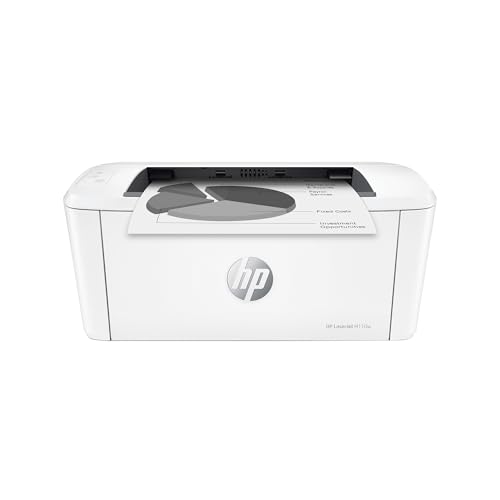
HP’s entry in the laser family competes on a single, schoolbag-friendly idea: smallness with speed. The title describes a LaserJet M110w — monochrome, a laser printer, with fast black-and-white printing, mobile printing and wireless printing, and the word fast doing double duty in the phrasing, as if the maker wanted the point made twice. For a Chromebook that lives in a student’s bedroom, a small flat or a corner of a kitchen, a compact laser that prints documents quickly and then gets out of the way is a coherent answer to a real spatial problem.
The Chromebook fit follows the family pattern: wireless and mobile printing stated in the title describe the network mechanisms a Chromebook uses, and the laser engine brings the idle-tolerant, burst-ready temperament that student printing demands — nothing for three weeks, then forty pages the night before a deadline, a pattern inkjets tolerate poorly and lasers take in stride. Fast black-and-white output is the whole specification of desire for essays, worksheets, revision notes and forms, and this title promises exactly that without pretending to anything else.
What it does not promise should be inventoried with equal care. No duplex is stated, so two-sided printing is a manual affair until documentation says otherwise. No scan or copy function is mentioned; it is a printer, full stop. And no ChromeOS naming appears, so the standing compatibility check applies before purchase. A buyer who inventories those silences honestly gets a machine with no surprises in it — a small, fast, single-purpose document printer — which is precisely what its title advertises.
Between the two Brother lasers and this HP, the deciding questions are functions and two-sided printing: choose a Brother for stated duplex, the DCP model for scanning, and this HP where smallness and simple speed outrank both. Students in particular should weigh the footprint honestly, because a printer that fits the room gets used, and a printer exiled to a cupboard for its size effectively does not exist on deadline night. Its Amazon listing is where to set its dimensions against the shelf you actually own.
Student life gives this little laser its most sympathetic hearing. A student’s printing is a tide chart of the academic calendar: flat lines for weeks, then a vertical spike at coursework deadlines, all of it black and white, most of it wanted quickly and at unsociable hours. A compact machine that lives on the student’s own shelf, wakes fast and prints faster, and asks nothing during the flat weeks, fits that tide chart the way a shared family inkjet downstairs never quite does. Independence is the feature being bought — the essay printed without negotiating with a household queue — and smallness is what makes the independence physically possible.
- Type: monochrome laser printer, per title
- Output promise: fast black-and-white printing, per title
- Mobile printing: stated, per title
- Wireless printing: stated, per title
- Two-sided printing: Not stated in the listing title — verify with the manufacturer documentation
- ChromeOS compatibility by name: Not stated in the listing title — verify with the manufacturer documentation
Strengths
- Compact laser proposition suits bedrooms, small flats and tight corners.
- Mobile and wireless printing are both stated in the title.
- Laser temperament handles the bursty rhythm of student printing gracefully.
Trade-offs
- No duplex feature is stated, so two-sided work is manual by default.
- No scan or copy function accompanies the printing.
- Monochrome only, with ChromeOS unnamed and left to the buyer’s check.
Best for: students and small-space households printing black-and-white documents from a Chromebook. Not suited for: two-sided automatic printing, scanning, or colour — none is stated in the title.
Canon PIXMA MG3620 — The family colour starter
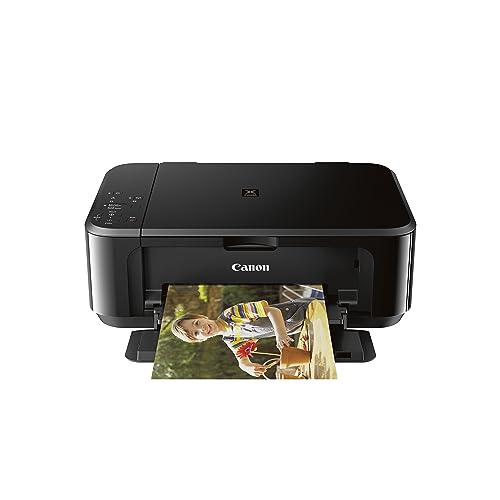
Cross to the colour family and meet its most established citizen: Canon’s PIXMA MG3620, a wireless all-in-one colour inkjet printer with mobile and tablet printing, in black. That title has introduced a great many households to network printing, and its phrasing is a small history of the category — mobile and tablet printing named explicitly, because the machine was designed for a house whose computers had already become phones, tablets and lightweight laptops. A Chromebook is the natural citizen of exactly that house.
Colour inkjet changes what a Chromebook household can produce. The science poster’s diagram, the map for the geography project, the photograph for the family card, the colour-coded revision chart — all the work that monochrome lasers must decline — flows through a machine like this, and the all-in-one frame adds scanning for the inbound paper and copying for the duplicated worksheet. For families, that breadth usually outweighs the laser family’s speed, because family printing is varied before it is voluminous.
The inkjet temperament asks for one habit in return: regularity. Ink systems prefer to be exercised, and a household that prints something most weeks will keep this machine happy almost without thinking, while a household that prints twice a year may return to dried nozzles and a cleaning cycle’s worth of patience. Chromebook families, with their steady drizzle of school and home printing, are actually the ideal owners — the machine’s worst enemy is a different household’s silence.
The title’s silences are the family’s standard ones: no duplex claim, no speed figure, no ChromeOS naming, so the documentation and compatibility checks stand as this guide has described them throughout. Running costs follow the cartridge pattern, which suits varied family printing at moderate volume and argues for a laser sibling if document volume grows teeth. On Amazon, the MG3620’s listing is a familiar read — focus on the all-in-one functions and the mobile printing wording, which are its whole case.
Longevity in family service is this model’s unadvertised credential. A design that has served households for years accumulates a kind of public knowledge around it — every quirk documented in owner questions, every consumable widely stocked, every setup path walked by thousands before you — and for a first network printer in a family home, that accumulated knowledge is worth real money in saved evenings. A Chromebook household buying the MG3620 is buying into the most-trodden path in this guide, and there are school mornings when the trodden path is the only one that matters.
- Type: wireless all-in-one colour inkjet, per title
- Functions: all-in-one (print, scan, copy class), per title
- Mobile and tablet printing: stated, per title
- Finish: black, per title
- Two-sided printing: Not stated in the listing title — verify with the manufacturer documentation
- ChromeOS compatibility by name: Not stated in the listing title — verify with the manufacturer documentation
Strengths
- Colour, scanning and copying cover the full variety of family printing.
- Mobile and tablet printing are named outright, matching a Chromebook household’s devices.
- An established all-in-one design suits first-time network printer owners.
Trade-offs
- Inkjet systems prefer regular use and sulk through long silent holidays.
- No duplex or speed figure is stated for planning document volume.
- Cartridge costs on heavy document runs exceed a laser’s toner economics.
Best for: families printing varied colour school and home work from Chromebooks, phones and tablets. Not suited for: high-volume black-and-white document production, which belongs to the laser family above.

Canon PIXMA TR4720 — The colour all-in-one with fax
Busier homes generate a particular kind of paper chaos — forms arriving by post, documents to sign and return, a home business’s invoices, school paperwork in triplicate — and the TR4720 is the colour family’s answer to it. Canon’s title describes an all-in-one wireless printer for home use with an auto document feeder, mobile printing and built-in fax, in black. Feeder and fax are the distinguishing words: they move this machine from family printer toward household administration centre, without leaving the colour inkjet family behind.
The auto document feeder earns its place in a Chromebook household for a reason that is easy to miss: scanning is the household’s bridge from paper to cloud, and a feeder turns a stack of pages into a stack of files in one unattended pass. The school forms archive, the tenancy documents, the relative’s bundle of certificates — each becomes a searchable citizen of the same cloud the Chromebook lives in, instead of a pile awaiting a patient evening with a flatbed. For households digitising in earnest, that feature can matter more than any print specification in this guide.
Fax, the title’s other flourish, survives because institutions do: some surgeries, agencies and suppliers still conduct their business through it, and a household that needs it twice a year needs it completely on those two occasions. Mobile printing, stated as usual, keeps the whole apparatus reachable from the Chromebook and the phones, and home-use positioning keeps the design and the running costs in family territory rather than office territory.
The standard cautions apply without variation: no duplex statement, no speed figure, no ChromeOS naming in the title, cartridge economics for heavy colour work, and an inkjet’s preference for regular exercise. A household whose paperwork is genuinely administrative — feeder-worthy stacks, the occasional fax, colour when the school demands it — will find this the most capable colour citizen in the guide. Compare it on Amazon against the simpler MG3620 by the paperwork test: if stacks and faxes are real in your house, this is your machine; if they are hypothetical, save the difference.
Consider the household archive project this machine enables almost as a side effect: a shoebox of family documents — certificates, letters, old agreements, the children’s artwork too large for the fridge’s permanent exhibition — fed through its document feeder across a few evenings and reborn as an organised cloud folder. That project is the moment a paperwork machine becomes a memory machine, and households that complete it describe a particular relief: the paper can now be lost, lent or damaged without the information being lost with it. Few printer features repay their cost in relief; a feeder, in the right house, is one of them.
- Type: all-in-one wireless colour inkjet, home use, per title
- Document feeder: auto document feeder stated, per title
- Fax: built-in fax stated, per title
- Mobile printing: stated, per title
- Two-sided printing: Not stated in the listing title — verify with the manufacturer documentation
- ChromeOS compatibility by name: Not stated in the listing title — verify with the manufacturer documentation
Strengths
- An auto document feeder turns paper stacks into cloud files in one pass.
- Built-in fax covers the institutions that still insist on it.
- Colour all-in-one breadth handles school, family and home-business paper together.
Trade-offs
- No duplex feature is stated for the household’s two-sided documents.
- Inkjet running costs and temperament suit variety over heavy volume.
- ChromeOS remains unnamed in the title, leaving the compatibility check to the buyer.
Best for: paperwork-heavy households needing colour, feeder scanning and fax around a Chromebook. Not suited for: automatic two-sided document runs or laser-class black-and-white volume.
HP DeskJet 2855e — The easy home colour choice
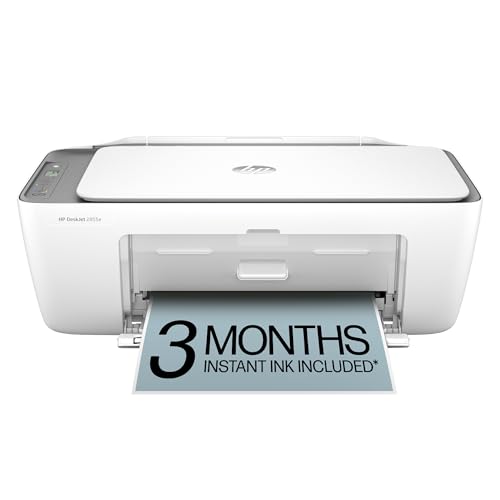
End with the machine that promises the least and, for many homes, delivers exactly the right amount: HP’s DeskJet 2855e, a colour inkjet printer described as wireless, all-in-one, built for easy home printing, with colour documents, mobile compatibility, print, scan and copy, and an ideal-home-use positioning. Every phrase in that title is about lowering the temperature of ownership — easy, home, mobile — and for a Chromebook household that wants colour printing to be a non-event, that is a specification worth taking seriously.
Ease is a real engineering property in a network printer. A machine that joins Wi-Fi without drama, presents itself to the household’s devices without a software expedition, and accepts jobs from the Chromebook, the phones and the family tablet indifferently will be used constantly and cursed rarely. Mobile compatibility, stated in the title, is the phrase that carries that promise for this guide’s purposes: it describes a printer designed for the device mix a Chromebook household actually owns, rather than for a single desktop computer with a cable.
The all-in-one set — print, scan, copy, all stated — covers the family’s colour life: worksheets in colour, photographs for projects, a scanned drawing for a grandparent, a copied form for the school office. Nothing in the title reaches for speed records, duplex features or office volume, and a household should buy it in that spirit: as the colour utility player of a home whose serious document volume, if it ever arrives, can be answered by adding a laser later. Many households run exactly that two-machine settlement, with a DeskJet-class colour machine as its founding member.
Cartridge economics and the inkjet preference for regular use apply as they do to its Canon rivals, and ChromeOS is, once more, a compatibility check rather than a title claim. What the DeskJet offers instead of specifications is a stance: home printing should be easy, colour should be available, and the printer should disappear into the household’s routines. Buyers who recognise their own wishes in that stance will find its Amazon listing a reassuringly plain read.
There is a generational ease to this machine’s proposition that should not be underestimated. The grandparent printing a photograph sent by a grandchild, the young child printing a colouring page without an adult’s IT assistance, the parent printing a worksheet from a phone while cooking — a printer that serves all three without a household expert on call is performing a social function beyond its specifications. Chromebook households are often multi-generational device households, and the DeskJet’s easy-home stance is designed for exactly that spread of confidence. Specifications divide this guide’s six; temperament, in a family, often decides it.
- Type: colour inkjet all-in-one, per title
- Positioning: easy home printing; ideal home use, per title
- Functions: print, scan and copy, per title
- Mobile compatibility: stated, per title
- Two-sided printing: Not stated in the listing title — verify with the manufacturer documentation
- ChromeOS compatibility by name: Not stated in the listing title — verify with the manufacturer documentation
Strengths
- Easy-home positioning suits households that want printing to be a non-event.
- Print, scan and copy in colour cover the family’s everyday variety.
- Mobile compatibility matches the Chromebook-and-phones device mix directly.
Trade-offs
- No duplex or speed claims support document-heavy planning.
- Cartridge costs grow with volume faster than a laser’s toner costs.
- ChromeOS is not named, so the standard compatibility verification applies.
Best for: households wanting simple colour printing, scanning and copying around a Chromebook. Not suited for: document volume or automatic two-sided work — neither is claimed in the title.
Comparison
| Pick | Family | Mobile printing in title | Functions in title | Duplex in title |
|---|---|---|---|---|
| Brother HL-L2460DW | Monochrome laser | Stated | Stated | |
| Brother DCP-L2640DW | Monochrome laser | Stated | Print, copy, scan | Stated |
| HP LaserJet M110w | Monochrome laser | Stated | Not stated in the listing title | |
| Canon PIXMA MG3620 | Colour inkjet | Stated (mobile and tablet) | All-in-one | Not stated in the listing title |
| Canon PIXMA TR4720 | Colour inkjet | Stated | All-in-one, ADF, fax | Not stated in the listing title |
| HP DeskJet 2855e | Colour inkjet | Stated (mobile compatibility) | Print, scan, copy | Not stated in the listing title |
Two families, one shared mechanism. Every row states wireless and mobile credentials of some form — the Chromebook way of reaching a printer — and the families divide on colour, scanning and two-sided printing, which are the decisions a household should make before it makes a purchase.
Setting Up a Printer the Chromebook Way: What to Expect
Expect the network to do the work. The modern pattern is consistent across these makers: the printer joins the home Wi-Fi, the household’s devices discover it on that network, and printing becomes a destination choice inside the browser and apps rather than a software installation project. A Chromebook fits that pattern natively, because it was designed for a world of network services. The practical preparations are humble ones — know your Wi-Fi password, place the printer where the signal is honest rather than heroic, and give it a fixed spot, because a printer that migrates between rooms migrates between network moods as well.
Expect also to verify, once, the specific pairing. Because none of these titles names ChromeOS, the manufacturer’s current compatibility guidance for the exact model is the document that converts this guide’s mechanism-based confidence into certainty, and checking it takes minutes at the listing stage rather than at the unboxing stage. Do the same for any feature your household considers essential — a scanning route, a two-sided claim — reading the title first and the documentation second, in the order this guide has modelled throughout.
Finally, expect the first week to teach the household its own habits: where prints land, who prints most, whether colour or documents dominate. Those observations, not the brochure, should drive the second decision every printing household eventually faces — whether one machine suffices, or whether the two-family settlement, a laser for documents and an inkjet for colour, is the honest architecture for the house.
Security and guests deserve a brief, practical word. A printer on the home network is a household appliance that other household devices can see, and visiting laptops and phones will often spot it too; most families find that convenience outweighs ceremony, letting a guest print a boarding pass without a password negotiation. Households that prefer tighter control can use their router’s guest network for visitors and keep the printer on the main network for family devices — an arrangement that takes minutes and matches the printer’s role as a family utility rather than a public one. Either way, decide deliberately rather than discovering the arrangement by accident.
Laser or Inkjet: Which Family Survives a School Year Better?
It depends which school year. A year of essays, worksheets, forms and revision notes — high page counts, all black and white, arriving in deadline-shaped bursts separated by silent holidays — is a laser’s natural habitat, and the Brother and HP lasers here will cross it without a single dried nozzle or a faded page. Toner’s indifference to idle time is the decisive property, and sharp text is the daily dividend.
A year of projects — colour diagrams, photographs, artwork, banners, the visual curriculum of younger children — belongs to the inkjets, provided the household prints regularly enough to keep them exercised, which a project-rich year guarantees by definition. Many households discover their year is both, in proportions that shift as children age: colour-heavy in the early years, document-heavy later. Buying for the year you are entering, with a plan to revisit the question when the curriculum changes, beats buying a compromise that serves neither year well.
What Should You Check in the First Week With a New Printer?
Print the household’s greatest hits, deliberately: a multi-page document, a colour worksheet, a photograph, a scanned form returned by email, a two-sided job by whatever method the machine offers. Each test maps to a real future emergency, and discovering a weakness during a calm week costs nothing, while discovering it at 7 a.m. on a school morning costs a day’s goodwill. Note where the printer sits in the house’s geography of use — the best printer in this guide is the one positioned where printing actually happens.
Check the consumables story while you are at it: how levels are reported, what a replacement cartridge or toner costs the household in real terms, and whether a subscription arrangement — one title here includes a trial of exactly that kind — suits your volume or merely flatters it. Consumables are where printer ownership is actually paid for, across years, and a first-week hour spent understanding them is the highest-value hour in the machine’s whole life with you.
How Do You Keep a Household Printer Ready for the Morning Rush?
Readiness is a supply habit, not a machine feature. Keep paper loaded and a spare ream in the house, because the morning rush never announces itself the night before. Keep one replacement consumable ahead of the machine’s warning rather than behind it. And keep the printer on the network permanently, in its fixed place, so that no morning begins with a discovery ritual — the household’s devices should find it the way they find the Wi-Fi itself, without thought.
For inkjet households, add the exercise rule: something printed most weeks keeps the system limber, and a household calendar that includes a regular colour job — a weekly planner page, a photograph for the fridge — doubles as maintenance disguised as family life. For laser households, the rule is simpler still: nothing, beyond dusting the paper tray occasionally and forgiving the machine its warm-up seconds. Choose the family whose maintenance temperament matches your household’s, and readiness stops being a project.
What Happens When Two Chromebooks Share One Printer?
Mostly, peace. A network printer is a shared service by design: each Chromebook sends its jobs to the same destination, and the machine works through them in order, indifferent to which family member, laptop or phone dispatched them. The household disciplines that keep the peace are social rather than technical — a shared understanding that a forty-page job at homework hour is a negotiation, a habit of collecting your own printing rather than letting it colonise the output tray, and paper and consumables treated as household supplies that somebody, by rota or by temperament, keeps stocked.
Scanning is where sharing needs a small convention, because a scan must be sent somewhere: households settle quickly on a shared folder or a family account as the destination, after which the bridge from paper to cloud serves everyone equally. None of this requires configuration heroics; it requires the ten-minute family conversation that turns a device into an arrangement, and it is worth having in the first week rather than after the first argument about a missing permission slip.
How Should a Household Budget a Printer’s Real Cost?
By the year, not by the box. A printer’s purchase price is the smallest cheque it will ever ask for; the consumables across a school career — toner or cartridges, paper by the ream — are the real budget, and they differ by family in ways this guide has repeated deliberately: laser toner for document volume, inkjet cartridges for colour variety, subscriptions for households whose volume makes predictability worth a monthly rhythm. A household that estimates its pages per term, honestly and from last term’s evidence, can price each family’s year within a narrow band before buying anything.
The estimate also disciplines the purchase itself. A household printing two hundred pages a term should not buy as if it printed two thousand, and a household printing two thousand should not pretend a light-duty colour machine will enjoy the arrangement. Match the machine’s stated character — compact document laser, family all-in-one, paperwork centre — to the counted reality of your house, and the printer stops being a source of small financial surprises, which is most of what households ever wanted from one.
Paper, unglamorously, completes the readiness picture, and it is worth one paragraph of respect. A household that prints school and office work should keep two papers, not one: an everyday sheet for documents and drafts, and a better sheet — brighter, slightly heavier — for the pieces that leave the house with the family’s name on them, from the job application to the school project that will be displayed. Both families of machine in this guide handle that two-paper system without complaint, and the cost difference across a term is small enough to be invisible, while the difference in how the family’s paper feels in a teacher’s or an employer’s hand is not. Printers get the reviews; paper, as in every guide in this series, quietly decides half the result.
Keep the box, briefly, and the documentation, permanently. The box matters for the first month, while returns are still a live option if the compatibility check was somehow misread; the documentation matters for the machine’s whole life, because every question this guide has deferred — duplex limits, scanning routes, media handling — is answered in it with an authority no roundup can borrow. A household that files that documentation where it can be found has, in effect, already solved its future printer problems at the moment of purchase.
Common Mistakes
Buying on a compatibility assumption leads this category, as it leads every category in this family of guides. A title that says wireless and mobile printing is describing mechanisms, not certifying an operating system, and the buyer who checks the manufacturer’s current guidance for the exact model converts an assumption into knowledge for the price of a few minutes. The related error is buying the renewed or alternate listing of a model by accident — check the ASIN on the listing against the one you researched, a point this guide flagged on its lead Brother pick.
Family confusion follows: a colour-needing household seduced by a laser’s running costs, or a document household charmed by an inkjet’s colour, each discovering by half-term that they bought the other family’s machine. The third recurring mistake is placement — a printer exiled to a weak-signal corner or a cupboard, effectively deleted from the household’s life — and the fourth is consumable surprise, where the first replacement cartridge teaches a lesson the first week should have taught instead. All four mistakes are cheap to avoid and expensive to repeat, which is the definition of a checklist worth printing out — on whatever printer you already own.
Final Recommendation
For the document household, begin with the Brother HL-L2460DW for stated duplex and mobile printing in a compact laser, step up to the DCP-L2640DW when scanning and copying join the requirements, and consider the HP LaserJet M110w where smallness rules. For the colour household, the Canon PIXMA MG3620 is the established all-rounder, the TR4720 adds the feeder and fax that paperwork-heavy homes need, and the HP DeskJet 2855e keeps things simplest. In every case, run the one verification this guide has insisted on: confirm the exact model against current ChromeOS compatibility guidance before the box is opened.
Do that, and a Chromebook household gets what it actually wanted all along — a printer that behaves like the network service a Chromebook expects, ready on the shelf, reachable from every device, and matched to the work the house really prints.
One last expectation to set concerns updates and longevity. Network printers live for years, and the makers of the machines in this guide maintain their models’ support and compatibility information as operating systems evolve — which is another reason the compatibility check belongs to the purchase week rather than to memory: the guidance you read at buying time is current, and a household that keeps the model’s documentation bookmarked can re-check in minutes if a future update ever changes the conversation. A Chromebook household is, by the nature of its computer, an updating household; buying a printer whose maker visibly maintains its side of the relationship is the matching virtue on the hardware side.
And a word for the household’s second year, because printers are bought in the first and judged in the second. By then the novelty has gone and the machine’s true character — its appetite for consumables, its behaviour after holidays, its patience with the family’s least technical member — is simply the household’s lived experience. The six machines here were chosen so that the second-year verdict is boring in the best sense: the laser still waking instantly, the inkjet still producing the project’s colours, the network still finding both without ceremony. When a printer’s second year is boring, its first-year purchase was wise, and wisdom of that quiet kind is the entire ambition of this guide.
Frequently Asked Questions
Do these printers work with Chromebooks?
All six are wireless and most titles state mobile printing, which are the mechanisms Chromebook printing uses. None of the titles names ChromeOS directly, so confirm your chosen model against the manufacturer’s and Google’s current compatibility guidance before buying — that check is the certification, and it takes minutes.
Do I need to install drivers or software?
Chromebook printing is designed around network discovery rather than traditional driver installation. Makers may offer their own apps or setup helpers for extra features like scanning, and the manufacturer’s guidance for your model describes exactly what applies.
Which family is cheaper to run, laser or inkjet?
For black-and-white documents in volume, laser toner is generally the economical route and never dries out. For varied colour at family volumes, inkjet cartridges are the standard cost of colour. Your page mix, not the badge, decides which economy is yours.
Can a Chromebook print double-sided?
Two-sided printing depends on the printer’s mechanism. The two Brother lasers state duplex in their titles; the other four titles are silent, so treat their two-sided work as manual unless documentation for the exact model says otherwise.
What about scanning to a Chromebook?
Four picks here include scanning — the DCP-L2640DW, both Canon PIXMA models and the DeskJet 2855e. How scans are delivered to a Chromebook varies by maker, so check the model’s guidance for its scan workflow before relying on it for school or office forms.
Is the renewed version of the Brother HL-L2460DW the same purchase?
No — it circulates under a different listing and ASIN. This guide links and describes the specific ASIN in its spec box; verify that the listing you buy matches it, so the machine that arrives is the one reviewed.
Related Guides
- Best printers for printing 110 cardstock — when the household printer graduates to heavy stock
- Best printers for printing double-sided cardstock — two-sided work examined closely
- Best printers to print color on cardstock — colour quality for the project side of school life