Our Top Picks
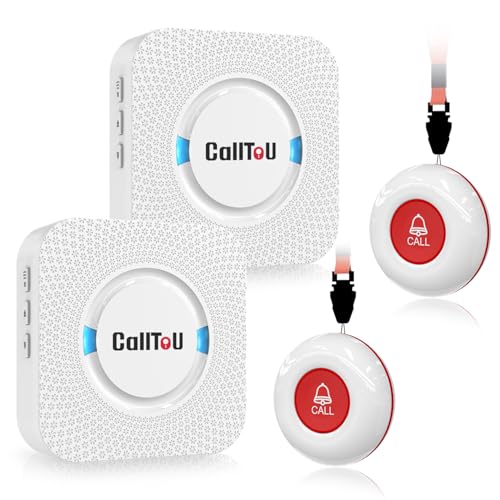 CallToU Caregiver Pager with 2 Wireless Call Button2 call buttons + 2 receivers0.4 poundsCheck on Amazon


What's inside
- What a front home button actually is
- The fingerprint reader that moved in
- Buttons versus gestures: an honest comparison
- Why the button matters so much for older users and beginners
- Where these phones come from now
- Inspecting a used home-button phone like a professional
- Setting up the phone so the button earns its keep
- Living with the button day to day
- Teaching someone to love their button phone
- Comparing your options without a spreadsheet headache
- A brief history of the button beneath the screen
- Front fingerprints compared with everywhere else sensors live
- The button in cars, kitchens, and other awkward places
- Button problems, diagnosed calmly
- Gifting a button phone without gifting a burden
- Money sense: what value looks like in this corner of the market
- Daily rituals that a button quietly improves
- Questions families ask before they commit
- Check prices on Amazon
- The future of the button, and making peace with it
As an Amazon Associate I earn from qualifying purchases. This post may contain affiliate links at no extra cost to you.
There was a time when every phone taught the same first lesson: wherever you are, however lost in menus you have become, press the button below the screen and you will be home. That single, physical promise shaped how a generation learned to trust smartphones. Then screens grew, bezels shrank, and the button quietly vanished from most new handsets, replaced by swipes and gestures that delight confident users and quietly strand everyone else. For buyers who still want that dependable circle or oval beneath the display, an Android phone with a real home button is now a deliberate search rather than an assumption, and it deserves a guide of its own.
A front home button is rarely just a button. On many models it is also the fingerprint reader, the way back from any confusion, the anchor a thumb finds without looking, and the feature that lets a nervous new smartphone owner relax. It suits people who drive, who work with gloves half off, who help an elderly parent over the phone by saying simply: press the button at the bottom. It also suits anyone who has ever watched a gesture go wrong for the fourth time in a row and felt a small, unreasonable longing for something that simply clicks.
This guide explains what these buttons are and how they differ, how a fingerprint sensor came to live inside so many of them, how button navigation compares honestly with gestures and on-screen keys, and why the design remains a lifeline for older users and beginners. It then turns to the practical heart of the matter today: most home-button Android phones are older or second hand, so we cover how to inspect a used handset, what wear looks like, which software questions to ask, and how to set the phone up so the button does the most good for the person holding it.
A note on funding, in different words from the usual boilerplate because it deserves plain speech: this site keeps its guides free by earning a referral commission when a reader buys through one of the links published here, and that commission comes out of the seller’s side of the transaction, never added on top of what you pay. If you end up buying a used phone locally with cash after reading this, we earn nothing and the guide has still done its job.
What a front home button actually is
Mechanical keys, capacitive pads, and the designs between
Not all home buttons work the same way, and the differences shape daily feel. A mechanical button physically travels when pressed, giving a distinct click that fingers can confirm even through a thin glove or with the phone inside a pocket. A capacitive button does not move at all; it senses the touch of a finger on a fixed pad, often with a small vibration to pretend that movement happened. Some designs blend the two, a pad that accepts swipes and gestures across its surface as well as a firm press for the decisive home action.
Each approach has honest trade-offs. Moving parts can eventually wear, yet they are unambiguous and work when the screen is wet, dirty, or unresponsive to touch in one region. Fixed pads have nothing mechanical to tire, respond instantly, and survive years of pressing, but they demand bare or conductive contact and can confuse users who expect something to depress beneath their thumb. When you test a candidate phone, press the button twenty times, not twice, and judge whether its answer feels like a conversation or an argument.
Shape, placement, and the geography of the chin
The button lives in the strip below the display that designers call the chin, and its shape became a quiet signature: a circle on some models, a rounded rectangle or oval on others, sometimes flanked by capacitive back and recent-apps keys, sometimes standing alone with those companions hidden in the software. A slightly raised or textured button is easier to find by touch, a genuine accessibility virtue when eyes are busy elsewhere. Symmetry matters too; a centred button under the natural resting place of a thumb makes one-handed returns home feel effortless rather than like a stretch and a wobble.
Screen protectors and cases interact with this geography more than most buyers expect. A thick protector can sit proud of a recessed button and make its press feel distant, while a case with a stiff lip can crowd the pad’s edges. When you buy accessories for a home-button phone, fit them and then test the button with the same care you would give the screen itself, because the button is part of the interface you will touch hundreds of times a week.
The fingerprint reader that moved in
One press to wake, unlock, and arrive home
The happiest marriage in smartphone design joined the home button to the fingerprint sensor. Rest a registered finger on the button and the phone wakes, confirms identity, and delivers you to the home screen in one continuous motion, no separate power key, no code typed under the eyes of a bus carriage. For owners who unlock their phones dozens of times a day, that single gesture becomes so natural that returning to a phone without it feels like being asked to knock twice at your own front door.
Front placement has particular virtues. The phone can lie flat on a desk and be unlocked with a fingertip without being picked up, unlike rear sensors that demand a lift and a fumble. It works naturally when the phone sits in a car mount or a stand, and it suits users who keep the handset on a table beside them rather than in a pocket. Enrolling several fingers, both thumbs and an index finger for desk use, takes a few minutes and pays back every single day.
Setting up fingerprints so they actually work
Fingerprint reliability is mostly enrolment quality. Register each finger slowly, following the phone’s prompts to capture the centre and the edges of the pad, because in real life you will rarely present your finger in the perfect pose the sensor dreams of. Dry, very cold, or freshly washed hands read less reliably, and re-enrolling a finger after a season of manual work, when skin has changed, can transform a flaky sensor into a faithful one. Keep a strong PIN or pattern as the foundation beneath the convenience, since the fingerprint is a shortcut to that credential, not a replacement for having one.
Households sharing a phone should think deliberately about whose fingers are enrolled. A partner’s thumb may be a kindness on a shared household handset and a privacy mistake on a personal one. Banking and payment apps may accept the fingerprint as approval, which raises the stakes of that decision beyond mere unlocking. Talk about it plainly, enrol intentionally, and review the list of registered fingers occasionally, especially after a phone returns from repair or from a long loan to a relative.
When the sensor and the button age together
Because sensor and button share a home, wear shows up in both jobs at once. A scratched or lifting surface over the sensor reads fingerprints poorly long before the button’s press itself feels wrong, and moisture or a cracked surround can turn a reliable unlock into a lottery. On a used phone, test unlocking ten times in a row with the finger you would actually use, at natural speed and angles. Nine successes out of ten suggests health; a coin flip suggests a negotiation you will lose patience with by the second week.
Buttons versus gestures: an honest comparison
What gestures give, and what they quietly take
Gesture navigation won the industry for real reasons. It gives the screen the full face of the phone, it can feel fluid and fast once mastered, and it removes the need to aim at a small target. Confident users flick through a modern handset with genuine grace. But mastery is the catch: gestures are invisible, inconsistent between brands, and unforgiving of tremor, hesitation, or a thumb that starts its swipe a millimetre too low. Nothing on the glass tells a beginner where the controls live, because the controls are a memory, not a place.
A physical home button inverts every one of those weaknesses. It is discoverable by touch in the dark, identical in every app, and immune to the software redesigns that move gesture hints around between updates. Its cost is equally plain: a bezel that could have been screen, and a design language the market has largely retired. Buyers choosing it today are trading a little display area for a great deal of certainty, and for many hands that is not nostalgia but arithmetic.
On-screen keys, hybrid setups, and having it both ways
Between the extremes sit useful compromises. Many home-button models also offer an on-screen navigation bar that can be shown or hidden, letting a household configure the same handset differently for different users. Some buttons accept a long press for an assistant or a swipe across their surface to go back, adding gesture flavour without surrendering the anchor. When setting up a phone for someone else, resist loading every shortcut at once; enable the plain press for home first, let confidence grow, and add tricks only when the basics are muscle memory.
Compact handsets make this conversation sharper, because a small phone with a front button gives up proportionally more of its face to the chin, yet gains handling that small-handed users love. Shoppers exploring the little end of the market, such as the models gathered in best 4 inch android phones, will find the button question and the size question tangled together, and should judge the combination in the hand rather than from photographs.
Why the button matters so much for older users and beginners
One instruction that always works
Remote tech support for a parent usually fails at the level of vocabulary: swipe up from the edge, no, not the very edge, hold, flick. A home button collapses all of that into a sentence a child can give over the phone: press the round button under the screen. From any app, any error, any alarming pop-up, that press returns to familiar ground. It converts panic into a procedure, and procedures are what let nervous users recover without waiting for a visit from the family’s unofficial help desk.
That reliability builds the confidence that makes people actually use their phones. A beginner who trusts the escape route explores more, tries the camera, opens messages, experiments, because no mistake feels permanent. Teachers of digital skills classes observe the same pattern in groups: learners with a physical anchor progress faster and ask bolder questions. The button is, in this sense, educational equipment disguised as hardware.
Touch, tremor, vision, and gloves
Gestures presume a steady, precise, bare finger and eyes that can track small interface hints. Ageing hands, arthritis, tremor, reduced sensation, and low vision each erode a different part of that presumption. A mechanical button can be pressed with a knuckle, the side of a thumb, or a gloved fingertip on some designs, and it confirms success with a click that can be felt rather than seen. For users who answer calls outdoors, garden, walk dogs in winter, or work in cool stores and workshops, that tactile certainty is not a luxury feature; it is the difference between a phone that cooperates and one that must be negotiated with.
Families configuring a handset for an older relative will find this theme runs through every good buying guide for that audience, including roundups like best and easiest smartphones for seniors, where large text and loud speakers matter, but where the humble question of how you get home quietly decides whether the phone is loved or left in a drawer. Set the home screen up simply, put the few essential apps in fixed places, and let the button’s promise, that home always looks the same, do the reassuring.
Dementia-friendly and low-confidence use
For users living with memory difficulties, consistency is a form of care. A physical button does not move, does not change its meaning after an update, and does not depend on remembering a motion. Carers can write the instruction on a card kept with the phone, and the instruction stays true for the life of the device. Combined with a simplified home screen, large contact photographs for one-touch calling, and restricted access to confusing settings, a home-button handset can remain usable and dignified long after a gesture-based flagship would have become a source of daily distress.
Where these phones come from now
Older flagships, budget survivors, and rugged exceptions
The new market offers slim pickings, so set expectations early. A few seasons ago, front buttons were standard on many well-loved ranges, and those models now circulate widely on the used market in every condition from mint to miserable. Some budget and rugged lines kept front or front-style navigation longer than the flagships did, valuing durability and clarity over bezel bragging. Specialist simple phones aimed at older users also preserve button-led navigation, sometimes blending a home key with a touchscreen in ways that suit first-time smartphone owners.
Third-party and smaller-brand handsets form another seam worth mining, since makers outside the biggest names sometimes keep unfashionable features their loyal buyers demand. Browsing collections such as best 3rd party android phones with the button as your filter can surface models the headline market forgot, though buyers should check update support and parts availability with extra care when leaving the well-trodden brands behind.
The software support question, asked before the button question
An older phone’s button may be perfect while its software quietly expires. Before falling for any used home-button model, establish how long it will keep receiving security updates, whether the apps your household depends on still support its Android version, and whether banking and health services will accept it. A phone that cannot safely run the two or three essential apps is not a bargain at any discount. The sweet spot is a model old enough to carry the button, young enough to remain supported, and common enough that screens, batteries, and yes, replacement buttons remain easy to source.
Inspecting a used home-button phone like a professional
The button examination, in detail
Begin with the button itself, because it is the reason you came. Press it slowly and feel for even travel, a clean click, and a prompt return; a button that feels crunchy, tilted, or reluctant on one side has lived a hard life or met a careless repair. Press it rapidly twenty times and confirm the phone returns home every time without double responses or misses. Try it with the phone at the angles of real use, in one hand, on a table, half-watched, because a button that only behaves under laboratory attention will annoy you daily.
Then interrogate the fingerprint sensor as described earlier: enrol your own finger if the seller permits, or watch the seller unlock repeatedly at natural speed. Examine the button’s surface under bright light for cracks, lifting edges, or a colour mismatch suggesting a replacement part, and compare its feel with the power and volume keys, which age at a similar rate and betray a phone whose button has been singled out for punishment or repair.
The rest of the phone, because the button is not the whole story
Run the standard used-phone liturgy without skipping steps for love of the button. Check the screen for touch dead spots by dragging an icon slowly across every region, including the corners. Make a real call and listen at both ends. Photograph something near and something far. Confirm charging is steady and the port is not loose, play sound through the speaker, and verify the phone has been signed out of the previous owner’s accounts and reset properly, with no locks waiting to ambush you at setup. Confirm the device identity in settings matches what the seller claims, and agree on what happens if a fault appears in the first week.
Battery honesty matters doubly on older handsets. Ask how the phone lasts through the seller’s day, look for swelling that lifts the screen or back, and budget mentally for a battery replacement, which on many of these models is an affordable, routine service that can add years of useful life. A cheap battery refresh plus a healthy button often equals a better phone than a younger, gesture-only model that its intended user quietly fears.
Signs of a previous screen replacement
On many home-button designs, a screen replacement disturbs the button’s neighbourhood, and poor-quality work leaves evidence: a button sitting slightly crooked or recessed, a fingerprint sensor that stopped working after the repair because a paired component was swapped carelessly, or a home press that feels dead where it once clicked. Ask directly whether the screen has ever been replaced and by whom. A quality repair with the original button assembly preserved is no scandal; a mystery repair with a dead fingerprint reader is a price cut or a walk-away, decided before money moves.
Setting up the phone so the button earns its keep
Home screen discipline and the one-page rule
The button’s promise is that home is safe, so make home worthy of the promise. Keep one page, with the essential apps in fixed positions that never shuffle: calls, messages, camera, photographs, and whatever the owner truly uses weekly. Remove or hide the rest, because a tidy home screen is what the button returns you to, and its calm is the feature. Widgets that shout, rotate, or rearrange themselves undermine the whole arrangement; choose stillness.
For a relative’s phone, photograph the finished home screen and keep the picture. When a well-meaning update or an accidental long press rearranges something, the photograph is the map that restores order in minutes, by phone, without a visit. Label the button’s job on a small card in the phone case if memory needs the help, in the owner’s own words rather than technical language.
Long presses, double duties, and keeping them simple
Many buttons hide extra talents: a long press may summon a voice assistant, a double press may open the camera, a swipe may step back. Each hidden talent is also a hidden trap for a user who presses a moment too long and meets an unexpected screen. Decide deliberately which extras to enable. For confident owners, the camera shortcut is often worth it. For beginners, consider disabling long-press surprises entirely, so the button does exactly one thing, perfectly predictably, every time it is touched. Predictability is the product.
Voice assistants deserve a balanced word. For users with low vision or painful hands, speaking a request after a long button press can be liberation. For users unsettled by a phone that listens and answers aloud, it can be the opposite. Introduce it as an experiment, practise two or three useful requests together, and let the owner’s reaction, not the feature list, decide whether it stays.
Accessibility settings that partner well with a button
Pair the hardware anchor with software kindness: larger text, a bolder display size, high-contrast options where offered, and vibration or sound confirmation for touches if the owner finds them reassuring. Explore the accessibility menu for interaction controls that lengthen touch timing for users whose taps land slowly, and consider answering calls with a key press where the model allows it, which spares the swipe-to-answer fumble that loses so many calls to voicemail. Each small setting removes a daily friction that no processor speed could ever address.
Living with the button day to day
Habits, cases, and keeping the click alive
A home button rewards gentle consistency. Keep its surface clean with a dry cloth, since oils and grit dull a fingerprint sensor’s day. Choose a case that protects the phone’s corners without burying the button under a stiff membrane, and test any new case with a morning of real use before trusting it. If the button’s feel changes suddenly, suspect the case or a newly fitted screen protector first; accessories cause more button mysteries than electronics do.
Moisture and buttons have a negotiated peace. A phone that survives a rainy dog walk may still sulk if its button is pressed repeatedly with wet hands, water working into the seam. Dry the handset, let it rest, and test again before fearing the worst. Buttons on well-kept phones routinely outlast batteries, screens, and several changes of owner, which is precisely why the used market in these handsets remains so lively.
When the button finally fails
Know the rescue options before you need them. Most Android phones offer an on-screen accessibility button or a floating shortcut that can stand in for home, and navigation can be switched to an on-screen bar, turning a dead hardware button from a catastrophe into an inconvenience while repair is arranged. On popular models, button replacement is a known, modest repair; on others, the fingerprint pairing means a replaced button may press beautifully yet never read a finger again, a compromise to discuss with the repairer before authorising work, not after.
If the phone’s owner depends on the button for confidence, treat failure as urgent even when a workaround exists, because the workaround demands exactly the gesture fluency the button was chosen to avoid. This is also the moment when a spare handset, even an elderly one kept charged in a drawer, proves the household wisdom of never letting one device be the only bridge to family, help, and the outside world.
Teaching someone to love their button phone
A first afternoon curriculum that works
When handing a home-button phone to a new owner, teach in a deliberate order and stop before fatigue. First, the button itself: press it from inside any app until returning home is a reflex, not a fact. Second, answering and ending a call, practised with real calls from the next room. Third, one enjoyable thing, photographs of grandchildren, a favourite radio station, the weather in a beloved holiday town, because delight motivates practice better than duty ever will. Write the three lessons on paper, in large print, and leave the paper with the phone.
Return a week later for the second lesson rather than cramming everything into the handover. Add messages, then photographs being taken rather than merely viewed, then whatever the owner’s life actually asks for, a bus timetable, a video call with family abroad, a magnifier for restaurant menus. Each visit, begin by celebrating what the button already made routine. Confidence compounds like interest when nobody is shamed for asking the same question twice.
Mistakes families make with the best intentions
The commonest error is configuring the phone as a showcase of everything it can do, forty apps deep, when the owner needs six things done reliably. The second is changing arrangements during every visit, tidying icons into new logic the owner never learns. The third is impatience disguised as help, seizing the phone to do the task instead of guiding the owner’s own thumb back to the button and letting them finish. Protect the owner’s practice time fiercely; competence grows in their hands, not in yours.
Comparing your options without a spreadsheet headache
The questions that actually separate candidates
Line up candidate models, new old stock, used flagships, simple phones for seniors, rugged survivors, and oddball alternatives such as those in best alternative android phones, and ask each the same short list. Is the button mechanical or touch-based, and does its feel suit the intended hands? Does its fingerprint reader still work, and can it be tested? How much longer will the software be supported? Can a battery and, if needed, a button be replaced locally at sane cost? Does the size suit the pocket, handbag, or belt clip where this phone will actually live?
Score the answers in plain language, excellent, fine, or worry, rather than inventing decimal precision the decision does not need. Then put the leading candidate in the intended owner’s hands for ten unhurried minutes if at all possible. The right phone usually announces itself in that trial: shoulders relax, the thumb finds the button unbidden, and the owner starts exploring instead of apologising. No specification table can fake that moment, and no discount should overrule its absence.
New old stock and the warranty question
Occasionally a retailer surfaces sealed stock of a discontinued home-button model, an appealing middle path between used risk and modern gesture-only design. Examine the offer with care. How long has the battery sat in its box, and does the seller’s warranty genuinely cover it? Will the model’s update clock, which may have started at launch rather than at your purchase, still give you reasonable supported years? A sealed phone with a tired battery and an expired support horizon may be a worse buy than an honestly graded used example with a fresh battery fitted.
A brief history of the button beneath the screen
From three keys to one circle and back again
Early Android phones arrived with a small crowd of controls: home, menu, back, search, sometimes a trackball or optical pad you rolled your thumb across like a tiny rolling pin. Over the years the crowd thinned. Menu and search were absorbed into software, back and recent apps became capacitive companions or on-screen citizens, and home remained, the last physical citizen of the original republic. Its survival was not sentiment; it was the one control every single user pressed every single day, in every app, in every mood.
Designers experimented around it constantly. Some buttons doubled as notification lights, breathing gently when a message waited. Some accepted a swipe to step back or a double tap to summon shortcuts. A few handsets let the whole chin act as a touch surface, turning the area around the button into a small control deck. Reading an older model’s manual, a document most used phones have long since lost, often reveals tricks the seller never knew existed, which is why a quick search for your exact model’s guide is an evening well spent after any used purchase.
What the button taught the industry about trust
The button’s deepest legacy may be psychological. It proved that a single, guaranteed recovery action makes people braver with technology, and modern software quietly copies the principle everywhere: prominent cancel options, undo toasts, safe modes, reset rituals. When you choose a home-button phone for a nervous user, you are choosing the original, physical edition of that philosophy, one that cannot be A/B tested away in next month’s interface refresh. For carers and teachers, that permanence is not a small thing; it is the entire point.
Front fingerprints compared with everywhere else sensors live
Desks, pockets, and the posture of unlocking
Sensors have lived on backs, on power keys, and under glass, and each address suits a different life. Rear sensors reward pocket users whose index finger lands naturally as they lift the phone, but punish anyone unlocking on a desk. Under-screen sensors preserve the all-glass look yet ask the finger to find an invisible target, precisely the challenge front-button owners are escaping. A sensor inside a physical button gives the finger a rim, a texture, a destination it can find blind, which is why many users with low vision describe it as the only biometric they have ever fully trusted.
Side-mounted sensors in power keys come closest in spirit, sharing the tactile destination idea, and a buyer who cannot find a suitable front-button model might test one as a compromise. But the compromise loses the home function itself, and with it the teaching power this guide keeps returning to. Try both in the hand if your shortlist spans the two designs, and let the intended owner’s thumb, not a reviewer’s preference, cast the deciding vote.
Wet hands, work gloves, and realistic expectations
All fingerprint systems dislike water films and heavy grime, and front buttons are no exception. Cooks, cleaners, health workers, and gardeners will each find their moments when the sensor wants a wiped finger and a second try. Build the fallback into the household routine from day one: the PIN is not a failure state, it is the rainy-day entrance, and practising it occasionally keeps it memorable. Gloves divide by material; thin touchscreen gloves may operate a capacitive button, while a mechanical press can sometimes be managed through work gloves with the knuckle, sensor or no sensor.
The button in cars, kitchens, and other awkward places
Mounted phones and one-press sanity
A phone in a dashboard mount is a phone at arm’s length, where gestures become long, wobbly expeditions. A front button, by contrast, can be pressed with a fingertip’s end while the hand stays near the wheel’s neighbourhood, returning the screen to a known state before a proper stop lets the driver interact safely and legally. Let us be plain that no button makes phone use while driving acceptable beyond what the law and common sense permit; the virtue here is for passengers navigating, and for drivers at rest, fumbling less with a mounted handset in a lay-by.
Kitchens test phones differently: floury hands, steam, recipes on screen, a timer behind three menus. A mechanical home press with a knuckle keeps the session recoverable when the screen itself has become a smeared, unresponsive mess. Workshops and gardens tell the same story in their own dialects of dust and damp. Wherever the environment insults touchscreens, a physical control keeps a channel of command open, and owners in those settings choose these phones with the seriousness of people choosing tools, not toys.
Children, shared tablets’ little sibling, and household peace
Young children understand a button long before they understand a gesture vocabulary, which makes these handsets forgiving first devices and hand-me-downs. A parent can say the same sentence a grandparent needs to hear: press the button to go back to the start. Parental controls, restricted profiles, and a curated home screen complete the setup, and the button’s consistency means a child taught in January is not re-taught by an update in March. Shared household phones, the kitchen-drawer handset that runs the shopping list and the doorbell app, benefit identically: everyone in the house already knows the way home.
Button problems, diagnosed calmly
Intermittent presses, double homes, and phantom wakes
A button that works only sometimes invites a methodical half hour before any repair bill. Clean around its seam with a dry, soft brush, remove the case and test again, then restart the phone and test in a fresh session to separate hardware sulks from software tangles. If the phone has a safe mode, use it: a button that behaves perfectly there is being impersonated or interrupted by an app, often a launcher or an accessibility tool with overlapping ambitions. Note exactly when faults occur, after charging, after updates, when warm, because patterns are the technician’s best friend and your best protection against paying for guesses.
Double responses, where one press registers as two, sometimes follow liquid exposure or the early swelling of an ageing battery pressing upward into the phone’s anatomy. Treat that second possibility with respect: a phone whose back or screen is lifting needs battery attention promptly, button symptoms aside. Phantom wakes, the screen lighting itself in a pocket, may be an over-eager double-tap setting or a button worn so light that fabric pressure triggers it, and disabling tap-to-wake features is a legitimate, cost-free experiment.
Software navigation as both rival and understudy
Most home-button models let you enable an on-screen navigation bar alongside the hardware, and trying it reveals the household’s true needs. Some owners use the bar in bed, where reaching the chin is awkward, and the button everywhere else. Others discover the bar suits them and retire the button to fingerprint duty alone, which is a perfectly honourable outcome; the goal was never button worship but a phone its owner commands confidently. Configure both, teach both slowly, and let habit decide the hierarchy over a fortnight of real life.
Gifting a button phone without gifting a burden
The handover checklist nobody should skip
If you are preparing a phone for a parent or friend, finish the invisible work before the visible handover. Update the software, fit a fresh screen protector and a grippy case that leaves the button proud, enrol their fingerprints with them present and laughing through the awkward angles, set the PIN to something meaningful they choose, and load the contacts that matter with photographs attached. Test the charger you are including, because a gifted phone with a dying cable becomes a riddle by the weekend.
Then write the card: how to go home, how to answer, how to call you, how to charge, in that order, in handwriting or large print, with your number on it. Practise one full cycle together, including a deliberate mistake recovered by the button, so the first solo mistake feels familiar rather than frightening. Leave knowing the phone will still confuse them sometimes, and that your patient availability, scheduled as a friendly call rather than an emergency response, is the real gift wrapped around the hardware.
Respecting the experienced user who simply prefers it
Not every home-button buyer is a beginner, and this guide refuses to pretend otherwise. Pilots, surgeons, climbers, chefs, mechanics, and plenty of perfectly technical people prefer a control that works by touch, on principle, in the conditions of their real days. Some keep a modern flagship for photographs and a button phone as the daily driver that answers calls without ceremony. Preference informed by experience deserves the same respect as preference formed by caution, and the used market, happily, serves both without asking anyone to justify themselves at the checkout.
Money sense: what value looks like in this corner of the market
Paying for condition, not for memories
Used prices for once-famous phones carry a nostalgia tax that patient buyers can decline to pay. The same model appears at wildly different asks depending on a seller’s attachment to its original launch glory, so judge by condition, battery health, storage, and support horizon rather than by the badge’s history. A mid-range model in superb order, with its button crisp and its updates alive, routinely serves a family better than a battered former flagship trading on reputation. Keep a short written ceiling for your total spend, including the battery refresh and case the phone will probably need, and let listings that exceed it pass without regret.
Where you buy matters as much as what you buy. Sellers who demonstrate the button and fingerprint reader on video, state the battery situation plainly, and offer even a short returns window are telling you how they do business. Marketplaces with buyer protection suit first-time used purchasers, while local sales suit buyers confident in the inspection routine this guide describes, because the button test is ultimately a test you perform with your own thumb. Either way, keep the conversation and the receipt until the phone has survived a fortnight of ordinary life.
Running costs and the dignity of repairability
One of this category’s quiet strengths is cheap upkeep. Screens, batteries, cases, and protectors for popular older models are plentiful and modestly priced because the volumes were enormous, and independent repairers know these handsets the way mechanics know a common family car. That ecosystem turns accidents from tragedies into errands. When comparing two candidates, ask a local repair shop which they would rather maintain; the answer, given in seconds and without hesitation, is market research of the most practical kind.
Daily rituals that a button quietly improves
Mornings, evenings, and the lock screen dance
Consider the first interaction of the day: alarm sounding, eyes barely open, a hand reaching across the bedside table. A physical button found by touch, pressed once, silences the chaos and lands on a familiar home screen without a swipe puzzle performed at dawn. At night the same certainty ends the day, one press, home, then the charger, then sleep. These bookend moments sound trivial in a review and feel enormous across a thousand repetitions, which is why owners defend this design with a loyalty that baffles spec counters.
Throughout the day the button absorbs the small recoveries of digital life: the link that opened the wrong app, the advertisement with the pretend close icon, the settings maze entered by a curious grandchild, the video that will not stop talking. Each recovery is the same press, the same result, the same small exhale. Multiply that exhale by every day of the phone’s service and you have the true specification of this feature, written in a unit no datasheet records.
Photography, payments, and other moments of haste
Many button phones let a double press leap straight to the camera, a shortcut with real emotional value when the moment is a grandchild’s first steps rather than a landscape that will wait. Fingerprint approval at the button likewise speeds the confirmations of daily life, collecting a parcel, approving a sign-in, opening the password keeper, each reduced to a touch the owner already understands. Haste is where interfaces earn their reputations, and a control that answers instantly, identically, under pressure, earns a good one.
None of this requires dismissing newer designs, whose owners have their own rituals and reflexes. It requires only that we judge this older arrangement by the lives it still serves so well, and that buyers who need it receive honest guidance instead of a shrug toward whatever the current fashion happens to be. That guidance, in the end, is what this page exists to provide.
Questions families ask before they commit
Will the apps we depend on still run?
This is the question that should gate every purchase, so ask it first in practice, not just in principle. List the household’s non-negotiable apps, messaging, banking, health, transport, video calling with the grandchildren, and confirm each one’s minimum system requirements against the candidate’s software version, leaving headroom for the next update rather than accepting a version that qualifies by a whisker today. A phone that runs everything essential with two years of headroom is a sound buy; one that fails a single non-negotiable is a paperweight with a lovely button.
What if the intended owner has never used a smartphone?
Then this category may be the kindest possible start, provided the teaching is staged and the home screen is disciplined as earlier sections described. Expect the first fortnight to decide the relationship: frequent short practice beats occasional long lessons, and early wins, a call made alone, a photograph sent unaided, should be celebrated out loud. Resist comparing the learner’s pace with a neighbour’s or a grandchild’s. The button’s whole purpose is to remove hurry from learning, and families who honour that pace usually end up with a confident user rather than a reluctant one.
Should we keep the old phone as a spare?
Almost always, yes, at least until the new arrangement has survived a month of real life. A previous handset, reset, charged monthly, and holding the essential contacts, is insurance against loss, breakage, and the repair week that would otherwise sever an older user from family contact entirely. Label its charger, store the pair together, and tell the owner plainly that the spare exists and where it lives. Resilience in a household’s communications is not clutter; it is care, arranged in advance, in a drawer.
One more consideration belongs in this family conversation, and it concerns photographs and memories rather than buttons at all. Older handsets hold older cameras, and relatives sometimes worry the pictures will disappoint. In practice, daylight photographs from a well-kept phone of this era remain warm, clear, and entirely worthy of the family album, especially when the alternative is a technically superior phone its owner is afraid to open. Teach the simple habits that matter, tap to focus on a face, hold still a breath after pressing, clean the lens with a soft cloth, and the results will honour the occasions they record. A confident photographer with a modest camera brings home more memories than a nervous one carrying the finest lens in the shop window.
Storage deserves the same calm planning. Photographs accumulate faster than any other content in a family phone’s life, so confirm the candidate has room to breathe, move older albums to household storage together as a small ceremony rather than a crisis, and set up whatever automatic backup the family already uses, tested with one real photograph before the handover ends. The button gets the owner home; these quiet arrangements make sure home is worth returning to, full of faces, safely kept, and easy to show anyone who visits.
And when the wider family gathers and the inevitable comparisons begin, someone praising a borderless screen, someone else mourning a departed feature of their own, let the button phone sit comfortably in the middle of the table talk. Every generation of handsets keeps something and surrenders something, and the owners who fare best are not those who always chase the newest trade, but those who know precisely which surrendered thing their own days cannot do without, and who go and find it again, calmly, on purpose, with their eyes open and their thumb already reaching for home.
Check prices on Amazon
Live listings for the shortlist in this guide are pulled from Amazon below, so prices and availability are always current at the moment you look.


The future of the button, and making peace with it
Why the idea will not entirely die
Mainstream design has moved on, and honesty requires saying so. Yet the need the button served has not moved on at all: people still get lost in software, still have hands that tremble, still learn best from things they can touch. That need keeps surfacing in simplified handsets, in accessibility accessories, in on-screen home shortcuts that imitate the old certainty, and in the steady used trade this guide has described. Interfaces evolve, but the human wish for a reliable way home is not a fashion cycle.
There is also a lesson here for confident users who will never buy one of these phones. Designing an escape route that always works, in phones, in apps, in any system people depend on, is a mark of respect for the person at the controls. The home button era taught that lesson in hardware. Its graduates, the designers who watched a parent relax at one click, carry it into whatever replaces the button next.
Buying for today, gracefully
So buy for the hands that will hold the phone, in the life it will actually live, rather than for the approval of a market that has stopped making what you need. Choose the supported model, test the button and the sensor until they bore you, set home up kindly, teach patiently, and keep a note of what was configured so any helper can restore it. Do that, and an unfashionable circle beneath a screen becomes what it always secretly was: a small, faithful lighthouse of a button, guiding its owner safely back to familiar shores every single time.