What's inside
- Where to Buy
- Key Takeaways
- Quick Picks
- How We Chose These Picks
- Comparison
- How to Choose a Laptop for Work
- Does Windows 11 Pro Actually Matter for Your Job?
- How Much Memory Does a Work Laptop Need in 2026?
- Which Ports and Sign-In Features Are Worth Paying For?
- What Should a Freelancer Prioritise Differently From an Employee?
- Common Mistakes When Buying a Work Laptop
- Final Recommendation
- Frequently Asked Questions
- Related Guides
As an Amazon Associate I earn from qualifying purchases. This post may contain affiliate links at no extra cost to you.
[SITE_DOMAIN] is reader-supported. When you buy through links on our site, we may earn an affiliate commission.
Where to Buy
Professionals comparing the best affordable laptops for work will find all six machines on Amazon, each name opening its listing. The Dell Inspiron 15 3530 opens the set with a terabyte of storage, so check price on Amazon while noting the Pro edition of Windows in its title. The Lenovo V15 Gen 5 carries the largest memory figure here, and its Amazon page prices the bundle configuration described below. The HP Pavilion 15.6 Touch is the battery-led option; look at the cost on its listing beside the eleven-hour claim in the title. The Acer Aspire 5 15 brings Thunderbolt to the group, and Amazon shows its figure under the code A515-58M-7570. The ASUS Vivobook 15 Business ships with a USB hub in its title — verify the total on its page before comparing. The Lenovo IdeaPad Slim 3 2026 closes the set as the one Home-edition machine, a distinction its Amazon listing states plainly and this guide treats as central.
Work changes what a laptop is for. A home machine can be slow at breakfast and forgiven by lunch; a work machine that hesitates inside a client call, or loses a morning to a full drive, spends its owner’s reputation as well as their time. The best affordable laptops for work are therefore judged here by a stricter set of questions than the home guide used: how much memory keeps a day of overlapping applications fluid, whether the Windows edition matches an employer’s environment, what the title promises about ports, security sign-in and support for the hours when the machine is also the office.
Five of the six picks run Windows 11 Pro, and that is not a coincidence of the shortlist — it is the shortlist’s backbone. The Pro edition is the version employers’ systems are usually built around, and for freelancers it signals a machine specified for business rather than adapted to it. The sixth pick, the IdeaPad Slim 3 2026, runs Windows 11 Home, and the review below treats that honestly: a strong specification wearing the consumer edition, suitable for many kinds of work, but a distinction a buyer working inside a company’s managed environment must settle before ordering, not after the laptop meets the IT department.
As in every guide in this series, the specification quoted for each machine comes from its listing title and nowhere else. Work buyers are the readers most likely to be caught by a borrowed figure — a port assumed, a fingerprint reader imagined — so where a title is silent, the spec boxes below print the not-stated wording and the prose says what that silence means for a working day.
Key Takeaways
- Memory divides the field: the Lenovo V15 Gen 5 carries 32GB, the other five carry 16GB, and no pick in this work guide drops to 8GB.
- Five picks run Windows 11 Pro; the IdeaPad Slim 3 2026 runs Windows 11 Home despite a specification that otherwise matches the group.
- Only the V15’s title names Ethernet and a fingerprint reader; only the Acer’s title names Thunderbolt 4 and Wi-Fi 6E.
- Storage is 1TB on the Dell and the Lenovo V15, and 512GB on the remaining four picks.
- Touchscreens appear on four titles — Dell, HP, ASUS and the IdeaPad — while the V15 and Acer keep conventional panels.
Quick Picks
| Pick | Badge | Why it earns a place |
|---|---|---|
| Dell Inspiron 15 3530 | Terabyte touchscreen | A Core i7-1355U with 16GB of memory, a 1TB SSD and a FHD touch panel under Windows 11 Pro. |
| Lenovo V15 Gen 5 | The wired-office machine | 32GB of DDR5, a Core i7-13620H, Ethernet, a fingerprint reader and a numeric keypad. |
| HP Pavilion 15.6 Touch | Battery-led workday | A ten-core Core i5-1334U, 16GB of memory and an eleven-hour battery claim in the title. |
| Acer Aspire 5 15 | Ports and polish | USB4 with Thunderbolt 4, Wi-Fi 6E, a backlit keyboard and an IPS panel around a Core i7-1355U. |
| ASUS Vivobook 15 Business | Hub included | A Core 7 150U, a touch IPS panel and a bundled USB hub under Windows 11 Pro. |
| Lenovo IdeaPad Slim 3 2026 | Strong hardware, Home edition | A Ryzen 7 170 with DDR5 memory and a 15.3-inch FHD+ touch screen, running Windows 11 Home. |
How We Chose These Picks
The first filter was the working day itself, reconstructed from the complaints professionals actually file: the spreadsheet that shares a screen with a call and a browser carrying forty tabs; the presentation that must open instantly in someone else’s meeting room; the sign-in repeated twenty times a day; the hotel desk where the only reliable connection is a cable. Candidates were kept only if their titles could answer at least three of those four situations with a printed figure or a named feature, rather than with a marketing adjective.
Memory was weighted more heavily here than in the home guide, deliberately. Work software grows heavier across a machine’s life, employers add their own layers, and a laptop bought for three to five years of service should begin with headroom. That is why the floor in this guide is 16GB and why the 32GB Lenovo V15 leads its review on that figure. Storage was weighted second: client files, mail archives and local copies of shared drives accumulate invisibly, and the two 1TB picks exist for people whose work follows them home in bulk.
The third filter was edition honesty. Windows 11 Pro versus Home is a real functional boundary in managed workplaces, and this guide refuses to blur it for the sake of a tidy table. The IdeaPad Slim 3 2026 earned its place on hardware and screen, and its review states the Home edition as its defining caveat rather than a footnote. Buyers who work independently may never feel the distinction; buyers inside a company’s systems should treat it as the first question, ahead of every figure that follows.
Finally, the set had to cover distinct working lives: the wired desk, the travelling day, the touch-driven presenter, the port-hungry desk with a dock and external screens. Six near-identical business laptops would have made an easier table and a worse guide. The six below disagree with each other about what work needs most, and the disagreements are the useful part.

Dell Inspiron 15 3530 — Terabyte touchscreen
Dell’s business Inspiron 15 3530 builds its case on the two figures that decide a work laptop’s middle years: memory and storage. The title specifies a 13th-generation Intel Core i7-1355U, 16GB of memory and a 1TB SSD beneath a 15.6-inch FHD touchscreen, with a webcam, HDMI and Wi-Fi 6 named, running Windows 11 Pro, in black. A terabyte is the storage figure that lets a professional stop curating: client folders, a mail archive, local copies of shared projects and a library of presentations coexist without the quarterly purge that smaller drives impose on busy people.
The touchscreen is the second working feature, and its value depends on the shape of the job. Presenters who annotate, reviewers who mark up documents by hand at a desk, and anyone whose day involves showing a screen to the person beside them will use it weekly. Keyboard-bound workers may touch it rarely — but unlike a gaming feature, a touch panel costs nothing in daily friction when ignored, and the FHD resolution printed in the title keeps text at the standard this class of work requires.
The i7-1355U belongs to Intel’s efficiency-minded U series, and the review should say plainly what that means: this is a processor tuned for responsive everyday work and long days rather than sustained rendering or heavy computation. Spreadsheets, documents, calls, browsers and business applications are its home ground, and 16GB of memory keeps that ground fluid when the applications overlap, as they always do by mid-morning. Workers whose living is earned inside rendering queues or large compiled projects should read the Lenovo V15 review next, where the H-series chip tells a different story.
Who it suits is the self-employed professional or small-team worker whose files are their business and whose desk moves between home and client sites. The title names no fingerprint reader and no Ethernet, so sign-in is by the conventional routes and wired networking is a listing-page question; buyers in offices that still run on cables should confirm the port situation before ordering. Within those stated limits, the Dell offers the guide’s most straightforward proposition: a Pro-edition machine with room to grow into, from a line built for business buyers.
- Display: 15.6-inch FHD touchscreen
- Processor: Intel Core i7-1355U, 13th generation
- Memory: 16GB RAM
- Storage: 1TB SSD
- Wireless: Wi-Fi 6
- Ports named: HDMI
- Camera: webcam (resolution Not stated in the listing title — verify with the manufacturer documentation)
- Operating system: Windows 11 Pro
Strengths
- A 1TB SSD removes storage management from a working week almost entirely.
- 16GB of memory with a modern i7 keeps overlapping business applications fluid.
- The FHD touchscreen suits presenters and document reviewers who work by hand.
Trade-offs
- No fingerprint reader is named, so biometric sign-in cannot be assumed.
- The U-series processor is tuned for responsiveness, not sustained heavy computation.
- Ethernet is not mentioned, leaving wired-office buyers to verify the port list.
Best for: an independent professional whose client files, mail archive and presentations must all live locally under Windows 11 Pro. Not suited for: an office desk that depends on a wired Ethernet connection confirmed in writing, or a workload of sustained rendering that needs an H-series processor rather than this efficiency-tuned i7.
Set this machine up as a business tool from the first hour: sign in with the work account, let the employer’s or your own backup routine claim the drive before files accumulate, and store the purchase record with the client paperwork rather than the household papers. A terabyte fills more slowly than smaller drives, but it fills with things that matter, and the Dell’s value across its life will be measured in mornings where nothing had to be deleted, posted or apologised for.

Lenovo V15 Gen 5 — The wired-office machine
The V15 Gen 5 is the most completely business-specified title in this guide, and its headline figure is memory: 32GB of DDR5 paired with 1TB of storage, around an Intel Core i7-13620H. That H suffix matters. Where the U-series chips in neighbouring reviews are tuned for efficiency, the 13620H belongs to Intel’s performance line for laptops, built to sustain heavier work — large models, dense spreadsheets, virtualised environments, development tools — and 32GB of memory gives that processor the room its class assumes. For the professional whose current machine slows down precisely when the work gets serious, this is the review written for them.
Then there is the port and security list, which reads like it was compiled by someone who has worked in an actual office. Ethernet is named — the only wired networking claim in the guide — alongside HDMI, a numeric keypad for the finance-minded, a fingerprint reader for fast, repeated sign-ins, and Wi-Fi 6 for the days the desk changes. Windows 11 Pro completes a specification that asks very few favours of an IT department. Lenovo sells this configuration with a bundle, per the title, so buyers should confirm on the listing exactly what the bundle contains rather than imagining its contents.
The screen is the plainest element: a 15.6-inch FHD panel with no touch claim and no resolution beyond the FHD label. Workers who present by hand will miss the Dell’s and HP’s touch panels; workers who live in documents and data will not notice the absence after the first week. The V15’s priorities are worn openly — power, memory, ports and sign-in first, display flair last — and that ordering is precisely what a certain kind of professional, burned before by a beautiful screen on an underpowered machine, is shopping for.
Who it suits is the desk-anchored power user: analysts, developers, finance staff, anyone whose office still has Ethernet at the desk and whose day involves signing in and out of a secured machine repeatedly. It is the least travel-optimised pick here in spirit, whatever its unstated weight, because every feature it adds serves the desk. Buyers who work from trains and cafés should weigh the HP’s battery claim and the Acer’s connectivity polish before settling; buyers who work from one serious desk should start, and possibly end, here.
- Display: 15.6-inch FHD
- Processor: Intel Core i7-13620H
- Memory: 32GB DDR5 RAM
- Storage: 1TB
- Ports named: Ethernet, HDMI
- Security: fingerprint reader
- Keyboard: numeric keypad
- Operating system: Windows 11 Pro
Strengths
- 32GB of DDR5 memory is double every other pick and suits heavy, layered workloads.
- Ethernet and a fingerprint reader serve real offices and repeated secure sign-ins.
- The H-series i7 is the performance-class processor in this guide’s line-up.
Trade-offs
- No touchscreen is claimed, which presenters who annotate by hand will miss.
- The display specification stops at the FHD label, with no panel type stated.
- The bundled extras are named only as a bundle, so their contents need verifying.
Best for: a desk-based professional running heavy applications who needs wired networking, fingerprint sign-in and 32GB of memory. Not suited for: a presenter whose work is done by annotating a touchscreen in meetings, or a buyer who needs the bundle’s contents itemised before spending — the title does not itemise them.
One setup decision multiplies this machine’s value: enrol the fingerprint reader for every regular user on day one, before passwords become the habit. Biometric sign-in pays its dividend in small seconds, dozens of times a day, and the V15 is the only pick here whose title guarantees the hardware for it. Pair that with the Ethernet cable actually plugged in — not coiled hopefully behind the desk — and the machine delivers the wired, instant, unglamorous reliability it was specified for.

HP Pavilion 15.6 Touch — Battery-led workday
HP’s Pavilion makes the claim travellers care about most, and prints it in the title: eleven hours of battery life. Around that claim sits a balanced business specification — a 15.6-inch FHD touchscreen, a ten-core Intel Core i5-1334U, 16GB of memory, a 512GB SSD, a webcam, fast Wi-Fi 6 and Windows 11 Pro with AI Copilot features. Battery claims in titles are always the manufacturer’s own figure measured under their conditions, and this review repeats it as a claim rather than a promise; but a maker willing to print eleven hours is describing a machine designed around a full working day away from a socket, and that design intent is itself information.
The processor deserves a defence against badge snobbery. The i5-1334U is a ten-core chip, and for the actual substance of most working days — documents, browsers, calls, spreadsheets, presentations — core count and memory decide fluidity more than the i5-versus-i7 label does. With 16GB beside it, this Pavilion will feel quicker in a cluttered afternoon than an i7 machine starved of memory, a comparison the guide makes deliberately because work buyers are the readers most often upsold on the badge and undersold on the balance.
The touchscreen extends the machine’s range in the ways described in the Dell review: annotation, presentation, the quick signature or sketch. The 512GB drive is the specification’s honest limit — half the Dell’s and the Lenovo’s room — and professionals with heavy local archives should price that difference in attention, because a drive that needs managing once a quarter is a small but real tax on a travelling worker’s week. For workers whose files live in shared cloud drives, as many employers now arrange, 512GB is simply not a constraint they will ever meet.
Who it suits is the mobile professional: the consultant, the field worker, the hybrid employee whose office alternates between a desk, a train table and a client’s meeting room. The title names no Ethernet and no fingerprint reader, so the wired, secured desk is not this machine’s home ground; its home ground is the day that starts at home, continues through two sites and ends in an airport, with the battery claim carrying the itinerary. Buyers should confirm the webcam’s resolution on the listing if call quality is a purchasing criterion, since the title names the camera without grading it.
- Display: 15.6-inch FHD touchscreen
- Processor: Intel Core i5-1334U, 10-core
- Memory: 16GB RAM
- Storage: 512GB SSD
- Battery: 11 hours long battery life (as claimed in the title)
- Wireless: Wi-Fi 6 (described as fast Wi-Fi 6)
- Camera: webcam (resolution Not stated in the listing title — verify with the manufacturer documentation)
- Operating system: Windows 11 Pro with AI Copilot
Strengths
- An eleven-hour battery claim in the title targets the full mobile working day.
- Ten cores and 16GB of memory give everyday business work real fluidity.
- Windows 11 Pro and a touchscreen cover both managed work and presentation.
Trade-offs
- 512GB is half the storage of the Dell and Lenovo V15 picks.
- The battery figure is the maker’s claim, printed without test conditions.
- No Ethernet or fingerprint reader is named for wired, secured desks.
Best for: a travelling or hybrid professional whose working day happens across several locations on one charge. Not suited for: a local archive that will outgrow 512GB, or a fixed desk where wired networking and biometric sign-in are requirements rather than preferences.
Travelling workers should test the battery claim against their own day during the first week of real use — calls, brightness and a browser’s worth of tabs draw more than a manufacturer’s test loop — and learn the machine’s true endurance while routines can still be adjusted around it. Most owners of a well-balanced machine like this one discover the claim was optimistic and the reality still sufficient, which is the outcome that matters: a laptop that reaches the evening is a laptop that never enters its owner’s thoughts during the day.

Acer Aspire 5 15 — Ports and polish
The Aspire 5 15 is the connectivity connoisseur’s pick, and its title proves it in a single breath: a Core i7-1355U with Intel Iris Xe graphics, 16GB of LPDDR5 memory and a 512GB Gen 4 SSD, plus Wi-Fi 6E, USB4 with Thunderbolt 4, and a backlit keyboard, behind a 15.6-inch FHD IPS display. Model A515-58M-7570, in gray. Thunderbolt 4 is the line to underline. It is the only Thunderbolt claim in this guide, and for a professional whose desk runs through a dock — external monitors, storage, a wired network arriving over one cable — that single port standard reorganises the entire setup.
Wi-Fi 6E extends the same forward-looking logic to wireless: the 6E designation in the title indicates the newer band beyond the Wi-Fi 6 the other picks claim, which matters in dense offices and apartment blocks where the older bands are crowded. The IPS panel, named outright where several rivals stay silent, gives the screen the viewing generosity a shared presentation wants, and the backlit keyboard serves the evening worker and the dim meeting room alike. These are polish items individually; together they describe the most thoughtfully equipped title in the set.
The balances to note are storage and touch. The drive is 512GB, the same honest limit as the HP and ASUS picks, and no touchscreen is claimed, so hand-annotation workflows belong to the Dell or HP reviews. Memory is LPDDR5 — a modern, fast standard — at the guide’s standard 16GB, which keeps the machine in the fluid class for overlapping business applications. The i7-1355U is the same efficiency-tuned chip as the Dell’s, so sustained heavy computation remains the V15’s territory; the Acer’s territory is the well-connected desk and the well-lit presentation.
Who it suits is the professional whose laptop is the hub of a small ecosystem: a dock at the office, a second screen at home, fast wireless in a crowded building, and evenings that end with documents finished under a backlit keyboard. It is also the pick for buyers who keep machines a long time and want the port standard with the longest future in front of it. Verify the exact dock compatibility of your own setup against the listing if a specific dock model is involved, since Thunderbolt is a standard with generations of accessories around it.
- Display: 15.6-inch FHD (1920 x 1080) IPS
- Processor: Intel Core i7-1355U
- Memory: 16GB LPDDR5 RAM
- Storage: 512GB Gen 4 SSD
- Graphics: Intel Iris Xe Graphics
- Wireless: Wi-Fi 6E
- Ports named: USB4 / Thunderbolt 4
- Keyboard: backlit (Backlit KB)
- Operating system: Not stated in the listing title — verify with the manufacturer documentation
Strengths
- Thunderbolt 4 over USB4 makes this the dock-friendly pick of the guide.
- Wi-Fi 6E and an IPS panel are forward-looking touches rivals here do not claim.
- A backlit keyboard serves evening work and dim rooms without a lamp hunt.
Trade-offs
- The operating system edition is not stated in the listing title.
- 512GB of storage matches the mid-pack rather than the terabyte leaders.
- No touchscreen is claimed for annotation-led presenters.
Best for: a professional whose desk runs through a Thunderbolt dock with external screens, in a building where Wi-Fi 6E earns its keep. Not suited for: an employee whose organisation requires the Windows edition confirmed in writing before purchase, since this listing’s title leaves the operating system unstated — check the listing page first.
A note on that silent operating-system line, because it is this pick’s one administrative trap: the title describes hardware thoroughly and the system software not at all. The listing page will state the edition, and work buyers — especially those joining a managed environment — should read it there and, if the answer is the Home edition, apply the same reasoning the IdeaPad review below sets out. Hardware this well chosen deserves thirty seconds of verification rather than an assumption in either direction.
ASUS Vivobook 15 Business — Hub included
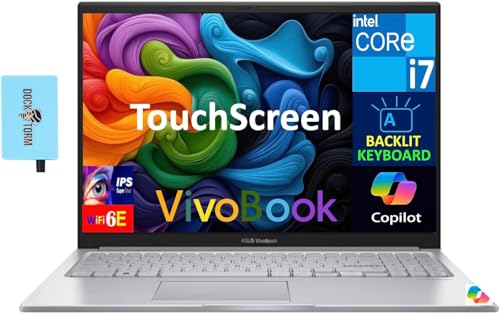
ASUS labels this Vivobook a Business Laptop in its title and then, unusually, includes the accessory that business travellers always forget: a Dockztorm USB hub, named in the listing. The machine itself runs an Intel Core 7 150U — with the title’s own parenthetical claim that it beats the i7-1355U found in two rival picks here — behind a 15.6-inch touchscreen IPS FHD display at 1920×1080, with 16GB of memory, a 512GB SSD, WiFi 6, Bluetooth 5.1, an HD webcam and Windows 11 Pro. A hub in the box is a small thing that signals a correctly understood customer: the person whose laptop must connect to whatever a client’s office happens to offer.
The processor naming needs the translation this guide gives all rebranded chips. Intel’s Core 7 150U belongs to the newer naming scheme that replaced the familiar i5 and i7 labels, and its U suffix marks the same efficiency-tuned family as the rivals’ U-series parts. The title’s beats claim is the seller’s framing and is repeated here as a claim, not endorsed as a measurement; what a buyer can rely on is the surrounding specification — 16GB of memory, an IPS touch panel, a Pro edition of Windows — which places the machine squarely in this guide’s fluid working class.
The IPS touchscreen is the display highlight: IPS is named, touch is named, and the resolution is printed numerically, a completeness several titles in this guide do not manage. Bluetooth 5.1 is stated where others stay silent, which matters to the headset-and-mouse traveller more than spec-sheet readers expect. The 512GB drive is again the mid-pack figure, and the arithmetic of the Dell and V15 reviews applies unchanged: cloud-based workers will never feel it, local archivists will.
Who it suits is the client-facing professional whose week is spent connecting to other people’s rooms — the hub absorbing unfamiliar projectors and networks, the HD webcam (named as HD, a small honesty) handling the calls, the touchscreen handling the walkthroughs. Buyers should note the hub is a branded bundle item whose exact ports are a listing detail; the title guarantees its presence, not its layout. Within that caveat, the Vivobook Business is the most presentation-ready package in the guide as shipped.
- Display: 15.6-inch touchscreen IPS FHD (1920×1080)
- Processor: Intel Core 7 150U
- Memory: 16GB RAM
- Storage: 512GB SSD
- Wireless: WiFi 6, Bluetooth 5.1
- Camera: HD webcam
- Operating system: Windows 11 Pro
- Bundled: Dockztorm USB hub (ports Not stated in the listing title — verify with the manufacturer documentation)
Strengths
- A USB hub in the box answers the travelling presenter’s commonest problem.
- The IPS touchscreen states its panel type, touch and resolution completely.
- Bluetooth 5.1 is printed where rival titles leave wireless audio unstated.
Trade-offs
- The hub’s port layout is not described in the title, only its presence.
- The processor’s beats claim is the seller’s framing, not a measured result.
- Storage sits at the 512GB mid-pack figure shared by three picks here.
Best for: a client-facing professional who presents and connects in other people’s offices and wants the hub included from day one. Not suited for: a presenter whose kit depends on one specific hub port — a particular video output or card reader — being guaranteed in writing, because the title names the hub without itemising its sockets.
When the machine arrives, inventory the hub before the first client visit: learn which of its sockets carries video, which carry data, and pack one known-good cable of your own for the connection your living depends on. A bundled hub removes the shopping errand, not the rehearsal. Professionals who rehearse their connections once, at home, are the ones whose presentations start on time in rooms they have never seen before.

Lenovo IdeaPad Slim 3 2026 — Strong hardware, Home edition
This review exists to hold two truths at once. The hardware truth is excellent: a Lenovo IdeaPad Slim 3 in its 2026 form, with an AMD Ryzen 7 170 processor, 16GB of DDR5 memory, a 512GB SSD, a 15.3-inch FHD+ touchscreen, a webcam, a numeric keypad and a thin-and-light billing as an AI PC for business and students. The edition truth is the caveat printed in the same title: Windows 11 Home. The seller even frames the chip with a comparison — greater than the i7-1355U, in the title’s own shorthand — which is a claim this guide reports as the seller’s framing. What is not a claim is the specification, and the specification is genuinely strong.
The screen deserves its own paragraph because it quietly differs from the field. At 15.3 inches with an FHD+ label, it offers a slightly different canvas from the 15.6-inch FHD panels around it — the plus in FHD+ signals extra vertical room in the maker’s naming, which document workers feel as a few more lines of a spreadsheet or page visible at once. Touch is included, DDR5 memory is a generation ahead of the DDR4 found in older designs, and the numeric keypad serves the spreadsheet-minded. As a piece of hardware for a freelancer’s desk, there is very little here to criticise.
The Home edition is therefore the whole decision, and it should be made with clear eyes. For the independent professional — the freelancer, the sole trader, the remote worker whose employer runs on cloud accounts rather than a managed domain — Windows 11 Home covers the working day completely, and this machine’s hardware will serve them as well as any pick in the guide. For the employee whose laptop must join a company’s managed systems, the Pro edition on the other five picks is the conventional requirement, and no processor claim outweighs an IT department’s answer. Ask the question before ordering; it takes one message.
Who it suits, then, is the independent worker who has confirmed the edition does not bind them — and for that buyer, this is arguably the most modern package in the guide: DDR5, a 2026 build, an FHD+ touch screen and a numeric keypad in a thin design. Who it does not suit is anyone buying on behalf of an organisation, or joining one soon, where the edition line in the title will be read by someone whose job is to say no. The guide places it last so that the caveat is read with the recommendation, never after it.
- Display: 15.3-inch FHD+ touchscreen
- Processor: AMD Ryzen 7 170
- Memory: 16GB DDR5 RAM
- Storage: 512GB SSD
- Keyboard: numeric keypad
- Camera: webcam (resolution Not stated in the listing title — verify with the manufacturer documentation)
- Operating system: Windows 11 Home
- Positioning: AI PC for business and students, thin and light
Strengths
- DDR5 memory and a 2026 build make this the most current hardware story here.
- The 15.3-inch FHD+ touchscreen offers extra vertical room for documents.
- A numeric keypad and thin design serve both spreadsheets and travel.
Trade-offs
- Windows 11 Home, where the other five picks run the Pro edition.
- The chip comparison in the title is the seller’s shorthand, not a measurement.
- Storage is 512GB, the mid-pack figure, despite the otherwise modern spec.
Best for: an independent professional who has confirmed the Home edition fits their employer’s or their own setup, and wants DDR5 hardware with an FHD+ touch screen. Not suited for: an employee whose organisation requires Windows 11 Pro to join its managed systems — that single line outweighs every hardware advantage in this review.
If the edition answer comes back favourable, buy this machine with confidence and spend the first evening on the unglamorous essentials: accounts, backup, the numeric keypad’s number-lock habit, and the touchscreen gestures that turn a 15.3-inch panel into a presentation tool. If the answer comes back Pro, the Dell and the V15 are the natural redirects, and nothing about this review’s praise of the hardware should talk a buyer past their own IT department’s one-word reply.
Comparison
| Pick | Display | Processor | Memory / Storage | Notable from title |
|---|---|---|---|---|
| Dell Inspiron 15 3530 | 15.6″ FHD touchscreen | Core i7-1355U | 16GB / 1TB SSD | Windows 11 Pro, webcam, HDMI |
| Lenovo V15 Gen 5 | 15.6″ FHD | Core i7-13620H | 32GB DDR5 / 1TB | Ethernet, fingerprint reader, numeric keypad |
| HP Pavilion 15.6 Touch | 15.6″ FHD touchscreen | Core i5-1334U, 10-core | 16GB / 512GB SSD | 11-hour battery claim, Windows 11 Pro |
| Acer Aspire 5 15 | 15.6″ FHD IPS | Core i7-1355U | 16GB LPDDR5 / 512GB Gen 4 SSD | Thunderbolt 4, Wi-Fi 6E, backlit keyboard |
| ASUS Vivobook 15 Business | 15.6″ touchscreen IPS FHD | Intel Core 7 150U | 16GB / 512GB SSD | HD webcam, bundled USB hub, Windows 11 Pro |
| Lenovo IdeaPad Slim 3 2026 | 15.3″ FHD+ touchscreen | AMD Ryzen 7 170 | 16GB DDR5 / 512GB SSD | Numeric keypad, Windows 11 Home |
The table’s loudest column is memory, because the V15’s 32GB stands alone — and its quietest is the operating system, which appears only in the final column yet decides one pick’s fate entirely. Read the table by working pattern rather than by totals. The wired desk lives in the V15’s row; the travelling day in the HP’s; the docked ecosystem in the Acer’s; the local archivist in the two 1TB rows. A buyer who cannot find their pattern in any row should suspect the pattern, not the table: one of these six working lives is almost certainly theirs, described from the outside.
Notice, too, what no column can hold: the claims. The HP’s eleven hours, the ASUS chip’s beats framing, the IdeaPad’s greater-than shorthand — each is a seller’s sentence repeated in this guide as a claim, clearly labelled, because a comparison that silently promoted claims into facts would betray the reader at exactly the moment of decision. The figures are the titles’ own; the judgements about them are the guide’s.
How to Choose a Laptop for Work
Begin with the environment, not the hardware. If the laptop must join an employer’s managed systems, the Windows edition question comes first and may end the search in one step — Pro is the conventional requirement, and five of these six picks carry it. Independent workers can demote that question and promote others, but they should still ask it consciously, because changing employers is commoner than changing laptops, and a machine bought for this year’s freelance life may meet next year’s IT department.
Memory is the second decision, and for work it should be made pessimistically. Sixteen gigabytes is this guide’s floor because it is the figure that keeps a modern working day — browser, office suite, calls, chat, a heavy spreadsheet or two — fluid without management. Thirty-two gigabytes, the V15’s figure, is for workers whose applications are the heavy kind: development environments, large datasets, design tools, virtual machines. The test is your worst afternoon, not your average one; a laptop is bought for the day everything is open at once.
Third, inventory your connections honestly. List every thing the laptop must plug into across a month: the desk dock, the meeting-room screen, the wired network, the headset, the printer that still matters. Then read the titles against the list. Ethernet appears once in this guide, Thunderbolt once, a bundled hub once — those single appearances are the difference between a machine that fits your month and one that needs a bag of adapters to survive it. Ports are cheap in a title and expensive in a lifestyle.
Finish with the day-length question. Workers anchored to one desk can discount battery claims entirely and buy ports and memory. Workers whose day is a route should read the HP’s eleven-hour claim as the guide’s headline and plan around the 512GB drive with cloud storage, as their employers usually intend. The right work laptop is the one whose strengths align with the hours you actually bill, and whose weaknesses fall in the hours you do not.
Does Windows 11 Pro Actually Matter for Your Job?
For the independent worker, mostly not — and the guide says so plainly because overselling the Pro edition would be its own kind of dishonesty. Documents, browsers, calls, accounts software in its cloud form, design tools and development environments all run on the Home edition, and a freelancer’s working day on the IdeaPad Slim 3 would feel identical to the same day on a Pro machine. The edition is not a speed feature, and no buyer should pay a premium for it expecting performance.
Where Pro matters is organisational. Companies manage fleets of laptops through central systems — enforcing updates, encryption policies and sign-in rules — and those systems conventionally expect the Pro edition on each machine. The employee who arrives with a Home-edition laptop may be handed a company machine instead, or asked to upgrade the edition, or simply told the laptop cannot join. None of those outcomes is a hardware failure; all of them are avoidable with one question asked before purchase. The five Pro picks in this guide exist so that the question, once asked, has somewhere comfortable to land.
There is a third case worth naming: the worker who is independent today and employed tomorrow. Laptops outlast contracts. A buyer whose industry moves between freelance and staff roles should weigh the Pro edition as insurance — not because Home cannot do the work, but because Pro never has to explain itself in an onboarding meeting. Insurance is a legitimate reason to choose a specification, provided it is chosen knowingly rather than by badge reflex.
How Much Memory Does a Work Laptop Need in 2026?
The honest floor for a new work machine is the figure every pick in this guide meets: 16GB. Below it, the modern stack of browser, office applications, calling software and chat tools begins to trade memory among themselves, and the worker pays in small stalls scattered across the day — each one trivial, their sum a genuine tax on concentration. At 16GB that tax largely disappears for document-centred work, which is why the guide treats the figure as a starting point rather than an upgrade.
Thirty-two gigabytes answers a different workload, and the V15’s review is its case study. Development environments with containers, data work with large local files, design and engineering tools, and the habit of keeping several heavy applications resident at once all draw on memory in a way documents never do. The worker who recognises their afternoon in that list should not be talked down to 16GB by a tidy table; the worker who does not recognise it should not be talked up, because unused memory is the one specification that never announces itself.
One asymmetry from the home guide returns here with higher stakes. Storage can be relieved — archives move, cloud drives absorb, a purge takes an afternoon. Memory, on machines of this class, is the specification you live inside for the laptop’s whole service. A work buyer forced to choose where the budget lands should land it on memory and manage storage with discipline, because the stalls of a memory-short machine are paid daily, in the middle of other people’s meetings, where they cost the most.
Which Ports and Sign-In Features Are Worth Paying For?
Ports pay when they remove a recurring friction, and the three connectivity stories in this guide map to three frictions. The V15’s Ethernet removes the unreliable-wireless friction of the fixed office, and adds the determinism some workplaces’ security rules simply require. The Acer’s Thunderbolt 4 removes the many-cables friction of the docked desk, collapsing screens, storage and power into a standard built for exactly that. The ASUS’s bundled hub removes the stranger’s-office friction, where the presenter’s laptop must speak whatever language the room’s projector understands.
Sign-in features pay in a different currency: repetitions. A fingerprint reader, named only in the V15’s title, converts twenty daily sign-ins from a typed password — with its typos, its shoulder-surfers, its small delays — into a touch. Over a three-year service life that is thousands of small mercies, and for workers in shared or client-facing spaces it is also a security improvement, since a password never typed cannot be watched being typed. Buyers whose shortlist lacks a fingerprint claim should not assume one is present; the spec boxes in this guide mark the silence where it falls.
The backlit keyboard, the numeric keypad and the webcam belong to the same audit. Each appears in some titles here and not others, and each is worth real money to the worker whose routine uses it weekly — the evening finisher, the spreadsheet keeper, the remote presenter — and nothing to the worker whose routine never does. The discipline is to price features against your own calendar rather than against a reviewer’s enthusiasm, which is why this guide names what each title claims and leaves the valuing to the person whose calendar it is.
What Should a Freelancer Prioritise Differently From an Employee?
The freelancer’s laptop is bought with their own money and carries their whole business, which rearranges the priorities in instructive ways. The edition question loosens — Home may serve perfectly, which brings the IdeaPad’s modern hardware into play — while the backup question tightens, because no IT department stands behind a sole trader’s drive. Storage, too, reads differently: client work is both the freelancer’s archive and their legal memory, which argues for the terabyte picks or a rigorous cloud routine, adopted before the first client file lands rather than after the first scare.
The employee’s priorities run the other way. Their machine must satisfy an organisation’s rules before it satisfies them, so the edition, the sign-in features and the managed-environment fit come first, and personal preferences about touchscreens and keyboards fill the space that remains. Neither buyer is wrong; they are answering to different authorities. The mistake this guide sees most often is the buyer who shops with the other role’s checklist — the freelancer who pays for fleet features they will never use, the new employee who arrives with a beautiful Home-edition machine their employer cannot enrol.
Both roles share one priority that outranks the rest, and it is worth ending the section on it: reliability of the everyday. A work laptop’s failures are not measured in benchmarks but in meetings begun late, files not found and mornings lost. Every pick in this guide was chosen to make the ordinary day boring — adequate memory, honest storage, a screen that suits the work — because for a machine that earns its owner’s living, boring is the highest praise a specification can earn.
Common Mistakes When Buying a Work Laptop
Buying the badge instead of the balance. A ten-core i5 with 16GB of memory will out-work an i7 starved of memory on any real afternoon. Read the memory and core figures together, and be suspicious of any shortlist that sorts by chip label alone.
Discovering the Windows edition after starting the job. The IdeaPad in this guide runs Home; five rivals run Pro. If an employer’s systems expect Pro, that line in the title outweighs every hardware advantage — ask before ordering, not during onboarding.
Assuming ports that the title never names. Ethernet appears once in this guide and Thunderbolt once. If your desk needs either, buy the pick whose title claims it, rather than discovering the absence with a client watching.
Treating a battery claim as a measurement. The HP’s eleven hours is the maker’s figure under the maker’s conditions. Plan a travelling day around a conservative fraction of it until your own first week teaches you the machine’s real endurance.
Ignoring sign-in as a daily cost. A fingerprint reader is named on one pick here. Workers who sign in dozens of times a day in shared spaces should weigh that line as heavily as a processor figure, because they will feel it more often.
Final Recommendation
Match the machine to the authority you answer to. Employees joining managed systems should start with the Lenovo V15 Gen 5 for a wired, heavy-duty desk — its 32GB, Ethernet and fingerprint reader form the guide’s most complete business case — or the Dell Inspiron 15 3530 for a terabyte of local room with a touchscreen. Travellers should take the HP Pavilion’s battery-led balance; dock users, the Acer Aspire 5 15 and its Thunderbolt port; presenters in strange rooms, the ASUS Vivobook 15 Business with its bundled hub. The IdeaPad Slim 3 2026 is the independent worker’s pick, excellent hardware behind one edition question that must be answered first.
A work laptop is a colleague that never speaks: it either makes the day feel organised or quietly taxes every hour of it. Choose the one whose specification matches your actual calendar — its meetings, its rooms, its cables, its sign-ins — and it will repay the attention in the only currency professionals cannot buy back, which is time that stays theirs.
Frequently Asked Questions
Is Windows 11 Pro necessary for working from home?
Not for the work itself — documents, calls and cloud tools run identically on the Home edition. Pro becomes necessary when an employer’s central management systems expect it. Independent workers can usually choose either; employees should ask their IT department before buying, which is why five of the six picks here carry Pro.
Should I choose 32GB of memory or a touchscreen?
They serve different jobs, and your calendar decides. Heavy applications — development, data, design tools — spend memory all day, which is the V15’s case. Presenters and reviewers who annotate by hand spend the touchscreen. A worker who does neither should take the guide’s 16GB floor and put the difference toward storage.
How much storage does a work laptop need?
Cloud-based workers rarely meet the limit of the 512GB drives on four picks here. Workers who keep client archives, mail history and project files locally should take one of the two 1TB picks — the Dell or the Lenovo V15 — because a work drive that fills mid-project costs more than the upgrade would have.
Does Thunderbolt 4 matter if I do not own a dock?
Only as future insurance. The Acer’s Thunderbolt 4 port earns its place when a dock, fast external storage or a chain of screens enters the setup. Without those plans, it is a well-chosen port you may never exploit — harmless, but not a reason by itself to pass over the Dell’s storage or the HP’s battery claim.
Can the IdeaPad Slim 3 2026 be used for a corporate job?
Its hardware can; its Windows 11 Home edition is the question. Many employers require the Pro edition for their managed systems. Ask before ordering — if the answer is Home is acceptable, this is one of the strongest specifications in the guide; if the answer is Pro, choose from the other five picks.
Are the battery and processor comparison claims in titles reliable?
They are the sellers’ own claims, and this guide repeats them labelled as claims: the HP’s eleven hours, the ASUS chip’s beats framing, the IdeaPad’s greater-than shorthand. Treat them as indications of design intent, verify your own experience during the first week, and rest decisions on the printed specifications — memory, storage, ports and edition — that a title states as fact.
Related Guides
Workers buying for a student in the family, or returning to study themselves, should compare the campus-shaped shortlist in the best affordable laptops college students carry between lectures, libraries and part-time jobs. Readers whose work is moving images should go directly to the best affordable laptops for video editing, where discrete graphics replace integrated ones as the deciding hardware. And those whose work is the image itself will find their version of this argument in the best affordable photo editing laptops, where OLED screens and colour coverage outrank ports and editions.