What's inside
- Where to Buy
- Key Takeaways
- Quick Picks
- How We Chose These Picks
- Comparison
- How to Choose a Touchscreen for Work
- Does a Touchscreen Replace a Mouse at a Workstation?
- What Size Touch Panel Suits a Desk, and What Size Suits a Room?
- How Should a Touch Workstation Be Cleaned and Maintained?
- What Does a Touch Desk Change About the Working Day?
- Common Mistakes When Buying Touch for a Workstation
- Final Recommendation
- Frequently Asked Questions
- Related Guides
As an Amazon Associate I earn from qualifying purchases. This post may contain affiliate links at no extra cost to you.
[SITE_DOMAIN] is reader-supported. When you buy through links on our site, we may earn an affiliate commission.
Where to Buy
The six touch panels below are all listed on Amazon, and each linked name opens that model’s page. Office buyers should begin with the Dell P2424HT and see how its listing prices a business-class touch screen. The ViewSonic TD2455 follows with a dual-hinge design, so open its page if your desk needs a screen that reclines. Commercial buyers will want the Elo 2402L listing open beside the office models to compare a purpose-built touch product. The HP E24t G5 represents the corporate fleet route, and its product page carries the specifics. A larger interactive option arrives as the ViewSonic TD2760, whose page details its hub and legacy ports. Finish with the ViewSonic TD3207, a 32-inch panel built for long operating hours, priced accordingly on its listing.
Touch at a workstation is not a novelty looking for a purpose; it is the natural interface for a specific set of jobs. The designer pinching into a layout, the warehouse lead tapping through a picking screen, the receptionist checking a visitor in, the teacher annotating in front of a class, the analyst presenting figures who wants to point at the chart rather than describe it — all of them reach for the glass instinctively, and the best touchscreen monitors for workstation use are the ones that make that reach reliable, accurate and comfortable across a full working day. This guide judges panels by that standard: not whether touch exists, but whether it survives contact with real work.
The shortlist spans the category’s three tribes. Two are business-desktop models from Dell and HP, built to sit in offices and be touched occasionally but meaningfully — signing, confirming, presenting, navigating. Three are ViewSonic’s TD family at 24, 27 and 32 inches, a line that treats touch as the main event and scales from a hinged personal panel to a 32-inch display rated for round-the-clock operation. Between them sits Elo, the name commercial buyers reach for when touch is a point-of-sale or kiosk duty, with a PCAP panel specified in its title in so many words. Sizes run from 23.8 to 32 inches, and every model renders at 1080p, because this category values touch accuracy and durability over pixel density.
Evidence discipline matters here as much as anywhere on this site. Touch technology is named outright for the Elo (PCAP, 10 touch points) and the ViewSonic trio (10-point in each title), while the Dell promises multi-touch and the HP’s title says touchscreen without a point count — distinctions the reviews preserve rather than blur. Stand designs, brightness and operating-hour ratings are credited only where printed. A workstation purchase often involves several units, sometimes dozens, and a fleet bought on a blurred specification is a fleet returned at scale.
Key Takeaways
- ViewSonic’s TD line supplies three of the six picks, each printing a 10-point touchscreen, at 24, 27 and 32 inches.
- The Elo 2402L is the commercial specialist, naming PCAP 10-point touch in its title — the technology behind most professional kiosks.
- Dell’s P2424HT and HP’s E24t G5 are the office-fleet options; their titles are brief, so point counts and stands need documentation checks for the Dell and HP respectively.
- The TD2455’s dual hinge is the ergonomic standout, letting a 24-inch panel recline toward a drafting posture.
- The TD3207 is the endurance pick: 450 nits and 24/7 operation stated in its title for signage and shared spaces.
- Every panel here is 1080p where resolution is stated, so buyers needing QHD touch should note that this category trades density for touch hardware.
Quick Picks
| Pick | Badge | Why it earns a place |
|---|---|---|
| Dell P2424HT | The office-standard touch desk | 23.8-inch multi-touch monitor from Dell’s professional P-series for business workstations. |
| ViewSonic TD2455 | The reclining annotator | 24-inch 1080p 10-point touch on a dual hinge with USB-C and advanced ergonomics. |
| Elo 2402L | The commercial touch specialist | 24-inch PCAP 10-point touch panel at 1920 x 1080 from a touch-industry specialist. |
| HP E24t G5 | The corporate fleet panel | 24-inch class LCD touchscreen in HP’s E-series business monitor family. |
| ViewSonic TD2760 | The connected 27-inch hub | 27-inch 1080p 10-point touch with RS232, USB hub and advanced ergonomics for shared stations. |
| ViewSonic TD3207 | The always-on 32-inch wall of touch | 32-inch 1080p 10-point panel at 450 nits, rated for 24/7 operation in kiosk and signage roles. |
How We Chose These Picks
Touch quality was the entry ticket, judged on what titles print. Multi-point capability matters because modern workstation gestures — pinch zoom, two-finger scroll, two-handed kiosk interaction — assume it, so titles naming 10-point touch scored the clearest evidence. PCAP, projected capacitive technology, earned specific credit where Elo prints it, because PCAP is the sensing method behind the responsive, glass-fronted touch surfaces users know from phones and professional terminals. Where a title says only multi-touch or touchscreen, the review records the wording as given and flags the point count as a documentation check rather than guessing a number.
The second filter was workstation fit, which is mostly about the hours after the demo. A touch panel in an office gets poked by colleagues, shared between shifts, wiped down, re-angled and occasionally mistreated, so stand design, operating ratings and brand specialisation weighed heavily. The dual hinge, the advanced-ergonomics claims and the 24/7 rating in these titles are not decoration; they are the features that decide whether a touch desk still works smoothly in month eighteen. Brightness mattered for the shared and public-facing roles, where a dim panel loses to room light and fingerprints alike.
Connectivity formed the third screen. Workstation touch lives or dies on its cables: the video feed, the touch data channel back to the computer, and the peripherals around it. Titles naming USB-C, USB hubs or legacy control ports like RS232 were read as evidence of how a panel integrates with docks, point-of-sale systems and building installations. A panel that touches beautifully but strands its owner in adapter trouble has failed the workstation test in the most preventable way.
Balance closed the selection. A guide containing only kiosk hardware would abandon the ordinary office buyer, and one containing only office panels would abandon the retailer, the school and the clinic. The six below deliberately span personal annotation desks, corporate fleets, commercial counters and public signage, because touchscreen workstations are not one job — they are a family of jobs united by a finger on glass.
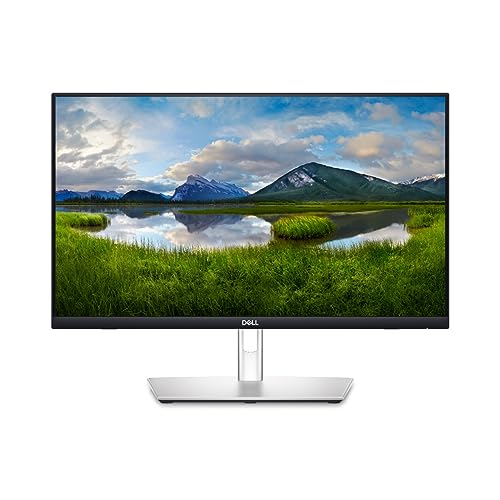
Dell P2424HT — The office-standard touch desk
Dell’s title for this panel is a single line — a 24 P2424HT, 23.8 inches, multi-touch — and the review begins by respecting both what that line promises and what it leaves for the datasheet. Multi-touch is stated outright, so the panel accepts the gesture vocabulary of modern software rather than single-finger poking alone. The P-series badge places it in Dell’s professional monitor family, the line office fleets standardise on, and 23.8 inches is the classic desk size: large enough for a document and a panel of controls, small enough to reach across comfortably, because a touchscreen that cannot be reached without leaning is a touchscreen that stops being touched.
Reach is the under-discussed specification of this entire category, and the Dell’s size is its quiet argument. At roughly 24 inches, the whole surface sits within a seated user’s natural arm sweep, so signing a form, tapping through a presentation or dragging a window to the side stays a wrist-and-forearm action rather than a shoulder workout. Gorilla-arm fatigue — the ache of holding an arm up to a vertical screen — is the failure mode of oversized touch desks, and a right-sized professional panel on a normal desk is the simplest defence against it.
The office use case writes itself. A workstation that hosts clients — an adviser’s desk, a clinic reception, a design studio’s review table — benefits from a screen that can be turned, tapped and signed on without passing a mouse across like a baton. Inside a Dell-standardised workplace the panel also inherits an ecosystem: the same support channels, the same menu logic as the fleet’s other monitors, and a procurement path IT already trusts. Those are operational virtues rather than specifications, and for a business buyer they often decide the order.
What the title does not state must be planned around honestly: no point count beyond the multi-touch wording, no stand description, no input list, no brightness figure. A buyer specifying twenty of these for a rollout should pull Dell’s documentation and confirm each of those before the purchase order, particularly the touch point count if a particular application demands it. For a single-desk buyer who values the Dell ecosystem and a correctly sized touch surface, the listing’s brevity is a homework assignment rather than an obstacle.
- Size: 23.8-inch
- Touch: Multi-Touch — stated in the title
- Line: Dell Professional (P-series)
- Model: P2424HT
- Touch point count: Not stated in the listing title — verify with the manufacturer documentation
- Stand and inputs: Not stated in the listing title — verify with the manufacturer documentation
Strengths
- Multi-touch is stated, covering modern gesture-driven software.
- 23.8-inch size keeps the whole surface within comfortable reach.
- Dell professional line suits standardised office rollouts.
Trade-offs
- The exact touch point count is not printed.
- Stand and input details require a documentation check.
- Its size is personal-desk scale, not shared-display scale.
Best for: a Dell-standardised office desk that needs a reachable 23.8-inch multi-touch panel for client-facing and presentation work. Not suited for: a buyer who needs a 10-point touch count guaranteed in the listing, because this title promises multi-touch without a number.
Deploy it where the touching is conversational. The adviser’s review meeting, the studio’s client sign-off, the manager’s stand-up around a desk — in each, the panel earns its premium by collapsing the distance between showing and doing. Keep a keyboard and mouse in place for the long typing hours, because touch complements rather than replaces them, and the healthiest touch workstations are the ones where each input handles the work it is best at.
A final fleet note: identical touch panels across a department make training transferable. Staff who learn the gesture habits of one desk can sit at any desk, support teams troubleshoot one model instead of five, and the inevitable single failure is swapped from a spare rather than researched from scratch. Standardisation is unglamorous, and it is also most of what professional buyers are actually purchasing when they choose a panel like this Dell.

ViewSonic TD2455 — The reclining annotator
The TD2455’s title is the most ergonomic sentence in this guide: a 24-inch 1080p touch screen monitor with USB-C and a dual hinge, a 10-point touchscreen, advanced ergonomics, HDMI, DisplayPort and USB-C inputs, Eye Care wording and anti-glare surfacing, for home office, laptop, PC and Mac. Begin with the hinge, because it solves the category’s central physical problem. Touch wants the screen low and angled like a drafting table; viewing wants it upright and at eye level. A dual-hinge stand lets the same panel travel between those postures, reclining for annotation sessions and standing tall for ordinary work, instead of forcing the owner to choose one compromised angle forever.
That movement transforms who the panel suits. An editor marking up page proofs can pull the screen down and write on the glass. A teacher preparing materials can annotate at a natural hand position instead of hovering at a vertical surface. A designer can sketch a rough layout with a finger before committing it to precise mouse work. In each case the touch interaction lasts minutes rather than seconds, and minutes are exactly where a fixed vertical panel starts to punish the shoulder. The hinge is not a gimmick on this product; it is the difference between touch as a feature and touch as a working method.
The connection set matches the modern laptop desk. USB-C appears in the title twice over, joined by DisplayPort and HDMI, so the panel docks with the machines knowledge workers actually carry, carrying video and touch data through tidy cabling. The 10-point specification supports the two-handed gestures annotation software expects, and Eye Care wording plus anti-glare finish address the long, close sessions that annotation involves — the reader is nearer to this screen, for longer, than to almost any other panel in the guide.
Limits are proportionate. At 24 inches and 1080p this is a personal workstation panel, not a shared display for a room, and buyers wanting a big interactive canvas should read the 27 and 32-inch reviews below. Its talents also concentrate on the deskbound annotator; a retail counter or a public kiosk needs the commercial hardware that follows. Within its intended posture — one professional, one reclined glowing page, one hand at work — the TD2455 is the most thoughtfully designed product in this guide.
- Size and resolution: 24-inch 1080p Touch Screen
- Touch: 10-Point Touchscreen
- Stand: Dual Hinge, Advanced Ergonomics — stated in the title
- Comfort: Eye Care, Anti Glare — stated in the title
- Inputs: HDMI, DisplayPort, USB C
- Use: Home Office, Laptop, PC, Mac
Strengths
- Dual hinge lets the panel recline for sustained annotation.
- 10-point touch supports two-handed gestures and inking workflows.
- USB-C, DisplayPort and HDMI cover modern laptop docks completely.
Trade-offs
- 24-inch canvas is personal scale, not room scale.
- 1080p density trails non-touch QHD panels for fine text.
- Its design serves desks, not counters or public spaces.
Best for: an editor, teacher or designer who annotates documents on a reclining 24-inch 10-point touch panel docked over USB-C. Not suited for: a retail counter needing commercial touch hardware, because this is a home-office panel with a desk hinge.
Build the annotation habit deliberately in the first week. Choose one recurring document type — the weekly proof, the lesson plan, the design review — and mark it up on the reclined glass every time, resisting the old print-and-pen routine. Workflows migrate by repetition, and a touch panel that only gets touched during its unboxing demo becomes an expensive ordinary monitor by March. The TD2455’s hinge rewards the migrant: the more the posture is used, the more natural the whole desk feels.
Also consider its life as a second screen. Beside a larger landscape monitor, the TD2455 can sit low and angled as the desk’s control surface — palettes, timelines, call controls, reference sketches — while the main panel holds the document itself. That division, big screen for looking and touch screen for handling, is how many creative workstations quietly organise themselves, and few panels are shaped as precisely for the handling role as this one.

Elo 2402L — The commercial touch specialist
Elo’s title is short because Elo’s reputation does the talking in commercial circles: a 24-inch touchscreen monitor, PCAP 10 touch, 1920 x 1080, black. PCAP — projected capacitive — is the sensing technology inside the glass of phones, tablets and professional terminals, valued for responsiveness, multi-touch accuracy and a smooth sealed surface that shrugs off the grime of public use. A buyer equipping a point-of-sale lane, a self-service kiosk, a healthcare check-in or a factory terminal is not shopping for a monitor with touch added; they are shopping for a touch instrument, and this title speaks that language in four words.
The commercial difference shows in expectations rather than in any single figure. A kiosk panel is touched by strangers, hundreds of times a day, with wet hands, gloved hands and impatient hands. Its job is to register the intended tap, ignore the palm resting beside it, and keep doing so for years in a enclosure that may never be opened. Elo builds for that world exclusively, and the 2402L’s presence in a workstation guide represents the moment a workstation stops being a desk and becomes a station — fixed, public-facing, task-specific.
Resolution at 1920 x 1080 suits the interfaces these stations run: large buttons, clear forms, product grids and signature panes all render crisply without the scaling complications denser panels introduce into locked-down commercial software. The 24-inch size balances presence and footprint on a counter, large enough for a customer to read a total or a patient to confirm details, small enough to mount where counters are crowded. Buyers should confirm mounting, bezel and connection details in Elo’s documentation, since the title leaves the installation specifics to the professional channel where this product normally lives.
Who should not buy it? The ordinary office worker, whose annotation and presentation needs are better served by the hinged ViewSonic or the Dell’s ecosystem, and who would pay for commercial specialisation they never exercise. Who should? Anyone whose touchscreen is the business — the till, the terminal, the check-in — where a failed tap is a queue, a complaint or a lost sale. In that world, a specialist’s panel is not a premium; it is insurance with a screen attached.
- Size and resolution: 24-inch, 1920 x 1080
- Touch: PCAP 10 Touch — stated in the title
- Finish: Black
- Line: Elo commercial touchscreen
- Mounting and inputs: Not stated in the listing title — verify with the manufacturer documentation
Strengths
- PCAP technology is the professional standard for responsive touch.
- 10-point capability covers modern kiosk and POS interfaces.
- A touch specialist’s product, built for public-facing duty.
Trade-offs
- Installation details live in documentation, not the title.
- Commercial specialisation is wasted on ordinary office desks.
- No stand or ergonomic claims are printed for desk use.
Best for: a retail, hospitality or healthcare station that needs a 24-inch PCAP 10-point touch panel as its customer-facing interface. Not suited for: a home-office annotator who needs a reclining stand, because this commercial panel prints no ergonomic stand claims.
Plan the installation as a system, the way Elo’s buyers do. The panel, its mount or enclosure, the computer behind it and the software’s touch targets form one product in the customer’s eyes, and a failure in any layer reads as a failure of the screen. Test with the actual interface at the actual counter height, with the actual gloves or wet hands of the real environment, before committing a fleet. Commercial touch rewards that rehearsal disproportionately, because the public will find every untested centimetre within a week.
Longevity works differently in this tribe. A specialist maker supports its commercial panels with the spare parts, consistent models and long availability that installations require, since a kiosk built around a panel may need its twin three years later. Confirm the support picture in documentation as part of the purchase; for a station expected to serve half a decade, the maker’s commitment matters as much as the glass.
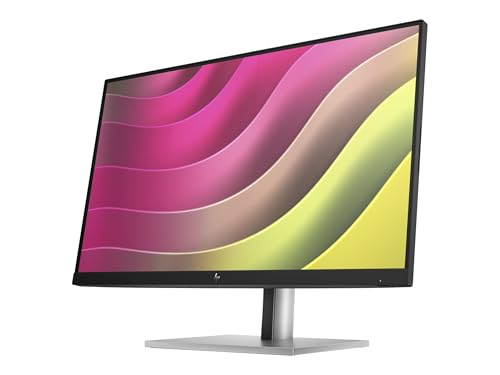
HP E24t G5 — The corporate fleet panel
HP’s title runs to a single descriptive line: an E24t G5, 24-inch class, LCD, touchscreen, 16:9. The review’s honesty framework applies here as it did to the Dell — the facts printed are size, class, touch capability and membership of HP’s E-series business monitor family, and the rest of a responsible purchase lives in HP’s documentation. Within those facts sits a coherent buyer: the organisation already standardised on HP, equipping desks where a touchscreen handles check-ins, confirmations, training modules and the occasional signed form, and where fleet consistency outweighs any single specification.
The E-series context is the argument. Business monitor families exist to be bought in quantity, deployed by IT, supported centrally and replaced like-for-like, and the touch variant of such a family lets an organisation add interactivity to a desk without changing vendors, docks or support arrangements. A 24-inch class panel matches the standard desk footprint those fleets already plan around, so the E24t G5 slides into existing monitor arms, desk layouts and asset registers with a minimum of fresh thinking — a genuine virtue when the rollout is fifty desks rather than one.
Touch at a corporate desk has a particular rhythm worth naming. It is rarely the primary input; the keyboard and mouse still carry the day’s typing and precision work. Touch carries the moments — the training video tapped through at a stand-up desk, the visitor form signed at reception, the warehouse application whose buttons were designed for fingers, the presentation advanced by touching the chart itself. A fleet panel needs to be good at those moments and invisible the rest of the time, which is precisely the design brief of a business family’s touch model.
The documentation homework is correspondingly specific. Confirm the touch point count if your applications gesture, the stand or mounting arrangement for your desks, the input set for your docks, and the touch data connection your computers will use. None of that is knowable from the title, and a fleet buyer who skips it risks fifty small surprises instead of one answered question. Single-desk HP households face the same list at smaller stakes and will find the answers quickly; the panel’s appeal is that everything else — size, class, brand support — is already settled.
- Size: 24-inch Class LCD
- Touch: Touchscreen — stated in the title
- Aspect ratio: 16:9
- Line: HP E-series business monitor
- Model: E24t G5
- Point count, stand and inputs: Not stated in the listing title — verify with the manufacturer documentation
Strengths
- E-series fleet positioning suits organisation-wide rollouts.
- 24-inch class matches standard corporate desk footprints.
- Touch capability arrives inside a familiar business family.
Trade-offs
- Touch point count is not printed in the title.
- Stand, mounting and inputs all require documentation checks.
- Its fleet virtues matter less to a one-desk household buyer.
Best for: an HP-standardised organisation adding touchscreen capability to 24-inch class desks across a department. Not suited for: a solo buyer who needs 10-point touch and a full input list confirmed in the listing, because this title states neither.
Rollout advice mirrors the Dell’s with an HP accent. Pilot the panel at two or three representative desks — reception, a training seat, an ordinary workstation — and let a month of real touching expose the questions the datasheet cannot answer: reach, glare at that window, the cleaning routine, the application whose buttons run small. Fleets succeed on pilots, and a touch rollout especially so, because touch is a behaviour change disguised as a hardware purchase. The E24t G5’s ordinariness is its strength in that process: nothing about it distracts from learning whether the organisation actually touches its screens.
For the home buyer inside an HP household, the same logic shrinks gracefully. A panel that matches the family laptop’s maker, sized for the study desk, with touch for the recipe app, the homework and the video call controls, is a calm purchase — provided the documentation check confirms the connections your laptop needs. Calm, verified and consistent is a respectable brief for any workstation.

ViewSonic TD2760 — The connected 27-inch hub
Step up a size and the TD2760’s title turns toward shared and installed work: a 27-inch 1080p touch screen monitor with 10-point touch, RS232, HDMI, DisplayPort, VGA and a USB hub, advanced ergonomics, and positioning for point of sale, kiosk and interactive applications. That port list tells a story no other pick here can. RS232 is a legacy control connection from the world of installed systems — the world where a central controller wakes displays, switches inputs and manages a wall of screens — and its presence marks this panel as equipment for environments, not just desks.
The 27-inch canvas changes the interaction geometry. Two people can stand at this screen together — a staff member and a customer, a teacher and a student, two engineers at a drawing — and both can see and reach the work. The USB hub extends the station around the panel: a scanner, a card reader, a keyboard for the moments touch cannot serve, all wired through the display so the computer itself can live somewhere tidier or safer. Advanced ergonomics, as titled, speaks to the stand’s adjustability for those shared postures, though the exact movements belong to the documentation.
Point of sale and kiosk positioning in the manufacturer’s own words clarifies the competitive set: this ViewSonic plays in Elo’s commercial neighbourhood, with a broader input and hub story aimed at integrators. A retailer building an interactive catalogue point, a museum labelling an exhibit, a clinic running a wayfinding or check-in station — each needs a panel that accepts control from building systems and peripherals from the counter, and the TD2760’s title reads like their checklist. The 1080p resolution keeps those interfaces crisp and the software simple, as commercial deployments prefer.
Desk buyers are not excluded, merely re-prioritised. A 27-inch touch panel with a hub makes a commanding creative or control workstation — video editors tapping a timeline, control-room operators working a wall of statuses — provided the reach question is managed with placement and posture breaks. What this model is not is a quiet home-office accessory; it is a station component, and it should be bought with a station in mind, mounted or stationed deliberately, with its legacy ports either used or knowingly forgone.
- Size and resolution: 27-inch 1080p Touch Screen
- Touch: 10-Point Touchscreen
- Control: RS232 — stated in the title
- Inputs: HDMI, DisplayPort, VGA
- Hub: USB Hub — stated in the title
- Stand: Advanced Ergonomics — stated in the title
- Positioning: Point of Sale, Kiosk, Interactive
Strengths
- RS232 control suits installed, centrally managed environments.
- USB hub wires counter peripherals through the display.
- 27-inch canvas supports two-person interactive work.
Trade-offs
- 1080p at 27 inches is modest density for close desk reading.
- Its station hardware exceeds a simple home desk’s needs.
- Exact stand movements are not itemised in the title.
Best for: a retail, museum or control-room station needing a 27-inch 10-point touch panel with RS232 control and a USB hub. Not suited for: a compact home desk that needs USB-C docking, because the title lists HDMI, DisplayPort and VGA instead.
Integrators should prototype the control chain early. RS232’s value appears when the building’s system can wake, mute and re-source the panel on a schedule, and that behaviour depends on the controller at the other end of the cable as much as on the ViewSonic. Bench-test the pair before the installation date, label the hub’s ports for the peripherals they will actually carry, and the go-live becomes a formality. Interactive stations fail in public and succeed in rehearsal; this panel is built for people who rehearse.
There is also a middle role worth picturing: the training room. A 27-inch touch panel at the front of a small room lets an instructor tap through material at the screen rather than turning to a laptop, keeping attention and eye contact with the group. The hub takes the clicker, the document camera and the spare keyboard, and the session runs from one station. Organisations with such rooms will recognise the TD2760 as the piece they have been approximating with adapters.

ViewSonic TD3207 — The always-on 32-inch wall of touch
The largest panel in this guide is specified like infrastructure. The TD3207’s title lists a 32-inch 1080p touch screen with 10-point touch, 24/7 operation, HDMI, DisplayPort and USB Type B connections, dual speakers, 450 nits of brightness, and positioning for kiosk and digital signage. Each of those figures answers a public-space question. The 24/7 rating answers whether the panel may simply never sleep, as signage and wayfinding must not. The 450 nits answer whether it stays legible under atrium light. Dual speakers answer whether a passer-by hears the content as well as sees it.
Scale changes the social contract of touch. At 32 inches, the screen addresses a small group rather than a single user: a family studying a directory, travellers consulting a departure board they can manipulate, visitors exploring an exhibit together. Interactions become shorter and more public than desk touch — find, confirm, move on — and the panel’s size lets interfaces use the large targets that public software demands. A workstation in this sense is a station in a building’s life, and the TD3207 is built to be one for years without a day off.
USB Type B in the title is the touch data channel made explicit — the upstream connection that carries taps back to the driving computer — and its presence, alongside HDMI and DisplayPort video options, gives integrators a clean, documented wiring story. Buyers should still confirm mounting and enclosure details in ViewSonic’s documentation, since a 32-inch always-on panel is an installation, not a desk accessory, and its weight and heat belong in the plan from the first sketch.
Who should resist it? Every ordinary desk buyer in this guide’s audience. A 32-inch touch panel at arm’s length is an ergonomic error — too large to reach across, too close to take in — and its talents are priced for public duty. Who should pursue it? The facilities manager, the integrator, the retailer with a flagship wall, the school with a lobby to inform. For them, the comparison is not against the desk panels above but against other signage-class touch displays, and on the evidence of its title — brightness, duty rating, speakers, size — the TD3207 presents its case completely.
- Size and resolution: 32-inch 1080p Touch Screen
- Touch: 10-Point Touchscreen
- Duty: 24/7 Operation — stated in the title
- Brightness: 450 Nits — stated in the title
- Inputs: HDMI, DisplayPort, USB Type B
- Audio: Dual Speakers — stated in the title
- Positioning: Kiosk, Digital Signage
Strengths
- 24/7 rating suits signage and wayfinding that never sleeps.
- 450 nits keeps the panel legible in bright public spaces.
- 32-inch scale serves groups rather than single users.
Trade-offs
- Far too large for comfortable reach at a personal desk.
- 1080p at 32 inches is signage density, not reading density.
- Installation and mounting planning are part of the purchase.
Best for: a lobby, retail or campus installation needing a 32-inch 10-point touch display rated for continuous operation at 450 nits. Not suited for: a personal workstation desk, because a 32-inch panel cannot be reached across comfortably from a chair.
Brightness discipline deserves the last word on this model. A 450-nit panel in a dim corridor will glare if run at full output around the clock, so schedule its brightness with the building’s day — full voice in the sunlit morning, gentler after dark — both for viewers’ comfort and for the panel’s long life. Always-on equipment rewards owners who manage it as a system with a rhythm, not as a poster that happens to glow. Set that rhythm at installation and the TD3207 will hold its station quietly for years.
Content planning completes the installation. Public touch interfaces succeed when every target is large, every flow is three taps or fewer, and every screen can be understood from a metre away by someone in a hurry. Design the software to the panel’s scale rather than shrinking a desktop application onto it, and the hardware’s size becomes the experience’s clarity. The buildings whose signage people actually use all learned that lesson; this ViewSonic is ready for the ones still learning.
Comparison
| Pick | Size / Resolution | Touch from title | Stand or duty note | Notable from title |
|---|---|---|---|---|
| Dell P2424HT | 23.8″ | Multi-Touch | Not stated in the listing title | Dell professional line |
| ViewSonic TD2455 | 24″ 1080p | 10-Point | Dual Hinge, advanced ergonomics | USB-C, DisplayPort, HDMI, Eye Care |
| Elo 2402L | 24″ 1920 x 1080 | PCAP 10 Touch | Commercial panel | Touch specialist maker |
| HP E24t G5 | 24″ Class LCD | Touchscreen | Not stated in the listing title | HP E-series, 16:9 |
| ViewSonic TD2760 | 27″ 1080p | 10-Point | Advanced Ergonomics | RS232, USB Hub, VGA |
| ViewSonic TD3207 | 32″ 1080p | 10-Point | 24/7 Operation | 450 Nits, dual speakers, signage |
Read the table as a journey outward from the desk. It begins with two fleet panels whose titles trust their brand lines, passes through a hinged personal annotator and a commercial counter specialist, and ends with two installed stations whose titles read like facilities documents. Touch is the constant; everything else — size, duty, control, brightness — scales with the publicity of the setting. Locating your own setting on that journey is most of the buying decision, and the rest is verification.
Notice what the table does not contain: a high-resolution option. This category, at the sizes and prices these makers target, standardises on 1080p to fund touch hardware, stands and duty ratings. Buyers whose work is primarily fine text should pair a touch panel with a sharper non-touch main screen — the two-screen pattern the TD2455 review describes — rather than hunting for a panel that does everything and finding only compromises.
How to Choose a Touchscreen for Work
Define the touching before the technology. Write down the five interactions the panel must serve — signing, annotating, checking in, presenting, controlling — and estimate how many minutes a day each lasts. Seconds-long interactions suit an upright fleet panel within easy reach. Minutes-long annotation demands a hinge or a reclined posture. Public interactions demand commercial sensing and a duty rating. That single page of notes will eliminate half of any shortlist more reliably than a specification comparison, because touch is a behaviour before it is a feature.
Match the sensing to the environment next. PCAP, named by Elo and standard across the ViewSonic line’s class, handles the multi-touch gestures modern software assumes and presents a sealed glass face to the world. Confirm the point count where a title abbreviates — multi-touch and touchscreen are promises without numbers — and test with the real conditions of the site: the gloves, the stylus, the wet hands, the particular application whose buttons your users will actually press. A panel that demos beautifully with your fingertip and fails with a warehouse glove has failed, full stop.
Plan the physical station as carefully as the panel. Reach governs everything: the interactive area should sit inside the user’s comfortable sweep, lower and closer than a viewing-only screen, with the keyboard still available for text. Shared and public stations need mounting, cable concealment and a cleaning routine designed in advance, since a touch surface is cleaned like a door handle, not like a monitor. Brightness should be matched to the room’s brightest hour, and speakers considered wherever the content speaks.
Close with the wiring and the pilot. Confirm the video input, the touch data channel and any hub or control ports against the computer and building systems in documentation, then pilot one unit in the real location for a fortnight. Touch deployments reveal their truths in use — the target that runs small, the glare at four o’clock, the posture that aches — and a pilot converts those truths from fleet-wide surprises into one panel’s lessons. Scale only after the pilot’s notes are boring.
Does a Touchscreen Replace a Mouse at a Workstation?
No, and the healthiest setups never ask it to. Touch excels at direct manipulation — pointing at the thing itself, dragging, pinching, signing, tapping large targets — and tires quickly at sustained precision or text entry, where the raised arm and the coarse fingertip lose to the mouse and keyboard. The workstations that thrive treat touch as a third input with its own territory: the form signed on glass, the chart advanced by a tap, the palette handled on the reclined screen. Buyers who plan that division get a desk that feels modern without aching by Thursday.
What Size Touch Panel Suits a Desk, and What Size Suits a Room?
Reach draws the line. A seated user comfortably works a 24-inch class panel, can use a 27-inch panel for standing or shared interaction, and should treat 32 inches as a room surface — signage, wayfinding, group exploration — rather than a personal tool. The picks in this guide map exactly onto that line, which is why the two largest are specified with duty ratings and brightness for public life. Measure your own reach before ordering: sit at the desk, extend an arm to a natural tap, and let that distance, not a showroom’s drama, choose the size.
How Should a Touch Workstation Be Cleaned and Maintained?
Like the shared surface it is. Build a routine of a soft cloth and the cleaning agent the manufacturer approves, at a frequency the setting dictates — daily for public stations, weekly for a personal desk — and power the panel down or lock the screen during cleaning so the wiping does not become input. Inspect cables and mounts monthly in installed settings, since a touch station is physically handled in ways a passive monitor never is. None of this is burdensome; all of it is the difference between a panel that feels crisp in year three and one that feels tired by the second winter.
What Does a Touch Desk Change About the Working Day?
More than the input method. A workstation with a reachable touch surface quietly redistributes the day’s small tasks: the form that used to be printed, signed, scanned and filed is signed on glass in one motion; the chart that used to be described over a colleague’s shoulder is pointed at, pinched and annotated in place; the training module that felt like homework becomes something tapped through standing at the desk during a break. Each saving is small, and they compound across a department the way small savings do — into hours, and into a feeling that the desk cooperates rather than obstructs.
There is also a posture dividend when the setup is done well. Touch pulls certain tasks out of the hunched mouse-and-keyboard position into a more varied day: standing to work a wall panel, reclining a hinged screen for annotation, turning a fleet panel toward a visitor and working side by side. Variety of posture across a day is what ergonomists actually recommend, and a touch workstation, used as this guide describes — each input in its territory — manufactures that variety naturally. The dividend vanishes if touch is forced into typing’s job, which is why the division of labour between glass, mouse and keyboard runs through every review above.
Finally, expect a social change in shared spaces. A touch screen invites collaboration in a way a mouse never does, because a second person can simply reach in and point at the thing itself instead of narrating coordinates. Meetings around a touch panel run shorter and clearer, and stations in public places get used by people who would never have approached a keyboard. Buyers are purchasing that invitation along with the hardware, whether they planned to or not — another reason the pilot, with real colleagues and real visitors, predicts success better than any specification sheet.
Common Mistakes When Buying Touch for a Workstation
Buying size for drama undoes more touch projects than any sensing failure. A panel too large for the user’s reach turns every interaction into a lean or a stretch, and within a month the touching stops and the expensive screen becomes a monitor with fingerprints. The reach test costs a tape measure and a minute of honesty at the desk where the panel will live. Perform it before the order, and let it overrule the showroom instinct that bigger must be better.
Skipping the environment test follows close behind. Gloves in a warehouse, sanitiser-wet hands in a clinic, sunlight across a shop counter, a stylus in a classroom — each changes which panel succeeds, and none appears in a specification headline. The titles in this guide give you the vocabulary — PCAP, point counts, brightness, duty ratings — and the pilot gives you the verdict. Buyers who reverse that order, verdict first and vocabulary later, populate the returns warehouses of this category.
Forgetting the second cable is the quiet classic. A touchscreen needs its data channel home to the computer as surely as it needs a picture, and desks have been rebuilt in frustration because the touch connection, the dock’s ports or the computer’s support for them went unchecked until installation day. Read the input list in the title, confirm the rest in documentation, and draw the wiring diagram before the panel arrives. Touch is a conversation between two devices; plan for both voices.
Final Recommendation
For a personal workstation where touch means annotation and presentation, take the ViewSonic TD2455: its dual hinge, 10-point panel and USB-C docking make touch a working posture rather than a party trick. Choose the Dell P2424HT inside a Dell fleet or the HP E24t G5 inside an HP fleet when consistency across desks is the priority, verifying their details in documentation as their brief titles require. The Elo 2402L is the counter professional’s answer, the TD2760 the integrator’s connected station, and the TD3207 the always-on public surface. Decide by the touching your work actually does, test in the real environment, and the glass will earn its place on the desk — or on the wall — every single day.
Frequently Asked Questions
What does 10-point touch actually allow?
It means the panel tracks up to ten simultaneous contact points, which covers two-handed gestures — pinch zooming with both hands, two-finger scrolling alongside a resting palm, or two users touching a shared station at once. Single-point and unspecified multi-touch panels handle taps and basic gestures, but applications built around rich gesture vocabularies assume the higher count, which is why this guide credits titles that print it.
What is PCAP and why do commercial panels use it?
PCAP, projected capacitive sensing, detects touch through a grid beneath the glass — the same principle as a phone screen. It delivers accurate multi-touch, responds to a light contact, and leaves a smooth, sealed, wipeable surface with no exposed sensing layers, which is why kiosks, tills and healthcare terminals standardise on it. Elo prints PCAP in the 2402L’s title as a professional credential, and it is the technology to look for wherever the public will do the touching.
Can I use a stylus with these monitors?
Capacitive panels generally accept capacitive styluses, and annotation workflows on models like the TD2455 are commonly built around finger and stylus input together. What varies is precision and palm handling, which titles do not specify, so a buyer whose work is fine drawing should test their exact stylus and software against the panel — ideally during a pilot — rather than assuming a specification the listing never printed.
Do touchscreen monitors work with any computer?
They need two agreements with the computer: a video connection the machine offers, and a touch data connection the operating system supports. The titles here name combinations of HDMI, DisplayPort, USB-C and USB Type B that cover mainstream laptops and desktops, but docks and older machines vary. Confirm both connections for your exact computer in the documentation before ordering, particularly in fleet purchases where one incompatible dock model multiplies quietly.
Is 1080p sharp enough for a touch workstation?
For touch-first work, yes: interfaces for fingers use large targets, and forms, dashboards, point-of-sale screens and annotation all read clearly at 1080p across these sizes. For a desk whose main work is dense text, pair the touch panel with a sharper primary display, as the two-screen pattern in this guide suggests, rather than asking one panel to be both the finest page and the friendliest surface.
How long can a 24/7-rated panel really run?
The rating, printed for the TD3207, means the panel is designed and warranted for continuous operation — the duty signage and wayfinding require. Longevity in practice still depends on brightness management and environment, so schedule output sensibly, keep vents and enclosures as the documentation directs, and the panel should serve for years of uninterrupted public duty. Desk panels without such a rating should be allowed to sleep like the offices they serve.
Related Guides
Readers arranging a touch panel into a healthier desk should continue to the best ergonomic monitors, where stands, hinges and arms are judged on posture first. Those whose interactive work happens on tall documents will want the best vertical monitors for reading, covering portrait pages and the mounts that hold them. And players planning a dual-purpose room can finish with the best vertical monitors for gaming, where the second screen carries chat, alerts and tall game fields before the final order is placed.
Related guides
- Best 3.0 Qualcomm Quick Chargers: QC 3.0 Adapters That Still Earn Their Outlet
- Best Time Machine Compatible Hard Drives: Mac-Ready and Reformatted Picks
- Best 3D Mechanical Engineering Laptops: Certified Workstations for CAD and Simulation
- Best Tattoo Printers: Thermal Stencil Machines for Clean, Lasting Transfers


