What's inside
- Key Takeaways
- Quick Picks
- How We Chose These Picks
- Comparison Table
- Which Desktop Drive Class Matches the Job You Actually Have?
- How Do You Install and Configure a 3.5-Inch Drive Properly?
- How Long Will a Desktop Drive Last, and How Do You Help It?
- How Much Capacity Should You Buy for the Next Five Years?
- Can a Big Spinning Drive Stay Quiet Enough for a Living-Room PC?
- What About Docks and Enclosures for a Drive Without a Bay?
- Should You Consider a Refurbished or Recertified Desktop Drive?
- How Much Power and Cooling Does a Multi-Drive Tower Really Need?
- What Errors Do Desktop Drive Buyers Keep Repeating?
- Final Recommendation
- Frequently Asked Questions
- Related Guides
As an Amazon Associate I earn from qualifying purchases. This post may contain affiliate links at no extra cost to you.
widgetverdict.com is reader-supported. When you buy through links on our site, we may earn an affiliate commission.
The big desktop drive never really went away; it just stopped being the default and became a deliberate, considered choice for people who know exactly what they need it for. People shopping for the best 3.5 inch hard drives today are building or feeding something specific — a tower PC with hungry game and media libraries, a NAS box that records a household’s life, a DVR or small server that never sleeps. The format’s virtues are old-fashioned and decisive: the most terabytes per unit of money in all of storage, platters that spin happily for years in a stationary home, and capacities no laptop drive can touch. This guide compares six representatives, four with verified purchase links and two covered in prose where our pool could not confirm a listing.
Purchasing guidance for this roundup is simple to state: follow the linked models to their Amazon pages, where you can check price on Amazon and — critically for this category — confirm the exact capacity and recording technology of the variant in your basket, because every drive family here spans several capacities that share a name and a photograph. The two prose-only entries are enterprise-flavoured drives whose retail listings were too inconsistent to endorse; their sections explain who should still hunt them down through proper channels and who should not bother.
A desktop drive also makes one demand its portable cousins never do: a home with power and mounting. Bare 3.5-inch drives need a PC bay, a NAS slot, or an enclosure with its own power supply, since the format draws more current than USB alone supplies. Everything below assumes that stationary life, and judges the drives accordingly — on sustained throughput, recording technology, workload ratings, and behaviour in multi-drive company, rather than on anything to do with pockets.
Key Takeaways
- Recording technology is the hidden fork in this market: conventional recording suits mixed and write-heavy work, while shingled designs are library drives that prefer reading to rewriting.
- The WD Black 1TB remains the purist’s desktop performance drive — small by modern standards, but the sharpest tool here for a single-bay gaming PC.
- NAS-rated drives such as the Seagate IronWolf pair cost more per terabyte because they are built and warrantied for always-on, multi-drive vibration, not because of speed.
- Capacity economics flip above 4TB: the IronWolf 8TB delivers bulk that makes the smaller drives look like appetisers, provided your workload matches its design.
- A 3.5-inch drive in a tower should be mounted with all its screws, given airflow, and kept under sensible temperatures; stationary does not mean invulnerable.
Quick Picks
| Pick | Badge | Why it earns a place |
|---|---|---|
| Seagate BarraCuda 3.5-inch 2TB Hard Drive | Everyday desktop value | A 7,200rpm mainstream drive that gives a tower PC responsive bulk storage without NAS money. |
| WD Black 1TB Performance Hard Drive | Single-bay sharpness | The performance-tuned classic for gamers who want their library on one fast-feeling spinner. |
| Seagate IronWolf 4TB NAS Hard Drive | Home NAS foundation | Built for always-on multi-bay life, with firmware and vibration tolerance desktops drives lack. |
| Seagate IronWolf 8TB NAS Hard Drive | Serious bulk, NAS manners | Eight terabytes of NAS-rated storage for media servers and growing archives. |
| Toshiba X300 Performance Hard Drive | Gaming-tower alternative | A high-speed desktop line aimed at creative workstations and game libraries. |
| WD Gold Enterprise Hard Drive | Datacenter pedigree | Enterprise endurance and workload ratings for small servers that earn their keep. |
How We Chose These Picks
Desktop drives reward buyers who read past the capacity line, so our criteria started with recording technology. Conventional magnetic recording handles the chaos of a working PC — operating system writes, game updates, downloads, and deletions interleaved all day — while shingled recording trades that flexibility for density and belongs in calmer roles. Rotational speed formed the second filter for single-drive desktops, because a lone 7,200rpm mechanism still defines how a mechanical-only PC feels. For NAS candidates we inverted the priorities: vibration tolerance, always-on ratings, and error-recovery behaviour tuned for RAID mattered more than any benchmark.
We also weighed the support structure around each drive. Published workload ratings, warranty length, and the maker’s diagnostic software separate a drive you can plan around from a drive you merely install. Desktop history matters here too: some of these model lines have been refined across many generations, and that lineage shows in firmware maturity and in how predictably the drives behave inside enclosures and RAID sets. Newer is not automatically better in a category where a five-year-old design may be the most thoroughly debugged object on the shelf.
Six drives survived because they represent the genuine decision points of the category rather than six shades of the same product. A mainstream desktop drive, a performance drive, two NAS drives at different scales, and two prose-only alternatives from Toshiba’s performance line and Western Digital’s enterprise shelf give a buyer every sensible direction to walk. If your need is not represented by one of those directions, it is probably not a 3.5-inch drive you need at all.

Seagate BarraCuda 3.5-inch 2TB Hard Drive — Everyday desktop value
The BarraCuda desktop line is where most tower PCs get their spinning storage, and the 2TB model shows why the formula endures. It spins at a full 7,200rpm — a speed Seagate kept in this mainstream family while rivals slowed their everyday lines — and that decision gives the drive a liveliness that makes a mechanical-only system feel less dated than it has any right to. Windows boots with reasonable urgency, game libraries load at honest pace, and big file copies stream along at the healthy sequential rate big platters deliver. For a family PC, a budget gaming tower, or an office machine with a growing archive, this is the default setting of the category.
Capacity sits at the pragmatic middle. Two terabytes hold an operating system, a working set of applications, and a game library of respectable size, with room left for the photo and video sprawl every household accumulates. Owners pairing the BarraCuda with a modest solid-state boot drive get the classic two-tier arrangement at its most affordable: speed where the system lives, space where the files live. The drive’s 256MB cache helps smooth the small-file bustle of desktop life, and its standard 3.5-inch mounting and SATA connection drop into any bay built in the last fifteen years.
Honesty requires two footnotes. First, the mainstream BarraCuda line is a desktop drive, not a NAS drive: it lacks the vibration engineering and always-on rating of the IronWolf models below, and parking a pair of them in a NAS that hums for years is asking them to work outside their design brief. Second, buyers should confirm the recording technology of the exact variant they order, since large-capacity members of mainstream families have used shingled recording in some generations; at 2TB with this model’s positioning the behaviour suits mixed desktop work, but the check costs nothing and prevents surprises.
As the recommendation for the ordinary tower — the machine that games a little, works a lot, and stores everything — the BarraCuda 2TB is the pick to beat. It asks no special handling, draws no special attention, and delivers the format’s core promise of roomy, responsive-enough storage at the category’s friendliest tier. Owners who later outgrow it will find it graduates gracefully into a backup or media role inside the same machine.
- Capacity: 2TB
- Form factor: 3.5-inch desktop
- Rotational speed: 7,200rpm
- Interface: SATA 6Gb/s
- Cache: 256MB
- Typical roles: desktop PCs, budget gaming towers, office storage
Strengths
- Full 7,200rpm speed in a mainstream-priced desktop drive.
- Generous cache smooths everyday small-file work.
- Universal fit in any standard desktop bay.
Trade-offs
- Not rated for always-on NAS or multi-drive vibration duty.
- Two terabytes is the middle of the road, not the bulk end.
- Variant specifications deserve a check before ordering.
Best for: a family tower PC that needs one drive to do a bit of everything without NAS-level spending. Not suited for: a multi-bay NAS expected to run unattended for years.

WD Black 1TB Performance Hard Drive — Single-bay sharpness
Few storage products have a résumé like the WD Black desktop line, and the 1TB model is its distilled form: a dual-processor design with performance firmware, a 64MB cache, and platters spinning at 7,200rpm under a five-year warranty that signals how seriously Western Digital takes the family. In a single-drive gaming PC — still a real configuration in budget towers and older machines — this is the mechanical drive that fights hardest against the feeling of slowness. Level loads, texture streaming, and application launches all benefit from the drive’s tuning, and its sustained sequential pace keeps game installs and large patches moving.
The Black’s character shows most in mixed workloads, the kind a real desktop generates. Downloading a patch while a game runs while the operating system indexes is where lesser desktop drives start to stumble over their own seeks; the Black’s dual processors and stable-trac style engineering were designed for exactly that pile-up. Owners who record gameplay to the same drive they play from — a punishing pattern for spinners — report the smoothest mechanical version of that workflow here. It is also a fine home for a workstation’s scratch and asset library when the budget will not stretch to solid-state at scale.
The trade is capacity, nakedly. One terabyte is a modest library by current standards, and a handful of enormous modern games can crowd it, forcing the deletion discipline this roundup’s other picks postpone. The Black also runs with a purposeful acoustic signature — not loud, but present in a quiet case — and it costs more per terabyte than any mainstream drive here, because you are paying for tuning and warranty rather than space. Buyers who measure value purely in terabytes will call it expensive; buyers who measure in seconds saved daily will call it cheap.
Our placement of the Black is therefore precise: it is the pick for a machine with one bay and an owner who feels every loading screen, or for the performance tier of a two-drive build where a larger, calmer drive handles the archive. It is not the pick for bulk, for silence, or for a NAS. Within its brief, nothing else in this guide does the job as well, and its long production history means its behaviour is among the most thoroughly understood in the entire category.
- Capacity: 1TB
- Form factor: 3.5-inch desktop
- Rotational speed: 7,200rpm
- Interface: SATA 6Gb/s
- Cache: 64MB, dual-core controller design
- Warranty positioning: extended performance-tier coverage
Strengths
- Sharpest mixed-workload manners of any drive here.
- Performance firmware and dual processors aid multitasking.
- Long warranty reflects its flagship desktop positioning.
Trade-offs
- One terabyte fills quickly with modern game libraries.
- Highest cost per terabyte in this roundup.
- Audible under load in quiet cases.
Best for: a single-bay gaming tower whose owner wants the least painful mechanical-only experience available. Not suited for: bulk media archiving or a buyer counting terabytes per coin above all else.
Seagate IronWolf 4TB NAS Hard Drive — Home NAS foundation
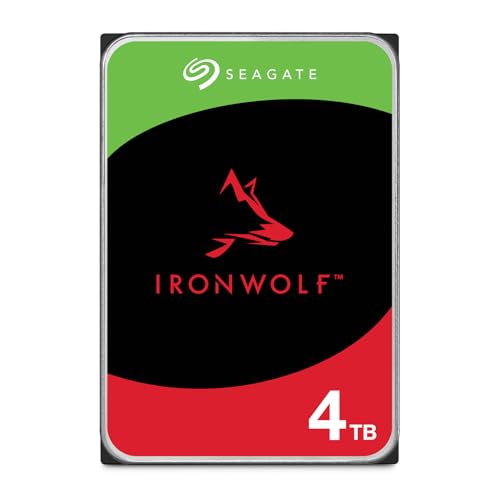
A network-attached storage box is a hostile neighbourhood disguised as a quiet one: several drives vibrate in shared air, the system runs through the night, and RAID controllers expect drives to report errors promptly rather than disappearing into long retries. The IronWolf 4TB was engineered for exactly that neighbourhood. Its rotational vibration sensors let it compensate for the hum of neighbouring drives, its firmware is tuned to answer a RAID controller quickly, and its conventional recording handles the constant small writes of a household server — synchronised folders, camera footage, download queues — without the reorganising pauses that plague shingled designs in this role.
Four terabytes is the size where home NAS builds get serious. A mirrored pair gives a family a genuinely protected archive for photographs, documents, and a media library; a four-bay box in a parity arrangement turns the same drives into a small server that shrugs off a single failure. The IronWolf’s always-on rating and higher workload allowance than desktop drives mean this duty is its design brief rather than an imposition. Seagate’s health-management integration with major NAS operating systems adds a layer of monitoring that plain desktop drives cannot offer, translating drive telemetry into warnings a non-specialist can act on.
Used in a single desktop instead, the IronWolf’s virtues mostly go unspent, and its price per terabyte — higher than the BarraCuda’s — buys insurance a tower cannot cash. Its spin speed in this capacity sits in the cooler, quieter class rather than at 7,200rpm, which suits a NAS in a hallway cupboard and slightly dulls a desktop’s snap. None of that is a flaw; it is a reminder that NAS drives are specialists, and specialists should be hired for their speciality.
For the reader building or refreshing a home NAS, this is the roundup’s anchor recommendation: conventional recording, honest always-on credentials, and a capacity that balances cost against years of headroom. Buy drives for a RAID set from different batches when you can, keep the NAS on a small uninterruptible power supply, and the IronWolf will do the least glamorous job in your home — remembering everything — with the reliability the role demands.
- Capacity: 4TB
- Form factor: 3.5-inch, NAS-optimised
- Recording technology: conventional magnetic recording
- Interface: SATA 6Gb/s
- Design features: rotational vibration sensors, RAID-tuned firmware
- Duty rating: always-on, multi-bay environments
Strengths
- Engineered for multi-drive vibration and continuous operation.
- Conventional recording suits write-heavy household server work.
- Health monitoring integrates with major NAS platforms.
Trade-offs
- Costs more per terabyte than desktop-class drives.
- Cooler spin class is less snappy in a single desktop.
- Specialist features go unused outside a NAS.
Best for: a family building a two- or four-bay NAS to hold photos, documents, and media with real redundancy. Not suited for: a lone desktop bay where its NAS engineering would never be exercised.

Seagate IronWolf 8TB NAS Hard Drive — Serious bulk, NAS manners
Doubling the IronWolf formula to 8TB changes the conversation from “a drive for the NAS” to “the archive itself.” Eight terabytes swallows a decade of family video, a serious film and music collection in high quality, a photographer’s complete archive, or a small business’s document history — and it does so inside the same always-on, vibration-aware engineering as its 4TB sibling. Media-server owners feel the difference most: a library that previously sprawled across three drives consolidates onto one or two, simplifying backups, shares, and the mental map of where things live.
The engineering scales with the capacity. Helium-era design lessons and dense platters keep power draw and heat civilised for a drive of this size, and the conventional recording technology preserves the write behaviour a server needs when it ingests camera footage while streaming a film to the living room. In a parity RAID arrangement, a pair or quartet of these builds the kind of home archive that stops being a project and starts being infrastructure — the quiet box that simply holds everything, with a failed drive being an errand rather than an emergency.
Scale brings two responsibilities. Rebuild times at 8TB are long: if a drive in a parity set fails, the array spends many hours reconstructing onto its replacement, during which a second failure would be fatal — which is why large drives argue for dual-parity arrangements or disciplined external backups of the truly irreplaceable. The second responsibility is honesty about need: an 8TB NAS drive in a two-bay box storing a modest photo library is capital asleep. Buy this capacity when your data, or your three-year projection of it, genuinely reaches for it.
Desktop owners occasionally eye this drive as bulk storage for a tower, and it can serve there — cool, capacious, and steady — though the same NAS-specialist caveat from the 4TB review applies, doubled: you are paying for multi-bay engineering a single bay cannot use. The natural home is a NAS or home server whose library has outgrown half-measures. For that home, this is the roundup’s capacity champion with its credentials in order.
- Capacity: 8TB
- Form factor: 3.5-inch, NAS-optimised
- Recording technology: conventional magnetic recording
- Interface: SATA 6Gb/s
- Design features: rotational vibration sensors, always-on rating
- Typical roles: media servers, large home archives, small-business NAS
Strengths
- Eight terabytes of properly NAS-rated storage.
- Consolidates sprawling libraries onto fewer drives.
- Steady write behaviour under simultaneous server duties.
Trade-offs
- Long RAID rebuild times demand dual parity or strong backups.
- Overkill, in cost and capacity, for modest collections.
- NAS engineering is wasted in a single desktop bay.
Best for: a media-server owner whose film, music, and photo archive has outgrown 4TB drives and keeps growing. Not suited for: a small two-bay NAS holding a modest document collection.
Toshiba X300 Performance Hard Drive — Gaming-tower alternative
Toshiba is the third name in desktop hard drives, and the X300 is its argument that performance towers need not choose between the two big brands. The line targets gaming PCs and creative workstations with 7,200rpm mechanisms, generous caches, and capacities that run from everyday sizes up to bulk territory. We present it in prose because our verified pool held no listing for this family that we were prepared to endorse — retail availability of the X300 has always been patchier than its Western Digital and Seagate rivals — but a buyer who finds one through a components retailer they trust is getting a genuinely competitive drive.
On a spec sheet and in a tower, the X300 trades blows with the WD Black honestly. Its tuning favours the large sequential work of game installs and video assets, its cache keeps desktop multitasking fluid, and Toshiba’s shock and vibration measures suit machines that get moved to LAN events and desks that get bumped. Creative users juggling project files appreciate that the line’s larger capacities let a single drive hold an active project archive without the constant pruning a 1TB performance drive imposes.
Why, then, does it not lead this roundup? Distribution and documentation. Firmware behaviour, health tooling, and warranty handling for the X300 are simply less familiar to most buyers and builders than the big two’s ecosystems, and when a drive is a five-year resident of a machine, familiarity is a feature. Pricing also fluctuates with its thinner retail presence, so the X300 is sometimes a bargain and sometimes a curiosity at a premium — a drive to buy when the specific listing in front of you is clearly competitive, not one to hunt at any cost.
Treat the X300 as the connoisseur’s alternative: equal in spirit to the performance picks above, worth choosing when a trusted retailer offers the capacity you want on terms that match or beat the WD Black’s, and worth skipping when the listing looks grey-market or the warranty path is unclear. The drive deserves better distribution; until it gets it, prose is its honest place here.
- Capacity: varies by model, from everyday to bulk sizes
- Form factor: 3.5-inch desktop
- Rotational speed: 7,200rpm
- Interface: SATA 6Gb/s
- Positioning: performance desktops and creative workstations
- Typical roles: gaming towers, project storage, workstation bulk
Strengths
- Performance tuning comparable to the flagship desktop lines.
- Larger capacities than the WD Black offers in this guide.
- Strong sequential behaviour for games and media assets.
Trade-offs
- Retail availability is inconsistent between regions and seasons.
- Support ecosystem is less familiar to most builders.
- Pricing swings make it a buy-on-the-day decision.
Best for: a builder who finds a clearly warranted X300 at a trusted retailer and wants performance with more room than 1TB. Not suited for: buyers who value the most predictable warranty and support path above capacity.
WD Gold Enterprise Hard Drive — Datacenter pedigree
The WD Gold answers a question most home users never ask: what does a drive look like when it is built for a datacenter’s workload and merely sold in single units? The family’s specifications read like a sterner world — enterprise workload ratings many times higher than desktop drives, vibration protection for dense racks, and engineering aimed at years of continuous operation under loads that would retire a BarraCuda. It appears here without a link because enterprise drives surface through distribution channels with wildly varying configurations and ages, and the listing we could verify did not represent the current retail picture faithfully enough to send you to.
The honest audience for a Gold is a small server that earns money: the office file server, the workshop’s backup target, the self-hoster running services for clients. In those roles the drive’s premium buys measurable things — a workload ceiling you will not hit, error behaviour tuned for serious RAID controllers, and a support structure that assumes uptime matters. Home media servers sit at the borderline; a Gold will serve beautifully in one, but its enterprise manners are an indulgence there rather than a necessity, and the IronWolf pair above will match the actual duty for less.
Two cautions travel with enterprise hardware into civilian life. These drives are tuned for performance and endurance, not for a quiet study, and a Gold in a desktop case announces itself more than any other pick in this guide. They also assume a managed environment — good cooling, clean power, a controller that speaks their language — and reward it; dropped into a dusty tower with a tired power supply, an enterprise drive’s advantages evaporate while its noise remains. Buy the Gold as part of a system decision, not as a trophy specification.
Our summary is respectful and brief: the WD Gold is more drive than almost every reader of this roundup needs, and exactly the drive a few readers — the ones running servers other people depend on — should be considering. If your storage failure would inconvenience a business rather than a household, shop for the Gold through a proper channel, verify its age and warranty, and give it the environment it was built for.
- Capacity: varies by model, enterprise range
- Form factor: 3.5-inch, enterprise class
- Workload rating: enterprise level, far above desktop drives
- Interface: SATA enterprise
- Design features: rack-grade vibration protection, continuous-duty engineering
- Typical roles: small-business servers, backup targets, dense storage systems
Strengths
- Endurance and workload ceilings beyond any consumer pick here.
- Engineered for continuous operation in multi-drive racks.
- Support and firmware assume professional, uptime-critical use.
Trade-offs
- Audible in domestic settings; tuned for server rooms.
- Retail channels mix ages and configurations confusingly.
- Premium buys endurance most homes will never exercise.
Best for: a small-business server whose downtime costs money and whose drives must be rated for the load. Not suited for: a quiet home desktop or a casual media box.
Comparison Table
| Drive | Capacity | Class | Recording | Best role |
|---|---|---|---|---|
| Seagate BarraCuda 3.5-inch | 2TB | Desktop mainstream | Check variant | Everyday tower PCs |
| WD Black | 1TB | Desktop performance | Conventional | Single-bay gaming PCs |
| Seagate IronWolf | 4TB | NAS | Conventional | Home NAS foundations |
| Seagate IronWolf | 8TB | NAS | Conventional | Large media archives |
| Toshiba X300 | Varies | Desktop performance | Conventional | Gaming and creative towers |
| WD Gold | Varies | Enterprise | Conventional | Business servers |
Which Desktop Drive Class Matches the Job You Actually Have?
Strip the branding away and this category offers three bargains. A desktop drive trades endurance for price and pace: it expects to sleep when the PC sleeps, to work alone, and to be judged on how the machine feels. A NAS drive trades a little pace for stamina and sociability: it expects company, continuous duty, and a controller that wants quick, honest error reporting. An enterprise drive trades money and quiet for a workload ceiling most homes cannot see from where they stand. Nearly every disappointed drive owner bought one bargain and demanded another; nearly every satisfied owner matched the bargain to the job on day one.
Workload is the measuring stick, and it is easy to estimate honestly. Count the hours the drive will spin each day, whether other drives will vibrate beside it, and whether its writes arrive as calm archives or as the constant churn of a working system. A gaming tower awake six hours a day is desktop territory even if it feels important. A two-bay box recording security cameras and syncing a family’s phones is NAS territory even if it sits in a wardrobe. A server invoicing clients is enterprise territory even if it is physically small. Let the duty choose the drive, and specifications like cache size settle into their proper place as tie-breakers.
Recording technology deserves its final word here, because it interacts with class. Shingled drives are not bad drives; they are library drives, and in a write-once, read-often archive role they deliver the cheapest honest terabytes in the business. The failures happen when shingled drives are drafted into churn — parity RAID rebuilds, torrent scratch space, database duty — where their reorganising pauses compound into timeouts. Every pick in this roundup that we recommend for churn uses conventional recording, and where a mainstream family’s variants differ, we have told you to check. That single check prevents more misery than any other line in this guide.
How Do You Install and Configure a 3.5-Inch Drive Properly?
Mounting a big drive is a five-minute job that rewards ten minutes of care. Use all four screws — or the case’s full tool-less rail — because a drive secured at two points becomes a tuning fork for its own vibration, and seat it where case airflow passes over it rather than in a dead pocket behind a cable bundle. Connect power from a native SATA power lead rather than a chain of ageing adapters, and route the data cable without sharp bends. In a NAS, label each drive with its bay and install date on a sticker; the person troubleshooting a degraded array at midnight, who is you, will be grateful.
First boot is a health ceremony, not a formality. Confirm the full capacity appears, read the drive’s SMART data and save a screenshot as its birth certificate, then run the maker’s extended diagnostic once before data moves in — a drive that cannot pass its own full test on day one should be exchanged, not forgiven. Format with the file system your ecosystem expects, enable SMART monitoring in the operating system or NAS interface, and set up the notification that will actually reach you: an email, an app alert, anything you genuinely read. A monitored drive rarely surprises anyone; an unmonitored one fails in silence until the day it is needed.
RAID builders add two disciplines. Stagger spin-up if your power supply is modest, because four drives starting simultaneously draw a surge that trips marginal supplies, and schedule regular array scrubs or consistency checks so latent sector errors surface during calm weeks rather than during a rebuild. Keep one cold spare for any array whose data matters — at 8TB scales, the replacement’s shipping time is part of your risk whether you planned it or not.
How Long Will a Desktop Drive Last, and How Do You Help It?
Manufacturers quote annualised failure rates and workload ratings, but a home drive’s lifespan is decided less by statistics than by three household factors: heat, power quality, and rest. Heat is the slow poison — a drive living in the high end of its temperature range ages its lubricants and electronics faster than a cool one, which is why the airflow advice in the installation section is longevity advice in disguise. A small uninterruptible power supply is the second kindness, absorbing the brownouts and spikes that murder drives mid-write far more often than dramatic surges do.
Rest is the misunderstood factor. Desktop drives are designed for daily power cycles and suffer nothing from a PC that sleeps at night; NAS drives are designed to avoid spin-up wear by simply never stopping. Problems live in the extremes: a desktop drive power-cycled forty times a day by aggressive power settings, or a NAS drive in a box that loses power weekly. Match your power settings to the drive’s class — generous timeouts for desktop drives, effectively none for NAS drives — and the mechanism’s own design assumptions start working for you instead of against you.
Finally, treat SMART data as a pension statement: check it a few times a year, watch the reallocated-sector and pending-sector counts, and begin shopping when they start moving rather than when they finish. A drive rarely dies without leaving a paper trail in its own telemetry, and the owners who replace drives calmly, on a Sunday of their choosing, are simply the ones who read the trail. Your data’s safety, as always, should never depend on any single drive’s health in the first place.
How Much Capacity Should You Buy for the Next Five Years?
Capacity forecasting is where storage buyers are most optimistic and most often wrong, usually in the same direction: data grows faster than intuition. A household that shoots phone video at modern resolutions can generate a terabyte of memories in a couple of years without noticing, and a gamer’s library inflates with every generation’s larger installs. The practical method is to measure your current usage, find its growth over the last two years if you can, and buy for the point your data reaches in year four — because replacing a drive early wastes more money than the modest premium of the next capacity tier ever costs.
There is a counterweight, and it is the rebuild problem discussed with the IronWolf 8TB: in parity RAID, every doubling of drive size roughly doubles the window during which a second failure would be catastrophic. Capacity planning for a NAS is therefore a pair of decisions — how much room, and how much redundancy — made together. A four-bay box with dual parity can wear 8TB drives responsibly; a two-bay mirror of the same drives should be paired with a genuine external backup of the irreplaceable material, not a hopeful attitude.
Single desktop drives face a simpler version of the same logic. A tower with one bay argues for generosity, because adding room later means migration; a tower with spare bays argues for buying what the next two years need and letting future purchases ride future prices. Either way, leave headroom in the plan: every drive in this guide feels faster and lives easier below eighty percent full, and the cheapest performance upgrade in storage is simply not filling the drive you own.
Can a Big Spinning Drive Stay Quiet Enough for a Living-Room PC?
Home-theatre PCs and bedroom desktops ask a question the spec sheet cannot answer: what does this drive sound like at midnight, three metres away, during a quiet film scene? Desktop-class drives vary more in acoustic character than in any benchmark. A 7,200rpm performance drive carries an idle whir and seek chatter that a film’s dialogue will mask but a silent room will not; NAS drives in their cooler spin classes are usually politer at idle, though their seeks can be surprisingly deliberate. The case mediates everything — a drive hard-mounted to a thin steel cage sings through the chassis, while the same drive on rubber grommets in a damped case becomes a rumour.
Mounting technique is therefore a genuine purchasing-adjacent skill. Use the case’s rubber-isolated mounts if it offers them, keep screws snug but not strained, and avoid stacking a drive directly against a side panel that can act as a sounding board. Software helps too: operating systems can park an archive drive when it is idle, so a media library drive in a living-room machine spends films spun down and silent, waking only when you browse for something to watch. That arrangement — fast small storage for the system, a big polite drive that sleeps through playback — is how experienced builders keep a spinner in the lounge without hearing it.
If silence is an absolute requirement rather than a preference, be honest that no 3.5-inch drive is silent and plan the machine around solid-state storage for anything accessed during viewing, with the big drive relegated to a cupboard NAS elsewhere in the home. That is not a failure of this category; it is the category knowing its physics. The drives here are at their best where a door, a desk, or a little distance stands between them and a quiet room’s ears.
What About Docks and Enclosures for a Drive Without a Bay?
Not every 3.5-inch drive lives inside a computer. A powered USB enclosure turns one into the household’s archive vault — connected for the weekly backup, then shelved — and an open dock serves technicians who cycle through drives the way cooks cycle through pans. Both routes need their own power supply, because this format’s motors draw more than a USB port promises, and both reward buyers who choose enclosures with honest ventilation: a sealed plastic box around a hard-working 3.5-inch drive is a slow oven, and heat, as this guide keeps noting, is the enemy with the longest memory.
Enclosures also introduce a translation layer worth understanding. The bridge chip inside speaks USB to the computer and SATA to the drive, and cheap bridges occasionally hide the drive’s identity and health data from your monitoring tools, or handle very large capacities clumsily. A dock or enclosure from a maker that publishes its chipset and supports modern large drives keeps SMART data visible and capacities honest. For an archive drive that surfaces monthly, that visibility is how you know the vault is still sound; for a backup target, it is the difference between a verified copy and an act of faith.
The graceful pattern for households is to let yesterday’s internal drive retire into an enclosure as the backup device when a new drive takes its bay. The capacities match the data’s history, the cost is a modest enclosure, and the backup lives on separate hardware from the original — the single most valuable property a backup can have. Just run the full diagnostic before the retirement party: a drive demoted because it was acting strangely should be recycled, not promoted to guardian of the only other copy.
Should You Consider a Refurbished or Recertified Desktop Drive?
The secondary market in big drives is large, liquid, and genuinely tempting: datacenters retire enterprise drives by the pallet, and recertified units circulate at fractions of their original cost. For a home archive with proper backups, a recertified drive from a reputable programme — one that discloses power-on hours, warrants the unit for a meaningful period, and accepts returns without theatre — can be rational economics. The drive’s remaining life is a gamble, but a mirrored array with a verified backup converts that gamble from a data risk into a mere inconvenience risk.
The discipline is in the vetting. Demand the SMART report or run it the hour the drive arrives: power-on hours in the tens of thousands, a clean reallocated-sector count, and a passed extended self-test are the entry requirements, not aspirations. Reject any seller who will not state whether a drive is new, recertified, or a raw pull, because that ambiguity is where the market’s bad actors live. And never let a refurbished drive hold the only copy of anything, however clean its report card; its correct role is as one member of a redundant set, where its eventual failure is a scheduled errand.
New retail drives remain the right default for most readers of this guide, and every linked pick above is exactly that. The refurbished route is a specialist’s economy for buyers who enjoy vetting hardware and maintain the backups that make the gamble safe. Confusing the two — buying a pull at a new-drive price, or trusting a pull like a new drive — is the only genuinely bad outcome, and it is entirely avoidable with the checks described here.
How Much Power and Cooling Does a Multi-Drive Tower Really Need?
A single 3.5-inch drive is a modest electrical citizen, but a tower accumulating four or five becomes a small system to plan. The figure that matters is not running draw — a handful of watts per drive — but spin-up, when motors briefly demand several times their running current, all at once, on the same power rail. Quality power supplies shrug this off; bargain units at the edge of their capacity can dip voltages precisely when every drive is most vulnerable. Builders adding drives to an older tower should count total spin-up demand against the supply’s rating on the relevant rail, and use staggered spin-up settings in the BIOS or NAS software when they are available.
Cooling scales the same way. One drive borrows the case’s general airflow and thrives; a stack of four generates a shared warmth that only deliberate intake air across the cage can clear. Temperatures in the comfortable middle of the drives’ rated range are the goal — not the coldest possible, since drives also dislike thermal shock and condensation games, but never the stagnant heat of a sealed compartment. A cheap temperature readout in your monitoring software, checked on the hottest day of summer with the machine working, tells you more than any specification about whether your particular tower treats its drives kindly.
What Errors Do Desktop Drive Buyers Keep Repeating?
Installing desktop drives in a NAS is the error with the longest tail. It works — for months, sometimes a year — and then vibration, workload, and error-recovery behaviour conspire during the first rebuild, which is the worst possible moment for a drive to reveal it was miscast. The price gap between desktop and NAS drives is real money, but it is buying engineering for exactly the conditions a NAS creates, and this roundup’s IronWolf picks exist to close that gap honestly.
Buying a shingled drive for a parity RAID runs a close second. The purchase looks identical on a shelf, the array builds, and the truth emerges during the first rebuild or heavy write storm, when reorganising pauses stretch hours into days and controllers start dropping drives that are merely slow. The defence is the thirty-second specification check we keep prescribing: if the maker’s page does not clearly say conventional recording for a drive destined for churn, choose a model where it does.
The third repetition is neglecting the unglamorous companions of a big drive: backup, power protection, and monitoring. An 8TB drive concentrates risk exactly as it concentrates data, and a household that could once shrug off a 500GB failure discovers that re-downloading or re-ripping eight terabytes is a season of evenings. Big drives demand grown-up arrangements — a backup of the irreplaceable parts, a UPS, and alerts that reach a human — and the time to build those arrangements is the day the drive is installed.
Final Recommendation
For a general tower PC, the Seagate BarraCuda 2TB is the balanced answer: fast-spinning, roomy enough, and free of specialist demands. A single-bay gaming machine should take the WD Black and enjoy the sharpest mechanical manners in the guide, while home NAS builders should start with the IronWolf 4TB and step up to the IronWolf 8TB when the archive’s growth is a certainty rather than a hope. The Toshiba X300 is the performance alternative when a trusted retailer prices it keenly, and the WD Gold belongs to servers whose downtime has a cost attached.
The thread connecting every pick is fit: class matched to duty, recording matched to workload, capacity matched to an honest forecast. Get those three matches right and a 3.5-inch drive becomes what it has quietly been for decades — the cheapest trustworthy place a household can keep its digital life, spinning away in the background while everything else changes.
Frequently Asked Questions
Can I put a NAS drive in a regular desktop PC?
Yes, and it will work without complaint — cool, steady, and durable. You simply pay for multi-drive and always-on engineering that a single desktop bay never uses, and you may give up a little of the snap a 7,200rpm desktop drive provides. The reverse journey, desktop drive into a NAS, is the one we advise against. There is one respectable reason to do it anyway: standardising. A household that already owns NAS drives, trusts their health tooling, and keeps a spare on the shelf for the array may rationally put the same model in a desktop too, accepting the small premium for a single spare-parts and monitoring ecosystem across every machine it owns.
What is the difference between CMR and SMR, in plain terms?
Conventional recording writes each data track independently, so rewriting anything is straightforward at any time and in any order, which is precisely the freedom that operating systems, games, and databases assume without ever asking. Shingled recording overlaps tracks to fit more data, which means rewriting one track can require rewriting its neighbours — fast for archives, painful under constant churn. For working drives and RAID, choose conventional; for calm libraries, shingled is a legitimate economy.
How much capacity should a gaming PC have on a hard drive?
Count your installed games and double it, because patches, recordings, and next year’s titles all arrive hungry. For many players that arithmetic lands between 2TB and 4TB; players with a handful of favourites can live happily on the 1TB performance pick, especially with a small solid-state drive carrying the current obsession. Remember also that a hard drive used purely as a game library is the easiest storage in the world to replace — the games re-download — so gamers can sensibly let the library drive be the cheapest capacity in the machine while reserving backup discipline and premium drives for the files that cannot be re-downloaded: saves you care about, recordings, screenshots, and everything outside the library folder.
Do 3.5-inch drives need a fan blowing on them?
They need moving air, not a dedicated fan: a case layout where intake airflow passes the drive cage is enough for desktop duty. NAS enclosures handle this with their own fans. What harms drives is a sealed, stagnant pocket, particularly in a warm room; if your case offers a drive position in the main airflow path, prefer it. As a rough household rule, a drive that reports temperatures in the mid-thirties to low-forties Celsius under load is living comfortably, one idling near the top of its rated range in an air-conditioned room is asking for a better position, and one that only runs hot during summer afternoons is telling you the room and the case conspire seasonally — a small intake fan aimed at the cage during those months is a cheap act of mercy.
Is it worth paying for an enterprise drive at home?
Only when the home system is secretly a business system — serving clients, holding the only copy of work product, or running loads that resemble a small datacenter’s. For media and family archives, NAS-class drives match the real duty at a friendlier cost and a quieter voice. There is also a middle path worth knowing about: many households run one enterprise-grade drive as the backup target for everything else, reasoning that the copy of last resort deserves the toughest hardware in the building. That is a defensible luxury, provided the drive still gets verified regularly — pedigree is no substitute for a restore you have actually tested.
Why do some drives in this guide have no purchase link?
Because we only attach links we verified against our pool of confirmed listings. The Toshiba X300 and WD Gold circulate through channels where ages and configurations vary enough that a single endorsed link would mislead; their reviews explain how to buy them safely through retailers you already trust.
Can I mix different drive models in one NAS or RAID set?
You can, and cautious builders sometimes deliberately mix models or batches so a single production flaw cannot threaten every member at once. The array will run at the pace and capacity of its smallest, slowest member, and matching rotational characteristics keeps behaviour predictable, but mixing a desktop drive into a NAS set imports the desktop drive’s error-recovery habits into a system that expects NAS manners. Mix within the correct class, across brands or batches, rather than across classes.
Should a desktop hard drive be defragmented?
On Windows, the operating system already schedules optimisation for spinning drives, and letting it work quietly in the background is the right level of involvement for most owners; a heavily fragmented game drive can gain a little loading smoothness from a manual pass before a big install. Never defragment a solid-state drive, and never let a defragmentation session run during a RAID rebuild or a backup — housekeeping should not compete with the drive’s important appointments.
Related Guides
Continue your storage research with best 7200rpm hard drives for a speed-first comparison, best 10tb hard drives when capacity planning gets serious, and best 3tb nas hard drives for a closer look at network storage around that size.


[…] reading for your storage shortlist: best affordable external hard drives if budget leads your decision, best 2.5 inch hard drives for the bare mechanisms inside most […]