What's inside
- Key Takeaways
- Quick Picks
- How We Chose These Picks
- Should Your Six Terabytes Travel or Stay on the Desk?
- What Does Backup Software Actually Add at This Capacity?
- How Should You Think About Password Protection on a Drive This Size?
- Six Drives, Two Forms, Three Philosophies: the Detailed Reviews
- Six Terabytes, Six Ways: Portable Against Desktop
- What Mistakes Do Buyers Make at the Six-Terabyte Scale?
- How Should You Set Up a 6TB Drive in Its First Week?
- How Long Does Filling Six Terabytes Actually Take?
- How Do Game Libraries, Photo Archives and Video Projects Each Fill Six Terabytes?
- What Does the Second Drive in a Two-Copy System Need to Be?
- How Should a 6TB Drive Be Organised So Future You Can Find Anything?
- When Does a NAS or Cloud Service Beat a 6TB USB Drive?
- How Do You Move House, Literally, With Six Terabytes Aboard?
- What Should Small Businesses Notice That Home Users Can Skip?
- How Fast Is Fast Enough at This Capacity?
- What Is the Sensible Upgrade Path When Six Terabytes Fill Up?
- Final Recommendation
- Frequently Asked Questions
- Related Guides
As an Amazon Associate I earn from qualifying purchases. This post may contain affiliate links at no extra cost to you.
widgetverdict.com is reader-supported. When you buy through links on our site, we may earn an affiliate commission.
Where to buy: each of the six drives links to its Amazon listing; check whether the model on the page is the portable or desktop variant before ordering, because two pairs in this guide share a family name across both forms.
Six terabytes is the capacity where an external drive stops being an accessory and becomes infrastructure. It is large enough to hold a household’s entire photo history, a serious game library, a video editor’s active projects and a full system backup, with room left to be careless for a year. That is exactly why the best external 6 tb hard drives deserve a guide of their own rather than a line in a general roundup: at this size the buying questions change. Portable or desktop stops being a styling preference and becomes a decision about where six terabytes of your life will physically live, how it will be powered, and what happens on the day it is dropped, unplugged mid-write or simply old.
The six drives divide cleanly. Three are portables that draw power from the USB cable itself: WD’s My Passport and Elements Portable, and Seagate’s Expansion. Three are desktops with their own power supplies and larger enclosures: WD’s Elements Desktop and My Book, and the G-Technology G-DRIVE. Layered over that split is a second one, between drives that bring backup software and password protection, both WD My models, and drives that deliberately keep things simple, both Elements models and the Seagate, which adds its own twist in the form of rescue data recovery services. The reviews keep both splits in view, because the right answer depends on which of your rooms, bags and habits the drive must survive.
Charging and power for the rest of a travelling kit are covered in best inexpensive wireless chargers, best car qi chargers and best chargers for car camping.
Key Takeaways
- Portable or desktop is the first decision: portables run off the USB cable, desktops need a wall outlet and repay it with a stay-at-home life.
- WD’s My Passport is the feature-rich portable, with backup software, ransomware defence language and password protection in its title.
- WD’s Elements Portable is the same capacity with the philosophy reversed: plug and play, nothing extra to configure.
- Seagate’s Expansion is the only drive here whose title promises rescue data recovery services.
- The My Book brings password protection and auto backup software to the desktop side; the Elements Desktop keeps the desk simple.
- The G-Technology G-DRIVE is the desktop’s design piece, a silver, compact, high-performance enclosure for visible desks.
Quick Picks
| Pick | Badge | Why it earns its place |
|---|---|---|
| WD 6TB My Passport Portable HDD | The protected portable | Backup software with ransomware defence and password protection around a cable-powered 6TB drive. |
| WD 6TB Elements Portable HDD | The plug-and-play portable | Six terabytes for PC and Mac with no software layer to manage, ready out of the box. |
| Seagate Expansion 6TB External HDD | The recovery-backed drive | A simple USB 3.0 drive whose title includes rescue data recovery services for the worst day. |
| WD 6TB Elements Desktop HDD | The simple desktop | Plug-and-play desk storage on USB 3.0 for buyers who back up their own way. |
| WD 6TB My Book Desktop HDD | The managed desktop | Password protection and auto backup software in a desk enclosure built to be a backup target. |
| G-Technology 6TB G-DRIVE Desktop HDD | The studio desktop | A compact silver high-performance enclosure that looks at home beside design-studio hardware. |
How We Chose These Picks
The shortlist required the full 6TB in a single external drive, from a maker with a real support operation behind it, and a title that states its proposition plainly. The three-and-three split between portable and desktop was deliberate, since the keyword serves both shoppers and a guide that answered only one would fail half its readers. Within each form, the software question provided the second axis: WD’s My line carries the backup and protection features, the Elements line strips them away, and Seagate differentiates on recovery services rather than software. G-Technology holds the design-and-performance corner of the desktop side.
Claims discipline matches the rest of this site: nothing is asserted that a title does not support. Where a title does not state a speed, an encryption standard or a warranty detail, the spec boxes say so in their own phrasing, and the listing page is named as the place to confirm the figure for the exact model code given.
Should Your Six Terabytes Travel or Stay on the Desk?
Start with the physics of the two forms. A portable 6TB drive is a 2.5-inch mechanism in a slim enclosure, powered entirely through its USB cable, small enough for a jacket pocket or a laptop sleeve. It can go anywhere a laptop goes, and it draws no extra socket, which makes it the natural partner for travel, hot-desking and off-site backup rotation. A desktop 6TB drive is a larger 3.5-inch mechanism in a bigger enclosure with its own power adapter. It is not going anywhere gracefully, and in exchange it lives a sheltered, always-connected life on a desk, the classic backup target that is simply there every night when the backup runs.
The failure profiles differ accordingly. Portables die of travel: drops, cable yanks, bags. Desktops die of time, heat in a sunlit corner, and being forgotten until the day they are needed. Neither profile is safer in the abstract; each is safer in the life it matches. A household that buys a desktop drive and then carries it to relatives’ houses has chosen the worst of both, as has the traveller who leaves a portable permanently baking behind a monitor. The honest first question of this guide is therefore not which drive is best, but where your six terabytes will spend their days, and the six reviews are organised to answer once that is settled.
What Does Backup Software Actually Add at This Capacity?
At 6TB, a backup drive is usually the backup, which makes the software question practical rather than decorative. WD’s My Passport title promises backup software with defence against ransomware, and the My Book promises auto backup software; in plain terms, these are the tools that schedule copies, keep versions and watch for the mass-encryption behaviour that signals an attack. A drive with such software, set up once and left running, protects the household that will never maintain a manual routine. That is most households, and it is a genuine feature, not bloat, provided it is actually configured in the first week.
The Elements philosophy answers that many owners already have a backup method they trust, an operating system’s built-in tool, a third-party application, a disciplined drag-and-drop habit, and for them bundled software is one more thing to decline during setup. Seagate splits the difference: no backup software in the Expansion’s title, but rescue data recovery services, which address the other end of the disaster, the day the drive itself fails with data on it. Software prevents the common losses; recovery services soften the rare catastrophic one. Knowing which end of the disaster spectrum worries you more is the sharpest way to choose among these six.
How Should You Think About Password Protection on a Drive This Size?
Both My models state password protection in their titles, and at 6TB the feature carries more weight than it does on a pocket drive for ephemera. A drive holding a full system backup holds everything: documents, photographs, browser data, the digital household entire. If such a drive is stolen from a car or a desk, password protection, backed by the encryption these WD lines implement, is the difference between losing hardware and losing privacy. The listing page for each model carries the implementation details, and buyers for whom this is a compliance matter, rather than a comfort, should read those details rather than the headline.
Protection has a price in discipline. A forgotten password on a protected drive can lock the owner out as thoroughly as any thief, so the credential belongs in the household’s password manager the day the drive is set up, not on a sticky note in the drawer beneath it. Buyers who know they will never manage that discipline honestly may be safer with an unprotected drive kept physically secure, a trade the Elements models make available without judgement. Security that its owner circumvents is worse than a simpler arrangement honestly kept.
Six Drives, Two Forms, Three Philosophies: the Detailed Reviews
The portables come first, in ascending order of software ambition, then the desktops in the same spirit. Each review names the life the drive is built for before it names the drive’s virtues, because at this capacity the fit matters more than any single feature.
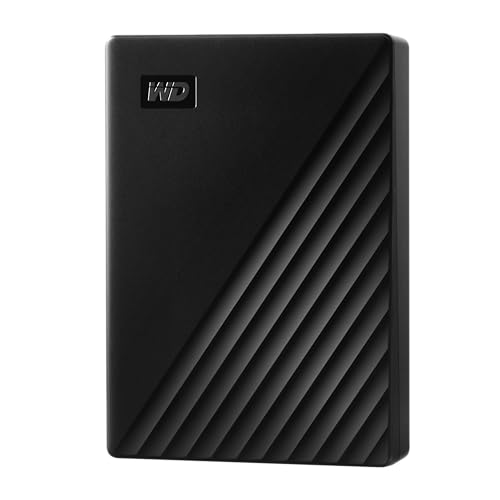
WD 6TB My Passport Portable HDD — The protected portable
The My Passport is WD’s flagship portable line, and its title reads like a security briefing: 6TB, backup software with defence against ransomware, password protection, and USB 3.1 and USB 3.0 compatibility, in black, model WDBR9S0060BBK-WESN. For a drive that will carry a household’s backup in a bag between home and office, or live as the off-site copy at a relative’s house, those features are not garnish. They are the difference between a backup that maintains itself and one that depends on its owner’s memory.
The ransomware defence language deserves a plain reading. Modern backup software watches for the pattern of an attack, files changing en masse, and protects the backup copies from being encrypted along with the originals, because a backup that an attack can reach is a second victim rather than a rescue. Combined with scheduled, versioned backups, that is the strongest software story in this guide, and it travels in a cable-powered enclosure that asks nothing but a USB port. Password protection completes the travel brief: the drive most likely to be lost is the drive most worth locking.
The discipline required is setup. The software must be installed, the schedule set, the password recorded safely, in the first week, or the flagship features remain brochure claims. Buyers who know they will do that setup get the most complete portable here. The WD My Passport 6TB listing details the software’s system requirements for your machines.
- Capacity: 6TB, portable form
- Power: drawn from the USB connection, as portable drives are
- Software: backup software with defence against ransomware, per the title
- Protection: password protection stated
- Interface: USB 3.1 and USB 3.0 compatible
- Model: WDBR9S0060BBK-WESN, black
Strengths
- The richest backup and protection feature set among the portables.
- Password protection suits a drive designed to travel.
- Cable-powered convenience with desktop-class capacity.
Trade-offs
- Features pay off only if the software is configured promptly.
- A forgotten password locks out the owner as firmly as a thief.
- Carrying the household backup concentrates risk while it travels.
Best for: the designated off-site or travelling backup for a household or small office.
Not suited for: owners who want storage with zero setup and no software relationship.
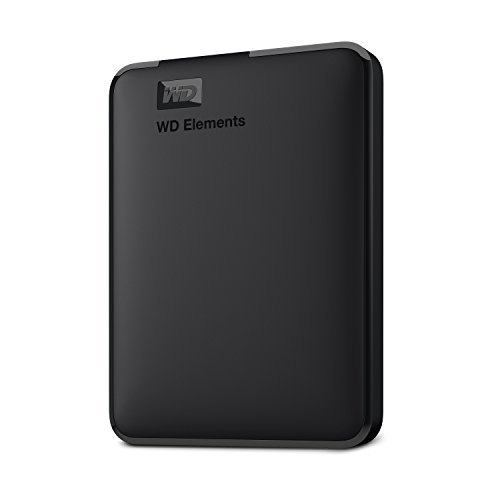
WD 6TB Elements Portable HDD — The plug-and-play portable
The Elements Portable is the My Passport’s sibling with the opposite temperament. Its title offers 6TB for Windows, USB 3.2 Gen 1 and USB 3.0 for PC and Mac, plug and play ready, model WDBHJS0060BBK-WESN, and nothing else, no software suite, no protection headline. That restraint is the product. This is the drive for the owner who already runs backups their own way, or who needs six terabytes of honest overflow storage for media, project files and archives, and resents every minute of setup theatre between the box and the first copied file.
Plug and play at this capacity has a particular pleasure: a drive that appears on the desktop seconds after connection, on either major platform, and simply accepts files. Video editors use drives like this as shuttle storage between machines; families use them as the photo vault that lives in a drawer and emerges for the monthly consolidation; gamers use them as library overflow. In each role the absence of a software layer is a feature, because nothing about the drive’s behaviour depends on an application staying installed and happy across operating system updates.
The mirror-image caveat is that everything the My Passport automates, this drive leaves to you: the backup schedule, the versioning, the protection. An Elements Portable used as a backup drive is exactly as good as the routine its owner keeps. Confirm your platform’s formatting needs on the WD Elements Portable listing, since a drive serving both PC and Mac households may want a cross-platform format chosen deliberately.
- Capacity: 6TB, portable form
- Power: drawn from the USB connection
- Software: none headlined; plug and play ready, per the title
- Interface: USB 3.2 Gen 1 and USB 3.0
- Compatibility stated: PC and Mac, for Windows in the title’s wording
- Model: WDBHJS0060BBK-WESN
- Password protection: not stated in the title
Strengths
- Zero setup theatre between the box and the first file.
- Platform-flexible, suiting mixed PC and Mac households.
- Lets owners keep their own trusted backup method.
Trade-offs
- No bundled backup software to catch a forgetful owner.
- No password protection headline for a travelling drive.
- As a backup, it is only as reliable as your routine.
Best for: media overflow, shuttle duty and owners with an established backup system.
Not suited for: anyone whose backup plan is hoping they will remember.
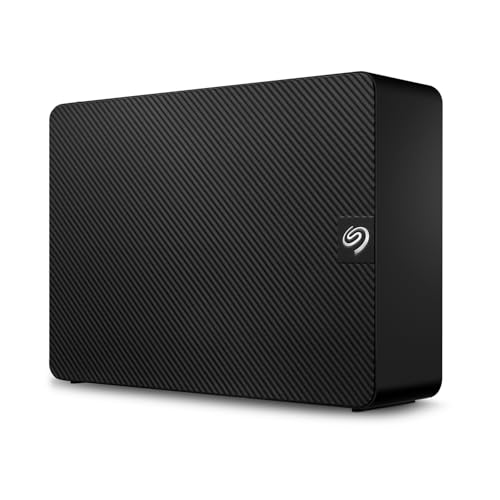
Seagate Expansion 6TB External HDD — The recovery-backed drive
Seagate’s Expansion takes the simple-drive formula and adds the one promise nobody else in this guide makes: rescue data recovery services, named in the title alongside the 6TB capacity and USB 3.0 connection, model STKP6000400. The drive itself is deliberately uncomplicated, an external HDD meant to be filled without ceremony. The services are the differentiator, a professional recovery offering standing behind the drive for the scenario every owner dreads, the day the drive fails with the only copy of something aboard.
Recovery services deserve a sober explanation. They are a specialist laboratory process, attempted when a drive has failed physically or logically beyond home remedies, and no honest service guarantees success; what the inclusion buys is a defined, maker-backed path to try, instead of a panicked search for help on the worst day. For a drive holding a family’s photographs or a small business’s records, that path has real value even if it is never walked. It also signals how Seagate expects this drive to be used: as a primary repository, not merely as a copy.
The Expansion’s simplicity otherwise matches the Elements Portable’s: no backup software or password protection is headlined, so the owner’s own routine and physical security carry those duties. Buyers comparing the two simple portables are really choosing between Seagate’s recovery safety net and WD’s platform wording. Read the services’ terms on the Seagate Expansion 6TB listing, since coverage windows and conditions live there rather than in the title.
- Capacity: 6TB
- Services: Rescue Data Recovery Services included, per the title
- Interface: USB 3.0
- Model: STKP6000400
- Software: no backup suite headlined in the title
- Password protection: not stated in the title
- Form: external drive; confirm portable format details on the listing
Strengths
- Recovery services give a failed drive a professional second chance.
- Simple, ceremony-free storage in the Expansion tradition.
- A clear differentiator for owners whose fear is drive failure itself.
Trade-offs
- Recovery is an attempt, never a guarantee of rescued data.
- No bundled backup automation to prevent the common losses.
- Service terms and windows need reading before reliance.
Best for: primary-repository duty where a recovery path behind the drive brings peace of mind.
Not suited for: buyers wanting automated backup software included from the start.

WD 6TB Elements Desktop HDD — The simple desktop
The Elements Desktop brings the family’s plug-and-play philosophy to the desk: 6TB of USB 3.0 storage in an enclosure with its own power supply, model WDBWLG0060HBK-NESN, described in its title with the plain phrase plug-and-play storage. This is the drive that becomes a household’s annex: the media library that outgrew the computer, the archive shelf for finished projects, the always-there target for whatever backup routine the owner already runs from the computer’s side.
Desktop form brings quiet advantages that portables cannot copy. The larger mechanism lives a stationary, vibration-sheltered life; the separate power supply means the drive never negotiates with a laptop’s port for energy; and the enclosure’s size, a liability in a bag, is an asset on a desk, where it stays put, stays cool and stays connected. A backup target that is always connected is a backup that happens, which is why so many home backup systems are, at heart, a desktop drive and a schedule.
As with its portable sibling, the software and protection duties belong to the owner: no backup suite or password feature is headlined. A desktop drive’s physical security is its room, and its routine is whatever the connected computer runs. The WD Elements Desktop listing confirms the power adapter and cable arrangement for your region.
- Capacity: 6TB, desktop form
- Power: own power adapter, as desktop enclosures use
- Interface: USB 3.0
- Software: none headlined; plug-and-play storage, per the title
- Model: WDBWLG0060HBK-NESN
- Password protection: not stated in the title
- Role: stationary archive and backup target
Strengths
- Always-connected presence makes backups actually happen.
- Stationary life spares it the travel hazards portables face.
- Simple philosophy pairs with any backup method you trust.
Trade-offs
- Needs a wall socket and desk space, permanently.
- No bundled software or protection features.
- Moving it between homes is a chore, not a habit.
Best for: a home archive and backup target that never needs to leave the desk.
Not suited for: travel, hot-desking or any routine involving a laptop bag.
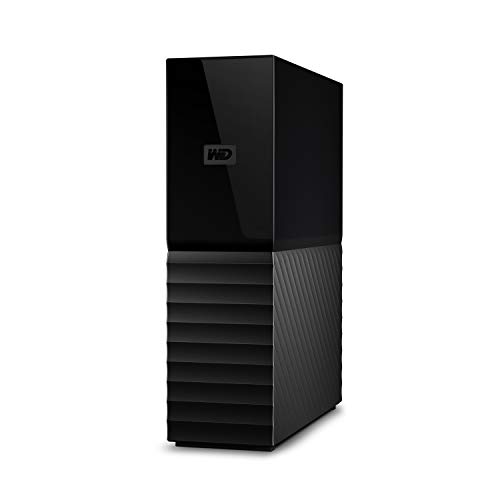
WD 6TB My Book Desktop HDD — The managed desktop
The My Book is the desktop counterpart of the My Passport’s philosophy: an enclosure built to be a backup system rather than a bucket. Its title promises password protection and auto backup software around 6TB on USB 3.0, model WDBBGB0060HBK-NESN. Where the Elements Desktop waits for the computer to organise it, the My Book arrives with the organisation included, aimed at the household or small office that wants the backup handled, visibly and automatically, by the drive’s own toolkit.
Auto backup on a desktop drive is a powerful combination because the two halves reinforce each other. The drive is always connected, so the schedule never misses for want of the drive being in a drawer; the software keeps versions, so a file deleted in March can be retrieved in June in its February state; and password protection guards a device that, precisely because it holds everything, becomes the most sensitive object in the room. Small offices without an IT department live on exactly this arrangement, and the My Book line has served that parish for many product generations.
The same setup covenant applies as with the My Passport: configure the software, set the password, record the password safely, all in the first week. A My Book left in plug-and-play mode is an Elements Desktop wearing a nicer badge, so the purchase only makes sense for buyers who will complete that small ceremony. The WD My Book 6TB listing lays out the software’s features and requirements.
- Capacity: 6TB, desktop form
- Power: own power adapter
- Software: auto backup software, per the title
- Protection: password protection stated
- Interface: USB 3.0
- Model: WDBBGB0060HBK-NESN
- Role: managed backup target for home and small office
Strengths
- Automatic, versioned backup without owner willpower.
- Password protection for the household’s most complete copy.
- Always-connected desktop form suits scheduled routines.
Trade-offs
- Value depends entirely on completing the software setup.
- Password discipline is mandatory, not optional.
- Desk-bound, with a power adapter to accommodate.
Best for: households and small offices wanting the backup handled by the drive itself.
Not suited for: minimalists who already run, and trust, their own backup stack.

G-Technology 6TB G-DRIVE Desktop HDD — The studio desktop
The G-DRIVE closes the guide with the desktop drive as an object of design: a compact, silver, high-performance 6TB enclosure on USB 3.0 from G-Technology, model 0G03674-1. The title’s adjectives are aesthetic and aspirational where its rivals are procedural, and that is the point. This drive is bought to live visibly on the desks of photographers, designers and editors, beside aluminium laptops and studio monitors, in rooms where equipment is part of the furniture and a black plastic box would look like an apology.
High-performance in this title signals the line’s positioning toward creative work: large media files moved daily, libraries referenced by editing applications, a drive expected to behave as working storage rather than as a cold archive. G-Technology built its name in that creative market, and the enclosure’s compact footprint respects the crowded reality of a studio desk, where the drive competes for space with tablets, drives of projects past and the day’s paperwork. Silver is not a specification, but on a client-facing desk it is a business decision, and this guide refuses to pretend otherwise.
No backup software or password feature is headlined, so the G-DRIVE assumes a professional environment with its own systems, an assumption its audience generally validates. Buyers outside that environment should weigh the Elements Desktop and My Book’s clearer domestic propositions before paying for studio manners. The G-Technology G-DRIVE listing carries the detailed specifications behind the high-performance claim.
- Capacity: 6TB, desktop form
- Design: compact silver enclosure, per the title
- Positioning: high-performance storage, per the title
- Interface: USB 3.0
- Model: 0G03674-1
- Software and password features: not headlined in the title
- Power: own power adapter, as desktop enclosures use
Strengths
- Studio-grade presentation for visible, client-facing desks.
- Compact footprint for crowded creative workspaces.
- A creative-industry name with a workflow reputation.
Trade-offs
- No bundled backup or protection story for home users.
- Design and positioning carry a premium over plain desktops.
- Desk-bound like all desktop forms, adapter included.
Best for: creative professionals whose desk is part of their presentation.
Not suited for: households needing backup software included, or storage that travels.
Six Terabytes, Six Ways: Portable Against Desktop
| Drive | Form | Backup software | Password protection | Distinguishing promise |
|---|---|---|---|---|
| WD My Passport 6TB | Portable | Yes, with ransomware defence language | Yes | Fullest feature set that travels |
| WD Elements Portable 6TB | Portable | Not headlined | Not stated | Plug and play for PC and Mac |
| Seagate Expansion 6TB | External | Not headlined | Not stated | Rescue data recovery services |
| WD Elements Desktop 6TB | Desktop | Not headlined | Not stated | Plug-and-play desk storage |
| WD My Book 6TB | Desktop | Yes, auto backup | Yes | Managed backup target |
| G-Technology G-DRIVE 6TB | Desktop | Not headlined | Not stated | Compact silver high-performance design |
Read down the form column first and half the decision makes itself. Then read the software columns: the two My drives are the only ones offering to run your backup life for you, and they charge for it in setup discipline rather than in any other currency. The remaining four divide by their single distinguishing promise: Seagate’s recovery net, the Elements pair’s refusal to complicate anything, and G-Technology’s design. There is no row that wins every column, which is the table’s honest message; there is a row whose promises match your habits, and that row is your drive.
What Mistakes Do Buyers Make at the Six-Terabyte Scale?
The scale itself causes the first mistake: treating a 6TB drive as a destination rather than as one copy. Six terabytes of sole-copy data is not an archive, it is an accident with a date to be announced, whatever the enclosure’s quality. The second mistake is form mismatch, the desktop drive that gets carried around by its power brick, the portable that never leaves a hot desk corner, each living the life that kills its kind fastest. The third is buying the software-rich drive and never running the setup, a failure this guide has flagged in both My reviews because it is so common and so avoidable.
Formatting ambushes the mixed household: a drive destined to serve both Windows and Mac machines needs its file system chosen deliberately at the start, because changing the decision later means evacuating six terabytes to somewhere. Buyers also under-budget the boring accessories of scale: a surge-protected socket for the desktop drive, a case for the portable, a second cable. And nearly everyone discovers, a year in, that 6TB filled faster than predicted, because capacity creates its own demand; buy the drive for the library you have plus the growth you can honestly foresee, and let the next capacity step be a future, better-informed purchase.
How Should You Set Up a 6TB Drive in Its First Week?
Day one is for decisions, not data. Choose and apply the file system for the machines the drive will serve. If the drive carries backup or password software, install it now, set the schedule, set the password, and store that password in the household’s password manager before the first backup runs. Name the drive something human and specific, and label the physical enclosure to match, because a household with three black drives and no labels will eventually format the wrong one with great confidence.
The rest of the week is for a supervised first fill. Copy in priority order, irreplaceable data first, and verify the largest and most precious folders by opening files from the drive itself. Then test the routine end to end: let the scheduled backup run once untouched, and retrieve one file from it, because a backup system that has never been restored from is a theory. Finish by deciding where the drive lives, the portable’s bag pocket or the desktop’s desk position, with its cable routed kindly and its power protected. A drive set up this way in week one tends to serve for years without ever again asking for a meeting.
How Long Does Filling Six Terabytes Actually Take?
Longer than the box suggests, and planning for that saves a spoiled evening. Spinning drives move large files at a pace set by their mechanics, and six terabytes is thousands of gigabytes: a full initial load is an overnight occupation, not a coffee break, and it should be scheduled like one, with the computer kept awake, the drive kept cool and the household warned. Subsequent backups are incremental and quick, which is the rhythm this capacity is designed for: one great migration, then small daily faithfulness. Owners who understand that rhythm stop judging the drive by its first night and start judging it by its hundredth uneventful one.
How Do Game Libraries, Photo Archives and Video Projects Each Fill Six Terabytes?
Every library fills a drive in its own dialect. Games arrive in enormous single lumps, a modern title occupying the space of a thousand photo albums, and a 6TB drive under a console or beside a gaming PC can hold a collection that would have needed a shelf of discs a generation ago. The usage pattern is bursty and forgiving: installs are written once and read forever, and a lost library re-downloads, so the game drive can be the household’s most relaxed six terabytes. Photo archives fill by accretion, thousands of small files becoming hundreds of thousands, and their pattern is the opposite: irreplaceable, written once, and read in nostalgic raids. Video projects fill by ambition, with raw footage dwarfing finished films by an order of magnitude, and the working drive’s speed under sustained writing matters more than its spec sheet suggests.
The practical consequence is that one household’s 6TB is three different products wearing the same capacity. The gamer needs form and price sense. The photographer needs the backup sermon preached twice and a drive whose failure would be an inconvenience rather than a funeral, which pushes toward the My Passport’s automation or the Seagate’s recovery net. The editor needs the desktop’s always-connected calm and should budget the second drive for mirroring in the same purchase, because project drives are copied nightly in every serious workflow. When a single drive must serve two dialects, partition the roles mentally if not literally: know which folders are replaceable and which are sacred, and let the sacred ones dictate the backup routine for the whole enclosure.
What Does the Second Drive in a Two-Copy System Need to Be?
Not a twin, necessarily. The second copy’s job is to fail differently: different location first, because fire, flood and theft are address-specific; different age or maker where convenient, because a shared manufacturing flaw should not be able to take both copies in the same month; and a different routine, one automatic where the other is manual, so that a single lapse of habit cannot silence both. Many households run the 6TB feature drive as the primary and a simpler Elements-class drive as the mirror, or keep the primary at home and rotate the mirror to an office or a relative’s shelf. Cloud storage can serve as the second copy for the most precious subset, photographs and documents, while the full six terabytes remain a local affair. The architecture matters less than the independence: two copies that share a bag, a desk or a fate are, for the purposes of disaster, one copy with extra steps.
How Should a 6TB Drive Be Organised So Future You Can Find Anything?
Capacity without organisation becomes a very large junk drawer. A light structure pays compound interest: top-level folders by role rather than by year, backups, media, projects, archive, with years inside each role, so that any file’s address can be guessed before it is searched for. Keep the drive’s own name and its physical label in agreement with its role, and park a small text file at the root describing what the drive holds, when it was set up, and where its twin lives. That readme, written in ten minutes on day one, is the document a stressed future owner, possibly you at midnight before a flight, will bless. Resist the deeper taxonomy; folder cathedrals collapse into the same neglect as no system at all, and a structure you will actually maintain beats an elegant one you will abandon by spring.
When Does a NAS or Cloud Service Beat a 6TB USB Drive?
Honesty about the alternatives sharpens the purchase. A network-attached storage box serves every computer in the house at once, keeps its drives inside the home network’s reach, and can automate redundancy between its own bays; for a multi-computer household with growing archives, it is the grown-up destination this guide’s drives often precede. Cloud storage answers the off-site question effortlessly and rents capacity by the month. The USB drive’s counter-argument remains formidable: no subscription, no network dependency, full speed over a cable, complete physical possession, and a one-time cost that ends. Most real households end up hybrid, a big USB drive as the working archive, cloud for the irreplaceable subset, and perhaps a NAS when the second computer arrives. Buying the 6TB drive today does not foreclose any of that; it is the foundation layer each of those systems still respects, and the data placed on it can migrate upward whenever the household’s ambitions do.
How Do You Move House, Literally, With Six Terabytes Aboard?
Drives die in removals vans with some regularity, because a move combines every hazard at once: vibration for hours, boxes dropped by tired hands, temperature swings in a parked truck. The protocol is simple and worth the small theatre. Back up before the move if a second copy does not already exist, because moving week is when the primary copy is most at risk. Carry the drive in the car with you, in its padded case, rather than in the van; a 6TB portable makes this trivial, and a desktop drive can ride wrapped in a towel inside a laundry basket like the fragile instrument it is. At the new home, let the drive reach room temperature before its first spin, especially after a cold journey, and run a verification pass over the precious folders before the old routine resumes. Households that treat the drive as a member of the family during a move, rather than as furniture, arrive with their archives intact and their traditions unbroken.
What Should Small Businesses Notice That Home Users Can Skip?
A business’s six terabytes carry obligations a household’s do not. Client data brings privacy duties that turn the My models’ password protection from a comfort into a policy, and the password’s custody becomes a business record rather than a family arrangement. Backup stops being a virtue and becomes evidence: if a client asks how their project files are protected, the answer should name a schedule, a second copy and a location, not a hopeful shrug. The My Book’s automatic arrangement, or a disciplined Elements-plus-software stack, both satisfy that conversation when they are actually running. Businesses should also plan the retirement of drives as a data-destruction event, with client material wiped or the drive destroyed under a note in the file, because a sold or donated drive has ended more client relationships than any deadline ever missed. None of this requires enterprise equipment; it requires treating the same six drives in this guide with procedural seriousness, which costs attention rather than money.
How Fast Is Fast Enough at This Capacity?
Buyers fixate on interface generations, USB 3.0 against 3.1 against 3.2, and at six terabytes of spinning storage the fixation mostly misses the point. The mechanism inside sets the pace for the large sequential transfers that dominate this capacity class, and every interface named in these titles clears that pace with room to spare. Where the interface does matter is at the edges of a life: a USB-C-native machine meeting a USB-A-only drive through a tired adapter adds a failure point to every session, and small-file work, thousands of photographs, taxes any spinning drive regardless of the badge on its cable. Choose the drive whose connector matches the machines it will meet most, Elements Portable’s dual-generation wording and the My Passport’s broad compatibility both speak to that, and then let the mechanics be what they are: unhurried, capacious and, across a decade of evenings, entirely sufficient.
What Is the Sensible Upgrade Path When Six Terabytes Fill Up?
It will happen, and the calm response is architectural rather than panicked. First, audit before buying: a 6TB drive usually holds a surprising tonnage of duplicates, abandoned downloads and footage that was never going to be edited, and an honest afternoon of deletion can return a year of headroom. Second, split by temperature: the active library stays on the working drive while the cold archive, finished projects, old photo years, migrates to a second drive that lives a quieter life, which conveniently creates the two-copy structure this guide keeps preaching. Third, when a larger drive does arrive, let the veteran become the mirror rather than the donation; a known-healthy 6TB drive with years of service left is worth more as the backup of its successor than as a gift that carries your old data into someone else’s drawer. Capacity problems solved this way never become data emergencies, and the household’s storage grows the way its library did, gradually and on purpose.
Final Recommendation
If the drive must travel and protect, buy the My Passport and do its setup ceremony in the first week. If it must travel and simply hold, the Elements Portable and the Seagate Expansion divide by taste: WD’s platform polish against Seagate’s recovery services standing behind the drive. If the drive will live on a desk as the household’s backup, the My Book is the complete answer for owners who want the system managed, and the Elements Desktop the honest one for owners who manage their own. The G-DRIVE earns its premium where the desk itself is on display and the work is creative.
Whichever name is on the enclosure, treat six terabytes with the respect due to a small institution: one copy is a hope, two copies are a plan, and the drive you choose today is only ever half of that plan. Set it up in the first week, feed it on schedule, and it will repay you in the least dramatic way a storage device can: by never once becoming the subject of a story.
Frequently Asked Questions
Is 6TB overkill for a home user?
For documents alone, yes; for a household’s photographs, phone videos, game installs and a full system backup combined, it is the size that stops the monthly shuffle of deleting to make room. Capacity bought ahead of need is not waste at this scale, because migrating a full smaller drive is a chore that teaches the lesson expensively.
Can I use one of these drives with both a PC and a Mac?
Yes, with the file system chosen for the job. The Elements Portable states PC and Mac compatibility in its title, and any of these drives can serve both platforms when formatted in a cross-platform file system such as exFAT. Decide before the first big copy, since reformatting later means moving everything off first.
Do desktop drives need their power adapter even for quick file checks?
Yes. A desktop enclosure’s mechanism is powered by its own adapter, not by the USB cable, so the adapter is part of every session, quick or long. Keep it plugged into a surge-protected socket at the drive’s home position and the routine becomes invisible.
What does Rescue Data Recovery Services actually cover?
Seagate’s services offer a professional attempt to recover data from a failed drive, under terms set out on the listing and in the service documentation. It is an attempt by specialists, not a promise of success, and it complements rather than replaces a backup routine. Read the coverage period and conditions for the Expansion before relying on them.
Should my 6TB drive be my only backup?
No drive should be the only copy of anything irreplaceable, and at 6TB the concentration risk is the largest in consumer storage. Use the drive as one leg of at least a two-copy system, with the second copy in a different place or a different medium, and let the rugged or recovery features be the second line of defence rather than the whole strategy.
Does a 6TB drive work with a games console?
External drives in this class are commonly used to expand console libraries, with the console formatting the drive for its own system during setup. That formatting is a one-way door for the data already aboard, so dedicate the drive to the console rather than sharing it with a computer archive, and confirm the current console generation’s rules on the listing and the console maker’s guidance, since what a console can play directly from external storage changes between generations and even between system updates issued quietly overnight while the console sleeps and nobody is watching the settings menu or reading the release notes.
What should I do with the drive my 6TB replaces?
Promote it, carefully. A smaller drive in known health makes an excellent second copy for the most precious folders, an off-site rotation partner, or a dedicated shuttle for large files. Wipe it securely first if it held sensitive material and will leave your custody, and label its new role on the enclosure the day the role changes. The only bad retirement for a healthy old drive is the drawer of forgotten drives, each holding the only copy of something nobody can quite identify anymore.
Can a 6TB portable run from any laptop USB port?
Portable drives in this class are designed to run from the port’s own power, and modern ports supply it without complaint. Very old machines, unpowered hubs and some front-panel ports can underfeed a drive, producing the classic symptoms of a drive that clicks, disconnects or never mounts. Plug directly into the computer, skip the hub for the first setup, and suspect power before suspecting the drive whenever a portable behaves like it is haunted.
Why does my new 6TB drive show less than six terabytes?
Because drive makers count in decimal and operating systems often report in binary, and the two honest arithmetics disagree by a few percent at this scale. The drive holds what it promises in the maker’s counting; the smaller figure on screen is the same space wearing the other system of measurement. Every buyer meets this once and suspects a swindle; it is a units lesson, not a defect, and it affects all six drives in this guide equally.
Is it safe to leave a desktop drive plugged in all year?
That is the life desktop drives are designed for, and a backup target that is unplugged is a backup that is not happening. Keep the enclosure ventilated, out of direct sun and on a protected socket, let its power management spin it down when idle if the software offers the choice, and include it in the household’s monthly glance at blinking lights and strange sounds. Continuous connection ages a drive gently; chaotic connection, yanked cables and hot corners, ages it rudely.
Should I partition a 6TB drive into separate volumes?
Only with a reason that survives a month’s reflection. A separate volume for a system backup tool that demands one is a reason; a volume per family member can be a reason in a disciplined household. Partitioning for tidiness alone usually ages badly, because one volume fills while another idles and the boundary becomes the problem. Folders organise flexibly and can be rebalanced in an evening; partitions organise rigidly and charge interest on every early guess about how the library would grow.
Can I use a 6TB drive as a Time Machine or system backup target?
Yes; that is the duty the desktop models in particular were born for, with capacity enough to keep a deep version history of a whole machine rather than a shallow one. Point the system’s own backup tool at the drive, or use the bundled software on the My models, and let the schedule run untouched. Check the backup’s health monthly by retrieving one file, because a backup target’s silence should mean health, and the monthly retrieval is how you prove it still does.
How do I know when a 6TB drive is nearing retirement?
Watch for the same letters any drive writes: new clicking or grinding sounds, slow mounting, transfers that stall or corrupt, a file system needing frequent repair. At this capacity, act on the first letter rather than the third: evacuate to a replacement while copying is still easy, verify the evacuation, and only then retire the old drive with its data securely wiped.
Related Guides
Complete the setup with best inexpensive wireless chargers for the desk these drives share, best car qi chargers for the road, and best chargers for car camping for power when the drive’s data goes camping too.
Related guides
- Best 17 Laptops: The Complete Tier-by-Tier Guide to Big-Screen Machines
- Best 4K Monitors for MacBook Pro: USB-C Panels With Real Power Delivery
- Best Routers for Remote Work: VPN Gateways, Travel Routers and Home Wi-Fi That Holds a Call
- Best Sim Racing Monitors: Ultrawide Cockpits From 34-Inch OLED Speed to the 49-Inch Wrap


