What's inside
- Where to Buy, and How to Read the Model Codes
- Key Takeaways
- Quick Picks
- How We Chose These Picks
- Comparison Table
- How to Choose a 27-Inch 144Hz Monitor
- Why Does 144Hz at 1080p Still Make Sense in a QHD World?
- What Should You Verify on the Listing Before Ordering in This Class?
- How Far From a 27-Inch Screen Should You Sit, and Why Does It Decide This Purchase?
- Common Mistakes
- Final Recommendation
- Frequently Asked Questions
- Related Guides
As an Amazon Associate I earn from qualifying purchases. This post may contain affiliate links at no extra cost to you.
[SITE_DOMAIN] is reader-supported. When you buy through links on our site, we may earn an affiliate commission.
Where to Buy, and How to Read the Model Codes
Each of the six monitors below links to its own Amazon listing from its review heading and from the Quick Picks table, and the listing is where the purchase should be settled: read the full model code on that page, confirm it matches the code in the heading here, and check price on Amazon there, since 27-inch 1080p pricing shifts constantly with promotions. The model code discipline matters more in this class than in almost any other, because every brand here sells several 27-inch panels whose names differ by two or three characters while their stands, port counts and sync support differ completely.
Anyone gathering the best 27 inch monitors 144hz class screens into one shortlist quickly discovers the class’s defining honesty test: at 27 inches, 144Hz speed is sold overwhelmingly on Full HD panels, and this guide refuses to dress that fact up. Five of the six picks are 1920×1080 machines — the LG, Dell, MSI, Acer and Samsung state FHD or 1080p directly in their titles — and the sixth, a Sceptre, leaves its resolution unstated in its title while offering both 165Hz and 144Hz rates. None of them is a QHD panel, and none is described as one anywhere in what follows. What 1080p buys at this size is frame rate per unit of GPU effort: a modest graphics card, an older gaming laptop or a console can feed 144 frames per second at 1080p in titles where QHD would halve the rate, and for fast play that trade is often the right one.
The counterweight, stated once here and then left alone, is text density. A 27-inch 1080p panel spreads its pixels more thinly than a smaller screen does, so documents render less crisply than on a 24-inch 1080p or any QHD screen. Buyers whose days are mostly documents should weigh that honestly; buyers whose evenings are shooters, racers and sports titles will rarely think about it after the first week. This guide is written for the second group first, while flagging exactly which picks soften the compromise with reader modes, eye-care features and strong stands.
Within that shared resolution, the six split into real personalities. LG brings G-Sync and a height-adjustable stand. Dell brings twin HDMI ports and a TÜV eye-comfort rating. MSI brings a legacy VGA port and a speaker for office desks that still run older hardware. Acer brings the fullest eye-care stack. Samsung brings the leanest, most gaming-pure specification. Sceptre brings the extra 21 hertz and built-in speakers at the class’s value end. The reviews below take each machine on its own stated terms.
Key Takeaways
- Five picks are Full HD 1080p at 144Hz; the Sceptre adds a 165Hz mode and leaves its resolution unstated in its listing title.
- The LG 27G414B is the only title here naming G-Sync, and it pairs that with FreeSync, HDR10 and a tilt/height stand.
- Dell’s SE2726H carries two HDMI ports and a TÜV 3-Star eye-comfort rating, suiting console-plus-PC desks.
- MSI’s PRO MP273 E14A keeps a VGA port alongside HDMI and DisplayPort — the pick for desks with older machines.
- Acer’s Nitro KG271 P6 combines sRGB 99% colour with Bluelight Filter and Flickerless technology for long sessions.
Quick Picks
| Pick | Badge | Why it earns a place |
|---|---|---|
| LG UltraGear 27G414B | Dual sync with a real stand | 1080p IPS at 144Hz with G-Sync and FreeSync, HDR10, a speaker and tilt/height adjustment. |
| Dell SE2726H | Twin-HDMI desk Dell | FHD IPS at 144Hz with FreeSync, two HDMI ports and a TÜV 3-Star rating. |
| MSI PRO MP273 E14A | The legacy-friendly office panel | FHD IPS at 144Hz with HDMI, DisplayPort and VGA, VESA mounting and a speaker. |
| Acer Nitro KG271 P6 | Eye care at full speed | FHD IPS at 144Hz, sRGB 99%, Bluelight Filter and Flickerless technology, VESA ready. |
| Samsung Essential G3 G31H | The lean gaming panel | FHD IPS at 144Hz with a 1ms MPRT figure and FreeSync, nothing extra to pay for. |
| Sceptre E275B-FWD168 | 165Hz value with speakers | 165Hz and 144Hz modes, FreeSync Premium, built-in speakers and 99% sRGB. |
How We Chose These Picks
Verification ran title-first, as it does across this site: each monitor’s specifications below come from its own listing title, checked through the verification pool before the model earned its row. Where a title omits a fact — the Sceptre’s resolution, several stands and panel details — the review records the omission with a standard not-stated note instead of importing a figure from a review elsewhere or a sibling SKU. In a class this crowded with near-identical names, that discipline is what keeps a guide honest.
Size and speed set the gates. Every pick is a 27-inch panel whose title states 144Hz, because the search that brought you here names both numbers, and every pick’s resolution is reported exactly as its title states it: FHD where FHD is printed, unstated where it is not. No 24-inch panels were admitted to pad the field, and no 60Hz or 75Hz office screens were waved through on the argument that they are nearly fast.
Sync coverage shaped the middle picks. FreeSync appears in all six titles, reflecting how thoroughly AMD’s standard has colonised this tier, while G-Sync appears once, on the LG — a fact NVIDIA owners should register early, because it makes the LG the default recommendation for that camp within this guide. Port selection then separated the field further: twin HDMI on the Dell, VGA on the MSI, and single-pair HDMI/DisplayPort arrangements elsewhere each point at a different desk.
Ergonomics and eye care closed the list. Long sessions at 27 inches punish a bad stand and a flickering backlight, so height adjustment, VESA mounting, flicker and blue-light features were logged wherever a title states them. The final six are not the six fastest or the six cheapest 27-inch 144Hz panels in existence; they are six distinguishable answers to six distinguishable desks, which is the only kind of shortlist worth publishing.

LG UltraGear 27G414B — G-Sync and FreeSync on one IPS panel
The 27G414B holds a distinction none of its five rivals here can claim: its title names G-Sync alongside FreeSync, which makes it the one panel in this guide an NVIDIA owner can choose with stated sync support rather than hopeful compatibility. The panel is a 27-inch IPS running Full HD 1920×1080 at 144Hz with a 1ms response figure, HDR10 support, a built-in speaker, and a stand adjusting for both tilt and height. LG Switch and Reader Mode round out a specification that reads like two monitors negotiated into one chassis — an UltraGear for the evening, a reader-friendly office screen for the morning.
Reader Mode matters more at this resolution than at any other. A 27-inch 1080p panel’s softer text is its known compromise, and a mode tuned for reading — warming the colour temperature and calming brightness for document work — directly addresses the hours when that compromise is most visible. Paired with IPS viewing angles, which keep the picture honest when you lean back or share the screen, the LG makes the strongest case here that a 1080p 27-inch panel can be a genuine all-day machine rather than a gaming screen tolerating office hours.
The height-adjustable stand reinforces that case. Of the six titles, this is among the very few stating height travel, and at 27 inches the difference between a panel centred on your eyes and one sitting low is measured in neck strain by Friday. The built-in speaker covers calls and clips without desk clutter. What the LG asks in return is acceptance of the class compromise itself: 1080p at this size, with the pixel density that implies, in exchange for speed that modest hardware can feed.
The IPS choice also deserves its due in a class where buyers often treat panel type as settled background. At 27 inches, a screen is wide enough that its corners sit at a real angle to a centred viewer, and IPS holds brightness and colour together across that span where lesser panel types let the edges drift. For a screen that will show films to two people on a bed or a sofa pulled close, that stability is the difference between a shared picture and a picture with a sweet spot and a penalty zone. LG building this model on IPS, at 144Hz, with both sync families, is why it leads the guide despite sharing its resolution and rate with four rivals: its specification has the fewest asterisks attached to the most hours of the day.
For console households there is a further quiet virtue in the dual sync listing.
A screen that speaks both sync languages can migrate between a PC and whichever machine replaces it, and can serve a PlayStation or Xbox over HDMI today and a gaming PC tomorrow without the sync question reopening. Monitors are kept longer than almost any other component; a panel that refuses to pick a graphics camp ages gracefully in a way single-camp panels do not.
- Size and resolution: 27-inch IPS, Full HD 1920×1080
- Refresh and response: 144Hz, 1ms
- Sync: G-Sync, FreeSync
- HDR: HDR10
- Speaker: built in
- Software modes: LG Switch, Reader Mode
- Inputs: HDMI, DisplayPort
- Stand: tilt and height adjustable
Strengths
- The only stated G-Sync support in this guide, beside FreeSync.
- Height adjustment plus Reader Mode make it the strongest all-day package here.
- IPS panel holds colour and contrast for off-centre viewing and shared screens.
Trade-offs
- 1080p at 27 inches renders text less sharply than QHD rivals outside this guide.
- A single speaker serves calls, not entertainment listening.
- No VESA mount is stated in the title, so wall mounting needs separate confirmation.
NVIDIA owners shortlisting one screen from this page can check price on Amazon for the 27G414B, taking care to match the full 27G414B-B code on the listing.
Best for: a mixed work-and-play desk seeking stated G-Sync support, height adjustment and a reader mode at 144Hz.
Not suited for: text-heavy work seeking QHD sharpness, or a wall-mounted setup needing a confirmed VESA pattern.
Dell SE2726H — Twin HDMI ports and a TÜV-rated panel
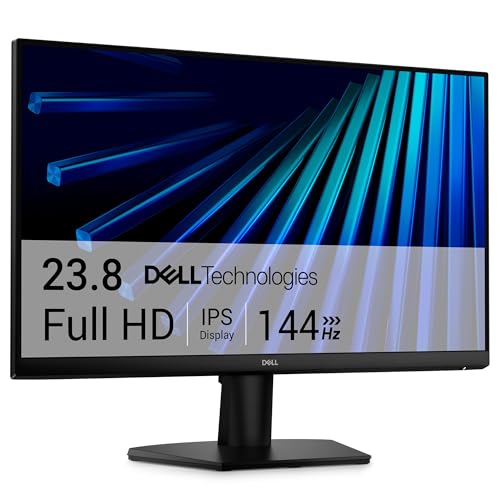
Dell’s SE2726H is the pragmatist of the group. Its title describes a 27-inch FHD IPS panel at 144Hz with a 1ms response figure and AMD FreeSync, then spends its remaining words on two facts that shape daily life more than any panel statistic: a pair of HDMI ports, and a TÜV 3-Star eye-comfort rating. The stand tilts. That is the whole pitch, and for a large class of real desks — a work laptop and a console sharing one screen, long document hours, no appetite for specification theatre — it is a well-aimed pitch.
Two HDMI ports deserve their reputation as the most underrated specification in this class. They let a console and a laptop live on the screen permanently, switched by a button rather than by reaching behind the panel with a cable. Households where the monitor is shared infrastructure benefit every single day; single-PC gaming desks benefit not at all, which is exactly the kind of fork a good shortlist should expose rather than hide. The TÜV 3-Star rating, meanwhile, is a third-party eye-comfort certification rather than a house claim, and it suits the SE2726H’s evident target: the screen a family or a small office buys once and uses for everything.
FreeSync-only sync is the stated limitation for NVIDIA owners, and the tilt-only stand is the ergonomic one; neither is hidden in the listing, and both are priced into what this model is. Dell’s wider 27-inch line sells richer stands and broader sync at higher tiers, and this guide covers those machines in its QHD and 4K Dell roundups for readers whose budgets stretch. Within the 144Hz 1080p brief, the SE2726H’s argument is that ports and certified eye comfort beat decorative features, and it makes that argument cleanly.
Small offices deserve a specific word about this Dell, because its specification solves a procurement problem that gaming panels ignore. A shared screen in a small office is switched between machines constantly, sat in front of by people of different heights and eyesight, and judged entirely on whether it ever becomes an obstacle. Twin HDMI inputs remove the switching obstacle, the TÜV rating addresses the eyesight spread as well as a fixed panel can, and the tilt stand, while basic, at least lets each user rake the screen toward their own posture. Nobody will write home about any of it, and that is the point: infrastructure that never draws attention to itself is infrastructure doing its job, and offices buy monitors in exactly that spirit.
One more audience should notice this Dell: buyers furnishing a second screen for a household’s shared computer corner, where the machine changes users every hour and the monitor’s job is to be unremarkable in the best sense — quick to switch sources, gentle across long homework sessions, fast enough that the evening’s games feel modern. Specialist panels serve specialist owners; this one serves a rota.
- Size and resolution: 27-inch FHD, 1920×1080
- Panel: IPS (in-Plane Switching, per title)
- Refresh and response: 144Hz, 1ms
- Sync: AMD FreeSync
- Eye comfort: TÜV 3-Star rating
- Inputs: 2 x HDMI
- Stand: tilt
- DisplayPort: Not stated in the listing title — verify with the manufacturer documentation
- Speakers: Not stated in the listing title — verify with the manufacturer documentation
Strengths
- Twin HDMI ports keep a console and a computer permanently connected.
- TÜV 3-Star certification backs the eye-comfort claim independently.
- IPS panel with 1ms response keeps both work and play respectable.
Trade-offs
- Tilt-only stand, with no height travel stated.
- No G-Sync named for NVIDIA-centred setups.
- DisplayPort is not stated in the title, so PC buyers should confirm their connection path.
Shared-screen households can check price on Amazon for the SE2726H, confirming the twin-HDMI configuration on the listing before ordering.
Best for: a shared family or small-office desk seeking twin HDMI inputs and certified eye comfort at 144Hz.
Not suited for: a setup centred on G-Sync, or a tall user seeking height adjustment from the included stand.

MSI PRO MP273 E14A — The office panel that kept its VGA port
MSI’s PRO line gives this guide its most office-literate pick, and its title contains a small anachronism worth celebrating: alongside HDMI and DisplayPort sits a VGA port. That connector is a deliberate bridge to the installed base of older desktops, docking stations and presentation hardware that still fill real offices, and its presence tells you exactly who the MP273 E14A is for — the desk that must accept whatever machine arrives at it. Around that bridge, the specification is thoroughly current: a 27-inch IPS panel at 1920×1080, 144Hz refresh, Free-Sync, a 1ms response figure, a built-in speaker, VESA mounting, tilt adjustment and a four-side slim bezel design.
The PRO badge explains the refresh rate’s purpose here. In an office context, 144Hz is not about headshots; it is about scrolling. Spreadsheets, long documents and browser windows move across a 144Hz panel with a fluidity that makes an eight-hour day measurably less tiring, and window drags stop smearing text into illegibility mid-motion. Buyers who have only used high-refresh screens for games often report the office smoothness as the benefit they would least give back, and MSI is plainly courting that discovery with a work-branded panel at a gaming rate.
The slim bezel on four sides serves multi-monitor desks, where two or three panels meet and every millimetre of frame becomes a visible seam. VESA mounting supports the same setups on arms. The speaker handles call audio, the tilt stand covers basic ergonomics, and the specification stops there — no HDR is claimed, no G-Sync is named, and the review invents neither. What remains is a coherent machine: the 144Hz panel for the office that still has a VGA-era machine in the corner and a multi-screen future on the plan.
IT buyers furnishing several desks should note the consistency argument. A single model that accepts HDMI, DisplayPort and VGA, mounts on standard arms and carries its own speaker reduces the adapter drawer and the support tickets that come with heterogeneous fleets. That kind of virtue never wins a headline comparison, yet it decides real procurement, and it is why this MSI earns a row in a guide that also contains five gaming-leaning rivals.
- Size and resolution: 27-inch IPS, 1920×1080 FHD
- Refresh and response: 144Hz, 1ms
- Sync: Free-Sync
- Inputs: HDMI, DisplayPort, VGA
- Mount and stand: VESA mountable, tilt
- Speaker: built in
- Design: 4-side slim bezel
- Colour: Black
- HDR: Not stated in the listing title — verify with the manufacturer documentation
Strengths
- VGA beside HDMI and DisplayPort accepts legacy office hardware without adapters.
- 144Hz scrolling smoothness aimed squarely at document work.
- Slim four-side bezel and VESA mounting suit multi-screen desks.
Trade-offs
- No HDR or G-Sync stated, limiting its gaming ceiling for NVIDIA owners.
- Tilt-only stand, with height left to a VESA arm.
- Its office tuning means gaming-specific features are absent by design.
Office buyers modernising older desks can check price on Amazon for the MP273 E14A, checking the E14A suffix since MSI’s PRO MP273 family spans several variants.
Best for: an office desk seeking 144Hz smoothness plus VGA, HDMI and DisplayPort acceptance for mixed-age hardware.
Not suited for: HDR gaming, or a buyer seeking G-Sync named in the specification.

Acer Nitro KG271 P6 — Full eye-care stack, sRGB 99%
Acer’s Nitro KG271 P6 is the session-length pick: a 27-inch FHD IPS gaming-and-office panel at 144Hz whose title stacks the comfort features more completely than any rival here. A Bluelight Filter and Flickerless technology headline that stack, the colour claim is a full sRGB 99%, the response figure is 1ms, AMD FreeSync handles pacing, HDMI and DisplayPort cover inputs, and VESA mounting stands ready for an arm. Where the Samsung below strips its specification to the gaming essentials, the Acer adds back everything a ten-hour day asks for.
Flicker deserves an explanation, because it is invisible in showrooms and obvious in week three. Many panels dim their backlights by switching them rapidly, and sensitive users register that pulsing as fatigue or headache long before they can name it. A flickerless design dims without the strobe, and paired with a blue-light filter it makes the Acer the natural recommendation in this guide for readers who already know their eyes complain by late afternoon. The sRGB 99% figure, meanwhile, keeps colour honest for the photo sorting and light design work that fill the non-gaming hours of a hybrid desk.
The omissions are stand detail and audio. The title states VESA mounting but describes no stand adjustment, and names no speaker, so the honest reading is: bring an arm if posture matters, bring headphones or speakers for sound. Neither omission is unusual at this tier, and the VESA pattern at least guarantees the ergonomic upgrade path exists. Buyers choosing between this Acer and the LG are choosing between comfort features and sync breadth — the Acer’s stack of eye care against the LG’s G-Sync and height stand — and the right answer depends on whether your eyes or your graphics card complains louder.
There is a student-desk reading of this monitor too. Library-length study sessions, lecture video and late gaming share one screen in most student housing, and the combination of flickerless backlighting, filtered blue light and a VESA mount that can lift the panel above a laptop makes the KG271 P6 unusually well matched to that life. Its 144Hz rate then stops being a luxury and becomes the reason the same screen survives the transition from coursework to the evening’s matches without feeling like two different products.
- Size and resolution: 27-inch FHD, 1920×1080
- Panel: IPS
- Refresh and response: 144Hz, 1ms
- Sync: AMD FreeSync
- Colour: sRGB 99%
- Inputs: HDMI, DisplayPort
- Mount: VESA mountable
- Eye features: Bluelight Filter, Flickerless technology
- Speakers: Not stated in the listing title — verify with the manufacturer documentation
- Stand adjustment: Not stated in the listing title — verify with the manufacturer documentation
Strengths
- Flickerless backlight plus blue-light filtering is the fullest eye-care stack here.
- sRGB 99% keeps everyday colour work accurate.
- VESA mounting guarantees an ergonomic upgrade path.
Trade-offs
- No speaker named, so audio is a separate purchase.
- Stand adjustment goes unstated in the title.
- FreeSync only, with no G-Sync path stated.
Long-session readers can check price on Amazon for the KG271 P6, confirming the P6 suffix on the listing because Acer’s KG271 line carries several generations.
Best for: long daily sessions seeking flickerless backlighting, blue-light filtering and accurate sRGB colour at 144Hz.
Not suited for: a desk seeking built-in speakers, or stated G-Sync support.

Samsung Essential G3 G31H — The specification, minus the garnish
Samsung’s Essential G3 in G31H form is the shortest specification in this guide, and the brevity is itself the product. A 27-inch FHD IPS panel, 144Hz refresh, a 1ms response time specified as MPRT, and AMD FreeSync: that is what the title promises, and a shopper needing exactly that — a modern, fast, honest panel for a gaming PC or a second screen — pays for nothing else. The Essential branding is accurate. This is the monitor for the reader who has scrolled past speakers, reader modes and legacy ports thinking, correctly for their desk, that none of it will ever be used.
The MPRT qualifier is worth a sentence of literacy. Response figures are quoted under different measurement methods, and MPRT — moving picture response time — describes perceived blur in motion rather than the pixel-transition figure other brands quote as GtG. The two numbers are not directly interchangeable, so cross-brand comparisons in this guide treat all response claims as tier indicators rather than laboratory rankings. Within its tier, the Samsung’s claim places it with the fast mainstream of the class, which is where its price and purpose sit as well.
What the title does not state defines the buyer’s homework: no stand adjustment, no VESA mount, no speakers, no HDR and no second input family beyond the panel’s basics are described. Some of those features may exist on the full listing; this guide’s discipline is to record only what the title verifies, and the spec box below does exactly that. Buyers who need any of them confirmed should treat the listing check as part of the purchase, not an afterthought — particularly the mount, since its absence would close the arm-based ergonomic route that rescues several rivals here.
There is a second-monitor argument for this Samsung that its rivals cannot match as cleanly. As a companion screen beside an existing primary — a chat and stream panel beside a QHD main, a racing rig’s dedicated display — its leanness is a virtue, because every duplicated feature on a second screen is money spent twice. The G31H asks to be judged as a panel and nothing more, and judged that way, an IPS 144Hz FreeSync screen from a major panel maker is a sound, unembarrassed proposition.
- Size and resolution: 27-inch FHD
- Panel: IPS
- Refresh and response: 144Hz, 1ms (MPRT)
- Sync: AMD FreeSync
- Model code: LS27HG312ENXZA
- HDR: Not stated in the listing title — verify with the manufacturer documentation
- Stand adjustment: Not stated in the listing title — verify with the manufacturer documentation
- Speakers: Not stated in the listing title — verify with the manufacturer documentation
Strengths
- A clean IPS 144Hz FreeSync specification with nothing superfluous to fund.
- MPRT response claim aimed at perceived motion clarity.
- Ideal second-screen economics beside an existing primary monitor.
Trade-offs
- Stand, mount, speakers and HDR all go unstated in the title.
- FreeSync only, with no G-Sync named.
- Buyers needing confirmed ergonomics must verify on the full listing first.
Minimalists can check price on Amazon for the G31H under its full LS27HG312ENXZA code, since Samsung’s Essential line reuses the G3 name across sizes.
Best for: a gaming setup or second-screen role seeking a lean IPS 144Hz FreeSync panel without paying for extras.
Not suited for: a primary work desk seeking confirmed stand adjustment, speakers or HDR from the title.

Sceptre E275B-FWD168 — 165Hz headroom and built-in speakers
Sceptre closes the guide with the value argument, and its headline is the one number nobody else here offers: 165Hz, listed in the title alongside 144Hz as the panel’s two rates. That extra headroom costs the buyer nothing in complexity — the same HDMI and DisplayPort inputs, AMD FreeSync Premium rather than the base tier, a 1ms response figure, built-in speakers and a 99% sRGB colour claim — and it gives a gaming PC with frames to spare a ceiling the other five cannot reach. Sceptre’s 2025-series machine-black design keeps the proposition plain: speed and sound, minimal ceremony.
Two honesty notes belong to this pick, and the guide places them in the open. First, the listing title does not state the panel’s resolution, so this review does not assign one; buyers should confirm the resolution on the listing itself before ordering, since a guide that guesses a resolution has failed at its only job. Second, stand adjustment and panel technology are likewise unstated, so ergonomics and viewing-angle behaviour join the verification list. None of this disqualifies the Sceptre — it disciplines the purchase. A value pick asks slightly more homework of its buyer, and returns the savings for the effort.
FreeSync Premium, as opposed to base FreeSync, is a genuinely meaningful upgrade at this tier, adding requirements around low-framerate compensation that keep motion smooth when a game’s rate dips below the panel’s comfortable range. Paired with the 165Hz ceiling, it brackets the experience at both ends: smoother at the top when frames are plentiful, steadier at the bottom when a demanding scene drags them down. For a single-monitor gaming desk on a budget, that bracket is a thoughtful place to spend.
Buyers cross-shopping this Sceptre against the Samsung should notice how differently the two value propositions are built. Samsung spends nothing beyond the panel and trusts the badge; Sceptre spends on the rate ceiling, the Premium sync tier and the speakers, and trusts the buyer to verify the quieter specifications. Neither approach is a trap, but they suit opposite temperaments — the buyer who wants the fewest possible questions, and the buyer happy to answer a few questions in exchange for more headline hardware per unit of money. Knowing which temperament is yours will settle this particular contest faster than any specification table.
The built-in speakers complete the budget logic.
A starter gaming desk — console or entry PC, one screen, no peripherals yet — can run entirely on this panel’s own hardware: picture, sync and sound from one purchase. Owners graduate to headsets and arms later; the Sceptre’s job is to make the first version of the desk complete, and on its stated specification it does.
- Size: 27-inch
- Refresh: 165Hz and 144Hz modes
- Response: 1ms
- Sync: AMD FreeSync Premium
- Inputs: HDMI, DisplayPort
- Speakers: built in
- Colour: 99% sRGB
- Series: E275B-FWD168, Machine Black 2025
- Resolution: Not stated in the listing title — verify with the manufacturer documentation
- Panel type: Not stated in the listing title — verify with the manufacturer documentation
Strengths
- 165Hz ceiling exceeds every other pick in this guide.
- FreeSync Premium steadies motion when frame rates dip.
- Built-in speakers complete a starter desk in a single purchase.
Trade-offs
- Resolution and panel type are not stated in the title and must be verified.
- Stand adjustment goes unstated, so ergonomics are unconfirmed.
- No G-Sync named for NVIDIA-centred builds.
Value-led gamers can check price on Amazon for the E275B-FWD168, and should use that same visit to confirm the resolution on the listing before checkout.
Best for: a starter gaming desk seeking 165Hz headroom, FreeSync Premium and built-in speakers in one purchase.
Not suited for: a buyer seeking a fully documented specification — resolution, panel type and stand — before ordering.
Comparison Table
| Model | Resolution (per title) | Refresh | Sync | Inputs | Distinguishing feature |
|---|---|---|---|---|---|
| LG UltraGear 27G414B | 1920×1080 FHD | 144Hz | G-Sync, FreeSync | HDMI, DisplayPort | Reader Mode, height stand, HDR10 |
| Dell SE2726H | 1920×1080 FHD | 144Hz | FreeSync | 2 x HDMI | TÜV 3-Star eye comfort |
| MSI PRO MP273 E14A | 1920×1080 FHD | 144Hz | Free-Sync | HDMI, DisplayPort, VGA | VGA port, slim bezel, speaker |
| Acer Nitro KG271 P6 | 1920×1080 FHD | 144Hz | FreeSync | HDMI, DisplayPort | Flickerless, Bluelight Filter |
| Samsung Essential G3 G31H | FHD | 144Hz | FreeSync | Not stated in the listing title | Lean IPS specification, 1ms MPRT |
| Sceptre E275B-FWD168 | Not stated in the listing title | 165Hz / 144Hz | FreeSync Premium | HDMI, DisplayPort | Built-in speakers, 99% sRGB |
How to Choose a 27-Inch 144Hz Monitor
Begin by admitting what 27-inch 1080p is: a speed purchase, not a sharpness purchase. If your priority list starts with frame rate per unit of hardware cost — an older gaming laptop, a modest desktop card, a console — this class is engineered for you, and the choice inside it should be made on sync, ports and comfort. If your priority list starts with text clarity across long document days, stop here and read the QHD guides linked at the end instead; no pick in this article will out-argue physics, and a good guide should say so at the decision point rather than after the return window closes.
Sync comes next. NVIDIA owners have one stated G-Sync option in this field, the LG, and should start there. AMD owners can shop the whole table, with the Sceptre’s FreeSync Premium offering the most graceful behaviour when frame rates sag. Households planning a graphics-card change inside the monitor’s lifetime should weight the LG’s dual listing as insurance, because a panel typically survives two or three cards.
Ports follow, and they should be counted against machines, not wishes. A console plus a computer points to the Dell’s twin HDMI. An office with any legacy hardware points to the MSI’s VGA. A clean single-PC desk can accept the standard HDMI-plus-DisplayPort pairing found on the LG, Acer and Sceptre without losing anything. While counting, decide the audio question: the LG, MSI and Sceptre state built-in speakers, the others leave audio to you, and a desk that takes calls daily should not discover that gap on the first morning.
Ergonomics and eye care close the decision. Height adjustment is stated only on the LG; VESA mounting on the MSI and Acer opens the arm route for everyone else; the Dell and Samsung and Sceptre leave their stand stories partly or wholly unstated, which makes the listing check part of the purchase for posture-sensitive buyers. For eye comfort, the Acer’s flickerless stack and the Dell’s TÜV certification are the two independently meaningful claims, and readers who end long days with tired eyes should rank them above cosmetic features.
Budget sequencing is the last practical counsel this section offers. A 27-inch 144Hz purchase rarely travels alone; it arrives with a desk to furnish, and the order in which the furnishing happens changes what the monitor needs to be. Buy the panel with a stand you can live with permanently — the LG’s height travel, or a VESA pick with the arm bought in the same basket — rather than planning ergonomic upgrades for a later month that competing expenses will claim. The monitors in this guide are at their best as complete answers on delivery day, and the two or three that ask for a companion purchase say so in their reviews, in the open, where a buyer can still act on the information.
Finally, verify the unstated before you verify the price.
This class’s titles vary wildly in how much they publish, and the Sceptre’s silent resolution is the extreme example of a wider pattern. Thirty seconds confirming a resolution, a mount or a port on the listing is the cheapest insurance in the entire purchase, and it is the difference between a monitor that fits the desk on day one and a return label.
Why Does 144Hz at 1080p Still Make Sense in a QHD World?
Because frame rate is bought with GPU effort, and 1080p is where modest hardware is rich. A graphics card that renders a demanding title at 70 frames per second in QHD may render the same scene at 120 to 144 frames in 1080p, and the difference between those two experiences — the second one sync-locked, tear-free and twice as fluid — is larger in the hands than the difference between the two resolutions is in the eyes, at least in fast genres. Competitive players have understood this arithmetic for years, which is why esports setups pair powerful cards with 1080p panels on purpose rather than by poverty.
Consoles sharpen the argument. Current consoles target high frame rates at 1080p in their performance modes far more reliably than at higher resolutions, so a 144Hz 1080p panel is often the screen that actually receives the frames a console can produce. The Dell’s twin HDMI ports and the LG’s dual sync both speak to that reality. A QHD panel fed a 1080p performance-mode signal spends its extra pixels on upscaling; a native 1080p panel spends nothing.
The honest boundary of the argument is genre and distance. Story games played slowly from a sofa distance reward resolution over rate, and document work rewards it at any distance. This class serves the desk-distance, fast-genre, modest-hardware triangle — a large and legitimate territory — and the buyers inside it should purchase without apology, while buyers outside it should let the linked QHD and 4K guides do their work.
What Should You Verify on the Listing Before Ordering in This Class?
Three categories of fact deserve a personal check, because this class’s titles publish unevenly. The first is resolution wherever it is not printed in the title — the Sceptre is the standing example, and its review flags the gap rather than filling it. The second is mounting: a VESA pattern is the difference between a stand problem and a solved stand problem, and where the title is silent, as with the Samsung and Sceptre, the listing’s specification section is the authority. The third is the input list in full, because port counts in titles can emphasise one connector family — the Dell headlines its twin HDMI — while leaving others, like its DisplayPort status, unstated.
Beyond those three, confirm the sync behaviour your specific source needs. A title naming FreeSync tells an AMD owner what they need; a console owner should confirm the rate and sync behaviour their console expects over HDMI on the listing, since consoles negotiate differently from PCs. And confirm the physical fit: a 27-inch panel with its stand occupies more desk depth than the diagonal suggests, and shallow desks should measure before, not after.
None of this homework indicts the class. It reflects a tier where manufacturers compete by choosing which facts to headline, and the buyer’s defence is simply to read the whole listing with a short list of questions in hand. This guide has tried to hand you exactly that list, pick by pick, in the spec boxes above.
How Far From a 27-Inch Screen Should You Sit, and Why Does It Decide This Purchase?
Viewing distance is the variable that quietly settles the 1080p-at-27-inches argument, because pixel density is not an absolute quality — it is a relationship between pixel size and the distance your eyes keep from them. At a deep desk, where the panel sits seventy centimetres or more away, the individual pixels of a 1080p 27-inch screen fall below the threshold where most viewers can pick them out in games and video, and the class’s central compromise largely evaporates. At a shallow desk, where a wall or a roommate’s furniture pushes the screen to forty-five centimetres, the same pixels announce themselves in text and interface edges, and the compromise becomes the dominant fact of the purchase.
This is why the stand and mount details scattered through the reviews matter more than they appear to. A height-adjustable stand like the LG’s lets you set the panel’s centre at eye level, which keeps viewing geometry consistent as posture changes across a day. A VESA mount, as on the MSI and Acer, lets an arm pull the screen closer for a racing session or push it back for document work, effectively giving one desk two viewing distances. Even the tilt-only models participate: tilting the panel to face your eyes squarely reduces the perceived softness that an angled view exaggerates. Buyers should pace out their actual desk before ordering, because the honest answer to whether 27-inch 1080p suits you is written in centimetres, not in specifications.
Multi-screen desks add a wrinkle. A 27-inch 1080p panel placed beside a smaller or sharper primary screen will look visibly softer by comparison, which is why the Samsung’s lean specification is recommended above for second-screen duty only where the role is gaming or video rather than text. Two matched 1080p panels, by contrast — the MSI’s slim bezels exist for this — present a uniform field that the eye accepts as one workspace. Consistency across a desk flatters a modest resolution; contrast against a sharper neighbour exposes it.
The final distance consideration is time. Buyers furnishing a desk for a defined period — a degree, a contract, a first apartment — can weight today’s distance and today’s hardware heavily, and this class serves them superbly. Buyers furnishing for a decade should remember that desks change more often than monitors do, and that the picks with stands, mounts and dual sync in this guide are the ones that will adapt when the room does. Adaptability is a specification too, even though it never appears in a title.
Common Mistakes
Expecting QHD sharpness from a 1080p panel. Five of these six titles state FHD plainly, and the sixth states no resolution at all. A buyer who orders expecting 1440p text clarity has misread the class, not been misled by it — the resolution is printed in the second line of every honest listing in this tier.
Ignoring the sync camp until the screen arrives. Only one title here names G-Sync. NVIDIA owners who buy a FreeSync-only panel on price alone may find their adaptive-sync expectations unmet, and the time to discover the LG’s dual listing is before checkout, not during the first torn frame.
Overlooking the second-HDMI question. Console-plus-PC desks that buy a single-HDMI arrangement inherit a daily cable ritual. The Dell’s twin ports exist precisely to retire that ritual, and shared-screen households should treat port count as a headline feature, not a footnote.
Assuming a VESA mount you have not seen stated. Two picks here state mounting, others do not mention it. An arm-based desk plan built on an unstated mount is a plan built on sand; confirm the pattern on the listing before the arm and the panel meet.
Dismissing eye-care features as decoration. At 27 inches, sessions lengthen, and flicker and blue-light management move from brochure copy to the difference between fresh eyes and a headache at hour six. The Acer and Dell claims in this guide are specific and checkable, and long-session buyers should weigh them as such.
Buying the 165Hz headline without checking the rest of the title. The Sceptre’s extra rate is real, and so are its unstated resolution and panel type. Value tiers reward buyers who finish reading the listing; the savings and the homework arrive together.
Final Recommendation
Most readers should land on one of three doors. NVIDIA owners and all-day desks belong with the LG 27G414B, the only pick combining stated G-Sync, a height-adjustable stand and a reader mode. Shared and office desks belong with the Dell for its twin HDMI and certified eye comfort, or the MSI where legacy VGA hardware still earns its keep. Budget gaming desks belong with the Sceptre’s 165Hz and speakers, bought with eyes open about its unstated details, while long-session comfort points to the Acer and minimalist second-screen duty points to the Samsung.
Whichever door you choose, walk through it with the model code in hand and the listing open. This class rewards precise buyers and punishes assumers, because its six near-identical names conceal six genuinely different machines.
One sentence of parting arithmetic for the undecided: add up the hours your screen will spend in fast games over the next five years, multiply by nothing at all, and simply ask whether that number feels like the centre of your computing life or a garnish on it. Centre — buy from this guide with confidence. Garnish — buy from the QHD guides and let the frames fall where they may.
And keep the class’s bargain in proportion:
you are trading pixel density for frames your hardware can actually deliver, and for fast play at a desk, that trade has been the smart one for a decade of players before you.
Frequently Asked Questions
Is 1080p too soft on a 27-inch screen?
It depends on what fills your hours. Games, video and browsing look perfectly natural at 27-inch 1080p from a normal desk distance, and fast titles actively benefit from the lower GPU load. Dense text is where the compromise shows: small fonts render less crisply than on a 24-inch 1080p panel or any QHD screen, which is why the LG’s Reader Mode and the eye-care picks exist. A documents-first buyer should choose QHD; a play-first buyer will stop noticing the density question within days.
Can a console use the 144Hz on these monitors?
Current consoles can output high frame rates at 1080p in their performance modes, which is precisely the signal this class is built to receive. The practical requirements are a free HDMI port and a title whose rate your console can use, so console owners should favour the Dell’s twin HDMI arrangement for a shared desk and confirm the specific rate behaviour on the listing for their console model. PC buyers face no such negotiation — DisplayPort or HDMI both carry the full rate.
What is the difference between FreeSync and FreeSync Premium?
Premium is the more demanding tier of AMD’s standard, adding requirements that include low-framerate compensation, which duplicates frames to keep motion smooth when a game dips below the panel’s minimum rate. In this guide the Sceptre carries the Premium badge while the other five name base FreeSync or Free-Sync. In practice the difference shows in demanding scenes on modest hardware — exactly the conditions this class is bought for — so it is a meaningful badge rather than a decorative one.
Why does only one monitor here list G-Sync?
Because at this tier most manufacturers build for the broader FreeSync ecosystem and let NVIDIA compatibility ride unstated, while LG chose to print G-Sync in the 27G414B’s title. This guide reports what titles state, so NVIDIA owners should treat the LG as the verified option in this field and treat any unstated compatibility elsewhere as a question for the full listing, not as a promise. The pattern is about what brands headline, not necessarily about what every panel can do.
Does a VGA port matter on a new monitor?
Only if your world still contains VGA sources — and many offices, schools and workshops do. The MSI’s VGA input lets an ageing desktop, an older dock or presentation hardware connect without an adapter chain, which is why a PRO-line office panel keeps the port while gaming panels dropped it years ago. Pure gaming desks can ignore it entirely; mixed-age offices should read it as the MSI’s whole reason for being in this guide.
Should I buy one 27-inch screen or two smaller ones?
Two 24-inch panels give more total area and a natural seam for separating work from play, while one 27-inch panel gives a single uninterrupted field that games and films prefer, plus one stand, one power brick and one cable set to manage. At this class’s prices the totals often land close together, so the deciding factors are content and desk depth: cinema-shaped content and gaming favour the single large screen, while document multitasking across two fixed windows favours the pair. Buyers leaning toward the pair should look at the MSI’s slim-bezel design, which was plainly drawn with matched multi-screen desks in mind.
How much do response-time claims differ between brands?
Enough that they should be read as tiers, not rankings. Brands measure under different methods — the Samsung’s figure is specified as MPRT, others leave the method unstated — and a 1ms claim under one method is not laboratory-equal to a 1ms claim under another. All six picks here sit in the fast mainstream tier appropriate to 144Hz and above, so response claims should break ties between otherwise equal picks rather than drive the decision on their own.
Related Guides
Readers who decide their desk deserves sharper text after all can step up to Dell’s 4K range in our guide to the best 4K Dell monitors, where the same brand discipline meets UltraSharp panels. Those equipping a workplace rather than a gaming corner will find the natural continuation in our roundup of the best 4K business monitors, and anyone ready to give a big screen the whole desk should compare the field in our guide to the best 32-inch 4K monitors.