What's inside
As an Amazon Associate I earn from qualifying purchases. This post may contain affiliate links at no extra cost to you.
[SITE_DOMAIN] is reader-supported. When you buy through links on our site, we may earn an affiliate commission at no extra cost to you. Prices and availability change; check the Amazon listing for the current details.
The best cloud enabled laser printers answer a frustration every office worker knows: the document is on a phone in a taxi, a laptop at home, a tablet in a meeting room — and the printer is somewhere else entirely. Cloud printing closes that distance. A job is sent to an account or a vendor app, travels through the manufacturer’s cloud service, and lands on a printer that may be across the building or across the city, ready to collect when you arrive. For distributed teams, travelling staff and families split across two homes, that account-based model turns printing from a same-room activity into a message you send.
Precision about evidence matters in this category more than most, because cloud is a word manufacturers apply loosely. Of the six listing titles below, exactly two claim cloud capability outright: the Lexmark MS431dw states Cloud Connection in its title, and the Brother machine sold here as a professional all-in-one states Cloud-Ready beside its touchscreen. The other four titles describe powerful wireless laser printers — Ethernet, duplex scanning, fax, NFC, dual-band Wi-Fi — without using the word cloud at all. This guide therefore does two jobs at once. It reviews six strong networked lasers on their stated merits, and it marks, pick by pick, where cloud support is a title claim and where it is a question to settle in manufacturer documentation before an anywhere-printing workflow is built on top of the machine.
What cloud printing actually involves, in generic terms, is worth stating plainly because the mechanics are similar across vendors even when names differ. The printer registers to an account. Documents are submitted through an app, a web portal, or an email-style address associated with that account, and the service holds each job until the printer collects it or releases it at the panel. The benefits are reach and control: jobs can be sent from networks the printer has never met, held for release by the person standing at the machine, and logged for workplaces that track printing. The costs are dependency and trust: the service must be running, the account must be managed, and documents pass through a third party’s infrastructure, which is why the security features some of these titles mention deserve real attention rather than a skim.
The six machines below are all business-leaning lasers, split between monochrome and colour, print-only and all-in-one. That spread reflects how cloud printing is actually bought — rarely as a feature in isolation, more often as one line in a specification for an office machine that must also duplex, scan to destinations, hold a network connection through a working week, and survive shared use. Read the cloud claims carefully, weigh the stated hardware just as carefully, and the right machine usually identifies itself.
It is worth naming who cloud printing does not serve, because that boundary sharpens every recommendation that follows. A single person printing from a single laptop in a single room gains nothing from an account layer; the local network already does the whole job invisibly. Cloud printing earns its complexity when senders and printers are separated by rooms, buildings, working patterns or time — when the person printing is routinely not where the printer is. If that sentence describes your week, read on with confidence. If it does not, the same six machines mostly remain excellent networked lasers, and the cloud question simply drops out of your decision, leaving speed, scanning and colour to choose between them.
Key Takeaways
- Only two titles claim cloud outright: the Lexmark MS431dw states Cloud Connection, and the Brother MFC-L2900DW states Cloud-Ready.
- Four picks carry the title-silence sentence for cloud in their spec boxes; their cloud routes must be confirmed in manufacturer documentation.
- Stated speeds where titles give them: 36 ppm for the Brother MFC-L2900DW, 42 PPM for the Canon MF465dw II, and 31 ppm colour for the Brother MFC-L3780CDW.
- Ethernet appears alongside wireless on the Lexmark and the Brother colour machine, anchoring shared office use.
- Every pick except the Lexmark print-only model is an all-in-one with scanning; two add fax.
- Cloud printing runs through vendor accounts and apps in generic terms; account management is part of the purchase.
Where to Buy
- Lexmark MS431dw — Check price on Amazon
- Brother Professional Laser Printer with Scanner — Check price on Amazon
- Canon imageCLASS MF465dw II — Check price on Amazon
- Brother MFC-L3780CDW — Check price on Amazon
- HP Color LaserJet Pro 3304fdw — Check price on Amazon
- Brother MFC-L8930CDW — Check price on Amazon
Quick Picks
| Pick | Best for | Cloud wording in title | Functions | Check |
|---|---|---|---|---|
| Lexmark MS431dw | Print-only monochrome with a stated cloud connection | Cloud Connection stated | Print only, duplex | Check price on Amazon |
| Brother Professional Laser Printer with Scanner | Small-business all-in-one with a touchscreen | Cloud-Ready stated | Print, scan; 36 ppm | Check price on Amazon |
| Canon imageCLASS MF465dw II | Fast full-function monochrome with fax | Title silent | Print, copy, scan, fax; 42 PPM | Check price on Amazon |
| Brother MFC-L3780CDW | Colour all-in-one with single-pass duplex scanning | Title silent | Colour print, copy, scan; 31 ppm | Check price on Amazon |
| HP Color LaserJet Pro 3304fdw | Home-office colour with full functions | Title silent | Colour print, scan, copy, fax | Check price on Amazon |
| Brother MFC-L8930CDW | Business colour with security emphasis | Title silent | Colour print, scan, copy; duplex | Check price on Amazon |
How the Picks Were Chosen
The pool for this guide began with business laser printers whose titles describe serious network connectivity — wireless paired with Ethernet, mobile-friendliness, or explicit cloud language — because a cloud workflow stands on a network foundation. Home machines with casual wireless claims were set aside; a printer expected to receive jobs from outside the building must first hold its place inside the building’s network without drama.
Cloud evidence was then graded rather than assumed. A title stating cloud connection or cloud readiness earned its pick a stated claim. Silence earned the exact silence sentence in the spec box and a documentation pointer, never an invented feature. This grading produces the guide’s central tension, and it is a deliberate one: two machines can be recommended for cloud-led buying on evidence, while four are recommended as networked lasers whose cloud routes need one verification step. Conflating those two groups would be easier to write and worse to buy from.
The final filter was functional spread. A print-only monochrome unit, a touchscreen small-business all-in-one, a fax-equipped speed model, and three colour all-in-ones at different pitches give the comparison real axes: colour or not, scan or not, stated speed or not, cloud claimed or cloud to confirm.
One category note: every machine here is a laser. Inkjets with cloud apps exist in plenty, but toner machines dominate the offices where anywhere-printing earns its keep, because they wait patiently between jobs and produce text that survives filing, highlighting and the occasional spill.
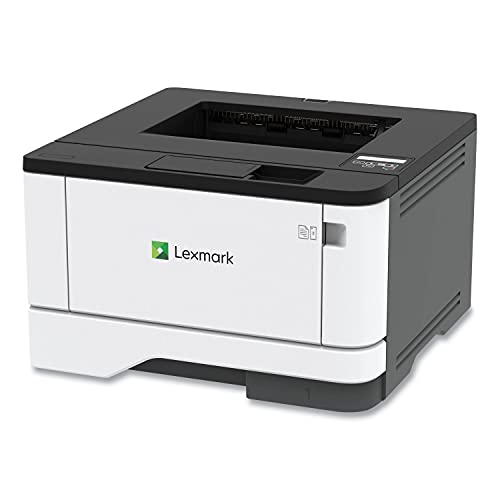
Lexmark MS431dw
Best for: a monochrome print station where jobs arrive from accounts and apps as often as from the desk beside it.
Not suited for: scanning or copying at the same station — the design is print-only from lid to tray.
- Print technology: black and white laser
- Cloud, per title: Cloud Connection stated
- Connectivity, per title: wireless with Ethernet; mobile-friendly
- Duplex: automatic two-sided printing
- Series, per title: 4-Series; model code 29S0100
- Functions: print only
Lexmark earns the opening slot by doing the one thing this guide is about and saying so in its title: Cloud Connection. In a category fogged with implication, a stated connection claim lets an office plan around the feature — accounts registered, staff submitting jobs through the vendor’s cloud route, pages waiting at a print-only station that does nothing but print them well. The print-only scope, often read as a limitation, is here a kind of focus. There is no scanner lid to lift, no copier workflow to learn; the machine’s entire design budget went into receiving jobs and rendering them in black and white.
The connectivity pairing underneath the cloud claim is the right one: wireless with Ethernet. Ethernet is the connection offices trust for shared infrastructure because it ignores the wireless congestion of a busy floor, and its presence signals that Lexmark expects this printer to be installed, addressed and left to work. Mobile-friendly wording completes the picture of a machine meant to receive work from phones as readily as from desktops, with automatic two-sided printing keeping long submissions from doubling the paper bill.
Print-only discipline also shapes the running story. One toner line, one paper path, one job. Workplaces that already centralise scanning on a separate device — or scan so rarely that a phone suffices — will find nothing missing. Workplaces expecting this station to digitise paperwork as well should look at the all-in-ones below instead, because no cloud route turns a printer into a scanner.
Set the MS431dw at the end of a corridor or in a shared alcove and its logic sharpens: staff send from wherever they are, collect on their way past, and the machine’s silence about everything except printing becomes the reason it is never busy doing something else when a job lands.
Strengths
- Cloud Connection claimed outright in the title, the clearest cloud evidence in this guide.
- Wireless with Ethernet gives both flexible placement and a wired anchor.
- Automatic two-sided printing suits the long documents cloud queues tend to carry.
Trade-offs
- Print-only scope excludes scanning and copying entirely.
- Monochrome output rules out colour handouts and charts in colour.
- No speed figure appears in the title, so throughput comparisons need documentation.
There is also a fleet argument for Lexmark in workplaces that already run its larger machines: shared driver behaviour, shared management habits and a shared mental model for staff who move between floors. A single print-only cloud station that behaves like the department’s bigger Lexmarks lowers the training cost of the anywhere-printing rollout to nearly nothing. Even without that context, the MS431dw’s clarity of purpose is refreshing in a guide full of machines that do four jobs; this one does a single job and connects it to the widest possible set of senders.
Offices building an anywhere-printing station should start their reading on the product page itself; the Lexmark MS431dw is listed at Check price on Amazon with its full connection wording.

Brother Professional Laser Printer with Scanner
Best for: a small business that wants cloud readiness, scanning and a touchscreen panel in one monochrome all-in-one.
Not suited for: colour output — the stated 36 ppm engine is monochrome, and colour jobs need another machine.
- Print technology: monochrome laser all-in-one
- Speed, per title: high-speed 36 ppm
- Cloud, per title: Cloud-Ready
- Display, per title: 3.5 in touchscreen
- Connectivity, per title: wireless, with duplex printing and scanning
- Model, per title: MFC-L2900DW
The second stated cloud claim in this guide arrives wearing a touchscreen. Brother describes this machine — model MFC-L2900DW within its title — as Cloud-Ready, and pairs that readiness with the hardware a small business actually touches: wireless duplex printing and scanning, a stated 36 ppm monochrome engine, and a 3.5-inch touchscreen to stand at while releasing jobs, scanning to destinations and managing the settings that cloud workflows accumulate. The panel matters more than it might appear. Account-based printing lives or dies on the moment of collection, and a readable screen at the machine turns PIN releases, destination choices and error messages from guesswork into routine.
Duplex scanning deserves its sentence, because it separates business all-in-ones from home ones. A two-sided contract fed through the scanner should emerge as a two-sided digital document without a manual second pass, and the title’s duplex scanning wording promises exactly that pairing with duplex printing. For a practice digitising signed paperwork or a shop scanning delivery notes, that symmetry is the daily feature; the cloud readiness is the reach that lets those scans and prints travel.
The monochrome engine keeps the proposition honest. Thirty-six pages per minute of black and white covers the overwhelming majority of small-business paper — invoices, letters, forms, statements — and a single toner line keeps consumables simple. Colour, when it is needed at all, is usually needed occasionally, and this machine makes no pretence of covering it.
As the only touchscreen model among the monochrome picks here, it also suits shared spaces where several people interact with the printer directly rather than through a single administrator’s laptop. Small teams without IT support should weight that usability heavily; features that require a manual and a free afternoon tend to stay unused.
Strengths
- Cloud-Ready stated in the title, one of only two explicit cloud claims in this guide.
- Duplex printing and duplex scanning together, at a stated 36 ppm.
- A 3.5-inch touchscreen for at-machine control of cloud-era workflows.
Trade-offs
- Monochrome only, so colour documents leave the building or wait.
- No fax appears in the title, which matters to the few offices still faxing daily.
- Cloud-Ready describes readiness; the account setup itself remains the owner’s task.
Picture the business this Brother was designed around: a trades office, a small agency, a clinic reception. Paper arrives as signed forms and leaves as invoices; the owner submits print jobs from a phone on site visits; a part-time administrator scans the week’s paperwork in one sitting on Friday. The touchscreen mediates all of it without a dedicated computer beside the printer, the duplex scanner turns the Friday sitting into twenty minutes, and the cloud readiness means the owner’s phone is a print source rather than a device for emailing files to whoever sits nearest the machine. Equipment that removes small frictions daily outearns equipment with longer feature lists used monthly.
Small businesses weighing stated cloud readiness against the silent titles below can compare directly on the listing; the Brother MFC-L2900DW appears at Check price on Amazon under its professional-series description.
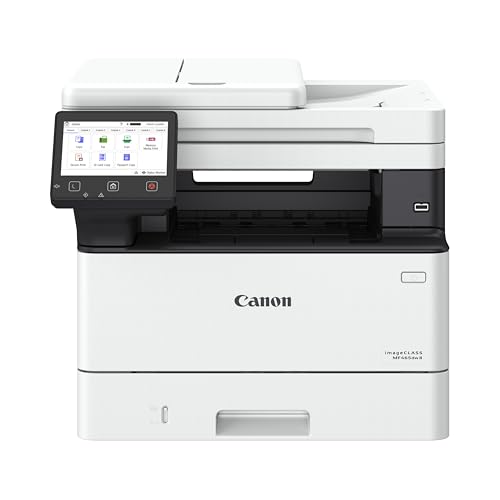
Canon imageCLASS MF465dw II
Best for: a busy small office running long monochrome jobs that also needs copy, scan and fax under one lid.
Not suited for: building a cloud workflow on title evidence alone — the title says nothing about cloud, so that route starts with documentation.
- Print technology: monochrome laser
- Functions, per title: print, copy, scan, fax
- Speed, per title: 42 PPM
- Duplex: wireless duplex printing
- Paper, per title: expandable paper capacity
- Cloud: Not stated in the listing title — verify with the manufacturer documentation
Canon’s MF465dw II is the speed statement of this shortlist: 42 PPM in the title, attached to a full four-function monochrome laser with expandable paper capacity. Speed at this level changes office behaviour. Queues stop forming. The end-of-day statement run stops being an event. Staff print the whole document rather than the pages they think they need, because the machine’s pace removes the penalty. Paired with wireless duplex printing, the Canon is engineered for throughput first, and everything in its title supports that reading.
Expandable paper capacity is the quieter half of the same argument. Offices do not run out of time at printers; they run out of paper mid-job, mid-meeting, mid-afternoon. A base tray extended by optional capacity turns refilling into a weekly rhythm instead of a daily interruption, and it lets different stations — letterhead in one source, plain stock in another — coexist where the office’s paperwork demands it. Buyers should confirm which expansion options the current listing describes, but the title’s promise of headroom is the point.
Then there is the cloud question, and this review will not dodge it: the title is silent. Canon’s ecosystem may well offer routes this guide cannot quote, yet someone whose primary requirement is anywhere-printing should treat the MF465dw II as a verification task — read the manufacturer documentation for the cloud and app pathways, confirm they match the intended workflow, and only then let the 42 PPM engine close the sale. Bought for speed and functions, it is formidable; bought for an assumed cloud feature, it is a gamble the title never invited.
Fax, the fourth function, completes the traditional office set. Its presence signals Canon’s intended habitat: practices, agencies and offices whose counterparties still live partly on paper and partly on fax lines, and who want one machine absorbing all of it.
Strengths
- The fastest stated engine in this guide at 42 PPM.
- All four functions — print, copy, scan, fax — in one monochrome machine.
- Expandable paper capacity addresses the real office interruption: empty trays.
Trade-offs
- Cloud is absent from the title, requiring documentation checks for anywhere-printing plans.
- Monochrome output excludes colour entirely.
- Throughput hardware is wasted on a desk that prints five pages a day.
Speed also interacts with paper capacity in a way buyers underestimate. A fast engine fed by a small tray spends its advantage waiting for refills; the expandable capacity in Canon’s title is therefore not an accessory note but the second half of the speed claim. Offices planning statement runs, mail merges or course-pack printing should cost the expansion trays into the purchase from the start, because the day the big job lands is the wrong day to discover the base configuration’s limits. With capacity sorted, the MF465dw II’s proposition is complete: four functions, wireless duplex, and an engine that finishes before the queue becomes a conversation.
Throughput-led offices should examine the capacity wording on the live page before committing; the Canon imageCLASS MF465dw II sits at Check price on Amazon with its current configuration details.

Brother MFC-L3780CDW
Best for: colour printing and scanning in a wired-and-wireless office that handles two-sided originals daily.
Not suited for: treating cloud as a given — the title lists rich connectivity yet never uses the word cloud.
- Print technology: digital colour laser all-in-one
- Speed, per title: 31 ppm colour
- Scanning, per title: single-pass duplex copy and scan
- Connectivity, per title: dual-band Wi-Fi, Gigabit Ethernet, NFC reader
- Voice assistant: works with Alexa, per title
- Cloud: Not stated in the listing title — verify with the manufacturer documentation
Read the MFC-L3780CDW’s title slowly, because it is a connectivity inventory: dual-band Wi-Fi, Gigabit Ethernet, an NFC reader, Alexa support, and a 31 ppm colour engine with single-pass duplex copying and scanning. Single-pass duplex scanning is the connoisseur’s detail — the scanner reads both faces of a sheet in one journey through the feeder, which halves scanning time on two-sided originals and removes the re-feed errors that plague reversing feeders. Offices digitising contracts, application forms or medical paperwork feel that difference every single day.
Dual-band Wi-Fi and Gigabit Ethernet together mark this as a machine meant to live on a serious network. The wired path delivers gigabit stability for large scan transfers; the dual-band wireless keeps phones and laptops connected on whichever band the building favours. NFC adds the walk-up shortcut — tap a compatible phone at the reader and print without hunting through network menus — which is the local, physical cousin of the cloud idea: less distance between intention and paper.
And yet, for all that connectivity, the title never says cloud. The distinction this guide keeps drawing applies here in its sharpest form: a richly connected printer is not automatically a cloud printer in the account-based sense. Vendor apps may bridge that gap, and Brother’s documentation will describe them, but the title evidence supports claims about bands, wires and taps — not about anywhere-printing accounts. Buy it for the scanning and the colour and the network depth, verify the cloud route separately, and it will not disappoint.
Colour at 31 ppm keeps departmental colour honest: charts, covers and client-facing pages at a pace that does not ration them. Combined with duplex handling on both the print and scan sides, this is the most completely equipped machine in the six for a paperwork-heavy small office.
Strengths
- Single-pass duplex scanning, the strongest digitising feature in this guide.
- Dual-band Wi-Fi plus Gigabit Ethernet plus NFC — the deepest connectivity list here.
- Colour printing at a stated 31 ppm, fast enough to use freely.
Trade-offs
- Cloud goes unmentioned in the title despite the connectivity riches.
- Colour capability brings four toner lines to manage instead of one.
- No fax appears in the title’s function list.
The NFC reader deserves a final practical note, because tap-to-print changes behaviour in shared spaces. Staff who might avoid a network printer — hunting for its name in a list, wondering which queue is live — will tap a phone against a reader without hesitation. Lowering that threshold increases the machine’s share of the office’s printing, which is what shared infrastructure is for. Combined with gigabit transfer for the scanning side, the MFC-L3780CDW is built to be used heavily rather than admired, and its colour engine ensures the heavy use includes the client-facing work that smaller colour machines ration.
Paperwork-heavy offices will want the scanning wording in full; the Brother MFC-L3780CDW is presented at Check price on Amazon with its complete connectivity list.

HP Color LaserJet Pro 3304fdw
Best for: a home office that prints, scans, copies and faxes in colour and wants mobile compatibility without enterprise ceremony.
Not suited for: assuming an anywhere-printing account is included — mobile compatibility in the title is not a cloud claim.
- Print technology: colour laser, all-in-one
- Functions, per title: print, scan, copy and fax
- Connectivity, per title: wireless
- Mobile, per title: mobile compatibility
- Audience, per title: home office; colour documents
- Cloud: Not stated in the listing title — verify with the manufacturer documentation
HP aims the 3304fdw squarely at the home office and says so twice in its title, and the specification follows the aim: colour laser printing for documents that mix text with charts and covers, the full four-function set including fax, wireless connectivity, and mobile compatibility for the phone-and-laptop reality of home working. It is the generalist of this guide — the machine for the household where one printer must serve invoices, school colour pages, scanned forms and the occasional faxed document without specialisation in any of them.
Mobile compatibility deserves a precise reading, because it sits adjacent to cloud in buyers’ minds while meaning something narrower. It promises that mobile devices can print to this machine through supported routes — the everyday, same-network phone printing that home offices use constantly. It does not, in the title’s wording, promise an account that accepts jobs from anywhere on the internet. HP’s documentation will describe whatever extended services exist; the title evidence supports the local mobile story, and for most home offices that local story is genuinely sufficient.
Colour laser output gives home-office documents a particular finish: crisp text with colour that survives handling, charts that read cleanly in a client meeting, covers that look deliberate. Toner’s indifference to idle weeks also suits the home rhythm, where the printer may sit quiet through a holiday and then absorb a project in an evening.
Against the Brother colour machines flanking it, the HP’s case rests on its home-office framing and the full function set at this pitch. Offices needing the deepest network hardware should look at the Ethernet-equipped Brother above; homes wanting one colour machine that does everything should start here.
Strengths
- Complete four-function colour set, fax included, in a home-office frame.
- Mobile compatibility stated, covering everyday phone printing.
- Colour documents named as the design centre in the title itself.
Trade-offs
- Cloud is silent in the title, so anywhere-printing needs documentation proof.
- No Ethernet appears in the title’s connectivity wording.
- No speed figure is stated, leaving pace comparisons to documentation.
The home-office context also forgives this HP its silent cloud title more readily than an enterprise brief would. Most home printing originates inside the home; the phone on the sofa and the printer in the study share a network, and mobile compatibility covers the journey completely. The anywhere scenario — sending a document home from a train — is real but occasional for most households, and a documentation-confirmed app route may well cover it. What the household uses weekly is the four-function colour core, and that is stated in full. Judge this machine by its stated centre, and it is the most straightforward recommendation in the guide for its named audience.
Home offices comparing the generalist route can read the full function list on the page; the HP Color LaserJet Pro 3304fdw waits at Check price on Amazon for that closer look.

Brother MFC-L8930CDW
Best for: business colour printing where security features and low-cost printing are stated priorities, with duplex handling across functions.
Not suited for: casual home use — the business framing, security emphasis and colour running story aim at workplaces.
- Print technology: business colour laser all-in-one
- Duplex, per title: duplex print, scan and copy
- Running-cost wording, per title: low-cost printing
- Security, per title: advanced security features
- Functions: print, scan, copy
- Cloud: Not stated in the listing title — verify with the manufacturer documentation
The MFC-L8930CDW closes the guide with the two phrases managers circle: low-cost printing and advanced security features. Both appear in Brother’s title, and together they describe the business case for colour laser in shared spaces. Colour machines in offices live under two suspicions — that colour pages bleed money, and that shared devices leak documents. A model whose title answers both suspicions head-on is pitching departments that print client material in-house and need the numbers, and the document handling, to behave.
Security in this context is practical rather than cinematic. Account-based and cloud-adjacent workflows multiply the paths a document can travel, so features that authenticate users at the machine, hold jobs until their owner arrives, and control which functions each person may use become the difference between a printing system and a pile of unattended pages in an output tray. Brother states advanced security features without enumerating them in the title; the enumeration lives in documentation, and any office handling client, patient or student records should read that enumeration before purchase rather than after installation.
Duplex across print, scan and copy completes the business profile — two-sided originals and two-sided output handled symmetrically, the way real paperwork actually circulates. Notably, fax does not appear in this title’s function list, a small sign of where office communication has drifted.
The cloud silence applies here too, and it is worth saying plainly in the final review: the most business-serious machine in the guide still leaves its cloud story to documentation. That is not a defect in the printer; it is a fact about how titles are written, and the recurring lesson of this entire shortlist.
Strengths
- Advanced security features claimed in the title, rare and relevant for shared offices.
- Low-cost printing stated as a design goal for colour output.
- Duplex print, scan and copy — two-sided handling across every function.
Trade-offs
- Cloud is not stated in the title, despite the business positioning.
- No fax in the title’s function list.
- No speed or connectivity specifics appear in the title wording.
Low-cost printing, the title’s other promise, deserves the same documentary treatment as security. Brother’s claim signals design intent — a colour machine whose running story was engineered rather than left to chance — but the mechanism behind it, whether cartridge yields, toner-saving modes or programme options, lives in the full listing and documentation. A department printing colour daily should model its own page mix against that detail. What the title guarantees is that Brother expects the question and has positioned the machine to answer it, which separates the MFC-L8930CDW from colour models that prefer the subject never arise.
Departments weighing security claims should read the supporting detail where it is published; the Brother MFC-L8930CDW listing is at Check price on Amazon as the starting point for that homework.
Comparison Table
| Pick | Cloud in title | Colour | Stated speed | Standout title claim |
|---|---|---|---|---|
| Lexmark MS431dw | Cloud Connection | No | Title silent | Wireless with Ethernet, print only |
| Brother MFC-L2900DW | Cloud-Ready | No | 36 ppm | 3.5 in touchscreen; duplex scan |
| Canon imageCLASS MF465dw II | Title silent | No | 42 PPM | Expandable paper capacity; fax |
| Brother MFC-L3780CDW | Title silent | Yes | 31 ppm | Single-pass duplex scan; NFC |
| HP Color LaserJet Pro 3304fdw | Title silent | Yes | Title silent | Full functions for home office |
| Brother MFC-L8930CDW | Title silent | Yes | Title silent | Advanced security; low-cost printing |
How to Choose
What does cloud printing actually require you to set up?
An account, a registered printer, and a submission route your people will genuinely use — an app on their phones, a portal in their browser habits, or an address they can forward documents to. The printer side is usually the easy half; the human side decides adoption. Plan the rollout like any small system change: register the machine, test submission from each device type your team carries, agree how jobs are released at the panel, and write the three-step version on a card taped near the machine. Readers whose real need is simpler — phones printing inside one home network — may find that single-function colour laser printers or plainer wireless models cover the ground without account overhead at all.
Claimed cloud or silent title — how should that change the purchase?
It should change the order of your homework, not necessarily the outcome. A stated claim, like the Lexmark’s Cloud Connection or the Brother’s Cloud-Ready, lets you proceed to price, speed and function comparisons with the central question answered. A silent title inserts one verification step: manufacturer documentation for that exact model, checking the cloud service name, the submission routes and any account requirements. If documentation confirms the route, the machine competes on equal footing. If it cannot be confirmed, an anywhere-printing plan should not be built on it.
Does your workflow need colour, or merely tolerate it?
Count the colour pages in a real month. Client-facing documents, teaching materials and charts justify colour’s extra toner lines; internal paperwork rarely does. The monochrome trio here — Lexmark, Brother MFC-L2900DW, Canon — concentrates spending on speed, scanning and cloud evidence. The colour trio spreads it across output range. Neither is the upgraded choice; they are different allocations of the same money, and the monthly page count is the only honest arbiter.
How much scanning does the office really do?
Scanning volume separates the all-in-ones. A trickle of single pages suits any model here. Daily stacks of two-sided originals elevate single-pass duplex scanning — the Brother MFC-L3780CDW’s stated speciality — from luxury to labour-saving infrastructure, and duplex scanning on the MFC-L2900DW covers the monochrome version of the same need. Offices scanning into cloud storage should also confirm, in documentation, which destinations each model can send to directly from its panel.
Who administers the account when something breaks?
Every shared system needs a named human. Before purchase, decide whose job it is to enrol new starters, remove leavers, read the error message the panel displays and order the toner — in a small office this is often the office manager wearing one more hat, and naming it early prevents the diffusion of responsibility that leaves a printer blinking for a week. The machines here with touchscreens and office framing assume such a person exists nearby; the home-office HP assumes the owner plays the role. Neither assumption is wrong, but buying the enterprise-shaped machine without the administrator-shaped plan is how capable hardware acquires an unfair reputation.
Where do speed figures matter most?
At the extremes. A stated 42 PPM engine transforms end-of-period runs and shared queues; a stated 31 ppm colour engine keeps colour from becoming the slow lane. Below shared-office volumes, wake behaviour and connection stability dominate lived experience, and no figure in a title captures either — one more reason the first fortnight with a new machine should be treated as a trial of the whole workflow, not just the hardware. Teams whose bottleneck is raw page pace across mixed work should also weigh fast inkjet printers built for busy desks, since modern business inkjets contest exactly that ground.
Accounts, Apps and Release: Running a Cloud Print Setup
Day two with a cloud printer is about accounts. Decide who owns the printer’s registration — a role account for the office rather than an individual’s personal login, so staff changes do not orphan the machine. Enrol the people who will submit jobs, walk each of them through one submission from their own phone, and agree the release etiquette: jobs print on arrival, or jobs wait at the panel for their owner. The second pattern, often called pull printing, suits confidential material and shared spaces; the first suits a private office where the printer sits within sight.
Housekeeping follows. Review the account’s connected users when someone leaves. Keep the printer’s firmware current through the vendor’s channel, since cloud services evolve their requirements. Keep one local path alive — a laptop on the same network that can print directly — so a service outage never becomes a printing outage on deadline day. And label the machine with its own name and the account it belongs to; six months later, that label answers questions nobody remembers asking.
For home users of the cloud-ready models, the same ideas shrink gracefully: one account, the household’s phones enrolled, release-on-arrival for convenience, and a note of which app submits jobs. The technology scales down without changing its shape.
Security and Privacy in Anywhere Printing
A document sent through a cloud service exists in more places than a document sent across a room: on the sending device, in the service’s queue, and at the printer until release. For most office material that chain is unremarkable, but it should be a conscious choice for sensitive pages — contracts under negotiation, personal records, examination material. The controls that manage the risk are the ones this guide has flagged in titles where they appear: user authentication at the panel, held release, and the advanced security features Brother claims for the MFC-L8930CDW. Where a title is silent on security, documentation again carries the answer, and workplaces with compliance duties should treat that reading as mandatory rather than optional.
Physical security completes the picture. A printer in a public corridor printing arrivals instantly will eventually display something confidential to the wrong passer-by. Held release, a less exposed placement, or simply clearing the tray promptly — the cheapest control is the one matched to the room the machine actually sits in. Cloud printing’s convenience is real; so is the output tray’s indifference to audience.
What a Cloud Queue Changes About Office Habits
Sending a job to a queue rather than to a room changes small behaviours in ways that add up. Travelling staff stop emailing documents to colleagues with please-print-this messages, and the colleague’s inbox stops being a print server. Jobs arrive with their owner’s name attached, which ends the archaeology of unidentified stacks in the output tray. Meetings generate their own paper on demand — the revised agenda sent from the taxi is waiting at the door — instead of relying on whoever remembered to print before leaving.
The queue also smooths peaks. A printer that receives jobs across an hour prints them across an hour; a printer surprised by five people at 9 a.m. prints them in a queue of a different, more human kind. Offices that adopt account-based submission usually report that the machine did not get faster — the Canon in this guide excepted — but the waiting moved from people standing at a tray to documents waiting in software, which is a trade every workplace should accept gladly.
Finally, the queue creates a record. Workplaces that need to understand their printing — which teams, which volumes, which hours — gain visibility that walk-up printing never provides. That record informs the next purchase far better than recollection does, closing the loop between this guide’s questions and the office’s own evidence.
There is a home version of this discipline too. A cloud-ready printer in a house with children, guests and a stream of borrowed devices benefits from the same held-release thinking for anything sensitive, and from a household agreement about which documents go through the account and which stay local. The technology does not demand paranoia; it rewards a minute of deliberate choice at setup time, repaid every time a document lands exactly where its sender intended and nowhere else.
Common Mistakes
Reading mobile compatibility as cloud printing. They are neighbouring ideas with different mechanics. Mobile compatibility moves a job from a phone on the same network; cloud printing accepts it from anywhere through an account. Titles use the phrases distinctly, and so should buyers.
Registering the printer to a personal account. When that person leaves, the office inherits an orphaned machine and a password reset saga. Role accounts exist precisely for shared infrastructure.
Forgetting the release step in the plan. Jobs that print on arrival in a shared corridor eventually embarrass someone. Decide the release pattern before the first confidential document, not after.
Buying colour for a monochrome workload. Four toner lines serving a letters-and-invoices office is spending spread where it returns nothing. The monthly colour count should make this decision, not the showroom appeal of colour.
Skipping the documentation check on silent titles. Four of this guide’s six titles say nothing about cloud. That silence is not a verdict — but building an anywhere-printing workflow without resolving it is how offices end up with an excellent printer and a missing feature.
Neglecting the local fallback. Cloud services have outages; deadlines do not care. One tested local printing path keeps a bad afternoon from becoming a missed submission.
Placing the shared printer where the signal is worst. The far corner with the spare socket is usually the far corner from the access point too. Cloud jobs still traverse the local network for their final leg, and placement decides whether that leg is reliable.
Treating the cloud account as set-and-forget. Accounts accumulate ex-staff, old devices and forgotten permissions. A five-minute review whenever the team changes keeps the system tidy and the document paths known.
Testing only from the administrator’s laptop. The workflow that matters is submission from the devices people actually carry. Test from two phones and a tablet before declaring the rollout finished.
Frequently Asked Questions
Which of these printers state cloud support in their titles?
Two: the Lexmark MS431dw, with Cloud Connection, and the Brother MFC-L2900DW, with Cloud-Ready. The remaining four titles are silent on cloud, and their spec boxes record that silence with a pointer to manufacturer documentation.
Can a printer with a silent title still print through a cloud service?
Possibly — through a vendor app or service the title does not name. That is exactly why the guide directs readers to documentation rather than declaring the feature absent. Silence means unclaimed, not impossible.
Is cloud printing the same as printing from a phone?
Phone printing is the larger category. A phone can print across the room over Wi-Fi with no cloud involved, or from another city through a cloud account. The first pattern needs only a shared network; the second needs the account layer this guide describes.
What happens to cloud jobs when the internet drops?
They wait. Jobs submitted to a cloud queue are held by the service until the printer reconnects, which is why the local fallback path matters for deadline work. Local network printing continues unaffected during an internet outage, provided the printer and the sending device share the network.
Do these machines suit a two-person home office?
Several do, at different pitches: the HP 3304fdw is framed for home offices outright, the Brother MFC-L2900DW suits a small business run from home, and even the Lexmark print-only model fits a home where scanning already happens elsewhere. Match the function set to the household’s paperwork rather than to the room’s size. Households whose printing centres on labelling food and dates rather than documents should look instead at food label printers for small producers, a different tool for a different job.
Why does Ethernet matter on a wireless printer?
Because shared printers serve everyone better on a stable wired connection, while wireless remains available for placement flexibility and mobile devices. Two titles here pair the two deliberately — the Lexmark and the Brother MFC-L3780CDW — and offices with a network point near the printer should use it.
Do cloud printers need the sending device on the same network?
No — that is the defining difference from local wireless printing. A cloud submission travels through the account’s service, so the sending phone or laptop can be anywhere with an internet connection. The printer needs its own internet-reaching connection, which in offices is normally the same network everything else uses.
Can guests or clients print through the account?
Only if the account’s setup invites them, which is a configuration choice rather than a default. Offices that host visitors often keep a separate local path for guests and reserve the account for staff, preserving both convenience and control.
How long does setup realistically take?
For the printer itself, under an hour in most offices: network connection, firmware check, account registration and a test job from one phone. The longer tail is human — enrolling everyone’s devices and agreeing the release habit — and it is measured in days of casual moments rather than in a single sitting. Budget the hour, expect the week, and judge the system at the end of the month rather than the end of the afternoon.
Should a silent-title printer be ruled out for a cloud project?
Not ruled out — sequenced differently. Verify the cloud route in documentation first; if it checks out, compare the machine on speed, functions and running story like any other candidate. The Canon and the two larger Brothers in this guide are too capable to dismiss over a title’s wording, provided the verification happens before the purchase rather than after the installation.
What is the simplest first test after installation?
Leave the building. Send a one-page document from a phone on mobile data to the printer’s account, walk back in, and release it at the panel. That single round trip proves the registration, the submission route and the release habit in one gesture — and it is the moment anywhere printing stops being a specification and becomes a tool the whole office trusts.
Final Recommendation
Buy on evidence and the choice orders itself. For a cloud-led purchase today, the Lexmark MS431dw states its Cloud Connection outright and backs it with Ethernet and duplex in a focused print-only body, while the Brother MFC-L2900DW states Cloud-Ready and adds duplex scanning and a touchscreen for the small-business all-in-one brief. The Canon MF465dw II is the throughput champion pending one cloud verification, the MFC-L3780CDW the scanning and connectivity champion under the same condition, the HP 3304fdw the home-office generalist, and the MFC-L8930CDW the security-led business colour choice. Confirm the silent titles in documentation, register whichever machine you choose to a role account, and anywhere printing becomes the calm utility it promises to be.