What's inside
- Key Takeaways
- Quick Picks
- How We Chose These Picks
- How Does a Router Actually Connect to Fibre Internet?
- Why Does the Wired Test Dazzle While the Sofa Disappoints?
- Which Routers Handle a Gigabit Fibre Line Best?
- When Does a Fibre Home Outgrow a Single Router?
- How Do the Six Picks Compare for a Gigabit Fibre Home?
- What About IPv6, DNS and Security on a Fibre Connection?
- What Should You Confirm With Your Provider Before Buying?
- How Do You Replace a Provider Gateway Without Losing an Evening?
- What Mistakes Do Fibre Router Buyers Keep Making?
- Final Recommendation
- Frequently Asked Questions
- Related Guides
As an Amazon Associate I earn from qualifying purchases. This post may contain affiliate links at no extra cost to you.
widgetverdict.com is reader-supported. When you buy through links on our site, we may earn an affiliate commission.
Where to buy: all six routers in this guide carry verified Amazon links, and every one of them can sit behind a fibre ONT — the differences that matter are the WAN port speed, the login method your provider demands, and how much wireless house each one can cover.
Fibre changes what a router has to be good at. With cable or DSL, the modem half of the setup did quiet, essential work; with fibre, the provider’s ONT ends the optical line and hands your router a plain Ethernet feed, which means the best 1gbps fiber routers are judged on a short, unforgiving list: a WAN port that never caps the plan, clean support for PPPoE or automatic IP as your provider requires, VLAN tagging where the network demands it, and enough wireless strength that a gigabit arriving at the wall does not dribble away across the house.
It is worth saying plainly who this guide is not for. If your fibre plan is a few hundred megabits rather than a gigabit, most of these routers are more than you need, and the budget pick will serve you completely. If your home is already wired with a multi-gig backbone and a rack of equipment, you have graduated to the prosumer tier covered by our 10G guide. This page serves the large, specific middle: a genuine gigabit line, an ordinary house, and a buyer who wants the plan they pay for to arrive at the devices they use.
That last point is where most gigabit fibre households actually lose their speed.
The wired test at the router dazzles; the laptop two rooms away gets a third of it. So this guide weighs radios, processors and port maps together, and it is honest about the two upgrade paths hiding inside a gigabit plan: routers with a 2.5G WAN port, ready for the faster tier your provider will inevitably offer, and pure gigabit machines that cost less and serve a 1Gbps plan completely. Both are legitimate answers. Buying the wrong one for your intentions is the only real mistake available here.
Key Takeaways
- A fibre router works behind the provider’s ONT — it does not replace the ONT, and it needs no coax or phone-line socket.
- Check your provider’s login method before buying: PPPoE credentials, automatic IP, or a VLAN tag on the WAN.
- A 2.5G WAN port is the future-proofing option for plans that will grow past a gigabit.
- Most lost speed on gigabit fibre is lost over Wi-Fi, not at the WAN port — radio strength matters as much as ports.
- Putting the provider’s gateway into bridge mode, or retiring it entirely, avoids double NAT problems.
Quick Picks
| Pick | Badge | Why it earns its place |
|---|---|---|
| TP-Link Archer AX55 Pro | 2.5G WAN headroom | AX3000 wireless with a multi-gig WAN port, ready for the plan upgrade beyond gigabit. |
| ASUS RT-AX86U | Performance favourite | A strong processor, a 2.5G port and gaming-grade traffic handling for busy wired homes. |
| TP-Link Archer AX73 | Coverage workhorse | AX5400 radios and six antennas push gigabit fibre further across larger homes. |
| TP-Link Archer BE550 | Wi-Fi 7 step-up | Tri-band Wi-Fi 7 with 2.5G ports for households buying once for the long term. |
| TP-Link Archer AX55 | Mainstream gigabit pick | The balanced AX3000 answer for a 1Gbps plan with no ambitions beyond it. |
| TP-Link Archer AX21 | Budget fibre starter | Honest AX1800 performance and full gigabit ports at the friendliest tier in the guide. |
How We Chose These Picks
Every candidate first had to pass the fibre fitness test: a WAN configuration page that handles the three ways providers authenticate — PPPoE with a username and password, automatic IP (sometimes called DHCP), and tagged VLAN connections for the networks that separate internet traffic onto a virtual LAN. Routers whose firmware hid or crippled any of these were cut, because a router that cannot log in to your particular fibre network is not a bargain at any price; it is a return label waiting to happen.
Next we scored the wired path. A gigabit plan deserves a WAN port that sustains gigabit throughput with the security features switched on, which is a processor question as much as a port question — enabling intrusion protection, quality of service and traffic monitoring all consume CPU, and weaker routers quietly shed speed or features under that load. Models with a 2.5G WAN option earned a separate future-proofing mark rather than a higher overall score, because headroom you never use is not performance; it is insurance, priced accordingly.
Wireless scoring favoured honest, usable coverage over headline class numbers: antenna design, band steering behaviour, OFDMA and MU-MIMO support for crowded homes, and mesh compatibility for the day a dead corner demands a satellite. Finally we checked the unglamorous pages — firmware update cadence, warranty terms, the quality of the setup app — because a fibre router is a five-year appliance, and the companies that maintain their software treat your network’s security as their job rather than your hobby.
One more screening step deserves naming, because it eliminated several otherwise attractive models: the support burden test. We looked for evidence that real owners on real fibre networks had solved the common setup problems publicly — forum threads, provider help pages naming the model, a manual that actually documents the VLAN field’s location. A router can be excellent in the lab and lonely in the world; for a device whose whole job is connecting you to a specific provider’s quirks, the world’s experience is part of the specification.
How Does a Router Actually Connect to Fibre Internet?
The fibre line entering your home terminates at the ONT — the optical network terminal your provider installed — which converts light into an ordinary Ethernet signal. Your router’s WAN port plugs into the ONT with a standard network cable, and from that moment the router’s job is identical to any other internet connection: authenticate if required, take the public address, and run your home network behind it. No router in this guide contains an optical port, and none needs one; be suspicious of any listing that implies otherwise for home fibre.
Authentication is the step that varies by provider and trips up the unprepared. Some networks hand over an address automatically the moment a router connects. Others require PPPoE: a username and password, issued by the provider, which you type into the router’s internet settings once. A third group tags the connection with a VLAN ID — a number the provider publishes in its support pages — so its network can separate your internet traffic from television and phone services sharing the same fibre. All three methods are routine for every pick here; the work is simply discovering which one your provider uses before installation day, ideally while their gateway is still connected and its settings page can be read.
There is a related trap in homes where the fibre was installed for a previous occupant or a previous decade of technology: the ONT may live in a garage, a loft or a meter cupboard, with a single elderly Ethernet run to the living space. That run, not the router, then decides your ceiling — damaged or very old cabling can negotiate at a tenth of gigabit while looking perfectly innocent. A new router install is the right moment to test the run with a laptop at both ends and replace it if it underperforms; it is the cheapest component in the entire system and the one nobody suspects.
If your provider supplied a combined gateway and you plan to keep it in the chain, ask about bridge mode, which turns the gateway into a passive pass-through and lets your router hold the public address alone. Skipping that step leaves two routers routing — double NAT — which mostly works until it doesn’t: game consoles complain about NAT type, port forwarding breaks in confusing ways, and remote access to home devices becomes a small research project. The clean fibre setup is one router, doing the routing, behind a silent ONT.
Why Does the Wired Test Dazzle While the Sofa Disappoints?
Because two different networks share your house. The first is the fibre network: light to the ONT, Ethernet to the router, a gigabit delivered exactly as sold — this half almost never underperforms, and a wired laptop test proves it in seconds. The second network is the wireless one inside your walls, governed by distance, building materials, neighbouring networks and the band each device happens to choose. A gigabit plan exposes this second network mercilessly, because for the first time the internet is no longer the slowest thing in the chain; your hallway is.
The practical consequences shape this whole guide. A router with a mighty WAN port and feeble radios will benchmark beautifully and live badly. A router with strong radios, sensible band steering and a processor that keeps latency flat under load will feel faster everywhere except the speed-test screenshot. Fibre buyers should therefore shop the way the picks below are organised: WAN fitness as the entry ticket, wireless quality as the differentiator, and headline class numbers — which sum bands no device can combine — treated as decoration.
Latency deserves its sentence in this sermon, because fibre’s gift is not only width but responsiveness. A healthy fibre line answers in single-digit milliseconds, and a router that adds bufferbloat — queues ballooning under load until calls stutter while a download runs — squanders that gift invisibly. The quality-of-service and SQM-style features on the stronger picks exist precisely to protect it, and on a gigabit line they matter more to how the connection feels than another hundred megabits of headline width ever will.
There is one more quiet variable: the devices themselves.
An older laptop with a two-stream Wi-Fi 5 radio has its own ceiling far below a gigabit, and no router purchase will lift it. Before blaming any router in this guide for a disappointing room, check what the disappointing device can actually do; sometimes the correct upgrade is a small USB or PCIe wireless adapter for the one machine that matters, at a fraction of a flagship router’s price.
Which Routers Handle a Gigabit Fibre Line Best?

TP-Link Archer AX55 Pro — 2.5G WAN headroom
The Archer AX55 Pro exists for a specific, increasingly common moment: the fibre provider emails to say your street now offers a faster tier, and the only thing standing between you and it is a WAN port. This router’s multi-gig WAN/LAN port accepts plans beyond a gigabit without a hardware change, while its AX3000 Wi-Fi 6 radios cover the flat or modest house that most gigabit subscribers actually live in. On today’s 1Gbps plan it behaves exactly like its well-regarded sibling below; the Pro badge buys tomorrow.
TP-Link’s firmware handles the fibre trio — PPPoE, automatic IP, VLAN tagging — through a setup flow that asks plain questions and hides nothing important, and the Tether app makes the first evening painless for buyers replacing a provider gateway for the first time. HomeShield’s basic security layer is included, and the router supports VPN server and client duties for households that route some traffic through a tunnel. The processor keeps gigabit NAT throughput honest with those features enabled, which is the unglamorous test that separates fibre-ready routers from fibre-adjacent ones.
The limits are the platform’s age and ambition. Wi-Fi 6 with two bands will not thrill a house full of 6GHz-capable laptops, and buyers planning a mesh expansion should note this is a OneMesh-era design rather than the newest EasyMesh story. Neither matters to the buyer it is aimed at: a gigabit fibre household that wants the WAN question settled for the next plan upgrade, at a mid-range price, from a model line with a long update record. As insurance policies go, this one also happens to be an excellent router.
- Wi-Fi 6 AX3000 dual-band wireless
- One 2.5G WAN/LAN port plus gigabit ports
- PPPoE, automatic IP and VLAN tag support for fibre login
- OFDMA and MU-MIMO for busy households
- VPN server and client support built in
Strengths
- Multi-gig WAN removes the port ceiling from future plan upgrades
- Setup flow handles fibre authentication methods without drama
- Balanced wireless that matches gigabit-plan reality
Trade-offs
- No 6GHz band for the newest wireless clients
- Headroom costs more than the plain AX55 if the plan never grows
- Mesh expansion follows the older OneMesh ecosystem
Best for: gigabit fibre homes expecting a faster tier within the router’s lifetime. Not suited for: buyers certain the plan stays at 1Gbps, who should save the difference with the AX55.
One more scenario flatters this router: the household that works from home over the fibre line. A 2.5G-capable WAN paired with competent quality-of-service controls means the midday video call and the cloud backup stop negotiating for the same pipe, and when the provider’s faster tier arrives, the upgrade is a phone call and a reboot rather than a weekend project. Routers are rarely regretted for the headroom they carried; they are regretted, loudly, for the port they lacked.
Its day-to-day manners deserve a line as well. The AX55 Pro runs cool and silent, its status lights can be dimmed for a bedroom-adjacent hallway, and its four wired ports cover the usual near-router cluster — television, console, desktop, a small switch — without immediate expansion. In the taxonomy of this guide it is the think-ahead mainstream pick, and for households whose street is visibly being upgraded by their provider’s own marketing, that foresight is simply accurate reading of the neighbourhood.

ASUS RT-AX86U — Performance favourite
Some routers earn their reputation so thoroughly that they become the answer people give before hearing the question, and the RT-AX86U is that machine in the Wi-Fi 6 generation. For fibre households its virtues line up exactly with the workload: a strong processor that holds gigabit throughput with security inspection running, a 2.5G port that can serve as WAN for a faster plan or as a fast LAN link to a NAS, and ASUS firmware that treats PPPoE, VLAN tagging and IPv6 configuration as first-class settings rather than advanced afterthoughts.
The gaming heritage shows in useful places beyond the styling. Traffic prioritisation that actually understands games and calls, per-device monitoring that names the household member saturating the uplink, and a dedicated gaming port with hardware priority all serve a fibre connection shared by a family with competing evening plans. AiMesh support means the AX86U can start as the sole router and later become the brain of a two-node system when a far bedroom complains, which protects the purchase in a way raw specifications cannot.
Age is the honest caveat: this is a mature Wi-Fi 6 design, and buyers whose devices have moved to 6GHz should look at the BE550 below. The vertical chassis also wants a shelf edge rather than a media cabinet slot. But for a gigabit fibre home that games, works and streams simultaneously — and wants the router to be the last thing suspected when something stutters — the AX86U remains the performance pick of this guide, and its enormous owner community means every fibre provider quirk you might meet has already been met, documented and solved by someone else.
- Wi-Fi 6 AX5700 dual-band wireless
- One 2.5G port, assignable to WAN or LAN
- Full PPPoE, VLAN and IPv6 configuration depth
- AiMesh support for later expansion
- USB ports for storage, printers or modem failover
Strengths
- Processor headroom keeps gigabit fibre fast with features enabled
- Firmware depth suits providers with unusual login requirements
- Huge knowledge base from years of ownership worldwide
Trade-offs
- Wi-Fi 6 platform — no 6GHz radio
- Vertical tower shape needs open shelf space
- Premium tier pricing for its generation
Best for: demanding gigabit fibre households mixing gaming, work calls and heavy streaming. Not suited for: buyers who want the newest wireless generation above all else.
It is worth pausing on the failover trick this model hides in its USB ports: a phone or USB modem can stand in as an emergency connection if the fibre is cut, with the router failing over automatically and failing back when the line returns. For a home whose income depends on connectivity, that feature alone has justified this router in many households — fibre is reliable, but the one afternoon it is not tends to be the afternoon that matters most.
Longevity of support is the other grown-up reason this model keeps its place. ASUS has maintained this line’s firmware with security updates and feature refinements well beyond the honeymoon period, and the settings ecosystem — per-device icons, traffic history, adaptive quality of service that learns the household’s habits — rewards owners who set it up carefully once. A fibre router is a security boundary for everything you own; buying the one whose maker demonstrably keeps patching it is not brand loyalty, it is hygiene.

TP-Link Archer AX73 — Coverage workhorse
Ask gigabit fibre owners where their speed goes and the honest answer is: into the walls. The AX73 attacks that problem with the strongest radios in this guide’s gigabit-only group — an AX5400 Wi-Fi 6 layout, six high-gain antennas and beamforming that together push a usable signal into the rooms where people actually sit. For the larger house on a 1Gbps plan, where the ONT lives in a hallway cupboard chosen by a builder rather than a network engineer, this is the pick that makes the plan feel real at the far sofa.
The wired side is conventional gigabit throughout, which fits its brief precisely: a 1Gbps plan in, a 1Gbps ceiling respected, no money spent on ports the plan cannot feed. TP-Link includes the full fibre login toolkit, VPN server support, and a traffic-statistics page that helps diagnose the eternal household question of who is using the bandwidth at dinner time. Its processor handles the security and quality-of-service load at gigabit rates without the quiet throttling that afflicts cheaper hardware when every feature is switched on at once.
What it will not do is grow past gigabit: when the provider’s faster tier arrives, the AX73’s WAN port becomes the ceiling, and the router becomes the hand-me-down. Buyers should choose it with that horizon in mind and enjoy what it is — the coverage-first answer for a big home on today’s gigabit plan. The six-antenna silhouette is also unapologetically visible; this router lives on a shelf, not behind the television, and it works better for being given the air.
- Wi-Fi 6 AX5400 dual-band wireless
- Six external high-gain antennas with beamforming
- Full gigabit WAN and LAN ports
- PPPoE, automatic IP and VLAN support for fibre
- VPN server and HomeShield security features
Strengths
- Strongest far-room wireless in the gigabit-only group
- Handles full-feature gigabit load without slowing
- Antenna array suits awkward ONT placement in larger homes
Trade-offs
- Gigabit WAN caps any future faster plan
- Large, antenna-forward design is hard to hide
- No 6GHz band, like all Wi-Fi 6 picks here
Best for: larger homes on a 1Gbps plan where coverage, not ports, is the pain. Not suited for: buyers already eyeing a multi-gig upgrade path.
Placement advice specific to this model: its antennas reward a central, elevated position more than most, because the array is designed to shape coverage outward rather than to compensate for a corner cupboard. Owners who give it the hallway shelf it wants routinely report the far-bedroom problem simply ending — which, on a gigabit plan being paid for monthly, is the entire point of the exercise.
The AX73 also suits the household whose device count has quietly become enormous — not in laptops, but in the long tail of connected things: bulbs, plugs, cameras, speakers, appliances, the doorbell. OFDMA and a capable processor keep that chatter from taxing the people’s devices, and the router’s traffic pages make the tail visible, often for the first time. Owners are routinely surprised by what their house has been saying to the internet; a router that shows you is worth having.

TP-Link Archer BE550 — Wi-Fi 7 step-up
The BE550 is the pick for the fibre household that buys infrastructure the way it buys roofing: once, properly, for a long time. Its Wi-Fi 7 tri-band radios add the 6GHz band that Wi-Fi 6 cannot offer, its ports are 2.5G throughout the important positions, and its WAN side therefore shrugs at both today’s gigabit plan and the faster tier that follows it. A new laptop with a 6GHz radio, sitting in the same room, finally experiences something close to the wired fibre experience without a cable in sight.
Wi-Fi 7’s multi-link operation deserves its plain-English moment: compatible clients can use more than one band at once, which in daily life means a crowded 5GHz band stops being a single point of congestion. EasyMesh compatibility replaces the older proprietary mesh story, so expansion nodes can come from a wider shelf of products. The fibre essentials — PPPoE, VLAN tagging, IPv6 — are all present and configurable without spelunking, and TP-Link’s app-led setup remains the friendliest in this guide for first-time gateway replacers.
The step-up logic has two honest costs. The first is money: this is the premium pick here, bought against years of service rather than this quarter’s needs. The second is that 6GHz coverage is shorter-ranged than 5GHz, so the band’s magic is a same-room and next-room phenomenon; distant rooms still live on the older bands, which is fine, but buyers imagining whole-house 6GHz should recalibrate. Judged as a five-to-seven-year fibre router, though, the BE550 is the most complete answer on this page.
- Wi-Fi 7 tri-band with a 6GHz radio
- 2.5G WAN and LAN ports for multi-gig headroom
- Multi-link operation for compatible Wi-Fi 7 clients
- EasyMesh support for standards-based expansion
- Full fibre login support: PPPoE, VLAN, IPv6
Strengths
- Newest wireless generation with ports to match
- Ready for faster fibre tiers without replacement
- Friendly setup despite the advanced specification
Trade-offs
- Premium pricing against gigabit-plan needs
- 6GHz range is short; distant rooms use older bands
- Some security extras sit in a subscription tier
Best for: long-horizon buyers wanting Wi-Fi 7 and multi-gig ports in one purchase. Not suited for: tight budgets well served by the gigabit picks.
Think of the BE550 as the convergence pick: it is the only router here that simultaneously answers the WAN question, the wireless-generation question and the mesh-standards question with its newest option. Households replacing a failing provider gateway and intending not to think about networking again until the next decade are precisely its audience, and for them the premium is not indulgence — it is the price of closing three future projects with one box.
One caution belongs to early-generation flagships generally, and this one is no exception: Wi-Fi 7 clients are still the minority in most homes, so the BE550’s signature tricks reveal themselves gradually, device by device, as phones and laptops are replaced over the coming years. That is the nature of buying the new standard — you are purchasing the network your next three device generations will enjoy, and judging it solely by this month’s oldest tablet would miss the point entirely.
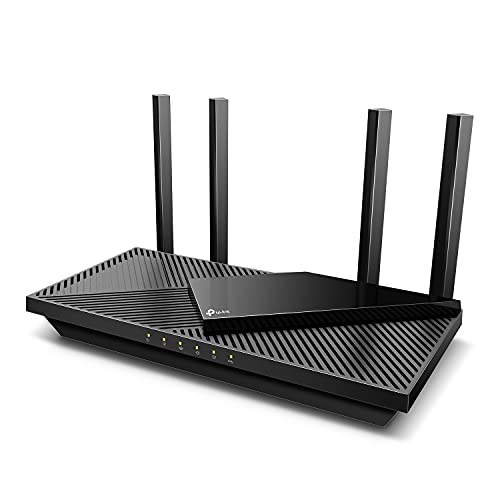
TP-Link Archer AX55 — Mainstream gigabit pick
If the AX55 Pro is the insurance policy, the plain AX55 is the sensible car: the router most gigabit fibre households should simply buy. Its AX3000 Wi-Fi 6 radios match the device mix of a normal home — a few laptops, phones, a television, a scattering of smart devices — its gigabit WAN port respects a 1Gbps plan exactly, and its price leaves money in the budget for the things households notice more, like a second node or a better ONT placement. It has been a default recommendation in its class for years because it gets the fundamentals right without charging for theatre.
The fibre fit is complete where it counts. PPPoE credentials, VLAN tagging and automatic IP are all supported and reachable through a setup wizard that a first-timer can finish between the ONT reboot and a cup of tea going cold. OFDMA keeps latency civilised when the house fills with small chatty devices, and the router’s heatsink-led design runs silently in a living room. TP-Link’s update record for this line is steady, which matters more for a security appliance — which is what a router is — than any single feature on the box.
Its boundaries are clear and, for its audience, painless. The WAN port is gigabit, so a future faster plan means a future router; the wireless is dual-band Wi-Fi 6, so 6GHz devices use the still-excellent 5GHz band instead. Buyers who can say “my plan is a gigabit and my house is ordinary” without flinching should stop shopping here — every dollar spent above this pick buys a scenario, not a certainty.
- Wi-Fi 6 AX3000 dual-band wireless
- Gigabit WAN and LAN ports throughout
- PPPoE, VLAN tag and automatic IP fibre login
- OFDMA and MU-MIMO for device-dense homes
- Silent, heatsink-cooled desktop design
Strengths
- The balanced default for a standard 1Gbps fibre plan
- Setup genuinely approachable for gateway-replacement beginners
- Steady firmware maintenance from a high-volume line
Trade-offs
- Gigabit WAN ceiling for future plan upgrades
- No 6GHz band for newest clients
- Four LAN ports may invite a switch in wired-heavy homes
Best for: the typical gigabit fibre household wanting one correct purchase. Not suited for: multi-gig futures or very large homes needing stronger radios.
There is a community-knowledge dividend with a model this popular: whatever your provider’s quirk — an unusual VLAN ID, a PPPoE service name field, an IPv6 prefix oddity — someone with this exact router has already posted the working settings. First-time fibre router buyers underestimate that dividend until the evening they need it, at which point it feels like the most valuable specification on the page.
It also behaves well in the role fibre routers increasingly play as the house’s traffic referee. Parental controls that pause a games console at homework time, a guest network that keeps visitors off the family NAS, and per-device bandwidth limits that stop one cloud backup from swallowing a film night are all present and usable through the app. None of these features is unique to the AX55 — but their combination, at its price, with its update record, is exactly why it anchors the mainstream of this guide.

TP-Link Archer AX21 — Budget fibre starter
The AX21 answers the renter’s and the first-flat’s version of the fibre question: the plan is gigabit, the budget is not, and the provider’s rental gateway fees offend on principle. This AX1800 router covers a small home honestly, carries full gigabit ports — a detail cheaper routers sometimes quietly abandon — and supports the fibre login methods that matter, including the VLAN tagging some networks require. For a one or two-room home where the router sits in the same space as the people, it delivers the plan’s speed to the devices that dominate daily life.
Expectations should be set by physics and price together. AX1800 wireless is a two-band Wi-Fi 6 arrangement with modest spatial streams; in a small flat it is plenty, and in a sprawling house it will not pretend otherwise. The processor is the line’s junior, so stacking every security and monitoring feature at full gigabit load is asking more than the design brief — run the sensible subset and it stays composed. TP-Link still includes its app setup, guest networking and parental controls, so the daily experience feels complete rather than cut down.
Where the AX21 earns real respect is the exit it provides from rental fees: households paying monthly for a provider gateway recoup a router at this tier quickly, and own a better, more configurable network afterwards. Buy it as the right-sized tool for a small home on gigabit fibre, and it will not disappoint; buy it to cover a large multi-storey house, and the disappointment will be with the brief, not the box.
- Wi-Fi 6 AX1800 dual-band wireless
- Full gigabit WAN and LAN ports
- PPPoE and VLAN support for fibre networks
- App-based setup with guest network and parental controls
- Compact footprint for small homes and rentals
Strengths
- Ends gateway rental fees at the lowest tier here
- Gigabit ports preserved where rivals sometimes cut them
- Complete everyday feature set despite the price
Trade-offs
- Wireless reach suits small homes only
- Processor headroom is limited under full feature load
- No multi-gig or 6GHz future-proofing
Best for: small homes and renters escaping gateway rental on gigabit fibre. Not suited for: large houses or heavy multi-user loads.
A final, practical note in its favour: because it is small, cool-running and undemanding, the AX21 also makes an excellent second life as a wired access point or a travel-and-relatives router after a household upgrades. Budget networking gear that remains useful after its promotion is rarer than it should be, and it softens the only real risk of buying at this tier — outgrowing it.
For students and shared flats there is one more unglamorous virtue: it is the router least likely to provoke a landlord, a housemate or a deposit dispute. Small, quiet, cheap to replace, and powerful enough that nobody’s lecture stream or late-night download becomes the house grievance — the AX21 understands its social context as well as its technical one, which is more than can be said for some flagships.
When Does a Fibre Home Outgrow a Single Router?
Gigabit fibre is honest about coverage in a way slower plans were not: when the incoming pipe was the bottleneck, a weak far-room signal still delivered most of the plan, and nobody noticed the walls winning. At a gigabit, the walls win visibly. The signal to consider a second node is not a dead zone — those always mattered — but a room where a wired test proves the plan and a wireless test delivers a fraction of it, in a space where someone works or watches daily. That room is a mesh node asking to exist.
The picks here handle that future in two dialects. ASUS’s AiMesh lets a second ASUS router join as a node with the main unit’s settings flowing down to it; TP-Link’s newer models speak EasyMesh, the cross-brand standard, while its older lines use the company’s own OneMesh extenders. Either dialect works; what matters is choosing the main router from the ecosystem you intend to expand in, because mixing dialects is where home mesh projects go to become cupboard ornaments. A wired connection between router and node, where the house allows it, beats any wireless backhaul and turns the second node into pure gain.
Resist, though, the urge to mesh pre-emptively. A single well-placed router from this guide covers most flats and many houses completely, and every unnecessary node is another radio shouting in a finite spectrum. Live with the single router for a fortnight, note the rooms that genuinely suffer, and then extend with intent. Fibre gave your home a fast front door; good expansion simply adds well-placed windows rather than rebuilding the house around the doorway.
How Do the Six Picks Compare for a Gigabit Fibre Home?
| Pick | WAN port | Wireless | Best-matched home |
|---|---|---|---|
| Archer AX55 Pro | 2.5G | Wi-Fi 6 AX3000 | Gigabit today, faster tomorrow |
| RT-AX86U | Gigabit + 2.5G flexible | Wi-Fi 6 AX5700 | Gaming and work-from-home loads |
| Archer AX73 | Gigabit | Wi-Fi 6 AX5400 | Larger homes, coverage first |
| Archer BE550 | 2.5G | Wi-Fi 7 tri-band | Long-horizon single purchase |
| Archer AX55 | Gigabit | Wi-Fi 6 AX3000 | The mainstream default |
| Archer AX21 | Gigabit | Wi-Fi 6 AX1800 | Small homes and renters |
A word on reading this table honestly: the wireless classes are not speeds you will measure, but ceilings summed across bands under laboratory conditions, useful only for comparing one row against another. The WAN column, by contrast, is a hard physical fact with a monthly bill attached to it. When the two columns disagree about which router is “best”, believe the WAN column for the plan question and your floor plan for the wireless question, and let the class numbers serve merely as tie-breakers between otherwise equal rows.
The pattern to notice is that the WAN column and the wireless column answer different questions — tomorrow’s plan versus today’s floor plan — and the right pick is the one whose two answers both match your house. Every router here logs in to fibre properly; that part, thankfully, is not a differentiator but a given.
What About IPv6, DNS and Security on a Fibre Connection?
Fibre networks are where IPv6 stops being a trivia answer and becomes the default path for much of your traffic. Most large providers now hand out an IPv6 prefix alongside the familiar IPv4 address, and every router in this guide can request and distribute it — but the setting is not always on by default, and the mode matters: the router should ask the provider for a delegated prefix and hand addresses to your devices from it, rather than tunnelling or translating in ways that add latency and break the occasional game or video call. Ten minutes in the IPv6 page during setup pays rent for years.
DNS is the second quiet lever. Your provider’s resolvers are fine until the evening they are not, and every pick here lets you point the household at an alternative resolver of your choosing, applied once at the router instead of device by device. Some households use that freedom for speed, some for family filtering, some for keeping a pi-hole-style blocker at the centre of the network. The router’s role is simply to offer the field and respect it, which sounds basic and is not universal among provider-supplied gateways — one more reason the gateway’s retirement tends to feel liberating.
Security, finally, is where an owned router most clearly outclasses a rented one. You control the firmware update cadence, the remote-management switch (off, unless you deliberately need it), the guest network that quarantines visitors and smart devices, and the firewall defaults. Fibre’s speed makes a home network a more interesting target than it was in the DSL era, and the picks above all ship with automatic update options and intrusion-prevention features proportionate to their tier. Turn the automatic updates on during setup; future you, reading about a patched vulnerability, will be quietly grateful.
What Should You Confirm With Your Provider Before Buying?
Four facts, obtainable from one support call or the provider’s help pages, decide whether installation day is twenty minutes or two evenings. First, the login method: PPPoE with credentials, automatic IP, or a VLAN-tagged connection — and if PPPoE, the exact username format, since some providers expect a domain suffix and some do not. Second, whether the provider binds service to the MAC address of its own gateway; where it does, routers here can clone that address, but you need to know to look. Third, whether television or phone services share your fibre and depend on the provider’s box, which changes the bridge-mode conversation. Fourth, the IPv6 arrangement, so the new router can be configured to match rather than silently falling back.
While you have the provider’s attention, ask one more question that saves a surprising amount of grief: whether your address is served by GPON or a newer XGS-PON network, and whether any planned migration is scheduled. The distinction changes nothing about which router you buy today — all six picks are technology-agnostic behind the ONT — but a household warned about an upcoming migration can expect the ONT swap appointment rather than discovering it as an outage, and can time a router upgrade to land after the new hardware settles.
Ask also about the ONT itself: it stays, it is theirs, and its Ethernet port speed matters — an older gigabit ONT caps everything downstream regardless of your router’s ambitions, which is worth knowing before paying for multi-gig headroom. Finally, if you rent their gateway, confirm the return process and keep the receipt; the small monthly saving that motivates many of these purchases has a way of continuing to bill the inattentive.
How Do You Replace a Provider Gateway Without Losing an Evening?
Prepare while the old gateway still works. Photograph its settings pages — internet connection type, any VLAN ID, the Wi-Fi names and passwords your household’s devices already know — and save the PPPoE credentials somewhere you can read without internet access. Then connect the new router’s WAN port to the ONT, power-cycle the ONT, and run the router’s setup, reusing your existing Wi-Fi name and password exactly. That single act of naming discipline means every phone, tablet and smart bulb rejoins on its own, and the migration feels like a reboot rather than a rebuild.
Schedule the swap for a moment when the household can tolerate an hour of experimentation, and keep the old gateway and its cables within reach until the new setup has survived a full day — including a video call, a streaming evening and one large download. Most migrations are declared finished at the first successful speed test and then quietly rolled back at the first missed football match; a day of ordinary life is the real acceptance test, and it costs nothing but patience to run it properly.
If the connection refuses to authenticate, work the short list before phoning anyone: correct login method selected, credentials typed rather than pasted (trailing spaces are the classic saboteur), VLAN ID entered where required, and the ONT given a full minute after its reboot to renegotiate. Still stuck, the provider’s support line can confirm whether the account needs the old gateway’s MAC cloned — a two-minute fix once named. Test with a wired laptop at the router before judging Wi-Fi, so you always know which half of the system you are debugging.
What Mistakes Do Fibre Router Buyers Keep Making?
The most expensive is buying a cable modem-router for a fibre line: combo units with a coax input cannot authenticate to an ONT-based network as the main router, and the category names are similar enough to catch the hurried. The second is ignoring the login method until installation night — discovering a VLAN requirement with the household offline is a special kind of quiet. Third is paying for a multi-gig WAN while the provider’s ONT is gigabit, a chain whose weakest link was installed by the provider and never questioned.
Fourth, households judge the new router by the speed test in the worst room and return perfectly good hardware, when the actual fault is a router placed inside a metal-lined cupboard beside the ONT because that is where the fibre happens to enter. Fibre entry points are chosen for the street’s convenience, not yours; a longer Ethernet run to a humane router position is the cheapest performance upgrade in this entire guide.
Fifth, and most quietly: buyers forget the wired devices entirely. The television, the desktop and the game console sitting within cable reach of the router gain nothing from its wireless upgrades, yet they are often the heaviest traffic in the house. A short Ethernet lead to each is cheaper than any router tier and outperforms every radio in this guide; the best fibre setups are hybrids that wire what is stationary and radiate only what moves.
Final Recommendation
Start from your horizon. If the plan is a gigabit and the house is ordinary, the Archer AX55 is the correct, unglamorous answer; renters and small homes should take the AX21 and the rental saving with it. Households that game and work hard over the line will feel the RT-AX86U’s polish daily, larger homes should follow the AX73’s antennas, and anyone who suspects a faster tier or a Wi-Fi 7 device collection is coming should pay once for the AX55 Pro’s port or the BE550’s full step-up. Gigabit fibre rewards the buyer who matches the router to the house they have and the plan they genuinely expect — and punishes, gently but monthly, everyone still renting a gateway out of habit.
Whichever pick lands by your ONT, spend the first evening on the unglamorous settings: current firmware, automatic updates on, remote management off, IPv6 enabled the way your provider intends, and the old Wi-Fi name reused so the house rejoins itself. That half hour converts a good purchase into a good network, and it is the difference between the households that praise their fibre and the ones still certain the technology was oversold.
Frequently Asked Questions
Can I plug a router straight into the fibre line?
No — the fibre terminates at the provider’s ONT, and your router connects to the ONT with an ordinary Ethernet cable. The router never touches the optical line itself. A small number of providers in some regions offer an optical module that lets certain advanced routers take the fibre directly, but that arrangement is the exception, requires provider cooperation, and is not what any router in this guide is built around.
Do I need PPPoE for fibre?
Only if your provider uses it. Some fibre networks authenticate with PPPoE credentials, others hand out an address automatically, and some require a VLAN tag. Check the provider’s support pages or your current gateway’s settings before setup day.
Is a 2.5G WAN port worth it on a 1Gbps plan?
It buys readiness for a faster plan and nothing else today. If you expect an upgrade within the router’s life, it is sensible insurance; if the gigabit plan is permanent, a gigabit WAN loses nothing. Note the related point that a 2.5G port can also serve on the LAN side — feeding a fast NAS at multi-gig while the WAN stays gigabit — which is how several owners of the flexible-port picks here quietly justify them.
Why is my Wi-Fi speed so far below my gigabit plan?
Distance, walls and band choice, in that order. Test wired at the router first — if that is fast, the fibre is fine and the answer is router placement, a 5GHz connection for nearer devices, or eventually a mesh node for the far rooms. Also check the device’s own wireless generation: an older laptop may top out far below the plan no matter which router feeds it, and identifying that saves both money and misplaced blame.
Should I return the provider’s gateway?
If it is rented and your own router now does the routing, yes — after confirming television or phone services do not depend on it. Keep the return receipt; rental charges are notorious for lingering. Photograph the returned unit’s serial number as well, and check the following two bills: the month the fee disappears is the month the purchase starts paying you back, and it is satisfying in a way few technology purchases ever are.
What is double NAT and why does it matter?
It is what happens when two routers both route: your new router behind a provider gateway that was never put into bridge mode. Most things work, but game NAT types, port forwarding and remote access suffer. Bridge mode or a gateway-free setup avoids it. If your provider will not bridge its gateway, some households instead place the new router in the gateway’s DMZ as a workable compromise — imperfect, but far better than two uncoordinated routers arguing over your traffic.
Related Guides
Continue with our guides to the best 3 band routers, the best 10g routers and the best routers for working from home.
Related guide: Best TP-Link Routers
Related guide: Best Synology Routers
Related guide: Best Routers for Basements
Related guide: Best Routers with Port Aggregation
Related guide: Best Dual Band Routers
Related guide: Best Lte Routers

[…] exploring with our guides to the best 3 band routers, the best 1gbps fiber routers and the best routers for a home […]