What's inside
- Key Takeaways
- Quick Picks
- How We Chose These Picks
- Comparison
- How Does School Management Actually Work on a Home-Bought Chromebook?
- How Should You Count Update Years by School Year?
- What Drop, Spill and Bag Routine Keeps a School Laptop Alive?
- How Do Primary, Middle and Secondary Students Use These Machines Differently?
- What Should Happen in the Week Before Term Starts?
- How Should a Family Handle the Mid-Course Machine That Falls Behind?
- What Are the Common Mistakes When Buying a School Laptop?
- What About Homeschool and Shared-Family Use?
- How Do You Talk to the School About All of This?
- What Does the First Term Teach You About the Purchase?
- How Much Should the Accessories Budget Be?
- Why Does the Webcam and Microphone Matter More Than Parents Expect?
- Final Recommendation
- Frequently Asked Questions
- Related Guides
As an Amazon Associate I earn from qualifying purchases. This post may contain affiliate links at no extra cost to you.
widgetverdict.com is reader-supported. When you buy through links on our site, we may earn an affiliate commission.
Every August the same household negotiation begins, and the search for the best 200 back to school laptops is really a search for a machine that can survive being owned by a student. Not a hypothetical careful student — the real one, whose bag gets dropped off a bus step, whose water bottle sweats onto the keyboard tray, whose charger vanishes into a classroom ecosystem of identical chargers, and whose school may need to manage the device, enrol it, and keep it updated across several academic years. This guide judges inexpensive laptops the way a school year will judge them: by drops survived, spills shrugged off, admin consoles obeyed and update calendars that reach graduation rather than expiring mid-course.
Four picks carry verified listings, and their names link out so you can check price on Amazon and confirm the exact configuration before the term starts. One of the four is described in its own listing as a Renewed unit, and its section says what that means for a school purchase in its own terms. Two more education models appear without links as the alternatives families most often cross-shop. Prices in this class move sharply with the school calendar, so treat the figure in the keyword as the household’s planning envelope rather than a promise pinned to any one machine.
A word about who should read on: if the school issues a device, this guide is for the home machine that mirrors it, the sibling machine, or the family that homeschools. If the school runs a bring-your-own programme, the management sections matter doubly, because a personally bought Chromebook may still need to enrol in the school’s system to reach its resources.
Key Takeaways
- The ASUS Chromebook CR11 is the only linked pick whose listing names spill protection outright — a spill-resistant keyboard and an antimicrobial guard — making it the default choice for younger students.
- The Lenovo 300e’s folding touchscreen matches how primary and middle-school students actually work, but its listing is a Renewed one, so a parent must inspect hinge, touch and battery in the first week.
- The Lenovo Chromebook 2-in-1 14 is the step-up for older students: a 14-inch WUXGA IPS touchscreen and 128GB of storage that will not crowd a growing student’s files.
- The Samsung Chromebook 4 is the fleet veteran — the design schools themselves deploy — which makes it the easiest machine to match with a school’s issued chargers and habits.
- Update lifespan should be planned by school year, not by purchase date: count the Septembers the machine must see, and confirm its support horizon covers the final one.
- School management runs through Google’s admin systems for this whole class, so a family should ask the school one question before buying — does the device need to enrol, and under whose licence?
Quick Picks
| Pick | Badge | Why it earns a place |
|---|---|---|
| Lenovo 300e Chromebook | Touch for young learners | An 11.6-inch touchscreen 2-in-1 in a renewed listing — the folding form primary students use best. |
| ASUS Chromebook CR11 | Built for the school bag | A rugged new machine with a spill-resistant keyboard and antimicrobial surfaces. |
| Samsung Chromebook 4 | The fleet twin | The education design schools deploy themselves, with Gigabit Wi-Fi and 32GB of storage. |
| Lenovo Chromebook 2-in-1 14 | Room to grow into | A 14-inch WUXGA touchscreen and 128GB of storage for the student with years ahead. |
| Dell Chromebook 3110 (education line) | The district alternative | Dell’s current classroom line, the other fleet standard families will meet. |
| HP Chromebook x360 11 (education line) | The folding fleet option | HP’s small convertible for schools that standardise on touch. |
How We Chose These Picks
Survival came first, before any specification. A back-to-school laptop’s enemies are gravity, liquids and time, in that order, so candidates were favoured for education breeding: designs created for classroom fleets, where reinforced construction and sealed, spill-tolerant keyboards are the product category’s whole reason to exist. Where a listing states a protective feature — as the ASUS does explicitly — the guide credits it; where it does not, the guide credits only the design lineage and says nothing stronger, because durability claims deserve the same evidence standard as screen claims.
School fit came second. Every linked pick runs Chrome OS, which is the operating system school IT departments are organised around: devices enrol into Google’s management, receive their applications and restrictions from the school’s console, and update themselves on a published calendar. A family buying inside that ecosystem should value manageability — a machine the school can enrol is worth more than a marginally faster machine it cannot — and the guide weighs it openly.
The calendar came third, and it is the criterion parents most often skip. Chromebooks stop receiving updates at a model-specific date, after which school platforms and security expectations move on without them. Picks were therefore assessed as purchases across school years: a machine for a child entering their final primary years needs a shorter runway than a machine bought for the start of secondary school, and the guide’s recommendations are framed by entry point for exactly that reason.
Form was the final lens. Touch and folding matter enormously to a seven-year-old and barely to a seventeen-year-old typing essays, so the shortlist deliberately spans both: small touch convertibles for the young, a fleet clamshell for the middle years, and a larger 14-inch convertible for the student whose work is growing up. The two unlinked fleet lines complete the picture of what schools themselves choose when they buy by the thousand.

Lenovo 300e Chromebook — Touch for young learners
Watch a young student work and the case for this machine makes itself. Reading happens with the screen folded back, maths applications respond to a finger faster than to a trackpad the child is still learning, and the whole device becomes a book, a slate and a laptop across a single school day. The 300e is an 11.6-inch touchscreen 2-in-1 built for classrooms, running a MediaTek M8173C quad-core processor with 4GB of memory and 32GB of flash storage — modest internals wrapped around exactly the right form for the primary and early middle years.
The condition requires a parent’s full attention, stated in this machine’s own terms: this listing sells the 300e under the Renewed programme, meaning the unit had a school or fleet life before yours, was inspected, and is being resold. For a young child’s machine that history is not automatically a problem — these devices were built to be reissued — but it converts the first week into an inspection. Test the touchscreen’s response in every corner, fold the hinge slowly through its full travel and feel for slack, and run the battery through a genuine school day at home before the term begins. A unit that passes is a sound economy; a unit that fails goes back inside the window, decisively.
Durability thinking for this pick is about the hinge as much as the shell. The folding mechanism is the machine’s most-worked joint and its most educational feature, so teach the child the two-handed open and the centre fold from day one, and choose a bag with a padded sleeve compartment rather than letting the machine ride loose among books and bottles. The education chassis underneath is designed for knocks; the routine you build around it decides whether it gets the chance to prove that.
Management fits the school pattern cleanly. As a Chromebook of a model schools themselves issued widely, the 300e enrols into Google admin management the way the school’s own fleet does, and teachers’ platforms will treat it as a known quantity. Ask the school whether a home-bought unit should enrol or stay personal — either answer works, but the question should be asked before the first homework portal login fails on a Sunday evening.
Plan its years honestly. This is an elder design, so confirm the model’s update horizon against the Septembers it must serve; for a child with two or three primary years ahead it can be exactly right, while a child starting a long secondary course deserves the longer runway of the newer picks below. Matched to the right entry point, the 300e is the friendliest first school laptop in this guide.
- Display: 11.6-inch touchscreen LCD in a folding 2-in-1 body
- Processor: MediaTek M8173C quad-core at 2.1GHz
- Memory and storage: 4GB LPDDR3 memory, 32GB flash storage
- Operating system: Chrome OS, enrols in Google school management
- School fit: a model schools themselves issued — a known quantity to teachers
- Condition as listed: offered through the Renewed channel — previously in service, inspected for resale
Strengths
- Folding touch form matches young learners’ actual work.
- Education design built for classroom reissue.
- Enrols in school management like the issued fleet.
Trade-offs
- Renewed unit: hinge, touch and battery need first-week testing.
- Elder platform — confirm update years against the child’s course.
- 4GB memory suits classroom applications, not heavy multitasking.
Best for: primary and early middle-school students whose learning is touch-led.
Not suited for: students starting long courses needing maximum update runway, or families unwilling to run arrival checks.

ASUS Chromebook CR11 — Built for the school bag
The CR11’s listing reads like a risk assessment written by someone who has met a schoolchild. It is described as a ruggedized laptop, and then it names its protections: an antimicrobial guard on the surfaces a child’s hands cover all day, and a spill-resistant keyboard standing between a leaked water bottle and the machine’s insides. In a guide organised around survival, this is the only linked pick whose listing itemises its armour, and that earns it the default recommendation for younger students and accident-rich environments.
The internals are the newest here alongside the big Lenovo: an Intel N100 processor, 4GB of memory and 64GB of eMMC storage. For school purposes, translate those into days: the processor keeps the classroom portal and a document moving without the hesitation that loses a child’s attention, and the storage — double the fleet standard in this guide — holds a year of projects, offline downloads for a long journey and the accumulated photographs of school life without the termly clear-out smaller machines demand.
Spill resistance deserves its practical paragraph, because parents misread it as invincibility. A spill-resistant keyboard buys time: it channels and tolerates a splash long enough for the machine to be tipped, blotted and dried rather than shorted on contact. The routine still matters — power down, tip the liquid away from the vents, dry thoroughly before charging — but the design converts most bag leaks and desk spills from funerals into anecdotes. Combined with the antimicrobial surfaces, the machine is specified for the hygiene reality of shared classrooms and young hands.
Newness simplifies the CR11’s calendar from the first September. Its support horizon starts full, so a family can plan its school years without the subtraction a renewed unit requires, and its battery begins life unworn — a genuine advantage for the student whose day includes after-school clubs far from a socket. Enrolment into the school’s Google management follows the standard Chromebook pattern, and the model reference in the listing, CR1104CGA-AS44, is the identifier to quote if the school’s IT contact asks which machine you bought.
It gives up touch to buy its armour and storage, which is the right trade for the typing-and-portal years and the wrong one for the youngest touch learners. Within its intended span — roughly the middle primary years through early secondary — it is the most completely school-shaped purchase in this guide.
- Display: 11.6-inch display in a ruggedized education chassis
- Processor: Intel N100
- Memory and storage: 4GB memory, 64GB eMMC storage
- Protection as listed: antimicrobial guard, spill-resistant keyboard
- Finish and model: Mineral Grey, CR1104CGA-AS44
- School fit: new machine — full update runway and an unworn battery
Strengths
- Named spill and surface protection for real school accidents.
- 64GB storage doubles the fleet standard here.
- New-machine calendar and battery simplify planning.
Trade-offs
- No touchscreen for touch-led young learners.
- Spill resistance buys rescue time, not immunity.
- 4GB memory remains the class ceiling.
Best for: younger and middle-years students whose bags and bottles test a laptop daily.
Not suited for: touch-first primary learners, who should start with the 300e instead.
Samsung Chromebook 4 — The fleet twin
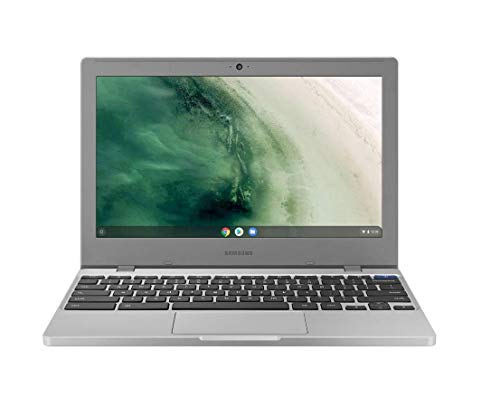
There is a particular comfort in buying the machine the school itself buys. The Samsung Chromebook 4 — 11.6-inch HD screen, Celeron N4000, 4GB of memory, 32GB of eMMC storage, Gigabit Wi-Fi — is one of the most widely issued education Chromebooks in service, and a home machine of the same design inherits the fleet’s entire support ecosystem: the same chargers circulating in classrooms, the same handling habits teachers assume, the same model the school’s IT volunteer has already troubleshot a hundred times. For a family that values a quiet life over a marginal specification, that familiarity is a feature with real weight.
The school-day experience is the class standard, honestly delivered. The portal loads, the documents open, the video lesson plays, and Gigabit Wi-Fi keeps the machine from being the bottleneck in a house where several students and two working parents share one connection. Thirty-two gigabytes is the storage size the education market settled on as workable, and a student with cloud-first habits — schoolwork in the school’s drive, media streamed — will not meet its walls during term time.
Durability here is lineage rather than listed armour: an education clamshell designed for fleet issue, built to be carried by children daily and serviced by districts cheaply. The guide credits that lineage without inventing certifications the listing does not state, and pairs it with the routine advice that decides real-world survival — a padded sleeve, a bottle carried in the bag’s outer pocket, and a charging spot at home that is not the floor beside a bed.
Calendar planning matters most for this pick, because the design has been in service long enough that remaining update years vary by unit and channel. Before buying, identify the exact model — the listing’s reference is XE310XBA-K01US — check its published support horizon, and count the school years it must cover. For a child in the middle primary years, the runway is typically ample; for a student starting a long secondary course, the newer ASUS or the big Lenovo plans better. The fleet twin is the right machine at the right entry point, and the wrong one bought blindly for the wrong September.
Management is effortless in the way of all fleet standards: the Chromebook 4 enrols into Google admin exactly as the school’s own units do, and if the school prefers home machines unenrolled, it behaves as a simple personal Chromebook with the same interface the student already knows from class. That continuity — one environment at school and at home — quietly reduces homework friction more than any processor could.
- Display: 11.6-inch HD screen
- Processor: Intel Celeron N4000
- Memory and storage: 4GB memory, 32GB eMMC
- Wireless: Gigabit Wi-Fi for busy household networks
- Operating system: Chrome OS with standard school enrolment
- Model reference in listing: XE310XBA-K01US — use it to check the support horizon
Strengths
- Matches the issued fleet — chargers, habits and help everywhere.
- Gigabit Wi-Fi suits multi-student households.
- Proven education design with a workable 32GB of storage.
Trade-offs
- Remaining update years vary — check the exact model’s horizon.
- No touchscreen and no listed spill protection.
- Modest processor defines a classroom-only ceiling.
Best for: families wanting the school’s own machine as the home twin.
Not suited for: students starting long courses, or touch-led young learners.
Lenovo Chromebook 2-in-1 14 — Room to grow into
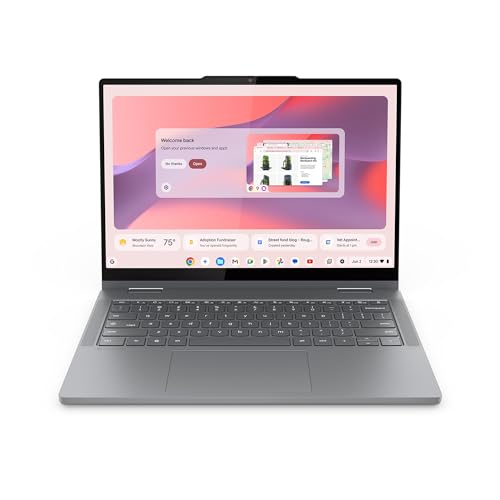
Students grow faster than laptops, and this pick is the guide’s answer to the growth problem. Lenovo’s Chromebook 2-in-1 steps up to a 14-inch WUXGA IPS touchscreen, an Intel N150 processor, 4GB of memory and — the figure that changes a student’s life — 128GB of UFS storage, in a Luna Grey convertible body. Every dimension of that specification addresses a complaint the 11.6-inch machines generate by the middle secondary years: the screen is big enough for split-view research, the resolution keeps two documents legible side by side, and the storage stops rationing a teenager’s projects, photographs and offline media.
The touchscreen and fold remain, which matters more at this age than sceptics expect. Annotating a PDF of past exam questions, sketching a diagram in a note application, presenting from tent mode in a group project — the convertible habits formed young continue into coursework, and this machine lets a student keep them while gaining the canvas older work demands. Google Gemini is named in the listing among its features, reflecting the AI assistance now woven into the Chromebook experience for drafting and summarising — a study aid whose school-appropriateness each family and school will judge under their own policies.
Durability thinking shifts at this size. A 14-inch machine lives less in the drop zone of small children’s bags and more in the sixth-former’s daily carry between home, school and part-time work; its enemies become the crushed corner in a crowded bag and the spilled coffee of a late study session. The routine answers scale accordingly: a structured bag with a real laptop compartment, and a desk habit that keeps drinks behind the screen rather than beside it. The education-bred Chromebook design language still underpins the machine, but the owner’s habits now do most of the protecting.
As a current-generation model, its update runway is the longest story in this guide, which makes it the natural purchase for a student at the start of a long course: buy once at the secondary threshold and the calendar, the storage and the screen all reach the final year together. That alignment — machine life matched to course life — is the most economical pattern in school technology, and this is the pick built for it.
Its size is its only real condition. For a small primary child it is too much machine to carry and too much screen to manage; the little convertibles exist for those years. Bought at the right threshold, though, the big Lenovo is the one purchase in this guide a family should not need to repeat.
- Display: 14-inch WUXGA IPS touchscreen, folding 2-in-1 design
- Processor: Intel N150
- Memory and storage: 4GB memory, 128GB UFS storage
- Named feature: Google Gemini among its listed capabilities
- Finish named: Luna Grey
- School fit: current-generation runway for a full secondary course
Strengths
- 128GB storage ends the rationing older students resent.
- 14-inch WUXGA screen supports real split-view study.
- Longest planning horizon in the guide.
Trade-offs
- Too large for young primary children to carry happily.
- 4GB memory still caps heavy multitasking.
- Sits at the top of this class’s money.
Best for: students starting secondary school who need one machine for the whole course.
Not suited for: small children, or families whose need is only a year or two.
Dell Chromebook 3110 (education line) — The district alternative
Dell’s education line is the other fleet standard, and districts that standardise on Dell issue machines from this family by the cart-load. It stands here unlinked — generations and configurations rotate through retail channels under similar names — as the comparison a family in a Dell district should run: when the school issues Dell, a home Dell aligns chargers, handling and the IT department’s familiarity in exactly the way the Samsung section describes for its own fleet.
The line’s design brief mirrors the category: an 11.6-inch classroom clamshell (with convertible variants in the family), reinforced for student life and built for cheap fleet servicing. Parents cross-shopping it against the CR11 should compare the same evidence this guide has used throughout — named protections, storage size, and the exact model’s update horizon — rather than assuming fleet equivalence means identical value on a given day.
Availability through ordinary retail channels comes and goes with district refresh cycles, which is the practical reason no link stands here. When a clearly specified unit from this line appears with its horizon confirmed, it deserves the same serious consideration as the linked fleet twin.
- Form: 11.6-inch education line in Dell’s Chromebook family
- Role: the district standard where schools issue Dell
- Design brief: reinforced classroom build, fleet servicing
- Buying note: generations rotate — verify protections, storage and horizon per unit
- Household angle: aligns with a Dell-issuing school’s chargers and habits
- Availability: follows district refresh cycles
Strengths
- Fleet-proven in districts that standardise on Dell.
- Education build and servicing story.
- Natural home twin for Dell-issued students.
Trade-offs
- No stable single listing to verify here.
- Specification varies across the family’s generations.
- Retail availability follows fleet cycles.
Best for: families in Dell districts wanting the matching home machine.
Not suited for: families who want a verified configuration without homework.
HP Chromebook x360 11 (education line) — The folding fleet option
HP’s small x360 education models answer the question schools ask after issuing clamshells: what about the classes that work by touch? This folding 11.6-inch class line gives districts a convertible built to fleet standards, and for families it represents the new-machine alternative to the renewed 300e — the same touch-and-fold idea, bought with a fuller calendar and an unworn hinge when a suitable unit is available.
The comparison between the two is the most instructive in this guide’s prose tier. The 300e offers a verified listing today with a renewed unit’s inspection homework; the HP line offers the form in current generations whose exact offered configuration must be pinned down by the buyer. Neither route is superior in the abstract — the decision is whether your household prefers a known unit with checks to run, or a newer line with homework to do.
Whichever way that decision falls, the school-fit questions remain identical: enrolment expectations, support horizon against the child’s Septembers, and the bag-and-bottle routine that decides survival more than any specification. The HP’s presence here is a reminder that the linked four are a curated shortlist inside a wider education market that rewards the parent who asks those three questions of any machine.
- Form: small folding touchscreen line in HP’s education range
- Role: the current-generation alternative to the renewed 300e
- Audience: touch-led classes and young learners
- Buying note: pin the exact configuration and horizon of the unit offered
- School questions: enrolment, calendar, carrying routine
- Positioning: fleet-standard convertible from a major education supplier
Strengths
- Touch and folding in a current fleet line.
- Newer generations carry longer runways.
- Built to education fleet expectations.
Trade-offs
- No single representative listing to link.
- Configuration homework falls on the buyer.
- Class-typical memory ceiling applies.
Best for: touch-first families preferring a current line over a renewed unit.
Not suited for: parents wanting the verified pick without per-unit checks.
Comparison
| Pick | School-shaped feature as listed | Storage as listed | Best entry point |
|---|---|---|---|
| Lenovo 300e Chromebook | Touchscreen 2-in-1; Renewed listing to inspect on arrival | 32GB flash | Primary years, touch-led learning |
| ASUS Chromebook CR11 | Spill-resistant keyboard, antimicrobial guard | 64GB eMMC | Younger and middle years, accident-rich bags |
| Samsung Chromebook 4 | Fleet-standard design schools issue themselves | 32GB eMMC | Middle years, as the home twin of an issued machine |
| Lenovo Chromebook 2-in-1 14 | 14-inch WUXGA touchscreen for split-view study | 128GB UFS | Start of secondary school, full-course purchase |
| Dell Chromebook 3110 (education line) | District fleet standard — verify protections per unit | Verify per unit offered | Dell districts, matching the issued fleet |
| HP Chromebook x360 11 (education line) | Folding touch design in a current fleet line | Verify per unit offered | Touch-led classes wanting a newer line |
How Does School Management Actually Work on a Home-Bought Chromebook?
Parents picture something more dramatic than the reality. A school-managed Chromebook signs in with the student’s school account, and the school’s Google admin console decides which applications appear, which websites the school network allows, and which settings the student can change. A home-bought machine joins that world only if it is enrolled — a step the school’s IT contact controls, sometimes requiring a management licence the school provides, sometimes refused for personal devices as a matter of policy. Both policies are common, which is why the enrolment question belongs in an email to the school before the purchase, not in a panic after it.
An unenrolled home machine still works for homework in most schools: the student signs into the same learning platforms through the browser with their school account, and the work flows. What enrolment adds is the school’s guardrails and its managed applications; what it removes is the family’s unrestricted control while the device is managed. Families who want one machine to be both — school-managed on weekdays, family-open at weekends — should ask how the school handles that duality, because the answer varies and it shapes whether one device or two is the honest plan.
Privacy follows the same split and deserves a calm sentence. Work done inside the school account belongs to the school’s managed world wherever it is opened; work in a personal account on an unenrolled machine is the family’s own. Teaching a student which account they are in is the digital equivalent of teaching them which bag the library book goes in — a small habit that prevents most confusion.
How Should You Count Update Years by School Year?
Do the arithmetic in Septembers. Write down the school years the machine must serve — this September, the next, and so on to the final year of the course or the planned hand-down — then compare that list against the model’s published update horizon. A machine whose updates end in the spring of its final needed year is a machine that finishes its job; one whose updates end the year before is a purchase that strands its owner mid-course, when replacement money is least welcome.
Entry point changes everything, which is why this guide’s picks are labelled by it. The elder fleet designs — the Samsung, the renewed Lenovo — are rational purchases for a child with two or three Septembers to cover and irrational ones for a child with six. The newer ASUS and the big Lenovo invert that: their fuller calendars are wasted money for a two-year need and essential value for a six-year one. There is no universally best machine in this guide; there is a best machine per number of Septembers, and counting them is a five-minute exercise that outperforms any other research a parent can do.
Hand-me-down chains extend the count honestly. A machine bought for an older child’s final primary years and destined for a younger sibling should be counted across both children’s lists, which routinely promotes the newer picks over the renewed saving — the renewed unit’s calendar may expire in the gap between owners, turning an apparent economy into a second purchase.
What Drop, Spill and Bag Routine Keeps a School Laptop Alive?
Equipment survives on routines, and the school routine has four moving parts. The bag comes first: a padded laptop compartment or a real sleeve, the machine never loose among textbooks, and the water bottle in an outside pocket — that single placement rule prevents the majority of liquid incidents, because bottles leak sideways in bags with metronomic reliability. The CR11’s spill-resistant keyboard is the second line of defence, not a reason to retire the first.
The desk routine comes second. Drinks sit behind the screen or on the floor during homework, never beside the keyboard; the machine charges at a fixed home station rather than trailing a cable across a bedroom floor where feet and chair wheels hunt it; and the lid closes before the machine moves rooms, because most drops happen in the twelve steps between desk and sofa with the laptop carried open in one hand.
The inspection routine comes third, and it is monthly rather than daily: hinge still firm, corners unchipped, keys all present, charger cable un-frayed at the strain points, storage cleared of a term’s downloads. Five minutes with a parent catches the small failures while they are still warranty conversations instead of replacement purchases. Schools run exactly this audit on their fleets each holiday; a household that borrows the habit gets fleet-grade longevity from a single machine.
Finally, the data routine: schoolwork lives in the school’s cloud account by default, so a dead machine is an inconvenience rather than a lost term. Teach the student that anything saved only on the device is a draft, and the worst day in this machine’s life becomes a story rather than a disaster.
How Do Primary, Middle and Secondary Students Use These Machines Differently?
The primary student’s laptop is a reading and touching device that occasionally types. Sessions are short, supervised and application-led; the machine’s virtues are that it opens instantly, forgives fingers on the screen, and survives being carried by someone whose attention is elsewhere. That is the 300e’s home ground, and it is why processing power ranks last for this age — the child’s bottleneck is never the processor; it is the reading level, the lesson, and the bell.
The middle-years student’s laptop becomes a homework instrument. Documents lengthen, research tabs multiply, the portal accumulates subjects, and the machine starts travelling between home, school and friends’ houses with genuine work aboard. Storage and keyboard comfort begin their long rise in importance here, which is the CR11’s and the Samsung’s shared territory — and the age at which the bag routine taught earlier either becomes the student’s own habit or gets relearned through the first breakage.
The secondary student’s laptop is a production tool approaching adult patterns: essays with citations, data in spreadsheets, presentations assembled under deadline, and a personal archive of photographs and media riding alongside the schoolwork. Screen size for split-view work and storage for the archive dominate, which is the big Lenovo’s entire argument. Families who understand these three phases stop asking which laptop is best and start asking which phase they are buying for — the question this whole guide is organised to answer.
What Should Happen in the Week Before Term Starts?
Set the machine up while nothing is urgent. Create the student’s accounts — school and personal, kept distinct as the management section explains — sign into the learning platforms the school has published, and bookmark them together so the first homework evening does not begin with a password excavation. Run every pending update on the home connection, because a machine that updates itself on the first school morning teaches the wrong lesson about preparation.
Rehearse the physical routine with the actual bag. Pack the machine in its sleeve, bottle in the outside pocket, charger in its labelled place, and walk the route to the door. Young students especially benefit from the rehearsal becoming a game rather than a lecture: the routine that survives September is the one that was practised in August, when mistakes cost nothing.
Agree the household rules while the machine is still exciting: where it charges, where drinks may not go, what happens when something breaks (tell an adult the same day, while options exist), and which account is for school. Rules negotiated before the first incident are family policy; rules invented after it feel like punishment, and the distinction decides whether the student reports the cracked corner in week one or hides it until the warranty conversation is moot.
Add one more rehearsal to the week, this time digital: a deliberate practice login to every school platform from home, on the home network, including the password-recovery path. Schools distribute credentials on paper that migrates to the bottom of the bag; a family that has already walked the recovery route once, calmly, owns a map for the evening it is needed urgently. Ten minutes in August pays out in calm rather than cash, which is the currency school evenings actually run on.
How Should a Family Handle the Mid-Course Machine That Falls Behind?
It happens in most households: the laptop bought hopefully in one phase becomes the constraint in the next — storage full, tabs crawling, the student now older than the machine’s design. Diagnose before replacing. A storage problem is often an archive problem solvable with an external drive and an afternoon; a speed problem is often a tab-discipline and update problem; a size problem, alone among them, is genuinely a new-machine problem, because screens do not grow.
If replacement is right, the old machine rarely becomes worthless. It demotes gracefully — to the younger sibling whose phase it still fits, to the kitchen’s recipe-and-homework terminal, to the travel machine nobody would mourn. School laptops cascade through households the way they cascade through fleets, and planning the cascade at purchase, as the calendar section advises, is what turns one budget into several years of covered students.
Resist, finally, the mid-term emergency purchase at whatever specification the nearest shelf offers. A planned replacement bought in a holiday window, with the Septembers counted and the school’s enrolment answer in hand, costs less and serves longer than the same money spent in a panic on the Sunday before school resumes.
What Are the Common Mistakes When Buying a School Laptop?
Buying for the photograph rather than the school year is the opening error: the sleek machine that impresses in August and meets its first bus-step drop in September. Education designs look plain because their budget went into surviving the year, and in this category plain is what value looks like.
Skipping the school’s enrolment question is the administrative error. A five-line email in July — do you enrol personal devices, under whose licence, with what restrictions — prevents the September discovery that the shiny new machine cannot reach the school’s managed applications. Schools answer this question happily; they would rather answer it a hundred times in summer than once per family in autumn.
Miscounting the Septembers is the calendar error, covered above and repeated here because it is the most expensive one available at this money. A cheap machine that expires a year early is not cheap; it is a subscription to buy twice.
Treating a renewed unit as a new one is the inspection error. The 300e in this guide is a sound purchase with its first-week checks run and a false economy without them. Renewed school machines were reissued by fleets for years — but fleets inspected them on arrival, and the household must borrow that habit along with the machine.
What About Homeschool and Shared-Family Use?
Homeschooling removes the fleet and keeps the lessons. Without a school’s IT department, the parent becomes the admin console, and Chrome OS’s simplicity — automatic updates, account-based everything, a device that is genuinely hard to break in software — is worth more, not less, than in the enrolled setting. The picks hold their order, with one adjustment: the family’s own cloud accounts replace the school’s, so storage discipline and the personal-versus-lesson account split become household habits to teach explicitly rather than policies a console enforces.
Shared family machines add the multi-user test. Chromebooks switch accounts cleanly, which suits a device passed between siblings and parents across a day; the practical limits are storage shared among everyone — another quiet argument for the 64GB and 128GB picks — and the screen-size compromise between the youngest user’s portability and the oldest user’s work. Households sharing one machine should buy for the oldest regular user and teach the youngest to handle it, rather than buying small and frustrating everyone over ten.
The kitchen-table reality deserves the last word in this section: a school laptop in a family home will be borrowed for recipes, video calls with grandparents and a parent’s emergency document. Machines that serve those borrowings gracefully — quick wake, decent webcam behaviour on the household connection, a screen the whole table can see in tent mode — earn a second, unlisted career that never appears in school-focused reviews and dominates actual family satisfaction.
How Do You Talk to the School About All of This?
One short message, sent early, outperforms every other preparation in this guide. It asks four things: whether personal devices are enrolled and under whose licence; which model or specification the school recommends if families buy their own; the date by which devices should be ready; and whom to contact when something breaks mid-term. Schools with bring-your-own programmes publish most of this; schools without one will at least tell you the issued model’s identity, which activates the fleet-twin strategy in this guide.
Keep the reply. It becomes the reference when a portal refuses a login, when a teacher assumes a managed application the home machine lacks, or when the renewal conversation arrives in a later year. Parents who treat school technology as a relationship rather than a purchase find that the IT contact remembers them kindly — a soft asset, and a real one, across a child’s school career.
What Does the First Term Teach You About the Purchase?
By half-term, every family knows things no review could have told them: whether the battery truly lasts the after-school club, whether the portal’s video lessons strain the processor, whether the bag routine survived contact with a real timetable. Treat that knowledge as data rather than verdict. Most first-term complaints are configuration — an account not set up as the school expects, storage filling with downloads nobody archived, a charger habit that leaves the machine at half by Thursday — and configuration is fixable in an evening.
The complaints that are not configuration are equally informative, because they describe the next purchase with unusual precision. A student outgrowing an 11.6-inch screen has told you the next machine’s size; a hinge loosening under daily folding has told you the next machine’s inspection priority; a calendar expiring sooner than the course has taught the whole family to count Septembers. School laptops are tuition in both senses, and the households that learn the lessons buy very well the second time.
Write the lessons down, literally, in the family notebook or the notes application: model, purchase date, update horizon, what failed and what delighted. When the sibling’s turn or the replacement’s turn arrives, that page is worth more than any single guide — including this one — because it is written in your own children’s handwriting, about your own school, in your own Septembers.
How Much Should the Accessories Budget Be?
Reserve a slice of the envelope for the kit, because at this level the kit is half the durability story. A padded sleeve, a labelled spare charger for the homework station, and a modest external drive for the family’s archive of school photographs cover nearly every accessory need this class generates, and together they typically cost less than one repair. Buying the laptop with the whole envelope and the kit with none is the classic false economy of August.
Sequence the purchases by evidence. The sleeve and charger are day-one certainties; the drive can wait until the first term’s photographs exist; the mouse, the stand and the second-case-for-travel can all be nominated by the student’s actual habits across the autumn rather than guessed in the shop. A family that stages accessory spending this way ends the year with exactly the kit its student uses, at a total the panic-buyers exceed by October.
Why Does the Webcam and Microphone Matter More Than Parents Expect?
Remote and hybrid days have made the camera part of the school day rather than an accessory to it: the snow day lesson, the parent consultation, the tutoring session and the group project call all arrive through the same small lens. None of the listings in this guide headlines its camera, so the practical advice is procedural — test the machine on a real call in the first week, in the room and lighting the student will actually use, and fix what can be fixed with position and a window rather than discovering it during a graded presentation.
Position outperforms specification at this level. A laptop raised on two books so the camera meets the student’s eyes, a light source in front rather than behind, and a headset borrowed from the family drawer will improve a school call more than any camera upgrade this class offers. Teach the setup as part of the machine’s routine, the same way the bag routine is taught, and the inexpensive laptop presents its owner like a considerably dearer one. The microphone half of the lesson is quieter still: a student who learns to mute, to speak toward the machine and to keep the keyboard silent during calls has acquired a professional skill at primary-school prices, and teachers notice it by name. None of this requires a better camera; it requires the same thing every other section of this guide has required, which is a routine taught before it is needed, practised once in calm conditions, and then trusted to carry the student through the terms ahead without drama, from the first September assembly to the last June deadline, through every wet Tuesday, lost charger, forgotten password and spilled bottle between them, all survived and forgotten by Friday. That resilience, more than any single specification in the listings above, is what a school laptop is actually for, and it is why the families who plan for the year rather than the unboxing so rarely regret the money.
Final Recommendation
Match the machine to the September in front of you. For the youngest touch-led learners, take the Lenovo 300e and run its arrival inspection like a fleet manager. For the accident-rich middle years, take the ASUS CR11 — its named spill protection and doubled storage are the most school-shaped specification in this guide, on a new machine with its whole calendar ahead. For the family mirroring an issued fleet, take the Samsung Chromebook 4 after confirming its horizon covers the needed years. And for the student crossing into secondary school, take the big Lenovo 2-in-1 14 and buy once for the whole course.
If one machine must serve the widest range of households reading this keyword, it is the CR11: armour named in writing, storage with headroom, and a calendar that starts full.
Frequently Asked Questions
Should I buy the same model the school issues?
It is a genuinely good strategy. A matching model aligns chargers, handling habits and the school’s troubleshooting knowledge, and the student moves between home and school machines without friction. Confirm the exact model and its update horizon rather than just the brand, and the strategy delivers everything it promises.
What happens when a Chromebook reaches its update end date?
It keeps working, but it stops receiving system and security updates, and school platforms gradually move beyond it. Plan purchases so the end date falls after the final school year the machine must serve — count the Septembers, as the guide’s calendar section explains, and let that count choose between the elder and newer picks.
Can the school manage a laptop I buy myself?
Often yes, if the school chooses to enrol personal devices into its Google admin system — but policies and licensing vary, and some schools decline. Ask the school’s IT contact before buying; the answer decides whether one machine can serve as both school-managed device and family computer.
Is a renewed laptop a sensible school purchase?
It can be, with fleet discipline: the 300e in this guide is a previously serviced unit whose hinge, touchscreen and battery should be tested through a realistic school day within the return window. A unit that passes is a sound economy for a few school years; a unit that fails goes back immediately. Skipping the inspection is what turns renewed into risky.
How much storage does a student actually need?
Schoolwork itself is light and mostly cloud-based, so 32GB serves the middle years comfortably. The 64GB ASUS buys freedom from termly clear-outs, and the 128GB big Lenovo serves the older student accumulating projects, photographs and offline media. Storage pressure comes from the student’s life, not their lessons.
What if the laptop breaks in the middle of term?
Act on the household’s preparation rather than improvising: schoolwork in the school cloud account means the student’s work survives the machine, so the immediate need is any borrowed screen — a family computer, a school loaner — while the repair or replacement proceeds. Report the breakage the day it happens, while warranty and return options are widest, and use the family notebook’s record of model and horizon to buy the replacement in one informed step instead of a weekend of research under pressure.
Does my child need a touchscreen?
Young learners benefit most — reading, early applications and annotation are touch-shaped work, which is why the guide leads with a folding touchscreen for the primary years. By the essay-writing years the keyboard matters more than the glass, and families can choose either form with confidence.
Related Guides
Companion guides cover the neighbouring decisions: best 2nd hand laptops for the used market’s bigger machines, best 3 2 display laptops for tall-screen laptops at the market’s other end, and best 17 inch inexpensive laptops for large, affordable machines for home study desks.