What's inside
- Key Takeaways
- Quick Picks
- How We Chose These Picks
- Comparison
- How Do You Work Out Cost Per Year Instead of Cost Per Purchase?
- What Can a Laptop at This Money Actually Do All Day?
- How Should You Inspect a Renewed Machine in Its First Days?
- How Do the Three Storage Sizes Change Daily Life?
- What Do the Processor Generations Mean in Classroom Seconds?
- When Does Something Else Beat This Entire Class?
- What Are the Common Mistakes When Buying at This Price?
- How Should a Family Buy Two Machines on This Budget Logic?
- What Does the Second Year of a Cheap Laptop Look Like?
- How Does Wi-Fi and the Home Network Change the Verdict?
- How Should You Time a Purchase in This Band?
- What Should Arrive in the Same Box-Opening Session?
- Final Recommendation
- Frequently Asked Questions
- Related Guides
As an Amazon Associate I earn from qualifying purchases. This post may contain affiliate links at no extra cost to you.
widgetverdict.com is reader-supported. When you buy through links on our site, we may earn an affiliate commission.
Nobody shopping the best 200 300 dollar laptops needs flattery, so here is the plain position: at this money you are not buying a small version of a good laptop, you are buying a different species of machine — almost entirely 11.6-inch education Chromebooks built for classrooms, plus older stock moving through its final channels. Judged as failed laptops, they disappoint. Judged as dollars converted into hardware — how much storage, screen, processor and remaining service each unit of money buys — they become a fascinating, legible market, and that conversion rate is what this entire guide measures. Every pick below is scored on what your money physically becomes.
Four machines carry verified listings; follow their names to check price on Amazon and confirm the configuration, because at this end of the market the same product page can host several storage and condition variants. Two of the four are described in their own listings as Renewed, and this guide says so at each pick in its own words — condition is part of the value equation, not a footnote to it. Two further education models appear without links as benchmarks for what the money buys elsewhere in the class.
Bring one tool to every section that follows: divide. Storage per dollar, memory per dollar, years of update support per dollar. The machines separate quickly once the division is done, and the winner is rarely the one with the loudest product page.
Key Takeaways
- The ASUS Chromebook CR11 converts money into the most modern hardware here — an Intel N100 processor and 64GB of storage, double or quadruple the flash in the renewed picks.
- The Samsung Chromebook 4 is the value baseline: 32GB of storage and Gigabit Wi-Fi in the class’s most widely deployed school design.
- Both the Dell 3100 and the Lenovo 300e listings carry the word Renewed in their titles, so their prices buy inspected used hardware — a fair trade only when the discount against new is real.
- The Dell’s 16GB of flash storage is the weakest conversion in the guide; its money buys the education chassis and little else, so it must be the cheapest thing on your screen to make sense.
- The Lenovo 300e is the only touchscreen 2-in-1 among the linked picks, which makes its dollars buy a capability the others simply do not offer at any division.
- Update lifespan is the hidden multiplier on every figure here — check the exact model’s Chrome OS support horizon before paying, because a cheap machine near its end date is expensive per year.
Quick Picks
| Pick | Badge | Why it earns a place |
|---|---|---|
| Samsung Chromebook 4 | The baseline conversion | 32GB of storage and Gigabit Wi-Fi in the school Chromebook design everything else is measured against. |
| Dell Chromebook 11 3100 | Chassis for pennies | A renewed education workhorse whose case for itself rests entirely on being the cheapest route to a working machine. |
| Lenovo 300e Chromebook | Touch for the money | A renewed 11.6-inch touchscreen 2-in-1 — the only folding, touching screen among the linked four. |
| ASUS Chromebook CR11 | Newest silicon, biggest drive | An Intel N100 and 64GB of storage in a rugged new machine with a spill-resistant keyboard. |
| HP Chromebook 11 (education line) | The fleet alternative | HP’s classroom staple, the comparison schools themselves make against the Samsung. |
| Acer Chromebook Spin 311 | The other folding option | Acer’s small convertible Chromebook, a second route to touch at classroom money. |
How We Chose These Picks
The method was arithmetic before adjectives. Each candidate’s listing was reduced to its convertible assets: processor generation and cores, memory, storage type and size, screen size and resolution, touch capability, wireless standard, and the condition word — new or renewed — that quietly reprices everything else. Machines were then ranked by how completely a buyer’s money turns into those assets, with two vetoes applied regardless of arithmetic: a storage figure so small it cripples the operating system’s own updates, and a support horizon so short the machine becomes e-waste on a schedule. The Dell survives the first veto only narrowly and conditionally, as its section explains.
Newness was treated as an asset with a price, not a virtue. A renewed machine is a rational purchase when its discount pays for the inspection it received, the battery wear it carries and the warranty it shortened — and an irrational one when it costs nearly what the new machine costs. That is why the two renewed picks here are framed as conditional buys with a test attached, rather than as bargains by definition. The test is simple and appears again in the buying sections: compare the renewed figure against the new alternative on the same day, and demand a meaningful gap.
Education design was counted as value, deliberately. These machines were engineered for the most destructive user population on earth — schoolchildren — and their reinforced corners, sealed keyboards and fleet-serviceable parts are worth money to a home buyer too, even though no benchmark measures them. A parent buying a first laptop, or a writer buying a distraction-free drafting machine, inherits that engineering at classroom prices.
The two unlinked benchmarks exist because value is relative. HP’s education line and Acer’s small Spin define the class’s going rate for a chassis and a touchscreen respectively; any linked pick that cannot beat its benchmark on the division test does not deserve your money, and the guide keeps the benchmarks visible so you can run the test yourself.
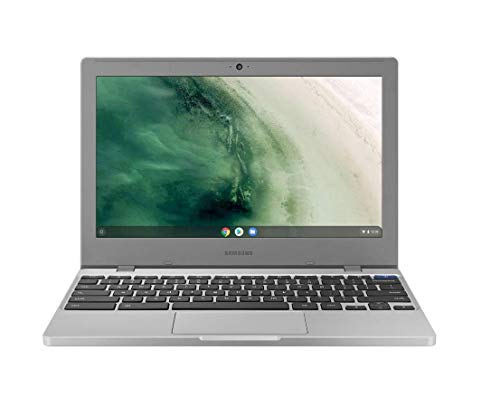
Samsung Chromebook 4 — The baseline conversion
Begin the arithmetic with the machine that defines the class. The Samsung Chromebook 4 pairs an 11.6-inch HD screen with an Intel Celeron N4000, 4GB of memory and 32GB of eMMC storage, and adds Gigabit Wi-Fi — a specification that reads as a list of minimums until you divide it by the money this class commands, at which point it becomes the yardstick. Thirty-two gigabytes is the storage figure that separates a workable Chromebook from a cramped one, and the Samsung reaches it at the class’s ground floor. That single line is why this machine, rather than a cheaper 16GB variant, anchors the guide.
The Celeron N4000 is an older dual-core design, and the value lens treats it fairly: it converts money into adequacy. Browser schoolwork, documents, video lessons and email run inside its abilities without drama; the machine feels plain rather than slow at the tasks its price promises. What the processor cannot do — heavy multitab research, large spreadsheets, anything resembling media production — is simply not for sale at this money from any maker, and a buyer who understands that is buying with open eyes.
Gigabit Wi-Fi is the line item rival listings hope you skip. In homes and schools with fast connections, the wireless standard decides whether the cheap laptop feels cheap; the Samsung’s networking is a class above the bargain-bin radios that throttle otherwise identical machines. Combined with the design’s sheer deployment — this is one of the most common school Chromebooks in service — it means accessories, chargers and folk knowledge are everywhere, a form of value no specification table captures.
Set expectations for the screen and the life plan. The 11.6-inch HD panel is a working display, not a pleasure display: text is legible, video is fine, and nobody will mistake it for a media machine. And like every Chromebook, this one carries a finite update horizon set by its model line — check the exact date for the unit offered, because the years remaining are the denominator in the only division that finally matters, cost per year of supported service.
Bought at the class’s typical money with a healthy support horizon, the Chromebook 4 is the purchase against which cleverer options must prove themselves. Most, on division, do not.
- Display: 11.6-inch HD screen
- Processor: Intel Celeron N4000
- Memory and storage: 4GB memory, 32GB eMMC
- Wireless: Gigabit Wi-Fi
- Operating system: Chrome OS
- Model reference in listing: XE310XBA-K01US
Strengths
- 32GB storage at the class’s ground floor — the workable minimum, met.
- Gigabit Wi-Fi outperforms bargain-bin networking.
- Huge school deployment means accessories and knowledge everywhere.
Trade-offs
- Older dual-core processor defines a modest ceiling.
- HD screen is functional, never delightful.
- Update horizon must be checked per unit offered.
Best for: first-laptop buyers and students wanting the class’s proven baseline conversion of money into machine.
Not suited for: multitab researchers, media producers, or anyone who will not check the support horizon before paying.

Dell Chromebook 11 3100 — Chassis for pennies
Dell’s listing ends with a word that reprices everything before it: this 3100 is offered as a Renewed machine, a previously owned education laptop inspected and returned to sale. Read the rest of the specification through that lens. An 11.6-inch screen at 1366 × 768, a Celeron N4020, 4GB of memory and 16GB of flash storage is a specification that, sold as new, would fail this guide’s arithmetic outright. Sold as renewed at the bottom of the class’s money, it becomes a narrower, conditional proposition: you are buying Dell’s education chassis — the reinforced, fleet-tested shell schools chose by the thousand — with the electronics almost as an accessory.
That framing decides who should buy it. A family needing a homework terminal for a young student, a writer wanting a sacrificial travel machine, a household wanting a kitchen-and-recipe screen that no spill can ruin financially — for these buyers the chassis is the product and the modest internals are sufficient. The N4020 is a touch newer than the Samsung’s chip, Bluetooth is present for a mouse or headphones, and Chrome OS asks little of the hardware for browser-shaped work.
The 16GB of flash is the hard limit and deserves no softening. Chrome OS itself, its updates and a modest set of Android applications will crowd that space; the machine must live in the cloud almost entirely, with downloads treated as temporary guests. A buyer who understands that discipline gets a working machine for the class’s least money; a buyer who does not will meet the storage wall within a school term and conclude, wrongly, that cheap laptops are useless rather than that this one was misassigned.
Renewed ownership adds its own checklist, developed fully in the buying sections below: battery health unknown until tested, cosmetic condition graded by the seller, and a return window that must be used decisively in the first days. The value test is comparative — this machine earns its money only while it sits meaningfully below the new Samsung and ASUS in price. The day its figure approaches theirs, the division flips and the new machines win, because new batteries and full support horizons are worth more than a famous chassis.
Kept inside its conditions, though, the 3100 performs a real service: it is the floor of the functioning-laptop market, the machine that proves how little money a working computer can cost when every luxury is honestly surrendered.
- Display: 11.6-inch screen, 1366 × 768 resolution
- Processor: Intel Celeron N4020
- Memory and storage: 4GB memory, 16GB flash storage
- Graphics and wireless: Intel HD Graphics, Bluetooth named in the listing
- Operating system: Chrome OS
- Condition as listed: a Renewed unit — previously owned, inspected, resold
Strengths
- Dell’s education chassis is genuinely school-proof engineering.
- The cheapest route in this guide to a working, supported machine.
- Newer Celeron and Bluetooth cover homework and peripherals.
Trade-offs
- 16GB of flash enforces a strict cloud-only life.
- Renewed battery health is unknown until you test it.
- Value collapses if its price nears the new picks.
Best for: buyers needing a sacrificial homework or travel terminal at the market’s floor price.
Not suited for: anyone storing files locally, or buyers who skip the first-week battery and condition checks.

Lenovo 300e Chromebook — Touch for the money
Lenovo’s 300e is the second listing in this guide whose title closes with the Renewed marker, and it spends that condition differently from the Dell: where the Dell buys a chassis, this machine buys a capability. The 300e is an 11.6-inch touchscreen 2-in-1 — the screen touches, the hinge folds, the machine becomes a tablet for reading and a tent for video — and no other linked pick at this money offers that transformation at all. Divided by capability rather than by gigahertz, the 300e’s money converts into an entire interaction mode its rivals cannot sell you.
The internals are the class’s elder generation and should be read without illusion: a MediaTek M8173C quad-core processor at 2.1GHz, 4GB of LPDDR3 memory and 32GB of flash storage. The MediaTek chip was designed for exactly this — browser work, classroom applications, video — and its quad-core layout keeps the interface responsive at the modest tasks, while the 32GB of storage doubles the Dell’s room and matches the Samsung’s workable minimum. For a child whose school life mixes typing, touch applications and drawing, this is arguably the most complete cheap machine in the guide.
Touch changes the user more than the specification suggests. Young students work faster with a finger than a trackpad for many classroom applications; readers annotate directly; the folding screen turns a cramped tray table into a video display. Parents buying a first computer are often really buying engagement, and a machine a child enjoys opening gets its homework done more reliably than a marginally faster machine that feels like an obligation. That is a value argument, stated in value terms.
The renewed condition writes its usual conditions across the purchase, in this machine’s own terms: the touchscreen and hinge — the very features you are paying for — are the parts to test hardest in the return window, checking touch response across the whole panel and the hinge’s hold at every angle. A renewed 2-in-1 with a tired hinge is a laptop with a loose lid; tested early, it is a return; tested late, it is a regret.
Support horizon matters here as with every pick, and this elder design’s remaining update years should be confirmed for the exact unit before the division is trusted. With years enough and the hinge sound, the 300e converts modest money into the guide’s most versatile cheap machine.
- Display: 11.6-inch touchscreen LCD, 2-in-1 folding design
- Processor: MediaTek M8173C quad-core at 2.1GHz
- Memory and storage: 4GB LPDDR3 memory, 32GB flash storage
- Operating system: Chrome OS
- Model reference in listing: 81H00000US
- Condition as listed: sold under the Renewed banner — a pre-owned unit brought back to market
Strengths
- Only touchscreen convertible among the linked picks.
- 32GB storage matches the workable class minimum.
- Quad-core chip keeps classroom tasks responsive.
Trade-offs
- Elder MediaTek platform sets a low performance ceiling.
- Hinge and touch layer must be tested hard in the return window.
- Remaining update years need confirming per unit.
Best for: young students and families wanting touch and folding versatility at classroom money.
Not suited for: buyers who will not test a renewed hinge and touchscreen immediately on arrival.

ASUS Chromebook CR11 — Newest silicon, biggest drive
The CR11 is what this class looks like when the money buys the current generation instead of the back catalogue. Its Intel N100 processor belongs to a far newer design family than the Celerons and MediaTek silicon around it, and the difference shows in the unglamorous places a school day actually happens: tabs reopening, documents loading, the interface keeping up with a child’s impatience. Divided by performance per dollar, the ASUS laps the field, because its chip is years younger at money that is merely at the class’s upper edge rather than beyond it.
Storage completes the argument. Sixty-four gigabytes of eMMC is double the Samsung and Lenovo figure and four times the Dell’s — at this money, the single largest conversion of dollars into a specification anywhere in the guide. That room changes the machine’s life: Android applications install without triage, downloads accumulate without alarms, and Chrome OS updates land without the storage juggling that teaches owners of 16GB machines to dread them. If one number justifies spending toward the top of the band, it is this one.
The rugged brief is explicit in the listing: this is a ruggedized design with an antimicrobial guard on its surfaces and a spill-resistant keyboard, in a Mineral Grey finish. Read those as insurance already included in the price. A machine bought for a child, a workshop bench or a kitchen counter will meet liquids and worse; the CR11 is the only pick whose listing prices that meeting in advance rather than leaving it to luck and a repair bill.
What the ASUS does not offer is touch — the listing describes a conventional 11.6-inch display — so the division forks cleanly here: the Lenovo converts money into interaction, the ASUS converts it into speed, storage and survival. For a student whose work is typing, research and applications, the ASUS fork is the better mathematics; for the young touch-first learner, the Lenovo’s. The guide refuses to blur that fork, because at this money a buyer can afford one virtue and should choose it deliberately.
As a new machine, the CR11 also buys the fullest remaining support horizon of the linked four and a battery at the start of its life — assets that never appear in a specification division but dominate the cost-per-year calculation the final sections perform. On the complete arithmetic, this is the value champion of the band.
- Display: 11.6-inch display in a ruggedized chassis
- Processor: Intel N100 — the newest chip generation in this guide
- Memory and storage: 4GB memory, 64GB eMMC storage
- Protection named: antimicrobial guard, spill-resistant keyboard
- Finish named: Mineral Grey
- Model reference in listing: CR1104CGA-AS44
Strengths
- Newest processor and four times the Dell’s storage.
- Rugged design with spill resistance prices accidents in advance.
- New machine: full battery life and longest support runway.
Trade-offs
- No touchscreen — touch learners should take the Lenovo fork.
- Sits toward the band’s upper money to earn its advantages.
- 4GB memory remains the class’s shared ceiling.
Best for: buyers wanting the strongest hardware-per-dollar conversion and a machine that survives childhood.
Not suited for: touch-first young learners, or buyers whose budget sits strictly at the band’s floor.
HP Chromebook 11 (education line) — The fleet alternative
HP’s education Chromebook line is the machine school districts themselves weigh against Samsung’s, and it stands here as the value benchmark for the conventional clamshell form. Generations of the model have served classrooms with the same recipe as the Chromebook 4 — 11.6-inch screen, modest processor, education-tough shell — which makes it the natural control sample for this guide’s arithmetic: if a deal on the HP converts money into storage and support years better than the Samsung on a given day, the HP is that day’s correct purchase.
It is unlinked because the line’s generations and configurations interleave on retail shelves, with condition and storage varying under near-identical names — precisely the confusion this guide’s division method exists to cut through, and precisely why no single listing should stand for it. The shopper’s move is to run any offered unit through the same tests: storage at the 32GB workable line, support horizon confirmed, condition priced honestly against new.
Fleet scale brings the same side benefits as the Samsung’s deployment: chargers, cases and replacement parts circulate widely, and any school technician in the country has met the machine before. For a household buying inside a district that issues HPs, matching the school’s model can even simplify a child’s life, with one charger and one set of habits serving both machines.
- Form: 11.6-inch education clamshell in HP’s Chromebook line
- Role: the fleet benchmark against the Samsung baseline
- Recipe: modest processor, education-tough shell, classroom-first design
- Buying note: generations interleave — verify storage, condition and support per unit
- Side benefit: wide parts, charger and accessory circulation
- Household angle: matching a school-issued model simplifies a child’s routine
Strengths
- School-proven design at fleet scale.
- Directly comparable to the Samsung on the division test.
- Parts and chargers are easy to find.
Trade-offs
- No single listing represents the line reliably.
- Configuration confusion demands careful reading.
- Specification ceiling matches the class — no hidden bargain.
Best for: households in HP-issuing school districts and comparison shoppers running the division test.
Not suited for: households hoping for a verified pick without doing configuration homework.
Acer Chromebook Spin 311 — The other folding option
Acer’s small Spin brings the touchscreen convertible form to classroom money in a second flavour, and its role here is to discipline the Lenovo 300e’s claim. Touch and folding at this price is a small market, and a market of two is a negotiation: the shopper choosing between the Spin’s configurations and the renewed 300e is really deciding whether newness or a particular unit’s price matters more, with the division test — storage, support years, condition — as the referee.
The Spin line’s character is compactness: an 11.6-inch class machine designed to disappear into a school bag and reappear as a tablet for reading. For the young learner, that dual life is the product; the specifications serve it rather than headline it. Families comparing it against the 300e should weigh which machine’s exact offered unit carries the longer support horizon, because at this age of design the calendar, not the processor, is the scarce resource.
It stands unlinked for the by-now familiar reason: configurations and regional variants rotate quickly, and a responsible value guide does not pin a link to a moving shelf. Consider it proof that the 300e’s capability, while rare at this money, is not unique — and let competition between the two keep your purchase honest.
- Form: compact touchscreen convertible in Acer’s Spin line
- Class: 11.6-inch classroom design for bag-and-tablet life
- Role: the second route to touch at this money, disciplining the Lenovo
- Deciding factor between rivals: support horizon of the exact unit offered
- Buying note: variants rotate — verify per unit rather than by line name
- Audience: young learners whose work mixes typing and touch
Strengths
- Touch and folding in a genuinely compact body.
- Competition keeps the renewed 300e’s price honest.
- Designed for the school-bag life from the start.
Trade-offs
- No stable single configuration to link.
- Calendar, not speed, is its scarce resource.
- Class-typical memory and storage ceilings apply.
Best for: touch-first families comparison-shopping the small convertible shelf.
Not suited for: families who need a decision without per-unit verification.
Comparison
| Pick | Storage as listed | Processor as listed | Distinguishing conversion |
|---|---|---|---|
| Samsung Chromebook 4 | 32GB eMMC | Celeron N4000 | Gigabit Wi-Fi at the baseline price |
| Dell Chromebook 11 3100 | 16GB flash | Celeron N4020 | Education chassis in a Renewed listing |
| Lenovo 300e Chromebook | 32GB flash | MediaTek M8173C quad-core | Touchscreen 2-in-1 in a Renewed listing |
| ASUS Chromebook CR11 | 64GB eMMC | Intel N100 | Newest chip plus spill-resistant rugged build |
| HP Chromebook 11 (education line) | Verify per unit offered | Varies by generation offered | Fleet scale and parts availability |
| Acer Chromebook Spin 311 | Verify per unit offered | Varies by configuration offered | Compact touch convertible alternative |
How Do You Work Out Cost Per Year Instead of Cost Per Purchase?
Divide the price by the years of supported service remaining, and the ranking in this guide reshuffles in instructive ways. A new CR11 with its full horizon ahead can cost less per year than a renewed machine at half the sticker if the renewed unit’s updates end soon — the calendar is a specification, and at this money it is frequently the decisive one. Google publishes support end dates by model; the five minutes spent checking the exact model you are offered is the highest-value research in the entire purchase, worth more than any processor comparison in this class.
Battery condition enters the same division for renewed machines. A renewed unit whose battery delivers a school day is a bargain; the same unit needing a replacement battery within a year has a hidden second price that belongs in the division from the start. Since sellers rarely state battery health, the buyer’s protection is the return window: run the machine unplugged through a realistic day in week one, and let the result, not the listing, finish the arithmetic.
Accessories and breakage complete the honest total. A case, a spare charger and — for the 16GB Dell — the discipline of cloud storage all carry costs in money or attention. The machine with the lowest sticker in this guide is not necessarily the machine with the lowest year, and the buyer who runs the full division is the one this market rewards.
What Can a Laptop at This Money Actually Do All Day?
Set the workload list plainly, because the class succeeds or fails against it. Web-based schoolwork, documents and spreadsheets of ordinary size, video lessons and calls, email, reading, light browser games and streamed media: all six machines here do this work, the ASUS with the most grace and the Dell with the least headroom. The interface will not feel luxurious, tabs must be kept to a sane count, and patience is occasionally required — but the work gets done, which at this money is the entire proposition.
Outside the list, honesty resumes. Desktop Windows or Mac software does not exist in this world at all — these are Chrome OS machines, every one of the linked four — and local storage-heavy hobbies, serious photo libraries, video editing and modern gaming belong to other budgets. Android applications widen the middle ground usefully for younger users, and Linux support on Chrome OS gives older students a coding playground, but neither converts the class into something it is not.
The drafting-machine use deserves its advocates’ sentence: writers have adopted cheap Chromebooks for years precisely because the machine does so little else. A device that opens a document quickly, types all day and cannot run the distracting software is, for that one job, not a compromise but a specialisation — and at this money, specialisation is the smartest purchase pattern there is.
How Should You Inspect a Renewed Machine in Its First Days?
Renewed value is decided in the return window, so spend it like an inspector rather than an owner. Day one: charge fully, then run the machine unplugged through normal work and note honestly how the battery behaves across a day, because that figure is the machine’s hidden price. Examine the screen for bright spots and dead pixels against black and white screens, type a page on every row of the keyboard, and plug something into every port.
For the 300e, add the convertible tests: touch response in every corner of the panel, the hinge’s hold at laptop, tent and tablet angles, and a full fold in both directions feeling for grinding or slack. For both renewed picks, check the condition against the seller’s grading description with the listing open beside the machine — discrepancies documented in the window are returns; the same discrepancies found later are merely disappointments.
Finish by confirming the software facts: the machine enrols under your account cleanly, carries no previous owner’s management, and shows its support horizon where Chrome OS reports it. A renewed machine that passes this week of scrutiny has earned its discount; one that fails has cost you nothing but the postage of a lesson learned cheaply.
How Do the Three Storage Sizes Change Daily Life?
Storage at this money is not a number but a lifestyle, and the three sizes in this guide describe three different relationships with the cloud. At 64GB, the ASUS owner’s relationship is casual: applications install as curiosity dictates, a term’s downloads accumulate unexamined, and the machine behaves like a small normal computer. Owners in this tier rarely think about storage at all, which is precisely the luxury their extra money purchased — attention, saved daily, compounds across a school career.
At 32GB, the Samsung and Lenovo owners practise a light discipline: photographs live in the cloud by default, applications are chosen rather than collected, and a termly clear-out keeps the gauge comfortable. Most households find this tier entirely livable, and it is no accident that the class’s proven designs settled here — it is the size at which the education market’s cost engineering and a family’s real needs shake hands.
At 16GB, the Dell owner’s discipline is structural. The operating system and its updates hold first claim, the essential applications hold second, and everything else is a guest that must justify itself weekly. For a single-purpose terminal — homework portal, kitchen screen, drafting desk — that structure is acceptable and even focusing. For a child’s only computer expected to grow with them, it is a wall they will meet within the year, and the honest advice is to pay the class’s small premium for 32GB rather than save it.
What Do the Processor Generations Mean in Classroom Seconds?
Translate silicon into the school day. The N100 in the ASUS belongs to a modern efficiency design, and its advantage appears as absence: the absence of waiting when thirty tabs restore after lunch, of hesitation when a document opens, of the small delays that teach children to regard the computer as an obstacle. Across a six-hour day those seconds are the user experience, and they are why this guide ranks a processor generation above several specification lines that look larger on paper.
The Celeron N4020 and N4000 in the Dell and Samsung are earlier designs separated by a small step, and their honest description is adequacy with visible effort. They run the classroom workload — the portal, the document, the video — and they make the user aware of the machine while doing it, particularly when several demands coincide. For a homework terminal used an hour an evening, that awareness costs nothing worth paying to remove; for a full school day, it taxes attention that belongs on the lesson.
The MediaTek in the Lenovo plays a different position: an efficiency-first chip tuned for battery and touch workloads rather than browser sprints. Its quad-core layout keeps the interface pleasant, and its natural home is the younger student’s mixed tapping and typing. Ranking these four processors on a single ladder misleads; they are three answers — modern, adequate, touch-tuned — and the buyer’s workload, not the benchmark, picks among them.
When Does Something Else Beat This Entire Class?
A used business Windows laptop, a few years old, is the standing rival — bigger screen, real software, more storage — and our second-hand guide exists to referee that contest properly. The short version: the used machine wins on capability per dollar whenever its battery and condition check out, and loses on simplicity, support horizon and the sheer indestructibility of an education Chromebook in a child’s hands. Families with an adult available to vet a used purchase should run that comparison seriously; families buying unsupervised for a young student should usually take the Chromebook’s guardrails.
A tablet is the second rival, and it wins exactly where the 300e’s buyers are shopping: touch-first consumption and young children’s applications. The Chromebook counters with a real keyboard, a trackpad and the school portal’s preference for a laptop form — which is why districts issue laptops rather than tablets for work beyond the earliest years. The dividing age varies by child, but the dividing question is constant: is the device mainly for making things, or mainly for watching and tapping? Making belongs to this guide.
Doing nothing is the third option, and occasionally the wisest. A household with a functioning shared computer and a child whose school issues a device may need no purchase at all, and the money this guide is about is better kept for the larger laptop a secondary student will genuinely require. Value arithmetic includes the zero option; a guide that never mentions it is selling, not advising.
What Are the Common Mistakes When Buying at This Price?
Paying renewed money for new-machine expectations is the sentimental error. A renewed pick is a wager with conditions — test window, comparative price, support check — and the buyer who skips the conditions has not bought a bargain, only a used laptop at whatever price was asked. The conditions are this guide’s chorus because they are where the money is.
Buying 16GB of storage for a local-files life is the practical error. The Dell’s flash is a cloud terminal’s storage, and no optimism enlarges it. Match the storage to the habit before the habit meets the wall.
Ignoring the support calendar is the silent error, and the most expensive per year. Two machines can share a sticker and differ by years of updates; the division in the section above exists to catch exactly that, and it takes five minutes.
Finally, buying this class for a job it cannot do — the desktop program, the game, the editing suite — is the categorical error, and it generates the unfair reviews that claim cheap laptops are useless. They are not useless; they are specific. Buy the specificity you need and the class performs; buy against it and no price would have saved the purchase.
How Should a Family Buy Two Machines on This Budget Logic?
Sibling arithmetic is its own discipline. Two children rarely need identical machines in the same year: the younger inherits the touch machine’s virtues, the older needs the storage and horizon. A common winning pattern pairs the CR11 for the older child — new, longest runway, room to grow — with the 300e for the younger, whose touch learning justifies the renewed wager and whose shorter remaining horizon matters less because a hand-me-down chain is already planned. The total buys two correct machines instead of two identical compromises.
Hand-me-down planning changes the support calculation, too. A machine bought new for an older child today becomes the younger child’s machine in three years, so its horizon should be read against the second owner’s school years, not the first’s. That single adjustment routinely justifies the new ASUS over a renewed saving: the renewed unit’s calendar may expire mid-chain, stranding the second child, while the new unit’s runway covers both tours of duty.
Chargers and cases, bought once in multiples, quietly reward standardising where the school allows it. None of this appears in a per-machine review, yet family buyers live in exactly this arithmetic, and the value lens that governs this guide insists on counting it.
What Does the Second Year of a Cheap Laptop Look Like?
Year two separates the honest cheap machines from the false economies. The education designs here were built for multi-year fleet service, so their hinges, keyboards and shells typically shrug off the second year entirely; what ages is the invisible — battery stamina softening, storage filling with a child’s accumulating projects, and the support calendar ticking one year closer. Owners who chose by cost per year feel vindicated in year two, because their machine’s remaining runway is still long; owners who chose by sticker alone begin meeting the walls the division predicted.
The practical year-two rituals are brief: clear the downloads, review which Android applications still earn their space, check the battery against a real day and adjust charging habits, and confirm the update horizon still covers the child’s next school stage. A machine that passes that ten-minute audit is not an old cheap laptop; it is a mature tool entering its most cost-effective years, when its price has already been forgotten and its service continues.
One more year-two consideration belongs to parents: the child’s own competence has grown faster than the machine. The student who needed touch scaffolding in year one may now type faster than the little keyboard enjoys, and the family conversation about the next machine should start from the child’s changed work rather than the old machine’s failures. Cheap laptops often get replaced for succeeding — they carried the beginner to the point of needing more — and recognising that pattern keeps the next purchase as clear-eyed as this one.
Resale and donation close the loop honourably. Education Chromebooks with support remaining hold modest value and make excellent donations to families and programmes behind you in the queue — provided the horizon is disclosed honestly, as this guide has modelled throughout. A machine passed on with its calendar stated is a gift; the same machine passed on silently is a problem forwarded.
How Does Wi-Fi and the Home Network Change the Verdict?
Each machine here is a network terminal wearing a laptop’s clothes, so the network is part of the product. A cheap Chromebook on a fast, modern home connection feels responsive far beyond its processor, because the heavy lifting — documents, video, applications — arrives from elsewhere; the same machine on congested, elderly Wi-Fi feels broken, and its owner blames the wrong device. Before concluding that a bargain laptop is slow, sit it near the router and repeat the test; the Samsung’s Gigabit Wi-Fi exists precisely to remove the radio from the list of suspects.
School and café networks add their own filter: captive portals, content filtering and dozens of simultaneous clients reward machines that reconnect quickly after sleep and hold a signal at a classroom’s far desk. Education designs are tested by their makers in exactly those jungles, which is another unlisted asset the fleet machines carry. A household buying for a student should value boring networking competence over several specification lines that photograph better.
Finally, budget a thought for the data plan behind the machine. Cloud-first computing assumes connectivity; a home without reliable broadband changes the value equation toward local storage and offline capability, where this class is weakest. In that specific circumstance, the honest recommendation leaves this guide’s category entirely — a point the value lens obliges us to state plainly.
How Should You Time a Purchase in This Band?
Cheap laptops have seasons, and the calendar is worth money to a buyer who can wait. Education models flood retail channels around the school-year changeover, when districts refresh fleets and the previous stock is cleared; the same window brings renewed units to market in volume, which is when the Dell and Lenovo listings in this guide tend to show their most honest pricing. A family buying in that season, with the division test ready, routinely converts the same money into a storage tier higher than a family buying in a panic the night before term.
The opposite season deserves a warning: the weeks when every parent in the country shops simultaneously are when this band’s worst listings — 16GB storage at 32GB money, renewed units priced like new — find their buyers. Urgency is the seller’s margin. Where a purchase genuinely cannot wait, the guide’s defensive order applies: storage first, horizon second, condition third, brand last, and the ASUS’s everyday configuration will usually outrank a distressed bargain assembled under time pressure.
Keep a written shortlist with your walk-away figures beside each model. In a band where listings churn weekly, the buyer with numbers prepared recognises the genuine conversion when it appears and ignores the theatre around it. That preparation, more than any single pick in this guide, is what the value lens finally recommends.
What Should Arrive in the Same Box-Opening Session?
Unbox like an auditor for ten minutes and the cheap laptop’s whole ownership improves. Confirm the storage figure in the system settings against the listing — the single most swapped specification in this class — then check the support horizon the machine reports, run the update it will immediately request, and set up the child’s or user’s account with the cloud folders pointing where the storage tier requires. Photograph the serial label into the same cloud; in a class where receipts vanish, that photograph is the warranty department’s favourite document.
Fit the case or sleeve before the machine’s first journey, not after its first scar, and label the charger — education chargers are gloriously interchangeable and therefore gloriously losable, in classrooms and kitchens alike. The household that labels at unboxing spends nothing on replacements; the one that means to label later funds the spares market.
Close the session by writing the machine’s two key dates somewhere durable: the day its return window ends and the date its updates run out. The first protects the purchase month; the second protects the planning years, and together they convert a cheap laptop from a hopeful bargain into a managed asset with a known life — which is the whole philosophy of this guide expressed on an index card taped inside a kitchen cupboard.
Final Recommendation
Let the division decide. For most buyers the ASUS CR11 is the band’s best conversion of money into machine — newest processor, biggest storage, rugged insurance included, full support runway — and it is the default recommendation of this guide. The Samsung Chromebook 4 remains the proven baseline when its price undercuts the ASUS meaningfully on the day. The Lenovo 300e is the touch answer for young learners, bought renewed with its hinge and touchscreen tested in the window. The Dell 3100 is the floor machine, correct only while its price sits far enough below the others to pay for its 16GB discipline and its renewed unknowns.
Run the cost-per-year division on the exact units in front of you before paying anyone; in this band, five minutes of arithmetic is worth more than fifty dollars of hardware. Keep the screenshot of the winning listing with the receipt, because the specification you divided by is the specification you are entitled to receive, and in a churning market the paper trail is the buyer’s memory and the seller’s obligation.
Frequently Asked Questions
Are laptops in this price range mostly Chromebooks?
Yes — every linked pick in this guide runs Chrome OS, because at this money the education Chromebook is the only laptop category manufactured at sufficient scale to be this inexpensive. Buyers needing Windows software should look at the used market covered by our second-hand guide rather than expecting a new Windows machine at this figure.
Is 32GB of storage enough, and is 16GB?
Thirty-two gigabytes is the workable minimum for a cloud-centred life with a modest set of applications, as the Samsung and Lenovo show. Sixteen, in the Dell, functions only under strict cloud discipline with downloads treated as temporary. Sixty-four, in the ASUS, is the figure that stops requiring discipline at all — which is a large part of its value case.
What does Renewed mean on the Dell and Lenovo listings?
It means the unit is previously owned hardware that has been inspected and returned to sale, rather than a new machine. Expect possible cosmetic wear and a battery with some life already spent, verify the seller’s grading and return terms, and test battery, screen, keyboard and — on the Lenovo — hinge and touchscreen within the return window.
How do I check how long a Chromebook will keep receiving updates?
Google publishes an Auto Update Expiration date for every model. Find the exact model — not just the product family — in that published list before paying, and divide the price by the supported years remaining. Two otherwise identical offers can differ by years, and the longer horizon usually wins the value calculation.
Can these machines run Microsoft Office or games?
They run the web versions of Office applications and Google Workspace, which covers school and home document work. They do not run installed Windows software, and gaming is limited to browser and Android titles of modest demand. A buyer whose week requires desktop programs should spend differently — this class’s honesty about its boundaries is part of its value.
Is it worth paying for extra warranty at this price?
Usually the mathematics says bank the money instead: at this band, a protection plan can approach a large fraction of the machine’s replacement cost, and education designs are built to survive the environment plans insure against. The exception is a machine bought for a demonstrably accident-prone setting — a workshop, a building site office, a very young child’s sole device — where the plan prices a near-certainty. Decide by the setting’s history, not by checkout anxiety, and remember that a sleeve and a labelled spare charger prevent more losses than most plans cover.
Which pick suits a young child’s first laptop?
The Lenovo 300e if the child learns by touch — its folding touchscreen matches how young students work — or the ASUS CR11 if durability and storage matter more, with its spill-resistant keyboard pricing accidents in advance. Both ask a parent to check the support horizon and, for the renewed Lenovo, to run the arrival inspection described above.
Related Guides
The neighbouring views of inexpensive computing live in our companion guides: best 200 back to school laptops judges this same money by school durability and management, best 2nd hand laptops covers the used market’s route to bigger machines, and best 3 2 display laptops shows the tall-screen world at the opposite end of the market.


