What's inside
- Key Takeaways
- Quick Picks
- How We Chose These Picks
- The Picks in Detail
- How Do the Six Compare Side by Side?
- ChromeOS or Windows at $400: Which Side of the Fork Is Yours?
- What Should a Student Check Before the Money Is Spent?
- Which Subjects Push You Toward Windows, and Which Toward ChromeOS?
- Can These Machines Survive a Full Day of Lectures on One Charge?
- How Do You Make a Budget Laptop Last a Whole Degree?
- What Happens When a Course Changes Its Software Mid-Degree?
- Should a Student Buy New, Renewed, or a Tablet Instead?
- What Do You Give Up Against a Laptop Costing Nearly Double?
- Common Mistakes
- Final Recommendation
- Frequently Asked Questions
- Related Guides
As an Amazon Associate I earn from qualifying purchases. This post may contain affiliate links at no extra cost to you.
widgetverdict.com is reader-supported. When you buy through links on our site, we may earn an affiliate commission.
Four hundred dollars is the most contested price in student computing, because it is exactly where two different philosophies collide. The best 400 dollar laptops for students are not simply the cheapest machines that switch on; at this budget you are choosing an operating system as much as a laptop, and that choice decides what software your courses can ask of you for the next three or four years. Spend the money on a Chromebook and you get speed, simplicity and battery life that embarrass Windows machines at the same figure. Spend it on Windows and you get compatibility with everything, attached to hardware that has to work much harder to feel responsive. This guide is built around that fork in the road, because picking the wrong side of it is the one mistake a student budget cannot easily undo.
Four of the six picks below are Chromebooks with verified listings, and that is not laziness — it reflects where the value actually sits at this level. One of them, the Acer Spin 314, is a genuinely strong student machine by any standard: a current Intel processor, 8GB of memory, a 14-inch touch display and a proper webcam. Two are the rugged 11.6-inch school-style machines that survive backpacks and canteen trays. One is a renewed unit, labelled as such in its own listing title, which we discuss openly rather than quietly. The remaining two picks are prose-only reference points: the Windows route at this budget, and the Chromebook Plus tier that shows what the next step up buys. Neither carries a link, because neither sits in the verified pool for this guide.
One more promise about method, since student money is real money: no pick in this guide carries a price in its description, because prices at this level move weekly and a printed figure would mislead within a month. The $400 in the title is the frame — the territory these machines inhabit — and where a pick’s listing needs checking, we say so and tell you what to check: configuration, update date, condition. That discipline keeps the guide useful in November and in the following September alike.
Read the operating-system sections before the pick sections if your course has any specialist software at all. A five-minute check of your syllabus against the ChromeOS limits described below is worth more than any benchmark in this article, and it is the difference between a bargain and a return label.
Key Takeaways
- At the $400 mark the real decision is ChromeOS versus Windows: Chromebooks feel faster and last longer per charge on modest hardware; Windows runs everything, including the specialist software some courses demand.
- The Acer Chromebook Spin 314 is the strongest all-round student pick here — Intel Core i3-N305, 8GB of memory, a 14-inch WUXGA touch display and an FHD webcam for calls with tutors.
- The ASUS Chromebook CR11 and Samsung Chromebook 4 are the durability plays: small, ruggedised or simple machines built for daily backpack life.
- The Lenovo 300e in this guide is a renewed listing — its title says so — which trades a lower entry cost for a used battery and a shorter remaining support window.
- The Windows route at this budget is covered as a prose-only reference: expect trade-offs in memory, storage speed and screen quality that ChromeOS sidesteps.
- Check your course software list before choosing; one required Windows-only application settles the operating-system question by itself.
Quick Picks
| Pick | Badge | Why it earns a place |
|---|---|---|
| Acer Chromebook Spin 314 | The complete student Chromebook | An i3-N305 with 8GB of memory, a 14-inch WUXGA touch screen and an FHD webcam — the fullest specification in this guide. |
| ASUS Chromebook CR11 | The backpack-proof starter | A ruggedised 11.6-inch machine with a spill-resistant keyboard and antimicrobial guard, built for school-day abuse. |
| Samsung Chromebook 4 | The simple, light carry | An uncomplicated 11.6-inch Chromebook for notes, documents and browsing, with Gigabit Wi-Fi. |
| Lenovo 300e Chromebook | The renewed value route — sold as a refurbished unit | A touchscreen 2-in-1 school Chromebook whose listing is for a renewed machine, priced accordingly; read its section carefully. |
| Windows laptops at this budget (class overview) | The compatibility route | Entry-level Windows machines discussed as a class: full software compatibility, tighter hardware compromises. |
| Chromebook Plus models (class overview) | The step-up reference | The higher ChromeOS tier, included so you can see what waiting or stretching the budget would add. |
How We Chose These Picks
The budget framed everything. The keyword sets the ceiling — around $400 as a topic, not as a price tag we attach to any individual machine — so every pick had to be a credible inhabitant of that territory rather than a flagship passing through on sale. Within the frame, we weighted the things student life actually tests: a keyboard that survives essay season, a screen sized for documents rather than films, enough memory to keep research tabs and a document open together, a webcam that does not embarrass you in a tutorial, and a chassis that tolerates being shoved into a bag five days a week.
Linked picks come only from this site’s verified pool, and every specification stated comes from the listing’s own title. That rule produces one disclosure worth repeating here: the Lenovo 300e’s title carries the word “Renewed”, so this guide treats it as a renewed machine throughout, in its badge, its specification list and its analysis — each phrased in its own words, because a student deserves that fact stated clearly, not buried. The two class overviews are prose-only because no single verified listing represents them fairly; they exist to frame the decision, not to sell a unit.
A word about what we left out and why. The $400 territory is crowded with machines that share the same small screens and 4GB specifications under different badges, and with Windows models whose listings emphasise the processor while whispering the storage type. Listing six near-twins would have made a longer table and a worse guide. We also excluded anything whose appeal depended on a temporary discount to reach the frame: a guide built on sale prices rots within a month, while the class relationships described here — what ChromeOS and Windows each do at this level — stay true as individual prices wander.
We also refused to pad the list with near-identical 11.6-inch Chromebooks. The four linked machines divide the territory: one full-size all-rounder, two small durability-first models with different characters, and one renewed touchscreen convertible. If none of the four fits, the answer is probably the operating-system decision, not a fifth Chromebook — which is why the prose-only sections carry real weight in this guide.
The Picks in Detail

Acer Chromebook Spin 314 — The complete student Chromebook
Most laptops at this level ask you to pick two virtues from speed, screen and build. The Spin 314 (model CP314-2HN-30V1) is unusual because it declines the bargain: an Intel Core i3-N305 processor — a proper Core i3, not the Celeron-class chips that populate this price band — 8GB of LPDDR5 memory, and a 14-inch WUXGA IPS touchscreen with Corning Gorilla Glass and a matte finish. That specification reads like a machine from the tier above, and in daily student use it behaves like one: documents open briskly, a dozen research tabs coexist without the reloading shuffle, and the matte touch panel stays readable under library lighting that turns glossy screens into mirrors.
The convertible hinge earns its keep in student-specific ways. Tent mode turns the machine into a recipe stand in a shared kitchen and a video screen on a train table; tablet mode suits reading journal articles with a finger rather than a trackpad; and the full 14-inch keyboard deck means essays are typed on a real keyboard, not a cramped 11-inch approximation. The FHD webcam matters more than it would have five years ago — remote tutorials, recorded presentations and video interviews are ordinary coursework now, and a clear camera with ChromeOS’s simple privacy controls is a genuine academic asset.
Storage is the honest limit: 128GB of eMMC is slower than a true SSD and fills quickly if you hoard offline video, though for a documents-and-cloud workflow it is adequate, and ChromeOS is designed around exactly that pattern. Wi-Fi 6E future-proofs the wireless side for campus networks. If your course runs in a browser — and most now do — this is the pick that asks the fewest apologies, and the one we would hand a student who cannot say in advance what the next three years of coursework look like, provided none of it is Windows-only software. That caveat, repeated through this guide, is not boilerplate — it is the single condition on which the whole ChromeOS recommendation stands, and the Spin’s strengths do not soften it.
Think, too, about the second and third years of ownership, where budget laptops usually fade. The i3 and 8GB combination has headroom that the 4GB machines below simply do not: as web apps grow heavier — and they grow heavier every year — the Spin’s specification is the one in this guide most likely to still feel willing in a final-year dissertation term. Gorilla Glass over the touchscreen is not a luxury either; a cracked screen is the most common way a student laptop dies young, and this is the only linked pick whose listing names strengthened glass. For a machine that will be opened and closed thousands of times in lecture halls, those two quiet advantages compound.
- Display: 14-inch WUXGA IPS touch, Corning Gorilla Glass, matte finish
- Processor: Intel Core i3-N305
- Memory and storage: 8GB LPDDR5, 128GB eMMC
- Camera and wireless: FHD webcam, Wi-Fi 6E
- Operating system: Chrome OS
- Model: CP314-2HN-30V1, convertible 2-in-1 design
Strengths
- A genuine Core i3 with 8GB of memory — the strongest everyday specification in this guide.
- Matte Gorilla Glass touchscreen stays readable in bright lecture halls.
- FHD webcam suits remote tutorials and recorded coursework.
Trade-offs
- 128GB of eMMC is slower and smaller than a proper SSD.
- ChromeOS cannot run Windows-only course software — check your syllabus first.
- The 14-inch convertible is the largest carry in this guide.
Best for: students whose coursework lives in the browser and who want one machine to last the whole degree without slowing down.
Not suited for: courses built on Windows-only applications such as full desktop engineering or statistics packages.

ASUS Chromebook CR11 — The backpack-proof starter
The CR11 (model CR1104CGA-AS44) was designed by people who have watched how school laptops actually die: dropped corners, spilled drinks, keyboards excavated with pens. ASUS calls it ruggedised, and the listing backs the word with specifics — a spill-resistant keyboard that shrugs off the canteen accident, and an antimicrobial guard on the surfaces hands touch all day. The processor is an Intel N100 with 4GB of RAM and 64GB of eMMC storage, a specification aimed at browser-based schoolwork rather than heavy multitasking, and the 11.6-inch display keeps the whole machine small enough to vanish into a school bag.
Judge this machine by its intended habitat. For a younger student — secondary school, or a first laptop for homework and research — the CR11’s virtues are the right ones in the right order: it survives, it boots fast, it runs the browser-based platforms schools actually use, and its Mineral Grey shell does not advertise itself as a games machine in class. The N100 is a modern, efficient chip for this class, noticeably more willing than the ageing Celerons still circulating in older school stock, and 64GB is workable when documents live in cloud drives as school platforms assume.
Where it will frustrate is ambition. Four gigabytes of memory caps the tab count a research project can hold, the small screen makes long writing sessions a squint by hour two, and there is no touchscreen mentioned in the listing for those who annotate by hand. It is a starter machine in the honourable sense: the laptop that gets a student through the years when durability matters more than power, at a tier where replacing it later is not a financial event. For an older student writing long essays daily, step up to the Spin 314 instead.
Parents and schools buying in quantity will read the CR11 differently from individual students, and rightly so. A fleet buyer cares about the failure rate across thirty machines more than the peak speed of one, and a spill-resistant, ruggedised design with a simple operating system is precisely the formula that keeps a school fleet alive between budget cycles. The antimicrobial treatment, easy to dismiss as marketing in a home machine, makes straightforward sense in a device handled by a classroom of teenagers. If you are equipping a household’s second laptop — the one that travels to school while a better machine stays home — this is the profile to look for.
- Display: 11.6-inch
- Processor: Intel N100
- Memory and storage: 4GB RAM, 64GB eMMC
- Durability features: ruggedised build, spill-resistant keyboard, antimicrobial guard
- Finish: Mineral Grey
- Model: CR1104CGA-AS44
Strengths
- Built for the accidents that actually kill school laptops — drops and spills.
- Modern N100 processor is efficient and adequate for browser schoolwork.
- Small and light enough for a school bag carried all day.
Trade-offs
- 4GB of memory limits heavy tab-based research sessions.
- The 11.6-inch screen is cramped for long essays.
- 64GB of storage assumes a cloud-first workflow.
Best for: younger students and school-issued-style use, where surviving the bag matters more than raw speed.
Not suited for: university students writing long documents daily — the small screen and memory ceiling will chafe within a term.
Samsung Chromebook 4 — The simple, light carry
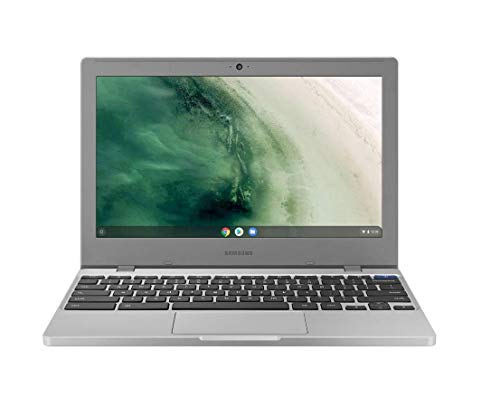
There is a species of student laptop whose entire job is to be present: in the bag, at the library, on the train, without ceremony. The Samsung Chromebook 4 (model XE310XBA-K01US) is that machine in its purest form — an 11.6-inch HD screen, an Intel Celeron N4000, 4GB of RAM, 32GB of eMMC storage and Gigabit Wi-Fi, wrapped in Samsung’s clean, unfussy hardware. Nothing in the specification reaches for excitement, and that is the point: this is the Chromebook as appliance, bought for notes, documents, browsing and streaming between lectures.
The Celeron N4000 is an older, modest processor, and the reviewer’s duty is to say plainly what that means for coursework rather than hide behind the word “entry-level”. One document and a handful of tabs: fine. A video call alongside note-taking: fine. A research session with thirty tabs, a PDF reader and a spreadsheet all demanding attention: this machine will make you wait, and waiting during coursework is a tax on concentration, not just time. The 32GB of storage is the tightest in this guide, workable only because ChromeOS expects your files to live in the cloud; offline hoarders need not apply.
So why does it earn a place? Because for the student whose computing is genuinely light — humanities notes, email, readings, streaming — it covers the whole job in the smallest, simplest package here, from a maker whose hardware finish at this level is consistently tidy. It is also the natural second machine: the library-and-café laptop for someone whose demanding work happens on a desktop at home. Buy it with your eyes open about the ceiling, and it will serve exactly as promised; buy it expecting headroom, and the ceiling is all you will think about.
One more consideration separates the Chromebook 4 from the rugged CR11 above, though their paper specifications look similar. The Samsung makes no ruggedness claims in its listing — no spill resistance, no reinforced build — so it suits the careful carrier: the sixth-former or university student whose bag is a bag, not a demolition zone. In exchange it offers Samsung’s typically crisp industrial design and the simplicity of a machine with nothing to configure. Match the machine to the carrier’s habits, not to the carrier’s hopes.
- Display: 11.6-inch HD
- Processor: Intel Celeron N4000
- Memory and storage: 4GB RAM, 32GB eMMC
- Wireless: Gigabit Wi-Fi
- Operating system: Chrome OS
- Model: XE310XBA-K01US
Strengths
- The simplest, most appliance-like machine in the guide — nothing to configure or maintain.
- Small 11.6-inch format disappears into a daily carry.
- Covers notes, documents and streaming without fuss.
Trade-offs
- The Celeron N4000 is the slowest processor here; heavy multitasking will test your patience.
- 32GB of storage is cloud-dependent living, with no room for offline archives.
- No ruggedness features are claimed — it wants a careful owner.
Best for: light-workload students and anyone wanting a simple second laptop for notes and reading away from a desk machine.
Not suited for: research-heavy courses or tab-heavy study habits that need memory headroom.

Lenovo 300e Chromebook — The renewed value route
Read this pick’s listing title to the end and you find the word that defines it: this 300e is offered as a renewed machine — a previously owned unit, refurbished and resold — and everything about how you should judge it flows from that. The hardware underneath is Lenovo’s education 2-in-1: an 11.6-inch touchscreen that folds flat, a MediaTek M8173C quad-core processor at 2.1GHz, 4GB of LPDDR3 memory and 32GB of flash storage, running Chrome OS. As a school design it is a good one — the touchscreen convertible format suits younger learners, and Lenovo’s education machines are built for institutional punishment.
The renewed status cuts both ways, and a student buyer should hold both edges in view. In its favour: the entry cost of a renewed unit undercuts new machines, the 300e’s touchscreen format is something the new picks at this level mostly lack, and buying refurbished keeps working hardware in circulation. Against it: the battery inside has already lived part of its life, so the hours you get between charges will not match a new machine’s; the remaining ChromeOS update window on an older model is shorter than on current stock; and the condition of any individual renewed unit — screen, hinge, keys — depends on the refurbisher’s standards and the return terms standing behind them.
Our advice is procedural. If you take this route, buy only where the return policy lets you test the battery and screen for a fortnight, check the machine’s ChromeOS update expiry date in its settings the day it arrives, and treat the saving over a new CR11 as the price of the risks you are accepting. For a spare machine, a younger sibling’s homework laptop, or a brutally tight budget, that trade can be rational. As the only computer for a three-year degree, the uncertainties stack too high — the new machines above exist precisely to remove them.
Note what the renewed label does not mean. It does not mean broken, and it does not mean the 300e design is weak — the same model serves in school fleets where machines are expected to survive years of daily handling by children. It means the specific unit has a history, and the discount is your compensation for not knowing all of it. Students who understand that bargain, and who verify the unit promptly on arrival, are exactly the buyers this route serves well.
- Display: 11.6-inch touchscreen LCD, 2-in-1 convertible
- Processor: MediaTek M8173C quad-core, 2.1GHz
- Memory and storage: 4GB LPDDR3, 32GB flash memory
- Condition: this listing is for a machine sold in renewed condition — a refurbished, previously owned unit, as its title states
- Operating system: Chrome OS
- Model: 81H00000US
Strengths
- Touchscreen convertible format that new picks at this level rarely include.
- Education-grade Lenovo design, built for institutional handling.
- The renewed route lowers the entry cost below comparable new machines.
Trade-offs
- Because the unit is refurbished, its battery has prior wear and will not match a new machine’s endurance.
- An older model carries a shorter remaining ChromeOS update window.
- Individual condition varies by unit — the return policy is part of the purchase.
Best for: a second machine, a younger learner’s homework laptop, or a very tight budget managed with prompt checks on arrival.
Not suited for: being the sole computer for a multi-year degree, where battery freshness and update longevity are guarantees worth paying for.
Windows Laptops at This Budget — The compatibility route
This section carries no link and no single model, deliberately: the Windows side of the $400 line is a shifting class of entry machines from several makers, and pinning one listing here would date the advice. What can be described honestly is the class bargain. A Windows laptop at this level buys you the complete software universe — the full desktop Office, every statistics and engineering package a syllabus can name, every peripheral driver ever written — and pays for it with hardware compromises that ChromeOS avoids: memory and storage sized to a price, screens a notch duller, and an operating system whose background appetite makes modest processors feel older than they are.
The student for whom this is the right side of the fork is identifiable by one test: the course software list. If your programme names a Windows-only application — a CAD package, a full desktop statistics suite, certain exam-proctoring clients, specialist music or lab software — then the decision is already made, and your job becomes choosing the least-compromised Windows machine rather than the best laptop overall. Prioritise memory and a real SSD over processor badges; a modest chip with adequate RAM feels faster in coursework than a prouder chip starved of it.
If, on the other hand, your course runs on browser platforms, documents and video calls, understand what you are trading away by insisting on Windows at this figure: the Spin 314’s responsiveness, battery ease and freedom from maintenance. Windows machines also ask more of their owners — updates, antivirus hygiene, storage housekeeping — which is a real cost in term time. Neither route is the grown-up choice and the other the naive one; they are answers to different syllabuses. The only genuine error is choosing without checking which syllabus is yours.
One practical tip for Windows buyers at this level: the specification line that matters most is the one listings shout least. Storage type decides daily feel — a true SSD transforms an entry machine, while slow eMMC makes even simple updates an overnight event. Read for that line before the processor badge, and be suspicious of any listing that will not state it plainly.
- Format: entry-level Windows laptops surveyed as a shifting class — no lone listing represents them, so none is linked
- Operating system: Windows
- Defining strength: full desktop software compatibility, including Windows-only course applications
- Defining compromise: hardware budgets spread thinner — memory, storage speed and screens absorb the cuts
- Owner workload: updates and system housekeeping fall to the student
Strengths
- Runs every application a course can require, without exception lists.
- Familiar environment for students arriving from Windows school machines.
- Peripheral and printer compatibility is never a question.
Trade-offs
- Modest hardware works harder under Windows, so responsiveness trails the Chromebooks here.
- Maintenance — updates, security, storage — becomes the student’s chore.
- Battery life at this level typically trails ChromeOS machines of similar size.
Best for: students whose syllabus names Windows-only software, where compatibility is not negotiable.
Not suited for: browser-based courses, where the same money buys a faster, simpler Chromebook experience.
Chromebook Plus Models — The step-up reference
Our final pick is a signpost rather than a destination. Chromebook Plus is Google’s higher tier for ChromeOS hardware — a badge that guarantees a stronger baseline of processor, memory, storage and camera quality than the entry machines above — and it is included, without a link, so you can see the shape of the next step before deciding whether to take it. No single pool listing represents the tier, so treat this section as a map of what stretching beyond the strict budget, or waiting for the right sale, would add to the Chromebooks already listed.
The additions that matter to a student are specific. More memory headroom makes the research-session tab sprawl painless. A better camera and screen improve the remote-tutorial experience that now runs through every degree. Faster storage removes the small waits that entry eMMC machines insert into every save and update. And the Plus tier’s software extras — Google’s AI-assisted writing and background tools woven into ChromeOS — are genuinely handy for drafting, though no student should buy a laptop for them alone.
Why not simply recommend stepping up, then? Because budgets are real, and the Spin 314 already delivers most of the Plus experience’s substance — 8GB of memory, a strong screen, a good camera — from within the frame of this guide. The Plus tier is the answer for the student who will keep the machine four years, whose coursework is heavy, and who can find the difference without raiding the textbook fund. For everyone else, it is the reference point that confirms the picks above are not missing anything essential.
There is also a timing lesson in this tier. Chromebook Plus models are the ones most often discounted in back-to-school and holiday sales, sometimes down toward the territory this guide covers. A student buying in August with flexibility can sometimes land the step-up machine at the step-down figure — which is the single best outcome available at this budget, and worth a week of patience if your term start allows it.
- Format: the Chromebook Plus tier surveyed as a class — no lone listing represents it, so none is linked
- Operating system: Chrome OS, higher guaranteed hardware baseline
- Typical gains over entry Chromebooks: more memory, faster storage, better cameras and screens
- Software: ChromeOS with Google’s additional built-in assistance features
- Role in this guide: reference for buyers able to stretch or wait for a sale
Strengths
- A guaranteed stronger baseline removes the guesswork from ChromeOS shopping.
- Better cameras and screens suit the remote-learning reality of modern degrees.
- The tier most often discounted toward this guide’s budget in seasonal sales.
Trade-offs
- List prices sit above this guide’s frame — that is the whole reason it is a reference, not a pick.
- Still ChromeOS: the Windows-only software limit applies unchanged.
- The extras are refinements, not transformations, over the Spin 314.
Best for: students with a four-year horizon who can stretch the budget or time a seasonal sale.
Not suited for: a hard $400 ceiling — the Spin 314 already covers the essentials inside it.
How Do the Six Compare Side by Side?
| Pick | Screen | Processor | Memory / Storage | Defining trait |
|---|---|---|---|---|
| Acer Chromebook Spin 314 | 14-inch WUXGA IPS touch, Gorilla Glass | Intel Core i3-N305 | 8GB LPDDR5 / 128GB eMMC | Fullest specification; FHD webcam |
| ASUS Chromebook CR11 | 11.6-inch | Intel N100 | 4GB / 64GB eMMC | Ruggedised, spill-resistant keyboard |
| Samsung Chromebook 4 | 11.6-inch HD | Intel Celeron N4000 | 4GB / 32GB eMMC | Simplest, lightest-duty carry |
| Lenovo 300e Chromebook | 11.6-inch touch, 2-in-1 | MediaTek M8173C quad-core | 4GB LPDDR3 / 32GB flash | Sold in renewed condition per its listing |
| Windows class at this budget | Screens vary by maker across the class | Entry Windows processors as a class | Memory and storage vary by maker | Full software compatibility |
| Chromebook Plus class | Screens above the entry tier across the class | Higher ChromeOS baseline as a class | Higher guaranteed baseline | The step-up reference tier |
ChromeOS or Windows at $400: Which Side of the Fork Is Yours?
Strip the debate to its working parts. ChromeOS is a browser with a filing system: it boots in seconds, updates itself invisibly, shrugs off the malware that preys on students, and runs for years on hardware that Windows would reduce to a slideshow. Its universe is the web platform your school almost certainly uses — documents, learning management systems, video calls, research databases — plus Android apps and, for the technically inclined, a Linux container. What it cannot do is run Windows desktop software, full stop, and no workaround a student should rely on changes that.
Windows is the opposite bargain: universal compatibility, including every legacy oddity a department can dig up, paid for with maintenance and weight. The operating system wants updates at inconvenient times, security attention, and hardware headroom that a $400 budget grudges. On the right hardware it is entirely serviceable; on the wrong hardware it is a daily friction machine. The question is never which system is better in the abstract — it is which system’s costs your particular course makes worth paying.
So decide by evidence, in this order. First, read your course’s software requirements page — if a Windows-only application appears, stop deliberating. Second, if your institution issues or recommends a platform, weight that heavily; IT support follows the fleet. Third, if neither constraint binds, default to ChromeOS at this budget, because the same money buys a machine that feels a class faster and asks nothing of you all term. That default is what the pick list above reflects.
What Should a Student Check Before the Money Is Spent?
Beyond the operating system, four checks protect a student budget. The first is the ChromeOS update expiry: every Chromebook carries a date until which it receives updates, printed in Google’s policy pages and visible in the machine’s settings, and a laptop whose updates end mid-degree becomes a liability. New models like the linked picks here carry long windows; the renewed 300e’s window is the thing to verify on arrival. The second check is memory: 8GB is the line between a machine that multitasks like a student and one that reloads tabs like a goldfish — the Spin 314 clears it, the 4GB machines ask you to work within it.
Third, look at the webcam and keyboard as coursework tools, not spec filler. You will be seen through that camera by tutors and examiners, and you will write your longest documents on that keyboard; both deserve more weight than a processor badge. Fourth, count the total cost of ownership honestly: a protective sleeve, a spare charger for the library bag, and possibly a cloud storage tier are part of the purchase, and a machine that leaves room in the budget for them can be the better buy than a nominally stronger machine that consumes every cent.
There is a fifth check, easy to overlook because no listing advertises it: keyboard layout and language. Imported or grey-market units occasionally arrive with layouts that differ from the buyer’s home standard, which is a small daily misery for a touch-typist writing essays. The linked picks here are described from their listings as they stand, but wherever you buy, confirm the keyboard matches your country’s layout before the box is opened — it is the one specification you will touch ten thousand times a term.
Finally, buy from a seller whose returns process you have actually read. Student purchases are often final-exam-season purchases, made in a hurry — and a fortnight’s return window is the difference between a mismatch you correct and a mismatch you endure for three years.
Which Subjects Push You Toward Windows, and Which Toward ChromeOS?
Work through the faculty list and the pattern emerges quickly. Humanities, social sciences, law, languages and most business degrees run on documents, databases, journals and presentations — all browser territory, all Chromebook-friendly, and often actively easier on ChromeOS because the platforms were built web-first. Education degrees are frequently Chromebook-native, since the schools their students train in run ChromeOS fleets. Media and communications courses split: writing and social tools are web-based, but a module built on a full desktop editing suite changes the answer for that module, and it is worth asking whether the university provides lab machines or licences for it before letting one module dictate a three-year purchase.
Science degrees sit interestingly on the fence. Laboratory work increasingly runs through web interfaces and shared instruments, and data analysis often happens on department servers — both Chromebook-compatible patterns. But the moment a course hands students a desktop analysis package to install, the fence collapses toward Windows. Sciences also illustrate the value of the Spin 314’s specification within the ChromeOS side: data-heavy browser tools and large journal PDFs are exactly the workload where 8GB of memory and a Core i3 separate themselves from the 4GB entry machines, so a science student committed to ChromeOS should aim at the top of this guide rather than its floor.
The Windows-leaning list is shorter but firmer. Engineering and computer science degrees that name desktop CAD, circuit simulation or specific IDE installations; statistics-heavy programmes tied to a desktop package; music production built on a full DAW — these carry software requirements that a Chromebook cannot meet natively, whatever its other virtues. Even here, though, ask the follow-up question: many departments now deliver heavy software through virtual desktops or labs precisely because students arrive with every kind of machine. The requirements page plus one email to the department office settles what forum arguments cannot. Spend the five minutes; it is the cheapest research of your degree.
Can These Machines Survive a Full Day of Lectures on One Charge?
Battery behaviour is where ChromeOS quietly wins the student day. The platform’s lightness means the modest processors in the smaller picks here sip rather than gulp, and a machine that leaves the dormitory at nine can plausibly take notes through the last lecture without a charger hunt — the specific hours vary by model and brightness, and we quote no figures the listings do not state, but the class behaviour is consistent enough to plan around. The Spin 314’s larger body works in its favour here as well, since a 14-inch chassis has room for a larger cell than an 11.6-inch one.
Two cautions belong with that optimism. The renewed 300e’s battery has already spent part of its life in someone else’s bag, so its day will be shorter than a new machine’s — plan on carrying its charger, and test its endurance during the return window. And video is the great drain on every machine in this guide: a day of note-taking and a day of streamed lectures are different batteries’ worth of work. The practical student kit, whatever the pick, is a charger in the bag and a seat near a wall socket in the long sessions — habits, not specifications, are what make battery anxiety disappear.
How Do You Make a Budget Laptop Last a Whole Degree?
Longevity at this level is mostly behaviour. Keep storage headroom free — eMMC machines slow down when stuffed to the brim — by letting documents live in the cloud drives these systems are designed around, and by clearing the downloads folder monthly. Treat the battery kindly: the student habit of running to empty in the library then charging overnight is survivable, but a charger in the bag and top-ups during the day are gentler. Use a sleeve; the most common degree-ending injury is a cracked screen from a bag dropped off a lecture-hall seat, and a sleeve is the difference between a scare and a bill.
Software hygiene is lighter on ChromeOS — updates are automatic and the system resets cleanly with a powerwash if it ever feels clogged — while a Windows machine at this level repays a termly tidy: remove the trial software it shipped with, keep the storage a fifth empty, and let updates run overnight rather than fighting them in class. Either way, back up coursework to a second location from week one. The laptop is replaceable on a student budget, eventually; the dissertation draft is not.
What Happens When a Course Changes Its Software Mid-Degree?
It happens more often than prospectuses admit: a department migrates platforms, a new module adopts a desktop tool, an exam board changes its proctoring client. Chromebook owners have three lines of defence. The first is institutional — universities increasingly deliver specialist software through browser-based virtual desktops exactly because student hardware varies, and your department’s IT pages will say whether yours does. The second is the lab: heavy software modules are usually timetabled around facilities the university provides. The third is borrowing the household Windows machine or desktop for the specific weeks a module demands it — inelegant, but a module is six weeks and a laptop is three years.
Windows owners face the mirror-image risk less often, because their machines run everything — their mid-degree surprises are about performance, not compatibility, as software grows heavier around fixed hardware. Neither risk should dominate the decision for a browser-based course, but both argue for the same habit: before each academic year, re-read the coming modules’ requirements with the laptop you own in mind, so a software change is a plan rather than a crisis.
Should a Student Buy New, Renewed, or a Tablet Instead?
The renewed 300e in this guide raises the wider question, so it deserves a straight answer. New buys certainty: a fresh battery, the longest update window, a warranty with your name on it — the things a three-year degree leans on. Renewed buys a lower entry cost and sometimes a better design than new money reaches, at the price of unknowns that a return window can only partly retire. For a primary degree machine, new is the defensible default at this budget because the budget is exactly the size where new machines are good; renewed makes its case for second machines, younger learners and stopgaps, which is how this guide positions the 300e.
Tablets get suggested in this conversation and deserve their paragraph. A tablet with a keyboard case can take notes and stream lectures charmingly, but essay-writing across a full term, file management for coursework, and the browser platforms’ desktop interfaces all favour a real laptop — and once the keyboard case and pen are added, the tablet’s price advantage over the Chromebooks here evaporates. Students who already own a good tablet might stretch it through a light first year; students buying one device for a degree should buy the laptop.
What Do You Give Up Against a Laptop Costing Nearly Double?
Honesty about the frame requires naming what this budget cannot buy, so the compromises are chosen rather than discovered. Screen quality is the first: the panels here are serviceable, with the Spin 314’s matte WUXGA the honourable exception, while dearer machines add brightness, colour range and resolution that photo and design students would notice daily. Build materials follow: plastic shells that flex a little and mark more easily, against the metal unibodies above. Then performance ceilings — no discrete graphics anywhere in this territory, memory that tops out at the Spin’s 8GB among the linked picks, and storage that assumes the cloud. Finally, longevity of support and resale: budget machines are worth little second-hand, so the plan is to run them to the end of the degree rather than to trade up midway.
Notice what is not on that list: the ability to write essays, research, present, call, stream and organise a degree. The core student workload is fully covered at this level, which is precisely why the $400 frame is so contested — the extra money above it buys refinement and headroom, not admission to coursework. A student who understands that can spend the difference on textbooks, a monitor for the desk, or nothing at all, with a clear conscience.
Accessories deserve their sentence in this accounting, because they belong to the real purchase. A padded sleeve, a second charger that lives in the library bag, and a backup arrangement for coursework together cost a fraction of the machine and remove the commonest student laptop disasters — cracked screens, dead batteries before evening lectures, and lost work. A $400 plan that reserves a slice for those three things beats a $400 laptop bought bare.
Common Mistakes
Choosing the operating system by habit rather than by syllabus is the expensive error in this category. Students buy Windows “because it’s what laptops run” and spend three years on a sluggish machine doing browser work a Chromebook would have flown through — or buy a Chromebook for its speed and discover in week six that the statistics module requires a Windows-only package. The syllabus check takes five minutes and prevents both versions.
Ignoring the update expiry date runs a close second. A cheap Chromebook near the end of its update window is not cheap; it is a short lease. This is the specific risk inside the renewed 300e’s bargain, and the reason its section insists on checking the date the day the machine arrives, while returns are still easy.
A third pattern: spending the entire budget on the laptop and nothing on the kit around it. No sleeve, no spare charger, no backup — then one accident or one lost charger converts the saving into an emergency purchase at the worst possible price. Hold back a small reserve for the accessories; they are part of the machine’s real cost.
And a quiet one: assuming 4GB of memory is fine because it was fine at school. University research work — databases, PDFs, twenty tabs of sources — is heavier than school browsing. If your course is reading-intensive, the 8GB Spin 314 is not the extravagant pick in this guide; it is the appropriately sized one.
Final Recommendation
For the majority of students — browser-based coursework, documents, calls, research — the Acer Chromebook Spin 314 is the machine this budget was invented for: a Core i3, 8GB of memory, a 14-inch matte touch screen and a proper webcam, in a convertible body that will still feel willing in the final year. Younger students and rough handling point to the ASUS CR11’s rugged design; the Samsung Chromebook 4 serves the light, simple carry; and the renewed Lenovo 300e is a calculated risk for tight budgets and second machines, taken with its refurbished status fully understood. Students whose syllabus names Windows software should take the prose-only Windows route and spend their money on memory and a real SSD, while those who can stretch should watch the Chromebook Plus tier for a sale.
Whatever you choose, run the syllabus check first and the update-date check second — at $400, the students who thrive are not the ones who found the fastest chip, but the ones whose laptop never once stood between them and the work.
Frequently Asked Questions
Can a Chromebook handle a full degree?
For the growing majority of degrees whose tools are browser platforms, documents, video calls and research databases — yes, entirely, and the Spin 314 in this guide is specified for exactly that life. The exceptions are courses that name Windows-only desktop software. Read your programme’s requirements page; it, not opinion, decides.
How much memory does a student laptop actually need?
Eight gigabytes is the comfortable line for student multitasking — research tabs, documents, a call and a PDF reader together. Four gigabytes, as in the smaller picks here, works for lighter, more disciplined use but will reload tabs during heavy research sessions. Because memory in these machines cannot be upgraded later, it deserves priority in the budget.
What does it mean that the Lenovo 300e is renewed?
Its listing states the unit is renewed — previously owned and refurbished for resale. Expect a battery with some wear, an individual condition that depends on the refurbisher, and a shorter remaining ChromeOS update window than a new model. In exchange the entry cost drops. Buy it only with a return window that lets you verify battery and update date on arrival.
Is 32GB or 64GB of storage enough for coursework?
On a Chromebook, usually yes, because the platform is designed for documents to live in cloud drives and stream rather than accumulate. It becomes tight if you store large offline media libraries or many downloaded videos. The Spin 314’s 128GB is the comfortable figure in this guide; the 32GB Samsung assumes a genuinely cloud-first student.
Is a bigger screen worth it for studying?
For long writing and side-by-side reading, yes, noticeably — which is why the 14-inch Spin 314 anchors this guide while the 11.6-inch machines are positioned for portability and younger students. The counterweight is the bag: a 14-inch machine is still an easy daily carry, while anything larger starts negotiating with your timetable. Students who study mostly at a desk can also pair a small laptop with an inexpensive external monitor at home and get both worlds.
Do students still need Microsoft Office compatibility?
Compatibility, yes; the desktop suite, usually no. Chromebooks handle Office documents through the web versions and Google’s editors, which covers essays, slides and spreadsheets for most courses, and universities typically provide accounts either way. Courses that require the full desktop Office feature set — heavy macro or add-in work — are a Windows-route signal, and they are the minority.
Related Guides
When coursework turns to performance rather than price, our guide to the best 8 core laptops explains how modern processor core counts translate into real speed. Music students and bedroom producers should continue to the best Ableton Live laptops, where low-latency audio is the deciding factor. And if screen size is your obsession, the best 19 inch laptops with best screen guide explains honestly why the largest laptop screens now top out at eighteen inches.


